Draw on, annotate, and highlight images.
Start in your browser for free.
Sketch on images for free
Download annotated pictures as PNG or JPEG. No watermark on Pro.
Draw directly on your photos online
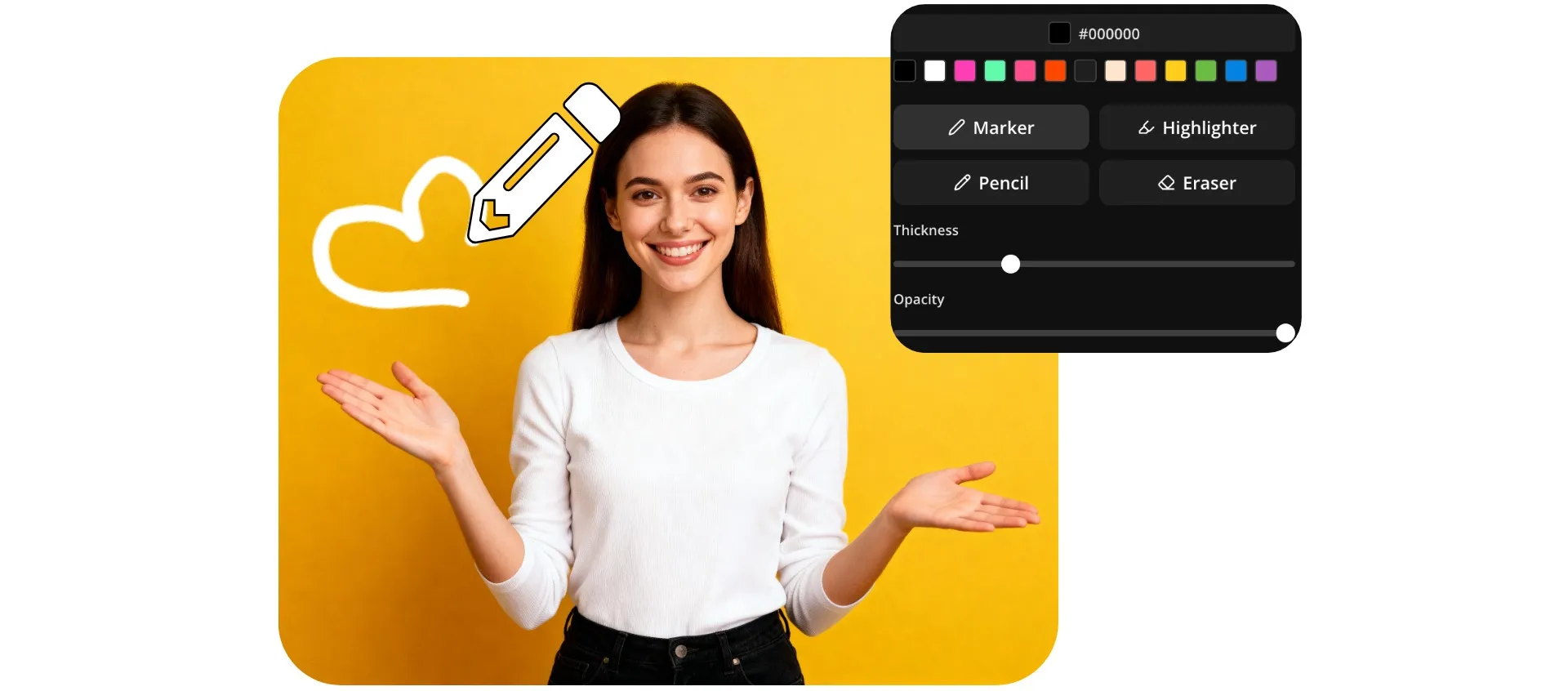
Customize, annotate, and highlight any image with Kapwing's Draw on Image tool. Add hand-drawn arrows, circles, notes, sketches, and custom designs directly in the Kapwing Studio — no extra software, downloads, or app switching required.
Built for creators and marketers, Draw on Image makes it easy to guide attention and add context. Highlight product features in marketing assets, call out key details in screenshots, or make YouTube thumbnails and social posts more eye-catching with custom annotations and graphics.
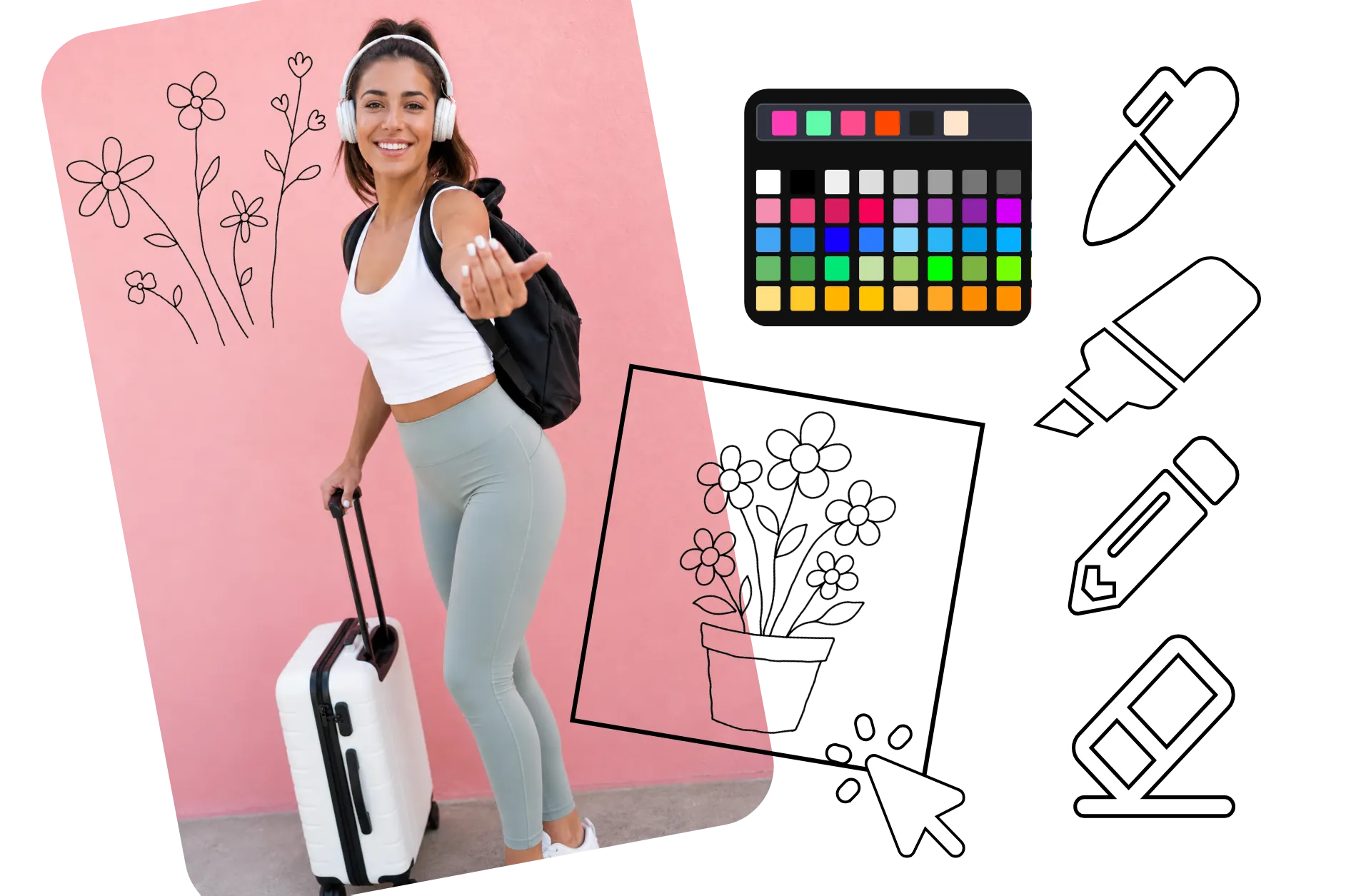
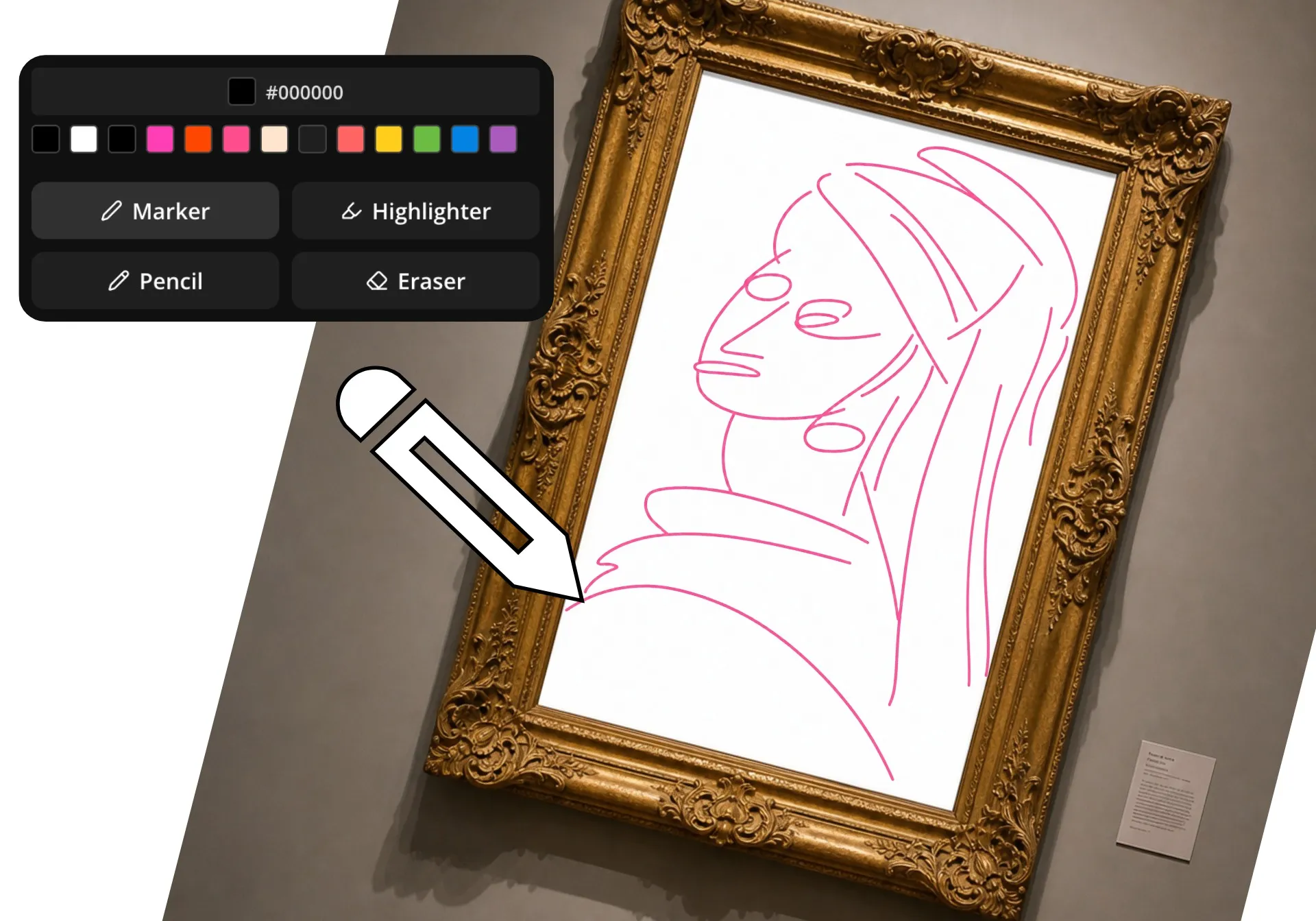
Choose from three brush styles, thousands of color options, adjustable brush sizes, and customizable transparency settings. Every drawing can be resized and repositioned in the canvas or exported as a transparent PNG, making it easy to reuse your graphics across videos, presentations, ads, and content campaigns.
How to draw on your images
Create editable drawing layers on any picture. Export for free.
Upload
your image to the Kapwing Studio


Draw
in any color using three brush tools and an eraser
Download
to your phone or computer in high resolution
Designed to improve visual storytelling in any niche
Join 35M+ creators using Kapwing. Draw and download for free.

Thumbnail Markups
YouTubers and content agencies draw on images to add arrows, circles, and highlights that direct attention to key moments. Create engaging thumbnail concepts by drawing directly on pictures without switching to design software.

Social Posts
Influencers and social media managers doodle on a picture to add personal commentary, reactions, and observations. Hand-drawn notes create a more authentic style that resonates with audiences.
Podcast Promotion
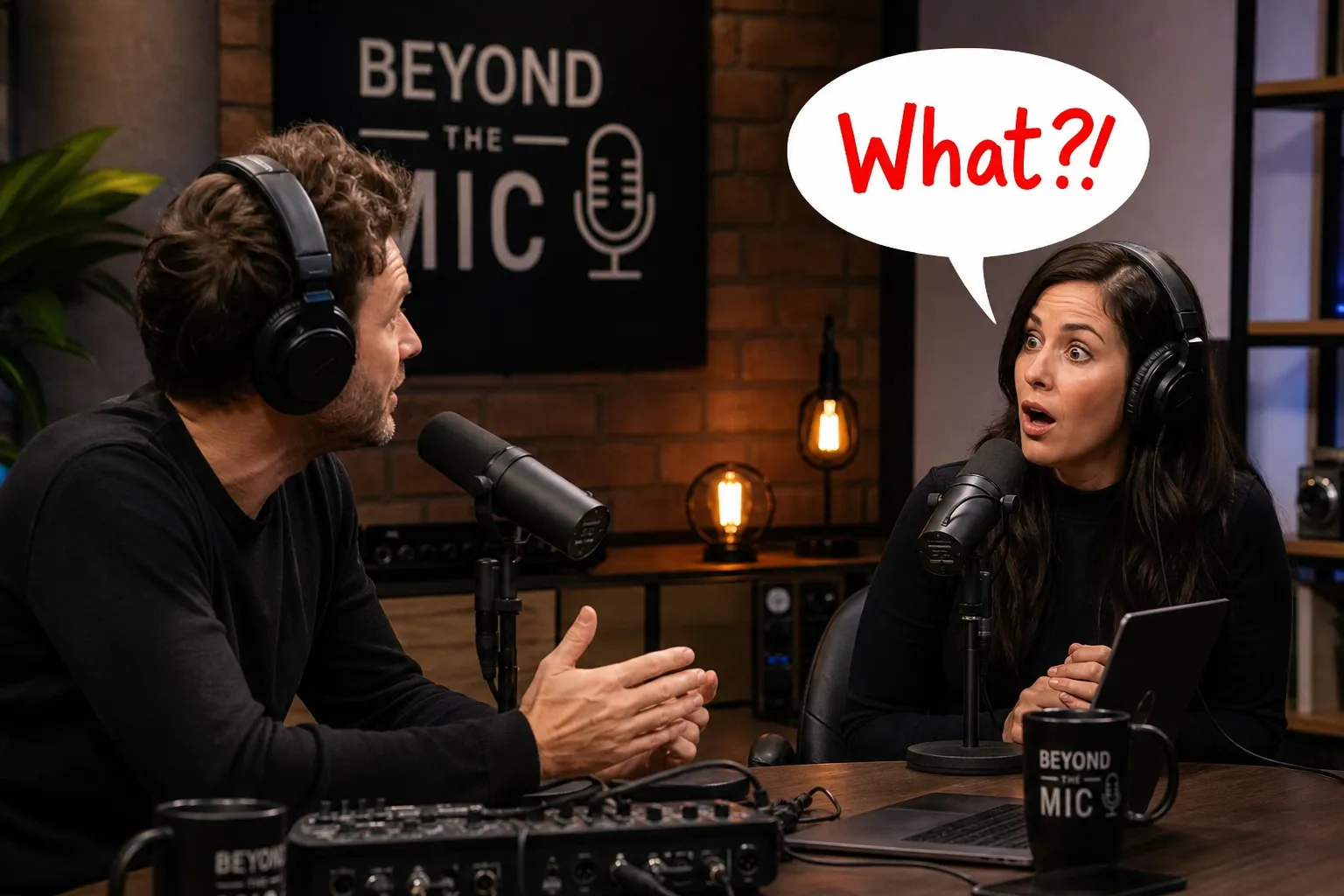
Podcasters draw on photos and episode graphics to highlight quotes and guest insights. Simple annotations help transform audio content into visual assets for social media.
Tutorial Graphics
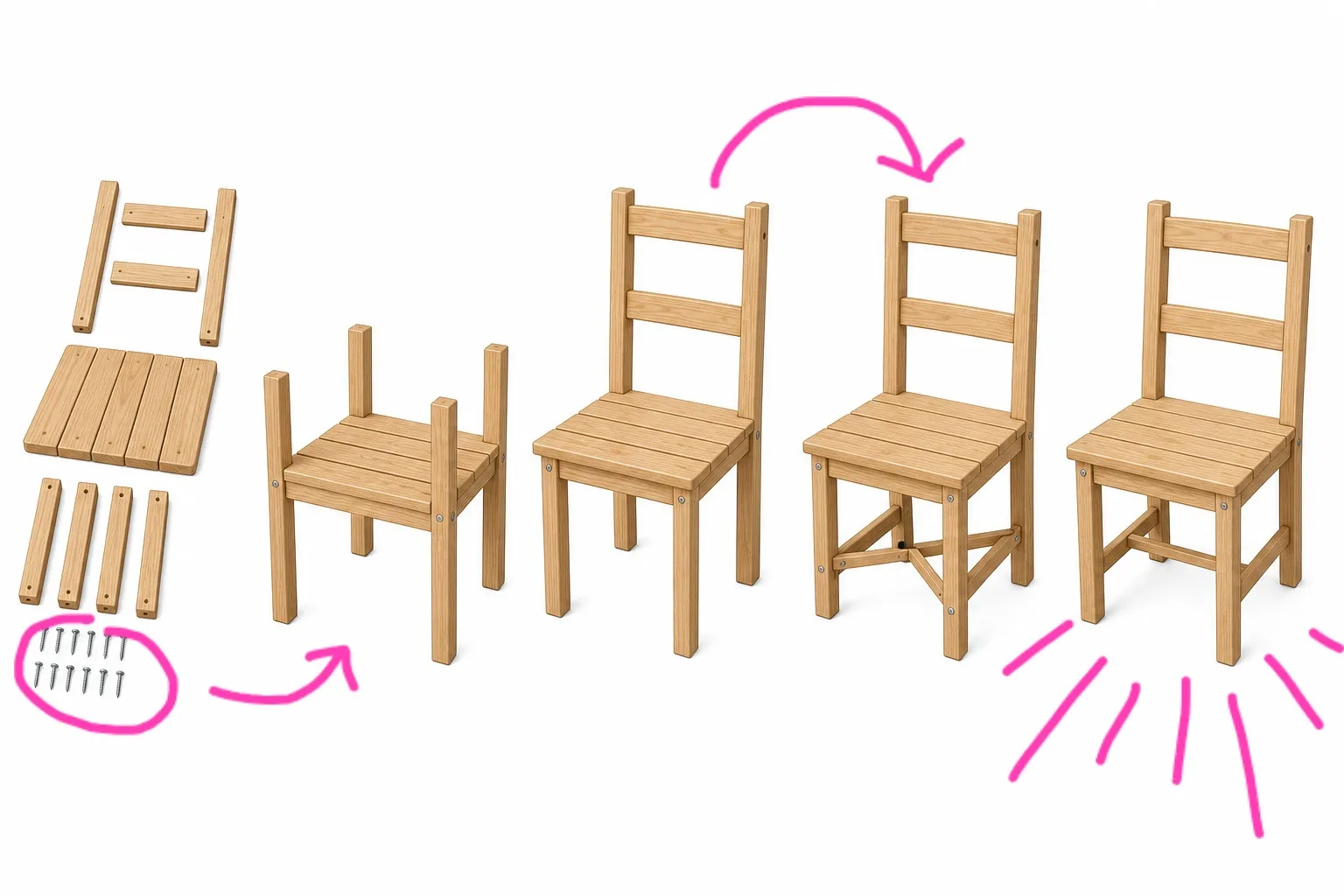
Educators and online coaches annotate by drawing on the image to explain concepts, workflows, and step-by-step processes

Content Feedback
Content agencies and marketing teams use the app to draw on images when reviewing drafts and campaign assets. Mark revisions directly on visuals to streamline approvals.
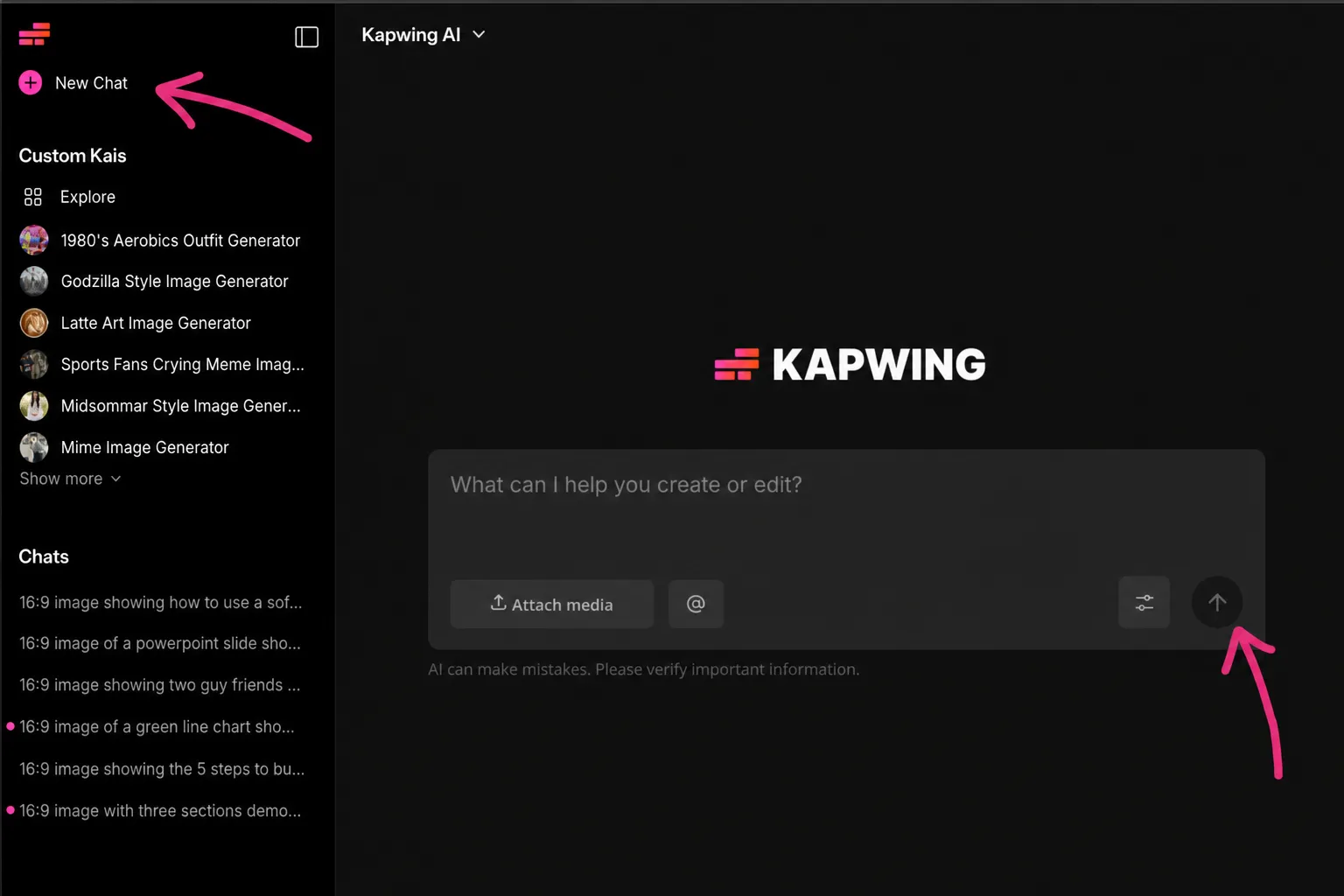
Product Walkthroughs
Customer success and support teams annotate pictures to show users exactly where to click, update settings, or complete actions
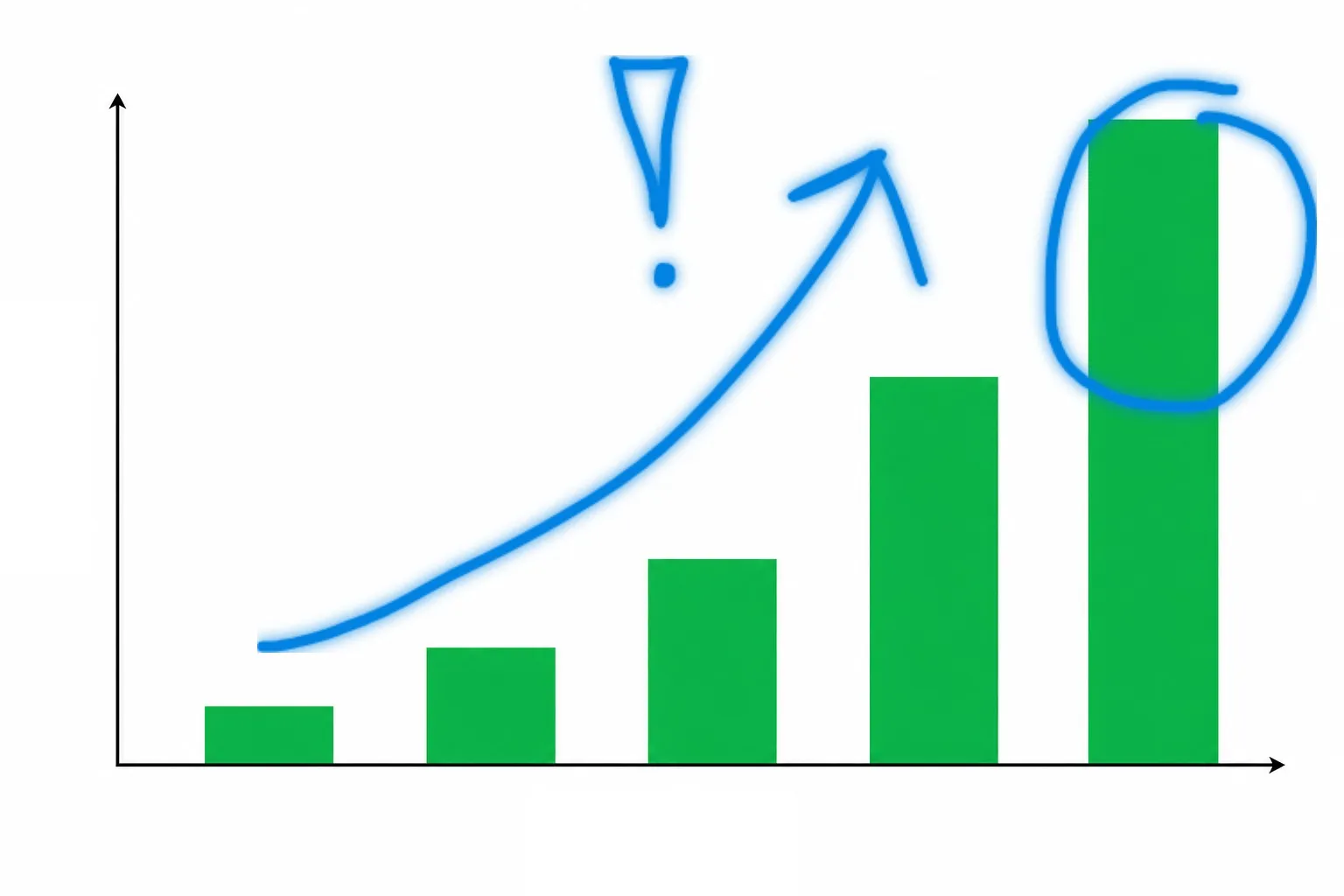
Sales Presentations
Sales reps highlight pictures, circle data points, and add visual notes to customer-facing materials. Drawing on images helps communicate value propositions more clearly during presentations.

Memes and Jokes
Streamers and online creators add doodles on Instagram pictures, memes, and reaction images to create shareable content. Quick sketches and annotations help emphasize humor and context.
Clarify and personalize every photo — with your own handwriting
Doodle, highlight, and sketch on pictures in your browser
Highlight and emphasize without slowing down
Draw attention to the details that matter with freehand annotations made directly in your browser. Use your own handwriting to highlight pictures and add personality. Whether you're creating content for Instagram, Facebook, presentations, or marketing materials, keep your unique style and brand identity front and center.
Keep every annotation on-brand with saved brand colors. Experiment freely with built-in undo and eraser tools that let you quickly correct mistakes without starting over. Create multiple drawings, stack annotations in layers, and fine-tune every detail for a polished final result.

Turn drawings into reusable designs
Create custom graphics directly on your images without switching tools. Draw arrows, circles, callouts, or freehand designs, then resize, rotate, and reposition them anywhere on the canvas to get the exact look you want.
Every drawing you create is automatically saved to your media library as a PNG with a transparent background, making it easy to reuse across future projects. Drop your graphics into videos, images, presentations, or social posts without recreating them from scratch. You can also download drawings directly to your device to use as freestanding images, reaction stickers, or design overlays.
Speed up reviews with visual feedback
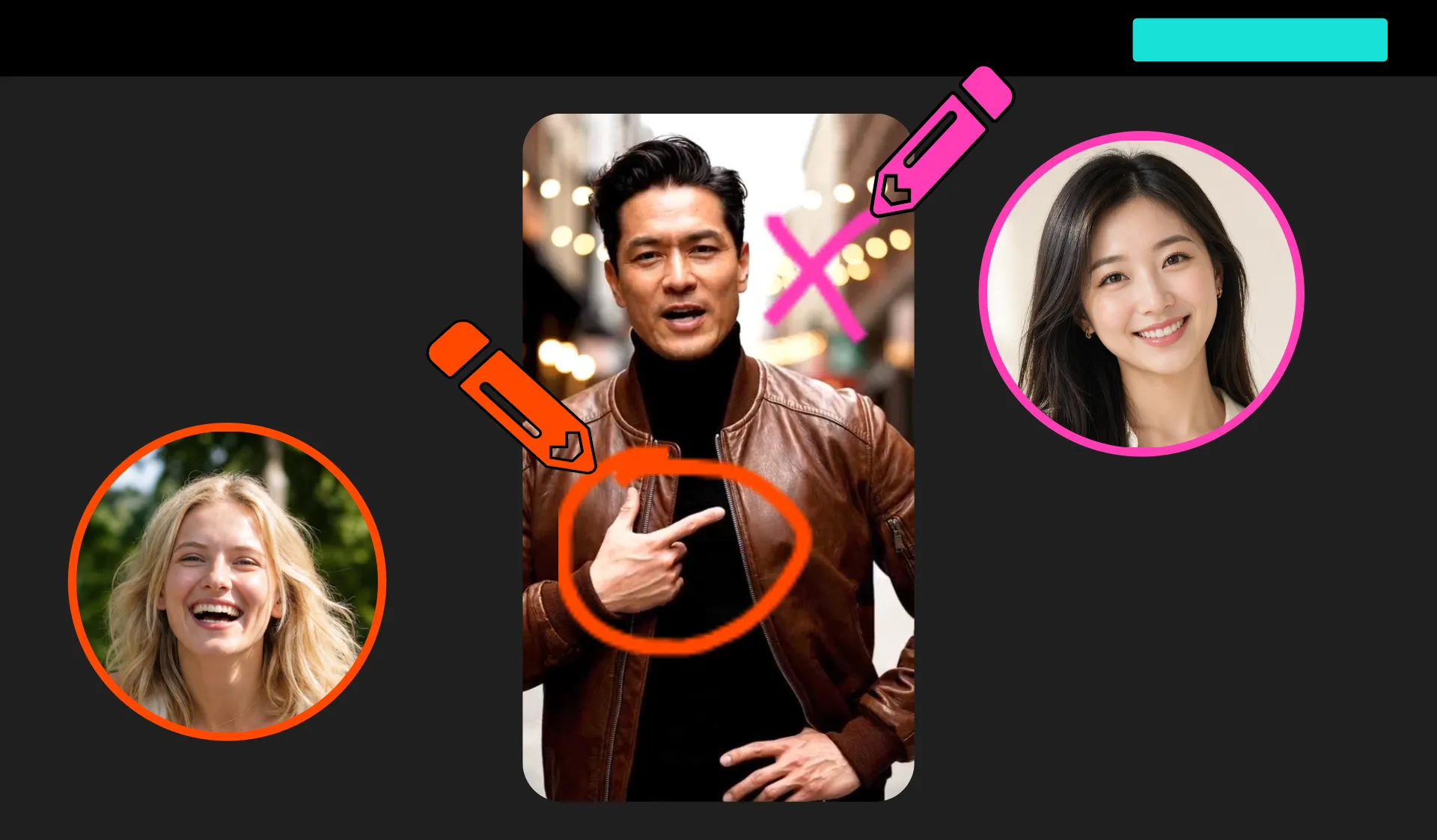
Add visual feedback to images in seconds with hand-drawn annotations directly in the Kapwing Studio. Circle areas that need attention, sketch quick corrections, highlight important details, or draw arrows to guide reviewers exactly where to look. Visual feedback eliminates ambiguity and helps teammates, stakeholders, and clients understand changes instantly, reducing back-and-forth and speeding up approval cycles.
Keep feedback and edits in one place by combining drawings with comments and real-time collaboration. Team members can annotate images, leave contextual notes, and make edits simultaneously without switching tools or managing long feedback threads.
Annotate and enhance in the same studio
Kapwing's Draw on Image tool is built into the Studio, so you can annotate and edit images in the same workspace. Add hand-drawn notes and markups, then enhance your design with text, stickers, filters, and overlays without switching between apps.
Crop and resize for any platform, adjust brightness, contrast, and color settings, or apply filters to create a polished final result. From quick annotations to complete image edits, Kapwing gives you everything you need in an online editor.
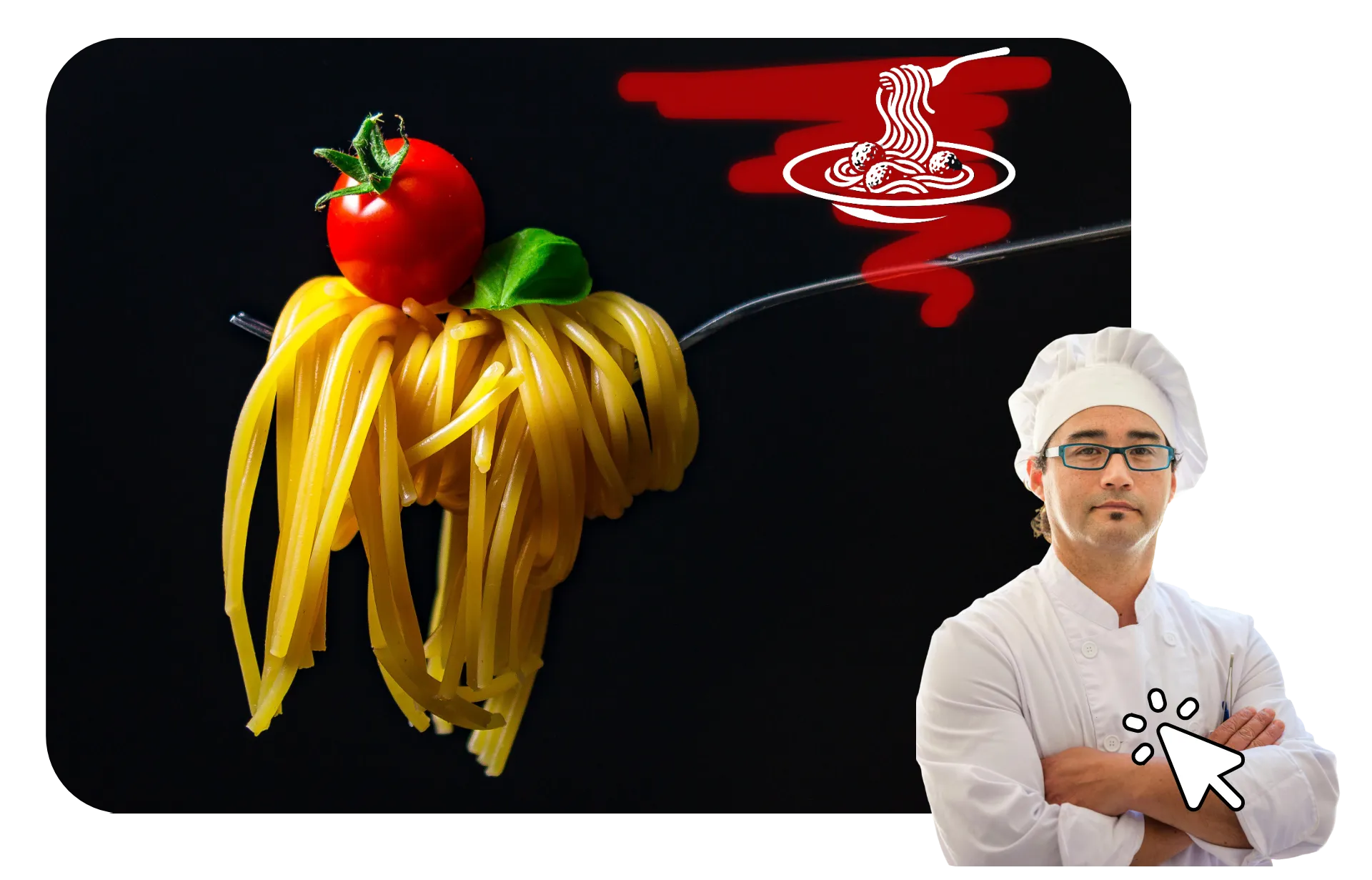
How to Draw on Images Online
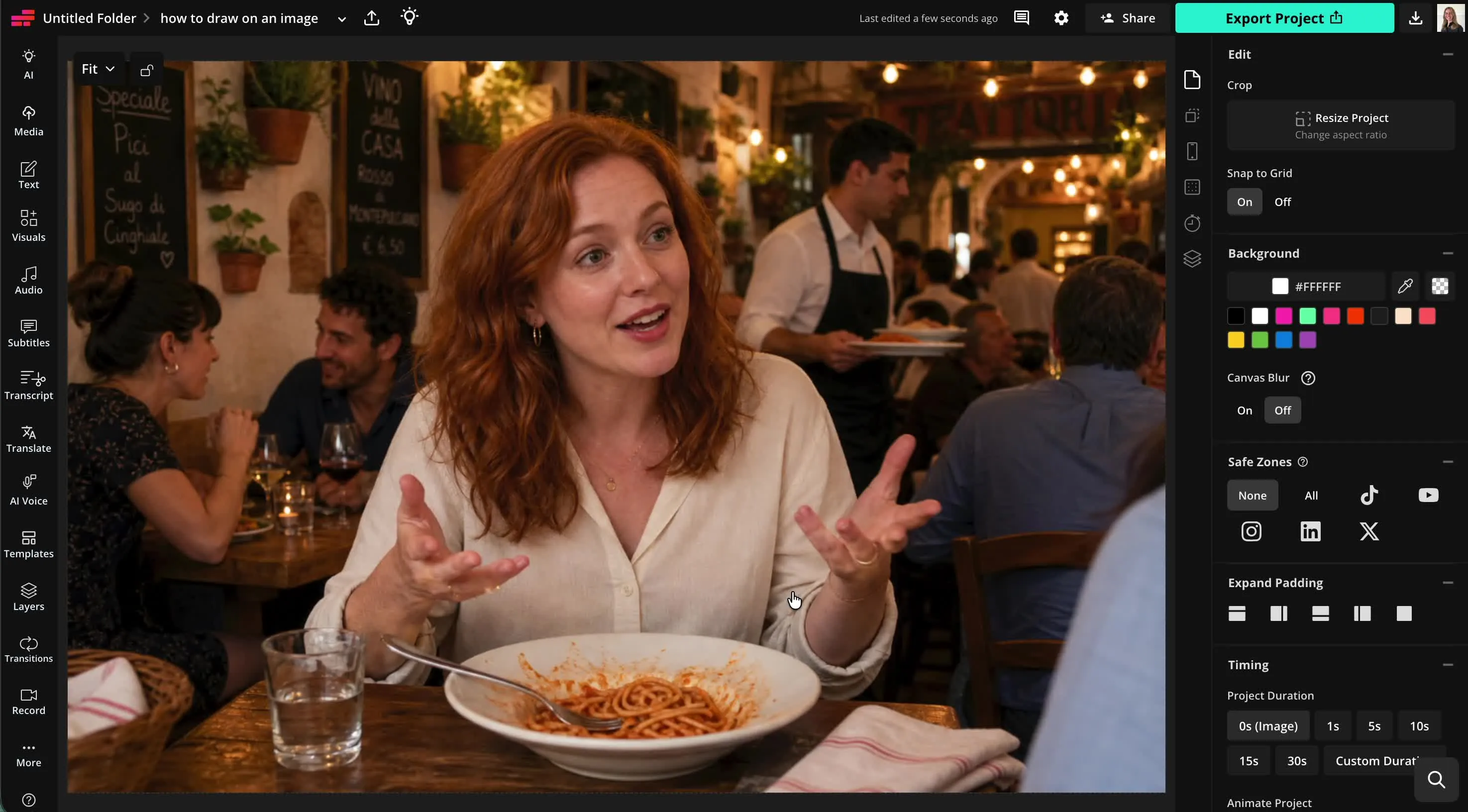
- Step 1Create project
Create a new project in the Kapwing Studio. Click to upload your image, or browse our library of royalty-free stock images.
- Step 2Draw on image
Click "Visuals" in the left sidebar, then scroll down to "Draw." Choose your color and brush type, and use sliders to adjust brush size and opacity. Draw on your image using your cursor.
- Step 3Export
Save your annotated image to your computer or phone by clicking "Export project" at the upper right.
What's different about Kapwing?



Frequently Asked Questions
We have answers to the most common questions that our users ask.
Is the Draw on Image tool free?
Yes, Kapwing's Draw on Image tool is free for all users. For access to the full range of image editing tools, including AI-powered tools, upgrade to a Pro account.
Is there a watermark on exports?
If you use Kapwing on a Free account, then all exports — including the Draw on Image tool — contain a watermark. Once you upgrade to a Pro account, the watermark is completely removed from your creations.
What can I use the Draw on Image tool for?
People use draw on image tools for a wide range of projects, including annotating screenshots, creating tutorial graphics, marking up designs, reviewing creative work, highlighting product features, and creating social media content.
Whether you're providing feedback, teaching a concept, creating memes, or emphasizing important details, drawing directly on an image can make communication faster and more visual.
How do I make my image annotations look cleaner?
For clean, easy-to-read annotations, use a limited color palette, consistent brush sizes, and clear visual hierarchy. Reserve bold colors for important points and avoid overcrowding the image with too many marks.
Simple annotations are often more effective than detailed drawings because they help viewers quickly understand what they're supposed to notice.
Can I download or save my drawings?
Yes, you can download your drawings directly from the media library as PNG with transparent background. You can also click "Export project" to save your drawings overlaid on your image. Choose from PNG, JPEG, and WebP and set your preferred resolution.
How to draw on photos
To draw on photos online, start by uploading them to a new project in the Kapwing Studio. Click "Visuals" in the left sidebar, then scroll down to "Draw." Choose from three brush styles: marker (rounded edges), pencil (square edges), and highlighter (rounded edges with a glow effect). Select your color using the hex code color picker or your saved brand colors. Adjust the brush size and transparency using sliders. Then start drawing. If you make a mistake, you can use the undo buttons or the eraser tool. When you're finished, click "Done" to return to the editing studio with your completed drawing. To create additional drawings, just click the "Draw" button again.
In the studio canvas, you can adjust your drawing's size and position on top of your image. When you're ready, click "Export project" to download your annotated or highlighted image as JPG, PNG, or WebP.
How do I choose colors that will stand out on my images?
Choose colors that create strong contrast with the image underneath. Bright colors like red, yellow, or cyan often stand out against darker backgrounds, while darker colors work better on light images. If your image contains many colors, consider using a contrasting outline or underlying highlight effect to keep drawings visible.
It's also helpful to use color purposefully. For example, one color can highlight important details, while another can indicate movement, changes, or areas of focus. Limiting your palette to a few distinct colors can make annotations easier to understand at a glance.
What kinds of images work best to draw on?
Images with clear subjects and enough open space tend to work best for drawing and annotation. Screenshots, diagrams, photos of products, maps, presentations, and educational visuals are all common choices because drawings can easily highlight specific details or direct attention.
You can draw on almost any image, but cluttered or low-resolution images may make annotations harder to see. If possible, use high-quality images and leave enough room around important elements so your drawings enhance the content rather than obscure it.
Can I also draw on videos or GIFs?
Yes, Kapwing also features Draw on Video and Draw on GIF tools. You can upload any form of media, including images, videos, and GIFs, to the Kapwing Studio, use the draw tool, and then export to share.
Discover Resources
Tips, templates, and deep dives to help you create faster and share with confidence.
View all

Get started with your first video in just a few clicks. Join over 35 million creators who trust Kapwing to create more content in less time.