Image to Video AI Generator
Upload photos, product images, or illustrations to turn them into moving AI video clips in seconds. Free to start.
.webp)
Bring any image to life as a video — in seconds
No downloads. Works in any browser. Trusted by 35 million creators worldwide.
Convert images into videos with AI
Upload a JPG, PNG, WEBP, or AI-generated image and Kapwing animates it into a moving video clip — ready to download and post in under 60 seconds.
Storyboards help preview your scene structure before generating. Choose from leading AI models including Veo, MiniMax, and Seedance to control start frames, end frames, character consistency, and multi-scenes.
No software to install. Free to start.
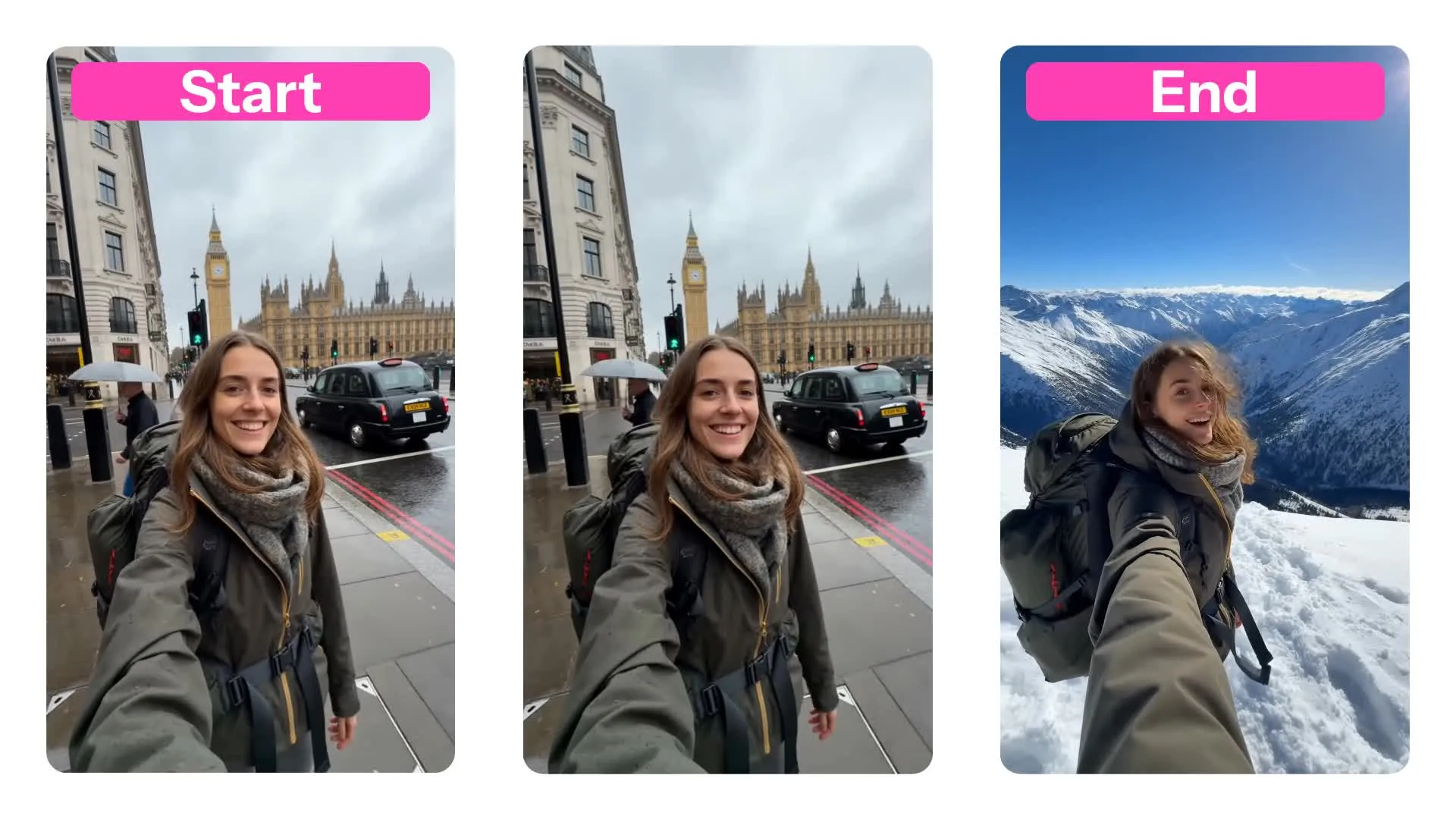
Add realistic motion, camera movement, and cinematic effects
Kapwing can also animate images with movements from reference videos using Kling motion control — the best AI video model for camera pans, zooms, dolly moves, and cinematic subject movement.
For portrait and photography shots, converted images move naturally with human-realistic accuracy and optional audio like ambient sound effects.
Create short-form social media content, product ads, animated visuals, and virtual influencer channels in one workflow with subtitles, translation, resizing, and drag-and-drop editing to stitch multiple clips together.

How to turn any image into a video with AI — in 3 steps
Powered by Seedance, Veo, and MiniMax AI
Upload
your image or create one using AI


Generate
a video by entering a text prompt
Edit
your video directly on the Kapwing canvas
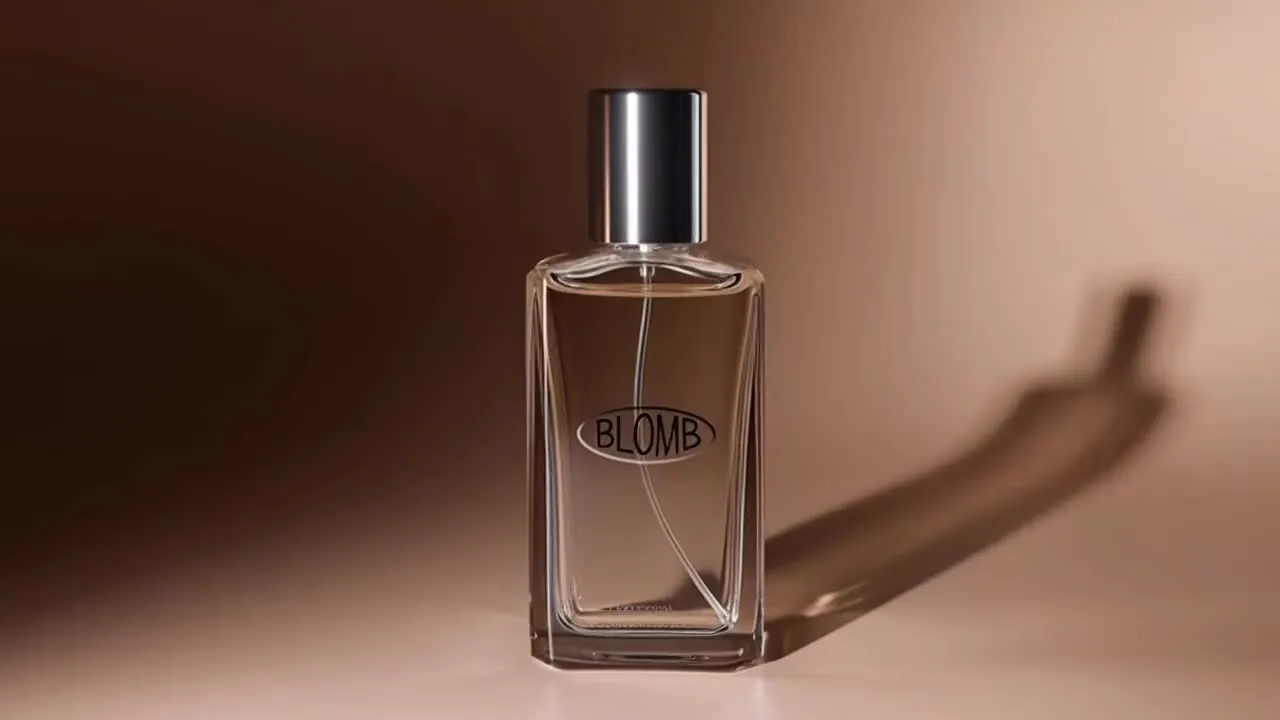
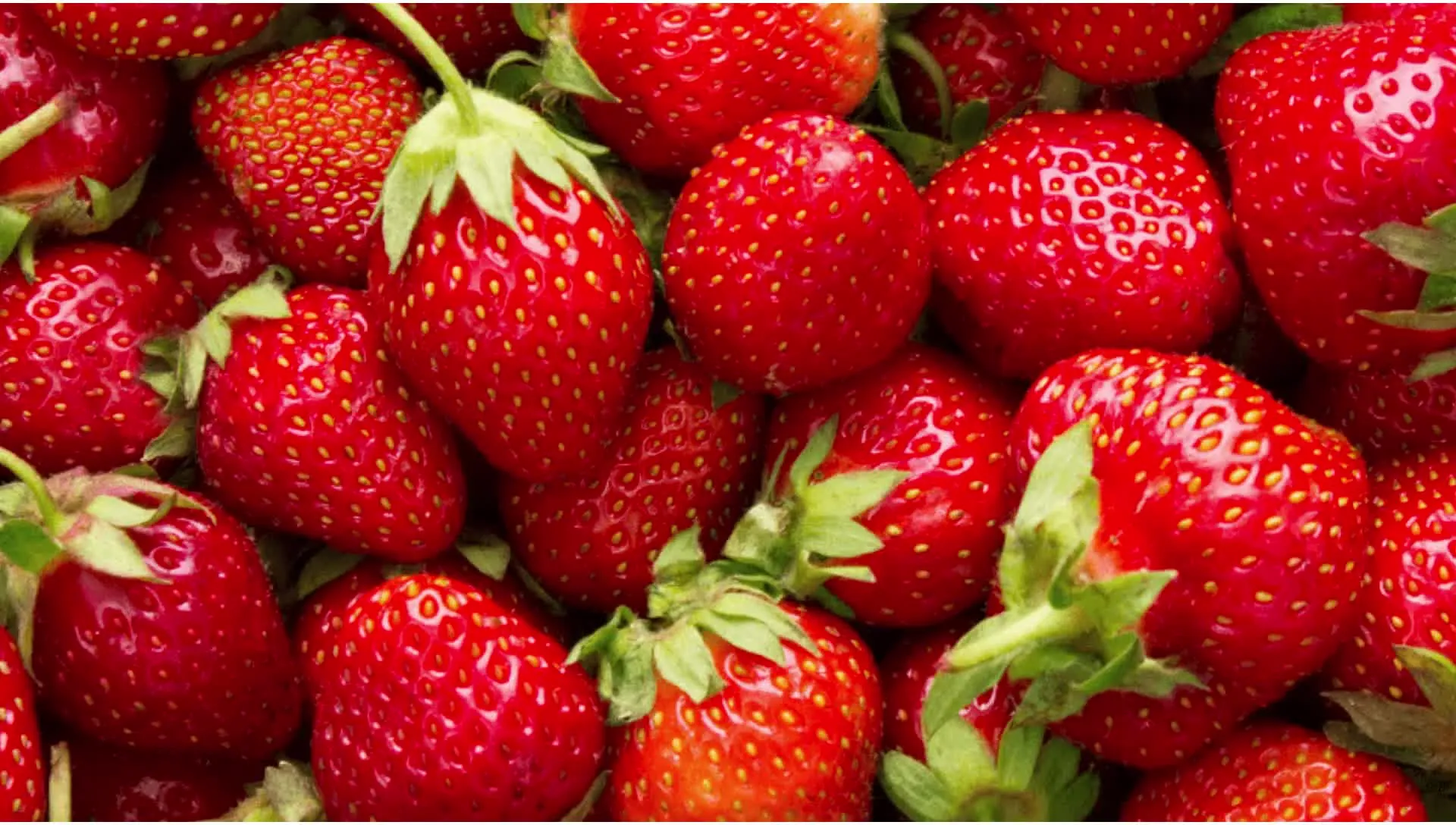
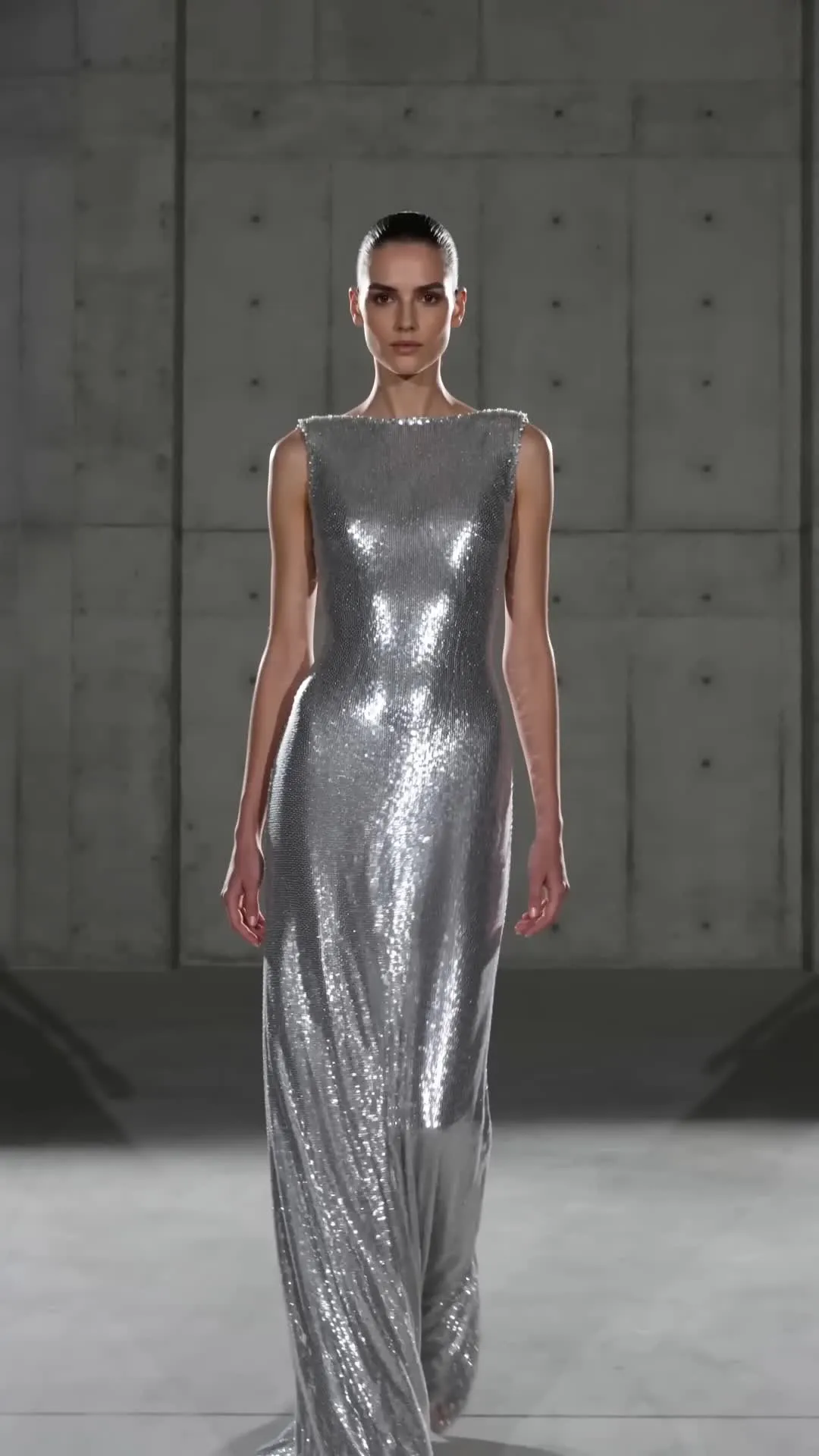
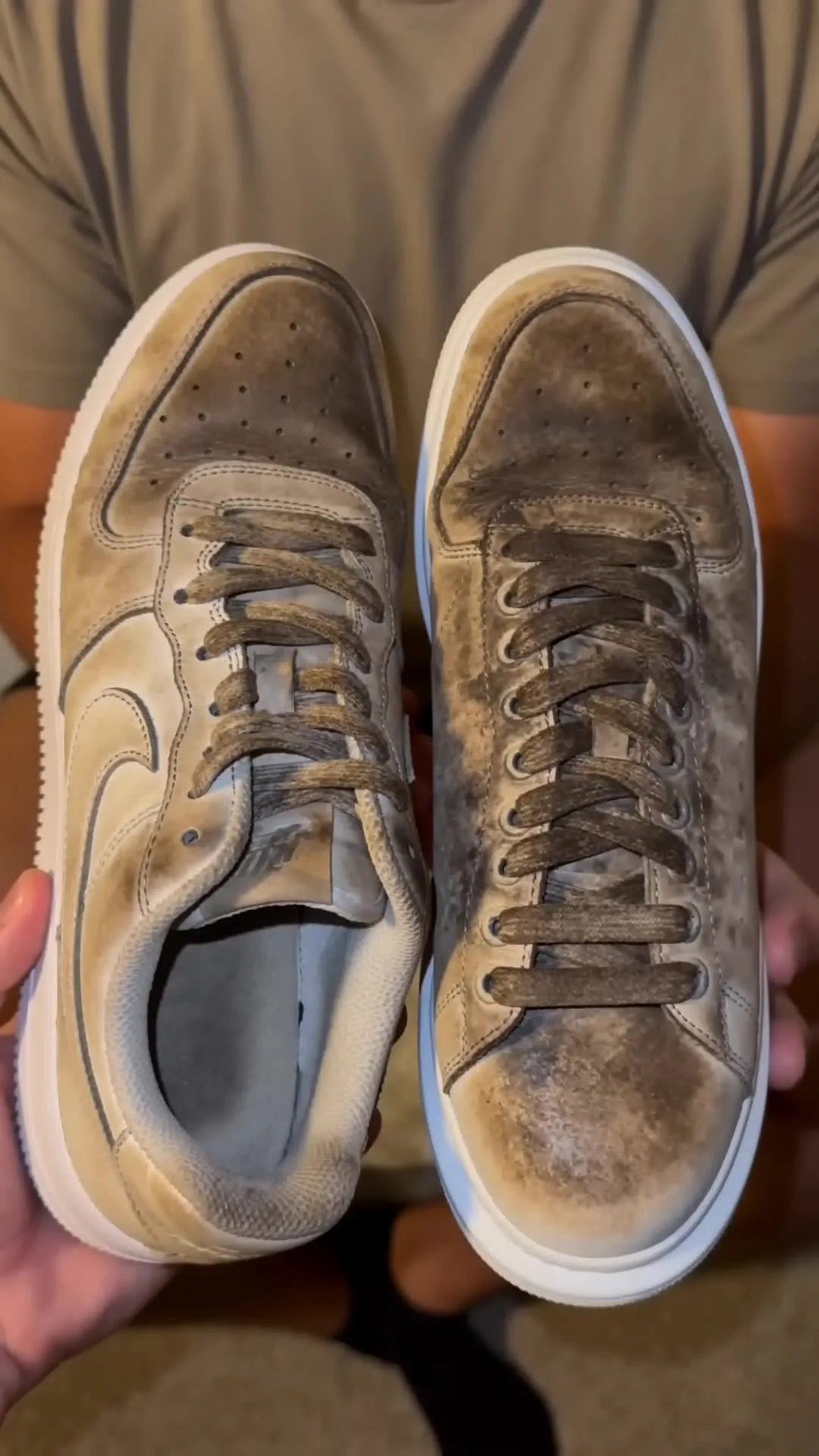
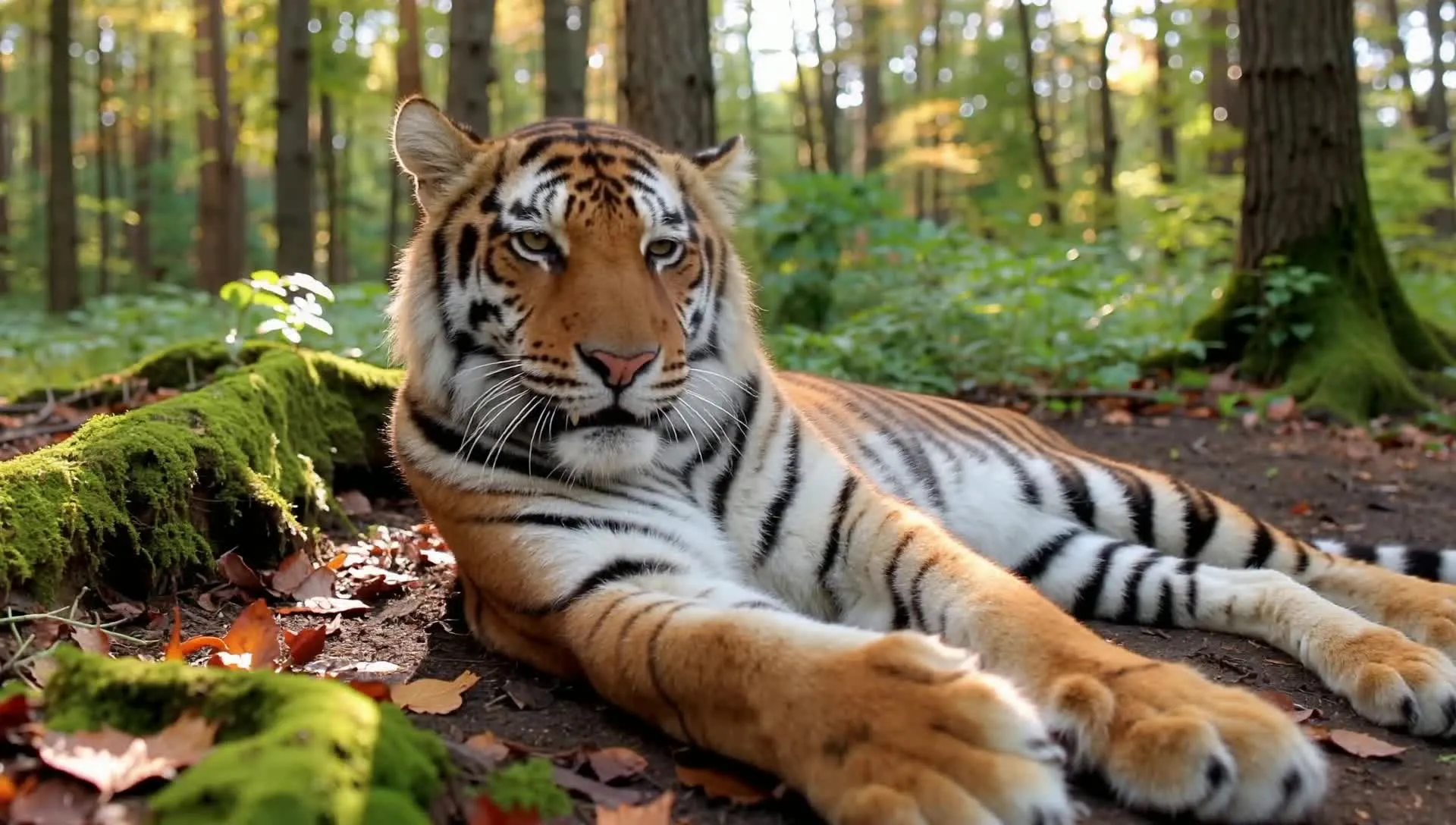
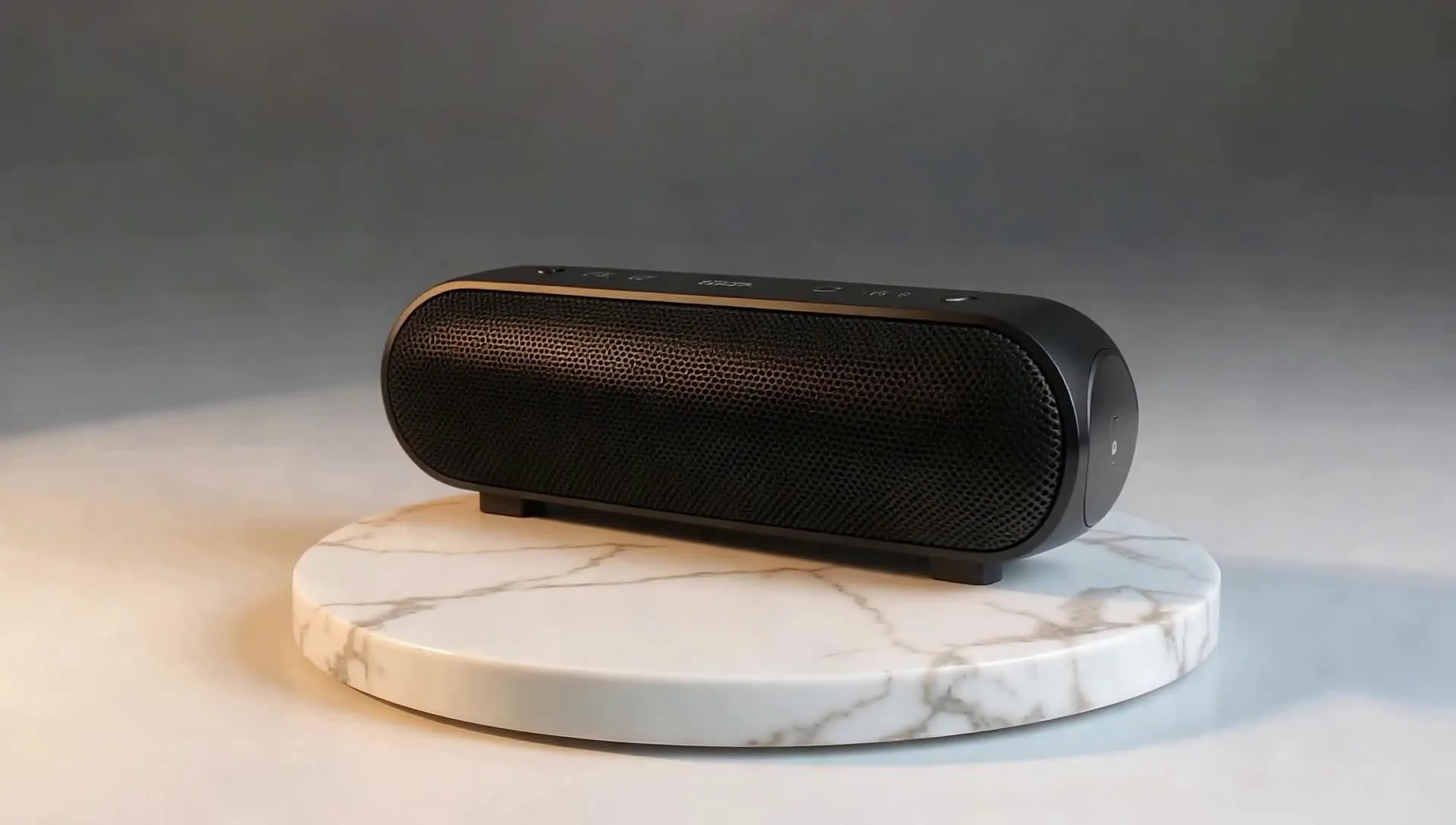
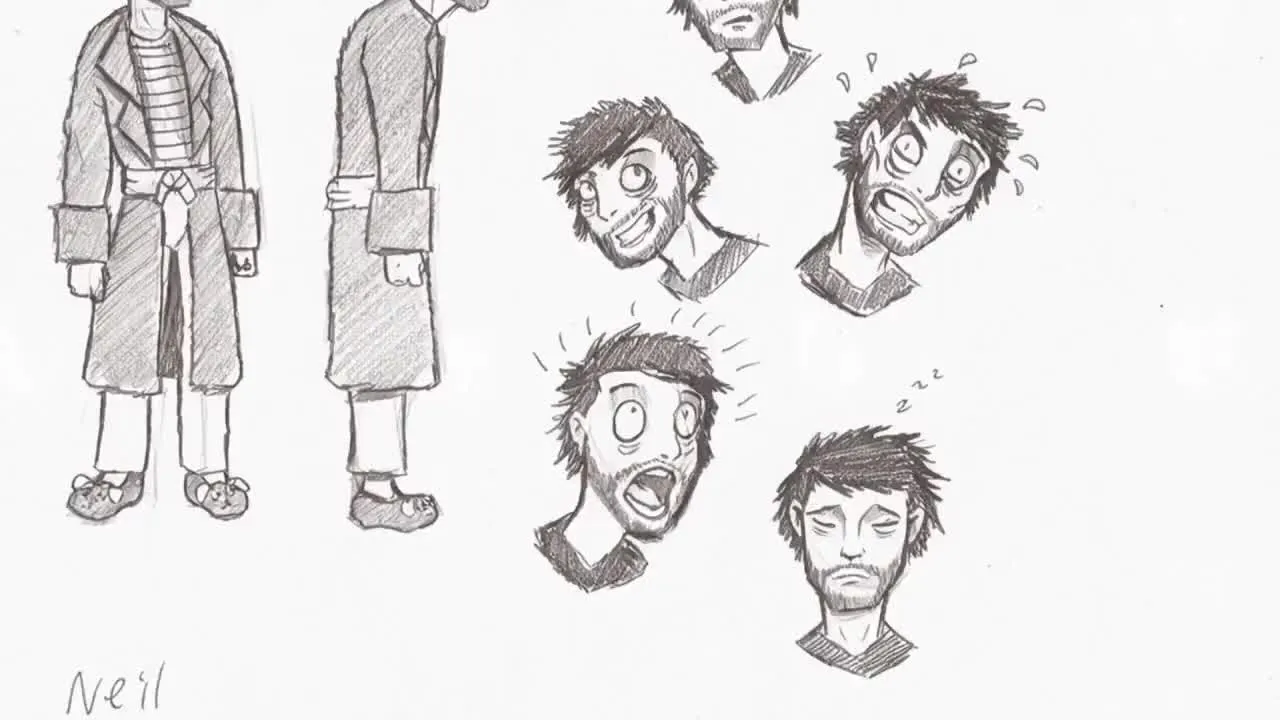
Turn product photos into videos
From a single image to a campaign-ready video — in one browser tab
Always stay on brand with custom edits
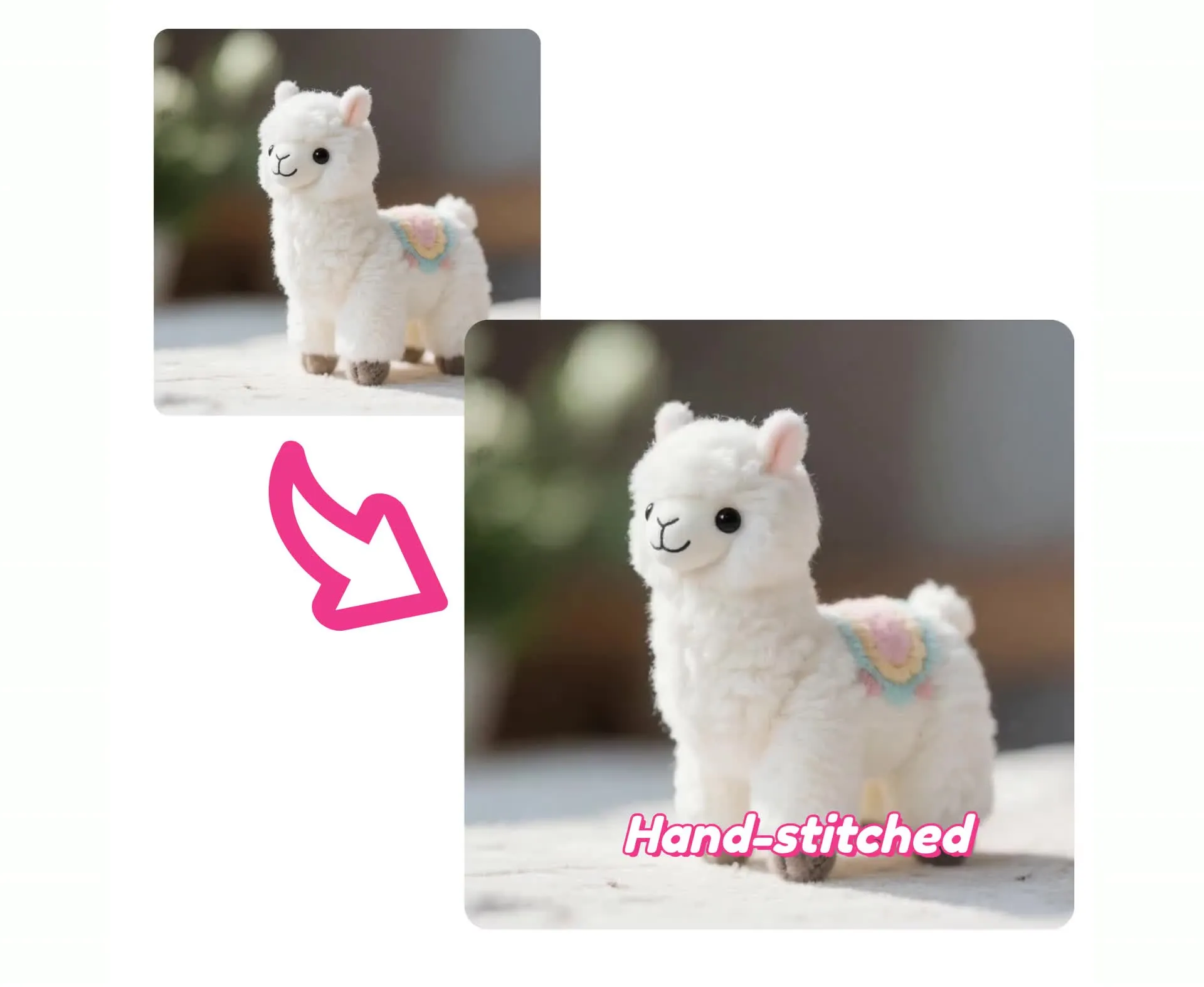
Animate product shots with pans, zooms, and rotation effects.
Then add your logo, pricing text, voice over, subtitles, and branded overlays — all in the same Kapwing editor without switching tools.
No re-exporting to different apps. Supports JPG, PNG, WEBP product images in 4K.
Export to every platform without re-editing
Choose aspect ratio before you generate — export in 9:16 for TikTok and Reels, 1:1 for Instagram, or 16:9 for YouTube.
Kapwing AI is built for content teams and agencies: batch exports, shareable project links, and live commenting so clients can leave feedback directly on the timeline.
No email chains, no Loom recordings. One platform from first upload to final export.
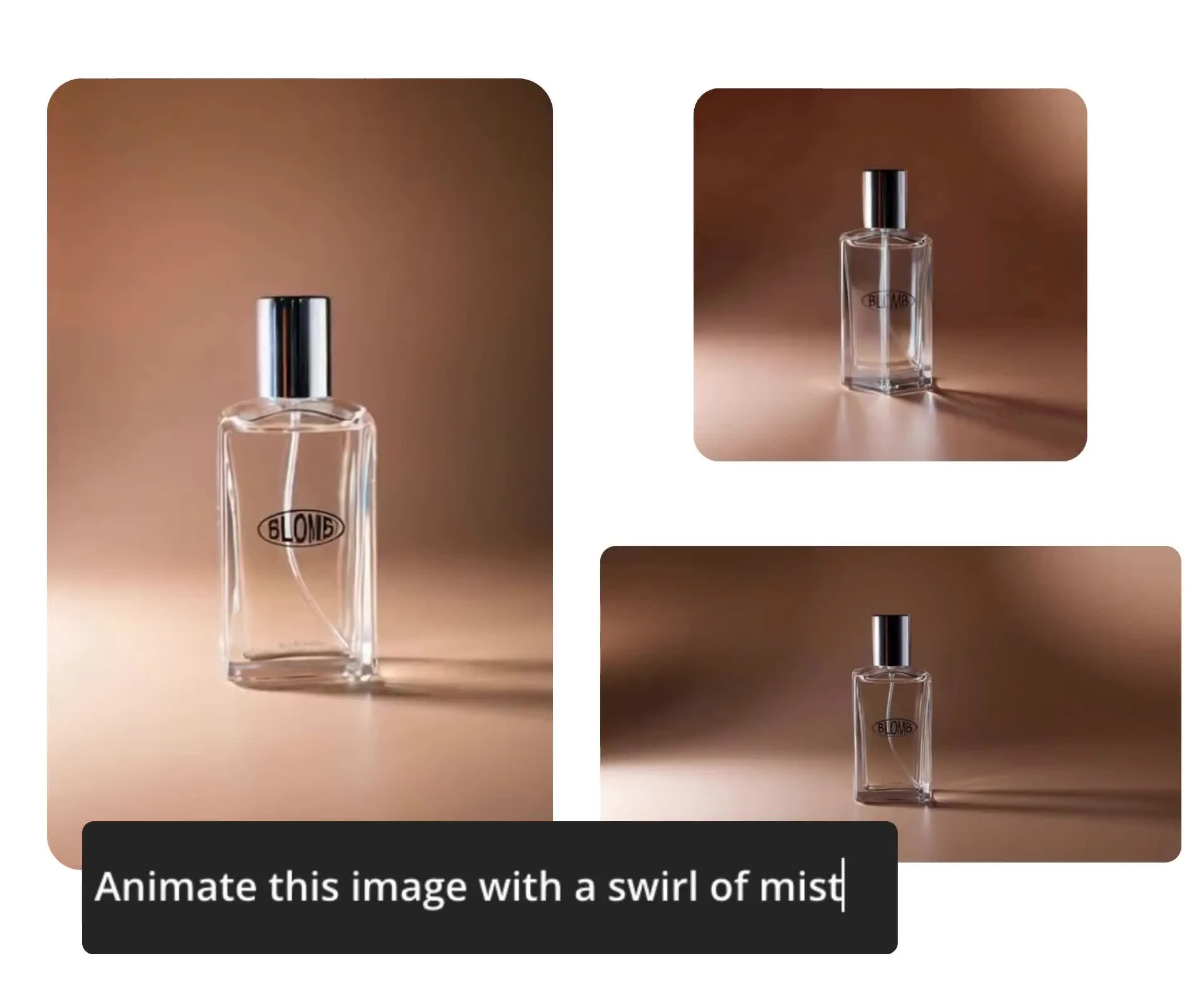
Image-to-video AI for every workflow
35 million creators use Kapwing — here's how
Social Media Creators
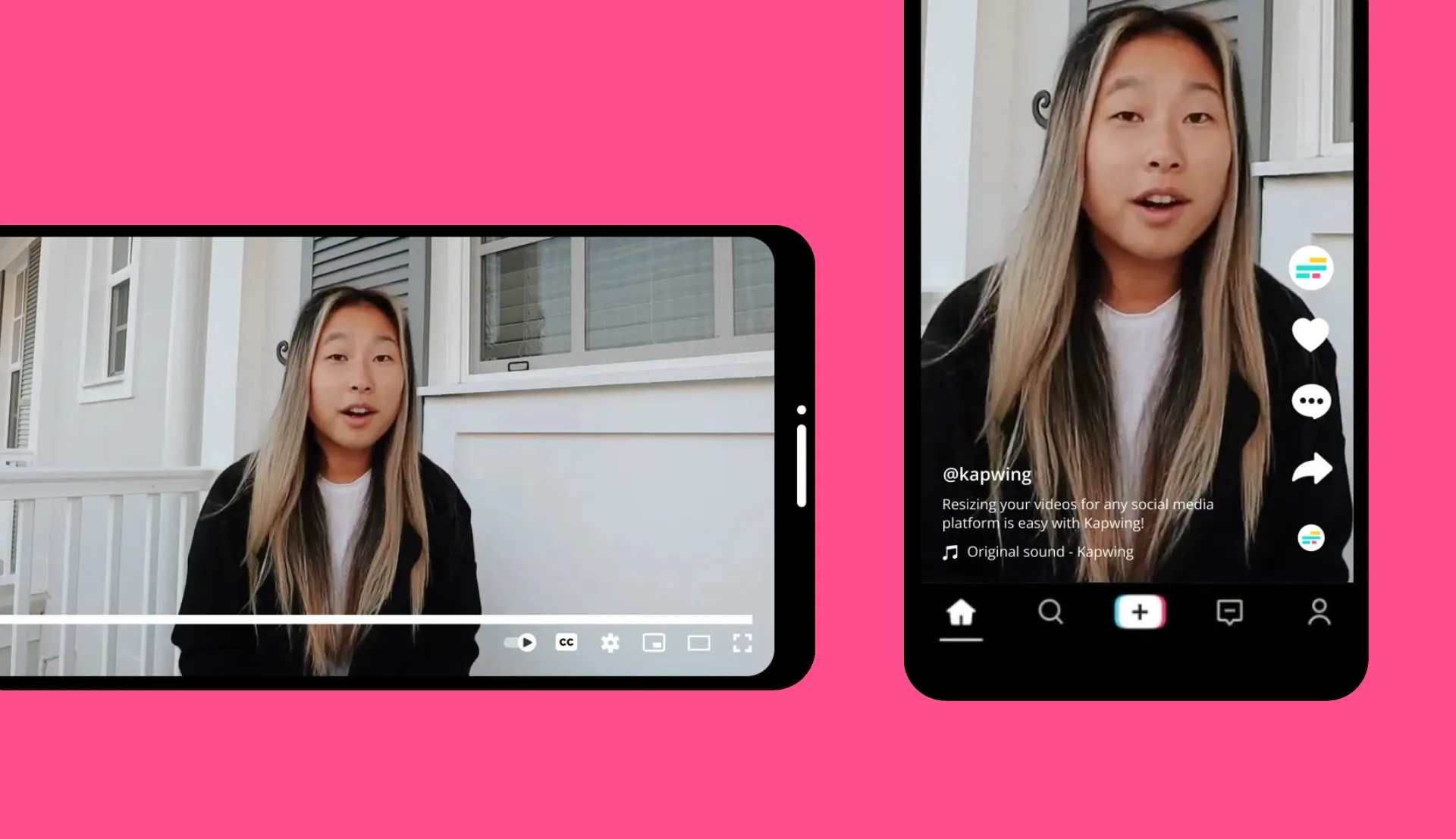
Turn a single photo into a TikTok, Reel, or YouTube Short. Use AI-enhanced motion prompts that match trending visual styles with no editing experience
Designers
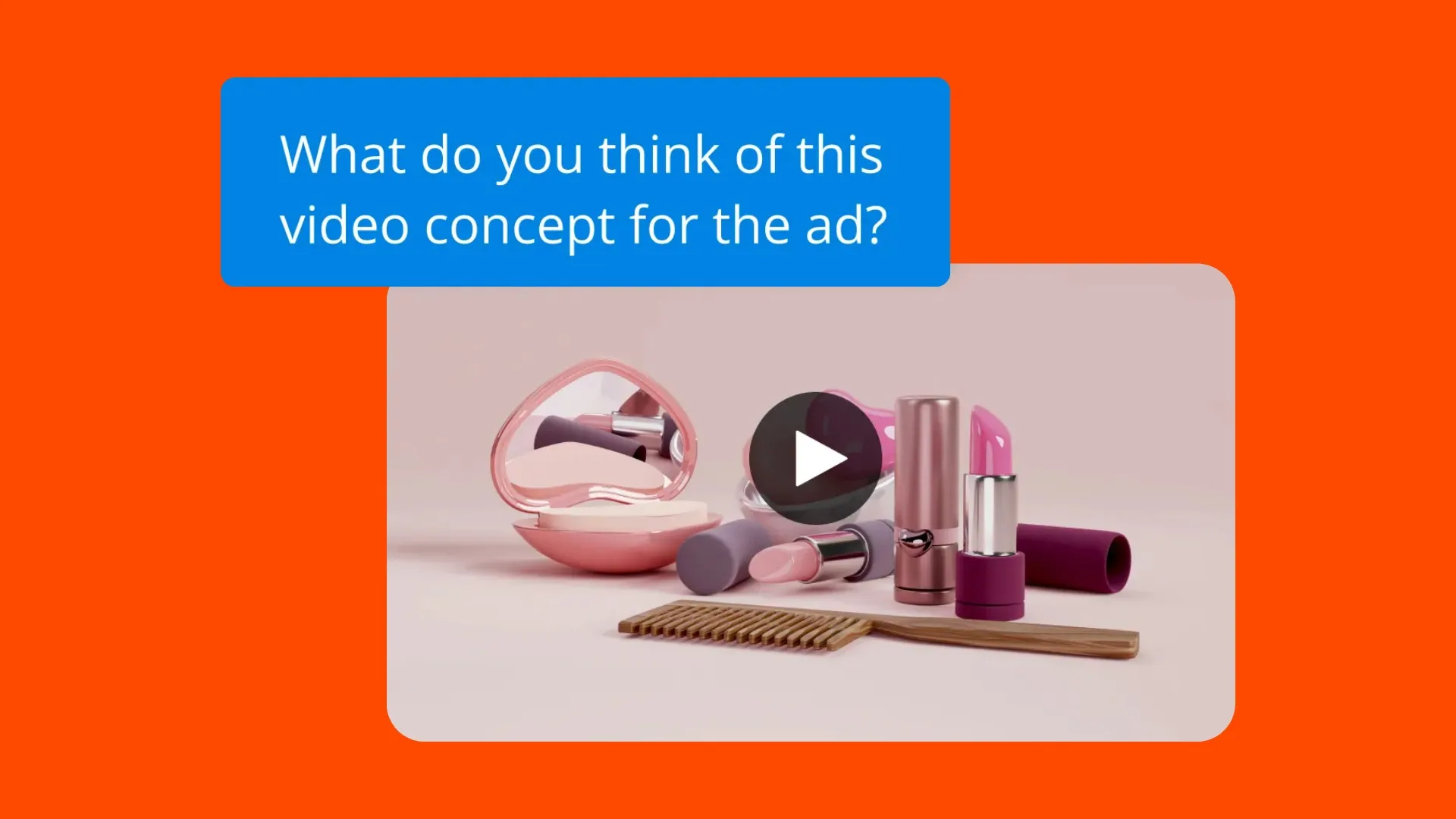
Animate your mockups and portfolio work. Add panning, zooming, and cinematic rotations to static designs — ideal for client presentations and portfolio reels.
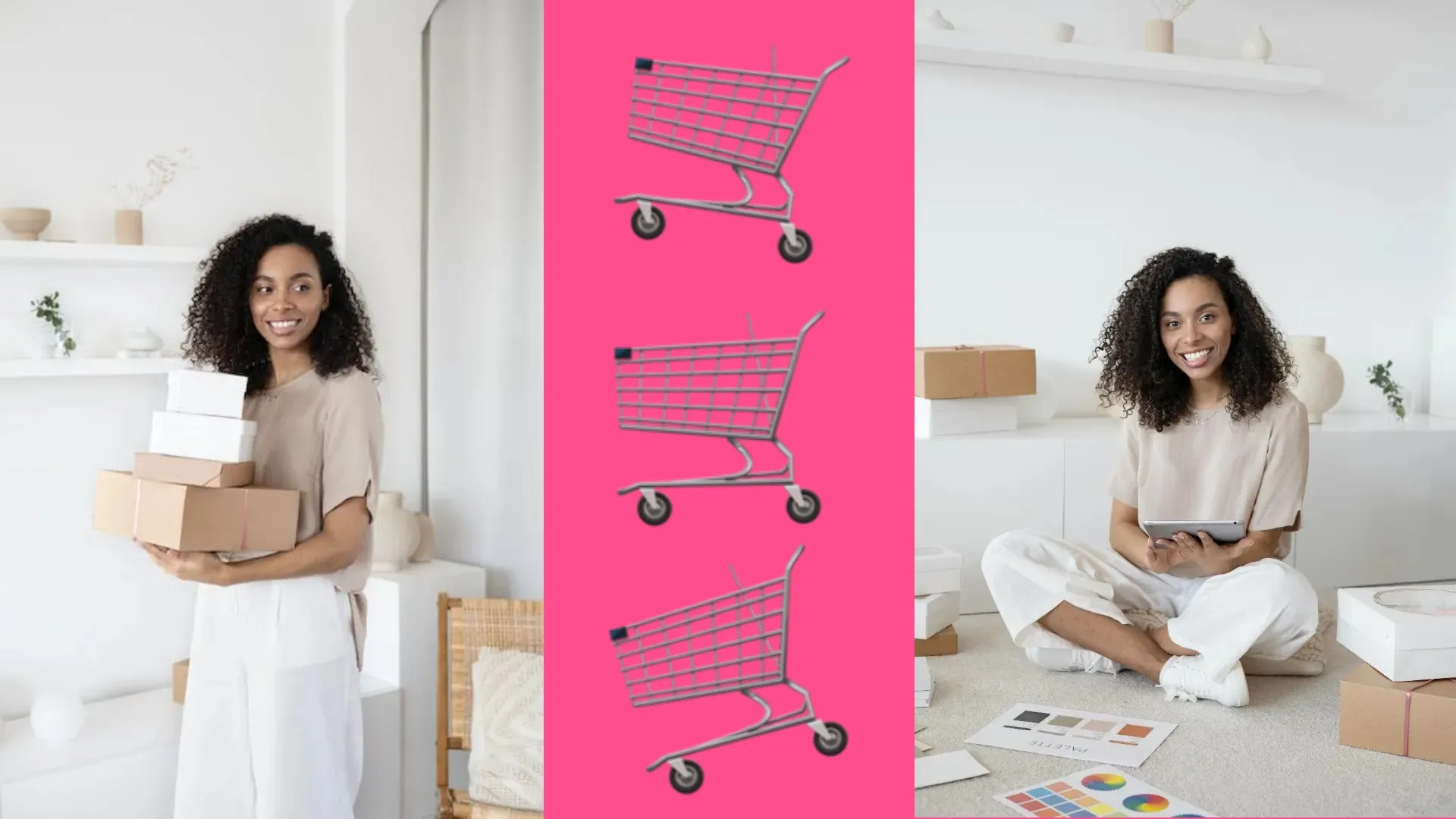
E-commerce
Turn product photos into 9:16 video ads with motion, logos, pricing text, and music. Ready for TikTok Shop, Meta Ads, and Amazon — from upload to export in under 5 minutes.
.webp)
Marketing & Agencies
Batch-generate videos from a product catalog. Share projects with live comment links. Clients review and approve directly in Kapwing without back-and-forth.
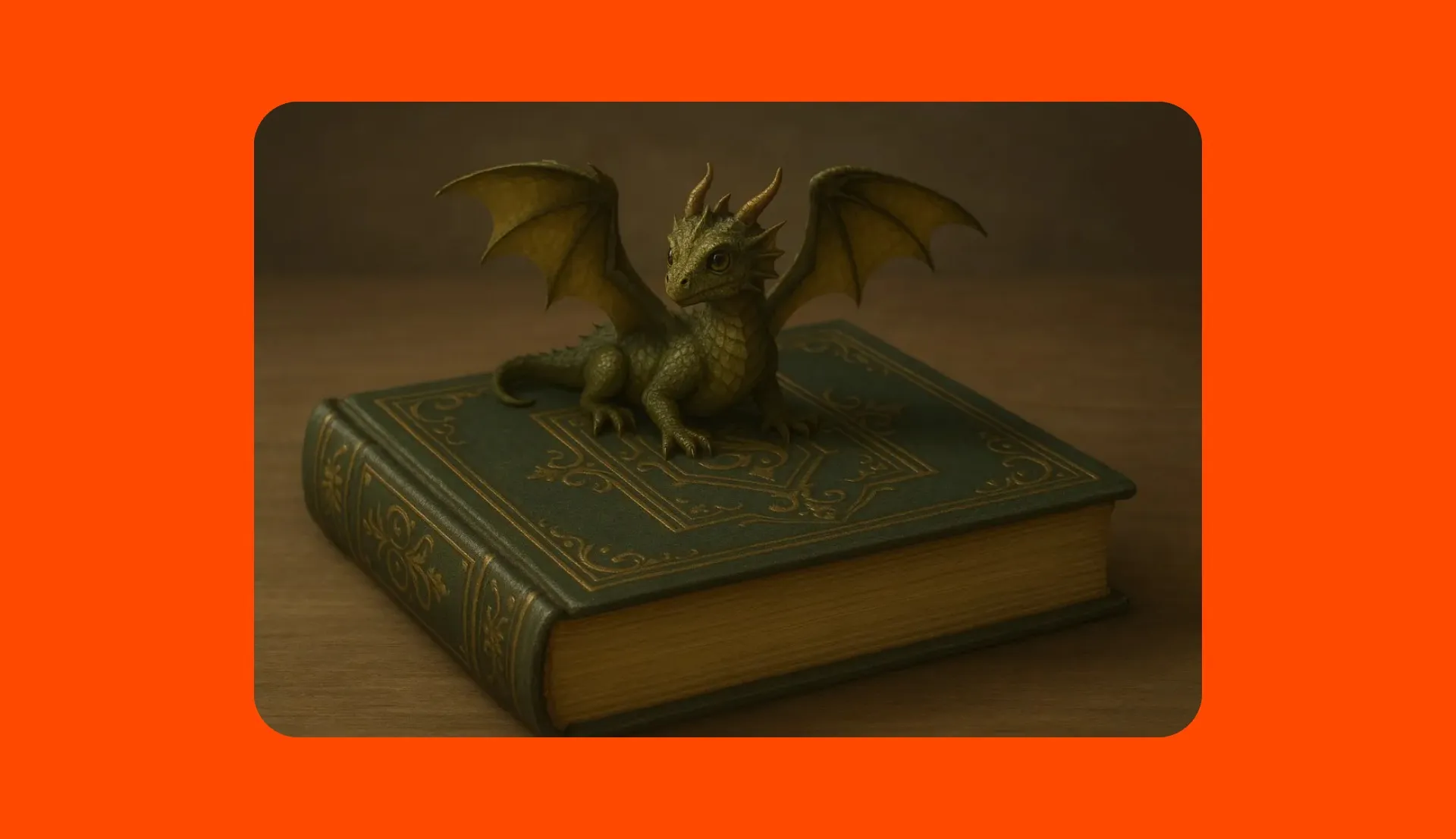
Authors
Transform book covers, artwork, and photography into cinematic video trailers. Add motion effects, voice over, and music for launch campaigns and social promotion.
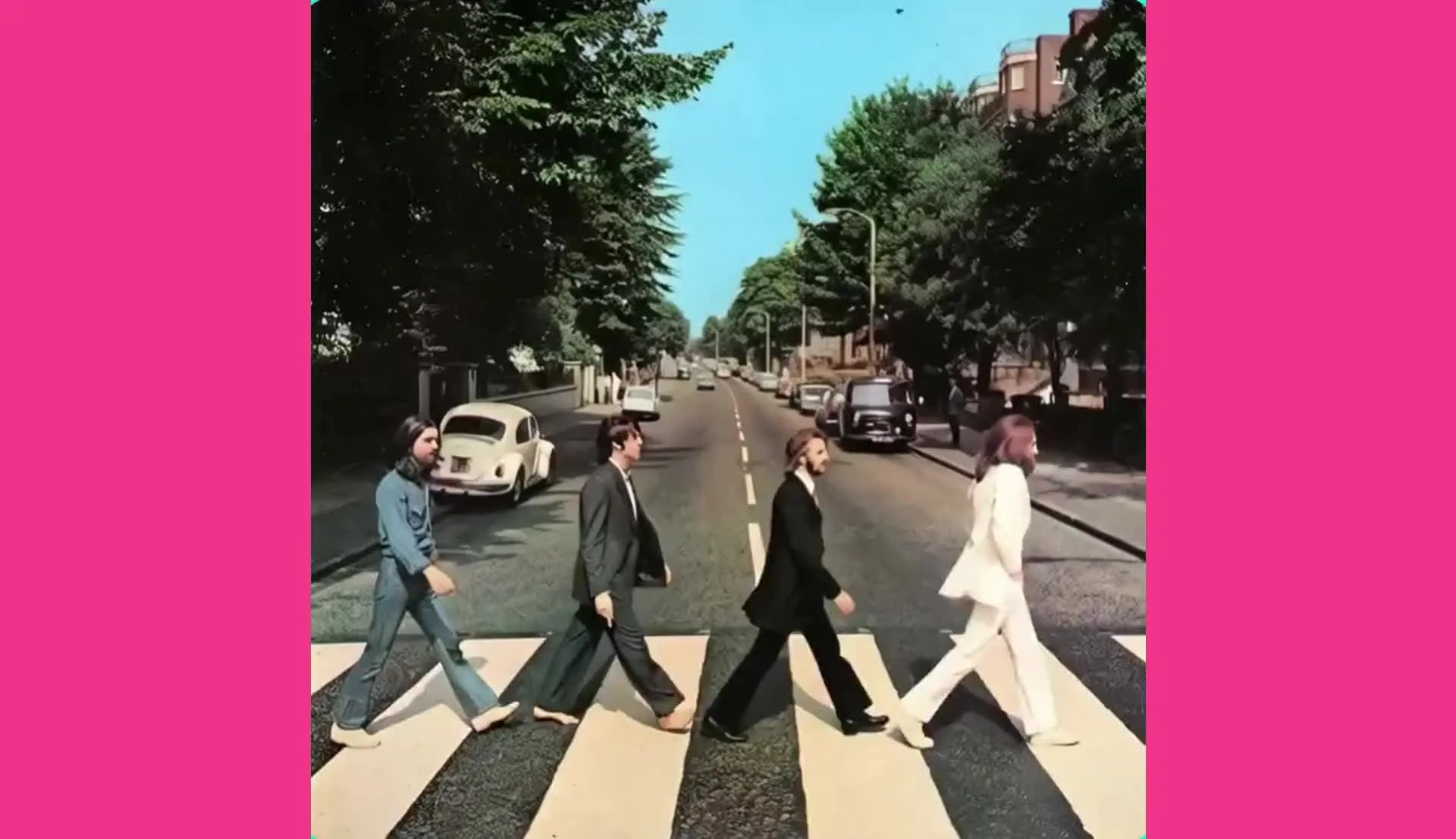
Music Artists
Artists and entertainment brands create stunning music visuals, social teasers, and show promos in minutes, transforming album covers, behind-the-scenes shots, or photoshoot assets
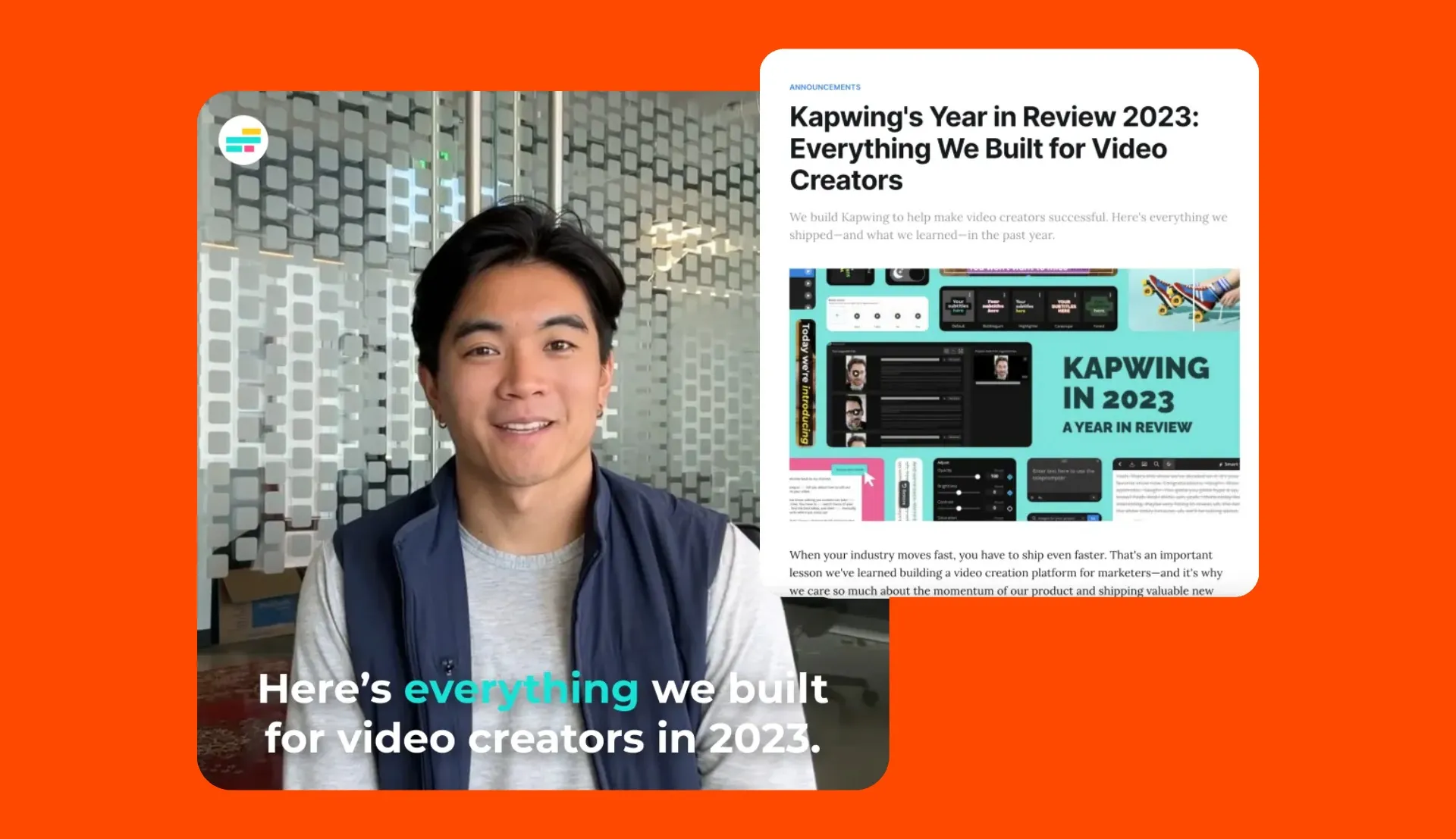
Educators
Convert lesson slides, diagrams, quick sketches, and infographics into short explainer videos. No video editing background required — upload, prompt, generate, export.
Turn AI-generated images into videos
Cartoons, Illustrations, and AI art
Already creating images with Midjourney, DALL-E, or Stable Diffusion? Kapwing's image-to-video AI takes your AI artwork as the starting frame and generates motion from it.
Upload your generated image, describe how you want it to move, and export a video version of your AI art.
Just upload your JPG or PNG and go.
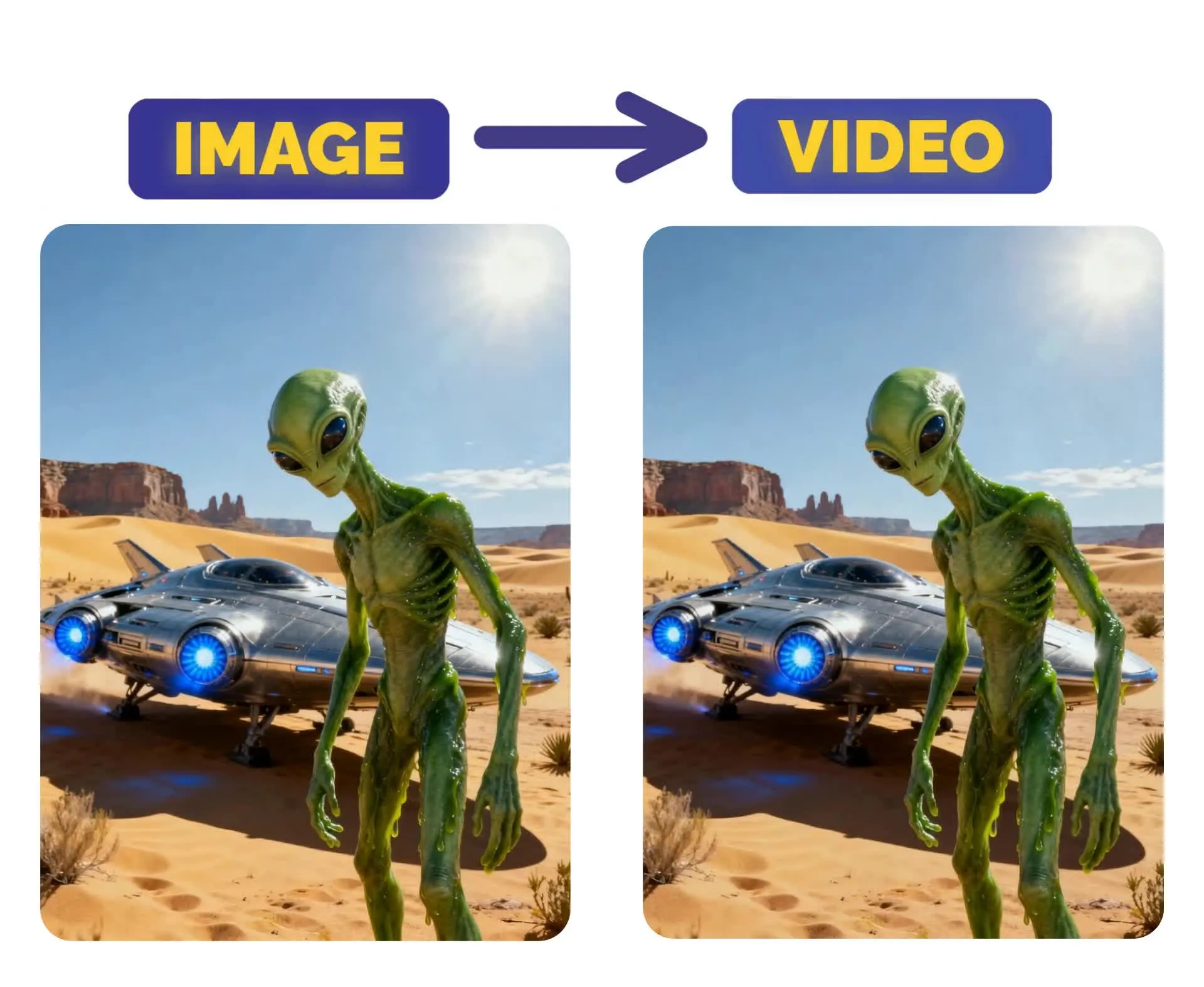
How to Turn an Image to Video with AI
- Step 1Open Kapwing's AI Image to Video Generator
Go to kapwing.com/kai.
- Step 2Upload your photo and describe the motion
Upload a JPG, PNG, or WEBP file. Type a prompt describing how you want the image to move: camera direction, subject motion, speed, or visual style.
- Step 3Generate, edit, and export
Click "Generate Video." Most clips are ready in under 30 seconds. Add text, music, subtitles, or branded overlays on the Kapwing canvas. Export as MP4 in 9:16, 16:9, 1:1, or any supported ratio.
What's different about Kapwing?



Frequently Asked Questions
We have answers to the most common questions that our users ask.
Is the AI Image to Video tool free?
Yes, anyone can try Kapwing’s AI Image to Video for free. All our AI tools run on a credit system, with each feature costing a set number of credits. For maximum creativity and the best value, upgrade to a Pro account to unlock the full power of AI-driven content creation.
What is the difference between AI image-to-video and AI text-to-video?
AI Image-to-video starts from a still image and animates it. AI Text-to-video starts from a written prompt and generates a new scene from scratch. Kapwing supports both workflows.
How do I turn a photo into a video with AI?
Upload a photo, enter a prompt describing the motion or scene change you want, and generate the video. You can then edit the result by adding text, subtitles, logos, voiceovers, or music.
Can I use AI image-to-video for product photos?
Yes. AI image-to-video is a simple way to turn product images into short promotional videos with camera movement, text overlays, music, and branded edits.
Can you edit and customize AI-generated videos?
Yes, all of Kapwing's AI-generated videos are completely customizable. Once they have been generated you can add a variety of edits based on your subscription package, including branded backgrounds, colors, images, and logos.
What models work best for AI image-to-video?
We recommend using Seedance or Kling motion control for the best image-to-video results. For start and end frame control, use Veo.
What is AI image-to-video?
AI image-to-video is a tool that turns a still image into a moving video clip. It uses your uploaded image as the starting frame, then generates motion and camera movement based on your prompt.
What aspect ratios, file sizes, and display resolutions are supported?
Kapwing's AI studio works with all popular file types for video and image including MP4, AVI, MOV, WebM, WebP, JPG, PNG, and more.
- Aspect ratios in: 1:1, 9:16, 16:9, 4:5, 5:4, 3:4, 4:3, 2:3, and 21:9.
- Resolution support: 480p, 512p, 768p, 720p, and 1080p.
How can I get tips for writing better image-to-video prompts?
Check out our blog on advanced AI video prompts for a deeper look at how to write and use them effectively.
What are Custom Kais?
Custom Kais are pre-built AI image and video effects in Kapwing. Our team has created hundreds of them so you can instantly produce eye-catching content — no prompt writing required. Just apply a Custom Kai and the style is handled for you.
You can also create your own Custom Kai to capture your brand’s unique look and reuse it anytime for consistent, on-brand image to video generations with one click.
How long does it take to generate a video from an image?
Most generations complete in under 30 seconds. Longer or higher-resolution outputs may take up to a few minutes seconds depending on model selection and server load.
How does Kapwing compare to Runway, Pika, or Kling for image-to-video?
Kapwing integrates Kling motion control directly — the same AI model that powers Kling's standalone tool. The key difference is that Kapwing combines AI generation with a full video editor on the same canvas: add text, subtitles, music, and brand assets after generating without switching platforms. Runway and Pika require external editing tools for post-generation work.
Discover Resources
Tips, templates, and deep dives to help you create faster and share with confidence.
View all
Get started with your first video in just a few clicks. Join over 35 million creators who trust Kapwing to create more content in less time.