
Add any shape with a single click
Customize arrows, lines, circles, and callouts — free, no download required
Point, highlight, and annotate any image instantly
Create polished, attention-grabbing visuals without tedious editing using Kapwing's free Add Shape to Image tool. Every arrow, line, circle, and icon is vector-based, so graphics stay crisp at any size and export cleanly in HD.
Add text and shapes to JPG and PNG images with a single click, then customize color, stroke, aspect ratio, and size. Effortlessly add animations or transitions, adjust opacity, or turn shapes transparent.
Because everything runs online and stays editable, you can revise, restyle, and update your graphics anytime, from any device.

Everything you need in one online editing studio
Kapwing is built for fast, flexible creation for individuals, global teams, and large-scale businesses. Add callouts and arrows to grab attention, then layer on text overlays, animations, and effects for tutorials, demos, thumbnails, and social content — all in one editor.
Create, update, and reuse assets in one place, perfect for producing content across multiple platforms without switching tools.
Simplify teamwork with shared workspaces, collaborative editing, and real-time feedback. Save fonts, shapes, and images to your Brand Kit for instant use in any project.
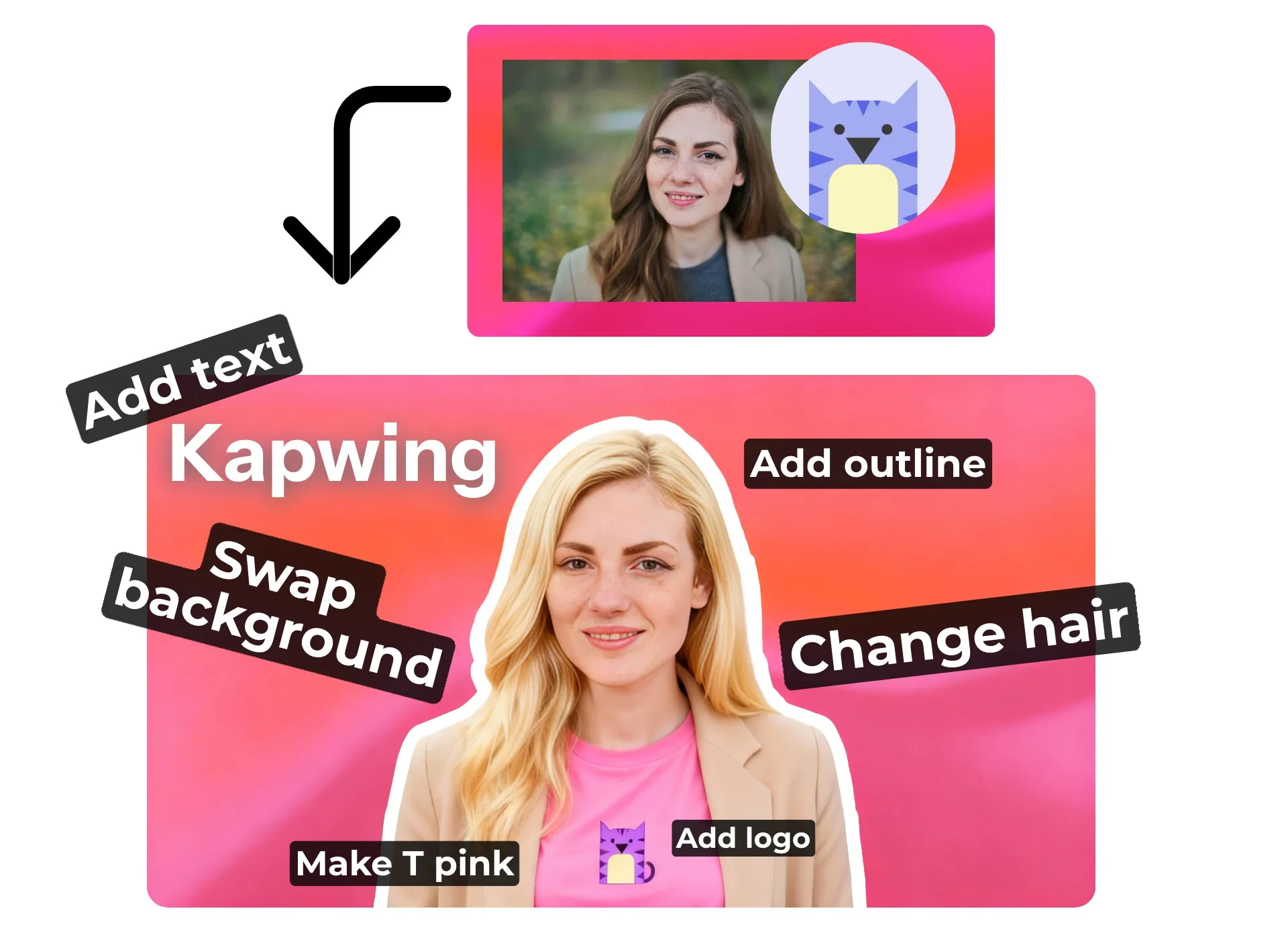
What's different about Kapwing?



How to Add Shapes to Images
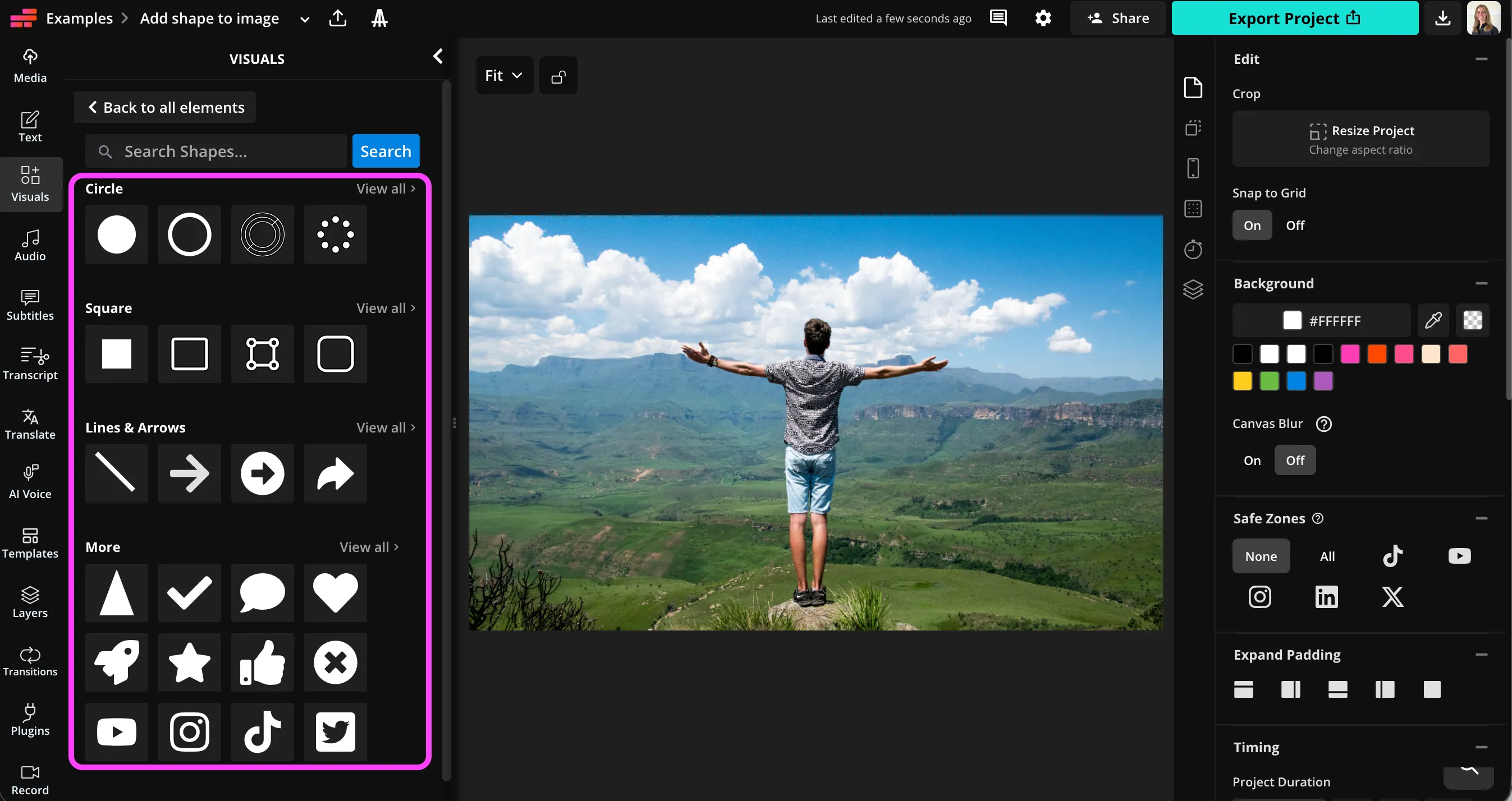
- Step 1Upload image
Open a new project in the Kapwing studio and upload your image.
- Step 2Add shape
Click "Visuals" in the left sidebar, then scroll down to "Shapes." Click to add any shape to your image.
- Step 3Customize
Customize the size, color, position, and aspect ratio of your shapes. Then click "Export Project" to download your image.
Already transforming video creation across industries
Hear directly from the teams who publish faster, collaborate better, and stay ahead.


Frequently Asked Questions
We have answers to the most common questions that our users ask.
Is Kapwing's Add Shape to Image tool free?
Yes, Kapwing's Add Shape to Image tool is free for all users.
Is there a watermark on exports?
If you use Kapwing on a Free account, then all exports — including the Add Shape to Image tool — contain a watermark. Once you upgrade to a Pro account, the watermark is completely removed from your creations.
Do I need design skills to add shapes to my pictures?
No, Kapwing's editing studio is designed for anyone, from beginners to professional designers and content creators. To add text and shapes to pictures, just use the one-click tools. Then resize and move with your mouse, and try different colors, borders and fills.
What kinds of shapes can I add?
Kapwing's Add Shape to Image tool offers a wide range of shapes, including dozens of styles of circles, arrows, lines, and rectangles. There are also a range of useful icons and logos, as well as common shapes like hearts, speech bubbles, rockets, stars, check marks, and thumbs up. Add arrows or circles to images, then turn them transparent, adjust the colors, or tweak the aspect ratio, all in the same online tool.
Can I use Kapwing to edit my images in other ways?
Yes, the Add Shapes tool is built into Kapwing's full image and video editing studio, where you can use an extensive range of image tools. It is also connected to Kapwing's AI assistant, where you can use simple prompts to generate and edit images, audio, and video.
Can I add shapes to images on my phone?
Yes, you can use the Add Shape to Image tool on mobile, including iPhone and Android. Just open the Kapwing studio on your mobile browser, then click to upload your image and add any shape.
What image file types are supported?
Kapwing supports most popular image file formats, including JPG, PNG, and WebP.
Discover Resources
Tips, templates, and deep dives to help you create faster and share with confidence.
View all


Get started with your first video in just a few clicks. Join over 35 million creators who trust Kapwing to create more content in less time.