Draw on, annotate, and animate GIFs in your browser
Add doodles and highlights to any GIF for free
Personalize GIFs with quick drawings
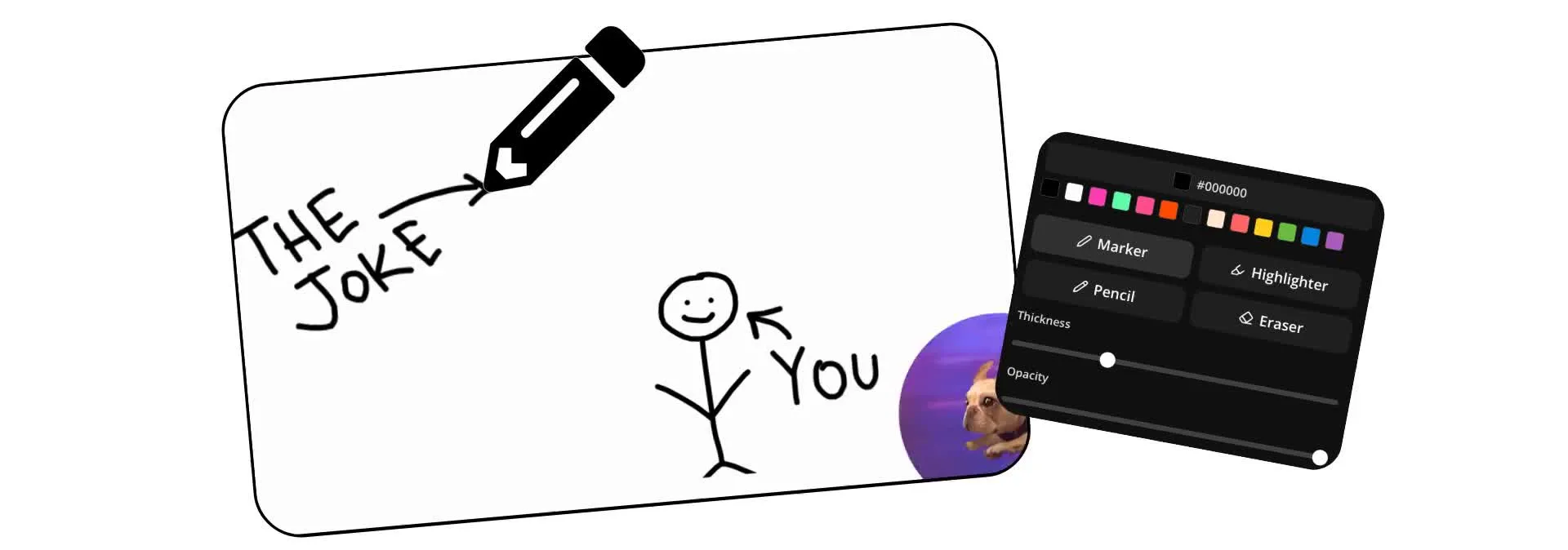
Upload a GIF and draw directly on it using freehand brushes, highlights, arrows, and handwritten notes. Personalize memes and reaction GIFs with hand-drawn doodles and sketches. Mark up tutorials and gameplay clips to make key moments easier to spot and understand.
Add drawings that stay visible throughout the animation or emphasize specific moments in the GIF. Circle important details, point out changes, explain actions, or add visual context without needing separate design or editing software.
Turn sketches into animated GIFs
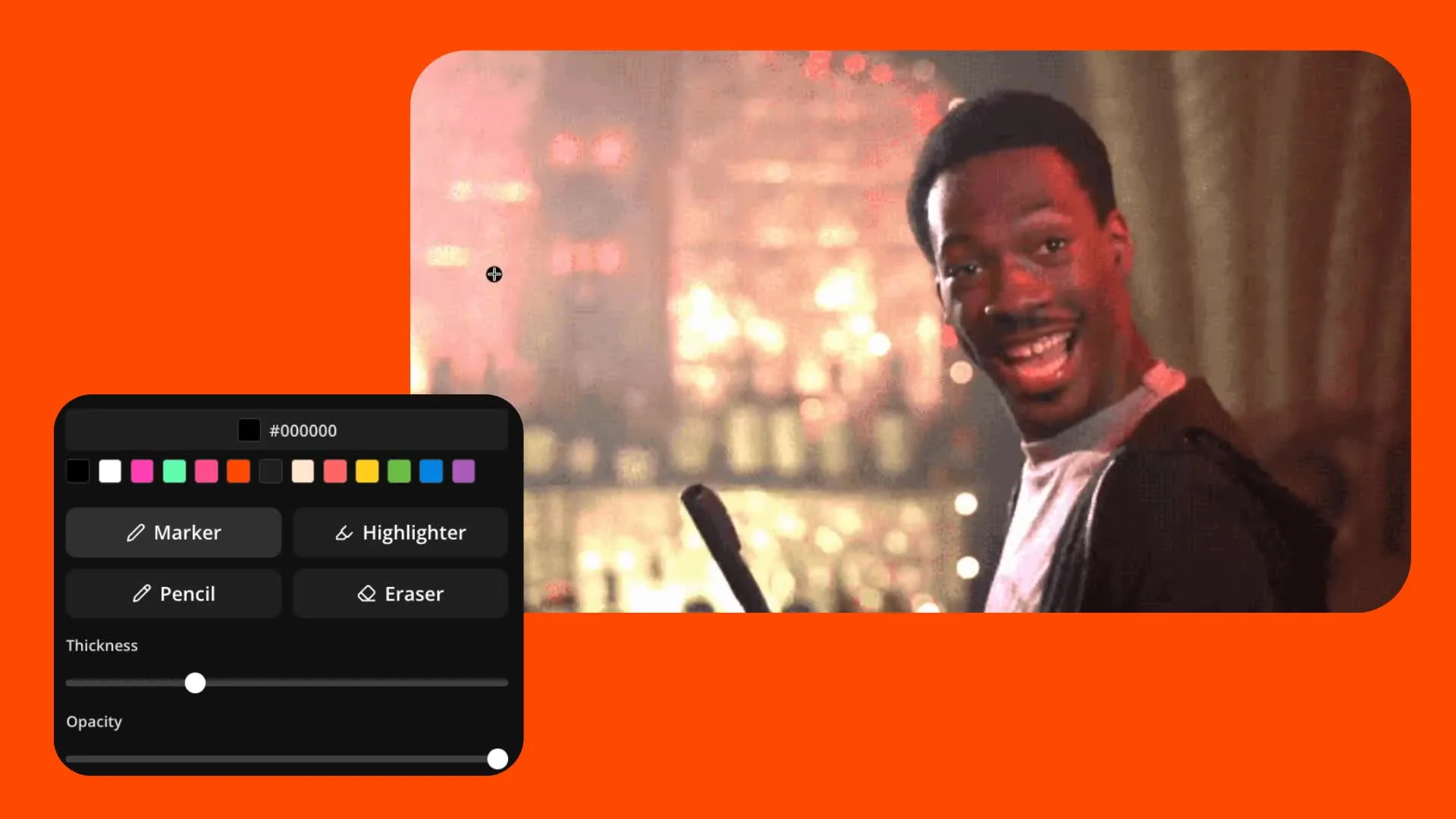
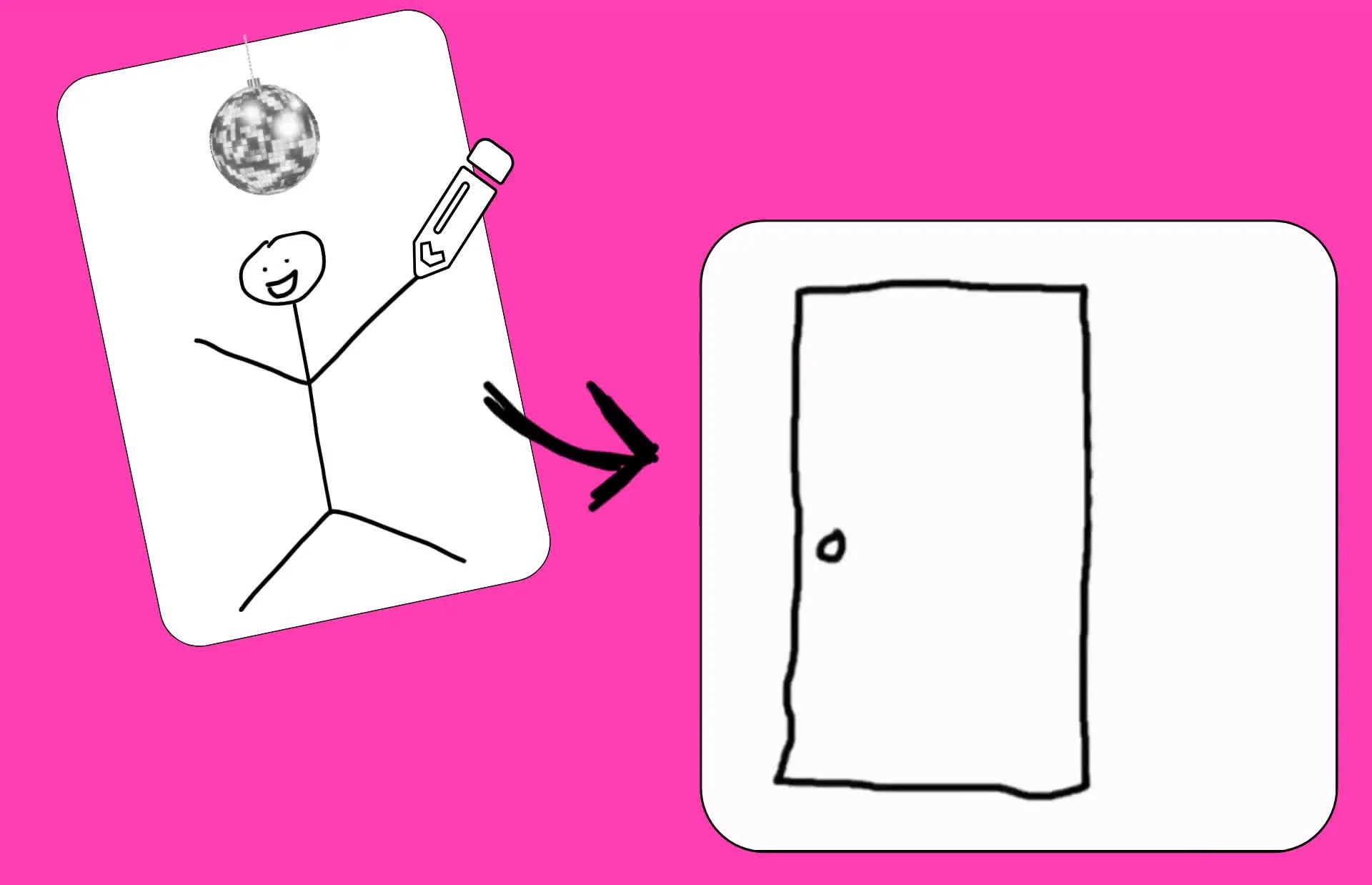
You can also create animated GIFs from scratch by drawing frame by frame. Make looping doodles, animated stickers, simple illustrations, pixel art, or hand-drawn animations. Create or customize MS Paint-style stick figure memes and animated webcomics.
When you're ready, export your drawings as GIF or animated WebP ready to share anywhere.
How to draw on GIFs in 30 seconds
Free in your browser. Remove watermark with Pro.
Upload
a GIF or video to the Kapwing Studio


Draw
on your GIF using adjustable brush tools
Download
as GIF using the export menu
Enhance GIFs anywhere you share them
Three brush styles. Thousands of colors. Designed for any GIF.
GIF Stickers

Create doodle GIFs, sketch GIFs, and hand-drawn animations for messaging apps, social media posts, and community engagement content

Sports Highlights
Sports creators and journalists annotate GIF clips with arrows, circles, and marker-style drawings to break down key moments, explain plays, and provide context around NFL highlights GIFs and other sports content
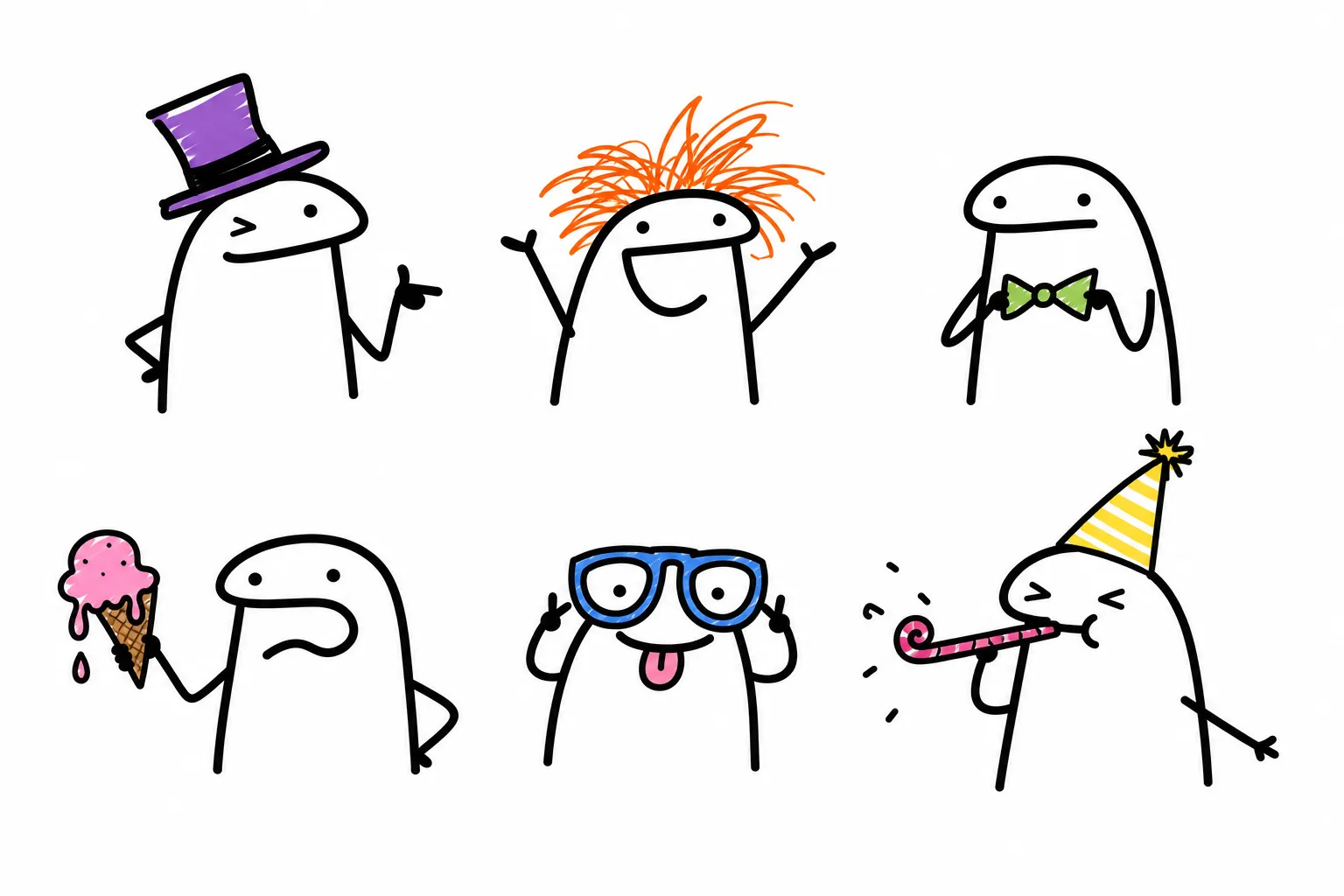
Meme Edits
Use drawing GIF tools to create personalized memes and funny shareable moments. Add heart GIF effects, doodling GIF overlays, and custom sketches.
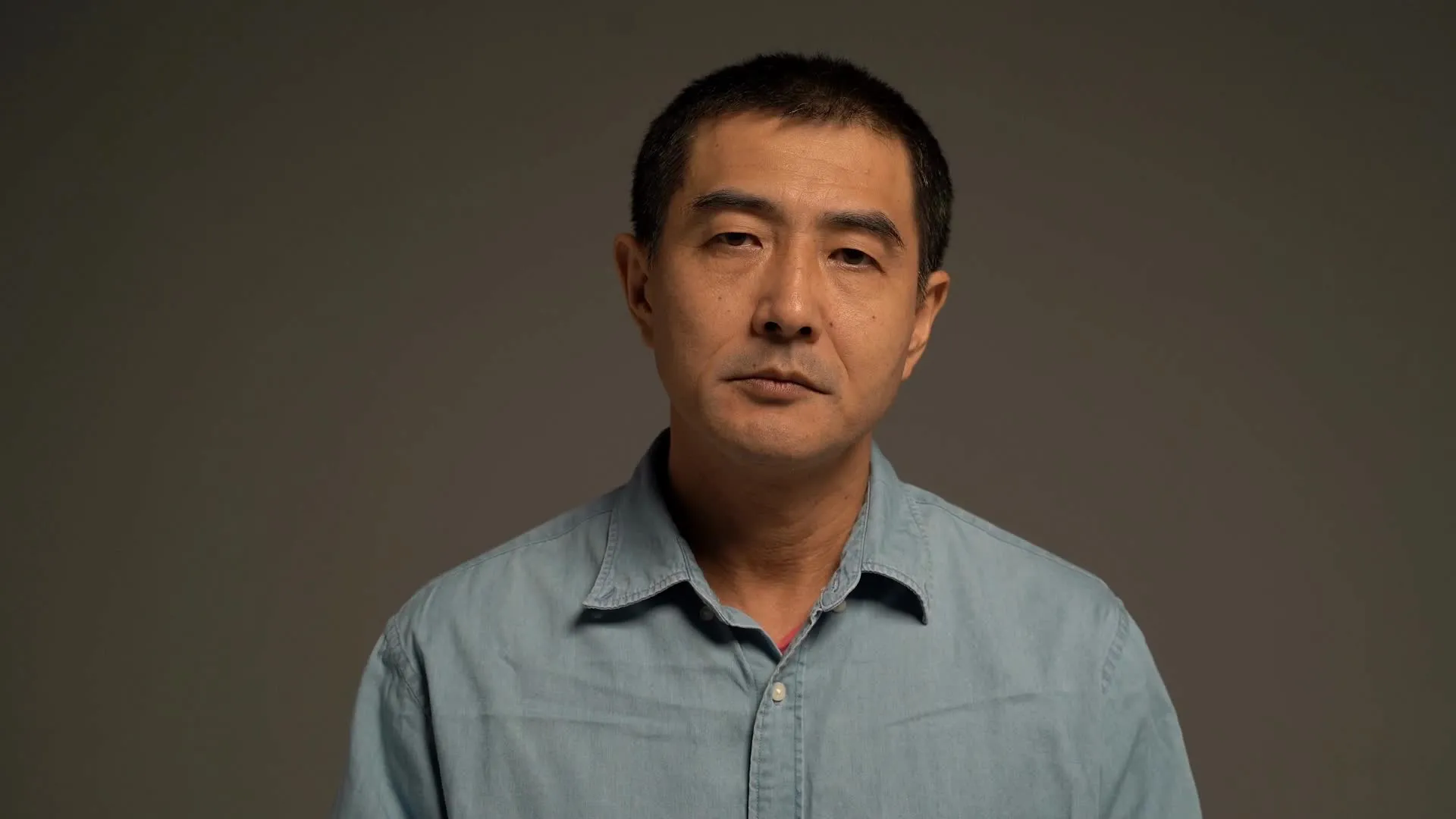
Reaction Clips
Podcasters, YouTubers, and TikTokers turn reaction clips into custom draw-on-GIF content by adding commentary, highlights, and visual jokes that reinforce their message

Custom Animations
Draw animated GIFs from scratch by creating each frame yourself. Illustrators and influencers use drawing animated GIF workflows to make looping animations without complex software.
Customize GIFs with your own handwriting — for free
Draw directly on GIFs in an online studio
Engage your audience with personalized memes and jokes
Make trending GIFs feel original by adding your own handwriting, doodles, arrows, reactions, and punchlines. Turn a classic reaction GIF into an inside joke, add commentary to viral moments, or recreate popular meme formats with your own creative twist.
Build a library of reusable drawings and visual gags to overlay on new GIFs. Whether you're sketching expressive doodles, adding handwritten captions, or creating recurring meme characters, you can develop a recognizable style that makes your content instantly more personal and shareable.

Annotate and highlight action
Help viewers spot the details that make a GIF worth sharing. Add arrows, circles, and drawings to emphasize a game-winning sports play, a funny reaction, a surprising moment in a video, or the exact action you're talking about.
Control when annotations appear with simple drag-and-drop timing tools. Keep viewers focused on the right moment, add context to fast-moving clips, and make your GIFs easier to understand without frame-by-frame editing.
Enhance GIFs with text and logos
Enhance your GIF drawings with text overlays, stickers, logos, and watermarks. Instead of juggling multiple tools, you can customize every GIF in a single workspace, making it easy to add context, reinforce your persona or brand, and create content that feels polished and viral-ready.
Keep your workflow moving with built-in collaboration and branding tools. Access saved media, apply fonts and colors from your Brand Kit, and work alongside teammates in real time.
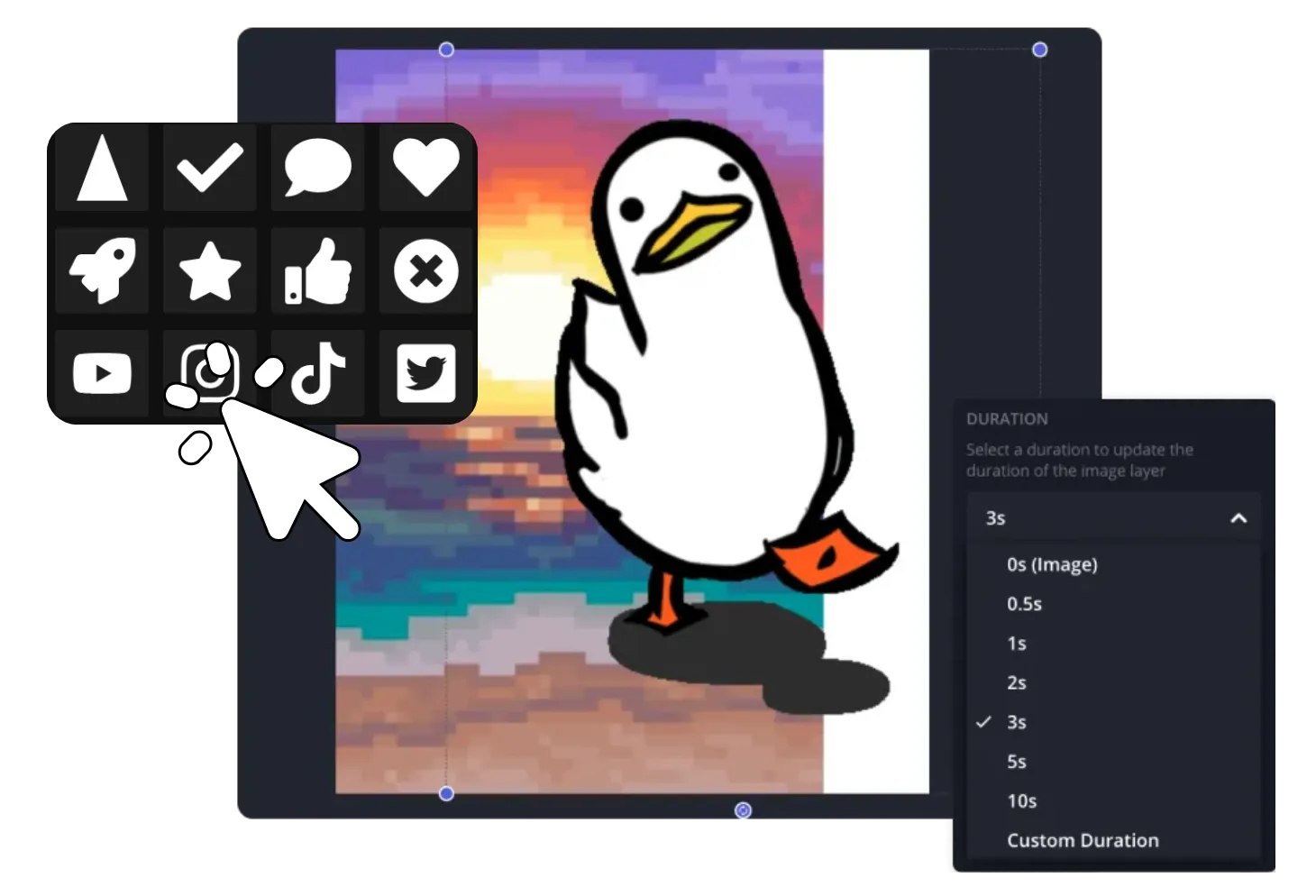
How to Draw on a GIF
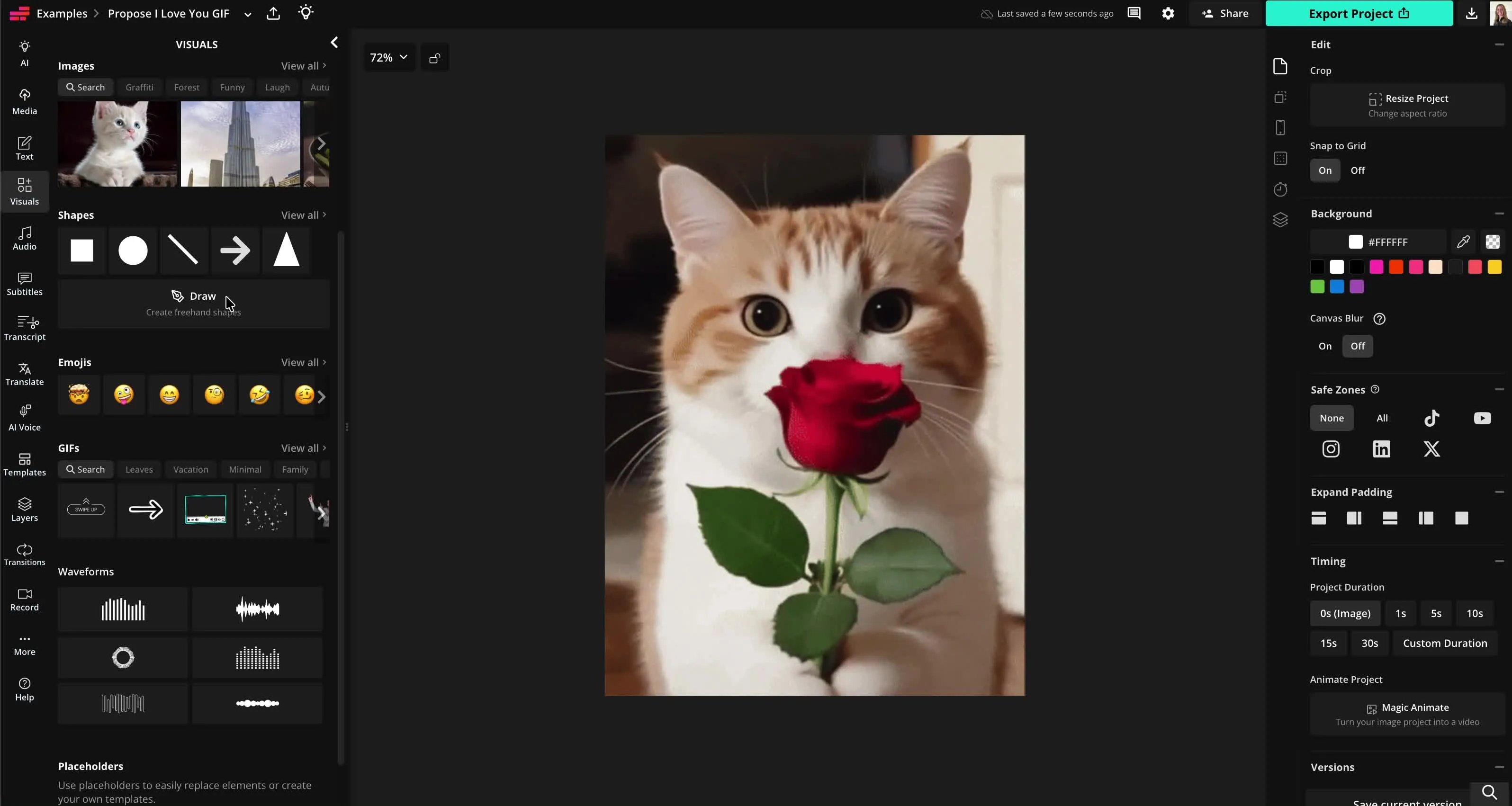
- Step 1Create project
Start a new project in the Kapwing Studio. Click to upload your GIF, video, or images.
- Step 2Draw on GIF
Click "Visuals" in the left sidebar, then scroll to "Draw." Draw on your GIF using three brush tools, thousands of colors, and an eraser. Click "Done" to see your drawings in the timeline.
- Step 3Download
When you're ready, click "Export project" to download, save, and share your annotated GIFs.
What's different about Kapwing?



Frequently Asked Questions
We have answers to the most common questions that our users ask.
Is the Draw on GIF tool free?
Yes, Kapwing's Draw on GIF tool is free for all users. For access to the full range of editing tools, including AI-powered tools, upgrade to a Pro account.
Is there a watermark on exports?
If you use Kapwing on a Free account, then all exports — including the Draw on GIF tool — contain a watermark. Once you upgrade to a Pro account, the watermark is completely removed from your creations.
How to draw on GIFs
To draw on GIFs, start by uploading a GIF to a new project in the Kapwing Studio. Click "Visuals" in the left sidebar, then click "Draw." You can use the hex color picker to choose from thousands of possible colors, select your brush style, and adjust the size and transparency. Draw on your GIF, then click "Done" to see it in the timeline. Drag to adjust size and position, then click "Export project" to save your annotated GIF.
What can I use a drawn-on GIF for?
Drawn-on GIFs are a fun way to personalize reactions before sharing them on social media, in group chats, or through messaging apps. Add hearts, doodles, speech bubbles, arrows, or sketches to reaction GIFs, funny clips, movie scenes, TV moments, or sports highlights to create something that's uniquely yours instead of sending the same GIF everyone else uses.
Content creators, influencers, YouTubers, and streamers use drawn-on GIFs to react to trends, add commentary, and create shareable posts that stand out in busy feeds. Sports fans can break down key plays with circles and arrows, while movie and TV fans can turn memorable scenes into custom memes, jokes, and reactions that are ready to post across Instagram, X, TikTok, Reddit, Discord, and more.
Which colors work best for drawing on GIFs?
Choose colors that contrast with the background so your drawings are easy to see. Bright colors like red, yellow, green, and blue work well for highlights, while white or black can improve visibility depending on the footage.
Should I use thick or thin brush strokes?
Thin strokes work best for detailed annotations, while thicker brushes are easier to see on fast-moving GIFs or when viewing on mobile devices.
Can I create an animated GIF by drawing?
Yes, you can draw frame by frame to create a hand-drawn animated GIF from scratch, whether you're making a looping doodle, sticker, or simple animation.
Does drawing affect the quality of my GIFs?
Your drawings are added as an overlay, and you can export the finished GIF while preserving the animation for sharing across websites, presentations, and messaging platforms.
What kinds of drawings can I add?
You can create freehand sketches, arrows, circles, boxes, underlines, highlights, handwritten notes, simple illustrations, and other visual annotations.
How does drawing or sketching on a GIF improve it?
A GIF captures movement, while drawings provide context. Combining both makes it easier to explain changes, demonstrate workflows, and guide viewers through each step without recording a full video.
Discover Resources
Tips, templates, and deep dives to help you create faster and share with confidence.
View all
Get started with your first video in just a few clicks. Join over 35 million creators who trust Kapwing to create more content in less time.