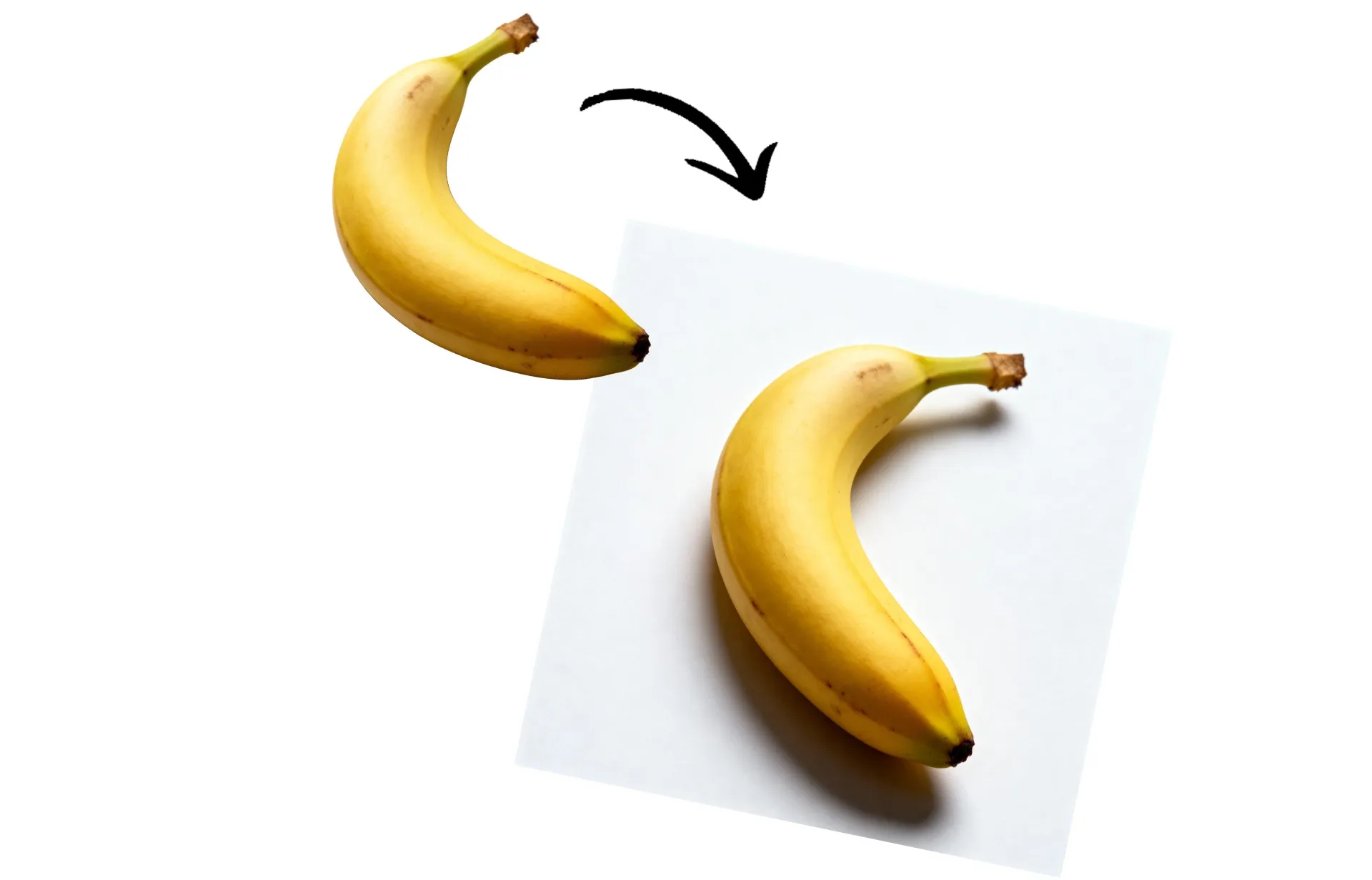
Add realistic shadows to any photo in seconds
Make product photos and graphics look professionally edited — no design skills needed
Lifelike shadows. No editing skills required
Give your images instant depth with Kapwing’s AI-powered Add Shadow to Image tool. Upload a photo, describe the look you want, and generate clean, realistic shadows in seconds. Use simple, conversational prompts to eliminate tedious manual editing and guesswork.
Built for marketers, content creators, and business owners, Kapwing's AI assistant can add drop shadow to an image without slowing down your workflow.
Skip expensive photoshoots and unnecessary image editing apps, and quickly fix unappealing floating product images, create consistent listings, or repurpose content. All in one intuitive AI Image Editor.
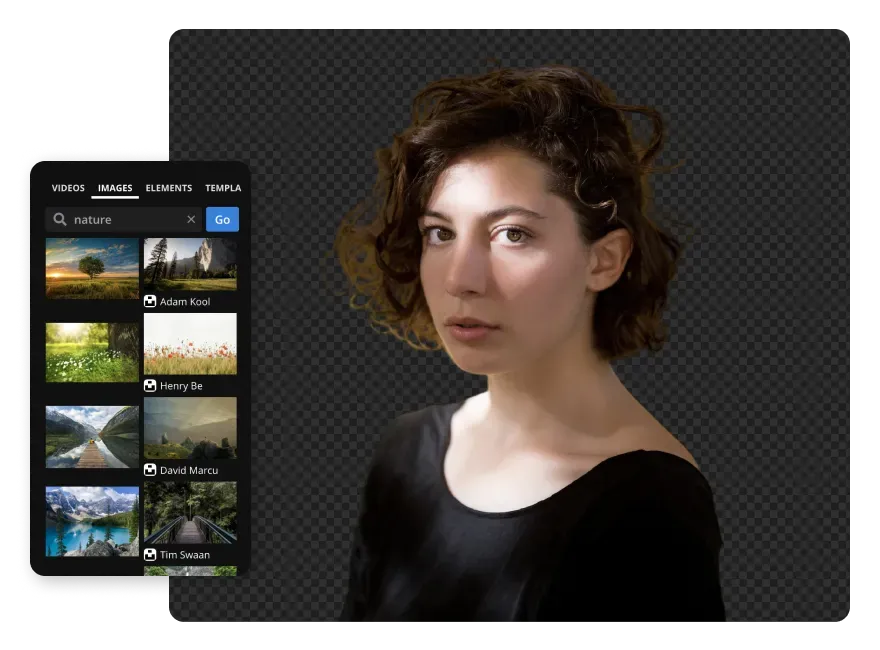
Add shadows, then polish your entire image
Turn images into fully polished content with one online editor. Add background shadows to images, then continue editing with AI-powered color correction, outfit changes, and object removal.
Finish projects faster using one-click tools for cropping, resizing, and exporting. Publish directly to social media without ever leaving your browser.
And if you find a shadow style you’re obsessed with, save it as a Custom Kai to apply the same shadow filter to every new product photo without re-entering your AI prompt.

What's different about Kapwing?



How to Add Drop Shadow to an Image
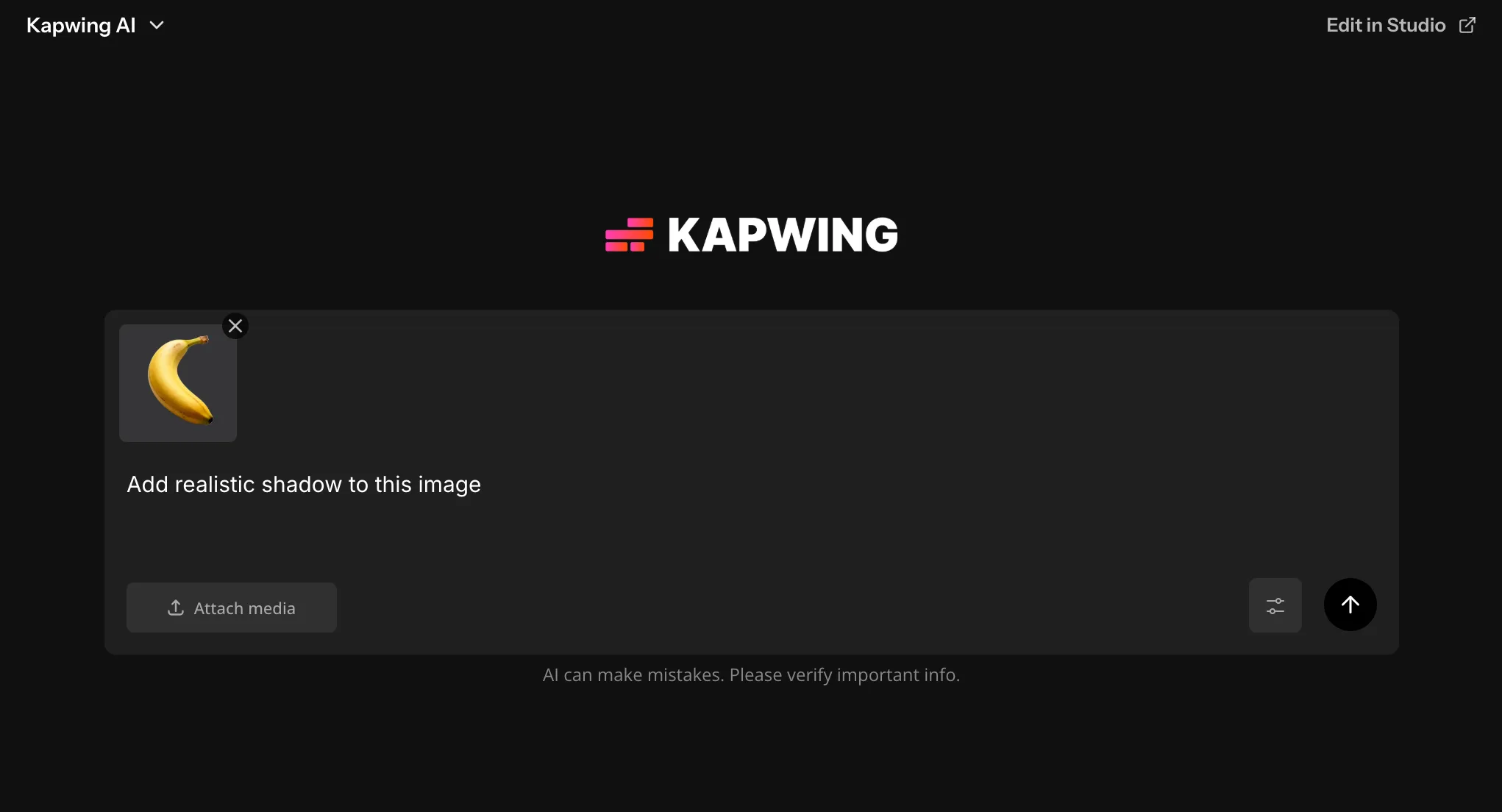
- Step 1Upload image
Open Kapwing's AI Assistant and click "Attach media", or drag and drop to upload your image.
- Step 2Enter prompt
Enter a prompt describing the shadows and background you want to add.
- Step 3Generate
Click the arrow at the lower right to generate your high-resolution shadowed image.
Already transforming video creation across industries
Hear directly from the teams who publish faster, collaborate better, and stay ahead.


Frequently Asked Questions
We have answers to the most common questions that our users ask.
Is the Add Shadow to Image tool free?
Yes, anyone can try Kapwing’s AI Toolkit for free without watermarks. Our AI tools run on a credit system, with each feature costing a set number of credits. For maximum creativity and the best value, upgrade to a Pro account to unlock the full power of AI-driven content creation.
How to add background shadow to images
To add shadows to images with Kapwing, open the AI assistant and start a new chat. Upload your image, then enter a prompt like Add realistic shadows on a plain white background. Click the arrow to generate, then download or edit with additional prompts.
Can I add shadow to pictures using my phone?
Yes, you can use the Add Shadow to Image tool on phones and tablets, including iPhone and Android, by opening Kapwing's AI assistant on your mobile browser. Click to upload your image, enter your shadowing image prompt, and click generate. Then download your image directly to your phone.
Can I use Kapwing to edit my images in other ways?
Yes, the Add Shadow to Image tool is built into a full AI Image Editor. You can customize pictures any way you like — change styles, remove objects, correct colors, and more. For best results, apply edits one at a time. AI performs more accurately when given specific, singular instructions. For example, if you want to remove the background and add a logo, submit each request separately.
Which AI models does Kapwing use?
Kapwing integrates leading models to give you flexibility and high-quality results. Currently, the AI assistant uses Seedream, ChatGPT, and Nano Banana for advanced image creation.
Which image file types does Kapwing support?
Kapwing supports all major image file formats including WebP, PNG, JPG, and more.
What is a Custom Kai?
Custom Kais are pre-built AI image and video effects in Kapwing. Our team has created hundreds of them so you can instantly produce eye-catching content — no prompt writing required.
You can also create your own Custom Kai to capture your brand’s unique look and reuse it anytime for consistent, on-brand content with one click. This makes the process of generating images in identical styles a seamless, automated process.
How should I write my prompt?
The best image editing prompts are clear, descriptive, and specific. A strong prompt should include details about anything you want to change, including the subject, style, lighting, and mood to guide the AI in creating an accurate and visually appealing image.
To add drop shadows to your image, try a prompt like Add realistic shadows behind the product. The background is plain white.
Need help? Use the “AI Assistant” tab to refine or generate your prompt. Alternatively, check out our study on the most-used image prompts.
If you’re unsure what to write, Kapwing’s AI Assistant can help refine your prompt. For a more in-depth understanding, explore our guide on advanced AI video prompts, which covers strategies for writing effective prompts — plus our data-backed study analyzing the most popular prompts.
Discover Resources
Tips, templates, and deep dives to help you create faster and share with confidence.
View all

Get started with your first video in just a few clicks. Join over 35 million creators who trust Kapwing to create more content in less time.