Draw on, annotate, and highlight videos for free online. No watermark on Pro.
Draw directly on your videos — for free
Annotate videos with online screen sketching. Unlimited colors.
Add drawings, highlights, and callouts
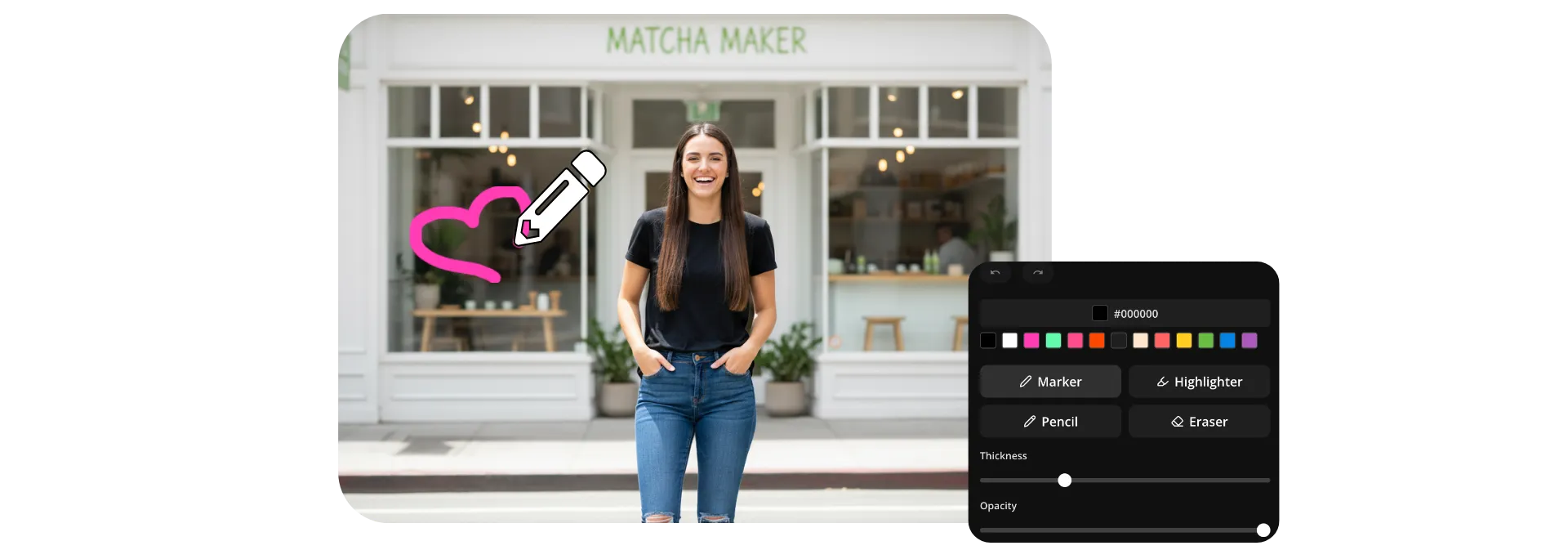
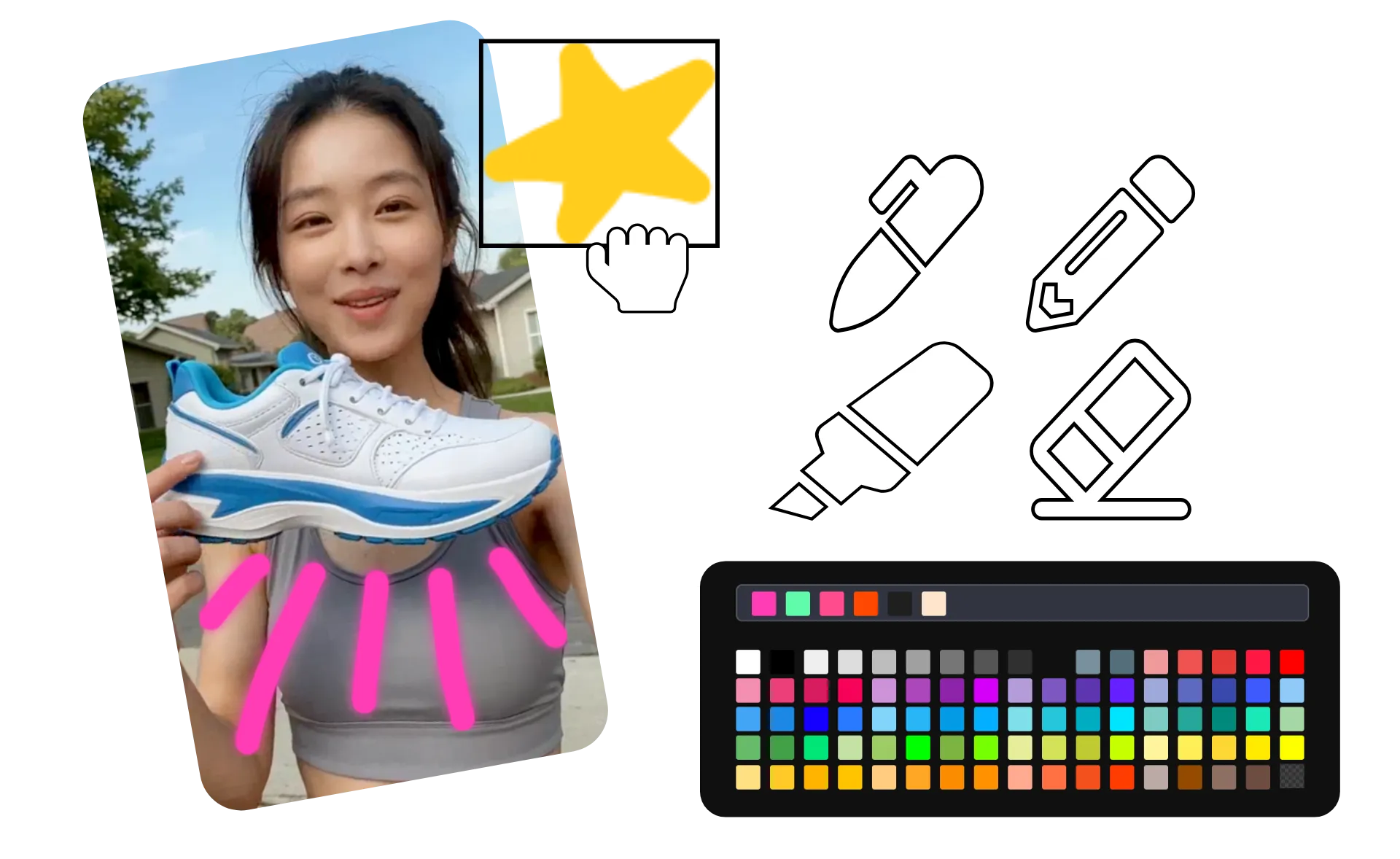
Draw directly on any video in the Kapwing Studio to highlight details, explain ideas, or add a personal touch. Use marker, highlighter, and pencil brushes to create custom annotations, illustrations, callouts, and even animated stick figure memes, all using your own sketches.
Customize your drawings with adjustable brush sizes, opacity controls, preset colors, brand colors, or custom hex values. If you need to make changes, the built-in eraser makes it easy to refine your work without starting over.
Each drawing is added as a transparent layer that you can move, resize, edit, and time alongside the rest of your video. When you're finished, export your project as an MP4 or MOV in up to 4K resolution.
How to draw on videos
Start for free in your browser. Download in up to 4K.
Upload
videos to the Kapwing Studio


Draw
on videos using three brush styles with adjustable color, size, and opacity
Download
your annotated video as MOV or MP4
Annotate and personalize every frame with free drawing tools
Three brush types. Any hex code color. Individual editable layers.
Focus attention with custom graphics
Turn quick sketches into reusable graphics that help viewers follow your story. Draw arrows, circles, highlights, or custom illustrations directly on your video to emphasize key moments and keep attention exactly where you want it.
Customize every drawing with adjustable brush sizes, opacity controls, and multiple brush styles. When you're finished, your drawings are saved as transparent PNG overlays that can be resized, duplicated, repositioned, and reused across projects from your media library.

Annotate and diagram action
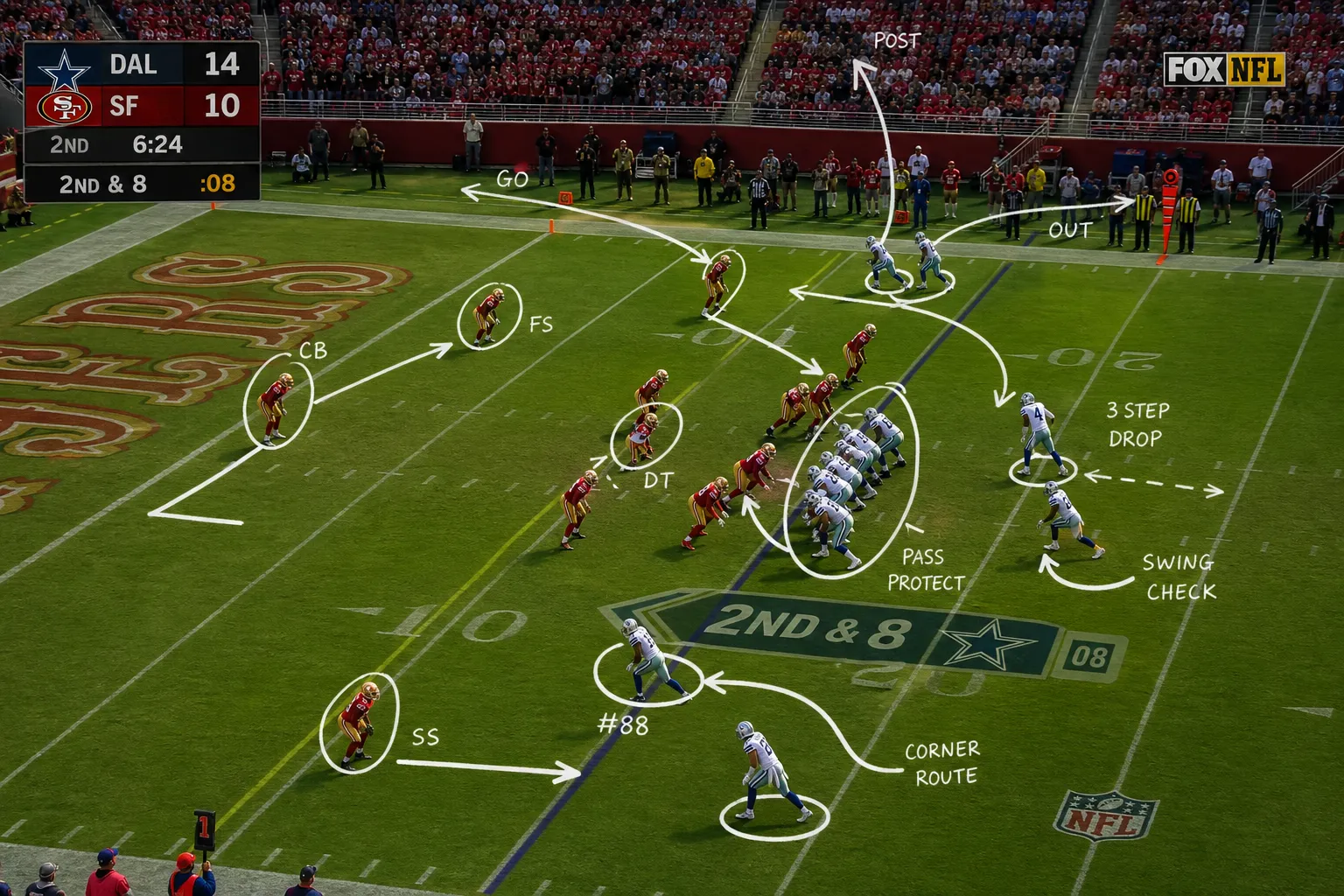
Break down complex moments frame by frame with on-screen video markup. Coaches can diagram plays, educators can explain concepts, and analysts can highlight patterns, movements, and trends without leaving the editor.
Annotate a video by drawing directly over your footage using arrows, circles, and freehand designs, then adjust each graphic on the timeline. Extend the duration, reposition elements, or fine-tune your visuals to create clear, professional video explanations.
Collaborate efficiently with visual feedback
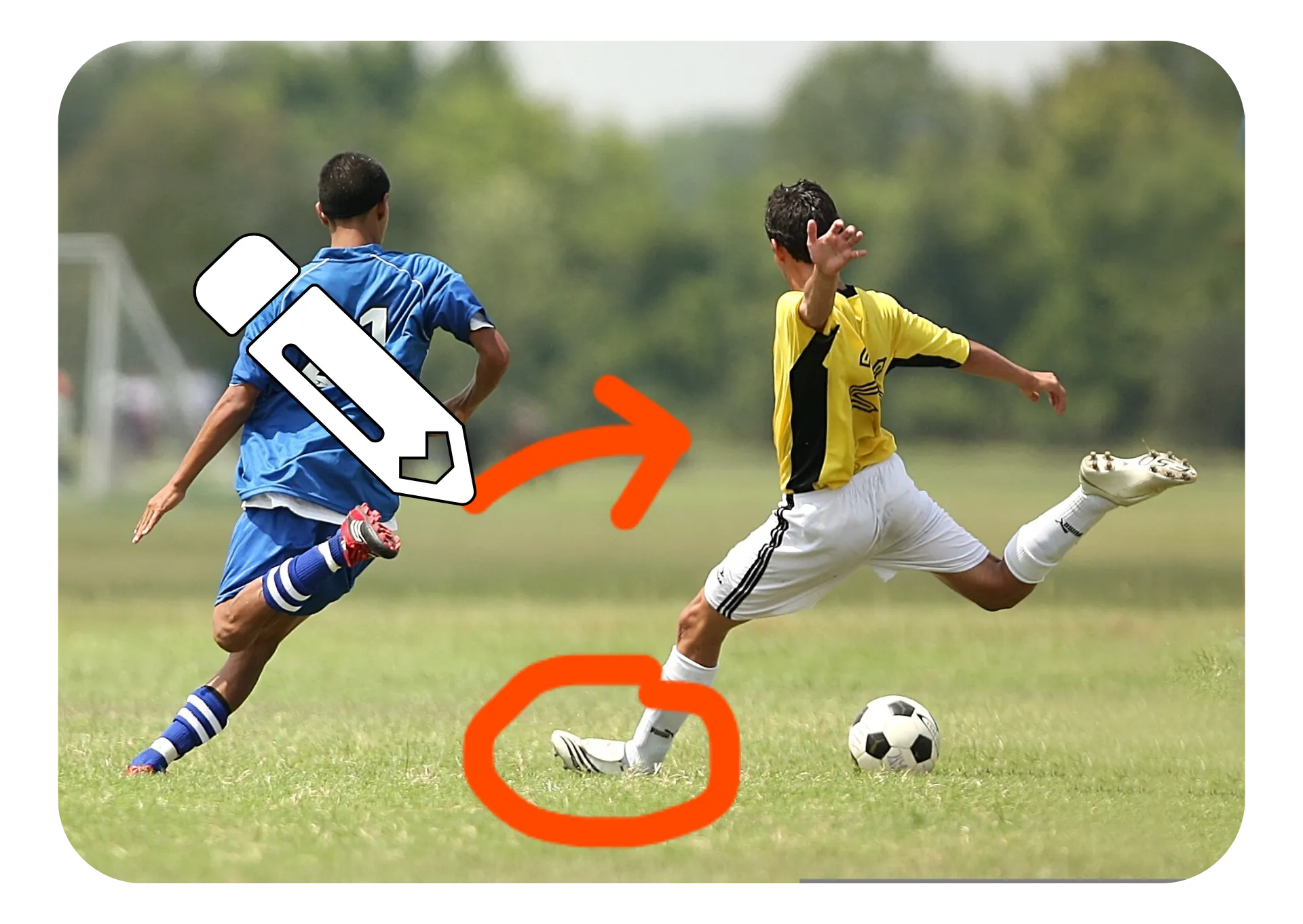
Give visual feedback that's easier to understand than a written comment alone. Circle alignment issues, point out timing problems, screen sketch layout changes, or mark specific frames that need attention.
Because Draw on Video is built into Kapwing's collaborative editor, teammates and clients can review, comment, and make updates in the same project. Share a link, draw your feedback in context, and move from review to approval faster.

Layer drawings with text, audio, and stickers
Add a quick doodle, highlight an important detail, or guide viewers with a custom arrow — then layer on additional creative elements to complete your edit. Combine drawings with text, stickers, and other overlays without switching tools. Add sound effects and royalty-free music to emphasize key moments.
Everything works together in the same timeline, making it easy to build polished videos from a simple sketch. Choose from hundreds of fonts, customizable shapes, and royalty-free stock assets to create videos that match your style and brand.

Clarify your content with personalized mark up
Join 35M+ creators using Kapwing. Draw in any color for free.

Reaction Videos
YouTubers and streamers doodle on video clips to emphasize reactions, highlight details, and add commentary, making content clearer and more entertaining

Social Content
Influencers use Draw on Video to add personality through sketches, arrows, jokes, and visual reactions. Drawing on a video creates a more dynamic viewing experience and helps creators establish a recognizable style.
Sports Breakdowns
Sports creators use screen sketch tools to explain plays, tactics, and decision-making. Drawing on video footage transforms game clips into educational content that keeps viewers watching longer.
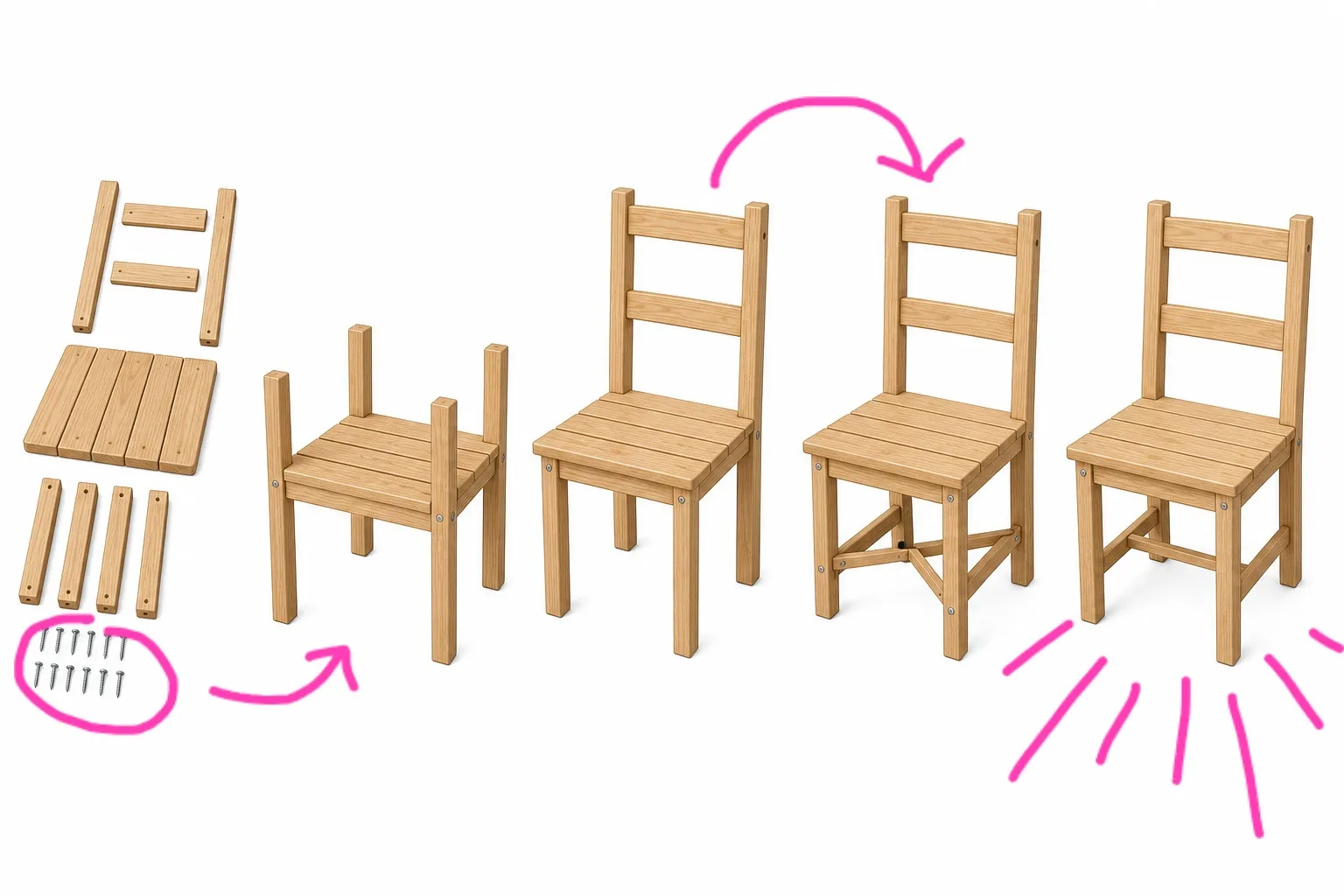
Tutorials & Tips
Online educators use video annotations to guide viewers through techniques, workflows, and processes. Drawing directly on screen recordings makes instructions easier to follow from start to finish.
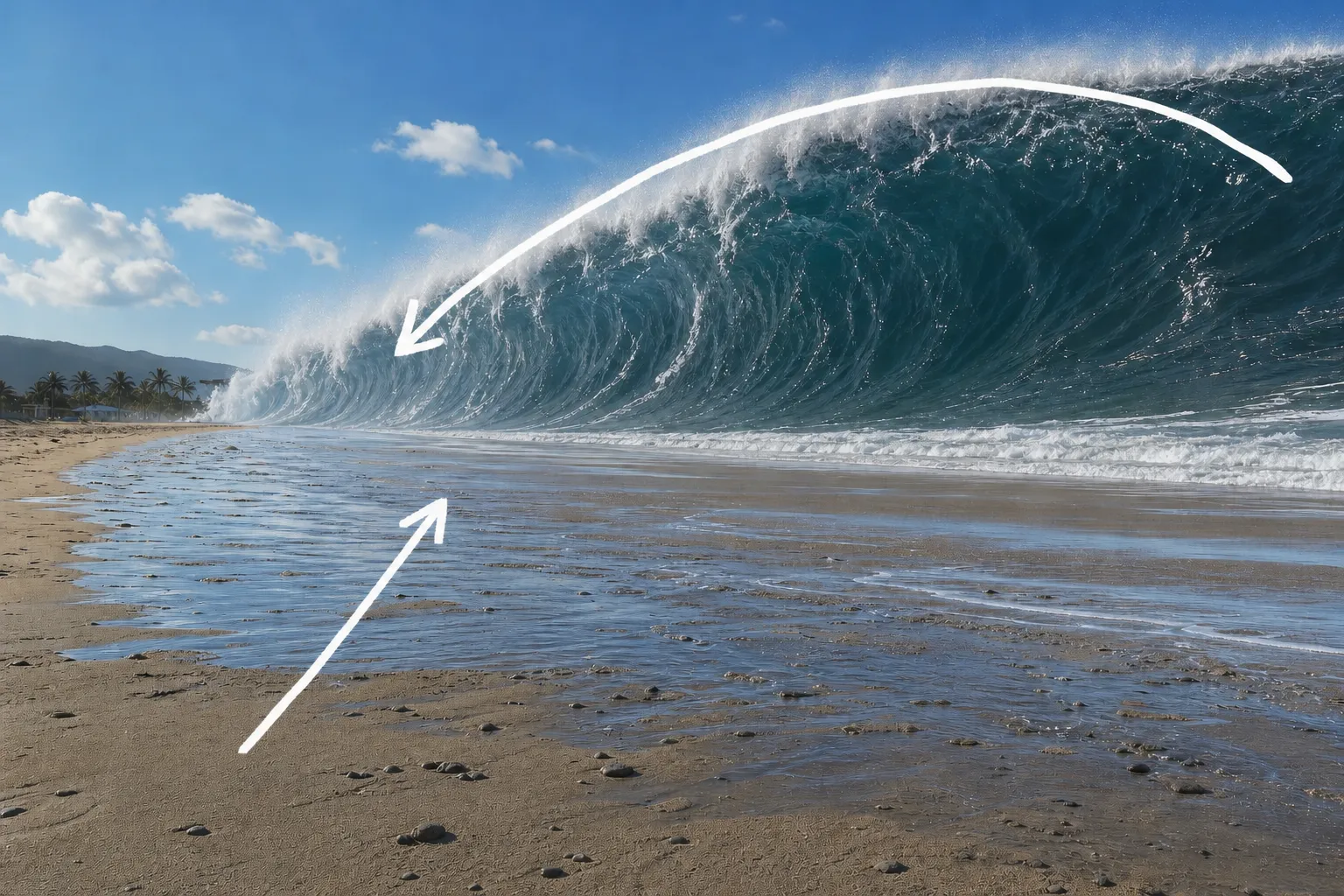
Explainer Videos
Marketers and educators annotate footage to simplify complex concepts and guide viewer attention. Drawing on a video creates a more visual learning experience without requiring advanced motion graphics.

Trend Breakdowns
Social media creators annotate viral clips to explain why content is performing well. Drawing on videos allows them to dissect hooks, editing techniques, and audience psychology in a visual way.
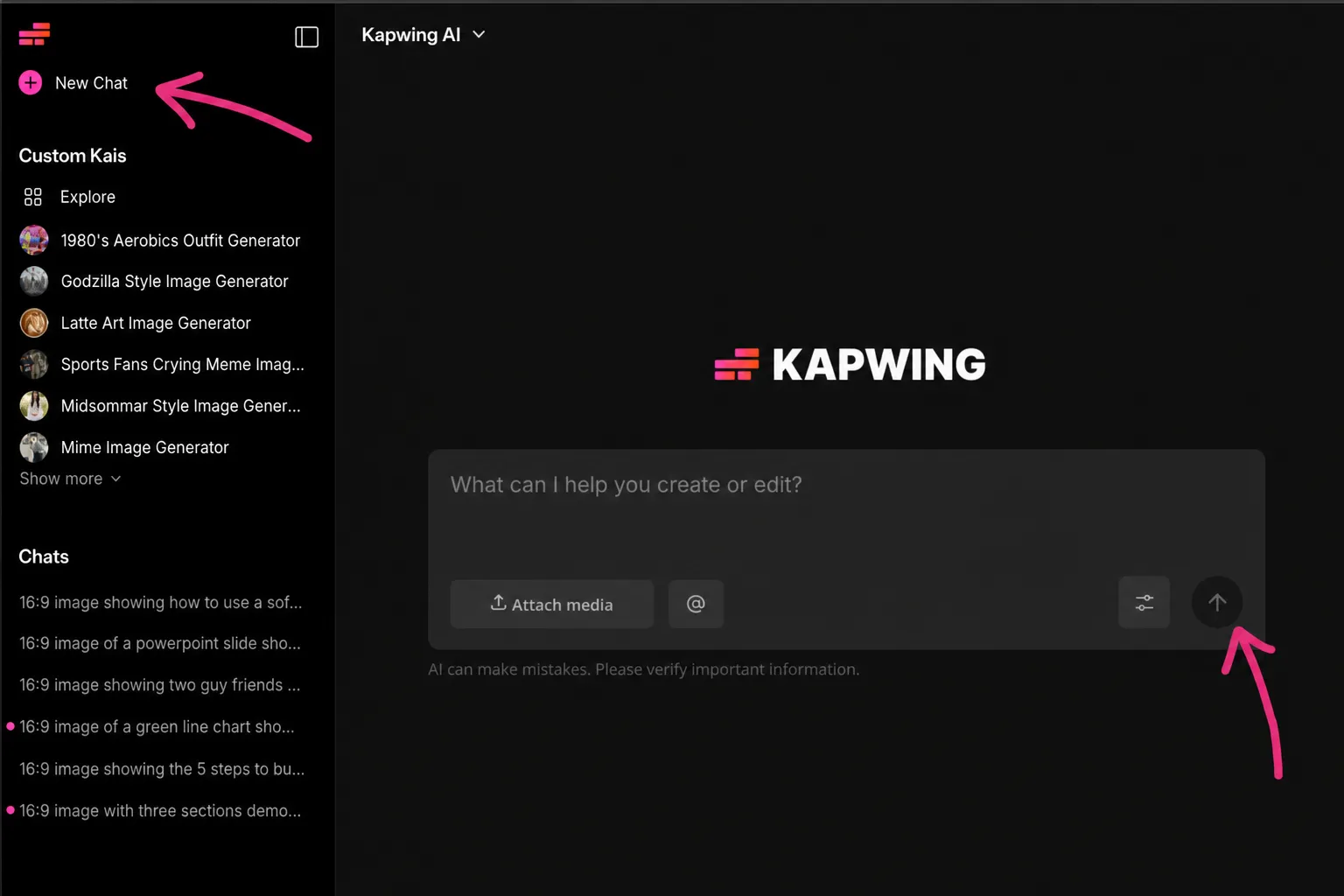
AI & Tech Demos
Tech creators use video annotations to point out model outputs, interface changes, and performance differences. Drawing on a video makes technical content easier for broader audiences to understand.

Educational Shorts
Creators producing TikToks, Reels, and Shorts use annotations to reinforce key points without adding extra narration. Quick sketches and highlights make short-form content easier to understand while scrolling.

Product Reviews
Influencers draw lines on video to highlight features, flaws, and comparisons during product reviews. Visual callouts make it easier for audiences to understand what sets products apart.
How to Draw on Videos
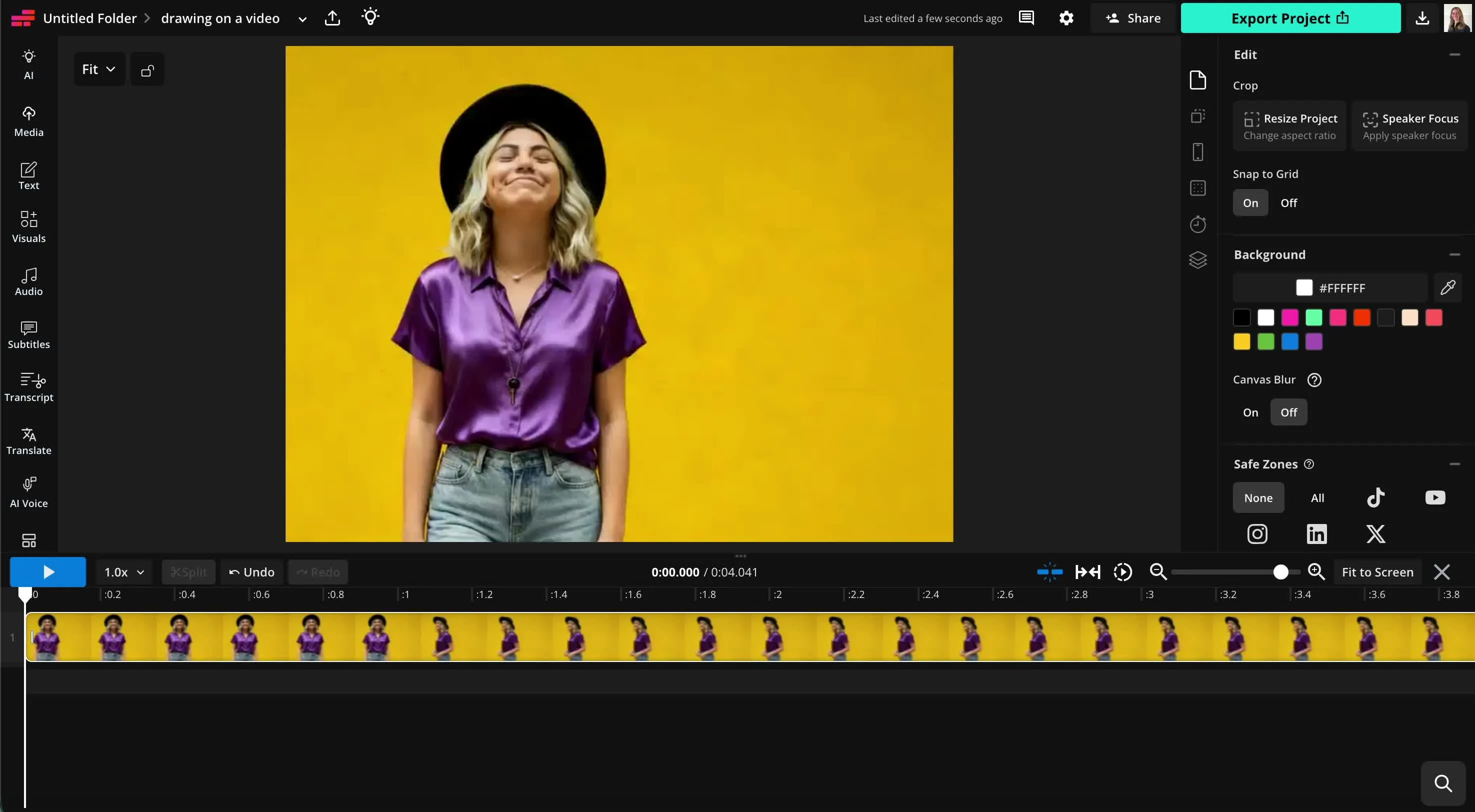
- Step 1Upload video
Create a new project in the Kapwing Studio. Click to upload your video.
- Step 2Draw
Click "Visuals" in the left sidebar, then scroll to "Draw." Choose from three brush styles and use the sliders to adjust brush size and opacity.
- Step 3Export
Edit drawing position, size, and duration on the Studio timeline. Save your annotated video by clicking "Export project" at the upper right.
What's different about Kapwing?



Frequently Asked Questions
We have answers to the most common questions that our users ask.
Is the Draw on Video tool free?
Yes, Kapwing's Draw on Video tool is free for all users. For access to the full range of video editing tools, including AI-powered tools, upgrade to a Pro account.
Is there a watermark on exports?
If you use Kapwing on a Free account, then all exports — including from Draw on Video — contain a watermark. Once you upgrade to a Pro account, the watermark is completely removed from your creations.
How to draw on videos
To draw on your videos online, start by uploading video to a new project in the Kapwing Studio. In the left sidebar, click "Visuals," then scroll down to the "Draw" tool. In the drawing studio, you can choose from three different brush styles: Marker (rounded edges), Highlighter (rounded edges with glow effect), and Pencil (square edges). Choose your color, including saved brand colors, then use the sliders to adjust brush size and opacity. For example, you can use the Highlighter brush with reduced opacity to create a classic highlight look. When you're done drawing, click "Done" to return to the main Studio.
In the general Kapwing Studio, you can change the position, rotation, and size of your drawings, as well adjust their duration on the video timeline. If you want to add more drawings to your video, just click "Draw" again in the "Visuals" section of the sidebar. When you're ready, export your video with the drawings overlaid.
Can I create multiple drawings for each video?
Yes, you can create as many drawings as you want for each video. To create multiple drawings, save your first drawing, return to the Studio canvas, and then click on "Draw" again. Each of your individual drawings can then be rotated and resized individually.
Can I download my drawings?
Absolutely, you can download your video with the drawing mark up by click "Export project," or download individual drawings as PNGs with transparent backgrounds by finding them in the Media Library and clicking the download icon.
Where can I use videos with mark up and annotations?
Annotated videos are commonly used for tutorials, product demos, educational content, sports analysis, team feedback, social media videos, presentations, and video reviews. Drawings help highlight important details and make complex information easier to understand.
Can I edit or erase drawings after adding them?
Yes, you can use the eraser tool to remove parts of a drawing before you add it to the timeline. Drawings remain editable in the timeline, so you can update their position, size, and duration at any time. You can also remove drawings and doodles from the timeline by deleting them.
How do I choose colors that will stand out on my videos?
Choose colors that contrast with the video content behind them. Bright colors like yellow, red, or cyan are often easy to see on darker footage, while darker colors can stand out better on light backgrounds. If your video contains lots of colors or movement, adding an underlying highlight or using a thicker brush can help keep your drawings visible.
It's also useful to assign meaning to different colors. For example, you might use one color to highlight key details and another to show movement or areas of focus. Keeping your color choices consistent throughout a video can make annotations easier for viewers to follow.
What kinds of videos work best for drawing on?
Drawing works especially well on videos where you want to direct attention, explain a process, or highlight specific details. Tutorials, product demos, presentations, gameplay clips, sports footage, educational videos, and screen recordings are all common use cases because annotations can help viewers follow along more easily.
For the best results, use videos with clear visuals and enough space around important subjects. Fast-moving or highly cluttered footage can make drawings harder to see, so simple annotations and high-contrast colors often work best in those situations.
Discover Resources
Tips, templates, and deep dives to help you create faster and share with confidence.
View all


Get started with your first video in just a few clicks. Join over 35 million creators who trust Kapwing to create more content in less time.