Generate videos with Kling Omni and Kling Motion Control in Kapwing
Choose your Kling AI model — or combine both
Free to start. Built into a full timeline editor.
Two Kling AI workflows.
One online editor.
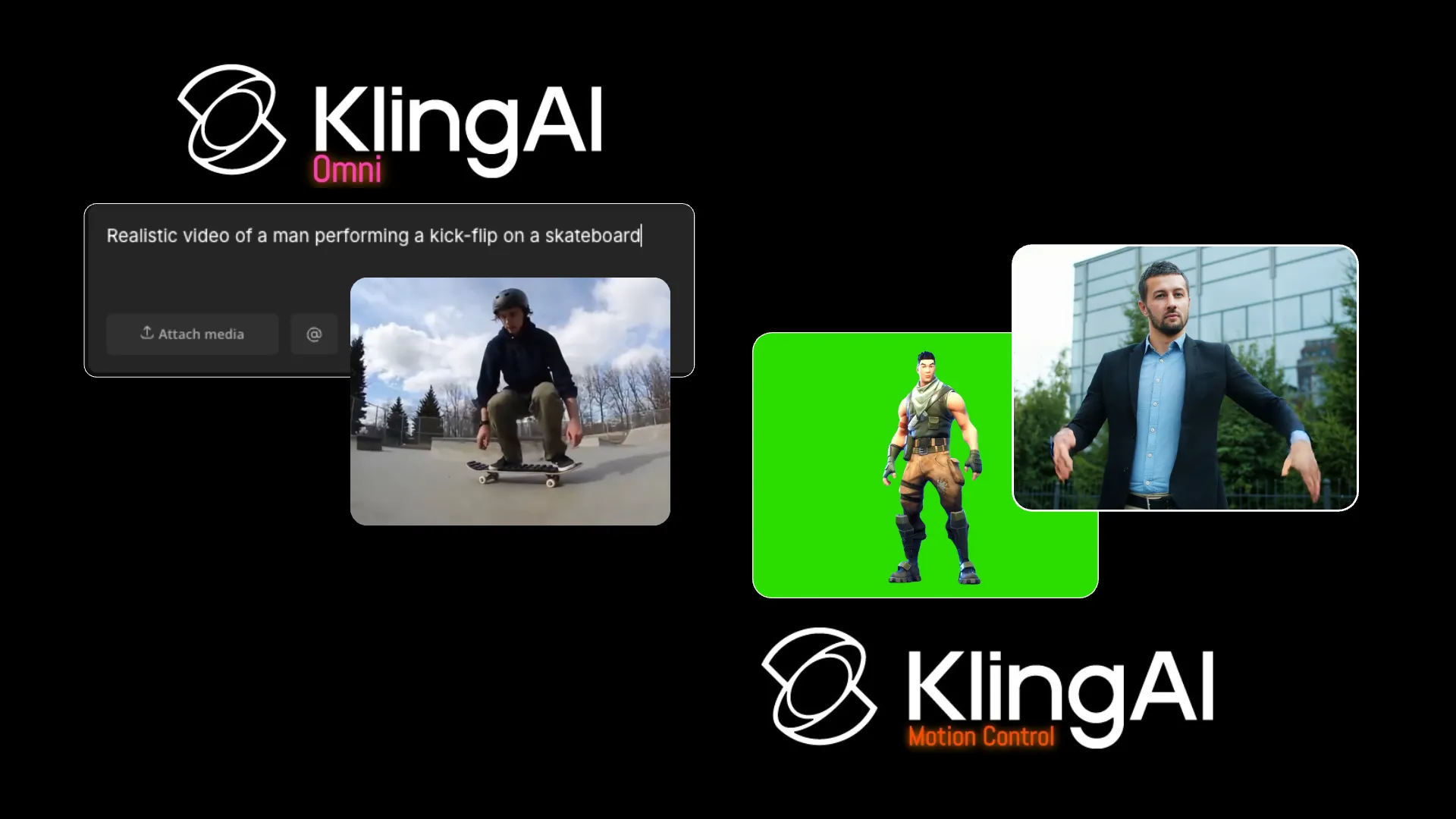
Kling Omni generates AI videos from a text prompt, an opening image, or up to seven reference images. Select Omni to control the characters, products, setting, and style of your video by combining reference media with text guidance.
Kling Motion Control is designed specifically for motion transfer. Upload one character image and one motion video to transfer the recorded movement, gestures, and expressions to your subject.
Generate with either Kling AI model, then trim, combine, subtitle, resize, and export your video in Kapwing.
AI video generation in Kapwing, using Kling
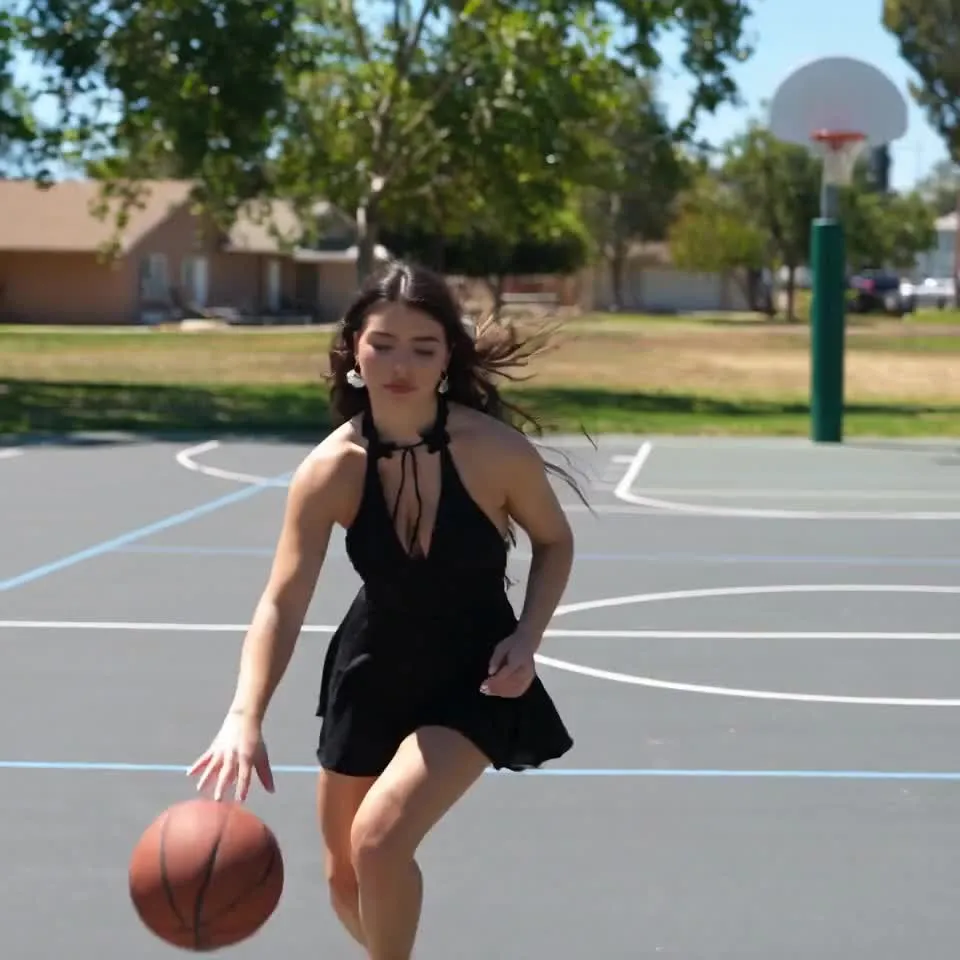
Create realistic movement — or copy it
Generate from Text
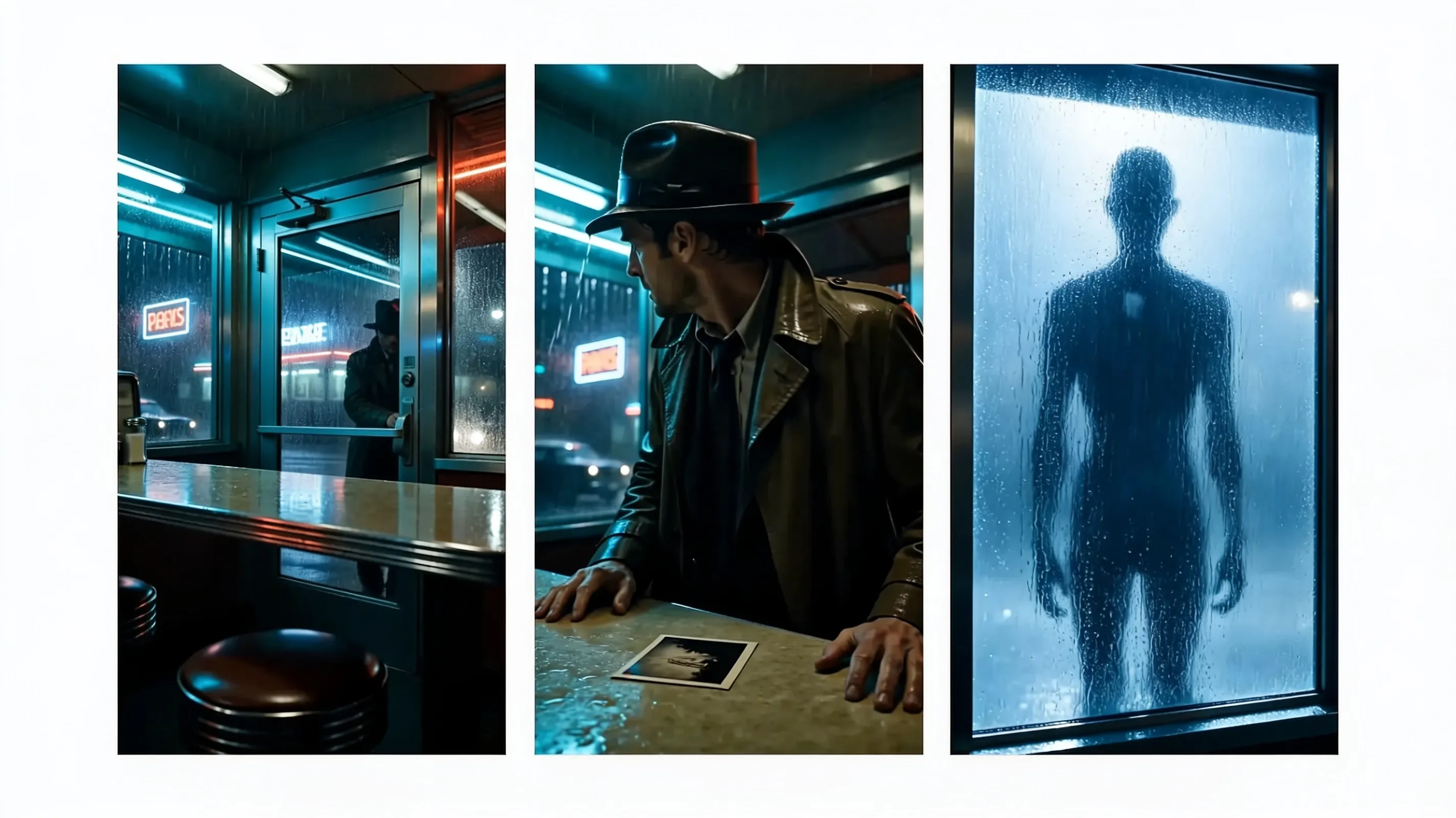
Use Kling Omni to turn a written scene into a video up to 10 seconds long in 1080p. Describe the subject, action, camera, setting, and style in one prompt.
Animate an Opening Image
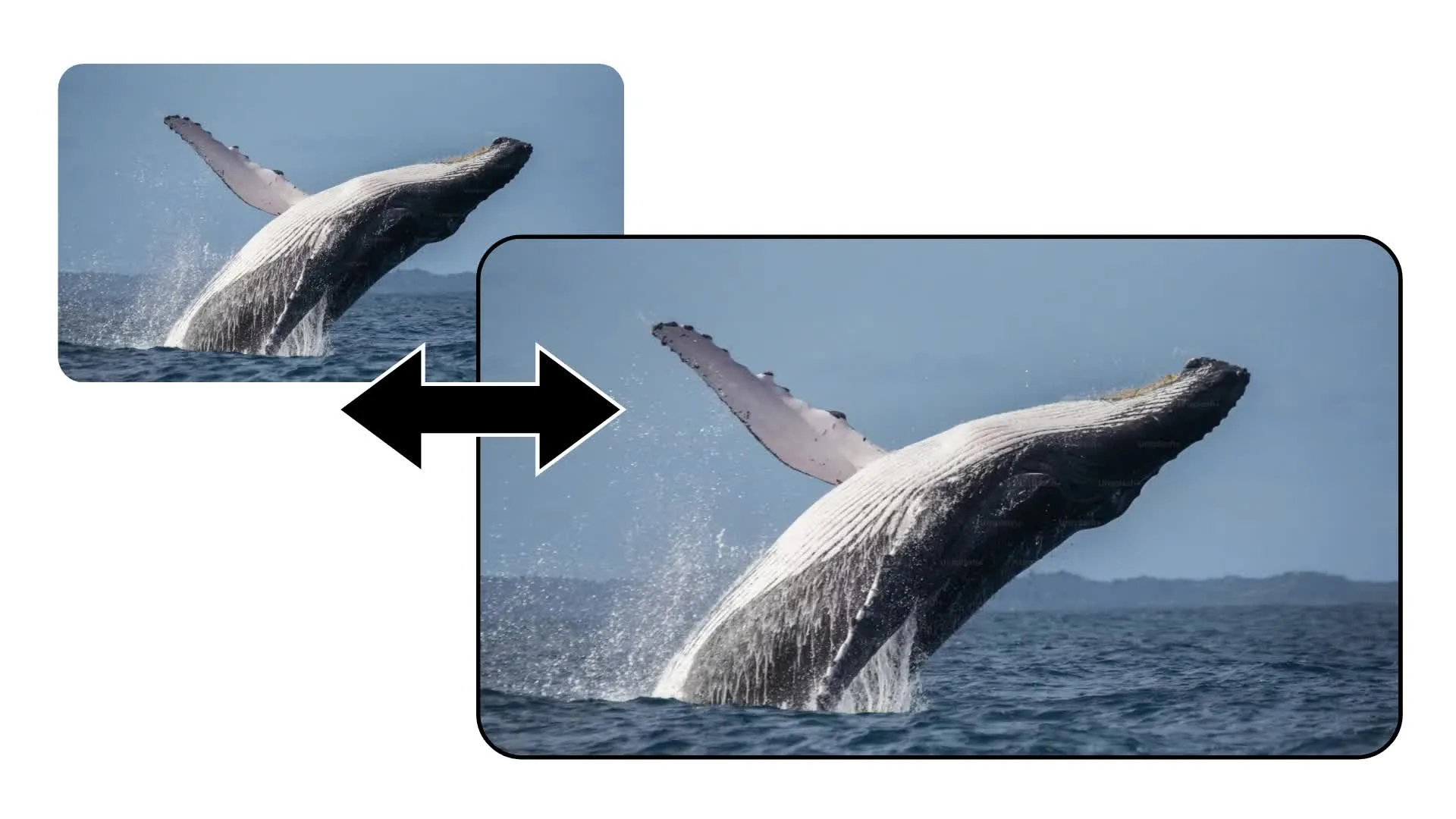
Upload a start image to establish the first frame, then tell Kling Omni how the subjects and camera should move
Guide with 7 Images
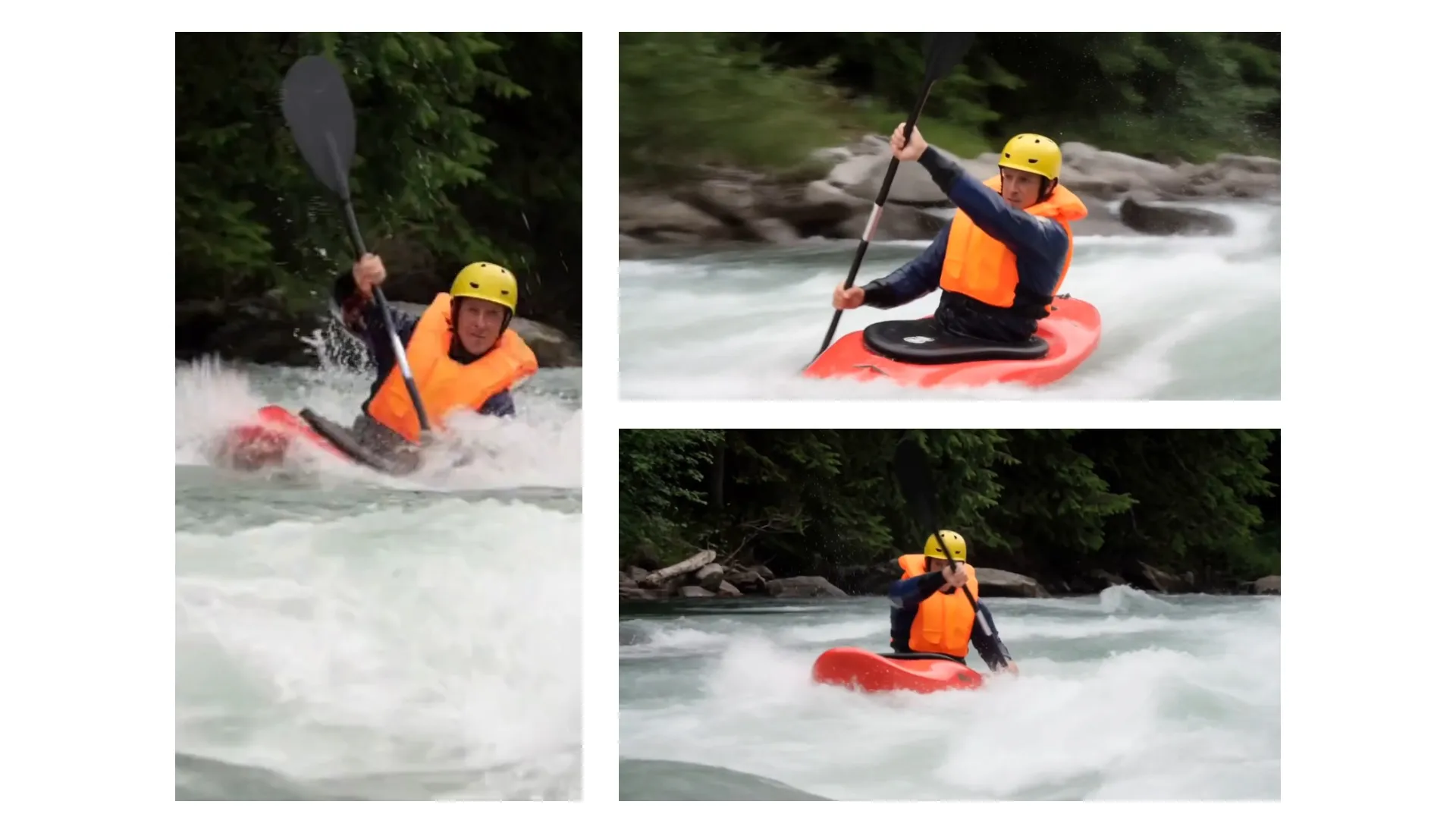
Give Kling Omni up to seven reference images for characters, products, locations, or style. Use them to keep important visual details recognizable.
Transfer a Performance
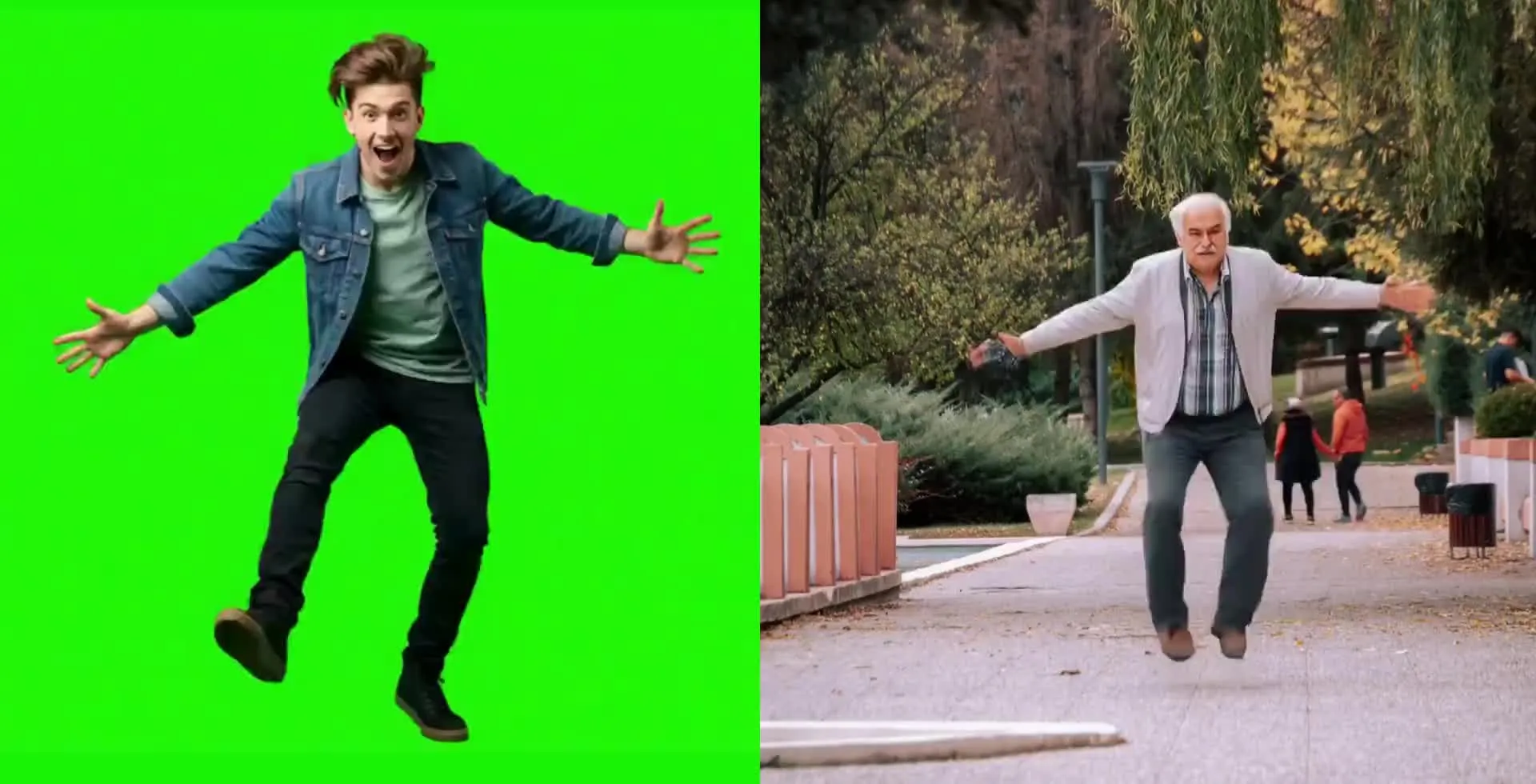
Give Kling Motion Control one character image and one motion video. AI motion transfer applies the recorded movement, gestures, and expressions to your new subject.
Multiple Aspect Ratios
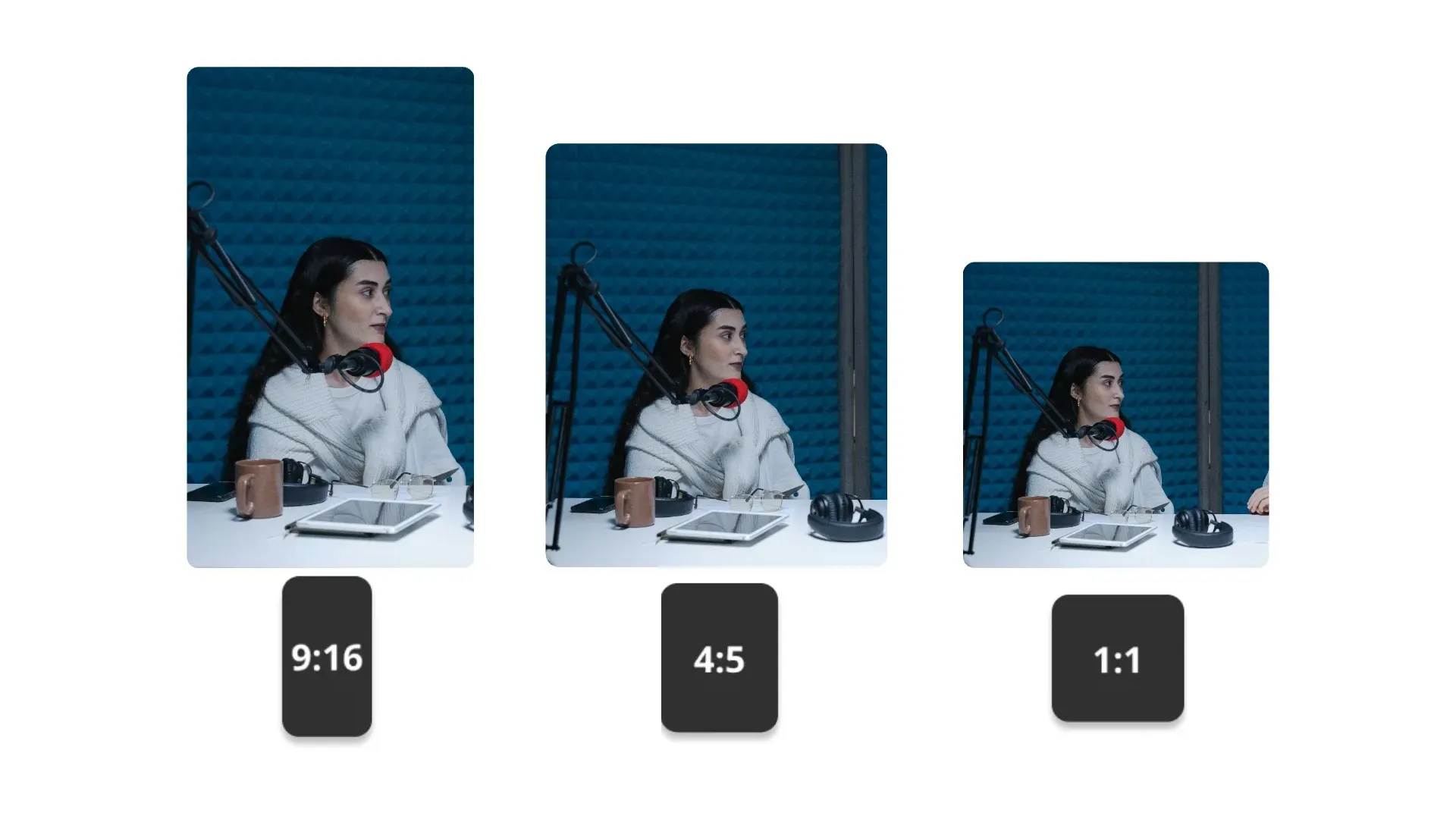
Generate Kling videos in multiple aspect ratios for landscape, vertical, and square platforms. Resize the result in Kapwing for any additional format you need.
How to Use Kling AI in Kapwing
- Step 1Open Kai
Open Kapwing’s AI Assistant, Kai. Then select the AI model dropdown menu.
- Step 2Choose Kling
Select Kling Omni for a text prompt, opening image, or visual references. Select Kling Motion Control when you have one character image and a performance video.
- Step 3Generate and edit
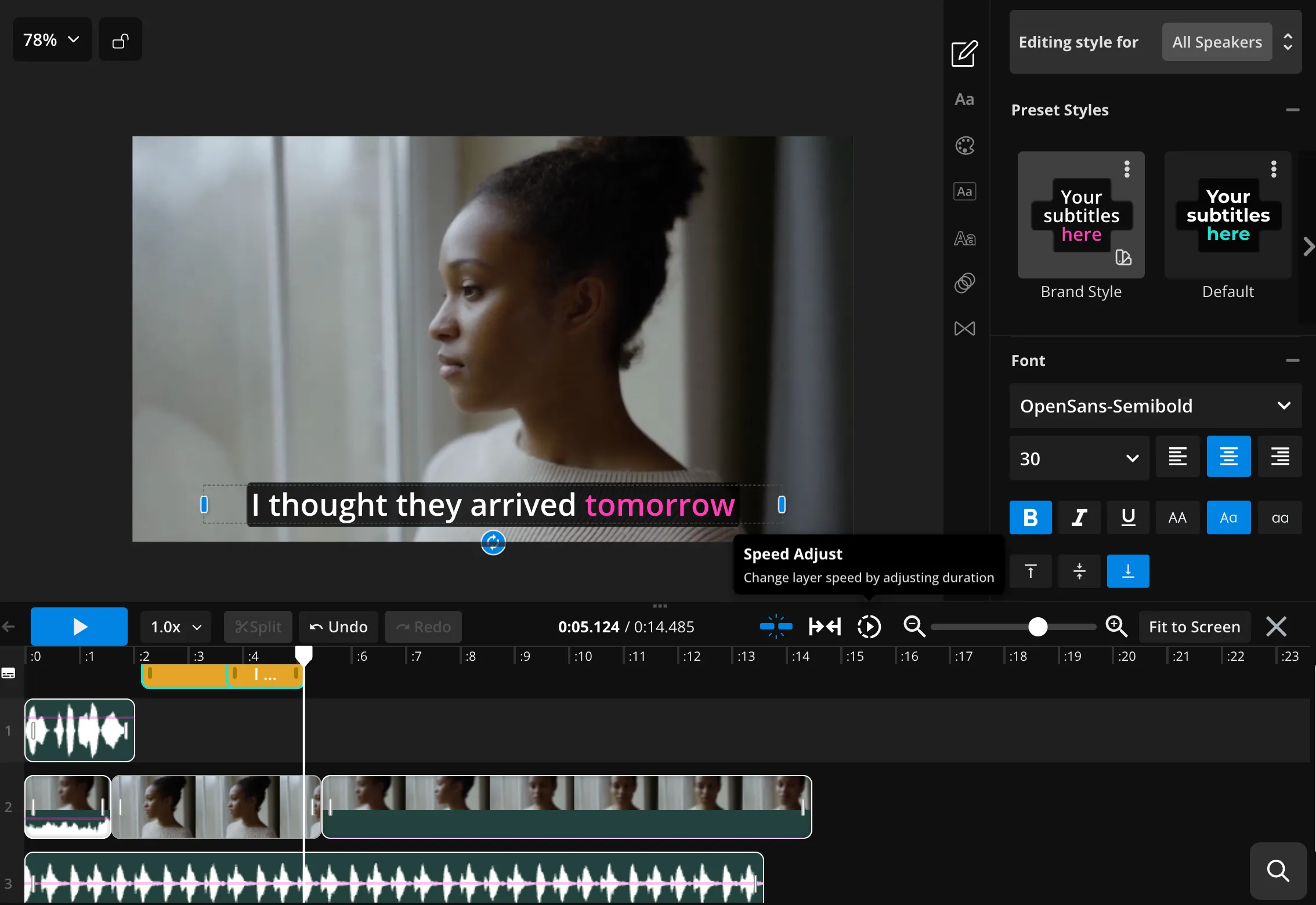
Generate your clip, compare takes in the timeline, then trim, add subtitles or audio, resize, and export.
Kling Omni vs Kling Motion Control
One Kapwing subscription — access to Kling Omni, Kling Motion Control, and 10+ AI models
Kling Omni
Generate a scene from text or images. Use a prompt, start frame, or up to seven visual references. Output does not include audio and can be up to 10 seconds long in 16:9, 9:16, or 1:1.
Kling Motion Control
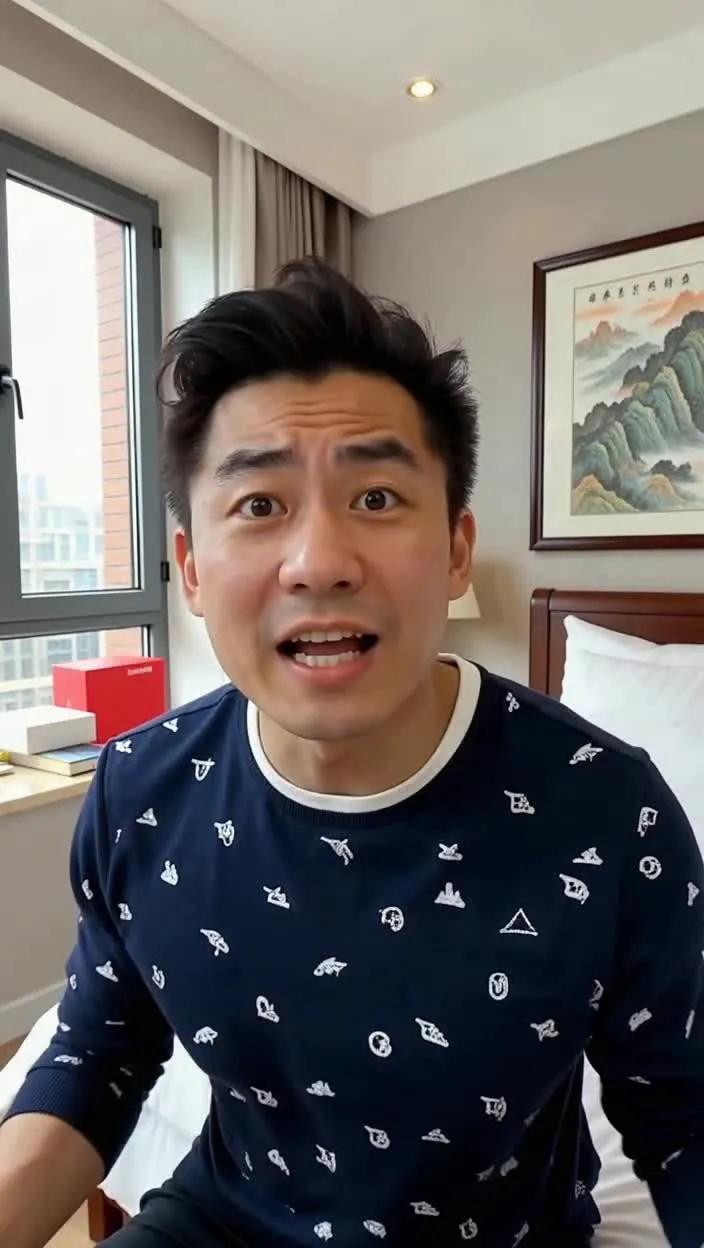
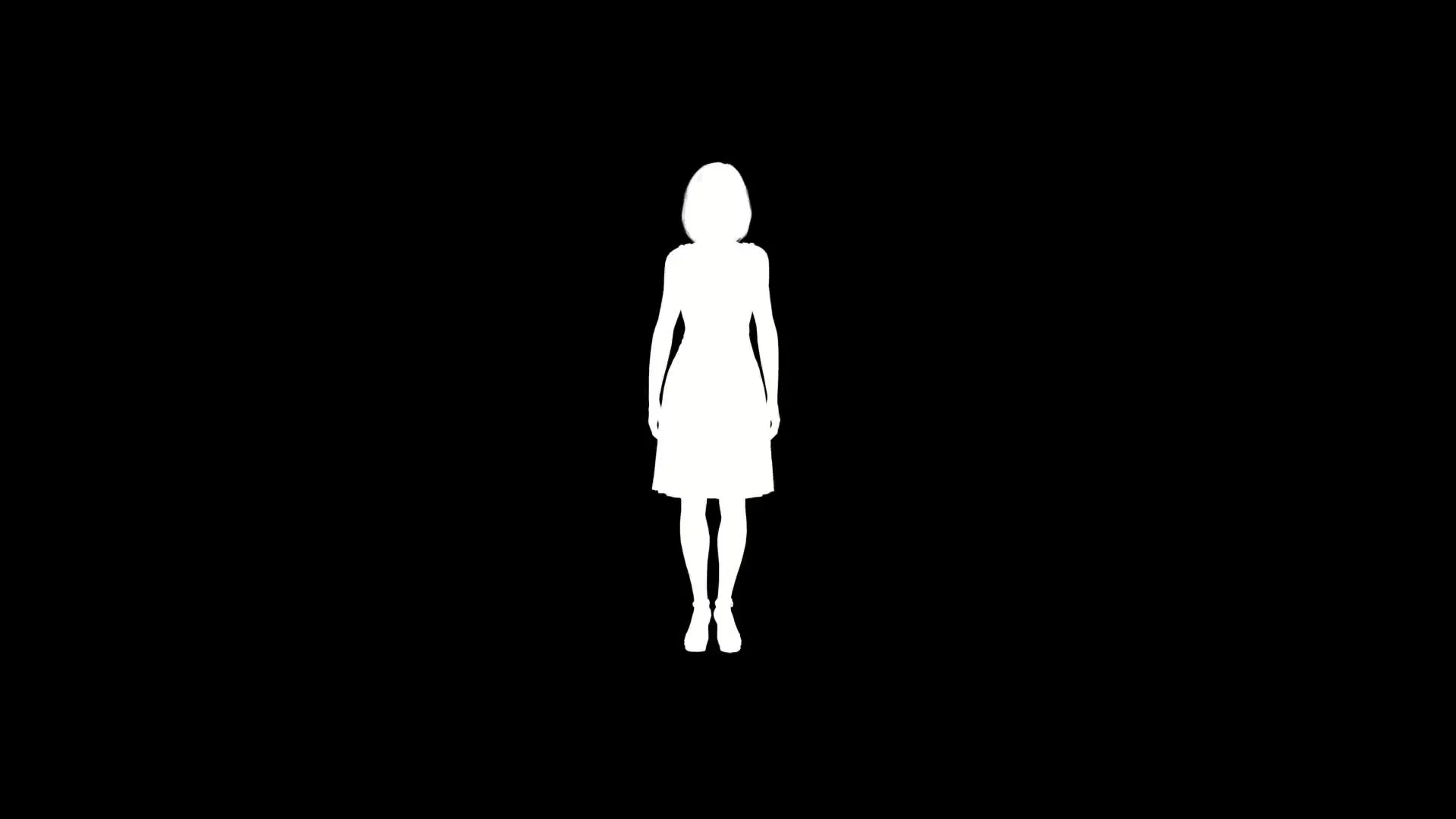
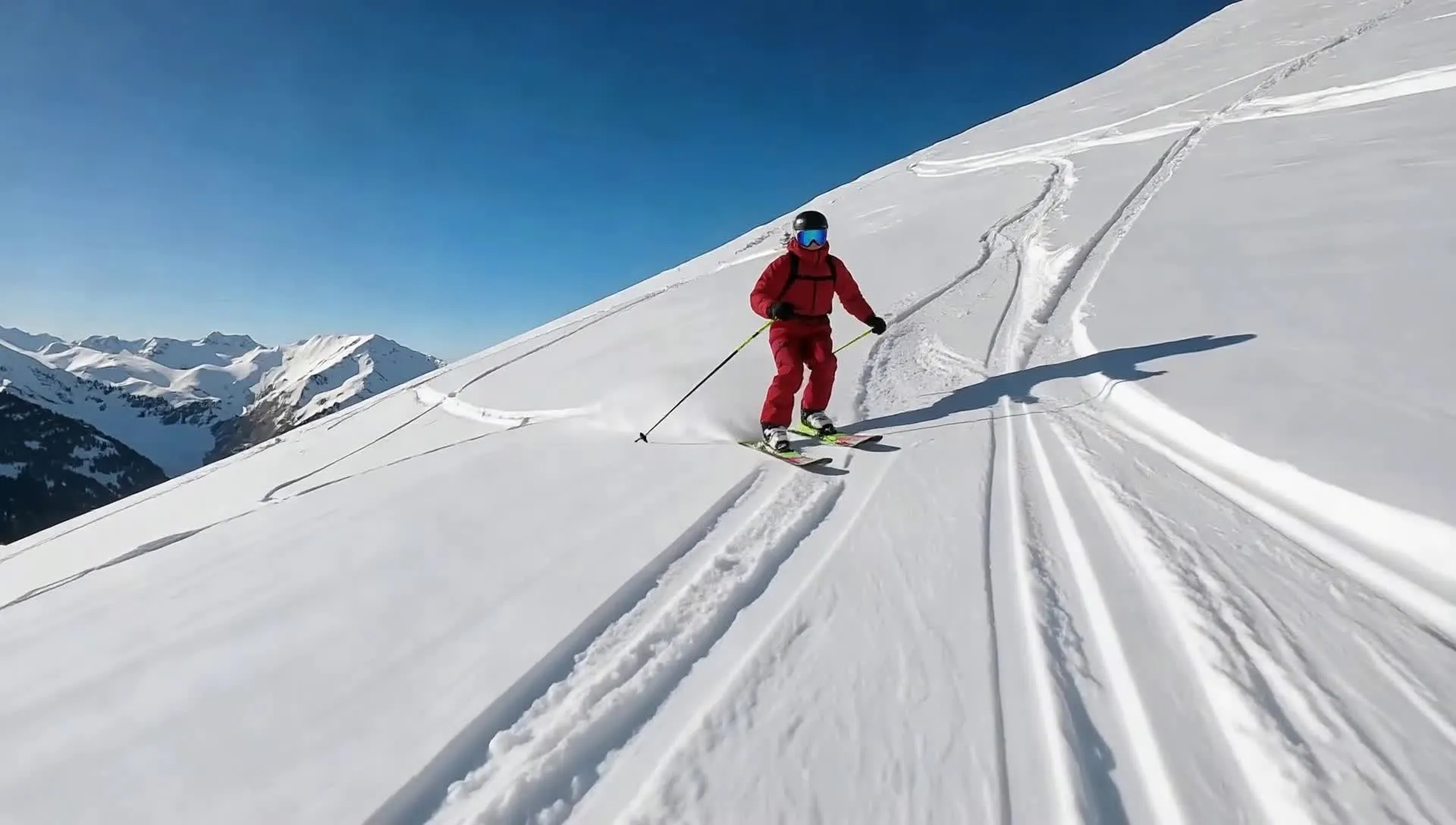
Transfer a recorded performance from a reference video to a character image. The output follows its movements, gestures, expressions, and timing for up to 10 seconds of uploaded footage.
Made with Kling AI — polished in Kapwing
Free to start. No watermark. Fully online.
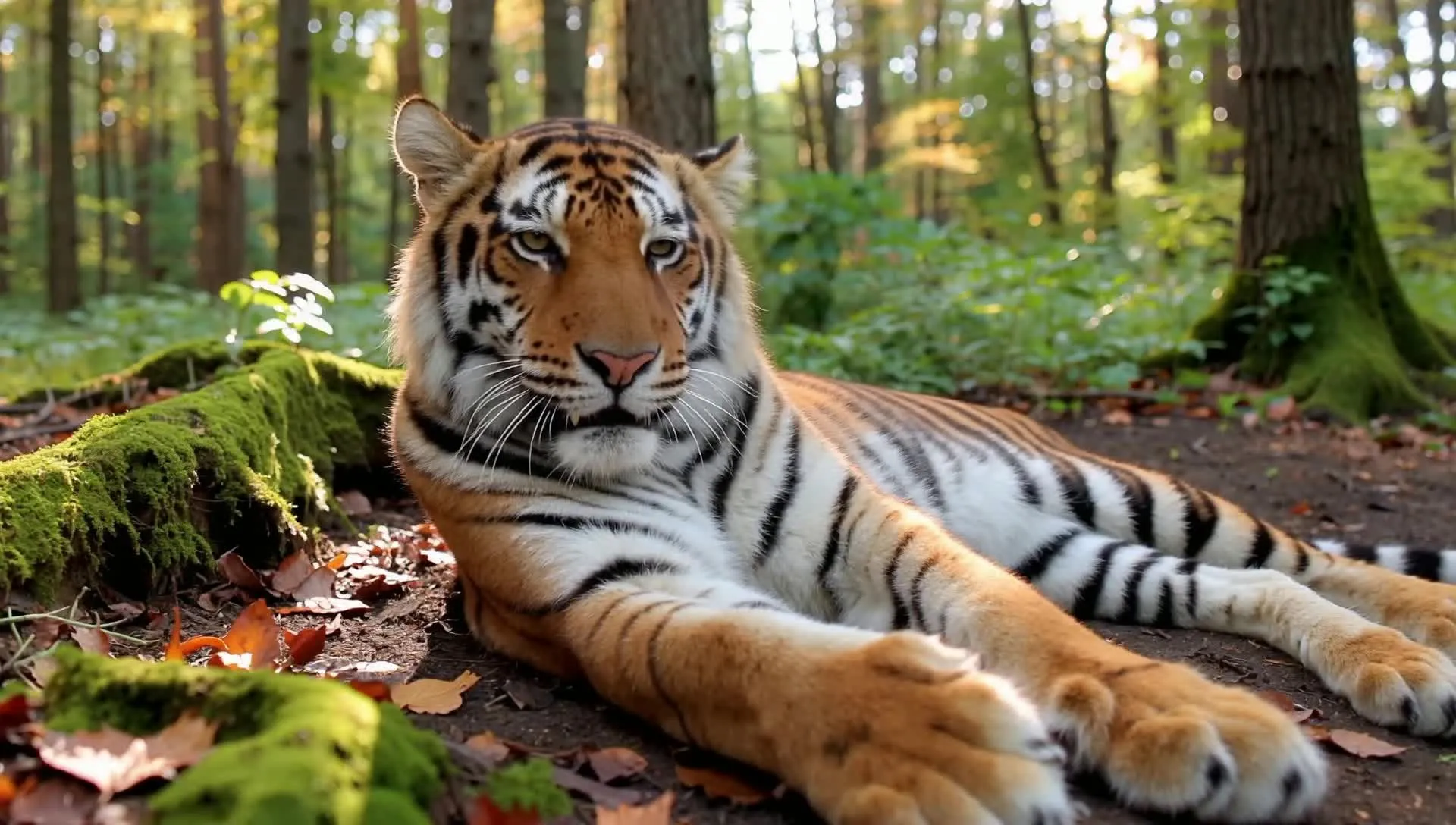
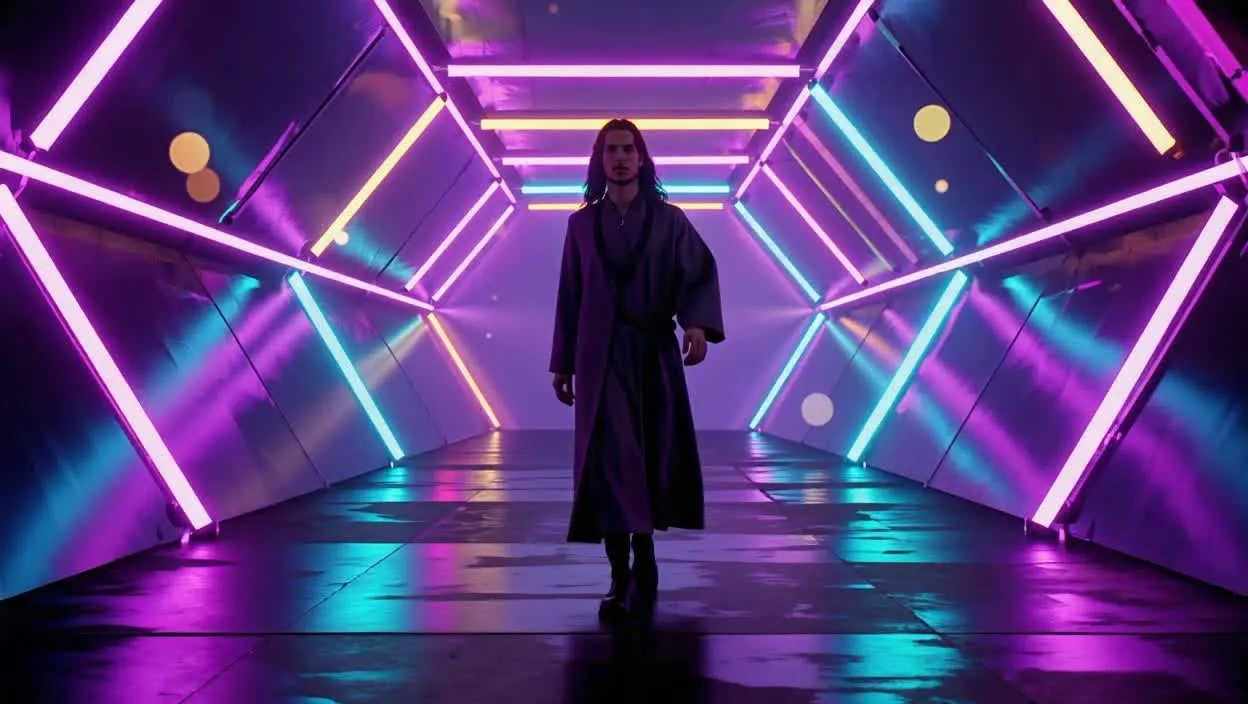
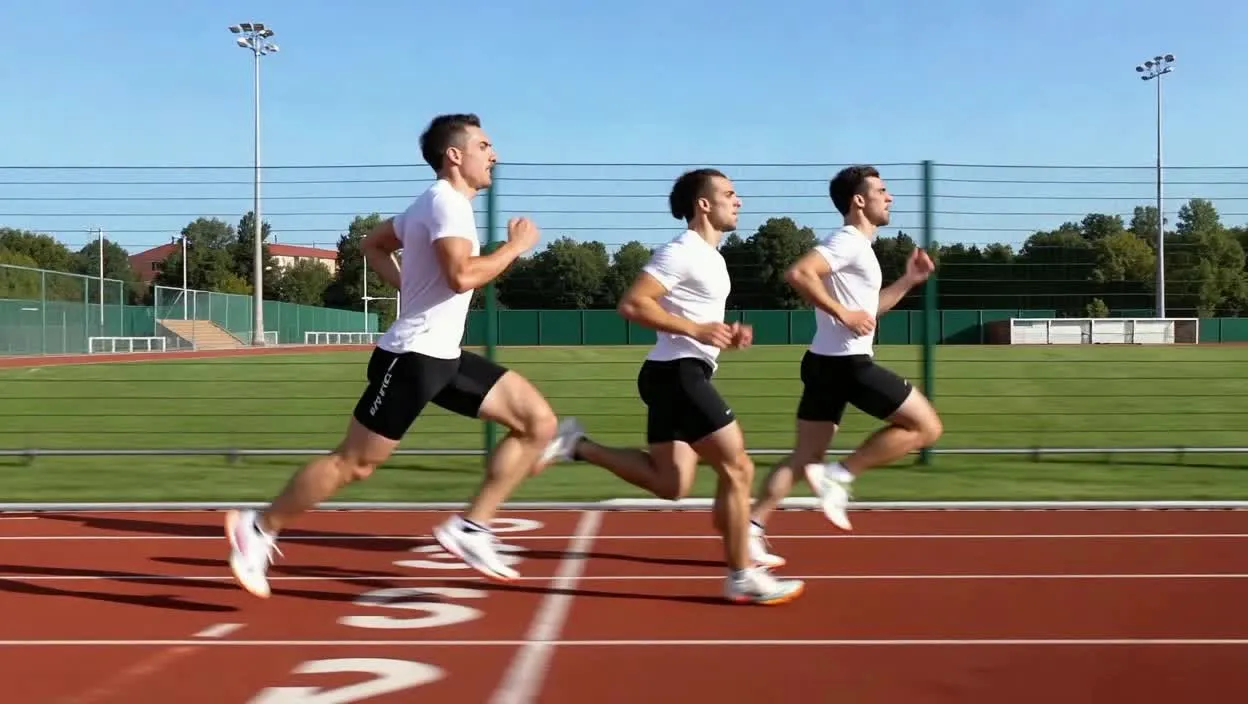
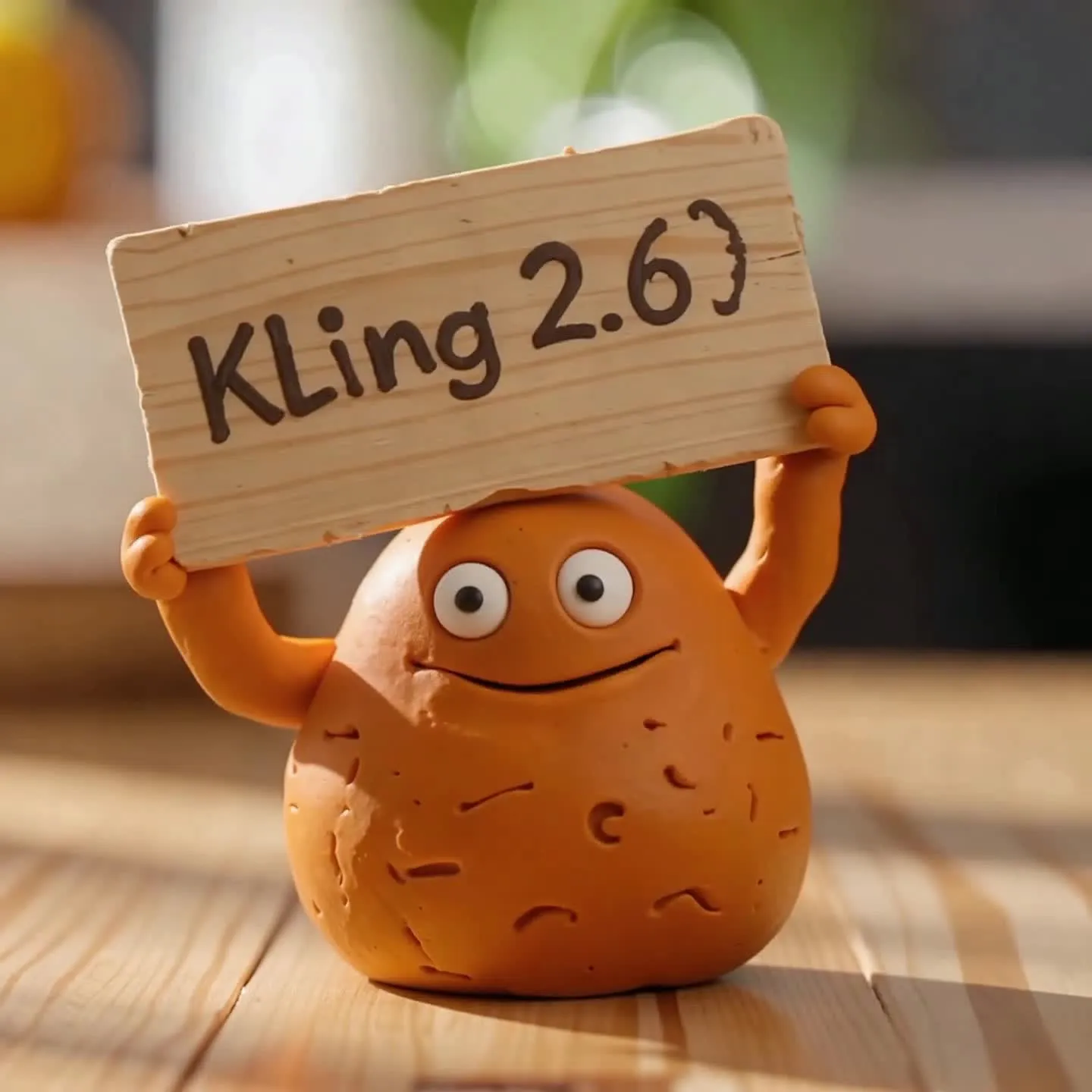
Kling + Kai
Kapwing's AI Video Assistant, integrated with 10+ AI video models
Switch between AI generation and editing
Kai is Kapwing’s AI Video Assistant, bringing multiple video, image, and audio models into one creative workflow.
Move directly between Kai and Kapwing’s timeline editor without starting a new project. Compare generations, trim and reorder AI clips, add subtitles, translations, voice-over, music, and sound effects, then resize for TikTok, YouTube, or Instagram.
Switch from Kling to other Kapwing AI models whenever you need to create reference images, supporting footage, or additional audio — all within the same browser workspace and subscription.
Frequently Asked Questions
We have answers to the most common questions that our users ask.
What is Kling AI?
Kling AI is a family of video-generation models developed by Kuaishou. In Kapwing, Kling Omni creates new scenes from text and images, while Kling Motion Control transfers movement from a reference video onto a character image.
Which Kling AI models are available in Kapwing?
Kapwing currently includes Kling Omni and Kling Motion Control. They appear in the same AI video workflow but accept different inputs and solve different production tasks.
Should I use Kling Omni or Kling Motion Control?
Use Kling Omni when you want to generate a new scene from a prompt, opening image, or visual references. Use Kling Motion Control when you already have the exact movement or performance you want a character to reproduce.
How do I use Kling AI in Kapwing?
Open Kapwing’s AI Assistant, Kai, start a video generation, and select a Kling model from the model menu. Add the inputs required by that model, generate the clip, and continue editing it in the Kapwing timeline.
What can I upload to Kling Omni in Kapwing?
Kling Omni accepts a text prompt with no media, one opening image, or up to seven reference images.
How long are Kling Omni videos, and which aspect ratios are supported?
Kling Omni generates 5- or 10-second videos in Kapwing. The supported aspect ratios are 16:9, 9:16, and 1:1. When you use an opening image, the framing can follow that image.
Does Kling AI generate audio in Kapwing?
Kapwing’s current Kling Omni and Kling Motion Control integrations do not include audio. However, you can add dialogue, voice-over, music, ambience, and sound effects in Kapwing after generation.
What files does Kling Motion Control require?
Kling Motion Control requires one image of the character and one video containing the motion to copy. It uses the recorded movement, timing, gestures, and expressions rather than a written motion prompt.
Can I edit Kling AI videos in Kapwing?
Yes. Trim and combine Kling clips, add subtitles, translations, voice-over, music, and sound effects, resize the project, and export from Kapwing’s online video editor.
Can I use Kling AI on iPhone or Android?
You can access Kapwing in a mobile browser on iPhone or Android. A desktop browser may be easier when you need to upload several reference files or make detailed timeline edits.
Discover Resources
Tips, templates, and deep dives to help you create faster and share with confidence.
View all

Get started with your first video in just a few clicks. Join over 35 million creators who trust Kapwing to create more content in less time.