
Veo 3 — ready-to-publish quality with synced audio
Create lifelike scenes and consistent characters
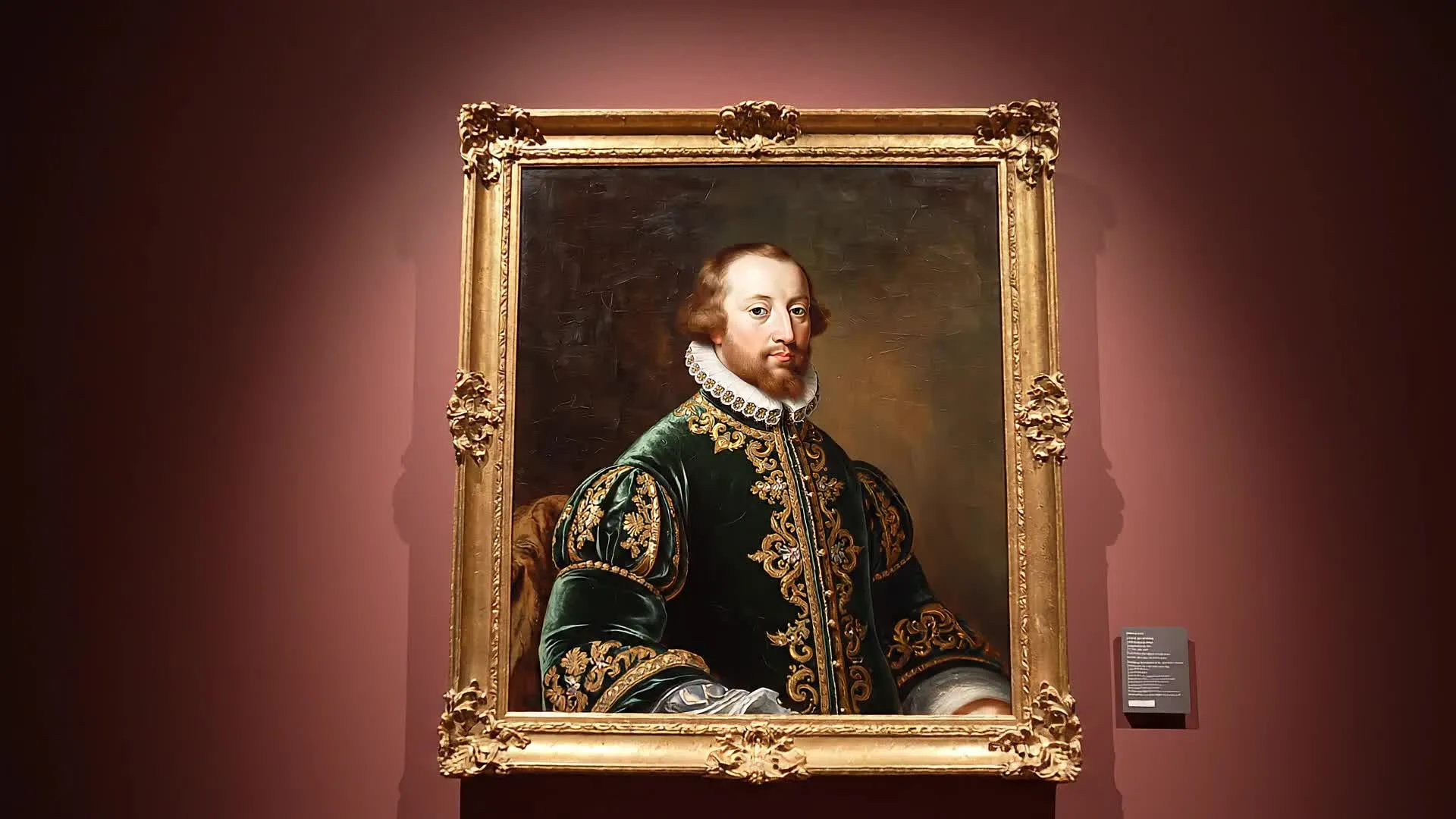
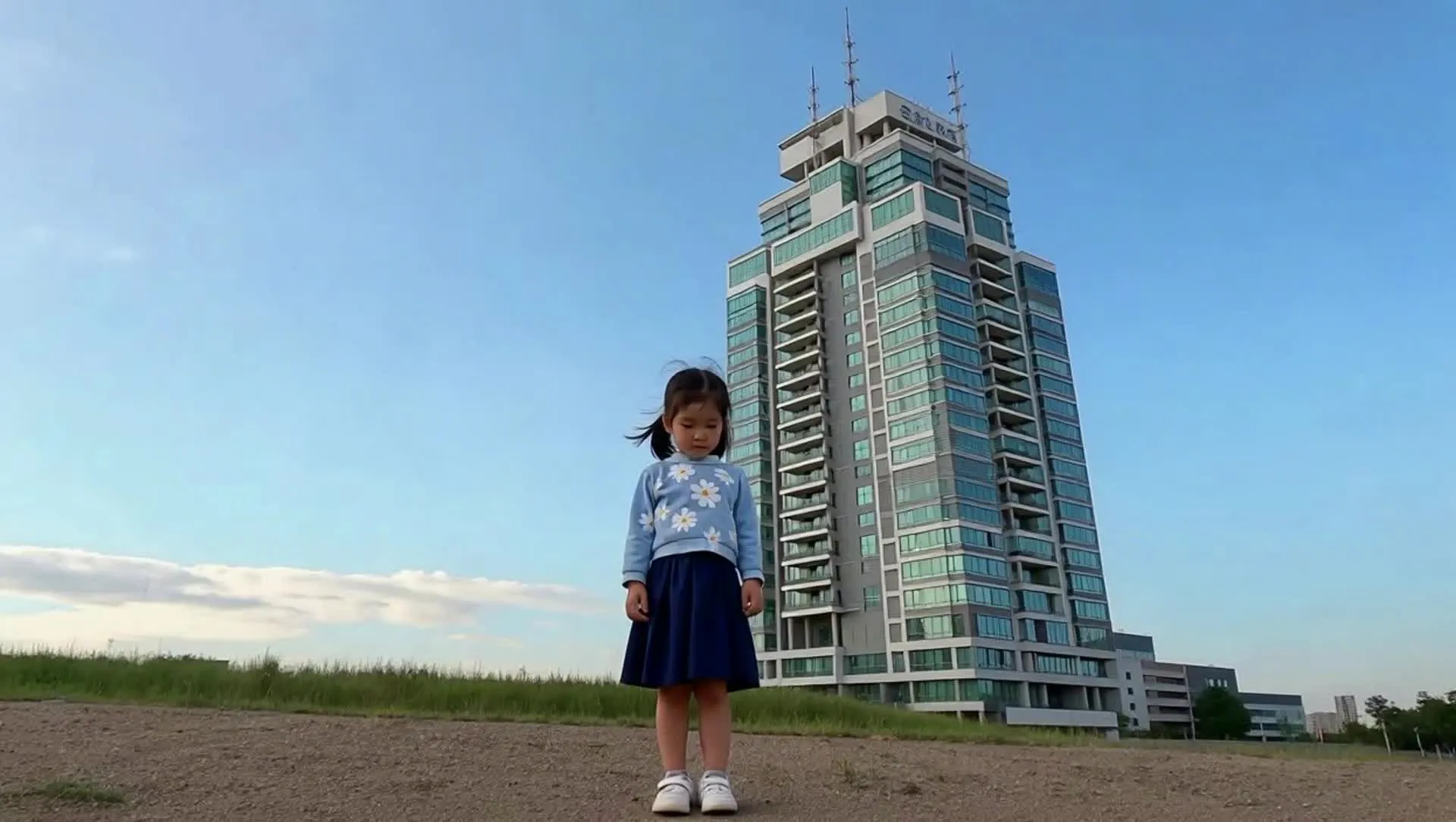
Veo 3 is an AI video generator designed to create high-quality, production-ready video clips with precise visual control. Part of Google's Gemini AI ecosystem, Veo 3 excels at text-to-video generation. It produces polished video scenes from prompts and image start frames, with clean composition, consistent lighting, and professional-grade visual detail
Creators use Veo 3 to generate short, high-fidelity clips from text prompts or images, commonly used for B-roll, branded visuals, and social video content. Inside Kapwing's online video editor, creators can immediately edit Veo videos, adjust aspect ratios, add subtitles, layer audio, combine clips into longer videos, and export finished content — all directly from your browser.
As new versions of Veo are released, Kapwing updates its integration so creators always have access to the latest Google Veo model without changing tools or workflows — starting with Veo 3.
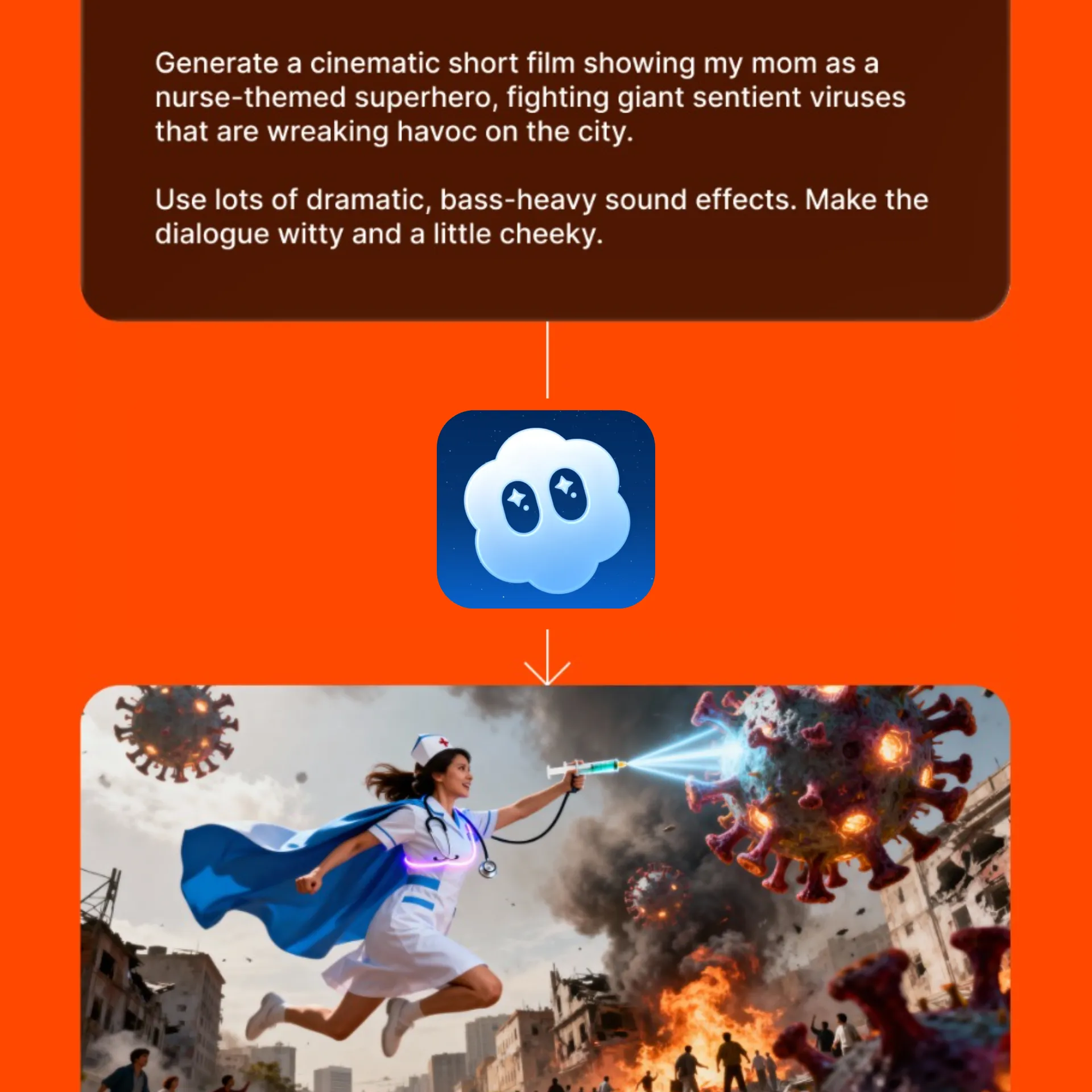
What to expect with Veo 3
Full control of video projects — from visual fidelity to aspect ratio
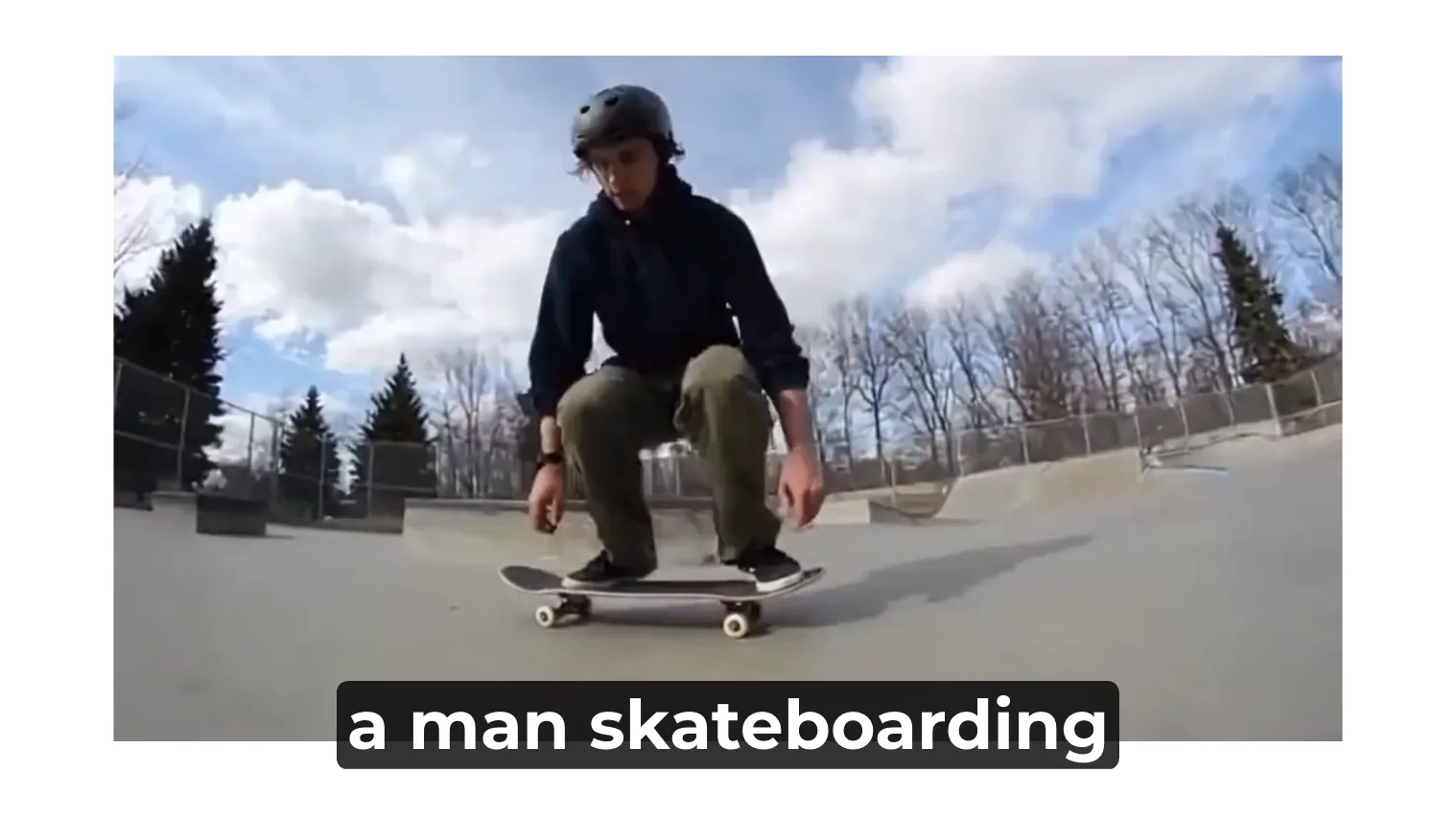
Text to Video
Generate polished 8-second video clips directly from text prompts. Veo produces consistent, clip-first outputs with consistent framing and visual quality.
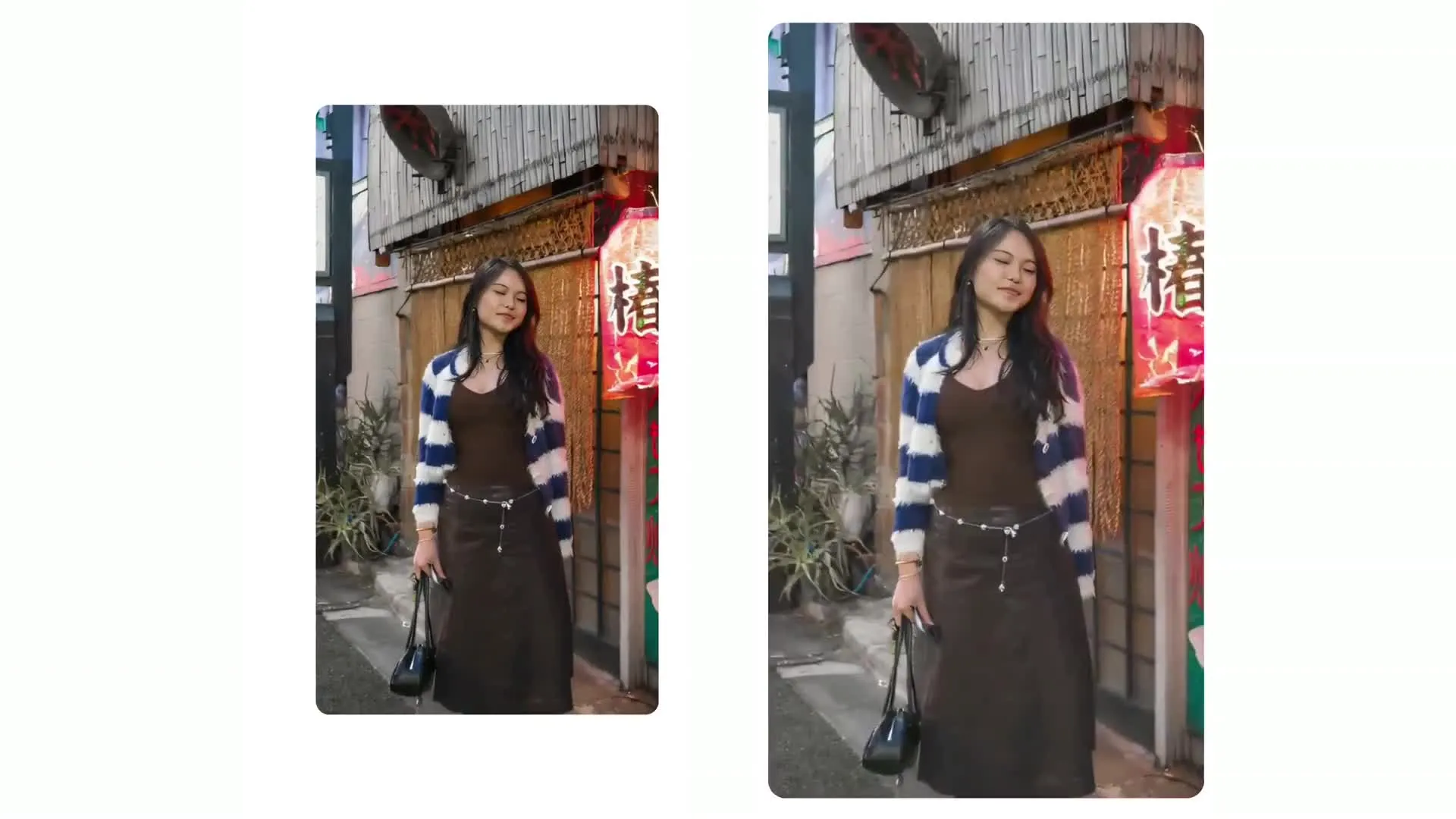
Start-frame to Video
Animate image start frames into video clips while preserving composition, subject placement, and visual style. Built for product shots, brand assets, and visual consistency.
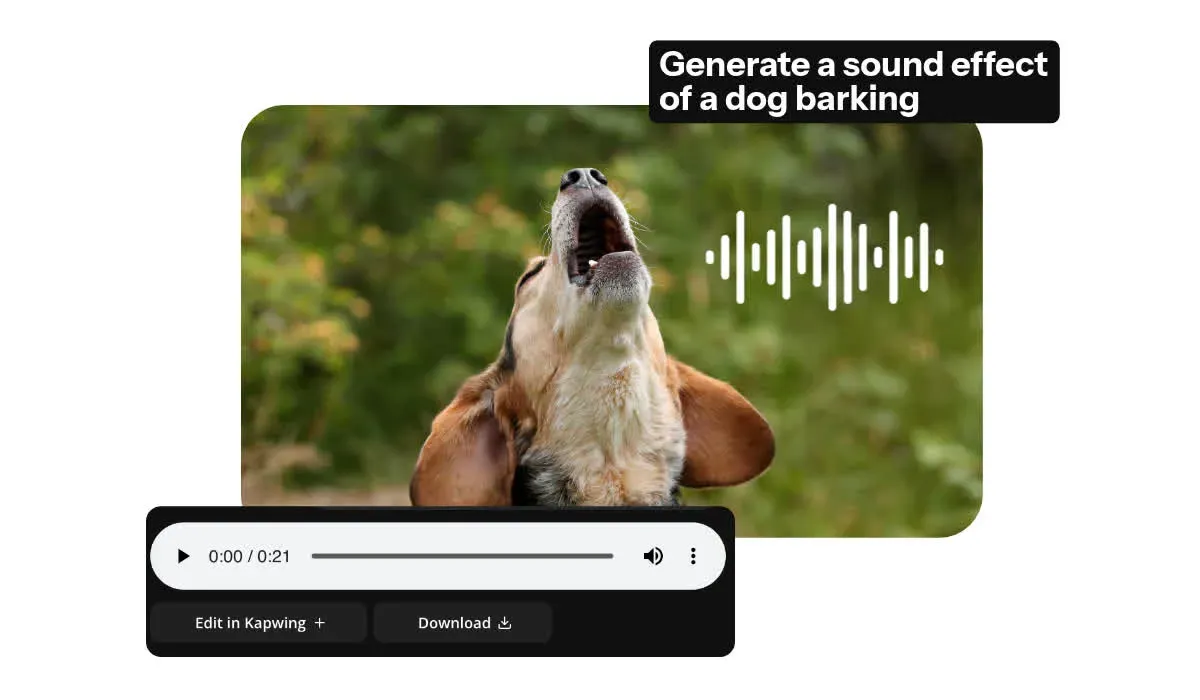
Audio Control
Unlike many AI video models, Veo can generate clips with synchronized audio such as speech and ambient sound. Kapwing gives creators full control to edit, enhance, or replace audio.
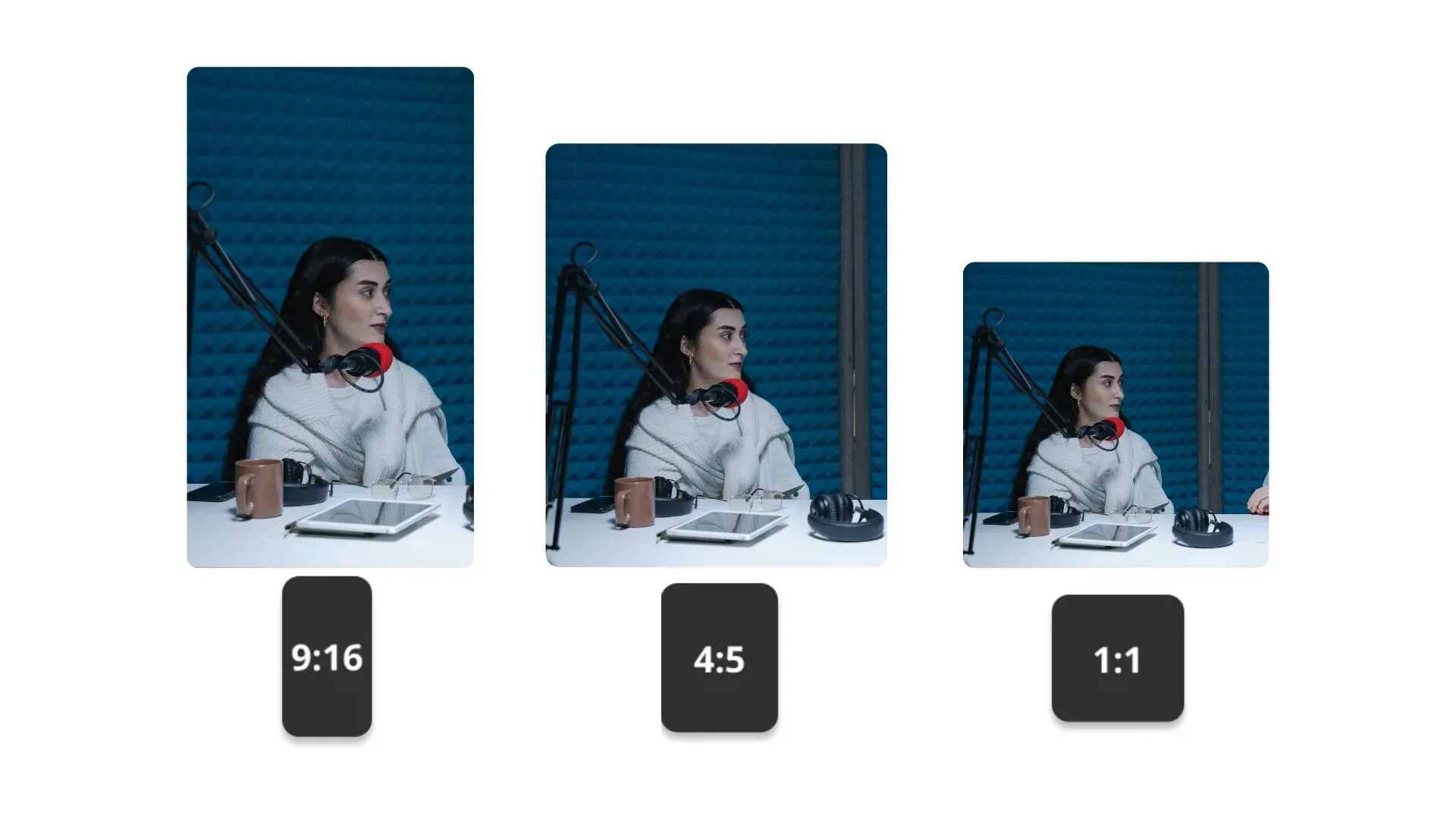
Any Aspect Ratio
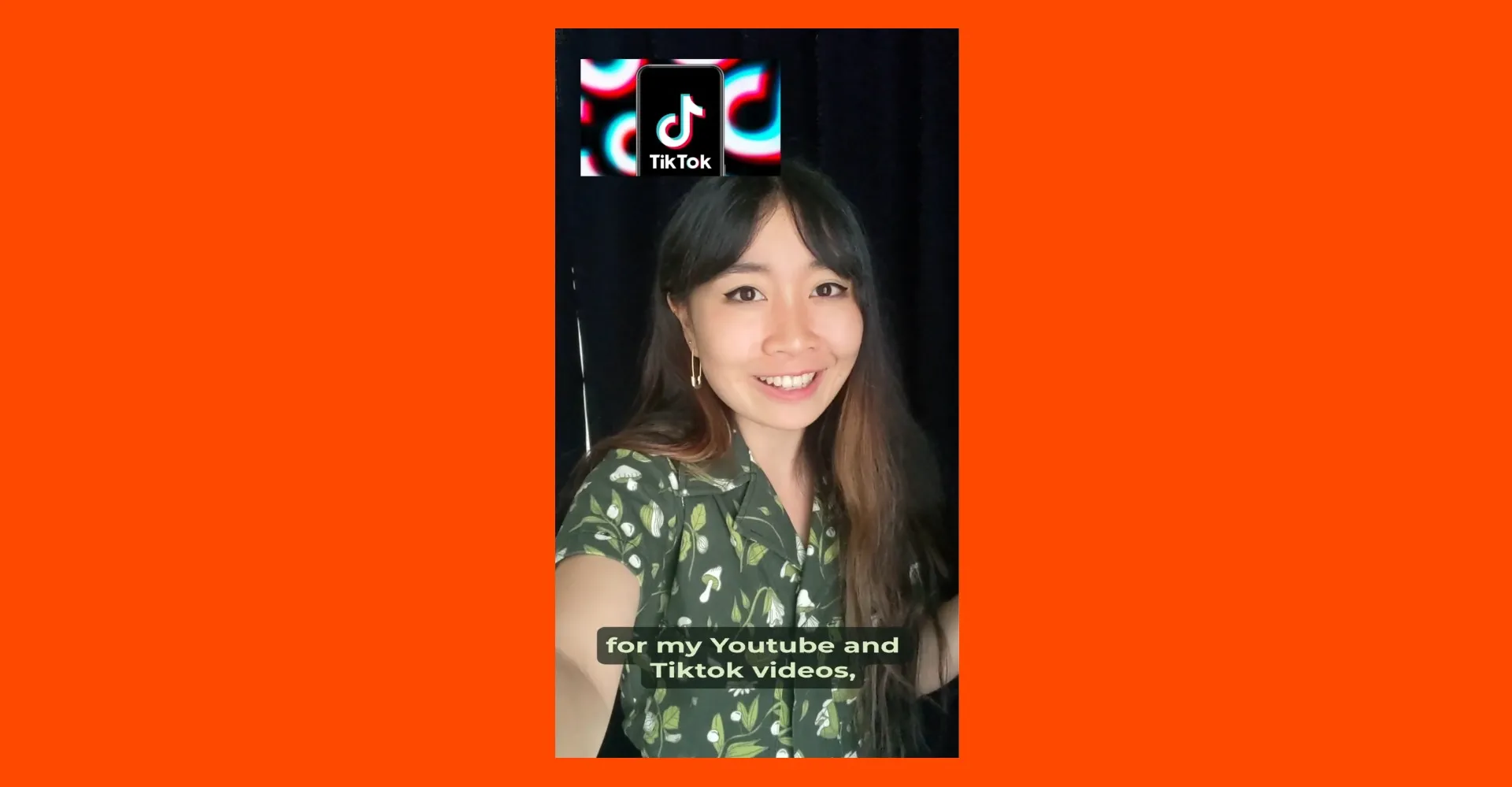
Create video clips in 9:16, 1:1, 16:9, and other aspect ratios optimized for TikTok, YouTube, Instagram, and other platforms

Multi-scenes
Create multi-scene videos in one generation while preserving character consistency using the @ tag feature
Created with Veo 3 — in Kapwing
Free to start. No watermark. Fully online.
-poster.webp)






Why use Veo 3 inside Kapwing
A streamlined, all-in-one workflow for video production
Generate
Edit
Export
Kapwing brings Veo 3 directly into a full video editing workflow, allowing creators to move from generation to final export without switching tools.
- Generate video clips with Veo 3 directly in your browser
- Use start frames, end frames, character consistency, and multi-scenes
- Edit clips immediately after generation
- Adjust aspect ratios, framing, and timing
- Add subtitles, music, sound effects, and voice overs
- Combine Veo clips with other AI models such as Wan and Kling
- Export platform-ready videos with no Veo watermark
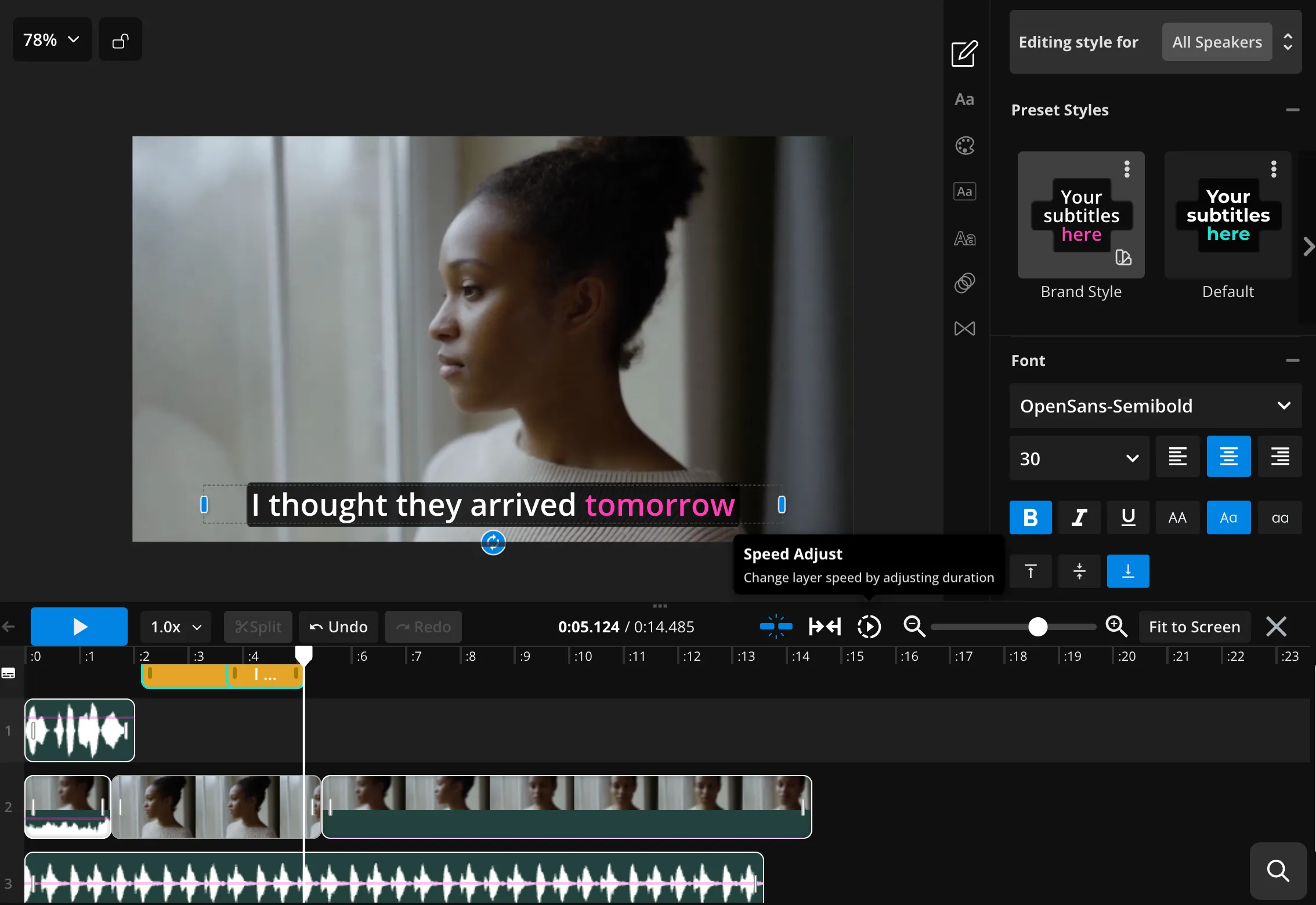
Veo 3 + video editing studio
Edit, reuse, and combine AI-generated clips in one studio
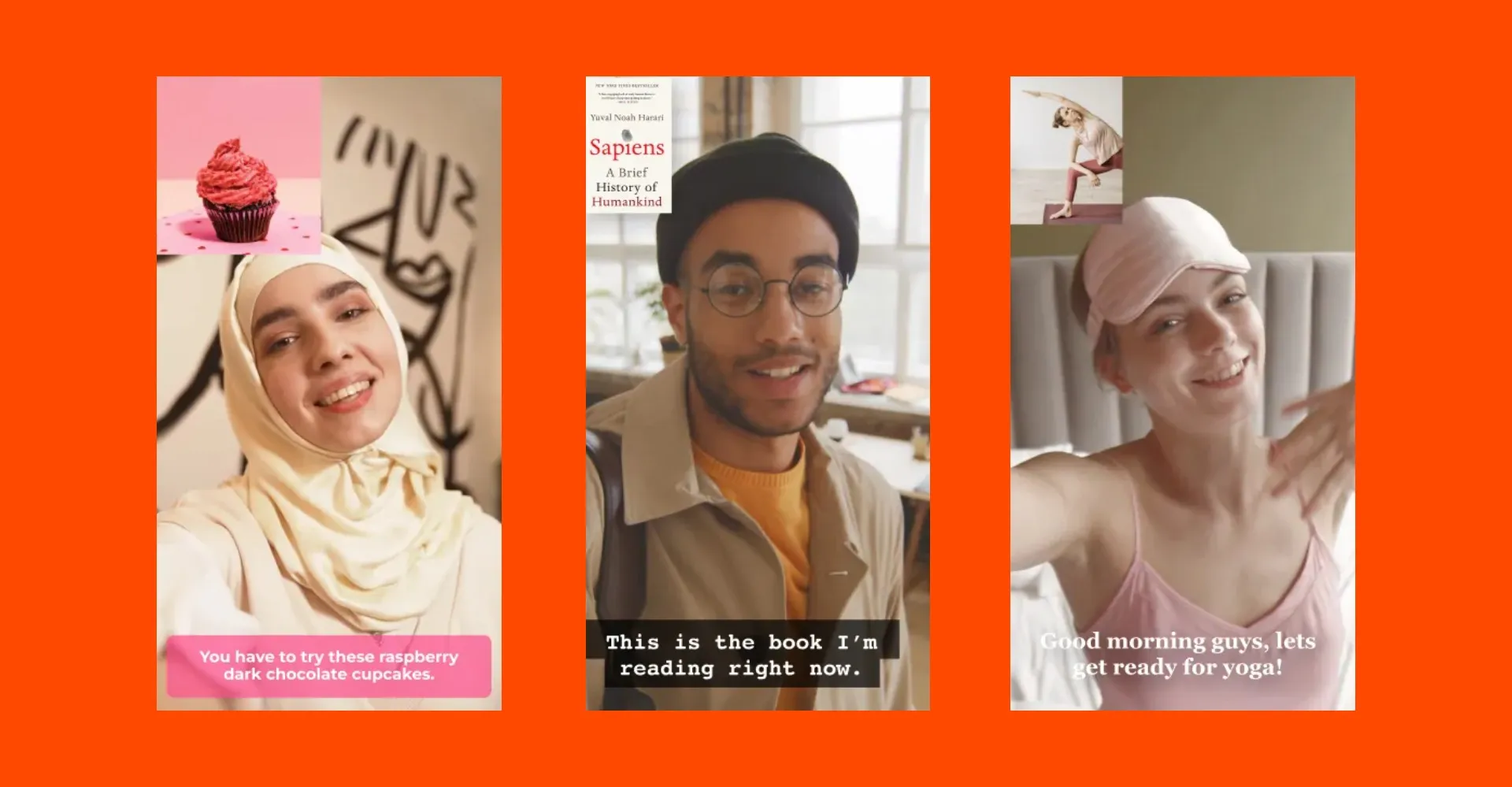
Marketing & Ads
Create platform-ready AI video ads for social media ads, paid campaigns, and brand content. Veo 3 generates clean compositions and consistent framing for fast iteration.

Product & Brand Visuals
Turn text prompts or reference images into polished AI product videos that closely match your original input — built for ecommerce, product launches, and campaign visuals
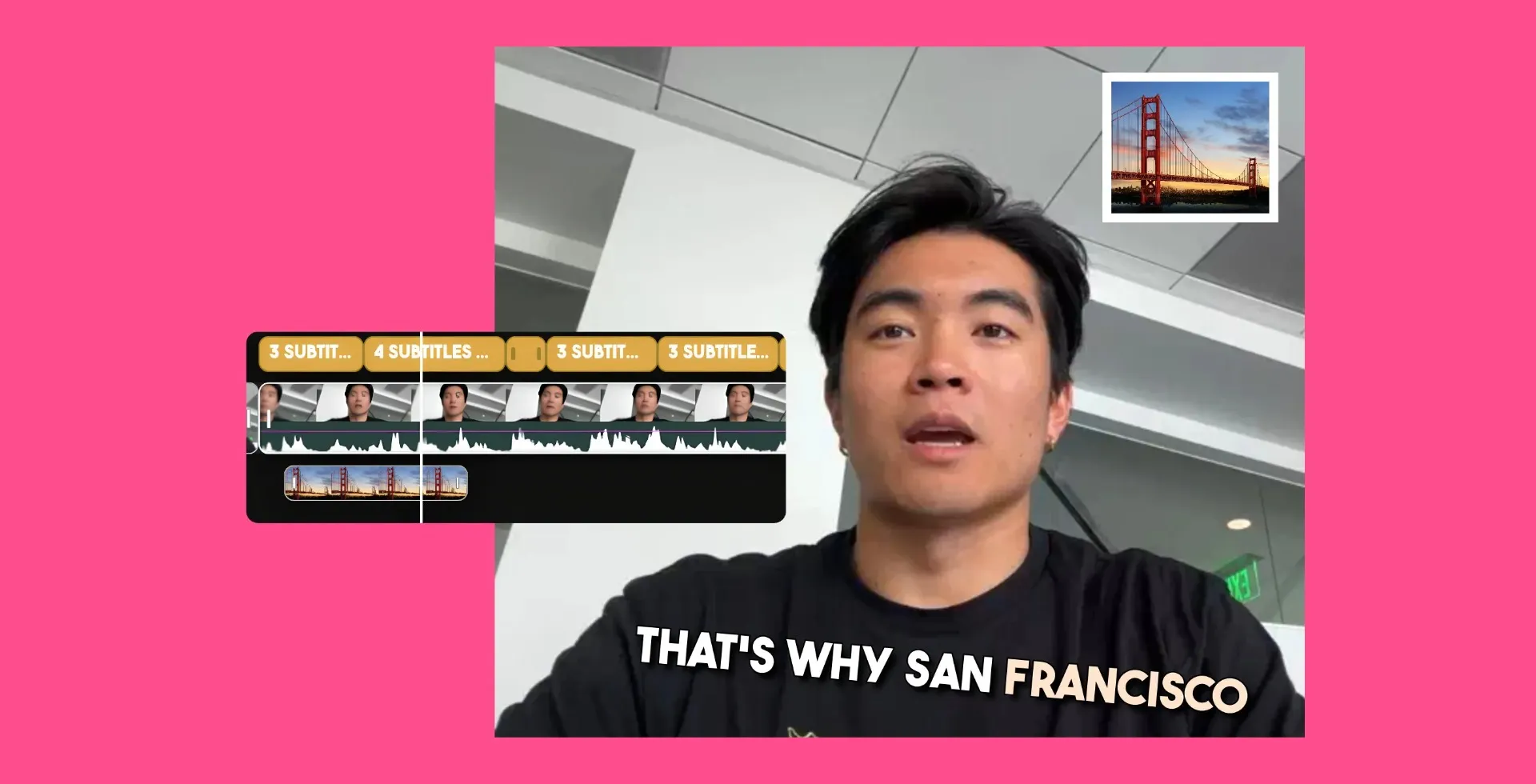
B-roll & Cutaway
Generate high-quality b-roll and cutaway clips that integrate smoothly into Kapwing’s editing timeline for larger video projects and presentations
.webp)
Iteration & Testing
Produce multiple variations of ads, product visuals, or social clips to test different hooks, formats, and messaging without rebuilding your project timeline
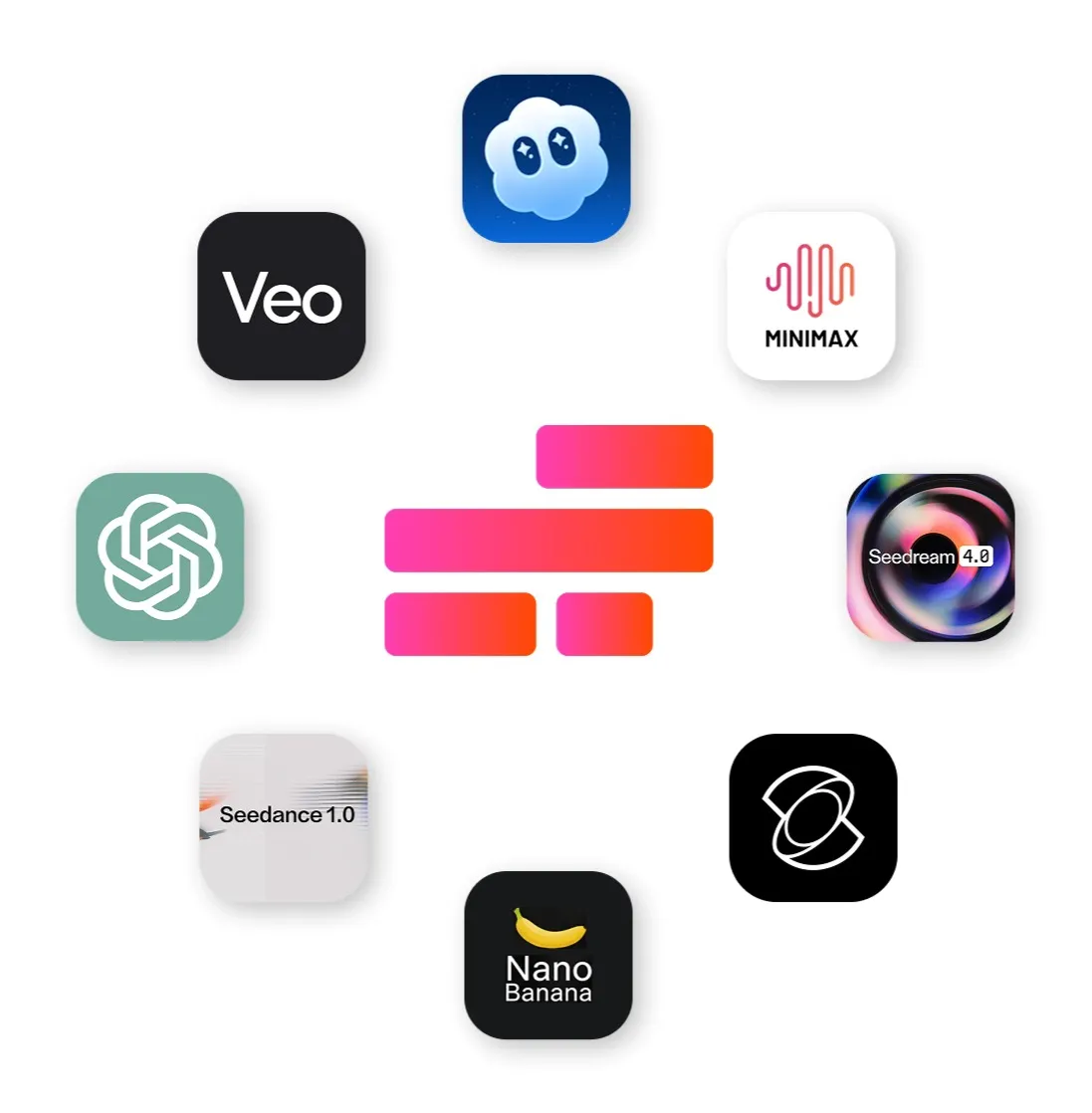
Enhance your Veo workflow with multiple AI models
AI models to edit and refine everything from visuals to audio
- ChatGPT Image 2
Use ChatGPT Image 2 to generate supporting visuals from text prompts, including thumbnails, title cards, and text-heavy overlays for Veo clips
- Google Nano Banana
Edit and transform existing images with Nano Banana’s object-level control and consistent style. Commonly used to refine image start frames, adjust backgrounds, or prepare brand-ready visuals before turning them into Veo video clips.
- MiniMax 2.0
Generate music, sound effects, and ambient audio to pair with Veo clips. Commonly used to replace or enhance audio when creators want greater control over sound design.
How to Use Veo 3 in Kapwing
- Step 1Open Kapwing AI
Start by opening the Kapwing AI Studio from your workspace.
- Step 2Prompt for Veo 3
Open Model Preferences in the bottom-right corner and select 'Veo 3' under 'Video Clips'.
- Step 3Generate Video
Enter your prompt with aspect ratio, length (2-8 seconds), and scene details
Frequently Asked Questions
We have answers to the most common questions that our users ask.
What is Veo 3?
Veo 3 is Google’s AI video generation model that creates short video clips from text prompts or image start frames.
How do I access Veo?
You can access Veo directly inside Kapwing’s AI Studio. No separate Google or Gemini account is required.
How to make videos using Veo 3
To make a video with Veo, open Kapwing’s AI Studio, select Veo 3 from the model options, enter a text prompt or upload an image start frame, and generate your clip. You can then edit and export the video in Kapwing’s editor.
Do Veo AI videos contain watermarks?
No, Veo videos created in Kapwing are watermark-free on export. Watermarks may vary if you use Veo through other platforms.
What is the latest Veo AI model?
The latest Veo model currently available inside Kapwing AI is Veo 3.
Does Veo include audio?
Yes. Veo can generate video clips with synchronized audio, such as speech or ambient sound, depending on the prompt. If you don’t want sound, you can omit audio instructions in your prompt or remove audio in Kapwing’s editor.
How long can Veo 3 videos be?
Veo 3 generates short video clips between 2-8 seconds. To create longer videos, you can combine multiple AI clips inside Kapwing’s editing timeline.
Can you edit videos generated with Veo 3?
Yes, videos generated with Veo 3 can be edited directly in Kapwing’s full video editor. After generation, you can trim clips, add text, transitions, overlays, audio, and other edits just like any other video project within Kapwing.
Veo 3 alternatives
Common alternatives to Veo 3 include Seedance 2.0, Kling Omni, Happy Horse 1.0, Grok Video, and Seedance 2.5. Inside Kapwing, creators can choose between these models depending on their needs.
Veo prompt advice
From our experience testing Veo inside Kapwing, it performs best with simple, cinematic prompts built around static shots or subtle camera movement, such as slow pans or dolly shots. Overly complex scene changes tend to produce less consistent results.
Veo generations typically include audio, so it helps to describe the sounds you want in your prompt, whether that’s dialogue, ambient noise, or background sound. We’ve also found Veo responds well to clear visual direction, including lighting angle, subject placement, camera distance, and overall brightness.
Does Veo support frame to video?
Yes, Veo 3 supports image or frame-to-video generation.
How to make Veo 3 videos longer
To make longer videos with Veo 3 you must generate multiple clips, then combine them using Kapwing’s video editing timeline. You can arrange the clips, and add transitions, audio, and text.
Kling vs Seedance vs Veo: Which AI model is best?
There’s no single “best” AI video model — each excels at different video generation tasks. For a detailed comparison of Kling, Seedance, and Veo, read our AI video model comparison blog.
What other AI models does Kapwing support?
Kapwing's AI studio is powered by multiple AI models.
- Video AI models: Wan, Veo, Seedance, Kling
- Image AI models: ChatGPT Image, Seedream, Nano Banana
- Audio AI models: Minimax, Google Lyria, ElevenLabs
Does Veo support motion control?
No, the Veo AI model in Kapwing does not support motion control. Kling is the only AI model in Kapwing that supports motion control.
Does Veo support start frames, end frames, character consistency, and multi-scenes?
Yes, Veo supports start frames, end frames, character consistency, and multi-scenes?
Discover Resources
Tips, templates, and deep dives to help you create faster and share with confidence.
View all

Get started with your first video in just a few clicks. Join over 35 million creators who trust Kapwing to create more content in less time.