Use Kling Motion Control to bring video motion to new characters
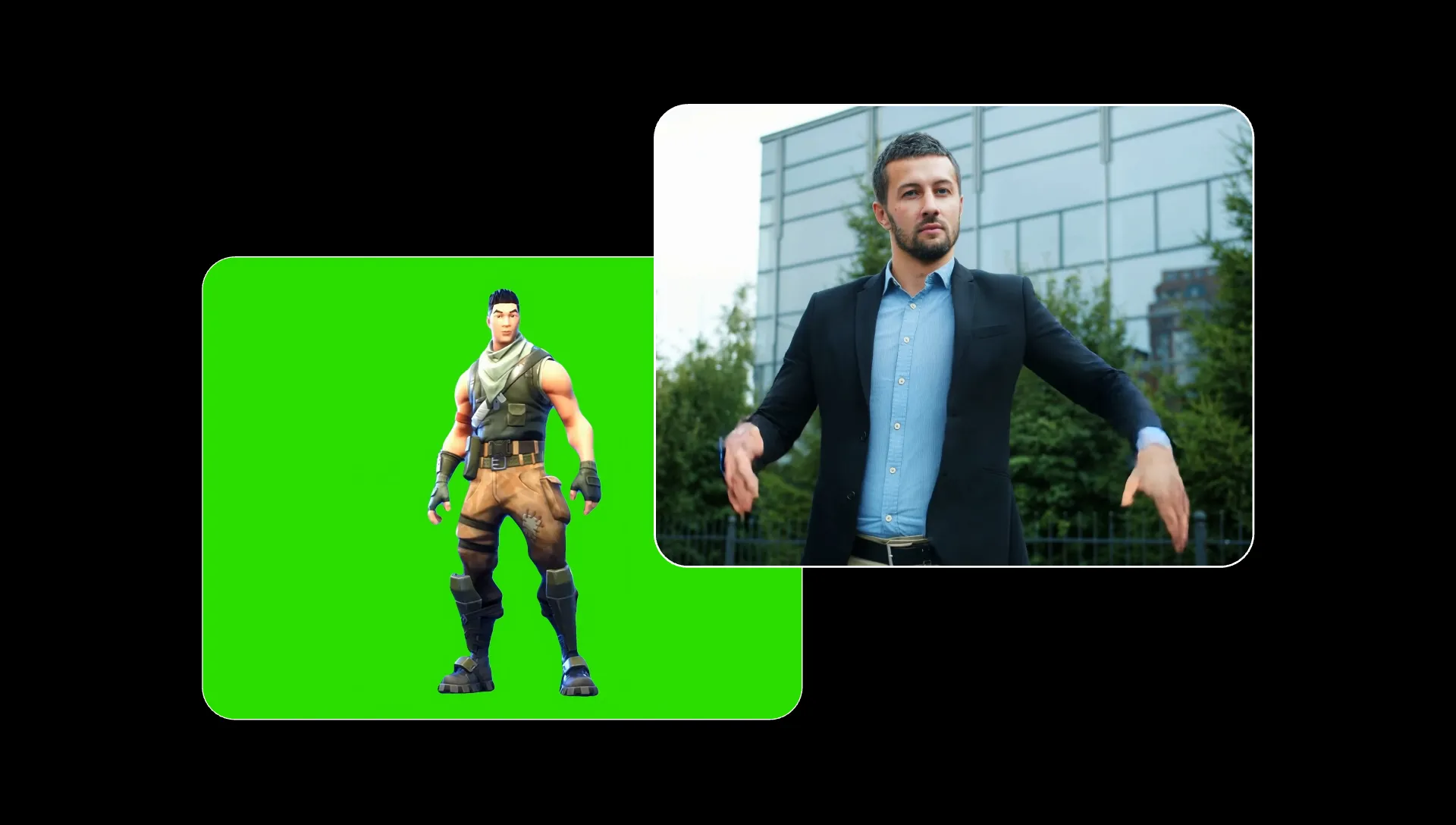
Kling Motion Control AI video generator
Choreography. Dance routines. Actions scenes. Performances.
Upload motion.
Apply to a new character.
Use Kling Motion Control for AI motion transfer: copy a recorded performance onto a new character. Upload an image of the subject you want to animate and a reference video containing the dance, gesture, reaction, or action you want to recreate.
The video guides the movement and timing, so you can reproduce a performance without describing every step in a prompt.
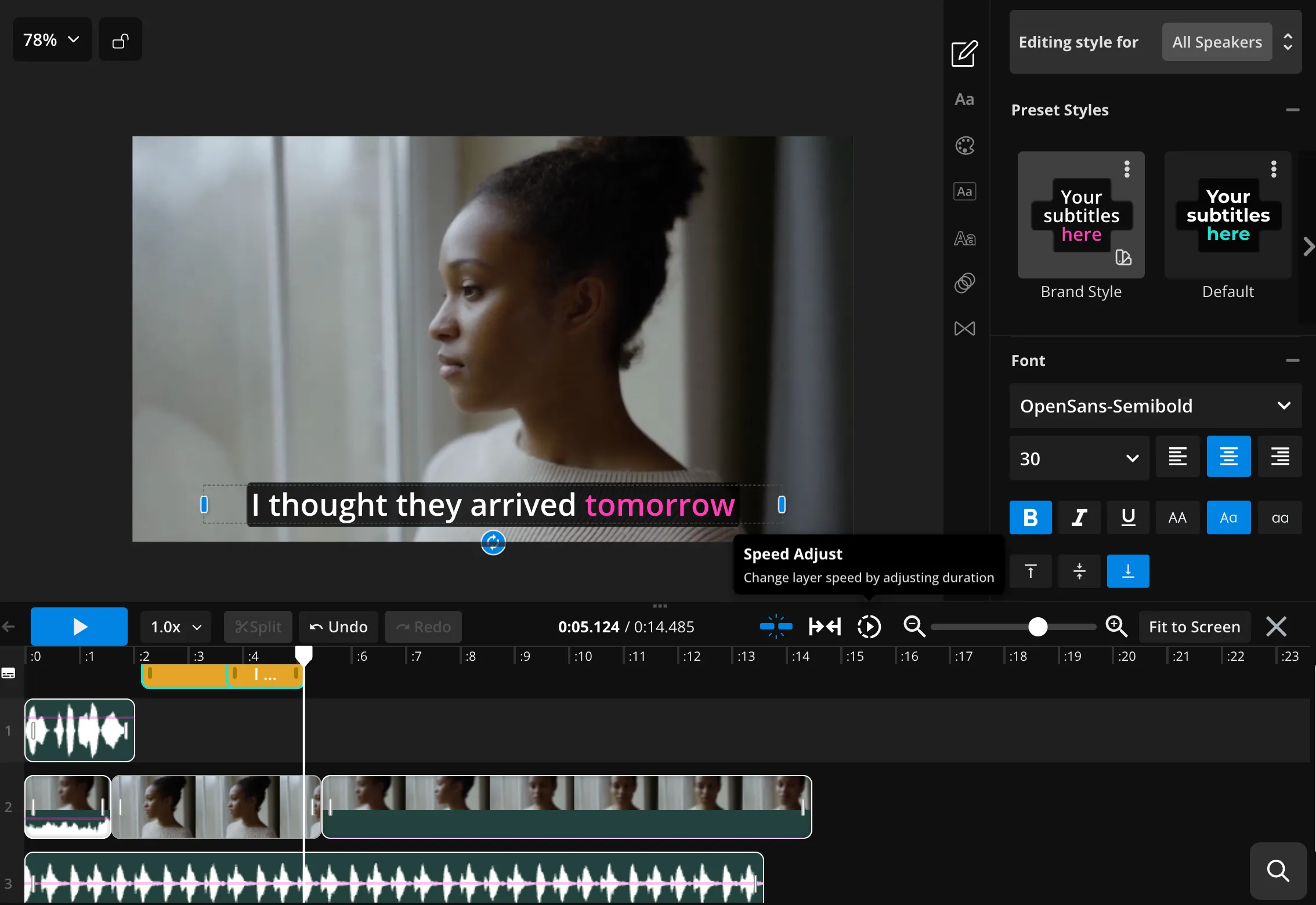
When the generation is ready, continue in Kapwing's timeline editor to trim the clip, add audio and subtitles, combine it with other scenes, resize, and export.
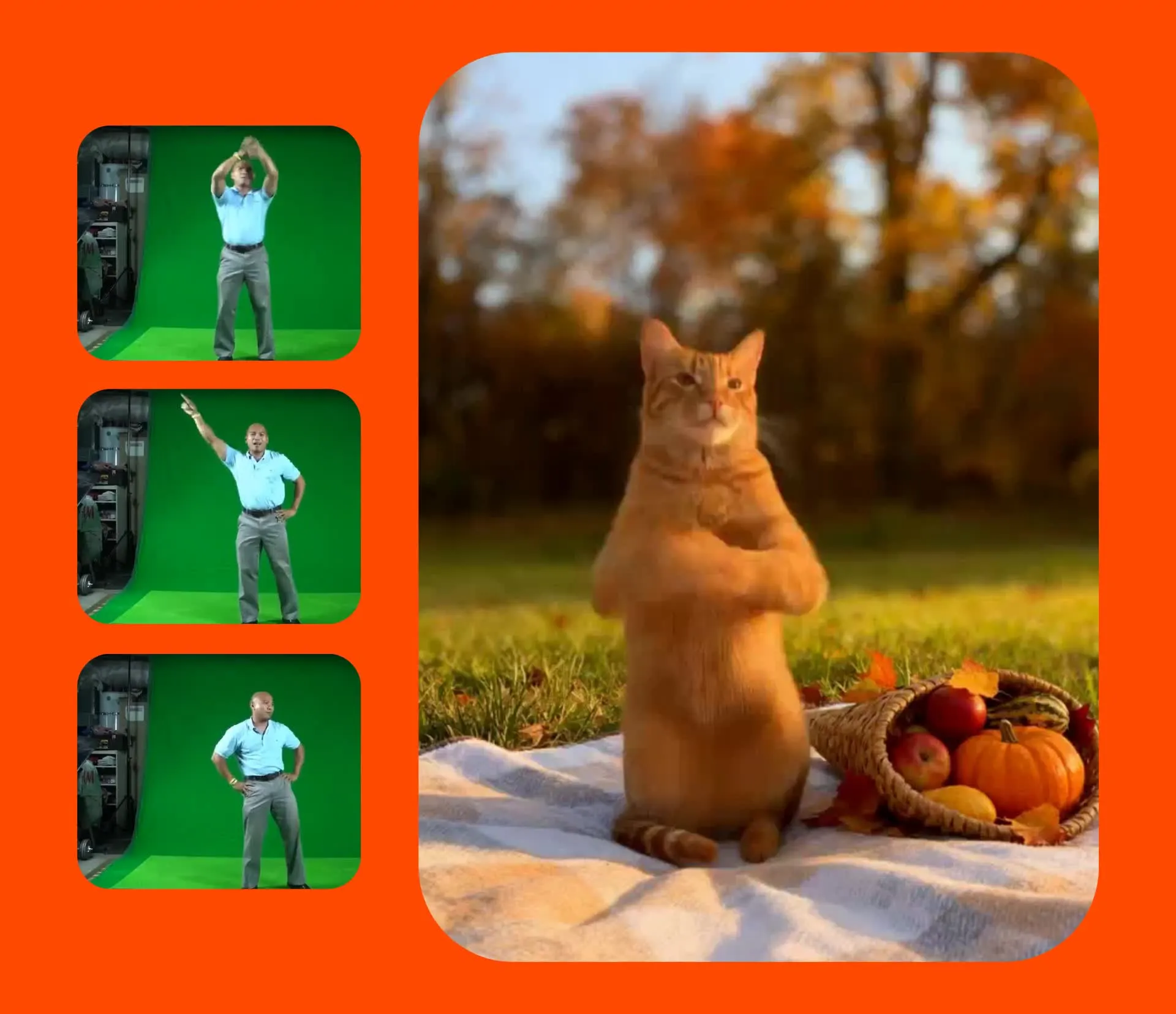
Kling Motion Control in 3 Steps
Free to start. Fully online.
Upload
a reference video and an image of your character


Select
Kling Motion Control from the AI model dropdown
Generate
and Kling will apply the movement from your reference video to your character
Why use Kling Motion Control
Turn a still character into a controlled on-screen performance — no prompt needed
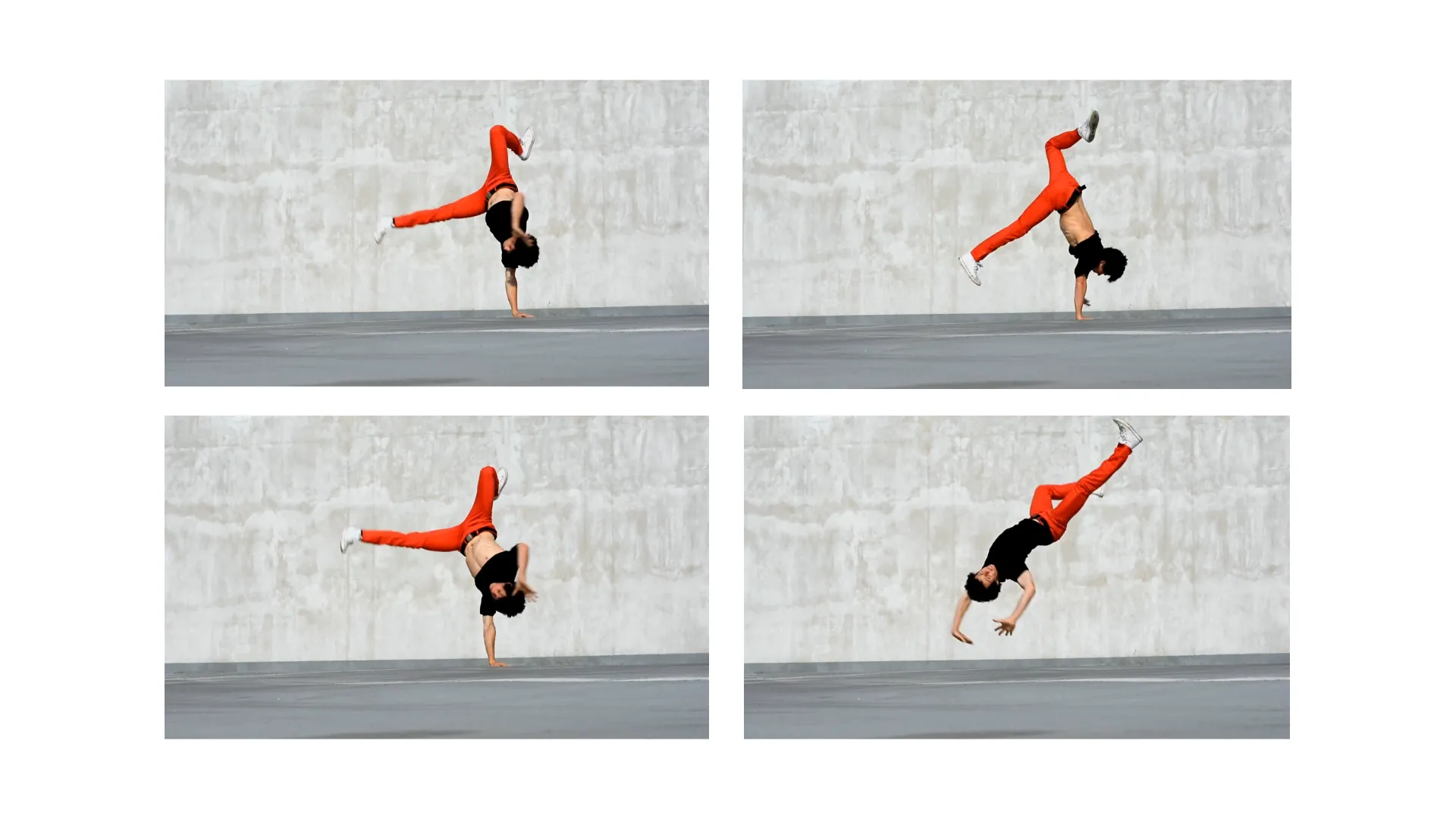
Animate Still Characters
Turn a photograph, illustration, or character image into a moving performance without manually animating individual poses
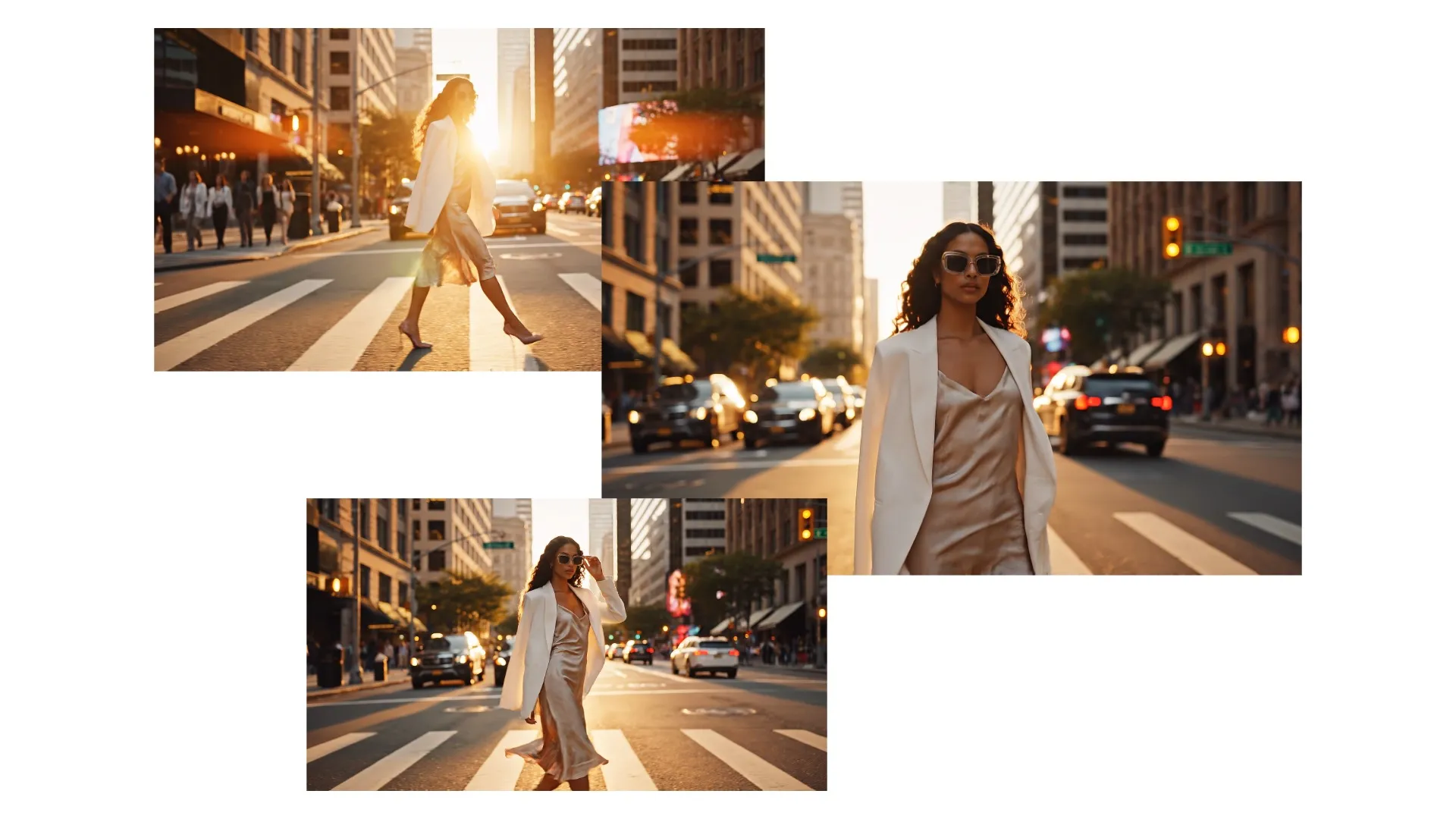
Direct Presenters & Actors
Use a recorded performance to give a new on-screen subject natural gestures, posture, reactions, and delivery
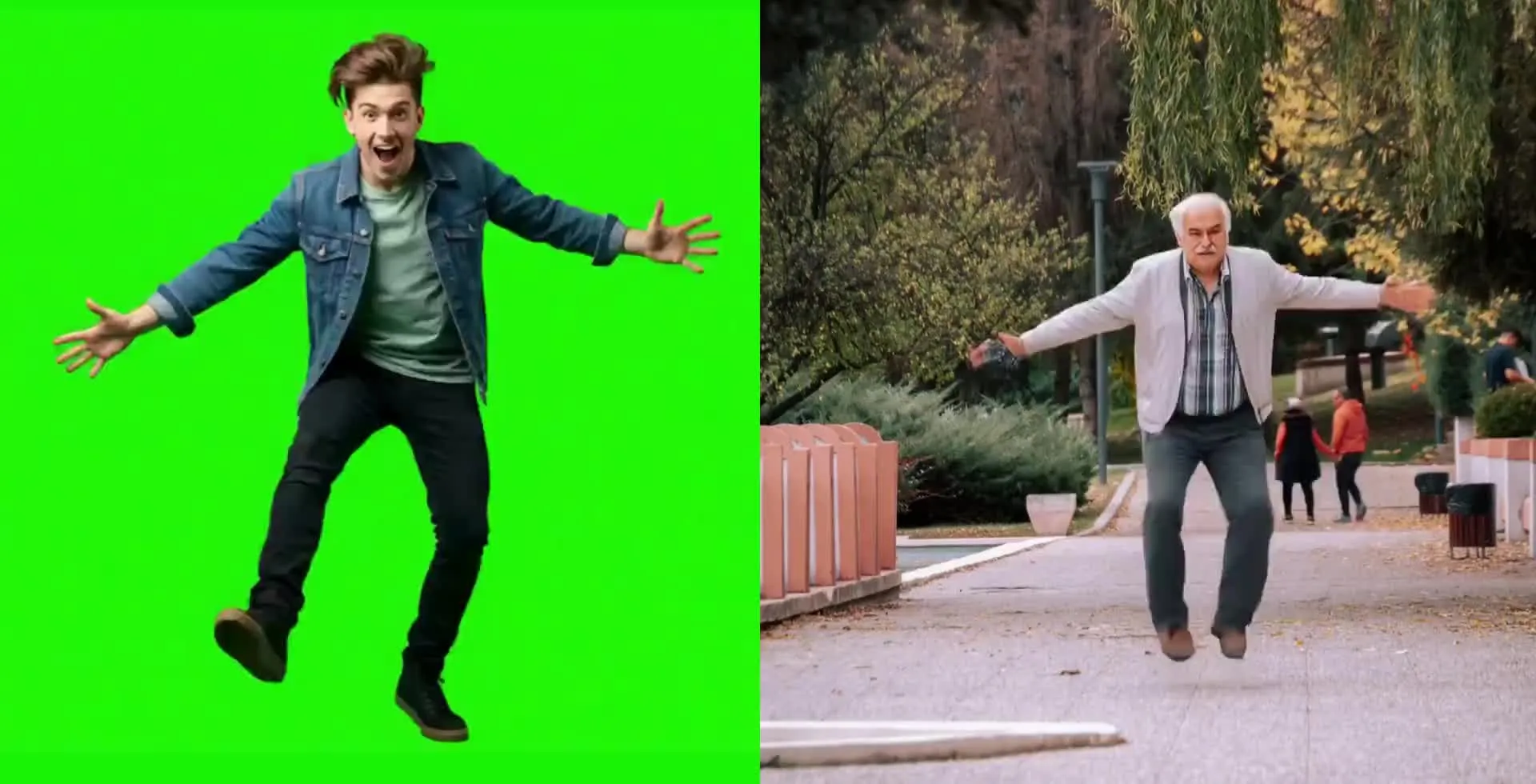
Recreate Choreography
Generate dance routines, fitness demonstrations, sporting movement, and action sequences that are difficult to direct through text alone
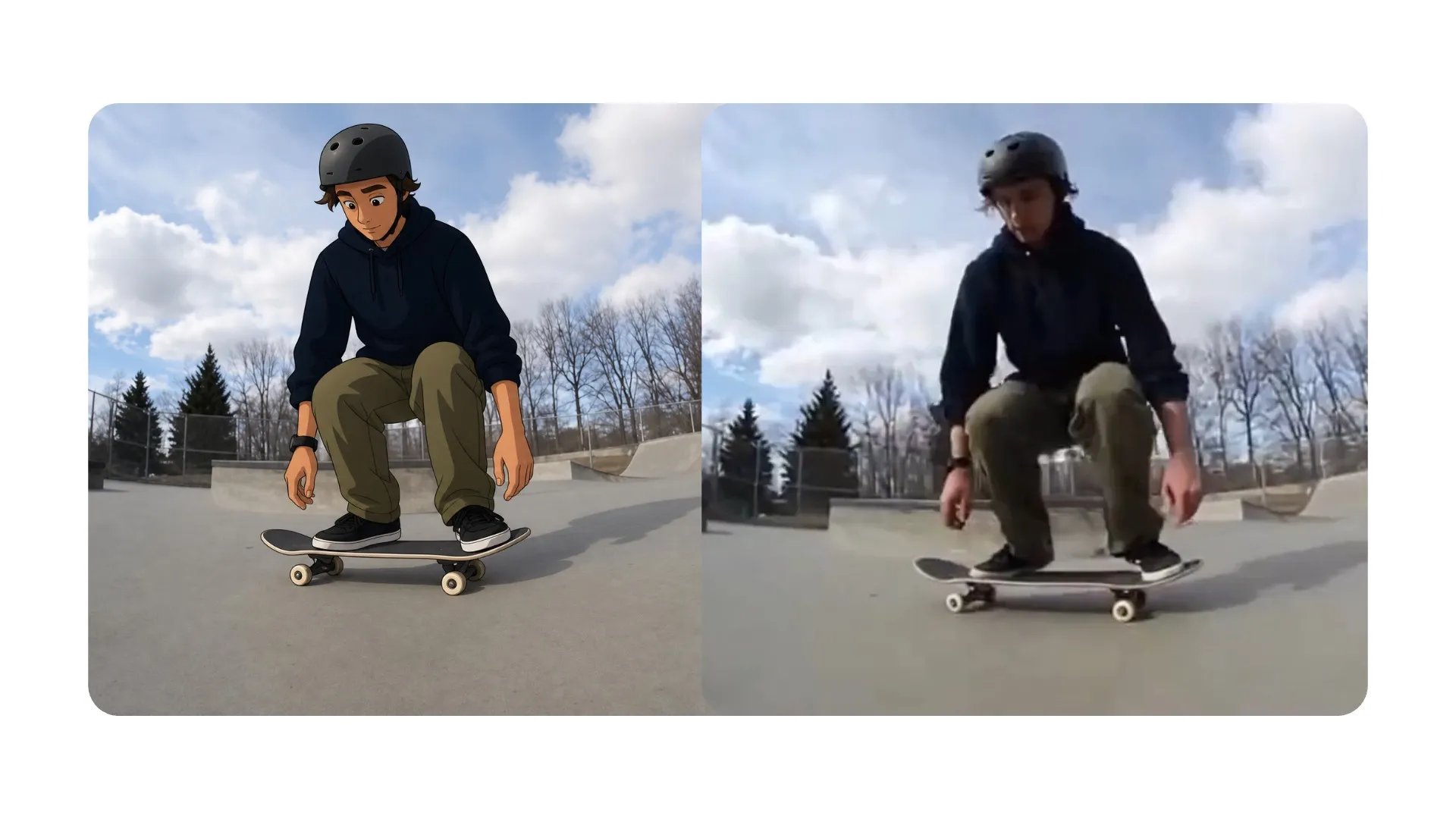
Restyle Performances
Apply the same recorded action to a different character or visual concept, making it useful for campaign variations, avatars, and creative experiments
Created with Kling AI — inside Kapwing
Free to start. No watermark. Fully online.
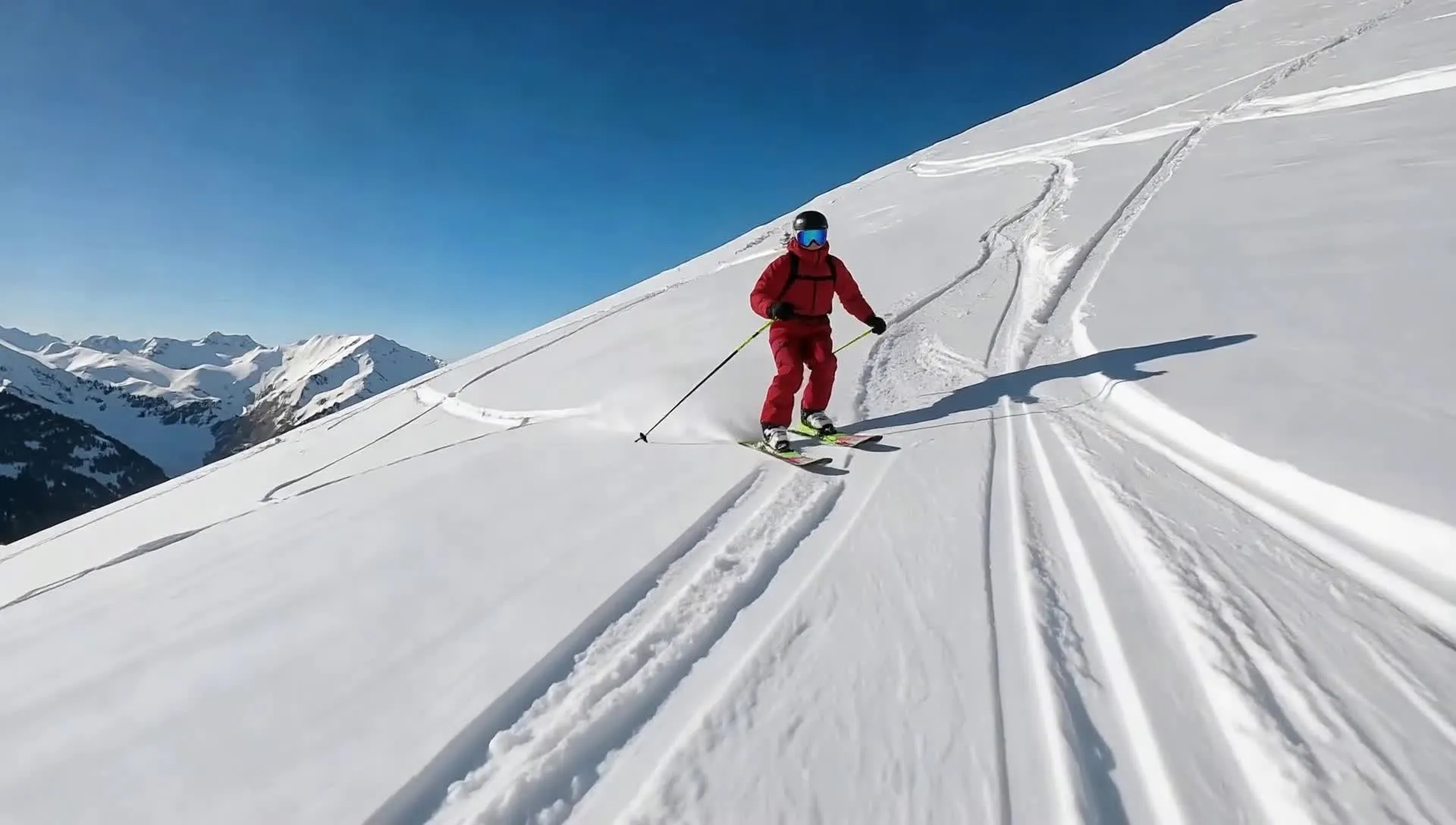
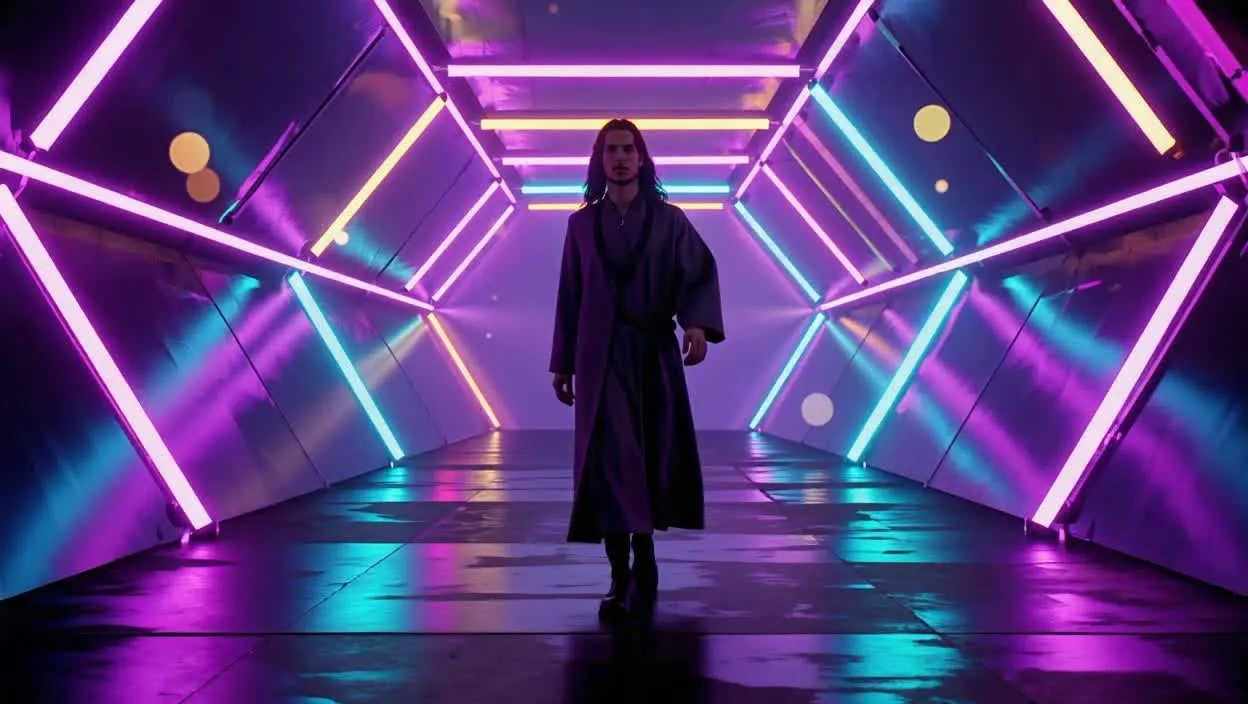
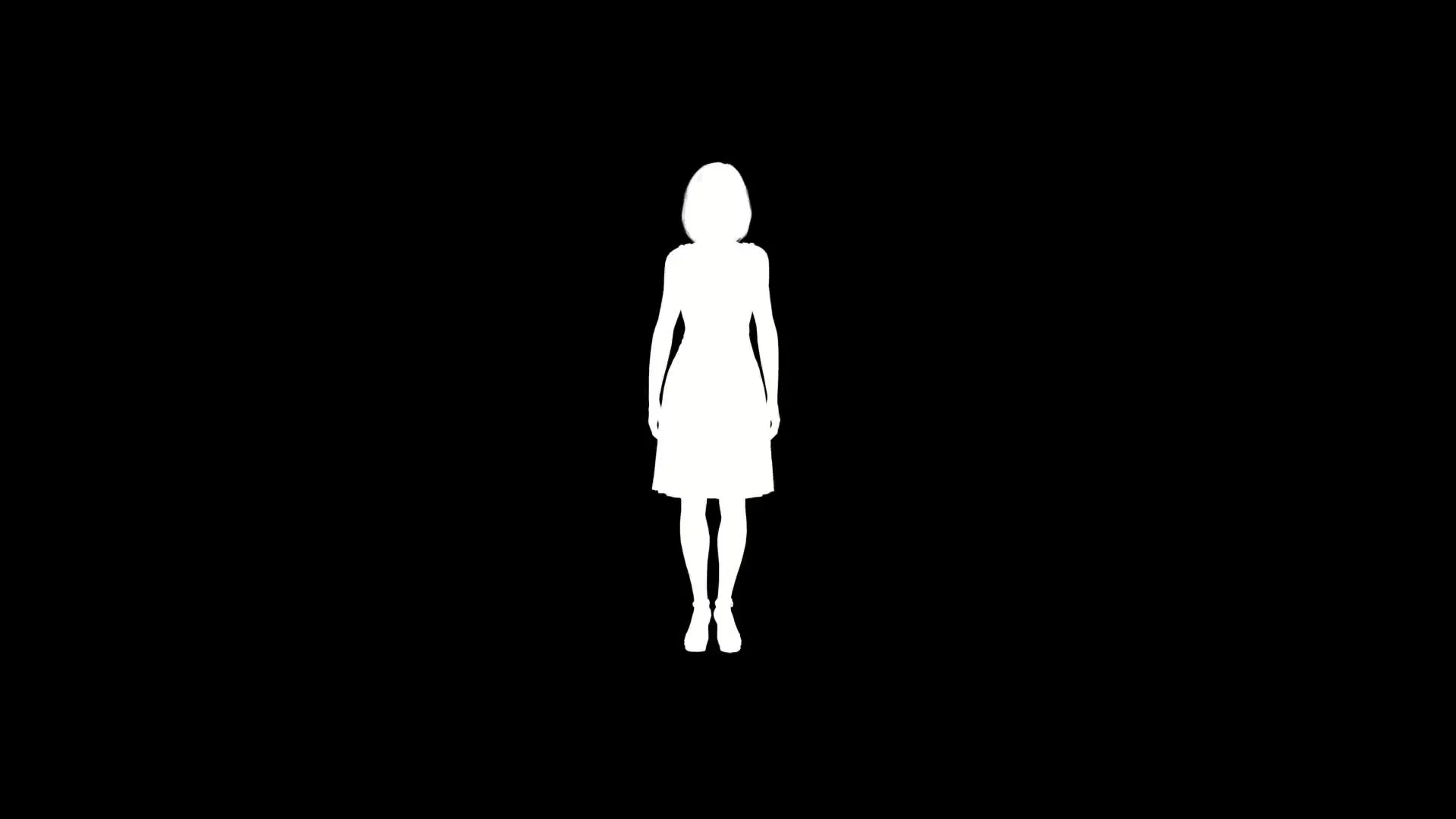
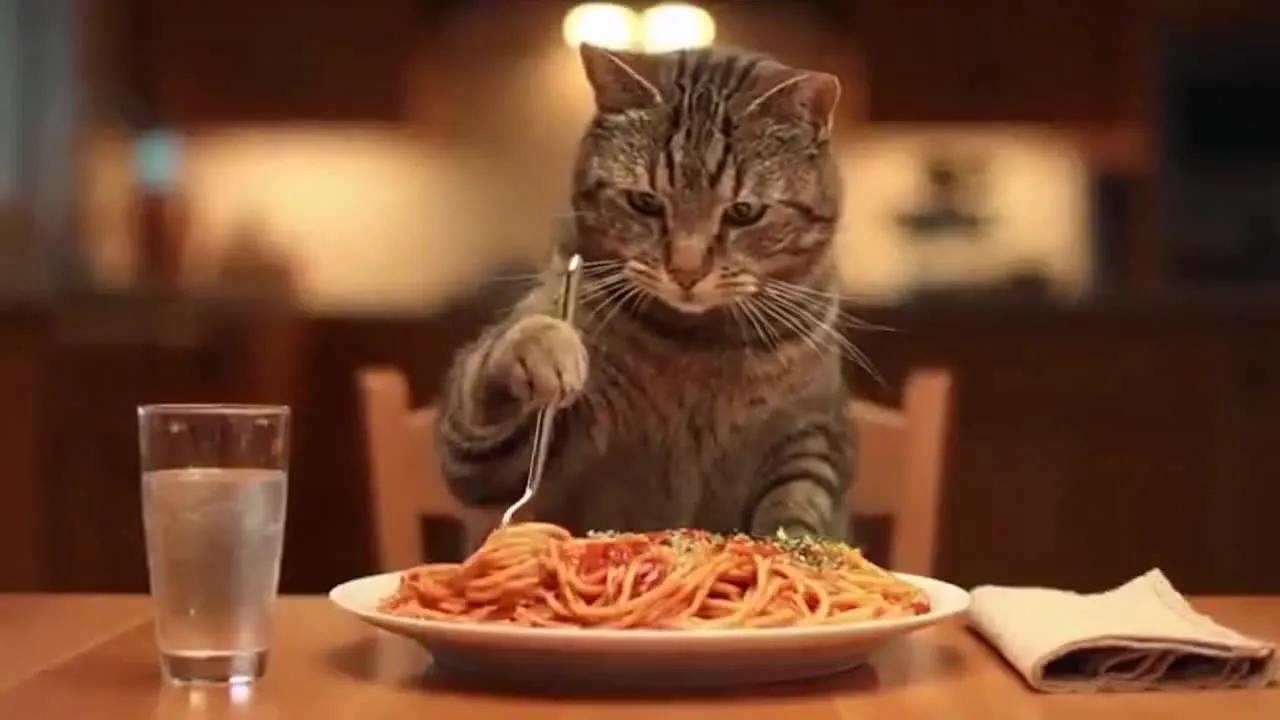
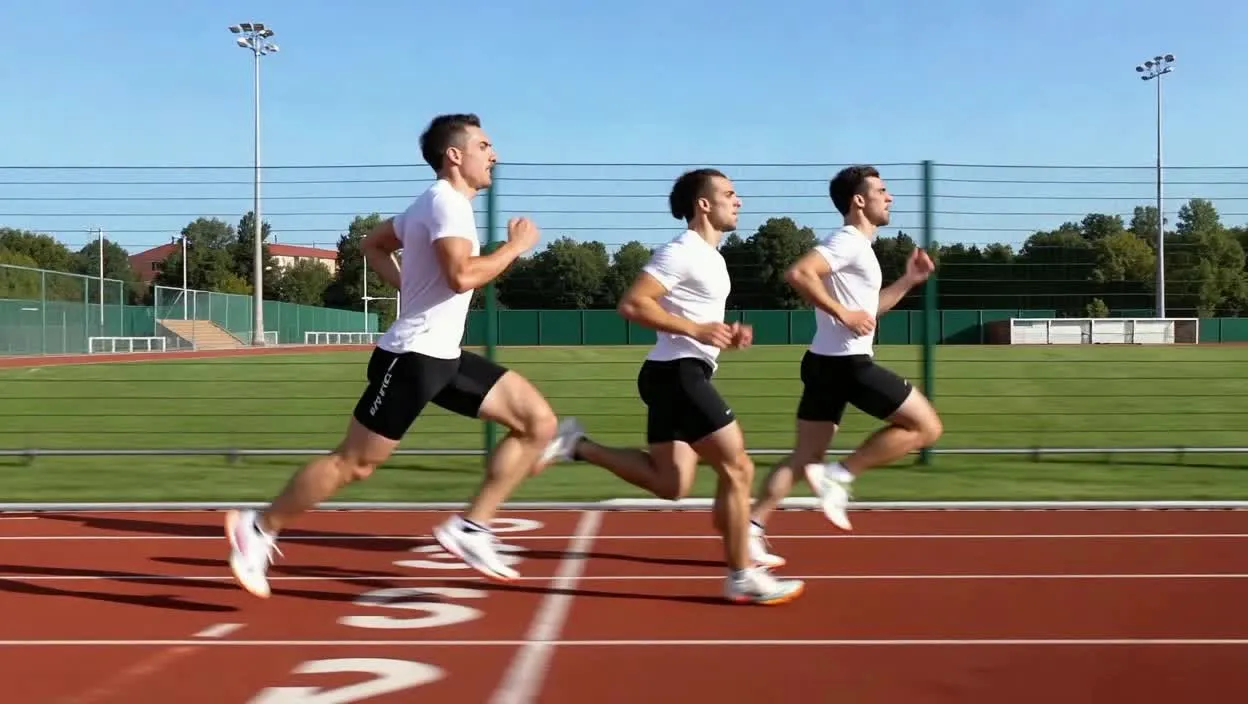
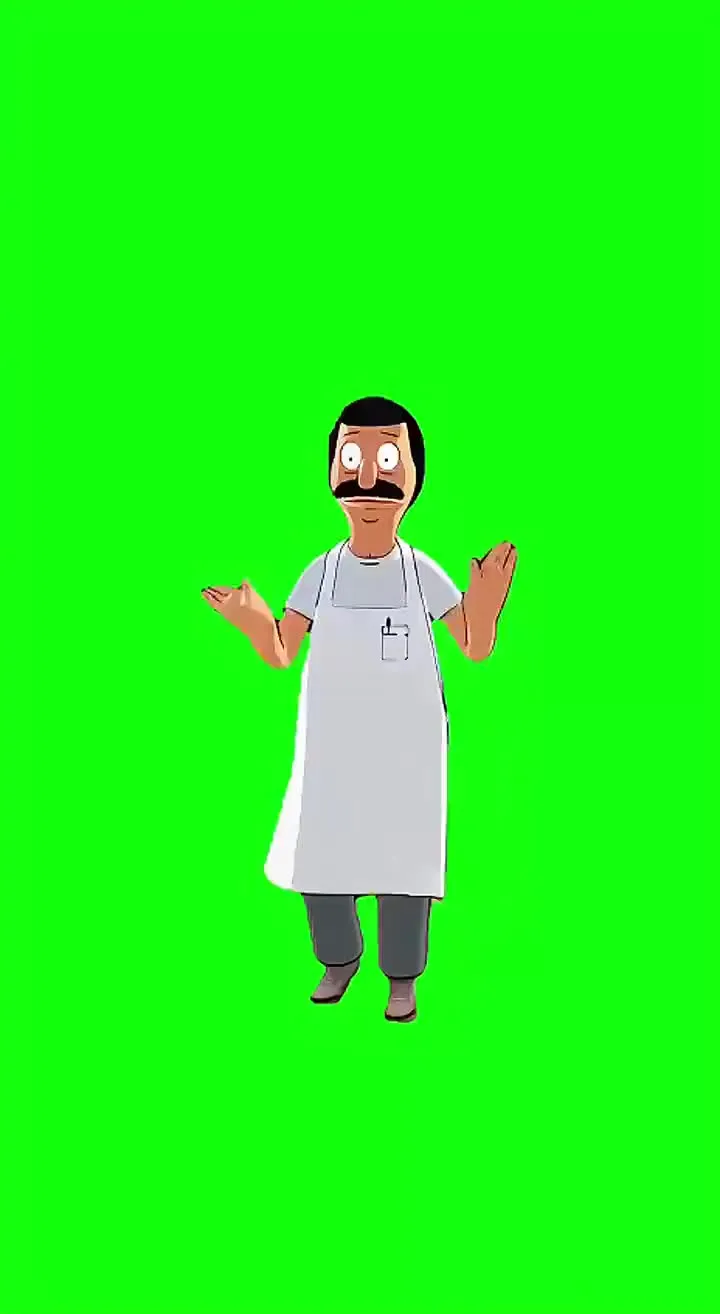
Kling Motion Control in Kapwing
Generate in minutes — polish inside a full timeline editor
Generate.
Edit.
Export.
Kling Motion Control removes the need to describe every movement with text prompts. Give the model one character image and one recorded performance, and use the video itself to guide the action.
- Transfer dances, gestures, reactions, and physical performances
- Fine-tune scenes immediately after generation
- Trim unwanted frames and merge multiple clips
- Combine with other AI models or Kling models
- Add music, dialogue, sound effects, or subtitles after generation
- Resize and export without a separate Kling watermark
How to Use Kling AI Motion Control
- Step 1Upload character image
Open Kai, select Kling Motion Control, and upload one image of the subject you want to animate. Use a full-body image when the performance includes full-body movement.
- Step 2Upload motion video
Add one video containing the dance, gesture, expression, or action you want to transfer. Keep the performer visible and avoid unnecessary cuts or obstructions.
- Step 3Generate and edit
Generate the transferred performance, then open the result in Kapwing to trim, add audio or subtitles, combine scenes, and export.
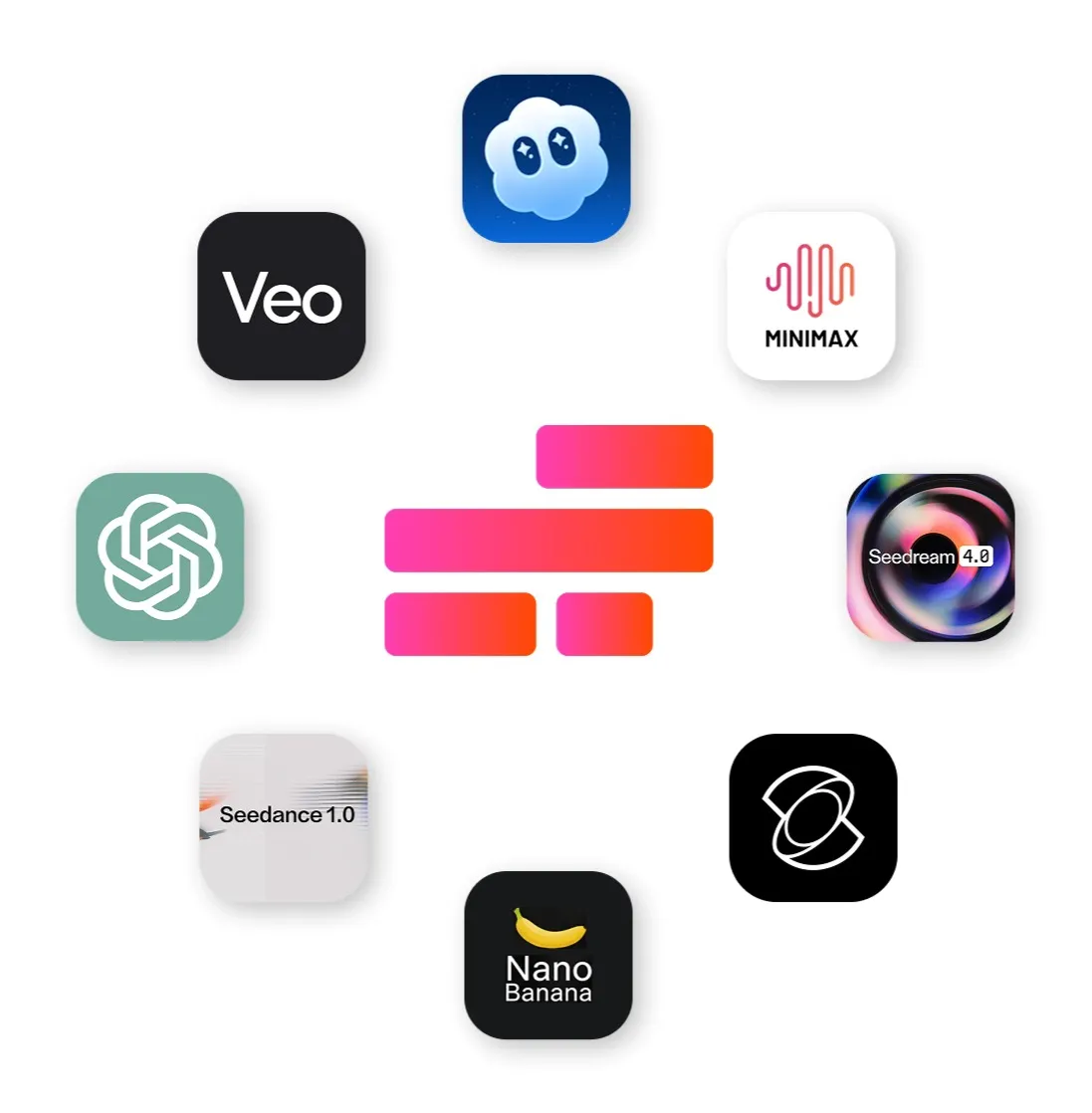
Combine AI models to create inputs and supporting footage
Prepare the character. Build the surrounding scene.
Edit and refine everything — from visuals to sound production
- ChatGPT Image 2
Create a character, presenter, mascot, or illustrated subject to use as the character image for motion transfer using ChatGPT Image 2.
- Google Nano Banana
Refine the character image before animation. Adjust clothing, backgrounds, props, framing, or other visual details.
- MiniMax 2.6
Create custom music, ambience, and sound effects to match Kling-generated scenes. MiniMax helps add extra atmosphere, pacing, and professional sound design with full creative control.
Frequently Asked Questions
We have answers to the most common questions that our users ask.
What is Kling Motion Control?
Kling Motion Control is a reference-driven AI video model. In Kapwing, it uses one character image and one motion video to generate the pictured character performing the recorded movement.
How do I use Kling Motion Control in Kapwing?
Open Kai, choose Kling Motion Control, upload one character image and one motion-reference video, and generate. You can then edit the result in Kapwing.
What files does Kling Motion Control require?
Kapwing’s integration requires one still image showing the character and one video containing the performance you want to transfer.
Does Kling Motion Control use text prompts?
No. The current Kapwing integration uses the character image and motion video as its inputs. A text prompt does not control the transferred movement.
Is Kling Motion Control a text-to-video model?
No, Kling Motion Control does not support text to video. Use Kling Omni when you want to generate a new scene from a written prompt.
Does Kling Motion Control generate audio?
No. Add dialogue, music, ambience, voice-over, or sound effects in Kapwing after generation.
Does Kling Motion Control support end frames?
No, Kling Motion control does not support end frames.
Does Kling Motion Control support multi-scene videos?
The model produces a motion-transfer clip rather than a structured multi-scene generation. You can generate several clips and combine them in Kapwing.
Can I edit Kling Motion Control videos?
Yes. Generated videos can be trimmed, resized, subtitled, combined with other footage, and given additional audio in Kapwing.
Do Kling Motion Control videos have a watermark?
No, AI generations do not include a separate watermark.
What is AI motion transfer?
AI motion transfer uses a reference video to apply recorded movements, gestures, and expressions to a different person or character. In Kapwing, upload one character image and one motion video to generate the new performance. Kapwing supports motion transfer using both Kling Motion Control and Seedance 2.5.
Discover Resources
Tips, templates, and deep dives to help you create faster and share with confidence.
View all

Get started with your first video in just a few clicks. Join over 35 million creators who trust Kapwing to create more content in less time.