ChatGPT Image 2
Use GPT Image 2 to generate and edit images inside Kapwing's free online editor
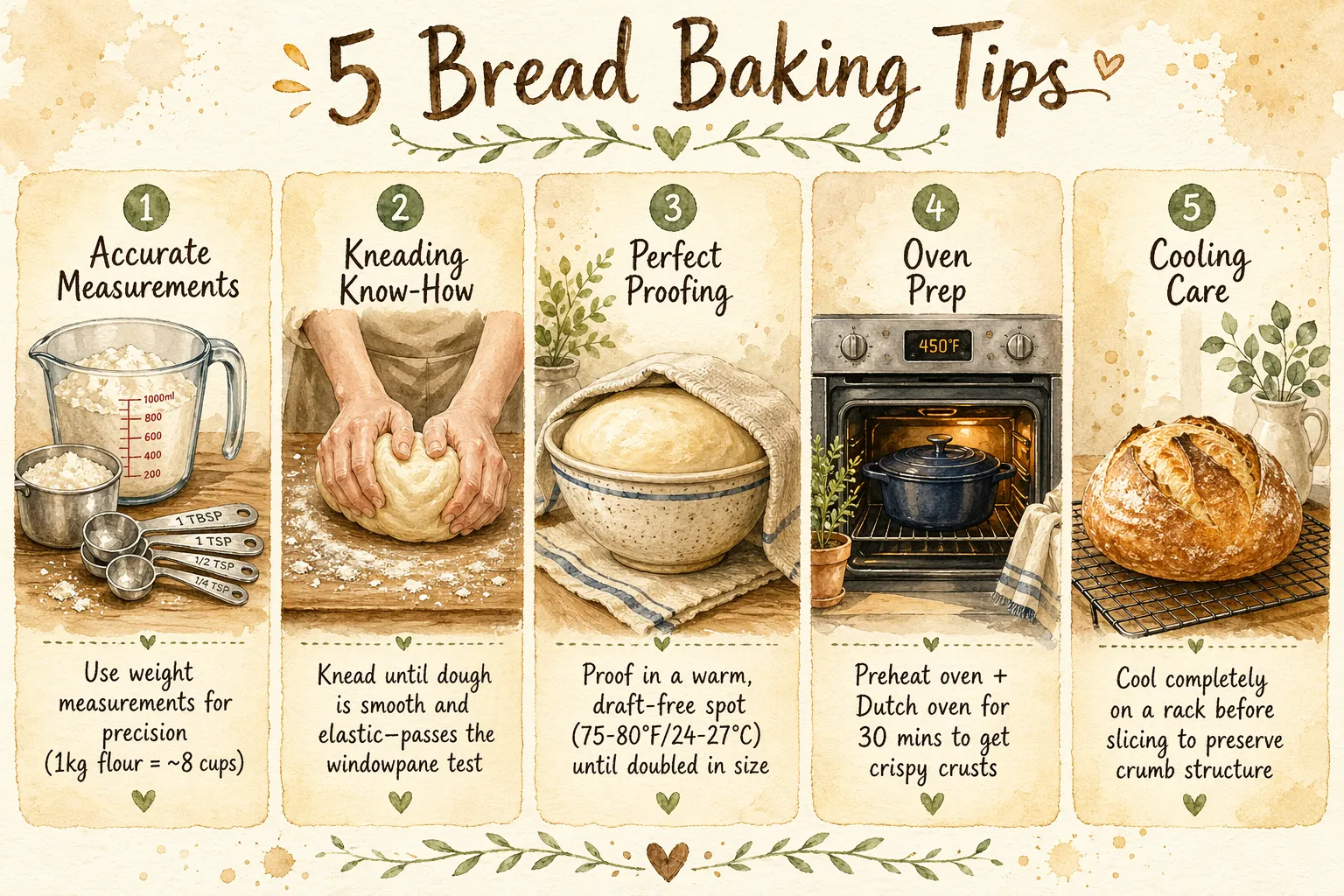
GPT Image 2 — AI images with accurate text rendering
Built for text-heavy visuals and complex layouts other image models struggle with
Built for structured AI image design, editing, and iteration
GPT Image 2 is OpenAI's latest image generation model, available free inside Kapwing.
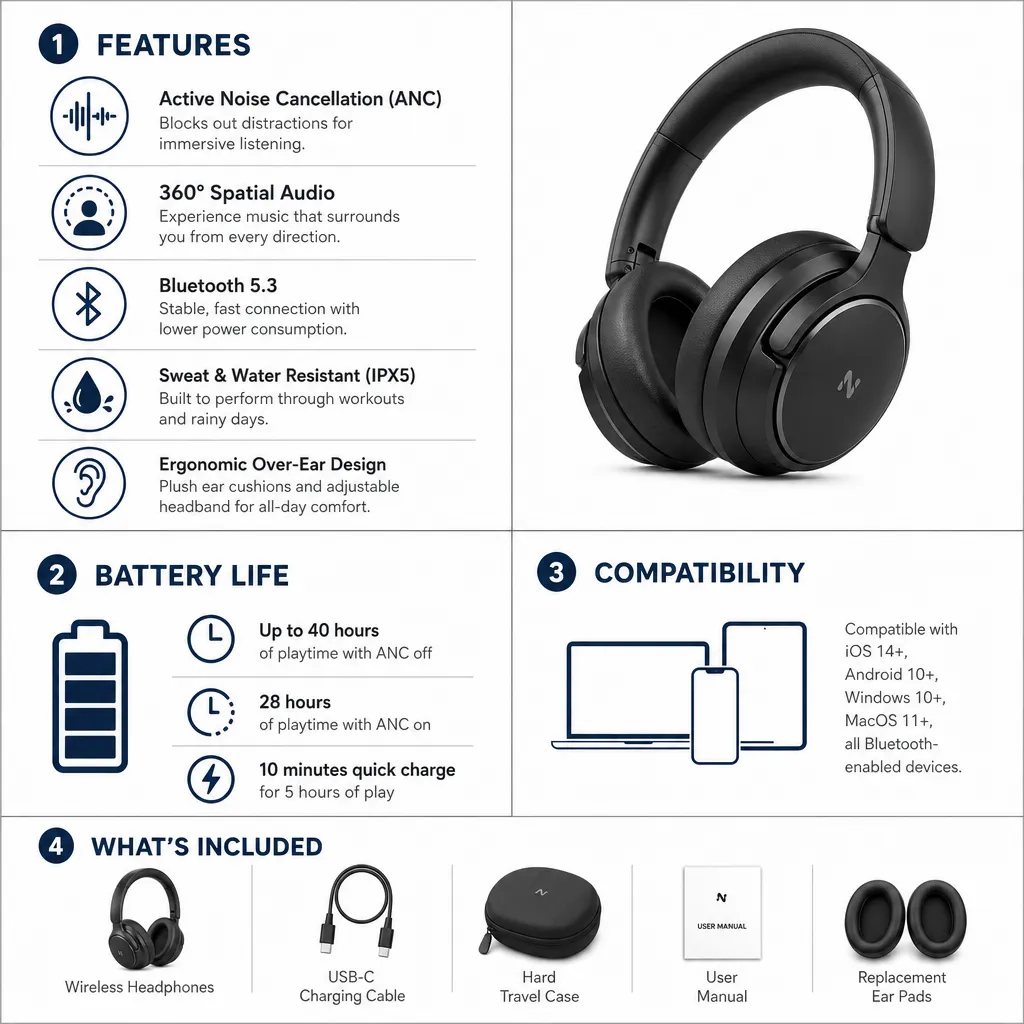
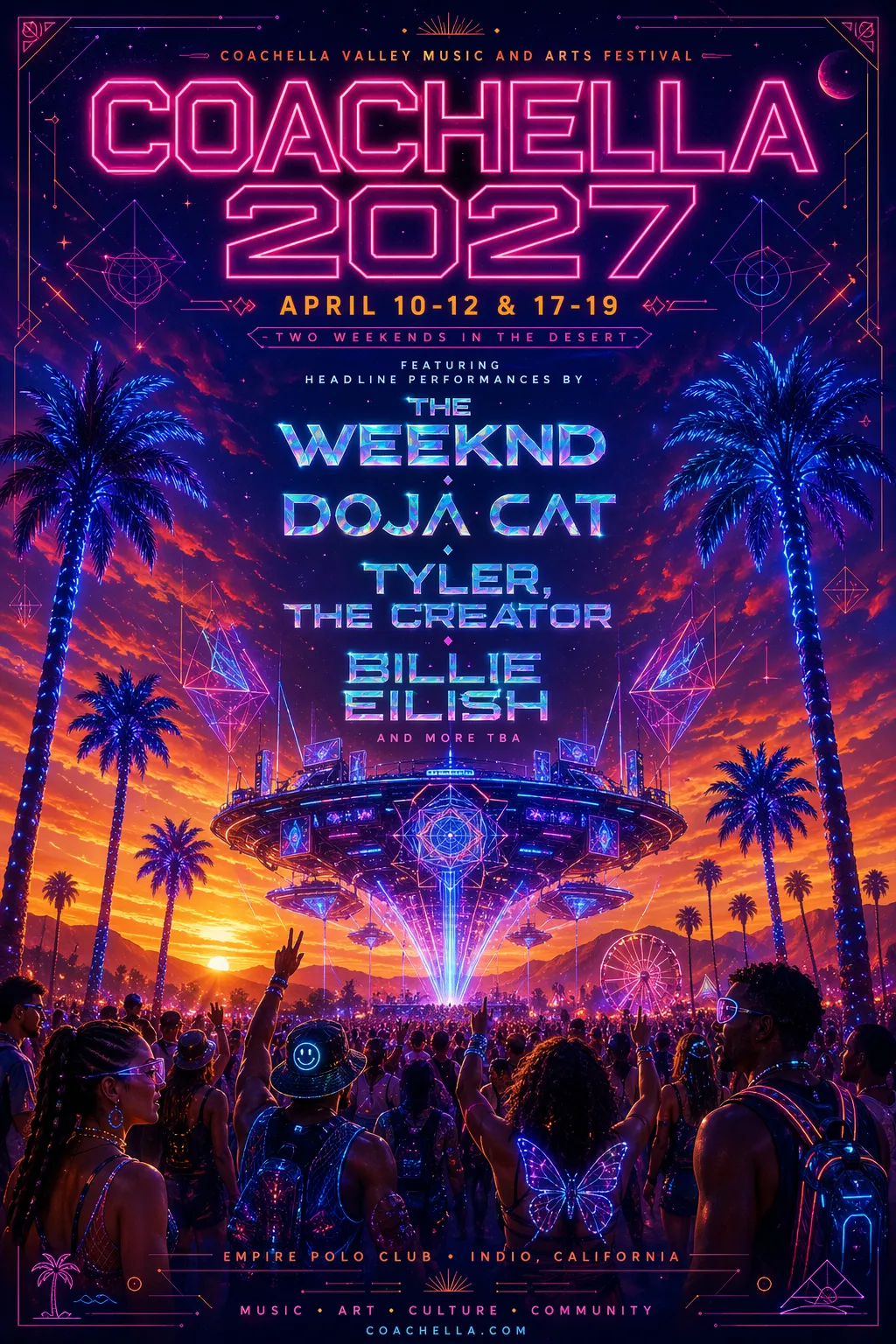
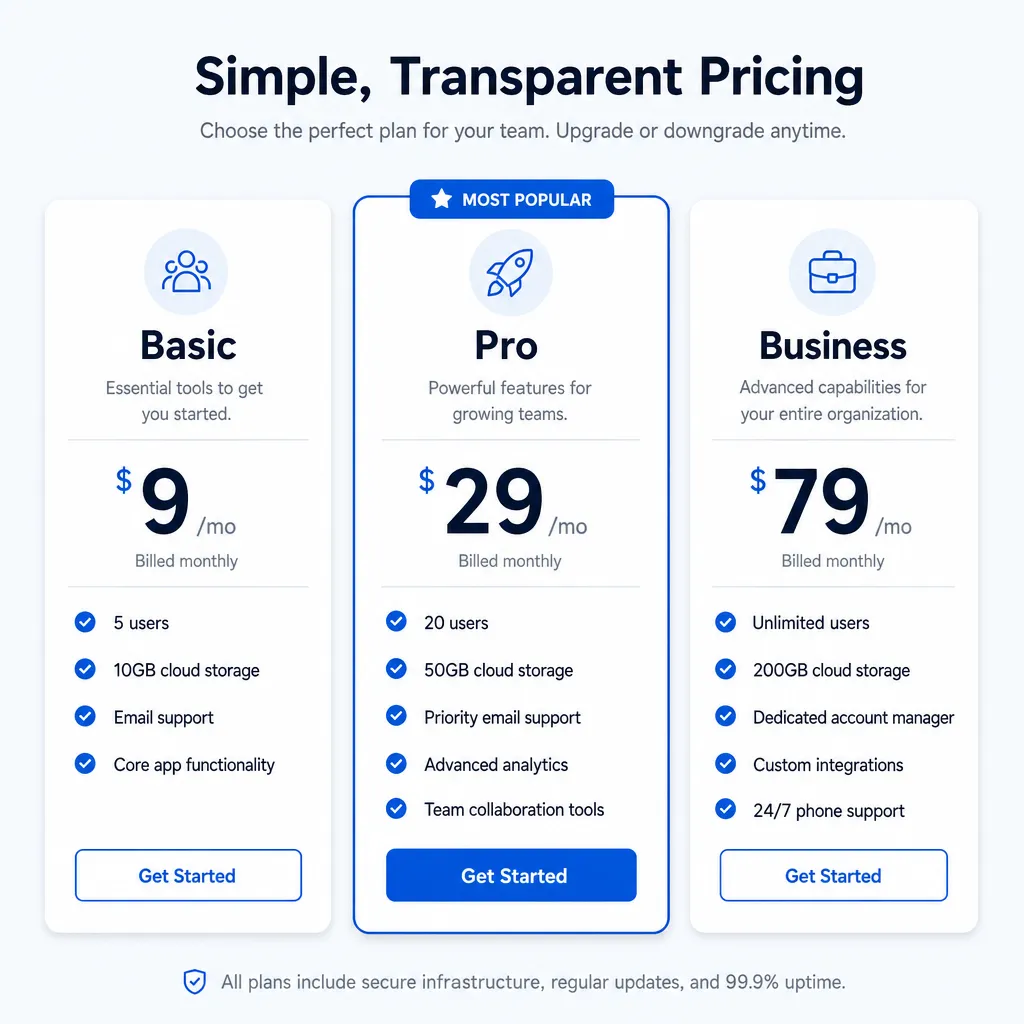
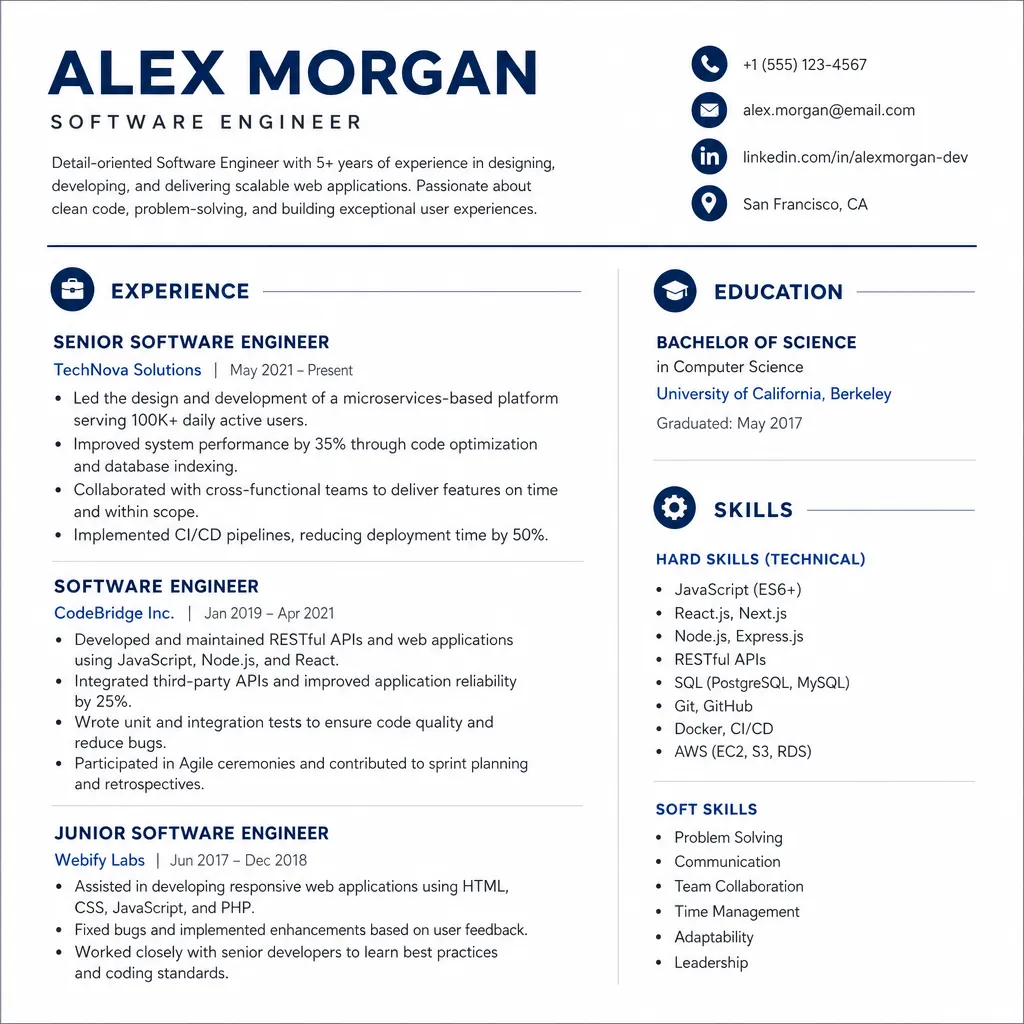
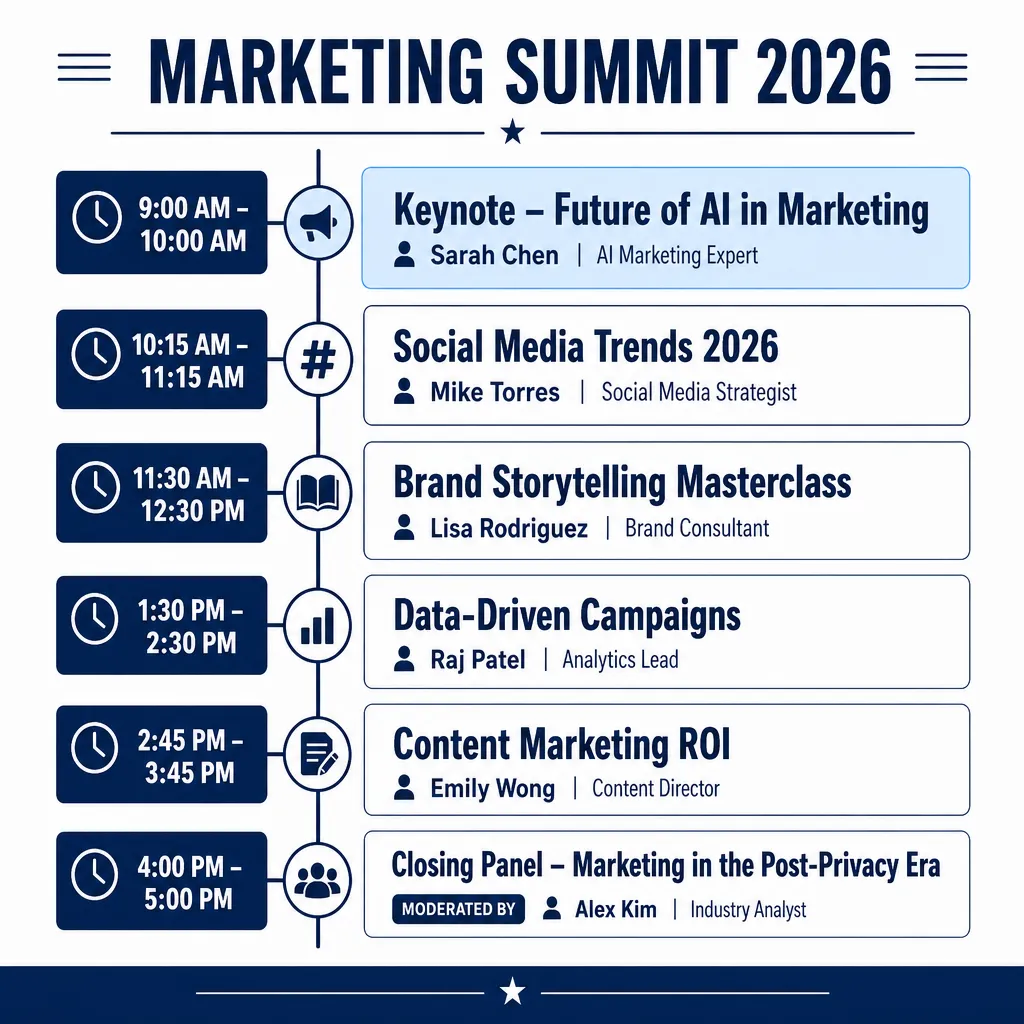
It's built for structured visuals where layout, hierarchy, and readable text matter. Posters, infographics, comparison sheets, and labeled diagrams. GPT Image 2 outperforms style-first models on prompts that include headlines, captions, or accurate copy.
Start with a prompt, upload an image to edit, or generate from scratch. GPT Image 2 can generate everything from YouTube thumbnails and social ads to flowcharts, comparison sheets, and presentation slides in seconds — with accurate text rendering and clean layouts.
.webp)
Create, edit, and repurpose in one workflow
Inside Kapwing, GPT Image 2.0 is available to try for free as part of a full online video editor — on desktop, mobile, iPhone, and Android.
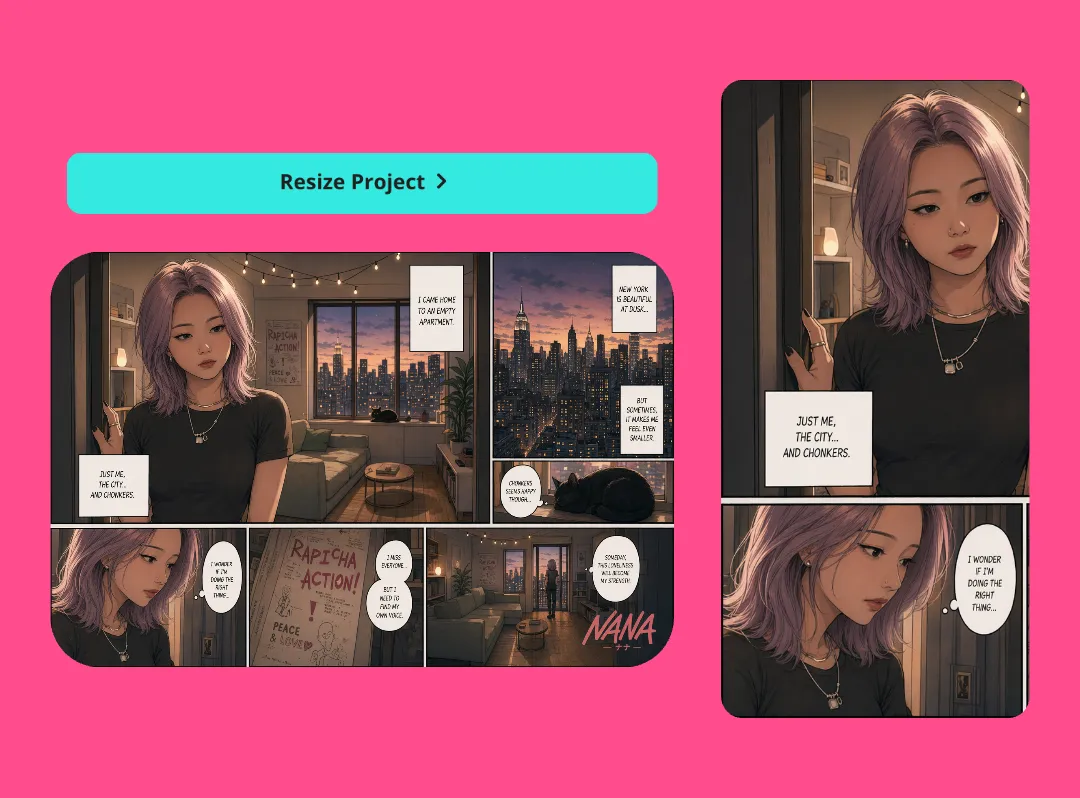
Resize for any platform, remove backgrounds, or add brand overlays — then export as JPG, PNG, or WebP. Or, use your image as a video start frame, add it to a project as B-roll, or refine it with thousands of design-led editing tools similar to Canva.
- Remove backgrounds
- Resize for different platforms
- Add text, branding, or watermarks
- Convert formats (JPG, PNG, WebP)
- Turn images into videos or slides
What to expect with ChatGPT Image 2
Built for text, structured layouts, and editable image workflows
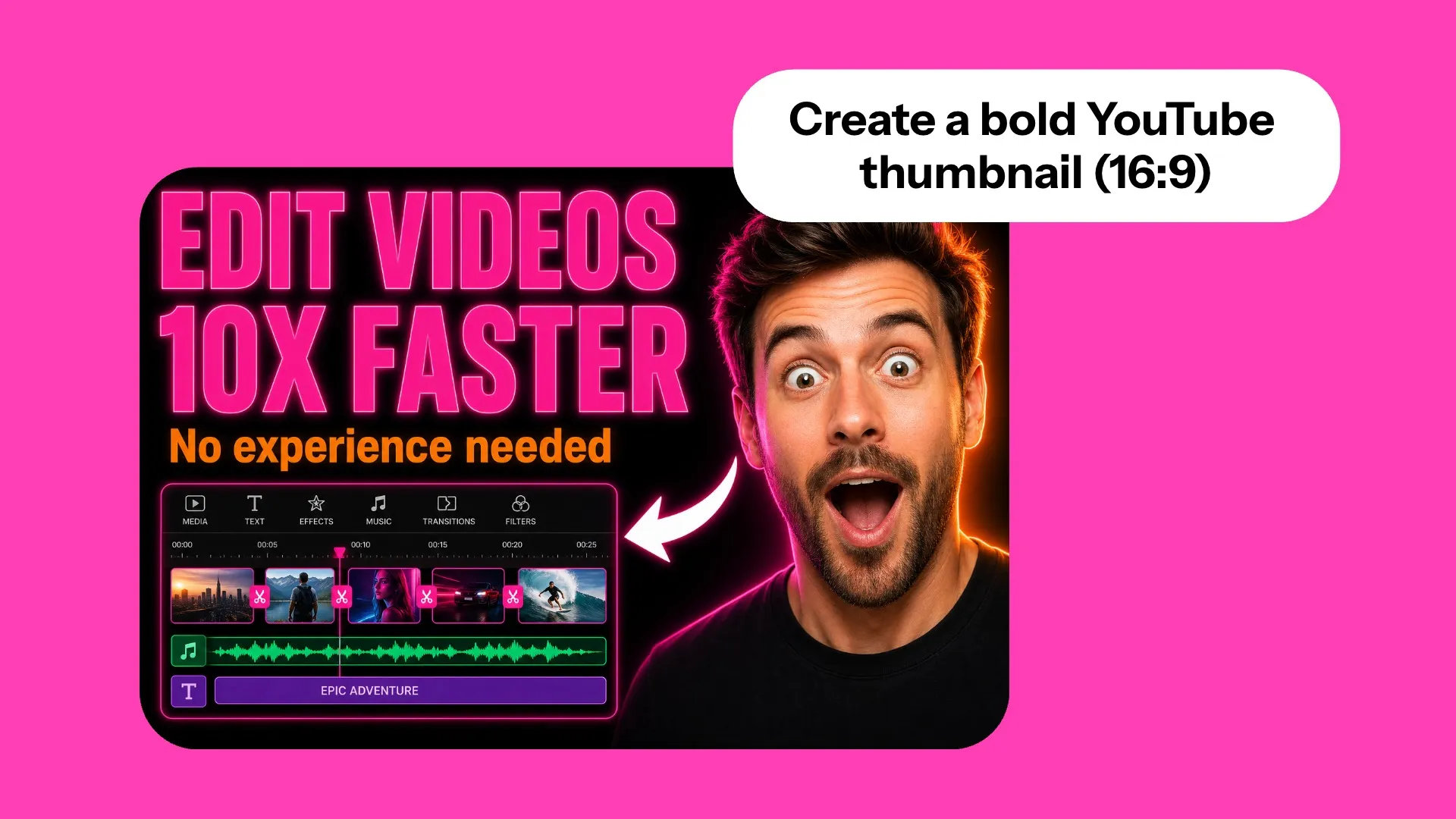
Prompt Control
Detailed prompts are followed closely. Describe layout, copy, colors, dimensions, and style. ChatGPT Image 2 prioritizes instruction accuracy over stylistic interpretation.
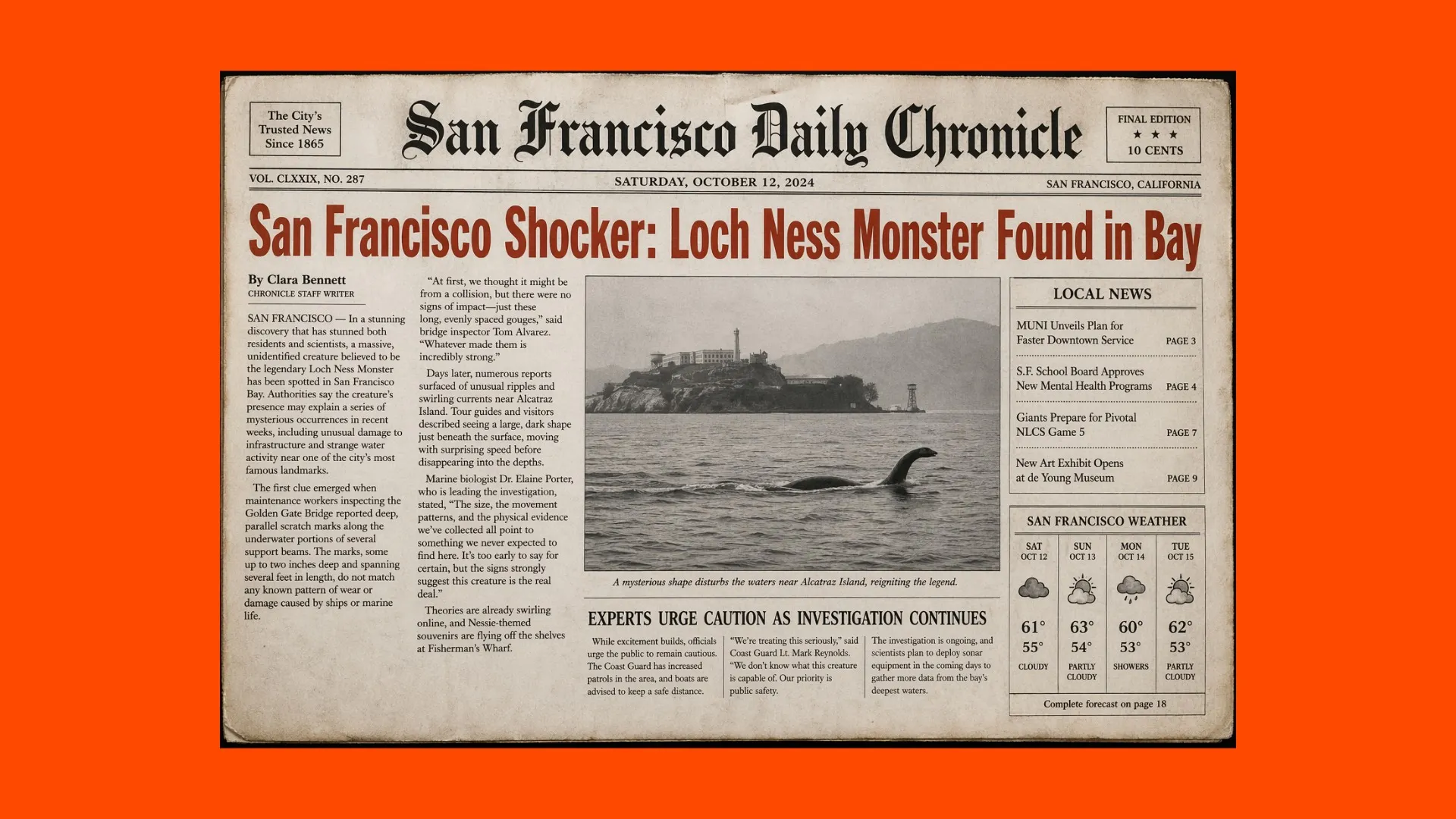
Text Rendering
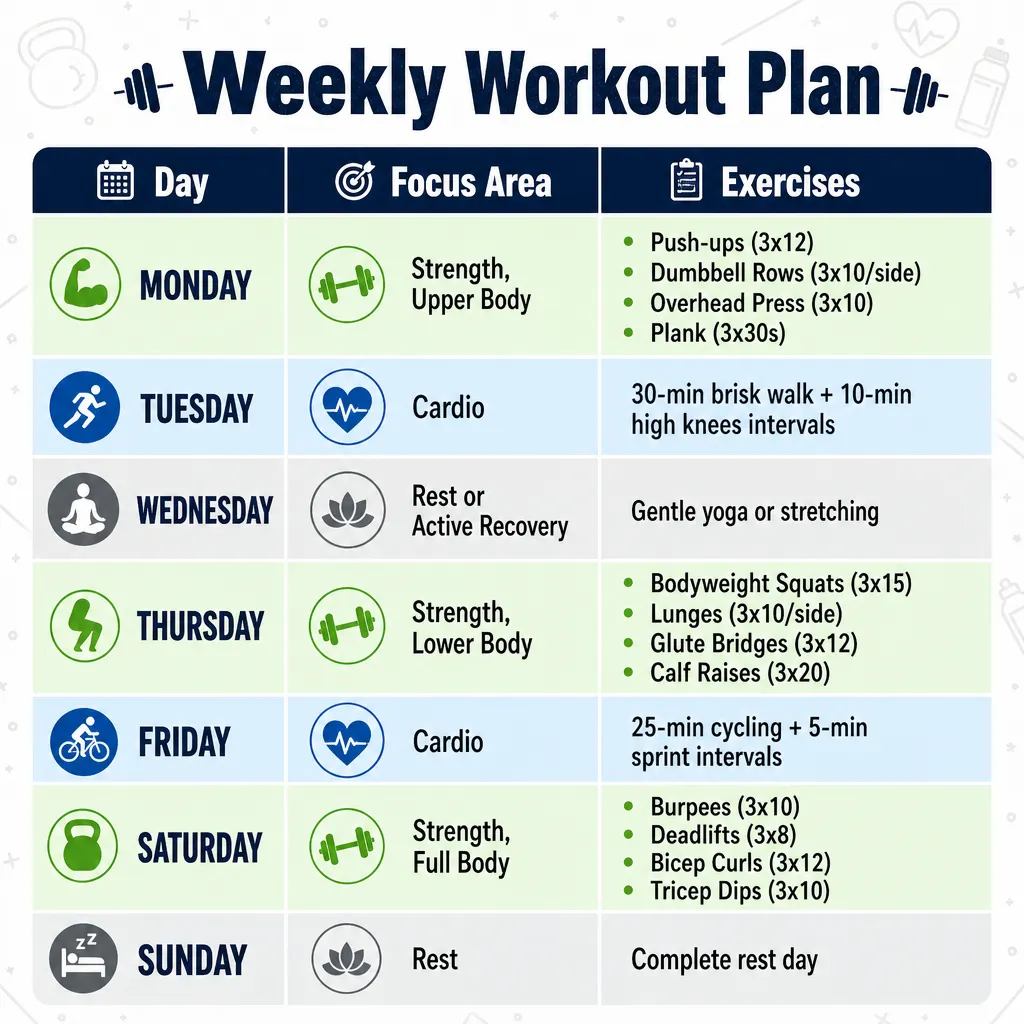
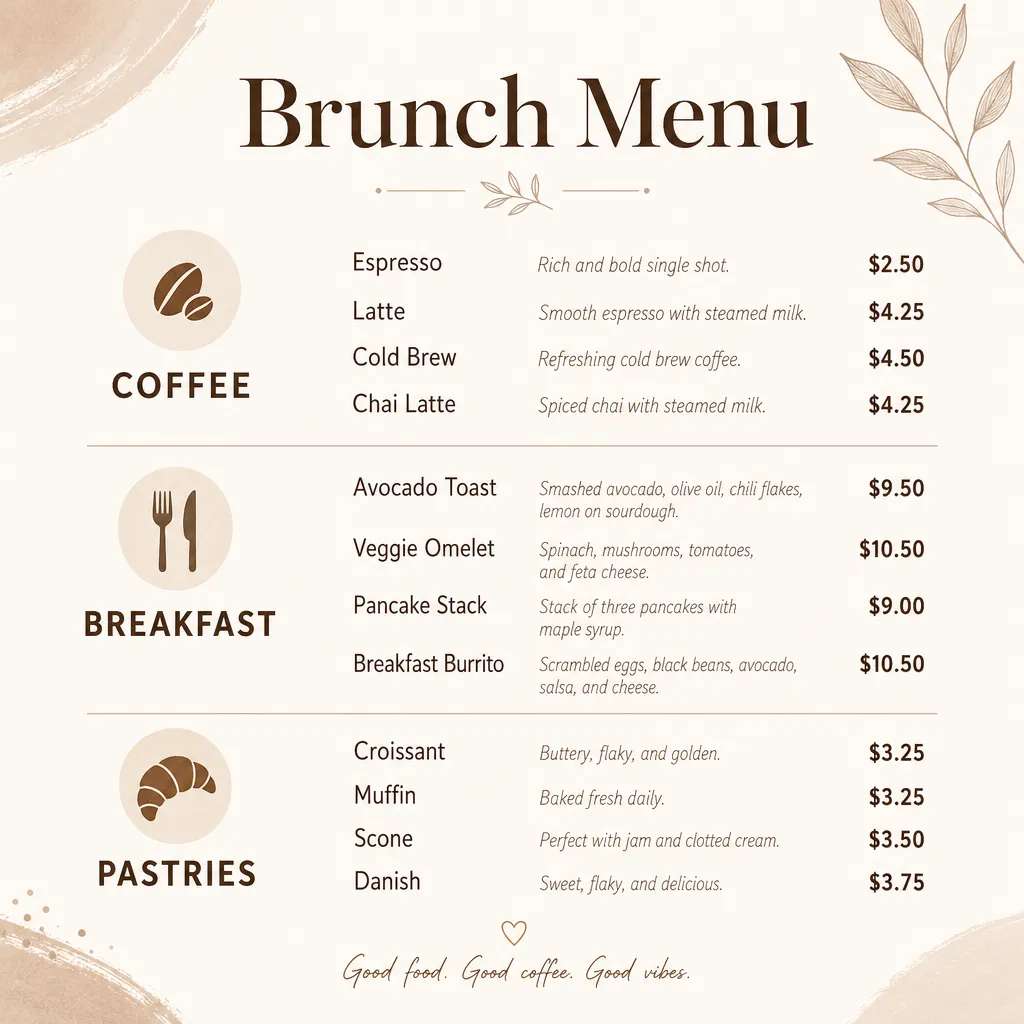
GPT Image 2 generates accurate, legible text inside images — headlines, labels, captions, menu items, chart text, poster copy. Multi-language support including Japanese, Korean, Hindi, Bengali, and more.
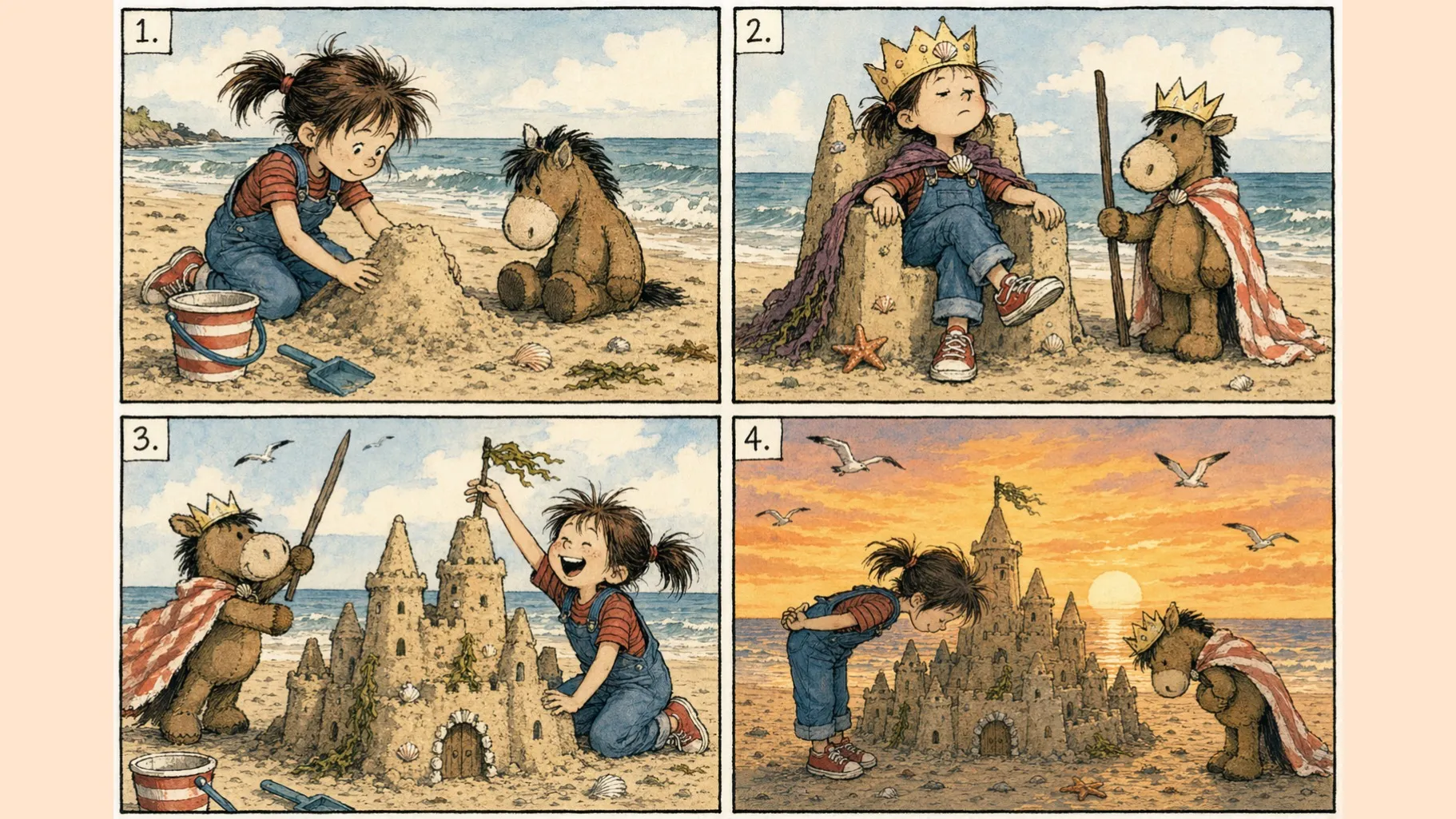
Layout Detail
Designed for visuals with multiple elements arranged clearly on one canvas. ChatGPT Image 2 can handle sections, callouts, spacing, headings, and grouped information.
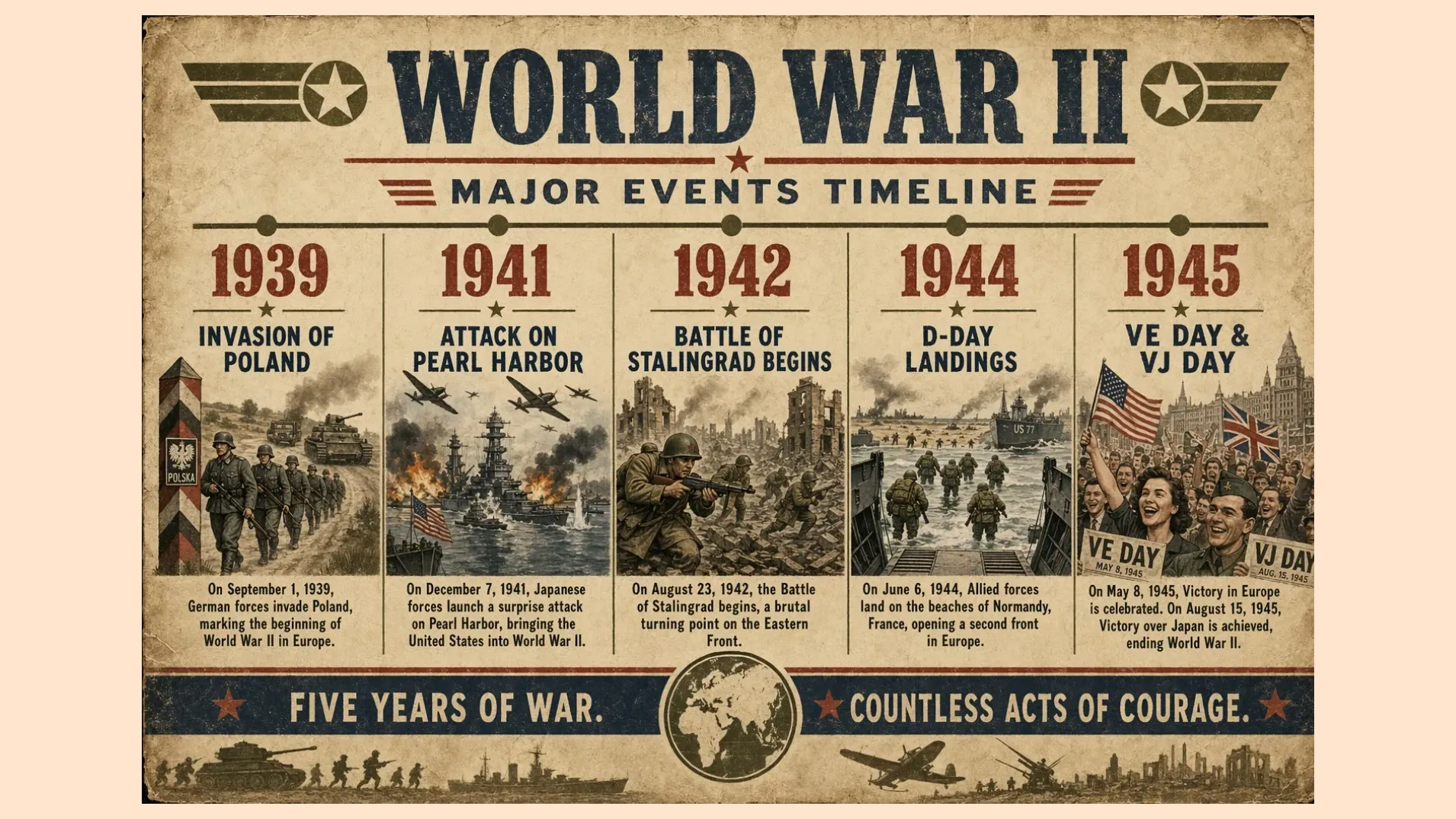
Fact Accuracy
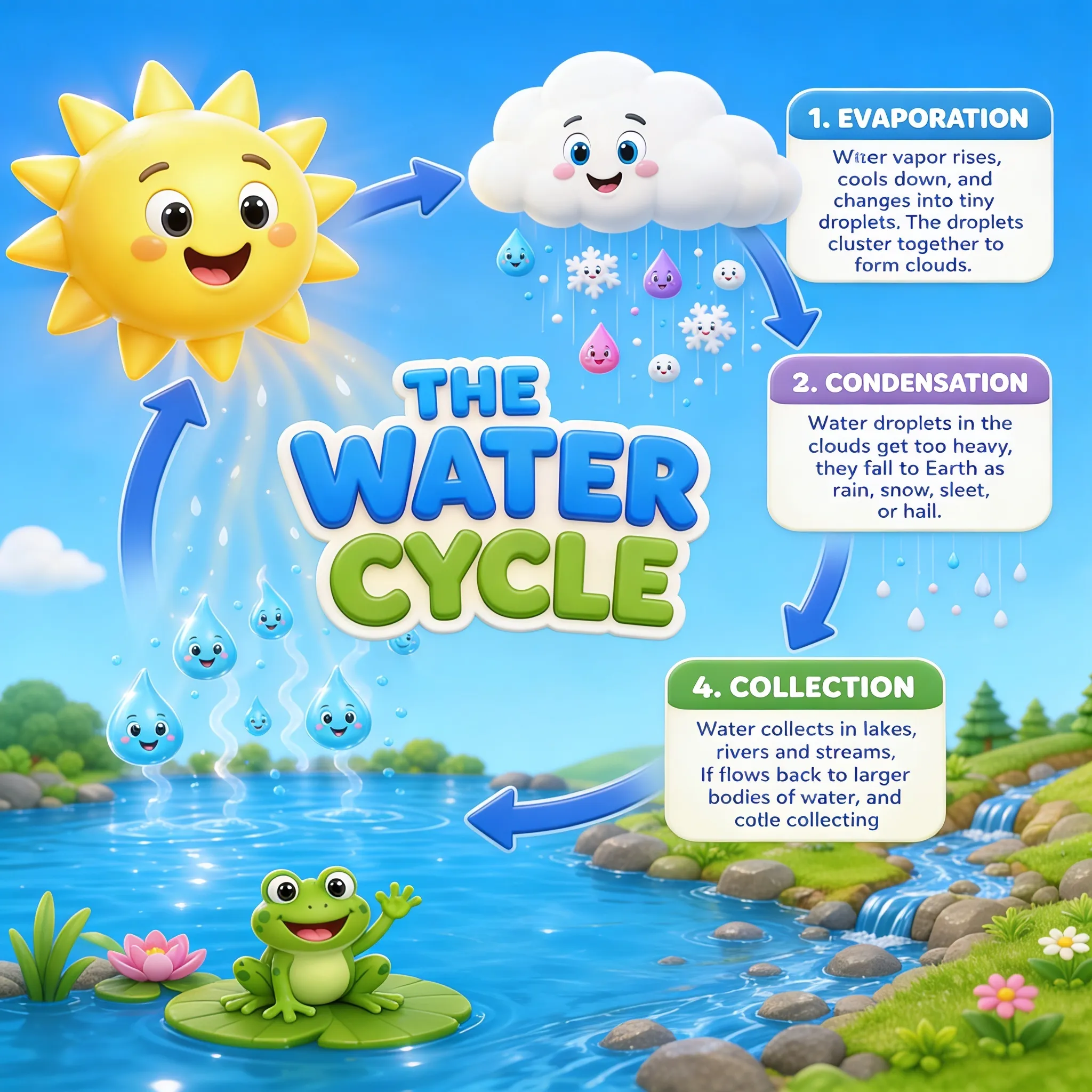
Built to follow factual context more reliably than style-first image models — great for informative creator workflows such as timelines, charts, maps, educational graphics, product comparisons, and process diagrams.
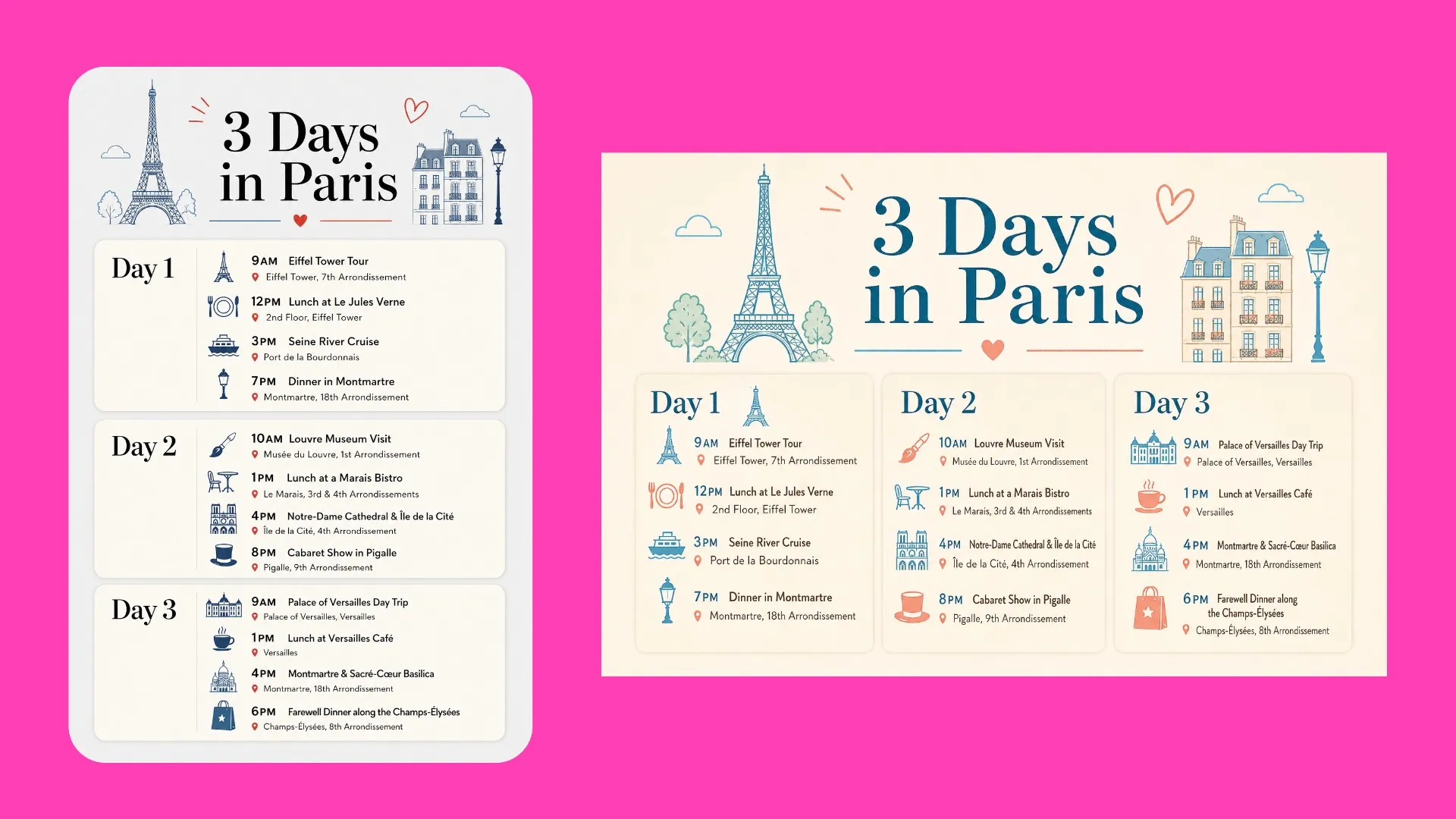
Aspect Ratios
Generate in any size, including 1:1, 9:16, 16:9, 4:5, 5:4, 3:4, 4:3, 2:3, and 21:9. Resize any time inside Kapwing after generation.
Created with GPT Image 2 — in Kapwing
Free to start. No watermark. Fully online.
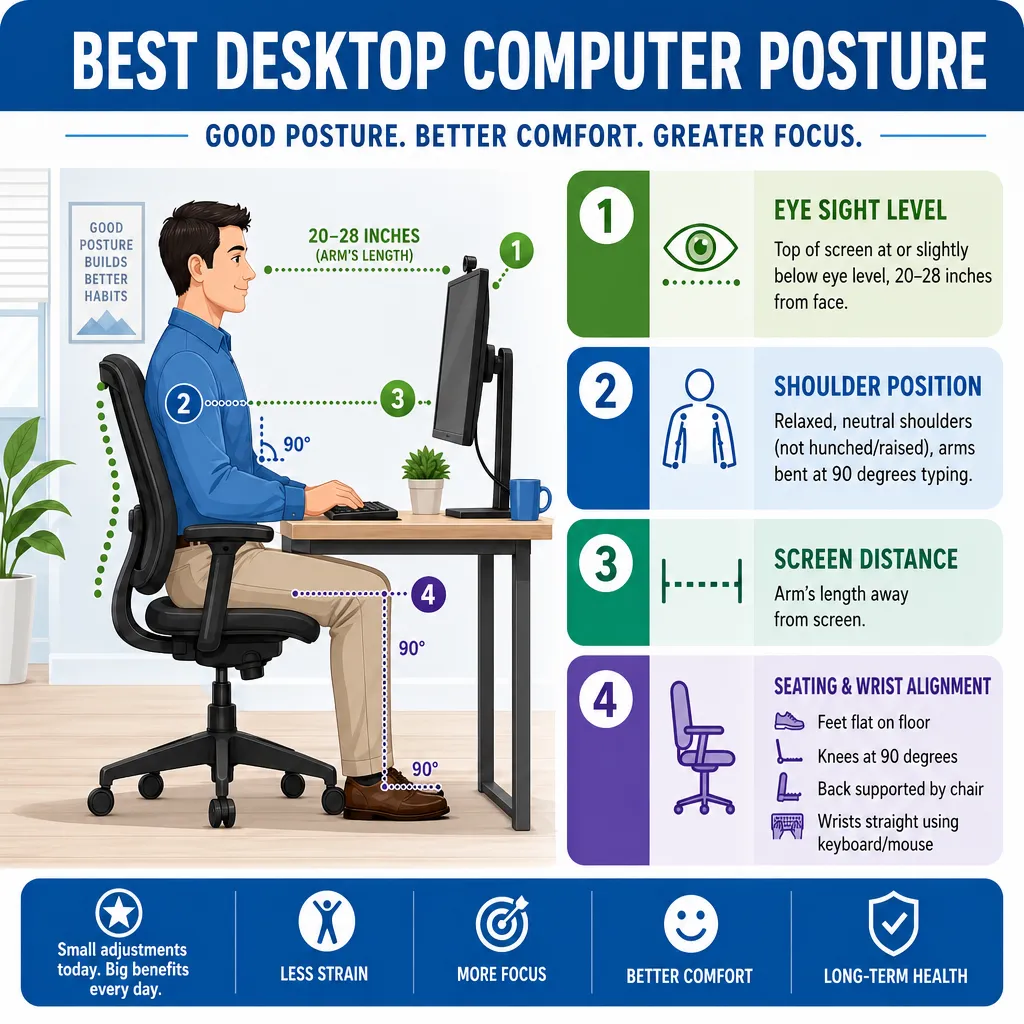
How to Use ChatGPT Image 2
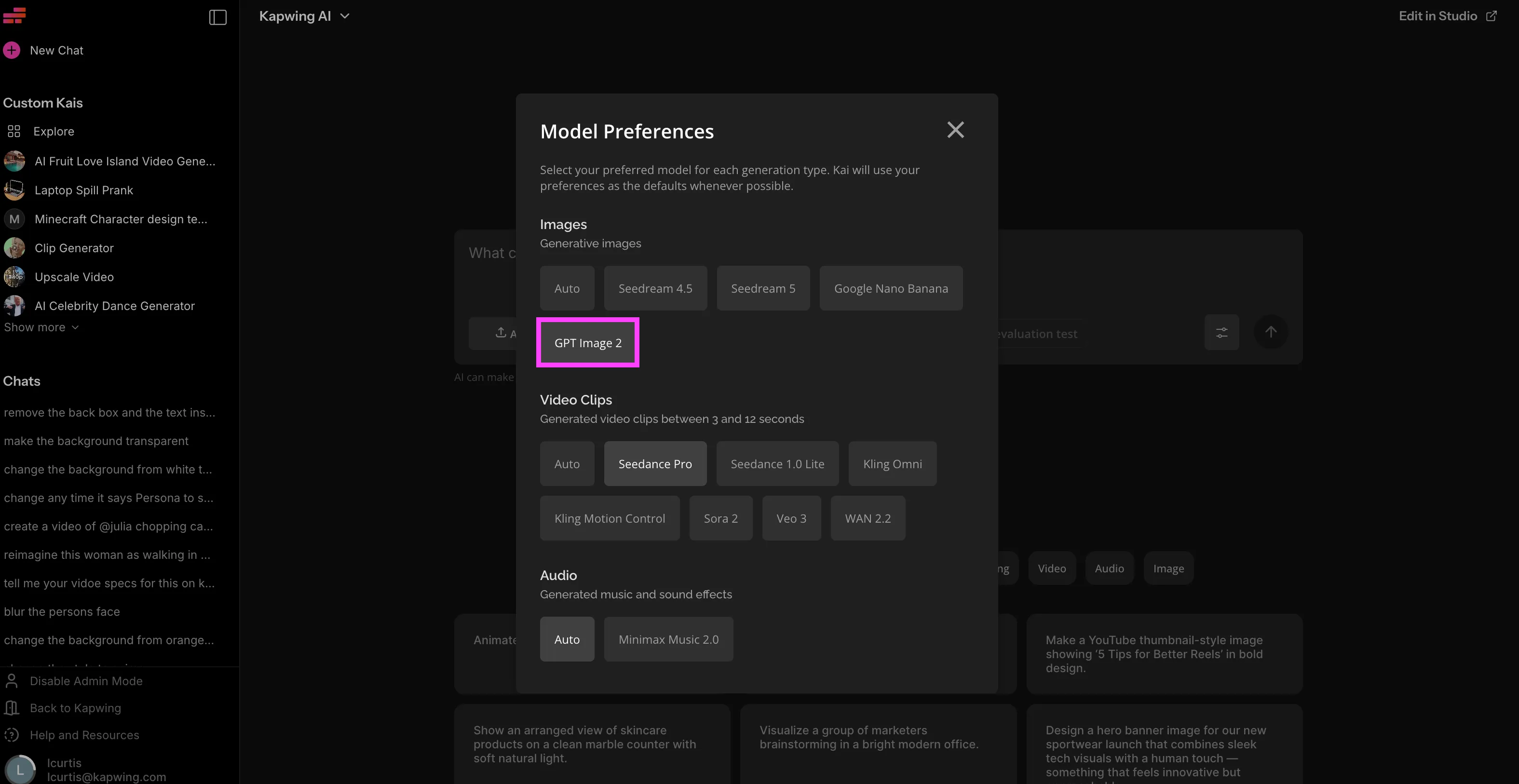
- Step 1Open GPT 2 in Kapwing
Open Kapwing's AI Studio in your browser on desktop, iPhone, or Android. Open Model Preferences in the bottom-right corner and select 'GPT 2' under Images.
- Step 2Enter prompt or upload image
Type a text prompt to create from scratch, or upload an image to edit. For text-heavy designs, describe the headline, labels, layout, colors, and aspect ratio in the prompt.
- Step 3Generate, iterate, and export
Click 'Generate.' Refine with the AI chatbot, or drop the image onto the timeline to remove backgrounds, resize, add branding, or animate it into a video. Export as JPG, PNG, or WebP.
Why use GPT Image 2 in Kapwing
No external tools, APIs, or local setups — create, edit, and export everything in one workflow
Generate
Edit
Export
Instead of bouncing between AI generators and editing software, Kapwing turns GPT 2.0 into a complete production workflow.
- Generate images with OpenAI's GPT Image 2 directly in your browser
- Edit outputs immediately — remove backgrounds, resize, add text or branding
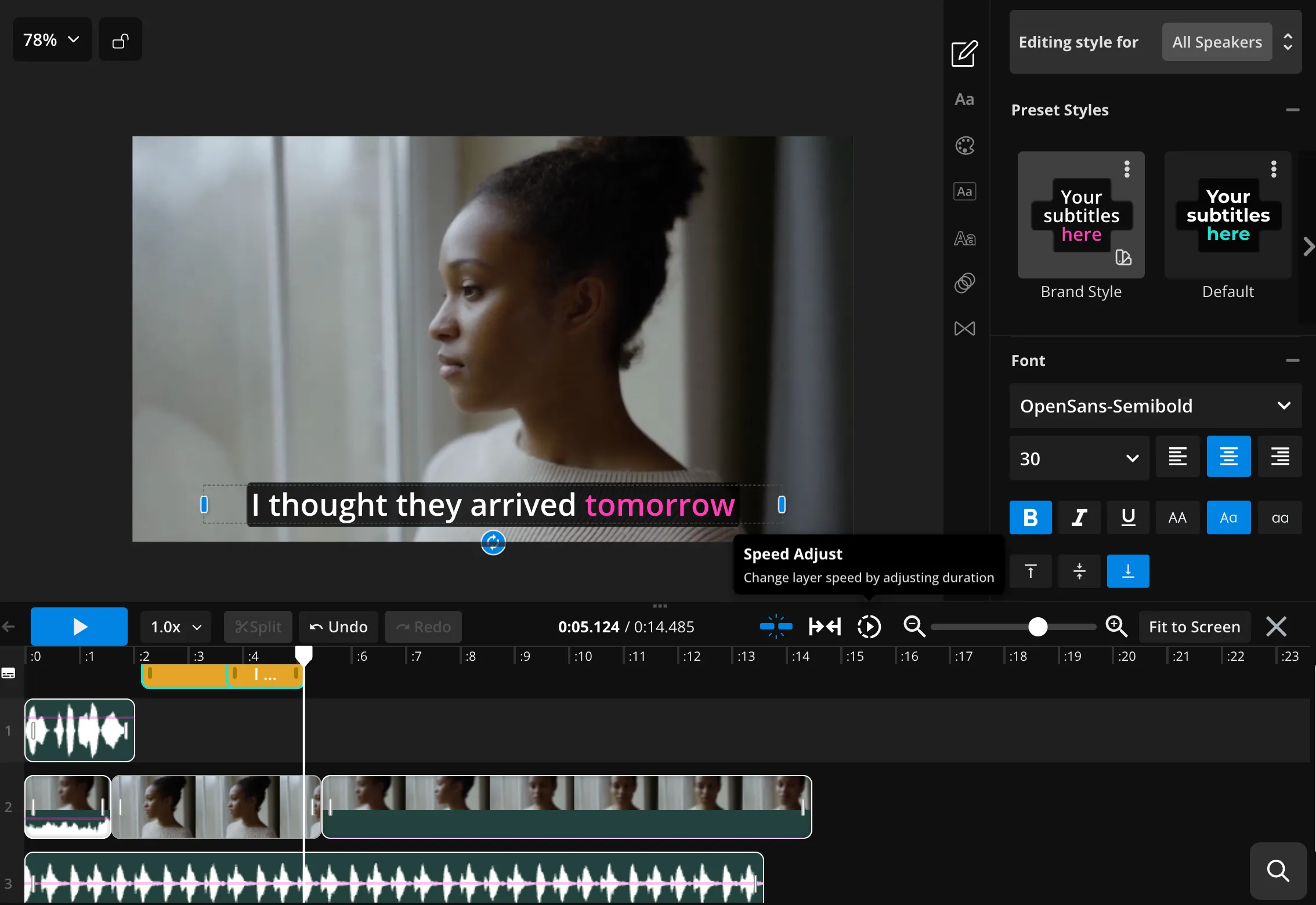
- Combine GPT Image 2 with leading AI models like Wan 2.2, Veo, and Seedance to turn images into video
- Add voice over, subtitles, music, and sound effects with Kai and MiniMax 2.0
- Export images in JPG, PNG, or WebP with no third-party watermark
GPT Image 2 + editing studio
Join millions of creators using Kapwing's online editing toolkit
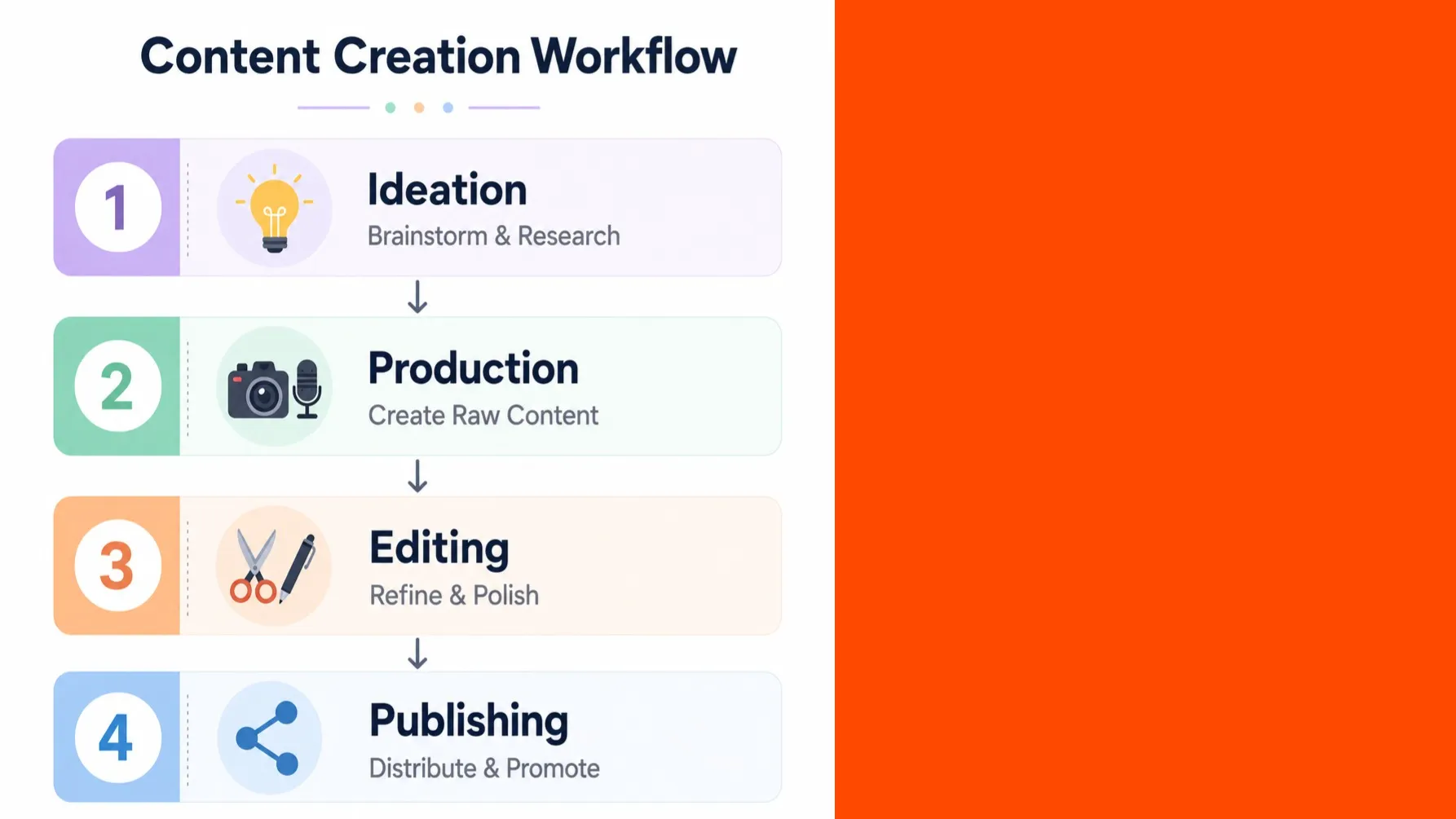
Infographics & Structured Visuals
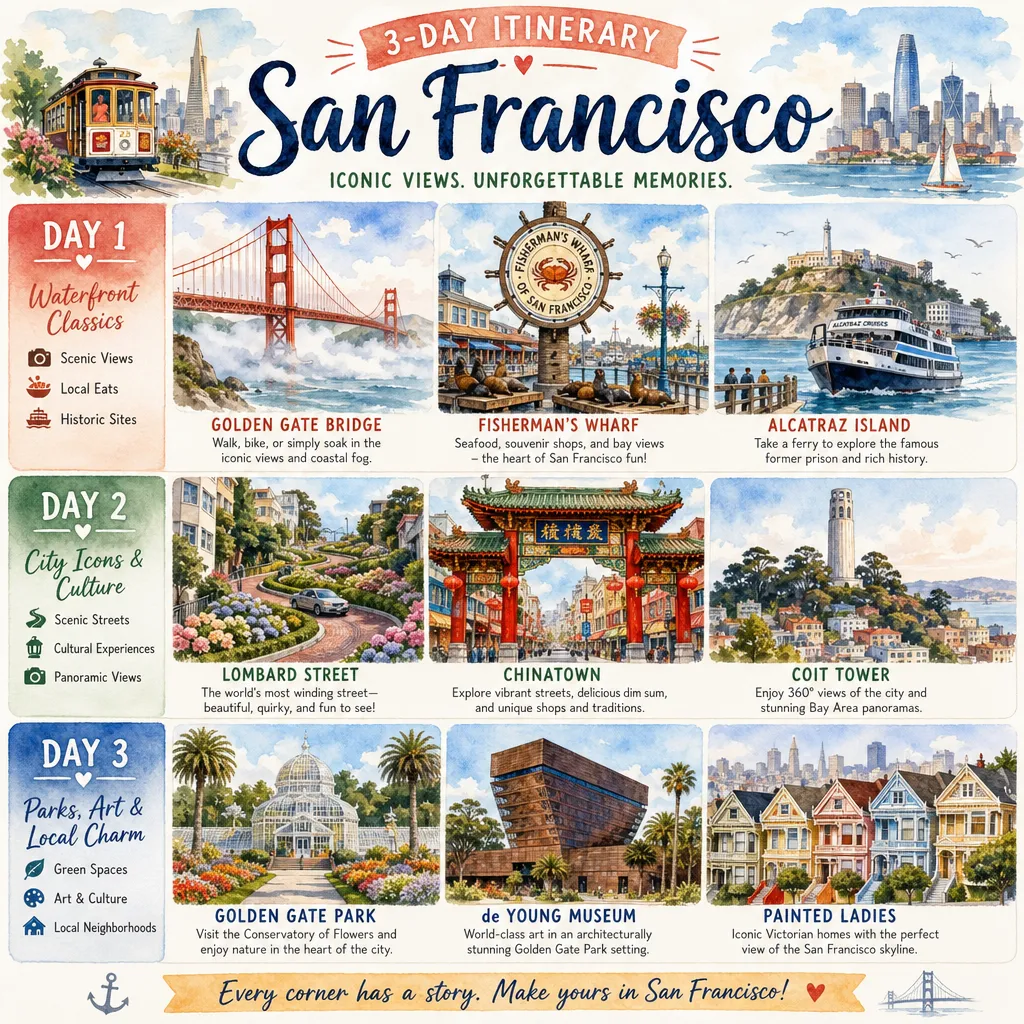
Create clear, information-heavy visuals with readable text — infographics, comparison charts, timelines, and diagrams for educators, product marketers, and L&D teams
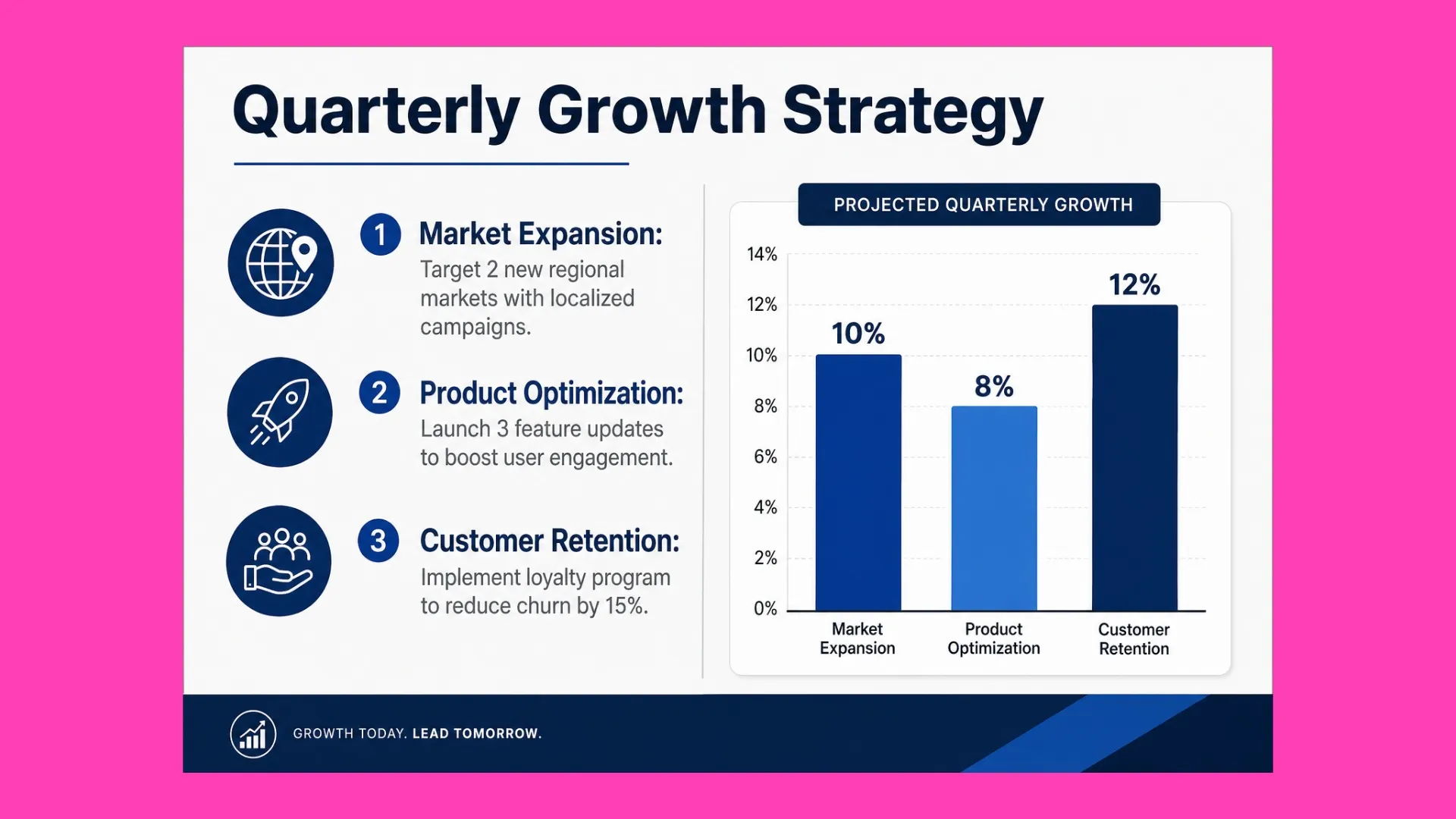
Slides & Presentations
Generate presentation-ready slides, pitch decks, and educational visuals directly from a prompt. Instead of designing layouts manually, GPT Image 2 produces structured slide formats you can refine instantly.
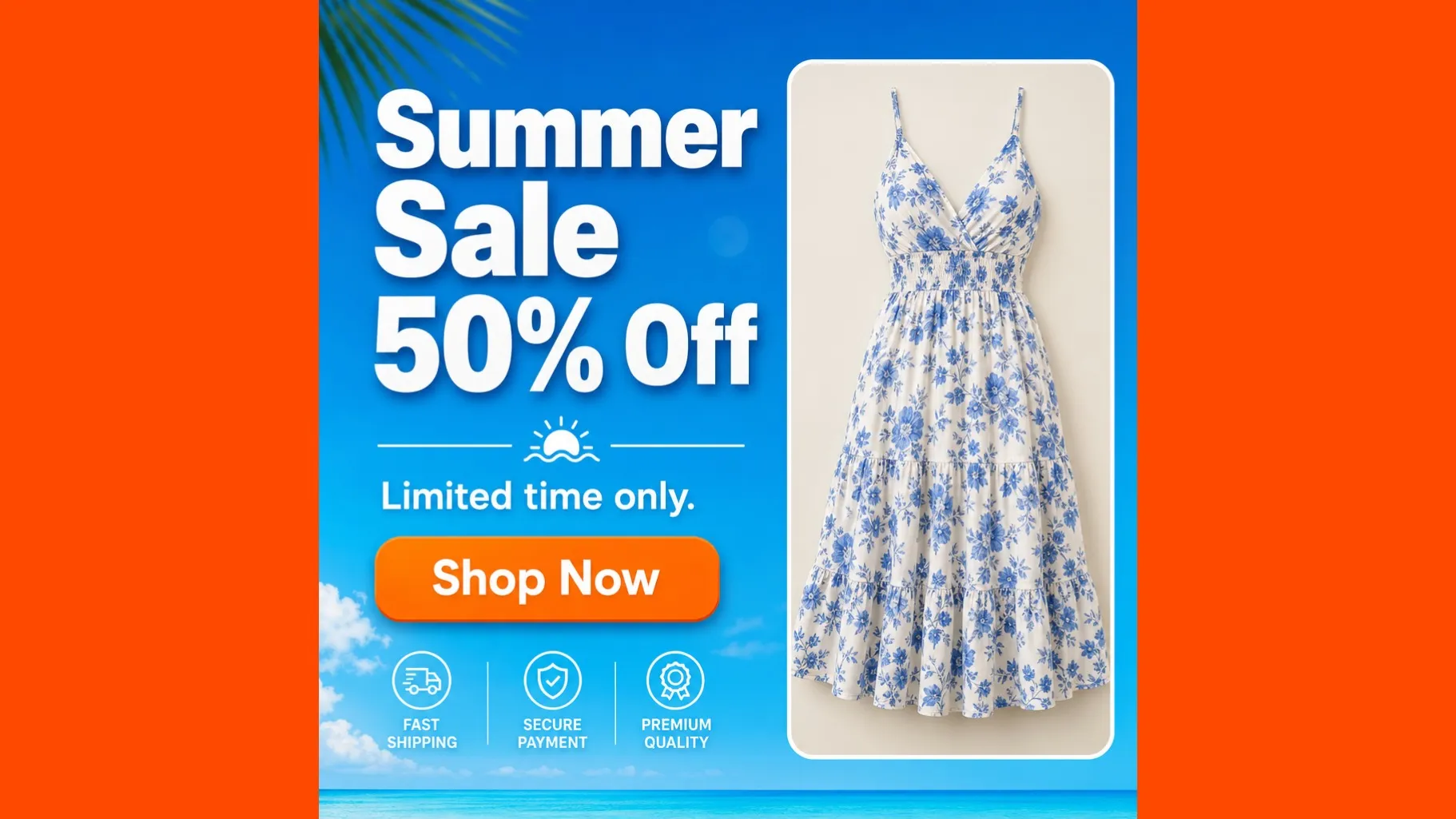
Marketing & Social
Make YouTube thumbnails, social ads, promo banners, and campaign graphics with clear messaging and structured layouts designed for fast editing, resizing, and publishing
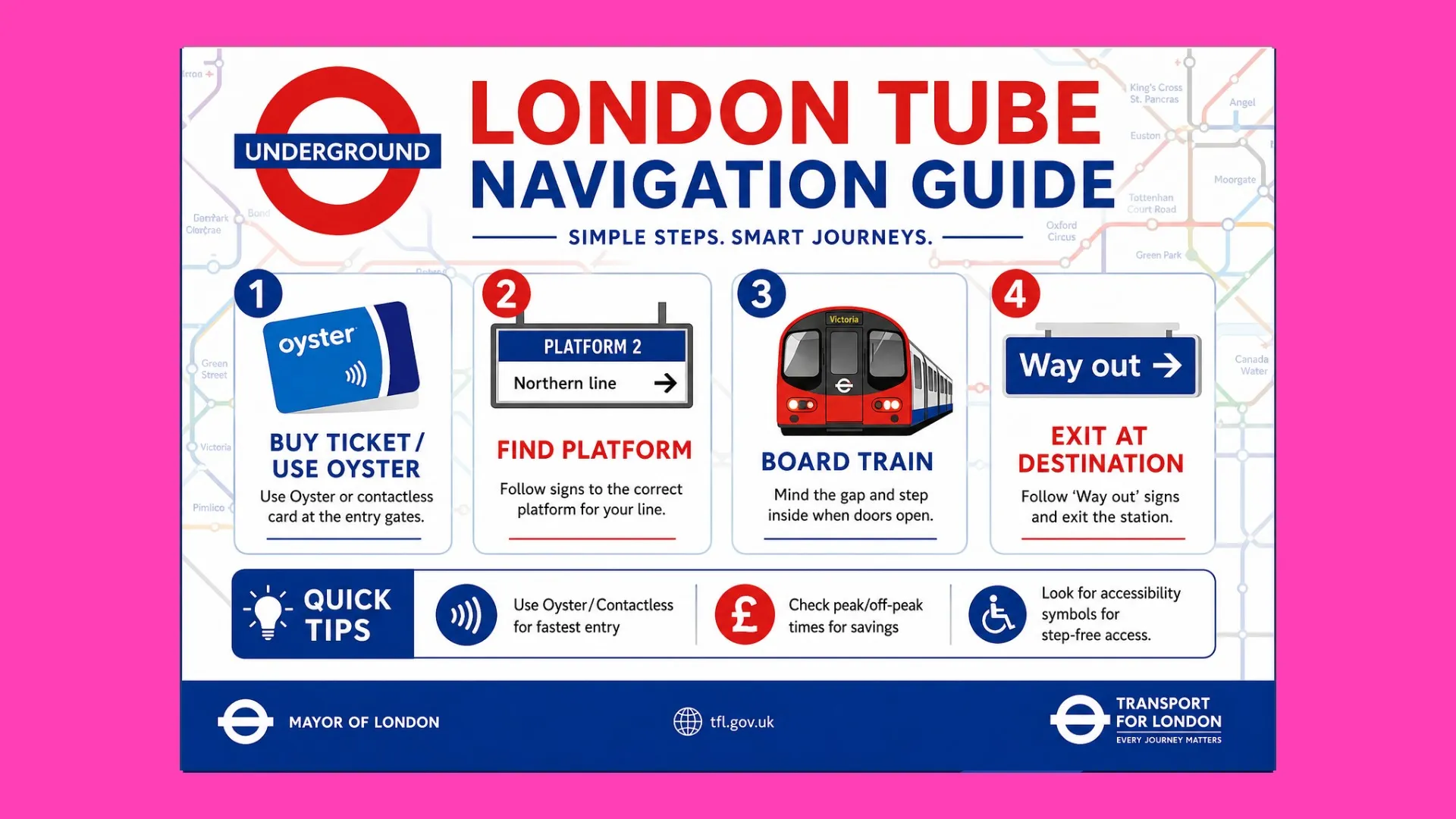
Diagrams, Maps & Explanations
Generate labeled diagrams, flowcharts, process visuals, and maps that explain concepts step by step. Great for educators, L&D teams, online coaches, and small businesses.
Discover Resources
Tips, templates, and deep dives to help you create faster and share with confidence.
View all


From image to video — powered by multiple AI models
Enhance your workflow with multiple AI models
Edit and refine everything — from visuals to sound production
- Google Nano Banana
Edit and transform images with precise, object-level control. Use Nano Banana to refine GPT Image 2 outputs by adjusting individual elements, swapping objects, cleaning up details, or making targeted changes while preserving the overall design.
- Wan 2.2
Turns images into video scenes and B-roll. Start by creating a structured image, start frame, poster, or product visuals with GPT Image 2, then animate it with Wan 2.2 for short-form videos, ads, and social content.
- MiniMax 2.0
Create custom music, ambience, and sound effects to pair with GPT Image 2 visuals. Combine generated images with AI voiceover to make faceless videos, or add waveforms and audio-reactive elements for podcast clips and social content.
Frequently Asked Questions
We have answers to the most common questions that our users ask.
What is ChatGPT Image 2 in Kapwing?
GPT Image 2 is an AI image model integrated directly into Kapwing’s online editor. It generates and edits images from text prompts or uploaded visuals, with accurate text rendering, structured layouts, and production-ready outputs up to 1024 pixels.
How do I generate images using GPT Image?
To generate an image, open Kapwing’s AI Studio and select GPT Image 2 under image models. Enter a text prompt or upload an image to edit, then click “Generate” to create your image.
Is the ChatGPT Image generator free?
Yes, GPT Image is free to try inside Kapwing's online AI Studio. Free generations include a watermark. Upgrade to Pro for unlimited generations and watermark-free exports.
Can I edit images generated with GPT Image?
Can I use GPT Image 2 for text-heavy designs?
Yes, GPT Image 2 is particularly strong for text-heavy designs. It can generate images with readable headings, labels, captions, and structured layouts more reliably than many other image models.
What formats can I export images in?
Images created with GPT Image in Kapwing can be exported in JPG, PNG, or WebP.
Can I turn GPT Image 2 outputs into videos?
Yes, you can turn GPT-generated images into videos in one workflow. After generating your graphic, use the prompt box to ask Kapwing to turn it into a video, or add it to your timeline as a start frame or B-roll for further editing.
What aspect ratio and resolution does GPT Image support?
GPT Image supports multiple aspect ratios, including 1:1, 9:16, 16:9, 4:5, 5:4, 3:4, 4:3, 2:3,. The maximum resolution is 1024px on the longest edge. For example, square images export at 1024×1024, widescreen 16:9 images at 1024×576, and vertical 9:16 images at 576×1024.
What are the best GPT Image alternatives?
Other AI image models available in Kapwing include Google Nano Banana and Seedream. Nano Banana is useful for precise, object-level image editing, while Seedream is designed for large-scale visual transformations and stylistic variation. GPT Image 2 is the strongest option for structured layouts and text-based designs.
What image formats are supported?
- Input (reference images): JPG, PNG, WebP, GIF (static), HEIC, HEIF.
- Output (generated images): Images are exported in PNG or JPG format, ready to download or continue editing directly within Kapwing.
Does Kapwing use OpenAI's official GPT Image API?
Yes, Kapwing is powered by OpenAI's official GPT Image 2 API. No API keys, no metered pricing, and no local installation required. Free to try.
What types of images can GPT Image 2 create?
GPT Image 2 is designed for structured and text-heavy visuals, including infographics, slides, diagrams, charts, posters, thumbnails, social ads, and labeled illustrations. It is especially useful for content that needs clear communication and readable text.
How do I write good GPT Image 2 prompts?
Strong GPT Image prompts describe the layout, headline copy, label text, color palette, aspect ratio, and visual style (editorial, flat illustration, retro, isometric).
What other AI models are in Kapwing?
Kapwing's AI video models include; Grok Imagine Video, Veo, Seedance, MiniMax, Kling, and Happy Horse.
Image AI models: ChatGPT Image, Google Nano Banana, Grok Imagine Image, and Seedream.
Audio AI models: Google Lyria, MiniMax Audio, and ElevenLabs Music.
Get started with your first video in just a few clicks. Join over 35 million creators who trust Kapwing to create more content in less time.