How to Use Kling Motion Control: A Guide for Video Creators
Stop trying to describe the perfect movement to AI. With Kling Motion Control, you can show it instead.

Getting an AI-generated video to follow an exact performance is harder than it sounds. You can describe a dance, a physical reaction, or a sequence of gestures in a prompt, but the model still has to interpret the the timing, body position, etc.
Kling Motion Control replaces that guesswork with a video reference. Instead of describing how someone should move, you upload footage of the performance you want to recreate, along with an image of the person or subject performing it.
In this guide, I'll cover Kling Motion Control's technical capabilities, how to use it in Kapwing, the settings that affect motion accuracy, and how to troubleshoot common problems.
Table of Contents
- What Is Kling Motion Control?
- How to Use Kling Motion Control
- Kling Motion Control Settings and Advanced Features
- What Should You Put in a Kling Motion Control Prompt?
- Frequently Asked Questions
What Is Kling Motion Control?
Kling Motion Control is a reference-driven AI video generation feature. Introduced with Kling Video 2.6 and upgraded in Kling 3.0, it transfers recorded human movement onto a subject in a reference image. The process uses two inputs:
- Motion reference video: Controls the performance, including movement, timing, body positioning, gestures, and facial expressions.
- Reference image: Defines the appearance of the subject performing that movement, including their face, clothing, body proportions, and visual style.
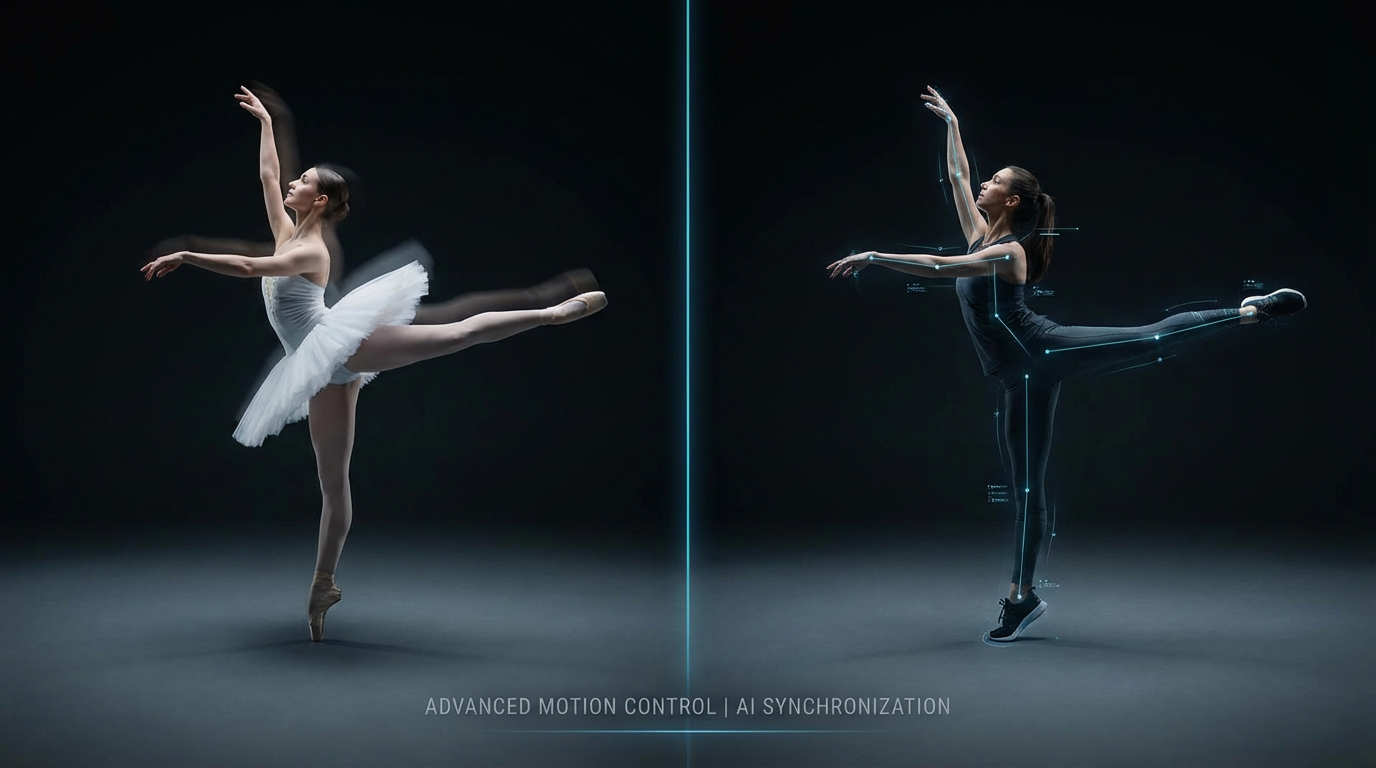
For example, you could record yourself performing a dance and use a photograph of another person to recreate the dance with AI. Or you could film a specific reaction, gesture, or sequence and transfer it onto a different on-screen subject.
Although Kling calls the image input a character reference, it doesn't have to be an AI-generated character. You can use a photograph of a real person, a fictional character, or an illustration.
The distinction is that Kling generates a new video based on the reference video. It isn't simply replacing someone's face in the original footage or preserving the original background pixel for pixel. If you need to replace a person while keeping almost everything else in the original shot intact, a dedicated video replacement tool may be more appropriate.
Kling AI · Quick Reference
Kling Motion Control Specifications
| Feature | Specification |
|---|---|
| Model versions | Kling Video 2.6 and 3.0 Motion Control |
| Required inputs | One subject image and one motion video |
| Motion reference duration | 3–30 seconds in Kling's native workflow, depending on orientation mode |
| Motion transfer | Full-body actions, gestures, head movement, and facial expressions |
| Orientation controls | Match reference video or reference image |
| Prompting | Optional scene prompts in Kling's native interface |
| Facial consistency | Element Binding in Kling 3.0 Motion Control |
| Audio in Kapwing | Added separately after generation |
| Multi-person motion transfer | Primarily one performer per generation |
Kling 3.0 Motion Control vs. 2.6
Kling 2.6 established the core motion-transfer workflow, including full-body choreography, hand gestures, and reference-driven movement. However, the face could become less consistent during complicated actions, particularly when the subject turned away from the camera or moved through several expressions.
Kling 3.0 introduced stronger facial identity preservation and optional Element Binding, which adds dedicated facial references alongside the main subject image. These can help the model reconstruct how someone looks from different angles and through changes in expression.
Kling specifically highlights improvements in sustained facial expressions, head rotation, temporary facial obstruction, and complex performances.This makes the newer version more useful for acting and expressive performances.
Same movement.
Smarter face tracking.
Kling 2.6 introduced performance transfer. Kling 3.0 focuses on keeping facial identity intact through more demanding motion. Explore what changed.
How to Use Kling Motion Control
You can access Kling Motion Control through Kling's own platform or through Kai.
For this walkthrough, I'll use Kapwing, where you can generate the motion transfer and edit the finished video in the same project.
Step 1: Select Kling Motion Control in Kapwing
Open Kai and navigate to Model Preferences. Under the video model options, select Kling Motion Control.
Unlike a typical text-to-video model, Motion Control needs a recorded performance. You won't be directing the sequence primarily through a written prompt; the reference footage will determine what happens and when.

Step 2: Choose and Prepare Your Motion Reference
Start with the movement you want to recreate. This could be an existing dance video, a reaction clip, an acting performance, or something you've filmed yourself.
According to Kling's official guidance, the strongest motion references have one clearly visible performer, a continuous shot, and relatively steady movement. When preparing your reference, pay attention to three details:
- Keep the action continuous. Remove jump cuts, abrupt camera changes, and unrelated footage. Kling needs to follow the performer's movement.
- Keep the performer visible. Hands, legs, and facial expressions are harder to reproduce when they're repeatedly cropped or obstructed.
- Use the shortest footage that contains the complete action. For a gesture or reaction, you might only need five seconds. Longer footage adds complexity without necessarily improving the performance.

You should also consider how much of the performer needs to be visible. A dance requires clear full-body movement, while an expressive acting performance may be better suited to a waist-up or medium shot.
In Kling's native interface, supported reference videos run from 3 to 30 seconds, although the available maximum depends on orientation mode. Kapwing's generation duration may be more restricted.
Step 3: Upload the Image of Your Subject
Next, attach an image of the person or subject you want to perform the movement. You can use an existing photograph or create a new image with an AI image generator. The image should establish the appearance you want in the finished video, including clothing, hairstyle, and overall composition.
The most important consideration is matching the image to the kind of performance you're transferring.If the motion reference shows a full-body dance, a headshot doesn't provide enough visual information about the subject's body and proportions. Kling has to invent those details during generation, which can introduce distortion.
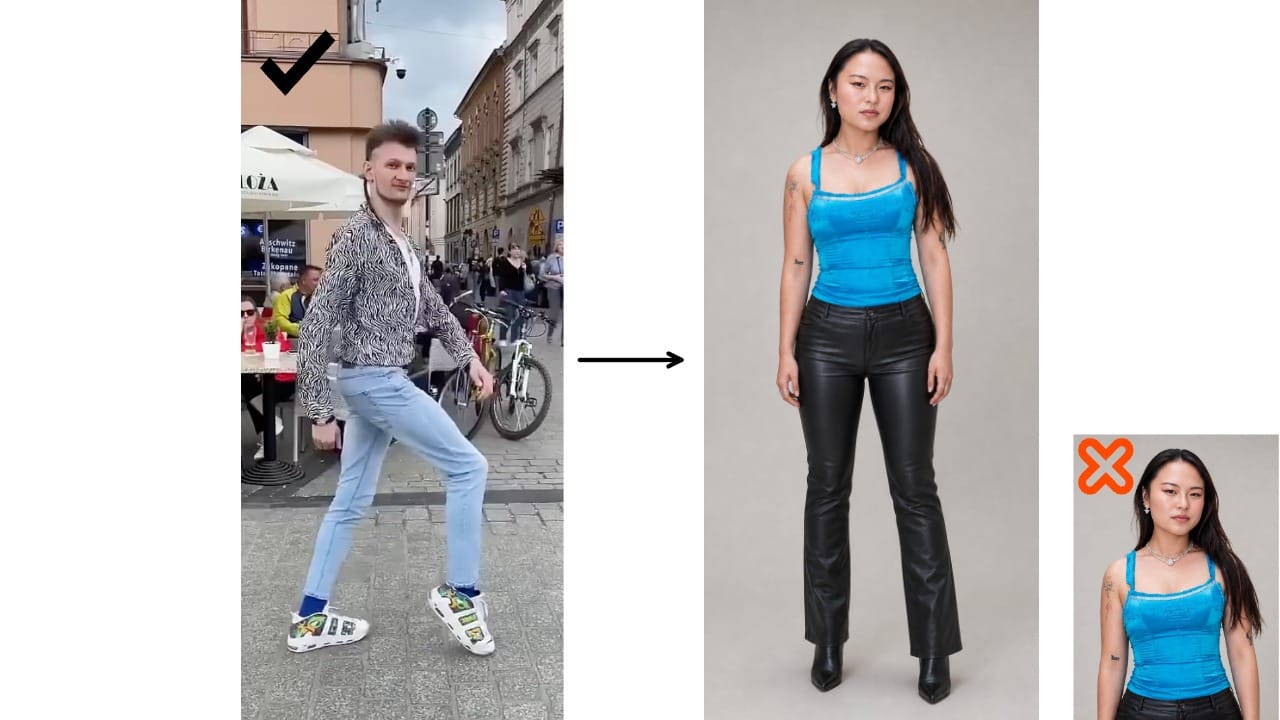
Kling's documentation also recommends leaving enough space around the subject for larger movements.
If the person nearly fills the frame and the reference includes wide arm gestures or jumping, parts of the generated body may move outside the image boundaries.
Step 4: Generate the Motion Transfer Video
Once both references are attached, submit the generation. Kling analyzes the motion video and uses it to produce a new performance with the subject from your image.
The reference video guides the sequence of actions, but the output is still AI-generated. This means the model may reinterpret details, particularly during complicated body movements, interactions with objects, or moments when the performer becomes partially hidden.
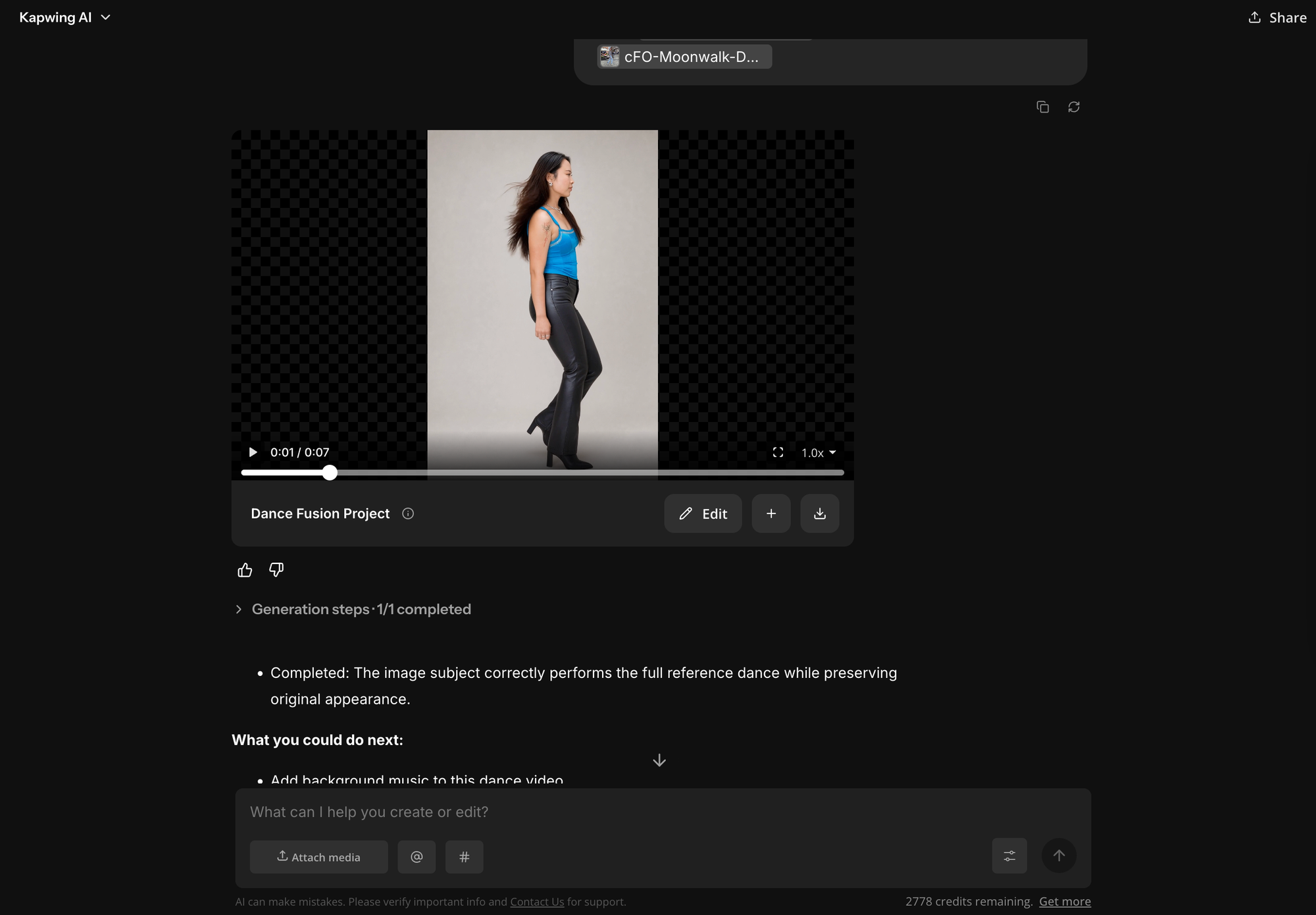
When the video is ready, compare it directly against the source. I would look at three things:
- Motion accuracy: Does the new performance follow the original actions in the correct order and at approximately the right times? Does the camera movement match the original?
- Subject consistency: Do the face, clothing, and proportions remain recognizable throughout the clip?
- Physical coherence: Do the hands, limbs, and body positions remain believable, especially during turns and fast movements?
For precise choreography, play the videos side by side rather than evaluating the generated result on its own. A video can appear convincing while still missing an important movement from the source.
Step 5: Edit and Finish the Video
After generating, open the result in the Kapwing video editor. Motion Control is primarily a visual generation workflow in Kapwing, so audio needs to be handled separately. If you're recreating choreography, you can add the original music or another licensed soundtrack and synchronize it with the movement.
For acted scenes, you can add voice-over, ambient sound, or sound effects. You can also combine several motion-transfer clips into a longer sequence, resize for social media, and trim any unwanted frames.

Kling Motion Control Settings and Advanced Features
Kling's native interface exposes additional controls that are important for more demanding motion-transfer projects.
These settings aren't all available through the current Kapwing integration, but they're worth understanding because they explain how the model handles orientation, camera movement, and facial identity.
Character Orientation: Matches Video vs. Matches Image
Kling's two orientation modes determine how the model interprets the subject's direction relative to the source performance.
Kling AI · Motion Control
Character Orientation Modes Compared
| Feature | Character Orientation Matches Video | Character Orientation Matches Image |
|---|---|---|
| Primary reference | Direction and camera behavior in the motion video | Direction established by the subject image |
| Movement | Follows reference performance | Follows reference performance |
| Camera control | Primarily follows source footage | Can be directed more independently |
| Maximum duration | Up to 30 seconds in Kling | Shorter, commonly up to 10 seconds |
| Best for | Recreating choreography and specific performances | Reinterpreting a performance from a chosen visual angle |
← Swipe horizontally to compare both modes →
Character Orientation Matches Video is the more direct option when matching the source performance matters most. Kling follows the performer's movement, facing direction, expressions, and camera behavior. If someone turns around during the reference video, the generated subject is directed to follow that turn.
Character Orientation Matches Image separates the subject's initial facing direction from the source performance. It transfers the movement while prioritizing the orientation established in the reference image, and allows more camera direction through prompting.
Element Binding for Facial Consistency
Kling 3.0 Motion Control also supports Element Binding, which lets you provide additional facial information to improve consistency.This becomes useful when the reference performance includes head turns, changing expressions, or moments when part of the face is obscured.
The distinction is that Element Binding isn't a second full-body character image. Kling uses the additional references specifically for facial identity, not for clothing, hairstyles, props, or the environment.
Kling AI · Facial Consistency
Facial References by Performance Type
| Performance | Useful Facial References |
|---|---|
| Head turns | Front-facing and side-profile images |
| Smiling or expressive acting | Neutral and smiling expressions |
| Full head rotation | Multiple facial angles |
| Complex emotional changes | Different expressions and angles |
| Sustained acting performance | Short facial-reference video |
Element Binding is available with the supported Kling 3.0 Motion Control workflow when the subject orientation matches the video. It's also limited to one bound facial element in Motion Control, rather than supporting an entire cast.
What Should You Put in a Kling Motion Control Prompt?
Build a better Kling Motion Control prompt.
Motion comes from the reference video. Use text to direct the setting, visual treatment, and supported camera behavior—without rewriting the choreography.
Frequently Asked Questions
Does Kling Motion Control need a text prompt?
No. Kling Motion Control uses a reference video to determine movement and a reference image to establish the subject's appearance. In Kling's native interface, you can optionally add a text prompt to control details such as the setting, lighting, and camera behavior. You don't need to describe the choreography or gestures already shown in the video.
How do you write a good Kling Motion Control prompt?
Focus on what the reference video doesn't establish. A useful prompt describes the environment, visual style, lighting, and any supported camera instructions. For example: "A cinematic performance in a dimly lit recording studio, with soft directional lighting, realistic textures, and a neutral color palette. Preserve the subject's appearance throughout the movement."
Avoid adding new actions that contradict the reference performance.
Can you change the background in Kling Motion Control?
Yes. Kling's native Motion Control interface supports prompts that influence background elements and scene details. You can also establish the desired environment in your subject reference image. However, Kling generates a new video rather than directly editing the original footage, so background details may not remain perfectly consistent.
What's the difference between Character Orientation Matches Video and Matches Image?
Matches Video follows the performer's orientation and camera behavior from the motion reference, making it useful for accurately recreating choreography.
Matches Image prioritizes the subject's orientation from the reference image while transferring the movement. It also supports more independent camera direction through text prompts. The available generation duration differs between the two modes.
Can Kling Motion Control recreate facial expressions?
Yes. Kling Motion Control transfers facial expressions alongside body movements. Kling 3.0 also introduces optional Element Binding, which uses additional facial images or a short reference video to improve identity consistency during head turns, emotional transitions, and complex performances.
Why does my Kling Motion Control video look different from the reference?
Motion Control reproduces the performance, not every visual detail of the original footage. The reference image determines the new subject's appearance, while Kling reconstructs the movement in a generated scene. Differences in body proportions, framing, camera orientation, and visibility can affect the result.
For better accuracy, use a reference image with similar framing to the motion video and avoid footage with abrupt cuts or heavily obstructed movements.
Can Kling Motion Control transfer movement between two real people?
Yes. You can upload footage of one person performing an action and use a photograph of another person as the appearance reference. Kling generates a new video of the second person performing the recorded movement. This makes the feature useful for recreating dance trends, experimenting with casting, and transferring acting performances. Use recognizable people's likenesses with appropriate permission.