AI Motion Transfer
Transfer movement from a reference video to any new character.
Replicate dances, trends, and sports moves in HD videos.
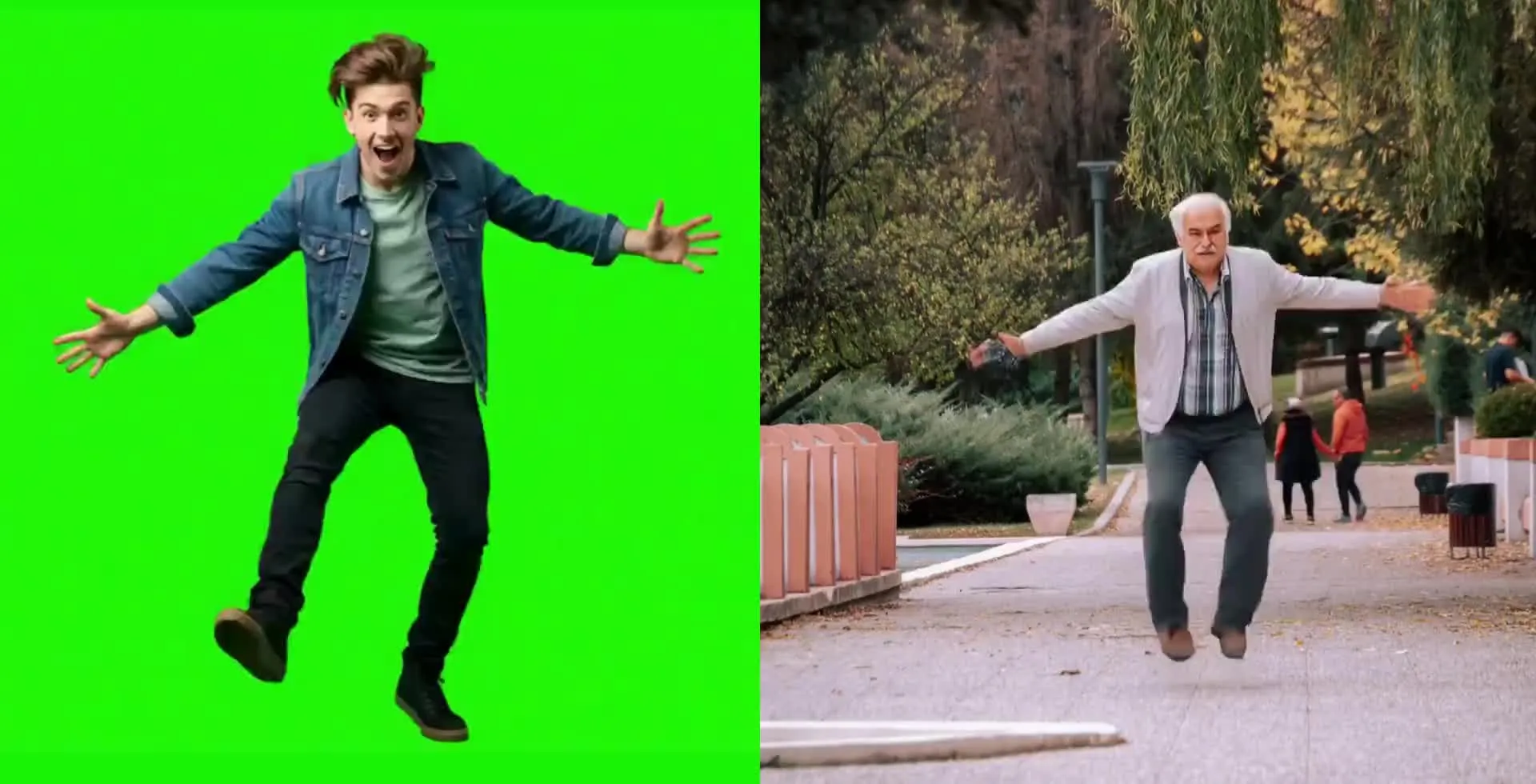
Give characters lifelike motion
Replicate dance routines, choreography, performances, and gestures — without missing a step
Upload.
Transfer.
Edit.
Kapwing’s AI Motion Transfer tool applies movement from a reference video to a still character image.
Upload an image of any character, then add a video containing the dance, gesture, expression, or performance you want to recreate. No prompt needed.
Motion control AI tools let you recreate viral dances, reenact iconic movements from films, and make AI characters move naturally.
Edit the final clip in Kapwing’s online editor to add audio and subtitles, combine it with other scenes, resize, and export.
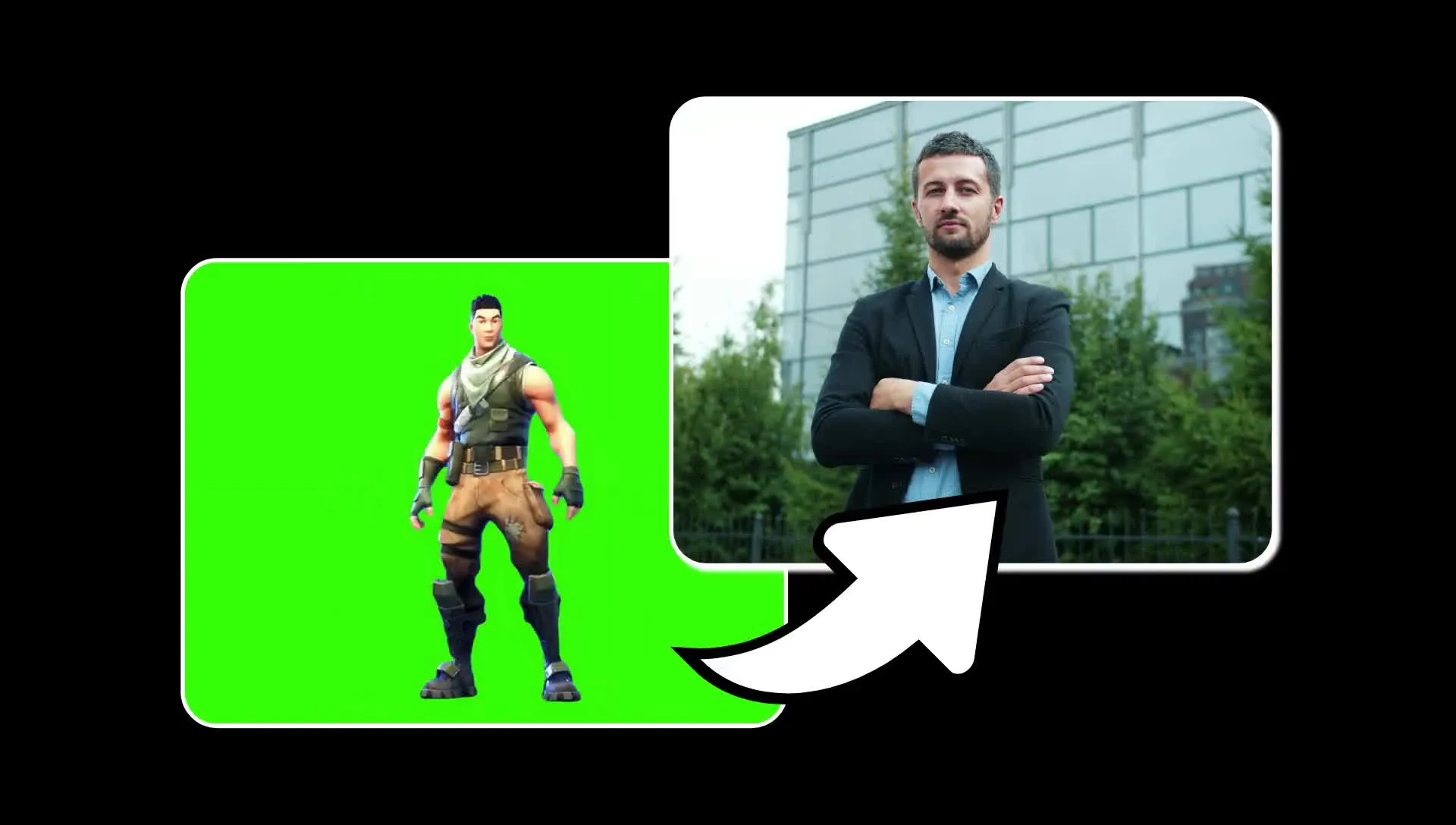
AI Motion Transfer in 3 steps
Free to start. Fully online.
Upload
Add a still character image and a reference video up to 10 seconds long to Kapwing AI


Select
Choose Kling Motion Control or Seedance 2.5 from the AI video model menu
Transfer
Click 'Generate' to apply the movement to your character
Replace the subject. Keep the precise movements.
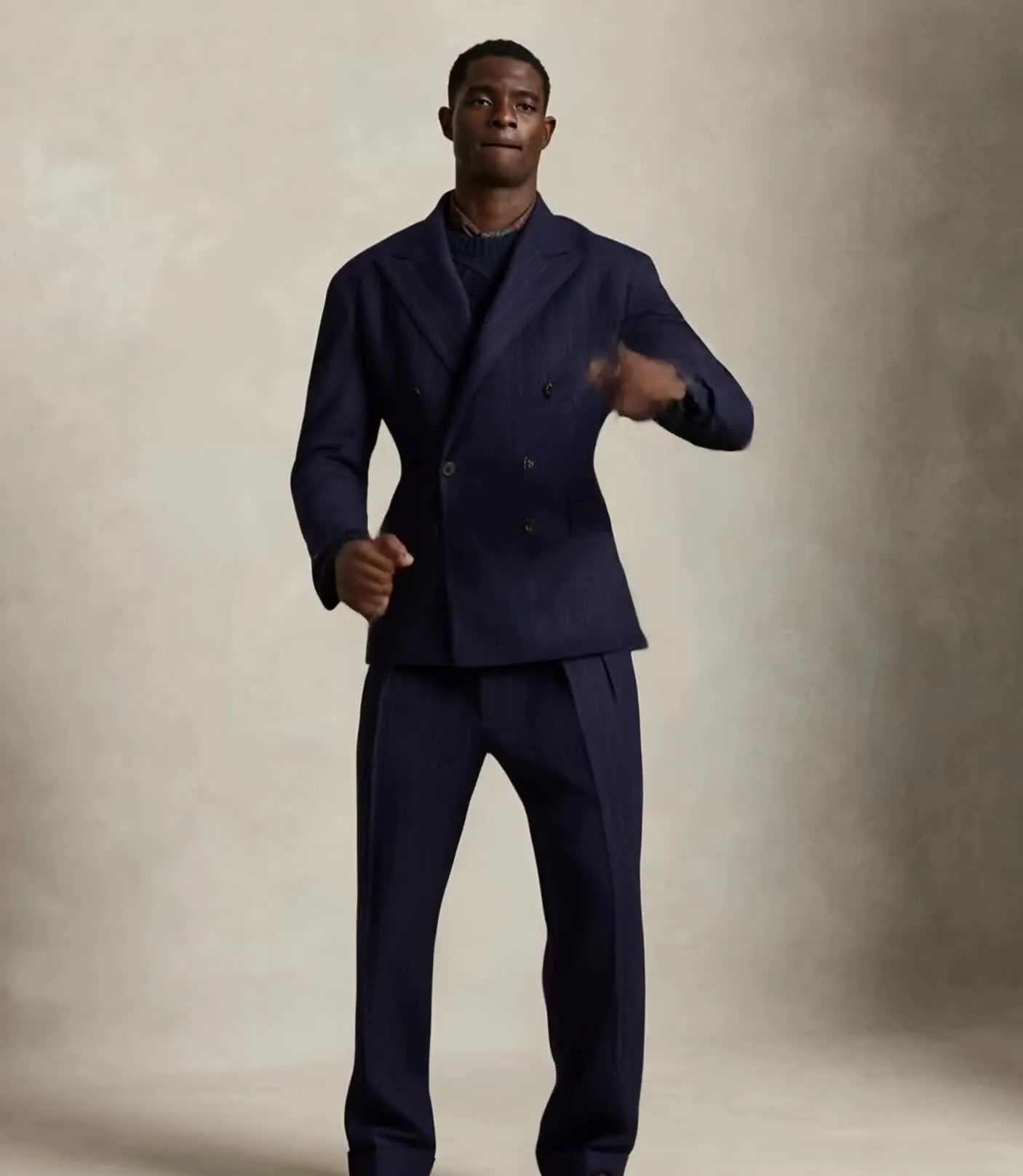
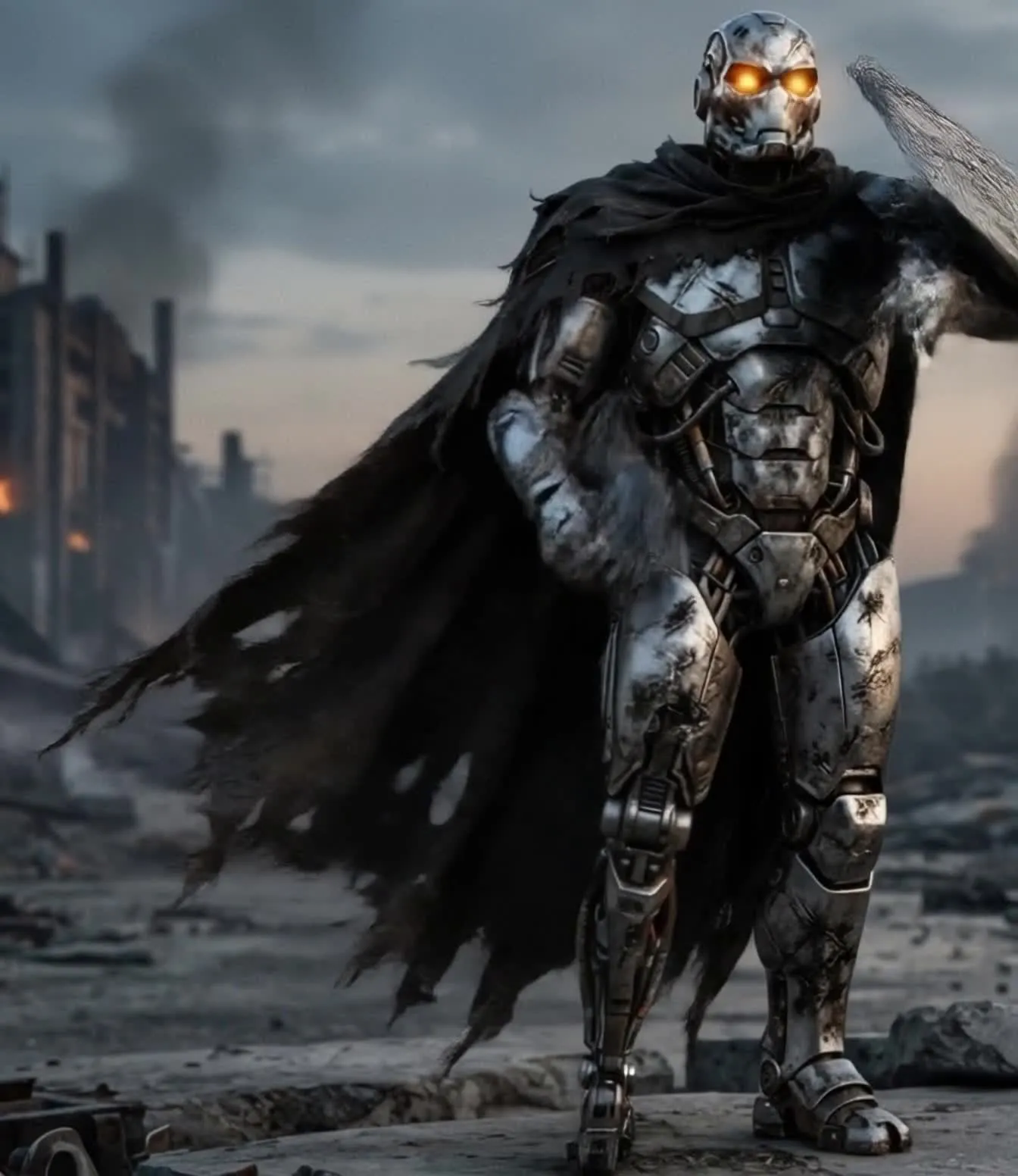
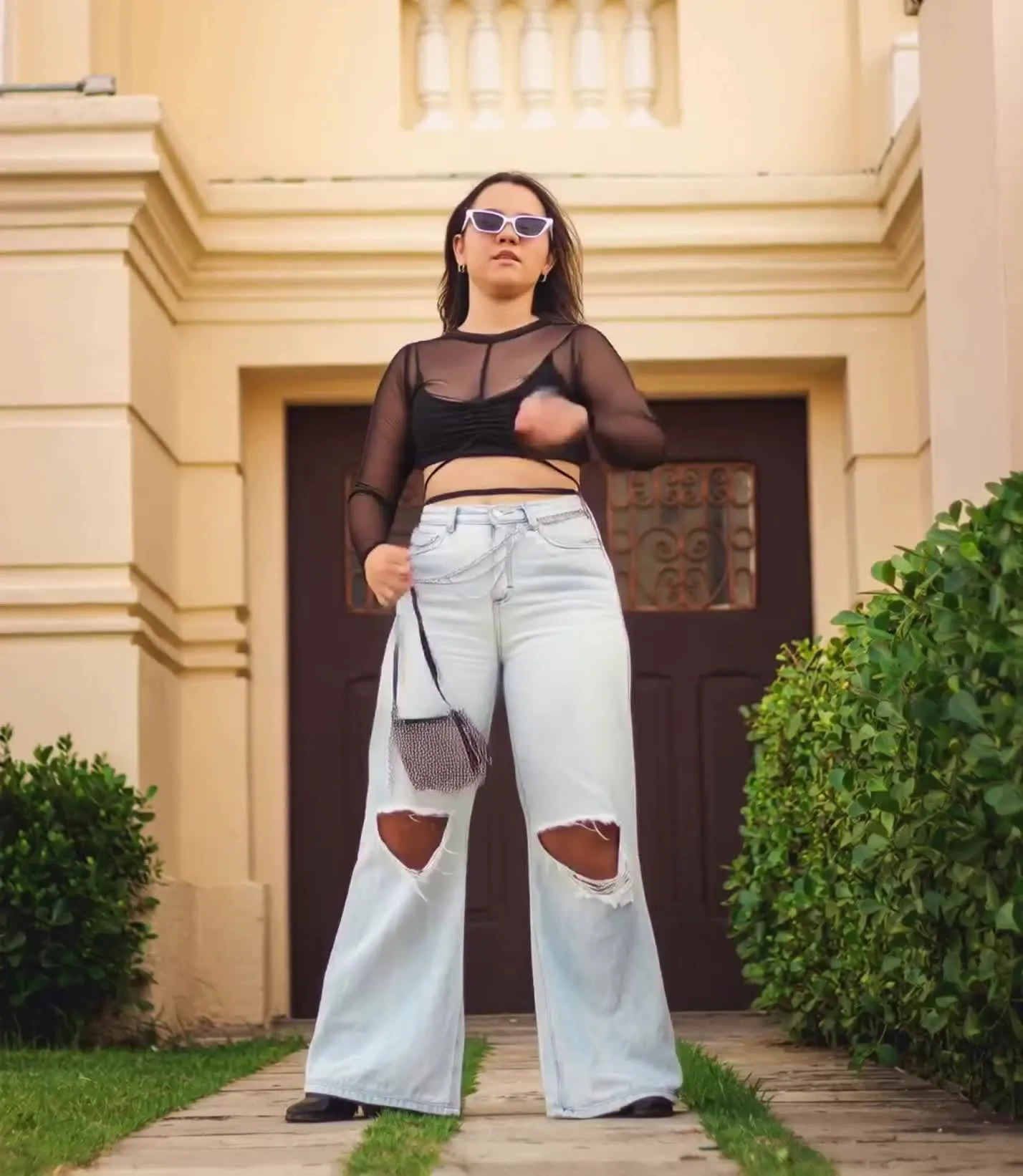
Transfer any kind of motion
Accurately replicate timing, movements, and expressions with new characters
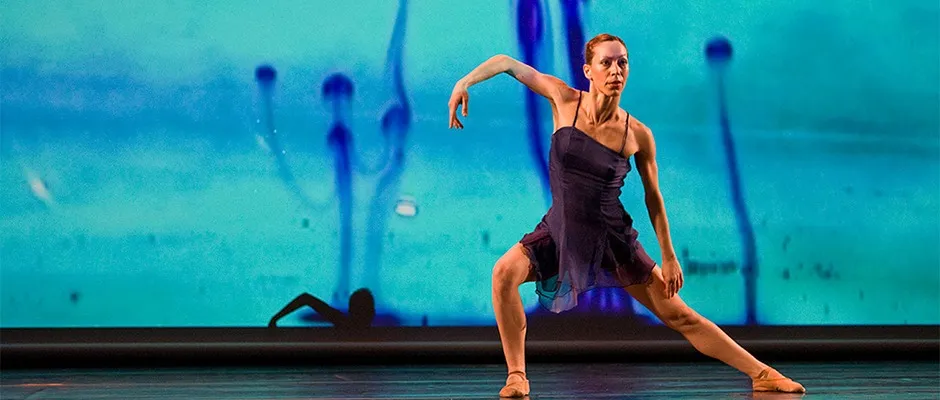
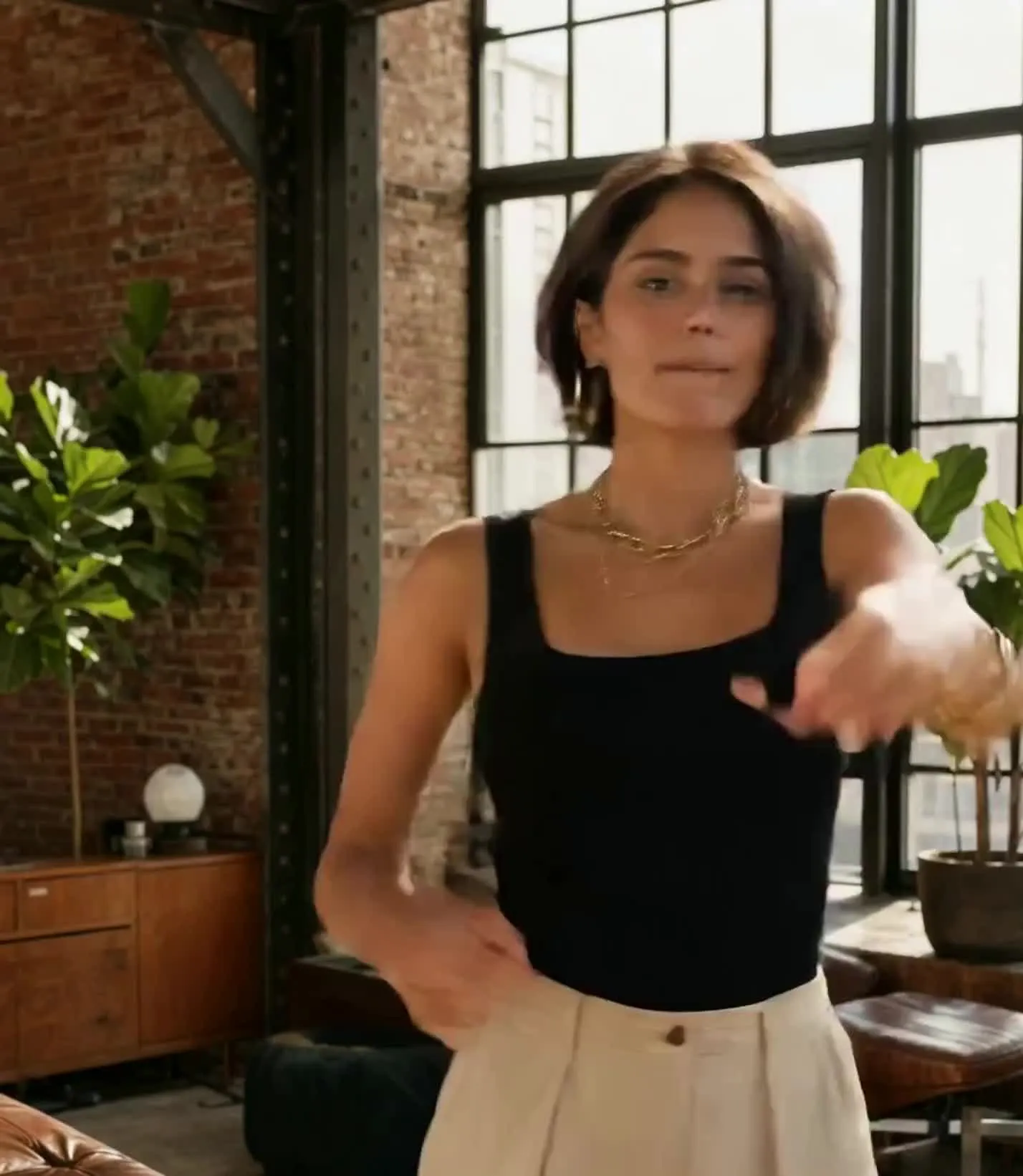
Dance & Choreography
Transfer a dance routine from a reference performer to a new character without describing every step in a prompt
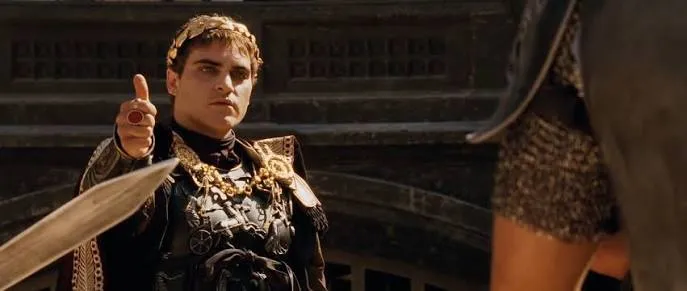
Acting & Reactions
Replicate facial expressions, pauses, and body language — like your favorite movie scene
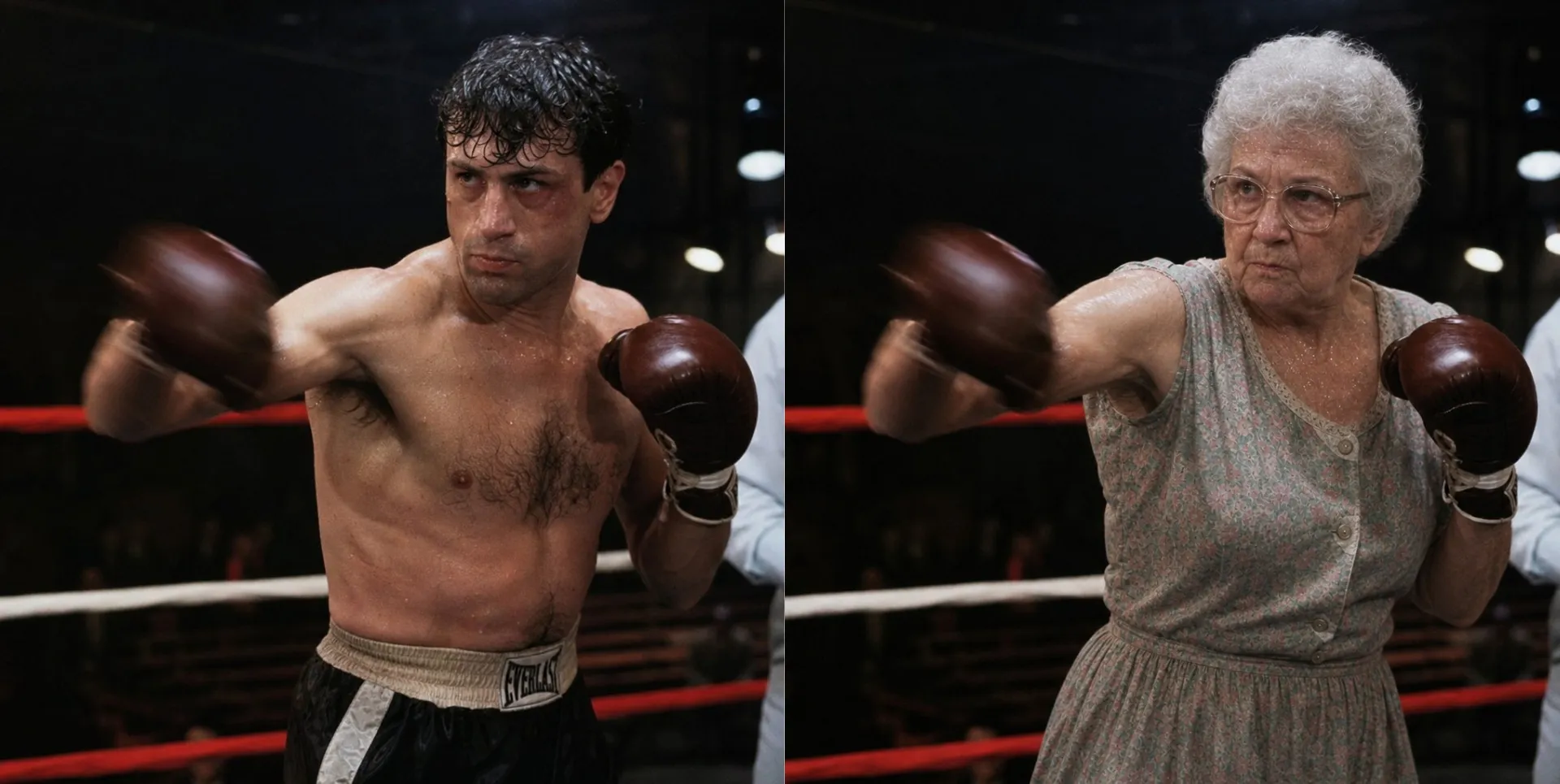
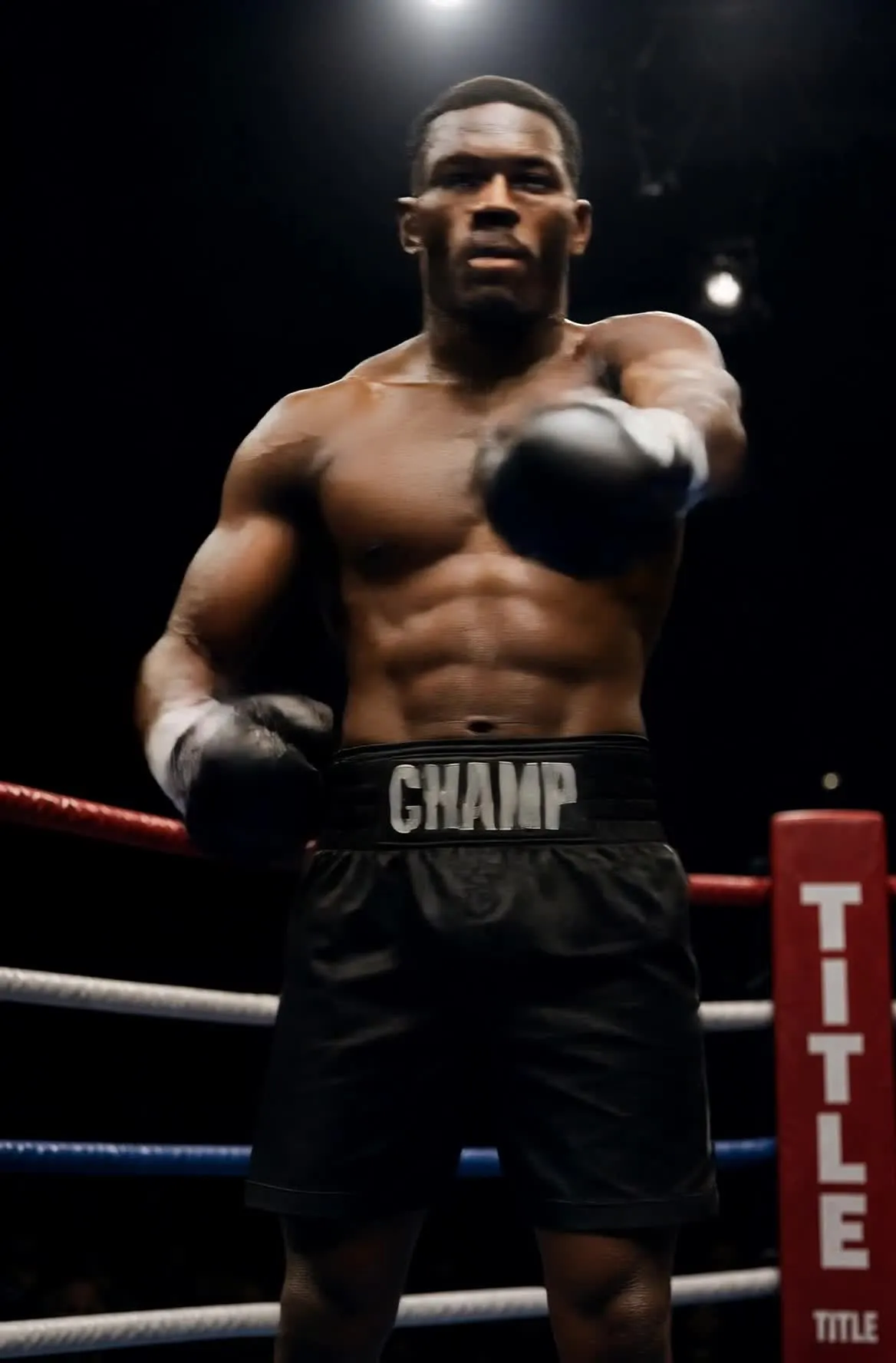
Boxing & Martial Arts
Transfer punches, kicks, combos, and martial arts sequences from real footage to a new character. Keep the speed, timing, and full-body movement of the original fighter.
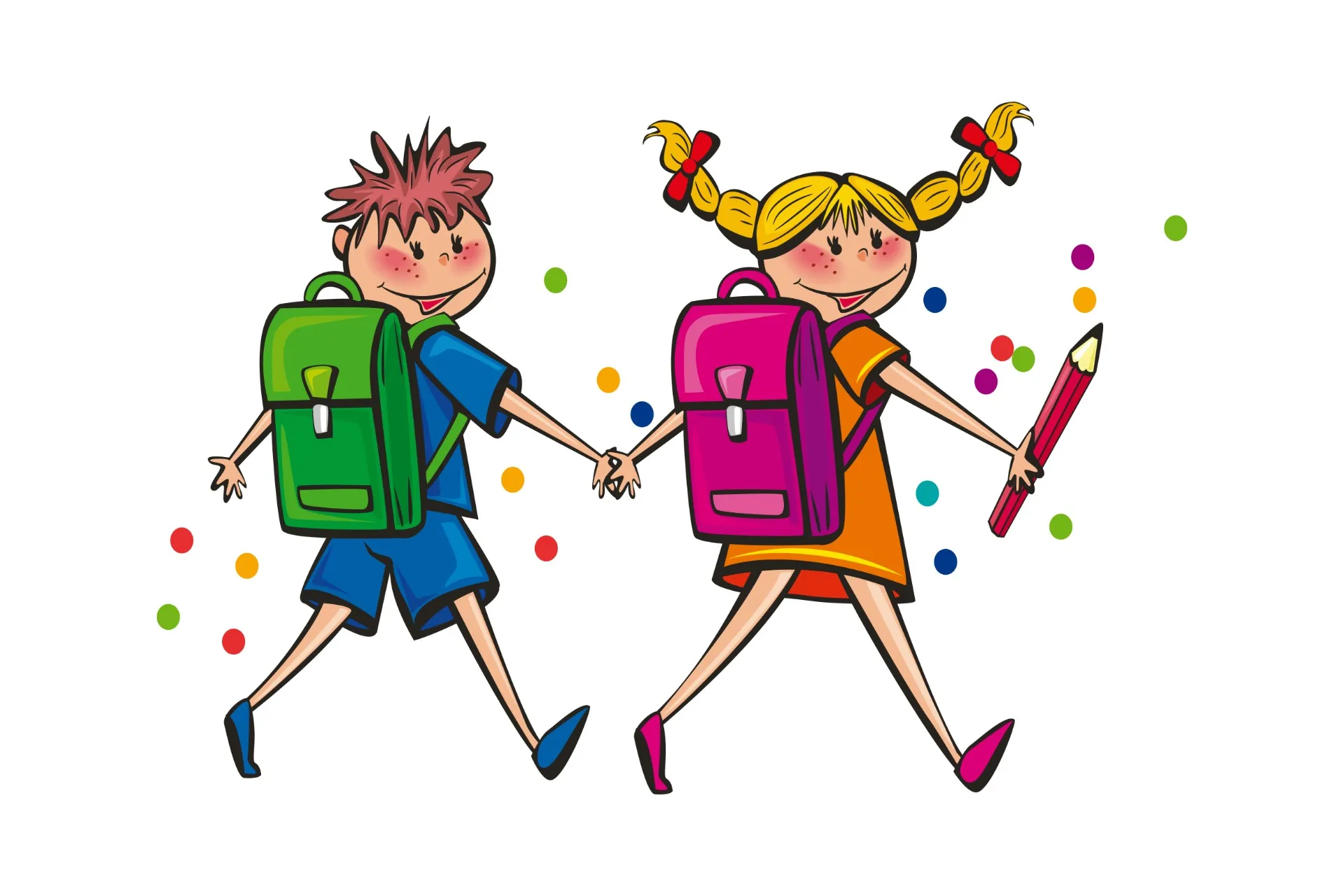
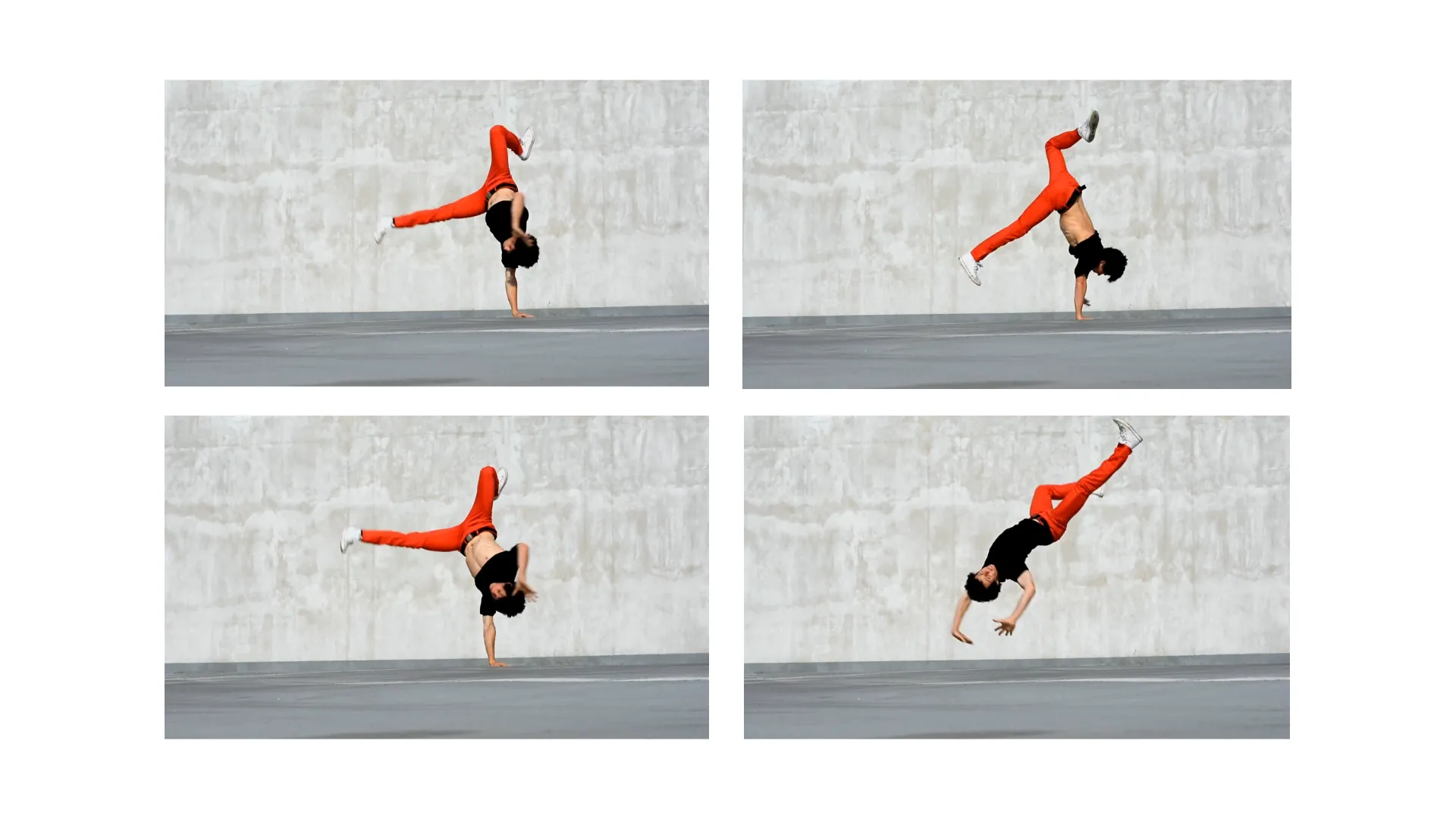
Character Animation
Animate illustrated, stylized, or photorealistic characters using a real person’s recorded movement
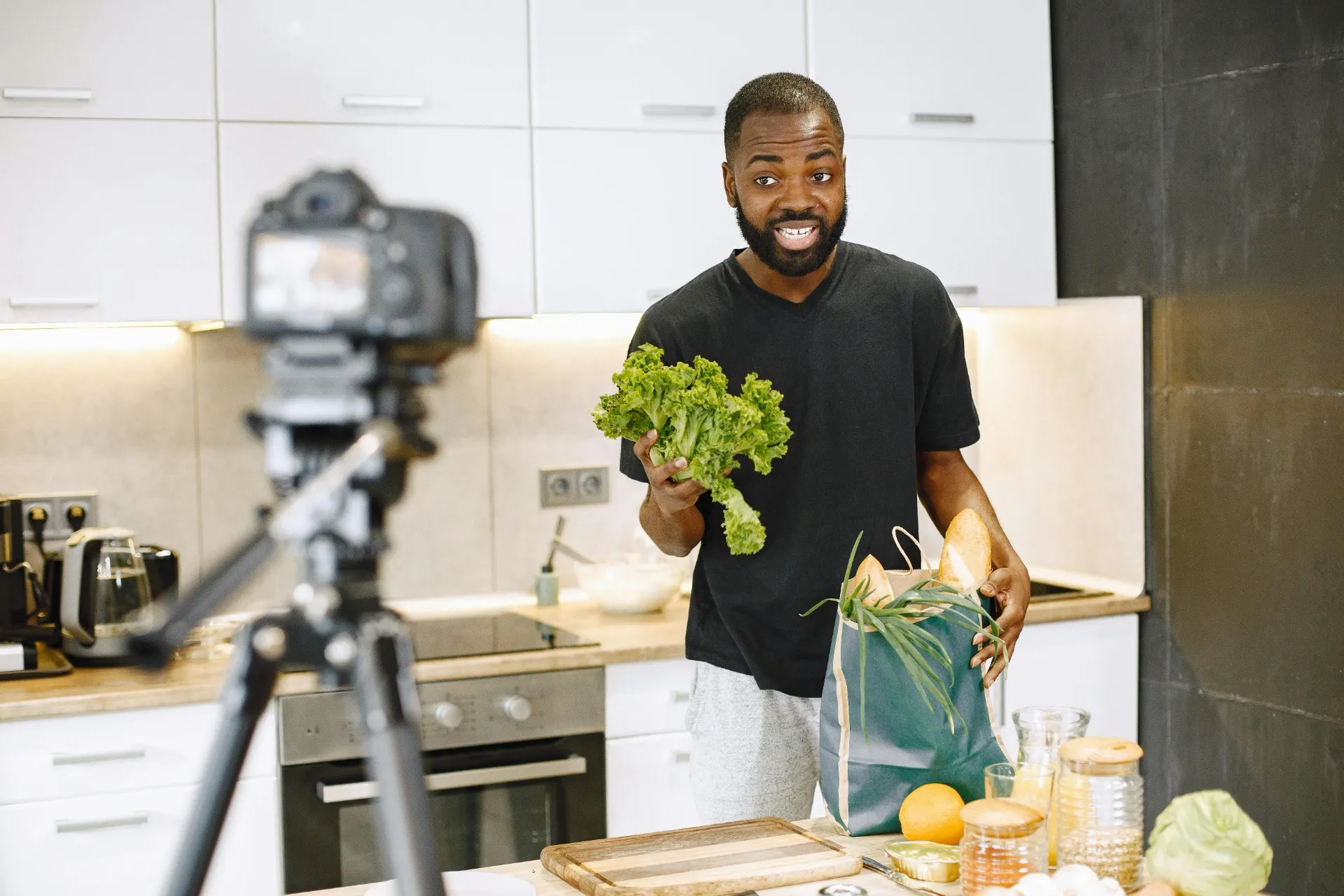
Presenter Gestures
Reuse natural hand movements, posture, and delivery from a recorded presenter for a different on-screen subject
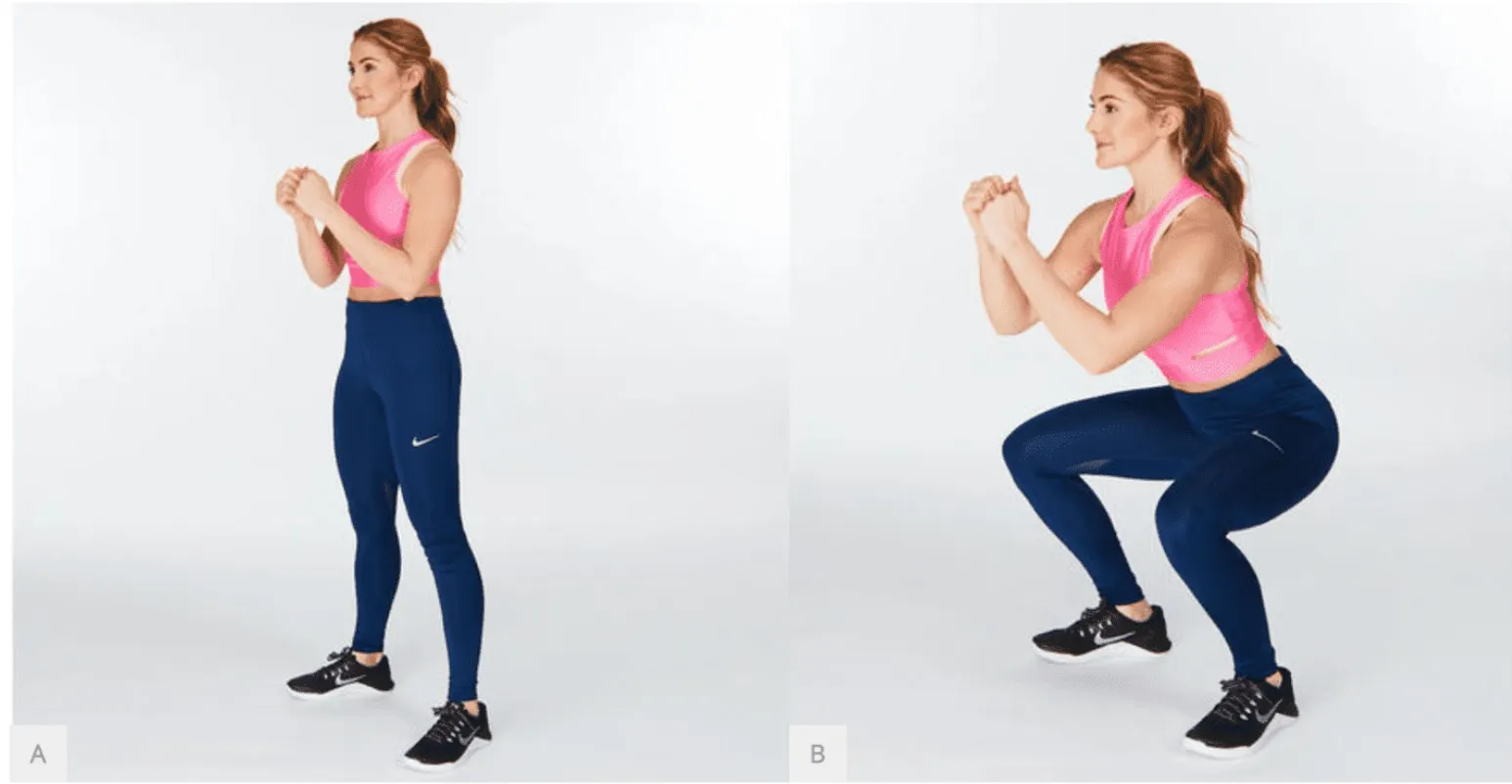
Fitness & Sports
Recreate exercise demonstrations, sports drills, and movement patterns
Generate with AI.
Edit on the timeline.
Transfer motion, then refine every detail in your browser
Give your character defined movement
A prompt can describe a dance or movement, but it can't replicate exact details of a recorded performance.
AI Motion Transfer uses your reference video to guide the sequence, timing, and shape of your character’s movements, from martial arts moves to precise dance steps.
You don't even need a prompt.
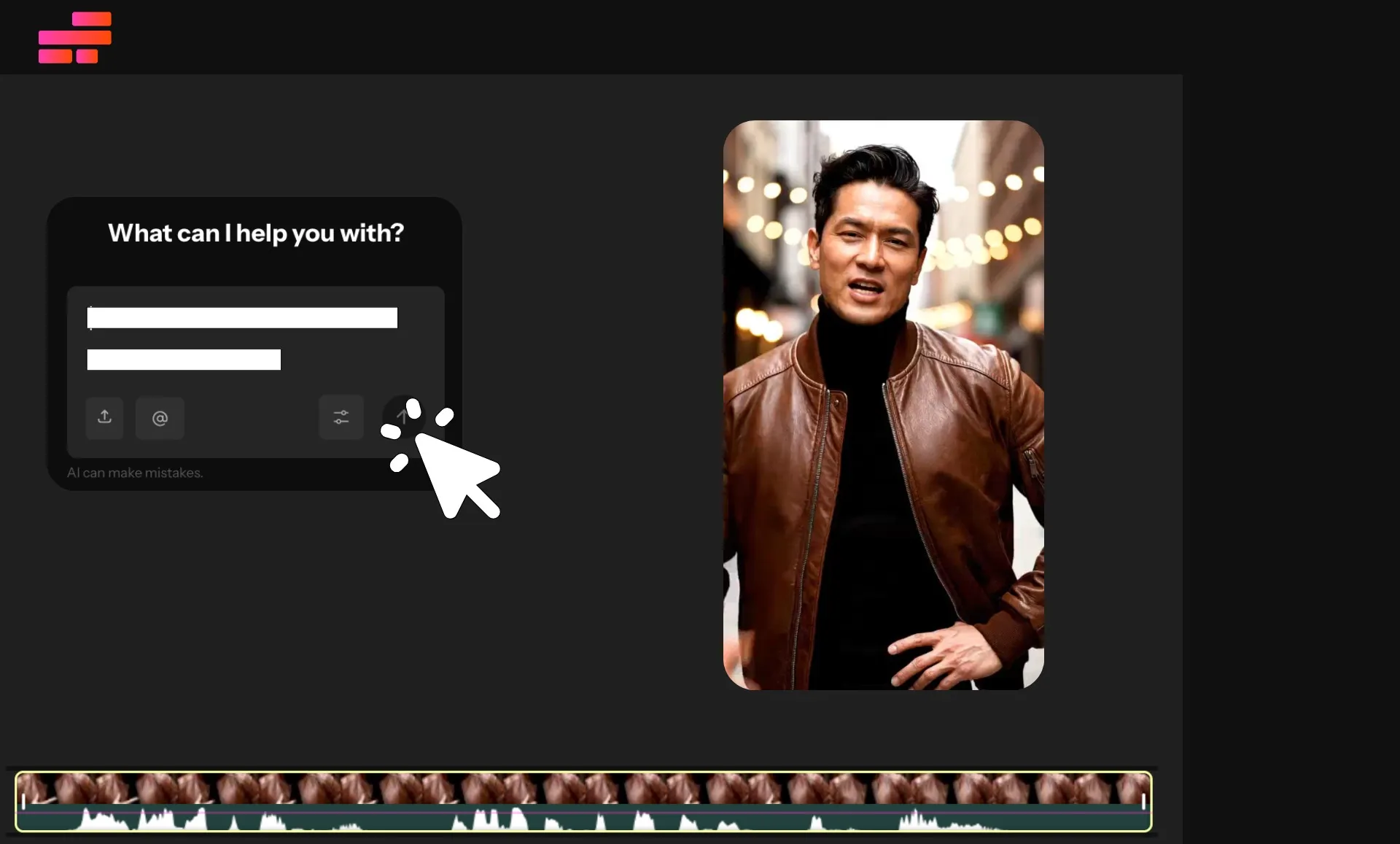
Edit your motion transfer video in one workflow
Open the generated clip in Kapwing’s timeline editor and build it into a larger video project.
Combine it with clips from more than 19 AI models to create multi-scene videos that last minutes rather than seconds.
Add subtitles, overlay logos and watermarks, merge AI scenes with your own footage, and export an HD MP4 — all from your browser.
No switching tools. No juggling subscriptions.
Try the Hotel Lobby Migos motion transfer trend
Put yourself or your characters in the viral Hotel Lobby video. Start with a video tutorial, follow the step-by-step guide, or jump straight into our Custom Kai generator.
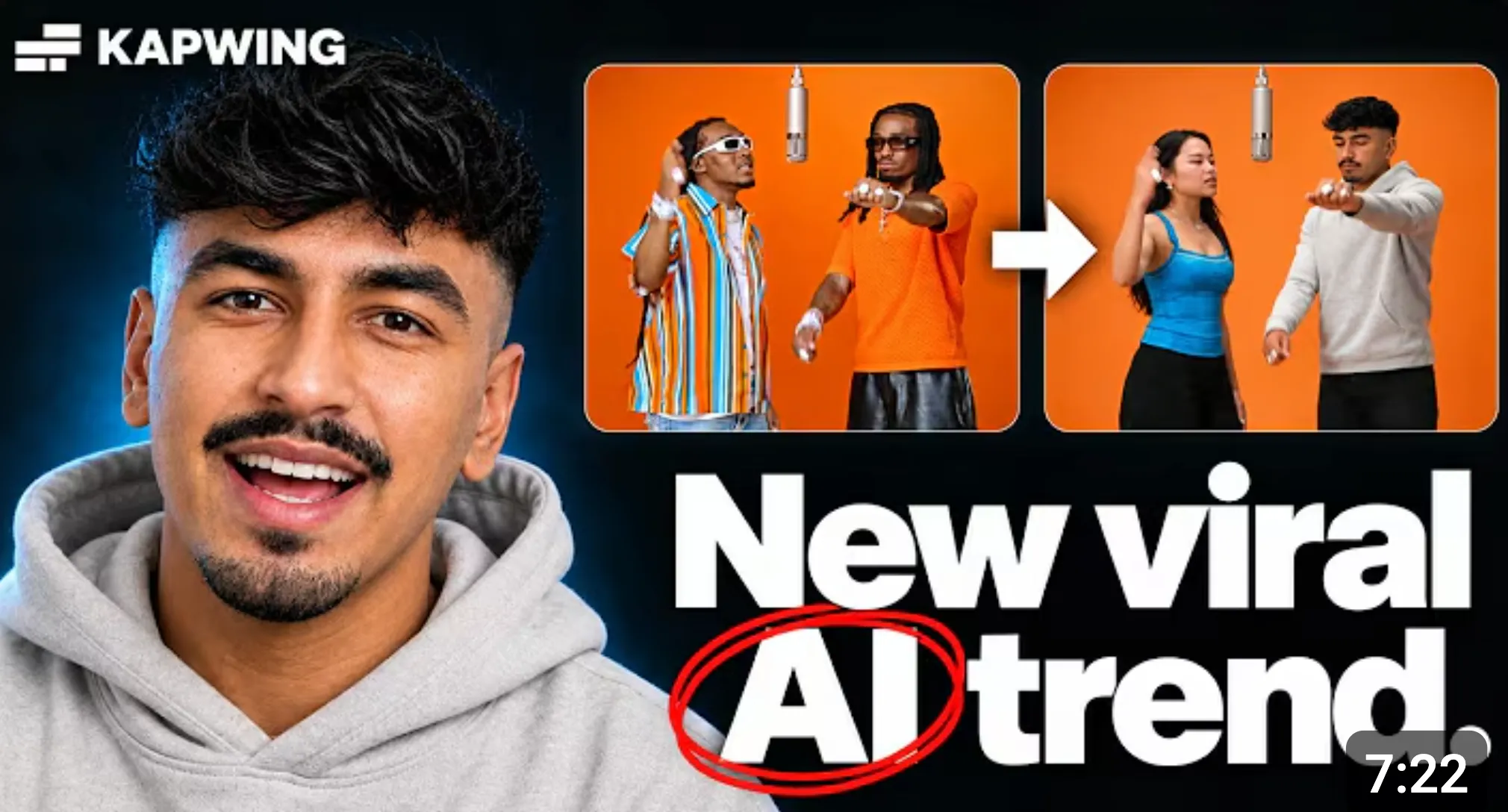
Watch the Tutorial
Watch our tutorial to see how to use reference images and motion transfer to put yourself or your characters in the Migos’ place.

Follow the Step-by-Step Guide
Read our guide to get the prompts, motion clip, and template you need to make your own Hotel Lobby motion transfer video.

Try the Generator
Upload your reference images and use our Custom Kai generator to create your own take on the trend.
How to Transfer Motion with AI

- Step 1Upload
Open Kapwing's AI assistant, Kai, and upload one image clearly showing the subject you want to animate. A full-body image helps.
- Step 2Add motion video
Upload one video containing the motion you want to copy. Keep the performer visible and avoid unnecessary cuts or obstructions.
- Step 3Generate and Edit
Click 'Generate' to transfer the performance. Open the result in Kapwing to edit, and export in 1080p or 4k when ready.
What's different about Kapwing?


Frequently Asked Questions
We have answers to the most common questions that our users ask.
What is AI motion transfer?
AI motion transfer applies movement from a reference video to a different character or subject. In Kapwing, Kling Motion Control and Seedance 2.5 use one character image and one motion video to generate the transferred performance.
How do I transfer motion from a video to an AI character?
Open Kai, select Kling Motion Control or Seedance 2.5, upload one image of the character and one video containing the movement, then generate. The motion video — not a written movement prompt — guides the performance.
Is AI motion transfer free?
AI Motion Transfer is free to try in Kapwing. Generations use AI credits, and free accounts include a limited credit allowance. Paid plans provide additional credits and higher export limits.
What makes a good motion reference video?
Choose clear footage with one performer, steady framing, good lighting, and minimal obstruction. Avoid frequent cuts or moments when important body parts leave the frame. Your reference video should also be 10 seconds or less in duration.
Can AI motion transfer animate a still image?
Yes. The character input is a still image, while the uploaded video supplies the movement, timing, gestures, and expressions the generated character should follow.
Does Kling Motion Control use a text prompt?
No. Kapwing’s current Kling Motion Control integration uses the character image and motion video as its inputs, rather than following specific text prompts. Choose Kling Omni or any other video model when you want to generate a scene from written instructions instead.
How is motion transfer different from image-to-video generation?
Image-to-video models usually invent movement from an opening image and prompt. Motion transfer uses a reference video to reproduce a specific recorded action with a new character.
Is AI motion transfer the same as motion capture?
No. Motion capture records tracking data for a digital rig or 3D character. AI motion transfer generates a new video directly from a character image and performance video, without requiring a rig. You can create a mocap video using Kapwing's AI Motion Capture tool.
Does AI motion transfer generate audio?
Kling Motion Control does not generate audio in Kapwing, though Seedance 2.5 does support native audio. If you're using Kling, after generation, you can add or replace dialogue, music, ambience, and sound effects in Kapwing’s editor.
Can I edit and export an AI motion transfer video?
Yes. Trim, crop, resize, add subtitles or audio, and combine the result with other clips in Kapwing. The model does not add a separate Kling watermark; Kapwing watermark rules depend on your plan.
How long can a reference video be?
Each AI Motion Transfer clip can be up to 10 seconds long. To create a longer video, generate multiple clips and combine them in Kapwing’s timeline editor.
Can I use a dance video as the reference?
Yes. Dance routines and choreography are ideal for motion transfer.
What video formats are supported?
Kapwing supports MP4, MOV, WebM, OGG, AVI, 3GP, MPEG, WMV, FLV, and MKV files. MP4 is recommended for the most reliable uploading and processing.
What files do I need for AI motion transfer?
You need one still image that defines the character and one reference video containing the movement to copy. Use an image that clearly shows the relevant part of the body and a video with one visible performer.
Discover Resources
Tips, templates, and deep dives to help you create faster and share with confidence.
View all


Get started with your first video in just a few clicks. Join over 35 million creators who trust Kapwing to create more content in less time.