Kling Omni
Generate AI videos from a text prompt — add either a start image or up to seven reference images
Kling Omni AI video generator
Generate scenes up to 10 seconds long — guided by visual references
Keep characters, products, and style consistent
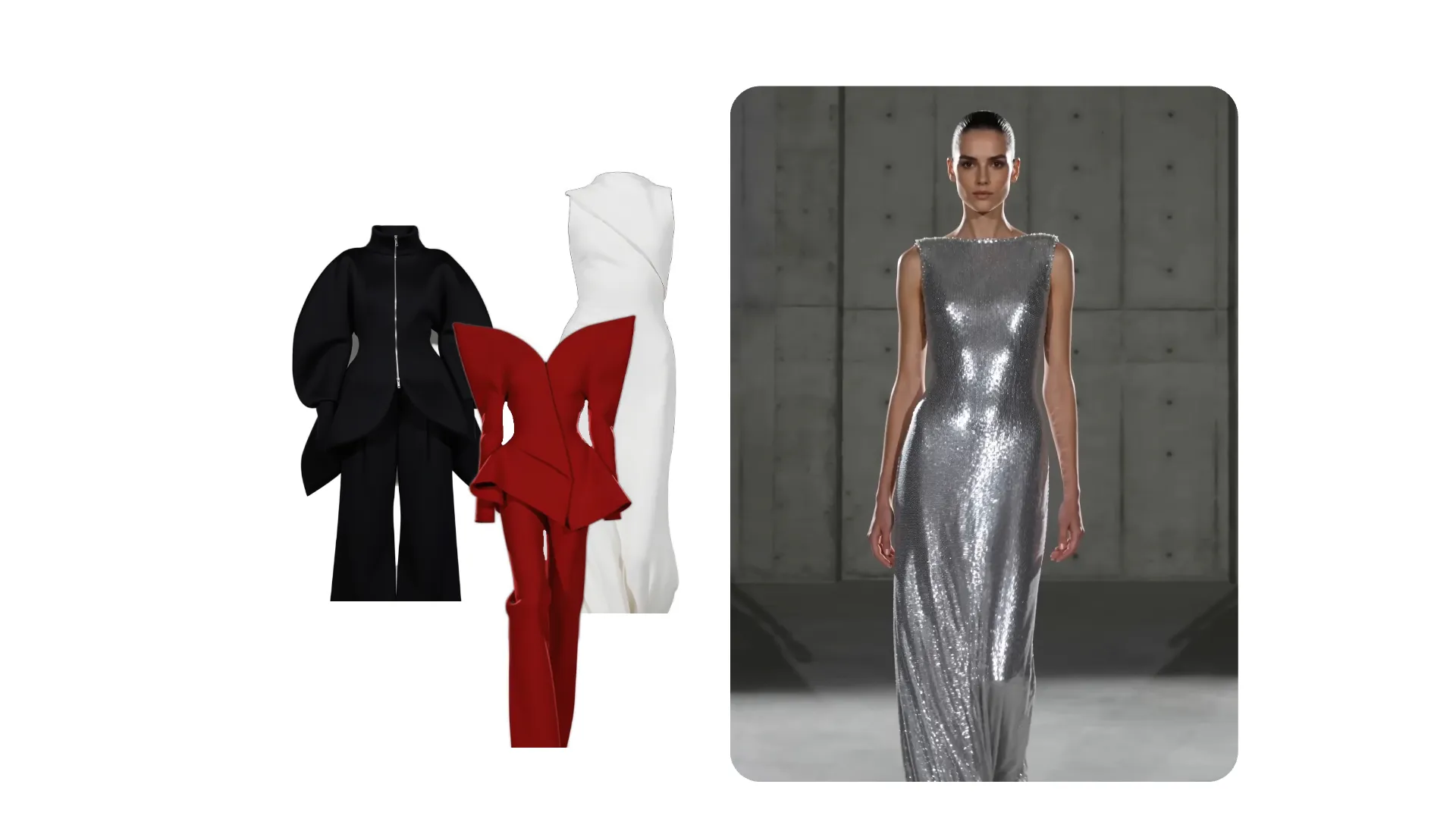
Choose Kling Omni when you want images to guide the appearance of your AI video — like product shots or character references.
Start with a text prompt, then add either a start frame or up to seven reference images. Use them to define the characters, products, locations, props, or overall visual style you want the model to follow.
In Kapwing, Kling Omni creates 5- or 10-second clips in 16:9, 9:16, or 1:1. Use it for reference-led product shots, character concepts, branded scenes, and creative tests that combine multiple visual references.
Compare takes, combine scenes, add subtitles and audio, resize for each platform, and export the finished project from one browser tab.
Generate with Kling Omni in 3 Steps
Free to start. Fully online.
Prompt
Describe your scene and add a start frame or references


Select
Kling Omni from the AI model menu
Generate
Create your video, then refine it in Kapwing’s editor
Why use Kling Omni in Kapwing
Reference-led AI video generation for greater control over the final output
Text to Video
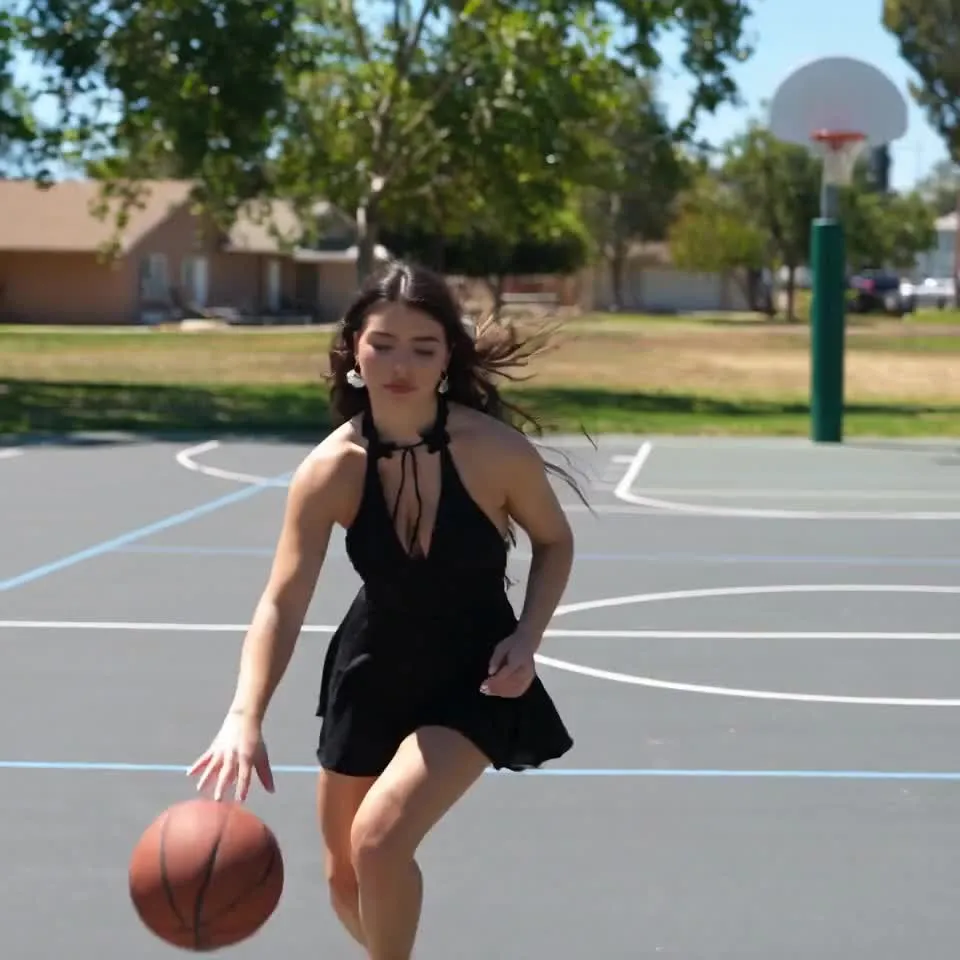
Kling Omni turns text prompts into short video scenes with detailed characters, settings, action, and camera movement
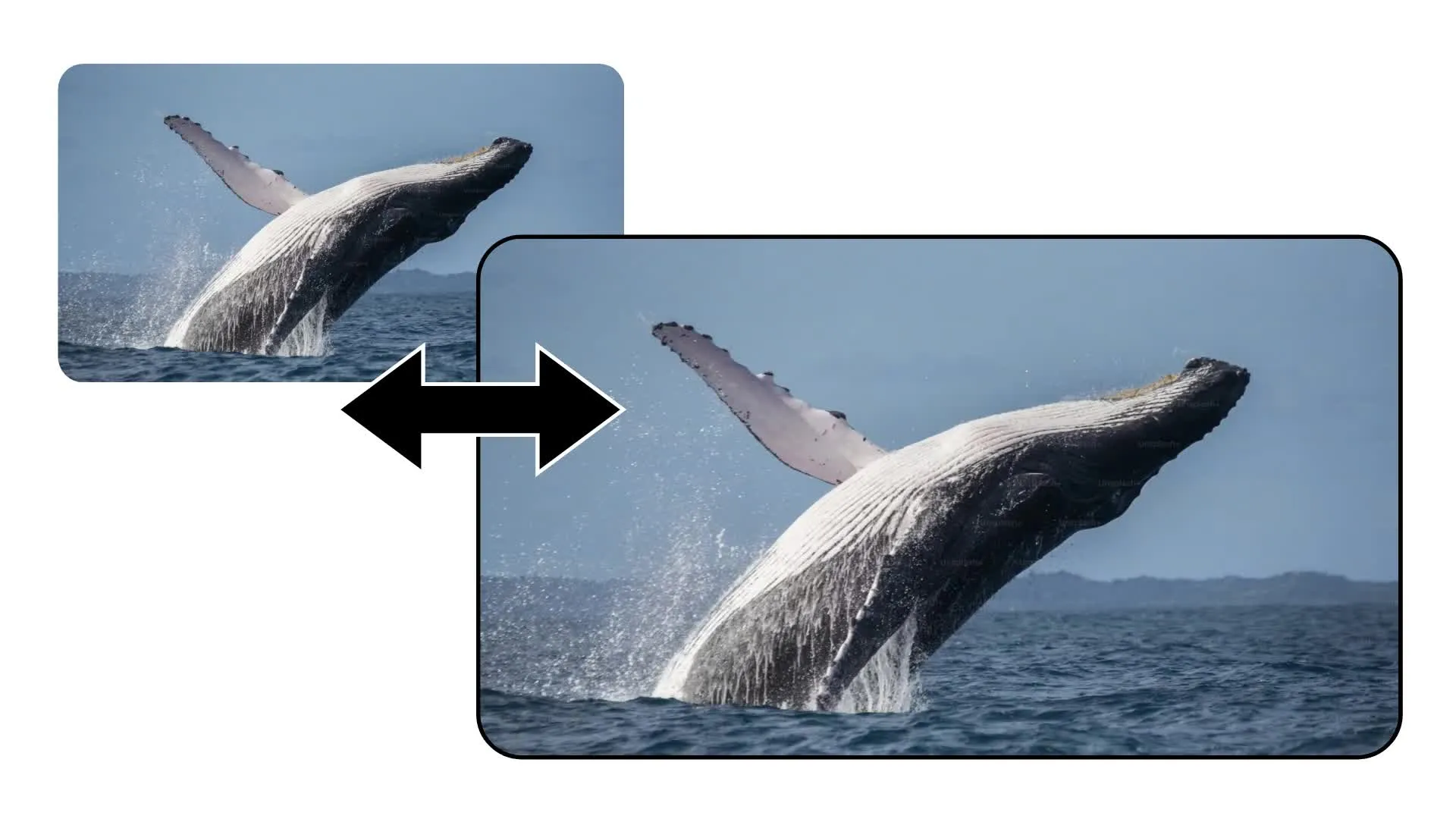
Image to Video
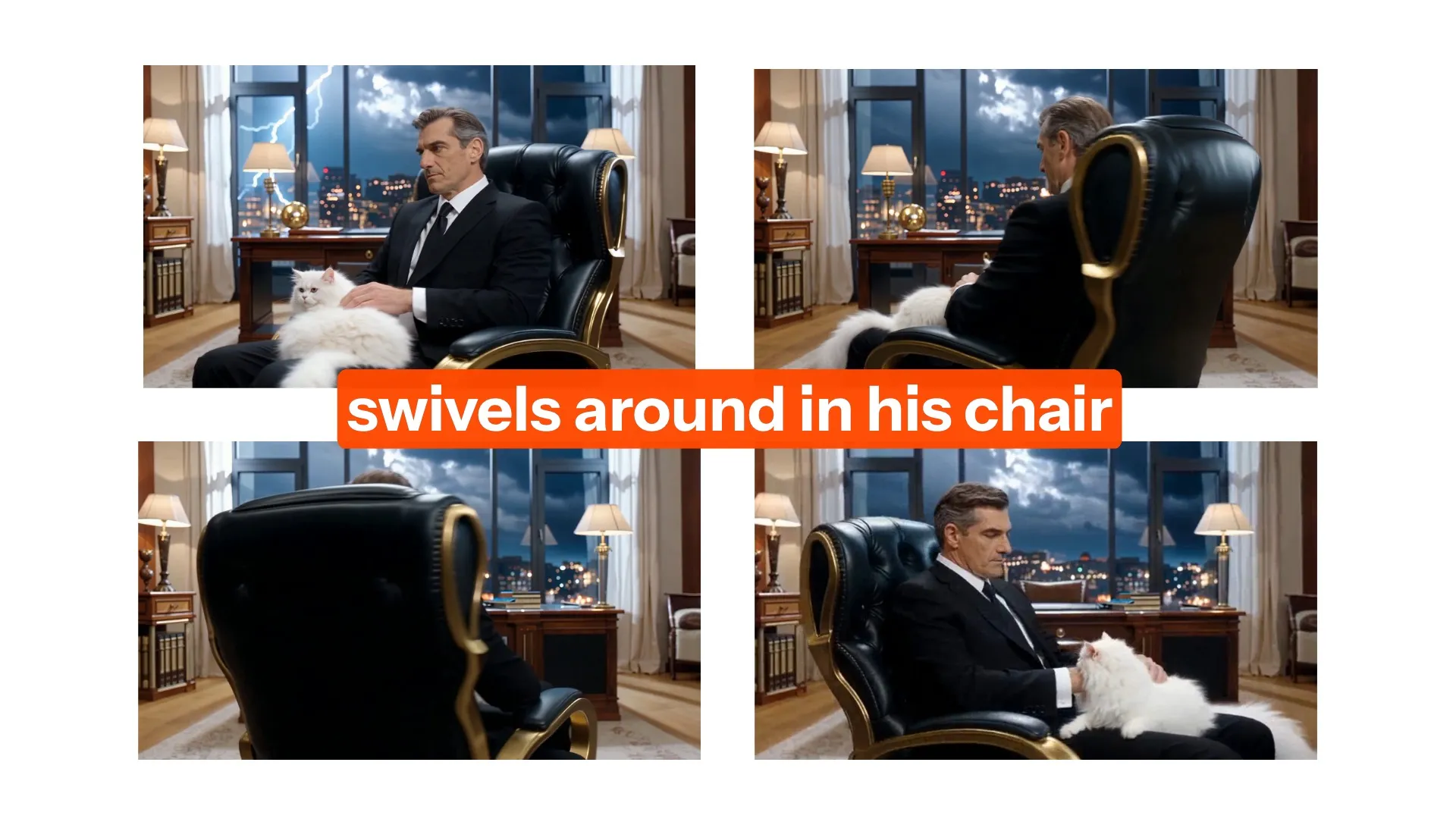
Upload an image to establish the start frame of your video. Describe how the subjects, action, and camera should develop throughout the clip.
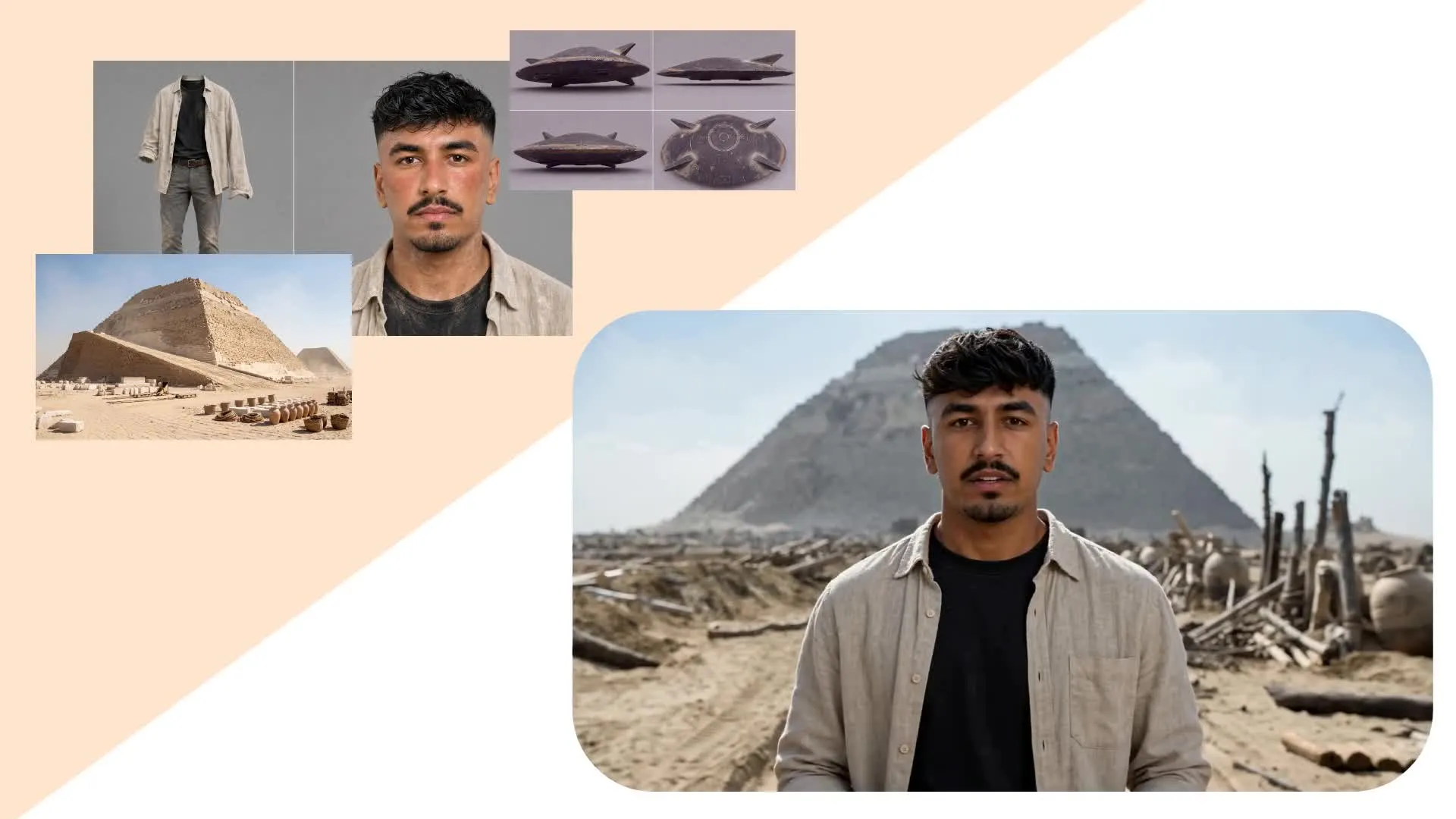
7 Visual References
Use multiple reference images to guide the appearance of characters, products, locations, and props, helping important visual details remain consistent
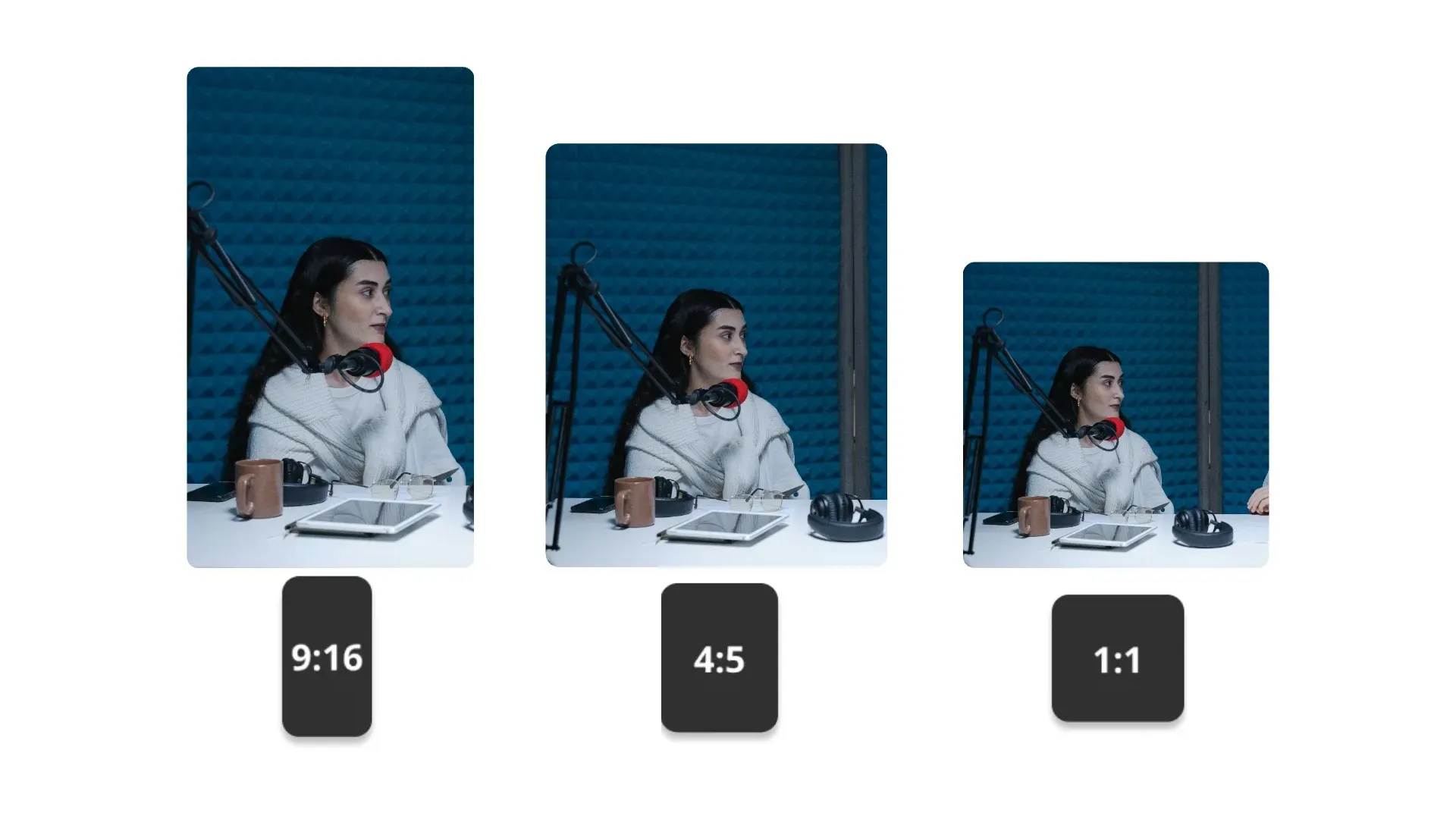
Multiple Aspect Ratios
Generate AI videos up to 10 seconds long in 16:9, 9:16, or 1:1. Create widescreen, vertical, or square clips ready to combine and edit in Kapwing.
Created with Kling AI — inside Kapwing
Free to start. No watermark. Fully online.
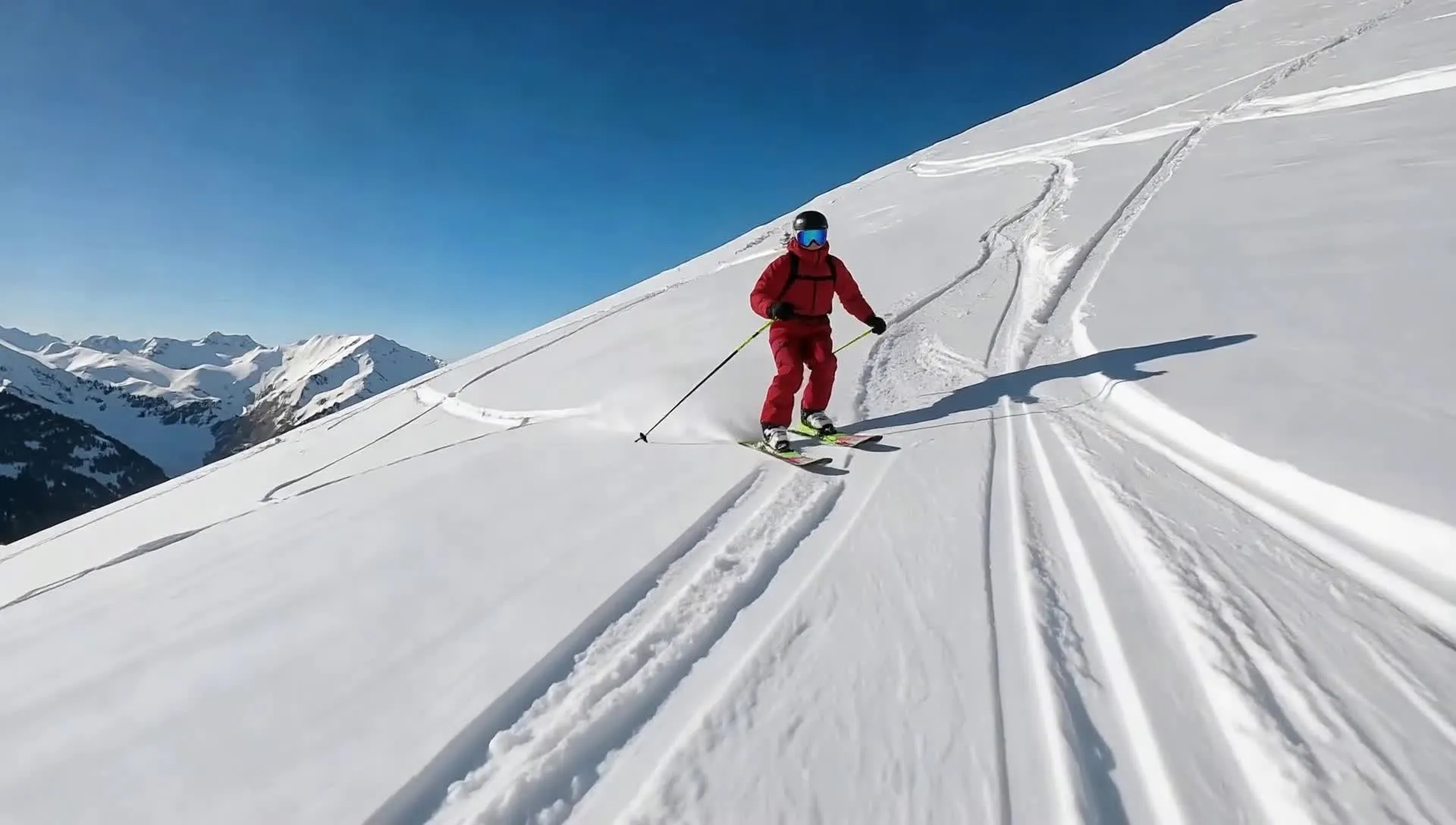
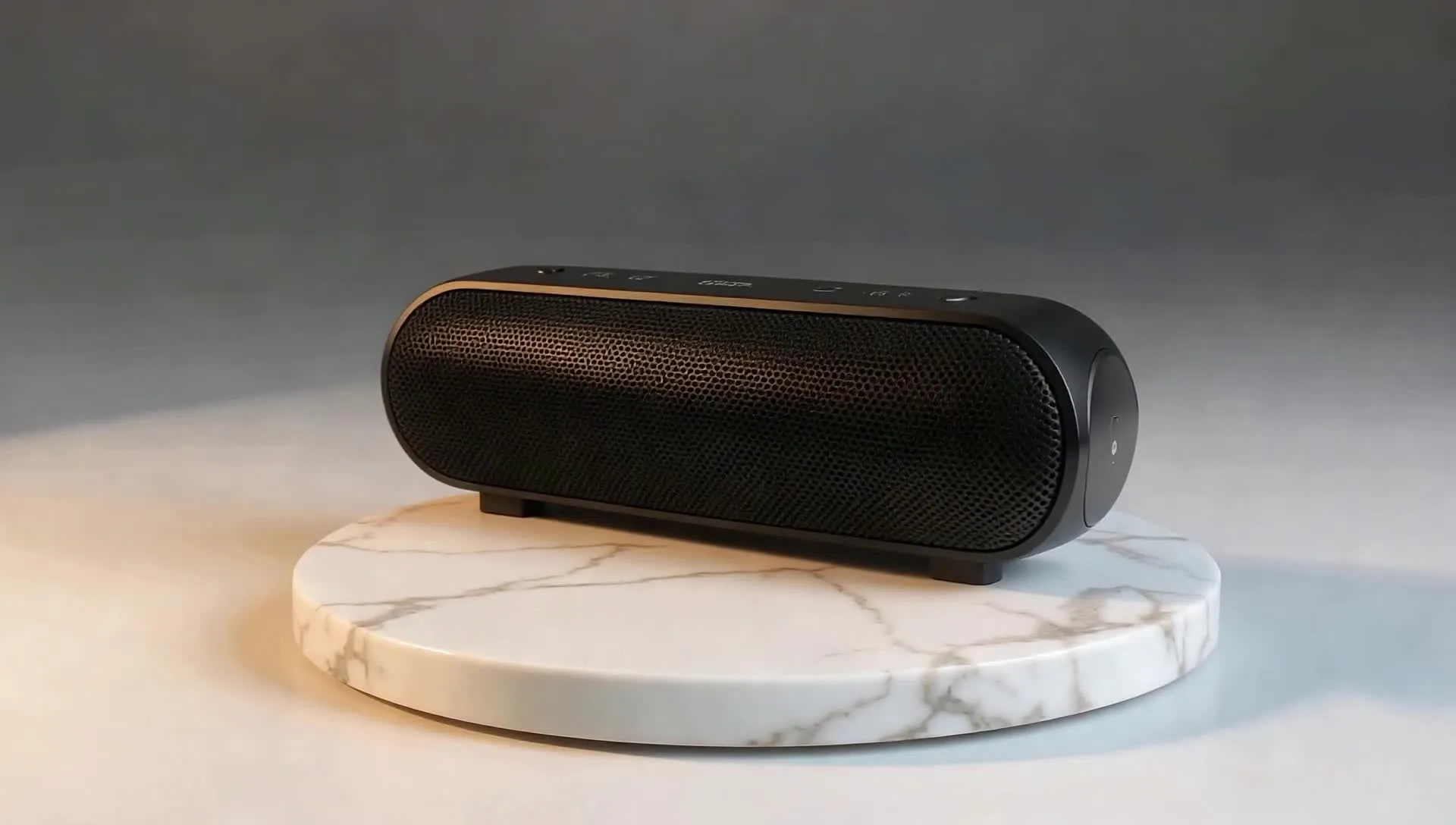
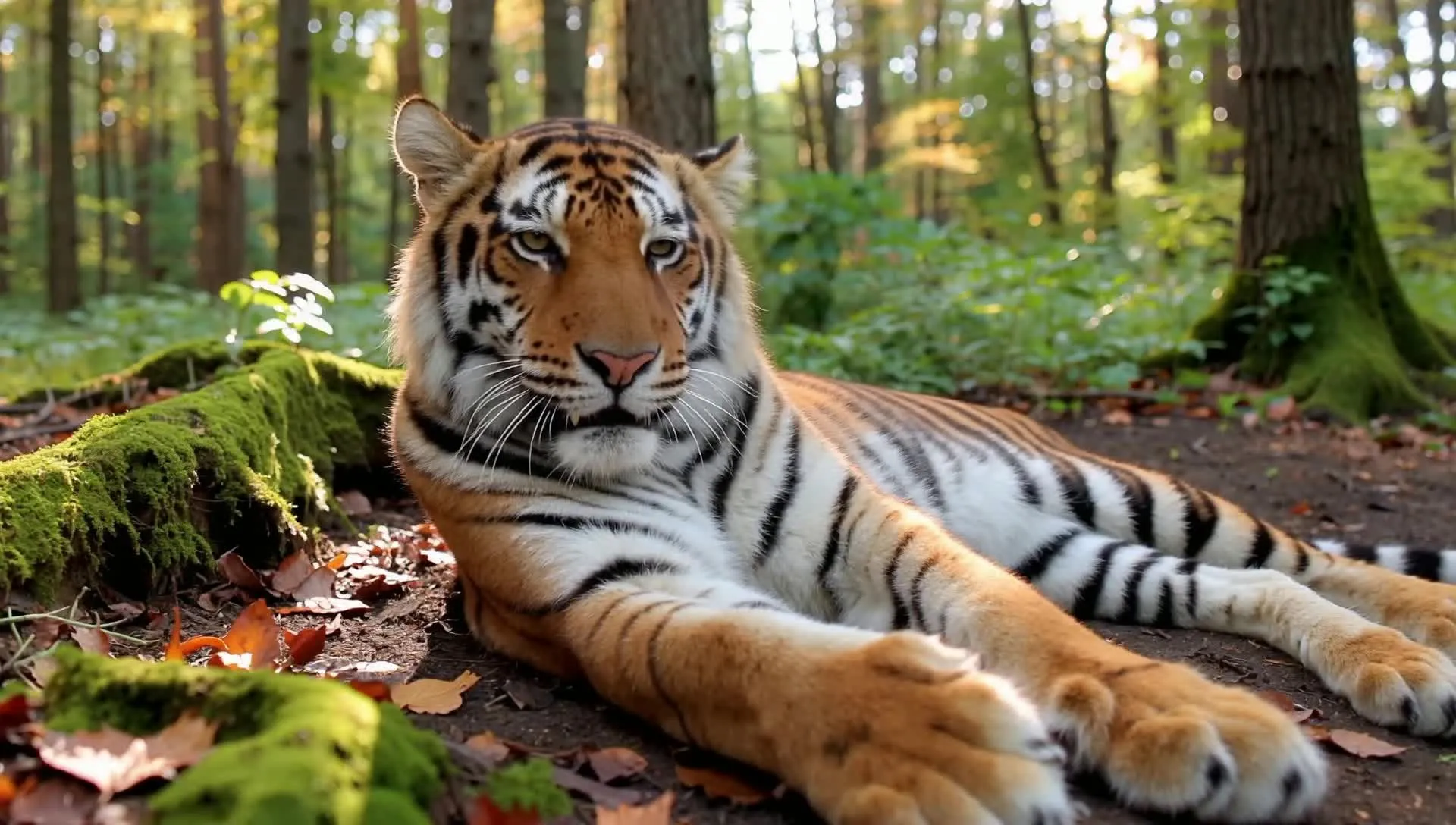
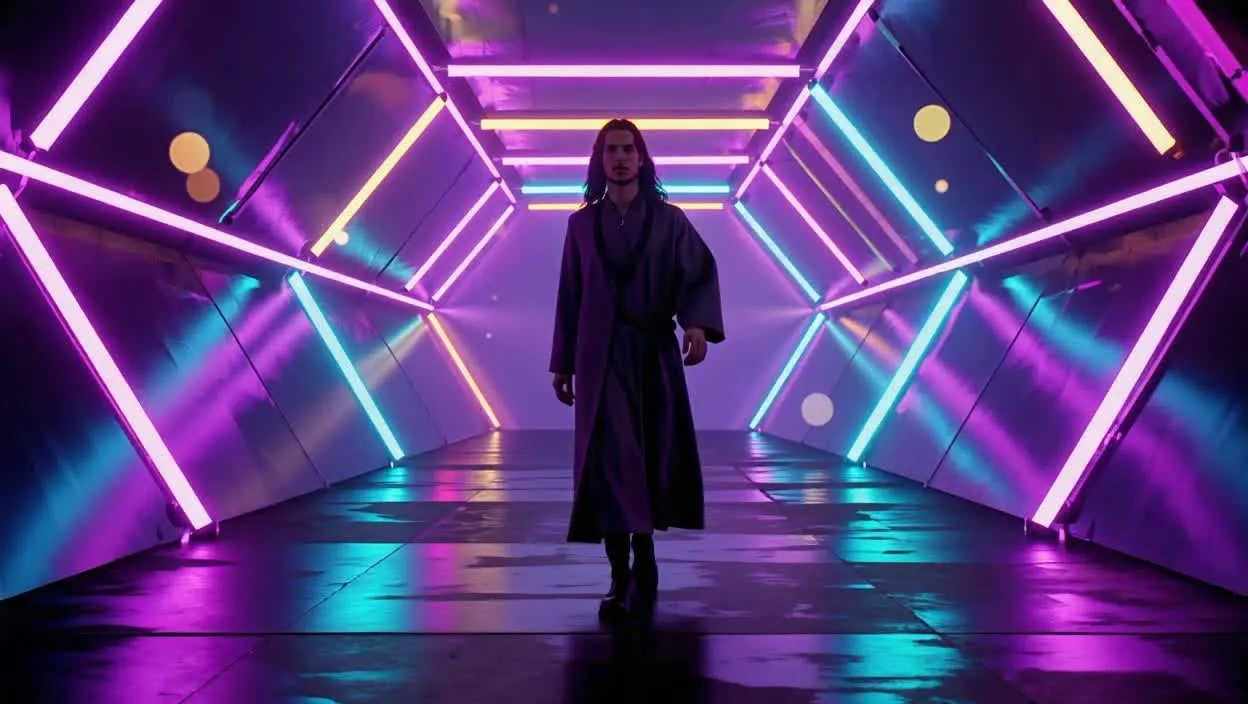
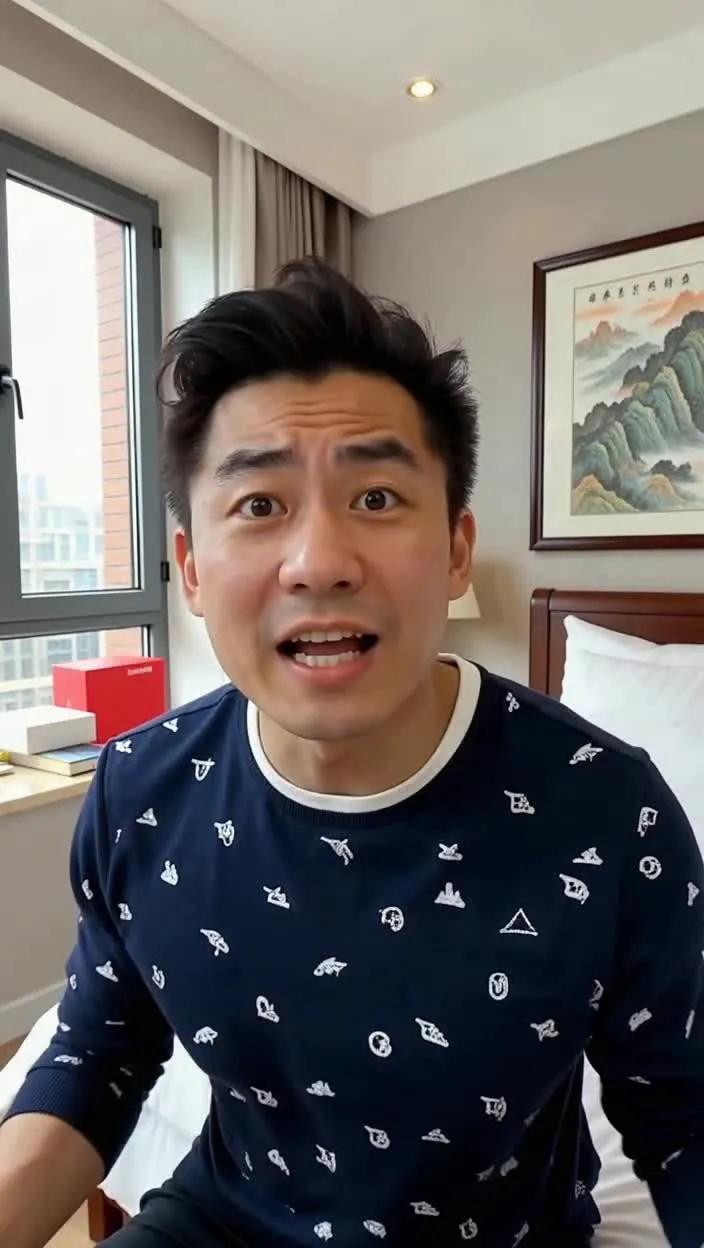
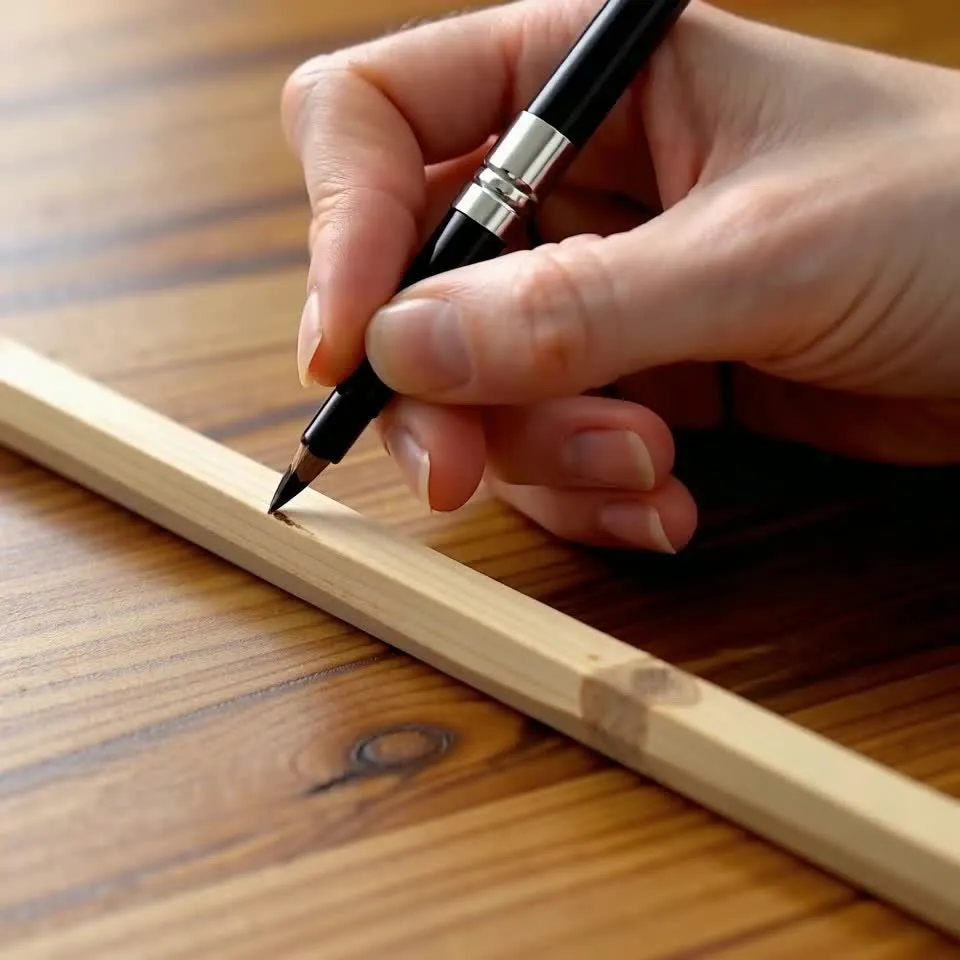
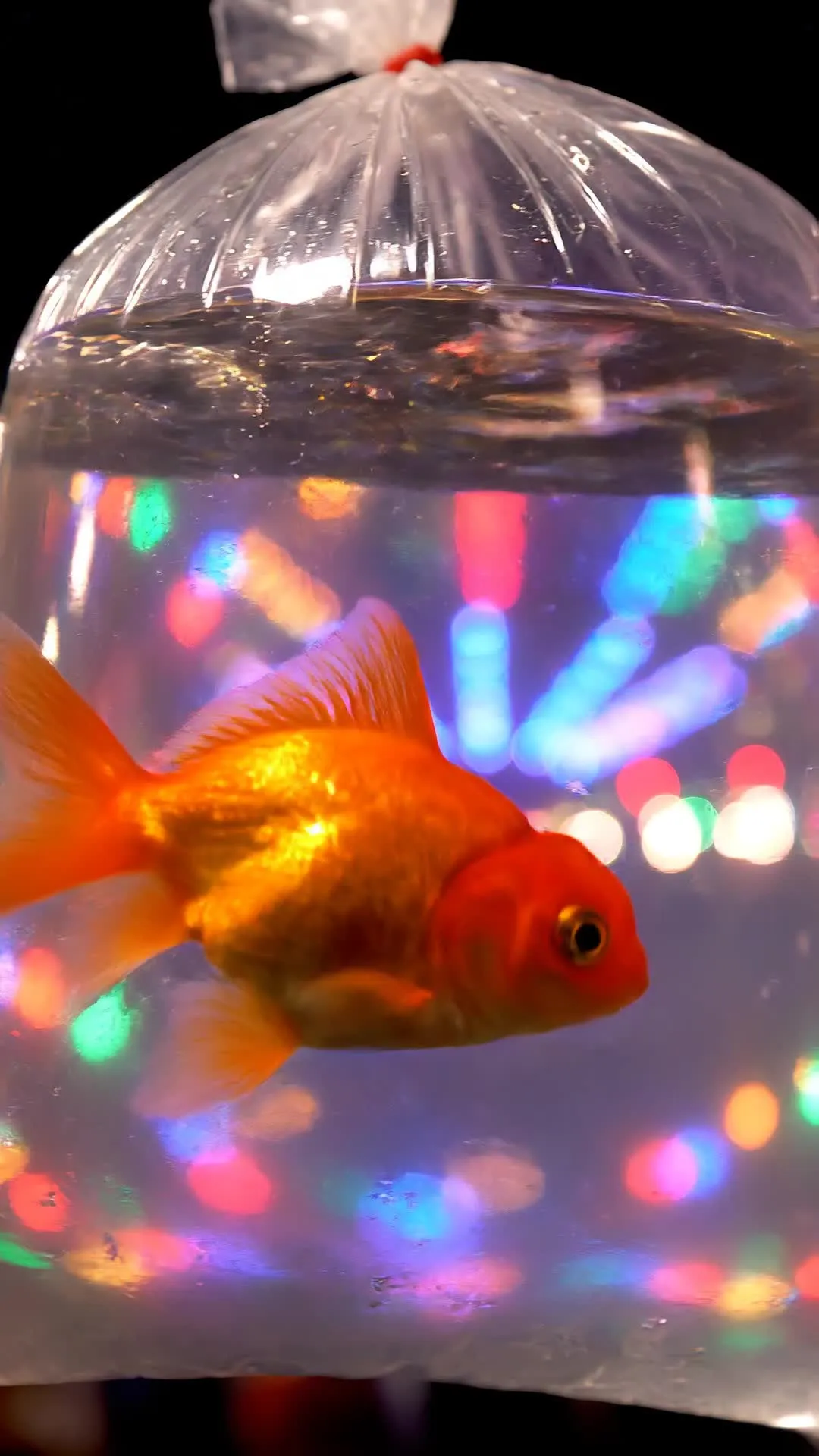
.mp4)
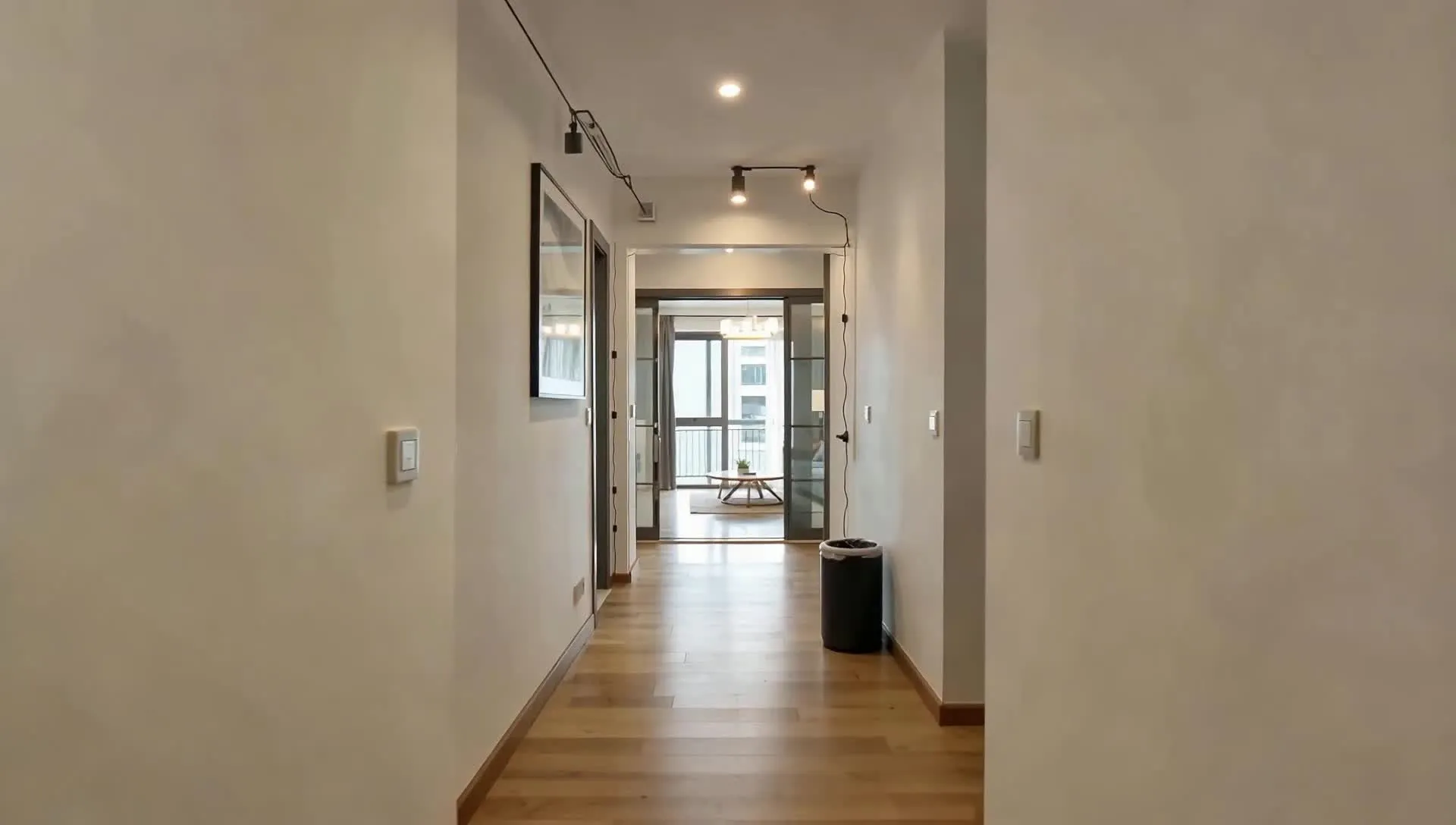
Generate and edit in one workflow
Combine Kling Omni with Kapwing's full online editing studio
Take every generation straight to the timeline
Build your Kling Omni prompt with text, an opening image, or a set of visual references, then edit it directly in your browser.
Review the result in Kapwing’s timeline. Trim and combine clips, add titles and subtitles, record a voice-over, layer music or sound effects, and resize the project.
When a scene calls for different capabilities, switch to Kling Motion Control, Seedance 2.5, Veo 3, MiniMax H3, or another Kapwing AI model without creating a separate project or paying for another subscription.
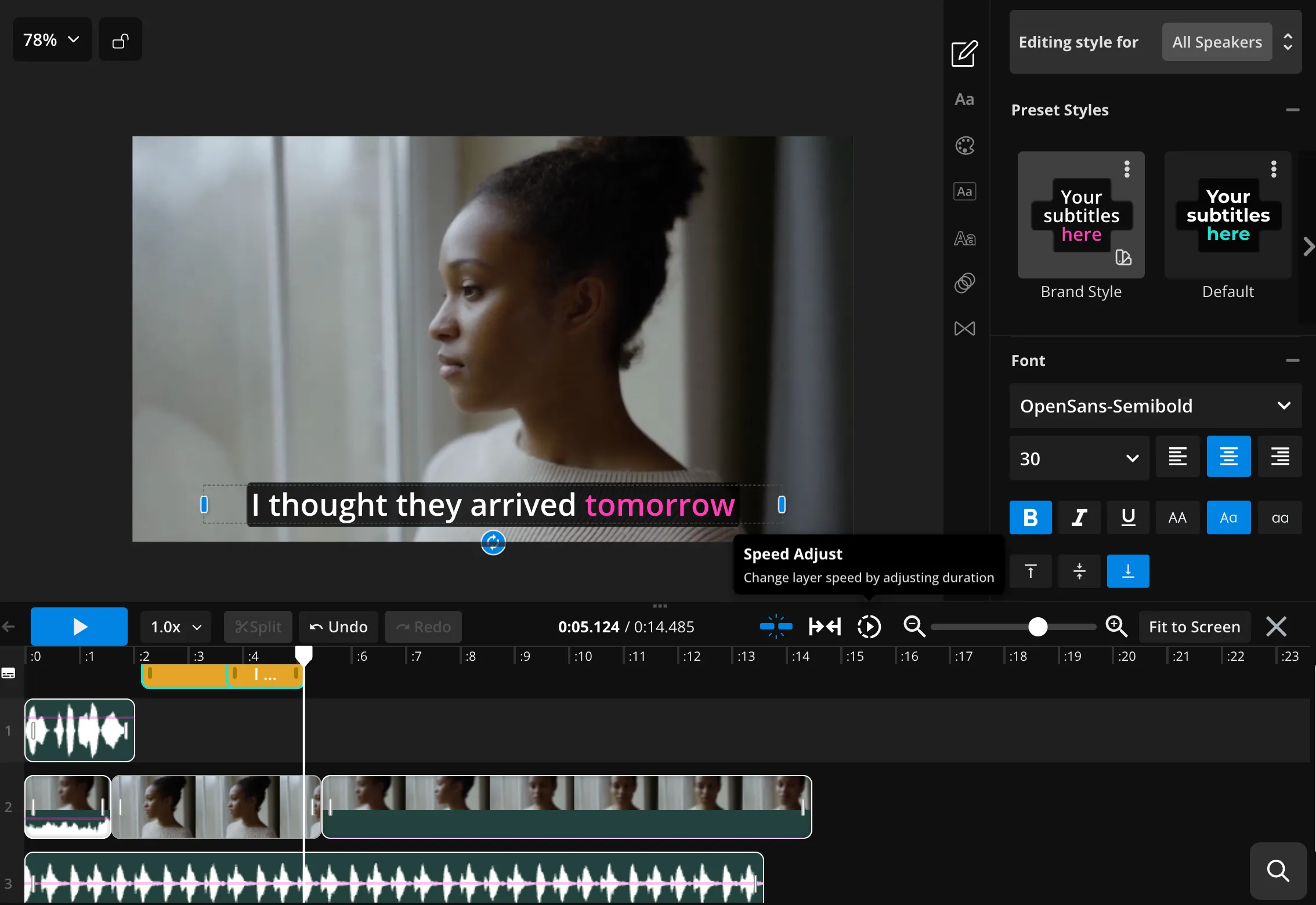
How to Use Kling Omni
- Step 1Open Kai
Open Kapwing’s AI Assistant, Kai, and choose Kling Omni from the video model menu.
- Step 2Write a prompt
Generate from text alone, upload an opening image, or attach up to seven visual references. Include the aspect ratio you want in the prompt.
- Step 3Generate and edit
Click “Generate,” then add the clip to Kapwing’s timeline to combine it with other footage, trim it, add subtitles, and make further edits.
What can you make with Kling Omni?
Multiple reference images. One scene.
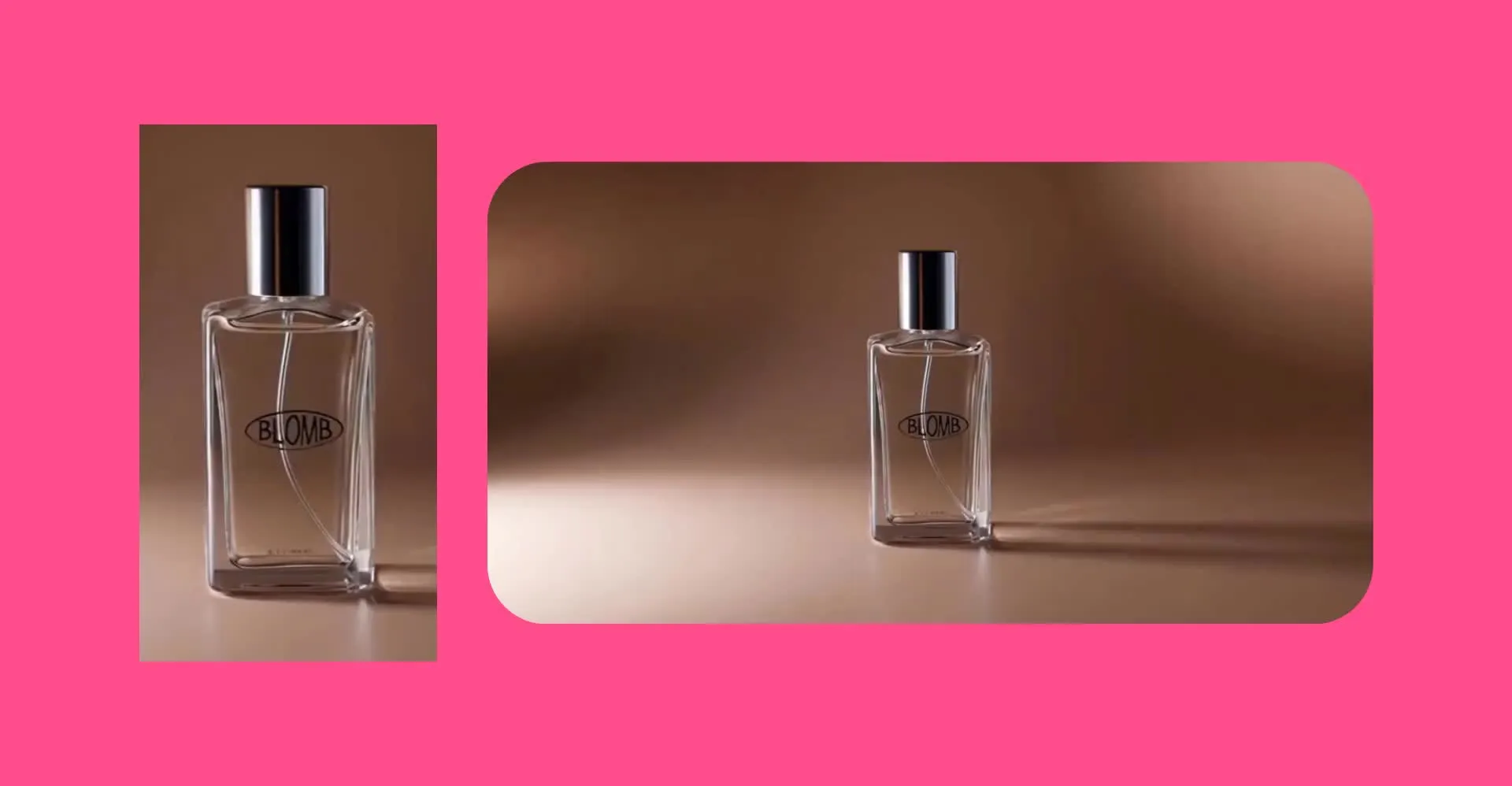
Product Ads
Upload multiple images of your product, location, and visual style. Use them together to guide a new branded product shot.
Character Tests
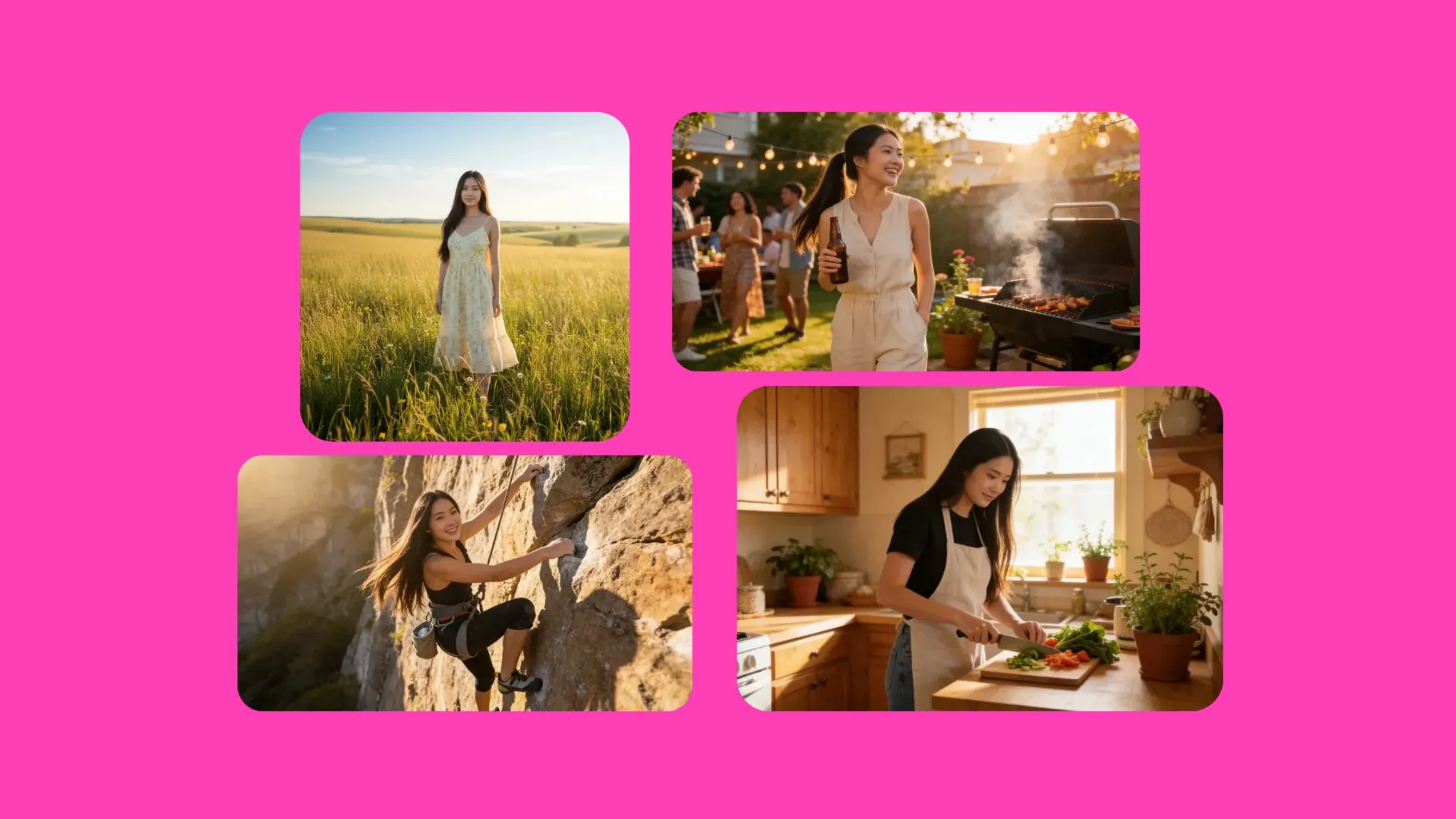
Provide character, wardrobe, prop, and environment references, then test how those elements could look together in a short scene — voilà!

Social Ads
Reuse the same product and brand references while changing the hook, setting, camera angle, or format for different campaign concepts
Short Films
Turn written scenes and visual references into individual shots, then combine them in Kapwing to build short films, trailers, pitch concepts, or storyboards
.webp)
Style Tests
Compare how the same subject works across different locations, lighting setups, framing choices, and visual styles before producing a final sequence
Frequently Asked Questions
We have answers to the most common questions that our users ask.
What is Kling Omni?
Kling Omni is a Kling AI video model for creating new scenes from text and images. In Kapwing, you can start from a prompt, an opening image, or up to seven visual references.
How is Kling Omni different from Kling Motion Control?
Kling Omni invents a new scene from your prompt and images. Kling Motion Control instead transfers the movement from one uploaded performance video onto a character shown in one image.
How do I access Kling Omni in Kapwing?
Open Kapwing’s AI Assistant, Kai, start a video generation, and select Kling Omni from the model menu. Add your prompt and optional images, choose the available output settings, and generate.
Does Kling Omni support text-to-video and image-to-video?
Yes. Kapwing supports Kling Omni text-to-video, image-to-video from an opening image, and reference-led generation using several uploaded images.
How many reference images can I use with Kling Omni?
Kapwing’s current Kling Omni integration supports up to seven reference images. Use them for the characters, products, props, locations, or visual style that should guide the scene.
How long are Kling Omni videos in Kapwing?
Kling Omni generates 5- or 10-second video clips in Kapwing. For a longer project, generate additional clips and combine them in the timeline editor.
Which aspect ratios does Kling Omni support?
Kling Omni supports 16:9, 9:16, and 1:1 in Kapwing. These cover widescreen, vertical, and square projects; you can also resize the finished project in the editor.
Does Kling Omni support an end frame?
No. Kapwing’s current Kling Omni integration supports an opening image but does not expose an end-frame input.
Does Kling Omni generate audio or lip-synced dialogue?
Kapwing does not currently expose model-generated audio for Kling Omni. Add voice-over, dialogue, music, ambience, and sound effects after generation in the Kapwing editor.
What resolution does Kling Omni generate in Kapwing?
No, Kling Omni generations do not include audio. Add voice-over, dialogue, music, ambience, and sound effects after generation in the Kapwing editor.
What makes a good Kling Omni prompt?
Describe the subject, action, setting, framing, camera movement, lighting, and style. If you upload several images, state which person, product, location, or visual detail each reference should guide.
Can I edit Kling Omni videos in Kapwing?
Yes. Trim and combine clips, add text and subtitles, layer audio, translate content, resize the canvas, and export the finished project in Kapwing.
Do Kling Omni exports have a watermark?
Kapwing does not add a separate Kling watermark to exported projects.
Can I use Kling Omni on iPhone or Android?
You can access Kapwing in a mobile browser on iPhone or Android. A desktop browser may be easier when uploading several reference images or making detailed timeline edits.
Discover Resources
Tips, templates, and deep dives to help you create faster and share with confidence.
View all


Get started with your first video in just a few clicks. Join over 35 million creators who trust Kapwing to create more content in less time.