
Engage your audience with customizable shapes
Add arrows, lines, circles, and callouts to videos — for free
Annotate and focus videos, no editing skills needed
Keep the focus exactly where you want it. Add circles, arrows, social media logos, and icons to guide viewers’ attention and reinforce your message. Kapwing’s Add Shapes to Video tool uses vector-based graphics, so every shape stays sharp at any size and exports in HD.
Start with hundreds of built-in shapes, then fine-tune the details. Adjust color, stroke weight, aspect ratio, and size to match your brand. Layer in text or callouts, apply animations and transitions, or lower the opacity for subtle highlights and transparent overlays.
Use shapes to make product demos easier to follow, clarify steps in online lessons, or spotlight key moments in gameplay and tutorials. Draw attention to polls, “like” and “follow” buttons, and social handles to drive engagement without distracting from your content.
Everything you need in one online editing studio
Kapwing is built for fast, flexible video creation, whether you’re a solo creator, a growing small business, or a full marketing team. Add callouts and arrows to direct attention, then layer in text overlays, animations, and effects to produce polished tutorials, product demos, thumbnails, and social posts, all in one online video editor.
Keep everything in sync as you grow. Use shared workspaces for organized projects, collaborate with teammates in real time, and leave timestamped feedback directly on the timeline. Save fonts, custom shapes, colors, and images to your Brand Kit so every video stays consistent and ready to publish.
What's different about Kapwing?



How to Add Shapes to Videos
- Step 1Upload video
Open a new project in the Kapwing studio and upload your video.
- Step 2Add shapes
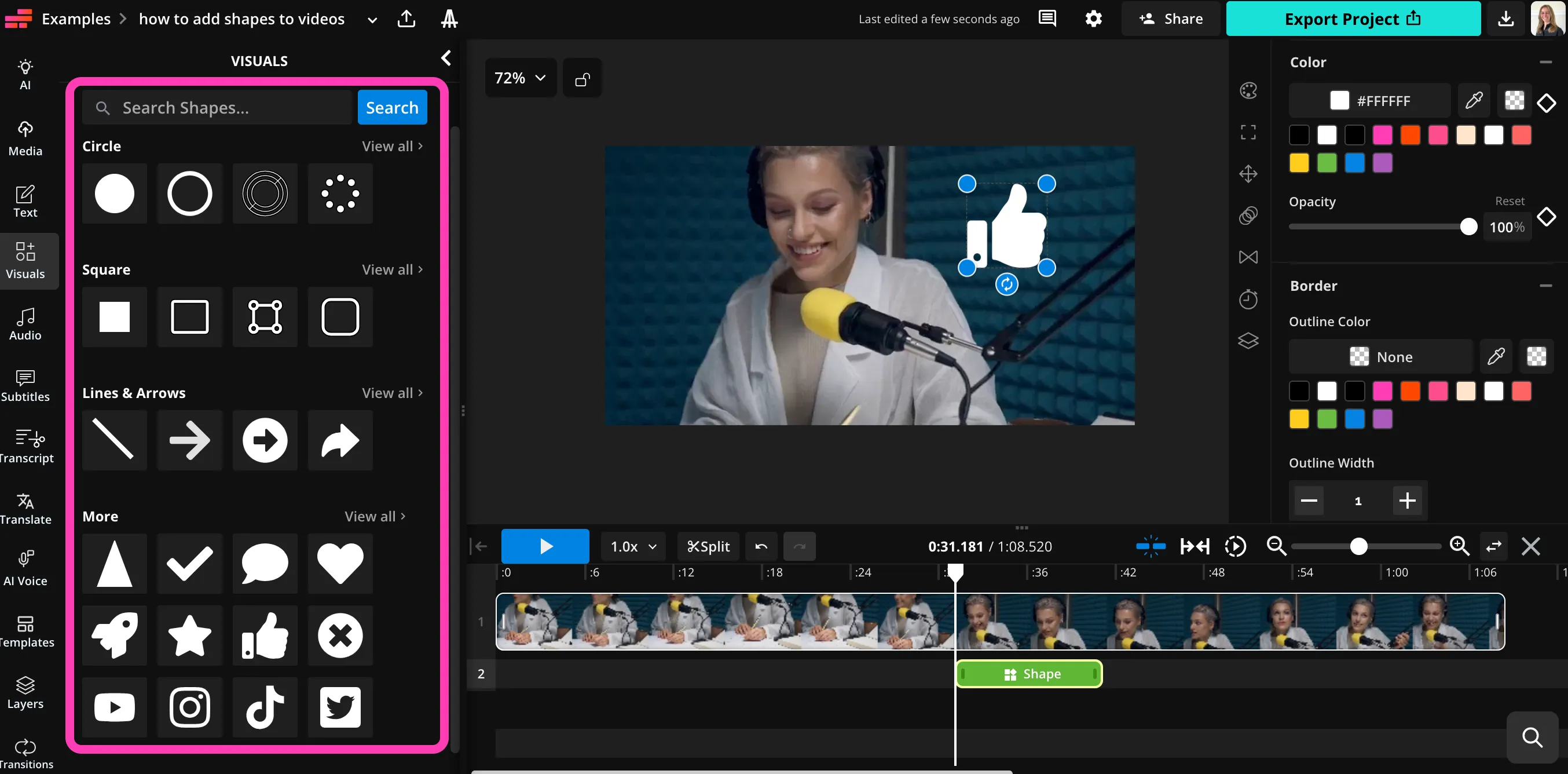
Click "Visuals" in the left sidebar, then scroll down to "Shapes." Click to add any shape to your video.
- Step 3Customize
Customize the size, color, position, and aspect ratio of your shapes. Then click "Export Project" to download and share your video.
Already transforming video creation across industries
Hear directly from the teams who publish faster, collaborate better, and stay ahead.


Frequently Asked Questions
We have answers to the most common questions that our users ask.
Is Kapwing's Add Shapes to Video tool free?
Yes, Kapwing's Add Shapes to Video tool is free for all users.
Is there a watermark on exports?
If you use Kapwing on a Free account, then all exports — including from the Add Shapes to Video tool — contain a watermark. Once you upgrade to a Pro account, the watermark is completely removed from your creations.
Do I need design skills to add shapes to my videos?
No, Kapwing's editing studio is designed for anyone, from beginners to professional designers and content creators. To add text and shape overlays to your video content, just use the one-click tools. Adjust the color, size, position, and duration of each shape. Make your shapes translucent or opaque.
What kinds of shapes can I add?
Kapwing's has hundreds of useful and fun shapes built into the video editing studio, including dozens of styles of lines, circles, arrows, and squares. There are also a range of useful icons and logos, as well as common shapes like hearts, speech bubbles, rockets, stars, check marks, and thumbs up.
Add shapes to videos, then turn them transparent, adjust the colors, or tweak the aspect ratio, all in the same online tool.
Can I use Kapwing to edit my video in other ways?
Yes, the Add Shapes tool is built into Kapwing's full image and video editing studio, where you can use an extensive range of video tools. It is also connected to Kapwing's AI assistant, where you can use simple prompts to generate and edit images, audio, and video.
Can I add shapes to videos on my phone?
Yes, you can use the Add Shape to Video tool on your mobile device, including iPhone and Android models.
Open the Kapwing studio on your mobile browser and create a new project. Then click to upload your video. In the bottom toolbar, click "Visuals," then scroll to "Shapes." Click to add any shape, then adjust it using the simple settings. When you're ready, click "Export Project" to save your edited video to your phone.
What file types does Kapwing support?
Kapwing supports all popular video file formats, including MP4, MOV, and WebM. The shapes are vector-based, so you can resize and export them without worrying about resolution issues or blur.
Discover Resources
Tips, templates, and deep dives to help you create faster and share with confidence.
View all


Get started with your first video in just a few clicks. Join over 35 million creators who trust Kapwing to create more content in less time.