Sync subtitles to video and audio online.
Fix delayed, early, or out-of-sync subtitles.
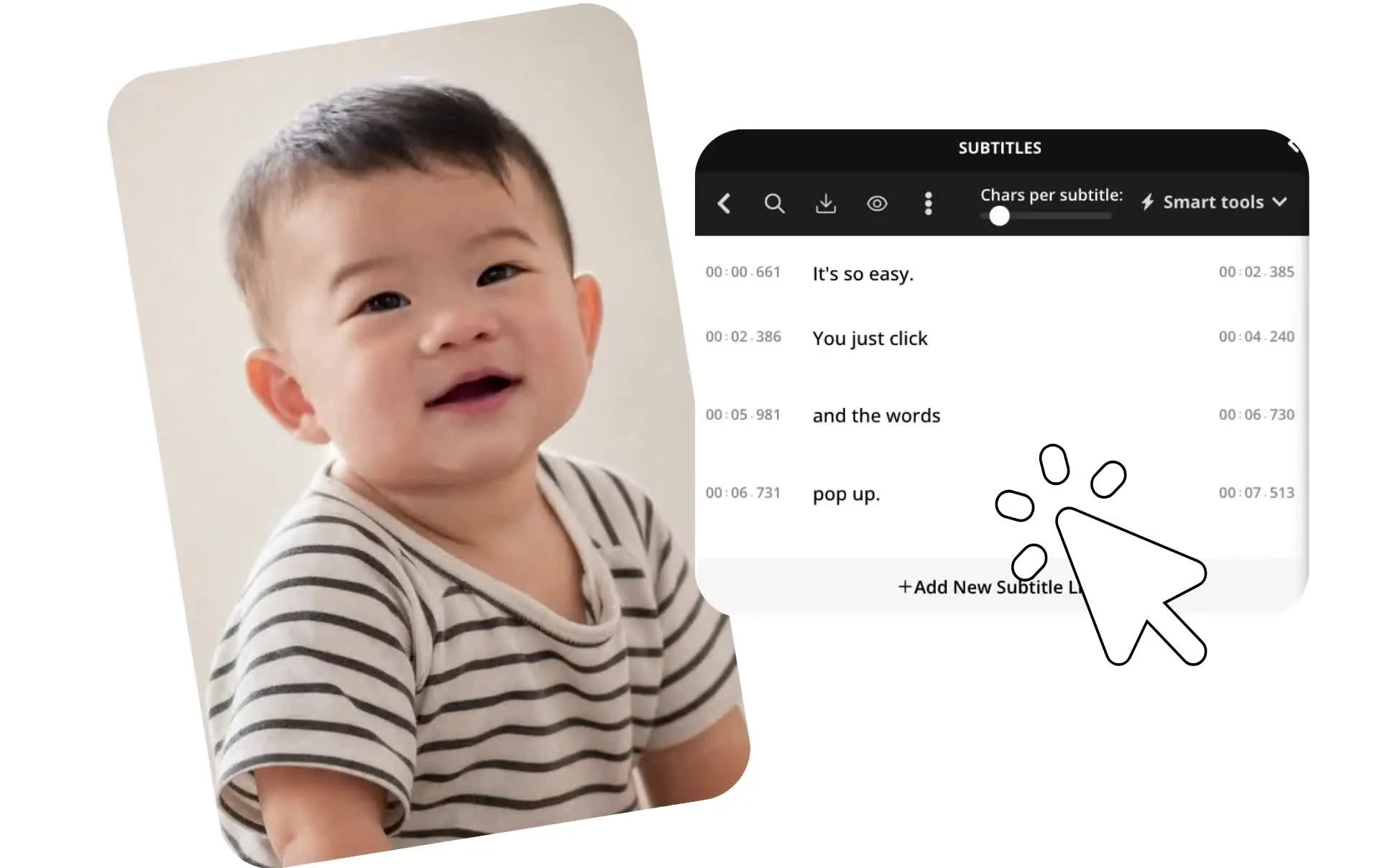
Fix out-of-sync subtitles
Regenerate or manually adjust subtitles in an online studio
Resync subtitles without manual retiming
Get subtitles back in sync without adjusting every timestamp by hand. If an existing subtitle track no longer matches the audio, generate a new, accurately timed subtitle track with AI. To keep your existing captions, upload an SRT or VTT file and adjust individual start and end times directly in Kapwing's timeline.
You can also resync subtitles as your video changes. Regenerate captions after trimming clips, removing pauses, or rearranging scenes, or fine-tune individual captions when only part of the track needs adjusting. Preview subtitles against your video as you edit, so you can correct early or delayed captions before publishing.
When you're ready, export your video with burned-in subtitles or download your captions as SRT, VTT, or TXT. Your project stays editable online, so you can quickly resync subtitles whenever your video changes.
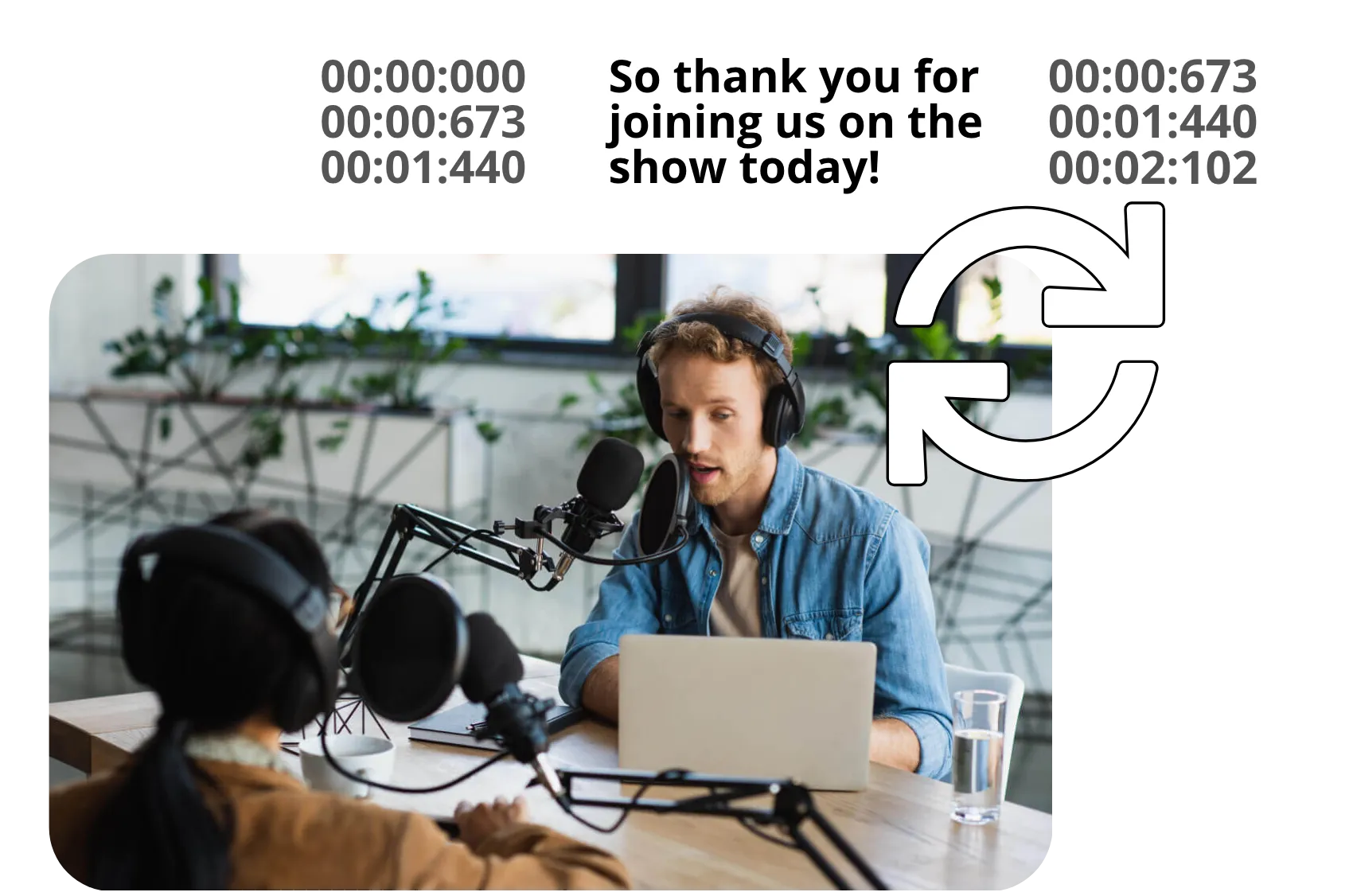
How to sync subtitles in three steps
Keep subtitles synced with your video or audio
Upload
your video or audio file to the Kapwing Studio


Sync
subtitles with automatic AI subtitling or manual timeline adjustments
Export
your file with synced subtitles, then download or share straight to social media
Accurate subtitle timing for every workflow
Join 1M+ creators trusting Kapwing with their subtitles every year

Podcasts
Podcast producers regenerate subtitles after removing filler words and pauses or editing conversations, keeping every caption aligned with the final audio before publishing to YouTube or Spotify

Social Media
Keep subtitles synced on TikToks, Instagram Reels, and YouTube Shorts after trimming clips, changing pacing, or making last-minute edits before publishing

Courses & Training
Keep captions aligned as lessons, webinars, and training videos change. Resync subtitles after removing sections, updating examples, or shortening recordings.
.webp)
Localized Content
Translate subtitles, then adjust their timing when translated dialogue runs shorter or longer than the original audio
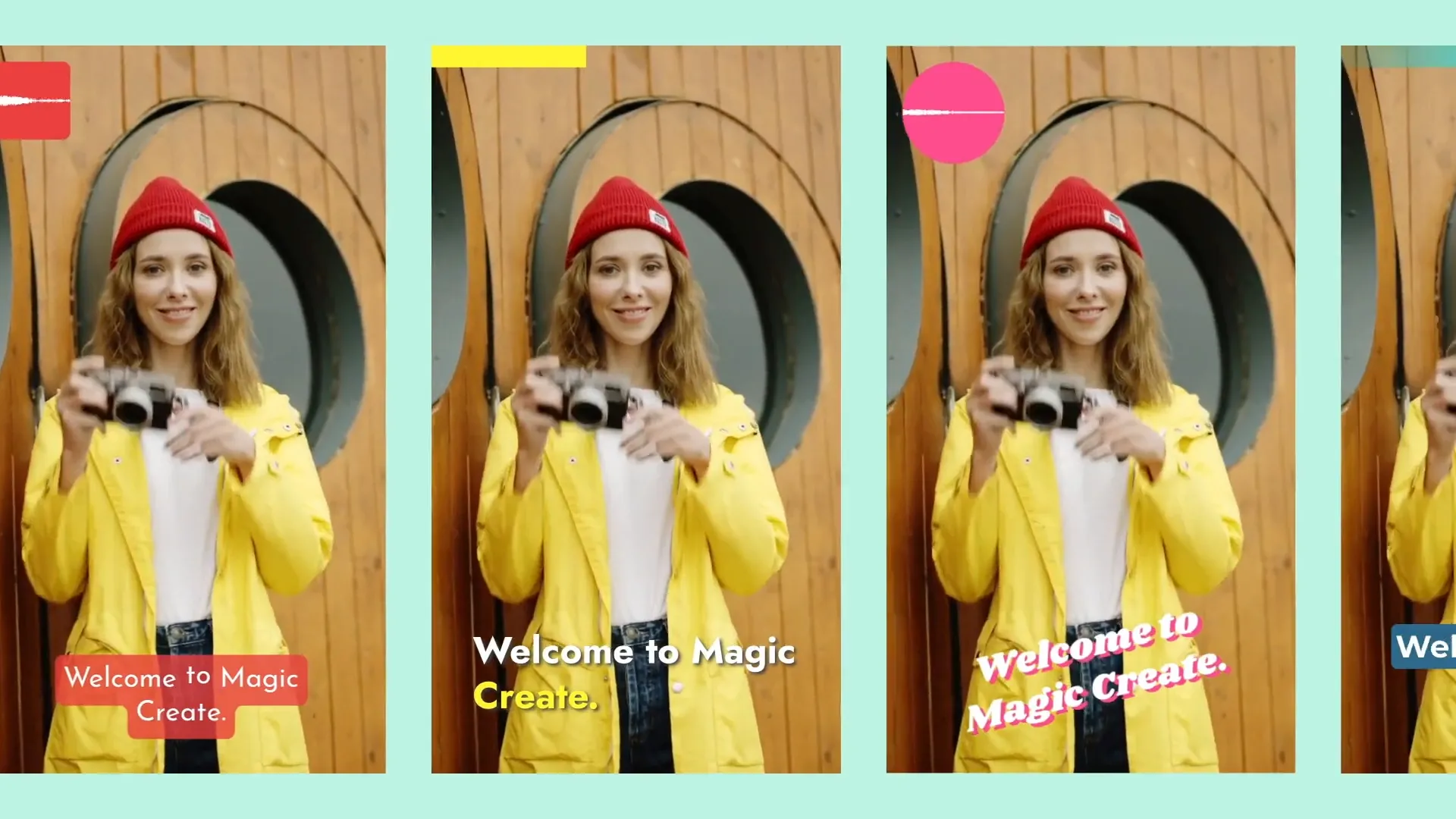
Repurposed Videos
Repurpose long-form videos into shorter clips for new platforms, then resync subtitles to match the timing of each new edit.

Interviews
Keep subtitles aligned with each speaker after trimming answers, removing pauses, or restructuring an interview before publishing
Keep subtitles synced without tedious editing
Update, replace, and resync subtitles as your videos evolve
Fix delayed or early subtitles
Correct subtitle delay when captions appear ahead of or behind the spoken audio. If captions appear consistently too early or too late, regenerate an accurately timed subtitle track with AI or adjust individual captions in Kapwing's timeline.
For captions that gradually drift out of sync, review the track alongside your video and sync subtitles to audio where the mismatch begins. Keep the video, audio, and subtitles together as you make adjustments, so you can check each change before exporting.
Sync SRT and VTT files to video
Upload an existing SRT or VTT file and sync it against the video it belongs to. Preview subtitles alongside the spoken audio, then adjust individual start and end times when captions appear too early, too late, or stay on screen for the wrong duration.
Once the timing is correct, continue editing the subtitle text and appearance in Kapwing. You can also use Kapwing's SRT Editor to make detailed changes to an SRT file, or download your corrected subtitles as SRT, VTT, or TXT. If you need a different format, use Kapwing's Subtitle Converter.
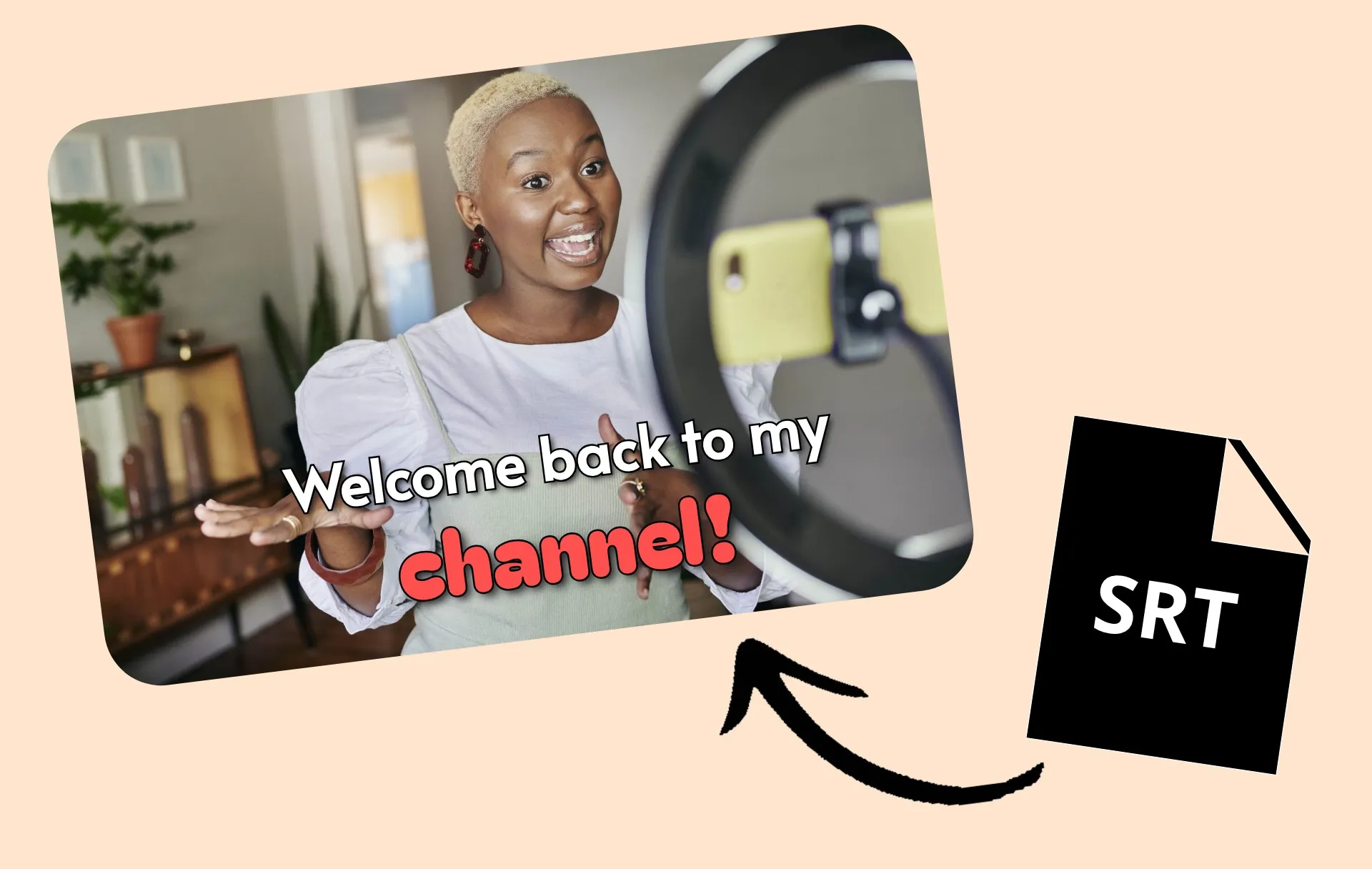
Resync subtitles after editing your video
Keep captions aligned as your video changes. Trim clips, remove pauses, cut sections, or rearrange scenes, then regenerate subtitles to match the updated audio instead of manually retiming an old subtitle track.
You can make video and subtitle changes in the same Kapwing project, so there’s no need to move files between a video editor and a separate subtitle tool. For larger edits, use Kai, Kapwing's AI video assistant, to help trim, restructure, or refine your video through conversation, then review and adjust the resulting project in Studio.
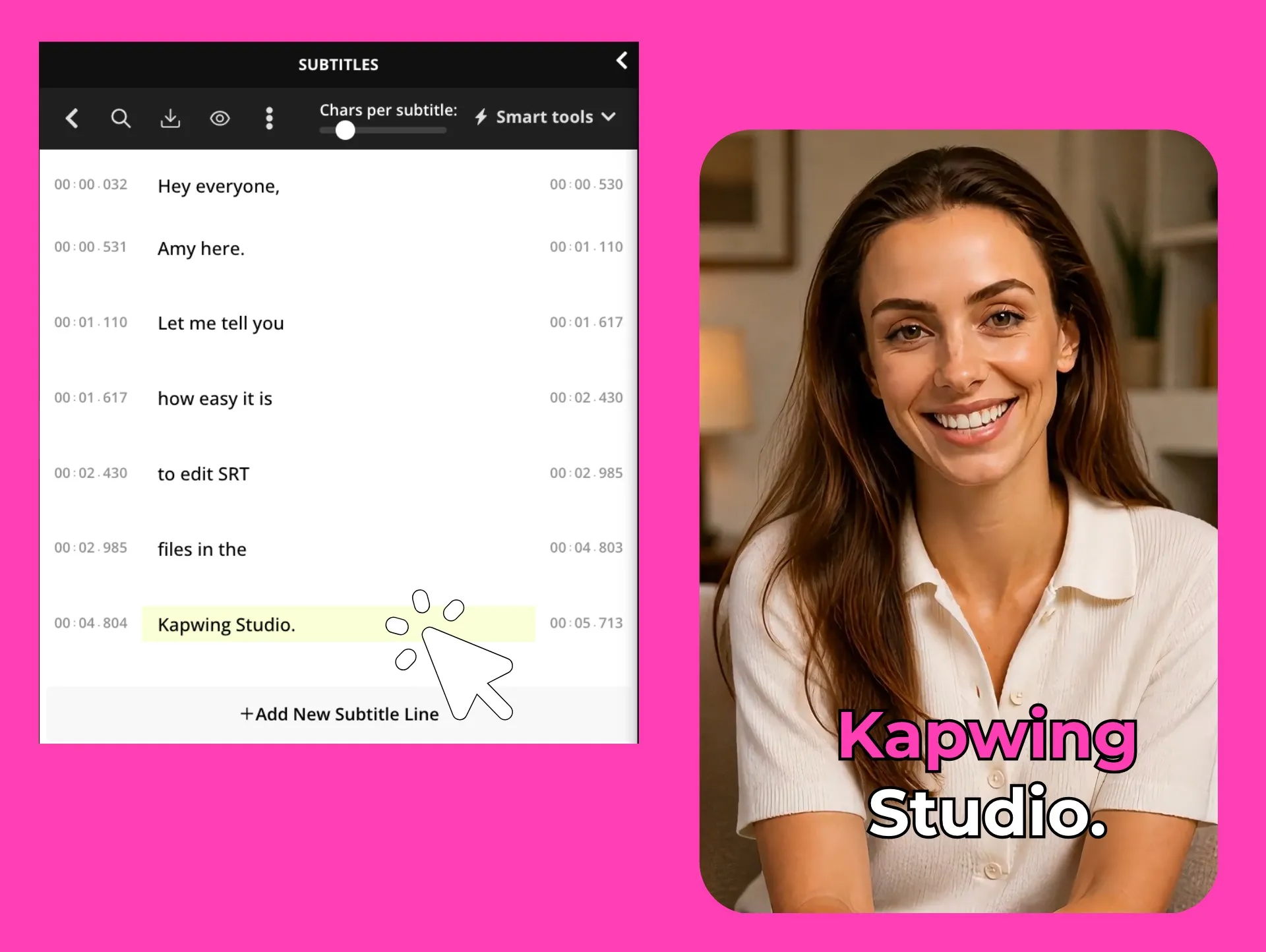
Fine-tune individual subtitle timing
Adjust individual captions when only part of your subtitle track is out of sync. Change start and end times in the timeline, split or merge subtitle lines, edit the text, and preview each change against your video.
This gives you manual control when regenerating the entire subtitle track isn't necessary. Correct a mistimed line, shorten how long a caption stays on screen, or make final timing adjustments before downloading your subtitle file or exporting the finished video.
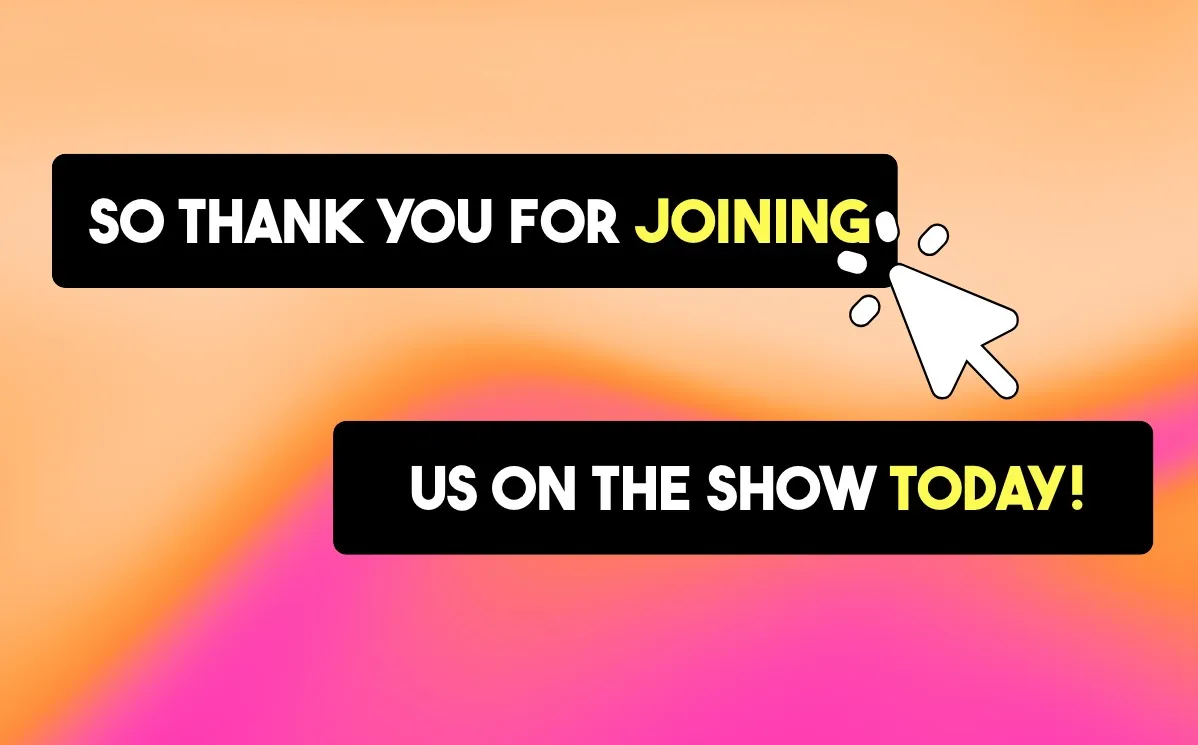
How to Sync Subtitles

- Step 1Upload video
Create a new project in the Kapwing Studio and click or use drag-and-drop to upload your video.
- Step 2Sync subtitles
Generate new synced subtitles by clicking "Subtitles" in the lefthand sidebar, or upload SRT or VTT files and adjust their timing in the subtitle editor.
- Step 3Export video
When you're ready, click "Export project" at the upper right, choose your export settings, then download your video with synced subtitles.
Subtitle Guides
Tips, templates, and deep dives


What's different about Kapwing?



Frequently Asked Questions
We have answers to the most common questions that our users ask.
Is Sync Subtitles free?
Yes, you can use Kapwing’s manual subtitle timing tools for free, including uploading SRT files, adjusting subtitle timing in the timeline, or typing and editing subtitles yourself. Free users also receive a limited number of credits for auto subtitles, which can generate and sync captions to your video automatically. For full access to Kapwing's AI-powered subtitle tools, upgrade to a Pro account.
Is there a watermark on exports?
If you use Kapwing on a Free account, then all exports — including from Sync Subtitles — contain a watermark. Once you upgrade to a Pro account, the watermark is completely removed from your creations.
How to sync subtitles
To resync subtitles in your videos, start by uploading your file to the Kapwing Studio. If your existing captions are out of sync, you can regenerate them with AI to create a new subtitle track timed to the spoken audio. You can also upload an SRT or VTT file and adjust individual captions directly in the timeline.
For more control, type or edit subtitles manually and set when each caption appears and disappears. Preview the results alongside your video, make any final text or timing adjustments, then export your video with subtitles or download the updated subtitle file.
Why are my subtitles out of sync?
Subtitles usually fall out of sync after a video is trimmed, clips are rearranged, or the frame rate changes during export. Imported subtitle files can also have a timing offset or subtitle drift, where captions gradually become more delayed throughout the video.
To fix out-of-sync subtitles, you'll need to adjust subtitle timing, regenerate the subtitles with AI, or edit the subtitle file timing manually.
How do I fix delayed subtitles?
If every subtitle appears the same amount of time too late, you can add a global offset by manually moving your subtitles forward in the video timeline. If only some captions are delayed, you'll need to change subtitle timing for individual captions or resync subtitles to the audio. Automatic subtitle sync can save time when the timing is inconsistent across the entire video.
What's the difference between subtitle delay, timing offset, and subtitle drift?
A subtitle delay or timing offset means every subtitle is consistently early or late by the same amount of time. Subtitle drift happens when captions become progressively more out of sync as the video plays, often because the subtitle file and video use different durations or frame rates. Knowing which issue you have makes subtitle syncing much faster.
Can I fix an imported SRT or VTT file?
Yes, you can edit subtitle file timing by importing an SRT or VTT file, then adjusting the timestamps or moving captions directly on a timeline. If the subtitles no longer match the spoken audio, it may be faster to regenerate a new subtitle track than manually correcting every timestamp.
Can I fix captions that are out of sync on YouTube or TikTok videos?
Yes, if your YouTube subtitles or TikTok captions are out of sync, you can make quick edits on the platform, or upload your video to the Kapwing Studio to generate new subtitles with the correct timing. If the original captions are inaccurate or no longer match the audio, generating a new subtitle track is often the quickest way to restore accurate caption sync.
Can I resync subtitles after trimming a video?
Absolutely, trimming clips, removing pauses, or cutting sections can cause existing subtitles to fall out of sync with your edited video. In Kapwing, you can regenerate subtitles to match the updated audio or keep your existing captions and adjust their timing in the timeline.
Get started with your first video in just a few clicks. Join over 35 million creators who trust Kapwing to create more content in less time.