A Complete Guide to YouTube Subtitles
Everything you need to know about adding, editing, and optimizing subtitles on YouTube.
Subtitles on YouTube work differently from captions on most short-form video platforms. Instead of just placing text over a video, YouTube attaches subtitles as a separate caption track. It can automatically generate that track from your audio, let you upload your own SRT or VTT file, synchronize a transcript for you, and support additional subtitle languages.
That flexibility makes YouTube captions particularly useful for accessibility, international audiences, and long-form videos. But it also means there are more decisions to make: Should you use YouTube's automatic captions or upload your own? Should subtitles be burned into the video? Do you need both? And can captions actually help a video perform better?
In this guide, we'll cover how YouTube's subtitle system works, how to add and edit captions in YouTube Studio, how to create custom subtitles, the difference between open and closed captions, best practices for long-form videos and Shorts, and what the evidence actually says about subtitles and YouTube performance.
Table of Contents
- Can You Add Subtitles Directly in YouTube?
- How to Add Automatic Captions on YouTube
- How To Create and Export Your Own Subtitles For YouTube
- Closed Captions vs. Burned-In Subtitles on YouTube
- Best Practices for YouTube Subtitles
- Do Subtitles Help YouTube Performance?
- Frequently Asked Questions
Can You Add Subtitles Directly in YouTube?
Yes — and in many cases, you don't need to add them yourself. For eligible long-form videos and YouTube Shorts, YouTube uses automatic speech recognition to generate captions from the video's audio. If automatic captions are available, YouTube publishes them automatically.
That makes YouTube's caption workflow different from platforms like TikTok or Instagram, where creators typically choose a captioning tool while editing a post.
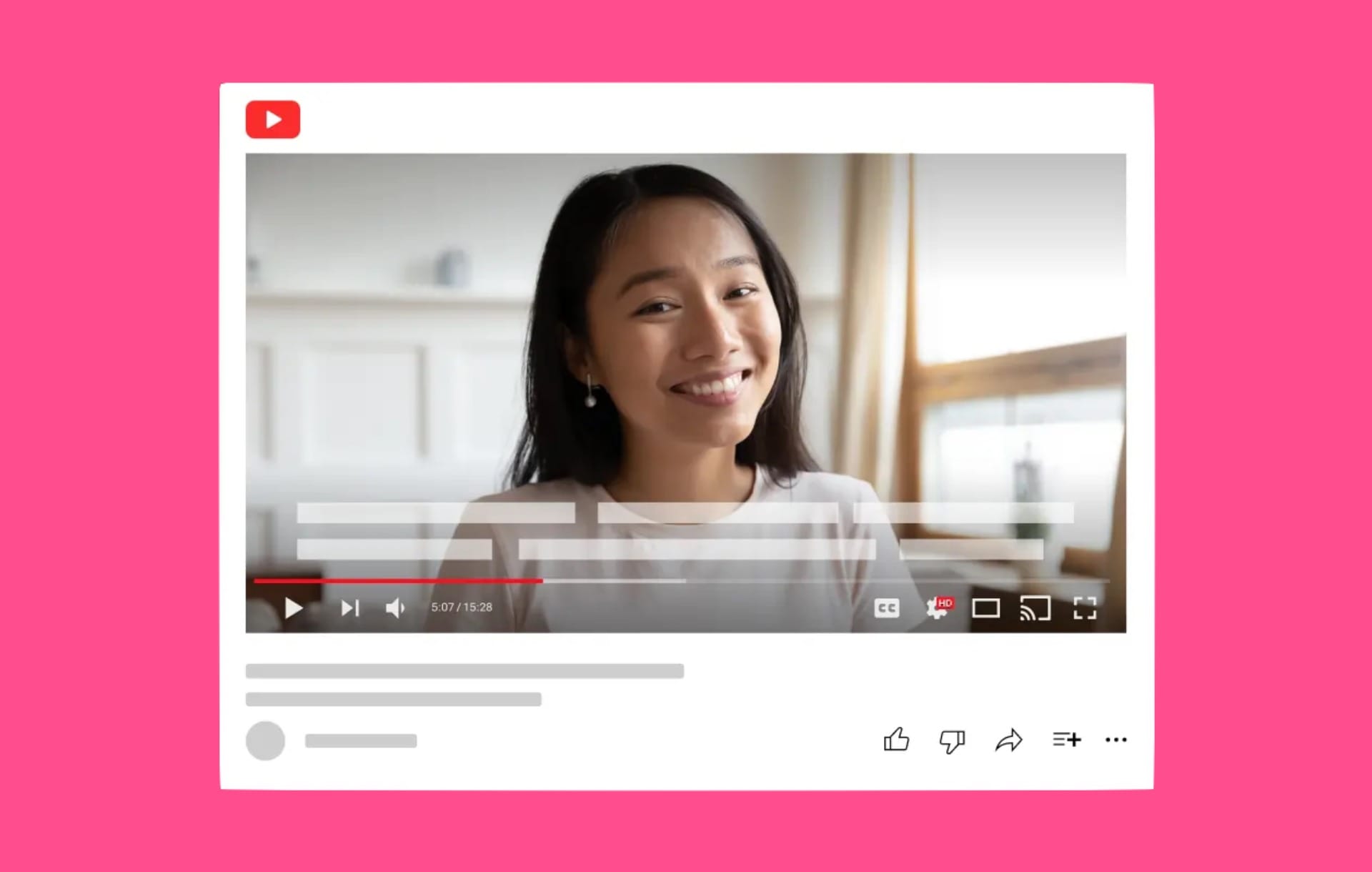
However, automatic captions aren't guaranteed for every video. They may take time to appear after an upload, and YouTube says they may not generate if:
- The language isn't supported
- The video has poor sound quality
- YouTube can't recognize the speech
- There's a long period of silence at the beginning
- Multiple speakers are talking over each other
- Multiple languages are being spoken at the same time
- The video is too long
What languages does YouTube support for automatic captions?
YouTube currently supports automatic captions for long-form videos and Shorts in 67 languages.
For videos with multiple audio tracks, YouTube generates automatic captions in the video's default language.
What languages are supported by YouTube captioning?
Afrikaans, Albanian, Amharic, Arabic, Armenian, Azerbaijani, Basque, Belarusian, Bengali, Bulgarian, Burmese, Cantonese/Hong Kong, Central Khmer, Chinese, Czech, Danish, Dutch, English, Estonian, Farsi, Filipino, Finnish, French, Galician, Georgian, German, Greek, Gujarati, Hebrew, Hindi, Hungarian, Icelandic, Indonesian, Italian, Japanese, Javanese, Kannada, Korean, Lao, Latvian, Lithuanian, Macedonian, Malay, Malayalam, Marathi, Mongolian, Nepali, Norwegian, Polish, Portuguese, Punjabi, Romanian, Russian, Sinhalese, Slovak, Spanish, Sundanese, Swahili, Swedish, Tamil, Telugu, Thai, Turkish, Ukrainian, Uzbek, Vietnamese, and Zulu.
Subtitles vs. Captions on YouTube
YouTube frequently uses the terms together, but technically they don't always mean the same thing.
- Captions are generally designed to represent the complete meaningful audio experience in the video's original language. That can include dialogue, speaker identification, music, laughter, applause, or other important sounds.
- Subtitles traditionally refer to translated dialogue for an audience that can hear the audio but doesn't understand its language.
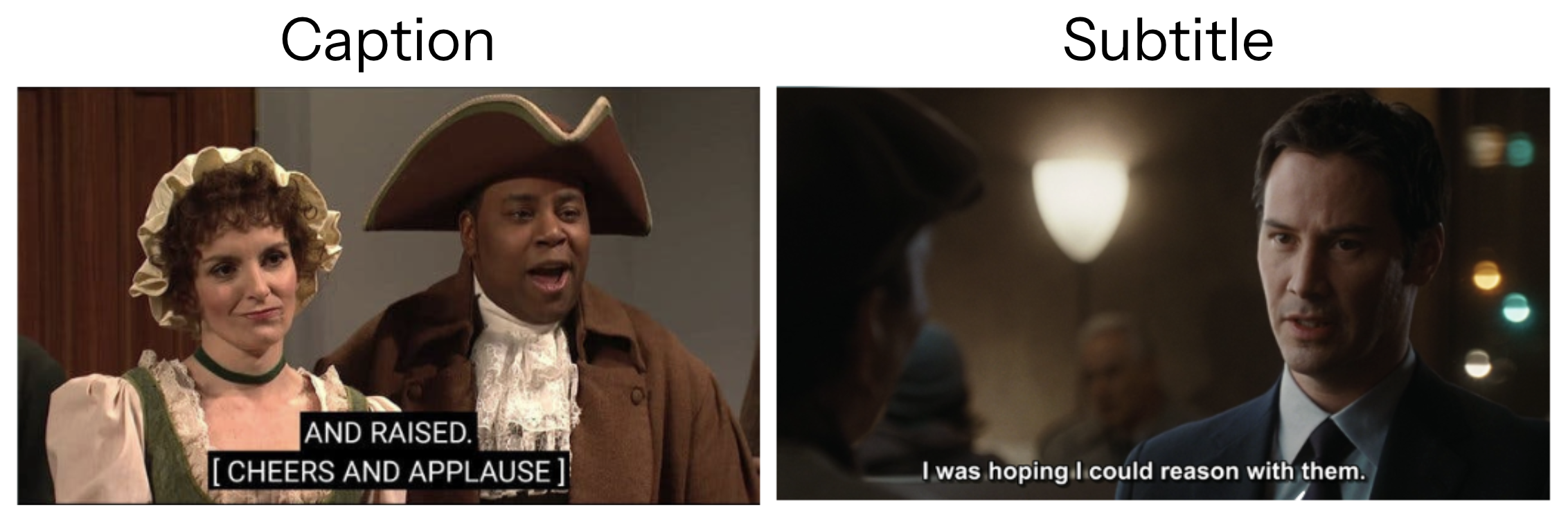
Accessibility guidance from the W3C makes the same distinction: captions should communicate both dialogue and important non-speech audio needed to understand the content.
In practice, however, creators and platforms often use "captions" and "subtitles" interchangeably. YouTube itself labels the creator section Subtitles and the player control Subtitles/CC.
How to Add Automatic Captions on YouTube
Because YouTube automatically generates captions for many videos, you don't necessarily need to do anything immediately after uploading.
If YouTube successfully generates automatic captions, they'll appear automatically once you've published your video. To preview it, you can also keep it Private or Unlisted while preparing the video.
Once your video is uploaded, YouTube processes the audio and generates captions separately.
Automatic captions may not be available as soon as the upload finishes. YouTube generates them separately using speech recognition, and processing time depends on the complexity of the video's audio.
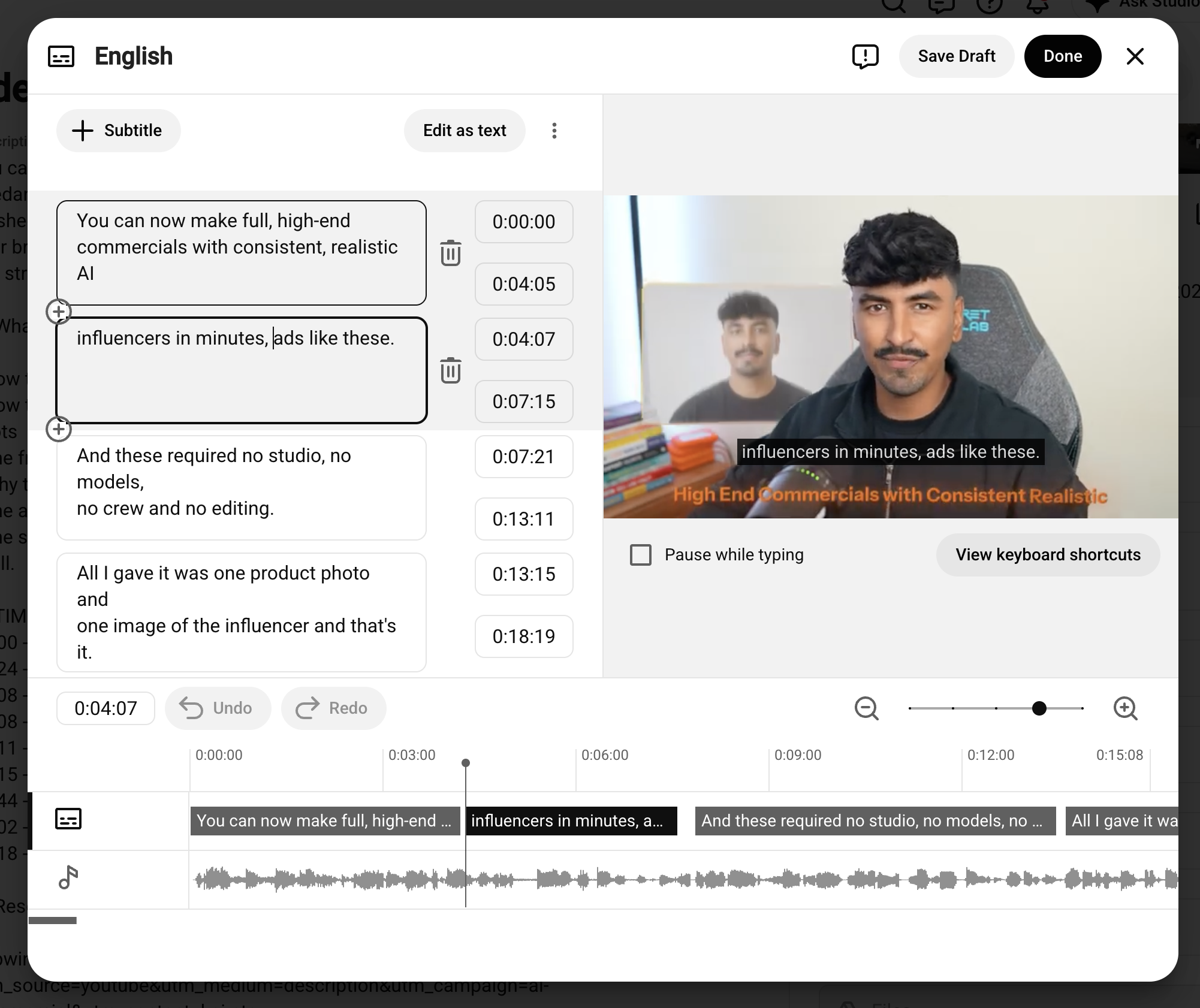
Next, go back into the YouTube Studio and click into your video. You should see a tab on the right side title "Subtitles". Select it.
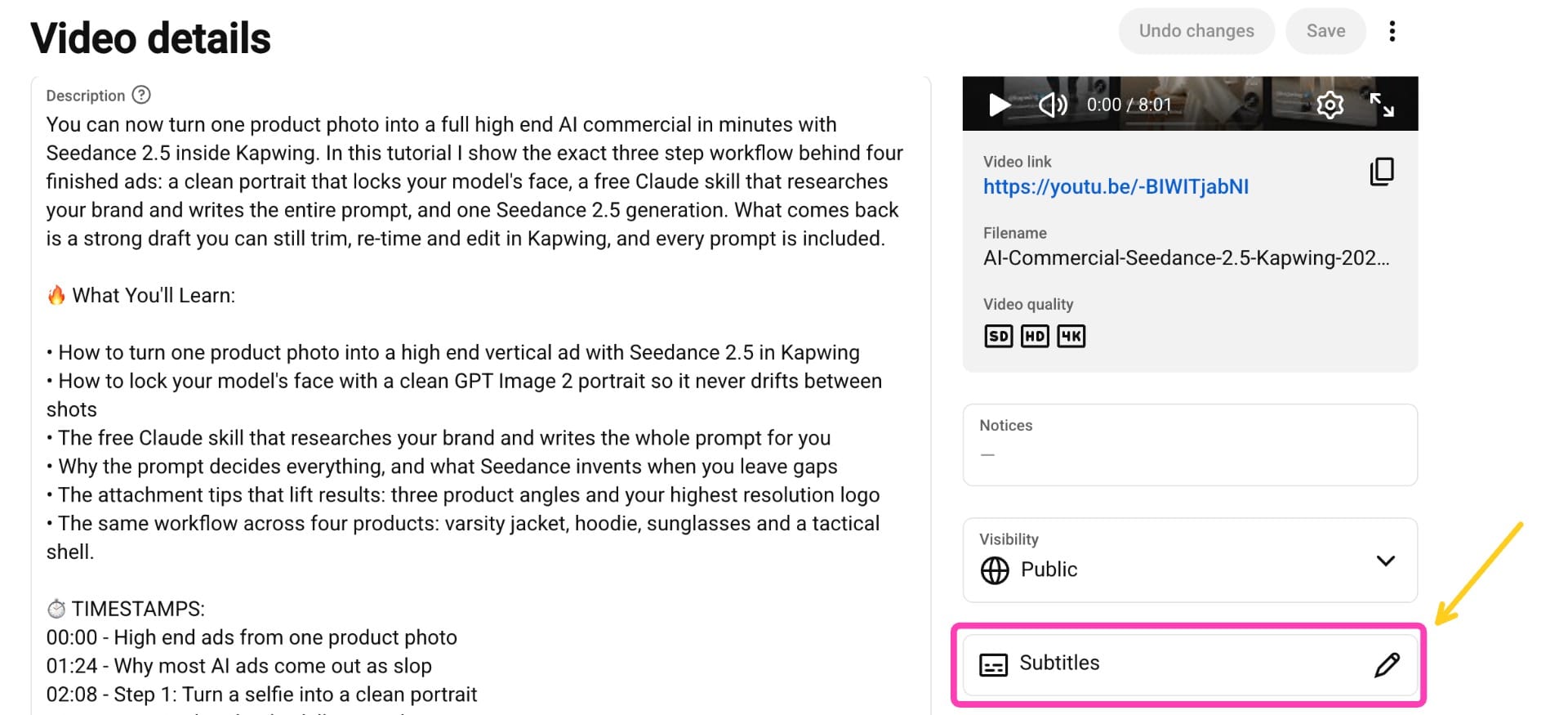
From here, you'll be able to review the accuracy of your subtitles, including the timing, spelling, and wording.
We'd recommend watching the video from beginning to end, paying particular attention to: names, brand and product names, technical terminology, acronyms, speech underneath music, or segments with multiple speakers.
How To Create and Export Your Own Subtitles For YouTube
If you want more control than YouTube's automatic captions provide, you can create and edit subtitles and upload the finished caption file to YouTube.
This workflow is useful when you want to review captions in the same place where you edit the video or create captions for multiple platforms.
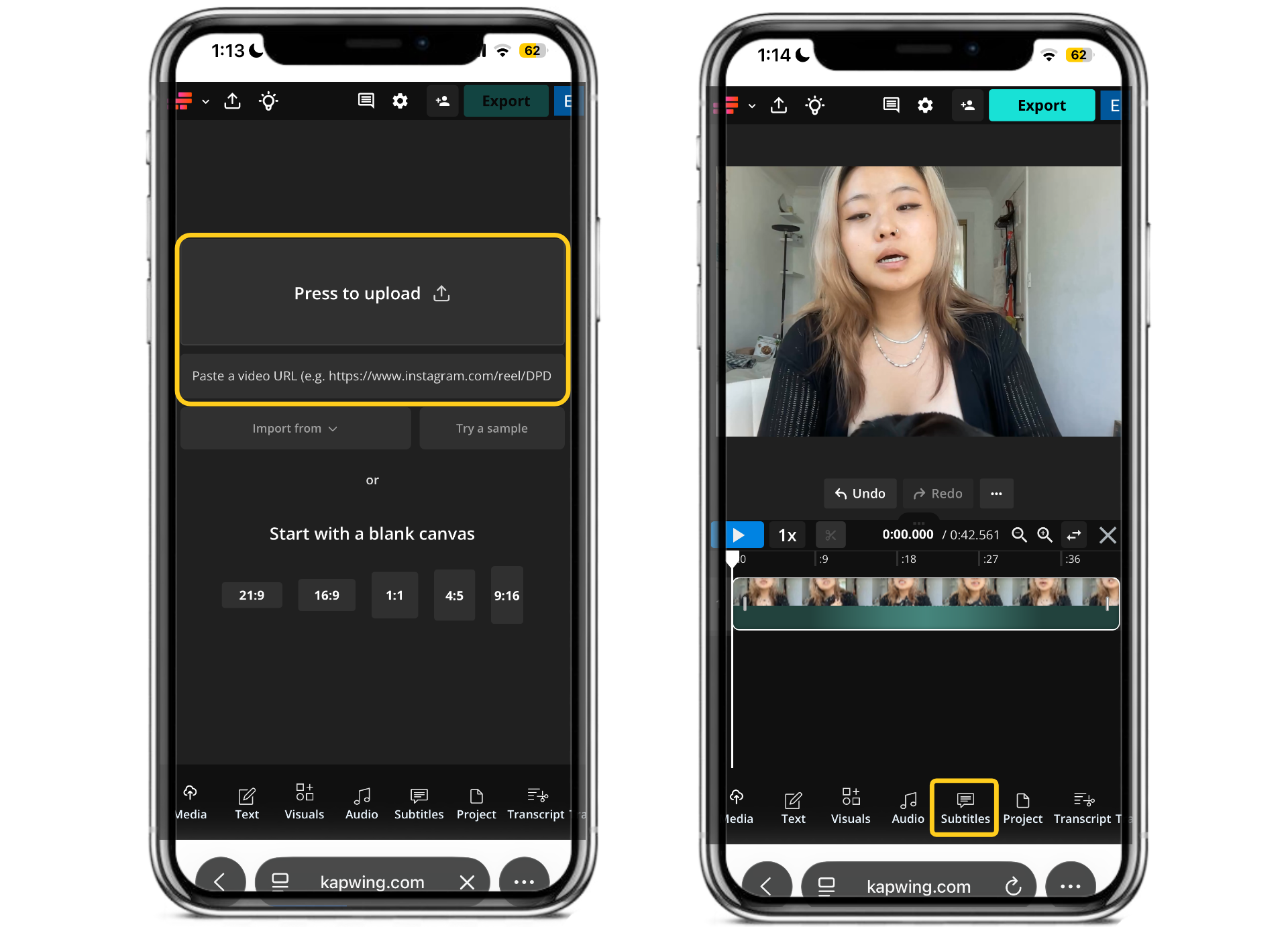
Step 1: Upload Your Video
Open Kapwing and upload your Instagram video from your device or by pasting a video URL.
Once your video has loaded into the editor, select Subtitles from the toolbar.
Step 2: Generate Automatic Subtitles
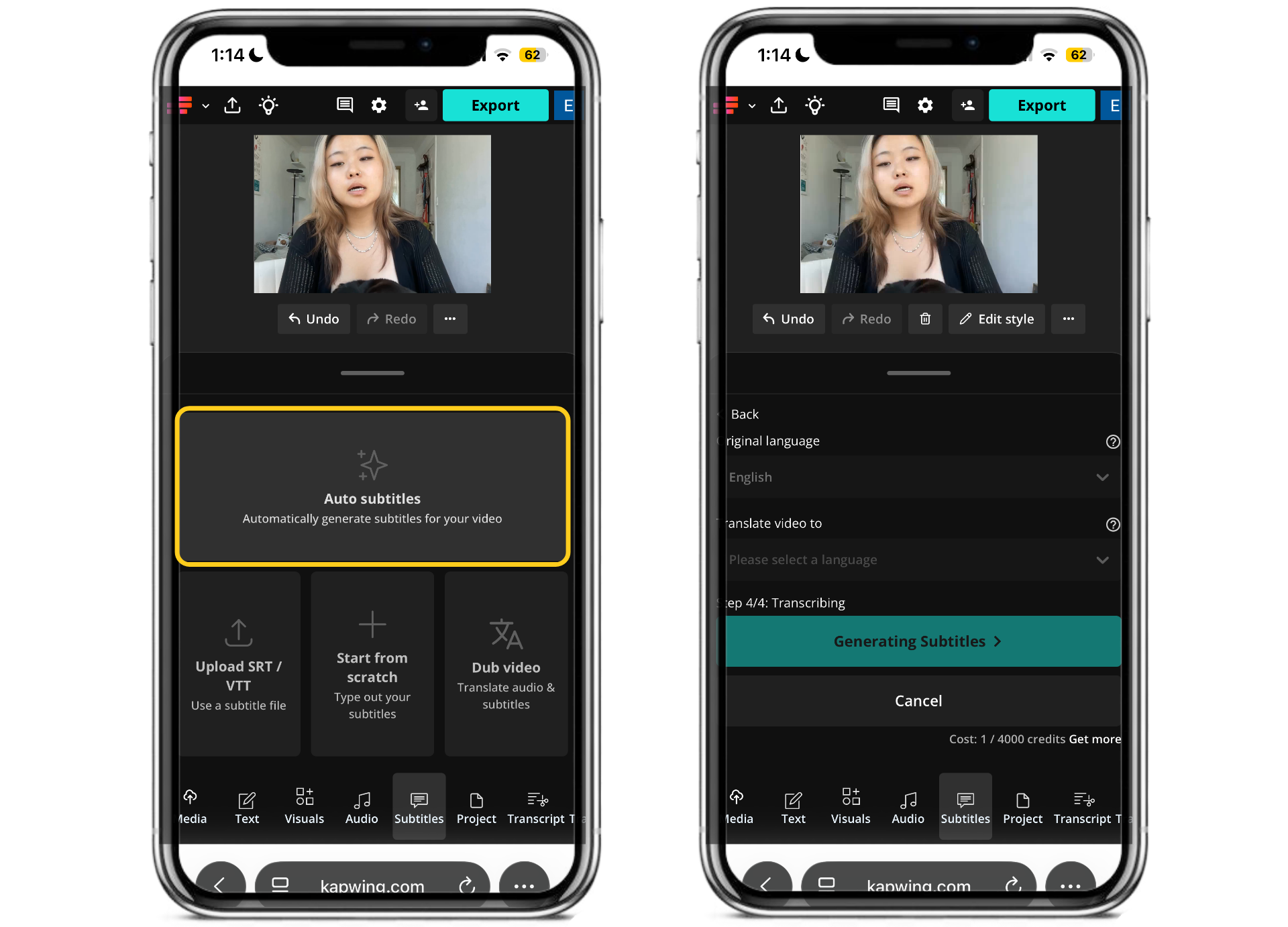
Select Auto Subtitles and choose the language spoken in your video. Kapwing will automatically transcribe your audio into subtitles, generating accurate captions in just a few seconds.
It also supports manually creating subtitles or importing an existing SRT or VTT file if you already have one.
Step 3: Review and Edit Your Transcript
Compared to the YouTube auto-captions feature, I found that Kapwing did a much better job at accurately transcribing my video – in this case, a cover of a song.
However, it's still important to edit the transcript before exporting your video. Check for spelling mistakes, punctuation errors, incorrect names, and industry-specific terminology that transcription may have missed.
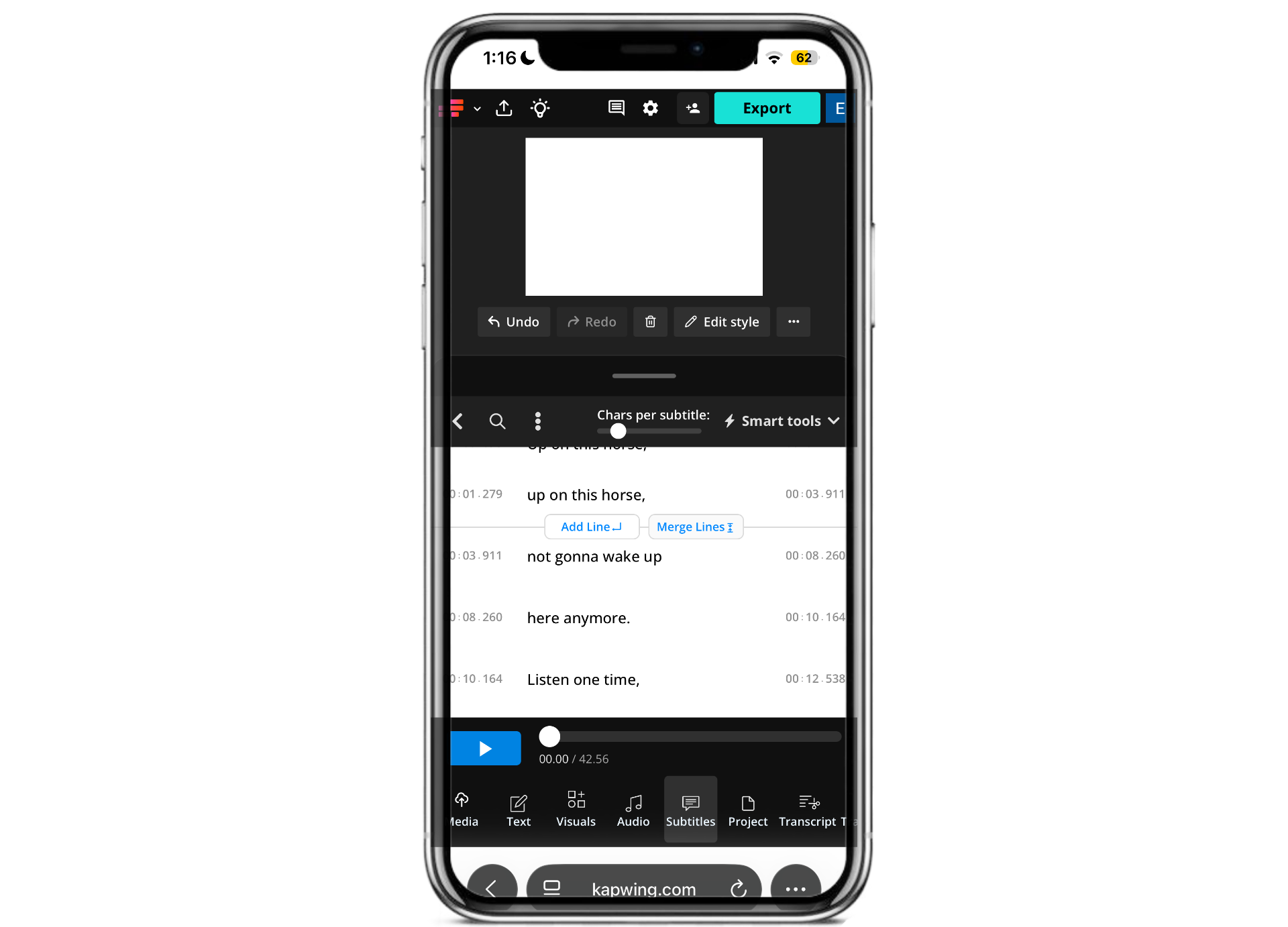
Watch the video while reading through the subtitles and correct names, terminology, punctuation, and transcription mistakes. If more than one person is speaking, add speaker labels where they improve comprehension.
This is also the point where I would clean up the segmentation. A technically accurate caption can still be difficult to read if a sentence has been split at an unnatural point.
Instead of:
The biggest mistake I
see creators making is
actually something really
easy to fix.
Try:
The biggest mistake
I see creators making
is actually something
really easy to fix.
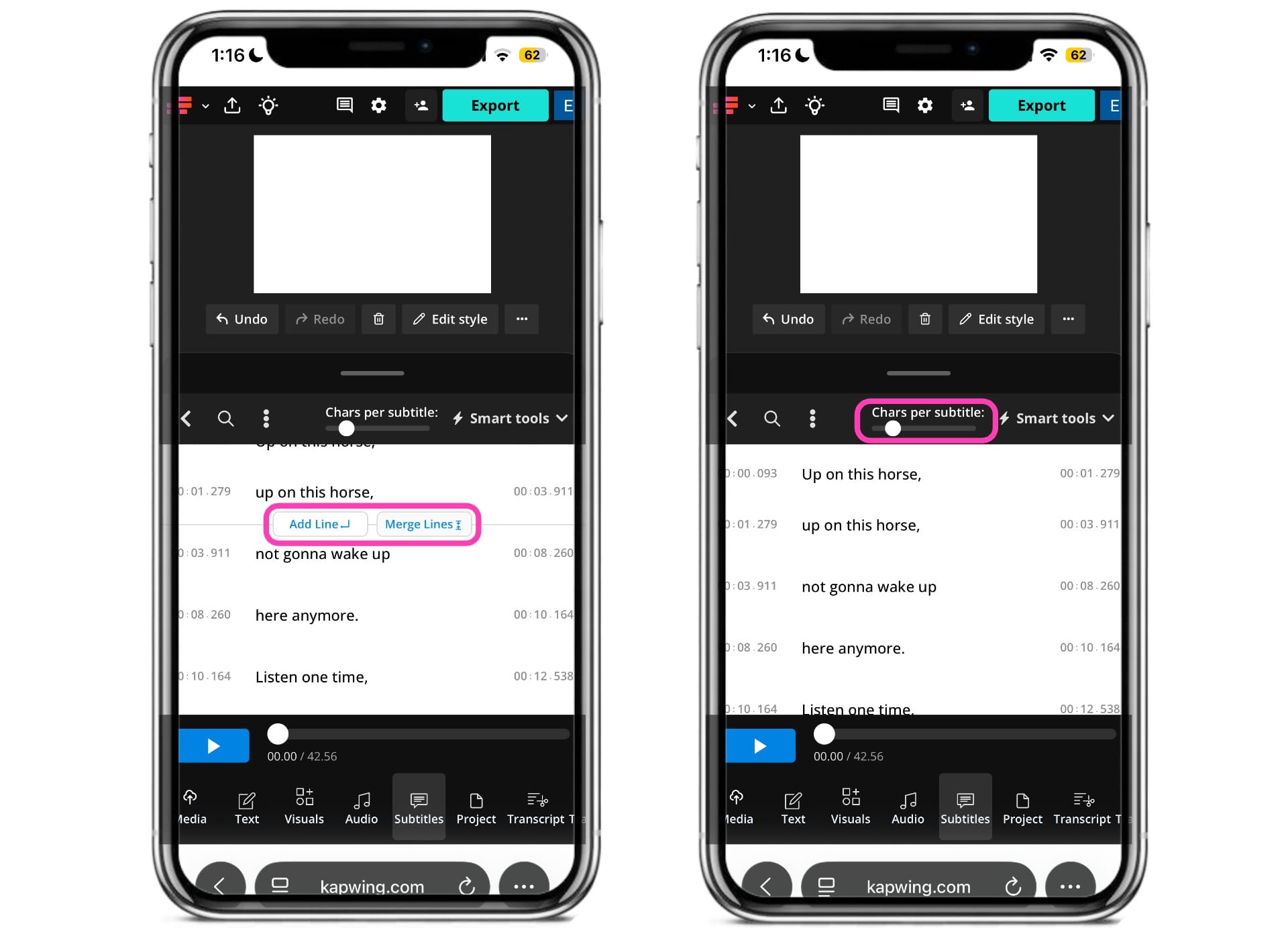
You can do this by adding or merging lines in the subtitle editor. You can also adjust the number of characters per subtitle by adjusting the slider.
Step 4: Decide Between Closed and Open Captions
This is the biggest difference between a YouTube subtitle workflow and one designed for short-form social media, like TikTok or Reels.
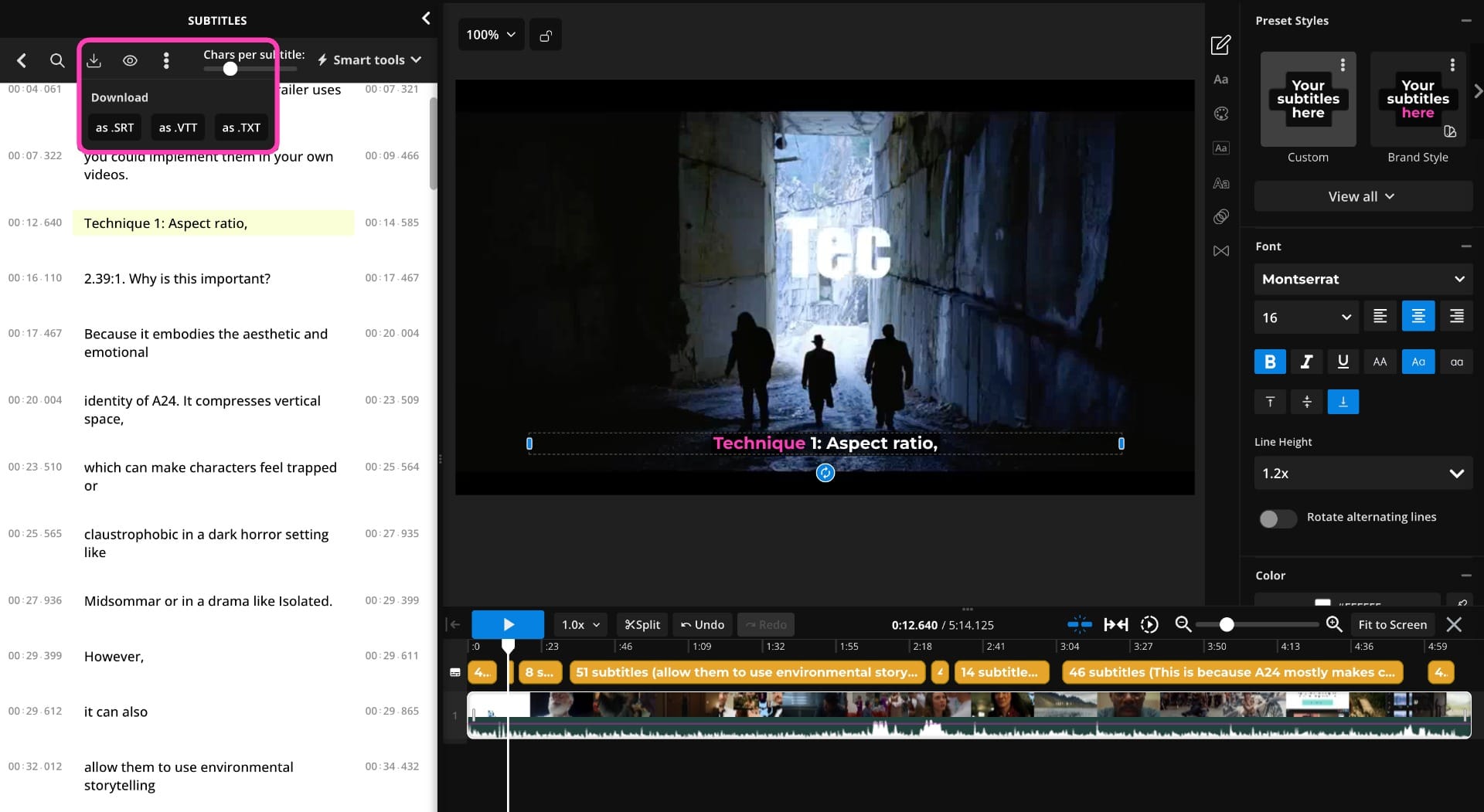
If you want closed captions, download your subtitles as an SRT or VTT file and upload that file to YouTube Studio. Kapwing supports exporting subtitle tracks in both formats.
If you want open captions, style the subtitles inside Kapwing and export the finished video. Those captions become part of the video and can't be switched off.
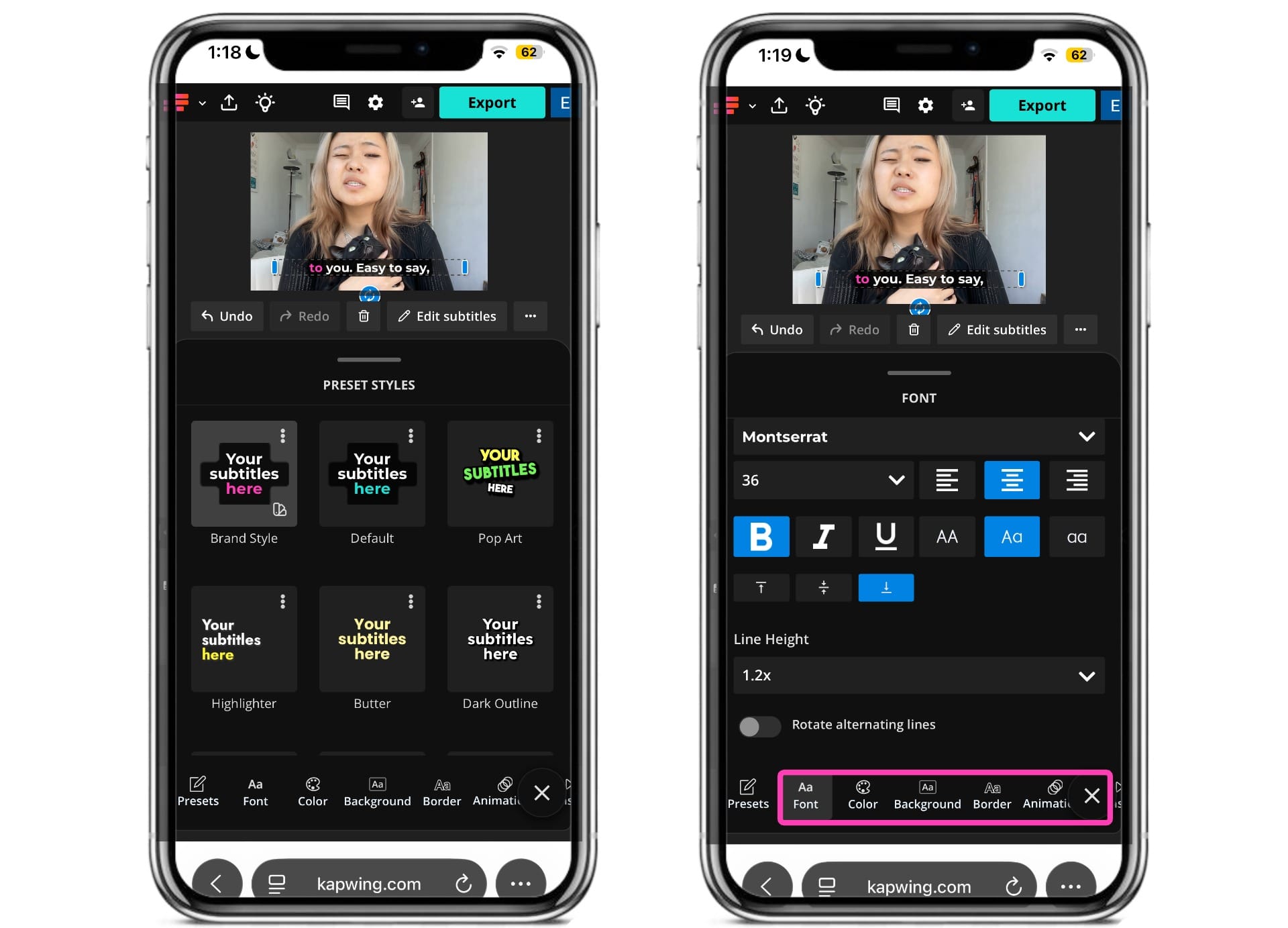
You can customize elements such as font, text color, backgrounds, animation, placement, and character count before exporting.
For many YouTube videos, the best workflow is actually to do both.
Use styled, burned-in text where it contributes to the visual edit, and upload a proper SRT caption track separately so viewers still have access to YouTube's native closed-caption controls.
Step 5: Finalize Your Video and Export
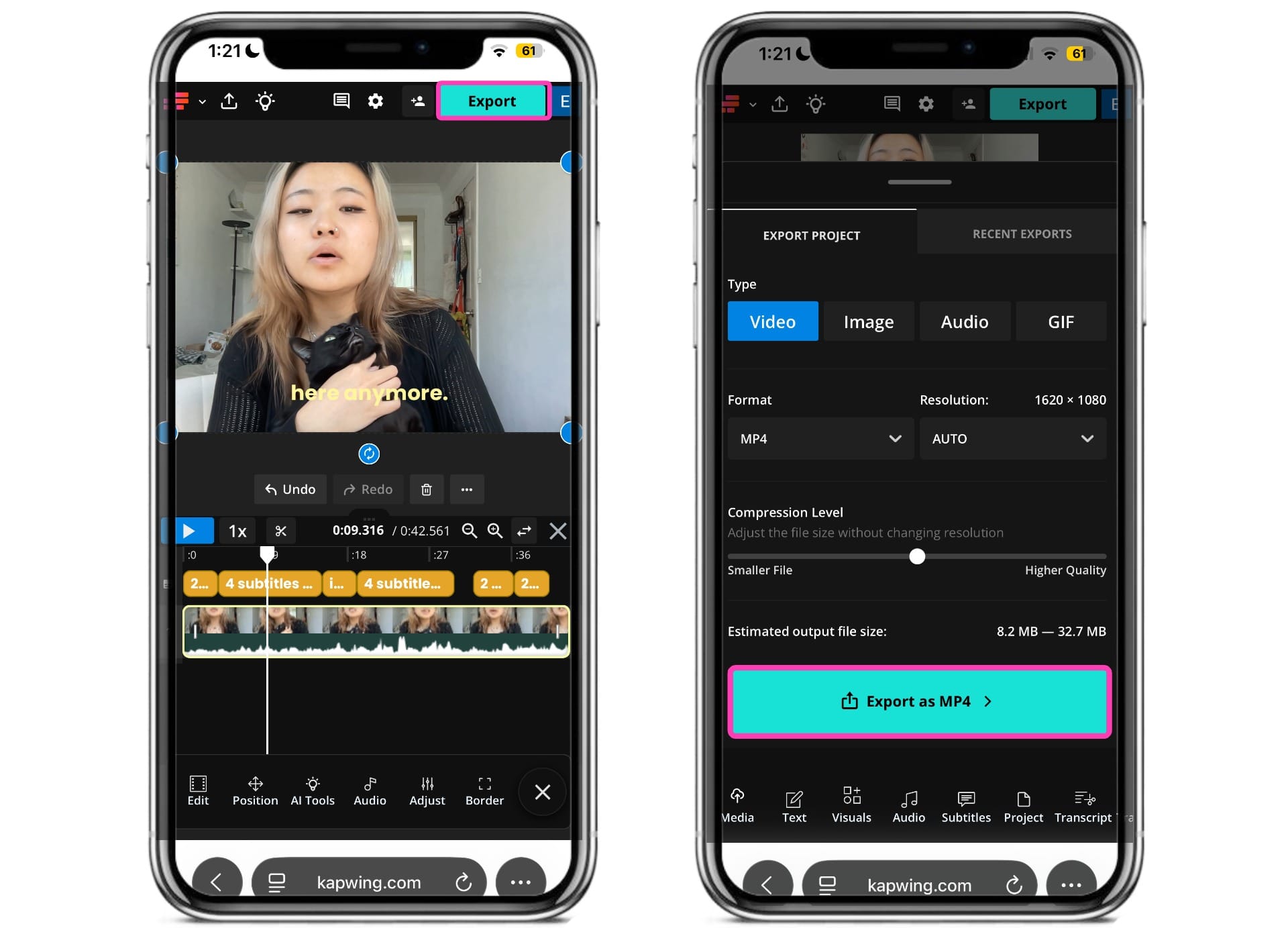
Once you finalize your subtitles, you can continue editing your video in the studio. You can add transitions, incorporate B-roll, adjusting audio, or applying video effects.
Closed Captions vs. Burned-In Subtitles on YouTube
Closed captions and burned-in subtitles serve different purposes on YouTube, so the right choice depends on how the video will be watched.
Closed captions exist as a separate text track attached to the video. Burned-in subtitles, also called open captions, are rendered directly into the video file and become part of the image itself.
In many cases, these aren't competing options. A creator can use burned-in text as part of the visual edit while still uploading a separate closed-caption track for accessibility and viewer control.
For long-form YouTube videos
For most long-form content, closed captions should be the primary caption format.
Because the caption track is separate from the video, viewers can turn it on or off and customize elements such as text size and appearance through YouTube's player settings. Creators can also correct or replace the caption track later without editing and re-uploading the entire video.
Closed captions also support YouTube's broader language system. A single video can contain separate subtitle tracks for different languages instead of permanently displaying one translation to every viewer.
Burned-in text can still be useful in long-form content—for example, to emphasize a quote, introduce a speaker, or reinforce an important phrase—but it generally works better as an editorial element than as the video's only caption system.
For YouTube Shorts
For Shorts, burned-in captions often play a much larger creative role.
A Short is viewed inside a fast-moving vertical feed, so subtitles frequently function as both transcription and graphic design. Creators can use large typography, animated words, keyword highlights, color changes, or captions timed precisely to cuts and reactions.
Burning those elements into the video gives you much more control than YouTube's native caption renderer. It also ensures the intended typography and animation appear exactly as designed.
But while open captions give the creator control over presentation, closed captions give the viewer control over accessibility.
For that reason, a strong Shorts workflow can include both: use burned-in captions when text is part of the edit, then provide an closed-caption track underneath it. The native track remains available to viewers who rely on YouTube's caption controls, while the visual version can be optimized for pacing and style.
For multilingual videos
For localization, avoid burning multiple translations into the same video unless the translation itself is intentionally part of the design.
Instead, use separate subtitle tracks for each language. This keeps the frame uncluttered and allows YouTube to serve the appropriate language without forcing every viewer to see the same translation.
YouTube can pair translated subtitle tracks with localized titles and descriptions, making localization part of the video's publishing infrastructure rather than something permanently embedded into the export.
Best Practices for YouTube Subtitles
Don't Publish Automatic Captions Without Reviewing Them
YouTube's automatic captions are a useful starting point, not a final quality check.
Even small mistakes become distracting when they involve a person's name, a product, a number, or the central concept of the video.
For accessibility-sensitive content, accuracy matters even more. W3C guidance notes that automatic captions generally need human review to provide an appropriate accessible experience.
Keep Burned-In Captions Away From the Interface
This matters especially for YouTube Shorts. The Shorts player overlays engagement controls and other interface elements on top of the video.
Avoid putting essential subtitles, logos, or calls-to-action against the extreme edges or very bottom of a vertical video.
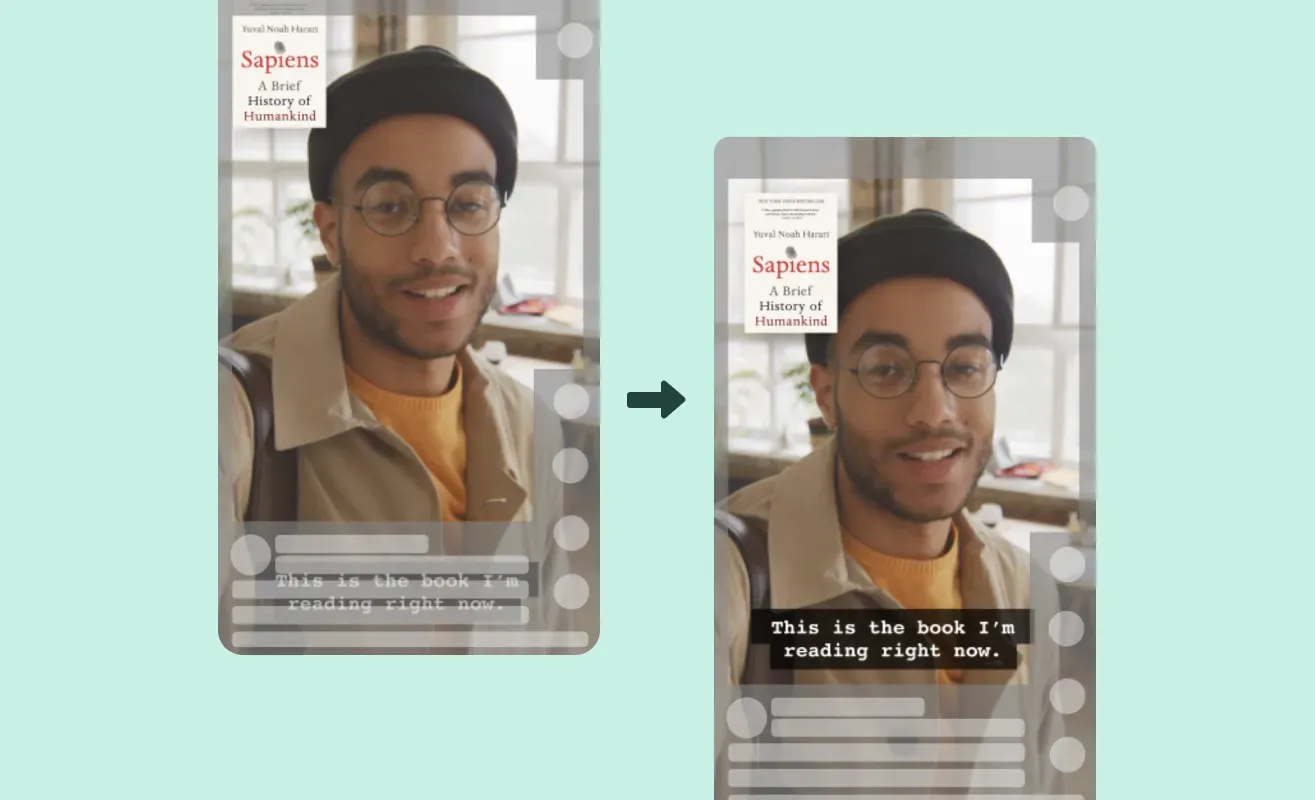
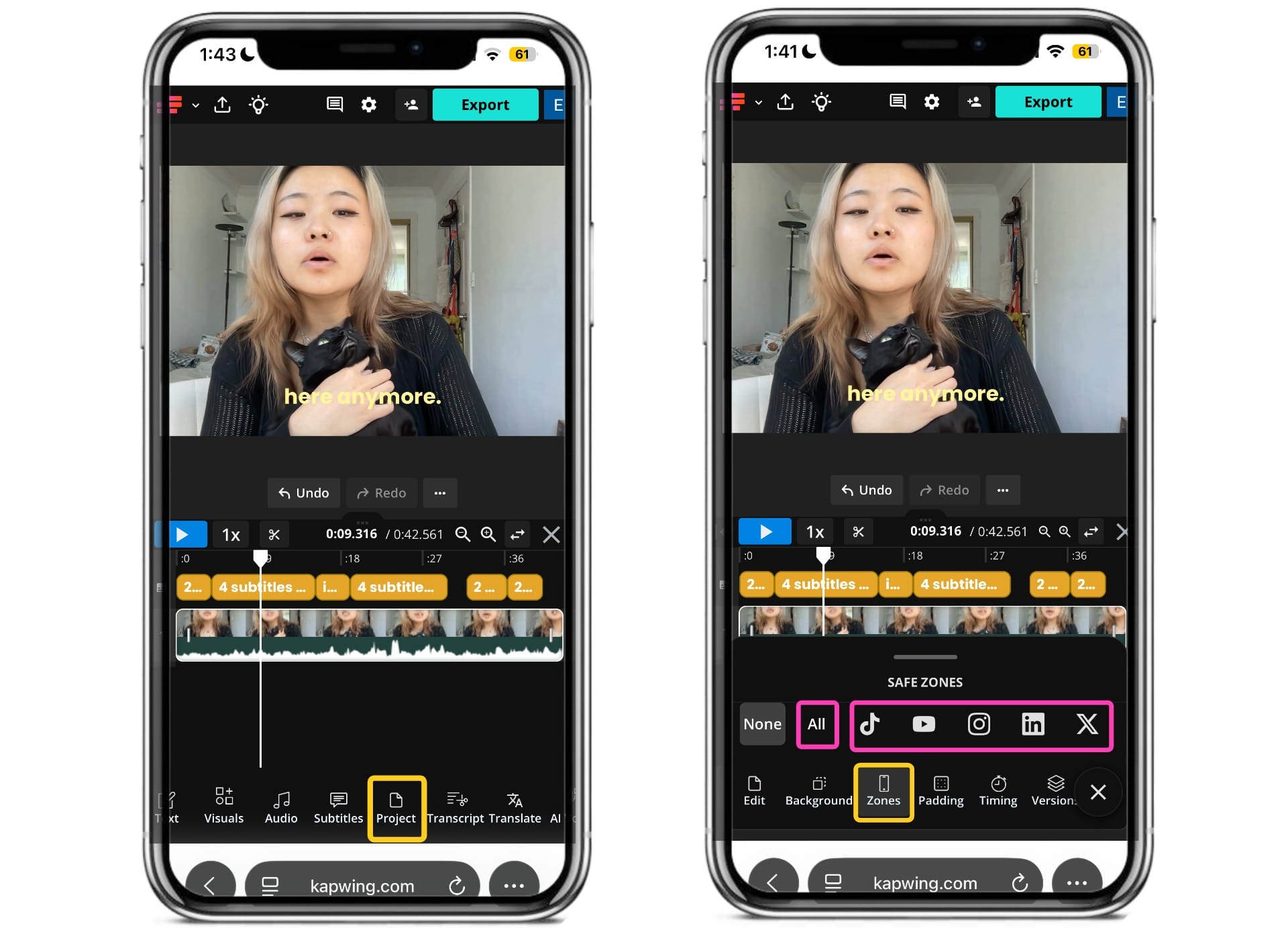
To make this easier, Kapwing includes Safe Zone overlays. Open the Zones tab under Project. You can preview your video using the All view, which displays the safe zones for the major short-form platforms at once.
You can also switch to individual platform overlays. This makes it easy to ensure your captions aren't covered by platform UI before exporting your video.
Set Your Original Video Language Correctly
This is an increasingly important part of the YouTube publishing workflow.
YouTube uses the original video language when working with subtitles and translations. It also recommends setting that language correctly for automatic dubbing, since incorrect source-language detection can result in mistranslations.
For channels publishing internationally, language should be treated as real video metadata rather than an optional setting.
Caption Meaningful Sounds, Not Just Dialogue
If the viewer needs to hear something to understand the video, they should usually be able to read it too.
That can include:
[phone rings]
[audience cheering]
[ominous music]
[speaking Spanish]
Speaker identification is also important when it isn't visually obvious who is talking.
This is one of the main differences between a transcript that simply contains the spoken words and a well-produced accessibility caption track.
Do Subtitles Help YouTube Performance?
There is stronger direct evidence that subtitles can help YouTube performance than there is for many short-form platforms, although the research needs some context.
One of the most widely cited studies comes from Discovery Digital Networks and 3Play Media. Researchers analyzed 334 YouTube videos across eight channels, adding captions to 125 videos and comparing their performance with 209 uncaptioned videos. The captioned videos saw a 7.32% increase in overall views. The effect was strongest during the first 14 days after publishing, when views increased by 13.48%.
Discovery Digital Networks and 3Play Media compared captioned and uncaptioned YouTube videos across eight channels.
Captioned videos received more total views in the study.
The largest lift appeared shortly after publishing.
YouTube videos across eight channels.
Current YouTube guidance also does not promise a ranking boost simply because a video includes captions.
Even so, there are several reasons subtitles can still contribute to reach and performance.
They make videos more accessible.
Captions allow people who are deaf or hard of hearing to follow spoken content without relying on audio.
They reduce friction when sound isn't practical.
A muted phone, noisy room, quiet office, or missed word doesn't have to mean losing the thread of the video.
They give YouTube more text about the video.
Older research suggests caption text can contribute to search understanding, although it should be treated as one part of YouTube SEO rather than a standalone ranking tactic.
They can help videos work across languages.
Subtitles and translated metadata give international viewers more ways to find and understand a video.
Frequently Asked Questions
Does YouTube automatically generate subtitles?
Yes. YouTube uses speech-recognition technology to automatically create captions for many long-form videos and Shorts. Availability depends on factors including language and the audio itself. YouTube recommends reviewing automatically generated captions because they can contain transcription errors.
Can I edit YouTube subtitles after uploading?
Yes. You can add, edit, retime, download, or remove caption tracks for an existing video through YouTube Studio.
Can I upload an SRT file to YouTube?
Yes. YouTube supports SRT files as well as SBV, VTT, TTML, SCC, and several additional subtitle and broadcast-caption formats. YouTube recommends SRT or SBV as straightforward formats for beginners.
What is the difference between closed captions and open captions on YouTube?
Closed captions are uploaded as a separate subtitle track and can be turned on or off by viewers. Open captions are permanently embedded into the video itself and are always visible.
Closed captions offer more viewer control, while open captions offer creators more control over fonts, colors, animation, and placement.
Should I use closed captions or burned-in captions for YouTube Shorts?
For many Shorts, a combination works best.
Burned-in captions can become part of the visual editing style, while a separate closed-caption track provides native accessibility and viewer controls.
Can viewers turn YouTube subtitles on and off?
Yes, when a video has a closed-caption track available. Viewers can use YouTube's CC or Subtitles/CC controls and can also customize caption settings on supported devices.
Can I add subtitles to a YouTube video in another language?
Yes. In YouTube Studio, you can add additional languages and publish separate subtitle tracks for them. You can also translate a video's title and description.
Does YouTube automatically translate subtitles?
Viewers can use YouTube's Auto-translate option when it is available and a caption track exists. However, YouTube's automatically generated creator captions are produced in the video's default language rather than automatically creating published caption tracks in every language.
Does YouTube support automatic dubbing?
Yes, YouTube has been expanding automatic dubbing for eligible creators. It creates translated audio tracks rather than subtitles, so it is a separate feature. YouTube recommends correctly setting the video's original language and reviewing generated dubs where possible because translations can contain errors.
Can someone else edit subtitles on my YouTube channel?
Yes. YouTube Studio includes a Subtitle Editor channel permission that allows another person to add and edit subtitles without giving them access to other channel information or revenue data.
Do subtitles improve YouTube SEO?
They can contribute to discoverability, but they aren't a guaranteed ranking boost.
A controlled Discovery Digital Networks study found 7.32% higher overall views for captioned videos and demonstrated that a phrase appearing only in a caption track could surface in YouTube search. However, that research is old, and YouTube's ranking systems have changed substantially since then.
Treat accurate captions as part of a broader YouTube SEO strategy rather than a shortcut.
Can YouTube add captions to live streams?
YouTube supports captions for live video as well, although live captioning uses a different setup from uploading captions to prerecorded videos and has its own technical requirements.
What is the best subtitle file format for YouTube?
For most creators, SRT is the simplest choice. It is widely supported, easy to edit, and contains the caption text plus the timestamps YouTube needs to display each line at the correct time. YouTube also supports VTT and several more advanced formats.