AI Video Assistant
Chat to create and edit videos with Kapwing's AI assistant.
Works in your browser. No watermark on Pro.
Create videos through conversation, not menus
Edit, enhance, generate, and update video — using AI chat
Chat to brainstorm, create, and edit
Describe the video you want to create or the changes you want to make, and Kai, Kapwing's AI video assistant, carries out the editing work for you. Instead of learning where every tool lives, use natural language to trim clips, generate subtitles, adjust visuals, reorganize scenes, or update your project.
Because Kai understands your timeline and remembers previous prompts, you can keep refining the same edit through conversation. Ask it to shorten the intro, generate relevant B-roll, pull out specific clips, or create a version for TikTok, all without starting over or repeating your work.
Whether you're creating a rough cut from raw footage or making project-wide updates to an existing video, the AI video assistant handles repetitive editing tasks so you can stay focused on the story you're trying to tell.
Edit the way you think
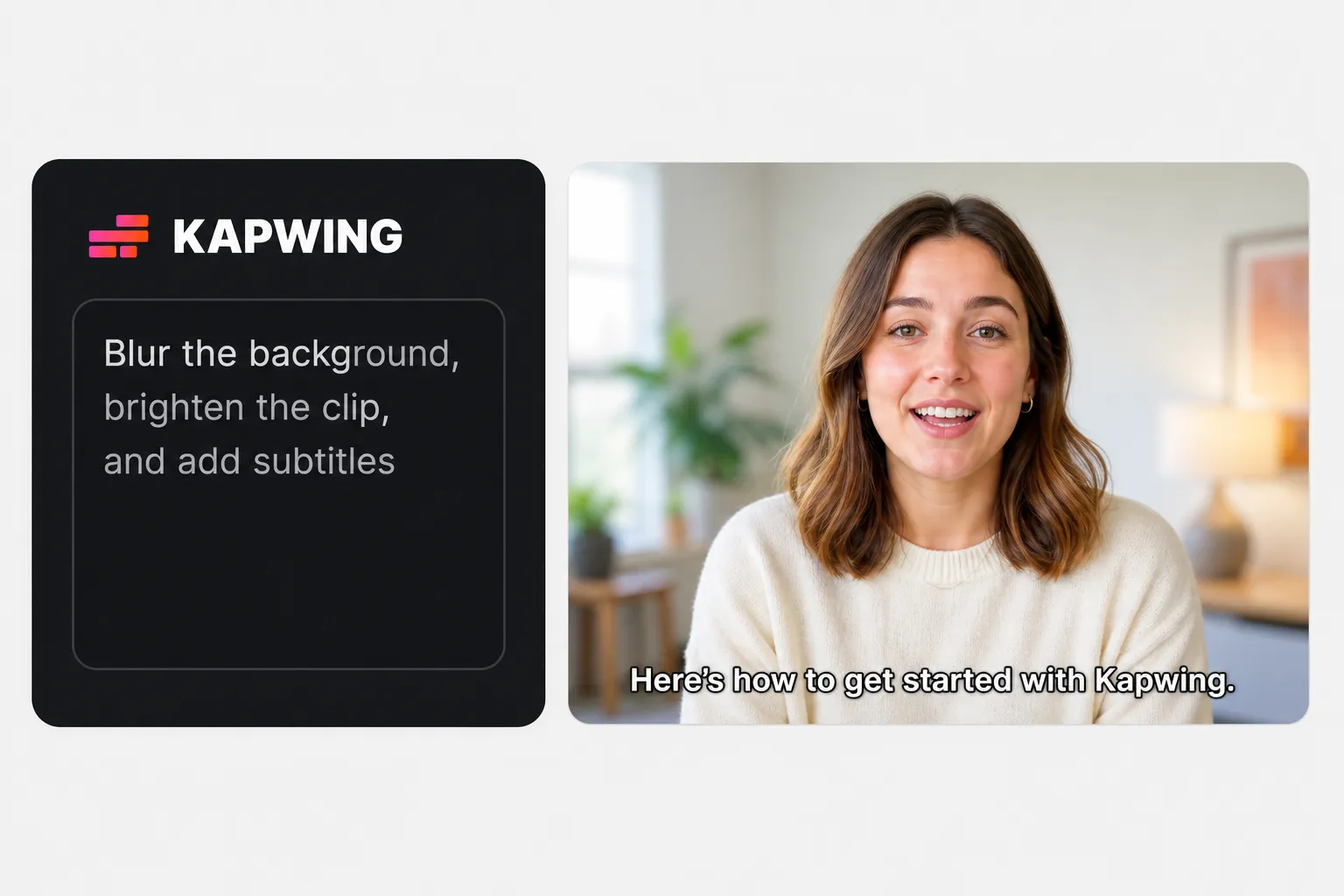
Build videos one conversational prompt at a time. Works in your browser.
Describe
every edit.
Tell Kai what you want instead of searching through menus. Natural language becomes video edits in just a few words.


Refine
with additional prompts.
Follow up to refine pacing, preserve key moments, or make additional changes without starting over.
Build
on previous edits.
Kai remembers your project and earlier requests, so every new prompt builds on the work you've already done.
An AI assistant for every stage of video creation
Brainstorm ideas, edit faster, and personalize your workflow with Kai
Start every project as a conversation
Start with a conversation instead of a blank timeline. Brainstorm hooks, outlines, scripts, or content ideas with Kai, then ask it to turn your footage into a rough cut that matches the direction you've developed together.
As your ideas evolve, keep the conversation going. Refine the script, change the structure, shorten the opening, or adjust the pacing without switching between separate AI tools or restarting your edit.
Edit alongside the AI
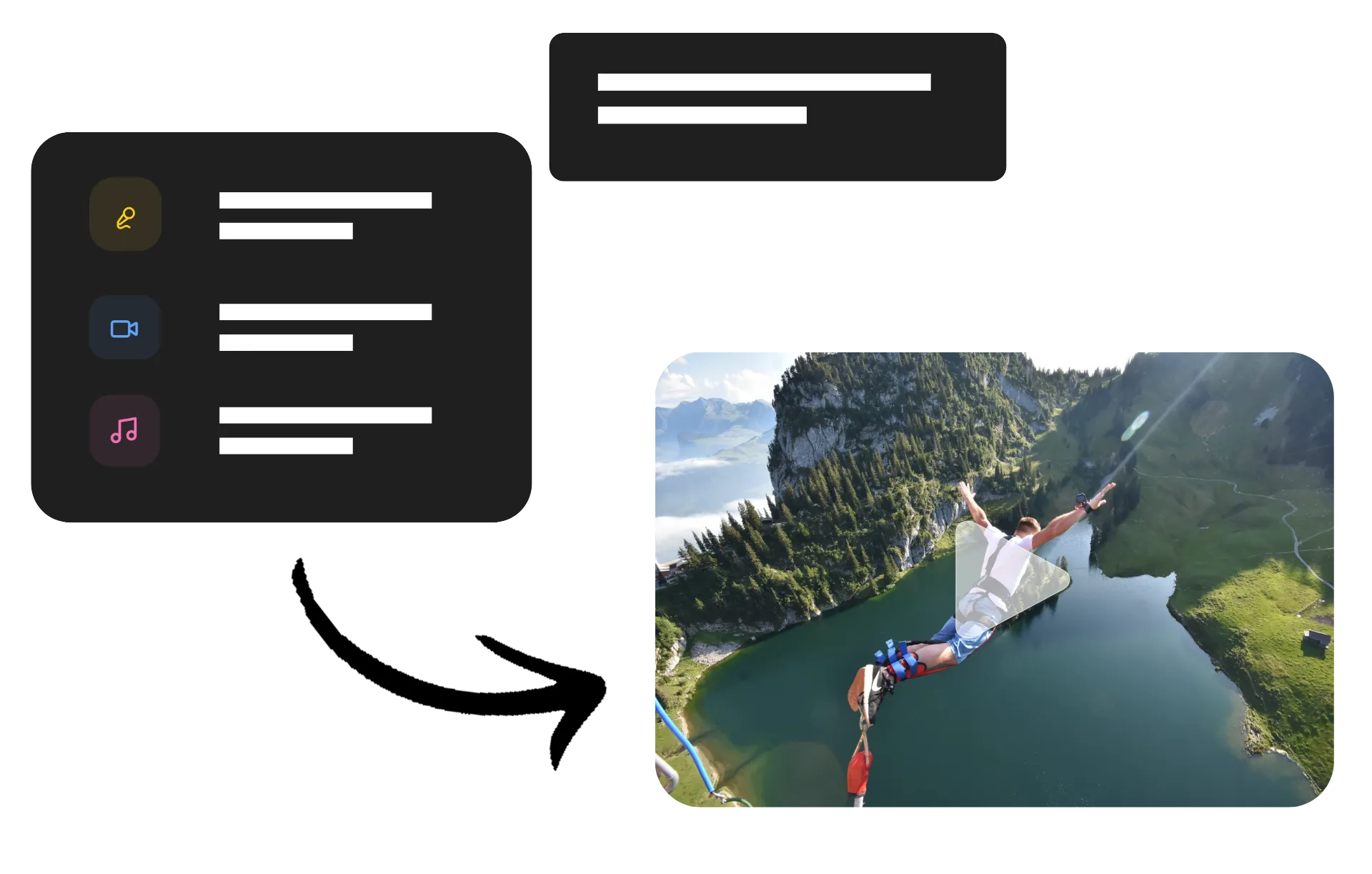
Move seamlessly between manual editing and AI assistance without breaking your workflow. Start a project in the Kapwing Studio, then open a sidebar chat to have Kai apply edits across entire projects, generate additional assets, or help with brainstorming.
You stay in control of every edit while Kai handles the repetitive work. Switch between timeline edits and conversational requests whenever it's faster, whether you're updating captions, adjusting layouts, or applying consistent styling across multiple scenes.
Personalize your editing assistant
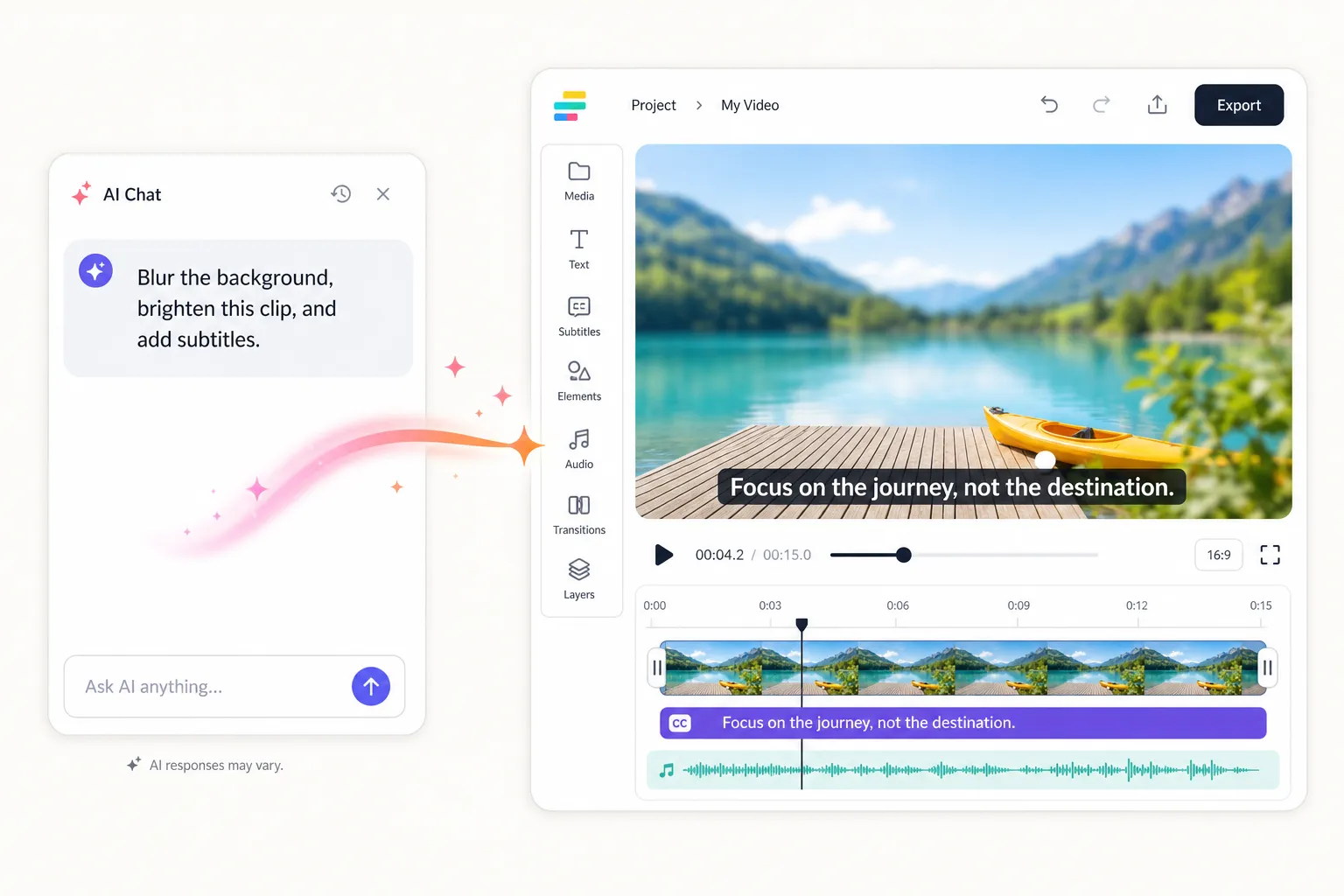
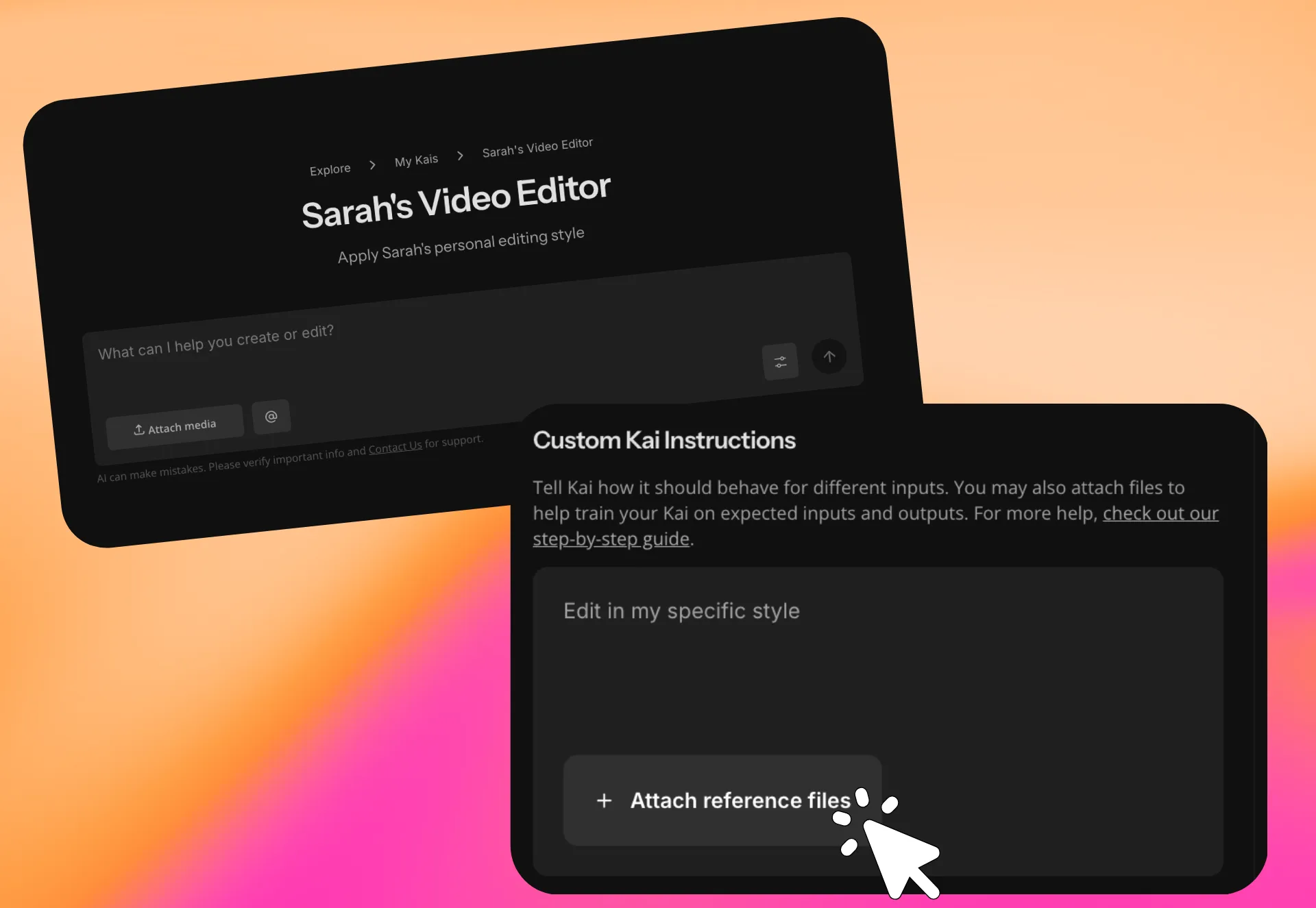
Build a Custom Kai that remembers how you like to create. Save your preferred editing style, brand guidelines, recurring instructions, or creative workflow once, then use the same personalized AI assistant for every new project.
Instead of rewriting long prompts, chat with a Custom Kai that already knows how you work. Teams can even share Custom Kais to produce videos with the same style, formatting, and editing decisions across every project.
Edit anything with a prompt
Chat with Kai to make timeline edits, adjust visuals, refine audio, and update layouts
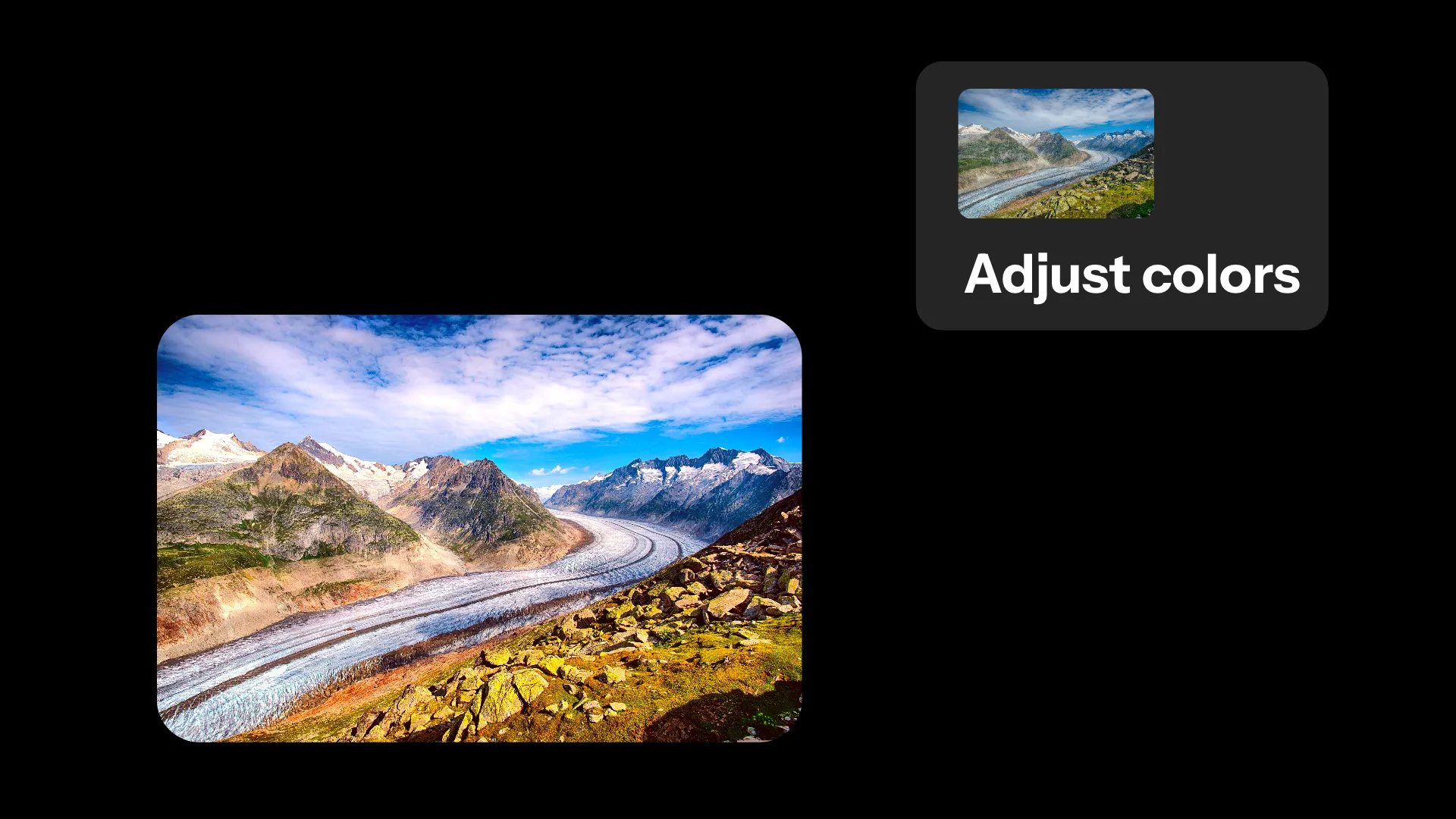
Adjust Colors
Instead of opening filter panels, content creators use the AI video assistant to make footage brighter, increase saturation, lower opacity, or blur clips by simply describing the look they want.
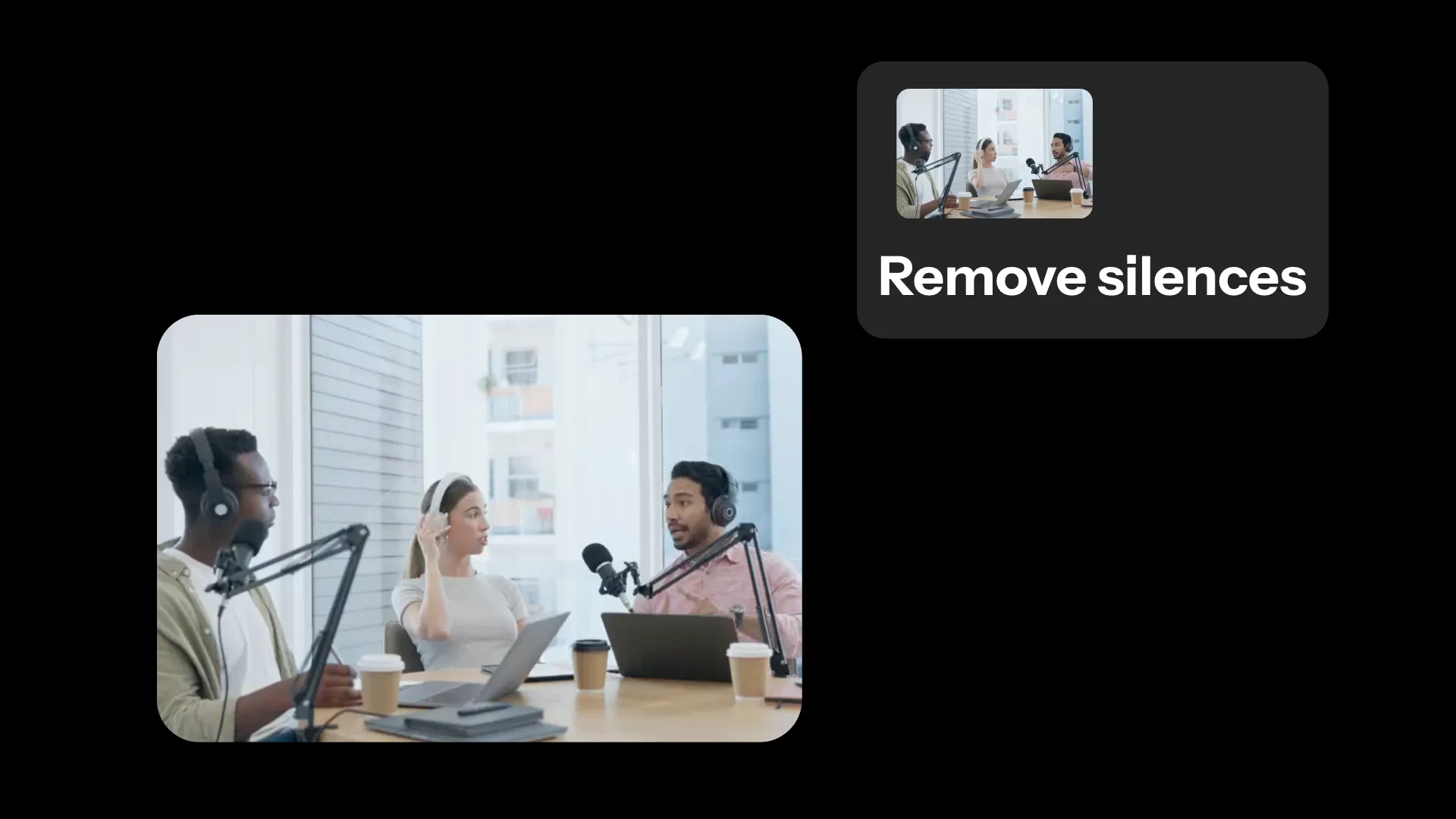
Trim Recordings
Skip frame-by-frame editing when refining long videos. Use prompt video editing to remove pauses, cut unnecessary sections, and tighten conversations without manual edits.
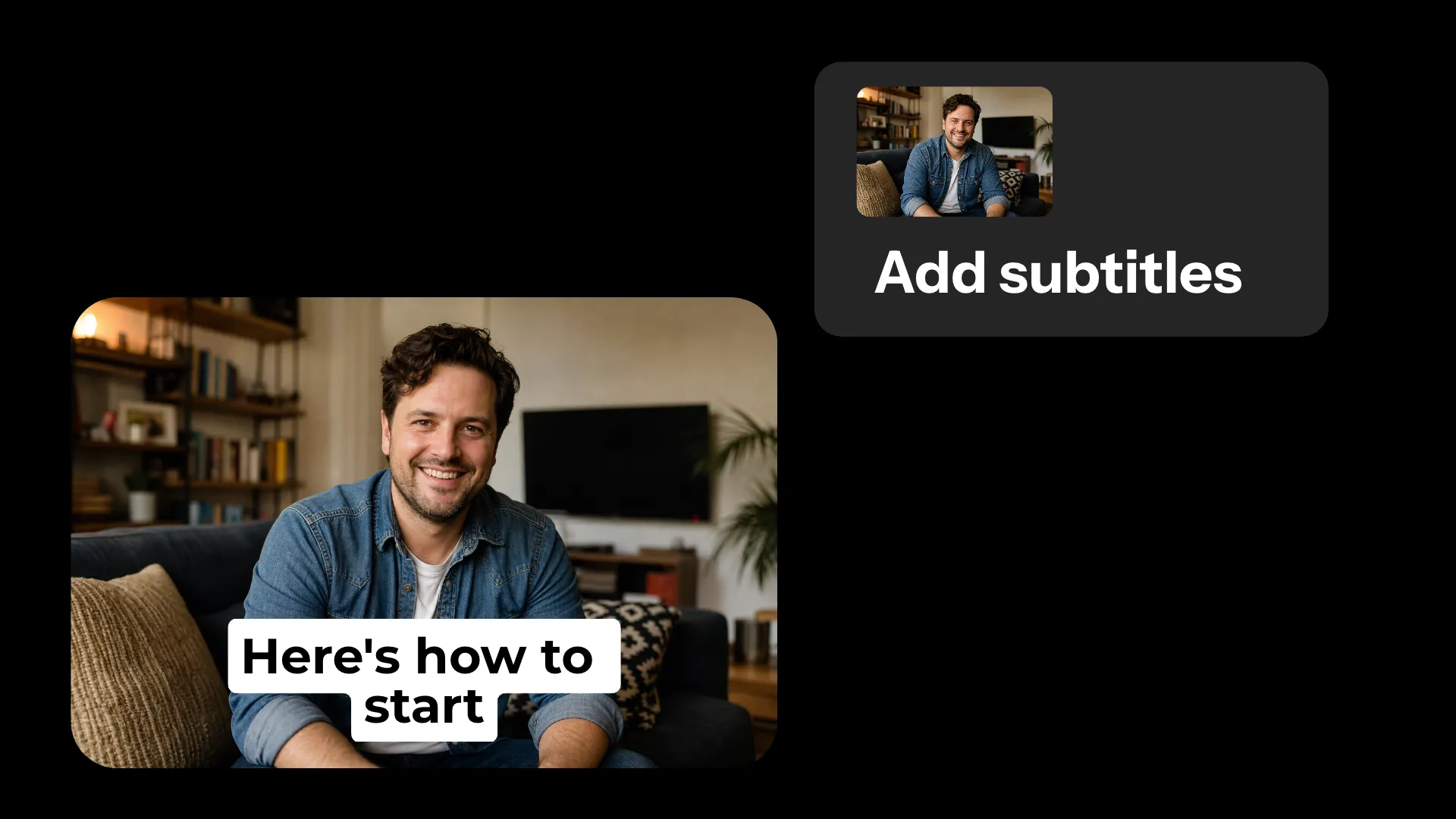
Generate Subtitles
Turn spoken audio into editable captions in seconds. Prompt the AI video assistant to create subtitles that improve accessibility and engagement without manual transcription.
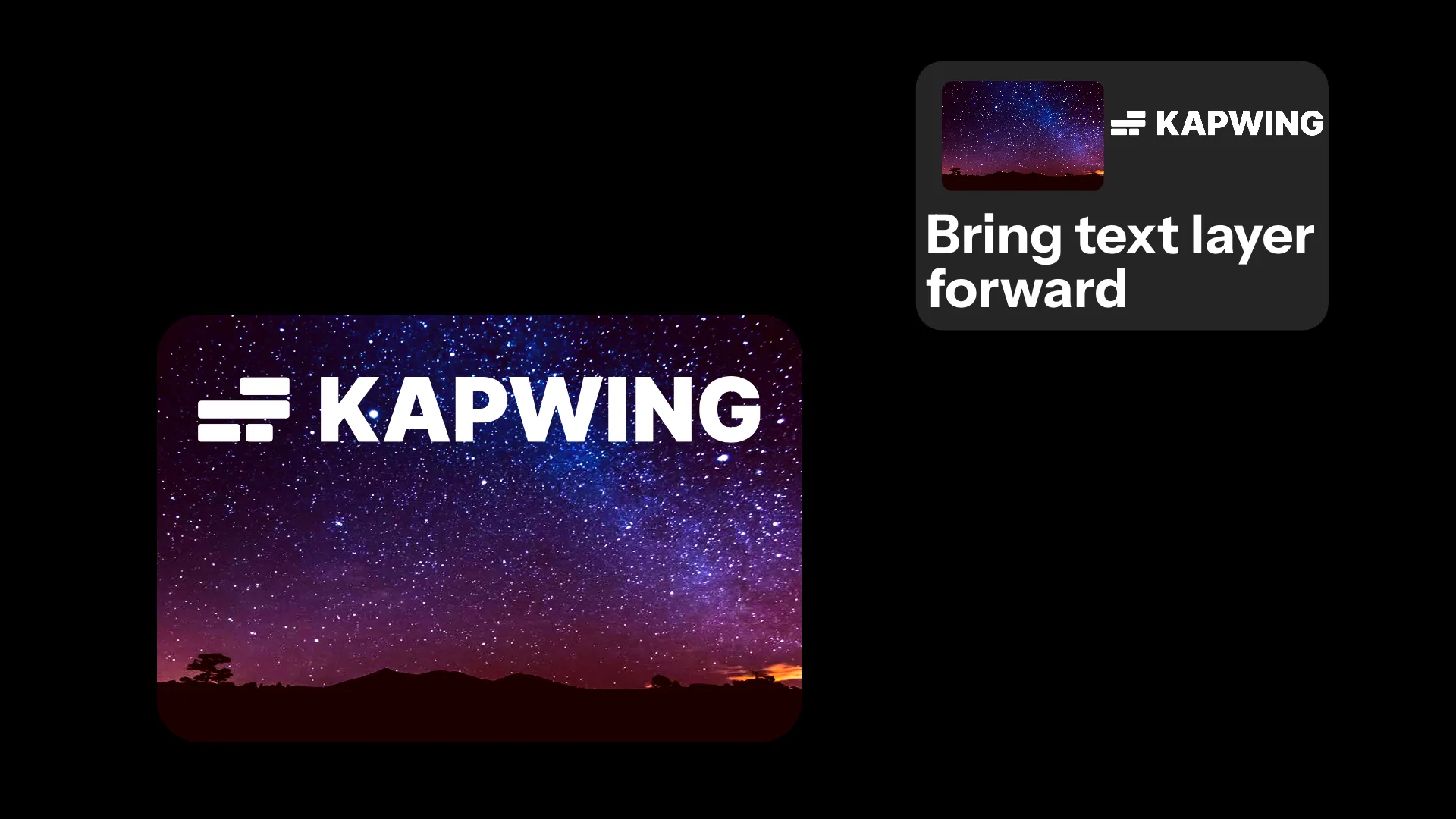
Reorder Layers
Control what's visible without digging through the layer stack. Use AI-assisted video editing to bring graphics forward or send backgrounds behind other assets using simple prompts.

Reposition Content
Move videos and graphics into common layouts without dragging layers by hand. Use the visual studio AI assistant to instantly center content, create split-screen layouts, or position media for different formats.
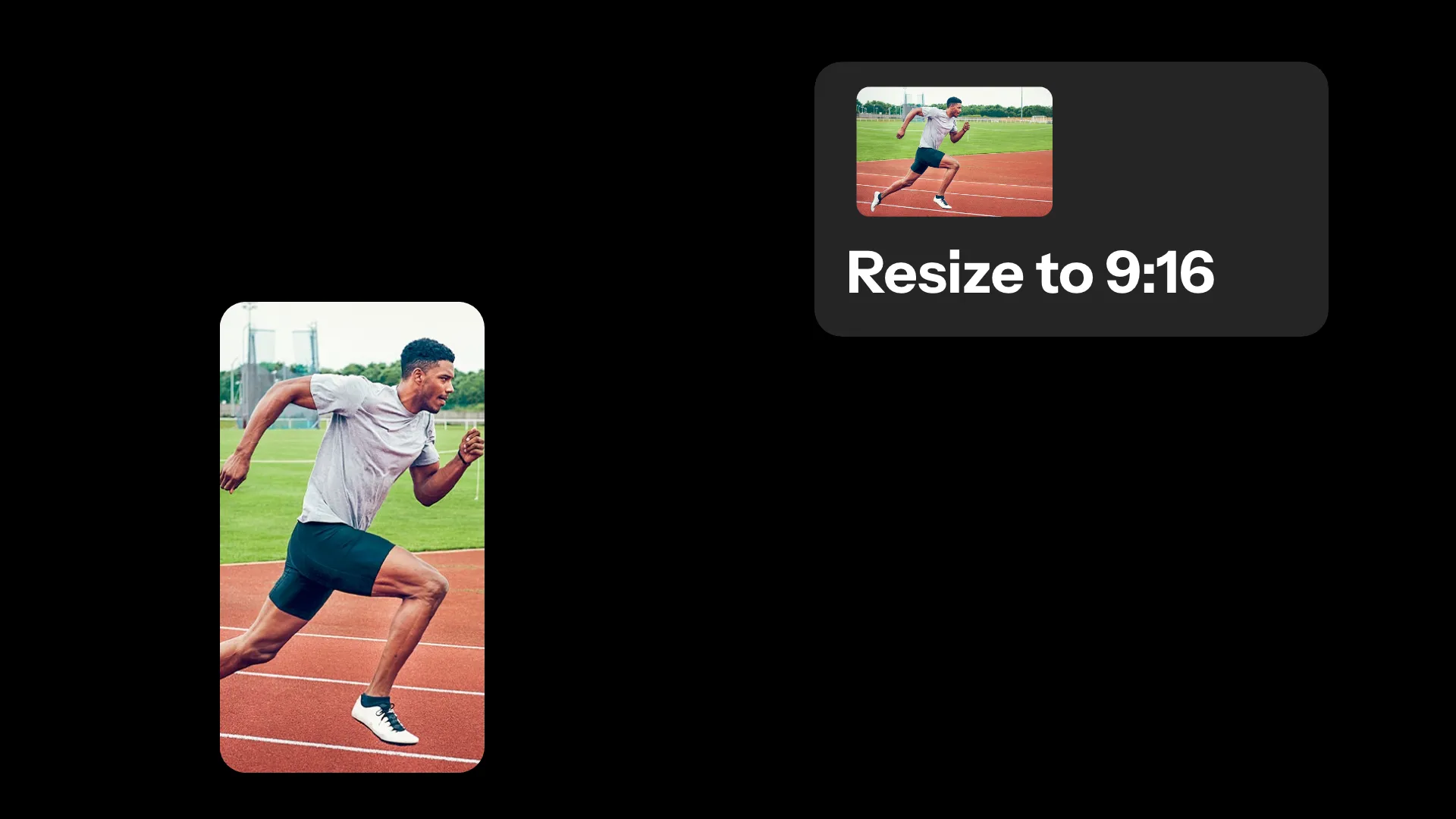
Resize Projects
Create versions for every platform without rebuilding your edit. Use AI-assisted video creation to resize videos into vertical, square, and widescreen formats while preserving important visual elements.
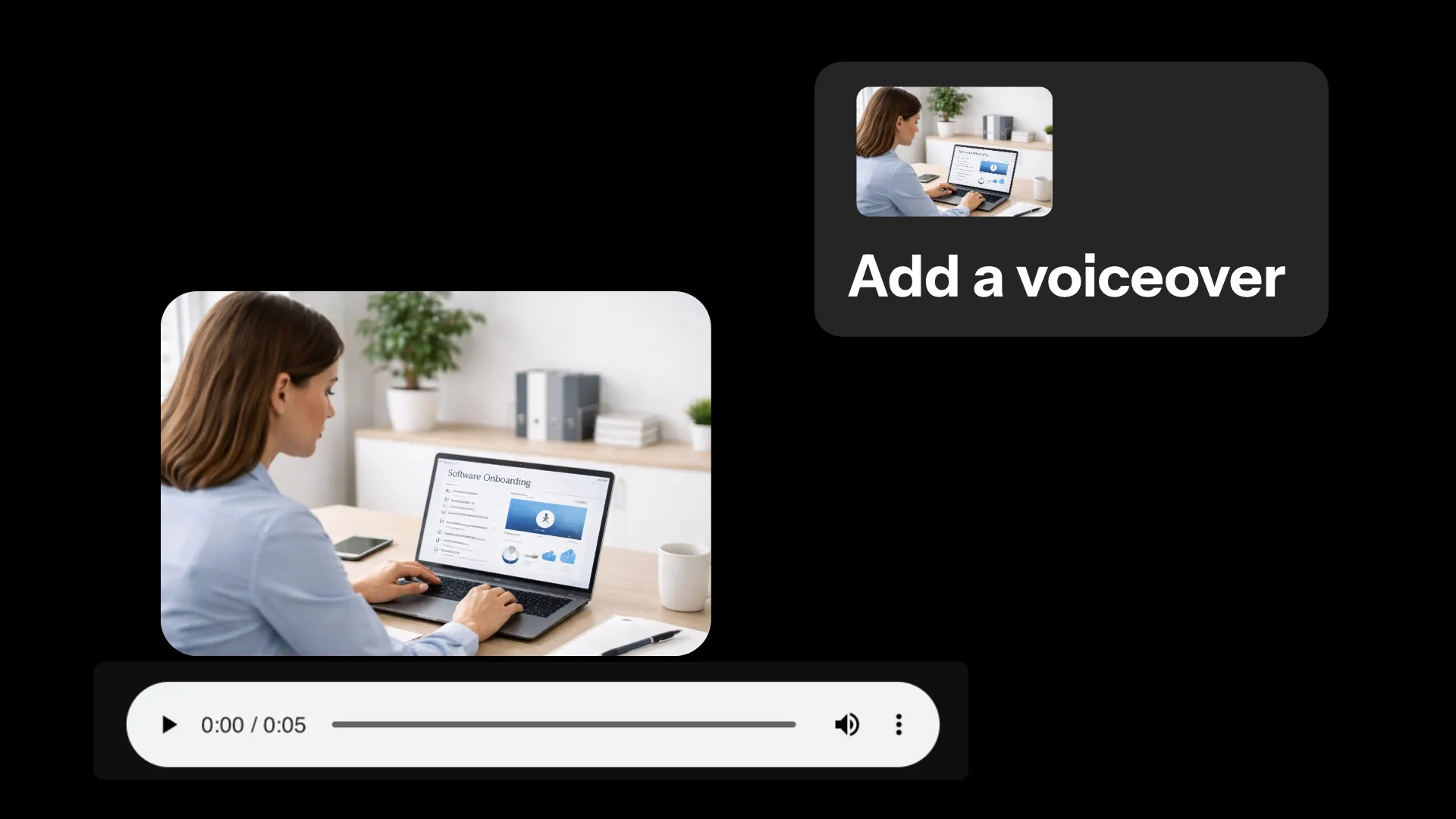
Generate Voiceovers
Create narration directly from your script without recording new audio. Use the AI virtual video assistant to produce educational videos, product demos, and training content faster.
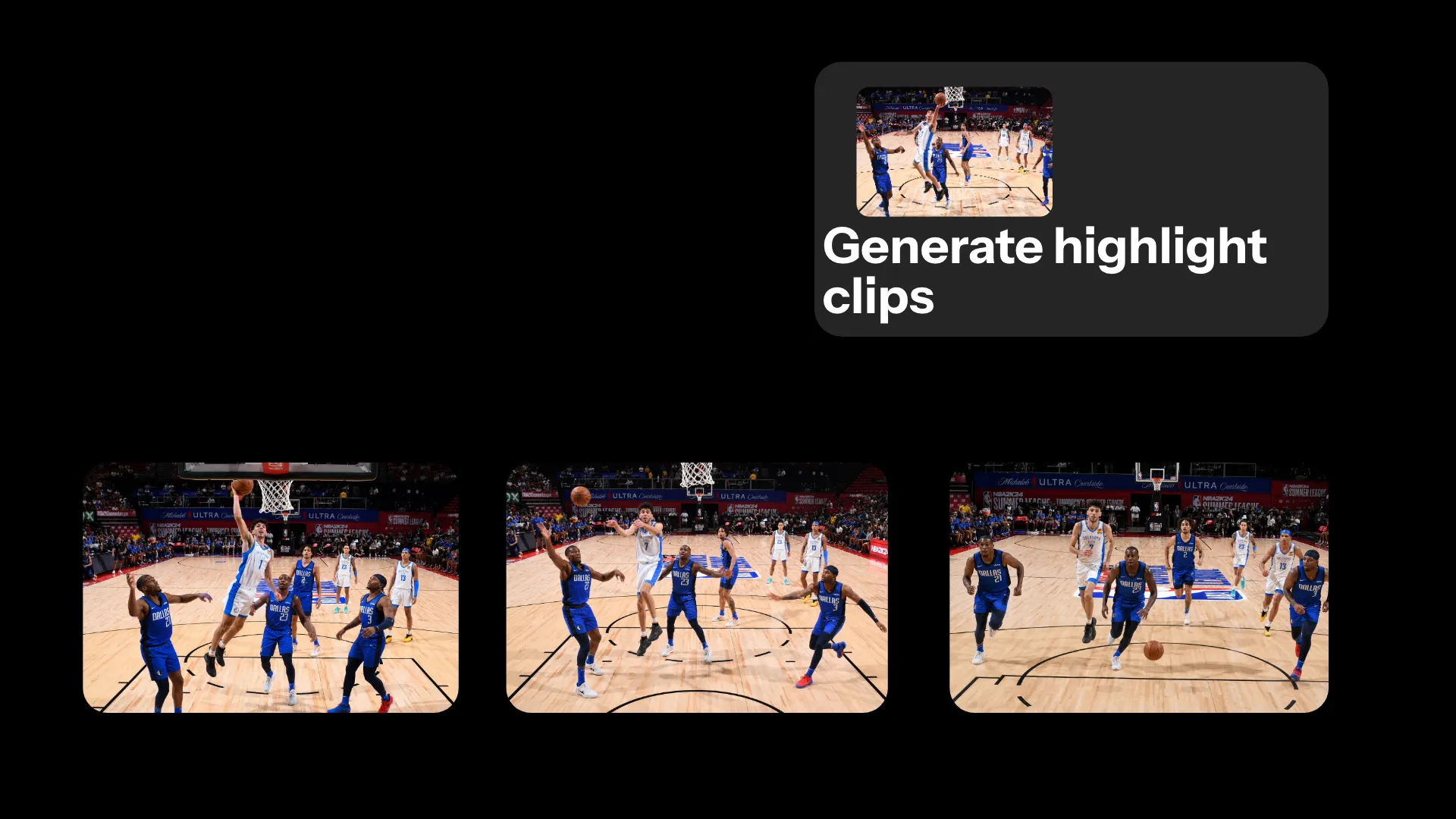
Create Clips
Turn one recording into multiple videos ready for publishing. Content creators use the AI assistant video editor to create highlight clips from sports reels, interviews, and presentations for social media.
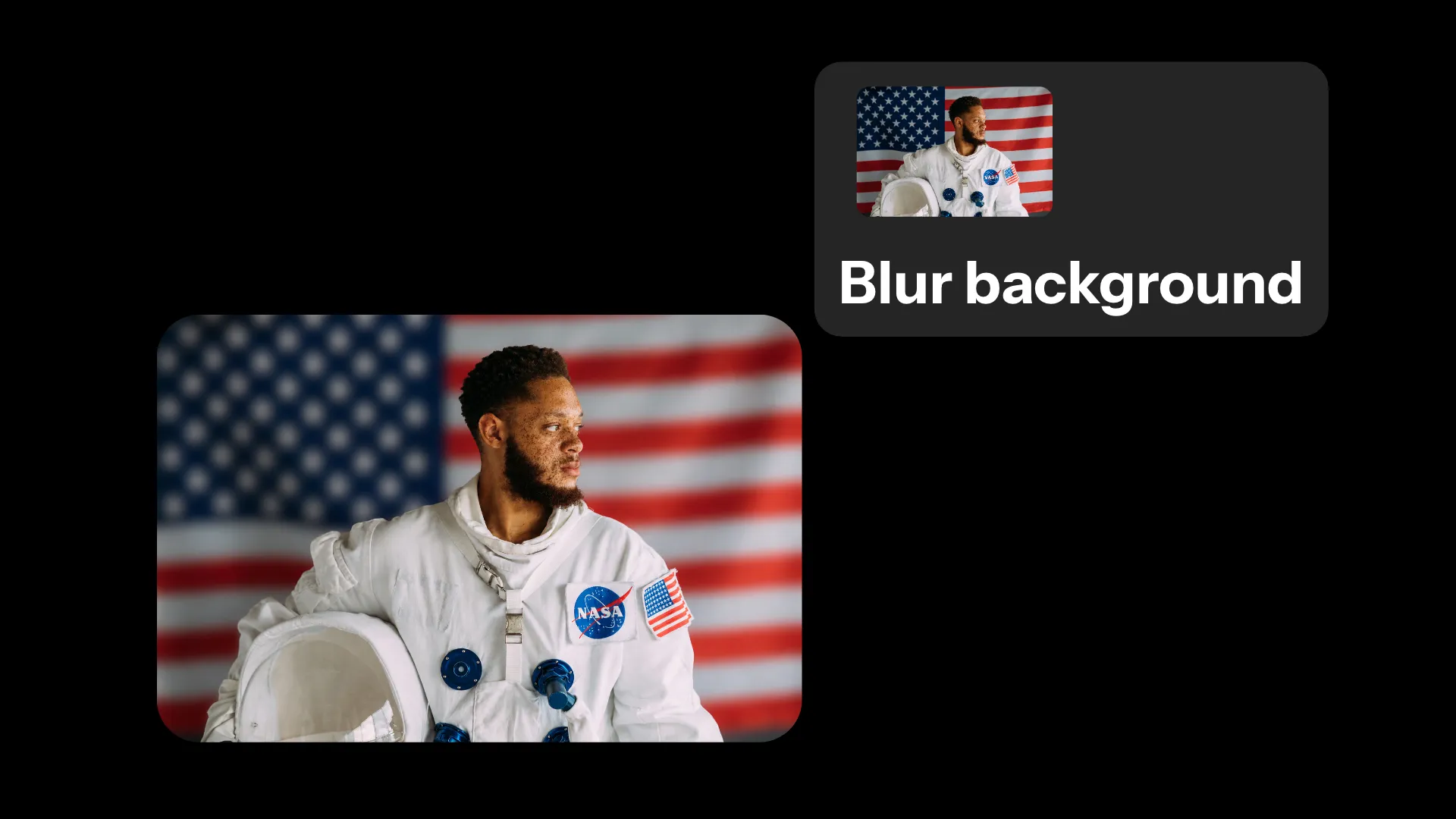
Blur Backgrounds
Record anywhere without worrying about your surroundings. Use the AI assistant video editor to blur, replace, remove video backgrounds for cleaner presentations and video content.
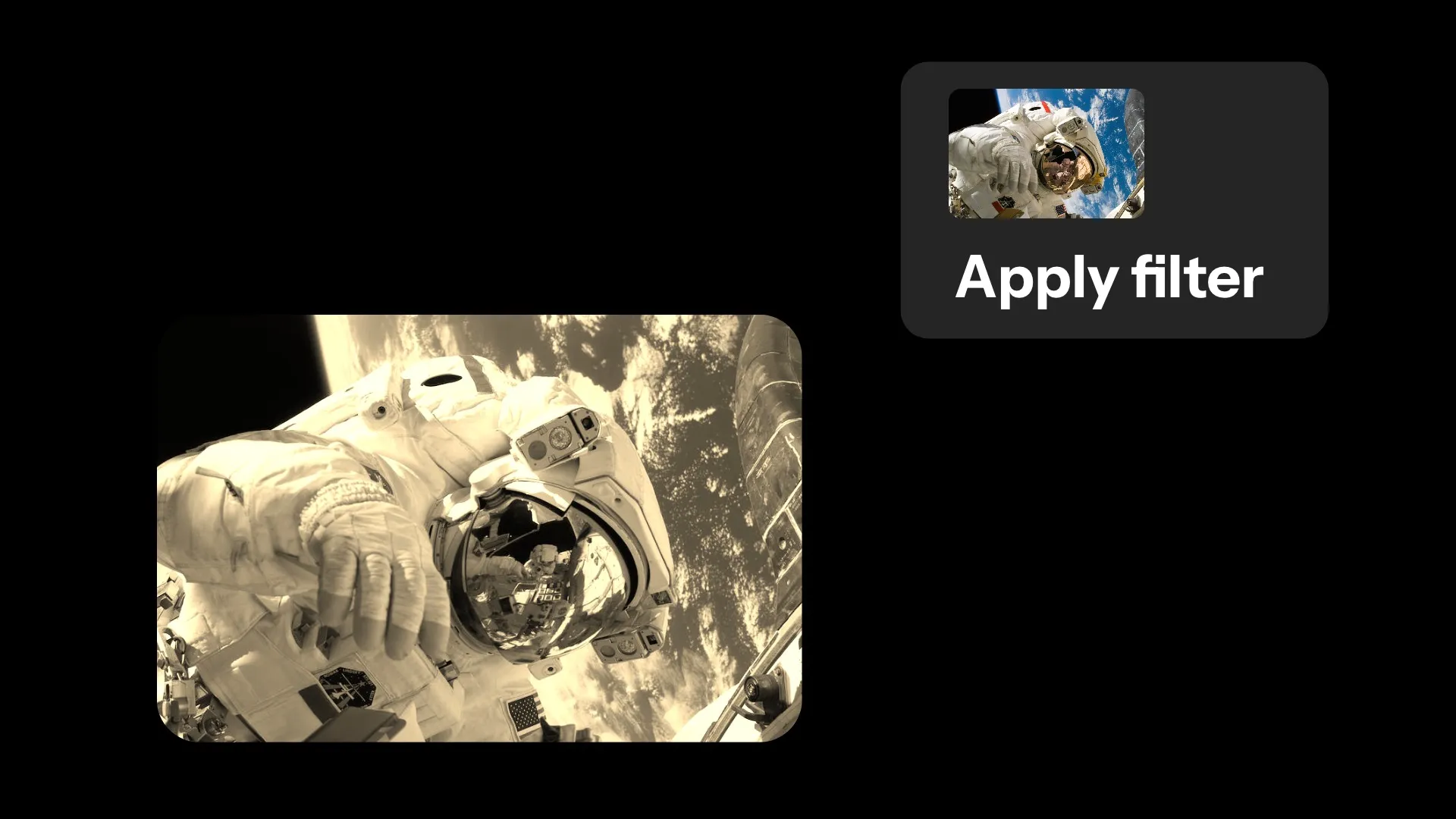
Apply Filters
Influencers and social media managers use AI-assisted video editing to apply black-and-white, vintage, sepia, and other preset looks across their videos without manually tweaking every clip.
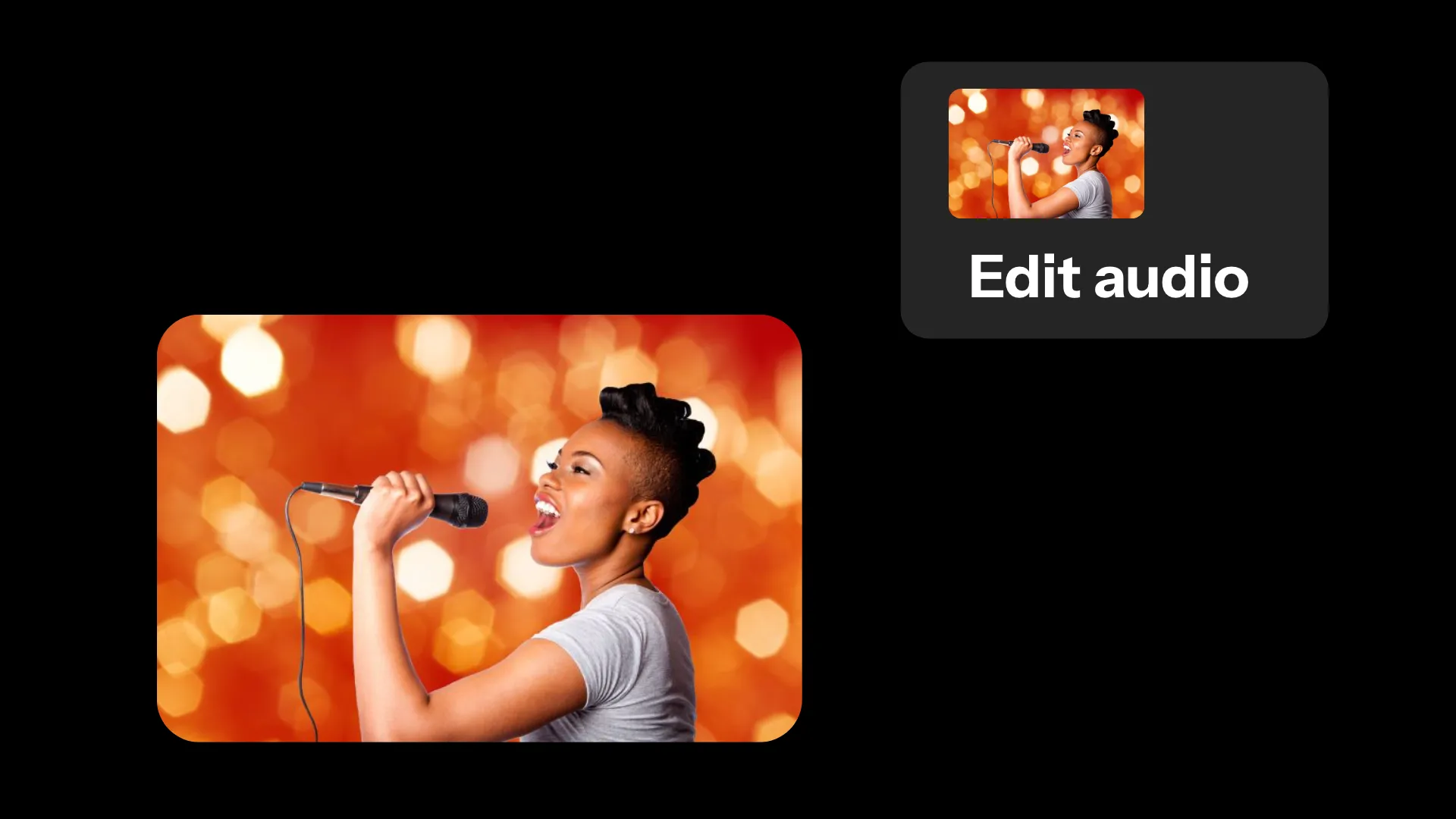
Edit Audio
Podcasters, YouTubers, and video editors use the AI video assistant to fade audio in or out and separate audio from video with simple prompts, making it easier to create polished mixes, clean up recordings, or reuse voice tracks.
Skip tedious editing with video-optimized AI
Turn raw footage into ready-to-share videos with AI assistance
Turn raw footage into a rough cut
Upload your clips and describe the video you want to create. Kapwing's AI virtual video assistant can review the footage, find relevant moments, remove unusable takes, and arrange the remaining clips into a clear story.
Use follow-up prompts to shorten the opening, change the order, add context, or adjust the pacing. Once the structure feels right, review and polish the cut in the AI Video Editor.
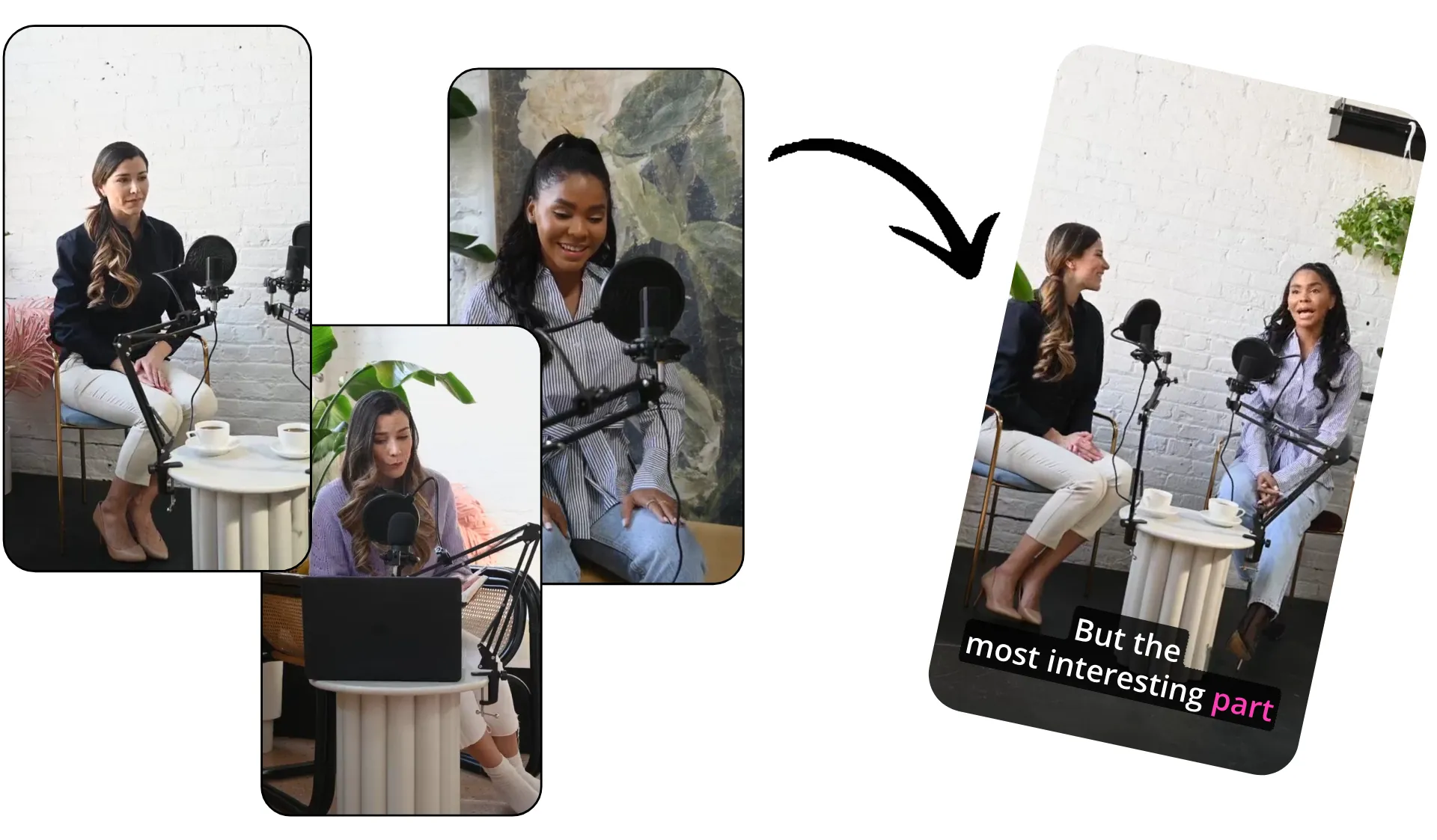
Find and repurpose your best moments
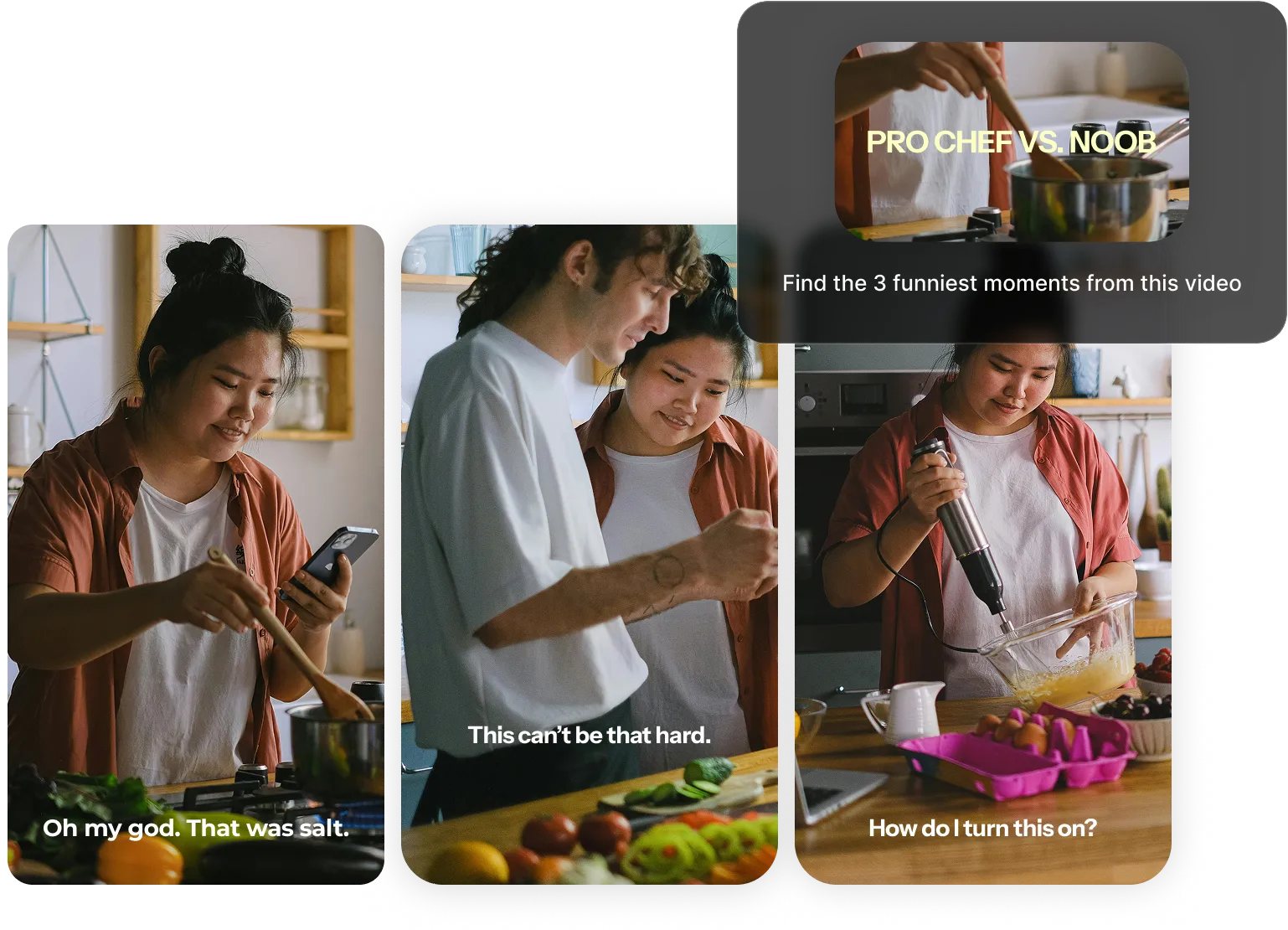
Ask the AI video assistant to find the strongest clips, reactions, demonstrations, or topic-specific moments in a long recording. It can turn a podcast, interview, webinar, or livestream into highlight reels and standalone social clips.
Create different versions for TikTok, Instagram, YouTube, or LinkedIn by prompting the assistant to adjust the length, framing, hook, and pacing for each platform.
Clean up recordings faster

Remove unwanted silences, false starts, repeated lines, filler words, and off-topic sections with a conversational prompt. The assistant edits based on what is being said, so you don’t need to locate every mistake on the timeline.
You can also ask it to tighten slow sections, improve the opening, or shorten a video while preserving specific topics and key details.
Update entire video projects at once
Make changes across an existing video without checking every scene, caption, and graphic individually. Ask the assistant to apply filters, update subtitle styling, or add transitions throughout the project.
Older videos can also be adapted for a new audience, campaign, or platform. Describe what should change — and what should stay untouched — then review the updated edit before exporting.
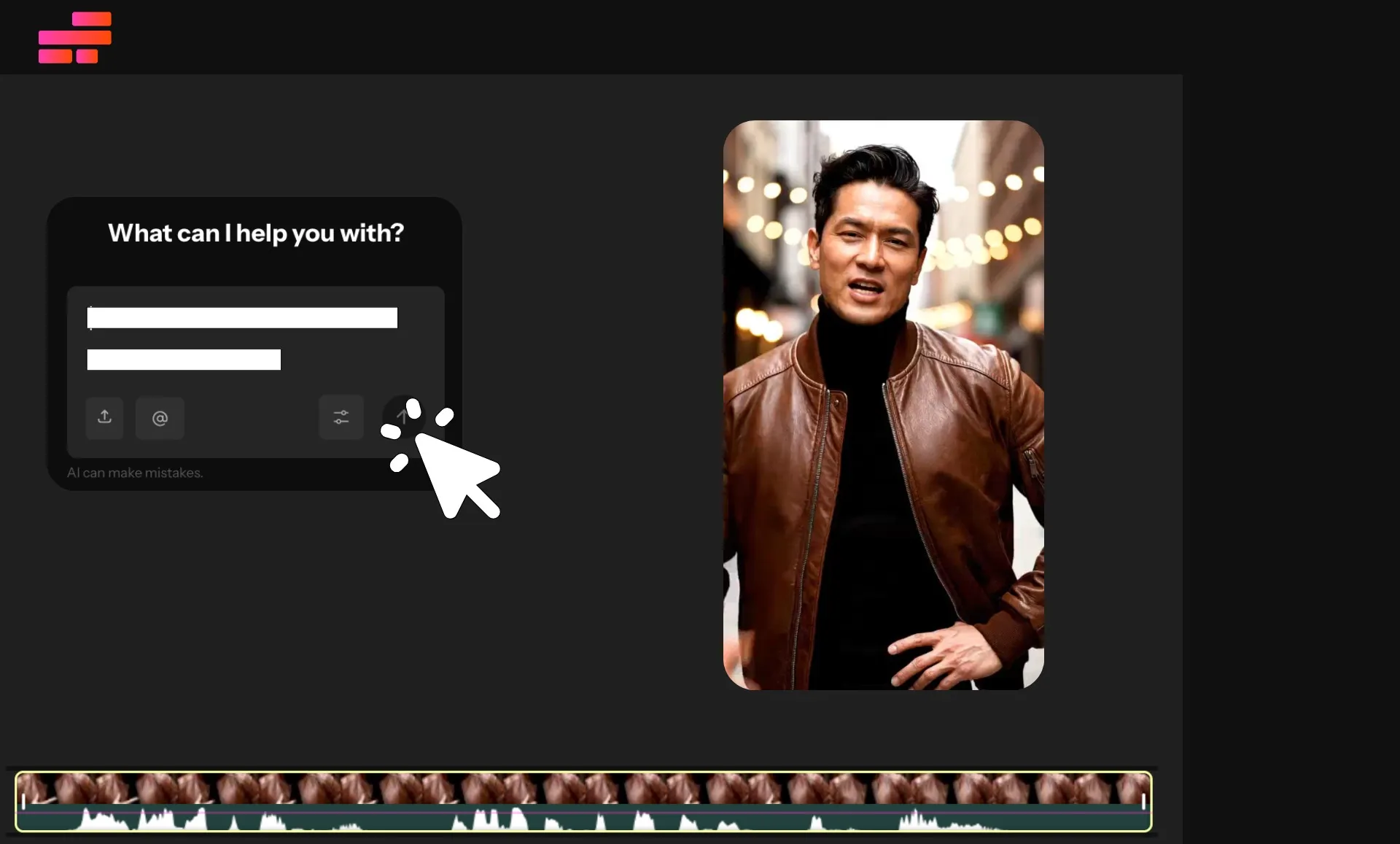
How to Edit Video with an AI Assistant
- Step 1Start chat
Create a new project in the Kapwing Studio and click the lightbulb icon, or start a chat directly with Kapwing's AI assistant, Kai. Upload footage and images using the "Add media" button.
- Step 2Describe edits
Prompt Kai to create a rough cut, pull out the best clips, or write a matching script for a voiceover. Describe your edits or generations, then click the arrow to start creating.
- Step 3Create video
Approve Kai's plan to start generating your edit, or make any changes first. Continue to refine your project with additional prompts and in-studio tools. When you're ready, click "Export project" to download your video in up to 4K.
What's different about Kapwing?



Frequently Asked Questions
We have answers to the most common questions that our users ask.
Is the AI Video Assistant free?
Yes, anyone can try Kapwing’s AI toolkit for free without watermarks. Our AI tools run on a credit system, with each feature costing a set number of credits. For maximum creativity and the best value, upgrade to a Pro account to unlock the full power of AI-driven content creation.
What is an AI video assistant?
An AI video assistant helps you edit and create videos using natural language instead of manual editing tools. Rather than completing one action at a time, you can describe the changes you want, such as trimming clips, adding subtitles, adjusting visuals, or creating highlight reels, and the assistant carries out those editing tasks for you.
Unlike traditional editing software, an AI video assistant can understand the context of your project and support an ongoing conversation as you continue refining your video.
What are the benefits of AI-assisted video creation?
AI-assisted video creation helps with the entire production process, not just editing. An AI assistant can brainstorm video ideas, write scripts, organize footage, generate rough cuts, create voiceovers, and continue refining the project through follow-up prompts.
Instead of starting with a blank timeline, creators can use AI to develop an initial draft and improve it through conversation. The goal isn't to replace creative decisions, but to reduce repetitive editing work so creators can spend more time refining their story.
Can AI edit an existing video project?
Yes. AI assistants like Kai can work with existing video projects instead of only generating new videos. You can open a sidebar chat with Kai inside any Kapwing Studio project, then ask it to update captions, replace graphics, adjust layouts, generate B-roll, or make other project-wide edits without rebuilding the video from scratch.
This makes AI particularly useful for refreshing older content or creating new versions for different audiences.
How is an AI video assistant different from an AI video editor?
An AI assistant video editor combines editing tools with a conversational interface. Instead of navigating menus and applying each edit manually, you describe the outcome you want and the assistant translates those requests into editing actions.
Many video editors now include AI-assisted video editing features, but an AI assistant focuses on helping throughout the editing process by remembering previous prompts, understanding your timeline, and making project-wide changes.
Can AI assistants analyze a video and suggest improvements?
Yes, AI video assistants can review your footage to identify highlights, long pauses, filler words, repetitive sections, and pacing issues. It can also suggest edits like adding subtitles, creating shorter clips, or restructuring scenes to improve flow.
Instead of manually reviewing every minute of footage, you can ask the assistant specific questions about your video or request recommendations before making edits.
Can the AI assistant remember my editing style?
Kapwing's AI video assistant can remember recurring editing preferences through saved instructions. To customize your AI assistant, create a Custom Kai. This allows the assistant to apply consistent formatting, branding, tone, or editing styles across future projects without requiring the same prompts every time.
Remembering your preferred workflow helps reduce repetitive instructions while making it easier to produce videos that follow the same creative standards.
How does an AI video assistant understand project context?
Unlike tools that process one command at a time, an AI video assistant can use information from your current project, selected clips, and previous prompts to understand what you're trying to accomplish. This allows it to build on earlier edits instead of treating every request as completely new.
Context-aware editing also makes project-wide changes easier, since the assistant understands how different scenes, captions, graphics, and media fit together.
Can I chat with AI while editing a video?
Yes, tools like Kapwing's AI Video Editor now let you work directly alongside an AI assistant instead of leaving your project to use a separate chatbot. You can continue editing your timeline manually while asking the assistant to automate repetitive tasks or make broader changes.
This conversational workflow makes it easy to switch between hands-on editing and natural language prompts as your project evolves.
Can teams share customized AI assistants?
Yes, AI video platforms like Kapwing allow teams to share customized AI assistants with common instructions, workflows, and brand guidelines. Team members can use the same assistant to generate content that follows consistent editing styles and messaging.
Shared AI assistants help reduce duplicated work while making it easier for multiple creators to produce videos that feel cohesive across an organization.
Kapwing's editing studio also allows teams to save fonts, caption styles, and uploaded media to a shared Brand Kit.
How do I edit video with an AI assistant?
To edit and create video on any device, including your phone, laptop, or tablet, with the Kai AI assistant, start by uploading the footage, images, and audio recordings you have to Kapwing. You can create a project in the Kapwing Studio and click or drag to upload media, then click the lightbulb icon at the upper left to start a chat with Kai. You can also directly start a Kai chat and upload your media there.
Prompt Kai with the edits you want to make, including brainstorming hooks and scripts, applying filters, adding transitions, or overlaying accurate subtitles. You can also generate new assets to populate your video project, including AI voiceovers, images, relevant B-roll, and short video clips.
Make additional changes by continuing to chat with Kai, or move to the Studio to use manual tools. You can always return to your Kai chats for AI-assisted editing.
When you're finished, you can click "Export project" at the top, then choose your file format, compression, and resolution settings. Download your completed project in high resolution, share it as a unique link, or publish directly to social media, all from the online Kapwing Studio.
Discover Resources
Tips, templates, and deep dives to help you create faster and share with confidence.
View all

Get started with your first video in just a few clicks. Join over 35 million creators who trust Kapwing to create more content in less time.