A Complete Guide to Instagram Subtitles
Captions can keep 80% of consumers watching — but only if you get them right.
Subtitles have become an important part of creating accessible, easy-to-follow Instagram Reels. They allow viewers who are deaf or hard of hearing to follow spoken dialogue, and they can also help anyone understand a video when listening to the audio isn't practical.
Instagram provides native captioning options for Reels, including a Captions sticker that automatically converts speech into on-screen text. Instagram also supports closed captions that viewers can control through the app. For creators who want more control over typography, animation, timing, branding, or cross-platform publishing, another option is to add subtitles before uploading the video.
In this guide, we'll cover how Instagram's native subtitle tools work, how to create custom subtitles, subtitle placement and readability best practices, popular caption styles for Reels, and what we actually know about the relationship between subtitles and Reel performance.
Table of Contents
- Can You Add Subtitles Directly in Instagram?
- How to Add and Edit Subtitles on Instagram Reels
- Best Practices for Instagram Subtitles
- Do Subtitles Help Instagram Reel Performance?
- Frequently Asked Questions
Can You Add Subtitles Directly in Instagram?
Yes. Instagram has native tools for adding captions to Reels.
One option is the Captions sticker. When you're creating a Reel, Instagram's sticker menu can include a Captions option that automatically transcribes spoken audio into on-screen text. Meta currently lists Captions among Instagram's available stickers. However, Meta also warns that not every sticker is available to every user or available on every Reel.
Instagram also supports closed captions for Reels. Meta maintains separate Help Center documentation for managing closed captions and Reel/video captions on Android and iOS.
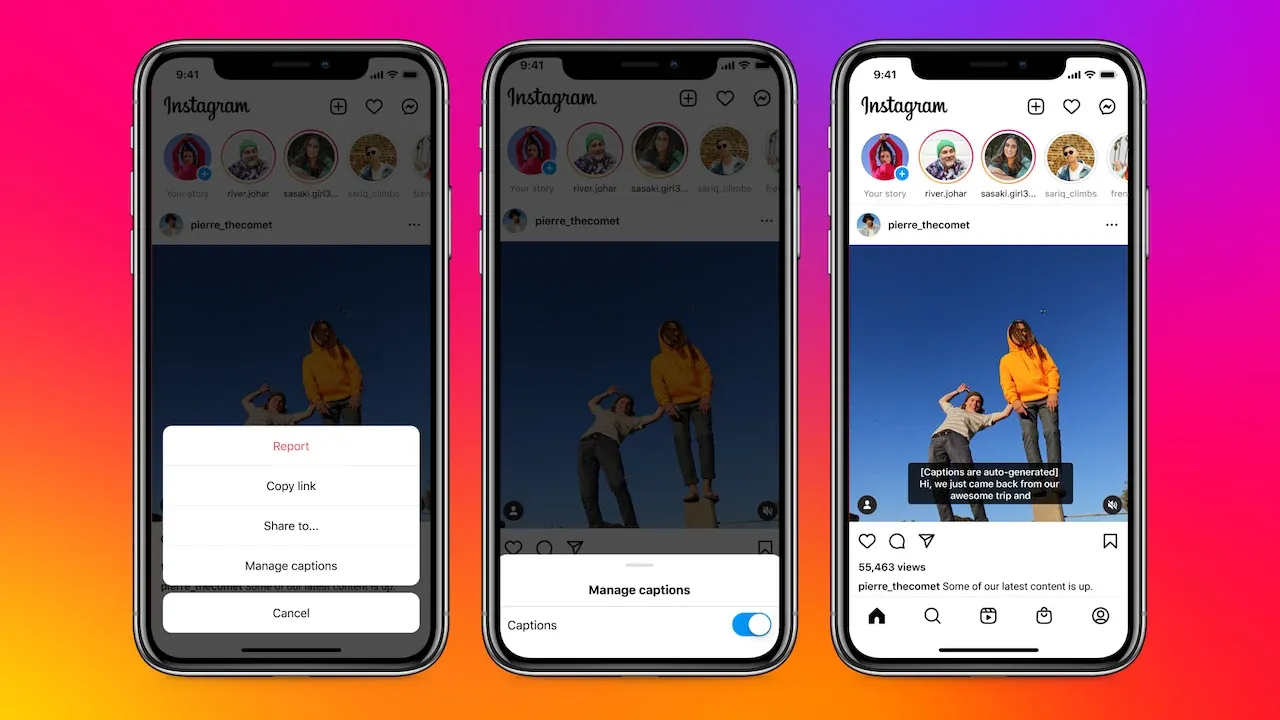
These two concepts are worth distinguishing:
- Open captions are visible as part of the video experience and aren't dependent on a viewer enabling a caption setting. Instagram's Captions sticker and subtitles permanently embedded into a video are examples of ways creators can make captions visible in the content itself.
- Closed captions can be controlled through Instagram's settings.
If you want the fastest workflow, Instagram's native tools may be sufficient. If you need precise branding, fonts, animations, or a video that can be reused outside Instagram, creating subtitles before uploading gives you more control.
How to Add and Edit Subtitles on Instagram Reels
There are two main ways to subtitle an Instagram Reel: generate captions using Instagram's native captioning tools, and adding subtitles to the video before uploading it to Instagram.
The first option is convenient when you're creating and publishing entirely inside Instagram. The second is better suited to creators and brands that want more control over how their subtitles look and behave.
How to Add Subtitles Directly in Instagram
If you're looking for the quickest way to add subtitles, Instagram's built-in captions feature is the easiest option. It transcribes your video's spoken audio directly within the app, allowing you to make corrections before publishing.
Step 1: Record or Upload Your Reel
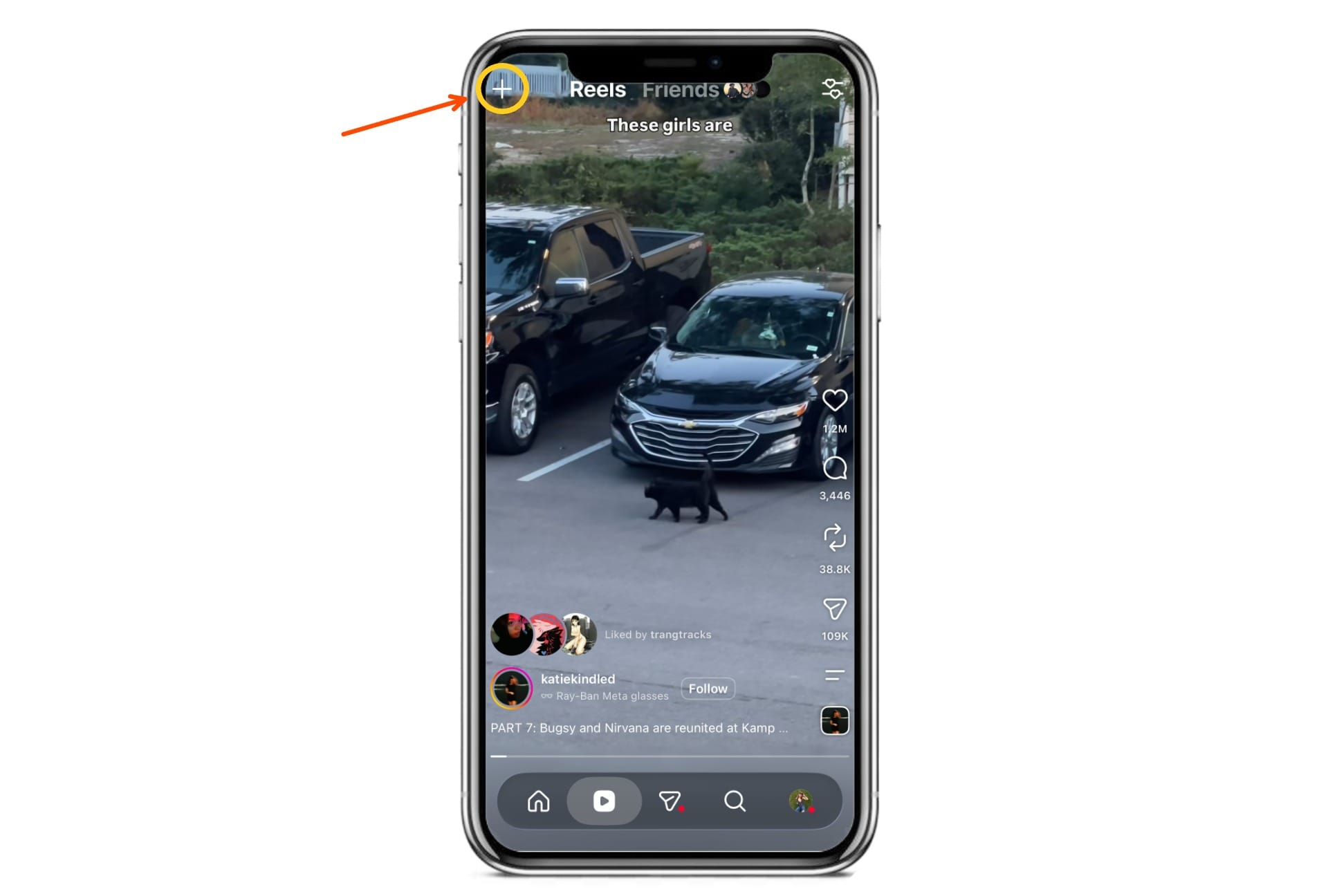
Open Instagram and create a new Reel.
You can record clips in Instagram or upload an existing video from your device.
Instagram currently allows creators to record and edit Reels up to 20 minutes long. Meta notes that Reels longer than three minutes aren't recommended to new audiences, so this is worth considering when creating content intended for discovery.
Once your video is ready, continue to Instagram's editing tools.
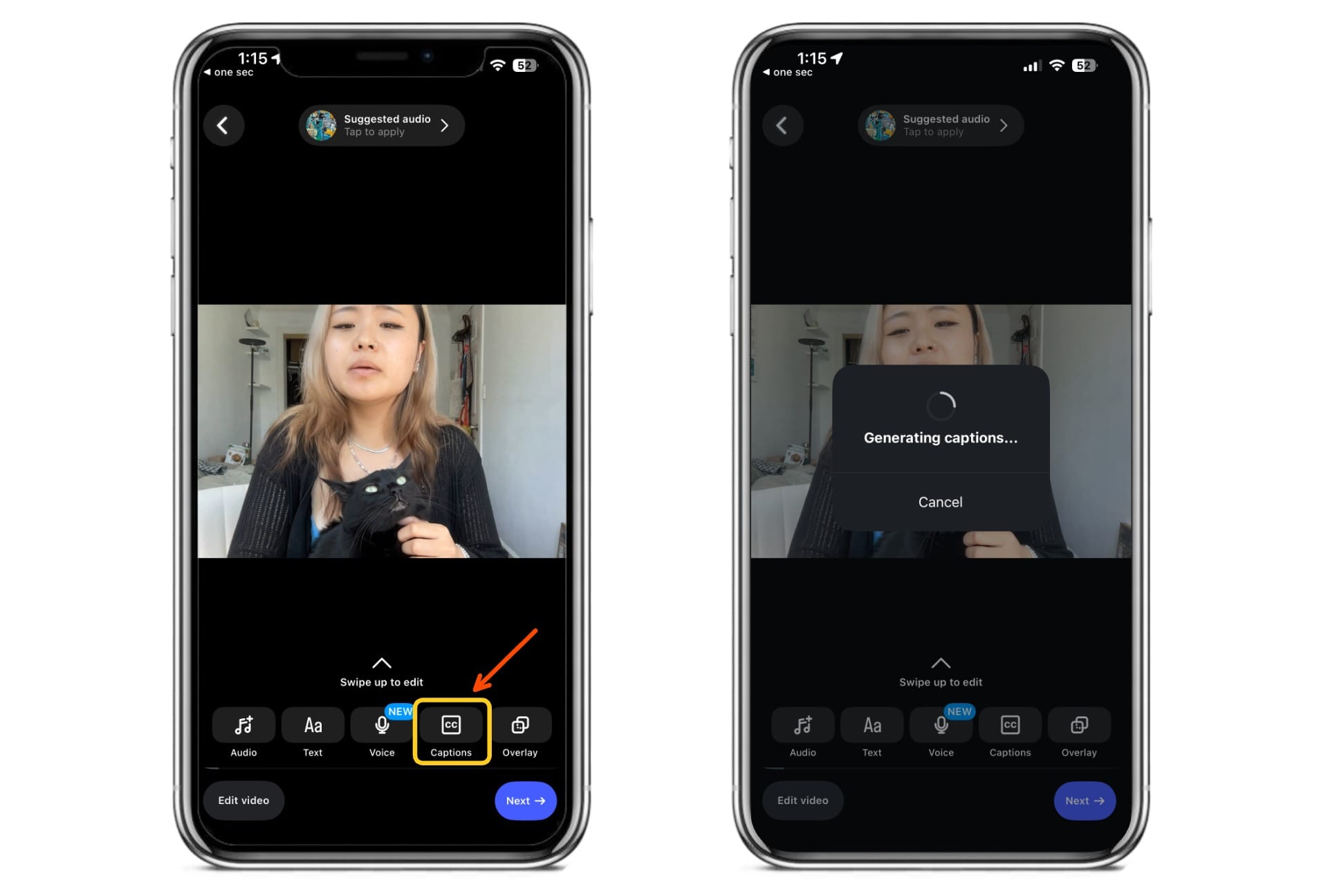
Step 2: Select the Captions Sticker
Open the Stickers menu and look for Captions.
When selected, Instagram analyzes the spoken audio and converts it into text. Current accessibility guidance for Instagram documents this workflow on both Android and iOS.
If you don't see the Captions sticker, first make sure Instagram is updated. Meta notes that certain stickers may not be available to everyone or for every Reel.
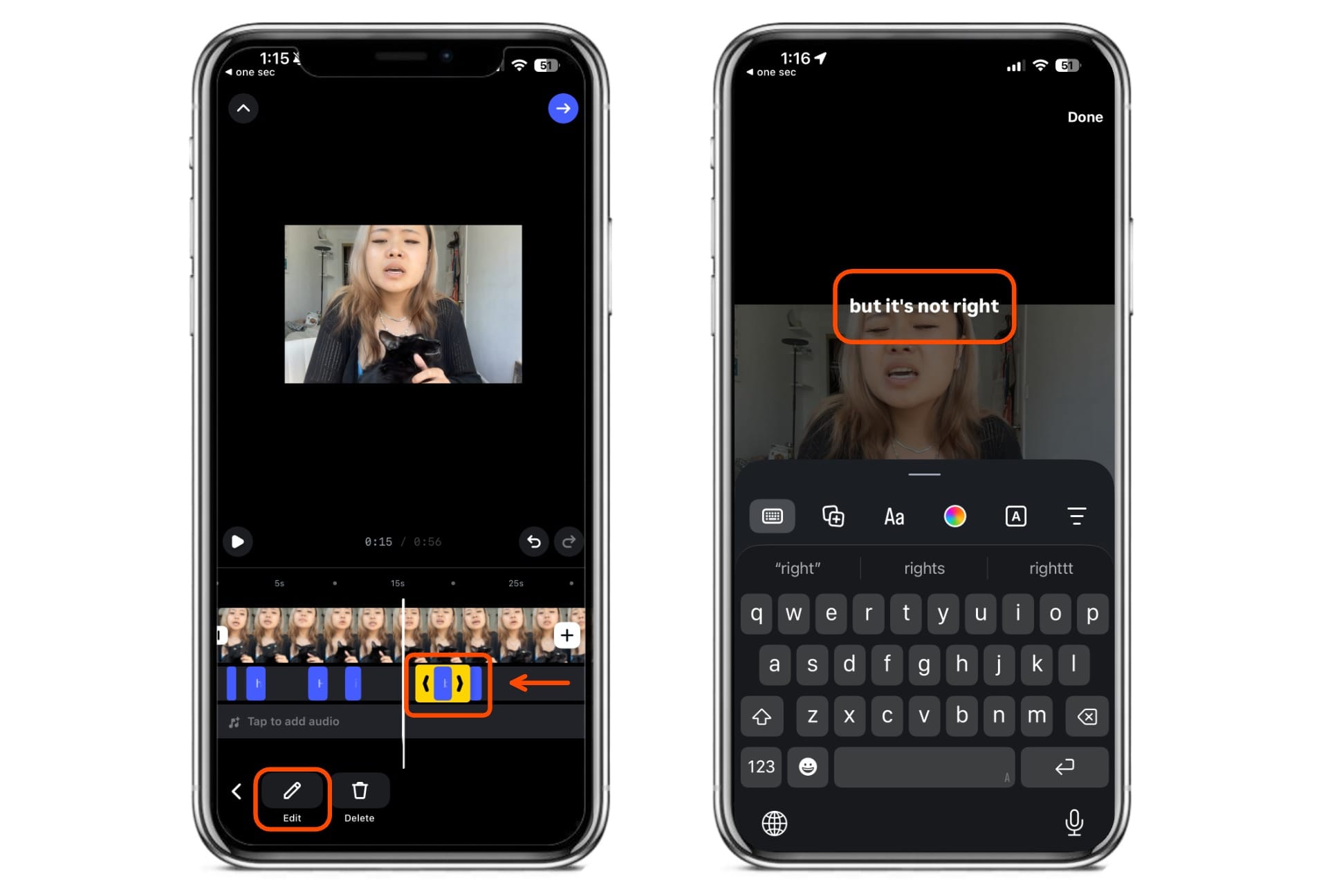
Step 3: Review and Edit the Transcript
Don't assume automatically generated subtitles are completely accurate.
After Instagram generates the captions, you can review the text and correct words that have been transcribed incorrectly. Current Instagram accessibility instructions document tapping the generated text to make corrections before publishing.
Pay particular attention to:
- Names
- Product names
- Acronyms
- Slang
- Technical terminology
- Words spoken over music or background noise
Step 4: Preview Your Reel
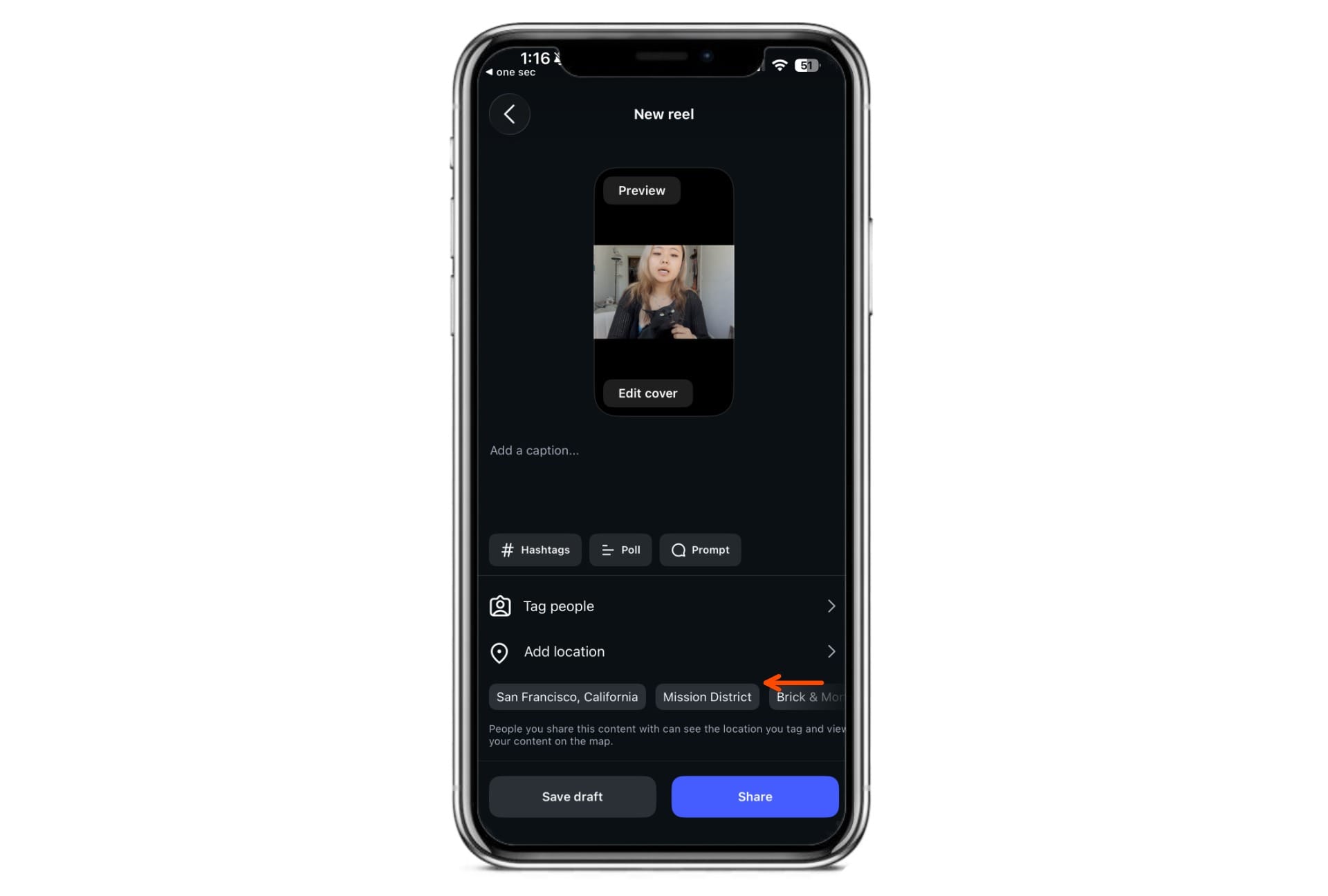
Watch the entire Reel before publishing.
Check that your subtitles:
- Match the spoken dialogue
- Remain readable against the background
- Don't cover a speaker's face or important visual
- Don't collide with Instagram's interface
- Stay visible long enough to read
Instagram's Reel interface places controls and information over portions of the video, so text positioning matters. Once everything looks correct, publish your Reel.
How to Create Custom Instagram Subtitles
Instagram's native Captions sticker is convenient, but creating subtitles before uploading gives you greater control over the finished video.
This can help maintain brand identity and deliver a better viewing experience. It’s also preferred when repurposing content across platforms.
Step 1: Upload Your Video
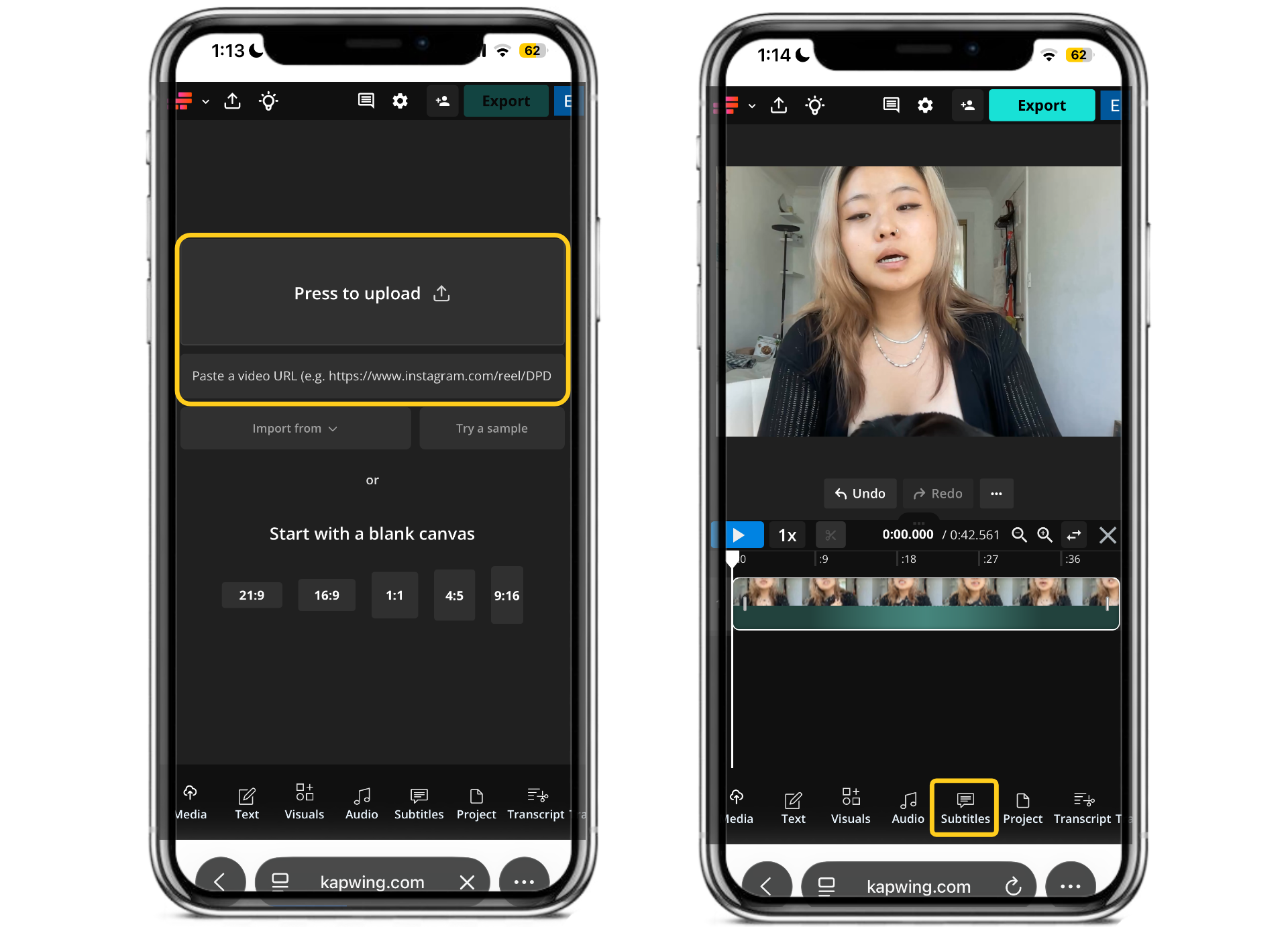
Open Kapwing and upload your Instagram video from your device, cloud storage, or by pasting a video URL.
Once your video has loaded into the editor, select Subtitles from the toolbar to begin generating captions.
Step 2: Generate AI Subtitles
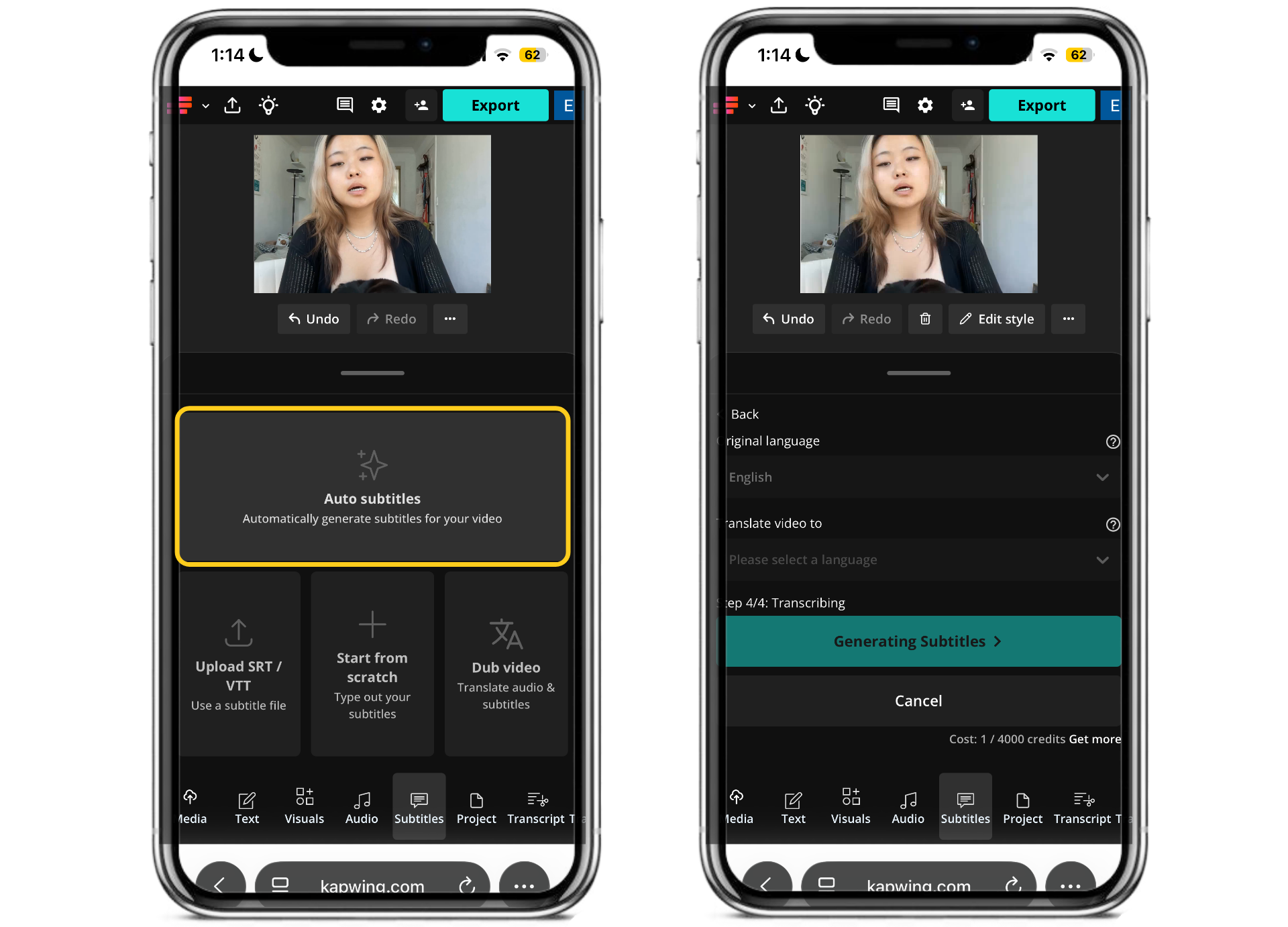
Click Auto Subtitles and select your video's spoken language.
Kapwing will automatically transcribe your audio into subtitles, generating accurate captions in just a few seconds.
Step 3: Review and Edit Your Transcript
Compared to the Instagram auto-captions feature, I found that Kapwing did a much better job at accurately transcribing my video – in this case, a cover of a song.
However, it's still important to edit the transcript before exporting your video. Check for spelling mistakes, punctuation errors, incorrect names, and industry-specific terminology that transcription may have missed.
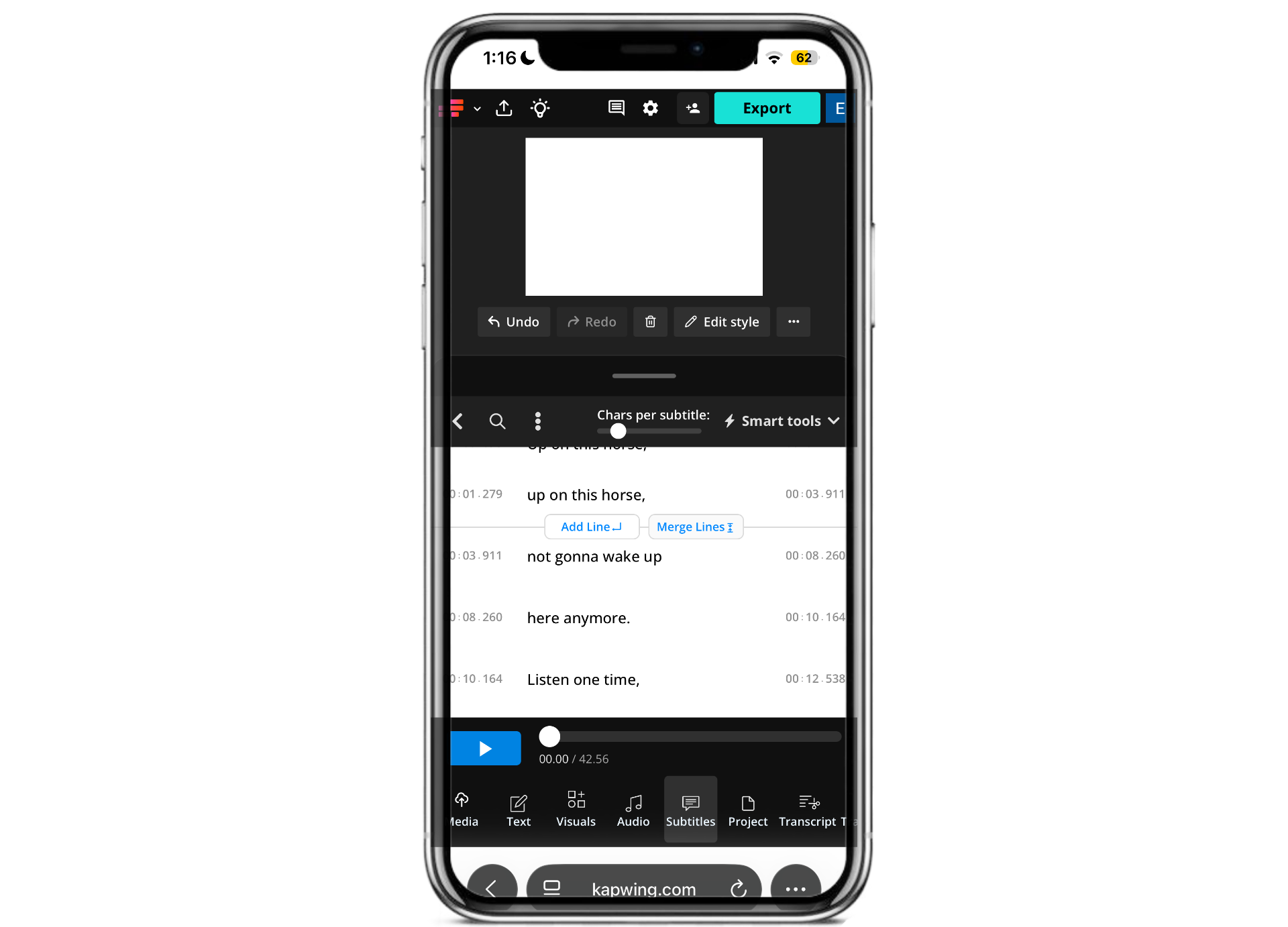
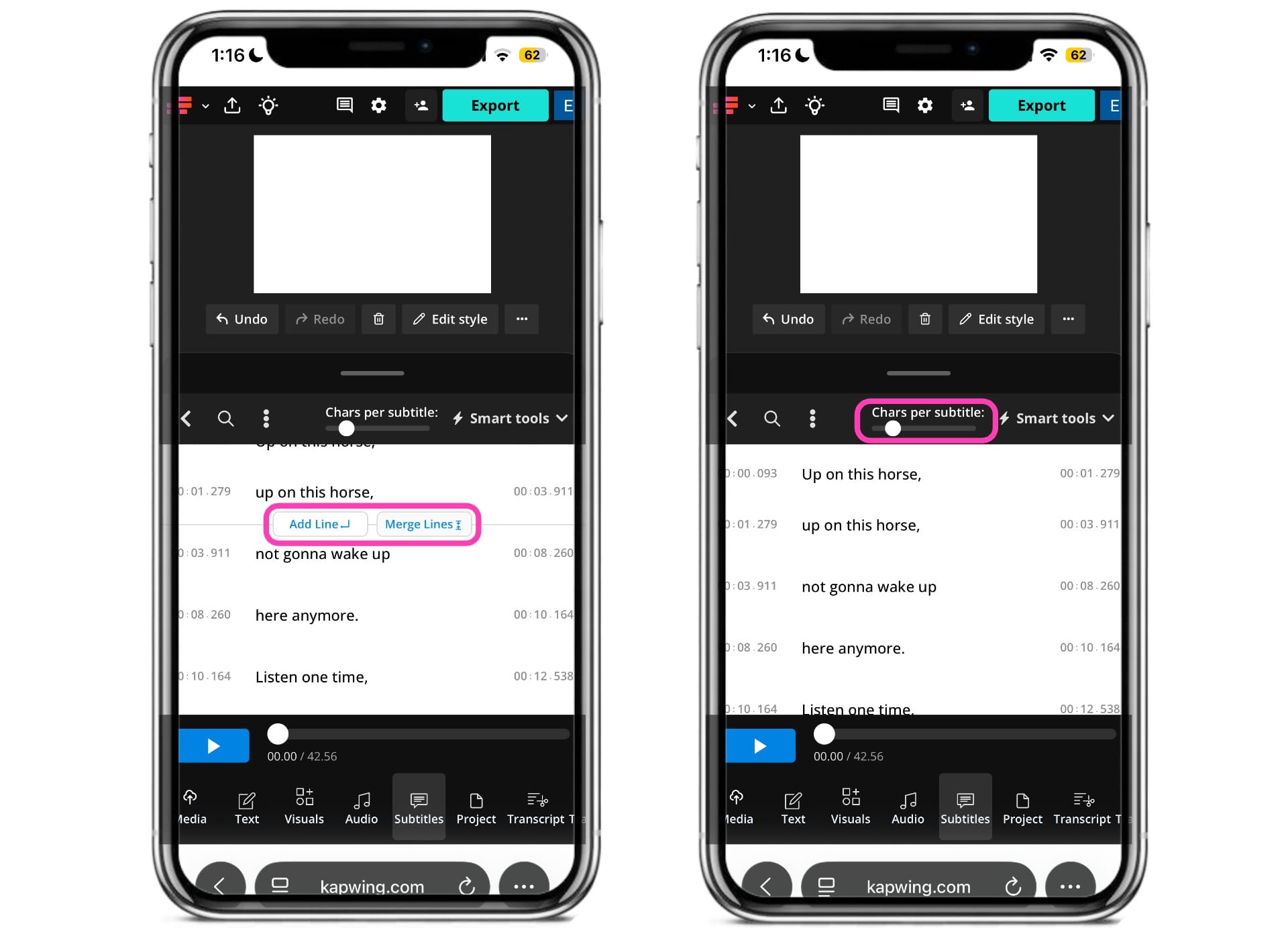
This is also a good opportunity to split longer captions into shorter, easier-to-read lines and ensure each subtitle stays on screen long enough for viewers to comfortably read it.
You can do this by adding or merging lines in the subtitle editor. You can also adjust the number of characters per subtitle by adjusting the slider at the top of the editor.
Step 4: Customize Your Subtitle Style
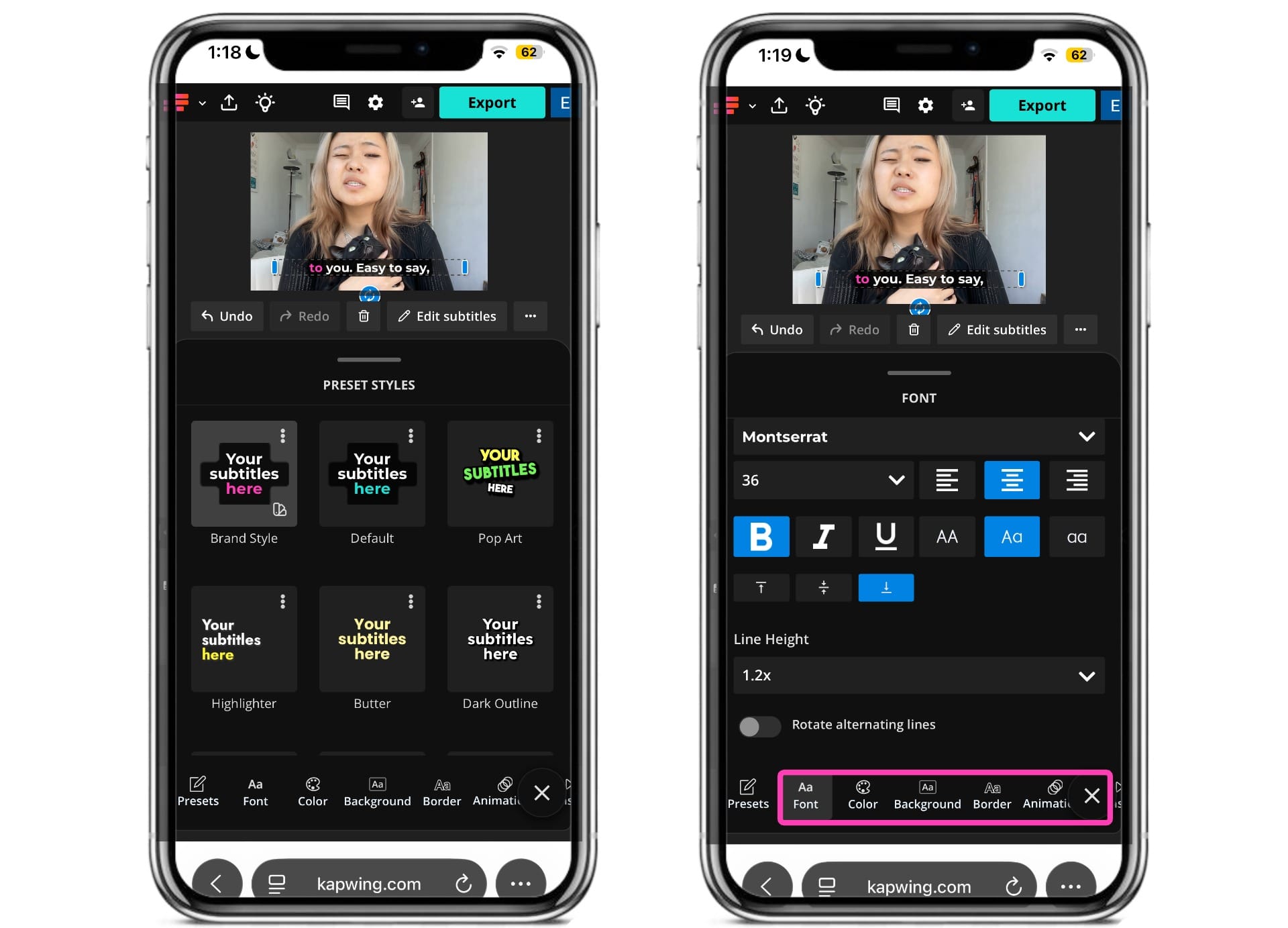
Once you're happy with your subtitle accuracy, you can customize your subtitle style. Click on the "Edit Style" button right beneath the video preview.
You can use one of Kapwing's preset styles, upload a brand style, or customize your own by changing the font, color, background, border, and animation.
Step 5: Finalize Your Video and Export
Once you finalize your subtitles, you can continue editing your video in the studio, adding transitions, incorporating B-roll, adjusting audio, or applying video effects.
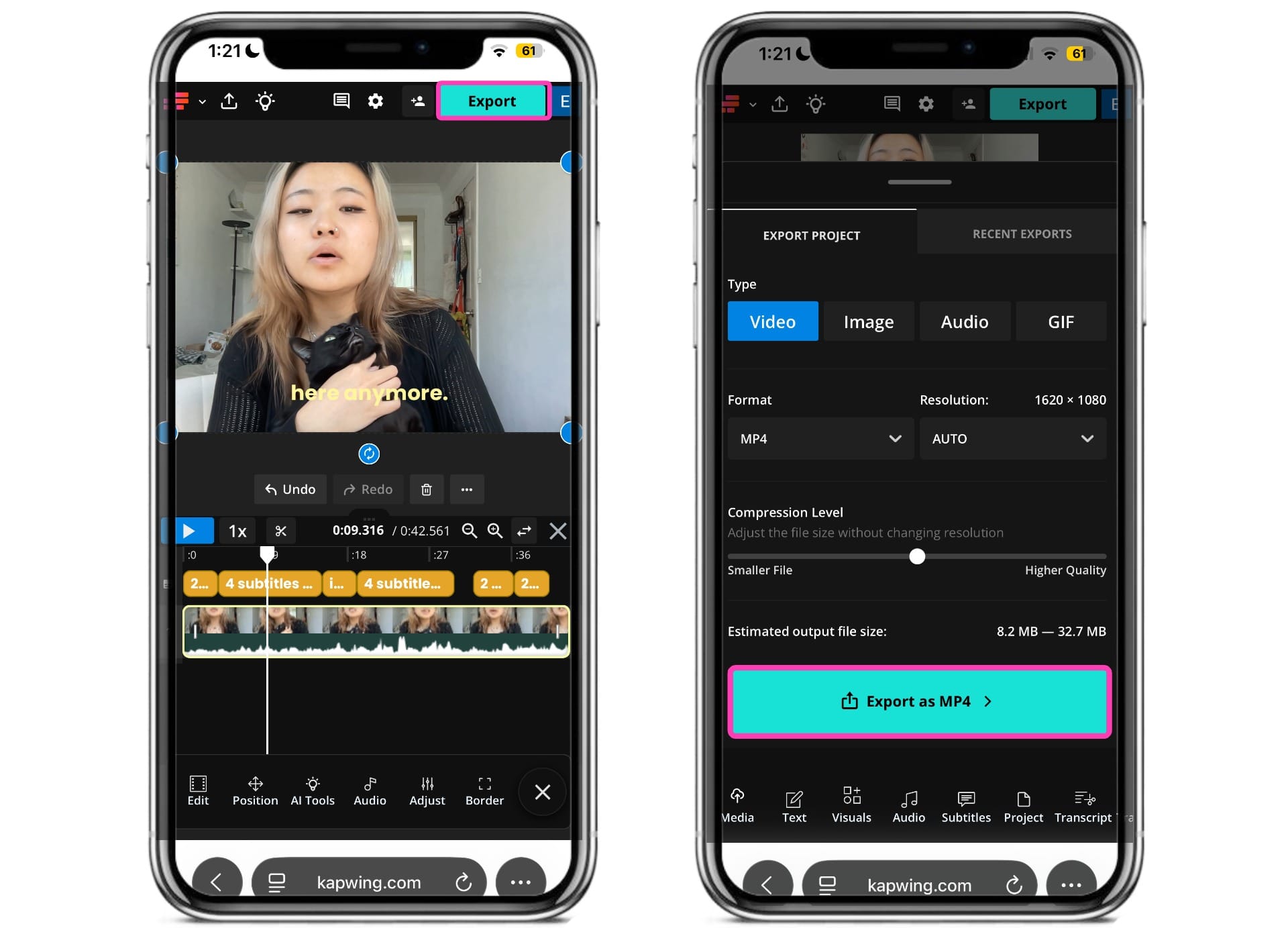
When you're happy with your result, export your video. Kapwing exports videos with burned-in subtitles. As a result, they'll always appear regardless of whether viewers have captions enabled.
Best Practices for Instagram Subtitles
Getting the transcript right is only part of the process.
Subtitle positioning, length, styling, and timing can all affect how easy the Reel is to follow.
Keep Subtitles Away From Instagram's Interface
Don't place important text at the extreme edges of the frame.
Instagram overlays UI elements on Reels, which can cover subtitles, names, logos, calls-to-action, or other graphics.
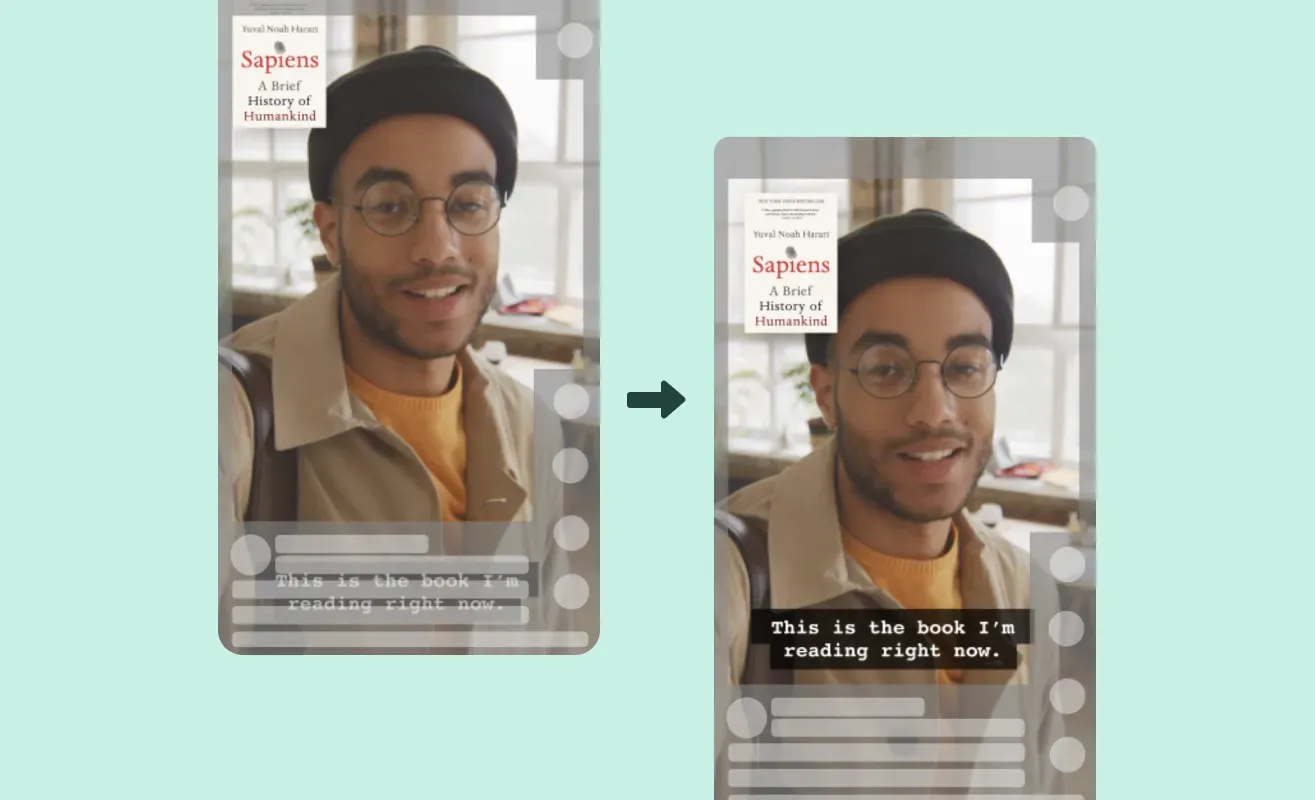
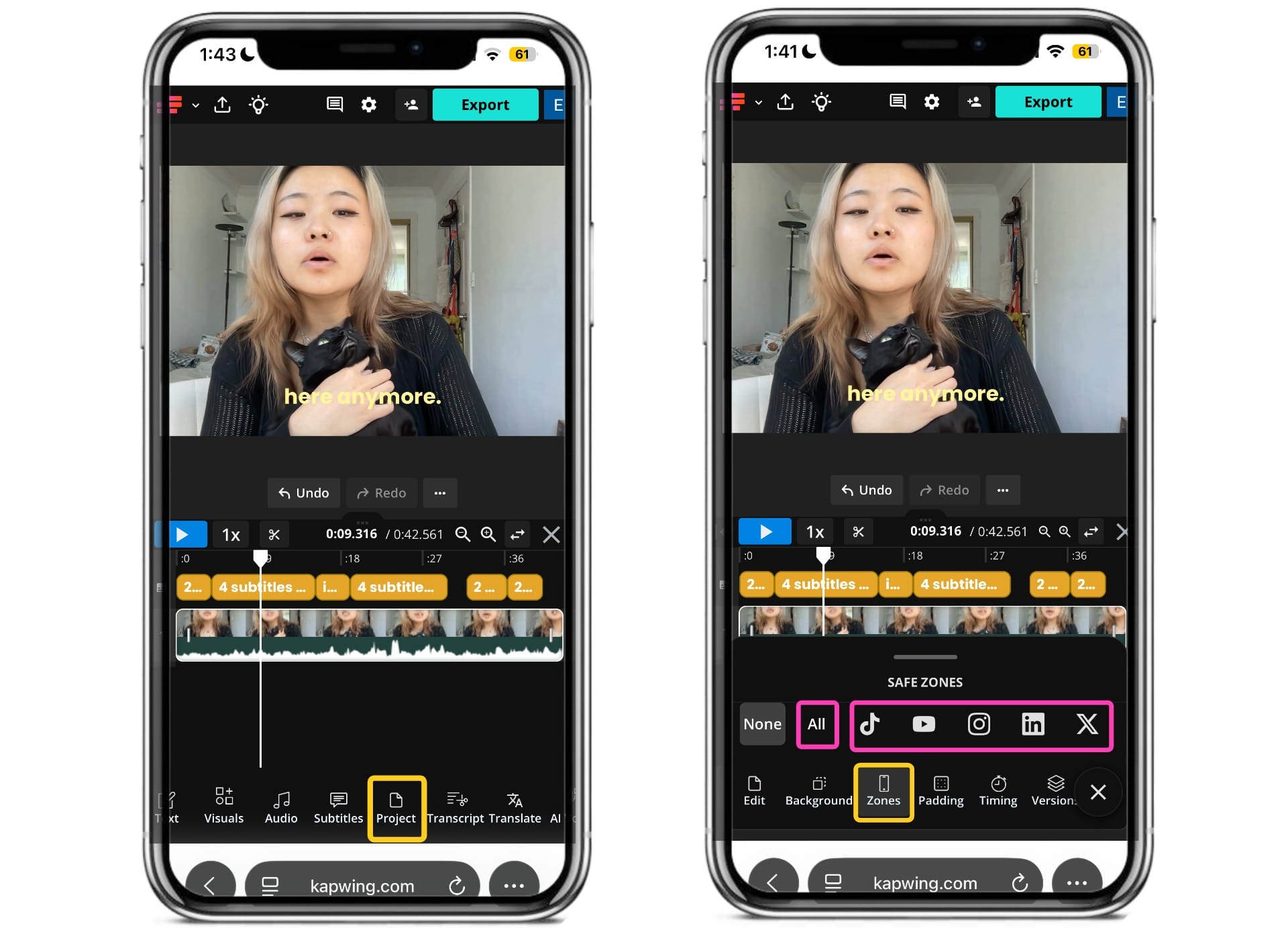
To make this easier, Kapwing includes Safe Zone overlays. Open the Zones tab under Project. You can preview your video using the All view, which displays the safe zones for the major short-form platforms at once.
You can also switch to individual platform overlays. This makes it easy to ensure your captions aren't covered by platform UI before exporting your video.
Keep Subtitles Short
Viewers are processing the video and subtitles simultaneously. A large paragraph of text can force someone to choose between reading and watching. Instead, divide speech into short, meaningful phrases. For example:
Instead of:
Here are the three things I wish someone had told me before I started posting Instagram Reels every day.
Try:
Three things
I wish I'd known
before posting Reels
every day.
Break captions around natural speech patterns rather than splitting phrases in places that make the sentence harder to understand.
Remove Unnecessary Filler
A subtitle transcript doesn't always need to preserve every hesitation and repeated word. Depending on your content, you may be able to remove filler words such as:
- "Um"
- "Like"
- "You know"
- False starts
- Unintentional repeated words
Don't remove words when doing so changes the speaker's meaning. The goal is readability, not rewriting what someone said.
Maintain Strong Contrast
A subtitle may be perfectly readable over one frame and disappear against the next. Use enough contrast between the subtitle and the video behind it.
Depending on your visual style, that could mean using:
- A background box
- A text outline
- A shadow
- High-contrast text
- A consistent area of the frame for captions
Put Important Context on Screen Early
If understanding the beginning of your Reel depends on spoken dialogue, make sure viewers can understand that dialogue from the text as well. For example, compare:
"Hey guys, I wanted to jump on here really quickly because..."
with:
"Here's why your Reel looks blurry after uploading."
The second version communicates the subject much faster.
Do Subtitles Help Instagram Reel Performance?
There's evidence that subtitles can make social videos easier to watch and may help keep viewers engaged, particularly when they're watching without sound. However, there isn't strong evidence that Instagram's algorithm directly rewards Reels simply for including subtitles.
One of the largest studies on captions and mobile video comes from Verizon Media and Publicis Media, which surveyed 5,616 U.S. consumers. The study found that 80% of consumers said they were more likely to watch an entire video when captions were available. It also found that 69% watched video without sound in public places, while 50% said captions were important because they watch videos with the sound off.
story understandable
Captions also showed measurable benefits for mobile video advertising. In the same research, captioned mobile ads produced an 8% lift in ad recall and a 10% lift in ad memory quality, according to Streaming Media's coverage of the study.
While these findings aren't specific to Instagram Reels, they help explain why subtitles can be valuable for short-form social video. If someone encounters your Reel somewhere they can't or don't want to use sound, subtitles allow them to understand the video without relying on its audio.
There is also more recent Instagram-specific evidence supporting the use of text within content. A 2026 Fanpage Karma analysis of 1,000 Instagram posts found that posts featuring visible text overlays achieved 38% higher reach per follower and 40% higher engagement than posts without text. However, the study analyzed text overlays broadly across images and Reels rather than subtitles specifically. Interestingly, it also found that content without text generated nearly 60% more interactions per view, meaning the results don't support a simple conclusion that adding text always improves performance.
watchable muted
VIEWERS
REACH BOOST
Subtitles therefore aren't a guaranteed way to get more Instagram views, nor is there evidence that simply adding them gives a Reel an automatic algorithm boost. But the available research suggests captions can remove an important barrier to watching video, particularly for sound-off viewers, while also making spoken content more accessible.
For creators, the best way to measure their impact is to test captioned Reels against similar content and compare the results. Instagram's Reel Insights include metrics such as views, watch time, average watch time, accounts reached, follows, likes, comments, saves, and shares, giving creators a way to see whether different subtitle treatments correspond with better performance on their own content.
Frequently Asked Questions
Does Instagram have automatic subtitles?
Yes. Instagram offers a Captions sticker that can automatically turn spoken audio into on-screen text when creating a Reel. Meta lists Captions as one of Instagram's available stickers, although it notes that some stickers may not be available to every user or on every Reel.
How do I add subtitles to an Instagram Reel?
When creating a Reel in the Instagram app, open the Stickers menu and select Captions if it's available. Instagram will automatically generate captions from the video's spoken audio.
You can also add subtitles before uploading your Reel using a video editor like Kapwing. This gives you more control over the font, colors, animations, timing, and positioning of your subtitles.
Can I edit Instagram captions before posting?
Instagram provides native tools for managing captions on Reels and videos, although the exact options available can vary by device, app version, and feature availability. Because automatic transcription can misinterpret names, slang, accents, and technical terms, always review your captions before publishing.
Can I upload an SRT file to Instagram Reels?
Instagram's standard Reel publishing workflow does not currently document an option for attaching an SRT subtitle file to a Reel. This is different from Facebook, which does officially support uploading SRT files for certain video uploads.
If you already have an SRT file, you can import it into a video editor such as Kapwing and burn the subtitles directly into the video before uploading it to Instagram.
What's the difference between an Instagram caption and subtitles?
An Instagram caption usually refers to the written description accompanying your Reel or post.
Subtitles are synchronized text that represents the dialogue spoken inside the video. Captions can have a broader accessibility meaning and may also communicate important non-speech sounds, such as music, sound effects, or speaker identification.
Can viewers turn Instagram Reel captions on and off?
Yes, Instagram supports closed captions for Reels and provides controls for managing Reel and video captions.
Burned-in subtitles are different because they're permanently embedded into the video itself. A viewer can't turn those off.
Should I use Instagram's native captions or custom subtitles?
It depends on what you need.
Instagram's native Captions sticker is convenient if you want to create and publish a Reel entirely inside the app. Custom subtitles are better if you want greater control over fonts, colors, animations, placement, branding, or how the video looks when you publish it across multiple platforms.
Can I use the same subtitles on Instagram Reels, TikTok, and YouTube Shorts?
Yes. If you burn subtitles directly into the video before uploading, they'll remain visible when you publish the same file on Instagram Reels, TikTok, YouTube Shorts, and other platforms.
Just remember that each platform places interface elements in different parts of the screen. Check your subtitle positioning against each platform's safe zone before publishing.
Where should subtitles go on Instagram Reels?
Keep important subtitles away from areas where Instagram's interface may cover them, as well as from faces, products, graphics, or other important visual information.
If you're editing externally, you can use an Instagram Reels Safe Zone overlay to preview where interface elements may appear.
Do subtitles help Instagram Reels get more views?
There isn't evidence that Instagram automatically boosts a Reel simply because it contains subtitles.
However, research on mobile video has found that captions can make viewers more likely to continue watching, particularly when they're watching without sound. The best way to determine whether subtitles improve your own Reel performance is to compare metrics such as views, watch time, average watch time, reach, saves, and shares in Instagram Insights. Instagram officially provides these metrics for Reels on business and creator accounts.
How long can an Instagram Reel be?
Instagram currently allows creators to record and edit Reels up to 20 minutes long. However, Instagram says that Reels over three minutes won't be recommended to new audiences.
Can Instagram automatically translate Reels?
Yes. Instagram has introduced Meta AI translations for Reels, which can translate audio, dub the creator's voice, and optionally lip-sync the translated speech.
As of July 2026, Meta says Instagram's AI-powered Reel translations support English, Spanish, Hindi, Portuguese, Bengali, Tamil, Telugu, Marathi, Kannada, French, German, Italian, Japanese, and Korean. Availability can depend on where Meta AI is offered.
What is the best subtitle style for Instagram Reels?
There's no single best subtitle style for every Reel. Talking-head and podcast clips often work well with clean phrase-based captions, while faster creator content may suit animated word-by-word subtitles. Lifestyle or visually focused content may benefit from a more minimal style.
Whatever style you choose, prioritize accuracy, readability, contrast, timing, and consistent placement.