15-second AI videos with realistic motion and synchronized sound using MiniMax Hailuo 3 in Kapwing

MiniMax H3 AI video generator
Believable motion. Built-in sound.
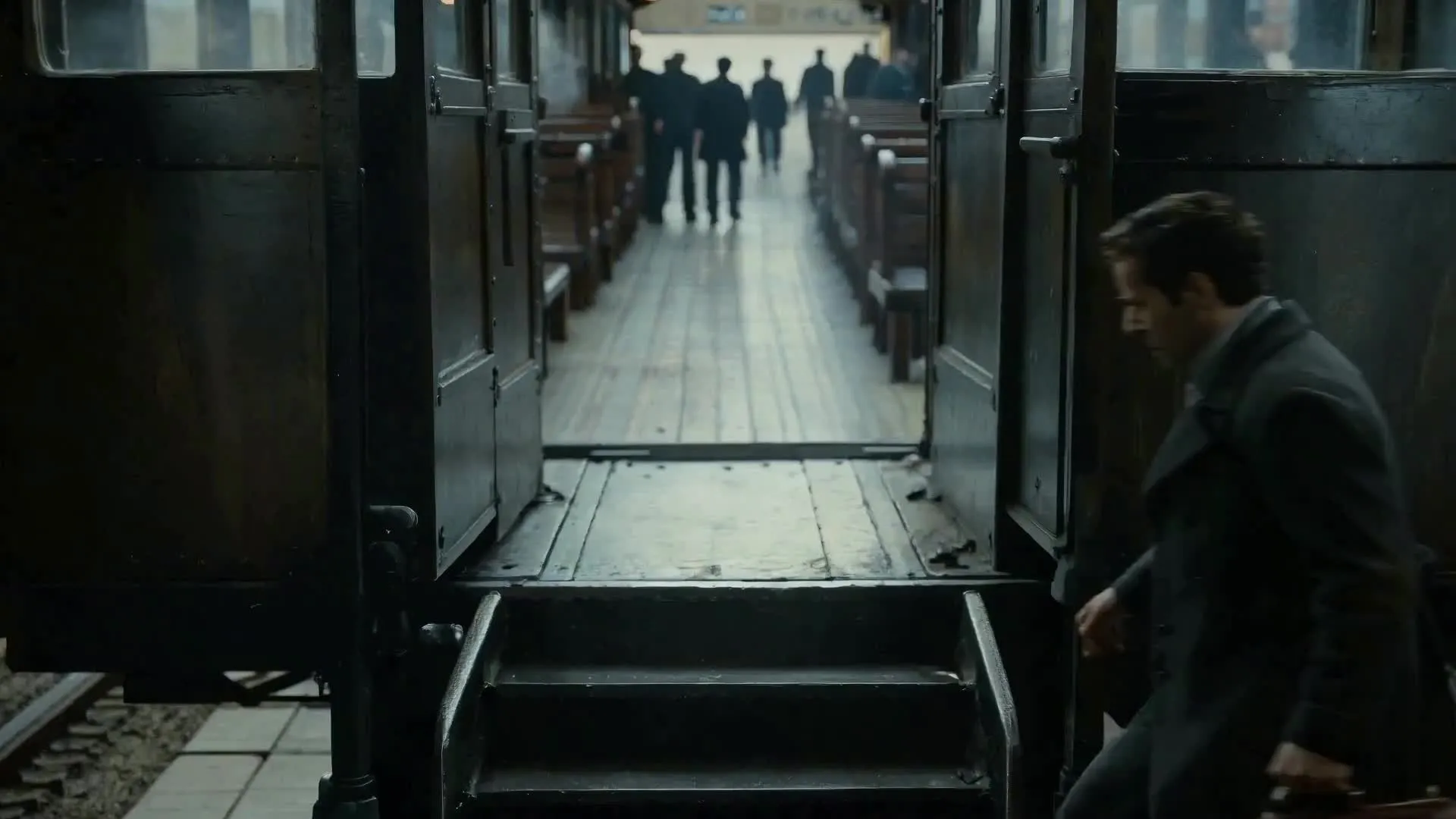
Realistic video clips from a prompt or opening frame
Describe your scene or upload an image to use as the opening frame. MiniMax Hailuo 3 generates clips with natural-looking movement across people, products, animals, and environments.
H3 stands out for its built-in audio capabilities. Synchronized sound effects, environmental ambience, and optional background music help each generation feel like a complete, immersive scene. It is also the only selectable AI video model in Kapwing that accepts reference audio uploads.
In Kapwing, H3 videos are up to 15 seconds long in 768p, and generated in six aspect ratios. Trim, subtitle, resize, and combine your clips without leaving your browser.
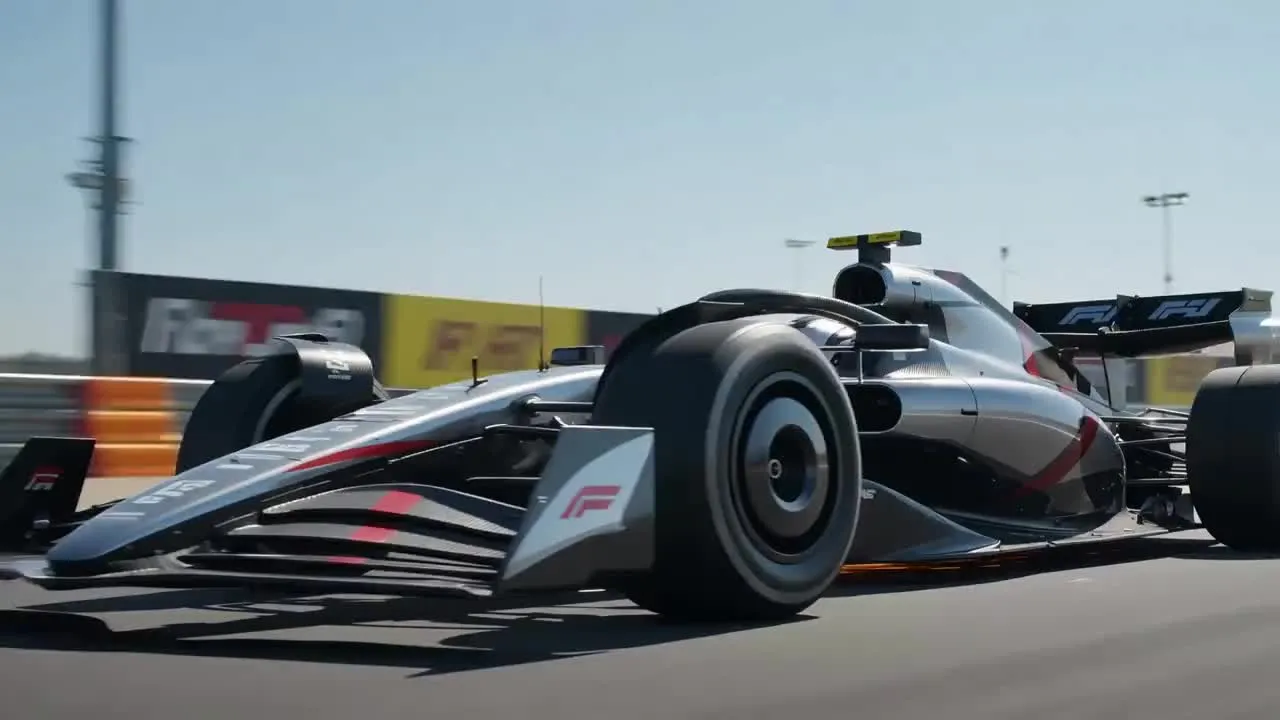
What you get with MiniMax H3
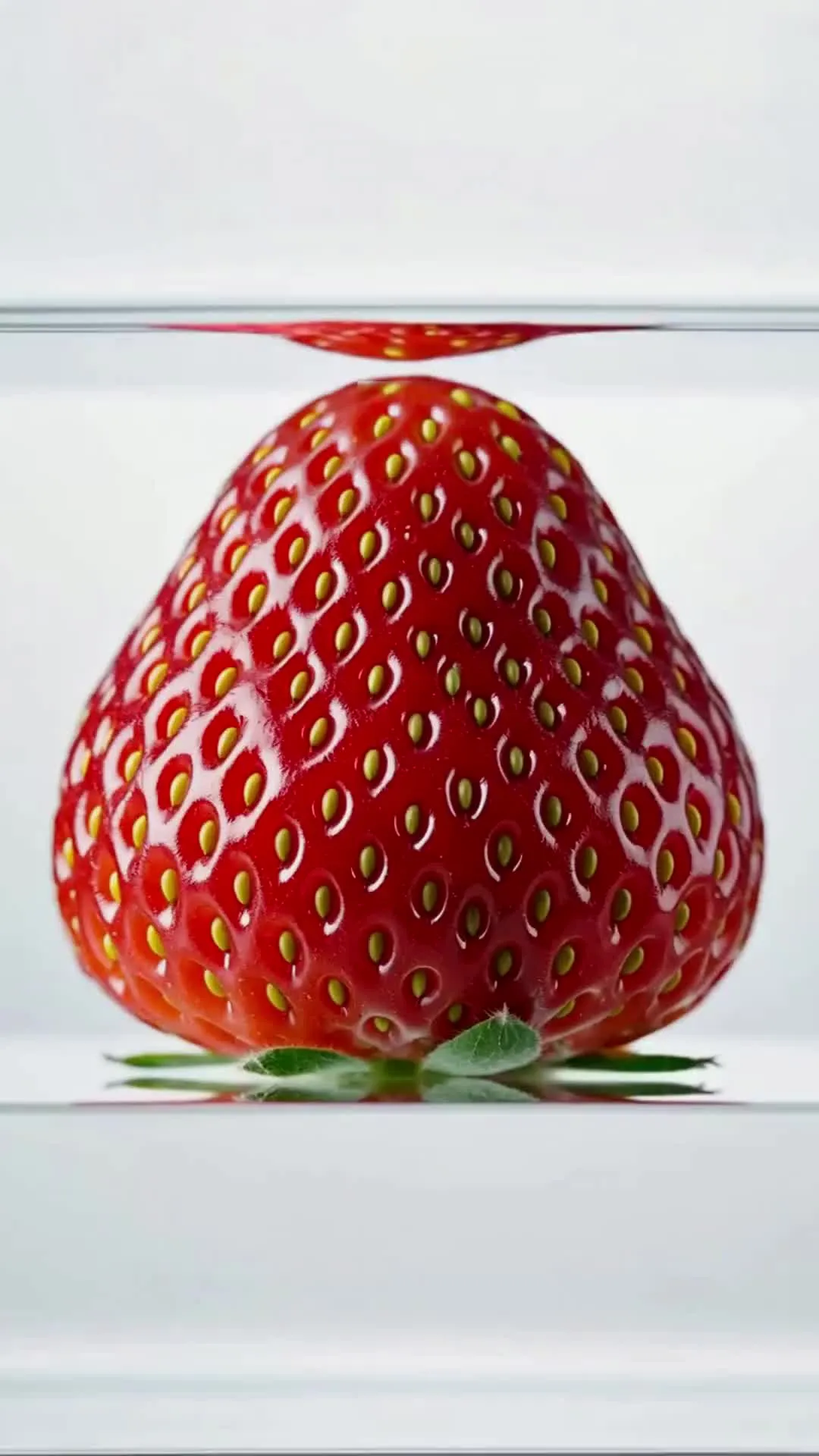
Natural-looking motion with synced sound effects, ambience, and music
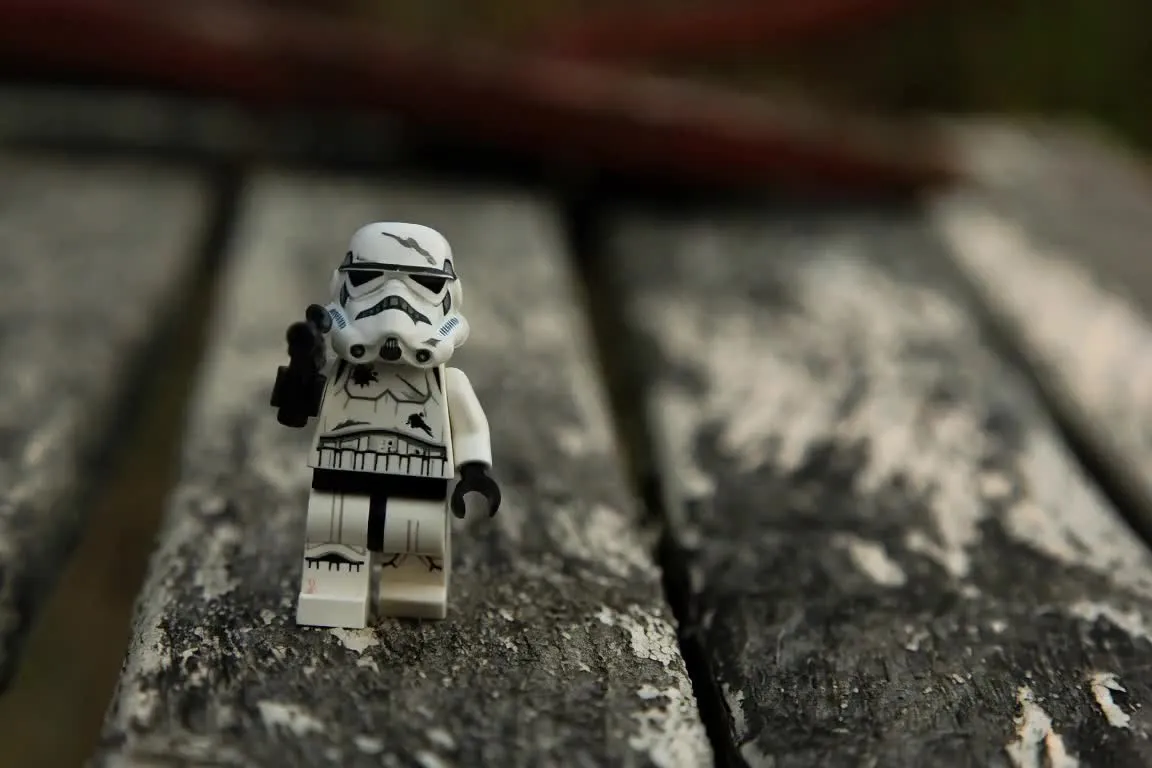
Text to Video
Describe your scene, action, camera movement, and mood. MiniMax H3 generates realistic motion, while Kapwing can automatically stitch multiple clips together for videos beyond H3’s 15-second limit.
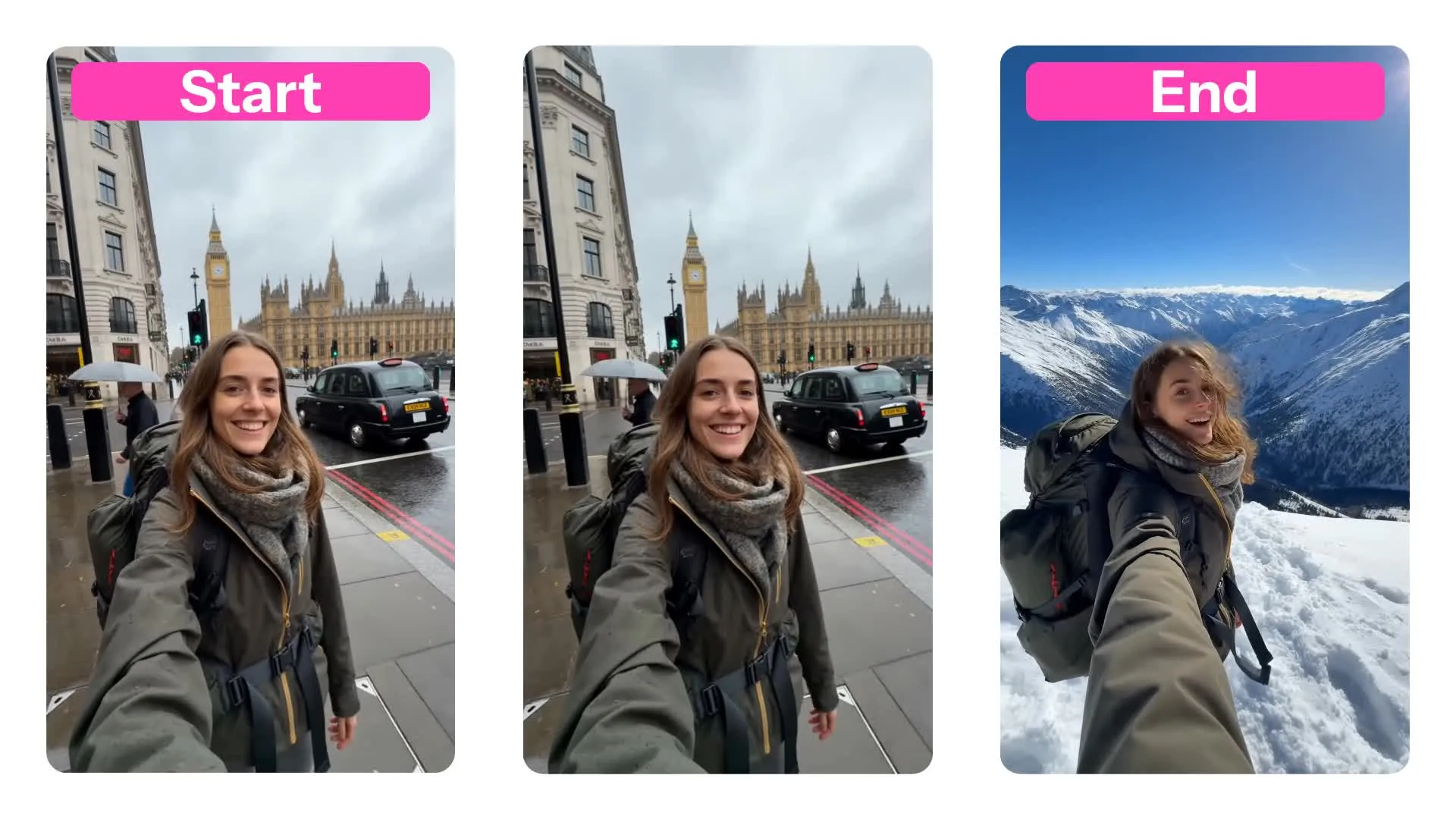
Start/end Frames
Combine start and end frames to guide the subjects, setting, camera angles, movement, sound, and style. Hailuo 3 gives you more control over how the scene develops.
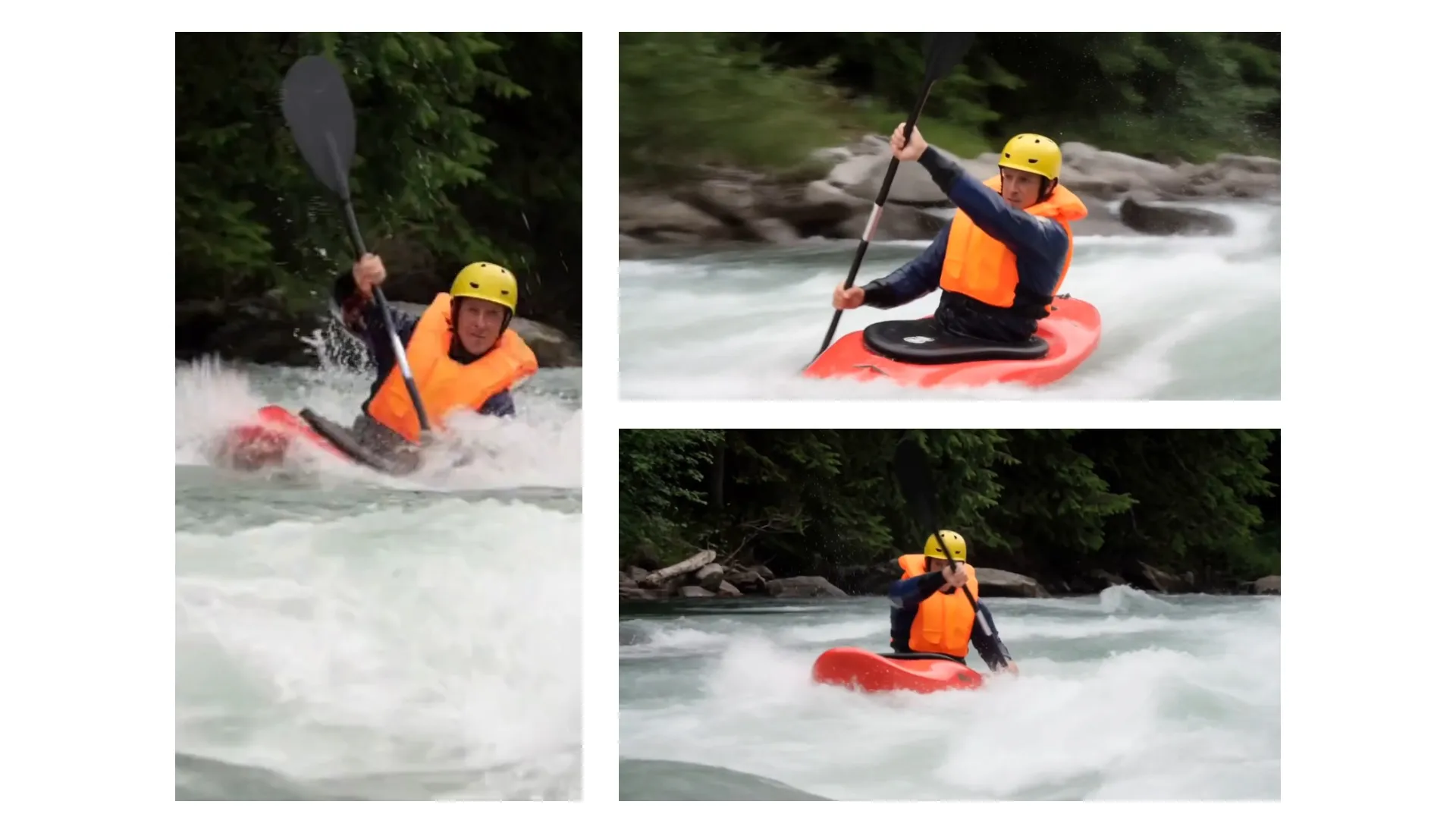
Realistic Motion & Sound
Prompt MiniMax H3 for short scenes that need natural-looking movement, synced sound effects, or backing tracks. Generate people, products, animals, and environmental motion that look believable and visually grounded.
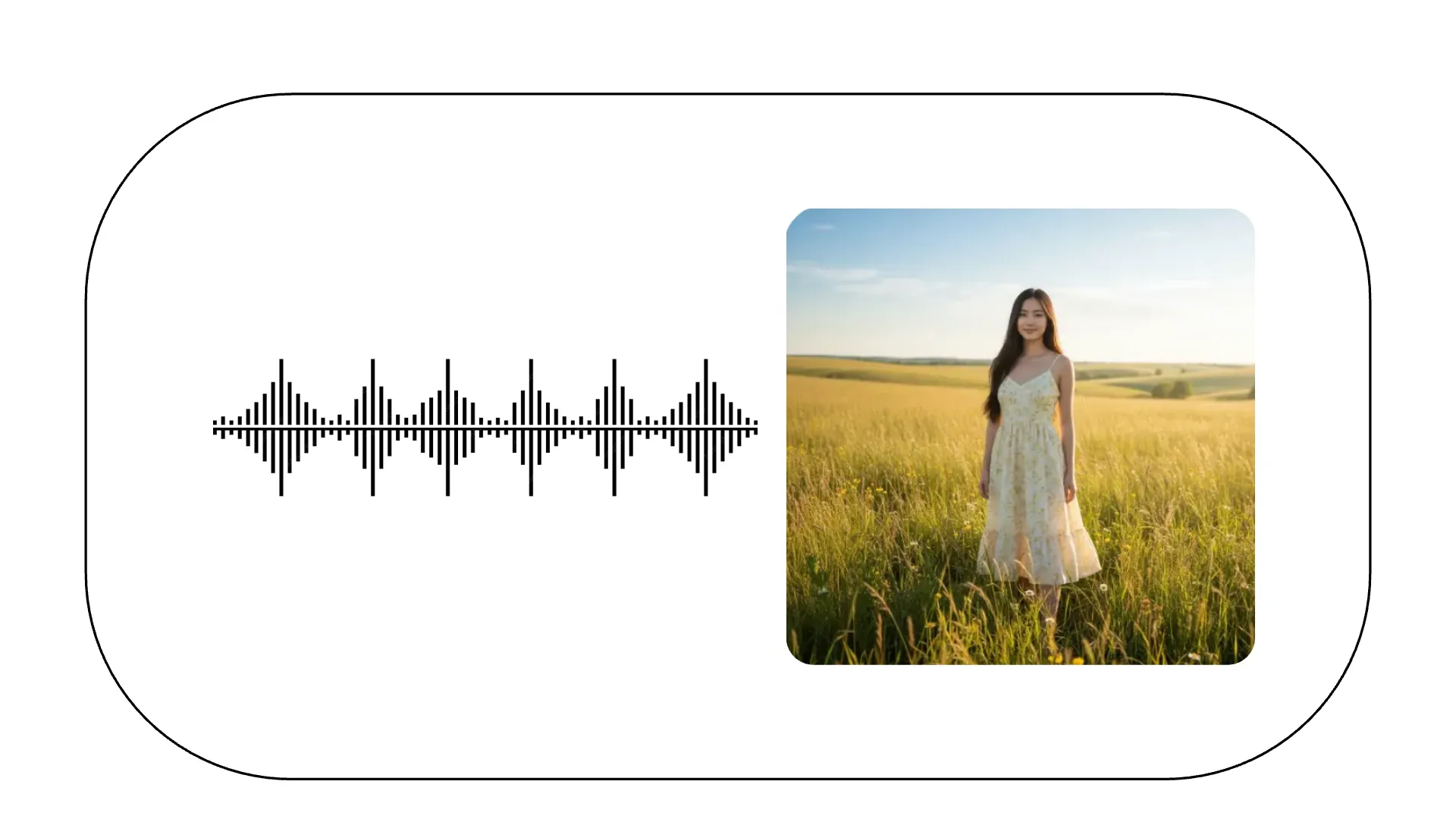
Reference Media
Combine a reference image with an audio clip to guide the video generation. MiniMax H3 uses both files to create a consistent scene that closely follows your reference media.
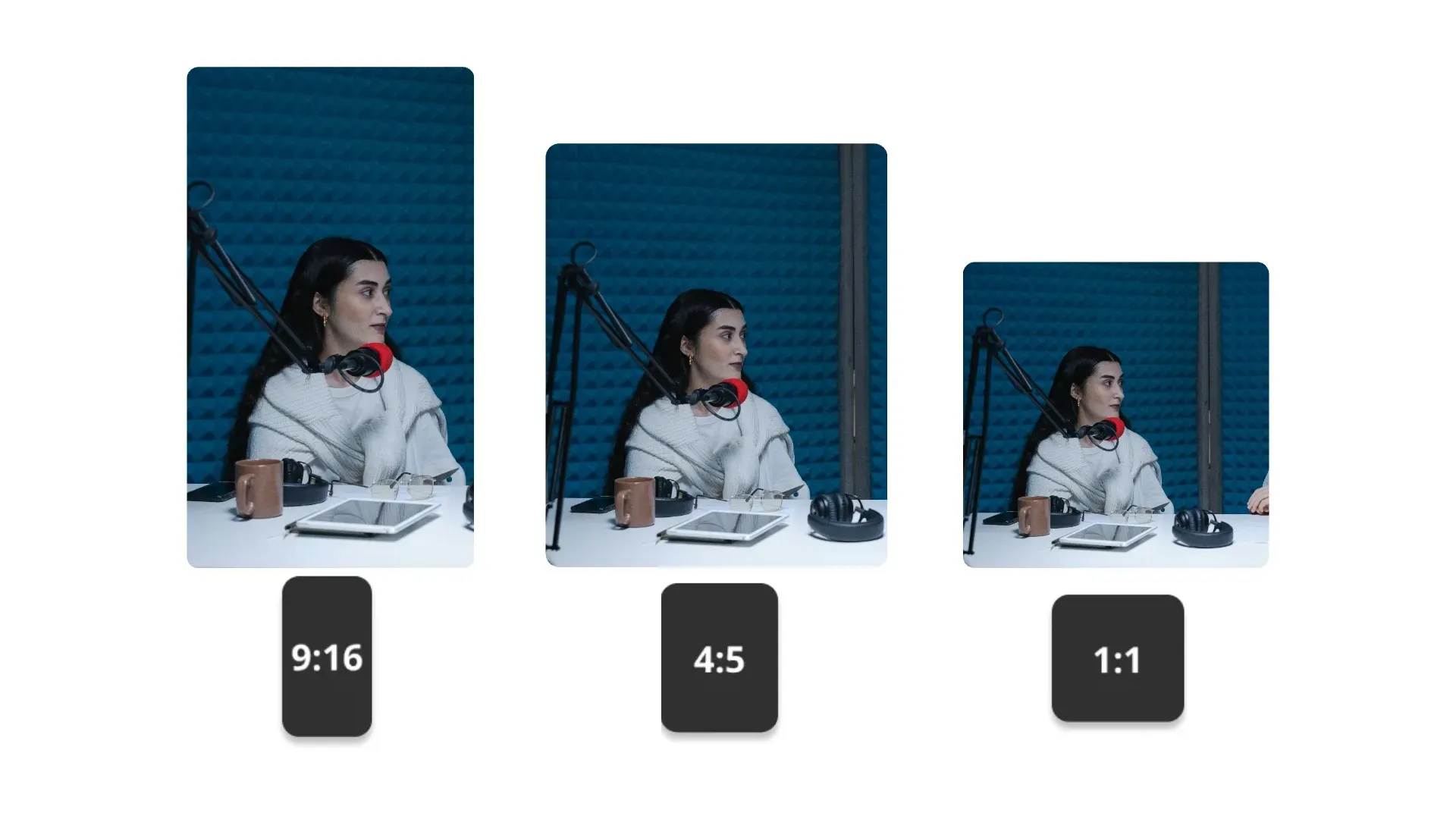
Six Aspect Ratios
Generate text-to-video in 16:9, 9:16, 1:1, 4:3, 3:4, or 21:9. For image-to-video, H3 adapts the framing to the opening image you upload.
How to Use MiniMax Hailuo 3
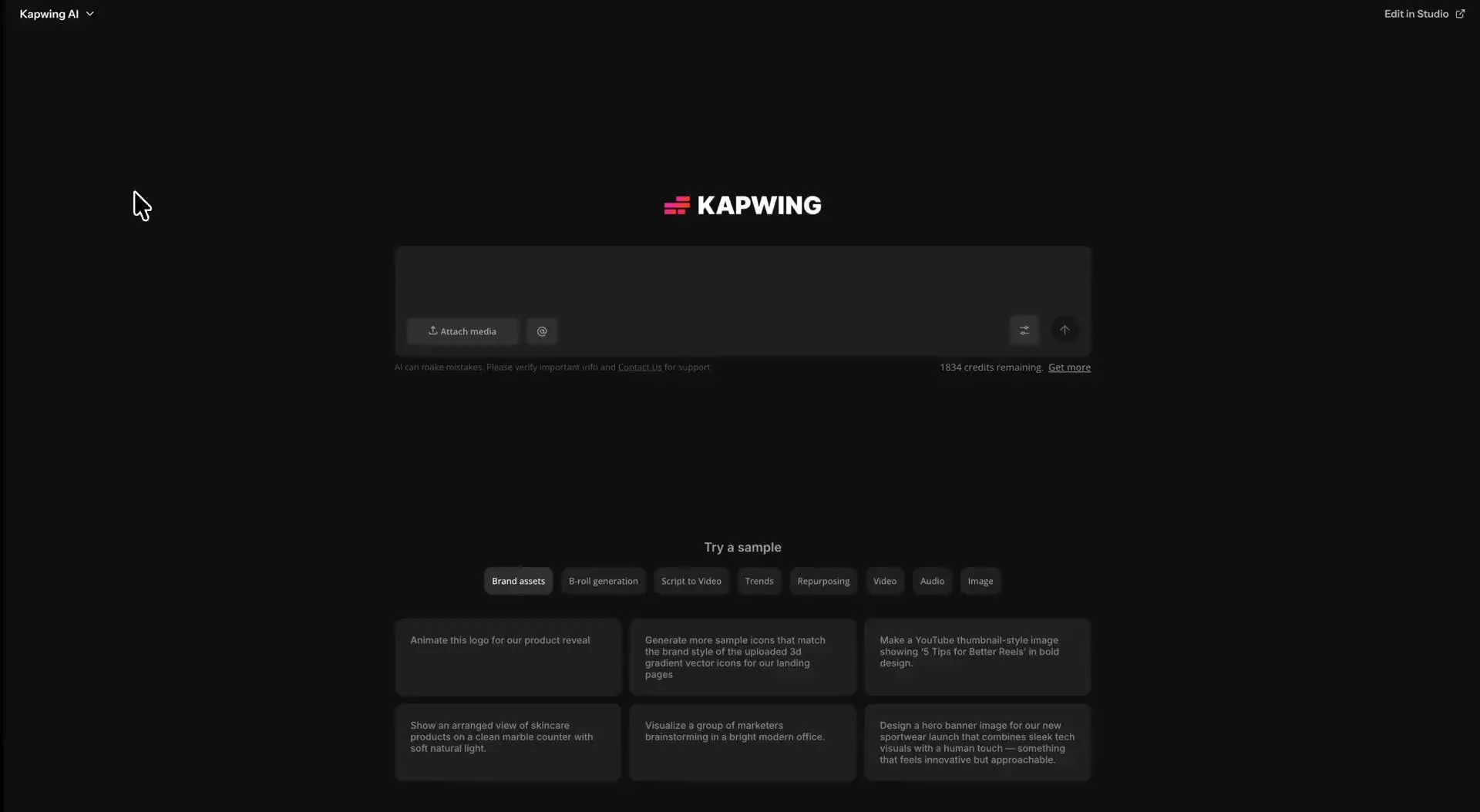
- Step 1Open Kai
Go to kapwing.com/kai to open Kapwing’s AI Video Assistant (Kai)
- Step 2Enter prompt
Describe the video you want to create, including your preferred aspect ratio and length. Upload a start frame, an end frame, or both. You can also combine a reference image with reference audio.
Created with MiniMax H3 — inside Kapwing
Free to start. No watermark. Fully online.
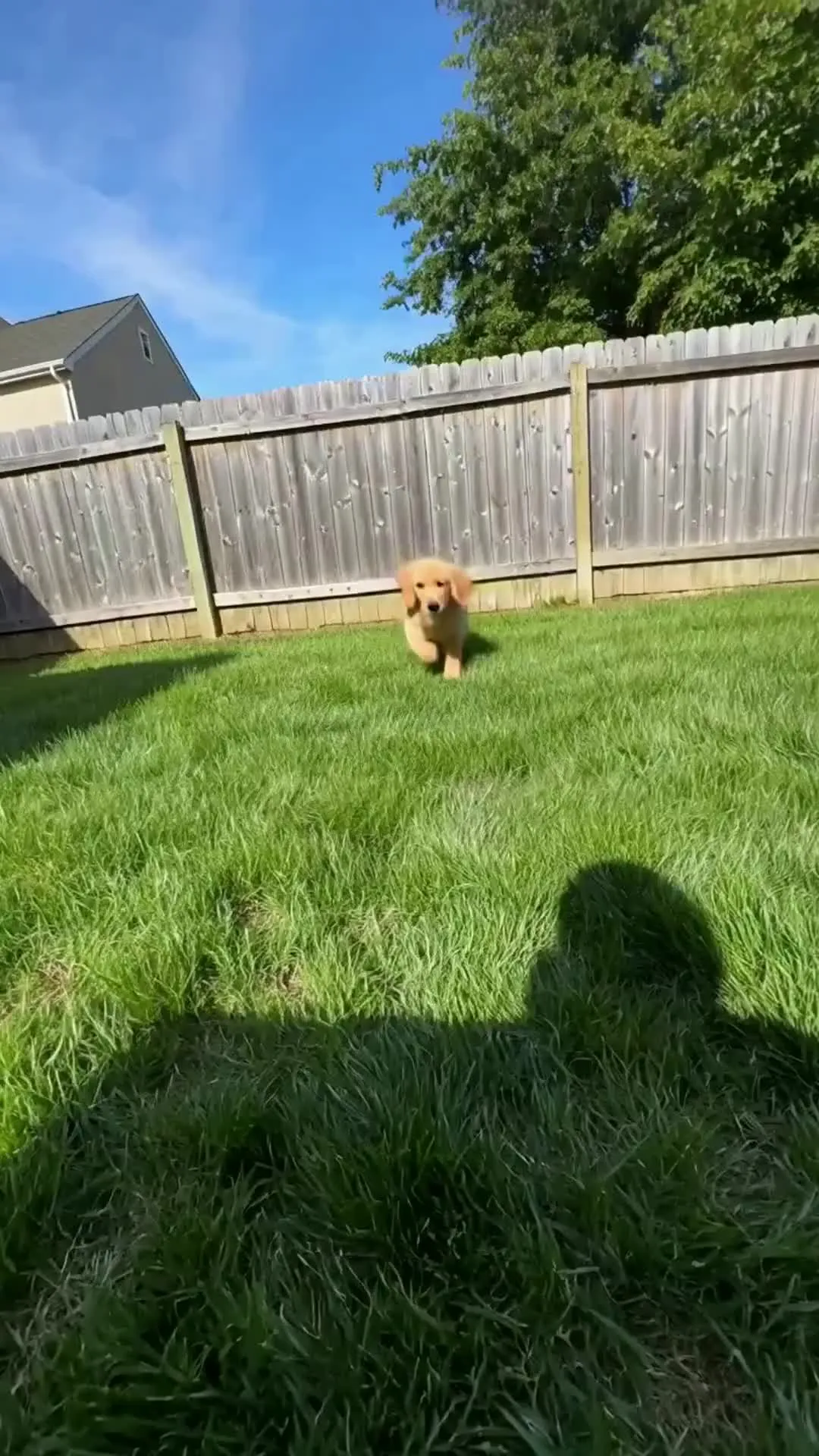
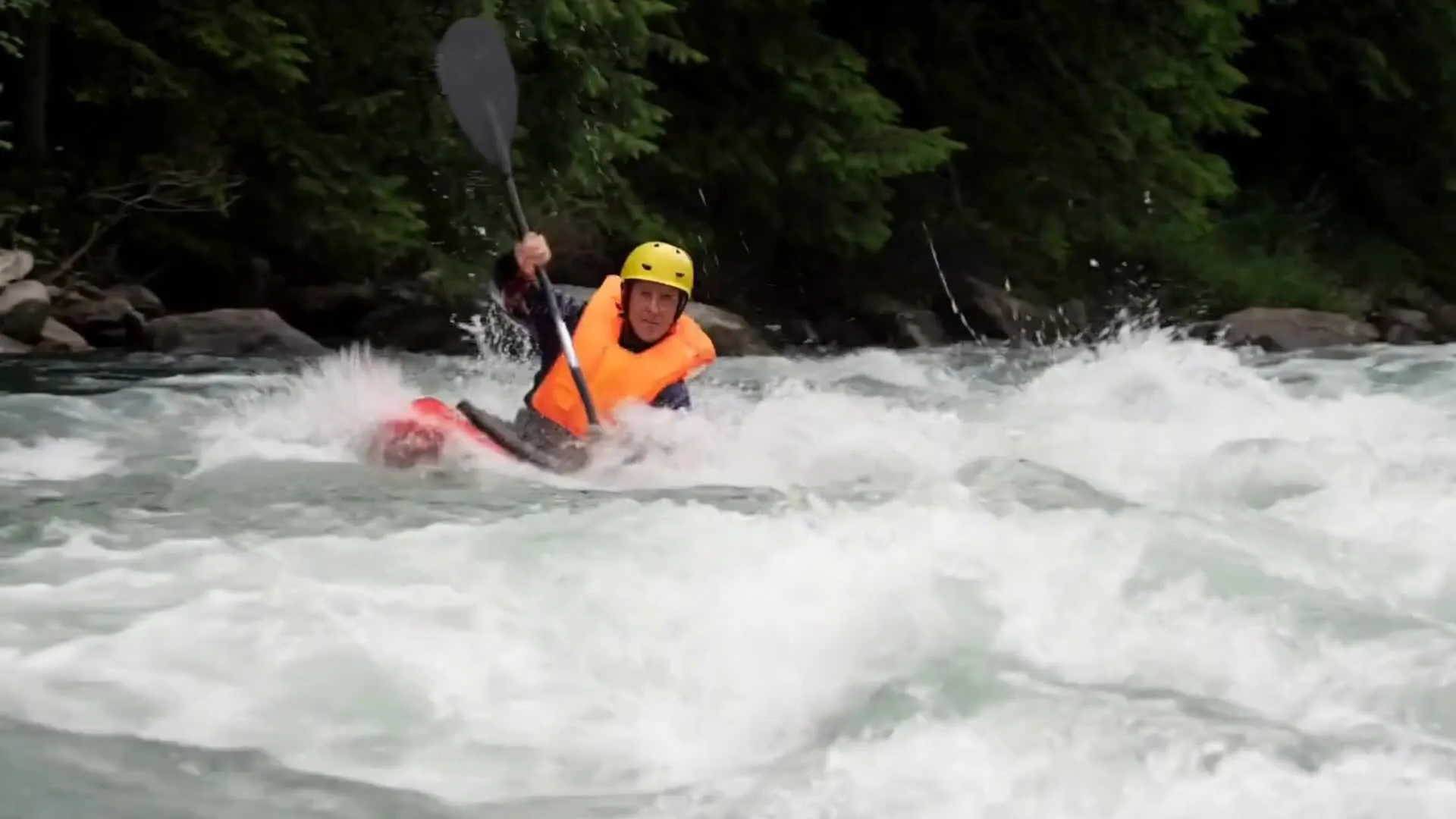
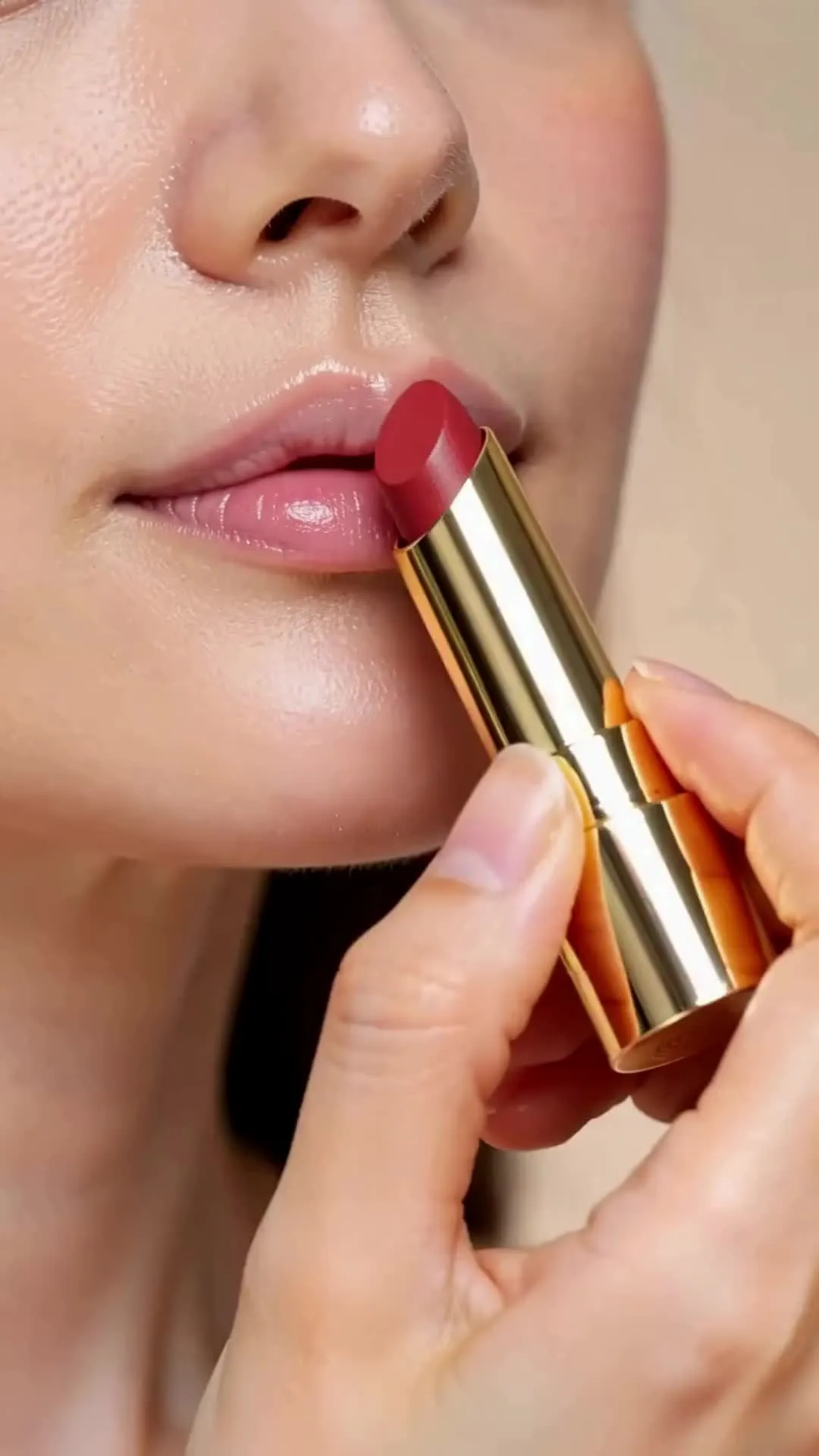
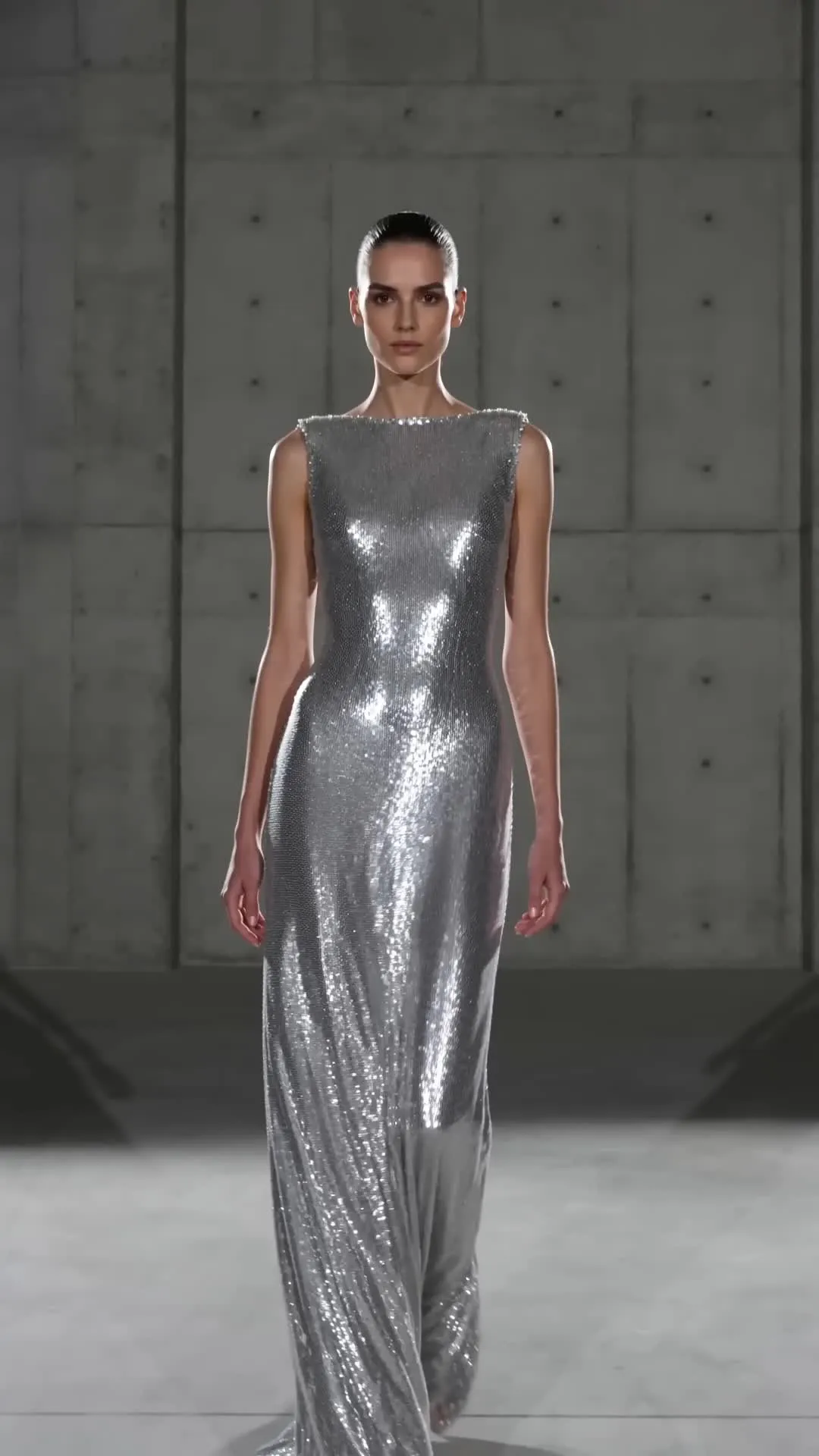

Why use MiniMax H3 in Kapwing
Generate with H3 — keep editing in one place
From start frame to finished edit
MiniMax H3 creates the motion. Kapwing gives you the production workflow around it.
- From a text prompt or opening frame to 15-second clip
- Compare results vs other AI video models
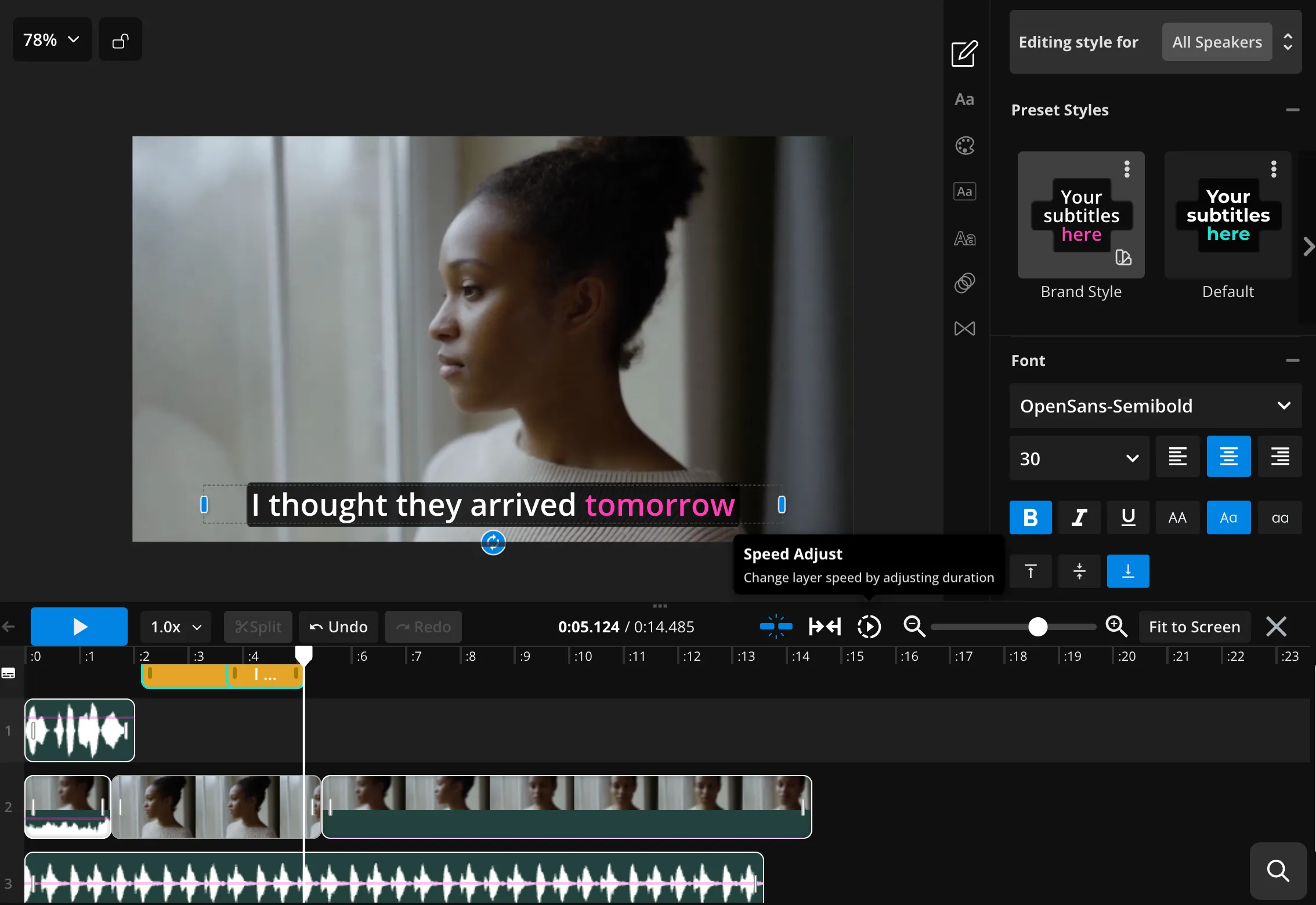
- Trim, combine, subtitle, add a voice-over, or translate
- Resize for social platforms, upscale to 4K, and export
AI video generator + online video editor
Over 35M teams, businesses, and creators use Kapwing
Product Videos
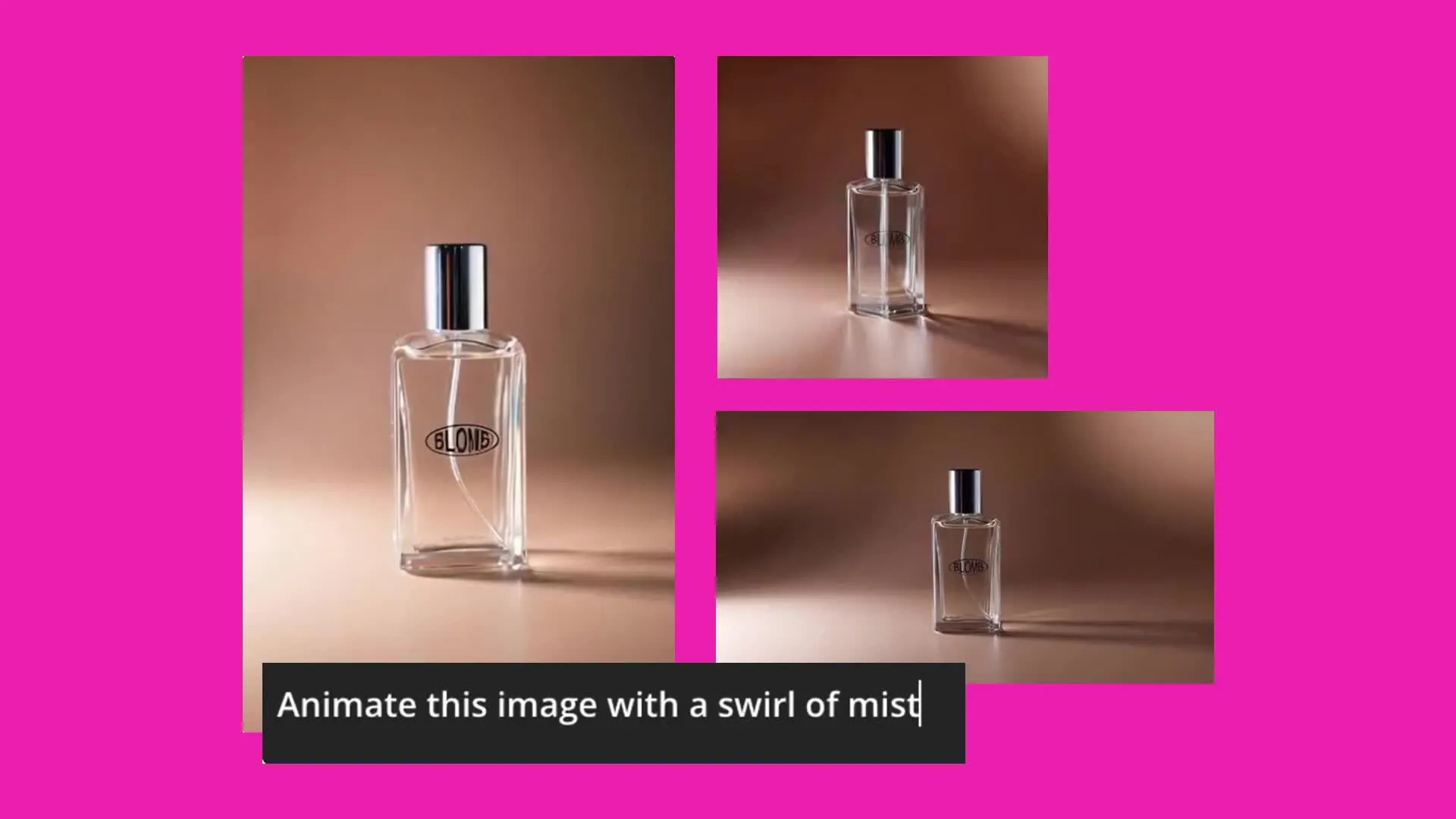
Transform a product photo into a moving reveal, rotating showcase, lifestyle insert, or detail shot

Social Media Clips
Create short video clips for TikTok, Reels, Shorts, paid ads, and social posts. H3 generates portrait, square, landscape, or widescreen footage.
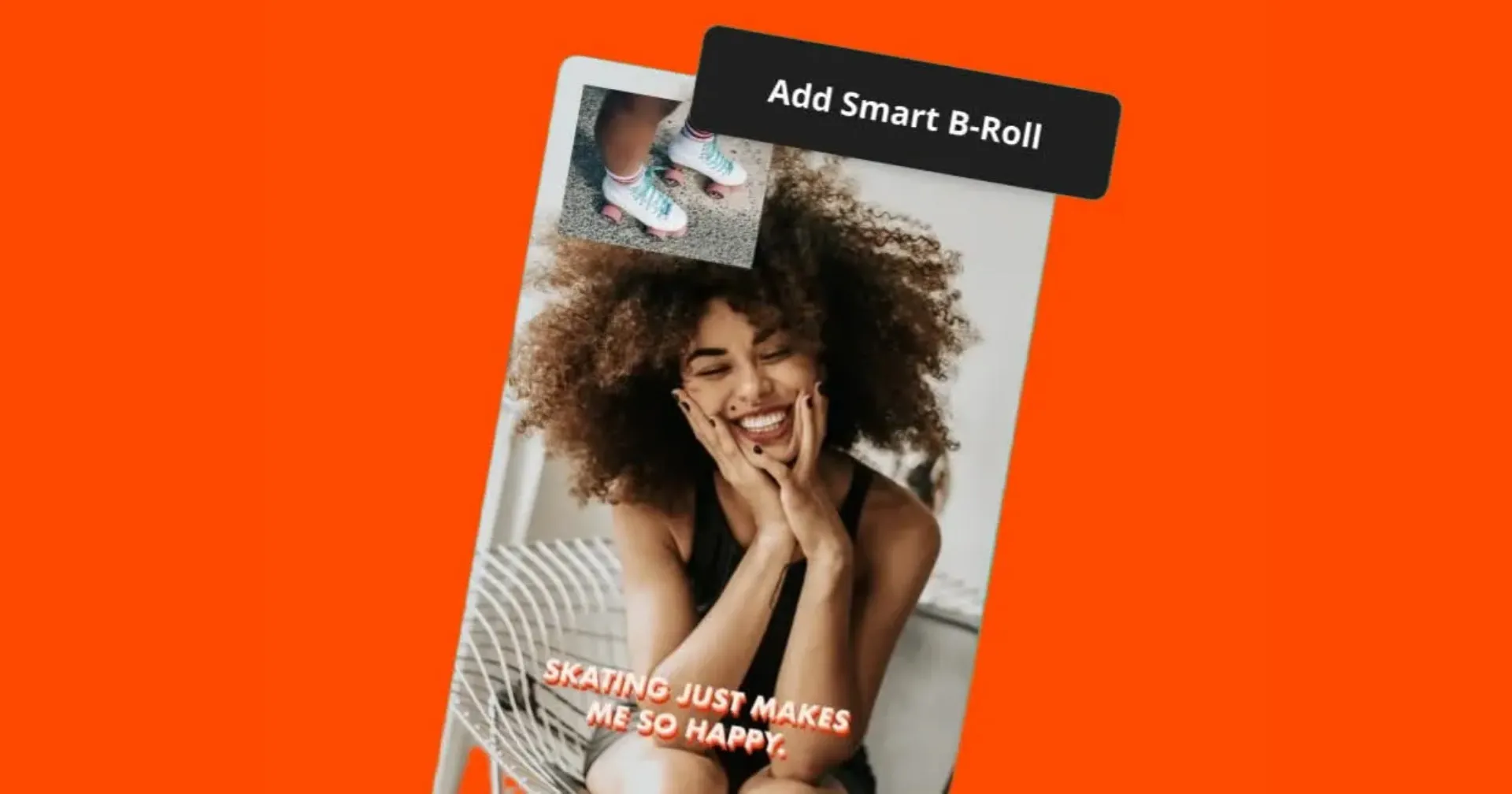
Cinematic B-Roll
Generate establishing shots, atmosphere, nature, travel, people, or object movement with realistic motion
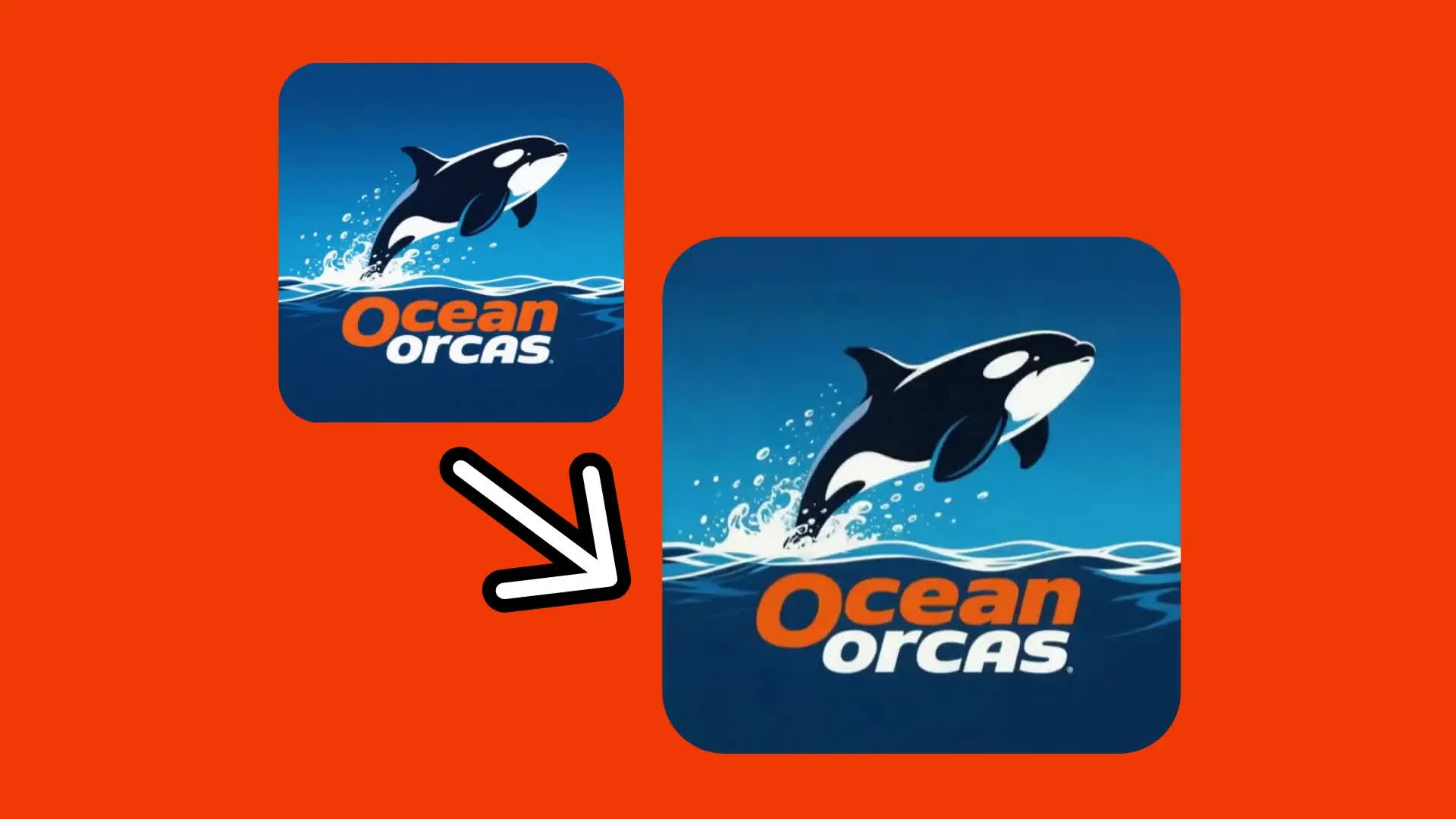
Animated Logos & Art
Turn a product photo into a moving reveal, rotating showcase, lifestyle shot, or close-up
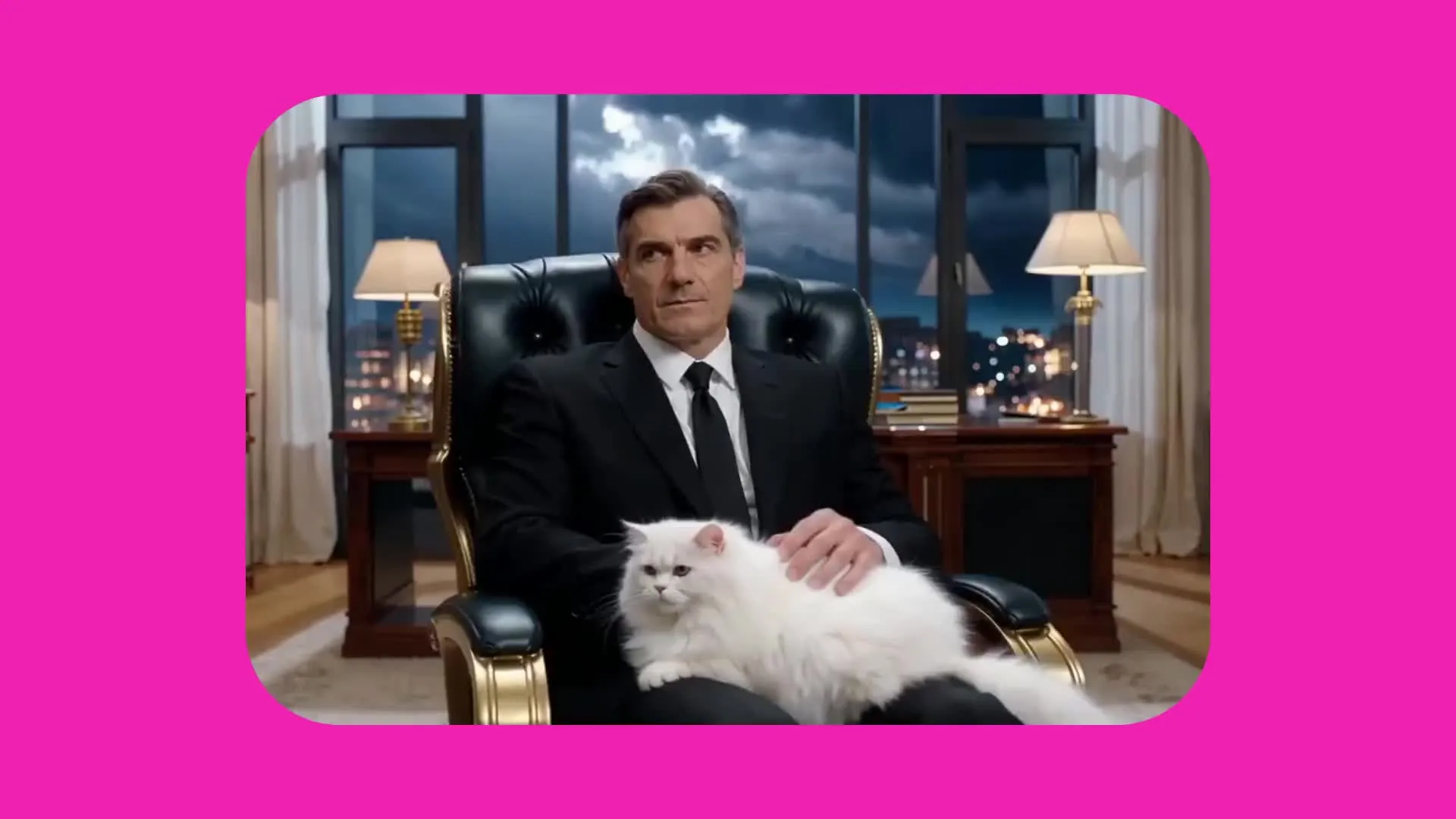
People & Lifestyle
Generate people walking, interacting, demonstrating products, or moving naturally through a scene
Prepare the frame. Generate the video. Finish the edit.
Combine Kapwing’s AI models around MiniMax H3
Give H3 a stronger starting image
MiniMax H3 responds to the image you use as its opening frame. Build that source material in Kapwing before you animate it.
- ChatGPT Image 2
Create products, characters, locations, and opening images using ChatGPT Image 2 in Kapwing.
- Google Nano Banana
Refine clothing, props, backgrounds, lighting, and composition while preserving the important details in your source image.
- MiniMax Music 2.6
Generate an original song for your H3 clip using MiniMax, then add it to the timeline editor with voice-over, ambience, and sound effects.
Frequently Asked Questions
We have answers to the most common questions that our users ask.
What is MiniMax H3?
MiniMax H3 is MiniMax’s newest general-purpose multimodal generation model. In Kapwing, you can use it to create short videos with realistic motion from a text prompt or opening image.
How do I use MiniMax H3 in Kapwing?
Open Kapwing AI (Kai), choose video generation, and select MiniMax H3 from the model menu. Enter a prompt suited to H3 or upload an opening image, prompt with your desired duration and aspect ratio, then click "Generate."
Do MiniMax H3 videos contain watermarks?
Kapwing does not add a separate MiniMax H3 watermark to generated videos. Your Kapwing plan and export settings may affect the final Kapwing export.
Is MiniMax H3 safe to use?
MiniMax H3 runs inside Kapwing’s browser-based editor, so no separate software is required. Generations remain subject to Kapwing’s content policies, safety filters, and community guidelines.
How long are MiniMax H3 videos in Kapwing?
MiniMax H3 generates videos at a maximum of 15 seconds. However, Kapwing AI can automatically stitch multiple clips together for videos beyond H3’s 15-second limit.
Can I edit a MiniMax H3 video in Kapwing?
Yes. Trim and combine H3 clips, add transitions, subtitles, overlays, voice-over, dubbing, music, ambience, and sound effects, then resize and export from Kapwing’s online video editor.
Does MiniMax H3 support text-to-video and image-to-video?
Yes. Kapwing’s H3 integration supports text-to-video and image-to-video from an opening image. The uploaded image establishes the first frame, subject, composition, and visual style.
What resolution and aspect ratios does MiniMax H3 support in Kapwing?
MiniMax H3 generates at 768p in Kapwing. Text-to-video supports 16:9, 9:16, 1:1, 4:3, 3:4, and 21:9. Image-to-video adapts the framing to the opening image you upload.
Does MiniMax H3 support start frames, end frames, or reference video in Kapwing?
MiniMax H3 supports start and end frames for more control over how a scene develops. You can also upload one supporting reference image to guide the video style. It doesn’t support reference videos for motion transfer. For those workflows, Seedance 2.5 is a better alternative.
Does MiniMax H3 support motion control in Kapwing?
No. Kapwing’s H3 integration does not accept a motion-reference video. Use Kling Motion Control when you need to transfer a specific performance or choreography to a new subject.
What can I create with MiniMax H3?
MiniMax H3 is well suited to product-image animations, realistic people or animals, cinematic B-roll, social video inserts, branded visuals, and creative variations that fit into a 15-second maximum clip.
Can I use MiniMax H3 on iPhone, Android, or desktop?
Yes. Kapwing is browser-based, so you can access MiniMax H3 through a compatible desktop or mobile browser without installing separate MiniMax software.
Discover Resources
Tips, templates, and deep dives to help you create faster and share with confidence.
View all


Get started with your first video in just a few clicks. Join over 35 million creators who trust Kapwing to create more content in less time.