Pixelate videos online with AI.
Free to start in your browser.
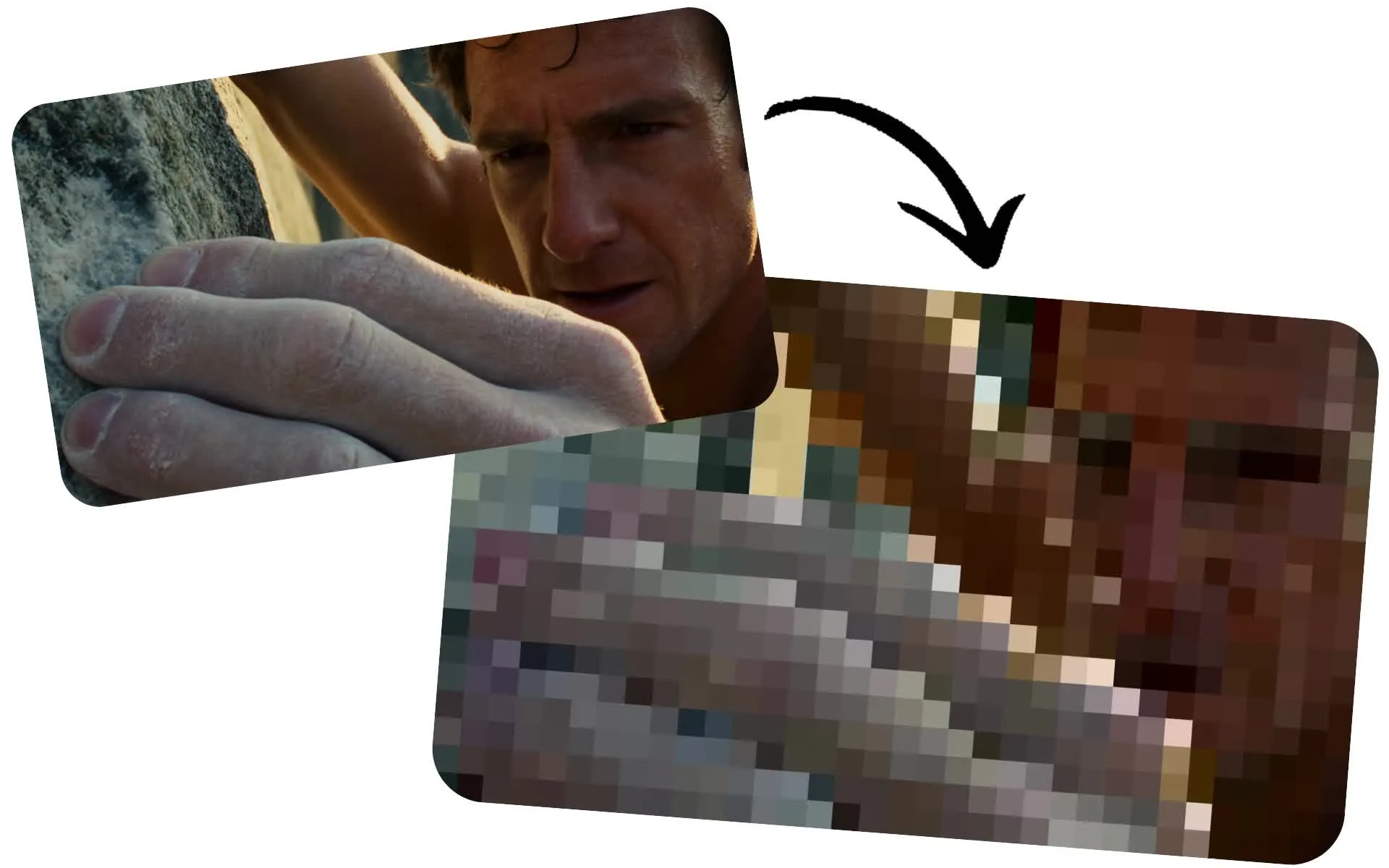
Pixelate videos without frame-by-frame editing
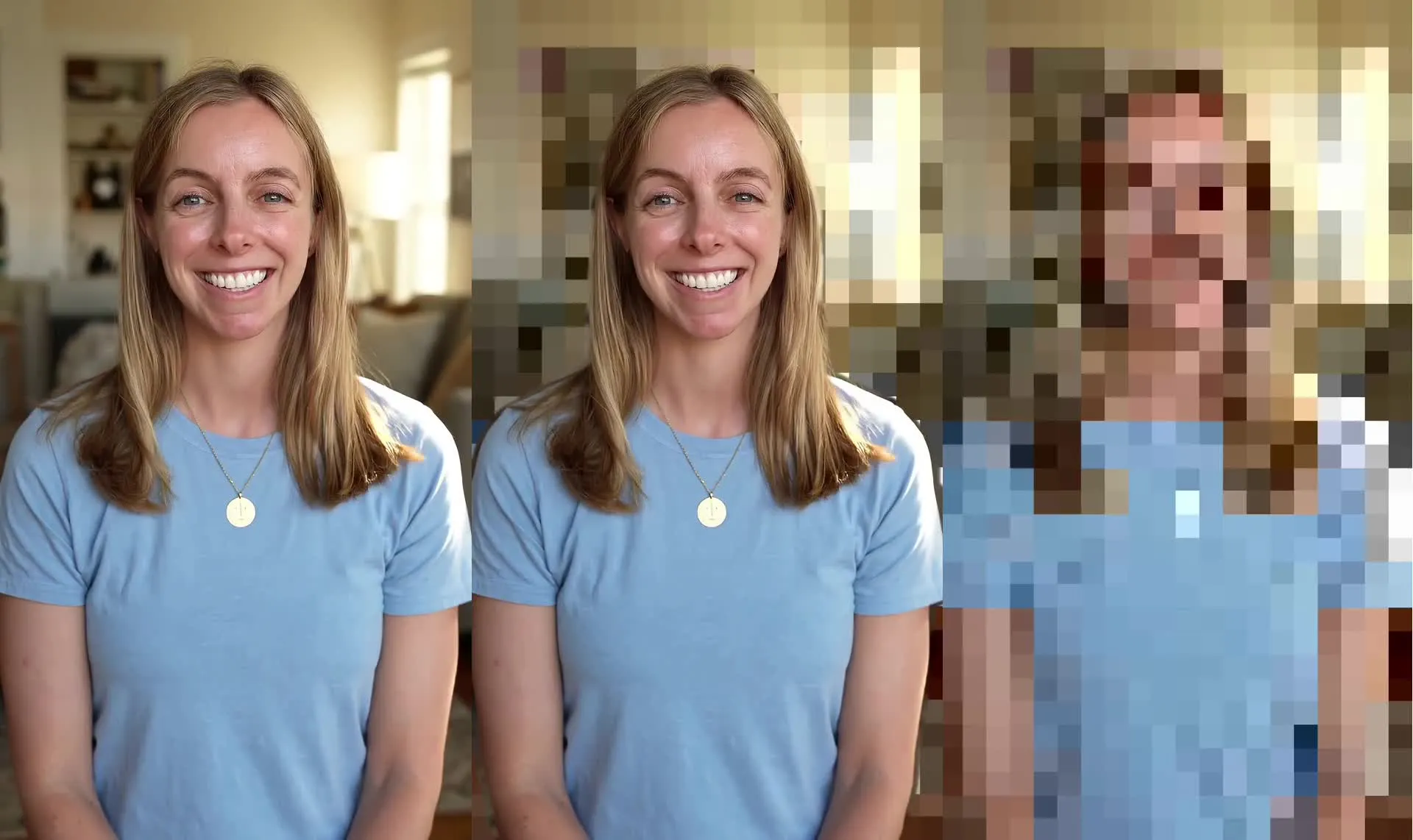
Apply a pixelated video effect to backgrounds or entire videos
Fast, accurate pixelation with a few clicks
Pixelate your entire video or automatically conceal the background behind your subject with AI. Whether you’re protecting privacy, censoring sensitive content, or creating a stylized effect, Kapwing’s AI video assistant, Kai, detects your subject and generates a mask that tracks movement throughout the video — no manual masking required.
Ask Kai to blur all or part of your video, then switch the blur to a pixelation effect in the Studio. Use the mask size and feathering controls to refine the result without making frame-by-frame adjustments.
Pixelate your background to keep your surroundings private, or apply the effect to your entire video to censor footage, tease a product launch, or create a retro, low-resolution pixel look. Edit directly in your browser with no downloads required.
How to pixelate videos in under a minute
Add accurate pixelation without manual editing
Upload
your video to a new chat with Kai


Prompt
Kai to blur your video, then click "Add to Project"
Pixelate
your video by clicking "Pixelate Background" in the right sidebar
Pixelate any video with AI
Join 35M+ creators using Kapwing. Start for free in your browser.
.webp)
Talking Head Videos
Keep viewers focused on the speaker by pixelating distracting or private backgrounds. Podcasters and thought leaders use AI pixel video tools to record from anywhere without revealing their surroundings.

Spoiler Warnings
YouTubers and gaming creators use video pixelation to hide key moments until viewers choose to watch, preventing accidental spoilers while increasing engagement
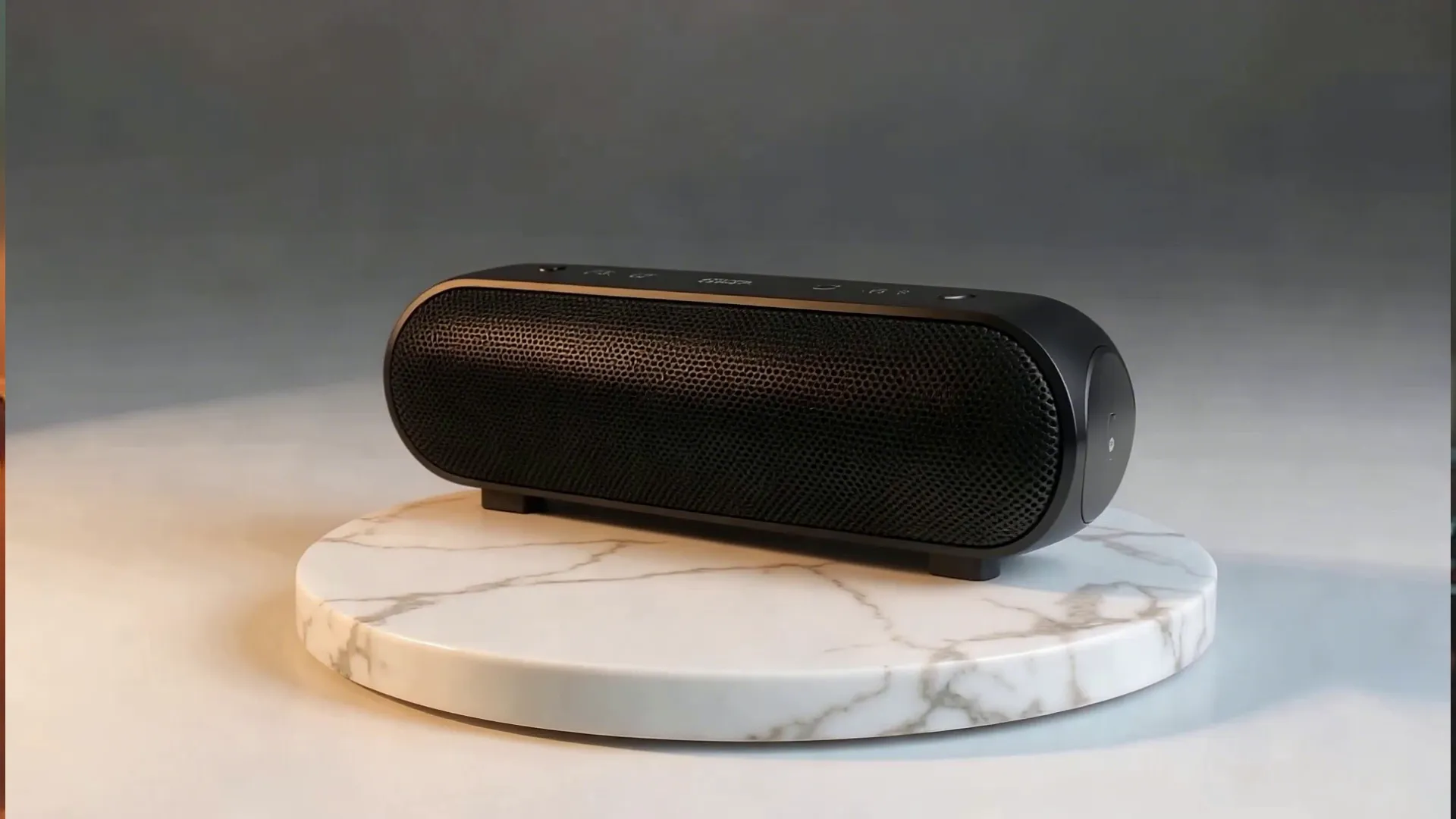
Product Reveals
Build anticipation by hiding a new product until the perfect moment. Product marketers and e-commerce teams apply a pixelated video effect to tease launches and encourage viewers to watch until the reveal.
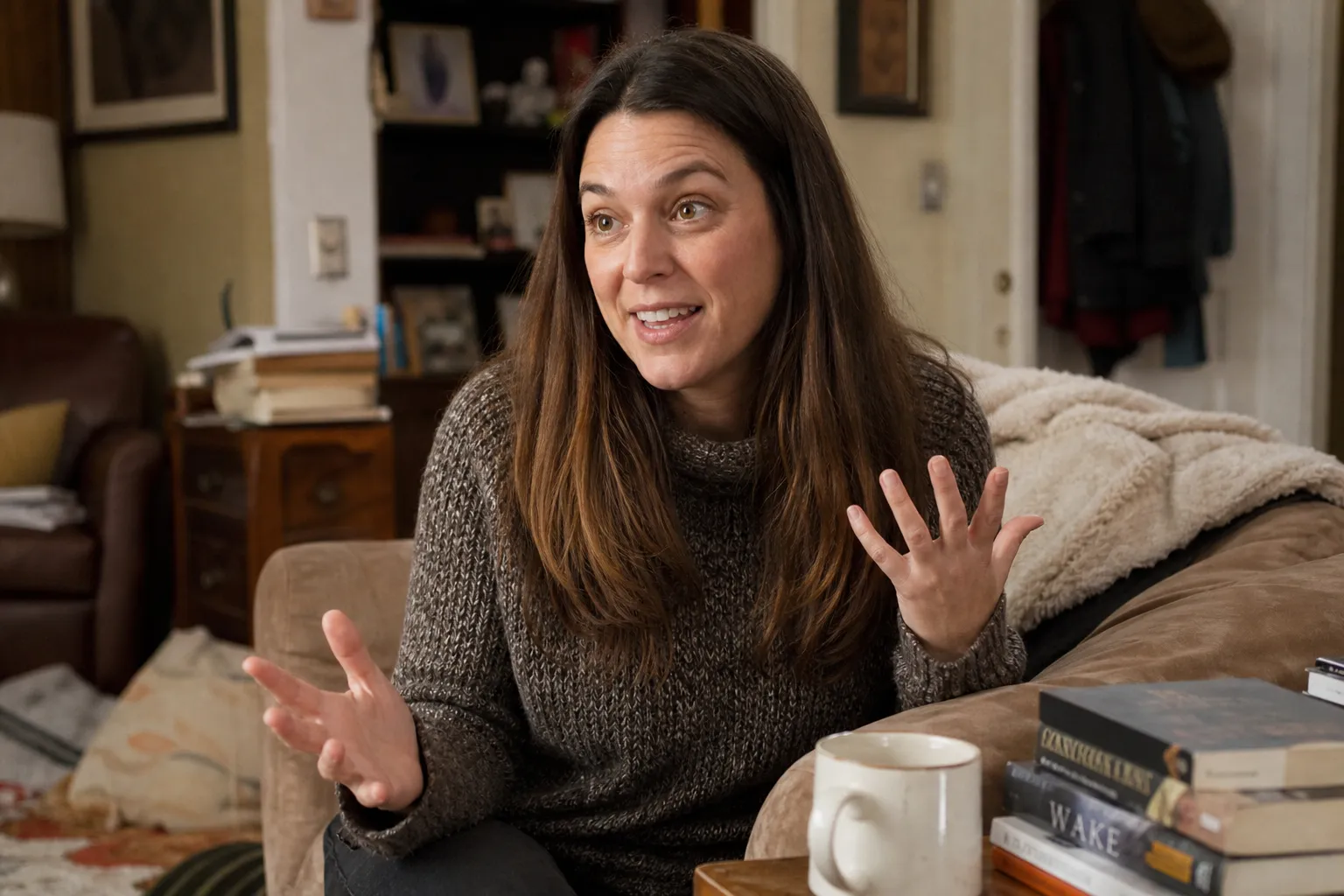
Client Testimonials
Share customer stories without exposing personal homes or workplaces. Customer success teams and agencies use video pixelation to make testimonials ready for public distribution.

Anonymous Interviews
Protect interview locations and participant privacy before publishing. Journalists, PR executives, and documentary creators use AI pixel video workflows when anonymity matters.

Recorded Presentations
Sales demos, webinars, and executive updates look more professional when the background stays private. Executives, sales reps, and support teams use an app to pixelate video before sharing recordings.
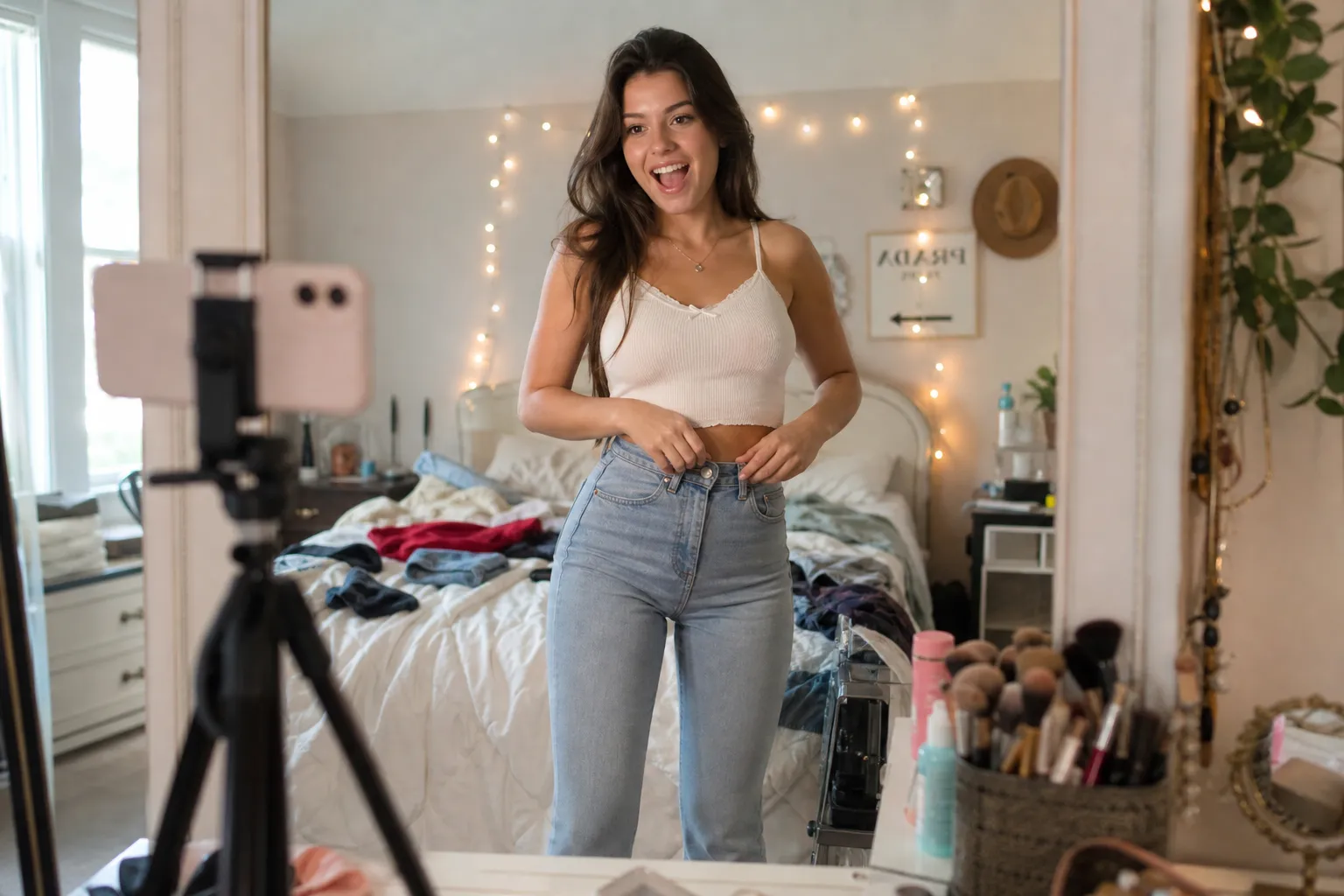
Social Media Posts
Marketers use a pixel video effect to create suspense around new campaigns, announcements, and limited-time offers, encouraging viewers to stay engaged until the final reveal
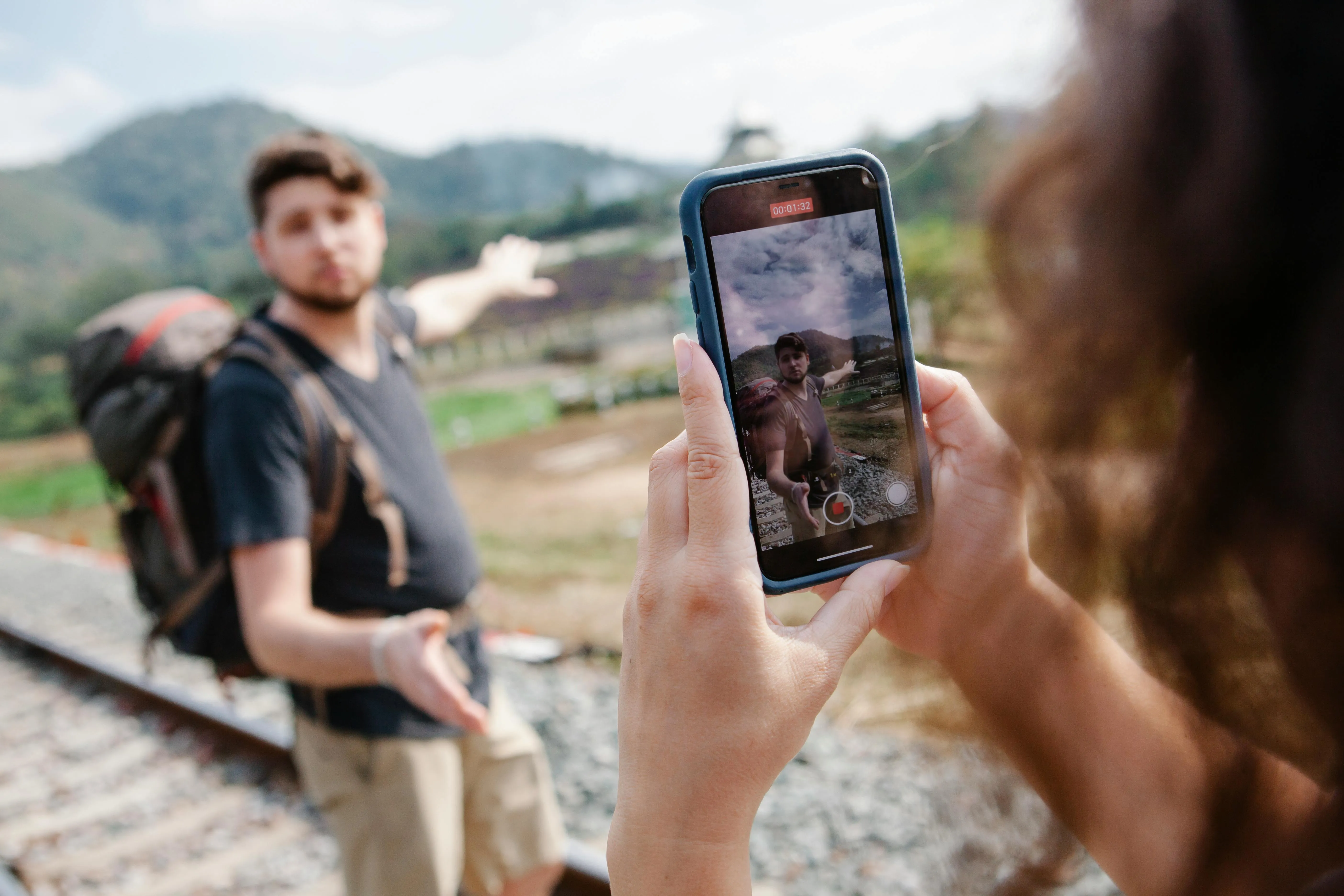
Vlogs
Filming on the go doesn't have to reveal where you live, work, or travel. Vloggers and influencers use an AI pixel video generator to obscure backgrounds while keeping themselves in focus.
Protect privacy, censor content, or add visual effect
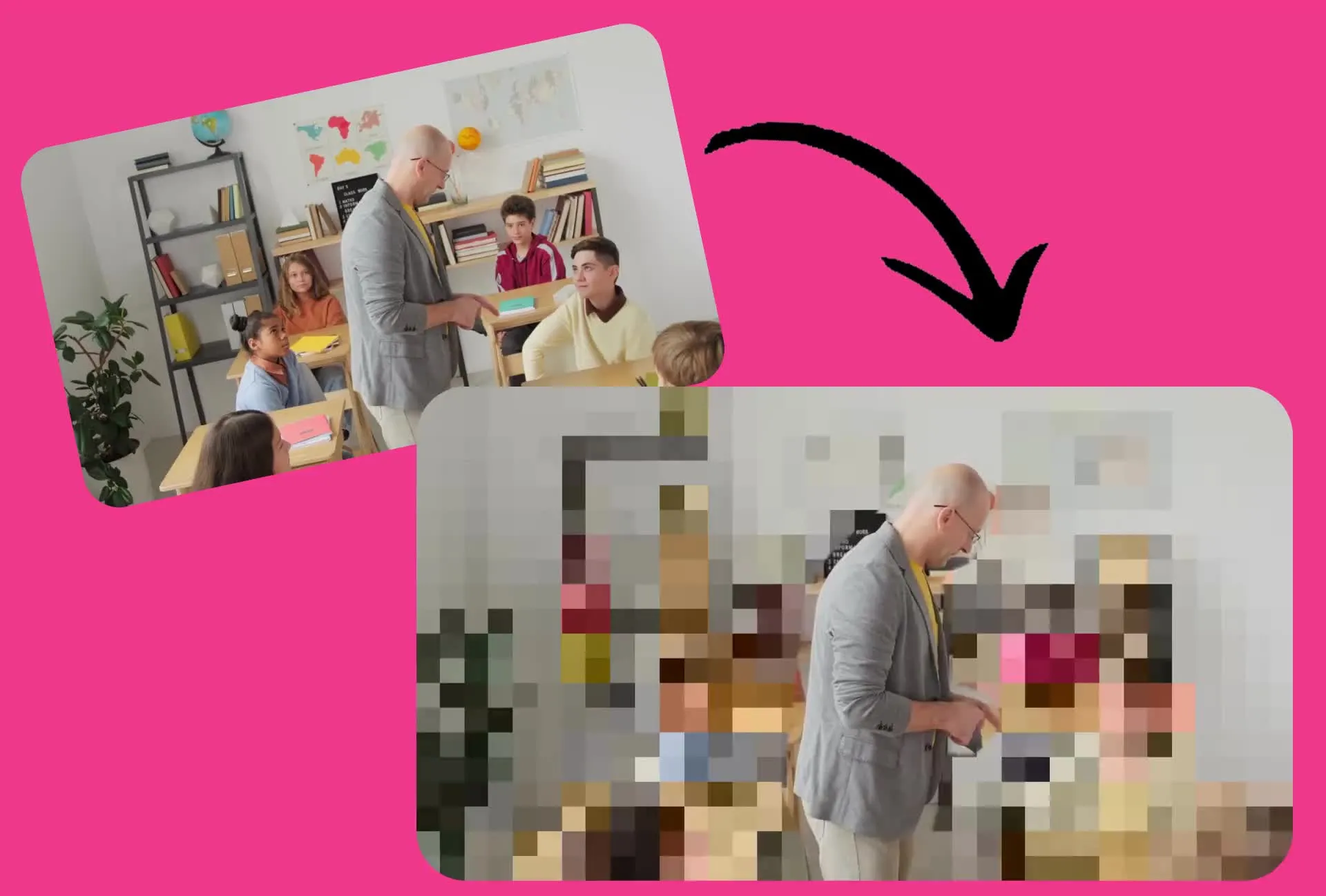
Record without clearing the room
Record wherever it's convenient without waiting for an empty classroom, office, or café. Background pixelation clearly obscures the people behind you, making it easy to protect the privacy of students, coworkers, customers, and bystanders while keeping yourself front and center.
With AI-powered masking, Kapwing automatically separates you from your surroundings before applying a pixelated video effect. The result is an intentional privacy treatment that's easy for viewers to recognize and doesn't require manual masking or frame-by-frame editing.
Hide sensitive information
Keep sensitive footage out of view before sharing your video. Pixelate the entire frame to obscure private or confidential content while making it clear to viewers that the footage has been intentionally censored.
Use full-video pixelation to safely include sensitive clips in reports, news coverage, educational content, or social videos without showing the original footage in full detail. Apply the effect in just a few clicks, directly from your browser.
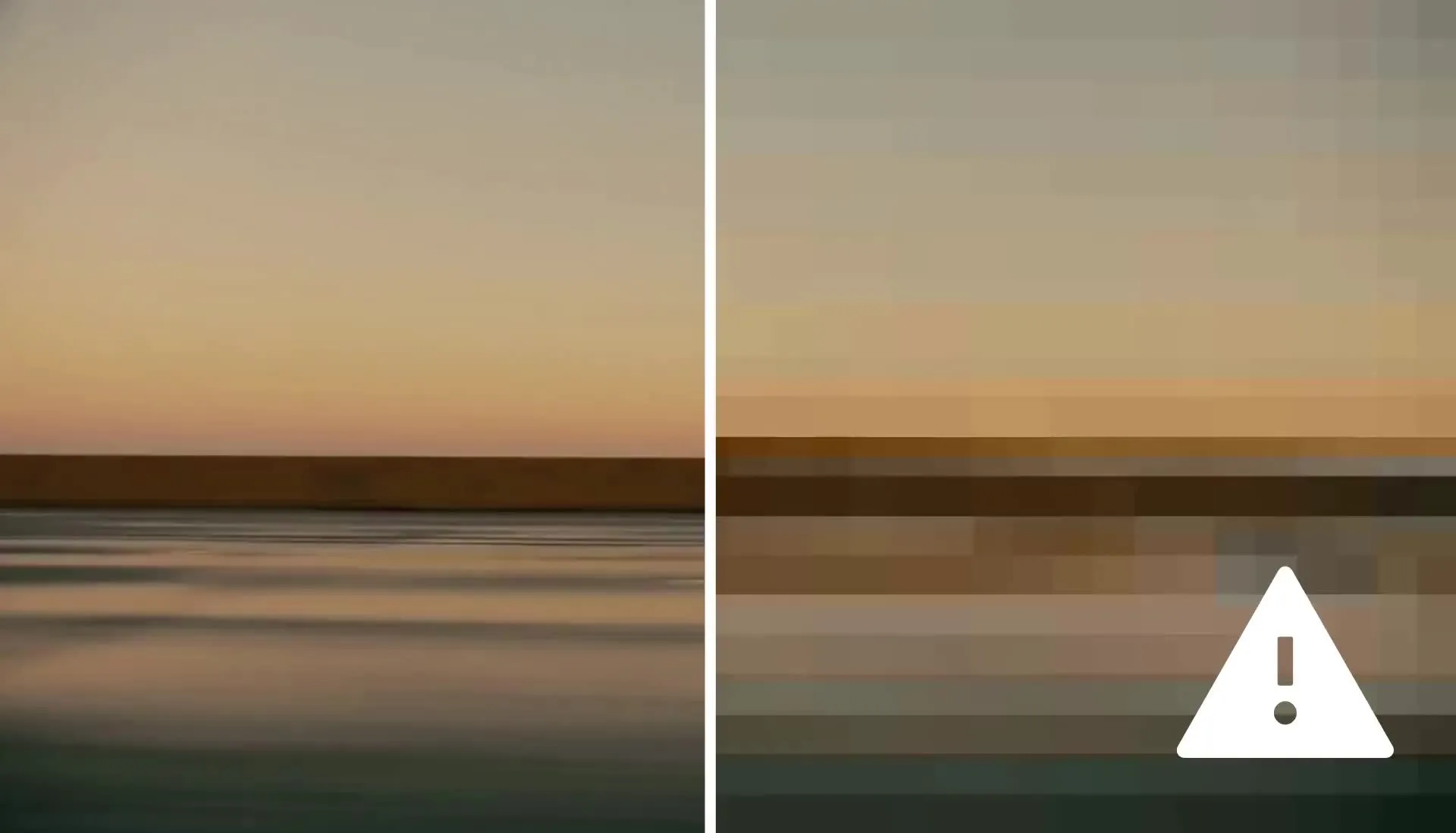
Build anticipation before a reveal
Turn product launches, announcements, transformations, and spoilers into moments of suspense. Pixelate the entire video to conceal what's on screen while giving viewers just enough visual context to keep them guessing.
Use the pixelated video effect at the start of a teaser or before a key reveal, then cut to the original footage when you're ready to show the full picture. Create recognizable, intentionally hidden previews in just a few clicks without manually recreating a pixel effect.
Keep editing in your browser
Take your pixelated video further without leaving Kapwing Studio. Use Blur Video when you need to obscure specific faces, objects, or details with greater precision, or Censor Video to add black bars, bleeps, and other censorship effects alongside your pixelation.
Finish your video with subtitles to keep dialogue clear and accessible, then resize for TikTok, Instagram, YouTube, or wherever you're publishing. Everything stays in the same project, so you can move from protecting sensitive footage to creating a share-ready video without switching editors.
How to Pixelate a Video
- Step 1Create chat
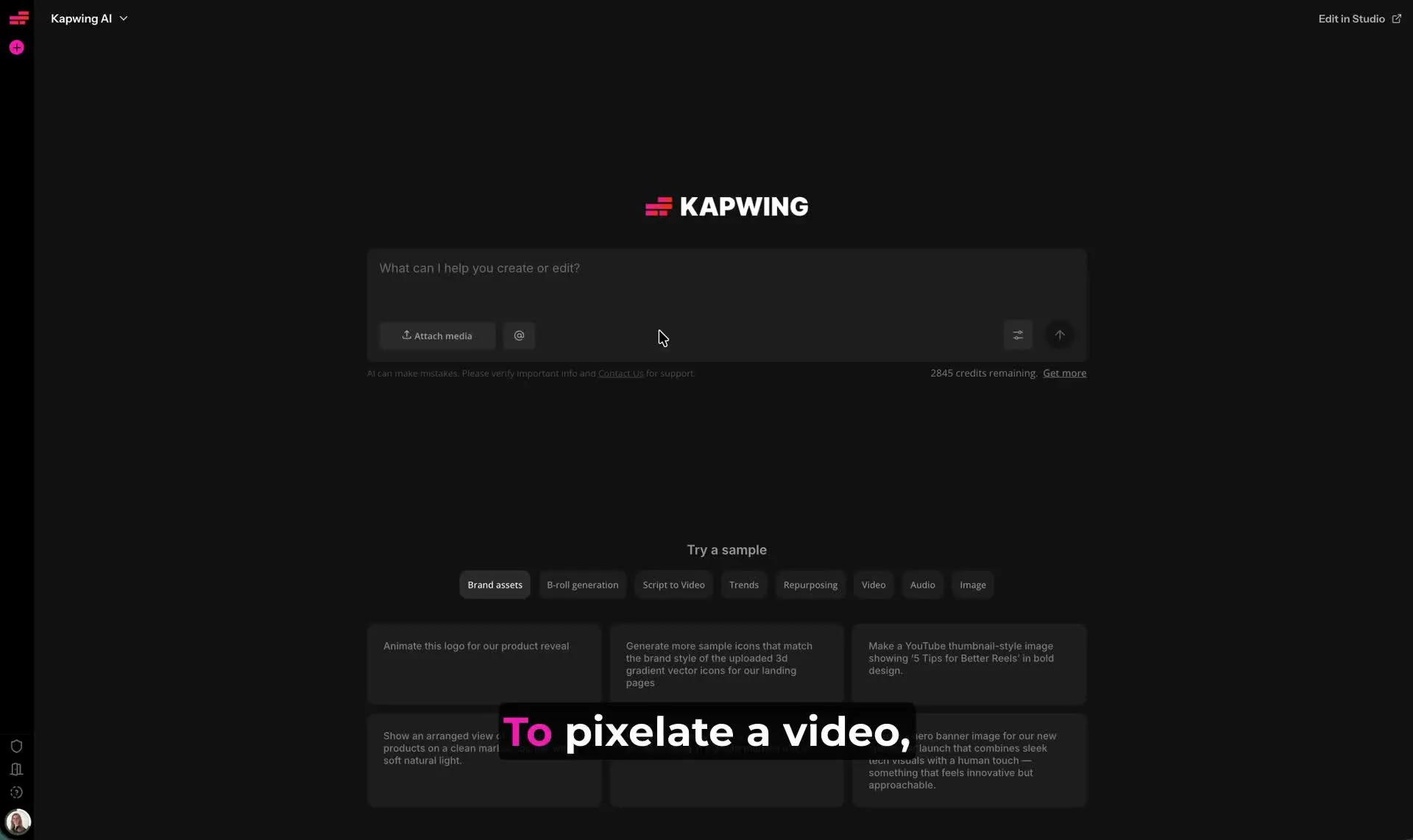
Start a new chat with Kai. Click "Attach media" to upload your video.
- Step 2Add blur
Enter a prompt like "Blur this video" to apply AI masking. Click "Edit" to move your blurred video to the Kapwing Studio.
- Step 3Pixelate video
Click on your video in the canvas, then click "Pixelate Background" in the righthand sidebar.
What's different about Kapwing?



Frequently Asked Questions
We have answers to the most common questions that our users ask.
Is Pixelate Video free?
Yes, anyone can try Kapwing’s AI Toolkit for free without watermarks. Our AI tools run on a credit system, with each feature costing a set number of credits. For maximum creativity and the best value, upgrade to a Pro account to unlock the full power of AI-driven content creation.
How to pixelate videos with AI
To add a pixelated video effect with Kapwing, start by uploading your video to a new chat with Kai. Enter a prompt like "Blur the background" or "Blur the entire video," then click the arrow to generate your video with blur masking. Once your video is ready, click "Edit" to move it to the Studio. Select your video in the canvas by clicking on it. The AI masking settings will automatically appear in the righthand sidebar. Click "Pixelate Background" to turn your video background or entire video pixelated, depending on what you initially prompted.
Continue editing your pixelated video in the Kapwing video editing studio, then click "Export Project" at the upper right to export and save your video. Choose your fle type (MP4, MOV, or WebM), preferred resolution (up to 4K) and compression level, then click "Export" to download your pixelated video.
What kinds of videos benefit from pixelation?
Video pixelation is useful whenever you want to intentionally conceal part or all of your footage. Common examples include talking-head videos filmed around other people, sensitive news or educational footage, internal business recordings, product teasers, spoiler warnings, and before-and-after reveals.
A pixelated video effect can also be used creatively in social media videos, gaming content, vlogs, and ads to create suspense or give footage a distinctive censored look.
What's the difference between pixelating and blurring a video?
Blur softens details and can blend more naturally into footage, while video pixelation breaks the image into visible blocks. A pixelated video effect tends to make intentional censorship more obvious to the viewer.
Blur can be useful when you want an unobtrusive effect, while pixelation works well for privacy, censorship, spoilers, and content where you want viewers to recognize that something has deliberately been hidden.
Will pixelating the background affect my video quality?
No, pixelating the background applies the pixel effect only to the masked area behind your subject, leaving the rest of your video unchanged. Your subject remains clear and in focus while the background is intentionally pixelated.
Video pixelation is a visual effect rather than a reduction in the overall resolution of your video, so you can still export your finished project at high quality.
Can I switch between blur and pixelate effects?
Yes, once you've applied AI blur masking to your video, you can switch between blur and pixelate in Kapwing Studio for free using simple effect buttons. Your existing AI mask stays in place, so there's no need to repeat the masking process.
This makes it easy to compare both effects and choose whether a softer blur or more intentional pixelated video effect works best for your footage.
Discover Resources
Tips, templates, and deep dives to help you create faster and share with confidence.
View all


Get started with your first video in just a few clicks. Join over 35 million creators who trust Kapwing to create more content in less time.