The 5 Best AI Video Editing Assistants
I tested the leading AI video editing assistants to find which ones actually save time.
Most AI video editing assistants promise the same thing: editing videos through natural language instead of a traditional timeline. In practice, their capabilities vary significantly. Some tools genuinely speed up real editing workflows, while others still feel closer to experimental demos than production-ready software.
Even among tools with similar positioning, the differences quickly become clear. Some assistants are built to edit existing footage through conversation, while others focus on generating videos from text prompts. Across both categories, the quality of edits, ability to maintain context, and amount of manual cleanup required vary widely.
To cut through marketing claims, I tested 6 popular AI video editor using five real-world workflows based on how creators, marketers, and social media teams actually use these tools. The focus was on three things: the quality of the output, how smooth the editing experience felt, and how much manual work was still required before the video could be published.
The 5 Best AI Video Editing Assistants
- Kapwing – Best Overall AI Video Editing Assistant
- Descript – Best for Podcasts and Transcript-First Editing
- Filmora – Best for AI-Assisted Timeline Editing
- Runway – Best for AI-Powered Visual Editing
- InVideo – Best for Cinematic AI-Generated Videos
Best AI Video Editing Assistants
Ranked by assistant quality, automation, editing flexibility, AI generation, and how close each first draft came to being publishable.
Kapwing: Best Overall AI Video Editing Assistant
Kapwing was the most complete AI video editing assistant I tested. While every tool in this comparison uses AI in some capacity, Kapwing AI was the only one where I consistently found myself editing through conversation instead of switching back to manual tools.
You can edit directly in the timeline as the AI generates changes, which makes the experience feel very integrated and creates a strong balance between automation and hands-on manual control.
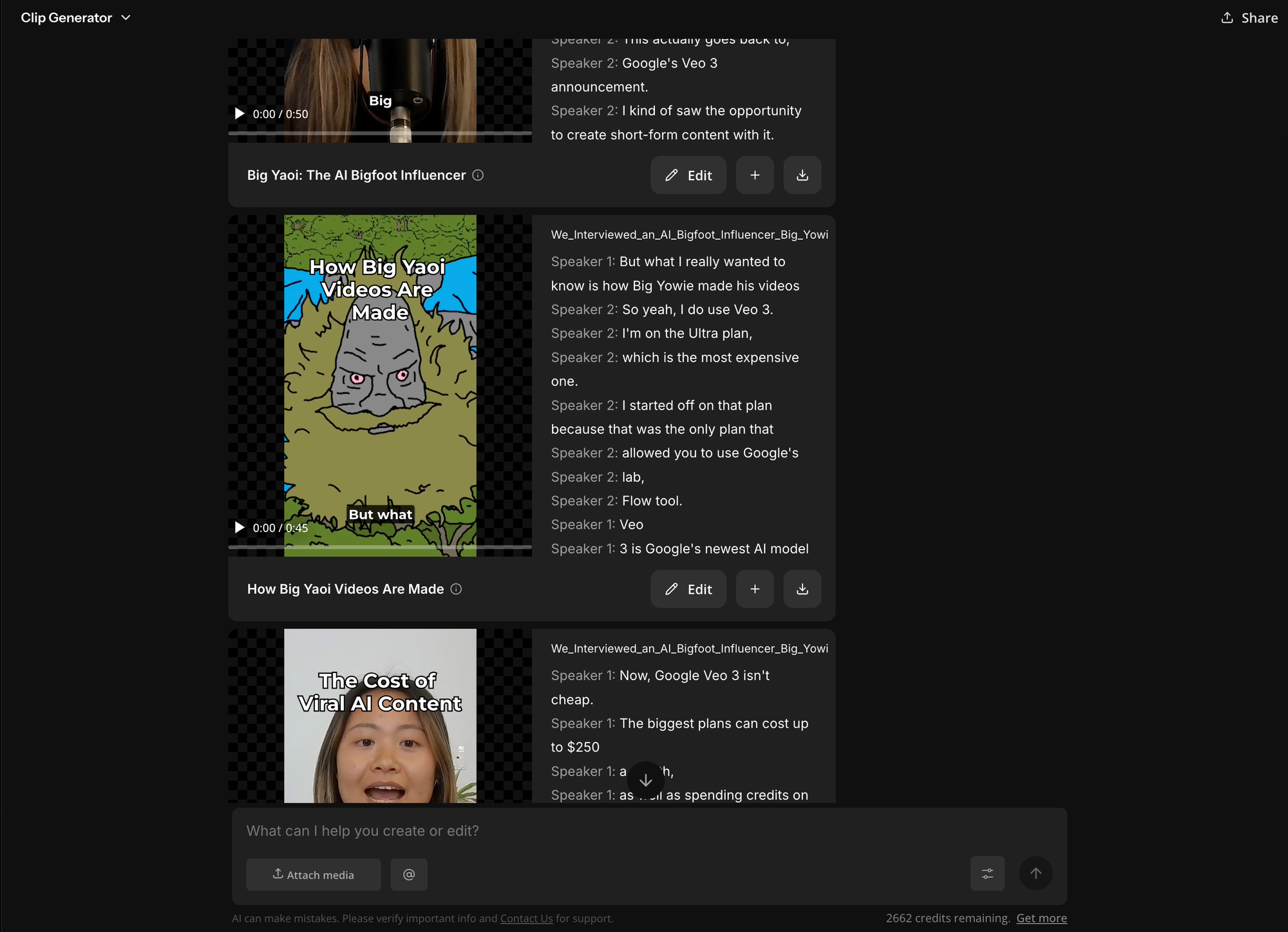
To evaluate its editing capabilities, I uploaded a nine-minute interview with Big Yowie and asked Kai's Clip Generator to create four 45-second highlight clips optimized for TikTok and YouTube Shorts.
The assistant identified strong standalone moments, automatically reformatted each clip into a vertical aspect ratio, generated accurate animated captions, and preserved enough surrounding context that each highlight felt complete rather than abruptly cut. Compared with the other assistants I tested, the first drafts were consistently the closest to something I would actually publish.
I spent noticeably less time fixing the opening hook, adjusting pacing, or restructuring the edit. Instead, most of my revisions were creative refinements rather than corrections.
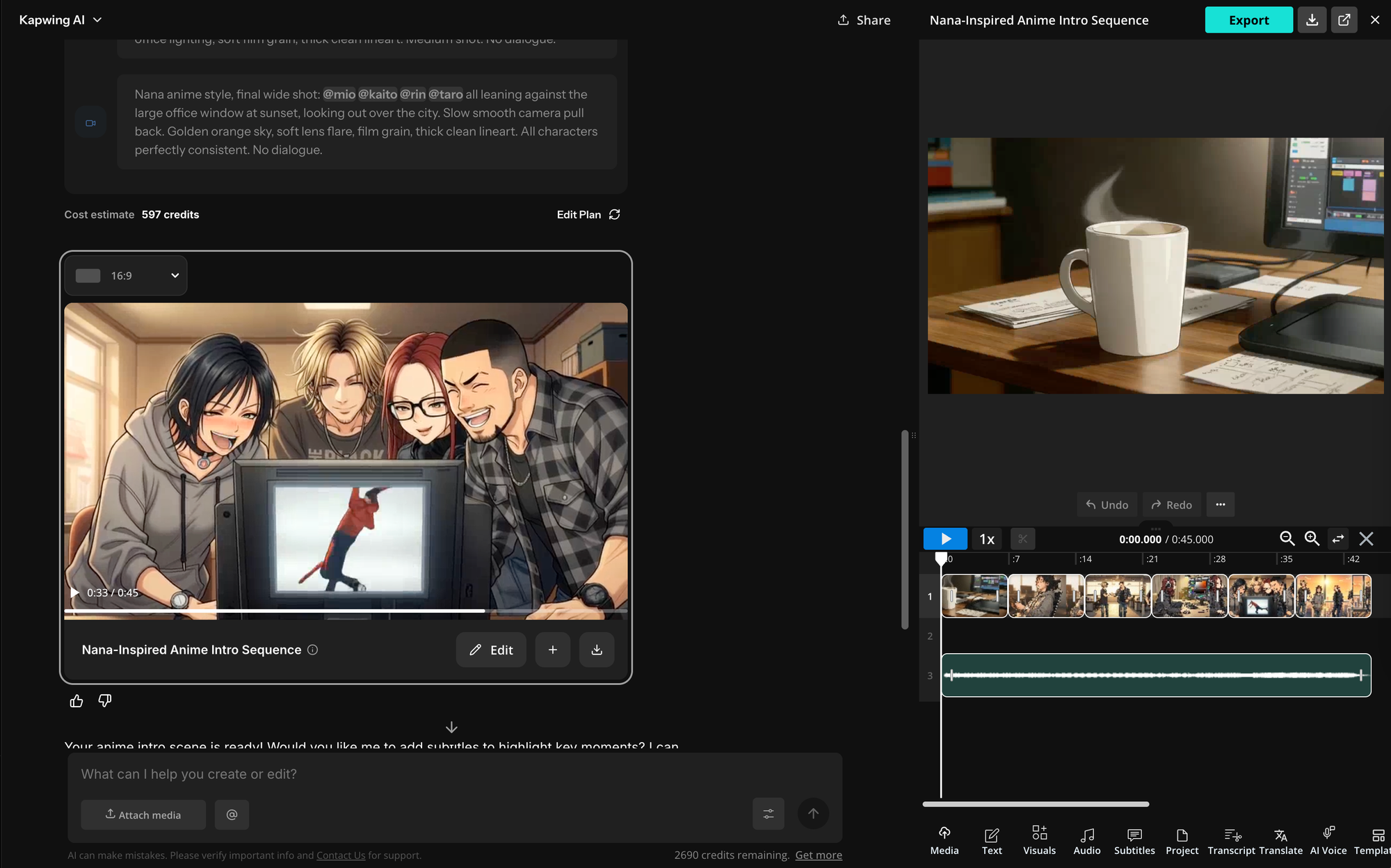
One feature I found particularly useful was the ability to reference existing media directly within the conversation. Rather than describing a clip abstractly, I could reference assets already in the project and ask Kai to edit them, replace them, or use them elsewhere in the timeline. As projects became larger, this made follow-up prompting much more reliable because the assistant understood the context of the edit instead of treating every prompt as a new request.
Unlike several other assistants, these edits felt incremental and predictable. During testing, I used follow-up prompts such as:
- Remove the first five seconds.
- Add more B-roll over this section.
- Make the captions smaller.
- Highlight the phrase "AI influencers."
- Replace the background music with something more energetic.
- Turn this into a YouTube Short instead.
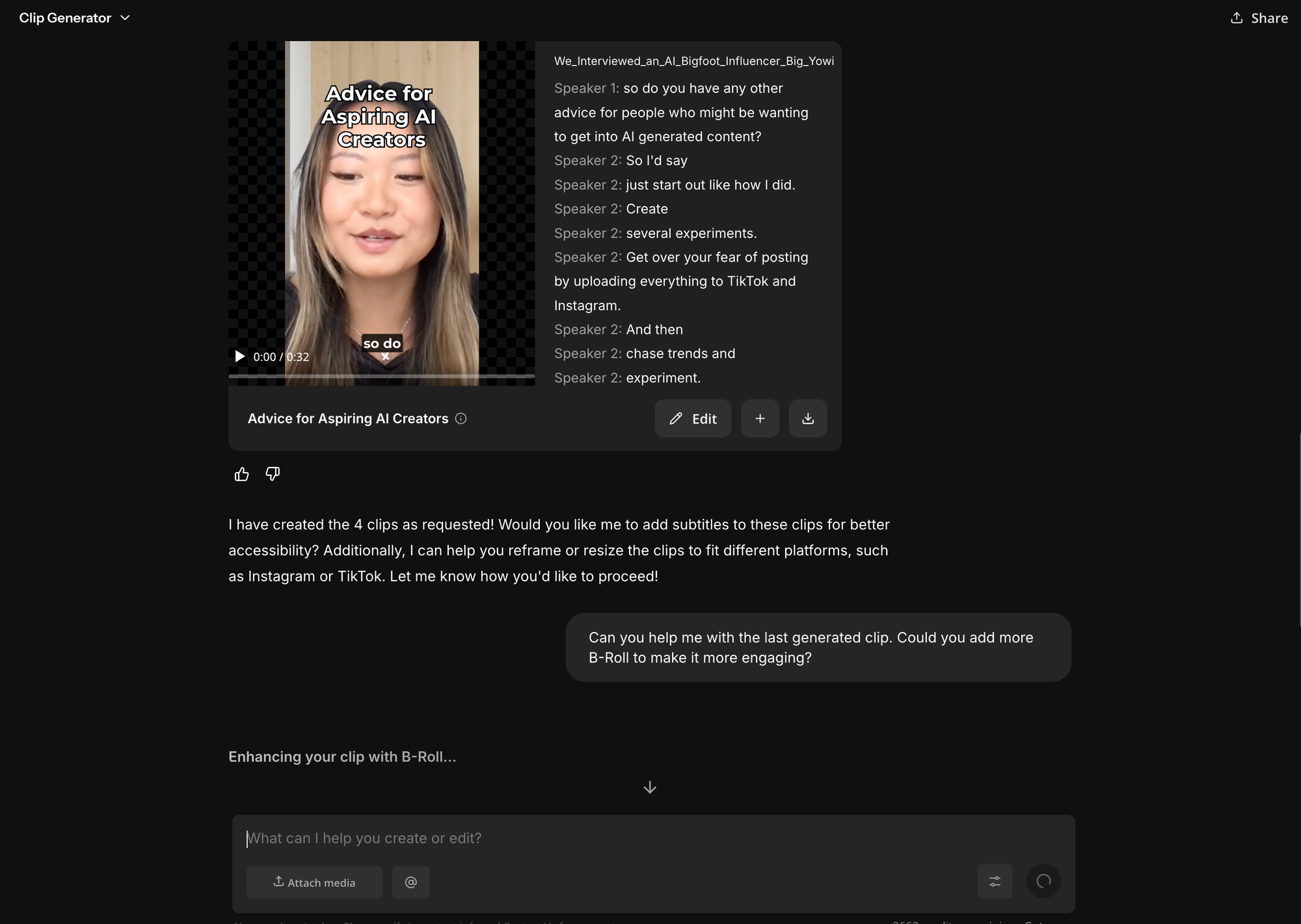
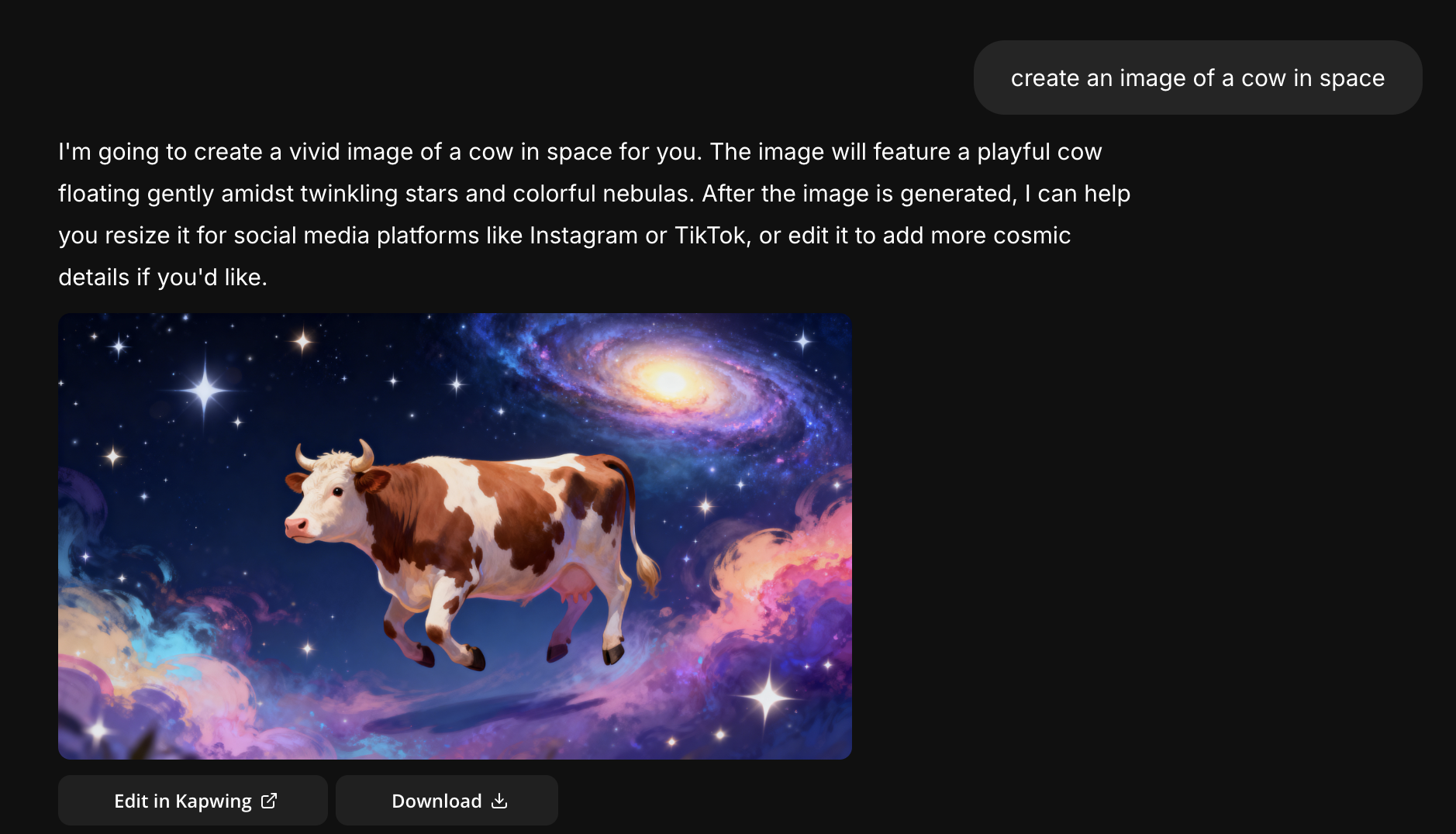
Kapwing also handled a wider variety of editing workflows than any other platform I tested. Beyond trimming footage and generating captions, I used it to remove filler words, generate B-roll, clean up audio, translate subtitles, resize videos for different platforms, create highlight clips, and generate AI images.
More importantly, these capabilities weren't spread across disconnected tools—they all existed within the same conversational workflow. After Kai completed an edit, every element remained fully editable inside Kapwing Studio.
That flexibility became especially valuable on longer projects. If the AI misunderstood a section, I could correct it manually in seconds instead of regenerating the entire edit.
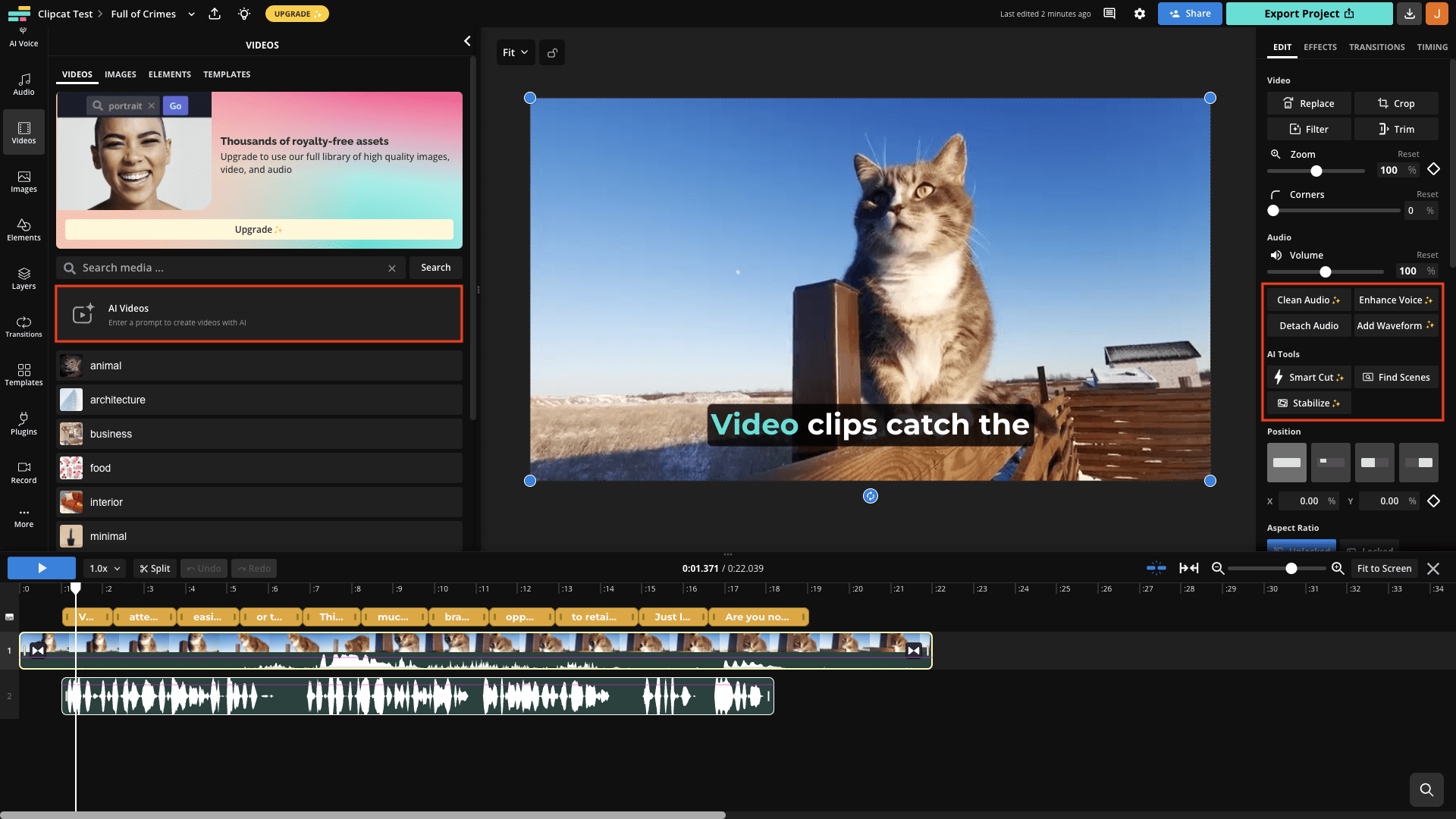
One area where Kapwing consistently stood out was AI generation. Kapwing lets you generate images, video, voiceovers, music, and sound effects using multiple frontier AI models within the same editor. During my testing, I was able to switch between Veo, Kling, Seedance, Wan, Sora, and image models like GPT Image and Nano Banana without leaving the project or learning a new interface.
I found this particularly valuable because different models consistently excelled at different tasks. For example, I preferred Veo's polished visual quality and Kling's motion control. Rather than forcing me to commit to one model for an entire project, Kapwing let me choose the best tool for each individual asset while keeping everything inside the same editing workflow.
More importantly, those generated assets weren't isolated outputs—they became part of the edit immediately. I could generate B-roll, replace it with another model if I wasn't satisfied, trim it on the timeline, add captions, combine it with uploaded footage, and continue refining the project through Kai without exporting or switching applications.
Kapwing wasn't perfect. Like every assistant I tested, it occasionally misinterpreted broader creative requests, particularly when they were intentionally vague. I also found that highly stylistic edits still benefited from manual direction.
However, these were generally edge cases rather than limitations of the overall workflow, and because the AI edits remained fully editable, correcting them rarely disrupted the project.
Kapwing
The strongest overall balance of conversational editing, automation, AI generation, and hands-on creative control.
Editorial Verdict
Kapwing delivered the most complete AI editing workflow in this test. Kai produced strong first drafts, handled follow-up prompts predictably, and kept every generated edit fully editable inside the timeline. Its biggest advantage is range: conversational editing, repurposing, captions, audio cleanup, resizing, B-roll, and multi-model AI generation all exist inside one connected workflow.
Best for
Descript: Best for Podcasts and Transcript-First Editing
Descript approaches AI video editing differently from most tools in this list. Rather than treating it as a timeline first, it treats it as a document. Every uploaded video is automatically transcribed, allowing you to edit the video by editing the transcript itself.
More recently, Descript has expanded this workflow with an AI assistant that can perform editing tasks through natural language. Instead of manually selecting clips or applying effects, you can ask the assistant to remove filler words, tighten pacing, generate captions, or add assets.
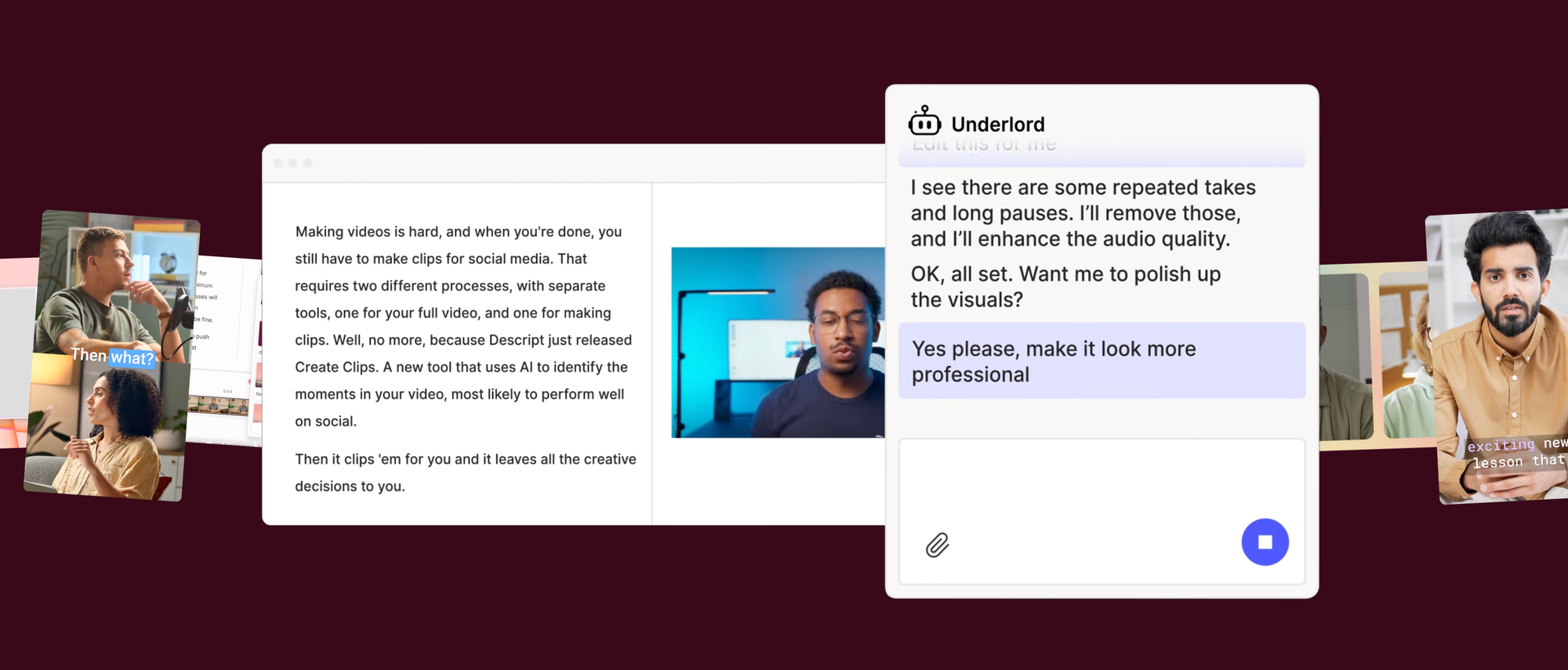
Because Descript edits from the transcript rather than the timeline, I found it made stronger, and more intentional decisions on dialogue-heavy content than some of the other assistants I tested. It was clear that, when executing these tasks, Descript's Underlord understood and considered the structure of the spoken content, not just the timing of the video.
For creators working primarily with talking-head videos, podcasts, interviews, webinars, or educational content, this transcript-first workflow remains one of Descript's biggest advantages. Its text based workflows were the fastest of the AI video editing assistants tested, making repetitive audio tasks more streamlined.
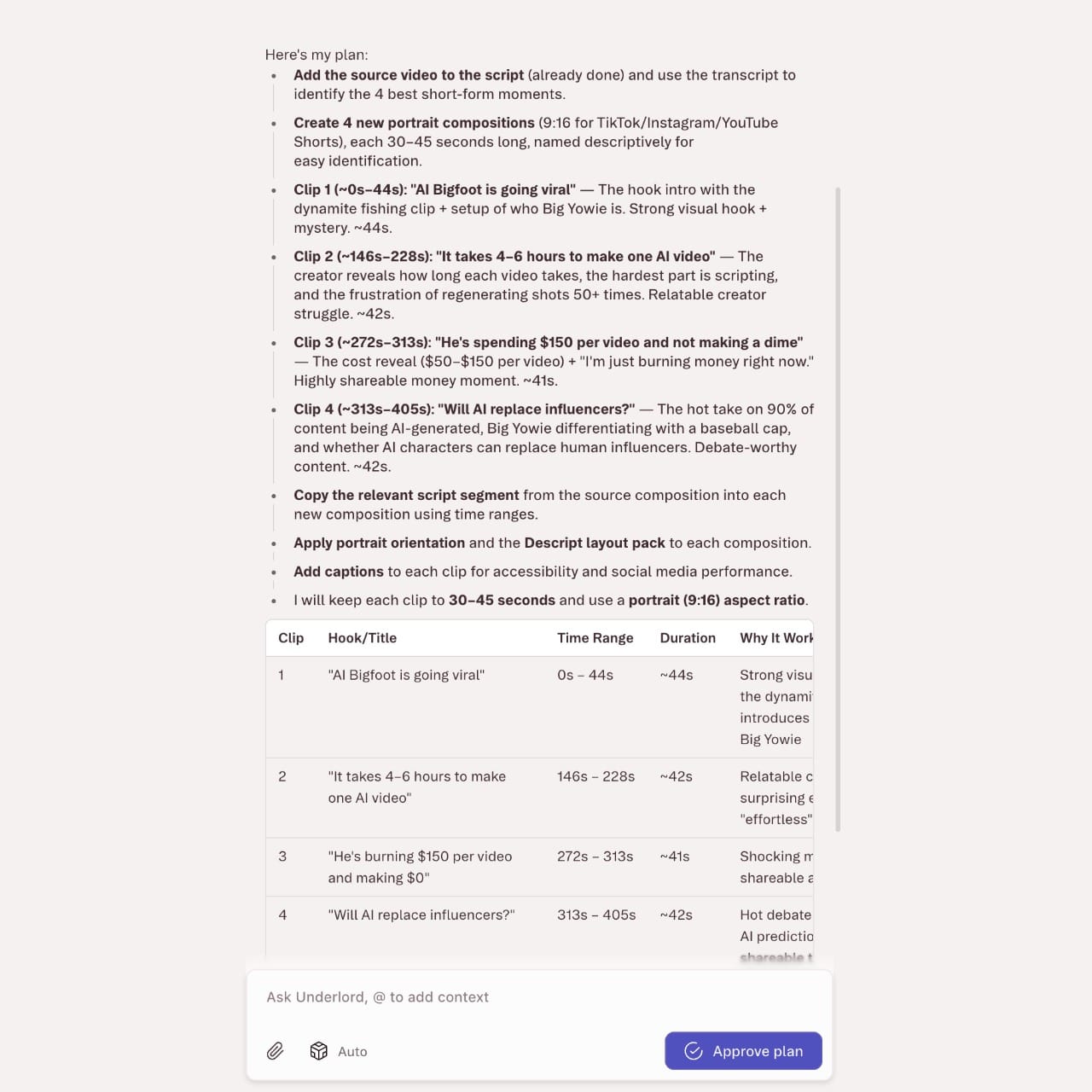
In my testing, I uploaded the same interview and asked Underlord to generate four 45-second highlights for short-form platforms.
Rather than extracting arbitrary sections of the video, it identified four distinct moments that worked as standalone clips, automatically resized them to a vertical aspect ratio, and generated accurate subtitles for each.
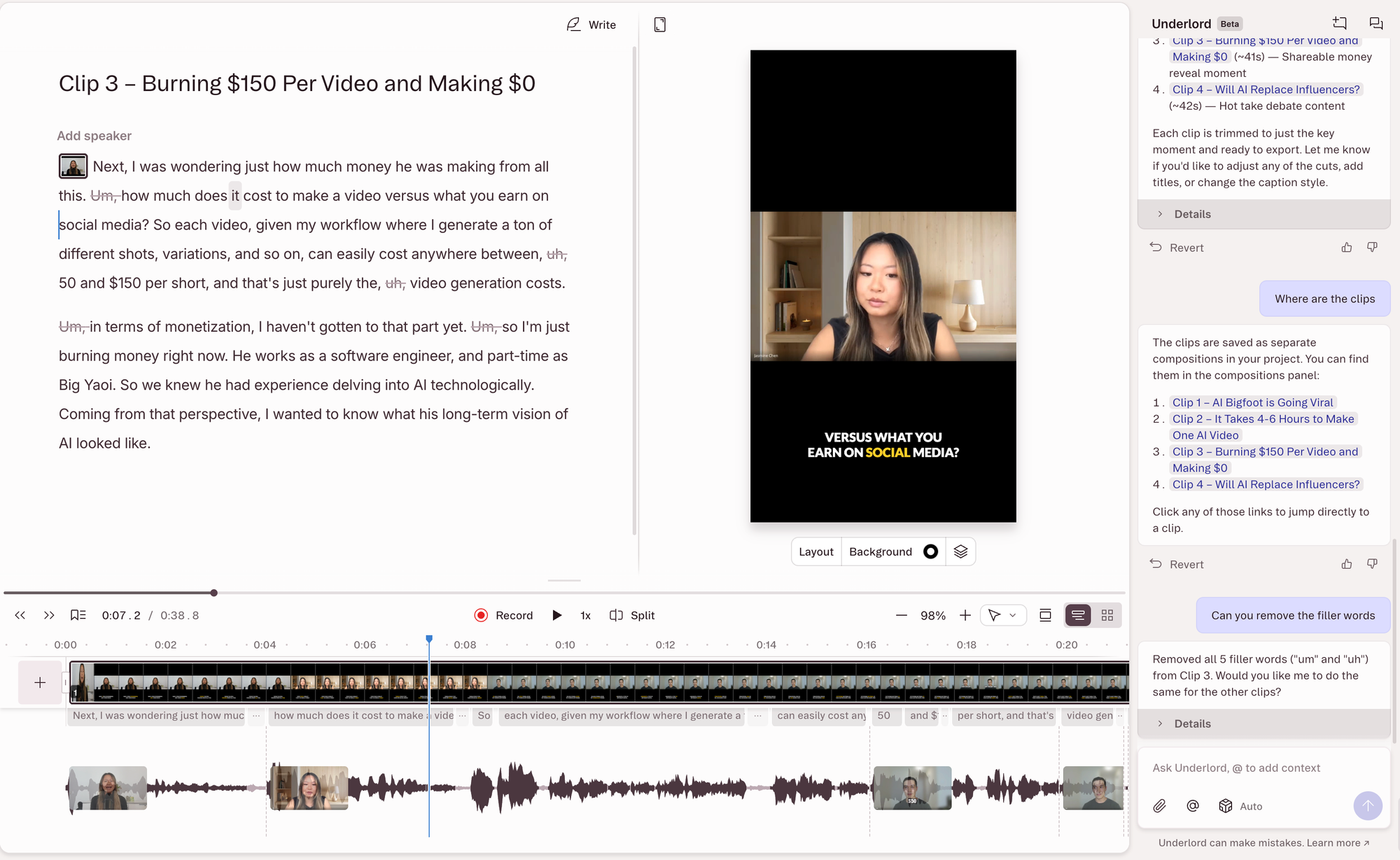
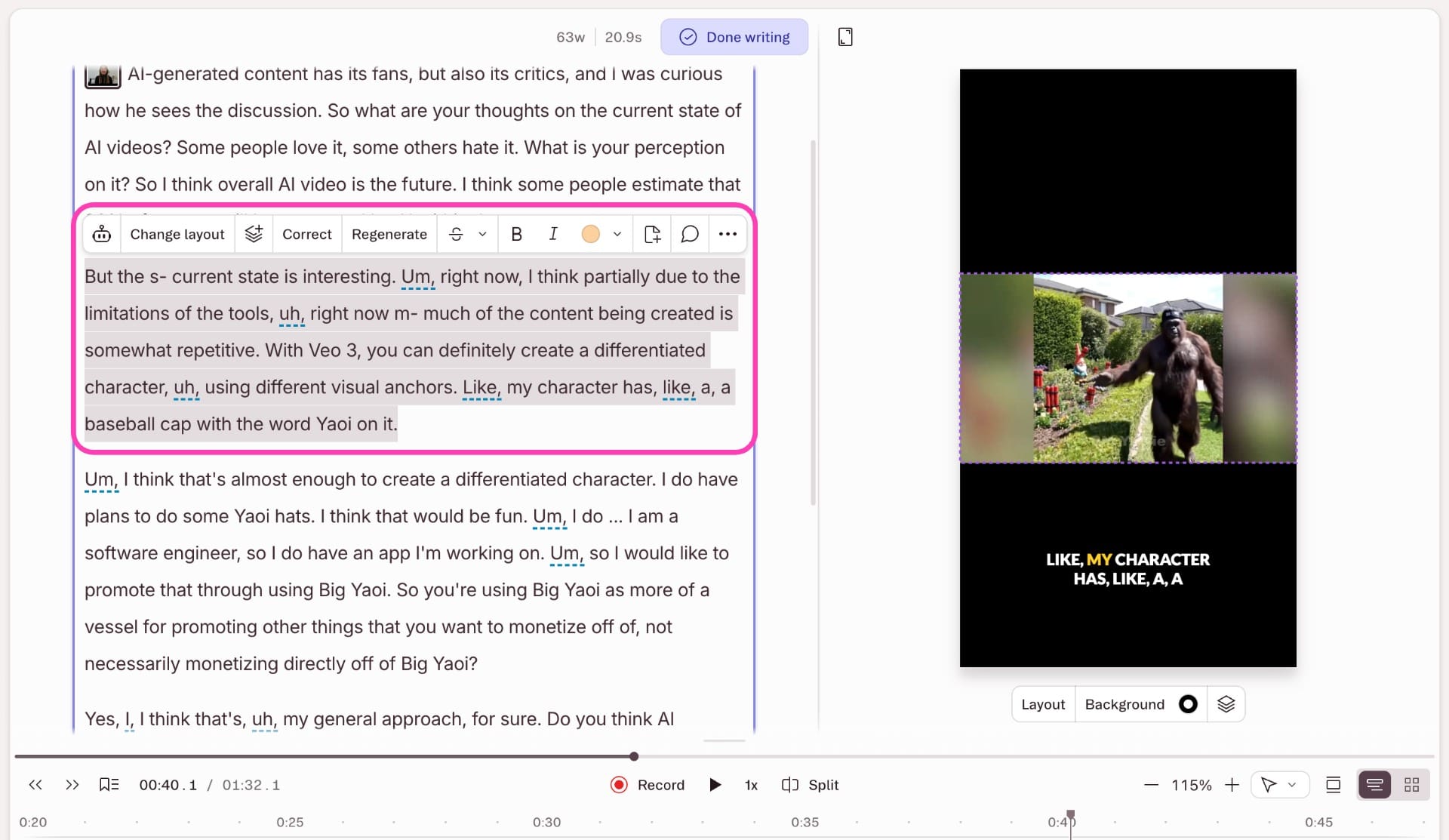
One feature I particularly appreciated was the ability to continue editing the transcript while Underlord was processing the video. As the AI generated the highlights, I could manually remove sentences and tweak the transcript in the left-hand panel, with those changes reflected in the final edit.
For example, I was able to manually adjust the opening few seconds to create a more compelling introduction. This made the AI feel less like a one-click automation and more like a collaborative editing tool.
However, if your projects rely heavily on visual storytelling, social-first editing, or AI-generated video, Descript's capabilities are much narrower than some of the other AI editors in this comparison.
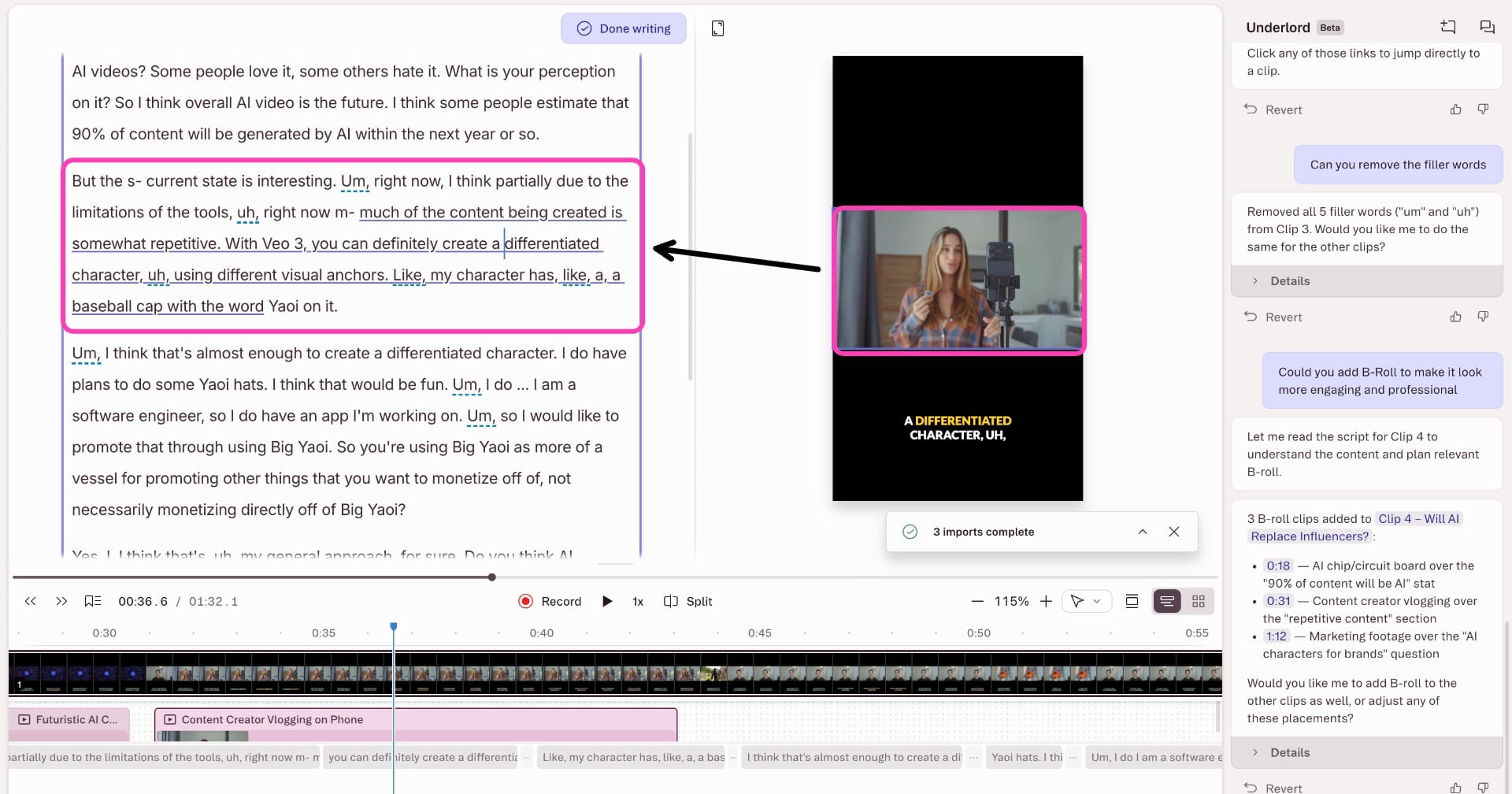
In my testing, prompts involving B-roll placement, visual pacing, or assembling sequences required significantly more manual editing. For example, after generating the highlight clips, I asked Underlord to add B-roll to make them more engaging. While it successfully inserted footage, the clips were only loosely related to what was being discussed and didn't match the visual style of the original video.
In one segment, where the creator was explaining the importance of using visual anchors for AI influencers, the generated B-roll showed generic creator vlogging. The result wasn't unusable, but it was something I would have replaced manually before publishing.
Similarly, when I worked with collections of visual clips, the AI was able to organize footage and assist with basic edits, but it didn't make many meaningful creative decisions around sequencing, pacing, or storytelling. Compared with visual-first editors, I found myself relying much more on manual editing to shape the final video.
Descript also isn't intended to generate videos from scratch. Its AI features are built around enhancing existing recordings rather than creating new visuals or assembling complete videos from a prompt.
Descript
Built for transcript-first editing and dialogue-heavy content.
Editorial Verdict
Descript is one of the strongest AI editors for speech-driven videos. Its transcript workflow, audio cleanup, and captioning are best-in-class, but creators producing highly visual content will likely prefer an editor that makes stronger creative decisions around pacing, B-roll, and storytelling.
Best for
Filmora: Best for AI-Assisted Timeline Editing
Filmora's video editing assistant takes a different approach to some of the other tools in this comparison. While it includes an AI Mate that accepts natural language prompts, the assistant is primarily designed to execute editing tasks inside Filmora rather than collaborate on higher-level editorial decisions.
For example, you can ask AI Mate to generate captions, remove silence, blur a background, apply transitions, translate subtitles, or adjust audio settings, and it will either perform the edit or take you directly to the relevant tool.
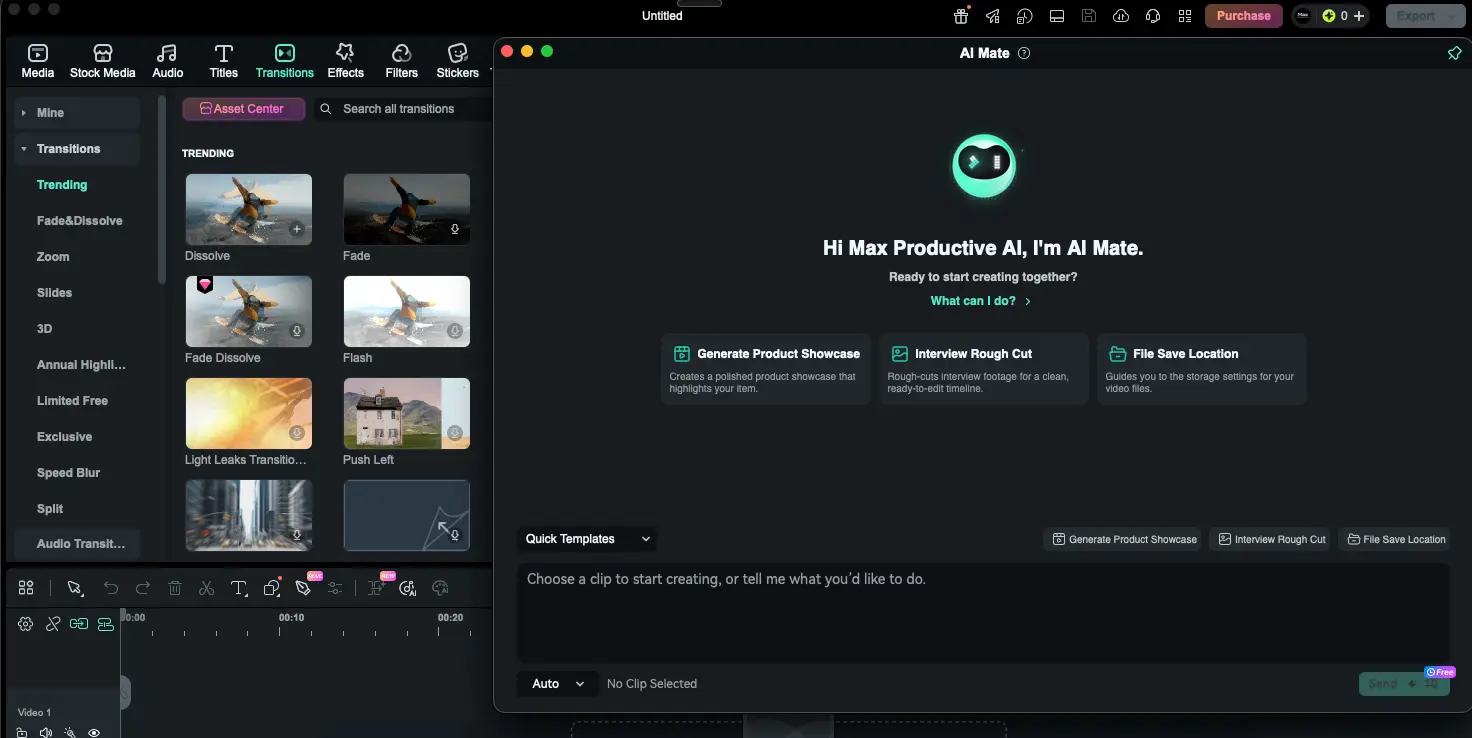
In practice, I found myself using AI Mate as a shortcut rather than my primary editing interface. Compared to AI-native editors, Filmora's assistant felt less like a collaborator and more like an efficient way to access editing features. For creators already comfortable editing on a timeline, this is a huge strength. The AI speeds up repetitive work without changing how you edit, making the transition into AI-assisted editing less disruptive.
To test Filmora's conversational editing, I uploaded the same talking-head video used throughout this comparison and asked AI Mate to create a vertical short for social media. It successfully identified usable sections, generated subtitles, removed pauses, and produced a solid first draft. The output was clean enough that I could see many beginner creators publishing it with minimal changes.
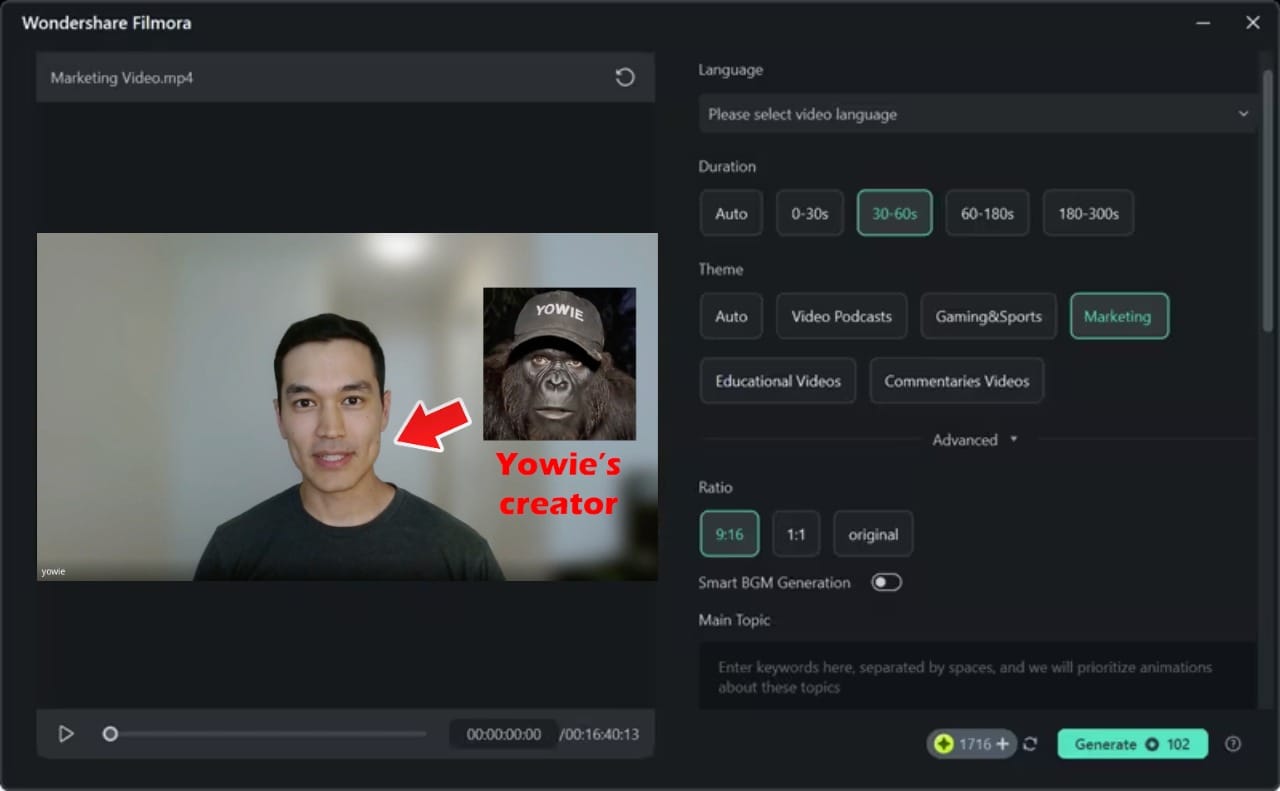
That said, I found myself making additional edits before I was happy with the result. The opening hook often wasn't strong, transitions occasionally felt mechanical, and I had to tighten the pacing manually. Compared with Descript, which used the transcript to identify strong moments, Filmora's selection felt less intentional.
Filmora has also expanded well beyond AI-assisted editing by integrating a growing suite of generative AI tools directly into the editor. Features like Text-to-Video, Image-to-Video, AI Music, and AI-generated sound effects allow you to create new assets without leaving your project.
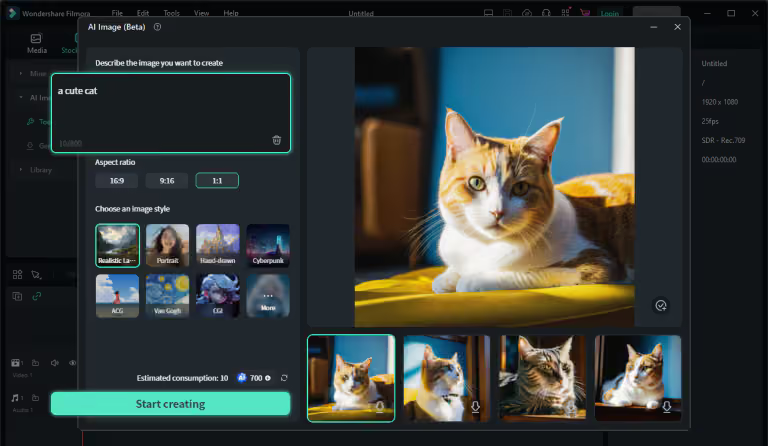
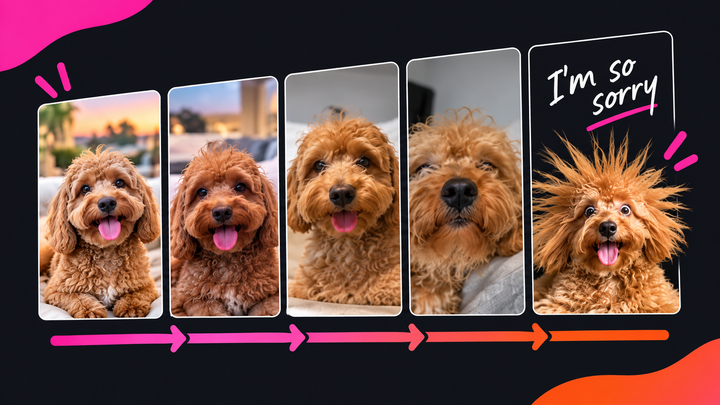
In my testing, these features worked best as supporting tools rather than the foundation of a project. That said, the generated outputs generally felt less cohesive than platforms built specifically for prompt-to-video generation. In the example prompt above, the first image is usable, but the following ones all had severe hallucinations and distortions.
When you're generating assets for a video that's intended to be published, that level of inconsistency becomes difficult to ignore. Even if only one or two shots contain artifacts, they stand out against real footage and can make the entire edit feel like AI slop.
One feature I particularly enjoyed during testing was AI Clip Extender. Rather than opening a separate generation tool, I could simply drag the edge of a clip in the timeline to the desired length and ask AI Mate to extend it. This made it easy to fix clips that ended too early or better match the pacing of the edit. It was one of the more thoughtful AI features I tested because it solved a common editing problem while fitting naturally into Filmora's existing workflow.
One of my favorite features: simply drag a clip longer and let AI generate the missing frames.
For beginners and intermediate editors who still want the flexibility of a conventional editor, Filmora offers one of the most complete AI-assisted editing experiences.
However, creators looking for an assistant that can independently restructure videos, iterate through multiple rounds of edits, or function as a true conversational editor will likely find AI-native platforms more capable.
Filmora
Built for AI-assisted timeline editing with strong manual control.
Editorial Verdict
Filmora is an excellent choice for creators who prefer editing on a traditional timeline but want AI to accelerate repetitive work. Features like captioning, silence removal, and clip extending fit into the editing workflow without taking away control. The tradeoff is that AI Mate behaves more like an shortcut than a creative collaborator.
Best for
Runway: Best for AI-Powered Visual Editing
Runway approaches AI video editing from the opposite direction of tools like Descript. Rather than focusing on transcripts or traditional editing tasks, Runway is built around transforming the visual content of a video through natural language.
Its new Runway Agent and Edit Studio allows you to describe edits conversationally: replacing a background, relighting a scene, removing objects, changing products, or restyling an entire shot.
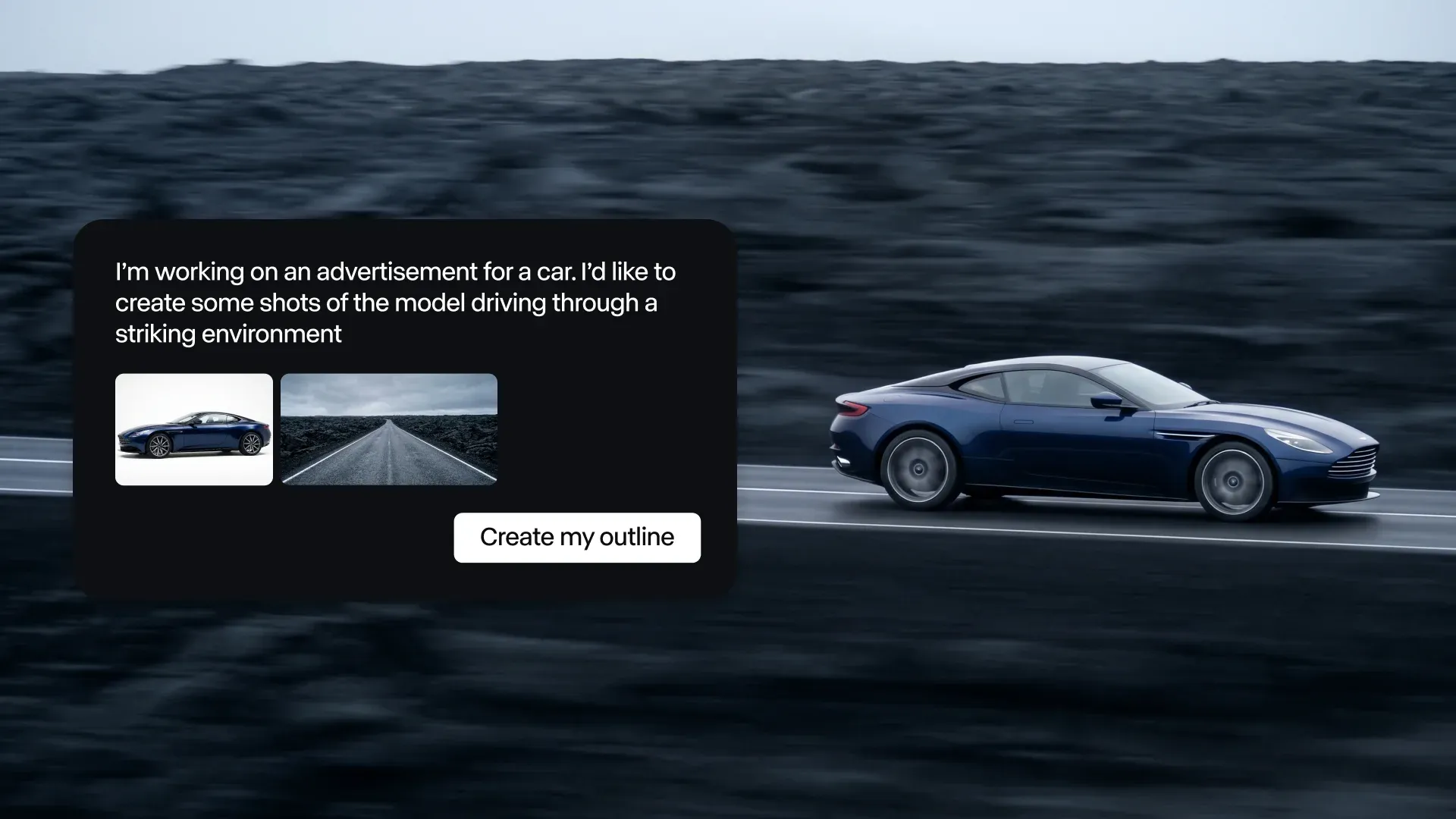
I found myself using Runway less as a video editor and more as an AI post-production assistant. Instead of asking it to cut interviews or tighten pacing, I was prompting it to change the content inside the footage itself.
To test its editing capabilities, I started with a video of a can of energy drink and asked Runway to replace it with a mug of coffee and change the aspect ratio to 9:16, while preserving the original camera movement. The replacement was surprisingly convincing: the reflections, shadows, and camera motion remained consistent across the shot. The same edit would normally require masking, tracking, and compositing in a traditional editor.
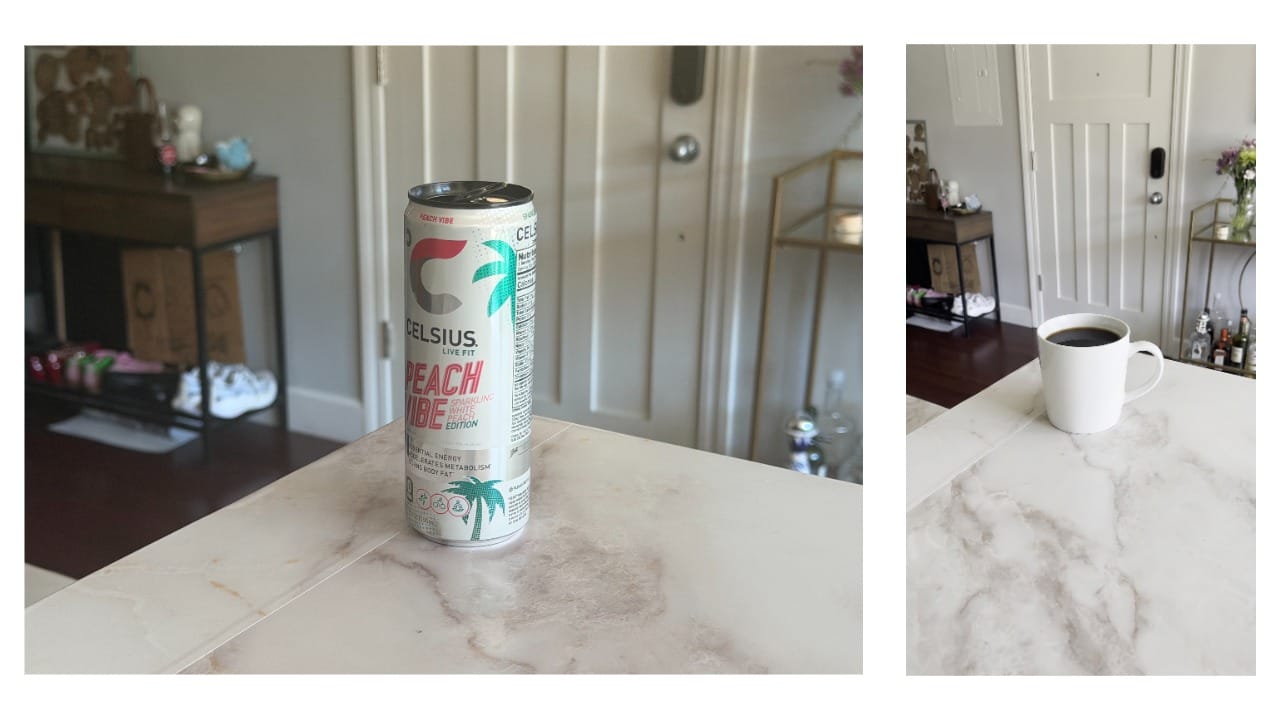
Where I was most impressed, however, was the ability to iterate conversationally. After generating an edit, I could continue refining it with prompts like:
- Make the lighting warmer.
- Replace the background with a modern office.
- Add shallow depth of field.
Unlike many AI editors, these prompts built on the previous result instead of forcing me to regenerate the entire project from scratch. It felt much closer to collaborating with an editor than repeatedly starting over.
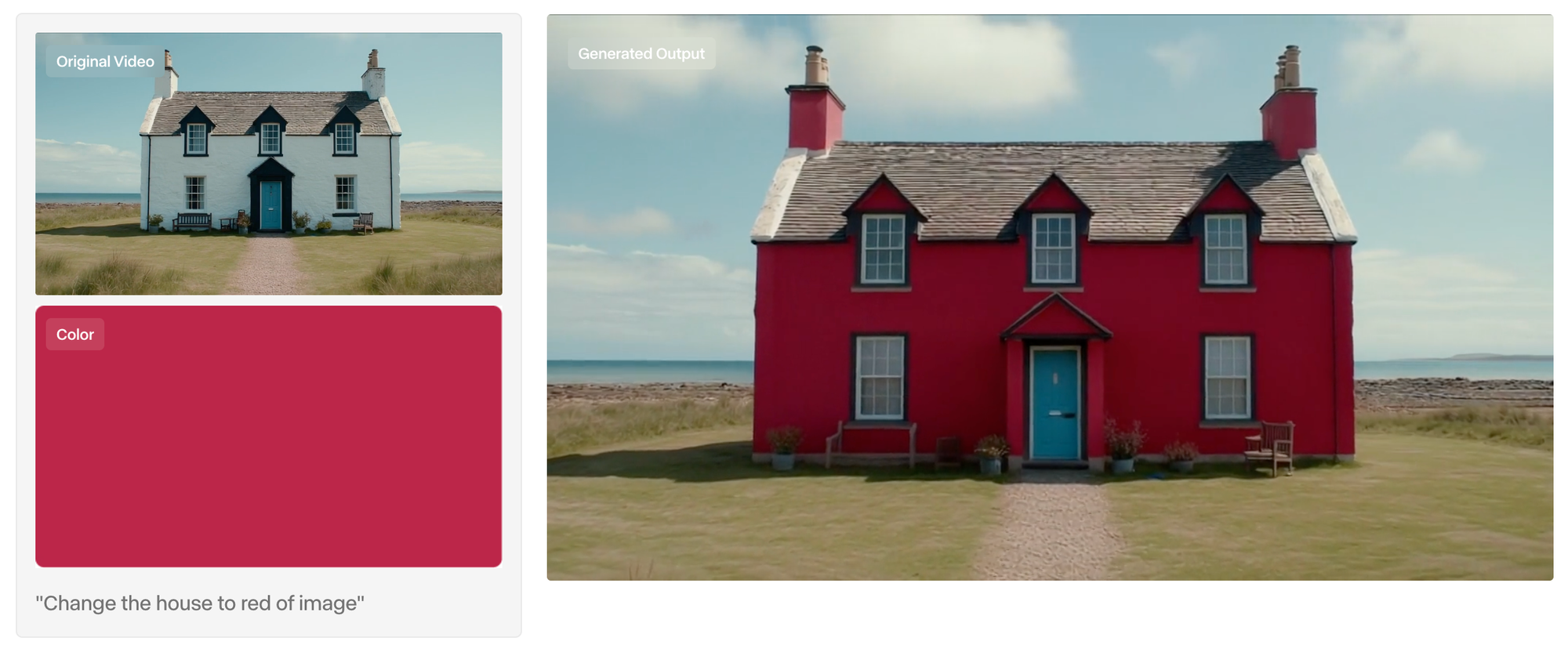
That said, I found Runway much less capable when I shifted to traditional editing workflows. I uploaded the same nine-minute interview used throughout this comparison and asked it to create a 45-second social clip. (process took a really long time to run – about 10 to 12 minutes. While it was able to assemble a rough cut and trim the footage, the editing decisions didn't feel intentional.
The AI generally selected coherent sections of the interview, but it didn't identify the strongest hooks or moments that would maximize viewer retention. Runway seemed to cut the video into two broader 45 second segments that didn't have a specific theme or talking point. The resulting edit often opened with context/exposition instead of the most compelling quote.
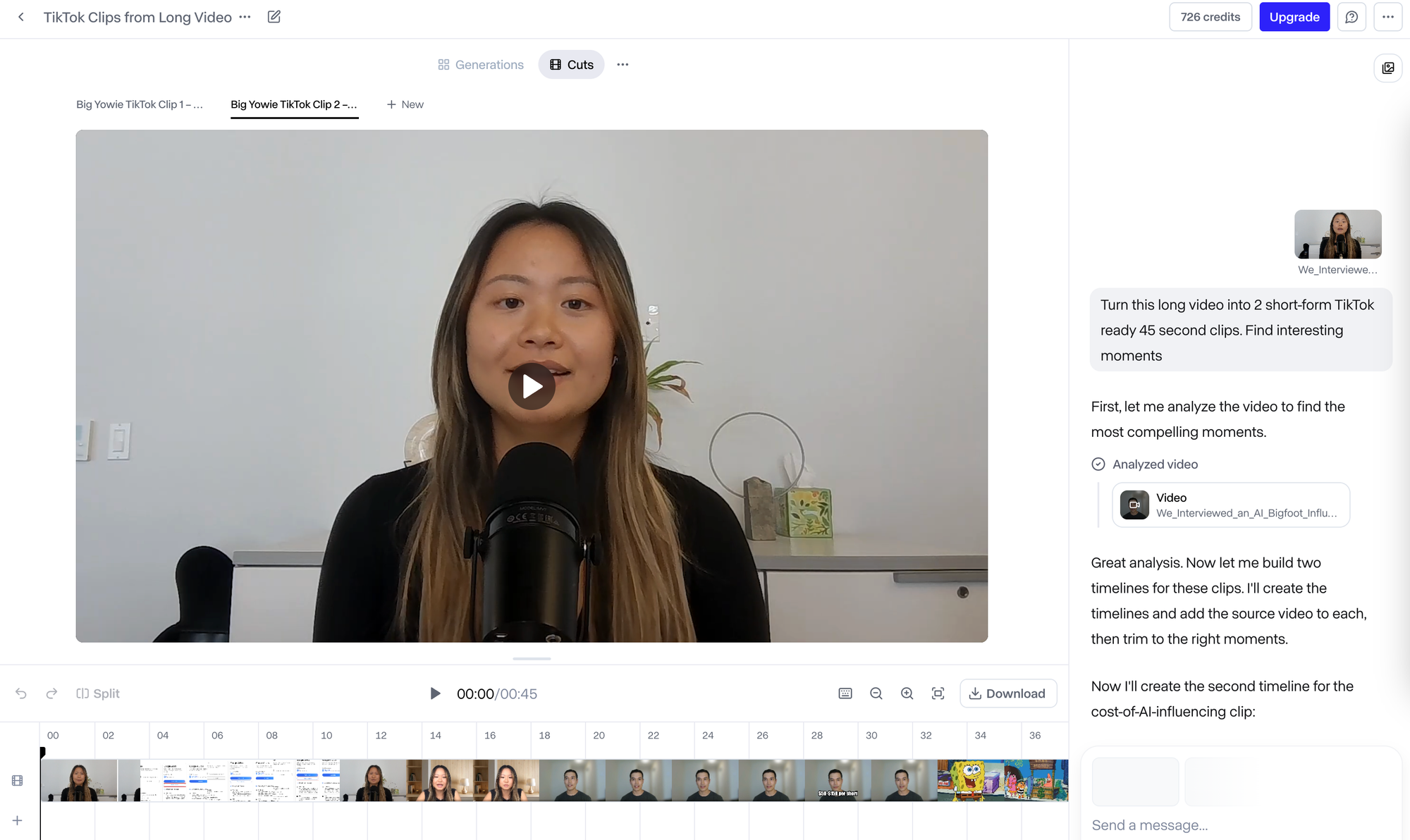
I also found it missing several features that have become standard in AI-first video editors. In the repurposing of the interview, Runway was one of the only AI video editing assistants that didn't automatically add subtitles or change the aspect ratio of the output.
There was also no dedicated transcript panel or transcript-based editing workflow, which meant I couldn't review the dialogue, edit by text, or quickly search for specific moments in the conversation. I also noticed a lack of editing features beyond basic timeline operations like trimming and splitting clips
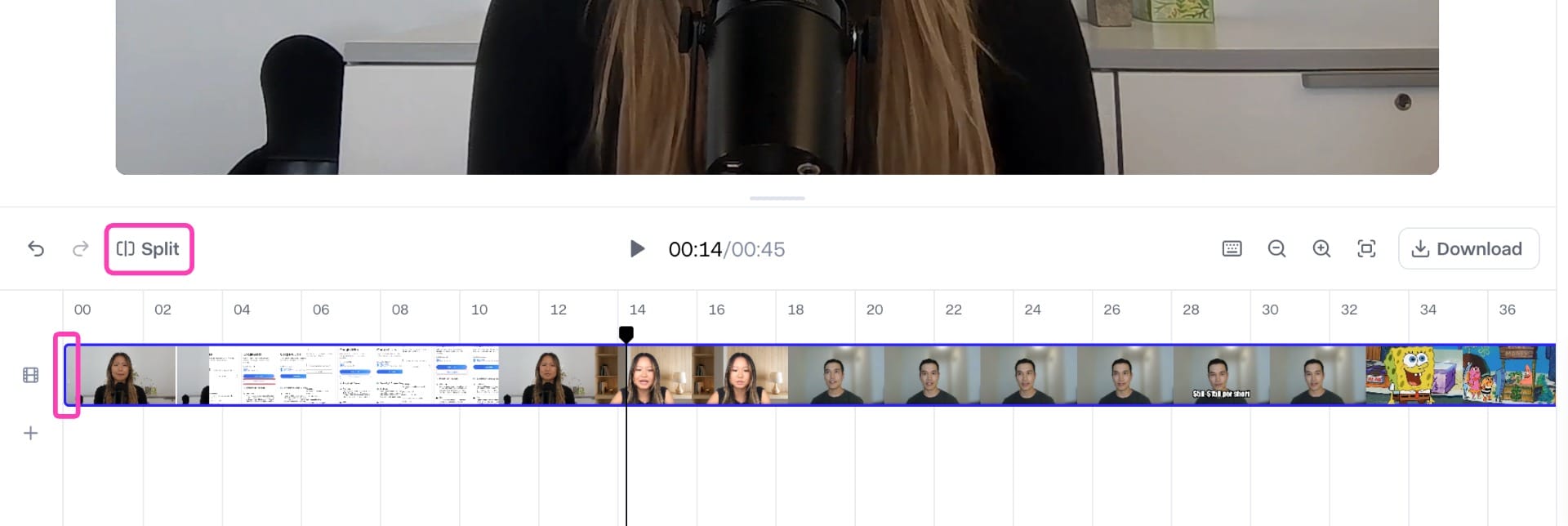
That tradeoff reflects who Runway is built for. I would recommend it to filmmakers, advertisers, creative agencies, and product marketers who spend more time changing what's inside a shot than cutting together hours of footage.
If your workflow involves replacing products, extending scenes, removing objects, generating VFX, or creating campaign variations from existing footage, Runway is one of the most impressive AI editing tools available today.
Runway
Built for AI-powered visual editing, scene transformation, and generative post-production.
Editorial verdict
Runway is more of an AI post-production studio than a traditional video editor. It excels at relighting scenes, transforming backgrounds, and generating visual effects. It is much less capable for transcript editing, automatic captions, repurposing, and long-form storytelling.
Best for
InVideo AI: Best for Cinematic AI-Generated Videos
InVideo AI approaches AI-assisted video creation from a completely different direction than the other tools I tested. Rather than helping you edit existing footage through conversation, its primary goal is to generate an entire video from a single prompt.
Give it an idea, and it will write a script, generate scenes, select stock footage or AI visuals, add background music, create a voiceover, generate captions, and assemble everything into a finished edit.
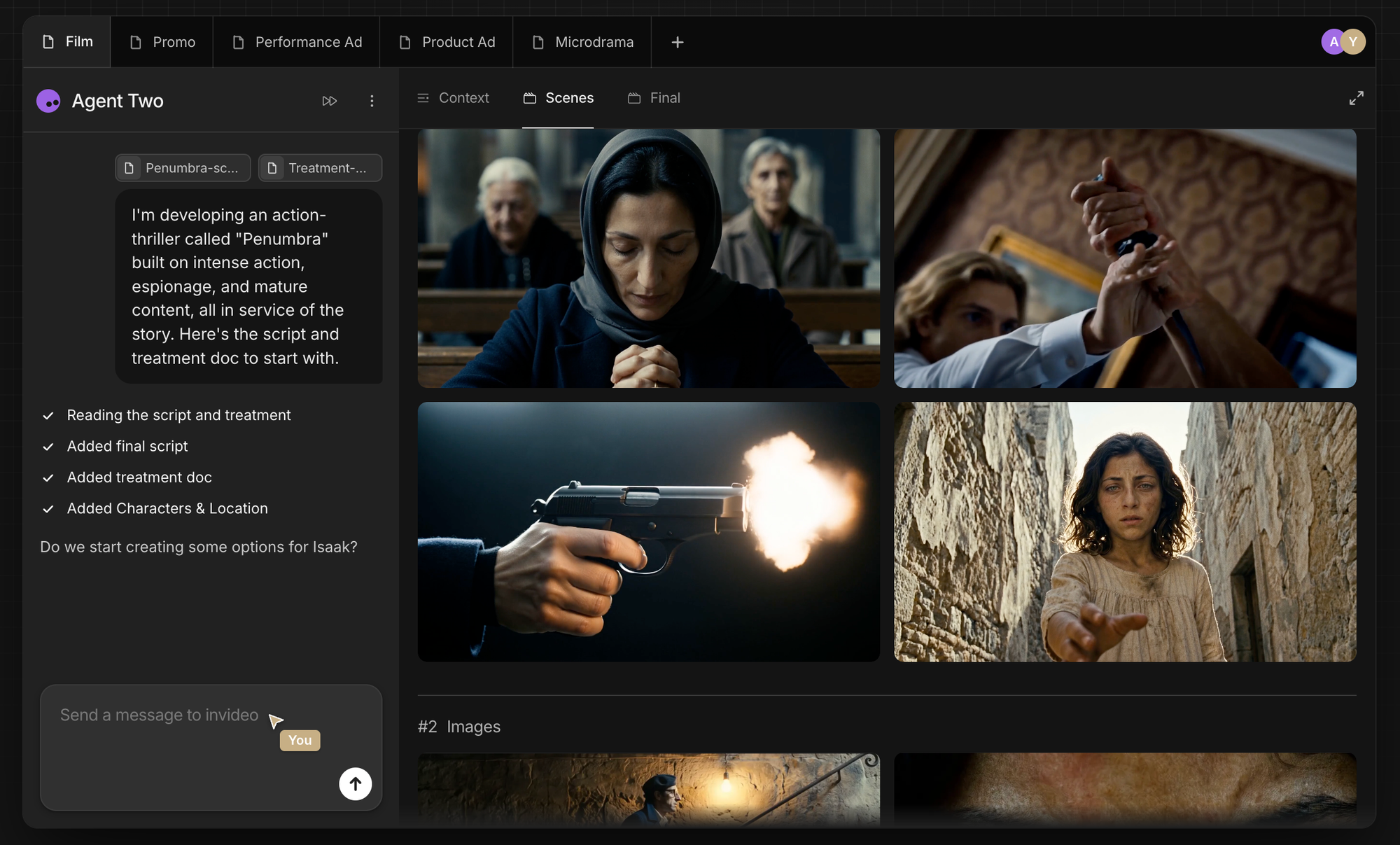
If your workflow starts with a blank page instead of recorded footage, InVideo AI is one of the most capable AI video generators I tested.
One feature I kept coming back to during testing was Custom AI Agents. I created dedicated agents for different types of projects. For example, I built one around a short film that I was generating and another one that turns reference images into editorial fashion shoots. Each agent retained its own instructions and creative direction.
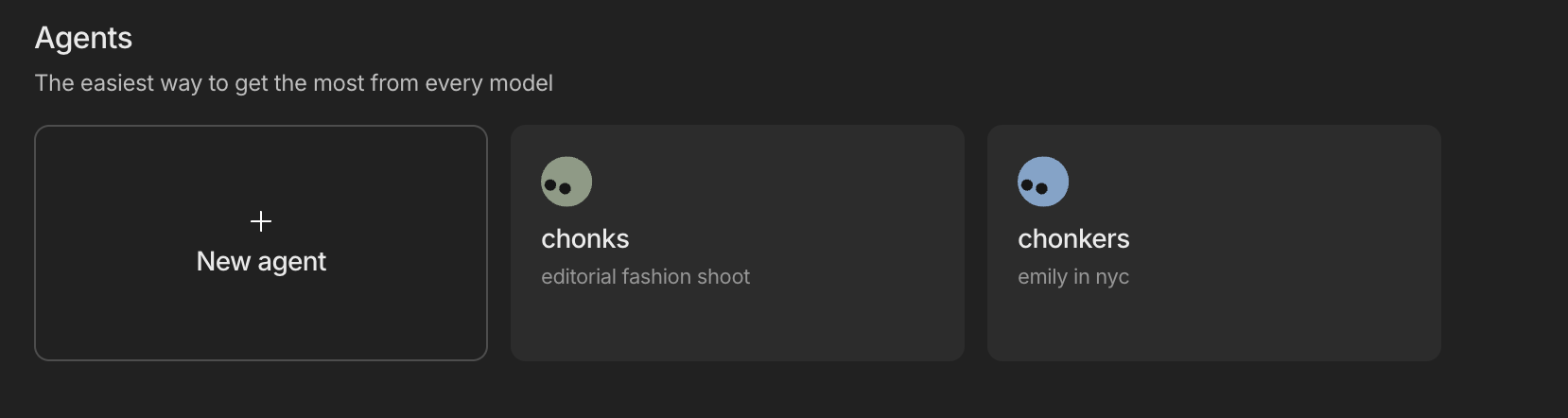
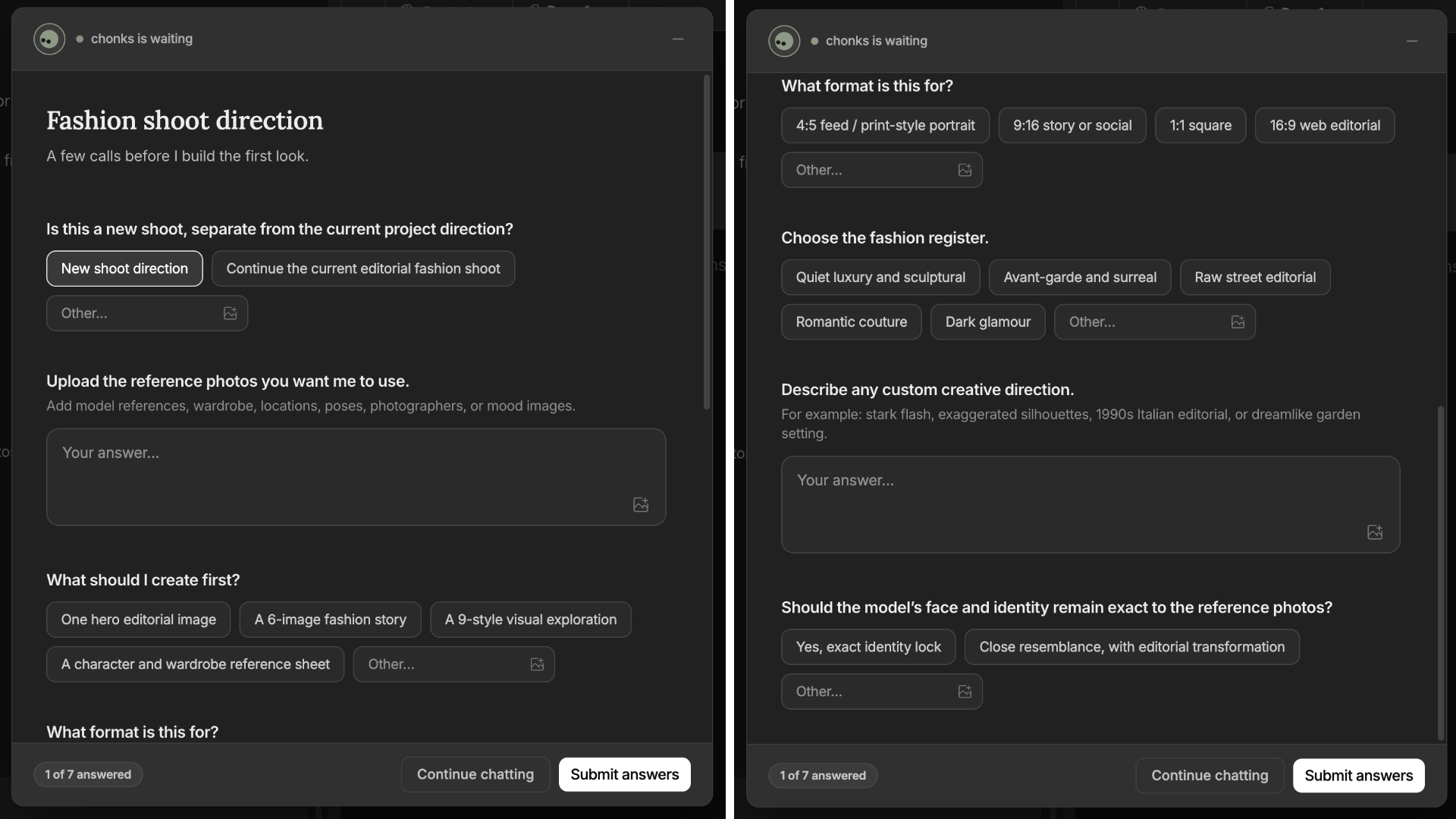
For example, when I created an agent for a fashion campaign, InVideo presented a tailored setup flow where I could upload visual references, define the intended output format, and answer project-specific questions about the style of the shoot, target audience, and creative direction. Those responses were then carried throughout the generation process, resulting in outputs that felt much more aligned with the intended aesthetic than if I had started from a generic prompt.
That level of customization stood out from the other AI editors I tested. Instead of treating every project the same, InVideo adapts the generation workflow to the type of content you're creating. I could see this being particularly valuable for agencies or marketing teams producing recurring formats.
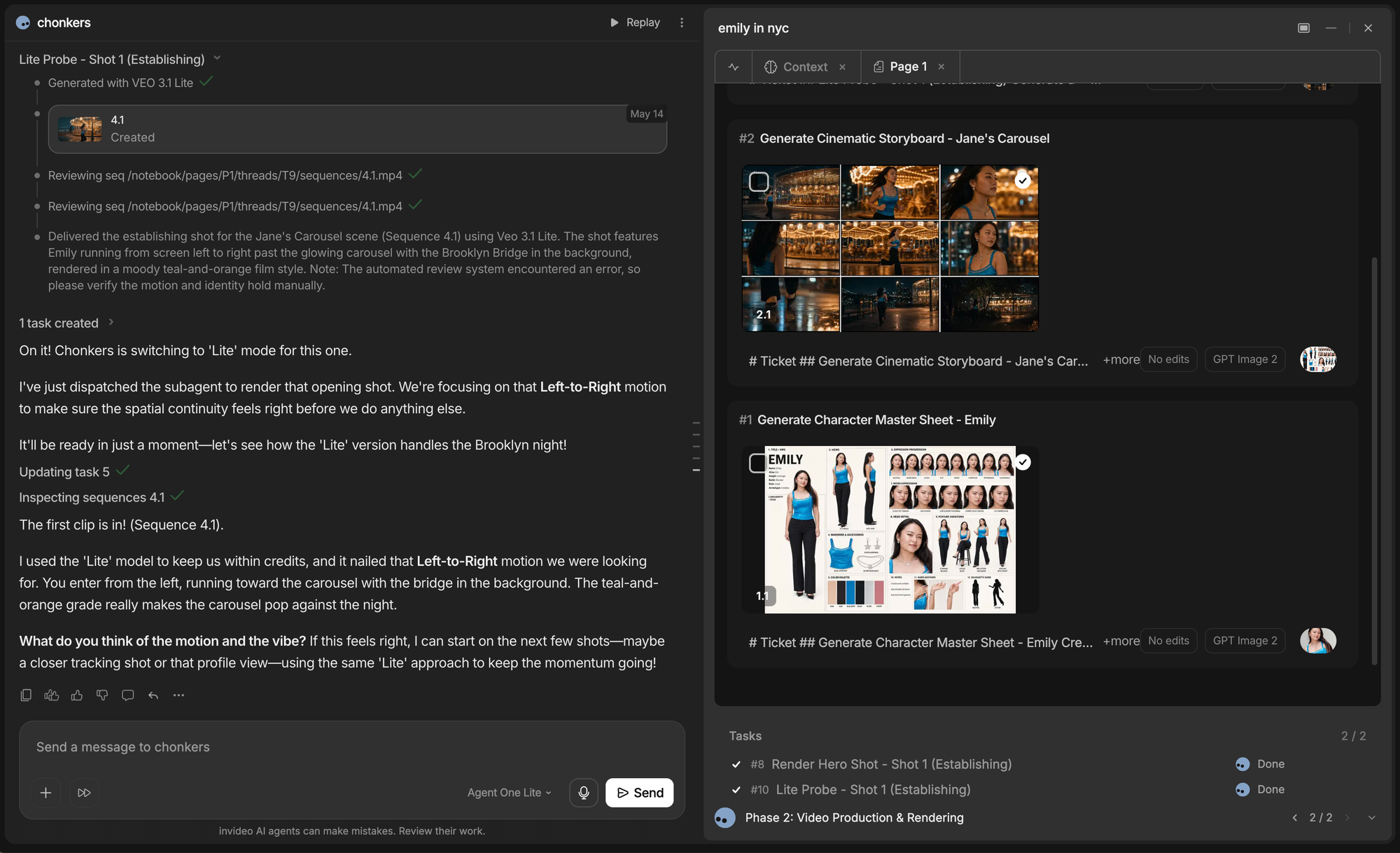
For my generated short film, I found InVideo's storyboarding workflow really useful. Instead of immediately generating an entire video, my agent first presented a scene-by-scene outline showing the script, visuals, and overall structure. I was able to rewrite individual scenes, reorder the storyboard, replace suggested visuals, and adjust the flow of the narrative.
In practice, this dramatically reduced the number of full regenerations I had to run because I could catch structural issues before spending credits on rendering the final video.
In generating publishable videos, InVideo consistently produced the strongest first drafts. The script followed a logical structure, the voiceover matched the requested tone, captions were generated automatically, and most of the stock footage was relevant enough that I only replaced a handful of scenes.
Where I found the workflow less convincing was once I moved beyond that first draft. Rather than making precise edits to existing scenes, InVideo often preferred regenerating larger portions of the project. For example, when I asked it to shorten the opening by a few seconds, it rewrote much of the introduction instead of simply trimming the existing sequence.
InVideo AI
Built for generating cinematic, publishable videos from a single prompt.
Editorial Verdict
InVideo AI produces some of the strongest first drafts of any prompt-to-video platform. Its scripts, storyboards, voiceovers, and visuals come together with minimal setup, while Custom AI Agents make recurring formats easier to control. Its biggest limitation appears after generation, when small changes can trigger broader rewrites instead of precise edits to the existing sequence.
Best for
Frequently Asked Questions
What is an AI video editing assistant?
An AI video editing assistant lets you edit videos using natural language instead of manually performing every task on a timeline. Depending on the platform, you can ask the AI to trim clips, remove filler words, generate captions, resize videos, clean up audio, create highlight clips, add B-roll, or even generate entirely new scenes.
Which AI video editing assistant is the best?
Based on my testing, Kapwing offered the strongest overall experience. It consistently produced the highest-quality first drafts, handled the widest variety of editing tasks through chat, and made it easy to move between AI-generated edits and manual timeline editing. Rather than feeling like a collection of AI tools, it felt like a true conversational editing assistant.
Which AI video editing assistant is best for YouTube videos?
If you're editing talking-head videos, podcasts, interviews, or educational content, Descript is the strongest option thanks to its transcript-first editing workflow. If you want a more general-purpose AI editor that combines transcript editing with captions, B-roll generation, and timeline editing, Kapwing is the more versatile choice.
Can AI edit videos from a prompt?
Yes, although the experience varies depending on the platform. Editors like Kapwing, Descript, and Filmora focus on editing existing footage through natural language, while platforms like InVideo AI are designed to generate entirely new videos from a prompt. Some tools also support follow-up prompts, allowing you to continue refining the same project instead of starting over.
Can AI replace professional video editors?
Not entirely. Every AI assistant I tested still benefited from human input, particularly for storytelling, pacing, and creative decision-making. The biggest advantage of AI today is automating repetitive production work—such as captioning, resizing, silence removal, and first-draft editing—so creators can spend more time refining the final video.
Which AI video editor is best for beginners?
Filmora is the easiest transition for beginners because it combines familiar timeline editing with AI-assisted tools. If you're comfortable editing through conversation instead of a traditional timeline, Kapwing is also approachable while offering more advanced AI capabilities as your workflow grows.