How to Edit Videos with AI Prompts (Prompts Included)
Use AI prompts to trim, caption, resize, and polish videos in minutes.
Artificial intelligence is transforming the way people create and edit videos. Tasks that once required hours of manual work can now be completed by simply describing what you want in plain language.
This approach, known as AI prompt-based video editing, allows creators to edit videos using natural language instead of relying on traditional editing. Whether you're producing content for YouTube, TikTok, Instagram, or LinkedIn, AI-powered video editors can significantly reduce editing time.
In this guide, you'll learn how to edit videos with AI prompts, including how prompt-based video editing works, how to write effective prompts, step-by-step editing techniques, ready-to-use prompt examples, the best AI video editing tools, and answers to common questions. By the end, you'll have everything you need to edit videos faster and create polished, engaging content with AI.
Table of Contents
- What Are AI Video Editing Prompts?
- How to Write Effective AI Video Editing Prompts
- How to Edit Videos with AI Prompts (Step-by-Step Guide)
- Best AI Prompt Examples for Video Editing
- Frequently Asked Questions
What Are AI Video Editing Prompts?
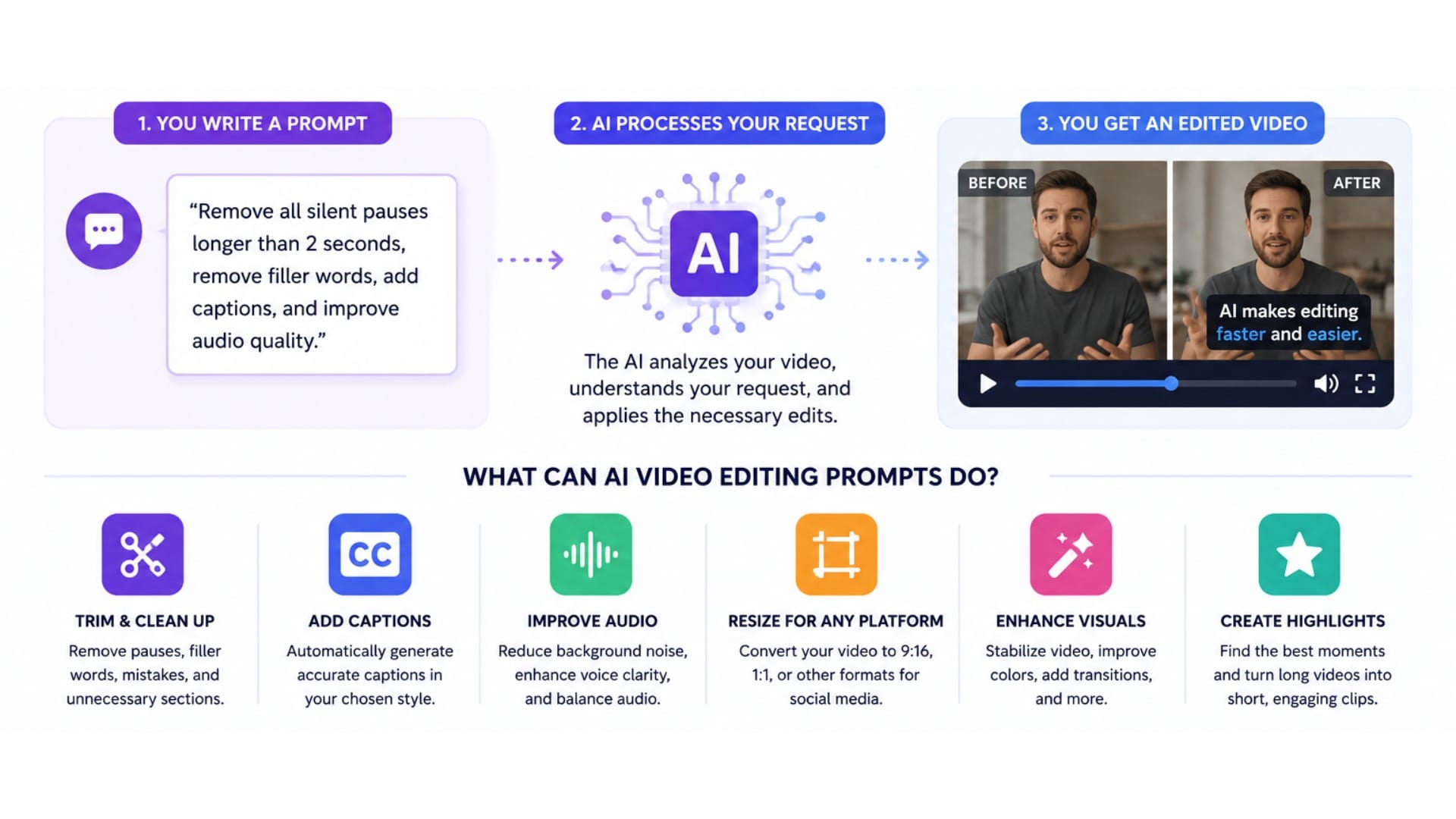
AI video editing prompts are text-based instructions that tell an AI video editor how you want to edit a video.
They can be used to perform a wide range of editing tasks, including trimming footage, improving audio quality, generating subtitles, enhancing video resolution, adding transitions, changing backgrounds, and resizing videos for platforms like YouTube, TikTok, Instagram, and LinkedIn.
Unlike traditional video editing, which requires manual adjustments and technical expertise, prompt-based video editing lets you describe the final result you want. The AI analyzes your footage, interprets your prompt, and completes the edits in minutes, making it easier for beginners and professionals alike to create polished, high-quality videos.
How to Write Effective AI Video Editing Prompts
Writing an effective AI video editing prompt is about providing enough context for the AI to understand your editing intent. The strongest prompts balance specificity with flexibility.
They clearly describe the desired outcome without over-prescribing every individual edit, allowing the AI to make intelligent decisions based on the content of your video.
Start with the Primary Objective
Every prompt should begin with a single, clear editing goal. Before adding stylistic details, identify the primary task you want the AI to complete. For example, are you trying to:
- Condense a long video into a highlight reel?
- Remove filler words and improve pacing?
- Generate captions?
- Repurpose a YouTube video for TikTok?
- Improve audio and video quality?
Leading with the primary objective gives the AI context for every instruction that follows. For example:
Turn this 15-minute webinar into a two-minute highlight reel.
Add Context, Not Just Commands
One of the biggest differences between novice and advanced prompting is context. Instead of listing unrelated commands, explain how the edits should work together to achieve a specific outcome. For example, rather than writing:
Remove pauses. Add captions. Add music.
Provide context:
Create a fast-paced social media video by removing long pauses, generating animated captions, and adding subtle background music.
The second prompt tells the AI not only what to do but also why, resulting in edits that work together instead of feeling disconnected.
Describe the Desired Outcome
AI responds better to outcomes than individual tool instructions. Rather than thinking like an editor ("cut here," "zoom here"), think like a creative director describing the finished video. For example:
Edit this interview into a polished LinkedIn video that feels professional and concise.
or
Create an engaging YouTube Short that highlights the three most important takeaways.
These prompts give the AI flexibility to make editorial decisions while staying aligned with your creative intent.
Provide Constraints When They Matter
AI performs best when it understands the boundaries of the edit. Useful constraints include:
- Final video length
- Target platform
- Aspect ratio
- Caption style
- Brand colors
- Tone or pacing
For example:
Create a 45-second vertical video for Instagram Reels with animated captions using our brand colors and a fast-paced editing style.
These constraints reduce ambiguity and produce outputs that require fewer revisions.
Iterate Instead of Overloading a Single Prompt
One of the most common mistakes is trying to accomplish every edit in a single prompt. While modern AI models can process complex instructions, they're often more reliable when edits are broken into logical stages. A typical workflow might look like this:
- Trim the video and remove filler words.
- Generate captions.
- Improve audio quality.
- Apply branding and visual styling.
- Create alternate versions for different platforms.
Anatomy of an effective AI video editing prompt
Hover, tap, or use your keyboard to explore each part of the prompt.
How to Edit Videos with AI Prompts (Step-by-Step Guide)
While every AI video editor has its own interface, the overall workflow is consistent. Successful prompt-based editing isn't just about writing a single command, it's about giving the AI enough context to produce the results you want and refining those results through multiple iterations.
Follow these six steps to edit videos with AI prompts more effectively.
Step 1: Upload and Prepare Your Footage
Once you've chosen your AI video editor, the next step is to upload your footage and prepare it for editing. While AI can automate many editing tasks, the quality of the output still depends on the quality and structure of your source video. Clear, well-organized footage gives the AI more context, resulting in more accurate edits, captions, and scene selections.
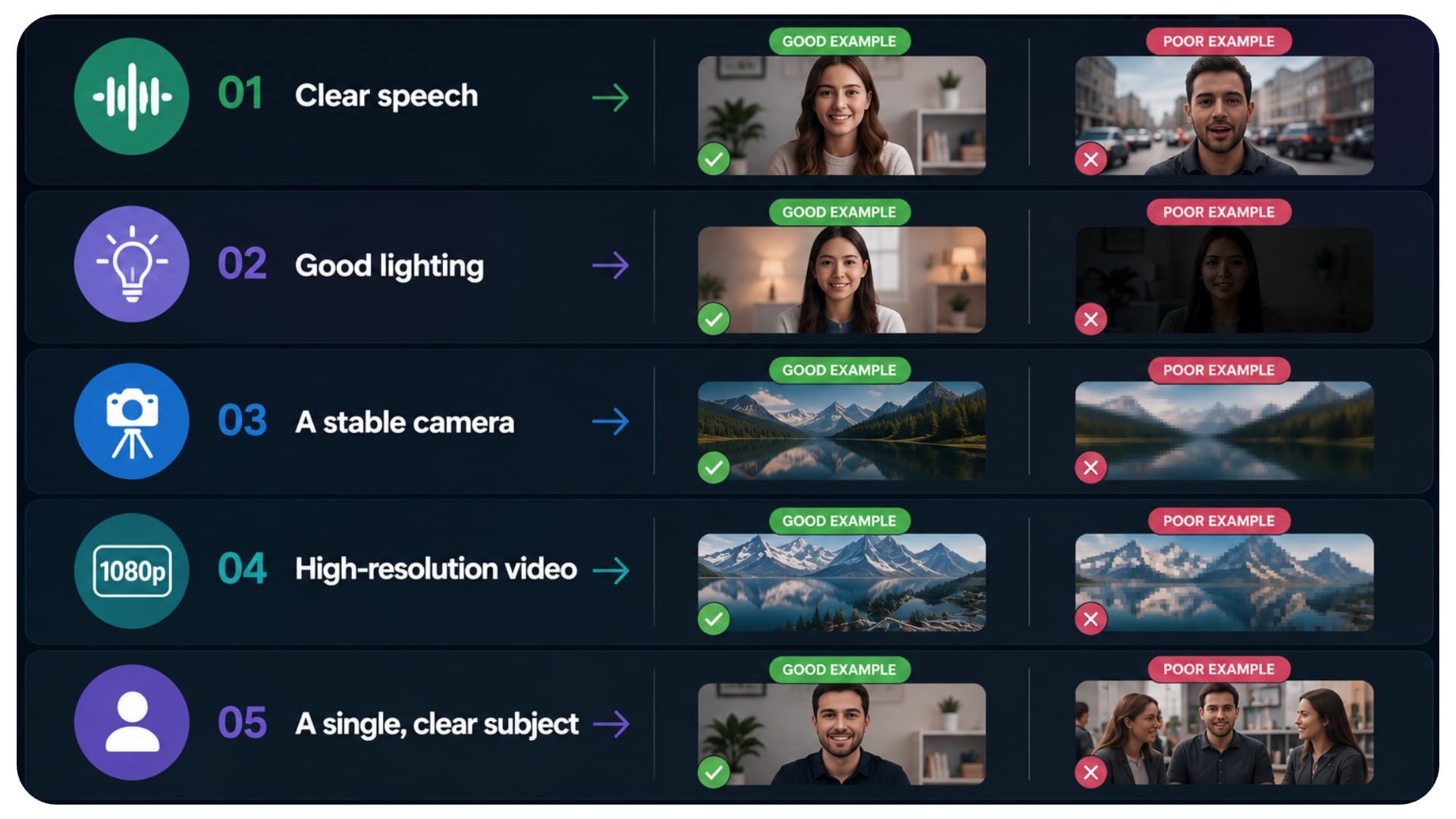
For the best results, use footage with:
- Clear speech and minimal background noise, especially if you plan to generate captions or remove filler words.
- Good lighting so the AI can accurately detect faces, objects, and scene changes.
- A stable camera, since excessive motion blur or camera shake can make it harder for AI to identify subjects and apply edits.
- High-resolution video (1080p or higher, when possible), which provides more detail for AI-powered enhancements and reframing.
- A single, clear subject if you're creating talking-head videos, tutorials, interviews, or product demos. AI performs especially well with these formats because it can easily identify the speaker and key moments.
If you're working with multiple clips, organize them in the order you want them to appear before prompting the AI. This helps maintain context and reduces the need for additional edits later.
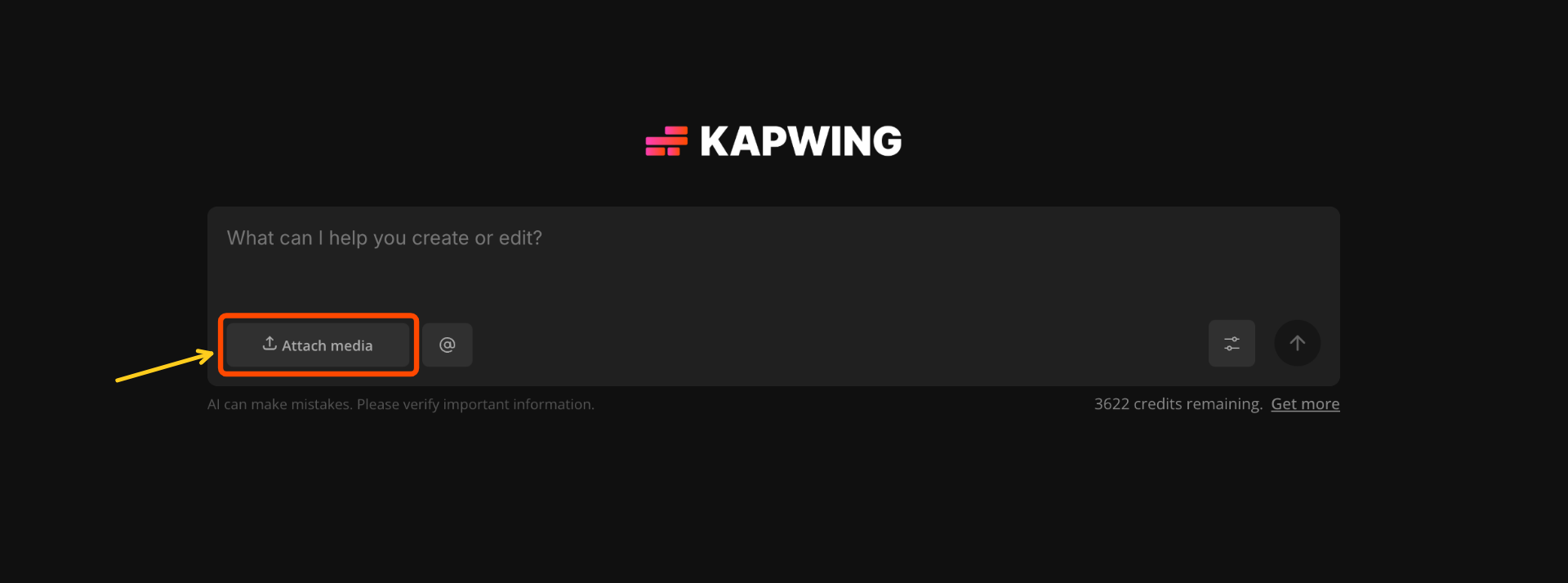
To upload your footage in Kai, click the upload button to upload your video, or drag and drop your files directly into the editor. If you're uploading an already published video, you can use a link.
Step 2: Prompt the AI to Edit Your Video
Once your footage is uploaded, it's time to start editing with AI prompts. A good rule of thumb to AI prompt video editing is to start with your highest-impact edits first.
For example, you might ask the AI to remove filler words, trim long pauses, generate captions, or create a shorter version of your video. Once those foundational edits are complete, you can move on to more stylistic changes like improving the audio, adding transitions, changing the background, or applying a specific visual style.
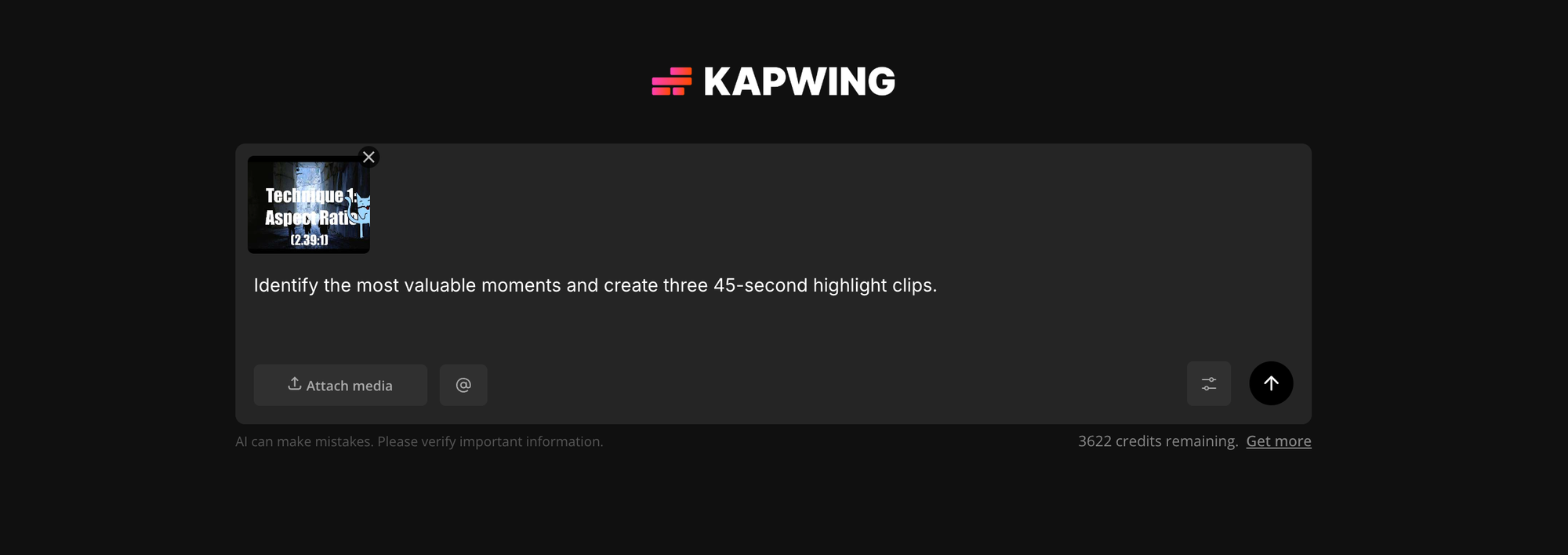
Simply input your prompt into your prompt box along with the relevant footage.
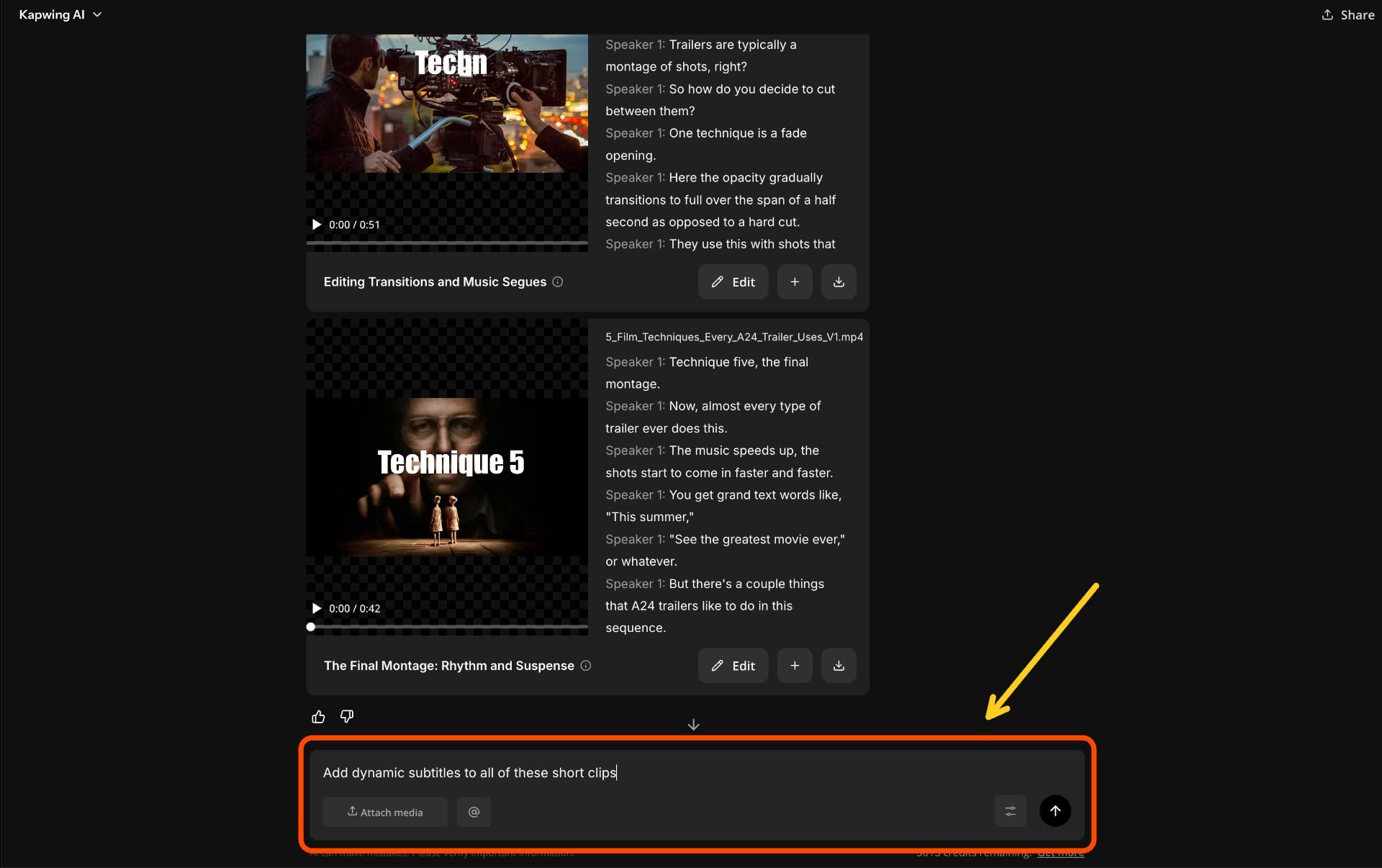
If you're unhappy with your output or for follow-up edits, you can prompt for it directly in the chat.
Make sure to reference your output directly in your followup prompt. For example: "use the same edit, but shorten it to 30 seconds." This helps the AI understand which version you're modifying and preserves the changes you've already made.
Step 3: Edit the AI's Output in Kapwing Studio
After Kai completes your request, you can also edit the output directly in the studio.
Knowing when to edit manually versus when to use another prompt is what separates an efficient AI workflow from an inefficient one. If you want to make changes that affect the entire project—such as shortening the video or removing filler words—a follow-up prompt is usually the better option. For precise changes, like adjusting the timing of a cut or fixing a caption, the studio is typically faster and gives you more control.
To edit a Kai output in the studio, simply click on the edit button. You will be able to use a timeline editor to manually adjust your end clip.
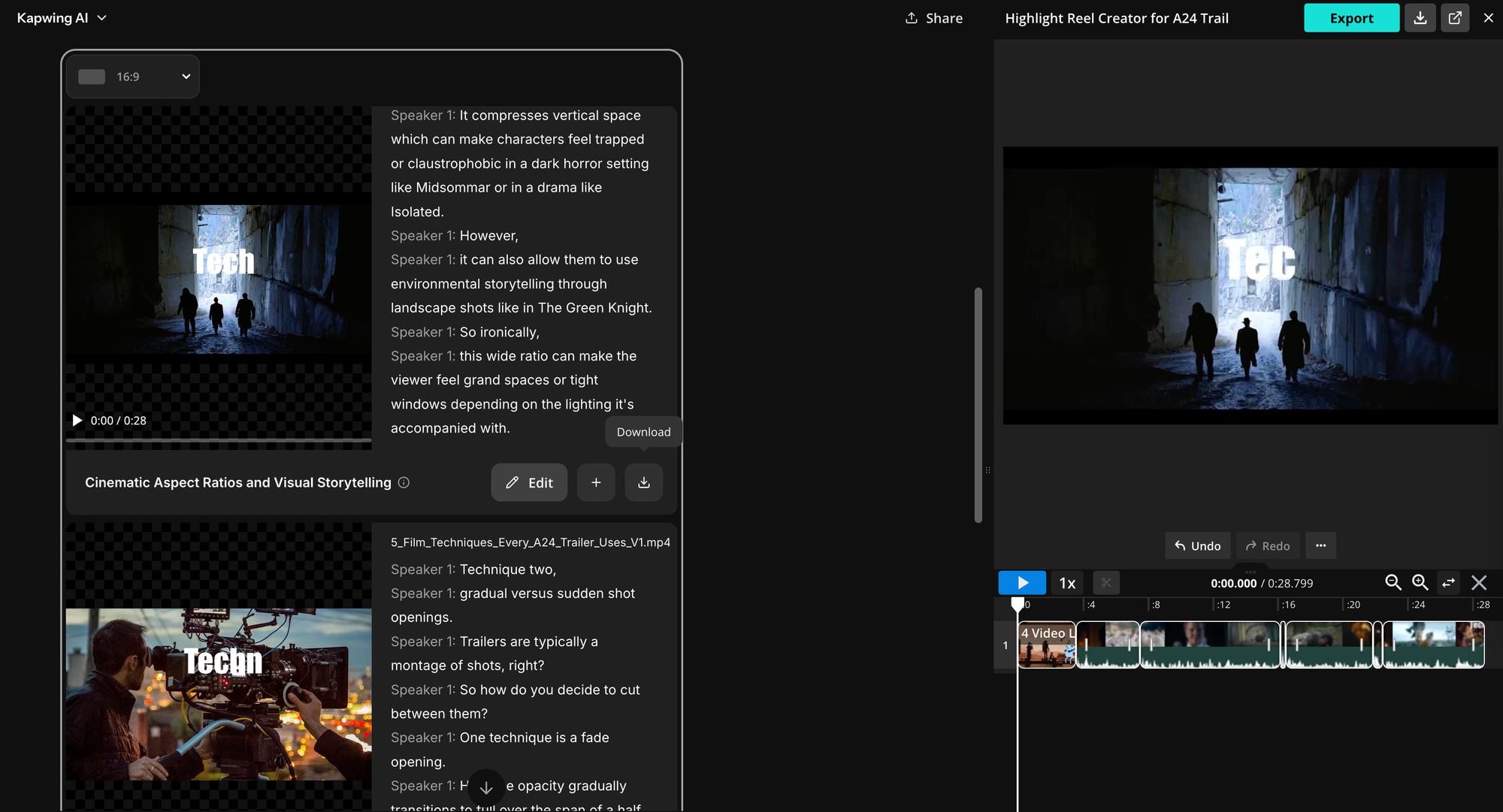
Here, you can make precise manual adjustments that are easier to do with a timeline than with prompts.
For example, you can trim clips frame-by-frame, adjust caption timing, replace images or videos, reposition elements, add music or sound effects, insert transitions, and fine-tune text, colors, and branding. This is especially useful for making final polish edits before exporting your video.
Best AI Prompt Examples for Video Editing
One of the biggest advantages of AI video editing is that you can edit videos using simple, natural language prompts. Whether you're making a quick edit or transforming an entire project, the right prompt can save hours of manual work.
Below are examples of both individual prompts for common editing tasks and prompt chains that guide AI through a complete editing workflow.
Individual AI Video Editing Prompts
The prompts below are designed as practical starting points for common video editing workflows. Browse by category to find the task you need, then copy and customize the prompt with details such as your preferred duration, platform, aspect ratio, caption style, brand colors, audience, or pacing.
Individual AI Video Editing Prompts
No prompts found
Try a different search term or category.
Chained AI Prompts for Common Video Projects
While individual prompts are great for quick edits, most projects require multiple editing steps. Breaking your workflow into a series of prompts often produces better results than trying to accomplish everything with a single request.
AI Prompts for Video Projects
No workflows found
Try a different search term or category.
Frequently Asked Questions
How do you edit a video with AI prompts?
Editing a video with AI prompts is simple. Upload your footage to an AI video editor, describe the changes you want using natural language, and let the AI make the edits. You can then review the output, refine it with additional prompts, or make manual adjustments before exporting your final video.
What can AI video editing prompts do?
AI video editing prompts can automate a wide range of editing tasks, including removing pauses, trimming clips, generating captions, improving audio, adding transitions, creating highlight reels, changing backgrounds, and resizing videos for platforms like YouTube, TikTok, Instagram, and LinkedIn.
What's the best way to write an AI video editing prompt?
The best prompts clearly describe the outcome you want. Instead of asking the AI to "make the video better," specify the edits you want, such as removing filler words, generating captions, improving audio, or creating a shorter version for social media. Breaking larger projects into multiple prompts also tends to produce better results.
Which AI video editor is best for editing with prompts?
The right AI video editor depends on your workflow. If you want to edit existing videos using natural language, look for a platform with an AI editing assistant that can understand prompts and apply changes directly to your project. Features like caption generation, transcript editing, audio enhancement, and support for follow-up prompts can make the editing process much more efficient.