Sora AI Alternatives: 6 AI Video Generators Like Sora
Sora hit 1M downloads in 5 days—then was shut down months later.
In late March 2026, OpenAI announced plans to discontinue Sora, its AI video generation platform.
As a result, many creators are now looking for alternative tools they can use in day-to-day workflows, whether for social content, ads, or quick video projects.
While Sora helped raise expectations for what AI video could look like, it is no longer the only tool shaping the market.
The good news is that there’s no shortage of options. In fact, many tools now match — or even exceed — Sora in specific areas. Some are better for realistic text-to-video generation, while others are more useful for editing, refining, or turning rough clips into something publish-ready.
In this guide, we’ll cover 6 AI video generators like Sora, including tools for generating video from text and images, as well as tools that support audio generation.
6 Alternative Video Generators Like Sora
Alternative AI Video Generators to Sora – Overview
A quick summary of which tool is best for each workflow.
| Tool | Best for |
|---|---|
| Kling 2.6 | Realistic motion |
| Veo 3.0 | Audio + video generation |
| Seedance 1.8 | Dialogue/talking head clip generation |
| Pika AI | Image-to-video |
| Kapwing | Overall video creation |
| Luma AI | Product clips |
| ElevenLabs | Audio generation clips |
1. Kling – Best Sora Alternative for Realistic Motion
Kling is a popular AI video generator known for realistic motion, longer video outputs, and more control over how scenes move. In fact, for motion control specifically, it’s the best replacement for Sora.
Compared to most tools I’ve tested, Kling feels more like you’re actually directing the movement in a shot. Kling’s Motion Control feature lets you base movement on reference clips rather than relying on prompts. A trending use case was the popular AI dancing videos on TikTok. This feature gives users much more control over timing, gestures, and pacing.
From testing, I also noticed Kling has fewer AI hallucinations than most video models.
You still get AI artifacts, but it’s less likely to completely break the scene or introduce random elements, which makes the outputs easier to actually use.
Where Sora still pulls ahead is in scene composition and creativity. It’s better at generating more stylized or imaginative sequences from a single prompt, and it adds small details — like humor or environmental interactions — that feel less directed and more emergent.
Kling, on the other hand, is more practical. It handles longer clips (up to ~2 minutes), gives you more control over how a shot plays out, and is generally easier to use in workflows where you need consistency across multiple generations.
Video length: Kling vs. Sora
One of the biggest practical differences between the two models is how long a video they can generate.
| Category | Sora | Kling 2.6 |
|---|---|---|
| Max video length | Up to ~60 seconds | Up to ~2 minutes |
| Motion control | Less controllable | Reference-based motion |
| Physics realism | More advanced | Less advanced |
| Scene coherence | Stronger | More limited |
| Creative generation | More imaginative | More guided |
2. Veo – Best Sora Alternative for Audio + Video Generation
Veo 3.0 is Google’s AI video model focused on cinematic quality and full scene generation.
One of the standout features is how it handles audio generation. Both models can generate video with dialogue, sound effects, and background audio that feel surprisingly natural, which cuts down a lot on post-editing. But Veo leans further into generating a complete scene in one pass.
In my experience, the audio feels more tightly synced to the visuals, especially for dialogue and environmental sounds.
Where Veo stands out from Sora is in cinematography. It responds better to more technical prompts — camera angles, lighting setups, lens styles — and the results feel more intentional/stylistic.
One tradeoff is generation length. Veo produces short clips at around ~6–8 seconds, so you’re thinking more in individual shots rather than full sequences. Sora is better at generating longer, continuous scenes up to 1 minute long.
Veo also doesn’t capture the same level of creativity or unexpected detail. Sora is still better at imaginative scenes or small touches of natural humor.
Veo vs. Sora
Veo 3.0 and Sora both generate video with integrated audio, but they shine in different ways. Veo feels more cinematic and technically directed, while Sora remains stronger for longer and more imaginative scenes.
| Category | Sora | Veo 3.0 |
|---|---|---|
| Audio generation | Natural dialogue, sound effects, and background audio | Strong one-pass audio sync |
| Cinematography control | Good, but less technically directed | Better with camera, lens, and lighting prompts |
| Clip length | Up to ~1 minute | ~6–8 second clips |
| Creativity | More imaginative and surprising | More controlled, less unexpected detail |
| Natural humor / small details | Stronger at subtle creative touches | Less playful or unexpected |
3. Seedance 1.8 – Best Sora Alternative for Dialogue & Stylized Video
Seedance 1.8 is a strong alternative to Sora for dialogue-driven and stylized video generation, especially when the focus is on how a subject looks and performs on camera.
Where it stood out most was in dialogue-heavy scenes and close-up shots. For speaking subjects, Seedance tends to be more consistent— movement, timing, and facial delivery feel better aligned, and the model is less likely to break immersion partway through a line.
It is one of the few video models where dialogue-heavy clips can feel genuinely usable without much post-editing.
It also leans more into stylized outputs. Instead of trying to look fully realistic like Sora, Seedance is more comfortable producing videos that feel designed—whether that’s lighting, color, or overall composition. That makes it easier to push a specific aesthetic or creative direction, especially for social content or visual storytelling.
Compared to Sora, which is more scene-driven, Seedance feels more performance-driven. It works best when the focus is on a subject—speaking, reacting, or interacting with the camera—rather than a complex environment or multi-scene sequence.
The tradeoff is that it’s not as strong for broader scene realism or longer, continuous videos. Sora still has the edge when it comes to complex environments, motion across multiple elements, and narrative flow.
Seedance 1.8 vs. Sora
Seedance 1.8 is especially useful where Sora is less reliable: dialogue-heavy, character-focused videos. Sora is still stronger for broader scene realism and continuous generative environments.
| Category | Sora | Seedance 1.8 |
|---|---|---|
| Best at | Scene-driven video generation | Dialogue and character-focused videos |
| Talking-head videos | Less reliable for direct-to-camera delivery | Stronger movement, timing, and delivery |
| Audio approach | More scene-driven and environmental | More focused on dialogue itself |
| Scene realism | Stronger for realism and broader scenes | Less strong for complex environments |
4. Pika AI – Best Sora Alternative for Image to Video
Pika works best as a Sora alternative when you’re trying to animate images or clips with more control and accuracy.
Instead of generating everything from scratch, Pika is much better when you already have something to work with, such as a photo, a frame, or a short clip.
In my testing, it’s more reliable for things like subtle motion, transformations, or extending clips without completely changing the original.
The biggest difference is that Pika feels more like an animation and editing tool than a pure generator. You can take an image, animate it, tweak parts of a clip, or extend a sequence without starting over. That makes it easier to preserve what already works, instead of hoping a new generation gets it right.
It’s also much faster to iterate. You can generate, adjust, and retry quickly, which makes it useful when you’re dialing in movement or testing variations.
The tradeoff is that it’s not as strong for generating fully new, complex scenes. Sora is still better when you want something entirely original or more cinematic. Pika works best when you’re building on top of something, not starting from zero.
Pika vs. Sora
Pika works best when you’re animating or editing existing visuals, while Sora is stronger for generating full scenes from scratch.
| Category | Sora | Pika |
|---|---|---|
| Best input | Text prompts | Images / existing clips |
| Workflow | One-shot generation | Iterative editing |
| Speed | Slower | Fast iteration |
| Realism | Higher | More limited |
| Use case | Complex scenes, storytelling | Animating photos, refining clips |
5. Kapwing – Best Sora Alternative for Overall Video Creation
Kapwing works as a Sora alternative in a different way from other tools on this list. It gives you access to multiple AI video models (like Veo, Kling, Seedance, and others) in one place, instead of relying on a single system.
In practice, this changes how you generate videos. Instead of forcing everything through one model, you can pick the tool that fits the job — whether that’s motion control (Kling), cinematic shots (Veo), or dialogue-heavy clips (Seedance).
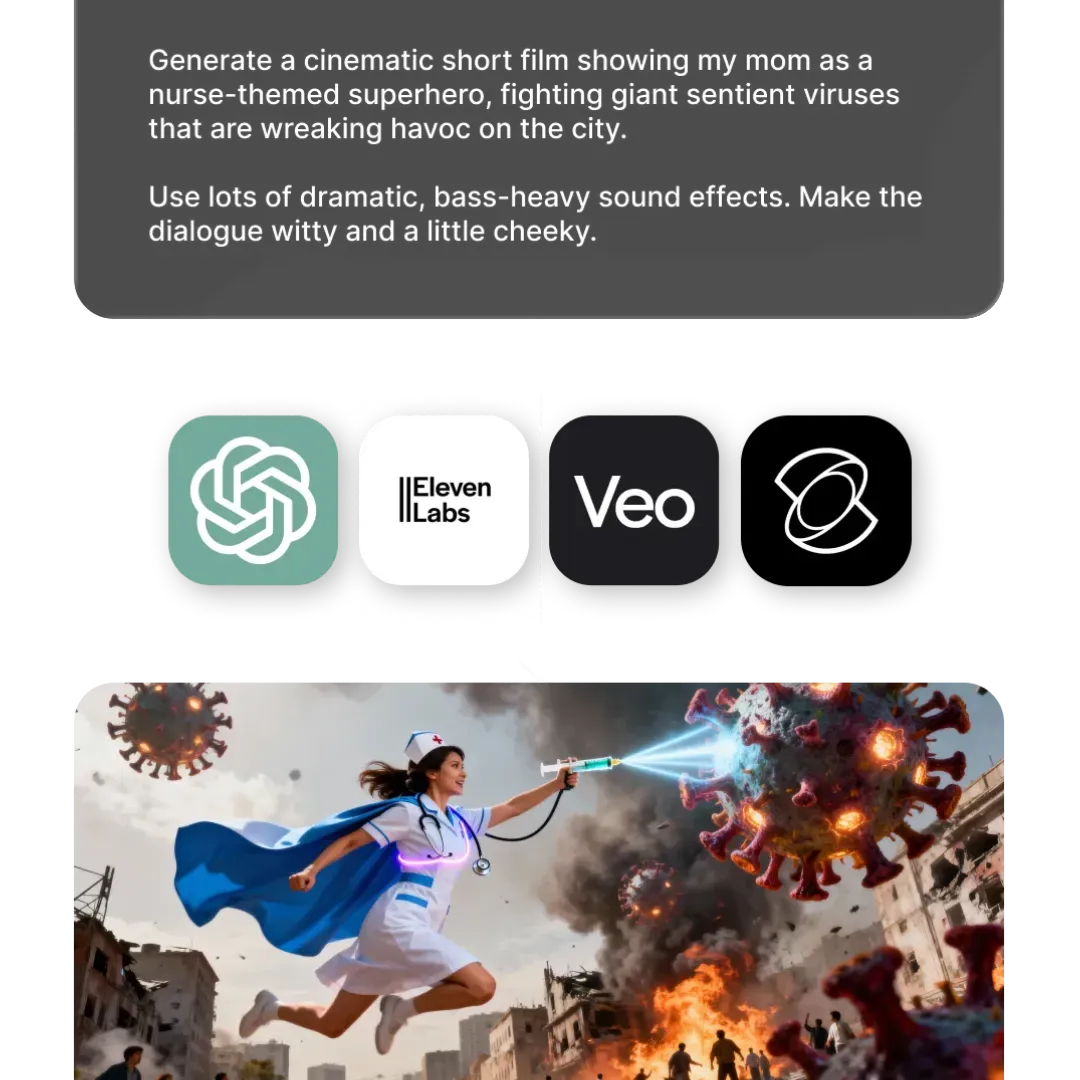
What stood out to me is that Kapwing feels more like a workflow layer across models. You can generate clips, compare outputs, and then immediately edit them in the studio without switching tools. It’s especially useful when you’re trying to dial something in, since different models behave very differently.
It also handles editing across both video and images. You can trim clips, add captions, adjust timing, or repurpose videos. You’re not just generating content, you’re actually finishing it in the same place. The tradeoff is that Kapwing isn’t a single “best” model like Sora; it depends on which model you use inside it. But that’s also the advantage, as you’re not locked into one approach.
In practice, I’d use Kapwing when I want flexibility across models and a faster path from generation to a fully edited video ready to export.
Kapwing vs. Sora
Kapwing works differently from Sora—it gives you access to multiple AI video models and editing tools in one place, instead of relying on a single system.
| Category | Sora | Kapwing |
|---|---|---|
| Core approach | Single AI video model | Multi-model platform |
| Workflow | Generate within one system | Pick the best model per task |
| Flexibility | Limited to one model’s strengths | Adapt based on use case |
| Editing | Focused on generation | Built-in editor (trim, captions, timing) |
| Image + video support | Primarily video generation | Supports both image and video workflows |
6. Luma AI – Best Sora Alternative for Product Clips
Luma AI (Dream Machine) is most useful in cases where Sora can feel a bit unpredictable, especially when you care more about how a shot looks rather than what’s happening in it.
What stood out to me is how consistent Luma is with lighting, camera movement, and overall visual quality. It’s built around a more 3D/physics-based approach, so things like reflections, depth of field, and camera motion tend to feel more grounded and intentional. In practice, this makes it easier to get clean, usable shots—especially for product clips.
Where it differs from Sora is in how it approaches generation. Sora is better at understanding full scenes: multiple elements interacting, longer sequences, and more narrative coherence. Luma is more focused on shot quality. It tends to work better when you’re starting from simple scenes, rather than trying to generate something complex from scratch.
The tradeoff is that it’s not as strong for complex, multi-scene generation. Sora still has the edge when it comes to longer sequences, narrative flow, and more imaginative prompts. Luma can also struggle more with fine details during motion or more complex interactions.
Luma AI vs. Sora
Luma AI (Dream Machine) is strongest when shot quality matters more than scene complexity. It feels more consistent with lighting, camera motion, and overall visual polish, while Sora is better for full-scene generation and longer narrative sequences.
| Category | Sora | Luma AI (Dream Machine) |
|---|---|---|
| Best at | Full-scene generation and narrative coherence | Clean, visually consistent shots |
| Visual consistency | Can be more unpredictable | More stable lighting and camera quality |
| Camera movement | Strong, but more scene-driven | Feels more grounded and intentional |
| Scene complexity | Better with multiple interacting elements | Works better when the scene is simpler |
| Narrative flow | Stronger for longer sequences | More focused on individual shot quality |
Bonus: ElevenLabs for Text to Speech
Sora 2 can generate video with audio, but ElevenLabs is still on a different level when it comes to voices, especially if you care about things like tone, emotion, or clarity.
It’s one of the few tools where voiceovers actually sound production-ready without editing.
In practice, I’ve found it much more reliable for dialogue, narration, and voice consistency. You can generate voices, clone voices, adjust delivery, and layer in sound effects or music, with a level of control you don’t really get from end-to-end video models.
ElevenLabs is also available in Kapwing. You can use its text-to-speech or custom AI voice features directly in the editor.
ElevenLabs vs. Sora
ElevenLabs is the better choice when the priority is production-ready voice and audio control. Sora can generate video with audio, but ElevenLabs is still stronger for dialogue, narration, emotional delivery, and voice consistency.
| Category | Sora | ElevenLabs |
|---|---|---|
| Dialogue quality | Good for generated video audio | More reliable, clearer, and more natural |
| Tone and emotion | More limited control | Stronger emotional range and delivery control |
| Voice consistency | Less dependable across outputs | Much stronger for repeatable voice performance |
| Sound effects / music | Part of the full scene output | More flexible when layering audio intentionally |
Final Thoughts
No single tool today exactly replaces Sora and its combination of motion, scene coherence, and details like humor or unexpected moments. However, there are already many high-quality tools that cover these areas well—just in different ways.
Instead of one model doing everything, the current landscape of AI video generators is more specialized. Different tools are better at different parts of the workflow, whether that’s motion control, cinematic quality, dialogue, or editing.
In practice, choosing the right Sora alternative comes down to what you need:
- Kling for precise motion control and longer clips
- Veo for cinematic, production-style shots
- Seedance for dialogue-driven or stylized videos
- Pika for animating images and iterating quickly
- Luma for consistent, high-quality visuals
- Kapwing to combine models and turn outputs into finished content
Some tools are better at controlled outputs, others are better at creative or stylistic results. What matters more is picking the right tool for the type of video you’re trying to create.
The shift isn’t about finding a perfect replacement, it’s about using the right combination of tools to get to a final result faster and more reliably.