AI Twitch Clip Generator
Upload any Twitch video — automatically extract short clips
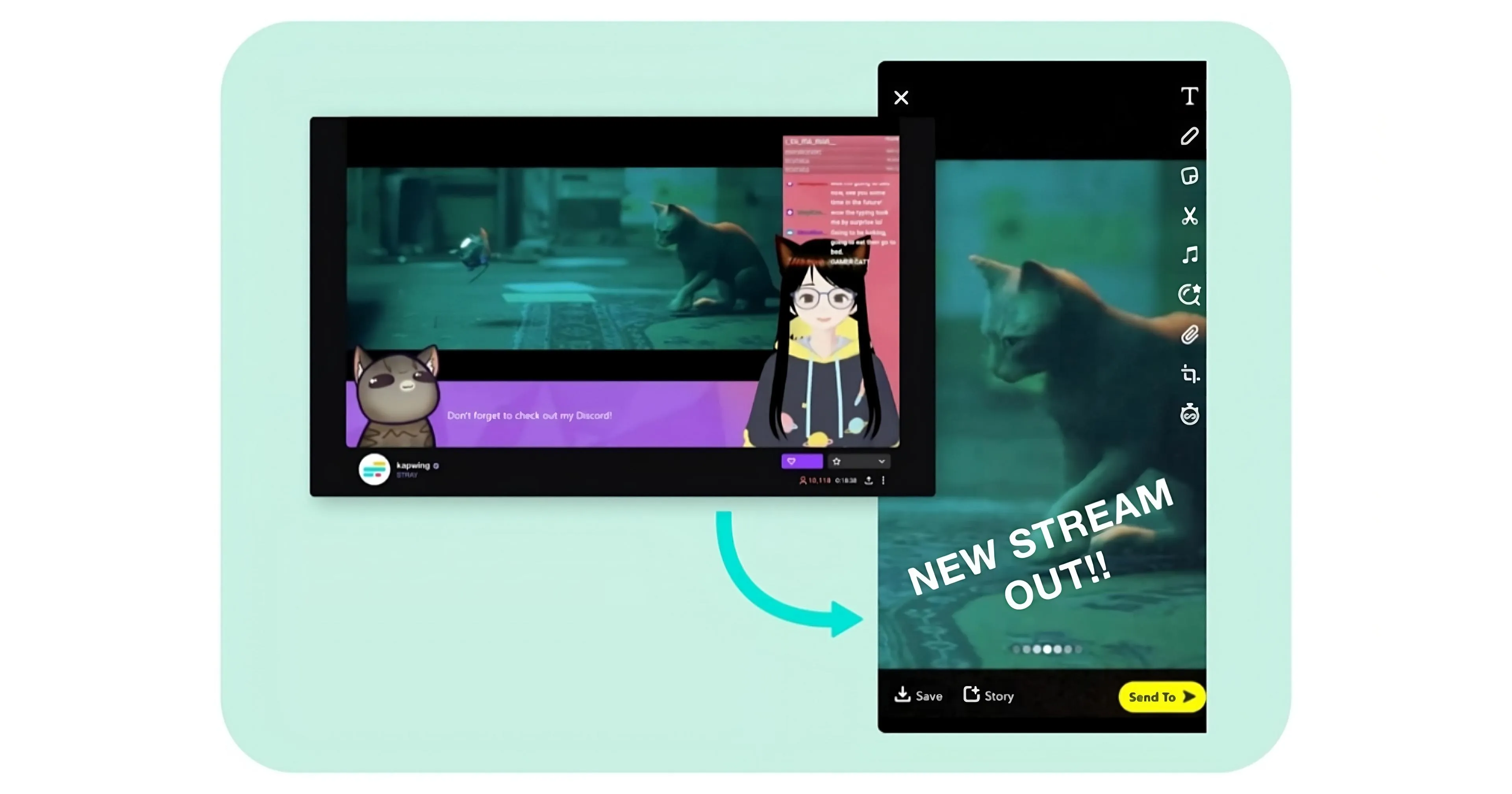
Transform your Twitch stream into dozens of clips — automatically
Create dozens of highlights in vertical or horizontal format.
Zero manual editing.
Instantly generate 9:16 social media highlights
Make highlights from 10 seconds to 10 minutes with Kapwing’s AI-powered Twitch editor. Just upload a video or paste your Twitch link — the AI transcribes, analyzes, and finds your most engaging clips automatically.
From clutch plays and big reactions to funny commentary, Kapwing makes it easy to repurpose your best moments to social media. Instantly generate clips in the right format for every platform, whether it's landscape (16:9) for YouTube or vertical (9:16) for TikTok, Shorts, and Instagram Reels.
Perfect for streamers who want to grow faster and post more without the editing grind.
.webp)
Auto-identify the best moments for short-form content
Find the best moments from your streams without relying on Twitch's clip suggestions, which are often out of context or too long for short, snappy, social clips.
Kapwing’s AI understands your prompt in depth, finding moments that match your description and turning them into ready-to-share clips — so you can repurpose content across more channels faster.
Each MP4 clip is fully customizable, so you can fine-tune it for different platforms and audiences. Update fonts, colors, layers, and layouts to match your brand as you repurpose Twitch content for TikTok, YouTube Shorts, Instagram Reels, and beyond.
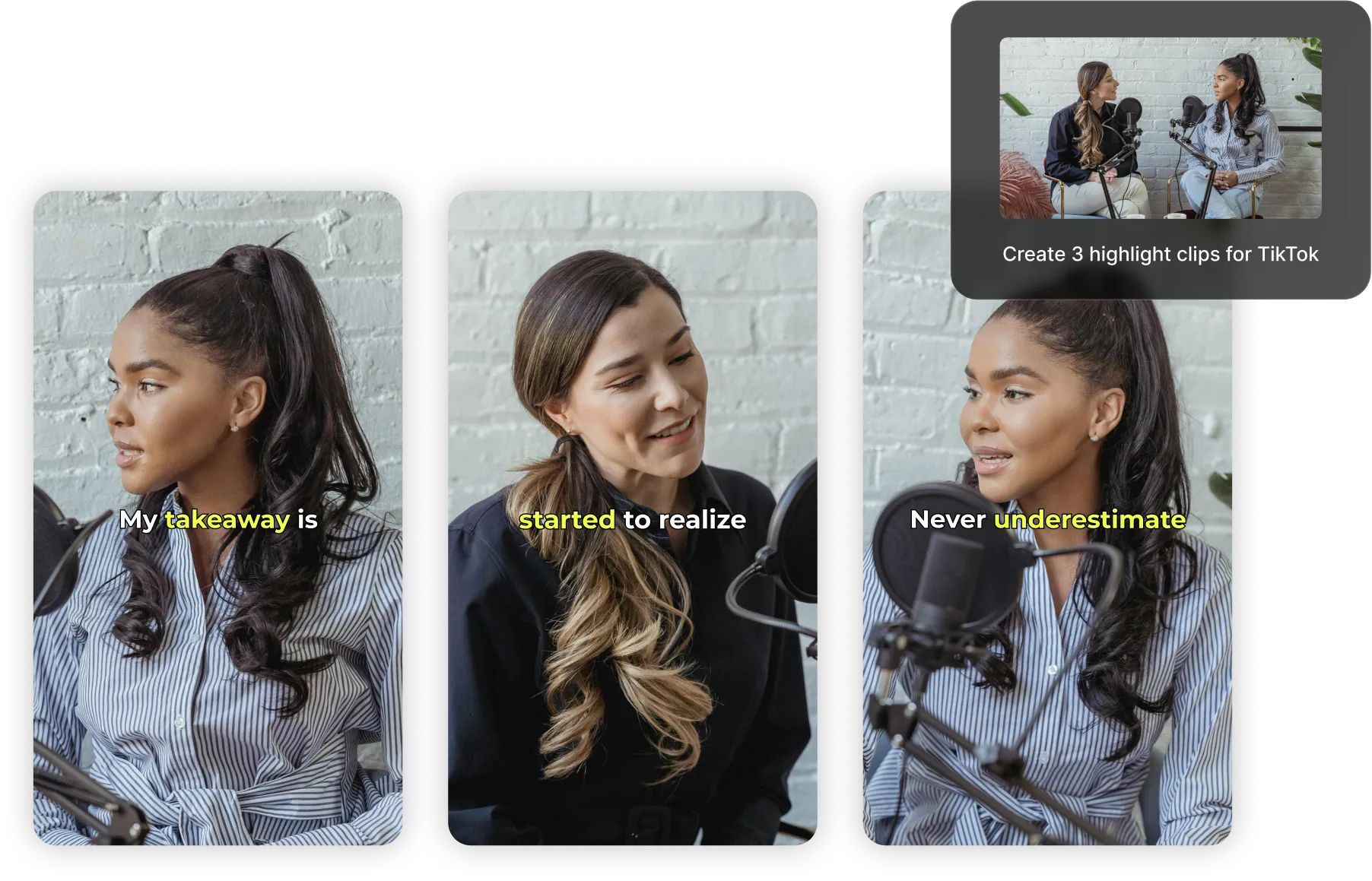
Keep speakers perfectly framed — even when resizing
Kapwing’s Auto Speaker Focus tool automatically tracks and centers the active speaker in any video, perfect for clips with multiple players or co-hosts.
Upload, reframe, and download polished clips in minutes— no manual cropping required.
.webp)
Increase watch times with customizable subtitles
Every clip includes AI-generated subtitles to improve watch time and make your content more accessible. Customize them with over 100 fonts, colors, and styles to match your Twitch branding and speak directly to your audience.
Reach even more viewers by auto-translating your clips into 100+ languages with up to 99% accuracy. Whether you're using the AI-powered clip converter or manual studio tools, you’ll have full control over every detail from clip to final export.
Already transforming video creation across industries
Hear directly from the teams who publish faster, collaborate better, and stay ahead.


Promote your Twitch channel anywhere
See how creators turn Twitch footage into content for TikTok, Instagram, Shorts, and more
.webp)
Gaming Highlights
Gaming streamers automatically resize Twitch clips for TikTok to share epic gaming moments and funny team interactions with their followers
.webp)
Comedy Clips
Twitch streamers repurpose their videos for Instagram to share funny, unscripted game moments or laughable chat interactions with their fans, adding humorous captions as a final touch
Beauty Tutorials & Tips
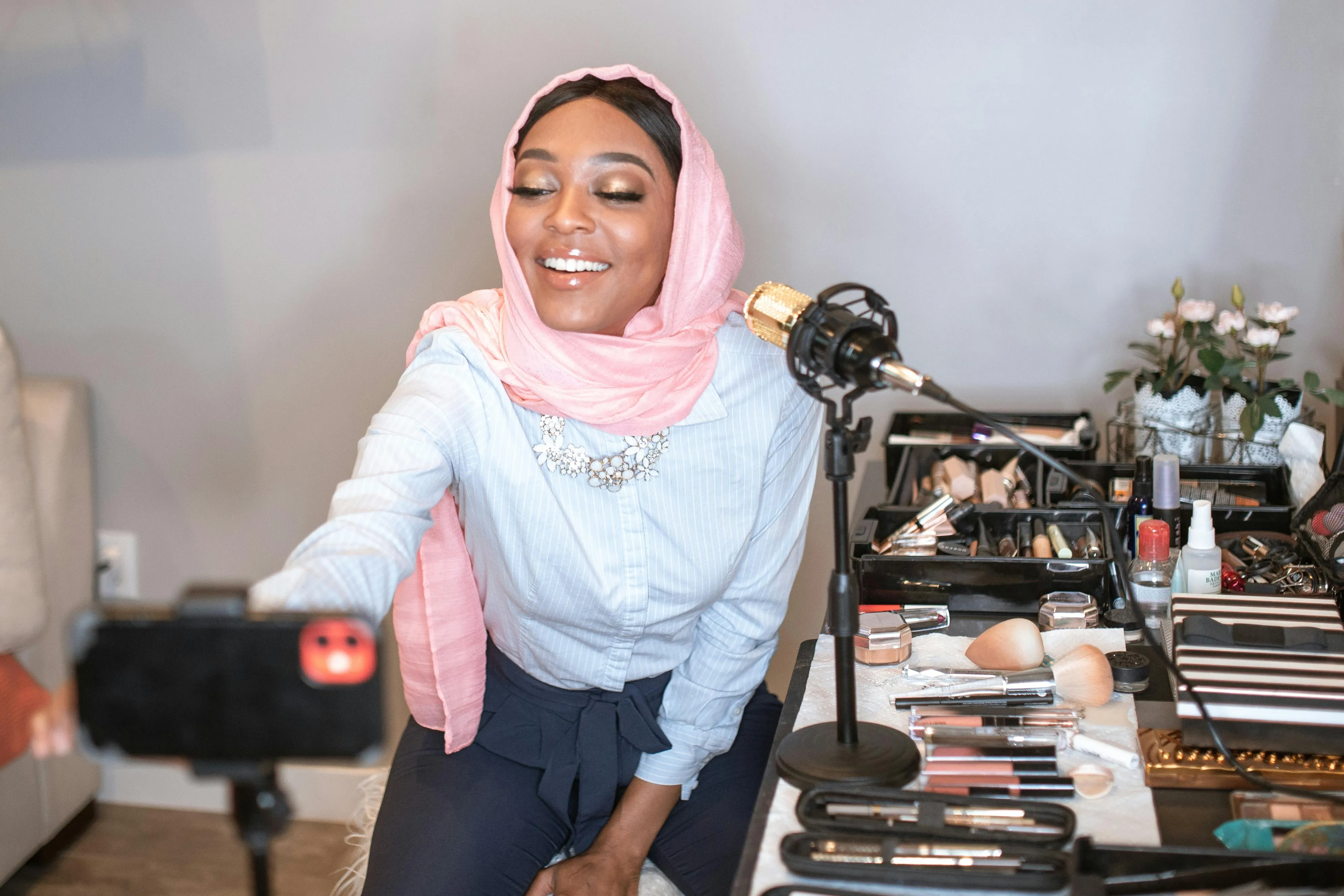
Beauty and body art streamers convert their Twitch streams into YouTube mini-tutorials that share makeup application techniques, skincare routines, and product reviews in 16:9
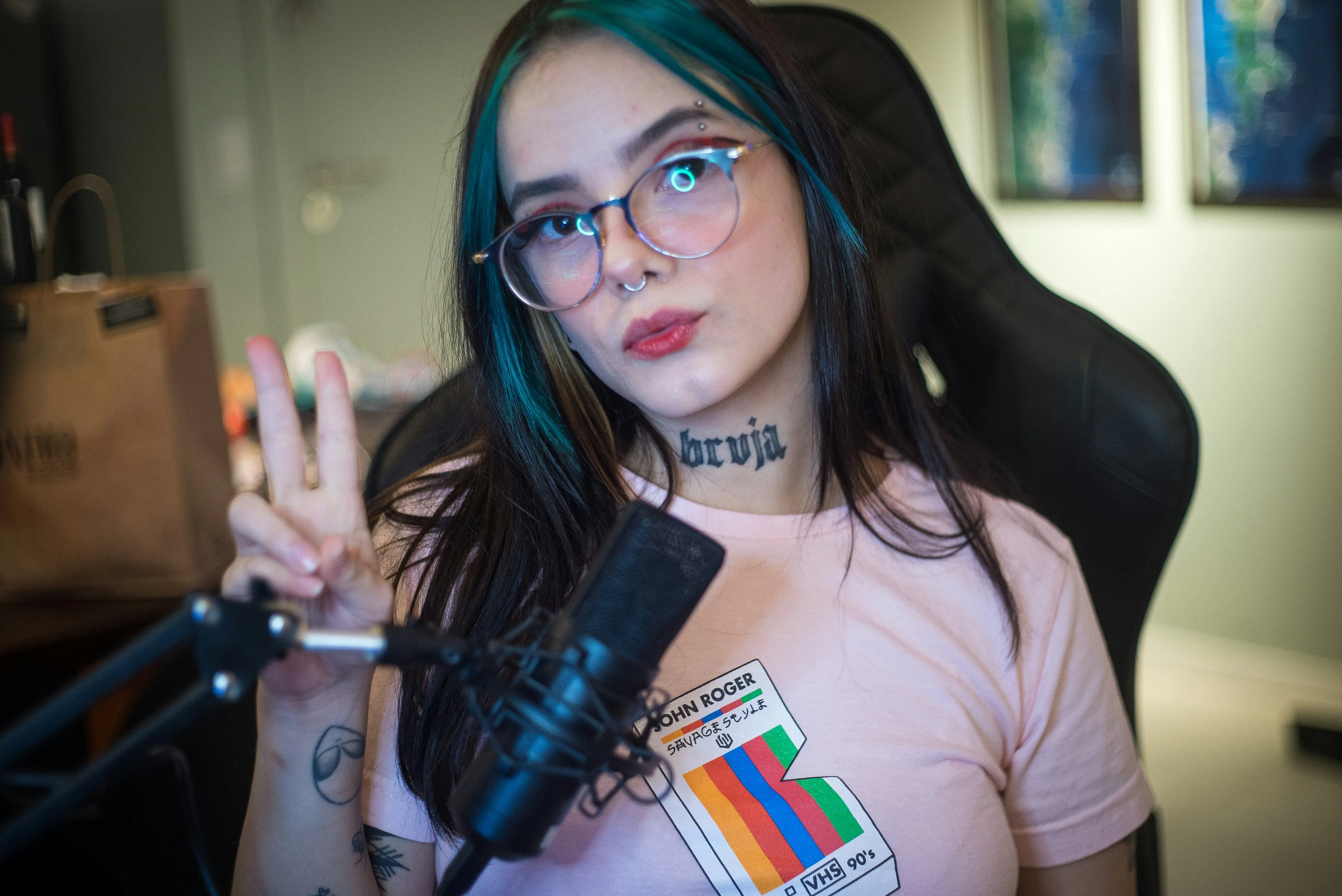
Q&A Features
Streamers extract and upload Twitch clips to social media for free, showcasing high points from their live fan Q&A sessions and funny comment reactions
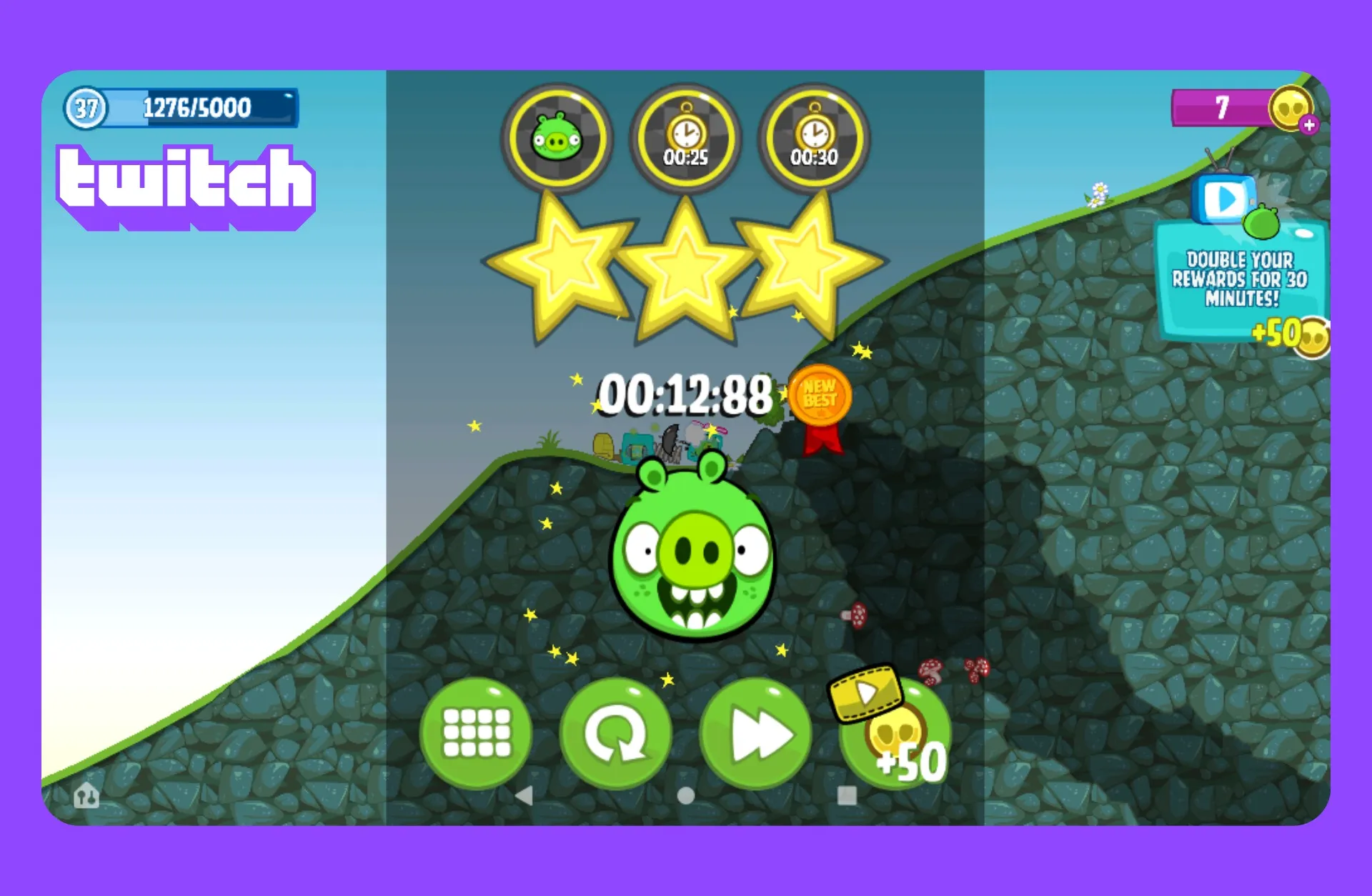
Speedrun Achievements
Gamers post clips on YouTube Shorts, focusing on the best moments from their speedruns — timer countdowns, impressive moves, or the exact moments when they set new records
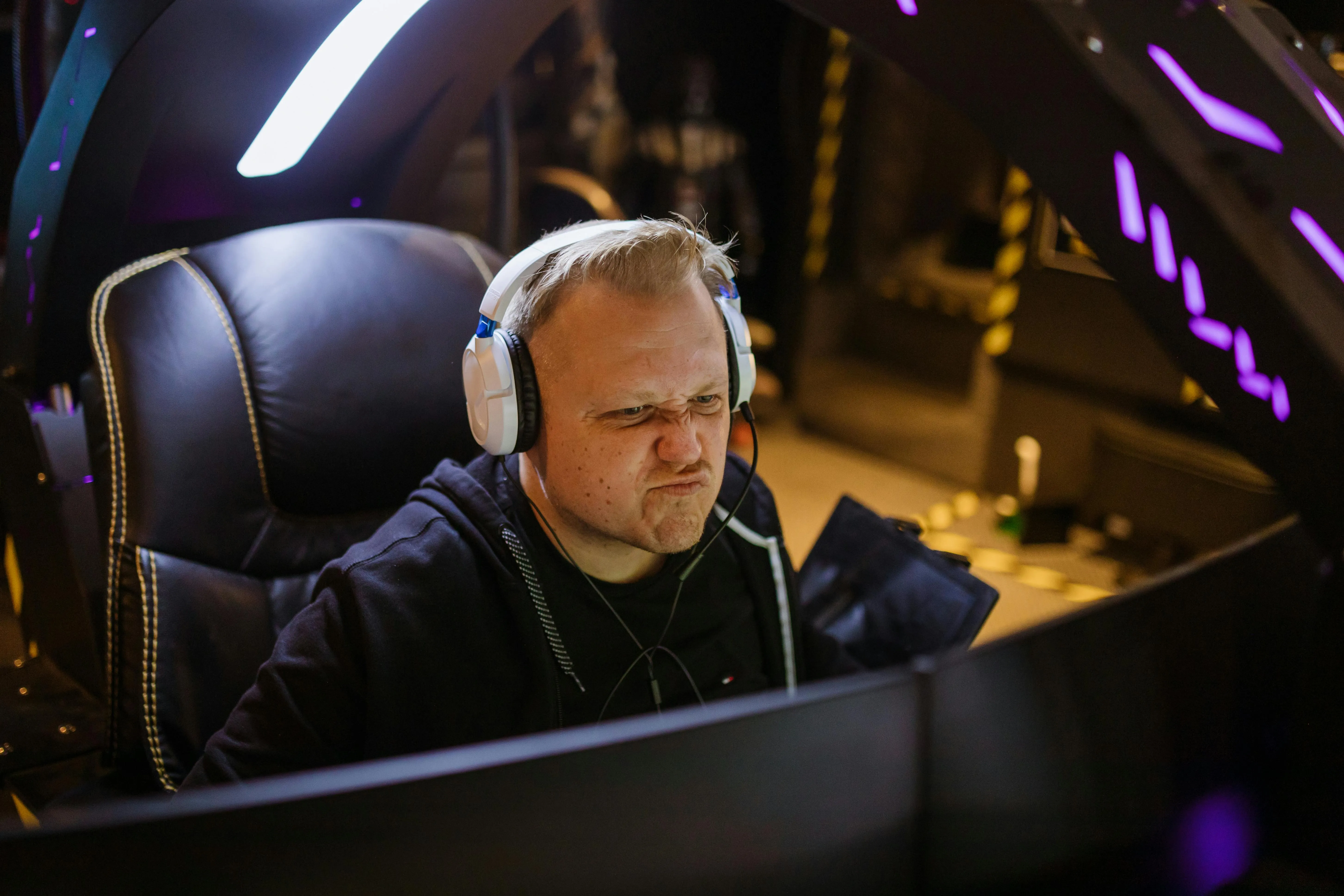
Reaction Clips
Kapwing's Auto Speaker Focus automatically zooms in on the streamer’s face or game footage, highlighting expressions and key moments without any manual editing
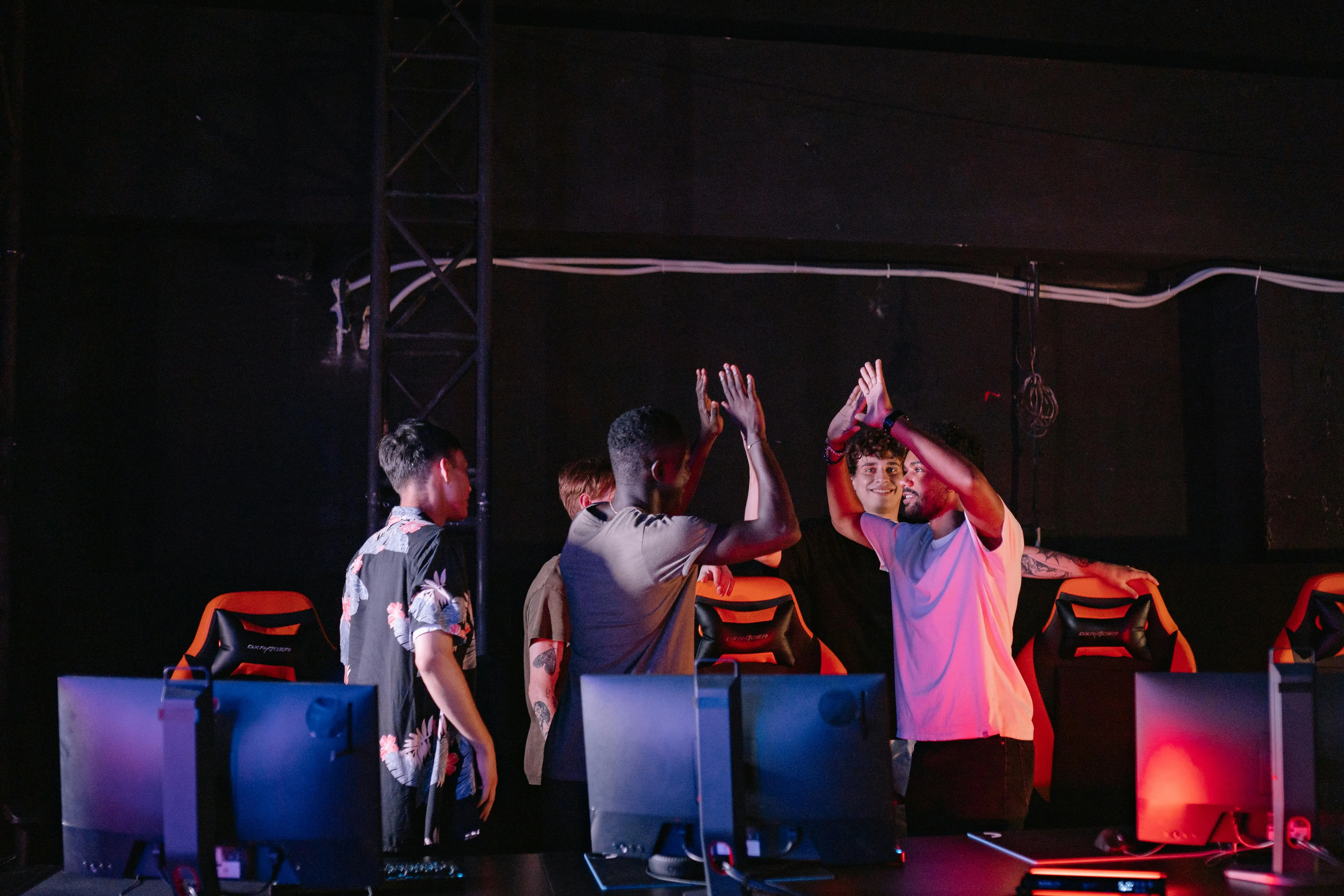
Tournament Recaps
Quickly crop out distracting stream overlays or sidebars to turn Twitch tournament streams into best-of clips, scoreboard time lapses, or exciting moment and reaction mashups
How to Generate Twitch Clips with AI
- Step 1Add Twitch video
Copy your video URL from Twitch and paste it into Kapwing, or upload straight from your device if you have the video downloaded
- Step 2Generate Clips
Describe the topics you want AI to identify and add further guidance, such as your desired clip length or aspect ratio. Finally, click "Generate".
- Step 3Export and post
Download the clips or edit them by asking the chatbot to make revisions. You can post to TikTok, Facebook, and more directly from Kapwing.
What's different about Kapwing?



Frequently Asked Questions
We have answers to the most common questions that our users ask.
Is Kapwing's AI Twitch Clip Generator free?
Yes, Kapwing's AI Twitch Clip Generator is free for all users and includes preset aspect ratios for quick and easy resizing. However, a Pro account is needed to get 4k video quality and other advanced features.
Is there a watermark on exports?
If you are using Kapwing on a Free account, then all exports contain a watermark. Once you upgrade to a Pro account the watermark will be completely removed from all the videos and images you create.
What are the best social media aspect ratios?
Using the right aspect ratio ensures your videos fill the screen, avoid cropping, and look native on every platform.
- TikTok recommends 1080 × 1920 with an aspect ratio of 9:16 for full-screen vertical videos.
- Instagram supports multiple formats:
— Reels & Stories: 1080 × 1920 (9:16)
— Feed (Square): 1080 × 1080 (1:1)
— Feed (Portrait): 1080 × 1350 (4:5)
- YouTube (standard videos) is best at 1920 × 1080 with an aspect ratio of 16:9 for desktop and TV viewing.
- YouTube Shorts uses the same vertical format as TikTok:
— 1080 × 1920 (9:16)
Other popular aspect ratios include
- 1:1 (Square) – Ideal for Instagram feed posts and cross-platform social sharing
- 4:5 (Portrait) – Maximizes screen space in Instagram feeds
- 16:9 (Landscape) – Standard for YouTube, presentations, and long-form video
- 5:4 or 3:2 – Occasionally used for ads or legacy content
What are some of the most popular game streams on social media?
Top games across TikTok, Reels, and Shorts include Fortnite, Minecraft, Roblox, Genshin Impact, PUBG Mobile, and Call of Duty. Mobile-friendly and reaction-heavy games like Garena Free Fire perform especially well on TikTok, while League of Legends, Valorant, and GTA V dominate on Twitch and YouTube. These games are ideal for short clips thanks to their fast-paced action and viral potential.
Can I generate clips from a Twitch link?
Yes — just paste your Twitch VOD link, and Kapwing’s AI will scan the video to find highlight-worthy moments. No need to download or upload the file manually.
How do I make Twitch clips that are worth sharing?
One key strategy is not to leave your streaming sessions completely up to chance. You want to approach each stream with the viewer in mind and imagine yourself as a host or entertainer. What would the game's audience find interesting? What would excite them or make them laugh?
Before you stream, brainstorm common in-game events and how you might add funny commentary or execute a bit of eye-catching gameplay. This way, you're more likely to naturally produce memorable moments you can clip and post on social media.
How do I find my Twitch clips?
You can find your Twitch clips in the Clips page of your Creator Dashboard. Go to Creator Dashboard > Content > Clips. Here, you can sort and filter clips, edit titles, and watch or share clips.
What clip lengths can I create?
You can generate clips starting from 10 seconds — just tell the AI chatbot the length you want.
What aspect ratios can the Clip Maker resize to?
Kapwing's Twitch to TikTok tool is built for social media, allowing you to easily resize content to fit any platform.
- 9:16 (TikTok, YouTube Shorts, Instagram Reels, LinkedIn Short-form videos)
- 16:9 (YouTube)
- 1:1 (Instagram post square)
- 4:5 (Instagram post portrait)
Read our social media aspect ratios blog to discover the best video sizes for every platform.
How to keep your webcam visible when converting to vertical videos
Twitch streams are usually horizontal (16:9), but short videos on social media are vertical (9:16). To preserve your content, you should consider:
- Reframe the video: Crop the gameplay area while keeping the webcam overlay in view.
- Split the screen: Another method is adding a vertical background or duplicate gameplay as a blurred vertical frame behind your clip, keeping both the gameplay and webcam visible via a split screen.
- Highlight the action: Focus on the main gameplay moment or your reaction; don’t try to fit everything from the original stream into one vertical clip.
Discover Resources
Tips, templates, and deep dives to help you create faster and share with confidence.
View all


Get started with your first video in just a few clicks. Join over 35 million creators who trust Kapwing to create more content in less time.