
Focus attention with video zoom — for free
Zoom in to resize and animate videos in an online tool
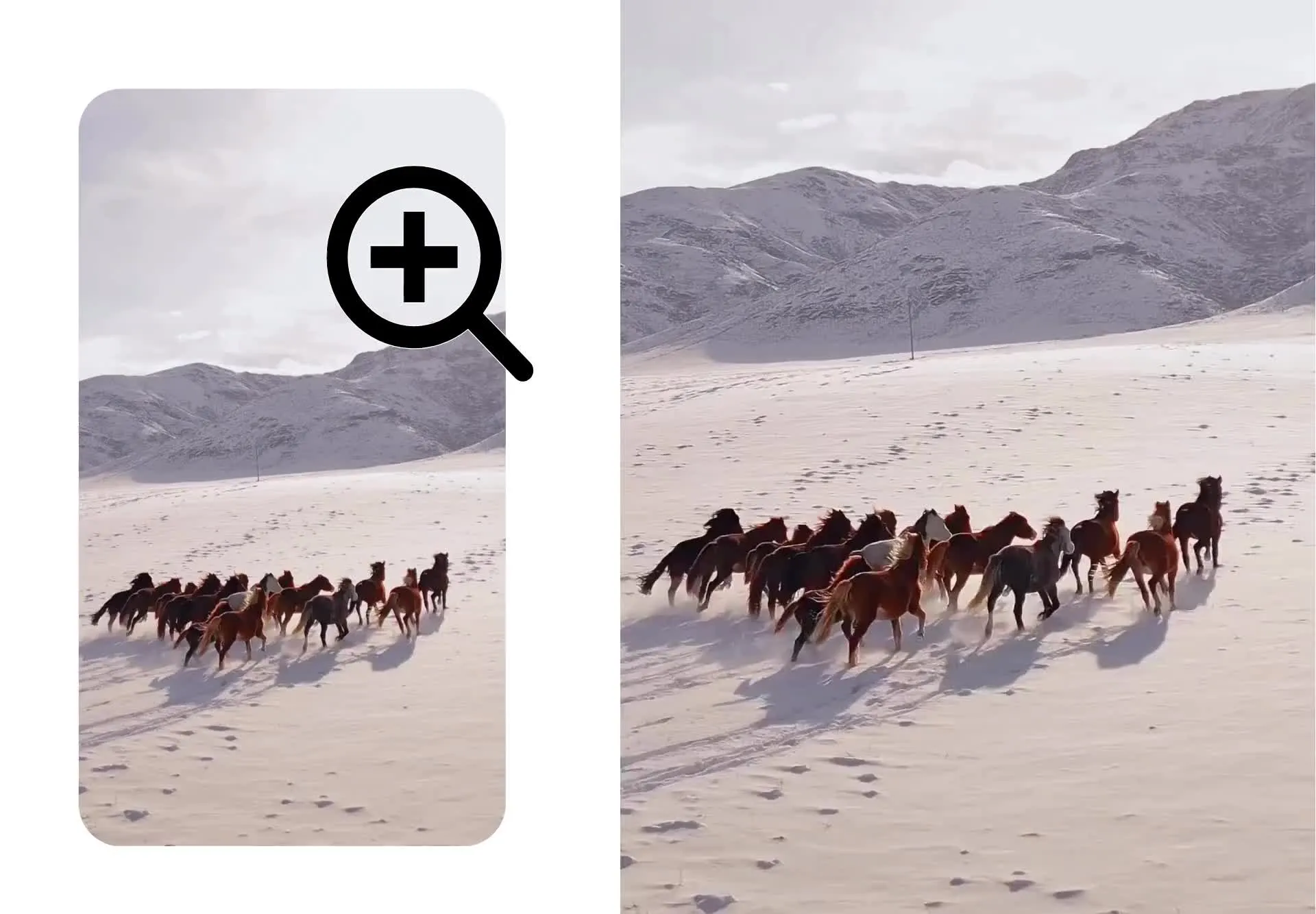
Zoom in without losing video quality
Kapwing's free Zoom in to Video tool lets you refocus attention, add motion, and control pacing in seconds. Use the intuitive slider to set your zoom level and preview changes. With smart scaling, you can zoom in without blur or pixelation, then export in 1080p or 4K.
Need more control? Add keyframes to create custom zoom animations, crop and resize with a zoomed-in frame, or apply a smooth moving zoom effect in a single click. Fine-tune timing directly on the timeline, no complicated editing needed.
Turn static clips into dynamic scenes, hide jump cuts, or add dramatic zooms for reactions and memes. Highlight product details, draw attention to background elements, or create cinematic close-ups without reshooting footage.
Integrated with hundreds of video editing tools
Whether you’re creating tutorials, product demos, social clips, or marketing campaigns, Kapwing gives you precise zoom control, plus everything you need to edit, enhance, and publish in one streamlined video editor.
Upscale your video resolution up to 4x for clearer visuals. Stabilize shaky footage, improve eye contact, and remove silences automatically to tighten pacing. Clean up audio with background noise removal, add subtitles in one click, or generate translations for global audiences.
Optimize every frame for every platform. Automatically resize your project for TikTok, Instagram, YouTube, or LinkedIn. Add text overlays, stickers, callouts, and shapes to reinforce your message. Apply transitions, animations, filters, and brand fonts to keep your content consistent and on-brand.
Already transforming video creation across industries
Hear directly from the teams who publish faster, collaborate better, and stay ahead.


How to Zoom in on a Video
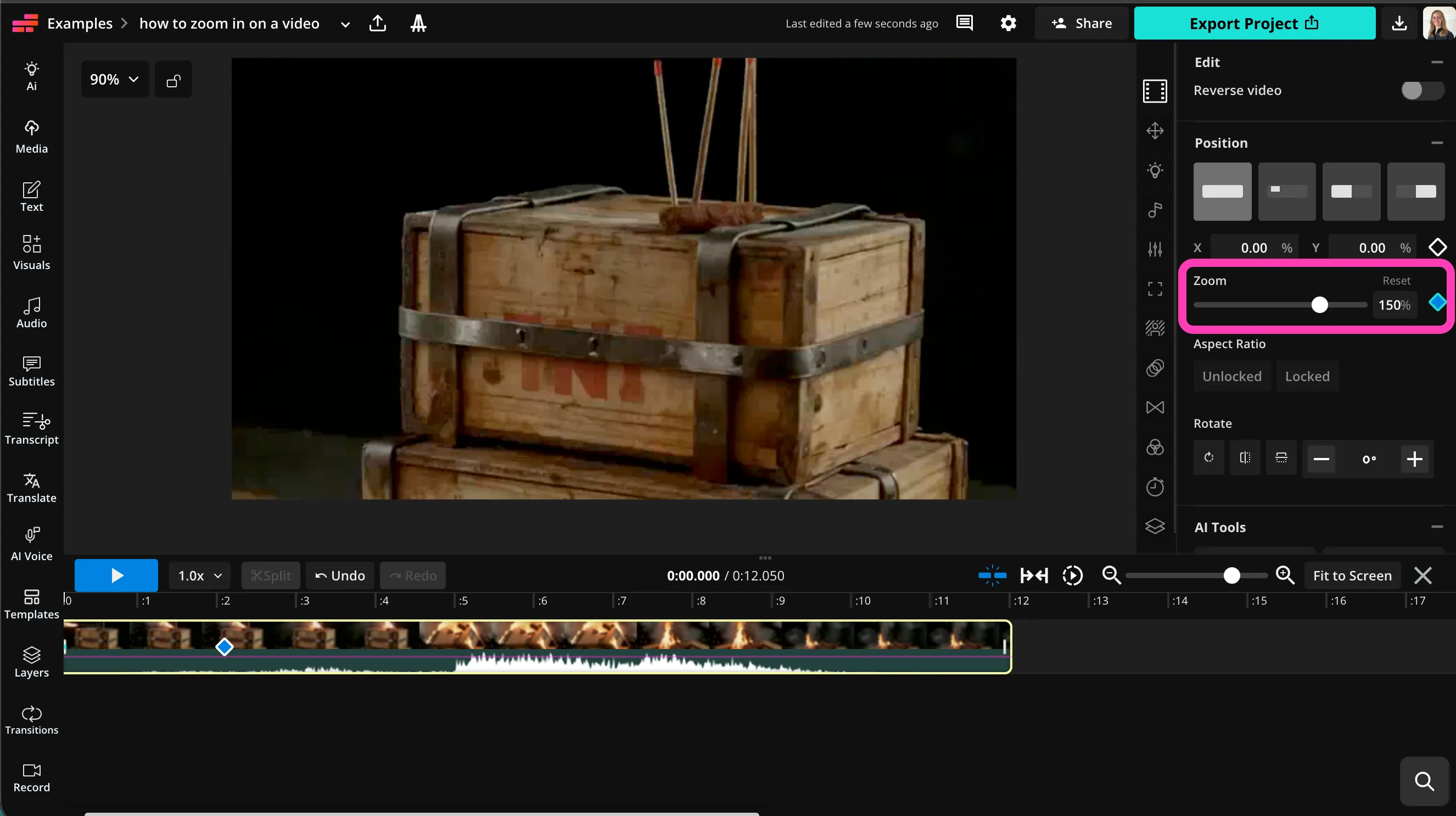
- Step 1Upload video
Create a project in the Kapwing studio and click to upload your video.
- Step 2Zoom in
Select the video, then drag the "Zoom" slider in the righthand sidebar to zoom in to your video.
- Step 3Edit and export
Keep editing with Kapwing's video editing studio, or click "Export Project" to save your video.
What's different about Kapwing?



Frequently Asked Questions
We have answers to the most common questions that our users ask.
Is the Zoom in on Video tool free?
Yes, Kapwing's Zoom in to Video tool is free for all users. For access to the full range of video editing tools, including AI-powered tools, upgrade to a Pro account.
Is there a watermark on exports?
If you use Kapwing on a Free account, then all exports — including Zoom in to Video— contain a watermark. Once you upgrade to a Pro account, the watermark is completely removed from your creations.
How can you zoom in on a video?
To zoom in on a video, create a new project in the Kapwing studio and upload your video. Select the video file in the timeline, then look at the tool sidebar on the right of the canvas. In the top "Edit" section, drag the "Zoom" slider to adjust the level of zoom, or type in a percentage in the box. You can also add a keyframe by clicking the diamond shape next to the slider, or scroll down to "Animations" to add a moving zoom with a single click.
Keep editing using Kapwing's extensive range of video editing tools. When you're ready, click "Export Project" at the top right, then select your video file type and resolution. Download and share your zoomed video in high resolution.
What file types does Kapwing support?
Kapwing supports all major video file types, including MOV, MP4, and WebM. You can upload and download your videos in any of these formats.
Can I create animated zoom effects?
Yes. You can add keyframes on the timeline to create smooth zoom-in and zoom-out animations. This allows you to control exactly when the zoom starts, how far it pushes in, and how long it lasts.
Animated zooms are useful for tutorials, gameplay videos, presentations, and social media content where you want to guide attention without cutting to a new shot.
Can I resize my zoomed video for TikTok, Instagram, or YouTube?
Yes, after applying your zoom effect, you can automatically resize your project for any platform, including TikTok (9:16), Instagram (1:1 or 4:5), and YouTube (16:9).
Kapwing keeps your zoom framing intact while adapting the canvas size, so you don’t have to manually re-edit each version.
Can I zoom in on videos with my phone?
Yes, you can use the zoom tool on your mobile devices, including iPhone and Android, by opening the Kapwing studio in your mobile browser. Press to upload your video, then click "Position" in the bottom toolbar. Drag to adjust the zoom level, then apply any other video editing tools before downloading your video to your phone.
Discover Resources
Tips, templates, and deep dives to help you create faster and share with confidence.
View all


Get started with your first video in just a few clicks. Join over 35 million creators who trust Kapwing to create more content in less time.