
Attira l'attenzione con lo zoom video — gratis
Ingrandisci per ridimensionare e animare i video in uno strumento online
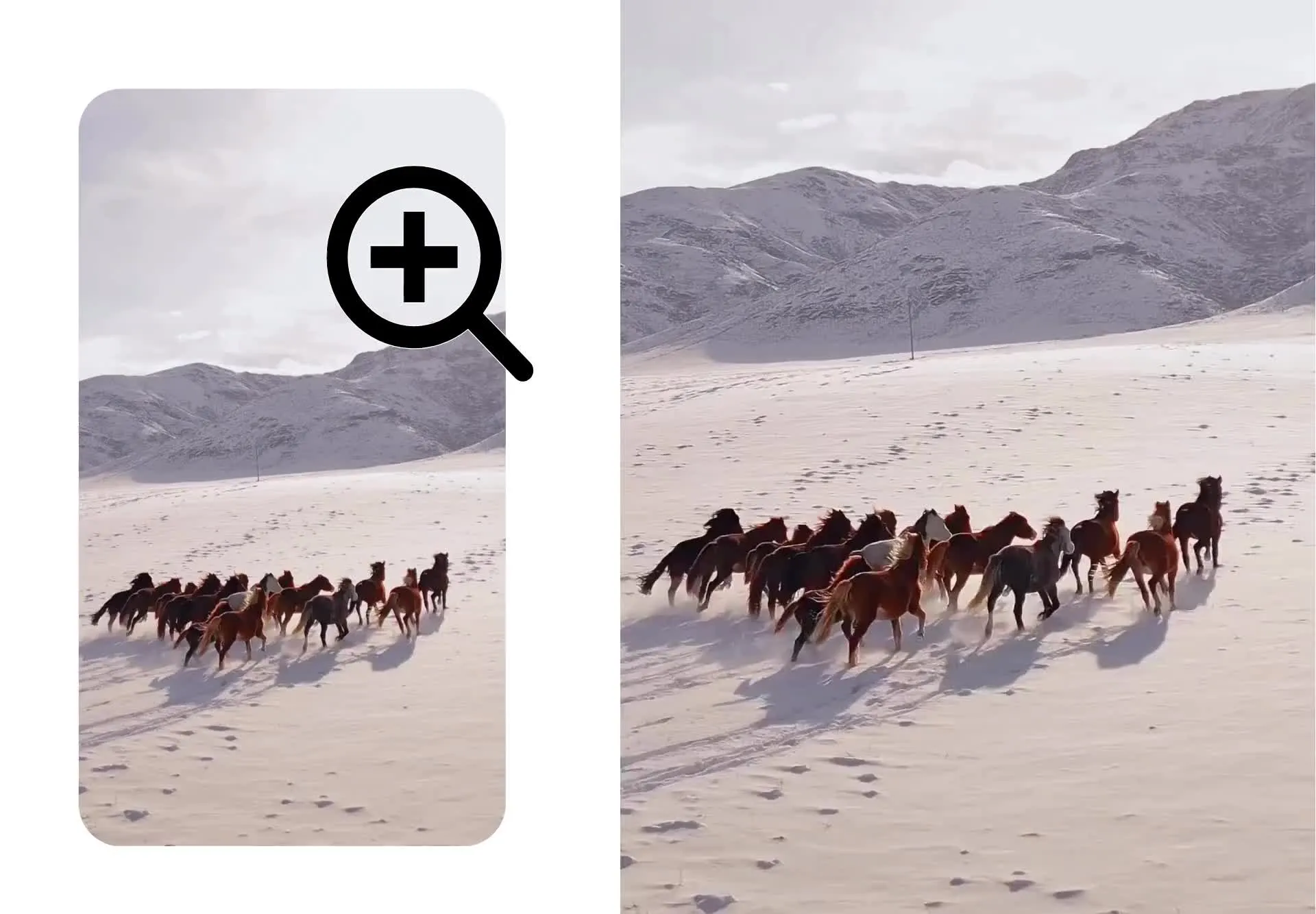
Ingrandisci senza perdere la qualità del video
Lo strumento gratuito Zoom in to Video di Kapwing ti permette di ridirigere l'attenzione, aggiungere movimento e controllare il ritmo in pochi secondi. Usa il pratico slider per impostare il livello di zoom e visualizzare le modifiche. Con il ridimensionamento intelligente, puoi zoomare senza sfocatura o pixelazione, quindi esportare in 1080p o 4K.
Hai bisogno di più controllo? Aggiungi fotogrammi chiave per creare animazioni di zoom personalizzate, ritaglia e ridimensiona con un fotogramma ingrandito, oppure applica un effetto zoom in movimento fluido con un solo clic. Regola la tempistica direttamente sulla timeline, nessuna modifica complicata necessaria.
Trasforma clip statiche in scene dinamiche, nascondi i salti di montaggio, o aggiungi zoom drammatici per reazioni e meme. Evidenzia i dettagli del prodotto, attira l'attenzione su elementi dello sfondo, o crea primi piani cinematografici senza dover riprendere il video.
Integrated with hundreds of video editing tools
Whether you're creating tutorials, product demos, social clips or marketing campaigns, Kapwing gives you precise zoom control, plus everything you need to edit, enhance and publish in one simplified video editor.
Boost your video resolution up to 4x for sharper images. Stabilize shaky videos, improve eye contact and remove silences automatically for a tighter pace. Clean up your audio with background noise removal, add captions with one click, or generate translations for a global audience.
Optimize every frame for every platform. Auto-resize your project for TikTok, Instagram, YouTube or LinkedIn. Add text overlays, stickers, callouts and shapes to drive your message home. Apply transitions, animations, filters and brand fonts to keep your content consistent and on-brand.
Già rivoluzionando la creazione di video in diversi settori
Ascolta direttamente dai team che pubblicano più velocemente, collaborano meglio e rimangono sempre avanti.


Come Ingrandire un Video
- Step 1Carica video
Crea un progetto nello studio Kapwing e fai clic per caricare il tuo video.
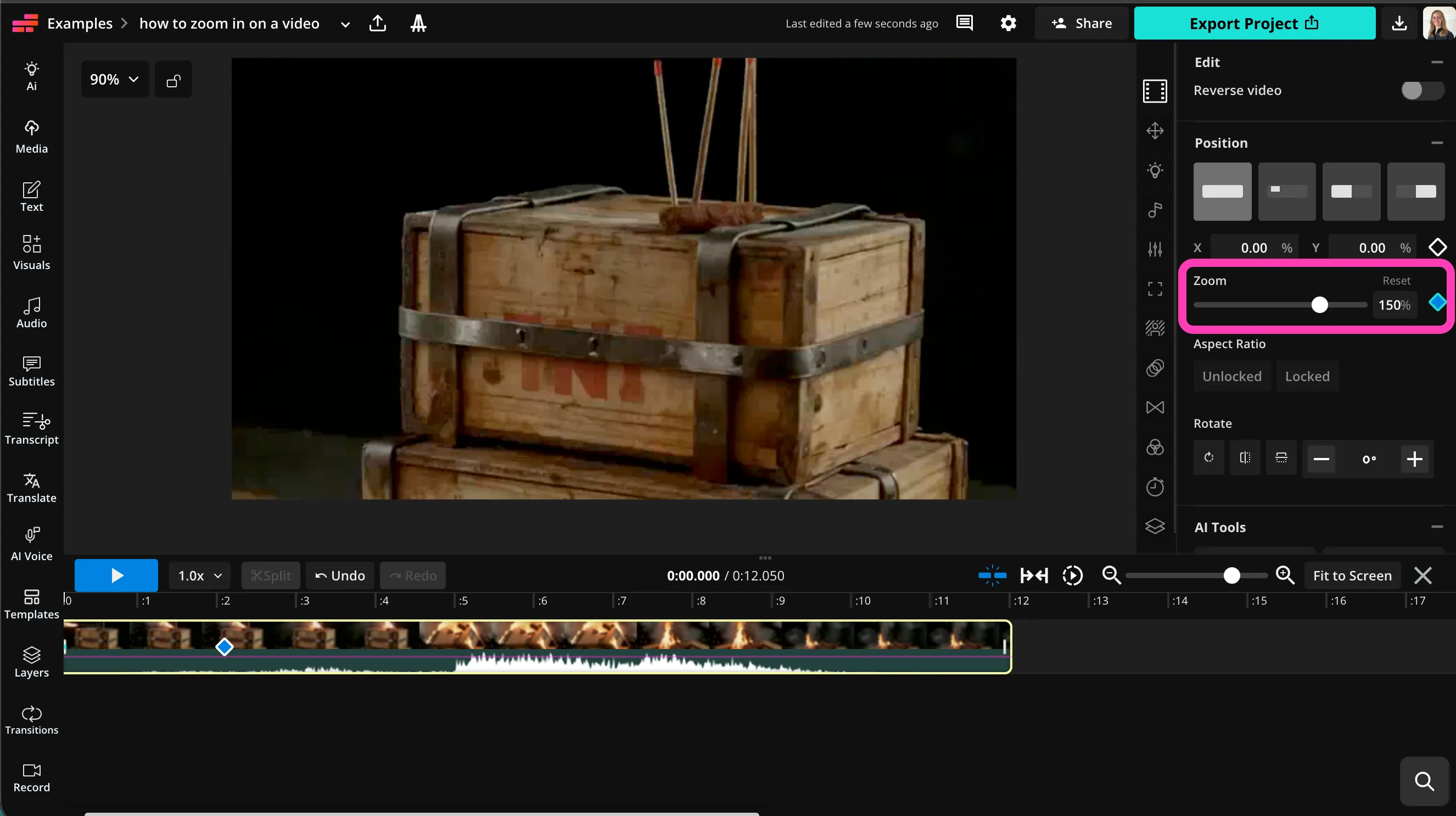
- Step 2Ingrandisci
Seleziona il video, quindi trascina il cursore "Zoom" nella barra laterale destra per ingrandire il tuo video.
- Step 3Modifica ed esporta
Continua a modificare con lo studio di editing video di Kapwing, oppure fai clic su "Export Project" per salvare il tuo video.
Che cosa rende Kapwing diverso?



Domande Frequenti
Abbiamo le risposte alle domande più comuni che i nostri utenti ci fanno.
Is the Zoom in on Video tool free?
Yep, Kapwing's Zoom in to Video tool is totally free for everyone. To get your hands on all our video editing tools, including the AI-powered ones, upgrade to a Pro account.
Is there a watermark on exports?
If you're using Kapwing with a free account, then all exports — including Zoom in to Video — contain a watermark. Once you upgrade to a Pro account, the watermark gets completely removed from your content.
Come si fa a fare zoom su un video?
To zoom in on a video, create a new project in the Kapwing studio and upload your video. Select the video file in the timeline, then check out the toolbar on the right side of the canvas. In the "Edit" section at the top, drag the "Zoom" slider to adjust the zoom level, or type a percentage in the box. You can also add a keyframe by clicking the diamond shape next to the slider, or scroll down to "Animations" to add a moving zoom with just one click.
Keep editing using Kapwing's wide range of video editing tools. When you're ready, click "Export Project" in the top right, then select your video file type and resolution. Download and share your zoomed-in video in high resolution.
Quali tipi di file supporta Kapwing?
Kapwing supports all the major video file formats, including MOV, MP4, and WebM. You can upload and download your videos in any of these formats.
Can I create animated zoom effects?
Yep! You can add keyframes on the timeline to create smooth zoom animations. This lets you control exactly when the zoom starts, how far it goes, and how long it lasts.
Animated zooms are super useful for tutorials, gameplay videos, presentations, and social media content where you want to grab attention without cutting to a new shot.
Can I resize my zoomed-in video for TikTok, Instagram, or YouTube?
Yep, after you've applied the zoom effect, you can automatically resize your project for any platform, including TikTok (9:16), Instagram (1:1 or 4:5), and YouTube (16:9).
Kapwing keeps your zoom framing intact while it adjusts the canvas size, so you don't have to manually tweak each version.
Can I enlarge videos with my phone?
Yep, you can use the zoom tool on your mobile devices, including iPhone and Android, by opening Kapwing studio in your mobile browser. Tap to upload your video, then click on "Position" in the toolbar at the bottom. Drag to adjust the zoom level, then apply any other video editing tools before downloading the video to your phone.
Scopri le Risorse
Consigli, modelli e approfondimenti per aiutarti a creare più velocemente e condividere con sicurezza.
Visualizza tutto


Inizia con il tuo primo video in pochi click. Unisciti a oltre 35 milioni di creator che si fidano di Kapwing per creare più contenuti in meno tempo.