Video Enhancer
Improve video quality and resolution with manual and AI tools.
Adjust color and clarity, stabilize shaky footage, and upscale resolution online.

Enhance video quality online
Fix resolution, color, stability, and other quality issues in an online editor. Export in 1080p or 4K.
Improve low-quality footage without starting over
Poor video quality can come from low resolution, weak lighting, camera shake, compression, or inconsistent color. Kapwing's Video Quality Enhancer gives you several ways to improve footage based on the problem you need to fix.
Increase brightness, contrast, and saturation with manual controls, stabilize shaky clips, or use AI upscaling to increase video resolution. You can preview each change in the same browser-based project, then keep editing with subtitles, audio, resizing, and other video tools.
For footage that mainly needs more resolution, use Kapwing’s AI Video Upscaler to increase resolution before making the rest of your edits.
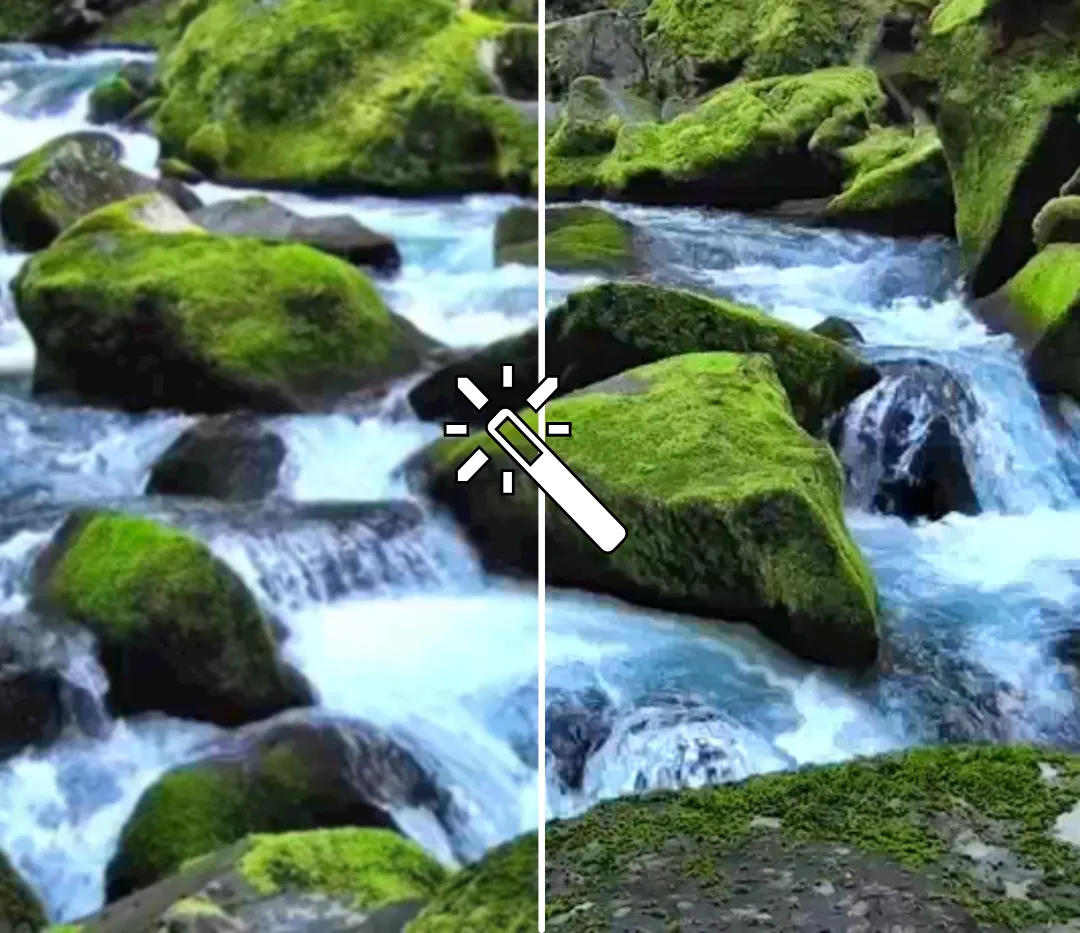
How to enhance video quality in 3 steps
Upload any video, then improve and download in high resolution
Upload
your video to a new project in the Kapwing Studio. You can refine one clip at a time or improve multiple clips in the same project.


Enhance
video by combining AI tools for upscaling, stabilization, and audio improvement with manual controls for brightness, sharpness, and saturation.
Export
your enhanced video in up to 4K resolution. Choose your compression settings and file type, including MP4, MOV, and WebM, from the export menu.
Fix common video quality problems
Improve sharpness, resolution, lighting, shakiness, and audio — all in the same studio
Fix low-resolution video
Low-resolution footage can lose definition when reused in larger formats or mixed with higher-quality clips. Kapwing’s AI Video Upscaler can increase video resolution by up to 4x, helping smaller source files hold up better in HD and 4K projects.
Use the upscaler when you need to prepare older recordings, compressed clips, webcam footage, or other lower-resolution media for a higher-resolution edit. Once the upscale is complete, you can keep trimming, reframing, captioning, and finishing the video in the same Kapwing project.

Improve unclear or poorly lit footage
Video quality can also suffer from soft detail, poor lighting, visual noise, or weak contrast. These issues can make footage look flat, muddy, or less defined, even when the source resolution is high enough.
Kapwing's Video Quality Enhancer gives you direct control to adjust video color and lighting, including sharpness, brightness, contrast, saturation, and other visual settings, so you can correct the specific problem instead of applying a one-size-fits-all effect. Use the Video Clearer to improve footage that looks soft, blurry, or unclear.

Stabilize shaky video
Camera shake can make otherwise usable footage feel distracting or difficult to watch. Kapwing’s video stabilization tools help reduce unwanted movement in handheld clips and other footage recorded without a steady setup. For talking-head videos, interviews, or presentations, you can also use AI Eye Contact to redirect off-camera glances toward the lens without recording another take.
This is especially useful for travel footage, walking shots, events, interviews, and mobile recordings. After stabilizing the clip, you can crop, reframe, trim, or continue editing without moving the project into a separate tool.
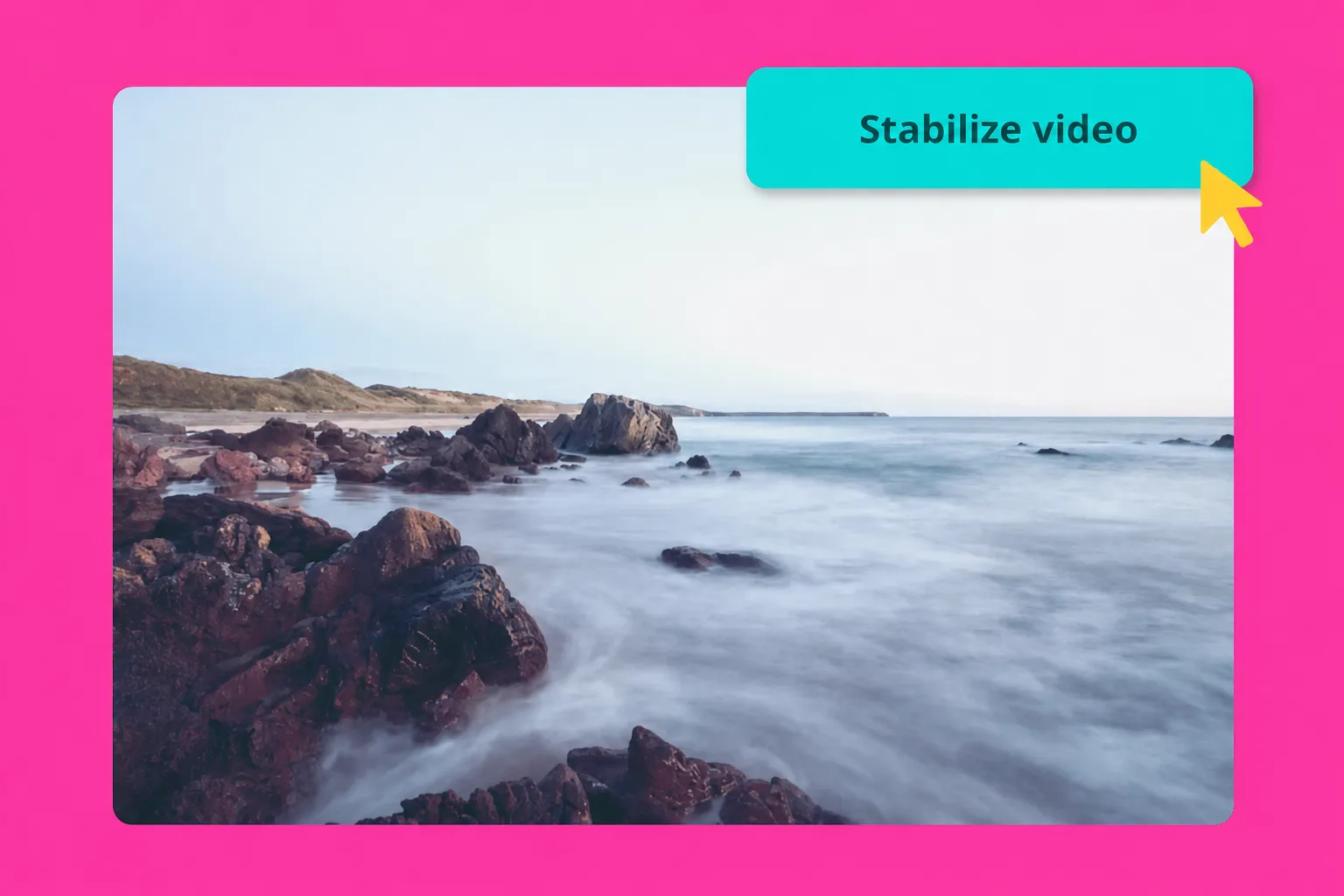
Captivate your audience with flawless footage
Millions of creators use Kapwing to improve video quality for free

Vloggers
Adventure vloggers on YouTube, Instagram, and TikTok make extensive use of Kapwing's AI-powered Clean Audio tool to instantly remove unwanted background noise

Influencers
Influencers who make content on the move effortlessly make their action-packed videos smooth and easy to watch with Kapwing's auto-stabilization feature

Podcasters & Interviewers
Podcasters and interviewers use our editor to instantly increase the quality of video promos, ensuring crisp and clear footage, even if recorded in challenging conditions

E-Learning Creators
E-learning content creators use Kapwing's AI Video Enhancer to upgrade grainy video to 1080p or 4K and ensure that their text slides and visuals are clear and easy to understand
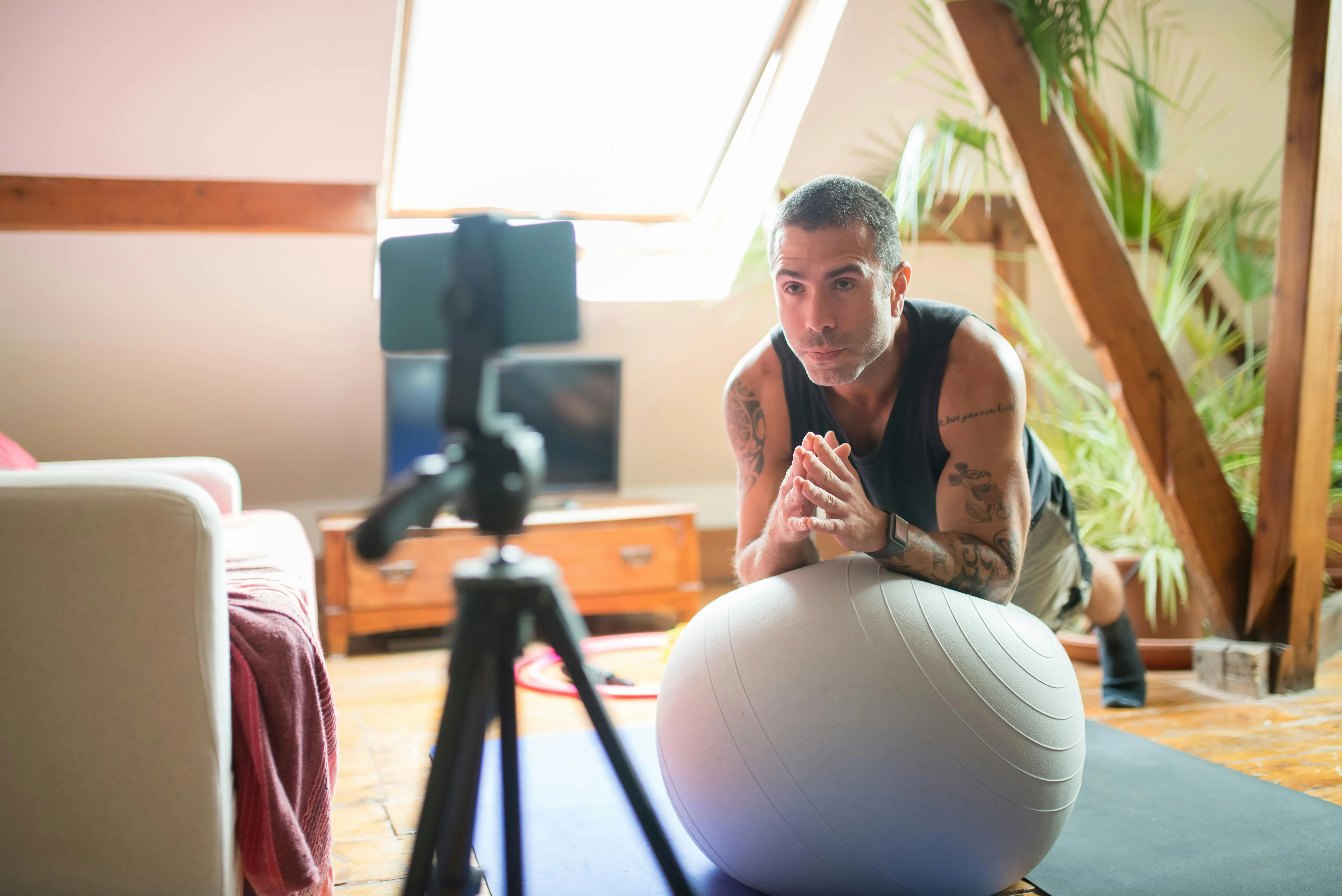
Streamers
Fitness and gaming streamers use the Video Background Remover create sharp, HD tutorial and workout videos without needing to rent dedicated studio space

Marketing Campaigns
Creative teams leverage Kapwing's suite of editing tools to amplify content marketing campaigns ensuring better resolution quality, clearer product focus, and articulate brand messaging

Journalists
Journalists use Kapwing's Video Enhancer to ensure published video content is pristine, even if captured on a phone or in a rush

Social Media Managers
Social media managers use Kawing's AI tools to optimize videos for different platforms, zooming in on key details and increasing saturation for eye-catching posts

Coaches & Educators
Kapwing's Video Quality Enhancer helps create HD videos with better lighting and sharpness, making content easier for students to follow
What causes poor video quality?
Diagnose and fix common video quality problems
Common causes of low video quality
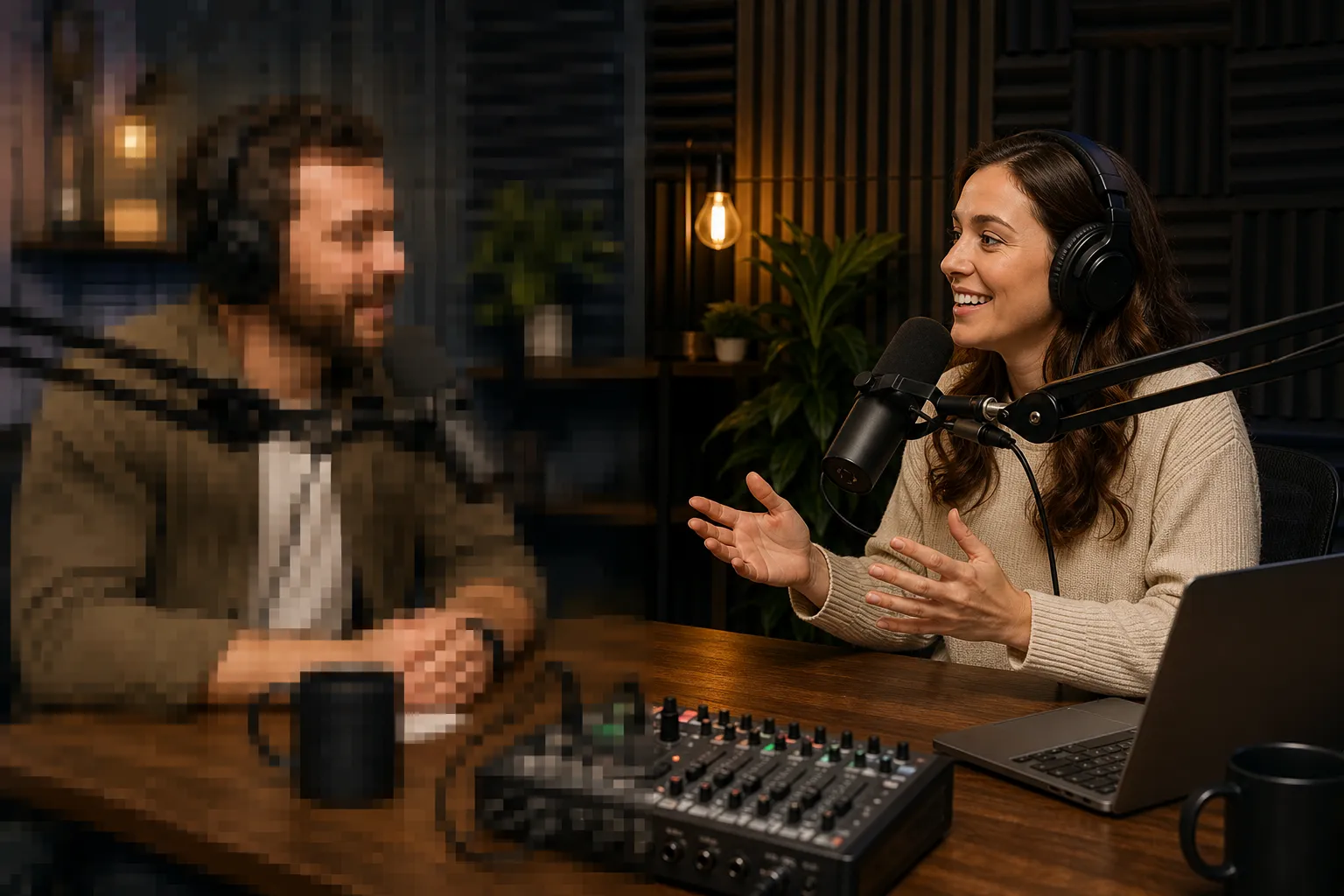
Low resolution, heavy compression, poor lighting, and missed focus can all make a video look less detailed. You might notice blocky faces, blurry text, grainy shadows, or colors that look washed out. Even a video recorded in 1080p or 4K can look unclear if the camera captured too little light or the file lost detail during compression.
To improve video quality, start by identifying what needs fixing. AI upscaling can increase resolution for an HD or 4K project, while other editing tools can reduce visual noise, improve brightness and color, or stabilize shaky footage. Understanding the cause helps you choose the right combination of adjustments before exporting.
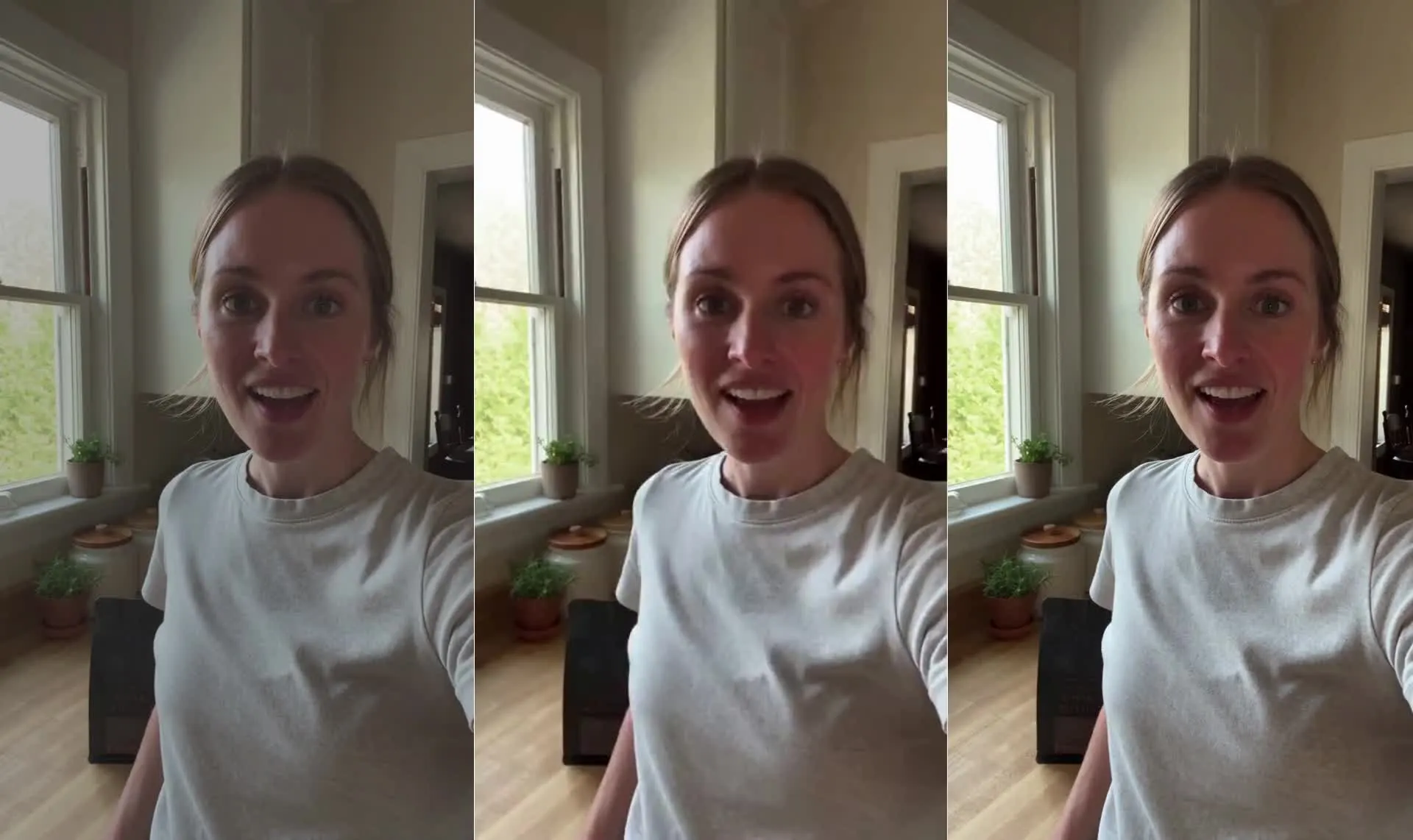
Low resolution and compression
Low-resolution footage has fewer pixels to capture faces, text, and fine textures, so it can look soft or pixelated when enlarged. Compression causes a different kind of quality loss: messaging apps, social platforms, and repeated exports can discard detail to reduce file size, leaving blocky edges or smeared movement. Even a 1080p or 4K video can look unclear if it’s heavily compressed.
Start with the original recording or highest-quality copy available and use AI upscaling to increase resolution and improve the appearance of detail. Avoiding tight crops can also help preserve clarity. When you finish editing, choose a suitable resolution and compression level, since exporting a small, compressed clip in 4K alone won’t restore its missing detail.
Lighting, grain, and color
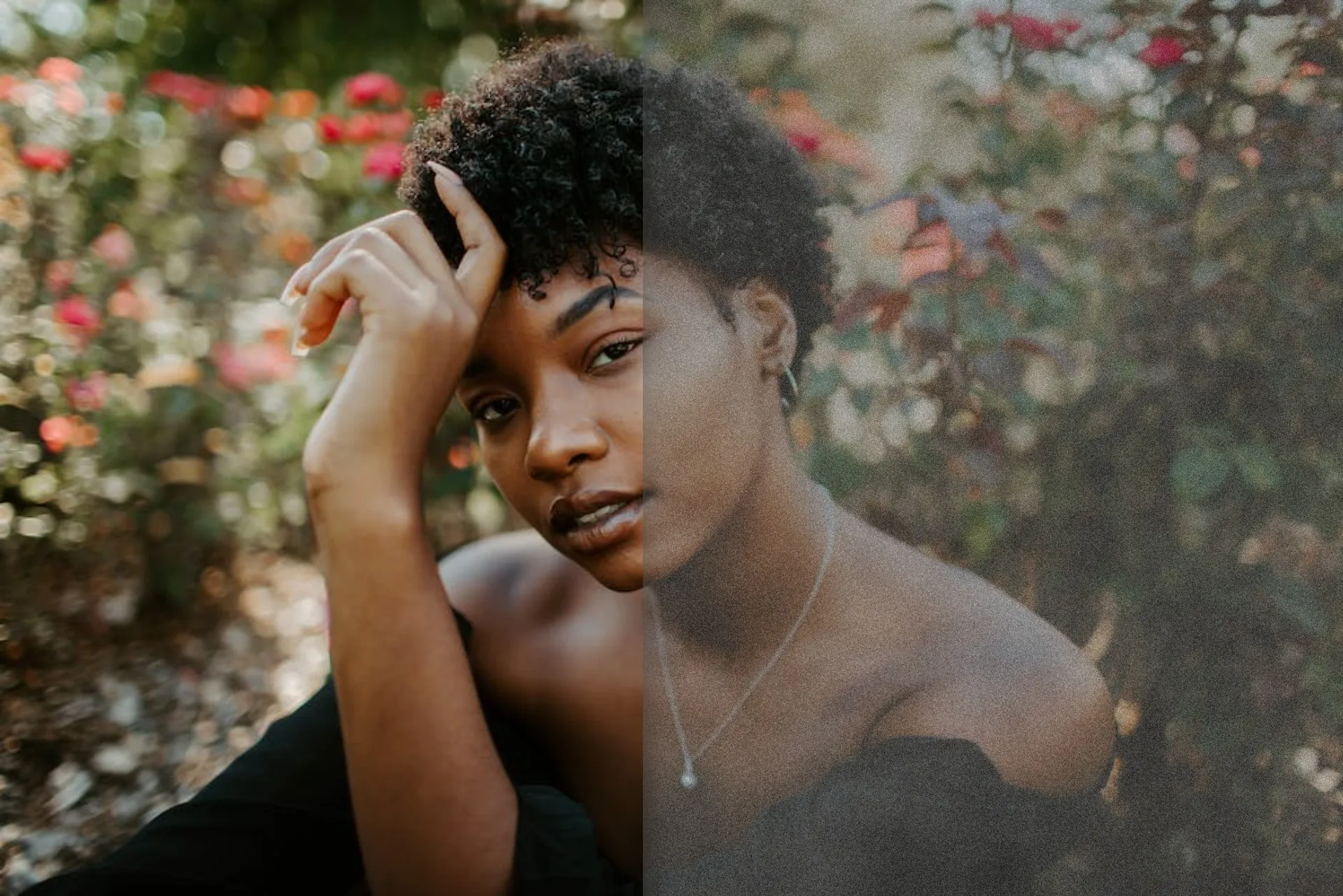
Poor lighting can leave your subject in shadow, wash out bright areas, or introduce grain as the camera compensates for a dark scene. Mixed light sources can also give footage a yellow or blue cast, making skin tones look unnatural. These problems affect perceived video quality even when the recording’s resolution is high.
Adjust brightness and contrast gradually, checking the subject and background together. If brightening reveals distracting speckles, use a video denoiser to reduce visual noise without overly smoothing faces and textures. Then correct the color and saturation, comparing neighboring clips so your finished video looks consistent.
Camera movement and blur
Missed focus, fast-moving subjects, and camera shake can all make footage difficult to see clearly, but they need different adjustments. A face that stays soft throughout a shot suggests a focus problem; streaks around moving objects suggest motion blur. A frame that constantly jitters points to unwanted camera movement.
Kapwing's Video Quality Enhancer can help improve slightly soft footage through sharpening, which makes edges look more defined. Preview small adjustments with the Video Clearer, since excessive sharpening can emphasize grain and harsh outlines.
.webp)
Already transforming video creation across industries
Hear directly from the teams who publish faster, collaborate better, and stay ahead.


How to Enhance Video Quality

- Step 1Upload video
Create a new project in the Kapwing Studio and click to upload your video.
- Step 2Enhance video
Choose between AI and manual video enhancement tools. Use video adjustment settings in the right-hand sidebar to adjust the opacity, brightness, contrast, saturation, blur, and zoom of your video. Select the AI tools section to stabilize, upscale, or fix eye contact with a click.
- Step 3Export and download
Make any final edits, then click "Export Project" to process your enhanced video. Download a video file or share your own unique video URL link with anyone online.
What's different about Kapwing?



Frequently Asked Questions
We have answers to the most common questions that our users ask.
What video files does Kapwing work with?
Kapwing's video editor works with all popular file types for video (MP4, AVI, MOV, etc.). You can export enhanced videos as high-resolution MP4, MOV, or WebM.
Is there a Kapwing watermark on exports?
If you are using Kapwing on a Free account then all exports — including from Video Enhancer — will contain a watermark. Once you upgrade to a Pro account the watermark will be completely removed from your creations.
How do I enhance video quality?
There are different approaches to enhancing video quality. For example, you can use ring lights or soft boxes when filming to improve lighting distribution or minimize shadows. That said, the easiest, most cost-effective way to enhance the quality of a video is by using an online video editor like Kapwing.
This way, all you need is a web browser. All your files are saved in one convenient place, and you can avoid expense lighting and technical editing software. Instead, use intuitive sliders and AI to easily adjust your video's brightness, contrast, saturation, and color grading.
Does Kapwing’s Video Enhancer export videos in 1080p and 4K?
Yes, Kapwing's HD Video Enhancer does export videos in 1080p, as well as in 4K. Kapwing offers standard quality (720p) for users on the Free plan and high definition exporting (1080p and 4K) for users on the paid Pro plan.
Is it free to try Kapwing's Video Enhancer?
Yes, Kapwing's Video Enhancer is available for free including the slider tools for opacity, brightness, contrast, saturation, blur, and zoom. However, there are some limitations around AI features and video length for users on the Free plan, and a small watermark is applied.
Why is my video pixelated?
There are a few different reasons for pixelated video, including low-lighting environments, video compression, and the file format you're using.
- Low-Lighting Environments: Filming in low light may signal your camera's sensor to increase the ISO, a setting that controls how much light is let in. This compensation can lead to pixelated video.
- Compression: This involves removing similar or identical frames from video to reduce file size, and often happens automatically when uploading to platforms like YouTube. It can cause pixelation when applied to video with fast movements or fine detail.
- Imbalanced File Format: Some video file formats don't balance file size and image quality efficiently. This is why Kapwing's video exports are in MP4 — we feel this file type represents the best tradeoff between file size and quality.
Will Kapwing's Video Enhancer affect the original video's aspect ratio?
No, your video maintain its original aspect ratio and format when uploaded to Kapwing. However, you can quickly alter the size of you video to fit a selection of pre-made templates designed for TikTok, YouTube, Instagram, LinkedIn, Facebook, and more.
Can you remove the background from a video?
Yes, Kapwing's Video Background Remover automatically makes your video background white, so you can layer new photos or videos behind your main subject. To remove the background from a video, click 'Remove Background' in the Effects tab — and that's it.
Can Kapwing's Video Enhancer improve blurry videos?
You can use Kapwing's Video Enhancer to help upgrade the quality of video by adjusting the brightness, contrast, and saturation settings. You can also upscale videos using AI, turning blurry pixels into sharp HD videos.
Discover Resources
Tips, templates, and deep dives to help you create faster and share with confidence.
View all


Get started with your first video in just a few clicks. Join over 35 million creators who trust Kapwing to create more content in less time.