Edit objects, people, and backgrounds in videos with AI inpainting.
Change anything while keeping the rest of the video intact.
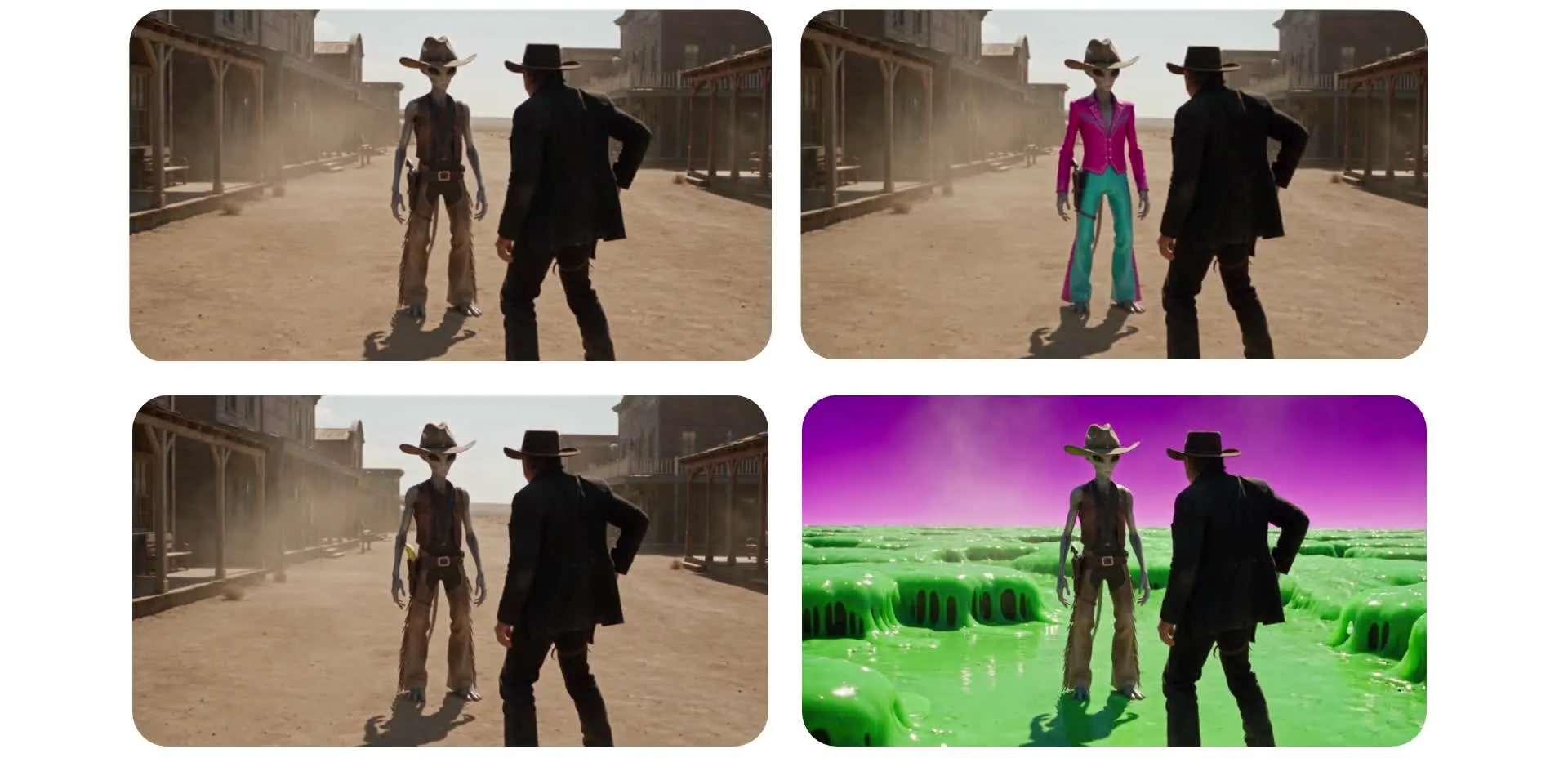
Add, remove, or replace anything in your videos
Use AI inpainting to realistically edit footage. Start for free in your browser.
Edit individual elements of any video
Kapwing's AI video inpainting tool lets you modify the visual content of existing footage without recreating the entire scene. Upload a video to Kapwing's AI video editor and describe what you want to change, from replacing an object or changing someone's outfit to removing an unwanted detail from the background.
Instead of manually editing individual frames, you can use AI models like Seedance 2.5 to generate new visual content that fits into your footage. Video inpainting can account for movement, lighting, and surrounding scene details as it reconstructs or replaces elements throughout the clip.
Use video inpainting to correct footage, explore creative changes, and produce new versions of existing clips. Download without watermarks or finish your edit in the Kapwing Studio.
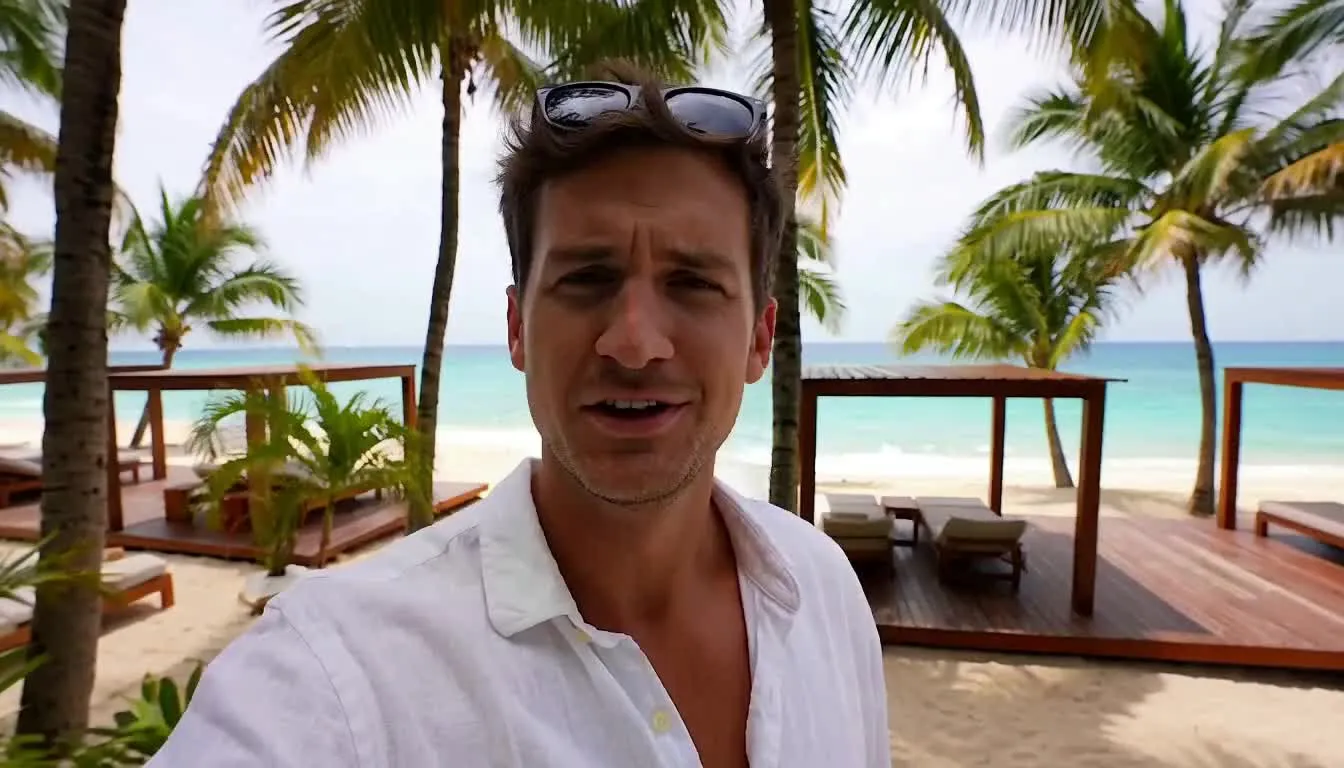
How to inpaint a video with AI
Make changes to existing footage with a prompt
Upload
your video to a chat with Kapwing AI.


Describe
your edit in a text prompt, explaining what to remove, replace, or add.
Inpaint
your video by clicking the arrow to generate. If needed, continue editing with additional prompts.
Change objects, outfits, and scenes with AI
Make visual changes to product videos, creator content, and campaign footage
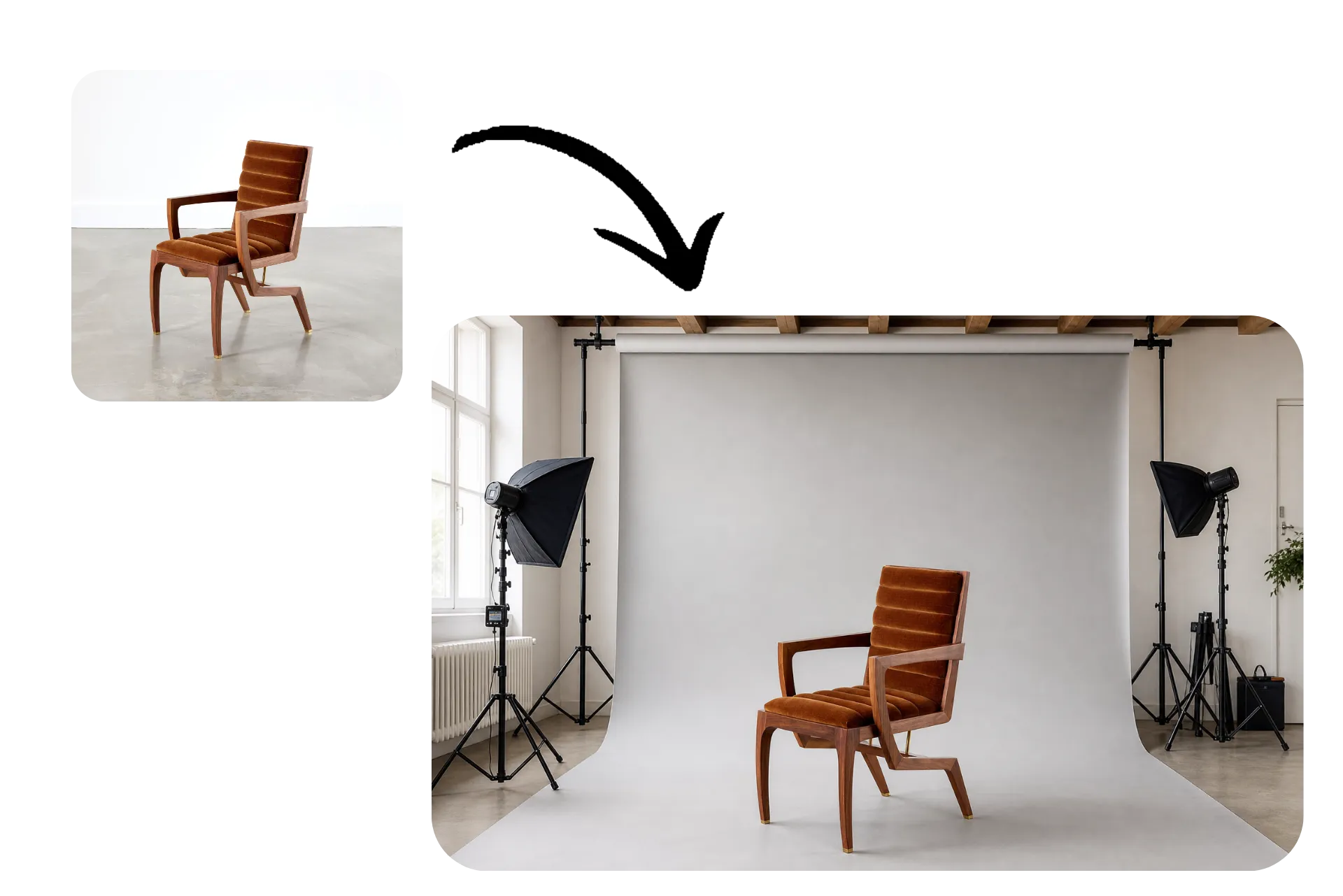
Product Placement
Product marketers use inpainting to add real products to existing footage using reference images. Show someone holding, wearing, or interacting with your product without filming a new scene.
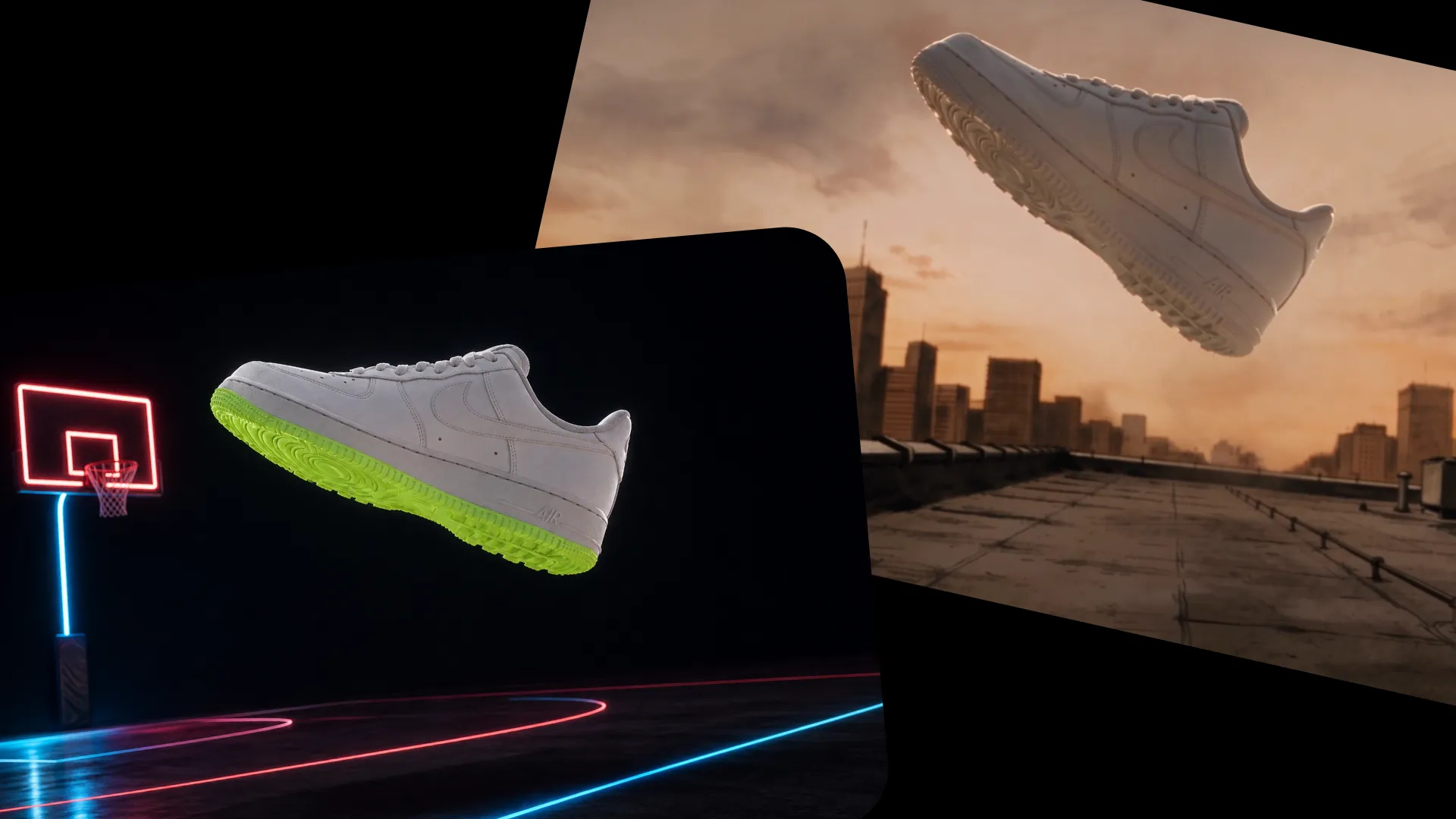
Ad Variations
Create multiple versions of video ads by changing products, props, colors, or background details. Marketing teams can test different visual concepts using the same source footage.
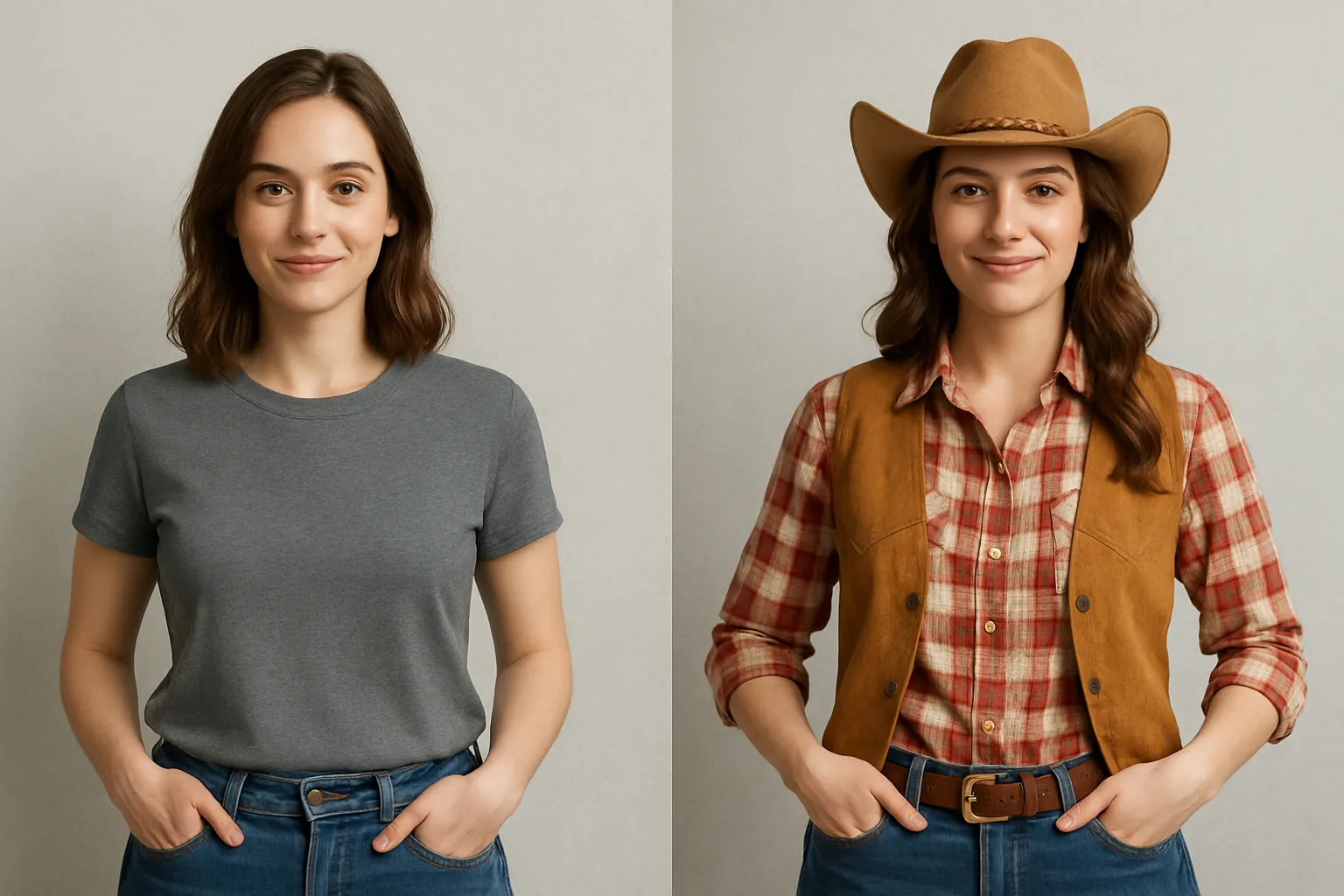
Outfit Changes
Content creators can change clothing, colors, and accessories in existing videos. Experiment with different looks while retaining the original subject and their movements.
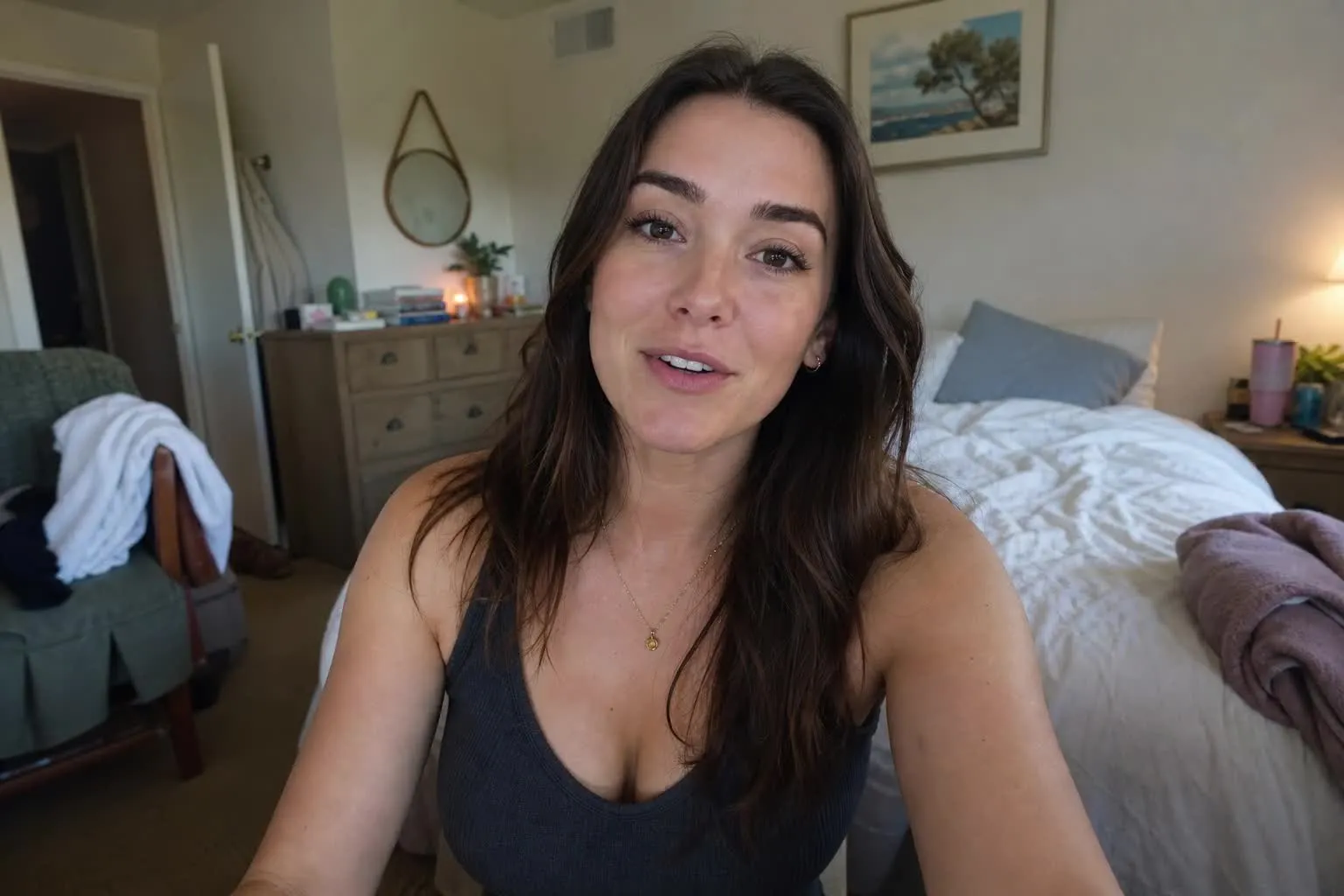
Scene Cleanup
Remove unwanted objects, clutter, and distracting background details from recorded footage. Clean up interviews, tutorials, and social videos without cropping or reshooting.
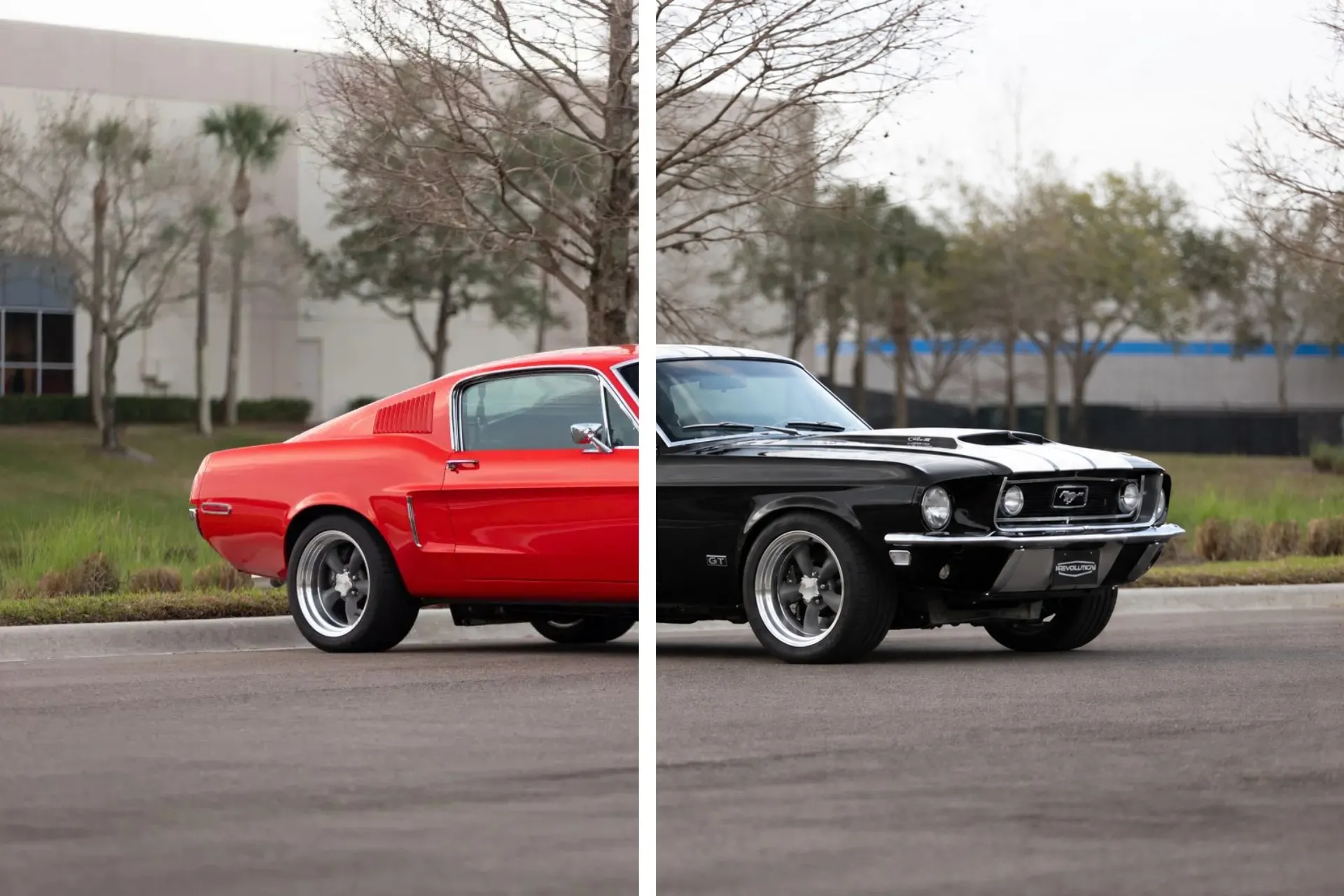
Brand Updates
For e-commerce and product teams, replace outdated packaging, product colors, or featured items in existing promotional videos. Keep marketing content aligned with your latest products.

Creative Concepts
Test alternative furniture, backgrounds, props, and scene details before committing to a shoot. Creative teams can visualize changes directly in moving footage instead of relying on static mockups.
Make precise changes with simple text prompts
Add, remove, or replace anything in your videos with realistic AI edits
Prompt to replace any visual element
Edit videos through a conversation with Kai, Kapwing's AI video assistant. Simply describe what you want to add, remove, or replace, and Kai handles the video inpainting for you. There's no need to manually select objects, draw masks, or edit individual frames. Ask Kai to remove an unwanted object, change someone's clothing, or replace furniture in a scene using everyday language.
AI video inpainting applies the change throughout the footage, adapting the edited area to movement, lighting, and camera angles for a realistic result. Keep chatting with Kai to refine the appearance, adjust individual details, or make additional changes without starting over.
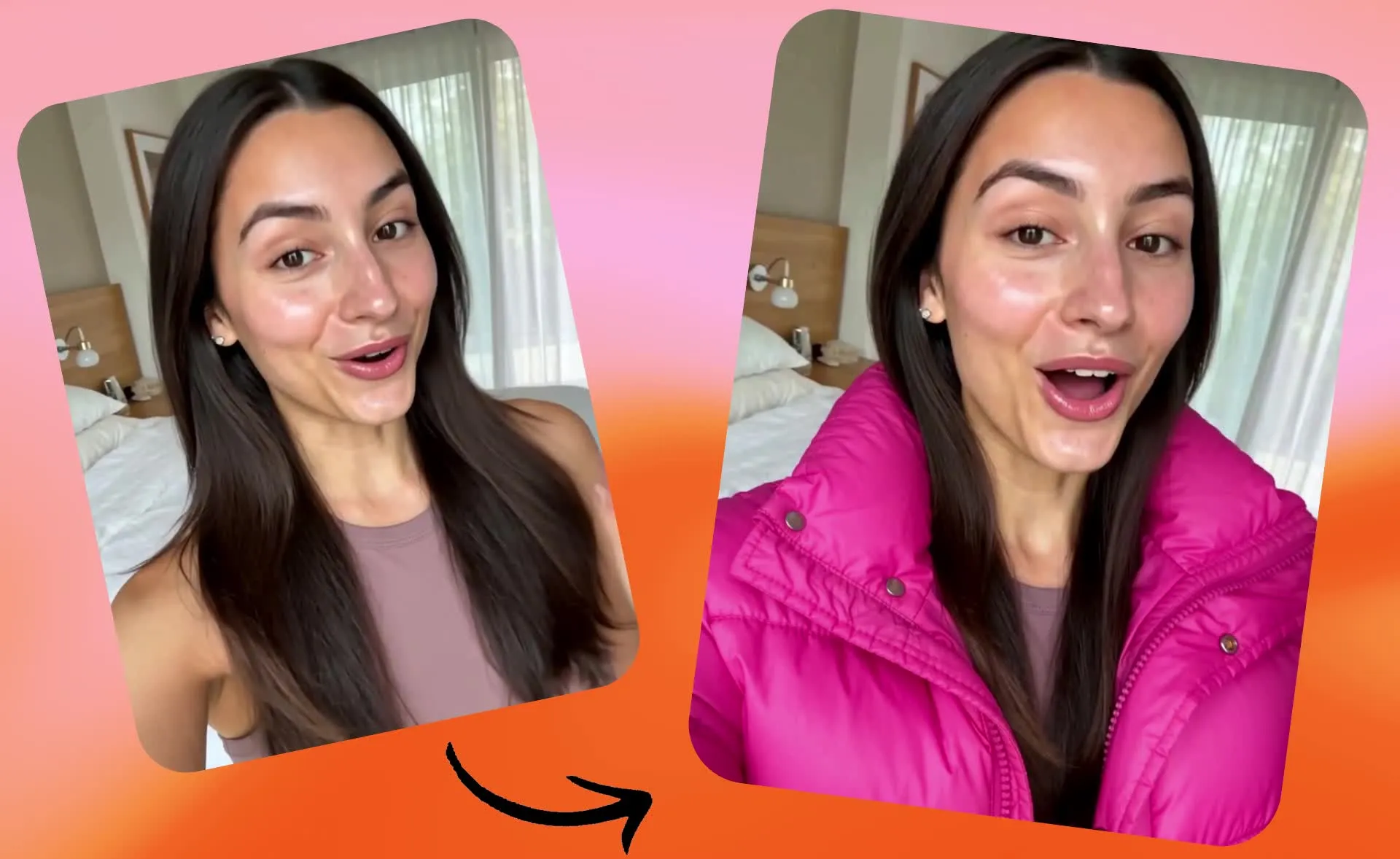
Add real products and objects to your footage
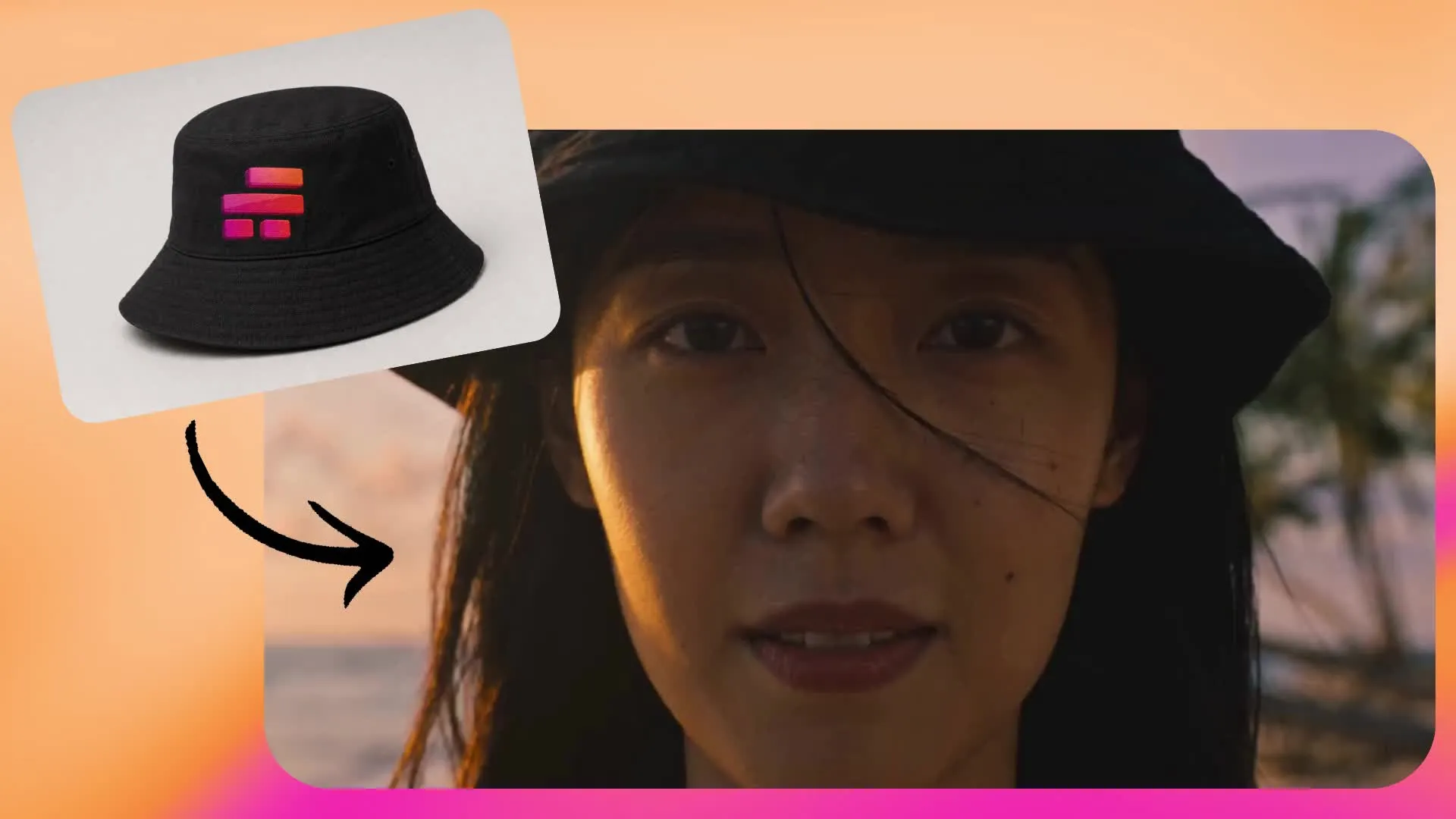
Upload a reference image of a real product, accessory, or other object and use AI video inpainting to bring it into your footage. Instead of relying on a text description, give Kai an image of exactly what you want to include. This is useful for adding branded products, testing clothing and accessories, or placing real objects into scenes that have already been filmed.
The AI uses your reference to generate an object that fits naturally into the video, accounting for perspective, lighting, and movement across frames. A person can appear to hold a product, wear an accessory, or interact with an added object. Create product demonstrations, promotional content, and visual variations without physically having every item on set.
Inpaint at any stage of video creation
Kapwing combines AI video inpainting, video generation, and timeline editing in one workspace. Upload real footage and start an inpainting conversation with Kai, or generate a video with AI and use inpainting to fine-tune specific objects, outfits, or background details. You can also open Kai in a sidebar while working in the Kapwing Studio to make a visual change without leaving your editing project.
Move between AI-generated footage, uploaded videos, conversational editing, and manual timeline controls as your project develops. Once you're happy with the inpainted result, continue adding subtitles, music, transitions, or additional scenes in the same editor. Make targeted changes without rebuilding your video or switching between separate tools.
How to Edit Videos with AI Inpainting

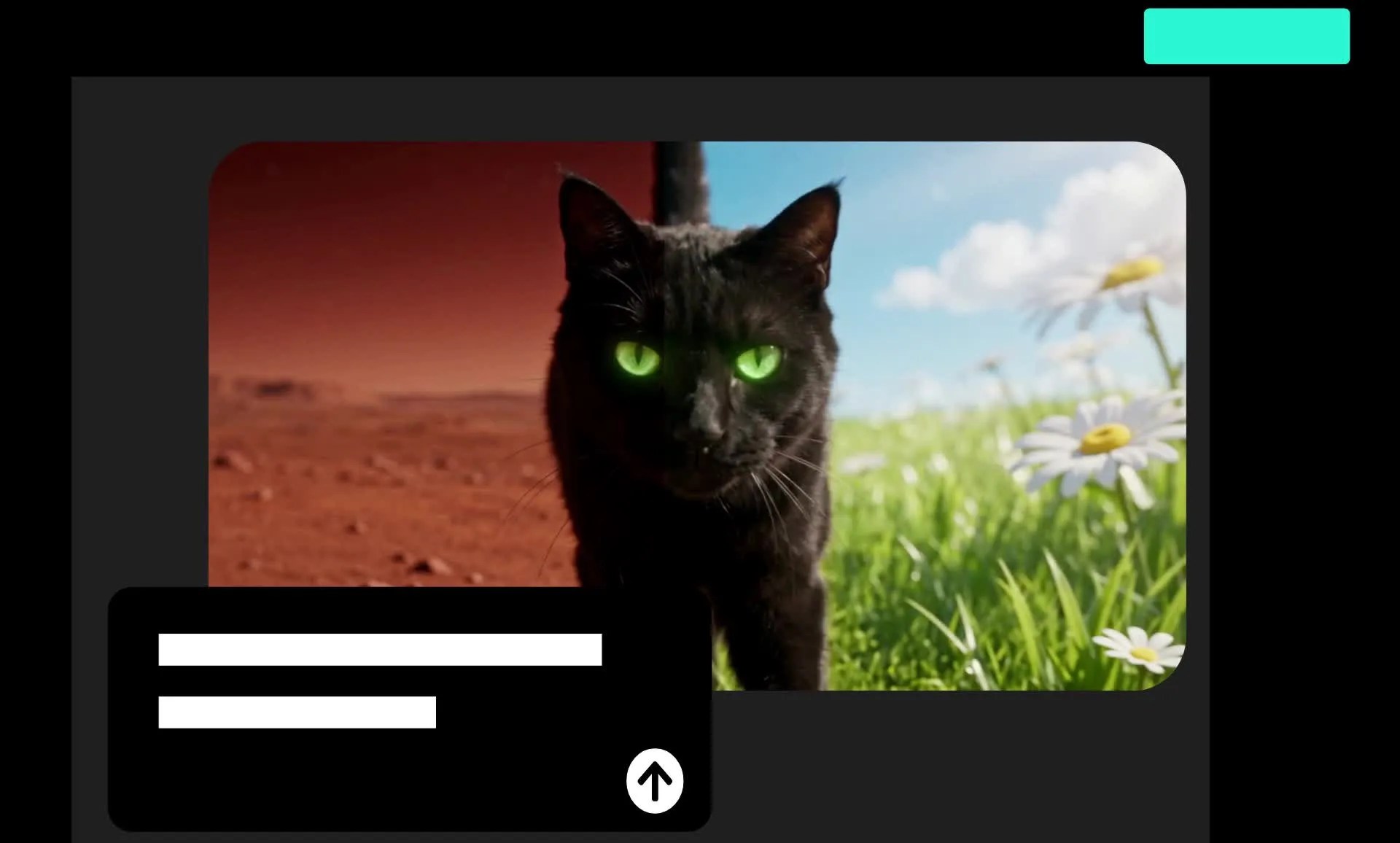
- Step 1Upload video
Create a new chat with Kapwing AI and click "Attach media" to upload your video. You can also attach previously generated videos.
- Step 2Enter prompt
Write a prompt describing the changes you want to make, including specific objects to add, swap, or remove, or backgrounds to change. Optionally, upload a reference image to add a real object or background your video.
- Step 3Inpaint video
Generate your inpainted video edits by clicking the arrow. When your video is ready, click to download it as MP4, or continue editing by entering additional prompts.
What's different about Kapwing?



Frequently Asked Questions
We have answers to the most common questions that our users ask.
Is the Inpaint Video tool free?
Yes, anyone can try Kapwing’s AI toolkit for free without watermarks. Our AI tools run on a credit system, with each feature costing a set number of credits. For maximum creativity and the best value, upgrade to a Pro account to unlock the full power of AI-driven content creation.
What is AI video inpainting?
AI video inpainting is a technique for changing or reconstructing visual content inside an existing video. It uses artificial intelligence to generate replacement details across moving footage, rather than requiring someone to manually edit each frame.
Common applications include removing unwanted objects, replacing props, changing clothing, adding elements, and modifying background details. The goal is to make a targeted change within a shot while using the existing footage as context.
How do I inpaint a video online?
To inpaint a video online, upload your footage to a chat with Kapwing AI and enter a text prompt describing the visual change you want. Identify the object or scene detail, explain the new appearance, and include any important elements you want the AI to retain.
Generate the edited video, review it during playback, and refine your prompt if needed. You can continue making edits in Kapwing right from your browser.
Can I also inpaint images?
Yes, Kapwing supports AI Image Inpainting, so you can add, remove, or replace objects or backgrounds in photos using text prompts. Similar to video inpainting, you can describe the changes you want without manually editing individual elements. Image inpainting works with still pictures, while AI video inpainting applies realistic changes across moving frames to account for camera angles, lighting, and movement.
What's the difference between inpainting and outpainting video?
Video inpainting changes content within an existing video frame, while video outpainting expands the scene beyond its original boundaries. Inpainting lets you remove unwanted objects, replace products, change clothing, or add new elements to footage. Outpainting uses AI to generate additional scenery around the original video, such as extending a vertical shot into a wider landscape view.
Is video inpainting the same as generative video editing?
Video inpainting is a type of generative video editing focused on modifying content inside existing footage. Generative video editing is a broader category that also includes creating new footage, extending clips, changing video styles, and generating additional scenes.
Use video inpainting when you want to retain an existing shot and change a particular visual element. Use broader AI video generation tools when you need to create new footage or significantly change the action.
Does inpainting AI video preserve the original audio?
Yes, Kapwing's AI video inpainting tool preserves your video's original audio while making visual changes to the footage. You can use inpainting to change the objects and settings in your video without losing the original dialogue, music, or background sounds. After inpainting, you can also use Kapwing's Video Editor to adjust audio, add sound effects, or include background music.
How does AI video inpainting handle movement?
AI video inpainting generates changes across moving footage rather than editing a single image. It accounts for the way objects, people, and camera angles change throughout a clip, adapting the inpainted content to fit the surrounding scene.
For example, when adding a product to someone's hand, AI can generate the product across multiple frames as the person moves or changes position. Lighting, shadows, perspective, and interactions influence how realistic the edit appears. Results vary depending on the complexity of the footage, so review the generated video during playback.
What prompts work best for video inpainting?
The best inpainting prompts are specific and clear about what should change and what should stay the same. Start by describing the object you want to change and the result you want to see. Include its location, appearance, and any visual details that should stay consistent. For example, "Replace the white sneakers with black leather boots. Keep the person's walking motion and the street background consistent."
You can also upload a reference image to show Kai a specific product, outfit, or object instead of describing every detail in text. After generating the edit, use follow-up prompts to adjust the result. You don't need technical video editing terminology to explain your changes.
What type of footage works well for realistic video inpainting?
Clear footage with good lighting, visible subjects, and limited motion blur generally gives AI more useful visual information. Objects with defined edges and consistent visibility are easier to identify than objects that move quickly or disappear behind other elements.
For realistic AI object replacement or removal, start with a short clip where the target is clearly visible. Upload a reference image when the exact appearance of a product or object matters. Kai can handle the editing process, but the quality and complexity of the source footage still affect the generated result.
Can I upload reference images for AI inpainting?
Yes, Kapwing lets you upload reference images alongside your video to guide AI inpainting. Upload a photo of a real product, piece of clothing, accessory, or other object, then ask Kai to add it to your footage or replace an existing element. For example, you can upload a product photo and ask Kai to show someone holding or wearing it. The AI uses your image as a visual reference, adapting the object to the video's perspective, lighting, and movement for realistic product placement and video edits.
What AI models does Kapwing use?
Kapwing works with a full range of leading AI models to generate and edit video. For inpainting, Kapwing uses Seedance 2.5 to make realistic edits that match your original footage.
Discover Resources
Tips, templates, and deep dives to help you create faster and share with confidence.
View all
Get started with your first video in just a few clicks. Join over 35 million creators who trust Kapwing to create more content in less time.