Extend videos with AI.
Make videos longer by describing what happens next.
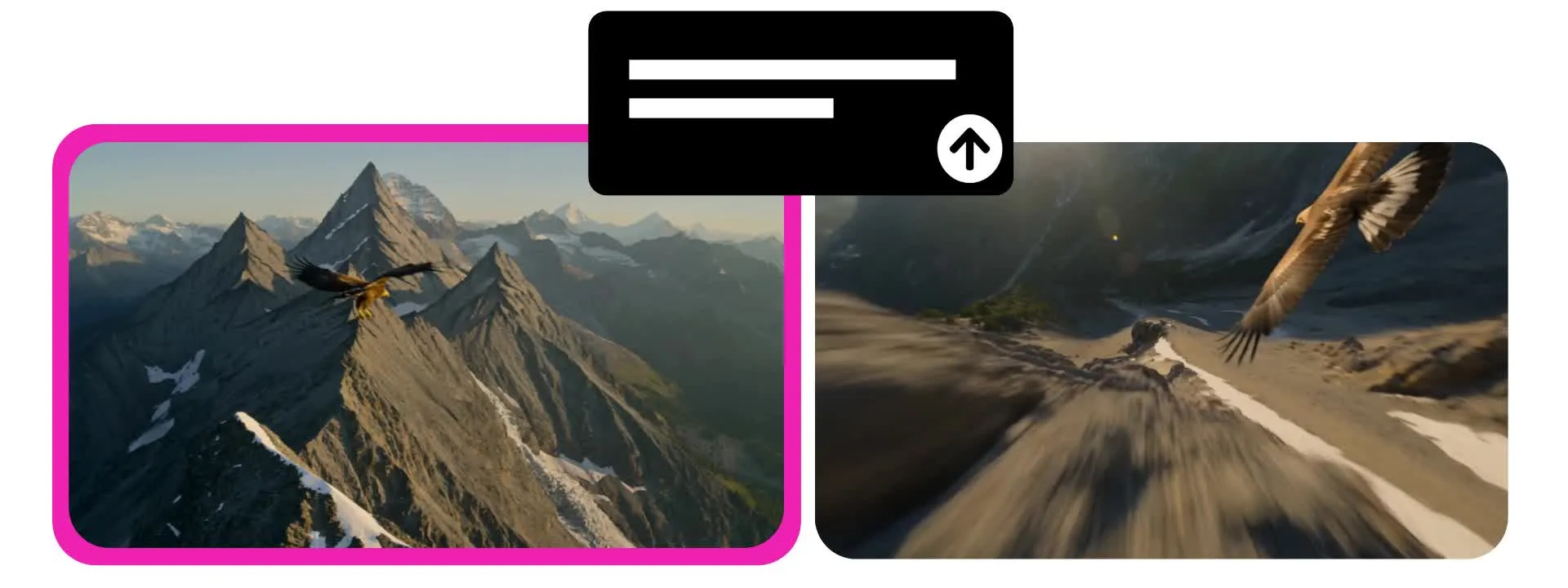
Make videos longer without starting over
Upload a video, then prompt to extend the action
Extend clips into full videos
Kapwing’s AI Video Extender lets you continue a video beyond its original ending. Upload your clip and describe the next action, camera movement, or character you want to see.
No detailed prompts, reference images, or storyboarding required. The AI video lengthener uses your original footage to generate a new sequence that flows naturally from the final frame.
Give a product shot more time, continue a character’s movement, or let the camera explore more of a scene. Extend a clip from Kapwing’s AI Video Generator or bring in a video from another tool, then combine, edit, and export your finished video as an MP4 or MOV file.
How to extend a video with AI
Full commercial rights. Free to start in your browser.
Upload
your clip to a new chat with Kapwing AI


Describe
what happens next in a text prompt
Download
your extended video clip or merge it with the original in the Studio
Take every clip further
Build on existing footage to create longer product videos, stories, B-roll, and social content

Product Videos
Hold attention on a product for longer. Continue a closeup, follow a product in motion, or add another moment that shows how it works.
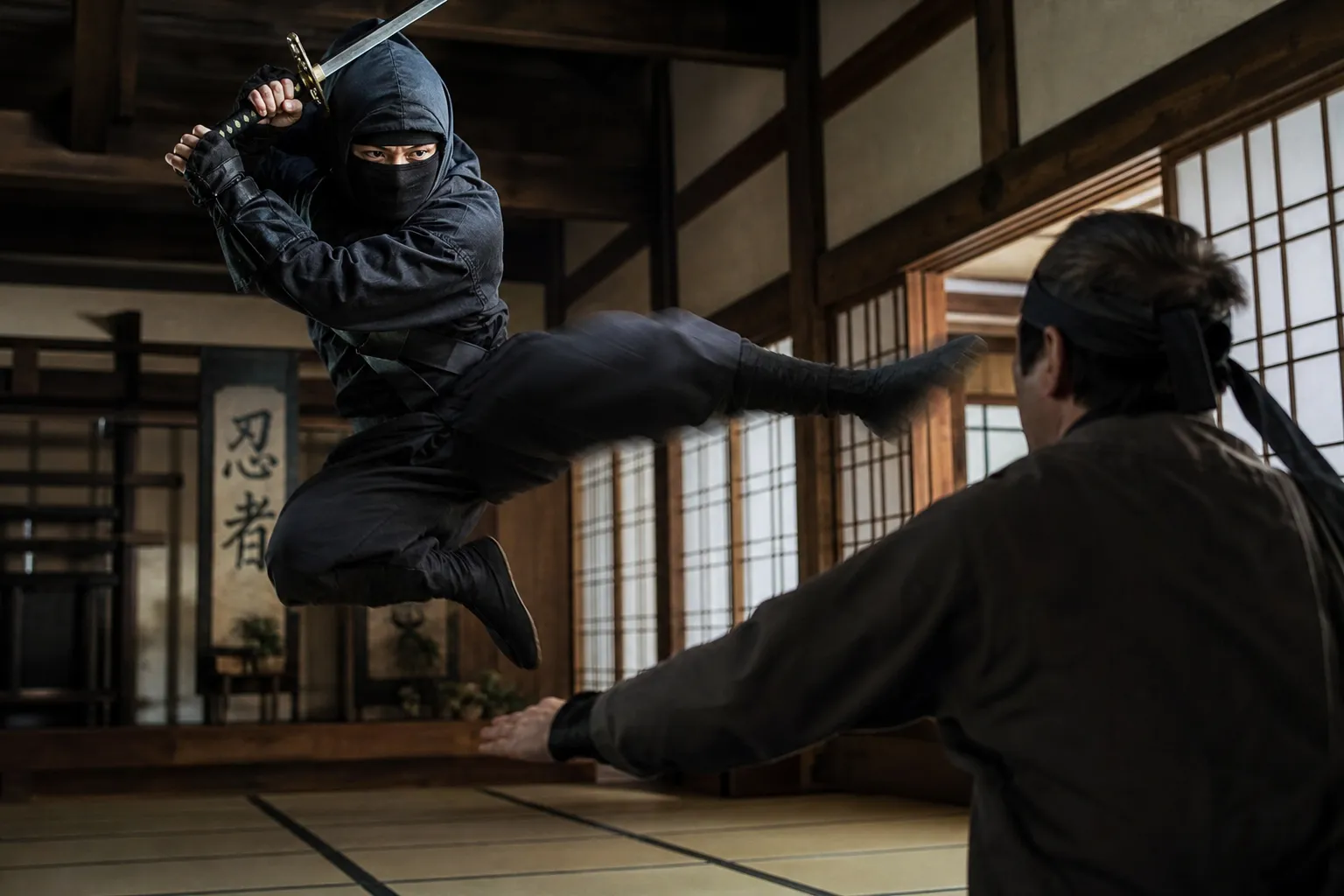
Storytelling
Take a scene beyond its original ending. Continue a character’s action, reveal what happens next, or build a short clip into a longer sequence.
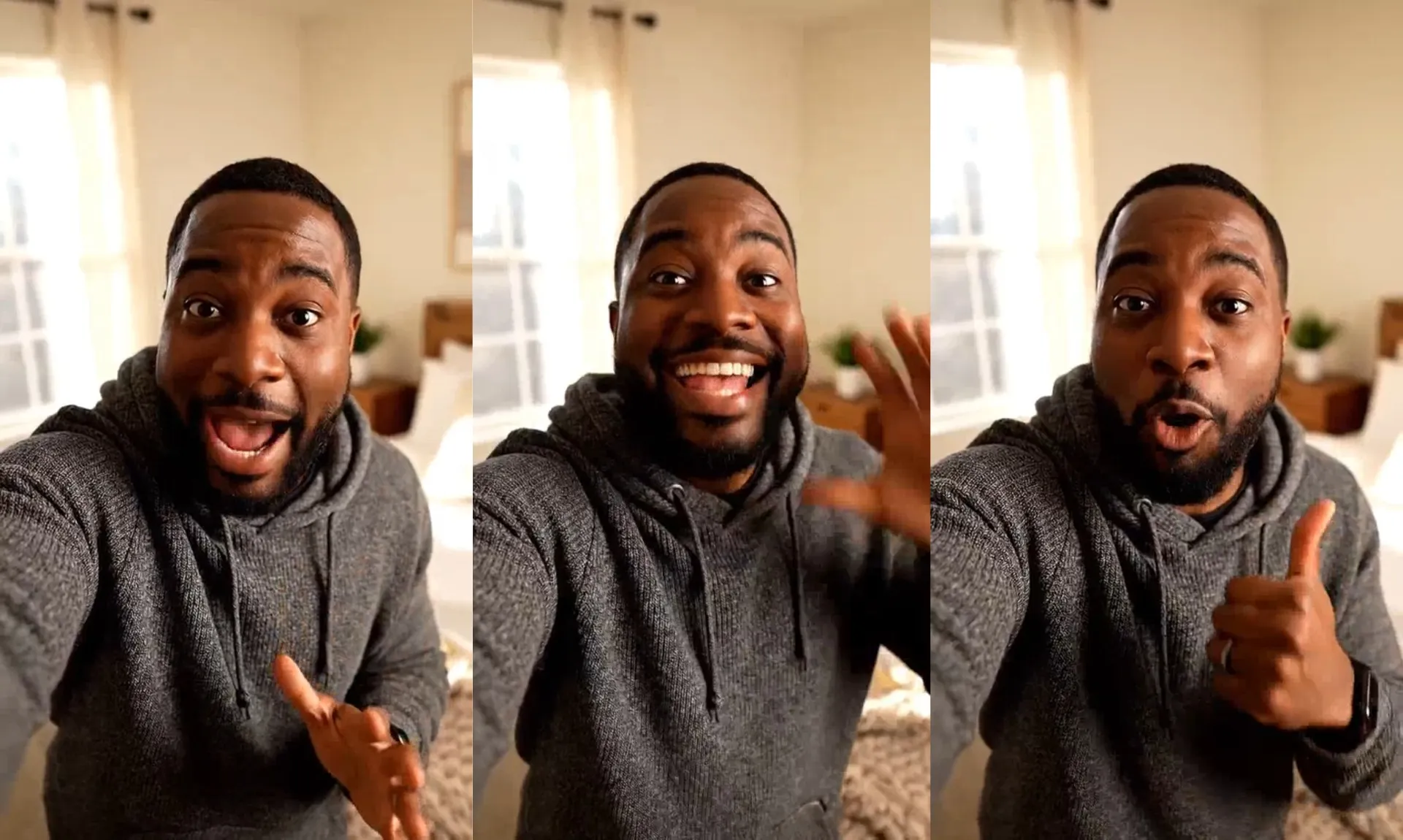
Social Content
Give a visual hook more time to develop. Extend a reveal, continue a transformation, or add footage around your message.
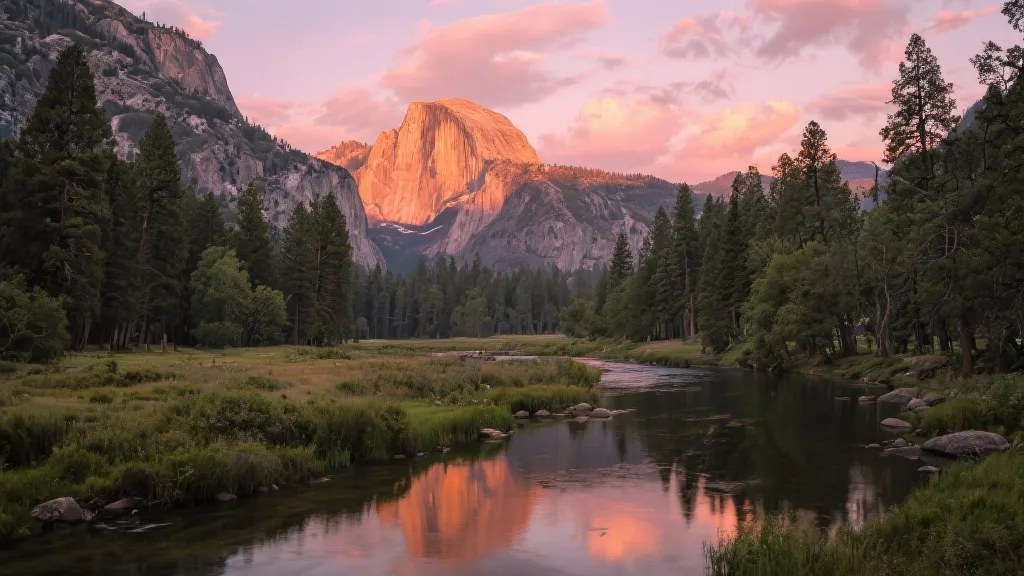
B-Roll
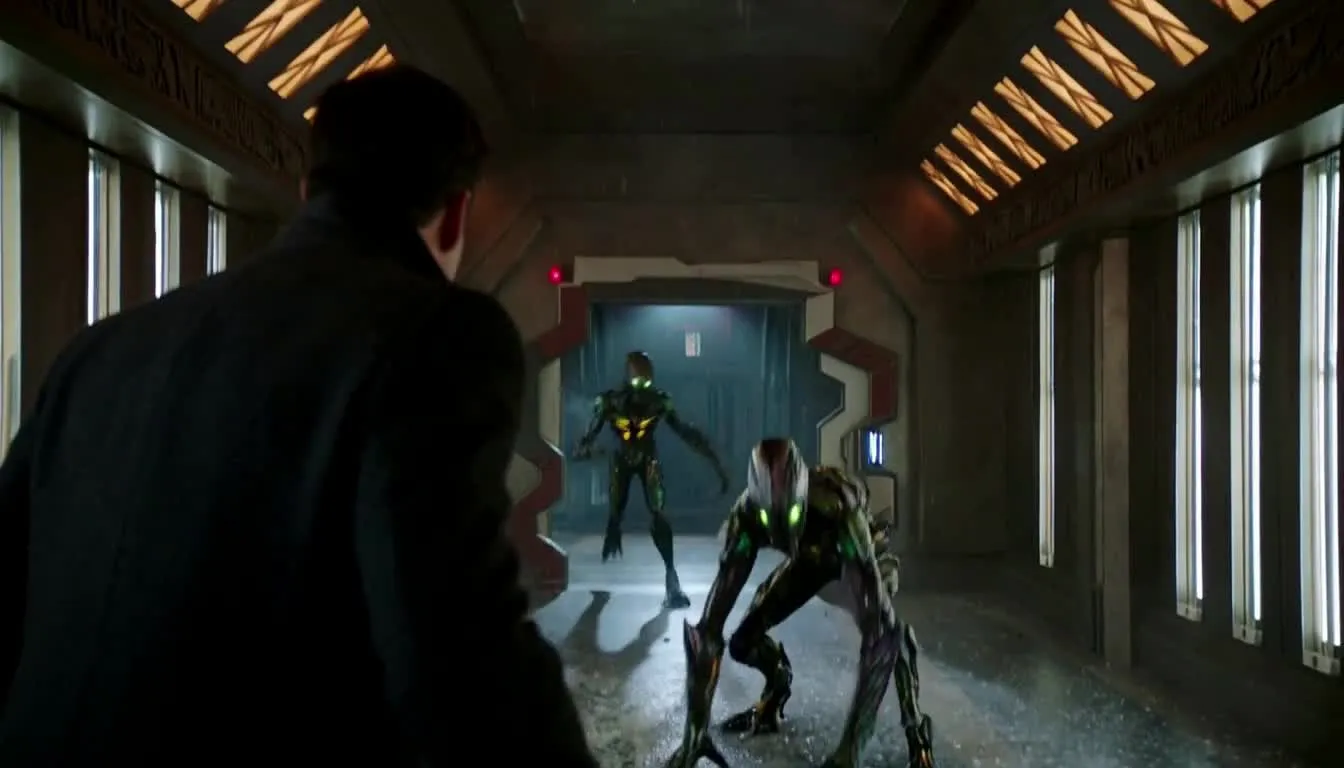
Generate a continuation of an establishing shot, landscape, or background scene to give your edit more room
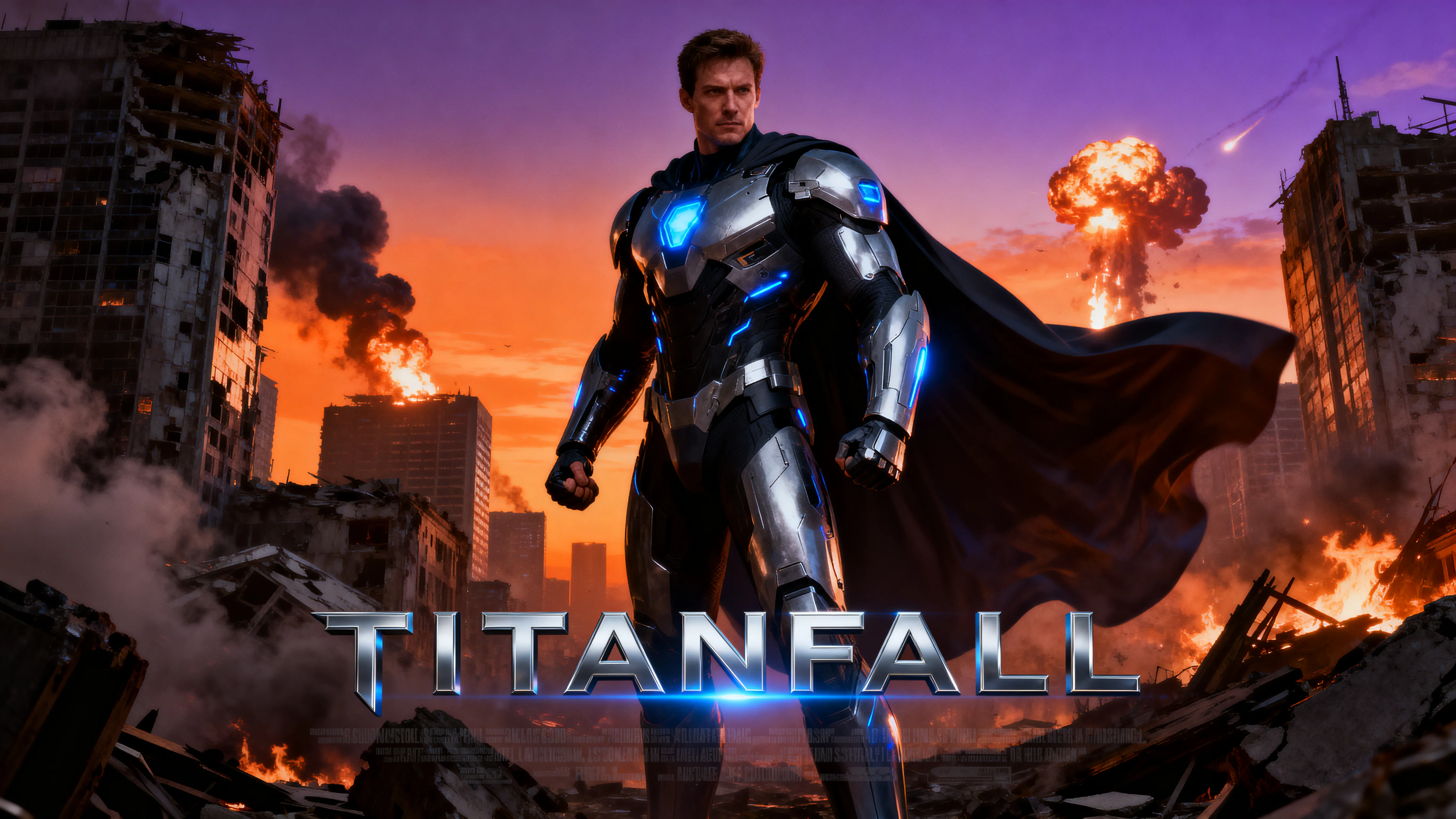
AI Filmmaking
Build on short AI-generated clips. Explore the next beat of a scene and assemble your generations into a longer video.
Keep the story going — or reshape the ending
Direct what happens next
A clip can end before a character finishes moving, a product is fully revealed, or the camera reaches its destination. Extend your video with AI to complete the action or take the scene in a new direction.
Want a different ending? Trim your footage in Kapwing to the moment where the action should change, then generate a new continuation. Finish a character's movement, reveal another part of the scene, or create an entirely different outcome.
Shape every detail
Guide your video extension with a text prompt, reference images, and an optional end frame. Describe the next action, introduce new characters or objects, or specify the final composition while keeping the original character appearance, lighting, and style consistent.
You can also change the footage itself. Use AI video inpainting to swap backgrounds, clothing, or objects in the original clip, then extend that updated version. Or generate the continuation first and refine its details afterward.
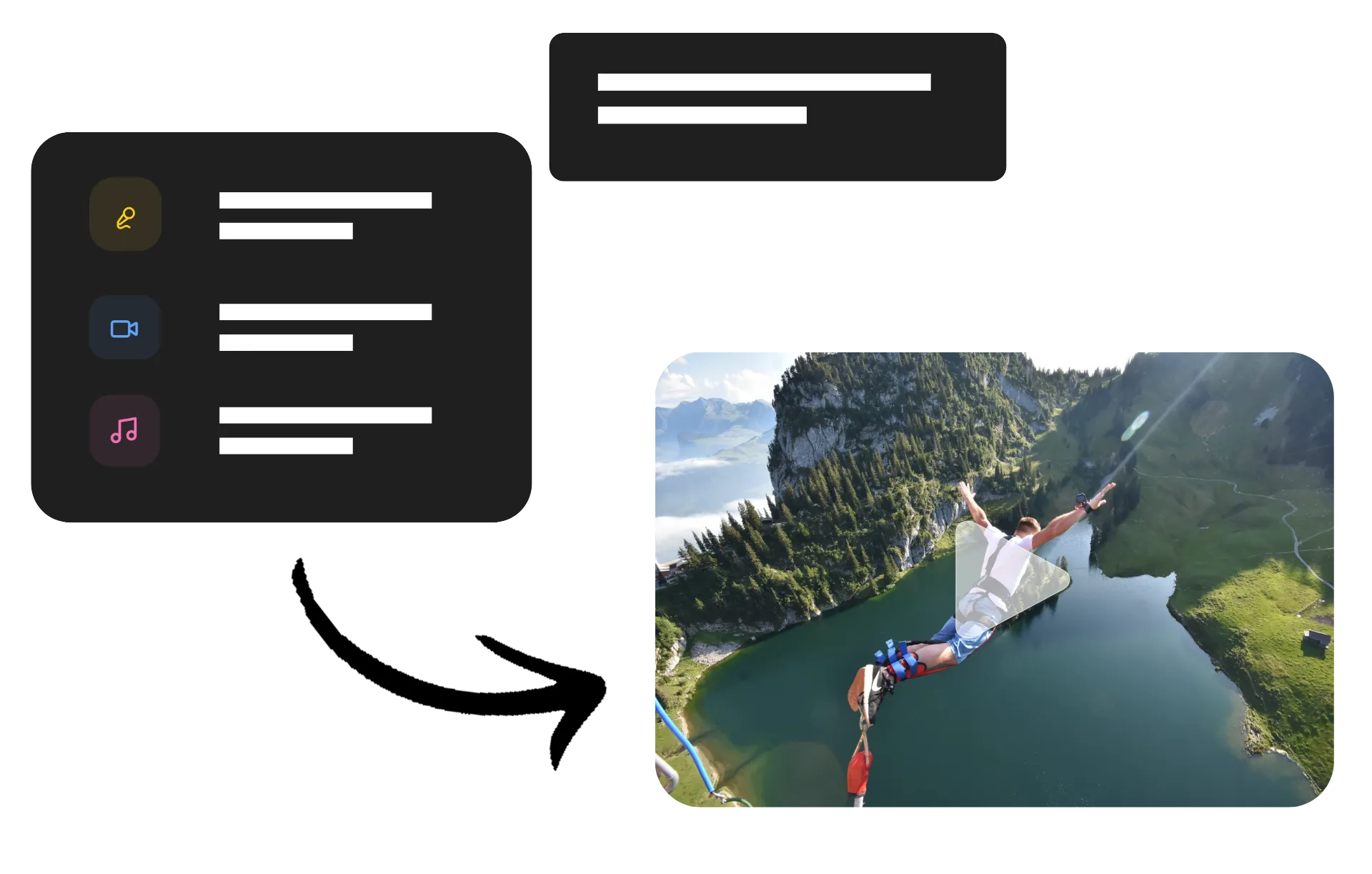
Finish your project in the same workspace
Turn your extended clip into a finished video without leaving Kapwing. Ask Kai, Kapwing's AI Video Assistant, to merge your clips, add transitions, subtitles, or title cards, layer in music and voiceover, or keep generating footage to complete your story.
You can also bring your original clip and extension into Kapwing Studio to assemble and finish the video with manual tools. Fine-tune cuts, mix audio, add graphics, and resize for your destination. Move between Kai and the Studio whenever convenient, with generation, editing, and export all in the same platform.
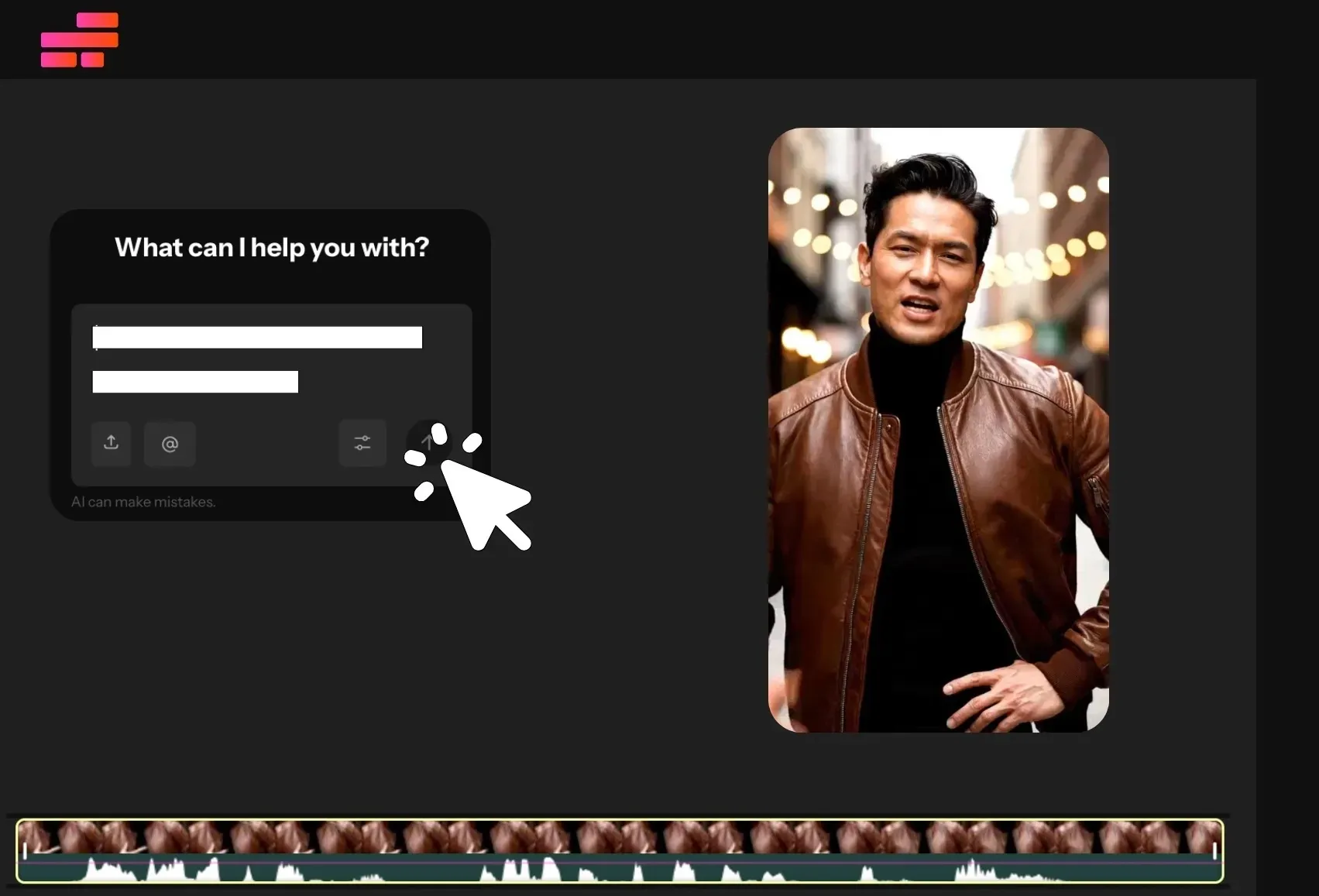
How to Extend Videos with AI

- Step 1Upload video
Create a new chat with Kapwing AI and click "Attach media" to upload your video.
- Step 2Enter prompt
Write a prompt describing your video extension. For example, "Extend this video so the skier lands his jump."
- Step 3Download or merge
Click to download your new video, or move it to the Kapwing Studio and use the timeline to arrange your videos with transitions. You can export your extended video as one high-resolution MP4 or MOV.
What's different about Kapwing?



Frequently Asked Questions
We have answers to the most common questions that our users ask.
Is the AI Video Extender free?
Yes, anyone can try Kapwing’s AI toolkit for free without watermarks. Our AI tools run on a credit system, with each feature costing a set number of credits. For maximum creativity and the best value, upgrade to a Pro account to unlock the full power of AI-driven content creation.
How do I extend a video with AI?
Upload your clip to a chat with Kai, Kapwing’s AI Assistant, and describe how you want it to continue. Include the next action, camera movement, and any details that should stay the same, such as the character’s appearance or the lighting. Kai will automatically generate a video that starts exactly from the end frame of your original clip, so you can seamlessly merge the two videos.
Review the generated continuation and refine it with follow-up prompts. Then bring your clips into the editor to join them, trim the transition, and adjust the final length.
Will the extension match my original video?
Yes, Kapwing uses AI models like Seedance 2.5 and Minimax H3 to generate a new clip with the exact character appearance, setting, lighting, style, and positioning on the end frame of your original video. Your generation will continue from the point your video ends, following the directions you provide in your prompt.
The AI Video Extender creates a new clip that plays naturally after the original, making both clips feel like one continuous shot.
What should I include in a video extension prompt?
Explain what should happen immediately after the clip ends. Describe the subject’s action and camera movement, then identify the details you want to preserve. A focused continuation gives AI clearer direction than simply asking it to “make the video longer.”
For example: “Continue as the woman walks toward the window. Follow slowly from behind, keeping the same outfit, apartment, and warm evening light.” You can also prompt for a multi-scene video extension by describing changes to the setting, lighting, and camera angle.
Can I change my video's ending?
Yes, if you like the existing footage but want the scene to continue, extend the clip and describe a new final moment. Complete a product reveal, finish a character’s movement, or direct the camera toward a different view.
If you want to replace part of the current ending, trim your video in Kapwing to the point where the new direction should begin. Use that shortened clip as the reference for your extension, then join the footage into the revised sequence.
Do I need to upload end frames or start frames?
No, Kapwing's AI Video Extender automatically works from the end frame of your uploaded video, so there's no need to upload additional start frames or end frames. However, if you want your newly extended video to end on a specific frame, you can upload that and explain in your prompt how the action should progress from the original clip to that image.
You can also upload references for new characters or objects you want to introduce. Describe which image represents each element and how it should appear in the scene. If you need to create a reference first, use Kapwing’s AI Image Generator.
Can I extend videos made with other AI tools?
Yes, upload an exported AI-generated clip and use it as the reference for a continuation in Kapwing. This gives you a way to build on short generations from tools such as Grok or Sora without recreating the original scene.
You can also extend clips made with Kapwing’s AI Video Generator. In either workflow, describe the next moment and the visual details you want to carry over from the source video.
What's the difference between extending and expanding a video?
Extending a video adds time by generating footage beyond the original ending. Use an AI video extender when you want to continue an action, create a new ending, or make a clip longer.
Expanding a video adds space around its frame by generating additional background content. That workflow helps change aspect ratio while keeping the original picture visible. For a still photo, Kapwing’s AI Image Extender can help you expand the framing and background.
How long can I extend a video?
Kapwing supports generating video clips up to 30 seconds long using models like Seedance. To extend videos beyond that, you can continue creating additional clips, then merge them using the Studio.
Discover Resources
Tips, templates, and deep dives to help you create faster and share with confidence.
View all


Get started with your first video in just a few clicks. Join over 35 million creators who trust Kapwing to create more content in less time.