Add or remove anything from your pictures with AI.
Try image inpainting for free in your browser.
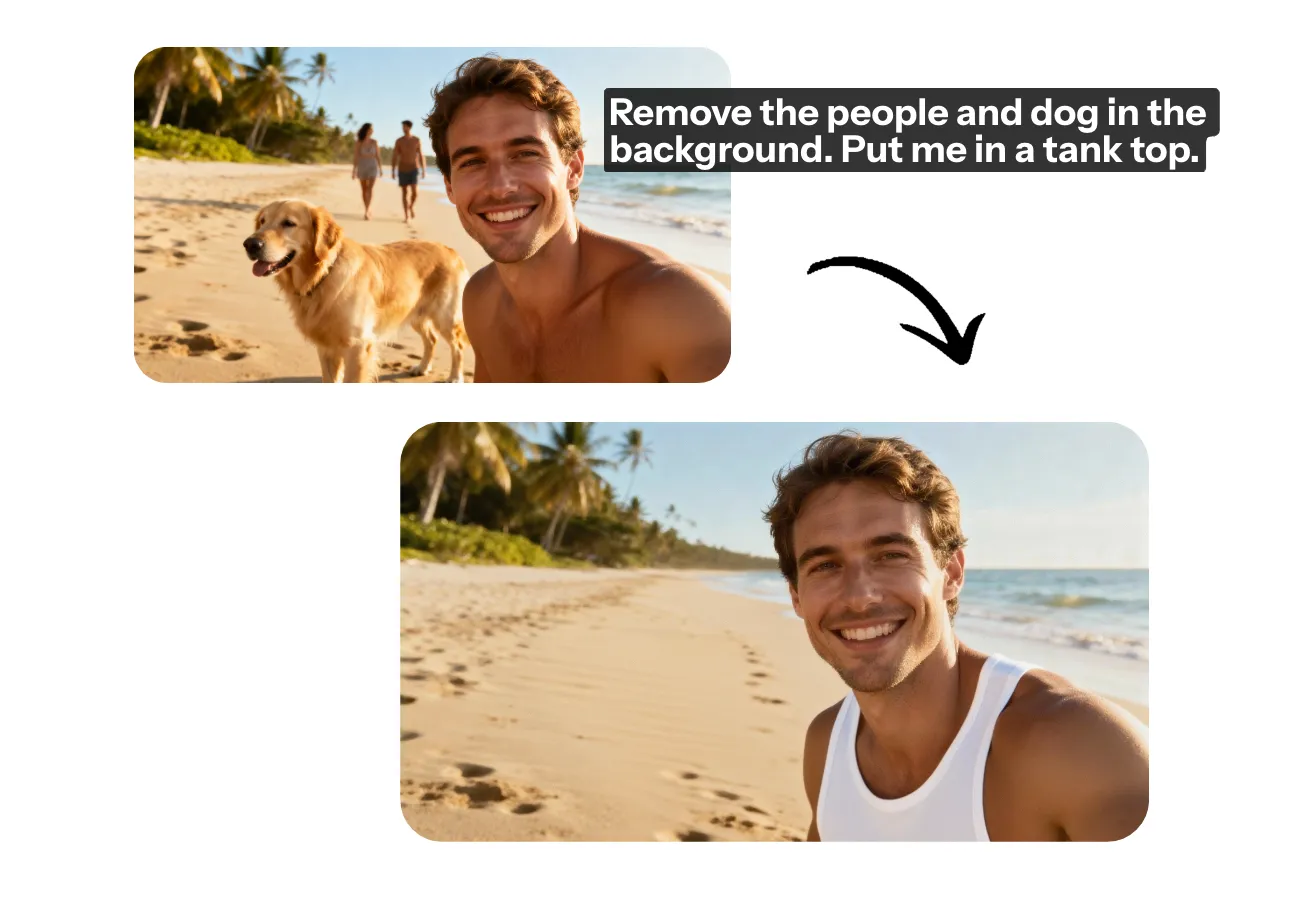
Instantly edit images with AI inpainting
Add or remove objects, backgrounds, and people — no Photoshop skills needed
Perfect photos, no manual editing
Skip the painstaking manual photo edits: use Kapwing's Inpaint Image tool to seamlessly add or remove elements from any image in seconds.
Instead of time-consuming lassos, masking, and layers, use intuitive conversational prompts to change outfits or backgrounds, remove unwanted objects, people, or watermarks, and realistically fill in visual gaps.
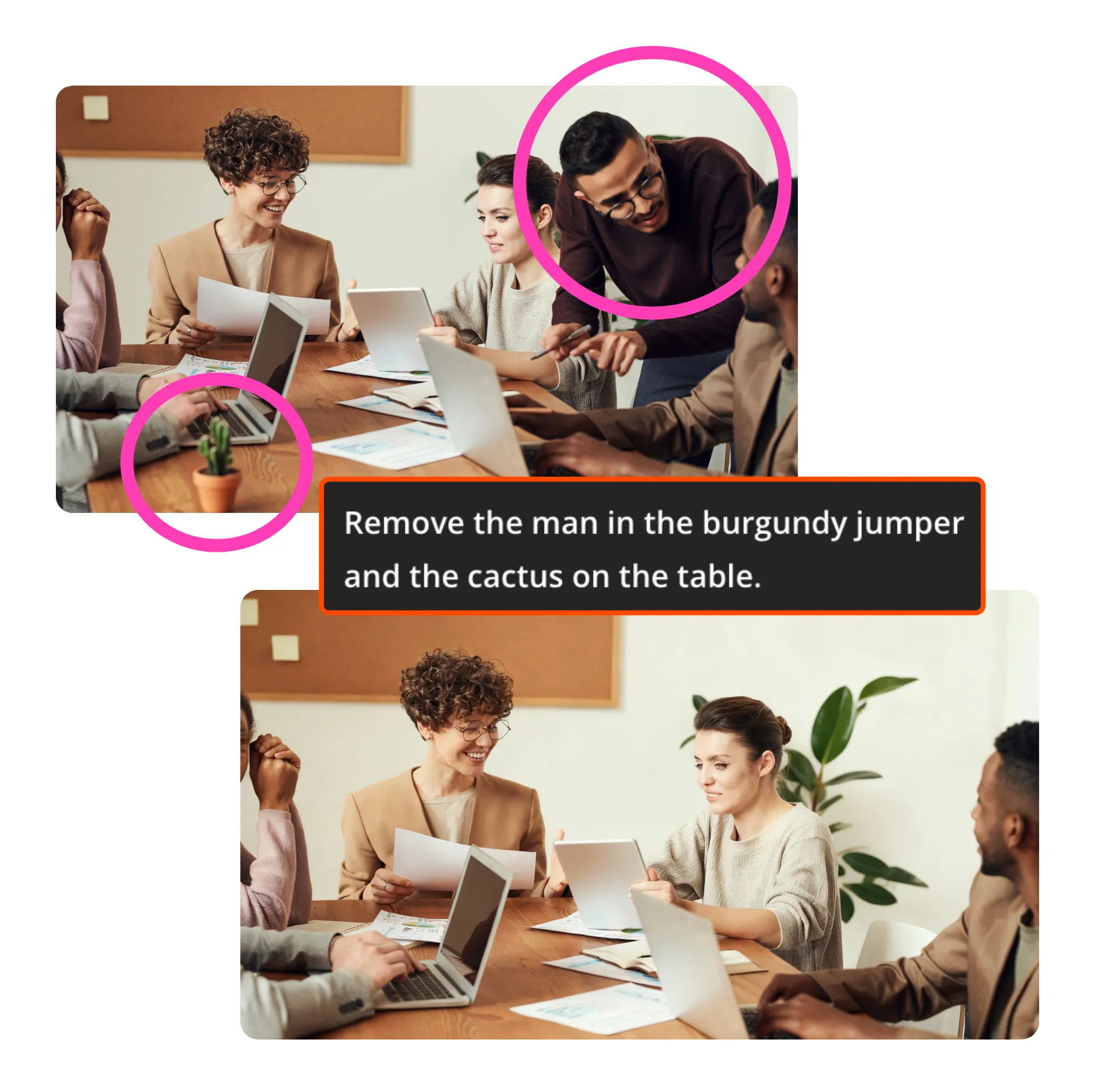
Studio-quality images in seconds
Built for personal or professional use, Kapwing's AI inpainting tool has a built-in AI Image Editor and full suite of free editing tools so you can quickly produce studio-quality results.
Create a Custom Kai to effortlessly apply the same AI image inpainting edits to an entire photoshoot or campaign, and save time with collaborative editing and a reusable Brand Kit.
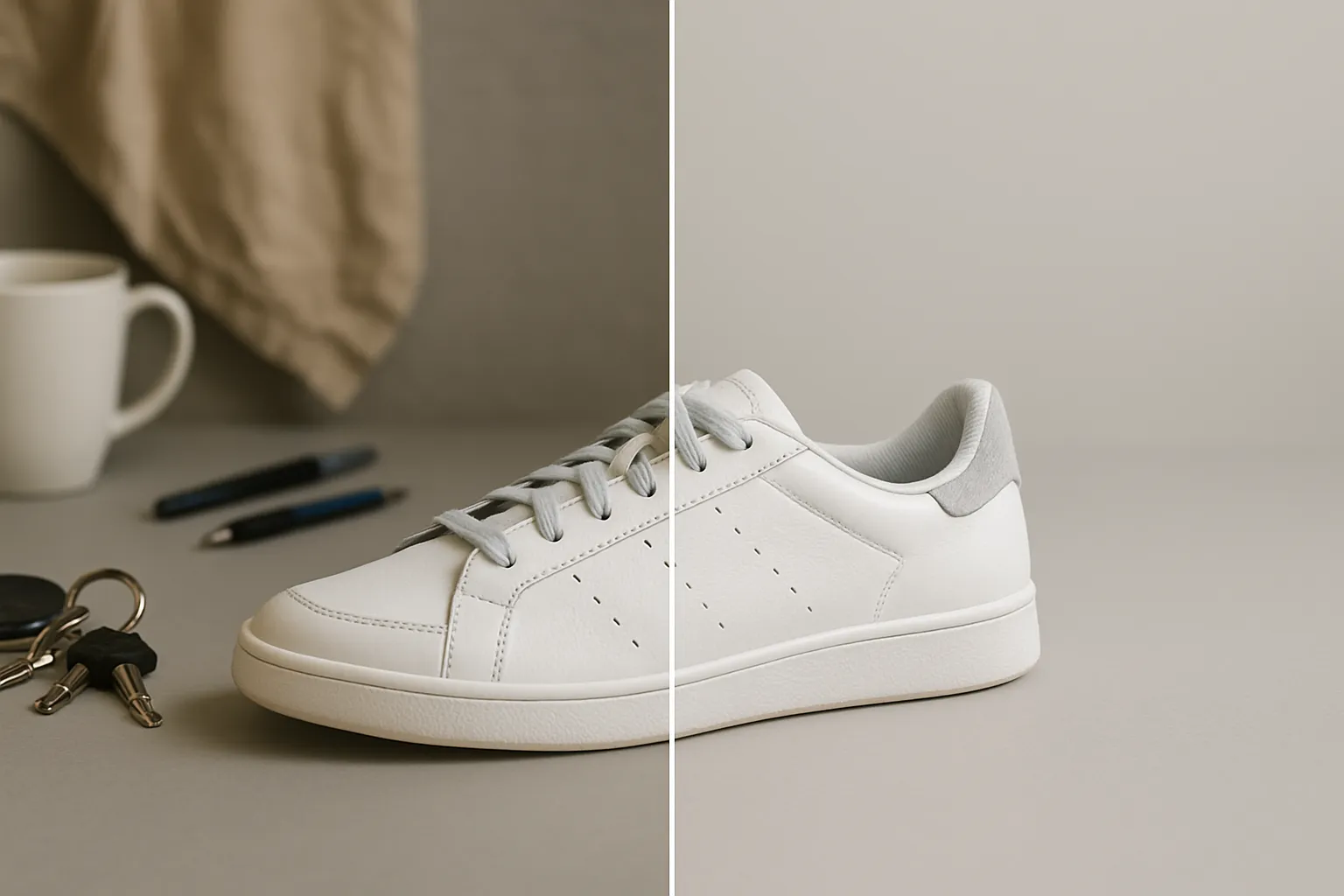
Visualize anything — from one online studio
Instantly see lifelike changes in any image, without gaps or glitches. Realistically test architectural elements, paint colors, and furniture options in seconds. Swap clothes, hairstyles, and poses. Turn imperfect photos into polished images for your company website or social media posts.
Bring old memories back to life by using AI to restore damaged, scratched, or faded photos with realistic precision. Because Kapwing is completely online, you can edit anytime, anywhere — from desktop to mobile — without installing a thing.
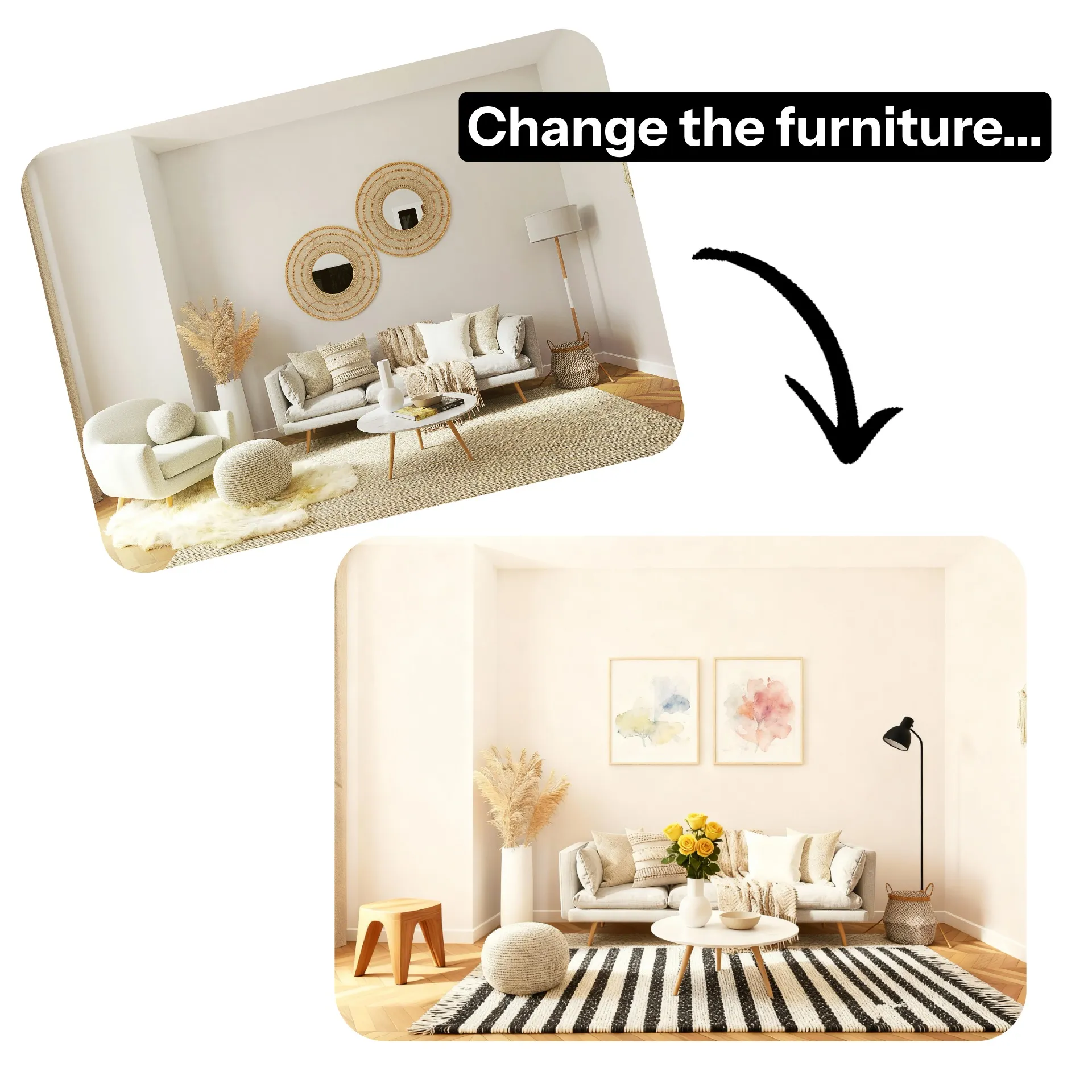
Edits powered by inpainting
Instant. Online. Studio-quality.
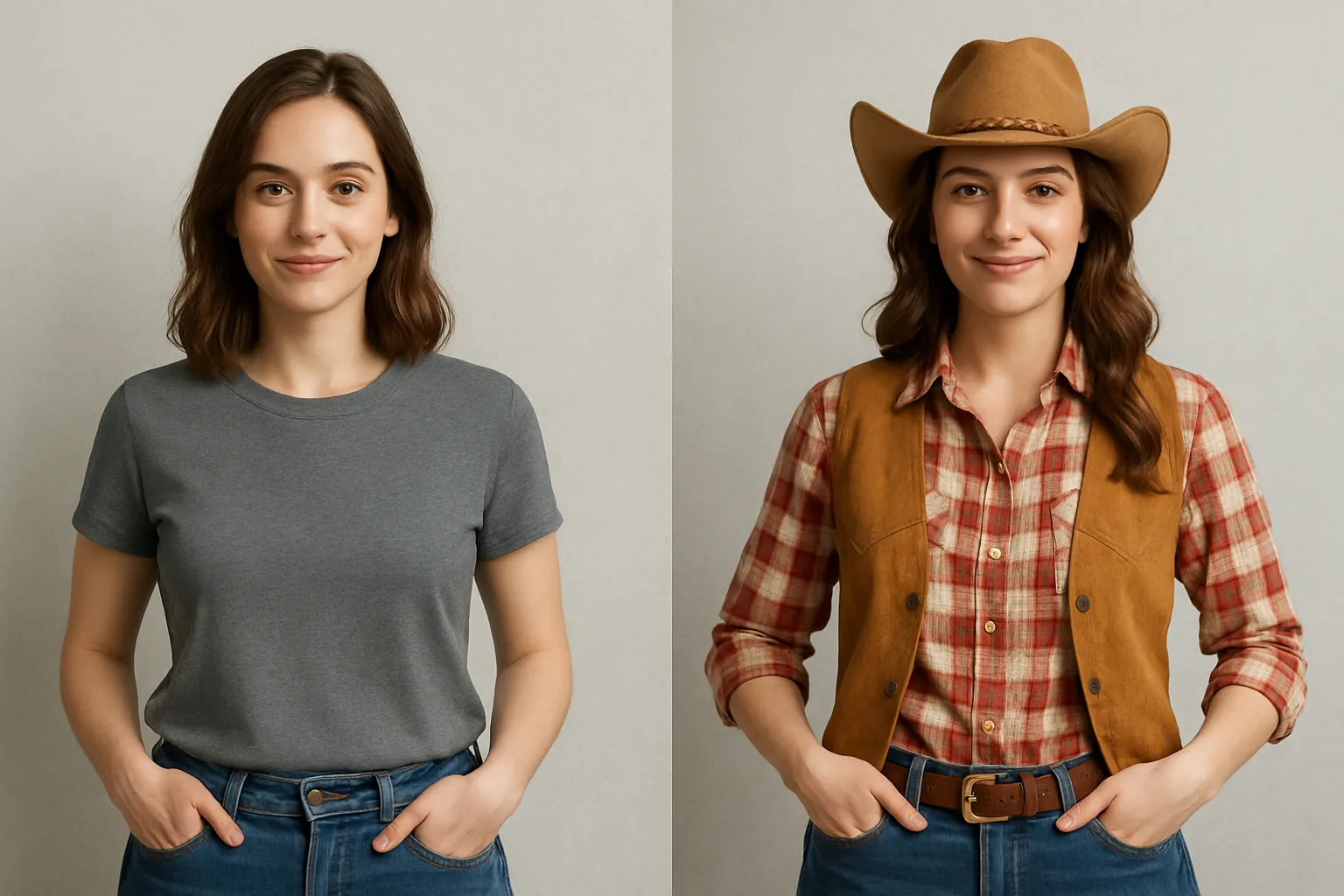
Change Outfits
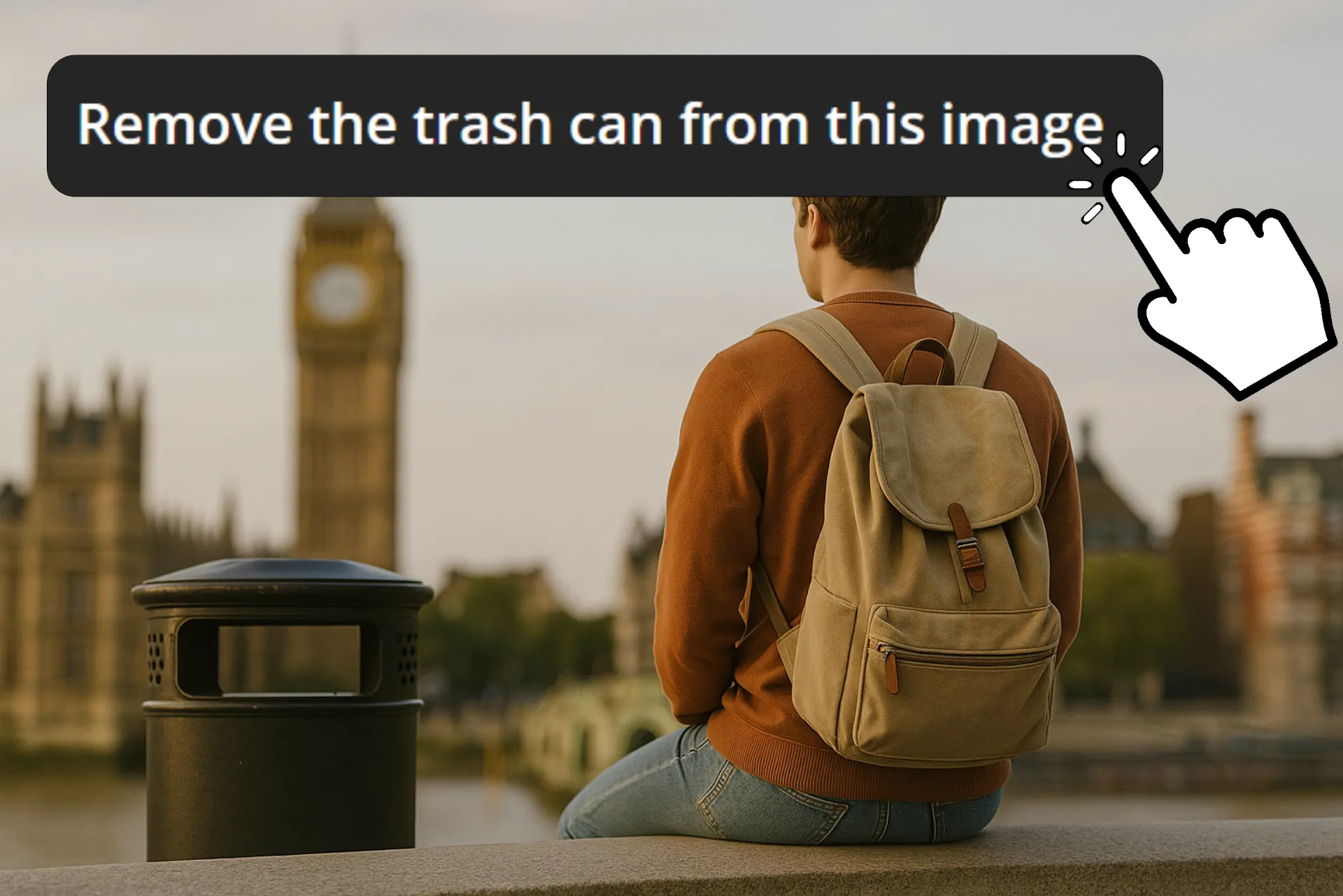
Clear Visual Clutter

Remove Watermarks

Replace Backgrounds
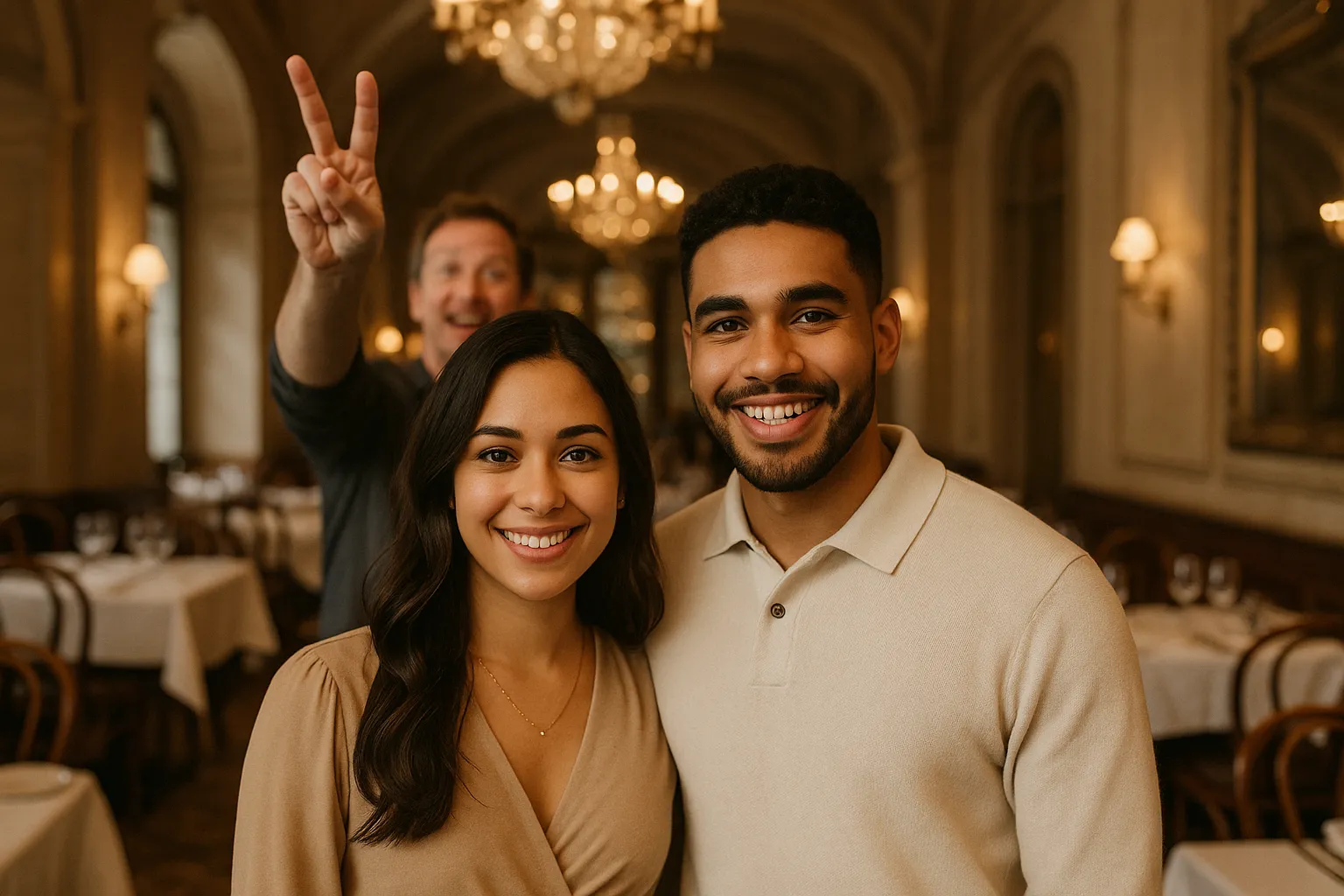
Fix Portraits
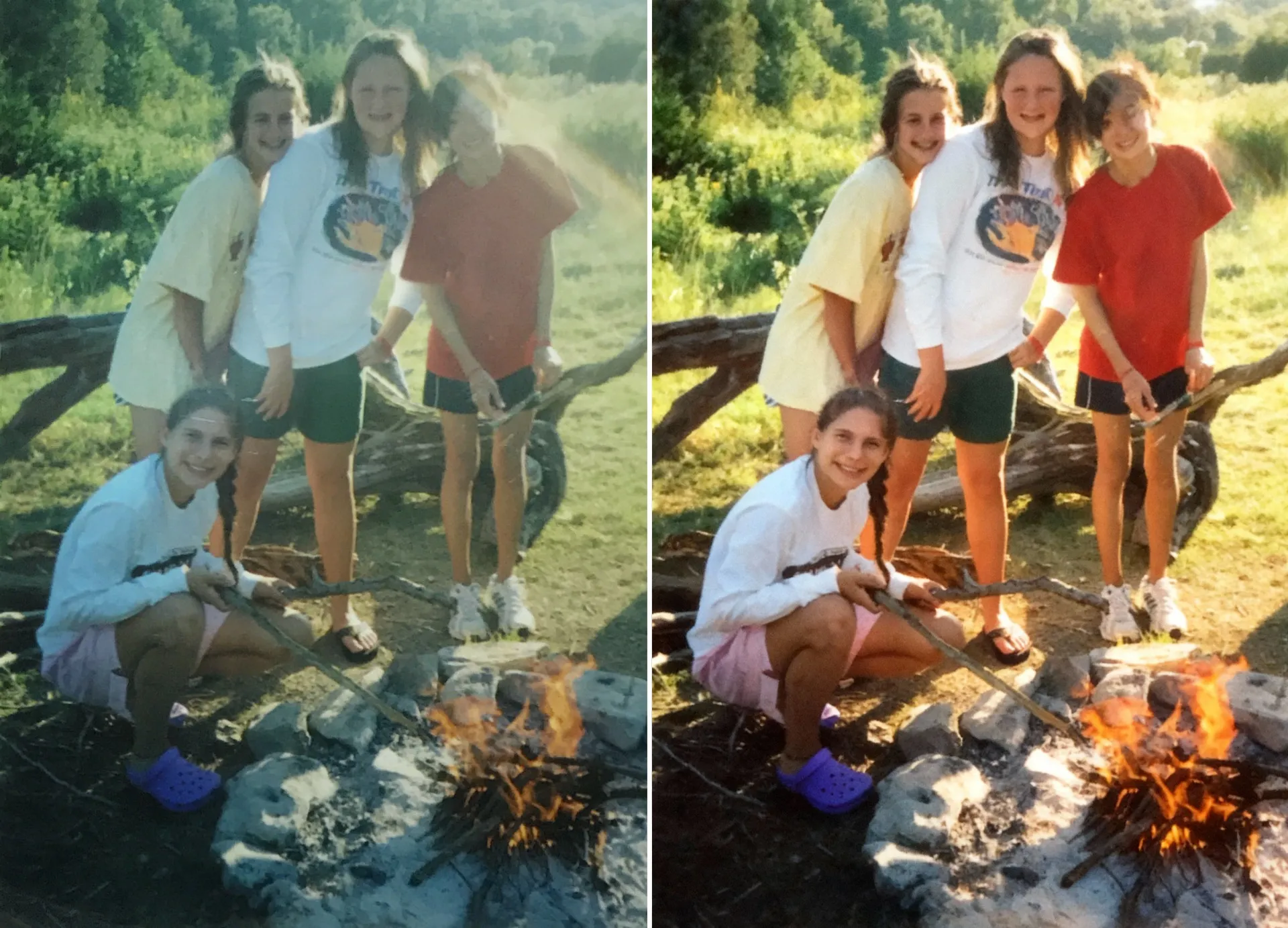
Restore Photos
How to Inpaint Images With AI
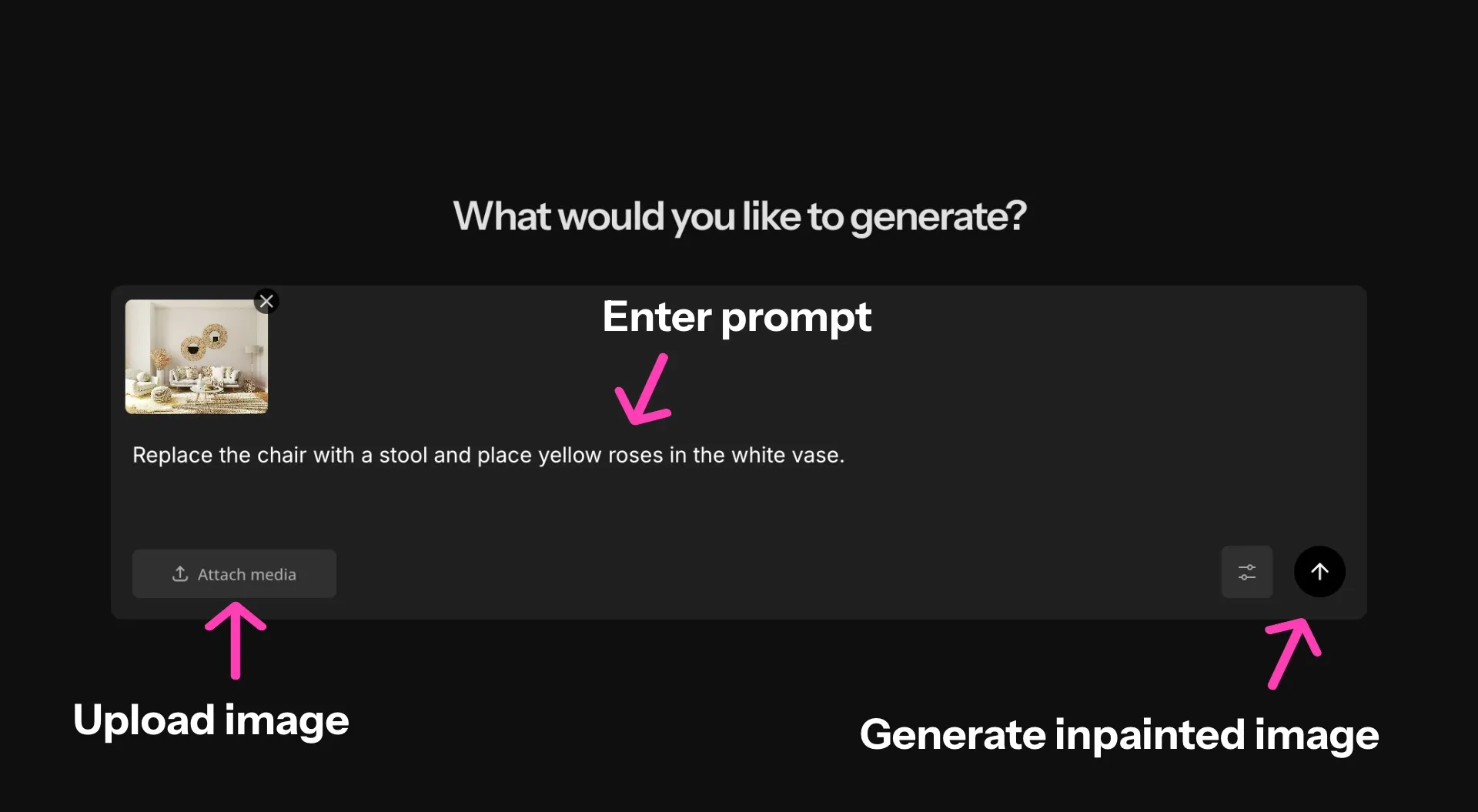
- Step 1Upload image
Open a new chat with Kapwing's AI Assistant and click "Attach media" to upload an image.
- Step 2Enter prompt
Write a prompt like "Remove the baseball hat" or "Replace the sofa with a chair."
- Step 3Inpaint image
Click the arrow on the right to generate your inpainted image. Edit with additional prompts and download.
Already transforming video creation across industries
Hear directly from the teams who publish faster, collaborate better, and stay ahead.


Frequently Asked Questions
We have answers to the most common questions that our users ask.
Is Kapwing's Inpaint Image tool free?
Yes, anyone can try Kapwing’s AI tools for free without watermarks. Our AI tools run on a credit system, with each feature costing a set number of credits. For maximum creativity and the best value, upgrade to a Pro account to unlock the full power of AI-driven content creation.
Do I need technical skills to use Kapwing Inpainting?
No, you can use the Inpaint Image tool using intuitive prompts. Write simple prompts like Replace the couch with a wooden chair, or take your inpainting to the next level by writing a detailed advanced image prompt.
What is inpainting with AI?
Traditional inpainting involves extensive manual editing of a photo using masking, layers, and lasso tools. Inpainting with AI, such as using Kapwing's Inpaint Image tool, is a faster, more intuitive process where you change elements of an image like the background, objects, and people using simple conversational prompts. The AI analyzes the surrounding areas to seamlessly fill in visual gaps.
Can I use inpainting to add or remove objects and people?
Yes, you can prompt Kapwing to make changes like adding flowers or removing people in the background. There's no need to specify that you want inpainting: the AI tool will automatically fill in your image, creating realistic visual changes.
What's the difference between inpainting and outpainting?
Inpainting images involves changing elements within an existing picture, like filling in missing areas or removing objects. Outpainting is extending an image beyond its original limits, like zooming out from a closeup to show the wider room.
How should I write my prompt for the best results?
Kapwing's Inpaint Image tool works with simple prompts like Remove the person in the background. But if you have specific edits or replacements in mind, you can write an advanced image prompt containing all of the important details.
What image file types are supported?
Kapwing works with most popular image file types, including JPEG and PNG. Read our upload guide to learn more about the supported options.
Can Kapwing's AI inpainting restore old photos?
Absolutely, you can upload your old family photos and have Kapwing apply AI photo restoration using inpainting. Just request the specific changes you're looking for, like removing creases or filling in ripped sections.
What is a Custom Kai?
Custom Kais are pre-built AI image and video effects in Kapwing. Our team has created hundreds of them so you can instantly produce eye-catching content — no prompt writing required. Just apply a Custom Kai and the style is handled for you.
You can also create your own Custom Kai to capture your brand’s unique look and reuse it anytime for consistent, on-brand content with one click. This makes the process of editing or generating images in an identical style a seamless and automated process.
Which AI models does Kapwing use?
Kapwing supports several advanced AI image models including ChatGPT, Google Nano Banana, and Seedream. These models power tasks like inpainting, object replacement, background edits, and generative image creation directly inside the Kapwing editor
Can I also inpaint videos with Kapwing?
Yes. Kapwing's AI Video Inpainting tool lets you add, remove, or replace objects in existing footage using simple text prompts. Upload a video and describe what you want to change, from removing background distractions to changing outfits or replacing products.
You can also upload reference images of real products or objects and have Kai realistically add them to your video, including scenes where people hold or wear them. AI inpainting adapts the changes across moving frames to account for lighting, perspective, and movement, without requiring manual masking or frame-by-frame editing.
Discover Resources
Tips, templates, and deep dives to help you create faster and share with confidence.
View all
What's different about Kapwing?



Get started with your first video in just a few clicks. Join over 35 million creators who trust Kapwing to create more content in less time.