Crossfade Video

Add a crossfade effect to videos

crossfade_video_ocean_hero_V1.jpg

Crossfade clips in seconds — for free

Add dissolve transitions and edit videos in an online studio

Smooth transitions, no editing skills needed

Replace jarring cuts with polished dissolve transitions using Kapwing's Crossfade Video tool. Upload two videos and combine them without hard cuts. Edit in the timeline with customizable crossfade duration and instant previews.


Transition from talking head footage to B-roll without affecting the video flow. Blend montages and time-lapses into your main narrative. Then export in HD or share content straight to social media.
Crossfade Video
Video Poster

Crossfade

Edit

Export

Crossfade between two videos, then keep editing to turn your project into ready-to-share content.


Use AI to upscale resolution, remove silences, and stabilize shaking. Apply video effects, filters, and animations. Experiment with dozens of other one-click transitions. Add a voice-over or royalty-free background music and sound effects.


Adapt for any platform with automatic resizing and built-in safe zones.
Upload Video
editing with Kapwing
Real teams creating on Kapwing

Already transforming video creation across industries

Hear directly from the teams who publish faster, collaborate better, and stay ahead.

It just works!
Kapwing is incredibly intuitive. Many of our marketers were able to get on the platform and use it right away with little to no instruction. No need for downloads or installations - it just works.
Headshot of Eunice Park
Eunice Park
Studio Production Manager at Formlabs
With Kapwing, we're always ready to create.
Kapwing is an essential tool that we use in MOXIE Nashville every day. As a social media agency owner, there's a variety of video needs that my clients have. From adding subtitles to resizing videos for various platforms, Kapwing makes it possible for us to create incredible content that consistently exceeds client expectations. With Kapwing, we're always ready to create - from anywhere!
Headshot of Vannesia Darby
Vannesia Darby
CEO at MOXIE Nashville
Spend less time learning... and more time crafting stories.
Kapwing helps you spend less time learning complex video editing platforms and more time crafting stories that will connect with your audience and customers. We've used the platform to help create engaging social media clips from our clients' podcasts and we can't wait to see how the platform simplifies this process going forward. If you've learned graphic design with Canva, you can learn video editing with Kapwing.
Headshot of Grant Taleck
Grant Taleck
Co-Founder at AuthentIQMarketing.com
It keeps getting better!
Kapwing is probably the most important tool for me and my team. It’s always there to meet our everyday needs in creating scroll-stopping and engaging videos for us and our clients. Kapwing is smart, fast, easy to use and full of features that are exactly what we need to make our workflow faster and more effective. We love it more each day and it keeps getting better.
Headshot of Panos Papagapiou
Panos Papagapiou
Managing Partner at EPATHLON
By the far the most user friendly software to use.
As a housewife at home looking to start a YouTube channel for fun with absolutely zero editing experience, it was so easy for me to teach myself via their YouTube channel. It takes the tediousness out of editing and encourages creativity. As long as Kapwing is around, I will be using their software.
Headshot of Kerry-lee Farla
Kerry-lee Farla
Youtuber
Kapwing is my secret weapon!
This is one of the most powerful, yet inexpensive and easy-to-use video editing software I've found. I blow my team away with how fast and efficiently I can edit and turnaround video projects.
Headshot of Gracie Peng
Gracie Peng
Director of Content
Kapwing is king.
When I use this software, I feel all sorts of creative juices flowing because of how jam-packed with features the software really is. A very well-made product that will keep you enticed for hours.
Headshot of Martin James
Martin James
Video Editor
Love this site.
As an English Foreign Language Teacher, this site helps me to quickly subtitle interesting videos that I can use in class. The students love the videos, and the subtitles really help them to learn new vocabulary as well as better understand and follow the video.
Headshot of Heidi Rae
Heidi Rae
Education
Excellent subtitling features
[It] works perfectly for me. Have been using Kapwing for a year or so, and their automatic subtitle tool gets better and better every week, it's rare that I have to correct a word. Keep up the good work!
Headshot of Natasha Ball
Natasha Ball
Consultant
Best online video service ever. And a miracle for deaf people.
[Subtitler] is able to autogenerate subtitles for video in almost any language. I'm deaf (or almost deaf, to be correct) and thanks to Kapwing I'm now able understand and react on videos from my friends :)
Headshot of Mitch Rawlings
Mitch Rawlings
Information Services Freelancer
This tool should be in every social media account managers' bookmark list.
I use this daily to help with video editing. Even if you're a pro video editor, there is no need to be spending hours trying to get the format correct. Kapwing does the hard work for you.
Headshot of Dina Segovia
Dina Segovia
Virtual Freelance Worker
Step by Step

How to Crossfade Videos

How to Crossfade Videos
  1. Step 1
    Upload video

    Create a new project in the Kapwing studio and click to upload your videos. Drag to place them in order in the same row of the timeline.

  2. Step 2
    Crossfade

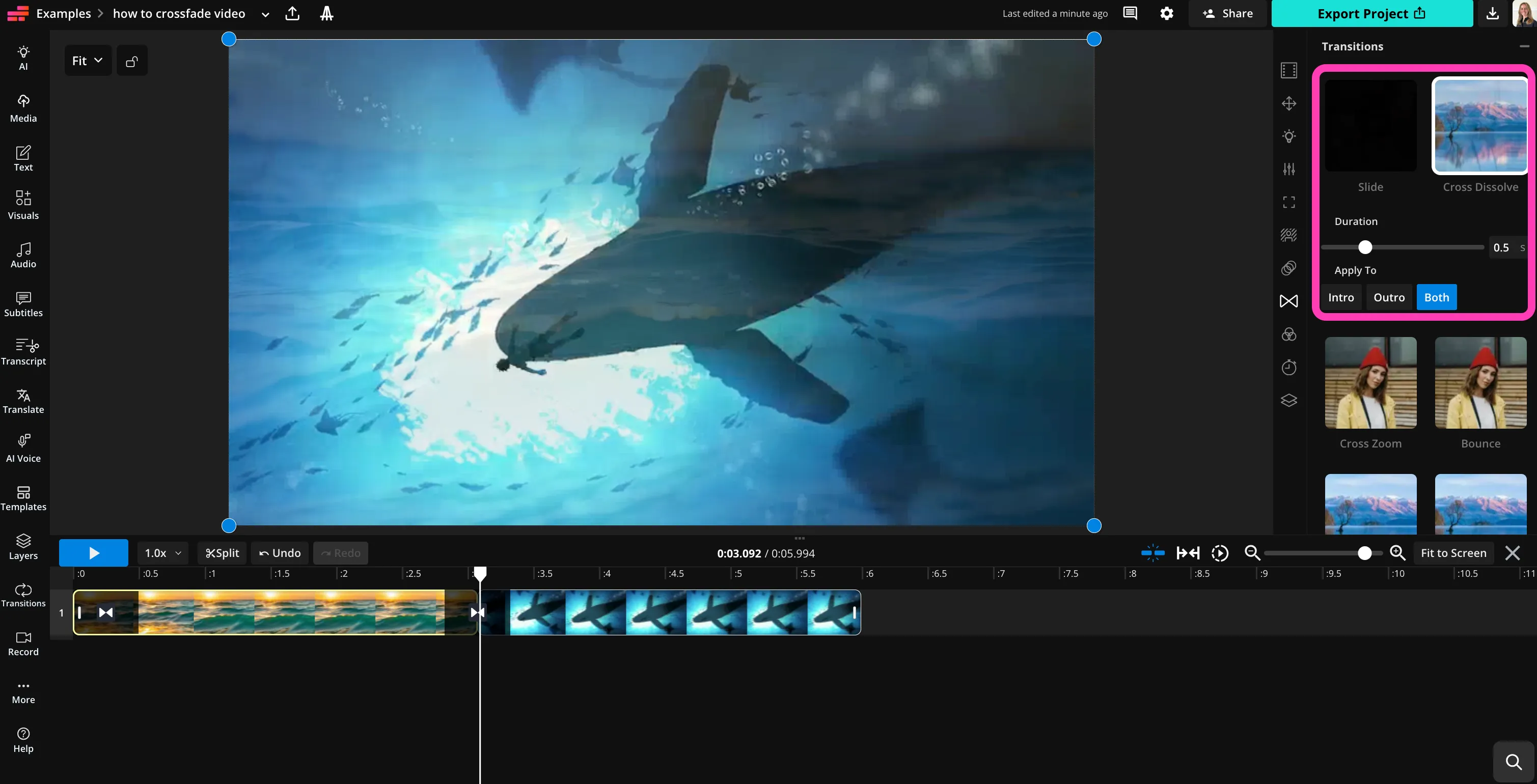
    Select the first video file, then click "Transitions" in the right sidebar. Click "Cross Dissolve" and adjust settings.

  3. Step 3
    Download

    Continue editing or click "Export Project" to download your crossfaded video in high resolution.

Thoughtfully Unique

What's different about Kapwing?

Six reasons creators stay in flow: faster edits, smarter tools, and collaboration that actually keeps projects moving.
Easy
Start creating immediately with thousands of templates and copyright free videos, images, music, and GIFs. Repurpose content from the internet by pasting a link.
Easy
Free
Kapwing is completely free to start. Just upload a video and start editing. Supercharge your editing workflow with our powerful online tools.
Free
Collaborative
Quickly review and share feedback with your team using real-time comments in shared workspaces. Save assets to your Brand Kit for easy access.
Collaborative
Online
Kapwing is cloud based, which means your videos are wherever you are. Use it on any device and access your content anywhere in the world.
Online
No spam or ads
We don't serve ads: we're committed to building a quality, trustworthy website. And we will never spam you nor sell your information to anyone.
No spam or ads
AI-Powered
Kapwing uses the latest advanced AI models to power generative AI and one-click editing tools.
AI-Powered
Just the FAQs

Frequently Asked Questions

We have answers to the most common questions that our users ask.

Is the Crossfade Video tool free?

Yes, Kapwing's Crossfade Video is free for all users.

Is there a watermark on exports?

If you use Kapwing on a Free account, then all exports — including Crossfade Video — contain a watermark. Once you upgrade to a Pro account, the watermark is completely removed from your creations.

How to crossfade video with Kapwing

To crossfade videos, start by uploading your clips into the Kapwing Studio. Arrange them in the timeline so that the first clip transitions into the second clip where you want the fade effect to occur.

Next, select the clip and open the "Transitions" panel in the right sidebar. Choose "Cross Dissolve "and adjust the duration of the fade to control how smoothly one clip blends into the next. Once you’re happy with the preview, export your project to download the finished video.

What is a crossfade transition in video editing?

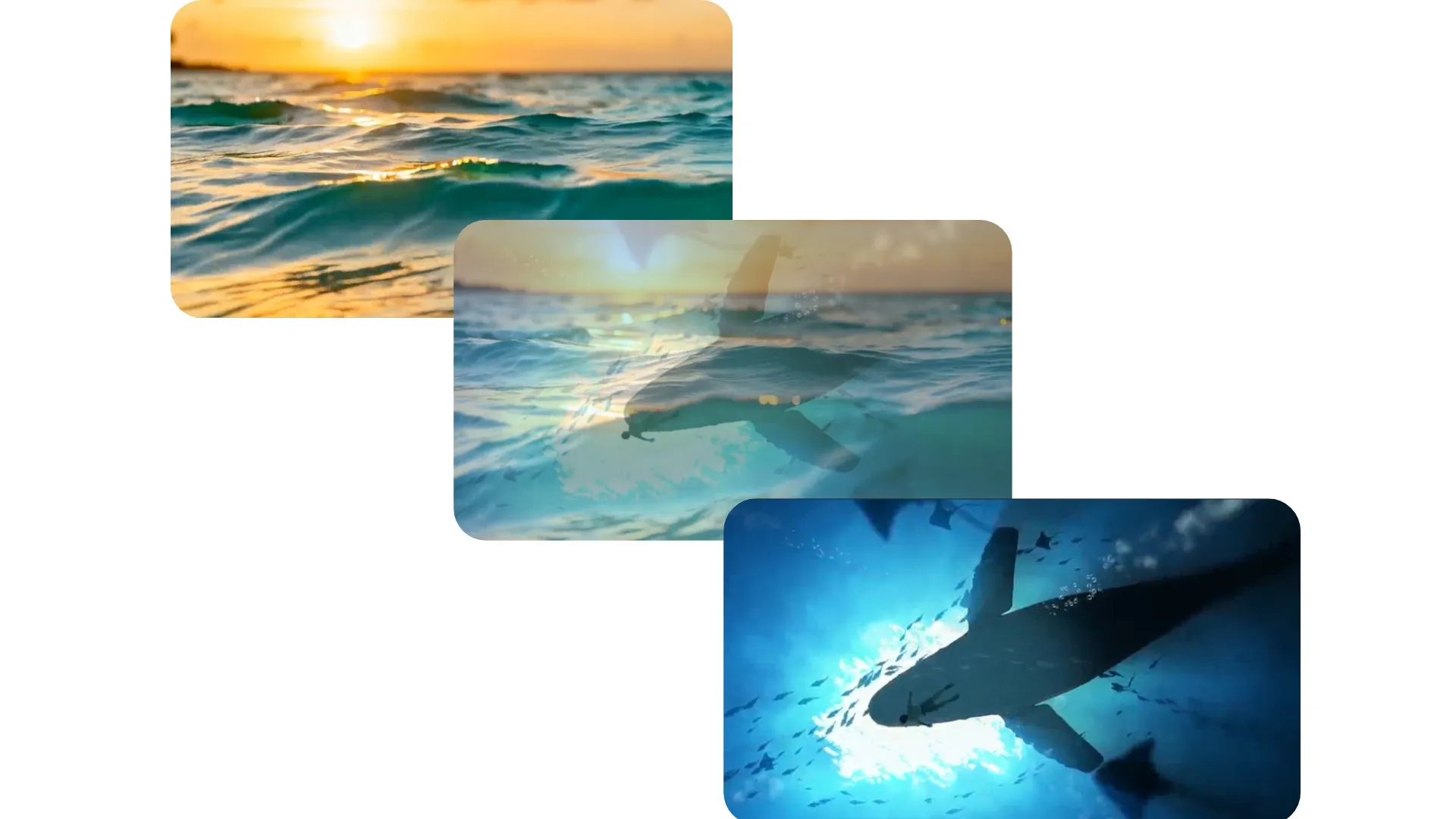
A crossfade transition (also called a cross dissolve) blends two clips together by gradually fading one out while the next clip fades in. Instead of a hard cut between scenes, both clips overlap briefly to create a smoother visual transition.

This effect is commonly used in vlogs, montages, travel videos, and slideshows. Crossfades help maintain visual flow when switching between scenes, B-roll, or different camera angles.

When should I use a crossfade instead of a hard cut?

Crossfades work best when you want to create a soft transition between moments, such as moving from one location to another, transitioning between time-lapse clips, or blending photos in a slideshow.

Hard cuts are often used for fast pacing, while crossfades help create a more cinematic or polished feel. Many creators use crossfades to transition from talking-head footage to B-roll or to smooth out montage sequences.

Can I add other transitions with Kapwing?

Yes, Kapwing offers a full range of one-click transitions, including everything from grid flip and glitch to zoom, kaleidoscope, and film burn. Select your video file in the timeline, then click "Transitions" in the right sidebar to explore your transition options.

Can I control the length of the crossfade?

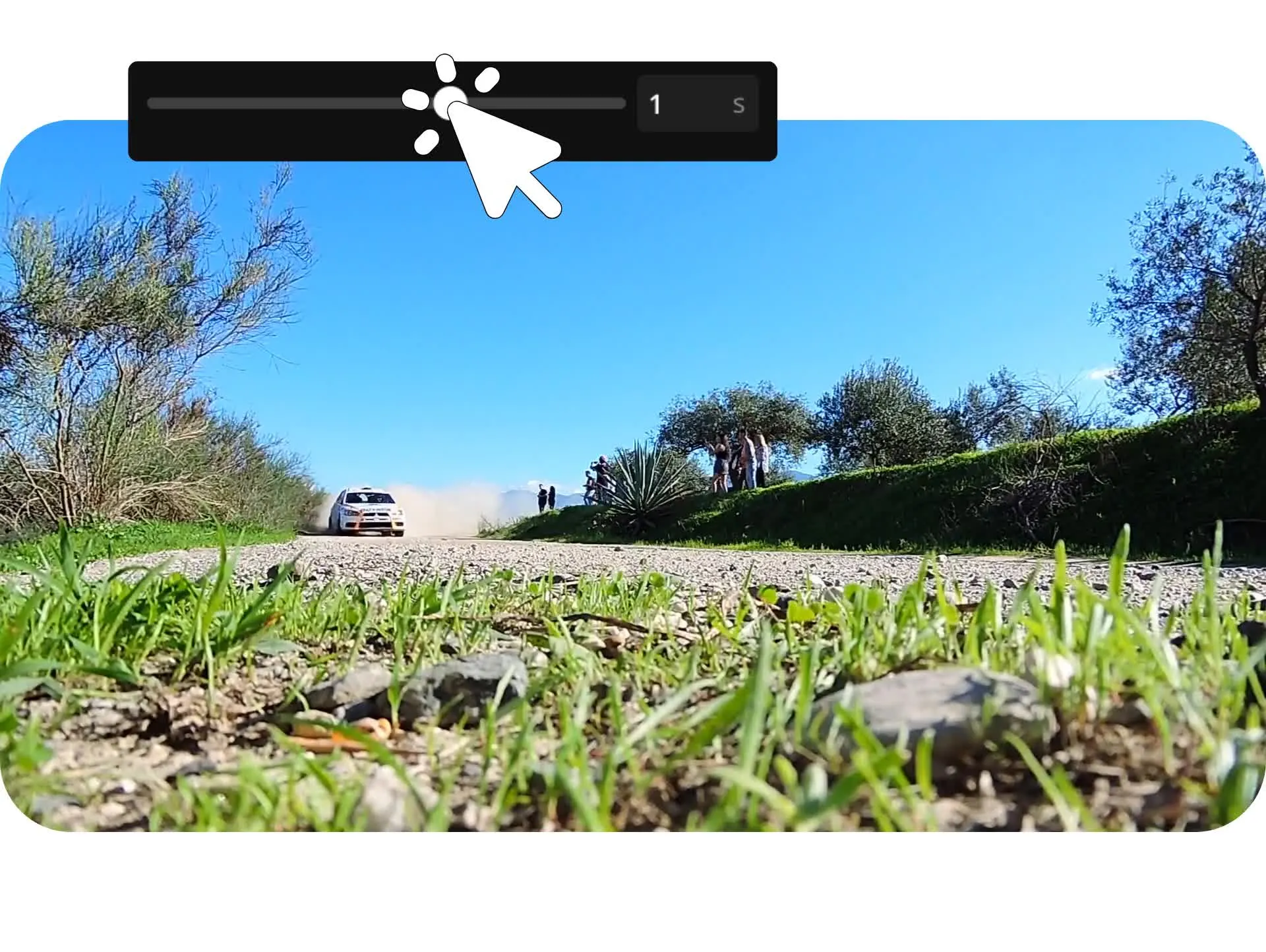
Yes, Kapwing allows you to adjust the duration of the crossfade with a simple slider. Short fades create quick transitions, while longer fades create a softer blend between scenes.

This makes it easy to match transitions to your editing style or the pacing of your video. For example, you might use quick fades for social media edits or longer dissolves for cinematic storytelling and slideshows.

Can I crossfade more than two videos?

Absolutely, you can upload multiple clips into the Kapwing Studio and apply crossfade transitions between each one. This is useful for creating video montages, highlight reels, or slideshow-style videos with smooth transitions throughout.

Once your clips are arranged in the timeline, you can add cross dissolve transitions between any clips you want. You can also continue editing your project with filters, effects, captions, and other tools before exporting.

Resources

Discover Resources

Tips, templates, and deep dives to help you create faster and share with confidence.

View all


Online video editor
Edit videos with our fast, powerful Video Editor. Trim videos or clip sections using one-click tools or by editing transcript text. Crop, flip, or resize to fit any platform.
Generative AI
Text to Video and Image to Video are here. Upload an image or enter a simple text prompt to create studio-quality videos.
Enhance audio quality
Clean audio in seconds, remove background noise from videos, add music and effects, and split or merge audio with our built-in Audio Editor.
Auto-subtitles
Add word-by-word captions to any video with Kapwing's Subtitle Generator. Change colors, fonts, and add animations or transitions.
Translation & dubbing
Reach a global audience and Translate Videos in 100+ languages. Accurate translation for video subtitles and voice overs.
Instant transcripts
Transcribe Videos with a single click. Repurpose audio or video content into articles and text posts, or convert to subtitles.
Are you ready?
Create something amazing in seconds

Get started with your first video in just a few clicks. Join over 35 million creators who trust Kapwing to create more content in less time.