Add a crossfade effect to audio for free online
Fade between audio tracks — for free
Crossfade and edit audio in a professional online studio
Smooth audio transitions anyone can apply
Improve any project with smooth audio transitions using Kapwing’s free Crossfade Audio tool. Add fade-in and fade-out effects to any track in seconds, no expensive equipment or complicated editing required. Upload your audio, apply a crossfade, and adjust the timing to match your visual style.
Blend tracks, layer sound, and fine-tune transitions to create polished audio for YouTube videos, podcasts, and marketing content. With precise fade controls, you can shape how each track enters or exits your timeline.
Crossfade between intro music and voiceovers to avoid abrupt cuts or uneven volume. Smoothly integrate ads into podcasts without interrupting the listening experience. Layer multiple tracks to remix audio while keeping full control of timing and balance. Or apply fade effects to audio inside video clips, no need to detach the audio first.
Integrated with hundreds of audio editing tools
Streamline audio remixing and creation with an online audio editor designed for content creators and marketers.
Use AI-powered tools to enhance audio clarity, remove background noise, split clips, and balance volume across tracks. Clean up recordings, adjust levels, and prepare audio that sounds consistent from start to finish.
Edit directly in your browser, export in seconds, and share your finished audio anywhere, from podcasts to social videos.

Already transforming video creation across industries
Hear directly from the teams who publish faster, collaborate better, and stay ahead.


How to Crossfade Audio
- Step 1Upload audio
Create a new project in the Kapwing studio and click to upload your audio files. Drag to place them in order in the timeline.
- Step 2Crossfade
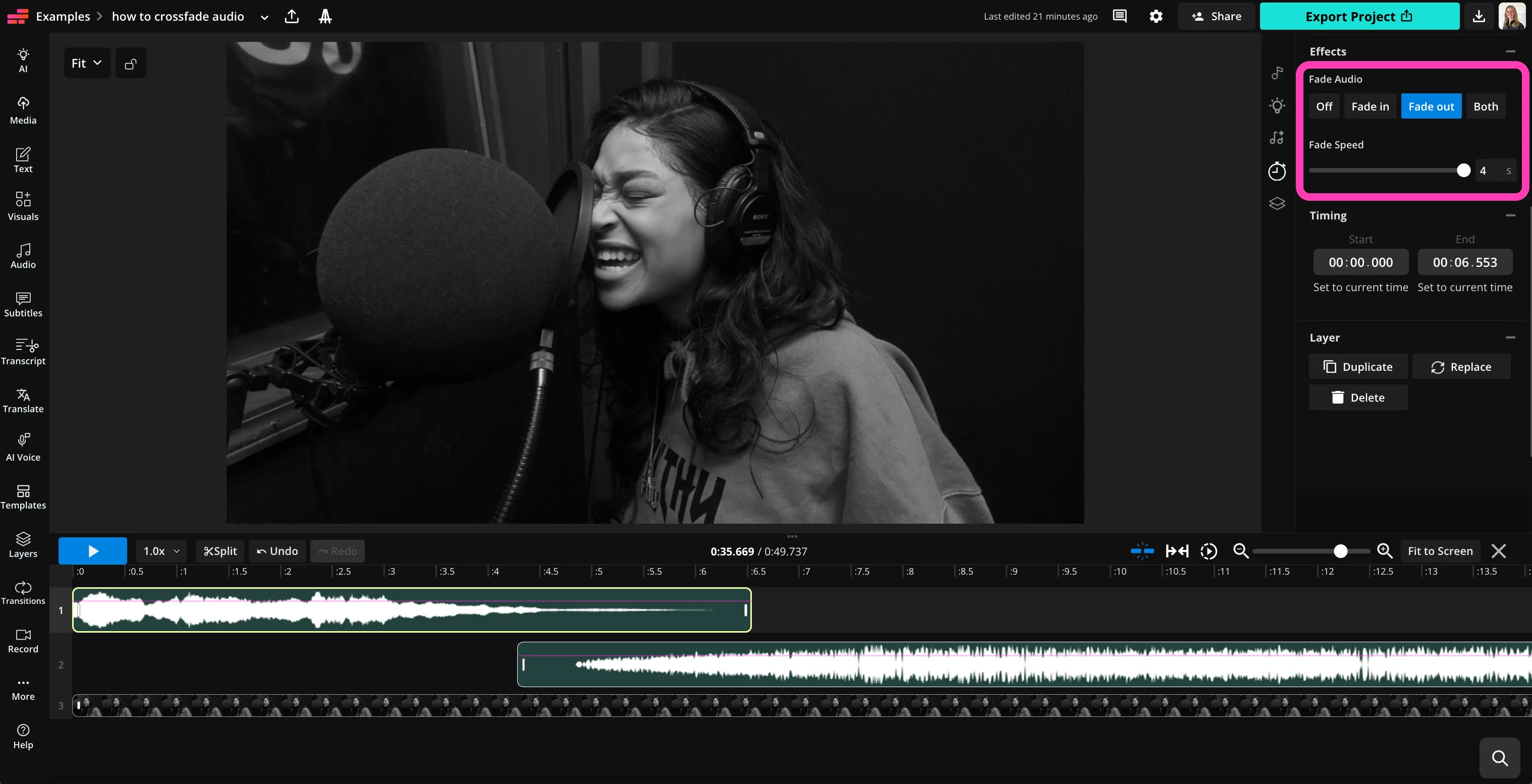
Select the first audio file, then click "Effects" in the righthand sidebar. Under "Fade Audio," select "Fade out." Then select the second audio and click "Fade in."
- Step 3Export
Use the slider to adjust fade speed on each file. Click "Export Project" at the top right to download your crossfaded audio file.
What's different about Kapwing?



Frequently Asked Questions
We have answers to the most common questions that our users ask.
Is the Crossfade Audio tool free?
Yes, Kapwing's Crossfade Audio tool is free for all users.
What kinds of projects benefit from crossfading?
Crossfades are commonly used in podcasts, YouTube videos, marketing videos, and music edits. They’re especially helpful when transitioning between intro music and spoken segments, blending songs in remixes, or smoothing scene changes in videos.
Crossfading can benefit both audio and video projects, from podcast production to social media content. Kapwing also has a Crossfade Video tool to create a visual crossfade effect in any video project.
How to crossfade audio with Kapwing
To add a crossfade effect to your audio, create a new project in the Kapwing Studio and upload your audio files. Drag them in the timeline so that they overlap on different rows. Then select the first audio file and click "Effects" in the righthand sidebar. Choose "Fade in," "Fade out," or "Both," and adjust the fade speed.
Next, click on the second audio file and follow the same steps, adding a "Fade in" effect and adjusting the speed. Continue with any other audio files.
Keep editing with Kapwing's extensive audio editing tools, and click "Export Project" when you're ready to download or share your file.
What is audio crossfade?
Crossfading audio means gradually fading one audio track out while another fades in at the same time. Instead of an abrupt cut between clips, the sounds overlap briefly to create a smooth transition.
Creators often use crossfades when switching between songs, transitioning from music to voiceover, or blending audio segments in podcasts and videos. The result feels more natural to listeners and helps maintain consistent pacing in your project.
What types of audio files can I crossfade?
Kapwing supports many common audio formats, including MP3, WAV, M4A, and more. You can upload multiple files, place them in sequence on the timeline, and apply fade effects between clips.
You can also crossfade audio that’s attached to video clips. This allows you to smoothly transition between scenes or background music without separating the audio from your video first.
Do I need audio editing skills?
No, Kapwing's audio crossfader is designed for beginners and professional audio editors alike.
Can I adjust how long the crossfade lasts?
Yes, Kapwing lets you control the speed of each fade so you can fine-tune the transition between tracks. Use the fade slider to make the transition shorter for quick cuts or longer for smoother blends.
Adjusting the fade length is especially useful when mixing music, transitioning between podcast segments, or balancing background music with voiceovers.
Can I edit audio further after adding crossfade?
Absolutely, crossfading is just one step in the editing process. With Kapwing's audio editor studio, you can continue trimming clips, adjusting volume, layering multiple tracks, and splitting audio segments.
You can also use AI-powered tools to remove background noise, balance volume levels, and enhance voice clarity so your final audio sounds consistent and professional.
Discover Resources
Tips, templates, and deep dives to help you create faster and share with confidence.
View all


Get started with your first video in just a few clicks. Join over 35 million creators who trust Kapwing to create more content in less time.