Compress videos for free online.
Reduce MP4 and MOV file size while maintaining quality.
Compress videos in an online studio
Optimize video quality while reducing file size. Works for free in your browser.
Reduce file size, maintain video quality
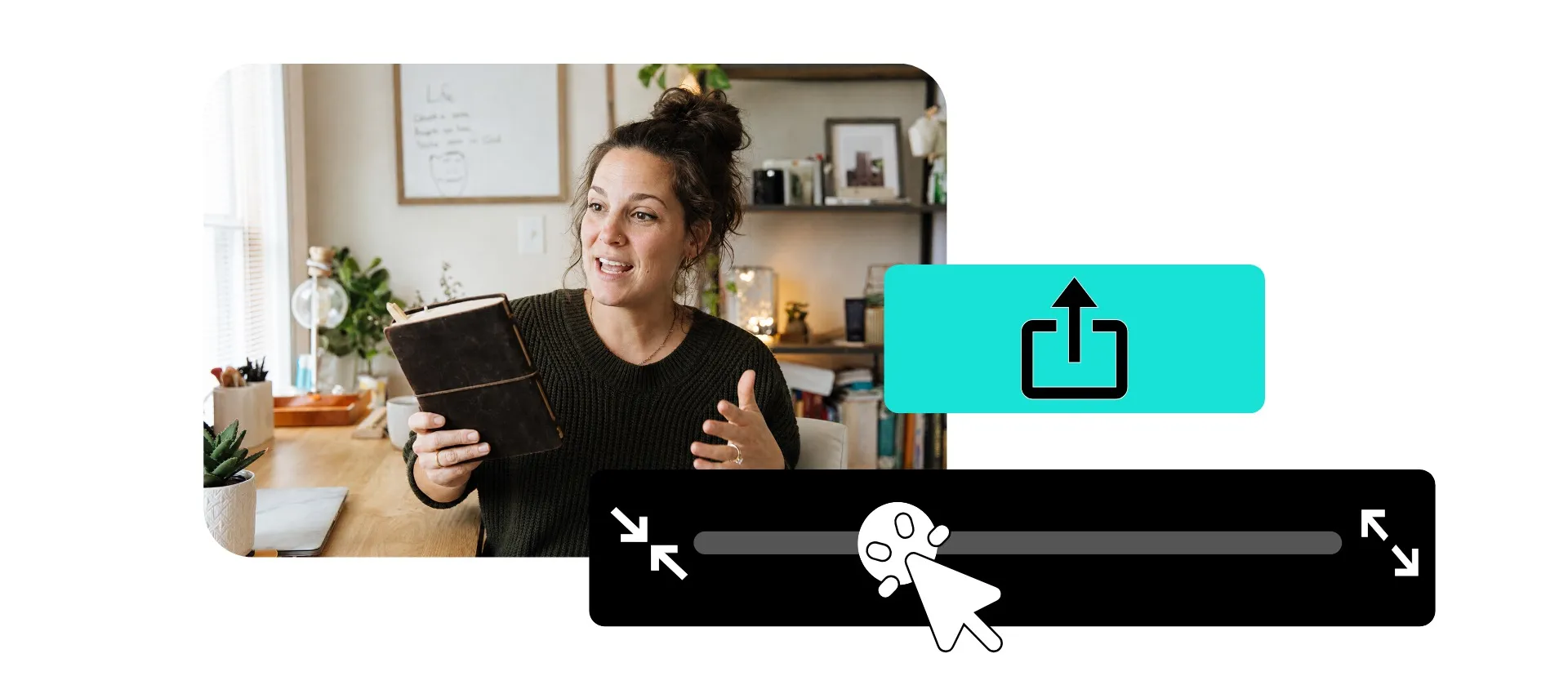
Kapwing’s online video compressor reduces video file size while giving you control over compression level and output resolution. Create smaller videos that are easier to upload, share, email, and store while preserving as much video quality as possible. Preview the estimated file size before exporting to find the right balance between a smaller file and clear, high-quality video.
Upload common video file types like MP4, MOV, WebM, AVI, and MKV, then adjust your export settings based on your target file size and quality needs. Use lighter compression to preserve more detail, or increase compression and lower the resolution when reducing file size is the priority. You can also trim unwanted footage or resize your video before exporting to make the final file even smaller.
How to compress videos online
Upload, edit, and export compressed videos in the same studio
Upload
your video to a new project in the Kapwing Studio.


Compress
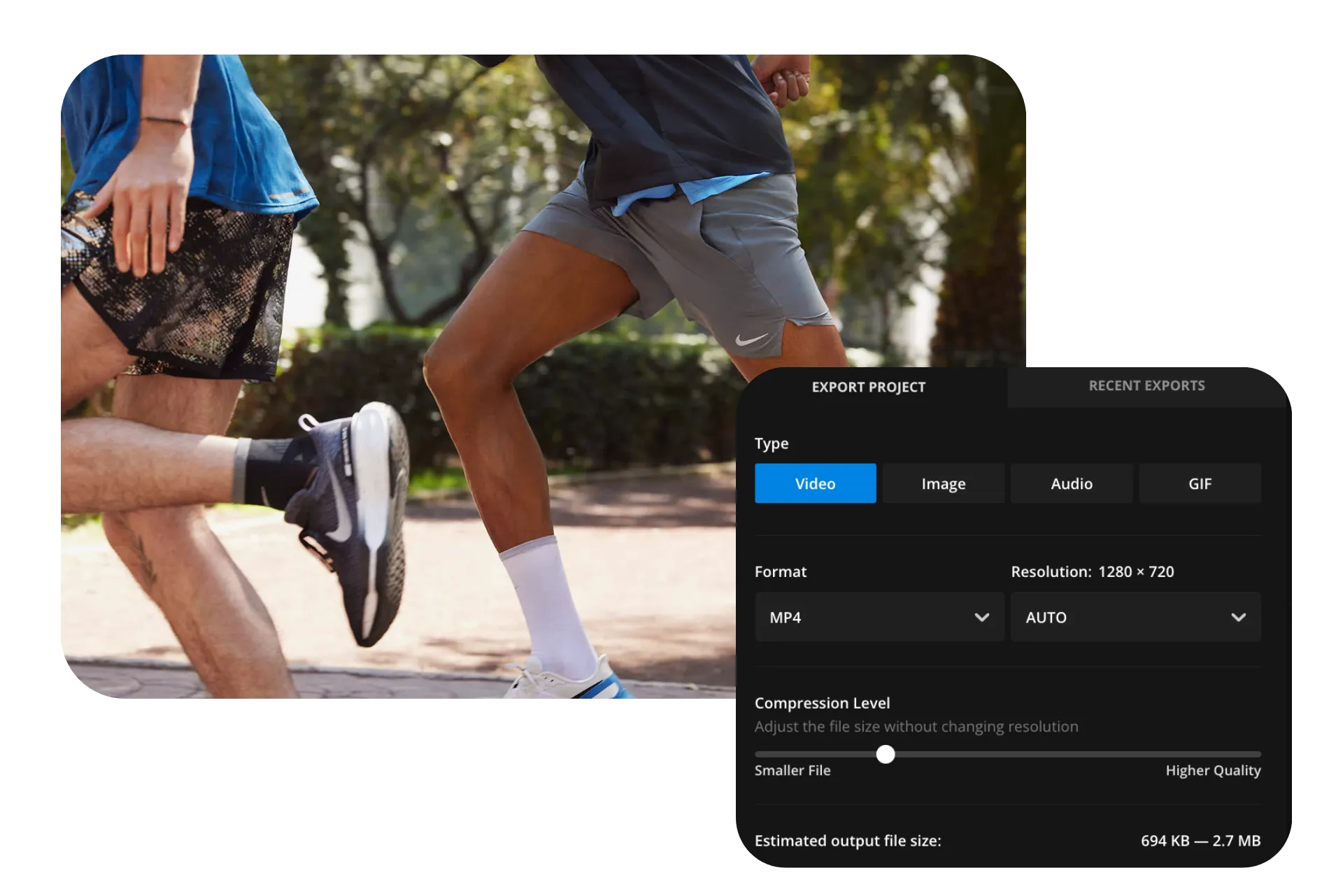
file size by clicking "Export project" and dragging the compression slider.
Export
your smaller video as an MP4, MOV, or WebM.
Compress any video
Make videos easier to upload, share, and store with compression and resolution controls

Social Media Managers
Shrink campaign videos and social assets for faster uploads across channels. Resize or trim content first, then compress and share the finished video.

Educators & Students
Reduce large lectures, presentations, and video assignments before uploading them to learning platforms or submitting college coursework

YouTube Creators
Compress YouTube videos, tutorials, and social content before uploading or sharing. Adjust compression and resolution to reduce file size while keeping the quality your content needs.

Marketing Teams
Compress product demos, customer stories, ads, and campaign videos for easier sharing with teammates, clients, and publishing platforms

Podcasters & Interviewers
Shrink long video podcasts and interview recordings that create large files. Trim unused footage and adjust export settings to reduce the final size.
Remote Teams
Compress meeting recordings, screen recordings, and project updates before sharing them with coworkers or storing them in team workflows
Optimize video file size and quality
Balance compression and resolution in any video
Control file size without sacrificing quality
Choose how much to compress your video based on the file size and quality you need. In Kapwing’s export settings, adjust the compression level without changing the video’s resolution, or lower the resolution to reduce the file size further. Kapwing shows an estimated file size as you adjust your settings, so you can find the right balance before exporting.
For videos where detail matters, keep a higher resolution and use lighter compression. If getting the smallest possible file is the priority, increase compression or export at a lower resolution such as 720p or 480p.

Edit and compress in the same studio
A smaller video can start with a shorter, more focused edit. Your uploaded video opens directly in Kapwing Studio, where you can remove footage, crop the frame, resize the canvas, add captions, and make other edits before choosing your compression settings and exporting.
Cutting footage you don't need also reduces the amount of video that has to be exported. Use the Video Trimmer to remove dead air, long intros, extra takes, or sections you don't need, then compress the finished edit instead of the full original recording

Choose your output file type
File format can affect file size, compatibility, and where you can use a video. Kapwing converts uploaded videos to MP4 during processing, a format that provides a useful balance of file size, video quality, and broad compatibility.
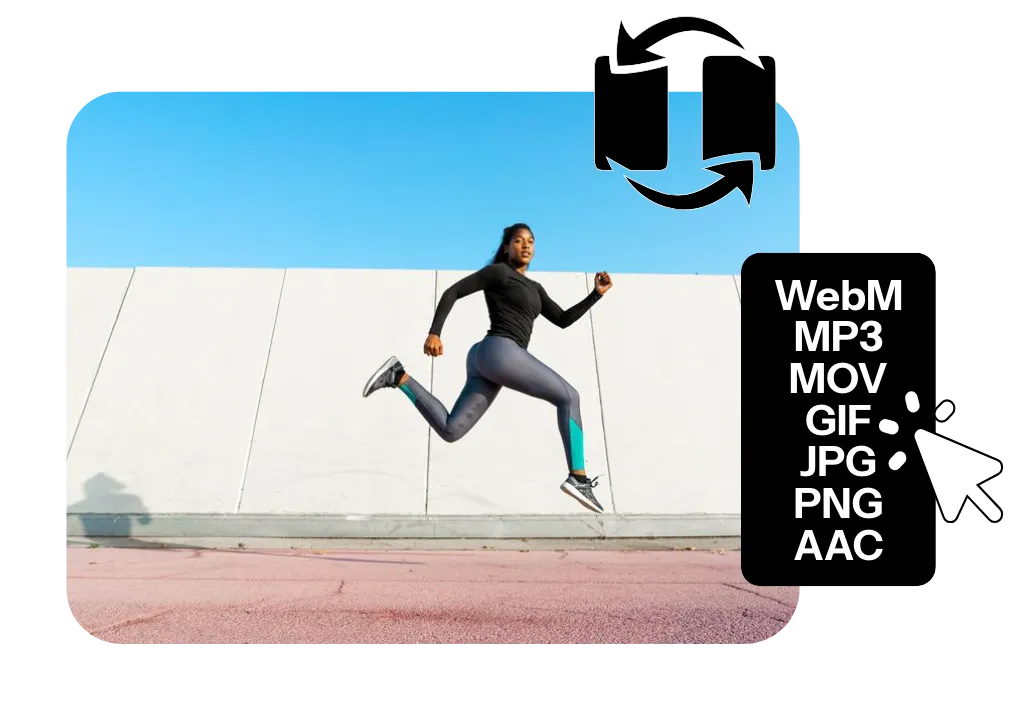
If you need a different output, use Kapwing’s Video Converter to convert between popular video and media formats. Export MP4 for broad compatibility, WebM for websites and web apps, GIF for short animations, or MP3 and AAC when you only need the audio. For web publishing specifically, convert MP4 to WebM to create a web-optimized video format designed for efficient streaming and smaller files.
How to Compress Videos Online

- Step 1Upload video
Upload a video (or multiple video files) to Kapwing directly from your computer or use the convenient drag and drop feature. You can also paste a video link from an external source like Vimeo or TikTok.
- Step 2Compress video
Click “Export project,” then adjust the video compression level slider to compress it while preserving as much quality as possible.
- Step 3Download and share
Once you’ve exported your video, you can download it as an MP4 or copy the video link to share and collaborate with colleagues, family, and friends.
What's different about Kapwing?



Frequently Asked Questions
We have answers to the most common questions that our users ask.
Is the Compress Video tool free?
Yes, Kapwing's Compress Video tool is free for all users. For access to the full range of video editing tools, including AI-powered tools, upgrade to a Pro account.
Is there a watermark on exports?
If you use Kapwing on a Free account, then all exports — including Compress Video — contain a watermark. Once you upgrade to a Pro account, the watermark is completely removed from your creations.
How do I reduce video file size without losing too much quality?
Start with lighter compression and keep the original resolution when visual quality is important. Increase the compression level gradually while checking the estimated file size. If the file is still too large, lowering the resolution can reduce its size further, but may have a more noticeable effect on image detail.
Trimming footage you don't need can also make a video file smaller without compressing the remaining footage more heavily.
What video file types can I compress?
Kapwing supports uploads in popular video formats including MP4, MOV, WebM, AVI, MKV, WMV, FLV, MPEG, 3GP, and OGG. You can upload one of these video file types, edit and compress it in Kapwing, then export the finished video as an MP4.
If you need another output format, Kapwing’s Video Converter can also convert your media to formats including MP4, MOV, WebM, GIF, MP3, WAV, and AAC, depending on the type of media you’re creating.
What affects the size of a compressed video?
Video duration, resolution, compression level, and the source video all affect the final file size. Longer videos and higher resolutions generally require more data, while stronger compression can produce a smaller video file.
If your goal is a specific upload or sharing limit, use the estimated file size in Kapwing's export settings as you adjust your compression options.
Can I compress video for email?
Yes, compressing a video can make it small enough to send as an email attachment instead of sharing a separate cloud link. For reference, personal Gmail accounts allow up to 25 MB in attachments, Outlook.com has a 25 MB file attachment limit, and Yahoo Mail allows up to 25 MB in total attachments per message. Work and school accounts may have different limits set by an administrator.
Use Kapwing to reduce your video file size by adjusting the compression level and resolution, then check the estimated file size before exporting. If you're specifically preparing a video attachment, you can also use Kapwing’s Compress Video for Email tool.
What video file size is best for TikTok, Instagram, and YouTube?
The best file size depends on the platform and length of your video. YouTube allows uploads up to 256 GB or 12 hours, whichever comes first, so most creators should focus on preserving quality rather than compressing to a specific small file size. For shorter social videos on TikTok and Instagram, smaller files can make uploading and sharing faster, but there isn't one ideal MB size that applies to every video.
Instead of compressing to an arbitrary size, keep the resolution required for your platform and apply enough compression to reduce unnecessary file weight. For vertical TikTok videos, Instagram Reels, and YouTube Shorts, 1080 × 1920 is a practical target resolution. Use Kapwing's estimated file size to balance video quality and file size before exporting.
Can I compress an MP4 video?
Yes, upload your MP4 and adjust the compression level during export to create a smaller file. You can also lower the resolution or trim unnecessary footage if you need to reduce the MP4 file size further.
For an MP4-specific workflow, use Kapwing's MP4 Compressor.
How to compress large videos
To compress videos with Kapwing, start by creating a new project and using drag-and-drop or click to upload your video. You can upload a range of file types, including MP4, MOV, and WebM. Once your video is in the studio, you can use any of the professional video editing tools built in before exporting. Resize to fit a different platform, upscale resolution, add text or image overlays, create an AI-powered voiceover, or use Trim Video to adjust the duration and order of clips.
When you're ready to compress, click "Export project" in the upper right. Select your preferred video file type and choose a specific resolution or leave on Auto to automatically use the best resolution. Then drag the Compression Level slider to choose the best compression level. As you drag, you will see the estimated file size adjust to your settings. This can help you choose the best compression setting that will maintain high video quality. Click "Export" at the bottom to export your compressed video.
Discover Resources
Tips, templates, and deep dives to help you create faster and share with confidence.
View all


Get started with your first video in just a few clicks. Join over 35 million creators who trust Kapwing to create more content in less time.