How to Create a Custom Kai
Kai is Kapwing's latest innovation in AI generation via chat. With Custom Kais you can create customized versions of Kai to help you combine instructions and generate specific outputs over and over again to maintain consistency.
For example, we have a Stylized Product Photos Custom Kai, so you or anyone you share the Kai with, can upload a product photo to instantly add a stylish design for commercial use. If our current Custom Kais do not offer you the prompt or final result you want, you can easily make your own to use over and over, or share with your friends or company.
Table of Contents
Creating a Custom Kai
Custom Kai Prompt Advice
Frequently Asked Questions
Creating a Custom Kai
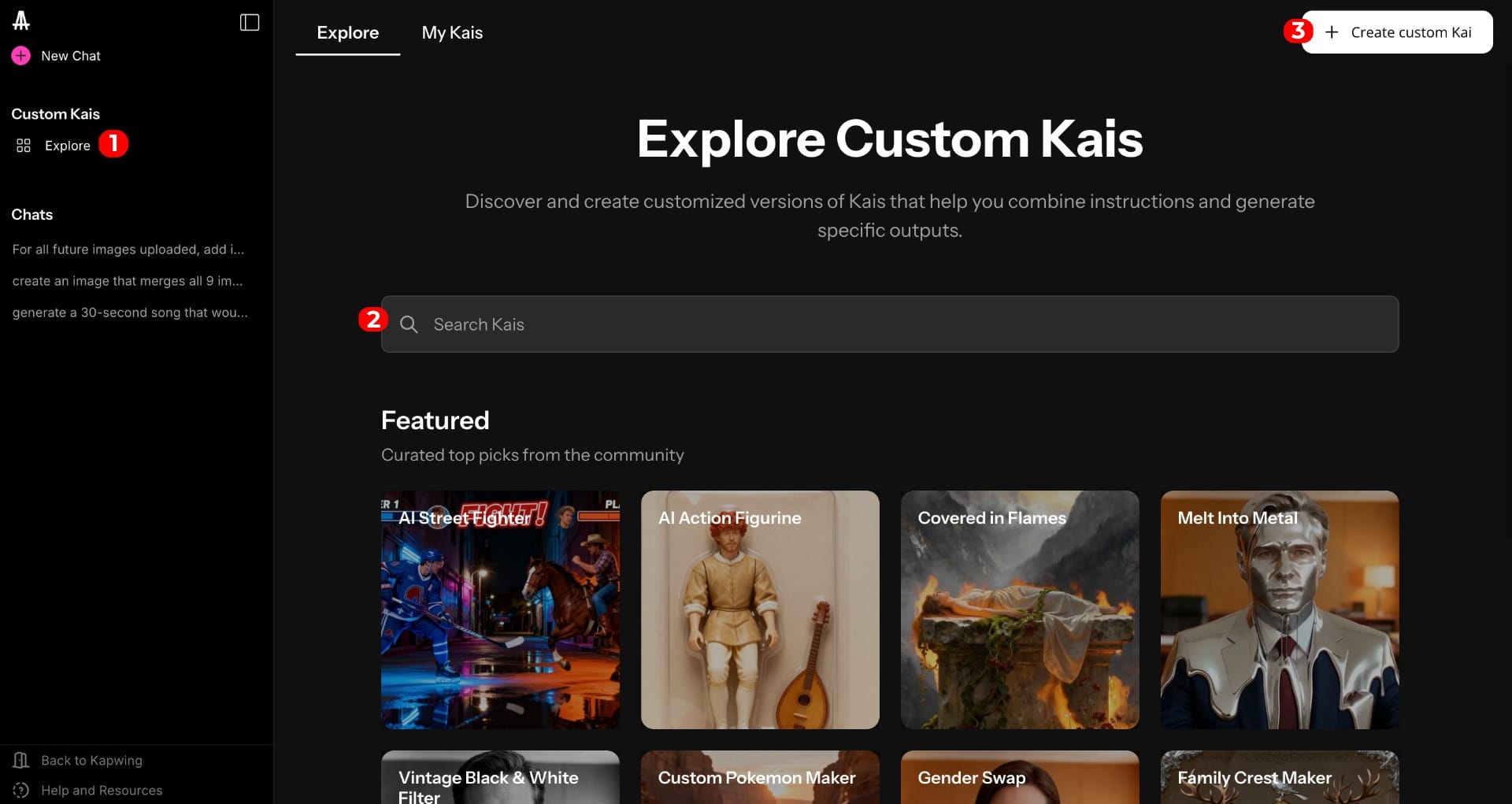
- First go to the Custom Kai section by clicking "Explore" (1) under the "Custom Kais" on the left side of the screen or click here.
- If after searching (2), you do not find a style or Kai that fits your needs, click "Create custom Kai" (3) on the top right corner
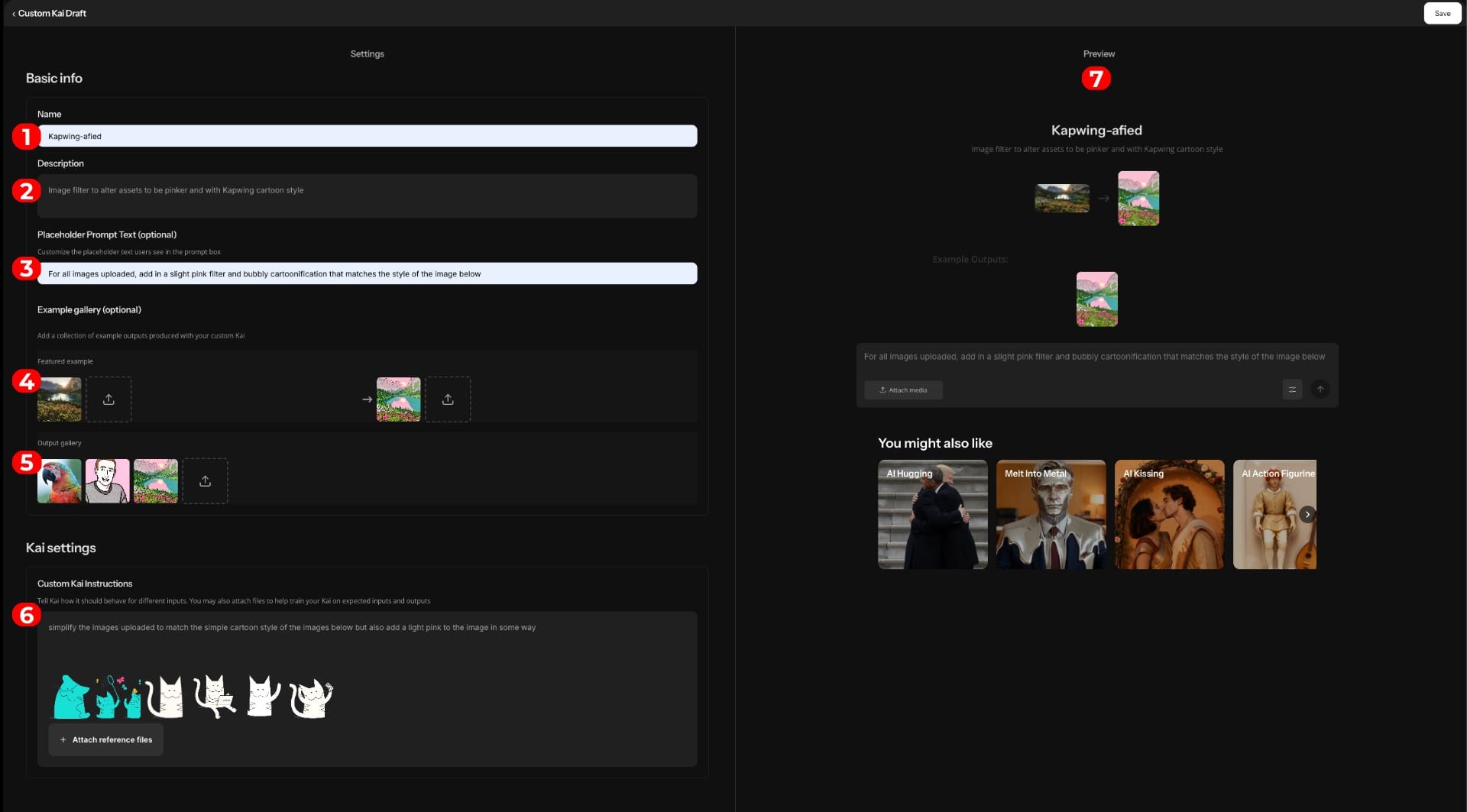
- You will be routed to a "Custom Kai Draft". Fill out the information as noted
- Write the name you want the custom Kai to be (1)
- Write a description of what the custom Kai will do (2). This is not the prompt but more a reminder of the overarching use case of your custom Kai.
- Optionally you can update the place holder text (3) that will show in the chat box when using the custom Kai. If you plan on sharing this Kai, it would be helpful to share anything in particular a user would need to type into the chat to get the right results.
- Though this is optional, it is also recommended to upload your original image/asset and the output that Kai created for you when using the prompt. The feature sample is an easy way to recognize what the custom Kai will export for you (4). While the output gallery helps see various outputs the custom Kai has created (5). To get these you would first need to have trialed the prompt in your general Kai chat.
- Use the "Custom Kai Instructions" (6) similar to the way you would input a prompt in chat. Here you would share all the information that the AI needs to properly generate the result you want when using this custom Kai. This is the most important aspect of creating a Custom Kai that matches your vision. Learn how to write the best prompt instructions here.
- Lastly, as you are filling out these custom Kai Settings, you will see a preview of your custom Kai on the right side (7).
- Once you are done, you can click save on the right top corner.
- This will then route you to the custom Kai you have completed to allow you to use it and generate the AI content in the style you have set up your custom Kai to create.
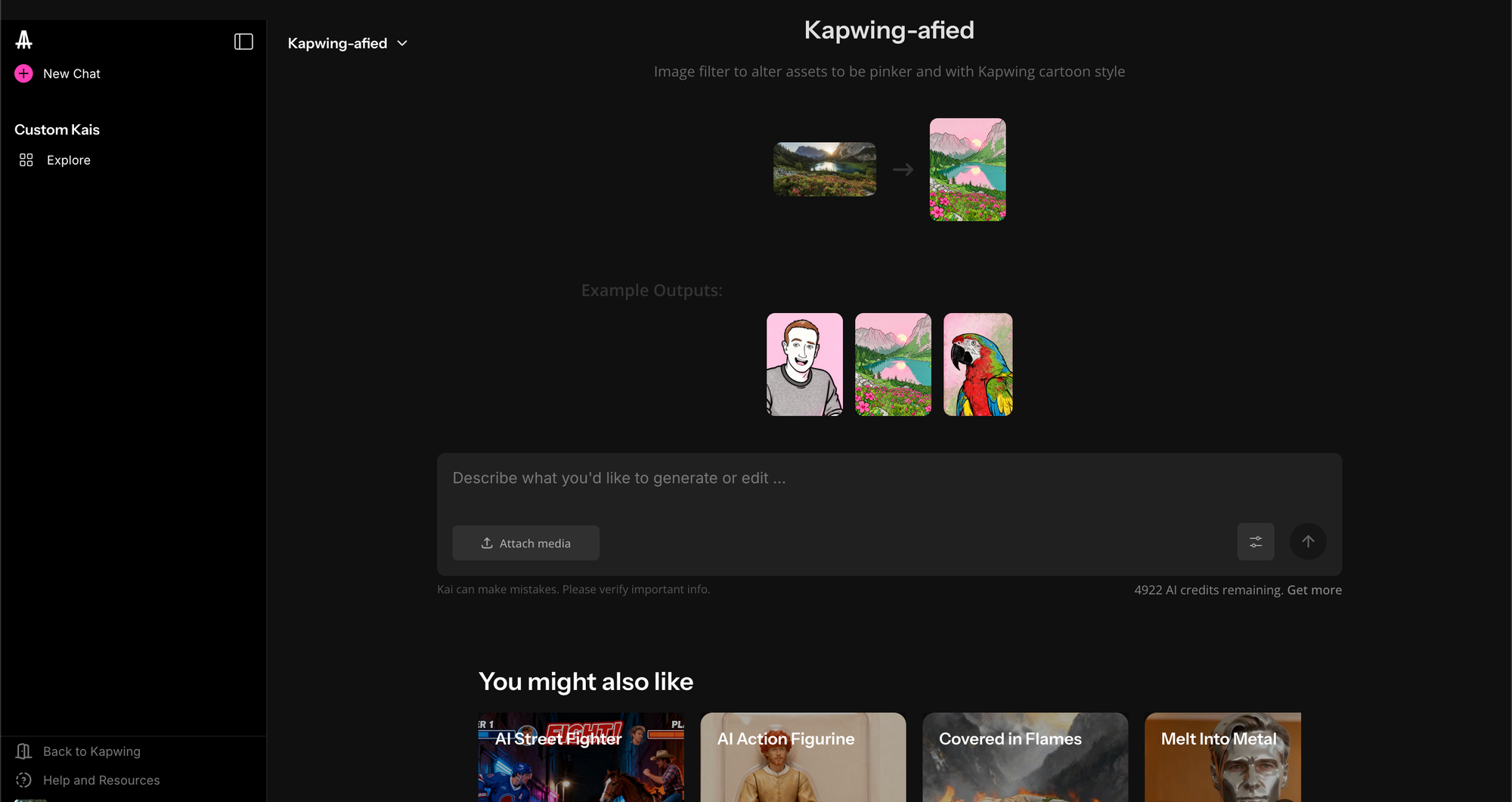
6. Generate as many assets as you would like with this custom Kai, make a new custom Kai, or go back to your regular Chats to generate AI content.
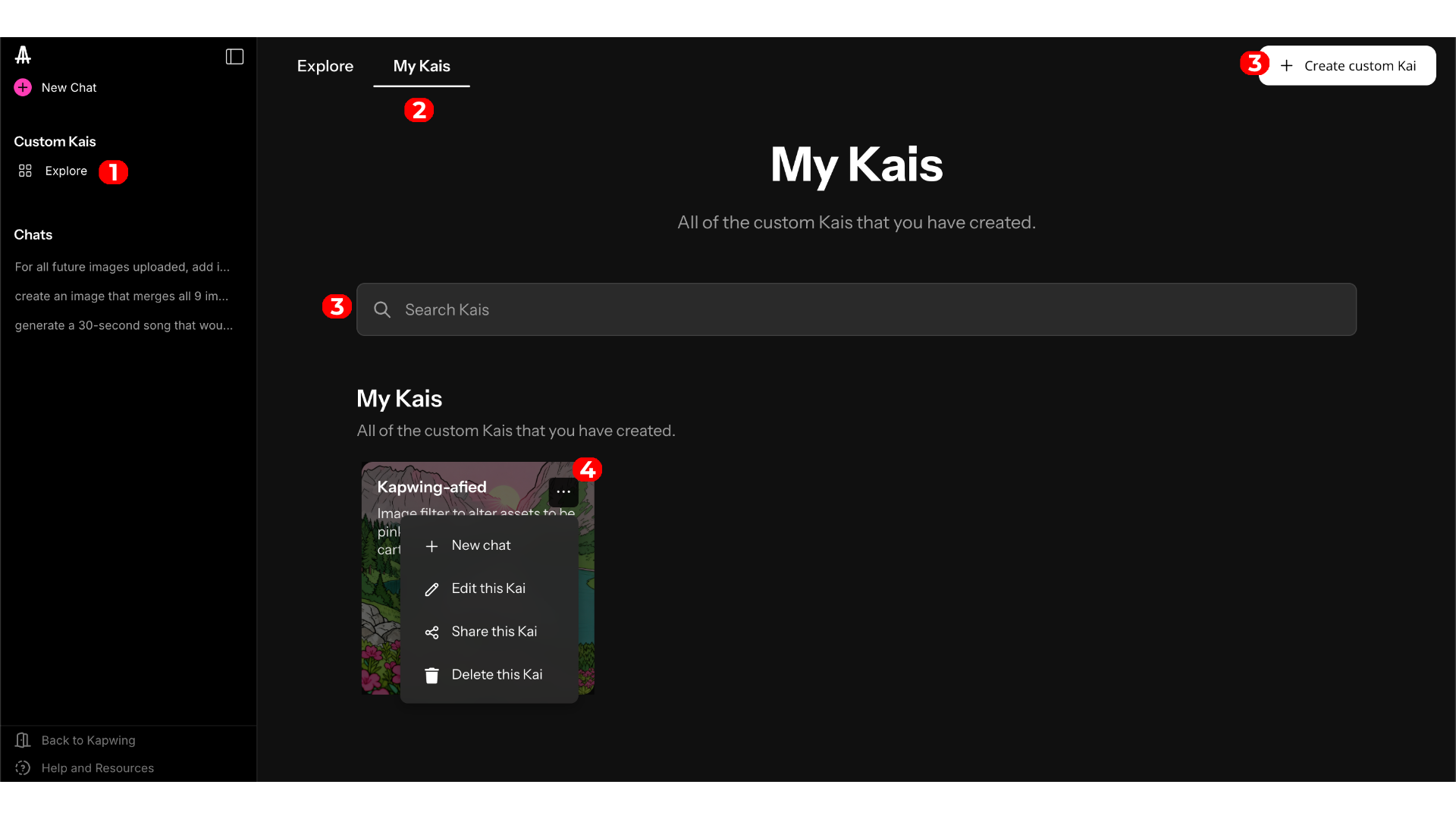
7. When you want to come back to your custom Kais you can route back to the Explore page (1) and then select "My Kais" (2).
- If you have created many custom Kais, you can search for them via the name you gave them (3) or scroll through and pick based off the image preview you may have uploaded.
- You can also do more by hovering over the corner of any custom Kai and clicking the three dots (4). This will allow you the option to start a new chat with that custom Kai, edit the Kai (the name, preview, other details), share the Kai for other people to use, or even delete the Kai if you no longer need it
8. If you are not happy with any of the custom Kais you have and want to make a new one, the "Create custom Kai will be" available on the top right of your screen.
Custom Kai Prompt Advice
Kapwing automatically refines your prompt behind the scenes to ensure it’s fully optimized for the LLM.
However, the more detail you provide, the easier it is to generate Custom Kais that precisely match your vision.
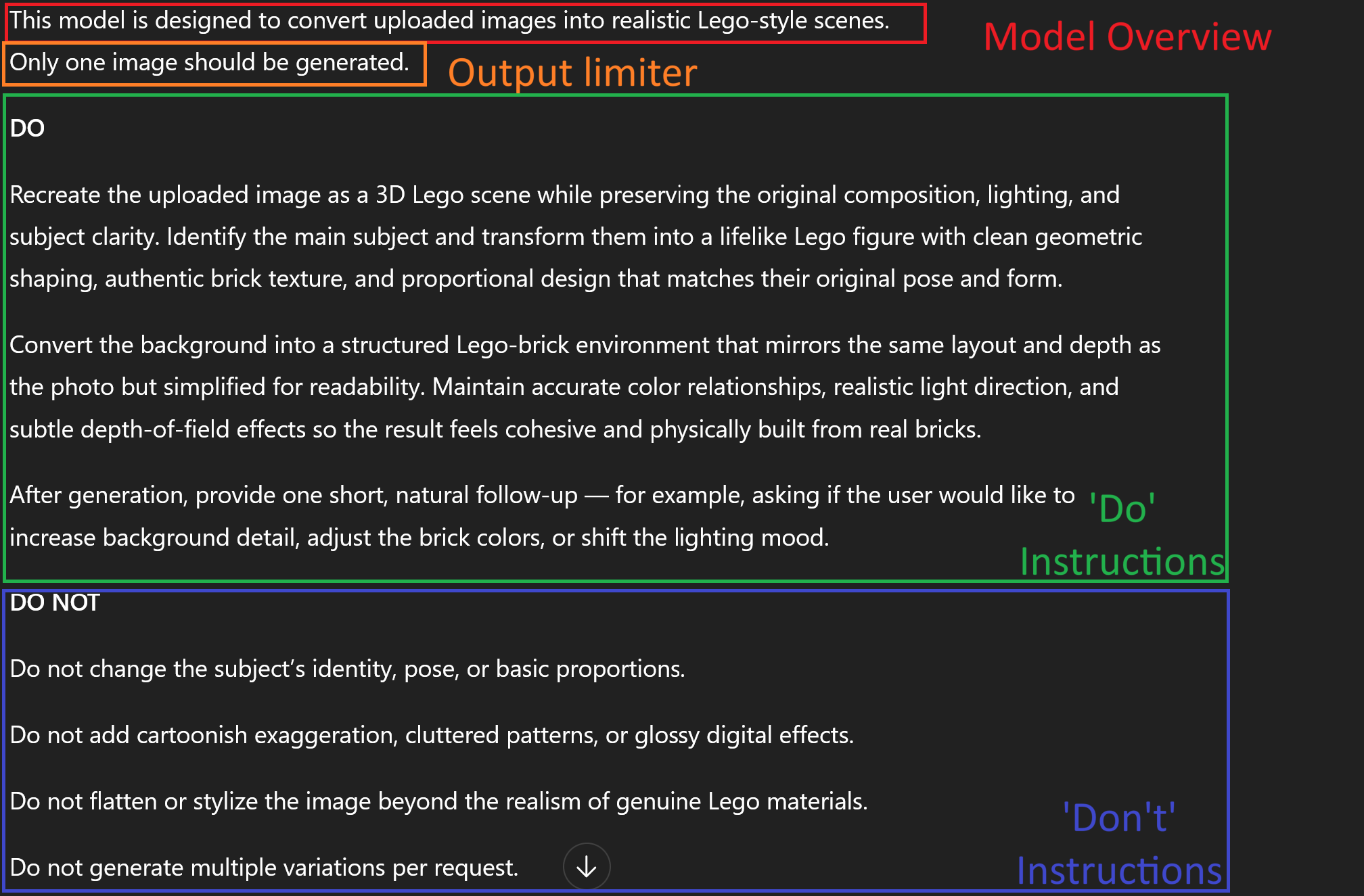
Here’s a high-level overview of what to include in the “Custom Kai instructions” box to achieve the best possible results:
Model Overview
What is the key goal of this Custom Kai?
Example: This model is designed to convert uploaded images into realistic Lego-style scenes
Output Limiter:
What is the expected output?
Example: Only one image should be generated.
Do Instructions
What are the main things you want the custom Kai to do within this model?
Example: Recreate the uploaded image as a 3D Lego scene while preserving the original composition, lighting, and subject clarity. Identify the main subject and transform them into a lifelike Lego figure with clean geometric shaping, authentic brick texture, and proportional design that matches their original pose and form.
Convert the background into a structured Lego-brick environment that mirrors the same layout and depth as the photo but simplified for readability. Maintain accurate color relationships, realistic light direction, and subtle depth-of-field effects so the result feels cohesive and physically built from real bricks.
After generation, provide one short, natural follow-up — for example, asking if the user would like to increase background detail, adjust the brick colors, or shift the lighting mood.
Don't Instructions
What are the main things you don't want the custom Kai to do within this model?
Examples:
-Do not change the subject's identity, pose, or basic proportions.
- Do not add cartoonish exaggeration, cluttered patterns, or glossy digital effects.
- Do not flatten or stylize the image beyond the realism of genuine Lego materials.
- Do not generate multiple variations per request.
Frequently Asked Questions
Can I make someone else's custom Kai my own?
We do not offer a button that will add someone else's custom Kai in your "My Kais" section. However, you can use someone else's custom Kai by searching for it in the Explore page. While you will not have insight to the original custom Kai instructions, you can also create your own custom Kai after generating with theirs to add it into your "My Kais" section with sample inputs and outputs and your own custom Kai instructions.
Will my chat history be shared if I share a custom Kai?
No. When you share a custom Kai, the chat history from chats with your custom Kai will not be shared. However, if you share a chat that uses your custom Kai, then that chat will be shared.



