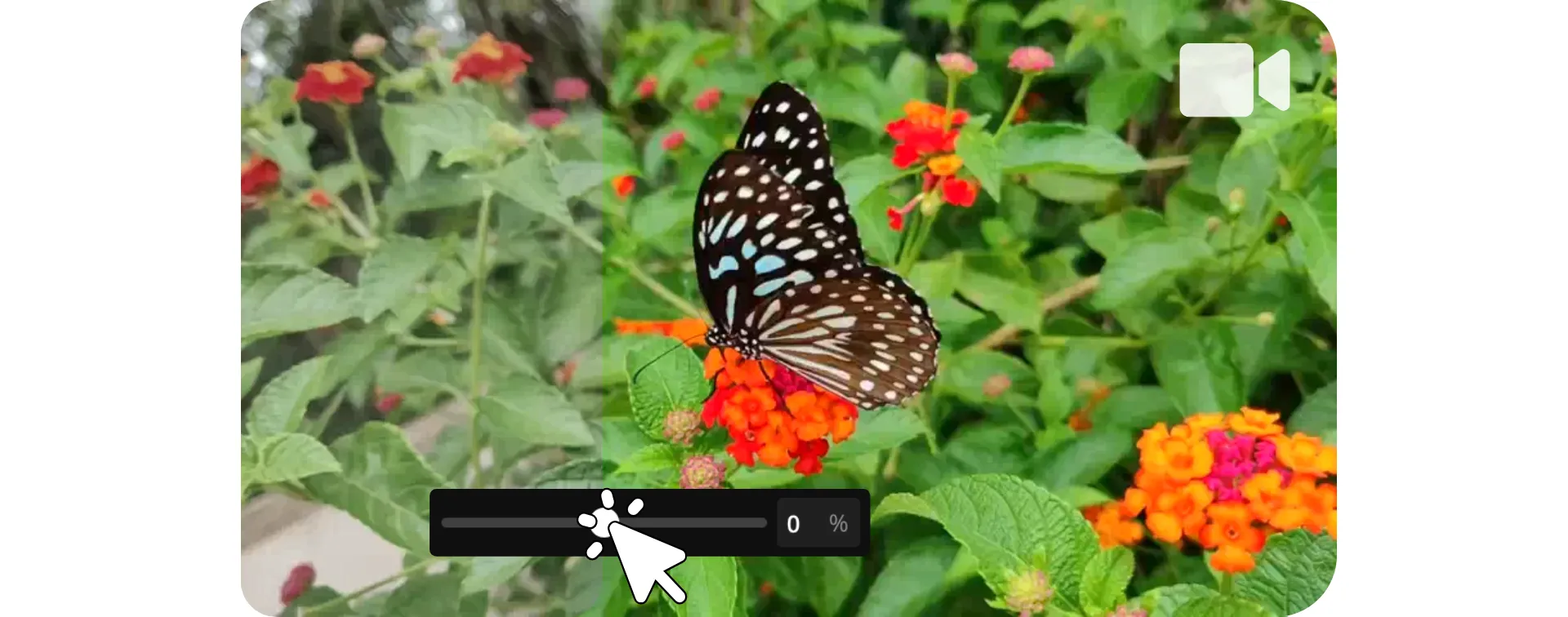
Make videos more engaging and vibrant
Edit video saturation with a free online tool
Fine-tune video color saturation with an easy tool
Kapwing's Saturate Video tool lets you increase vibrancy and make colors more engaging using a simple slider. Turn pale or over-exposed videos into eye-catching content that stands out on YouTube, TikTok, or real estate and e-commerce platforms.
Bring your product videos, food and travel reviews, and interview footage to life with saturation, warmth, and tint controls. Avoid over-saturating by flipping between the original and adjusted color with a built-in button.
Then download your vibrant video in high resolution or share straight to social media.
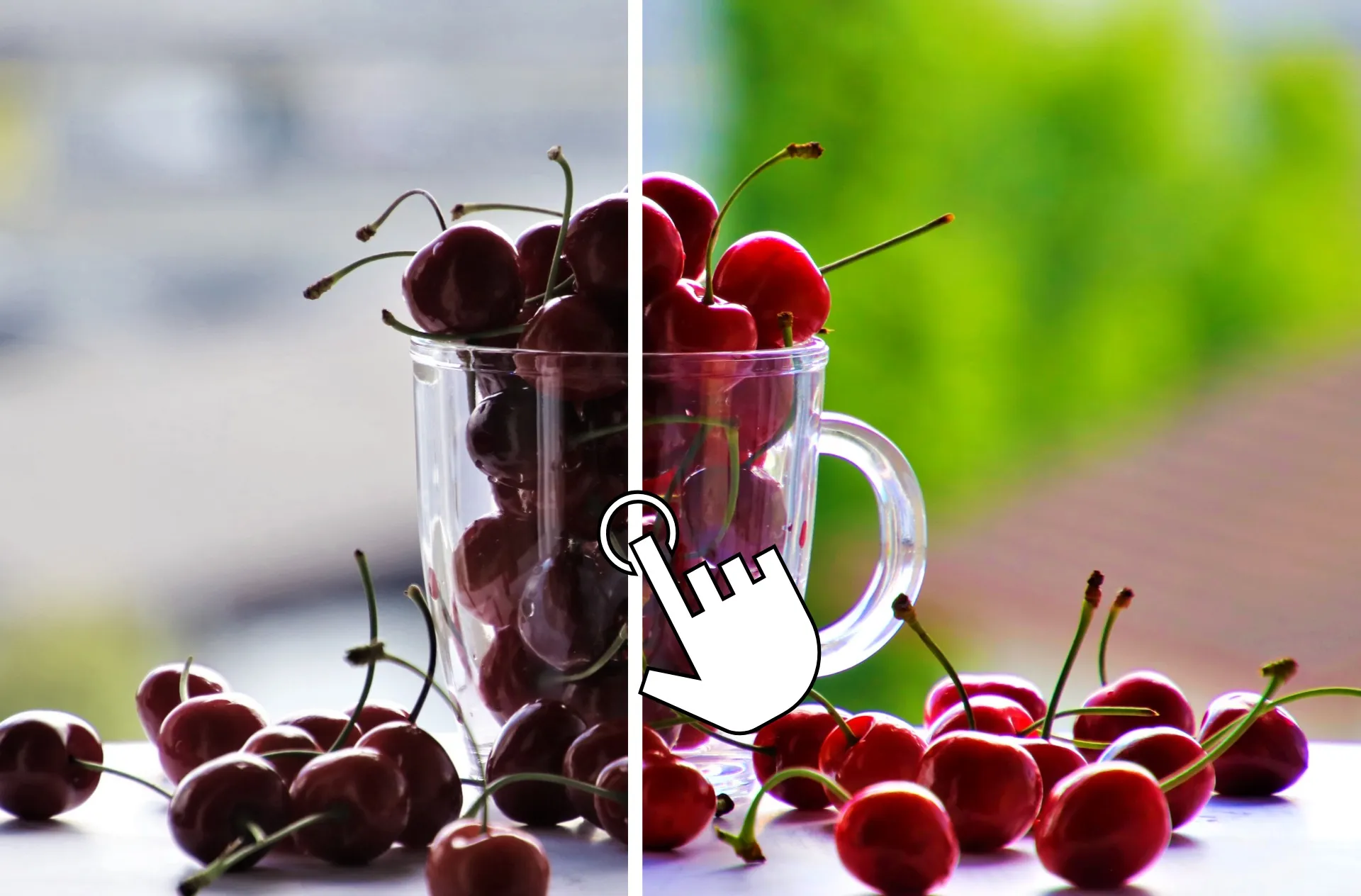
Saturate
Edit
Export
Improve color saturation, then turn your video into ready-to-share content with an online video editing studio.
Apply filters, add background music or sound effects. Use AI to remove silences, enhance video resolution, stabilize shaking, and fix wandering eye contact. Create synced subtitles, overlay AI voice narration, and automatically resize for any platform.
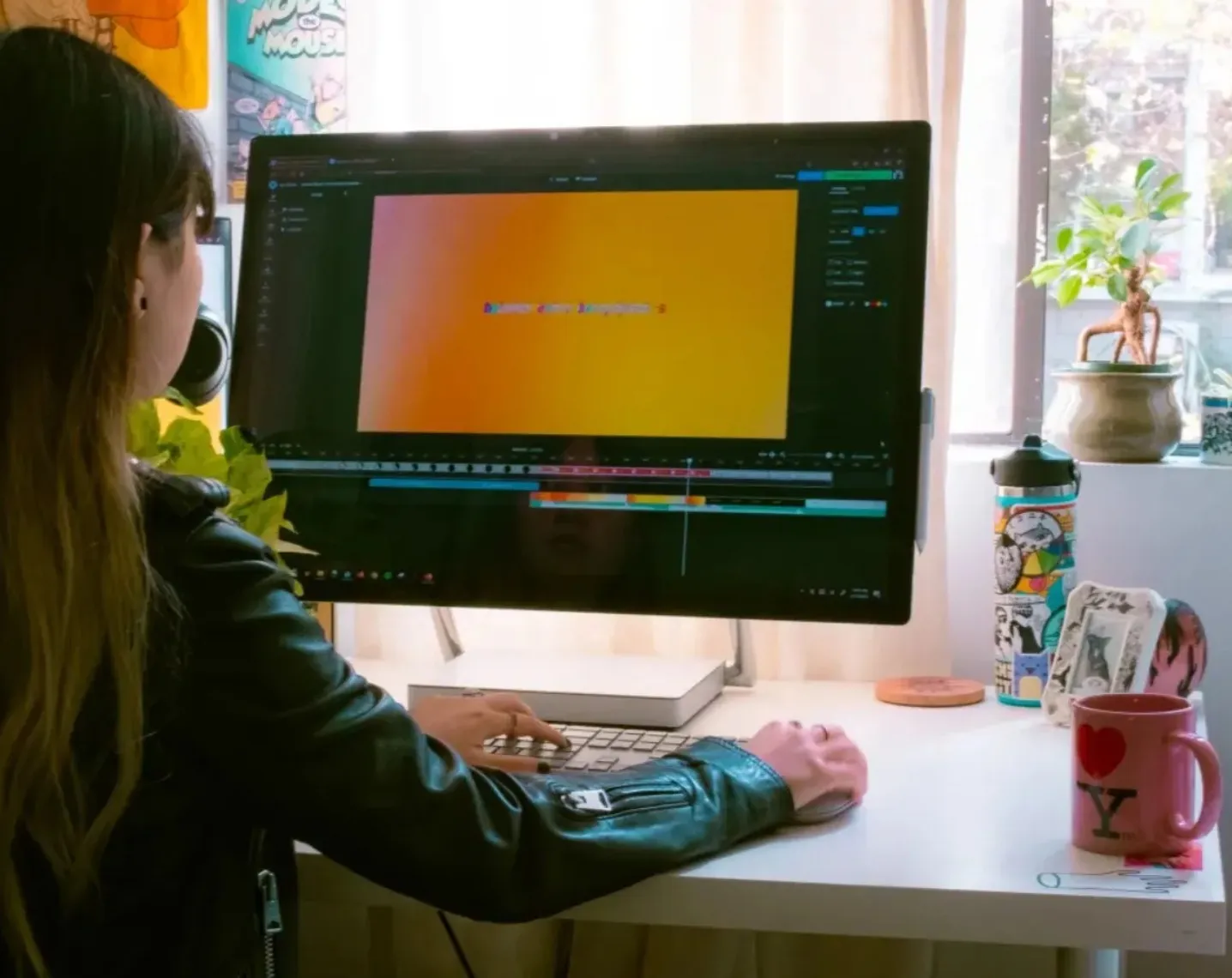
Already transforming video creation across industries
Hear directly from the teams who publish faster, collaborate better, and stay ahead.


How to Saturate a Video

- Step 1Upload video
Create a new project in the Kapwing studio and upload your video.
- Step 2Saturate video
Select your video in the canvas and adjust the "Saturation" slider under "Color" in the righthand toolbar.
- Step 3Download
Continue editing your video, then click "Export Project" at the top to download in high resolution.
What's different about Kapwing?



Frequently Asked Questions
We have answers to the most common questions that our users ask.
Is the Saturate Video tool free?
Yes, Kapwing's Saturate Video is free for all users.
Is there a watermark on exports?
If you use Kapwing on a Free account, then all exports — including Saturate Video — contain a watermark. Once you upgrade to a Pro account, the watermark is completely removed from your creations.
How to saturate a video with Kapwing
To edit video saturation in the Kapwing studio, create a new project and upload your video. Then select it in the canvas and click the "Adjust" icon in the righthand toolbar. Under "Color," move the "Saturation" slider to add saturation to your video. You can also adjust warmth and tint with sliders.
Edit your video with any of Kapwing's other tools, then click "Export Project" when you're ready to download and share your creation.
Can I edit video saturation on my phone?
Yes, you can add saturation to videos using your phone by opening the Kapwing studio in your mobile browser. Press to upload your video, then select it in the canvas. Click "Adjust" in the bottom toolbar and select "Saturation," then drag the slider to add or edit video saturation.
Apply any of Kapwing's other video editing tools, including AI resolution enhancement, effects, filters, and transitions. Then click "Export Project" to download your high resolution video as MP4, MOV, or WebM.
Can I also edit image saturation?
Yes, you can use Kapwing's Saturate Image tool to add or edit saturation in photos.
What video file formats does Kapwing support?
Kapwing supports all major video file formats, including MP4, MOV, and WebM. You can upload and download video projects in any of these file types.
Can I enhance my video in other ways?
Yes, Kapwing also offers powerful video enhancement tools, built into the same studio. Upscale the resolution of your video, stabilize shaking, enhance audio quality, and fix eye contact issues, all with one-click AI tools.
Discover Resources
Tips, templates, and deep dives to help you create faster and share with confidence.
View all


Get started with your first video in just a few clicks. Join over 35 million creators who trust Kapwing to create more content in less time.