Sketch to Video AI
Turn sketches and drawings into videos with AI.
Upload or draw in Kapwing, then generate with a prompt.
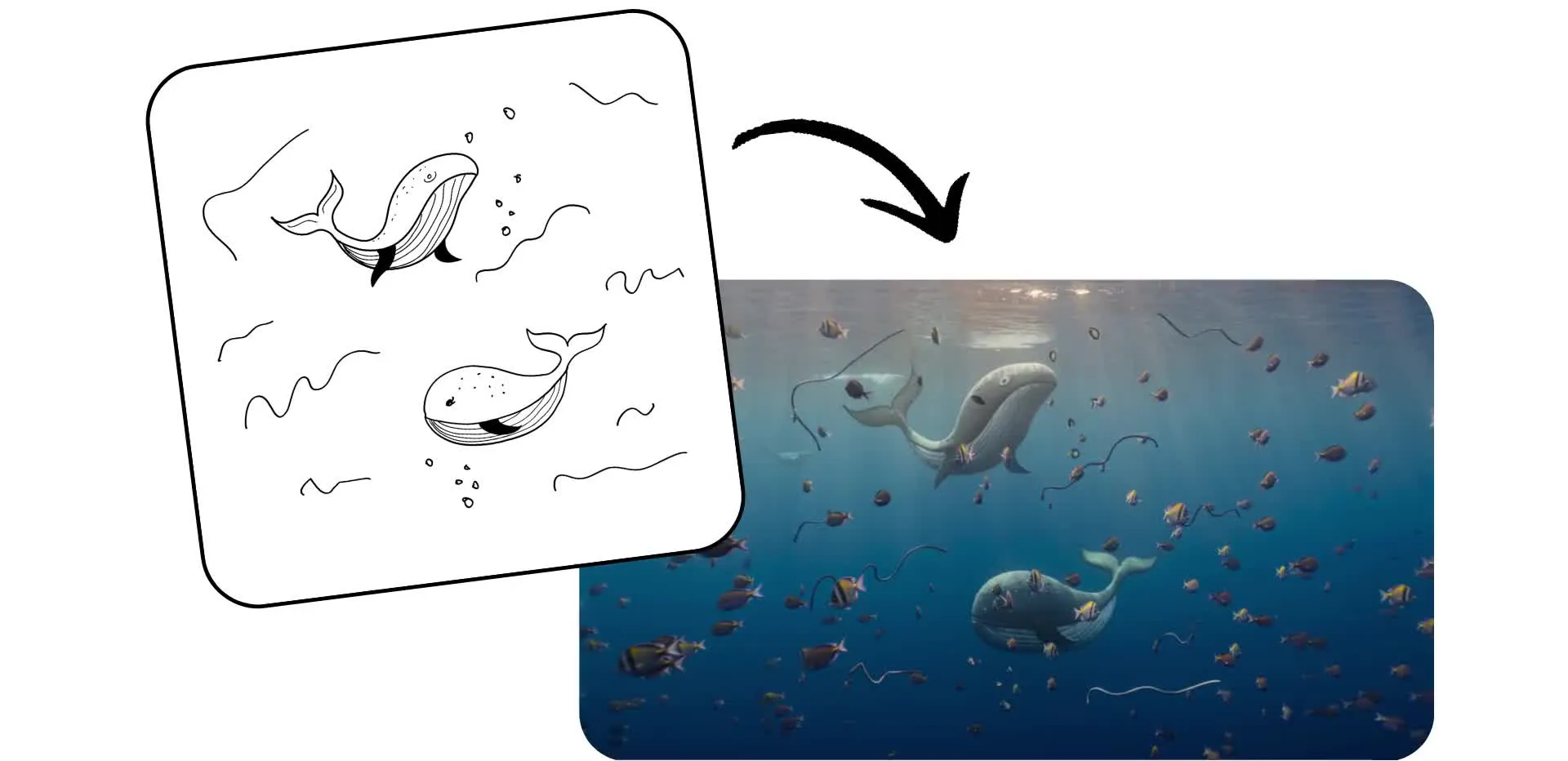
Sketch your ideas — then turn them into videos
Use a drawing, doodle, or rough sketch as the starting point for an AI-generated video
Shape every video with a sketch
Upload a sketch or draw directly in the studio and describe how you want it to move and look. Kapwing's AI Video Generator uses models like Seedance 2.5 and Minimax H3 to turn your concepts into full videos.
You can animate the original drawing style, add character or camera movement, and build a multi-scene video around the composition you created.
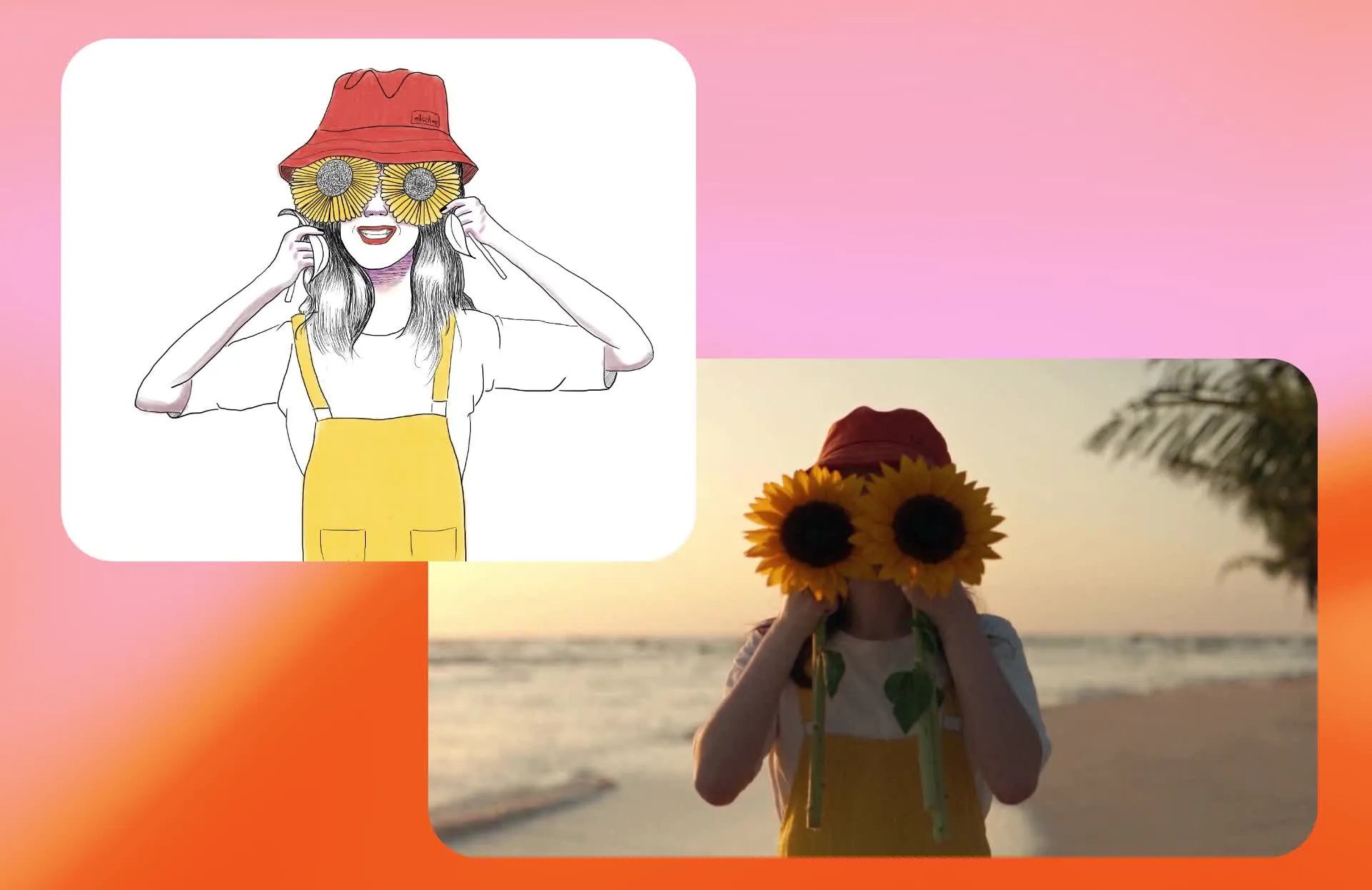
Your sketch can also act as a visual reference instead of the final look. Ask Kai, Kapwing's AI video assistant, to turn a rough drawing into a realistic scene, 3D render, anime sequence, cinematic shot, or another visual style while keeping key details of the original concept intact.
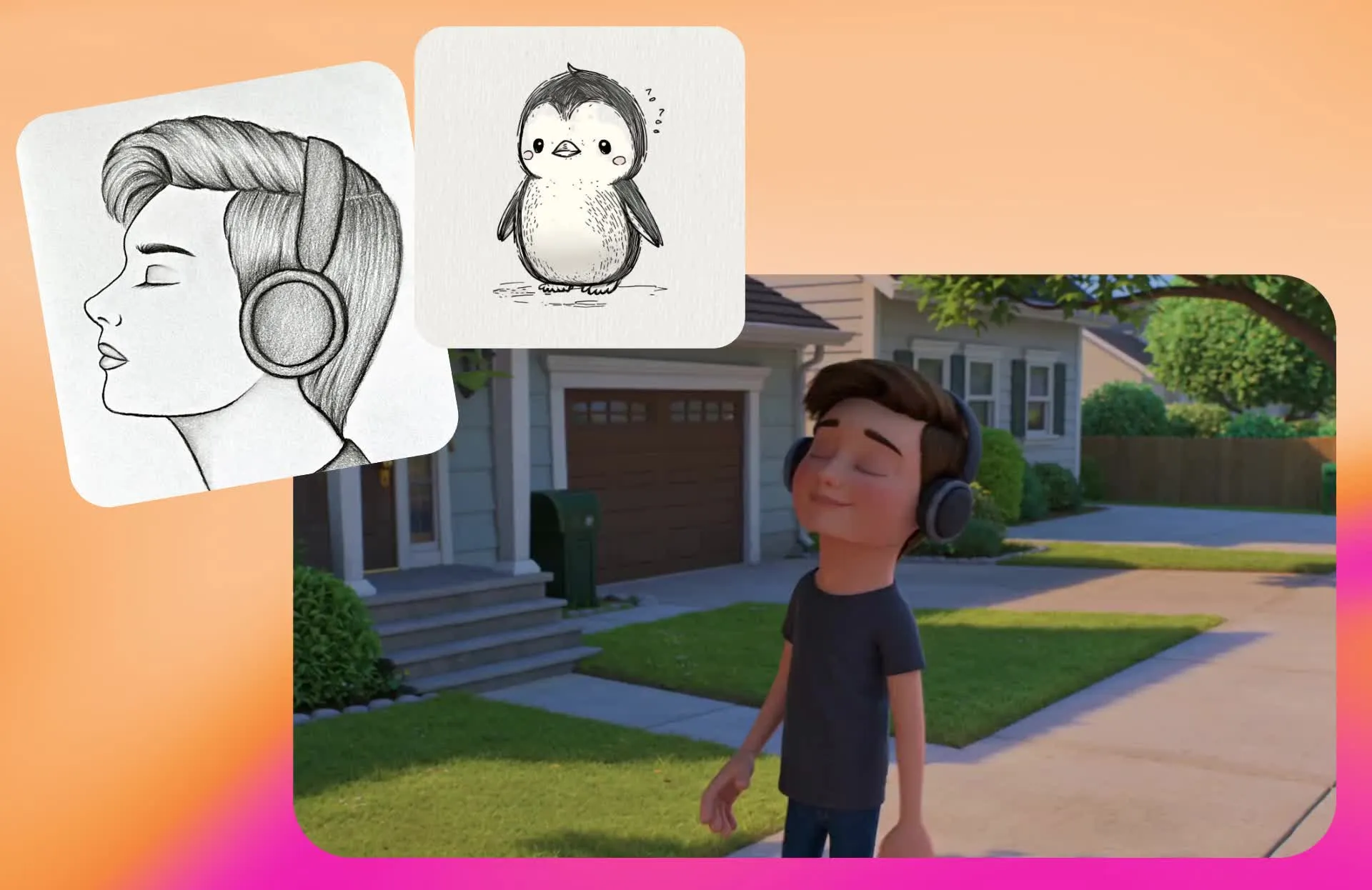
Turn sketches into videos in 3 steps
Go from drawing to video in under a minute. Free to start in your browser.
Draw
your sketch on paper, or draw directly in Kapwing Studio. Then create a chat with Kapwing AI and click "Attach media" to upload your sketch.


Describe
the video you want to create, including details to transfer from your sketch, along with motion, visual style, and aspect ratio.
Generate
your video by clicking the arrow. Edit with additional prompts, or download as watermark-free MP4.
Turn any kind of sketch into motion
Draw your concept, then use it to create a video in any style
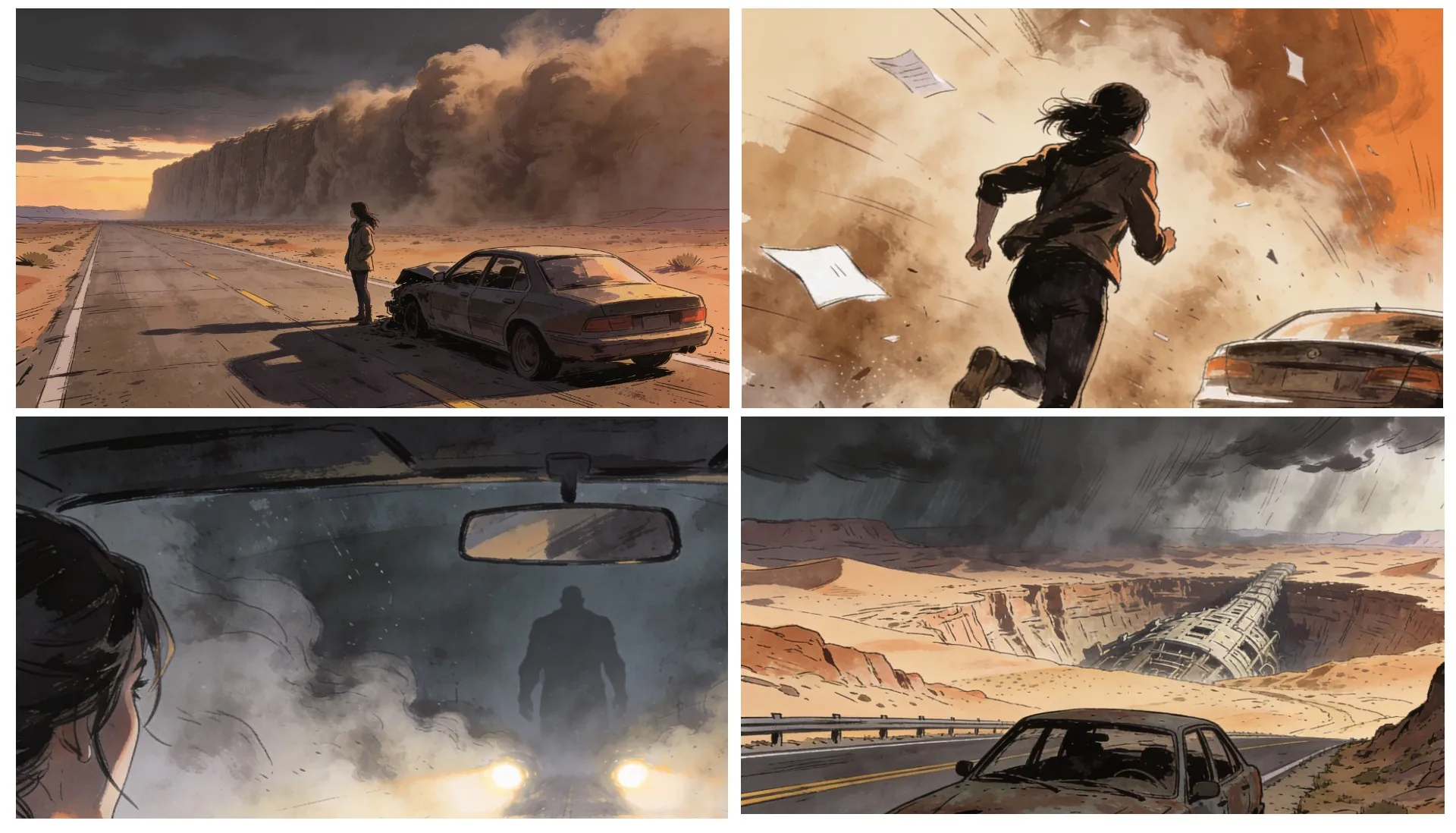
Storyboard Animatics
Turn storyboard panels and shot sketches into moving sequences to test pacing, camera movement, blocking, and scene direction before production
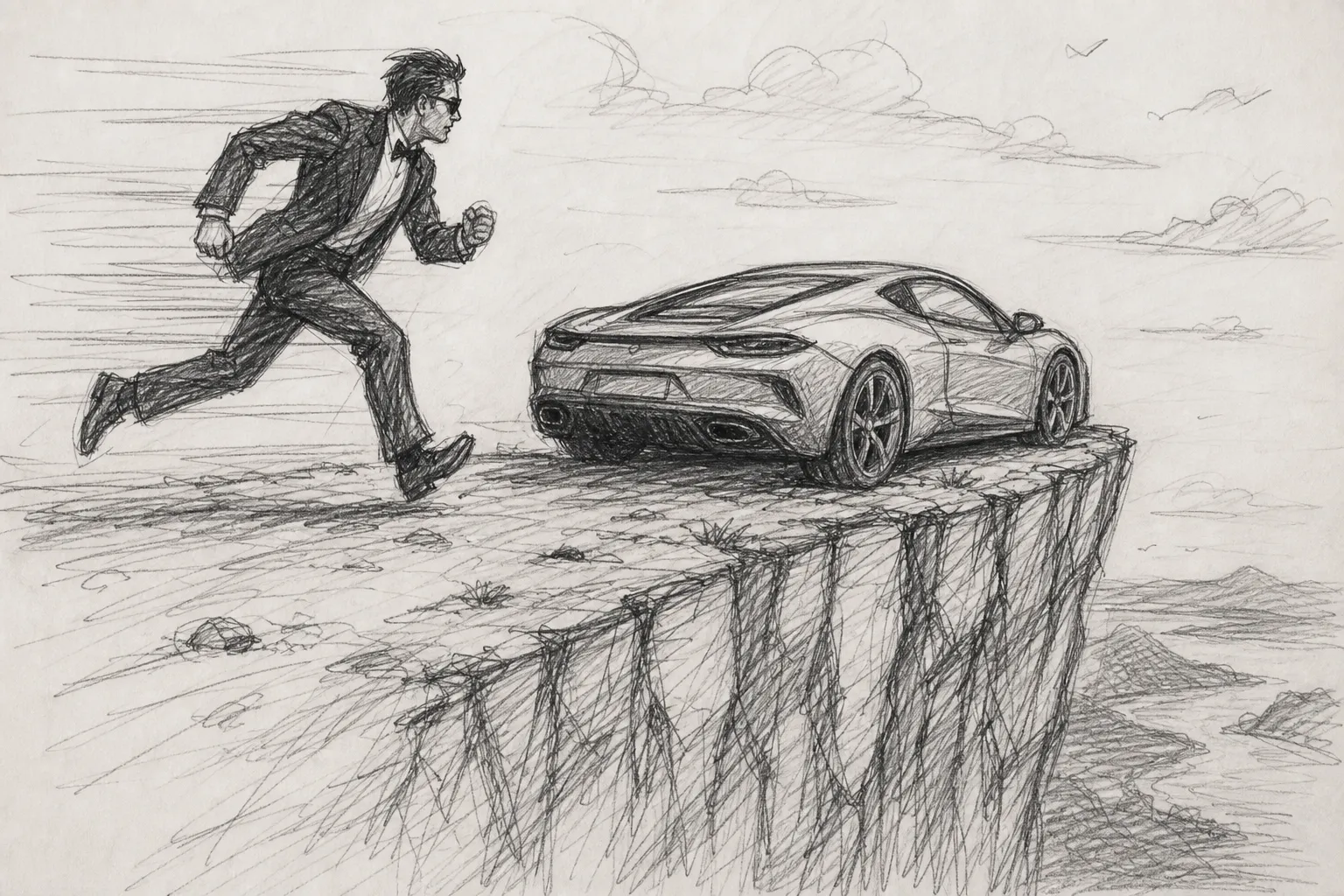
Commercial Concepts
Transform rough ad ideas into motion references that advertisers, agencies, and clients can review before committing to a full shoot
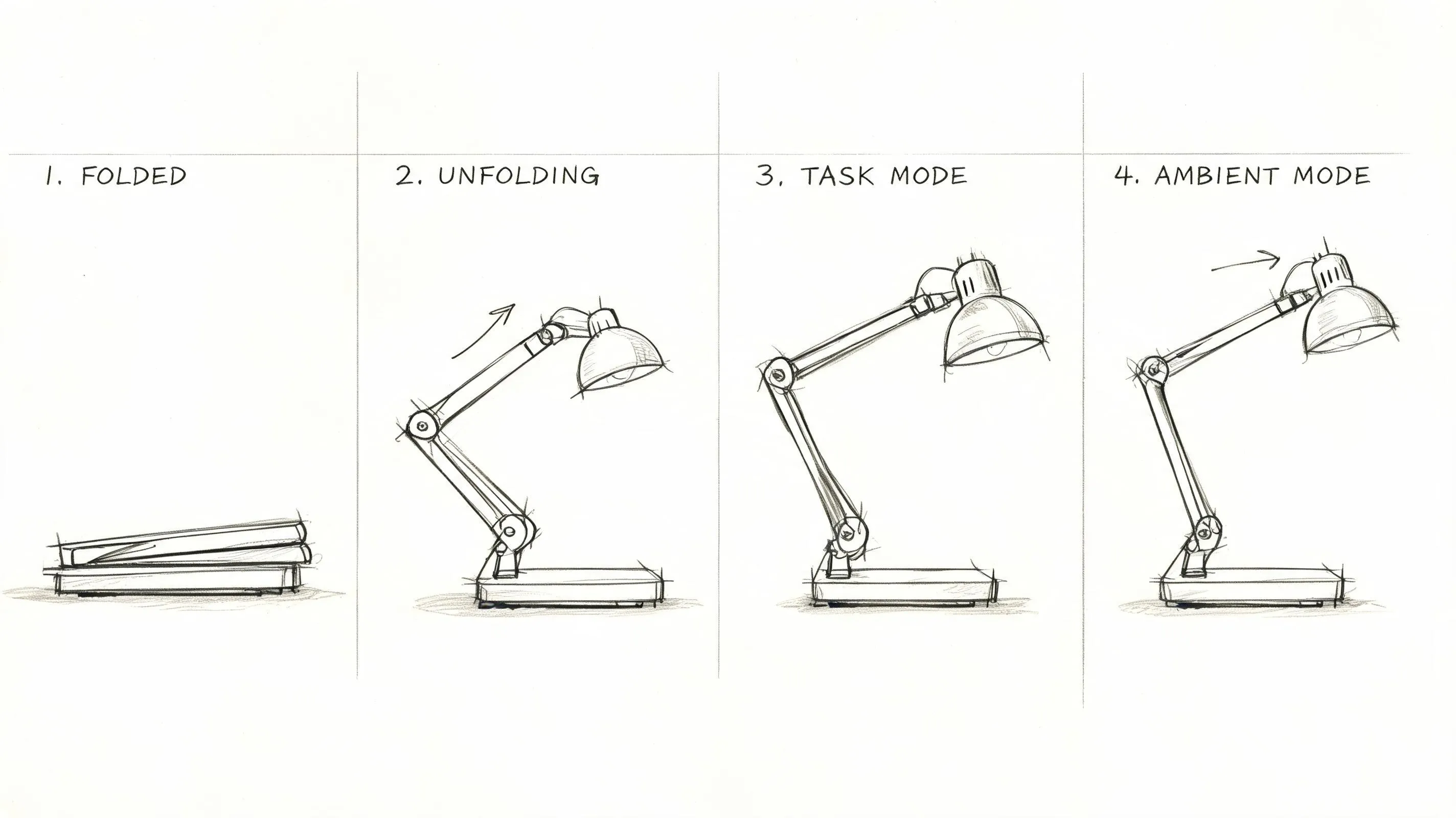
Product Visualizations
Show how a product, feature, or interface concept could look in motion, giving product teams and stakeholders a clearer idea to evaluate
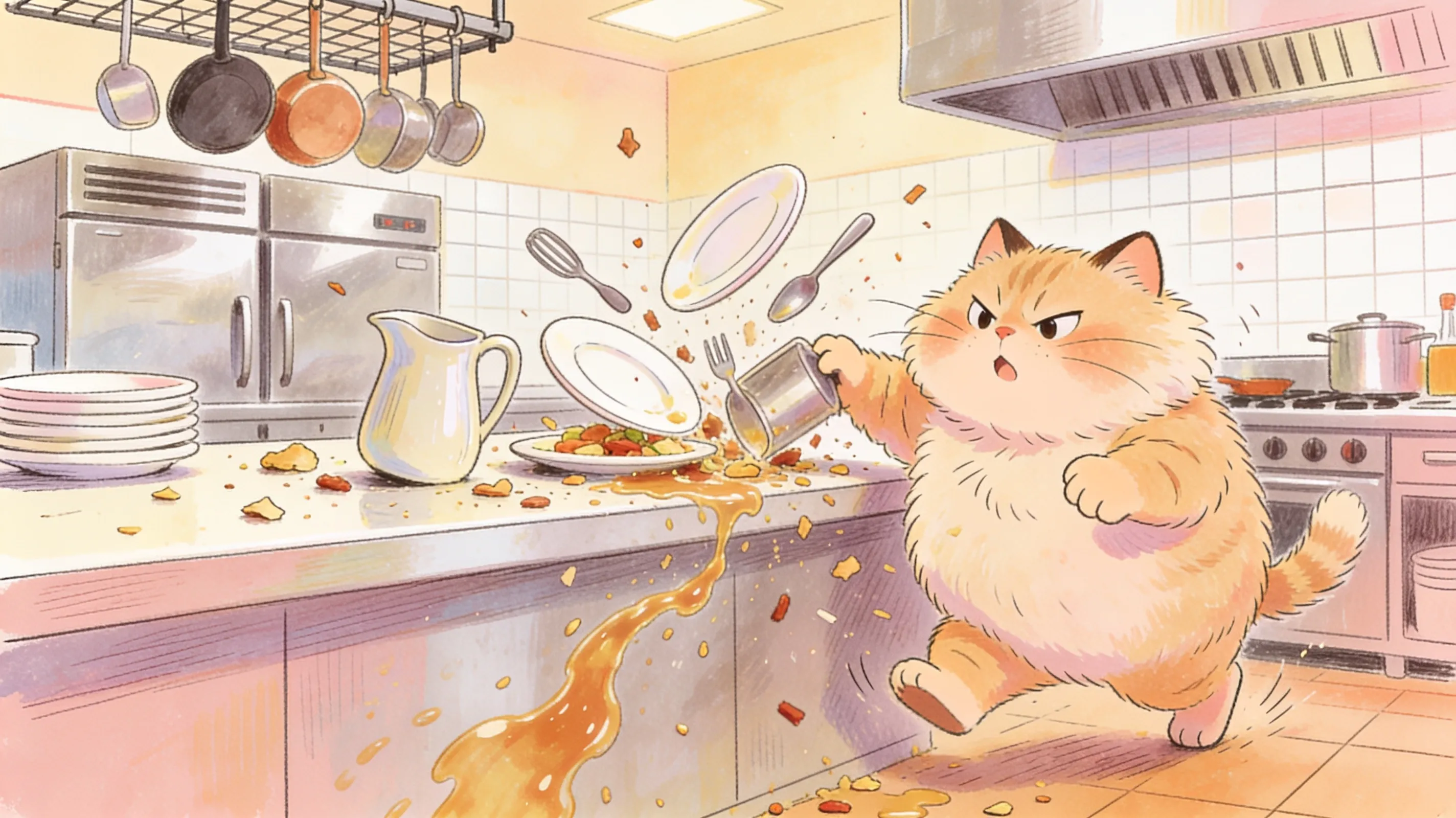
Character Animations
Bring character sketches, poses, and illustrated scenes to life while testing movement and visual direction before a full animation workflow
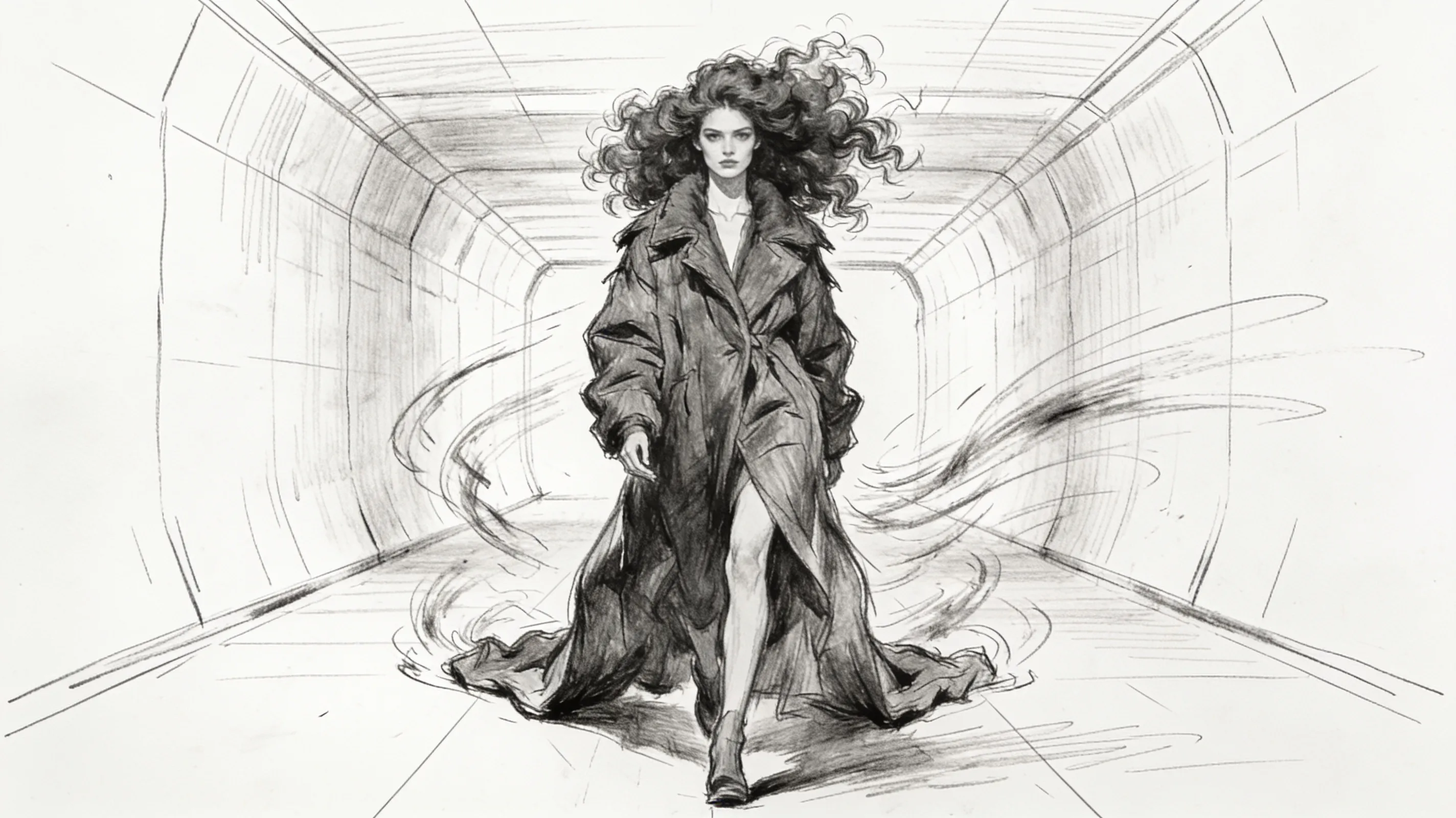
Creative Pitches
Turn early drawings and figure sketches into video treatments and concept visuals that make an idea easier to present, discuss, and approve
Shape your videos with reference sketches
Use sketches as creative direction for your AI videos
Go from rough concept to generated scene
Start with a sketch, drop it into a Kai conversation, and let the Sketch to Video AI generator turn it into a video with a single prompt. Instead of building the scene from scratch, your drawing gives Kai a starting point while your prompt defines how the final video should look and move.
Use your prompt to set the visual style, camera movement, pacing, action, lighting, and atmosphere, or explain how each sketch should be used in the scene. Keep the hand-drawn look, turn it into something realistic or cinematic, or explore a completely different visual style while keeping the workflow fast and direct.
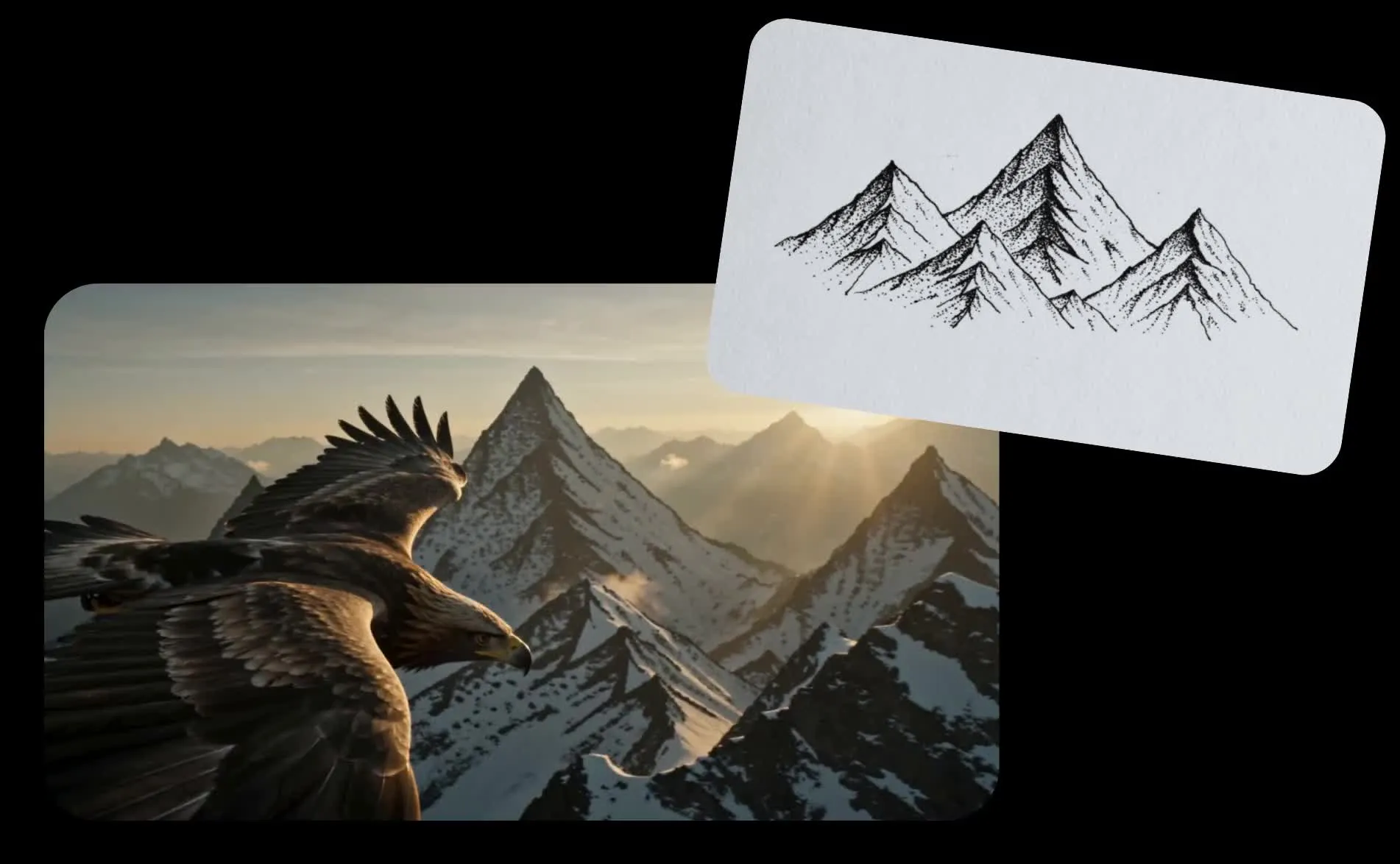
Illustrate details that are hard to describe
A sketch can define visual details that would be difficult to communicate in a text prompt alone. Draw a character with specific clothing, proportions, or facial features, map out a landscape, show the shape and layout of a house, or sketch a product concept that has not been built yet.
Unlike a reference photo, a drawing does not need to start from something that already exists. You can invent the exact composition, objects, proportions, placement, and features you want, then use that sketch alongside your prompt to give Kai clearer direction for the generated video.
You can also draw on top of an image to give Kai clearer instructions. Mark a camera path, add arrows to show viewing direction, circle the area to focus on, or sketch where an object should move.
Make early concepts easier to review
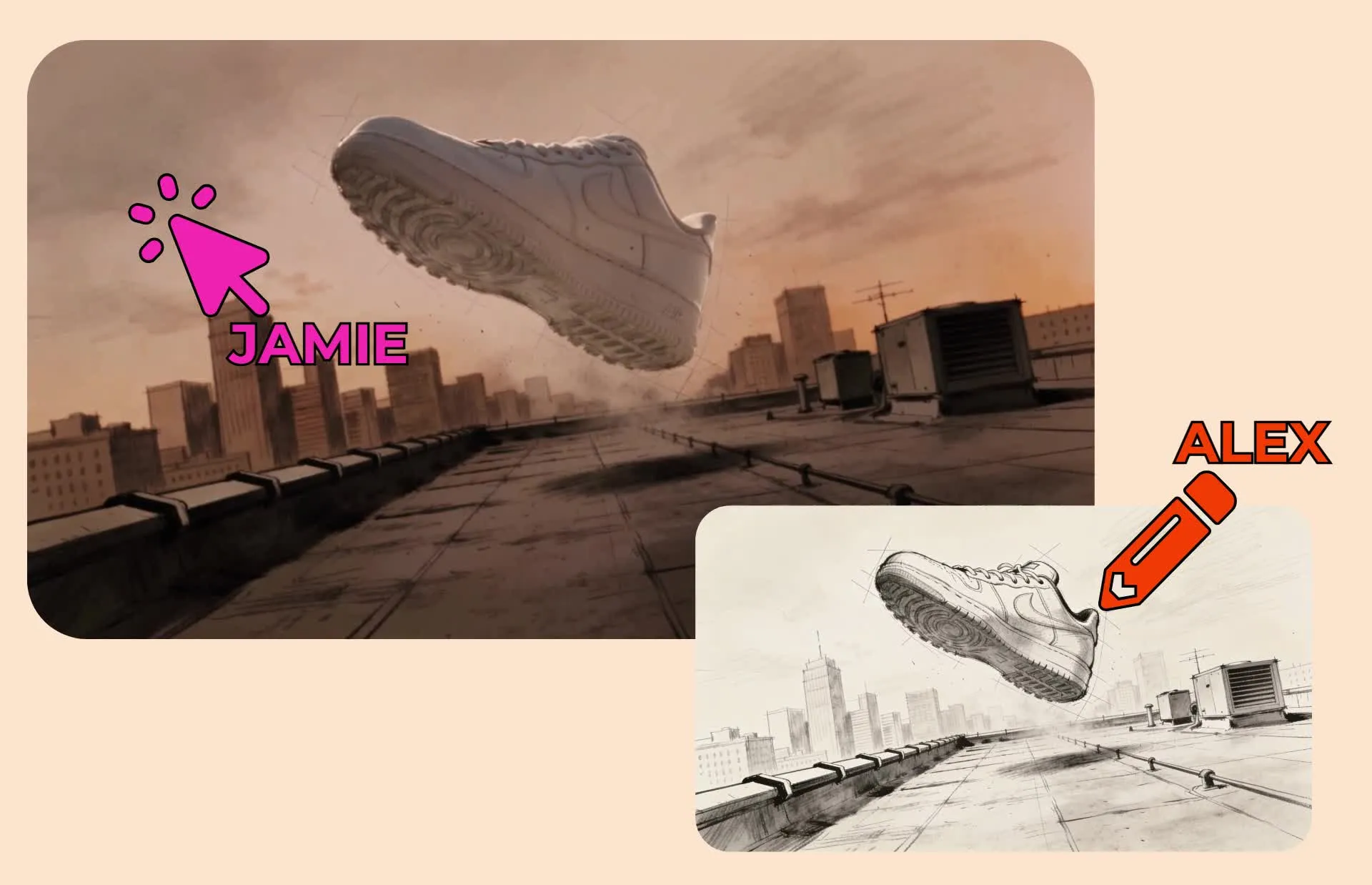
Brainstorm with your team, collect sketches and other reference images, and use them to establish the direction for a video. One teammate can rough out an idea while others develop, edit, and review the resulting project in the same online workspace.
Kapwing's collaborative video editor supports shared projects, simultaneous editing, shared media, and time-stamped comments, so creative teams can move from early concept to feedback without passing separate files back and forth. As ideas develop, teams can keep brand assets, visual references, and in-progress edits in one place.
How to Turn Sketches to Videos with AI

- Step 1Upload sketch
Create a new chat with Kai and click "Attach media" to upload your drawing. You can also use Kapwing's in-studio draw tool to create your sketch.
- Step 2Enter prompt
Write a prompt describing your video. Include details like visual style, action, pacing, and aspect ratio.
- Step 3Generate video
Click the arrow to generate your sketch video. Then click to download as MP4, or edit with additional prompts.
What's different about Kapwing?



Frequently Asked Questions
We have answers to the most common questions that our users ask.
Is the Sketch to Video AI generator free?
Yes, anyone can try Kapwing’s AI toolkit for free without watermarks. Our AI tools run on a credit system, with each feature costing a set number of credits. For maximum creativity and the best value, upgrade to a Pro account to unlock the full power of AI-driven content creation.
How do I turn a drawing into a video with AI?
Upload your sketch or create one inside Kapwing Studio, then attach it to a Kai chat. Describe what should happen in the video, including how the subject should move, how the camera should behave, and what visual style you want.
Kai uses the sketch as visual direction and your prompt as instructions for the generated result. You can then refine the video with follow-up prompts or continue editing it in Kapwing Studio.
What kinds of sketches can I use?
You can use rough pencil drawings, digital sketches, doodles, storyboard frames, character concepts, product drawings, architectural ideas, annotated images, and other visual references. The sketch does not need to look polished as long as it communicates the details or layout you want the AI to follow.
Sketches are especially useful when you need to show something that is hard to explain in text, such as a specific character design, an imagined product, a room layout, or the exact placement of objects in a scene.
Can I use a sketch as a reference without keeping the drawing style?
Yes. A sketch can act as visual direction rather than the final visual style. You can use it to define a subject, composition, layout, or key details, then prompt Kai to generate the video in another style.
For example, the same rough drawing could become a realistic scene, cinematic sequence, polished illustration, or product visualization. If you want a broader workflow for generating video from prompts, images, and references, you try Kapwing’s AI Video Generator.
Can I sketch camera movement or motion directly on an image?
Yes. You can draw arrows, paths, circles, and other annotations on top of an image to communicate movement more visually. For example, you can mark the direction a camera should travel, show where a subject should move, or highlight the part of the frame that should stay in focus.
Use Kapwing’s Draw on Image tool to create those visual instructions, then attach the annotated image to your Kai conversation along with a prompt that explains how the markings should be interpreted.
Is Sketch to Video different from animation?
Sketch to Video starts with a drawing or visual concept and uses that sketch as the main creative reference for the generated video. It works well when you already know what the subject, scene, or composition should look like and want to develop it into motion.
AI animation can start from sketches, but it can also start from real images or simple text prompts. Kapwing’s AI Animation Generator can use any input to create a full animated video, including complete scenes, characters, storytelling, and other animation-focused elements.
Can I turn storyboard sketches into videos?
Absolutely, storyboard frames can be used as references for motion, camera direction, blocking, and scene composition. This makes Sketch to Video useful for testing how a planned shot or sequence might work before moving into full production.
If you need to create or organize the storyboard first, Kapwing’s AI Storyboard Generator can help you plan scenes and shots before using those visuals as references for video generation.
Can I edit the video after generating?
Yes, you can continue refining the result through follow-up prompts in Kai or move into Kapwing Studio for more precise editing. This lets you adjust the generated footage alongside text, audio, timing, graphics, and other parts of the project.
Kai, Kapwing’s AI video assistant, can also continue working from the same project context as you refine the video through conversation.
Can I use Sketch to Video with teammates or clients?
Yes, sketches can help teams and agencies move from rough ideas to something visual that is easier to review, discuss, and approve. A marketer might sketch an ad concept, a filmmaker might draw a shot, or a product team might illustrate a feature before turning the idea into a motion concept.
The Kapwing Studio is built for efficient collaboration: you can create shared workspaces with joint media libraries, simultaneous editing and commenting, and a shared Brand Kit. You can also share project, video, or AI chat links with your coworkers, clients, or anyone you want feedback from.
Discover Resources
Tips, templates, and deep dives to help you create faster and share with confidence.
View all

Get started with your first video in just a few clicks. Join over 35 million creators who trust Kapwing to create more content in less time.