AI Animation Generator
Create animations with AI.
Free to start in your browser.
Turn ideas into AI animations
Plan, generate, and refine your animation with an AI video assistant
Create complete animations with AI
Turn a sketch, image, or concept into an animated video with Kapwing’s AI Animation Generator. Describe what you want to make, then add reference images to guide the characters, visual style, or scenes. Kai, Kapwing’s AI video assistant, maps out the steps needed to create your animation and gives you a simple approach to confirm before it gets to work.
Kai handles the creative process from there. It can develop characters, plan scenes and visuals, write scripts, generate music, and coordinate every part of your animation. As it works, Kai reviews its own output and adapts its approach to help produce the best result from your direction.
Keep refining your video in the same conversation. Ask Kai to regenerate a scene, add sound effects, or resize your animation for TikTok, YouTube, Instagram, and other platforms. You set the creative direction while Kai handles the steps between your first idea and a ready-to-share video.
Go from prompt to animation
Powered by Minimax H3, Happy Horse, Seedance, Veo, and Kling
Describe
your animation style, characters, and action in a prompt


Confirm
Kai's plan to start generating your animation
Download
your ready-to-share animation as MP4
Generate any style of animation you can describe
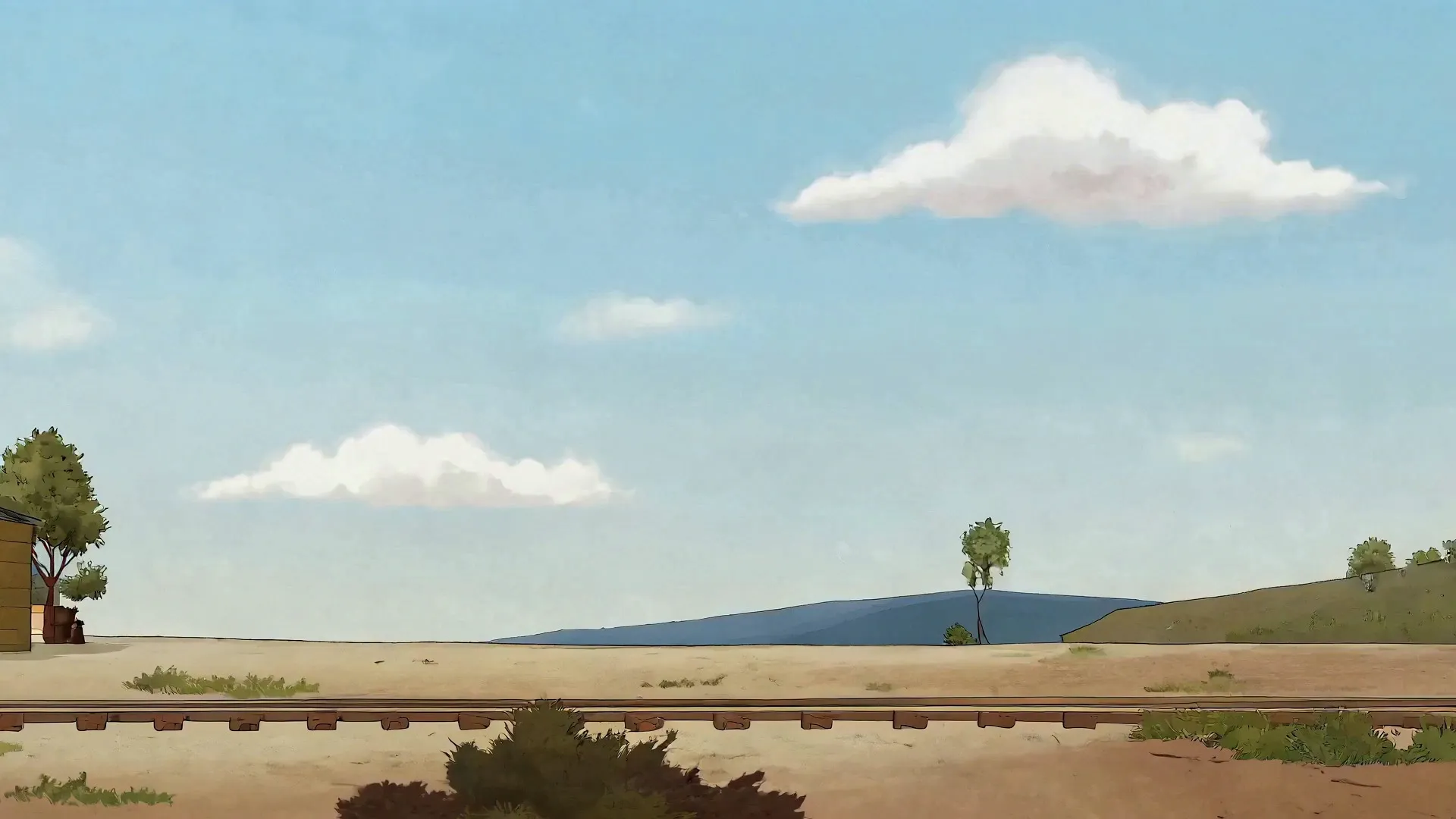
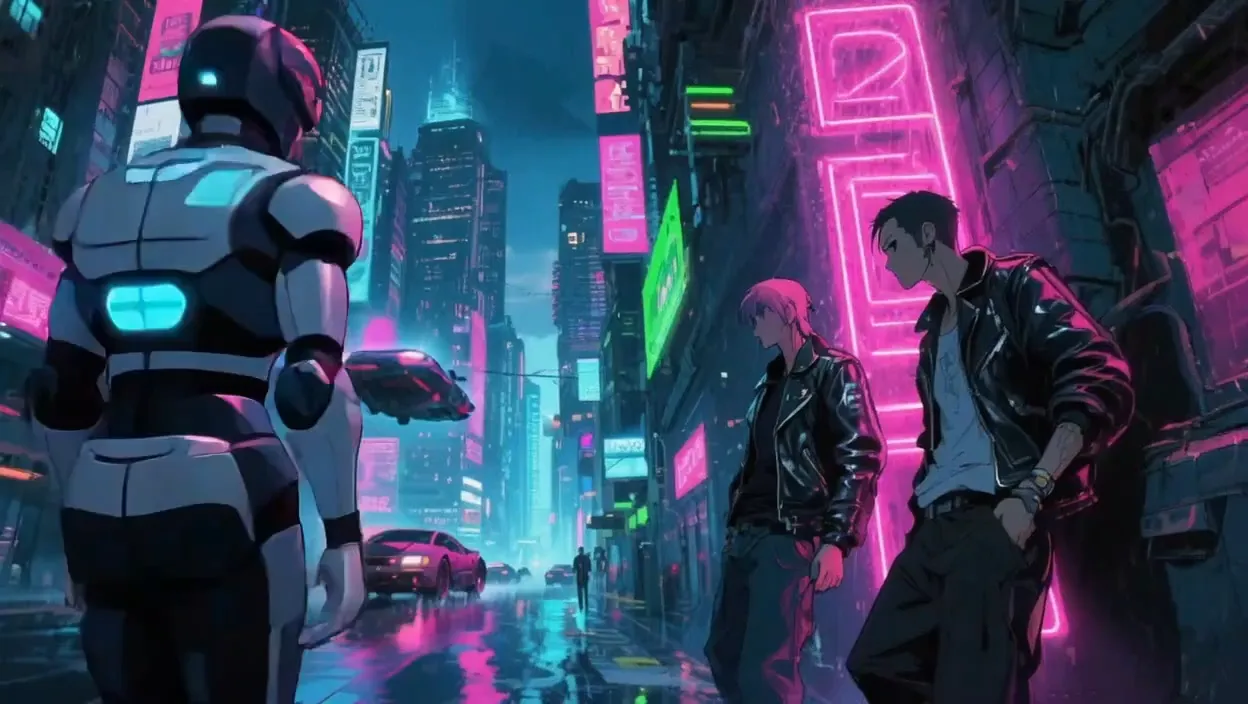
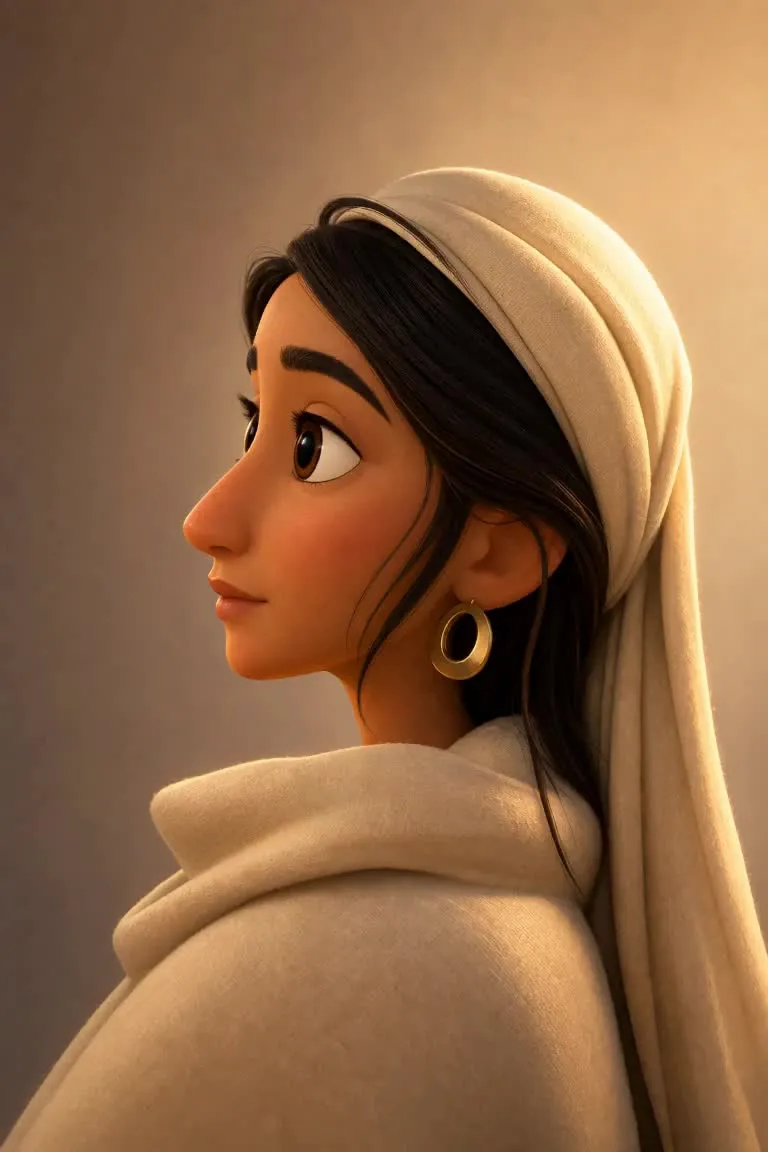
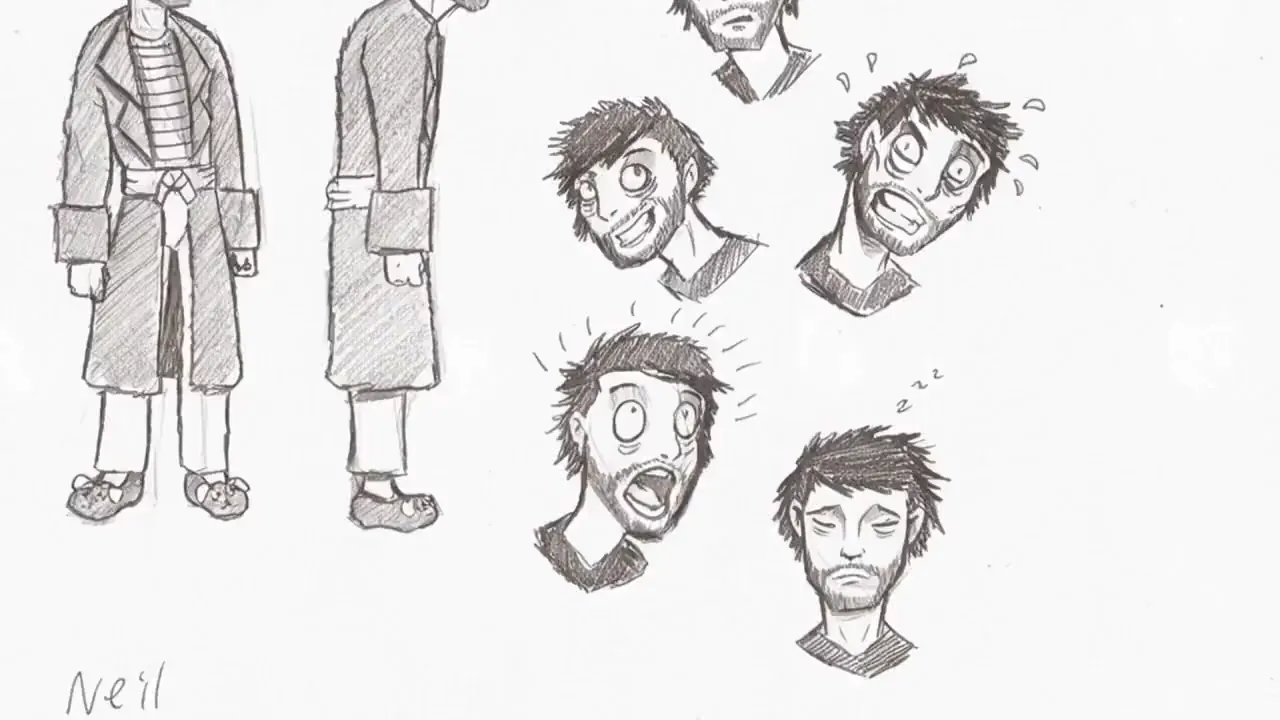
Cartoon, 3D, pencil sketch, anime, stop motion — planned and animated by AI
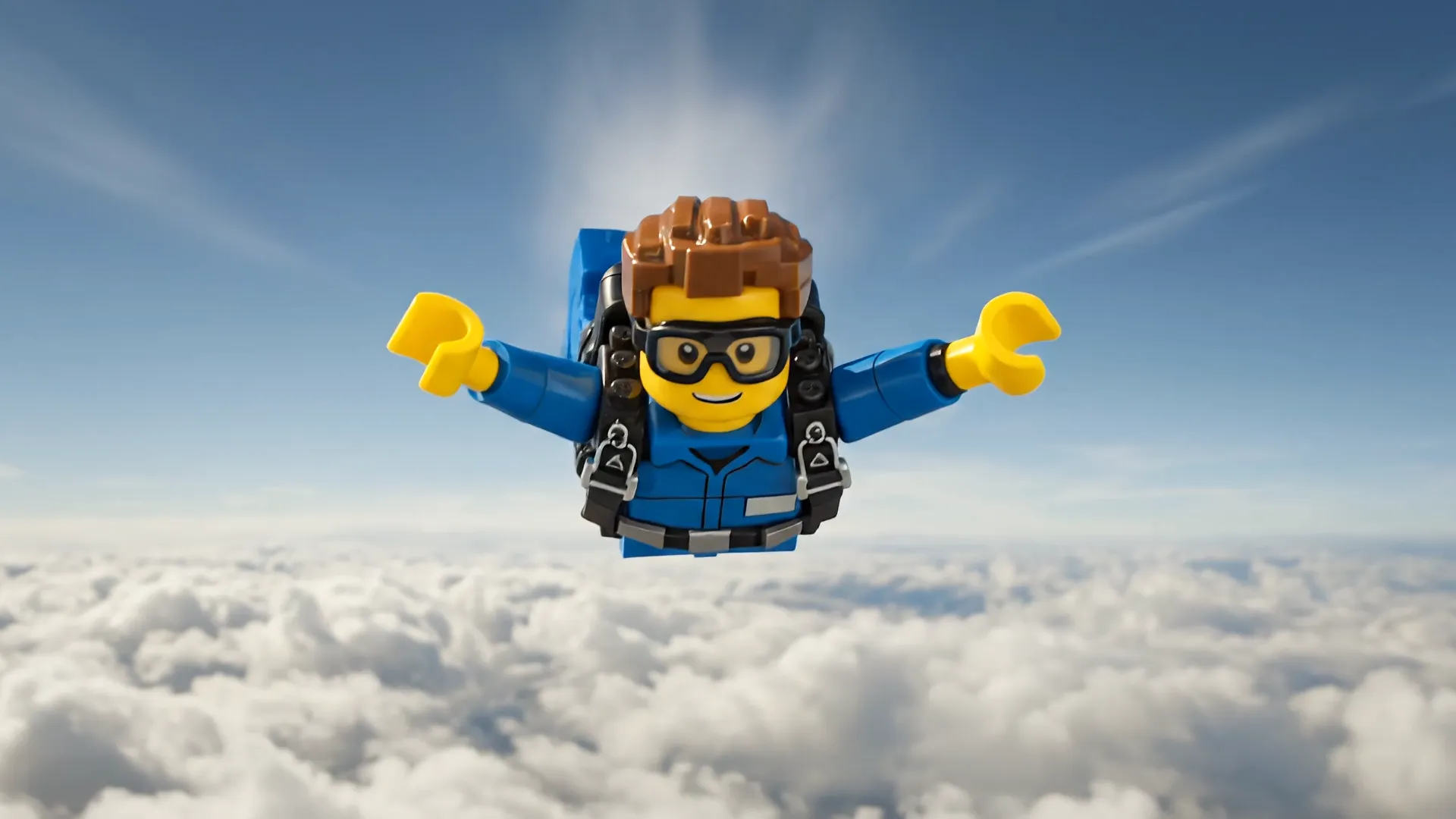
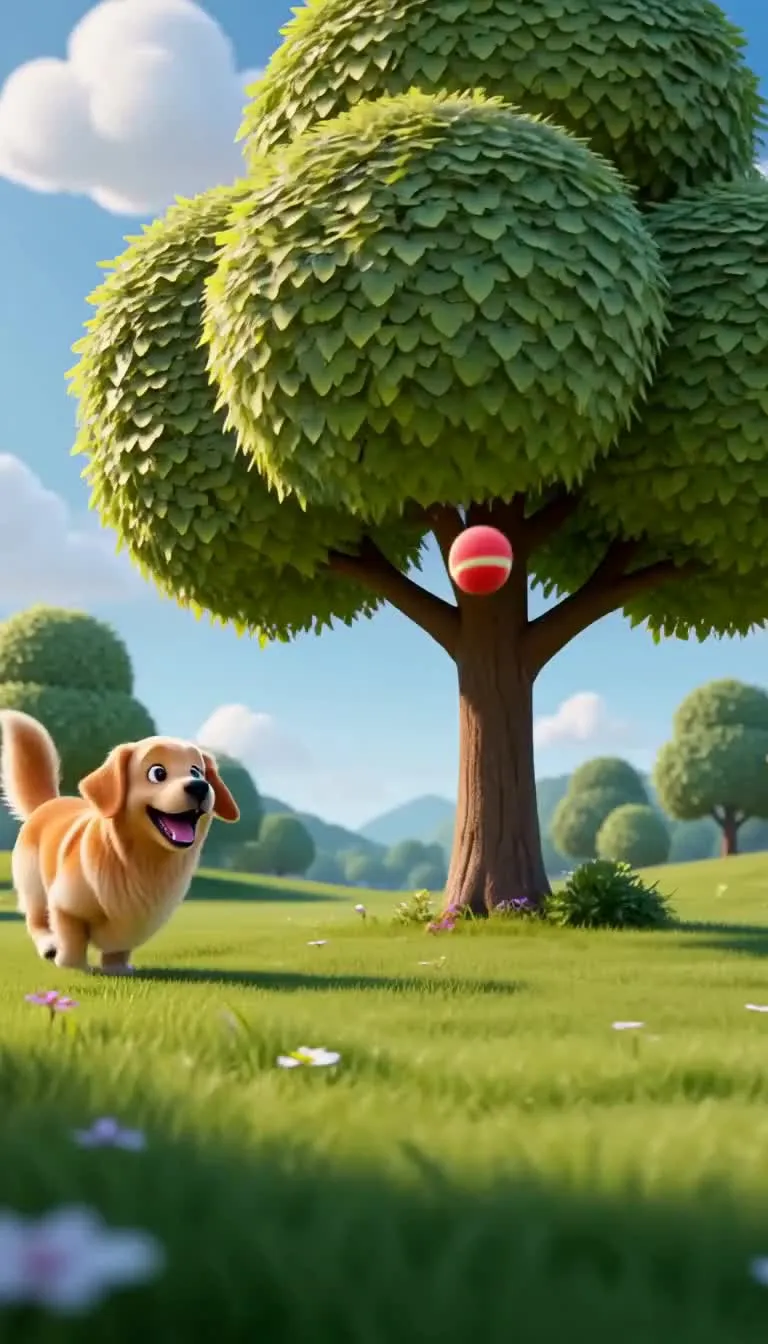
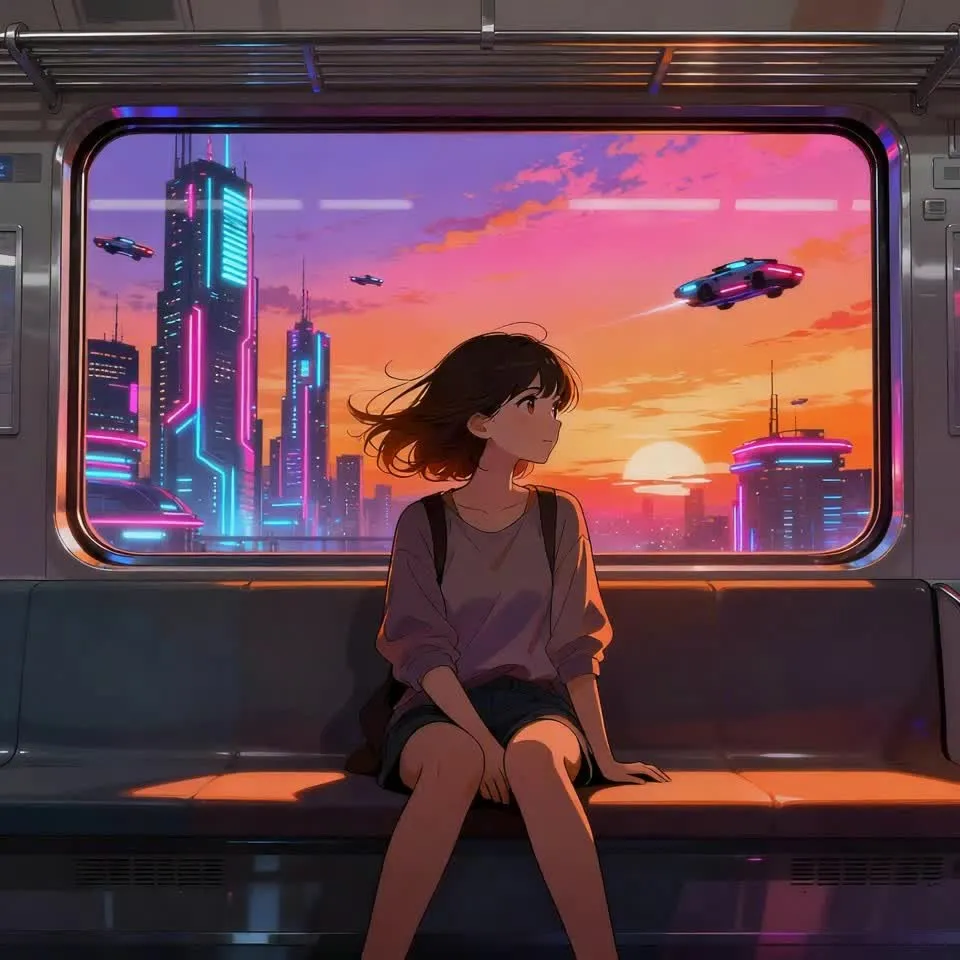
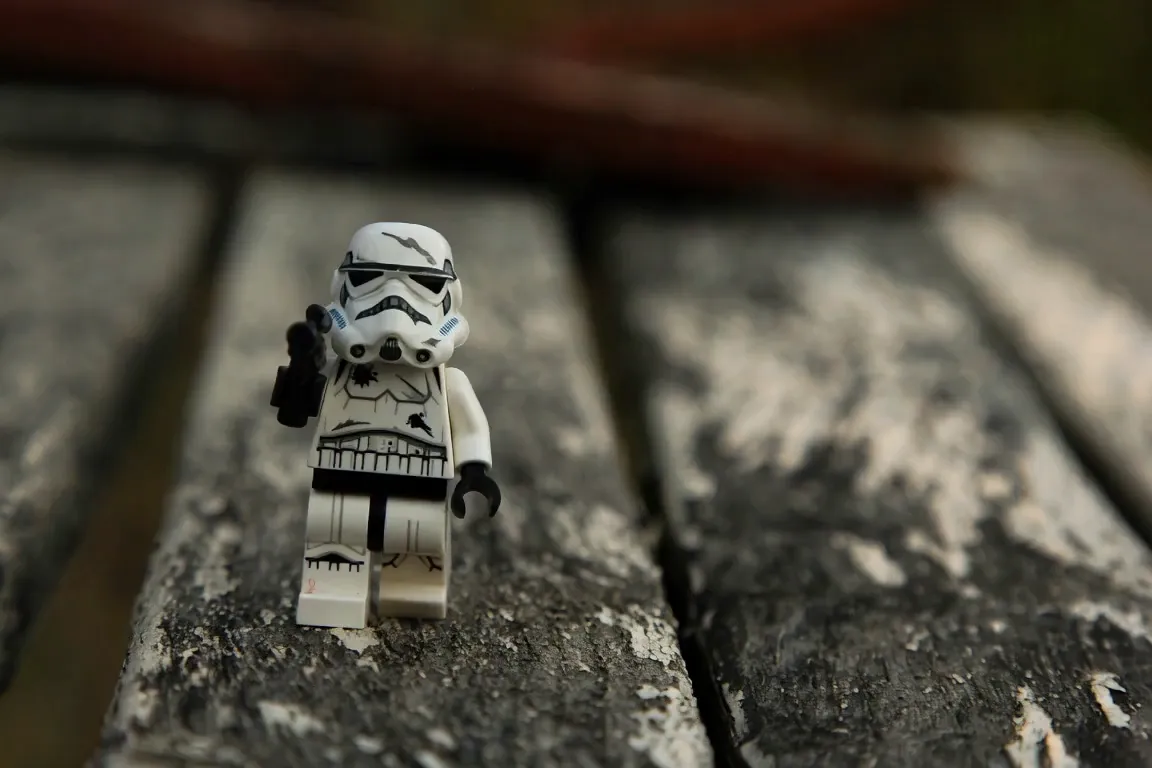
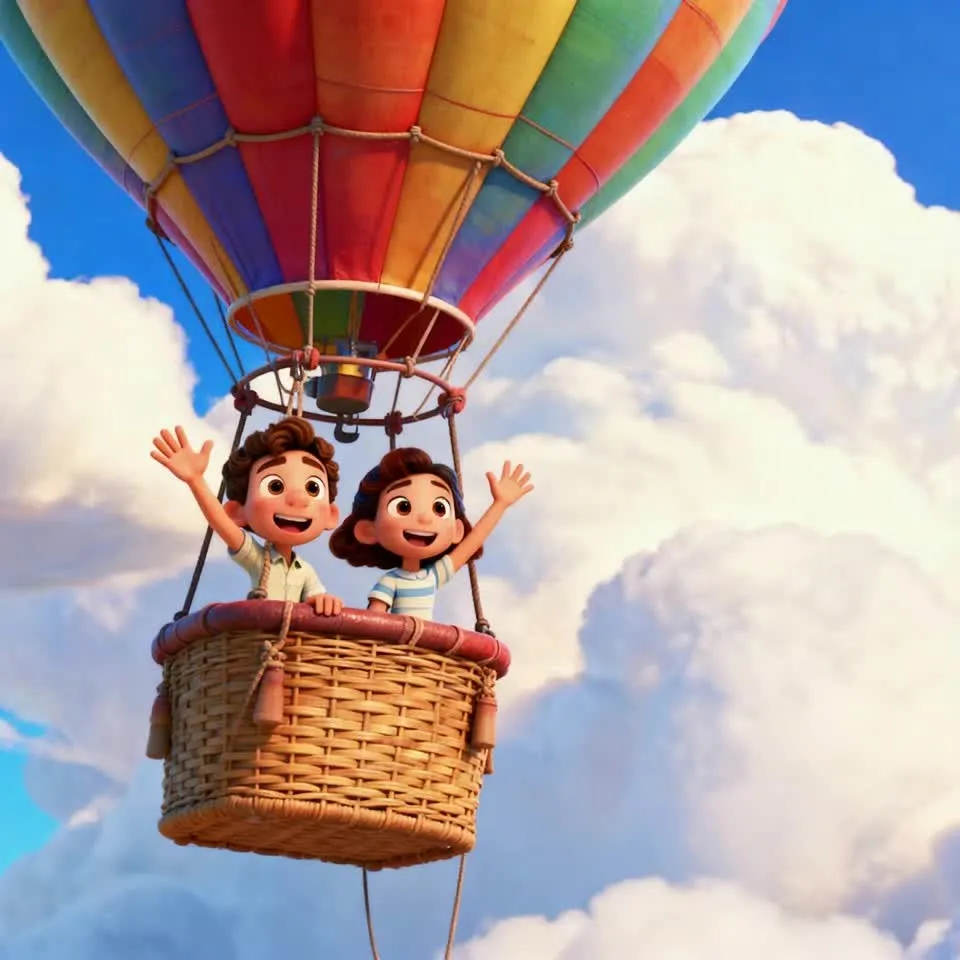
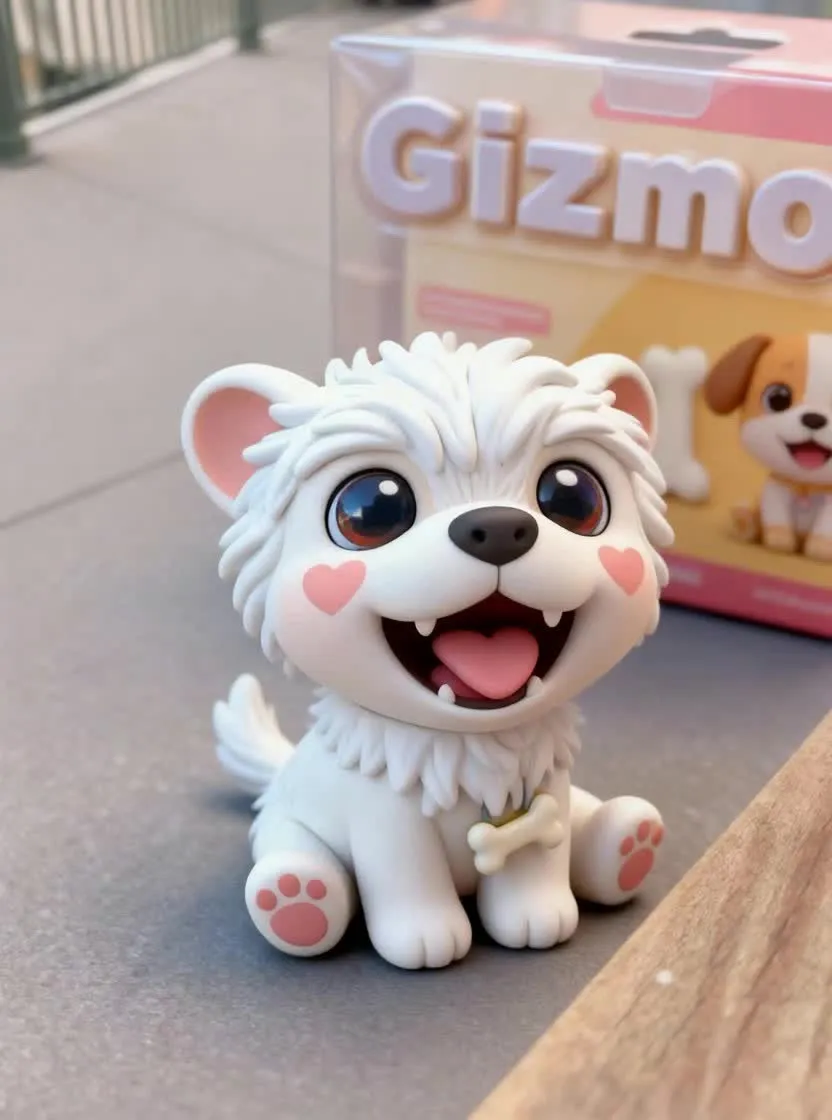
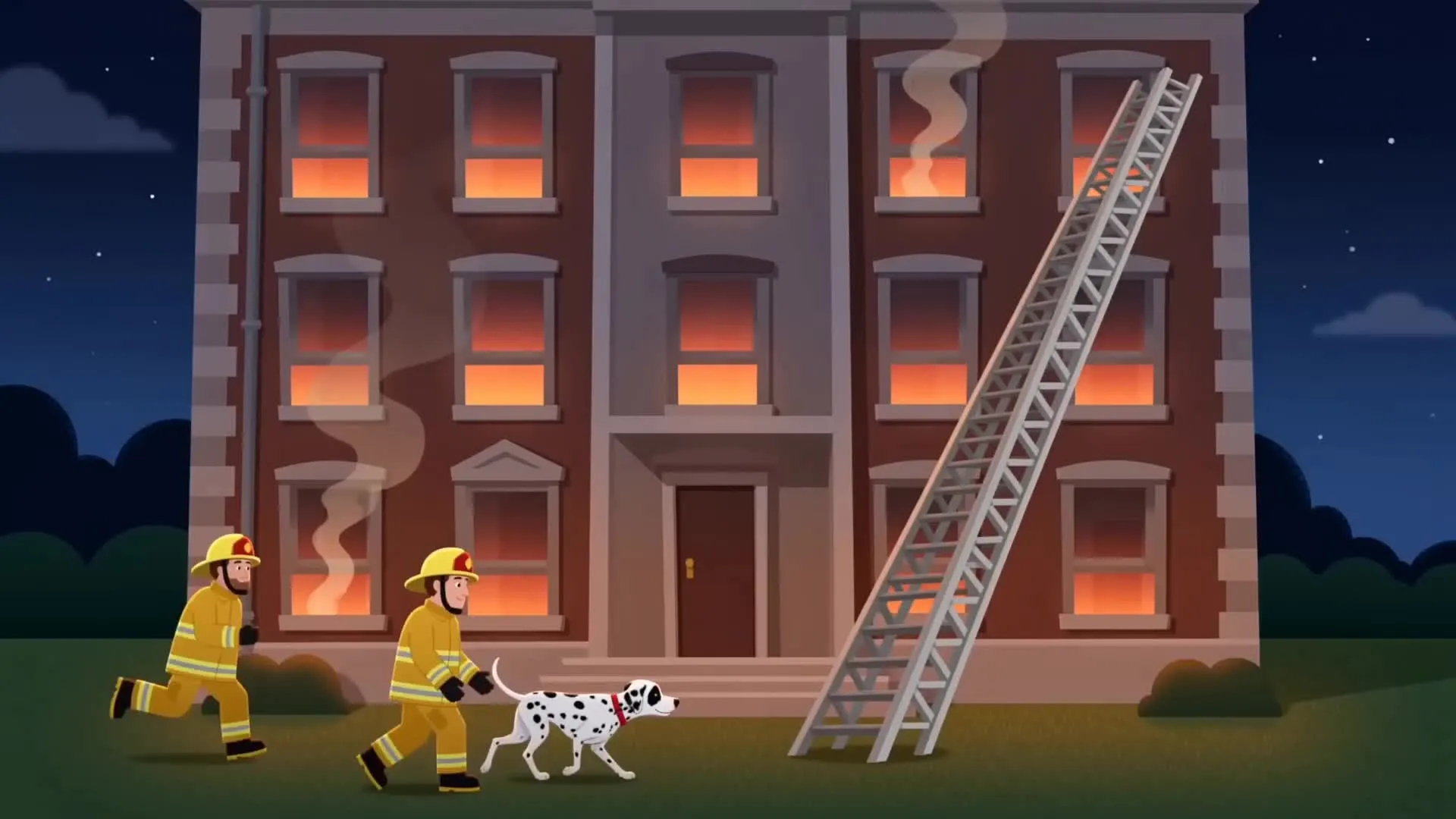
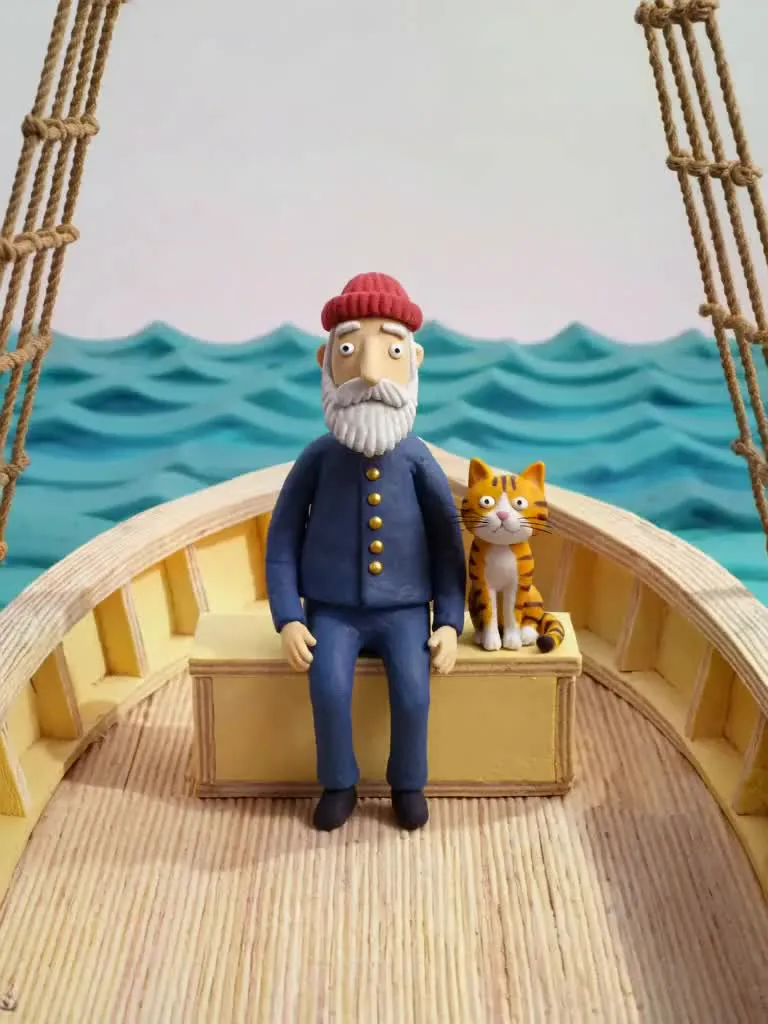
Unique animations for any niche
Create on-brand animated content for any platform or audience
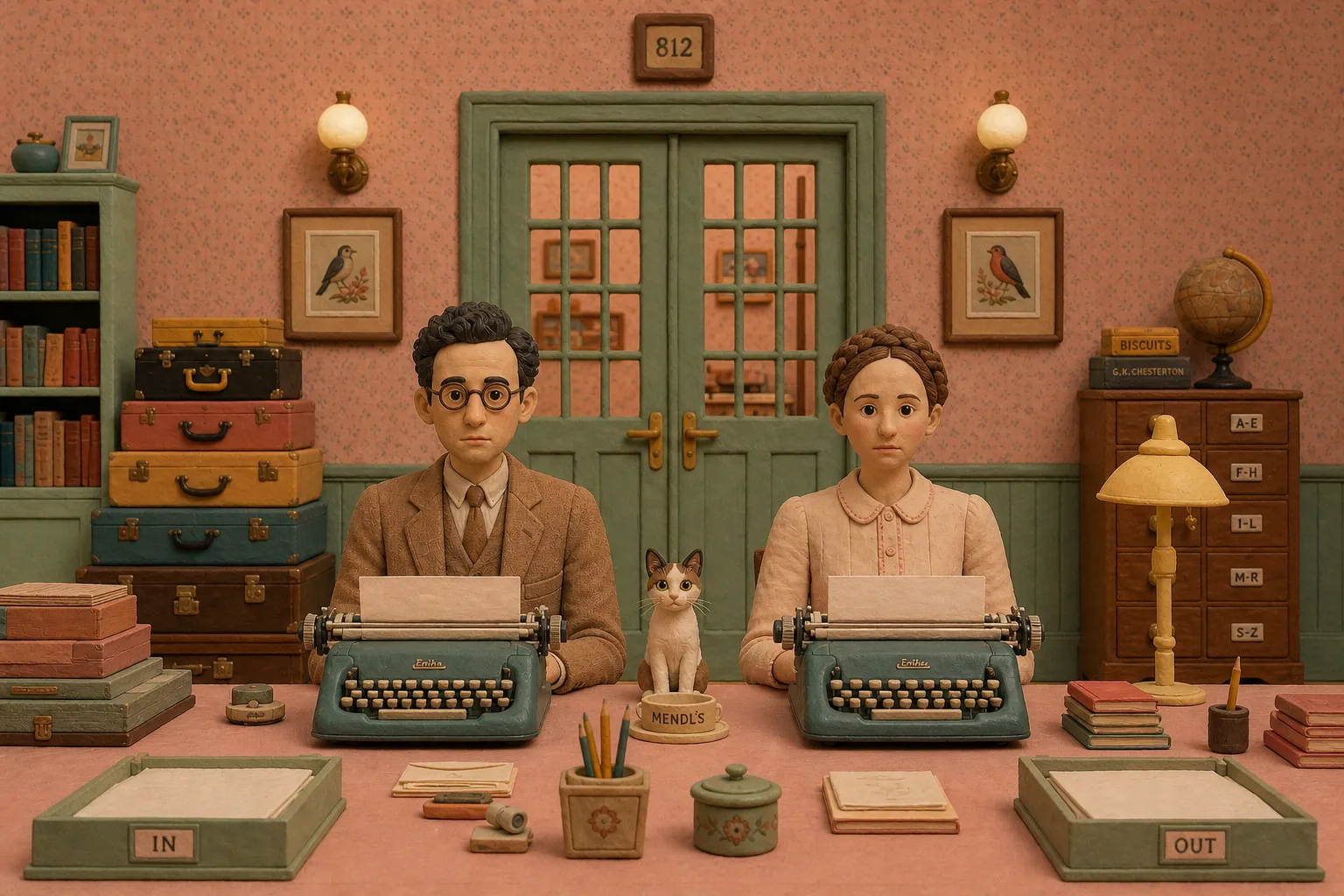
Tell Stories
Bring characters and narratives to life without building every scene manually. Create animated stories, short films, and episodic content from a prompt and reference images.
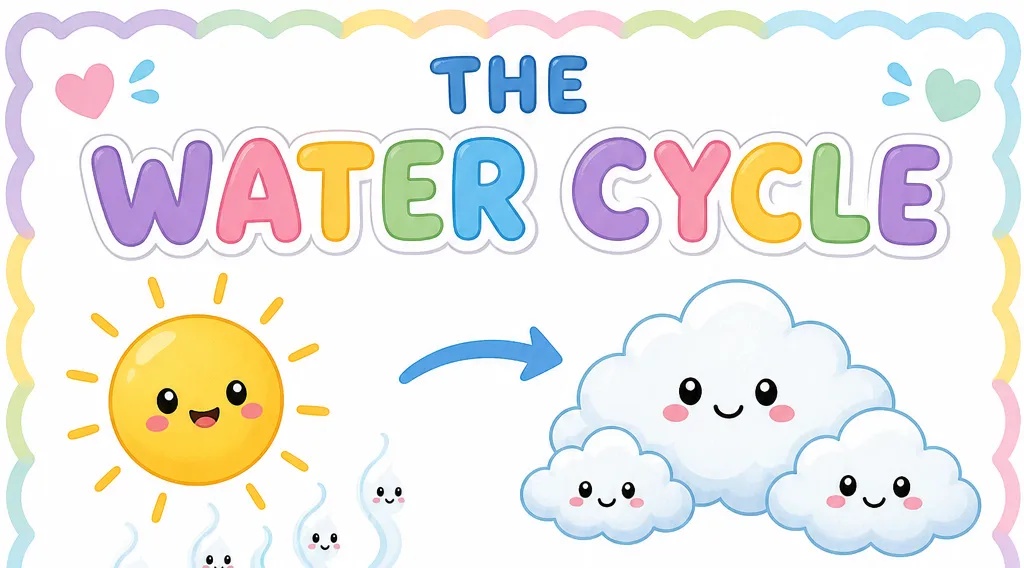
Explain Concepts
Turn complex topics into visual stories that are easier to follow. Educators, marketers, and teams can create animated explainers with planned scenes, narration, and supporting visuals.
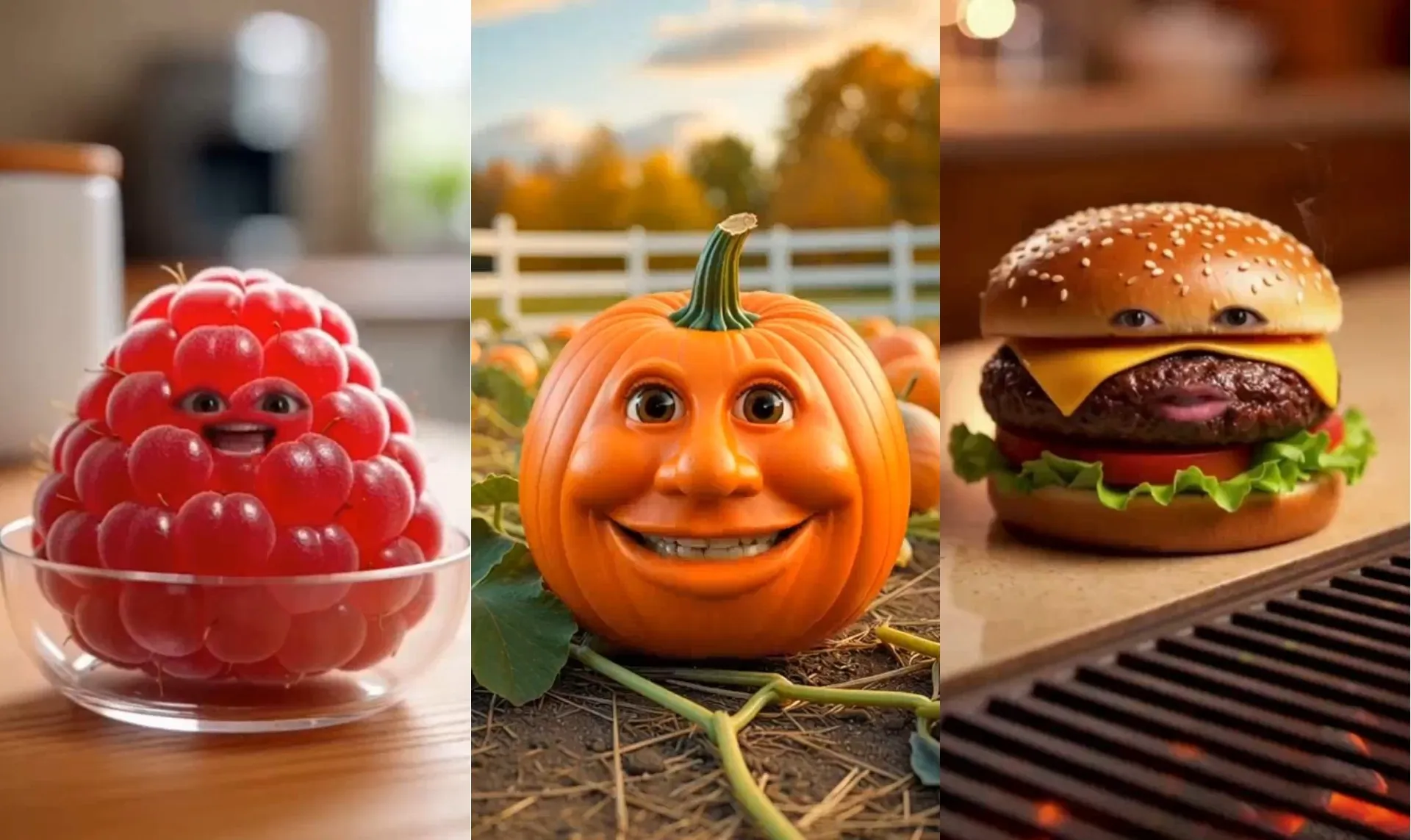
Create for Social
Create animated content for TikTok, Instagram, YouTube, and other social channels. Generate your video, then ask Kai to resize or adapt it for different platforms.
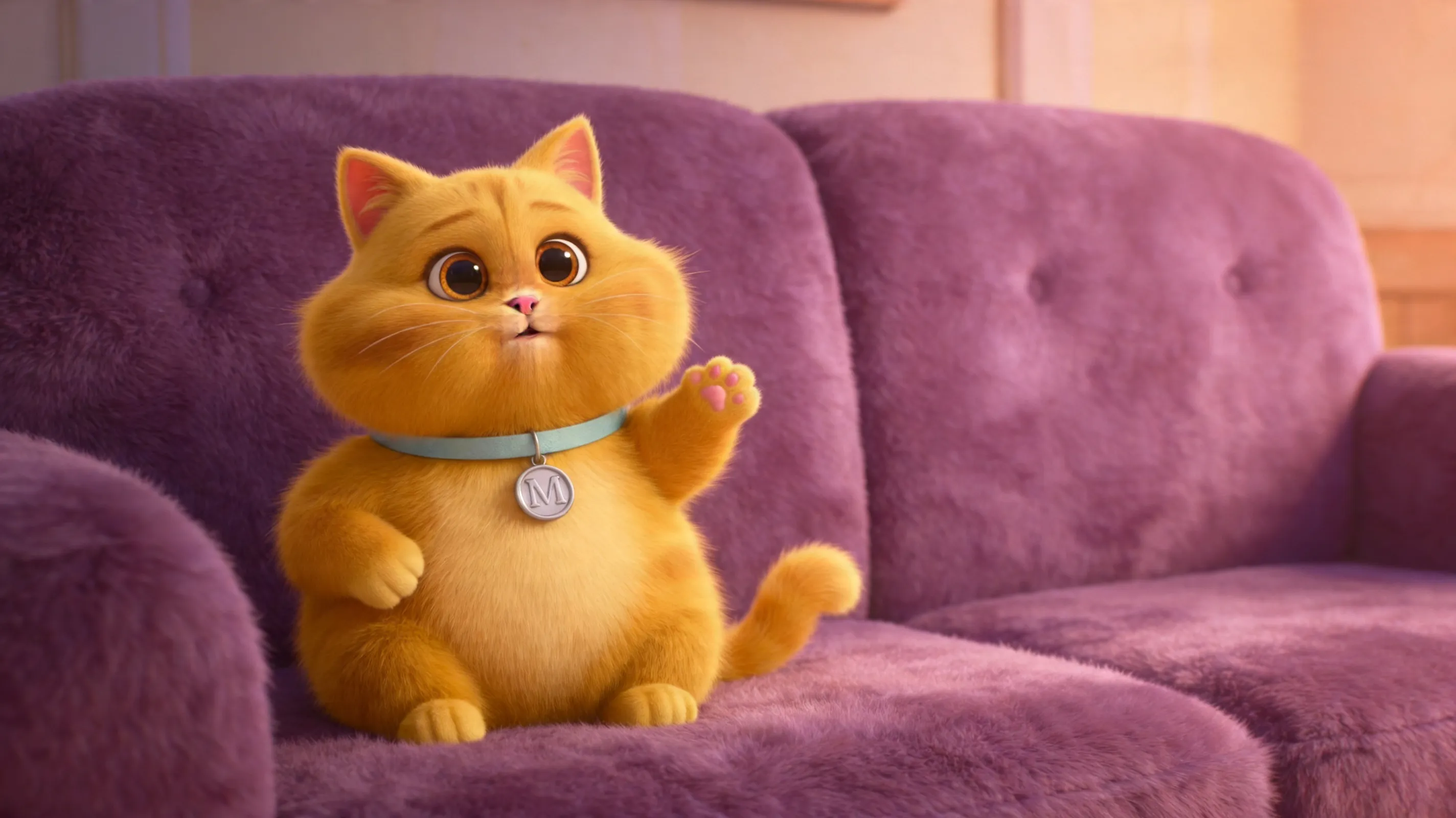
Develop Characters
Build videos around original or recurring characters. Use reference images to guide their appearance, then describe the actions, settings, and story you want to create.
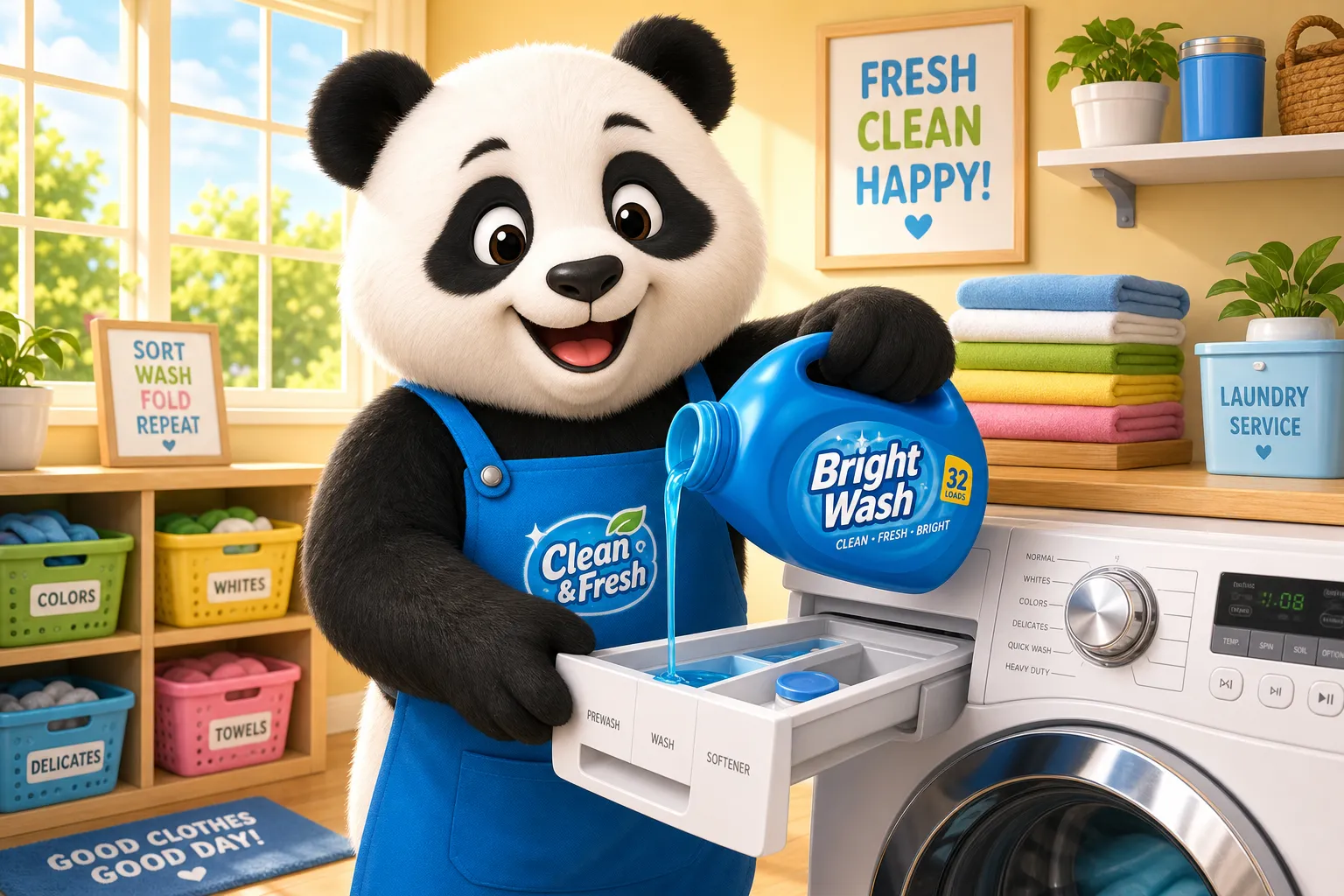
Promote Brands
Turn marketing ideas, product concepts, and brand messages into animated videos. Add your direction and references, then refine the script, scenes, music, and pacing before publishing.
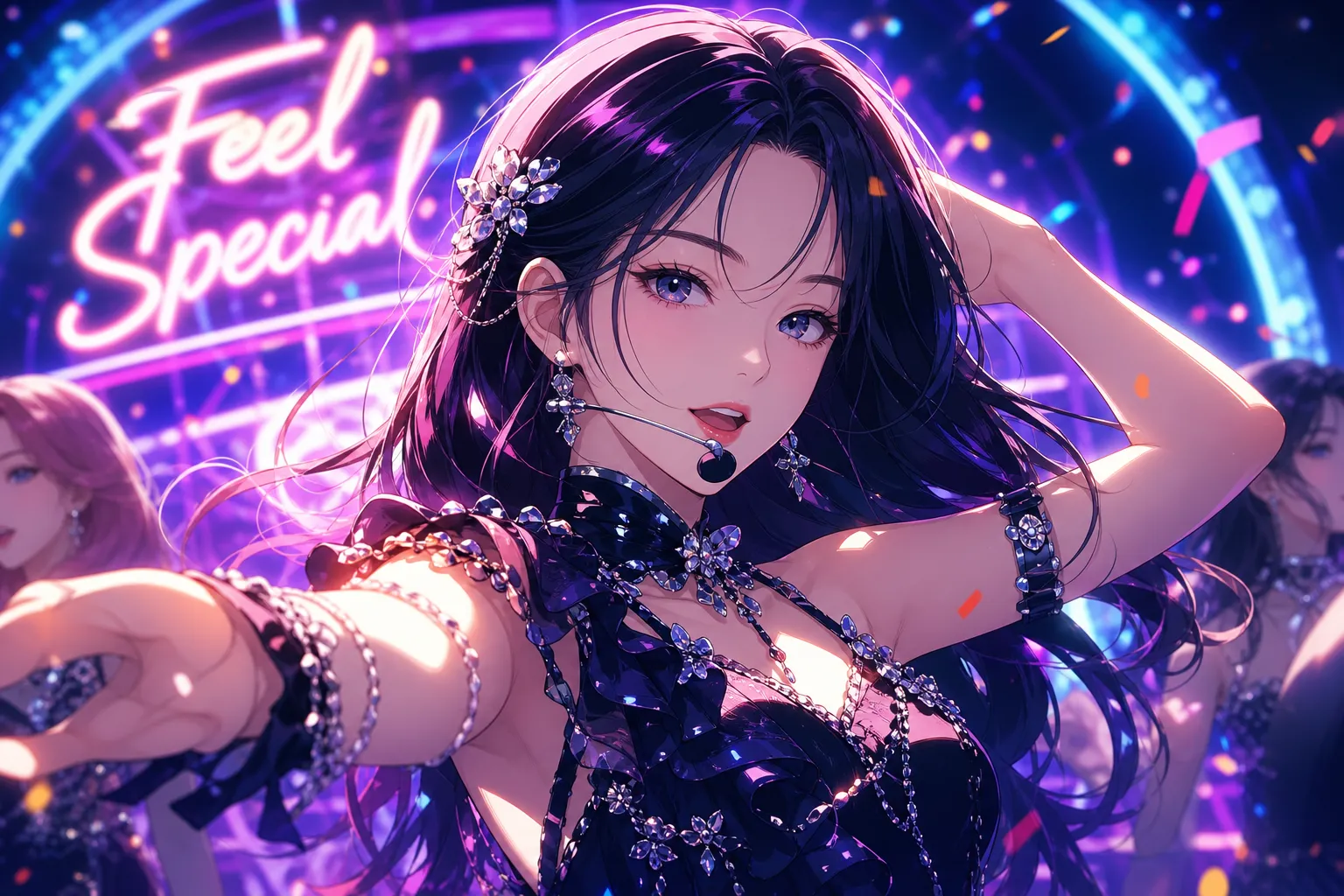
Visualize Music
Create animated visuals around a song, track, or audio concept. Develop the visual direction with AI, then bring the animation and music together in one project.
You imagine it. AI animates it.
Direct characters, scenes, motion and style — Kai handles the animation
Animate without keyframes
Use AI for animation without learning traditional keyframing or frame-by-frame editing. Describe how characters and objects should move, then direct camera movement, scene changes, and visual details with text prompts. Prompt Kapwing's AI Video Generator to create a slow zoom, tracking shot, pan, close-up, or another supported movement, then review the result and refine it with Kai.
Experiment with motion without rebuilding every scene. Change the pacing, action, camera direction, or visual style with follow-up prompts as your animation develops. Keep directing Kai in the same conversation until the movement matches your idea, no keyframes or traditional animation software required.
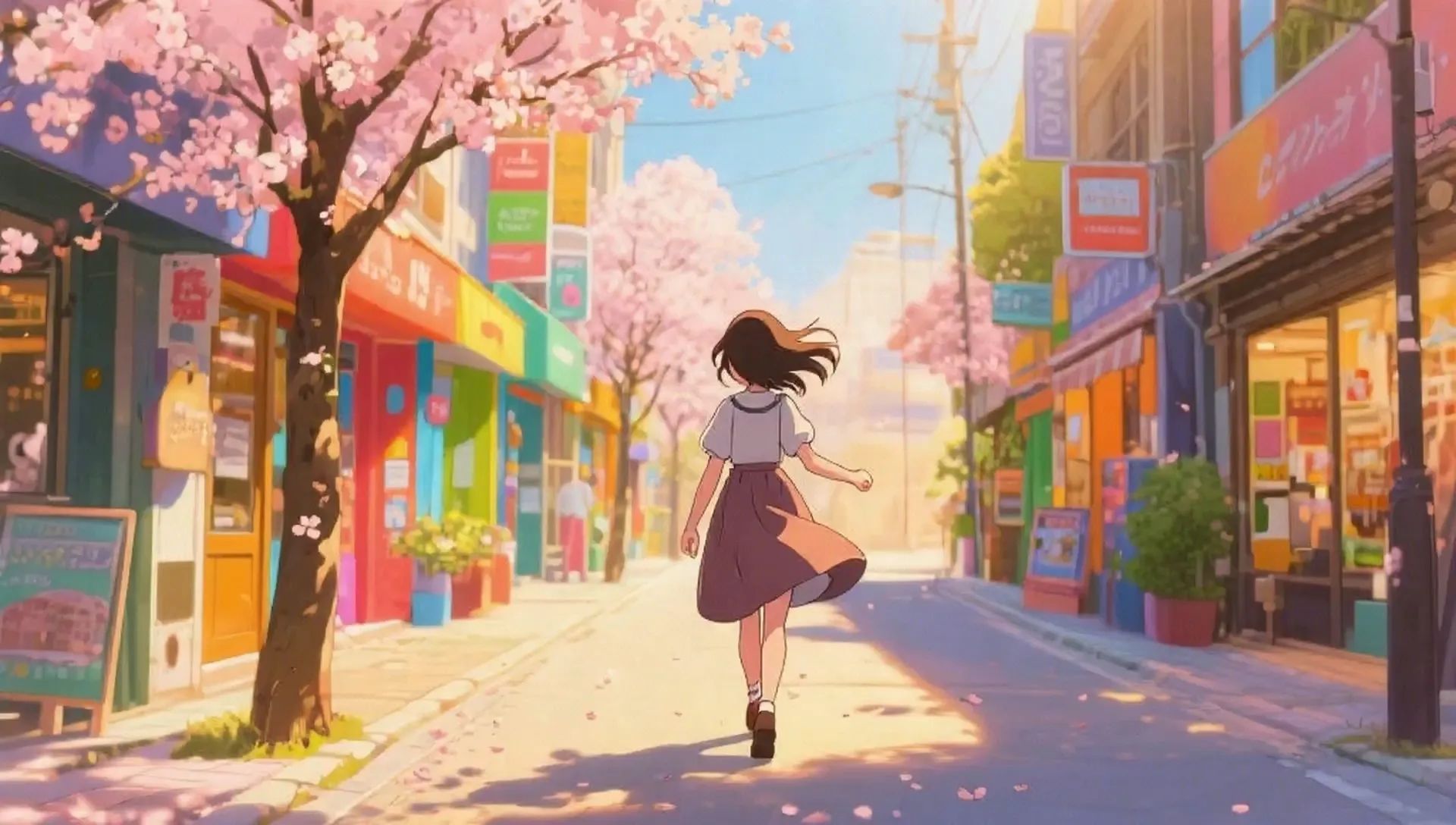
Direct complete animated stories
Plan the full animation before generating a single scene. Give Kai your concept, characters, tone, and story direction, then let it coordinate the script, scenes, visuals, dialogue, and music. Review the animation plan, change what you need, and approve it when the story is ready to produce.
Build beyond one-off AI animated clips. Kai can organize multiple scenes around the same creative direction, helping creators turn a prompt into a complete AI animation video with a clear beginning, middle, and end.
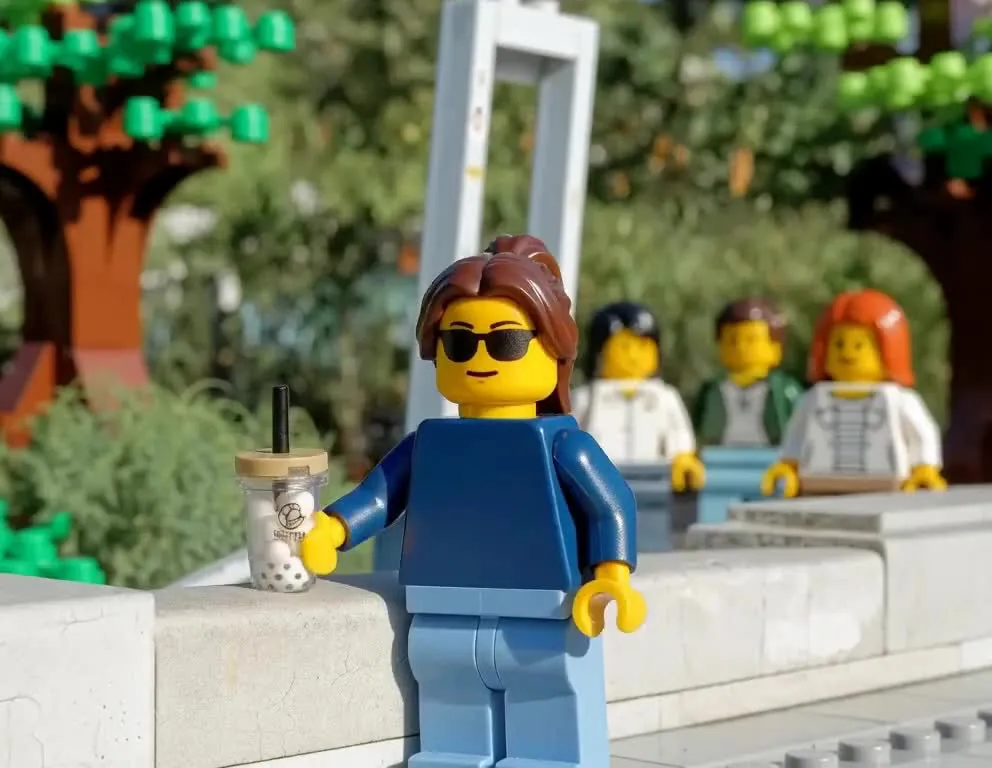
Turn drawings into animated stories
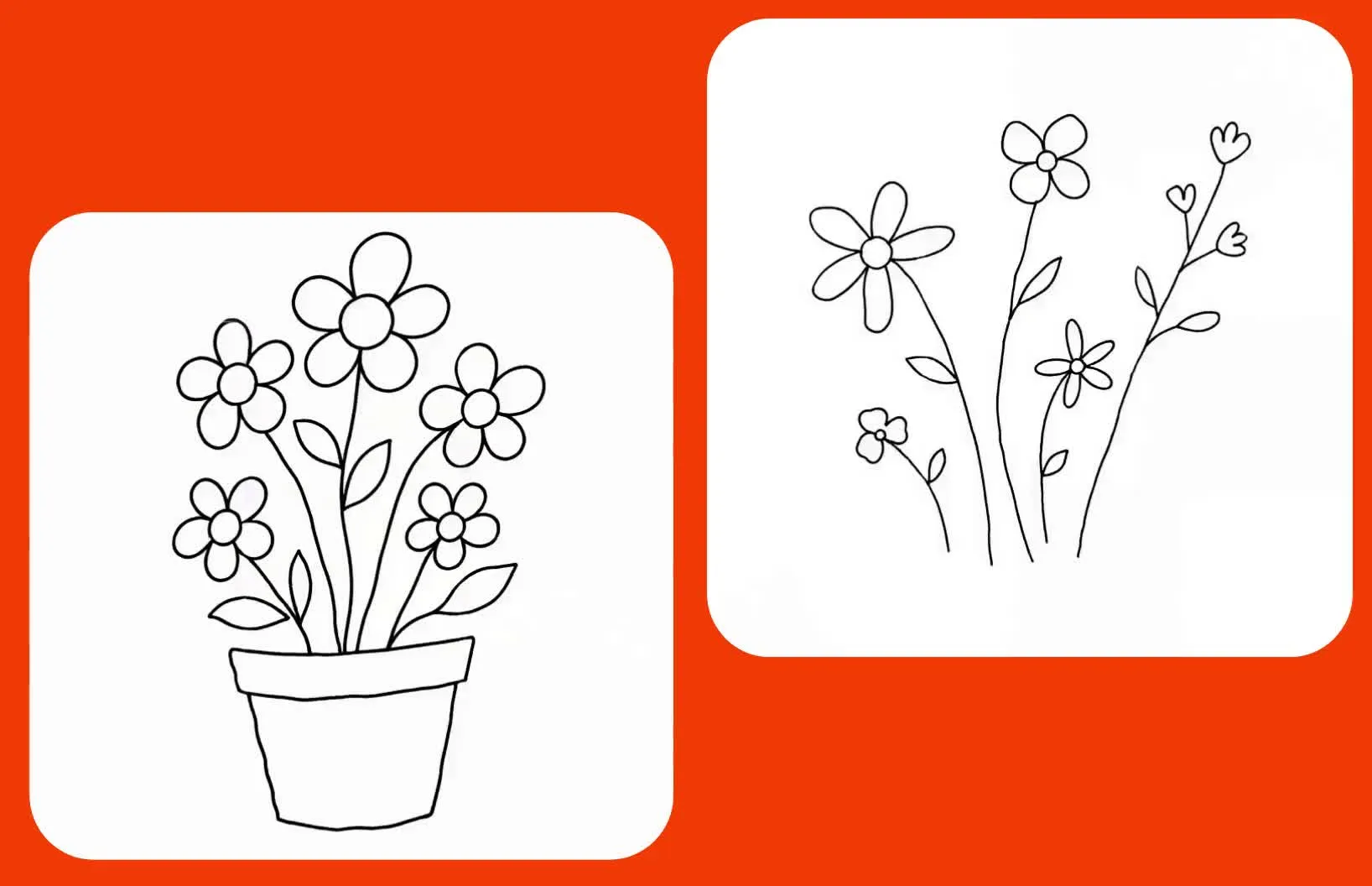
Create AI animations from an image or sketch by uploading it as a visual reference, then tell Kai how you want the idea developed. Your visuals can guide the characters, composition, scenes, and animation style, so you don’t have to describe every detail from scratch.
Or start from scratch in Kapwing. Draw a concept with the Draw tool, then ask Kai to develop it into an animated scene or complete video. Experiment with characters, motion, camera direction, and animation styles while staying true to your original sketch. To add motion to a finished photo, illustration, logo, product shot, or other visual, use Kapwing’s AI Animate Image tool instead.
Keep characters consistent
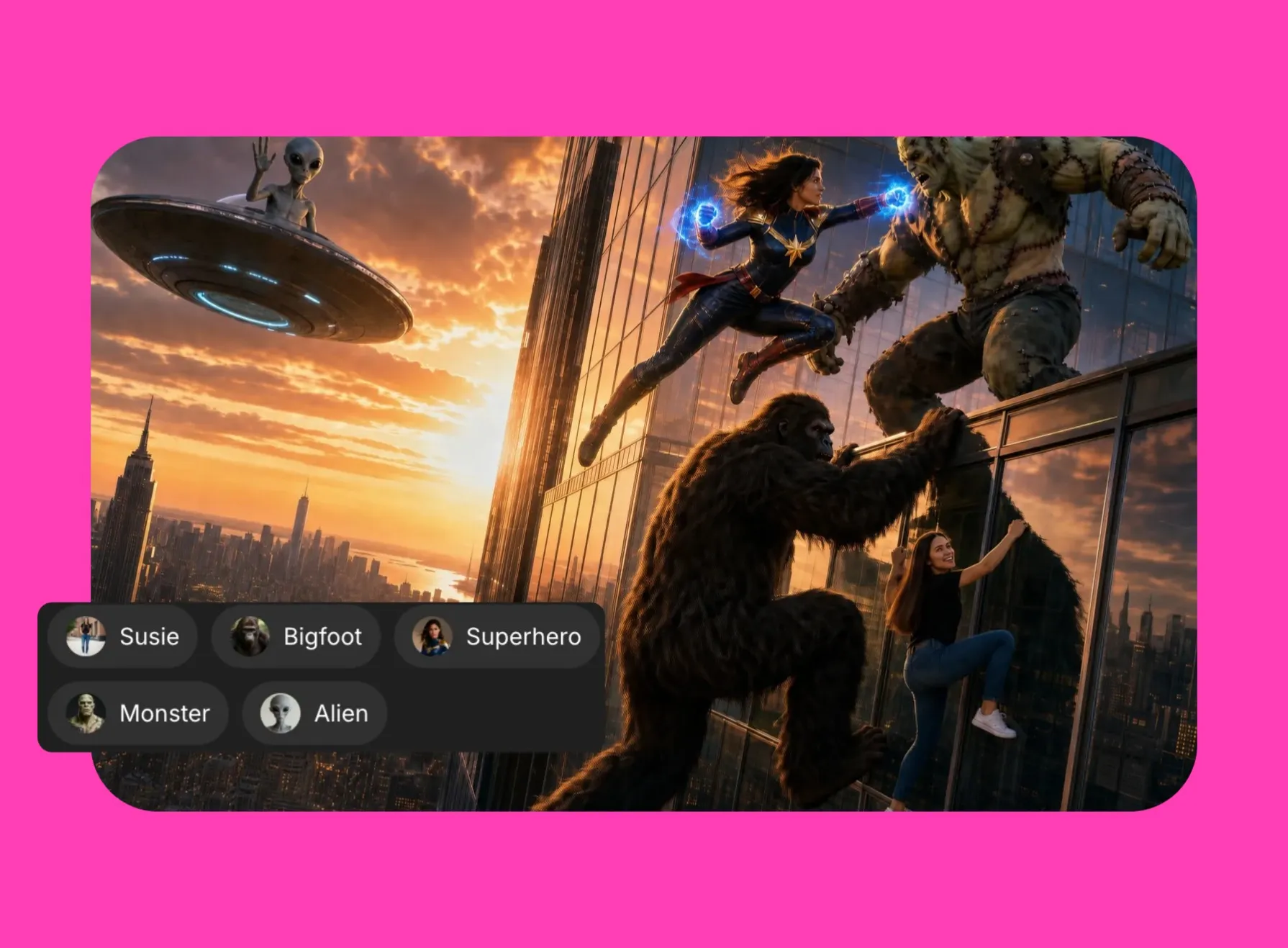
Create characters once, then reuse them across your animations. Design a new character with Kapwing’s AI Character Generator, refine details like clothing, hairstyle, expression, and setting, then save the character for future image and video projects. Tag saved characters in new prompts to place them into different scenes, poses, and environments without rebuilding their identity each time.
Save recurring characters to your shared workspace so your team can reuse the same approved cast across projects. Build animated series, branded mascots, explainers, and campaign content with a more consistent visual identity, while teammates work from the same character library, brand assets, and creative references.
How to Generate Animations with AI

- Step 1Enter prompt
Start a new chat with Kai, then type in a prompt describing the animation style, setting, characters, and action you want to generate. Optionally, click "Attach media" to upload reference images and sketches.
- Step 2Confirm plan
Click the arrow to have Kai build your video plan. Make any changes needed to match your vision, then click "Confirm" to generate your animation.
- Step 3Refine and download
Ask Kai to edit your animation using additional prompts, or move to the Studio for access to professional editing tools. Click "Export project" to download your video as MP4, MOV, or WebM.
What's different about Kapwing?


Frequently Asked Questions
We have answers to the most common questions that our users ask.
Is the AI Animation Generator free?
Yes, anyone can try Kapwing’s AI toolkit for free without watermarks. Our AI tools run on a credit system, with each feature costing a set number of credits. For maximum creativity and the best value, upgrade to a Pro account to unlock the full power of AI-driven content creation.
How to generate animations with AI
To generate an animation with Kapwing, start by creating a new chat with Kai. Type in a prompt describing your ideas, including the overall style, characters, plot, and any specific scenes or dialogue. If you want, you can click "Attach media" to upload reference images or sketches that Kai can use as a starting point. Click the arrow to have Kai build your video plan, then review and edit it before clicking "Confirm."
Kai will develop and action a detailed plan for your video, including generating individual elements like start frames, video clips, and native audio, as well as putting the animation together into a finished video and reviewing it.
Kapwing combines an AI animation maker with an AI video assistant, so you can generate animated scenes and keep directing the project through follow-up prompts. Once your animation is ready, you can download it directly or click to move to the Studio for access to manual editing tools. When you're ready, click "Export project" at the upper right to download your video in high resolution as MP4, MOV, or WebM.
Do I need animation experience?
Anyone can generate a polished, eye-catching animation using an AI video assistant like Kai. You can direct your animation with natural-language prompts instead of creating movement frame by frame or working with keyframes.
Describe what should happen on screen and let the animation AI handle the generation. You can then refine the result through Kai or move into Kapwing’s editor for more hands-on control.
Can I edit my animations after generating them?
Yes, keep chatting with Kai to change scenes, adjust creative direction, add subtitles, or make other supported edits. You can iterate on the same project instead of treating the first generation as the finished result.
For manual edits, move into Kapwing’s online video editor to adjust the timeline, text, audio, branding, and other elements.
What animation styles can I create?
You can create animations in styles like anime, cartoons, 3D animation, claymation, stop motion, hand-drawn illustration, and cinematic animation. Describe the look you want in your prompt or upload reference images to guide the visual direction.
Experiment with different styles as you create. Ask Kai to adjust the look, characters, scenes, or other visual details until the animation matches your idea.
Can I turn sketches into animations?
Yes, upload a hand-drawn or digital sketch and ask Kai to turn it into an animated video. Use your sketch as a reference for characters, objects, scenes, or composition, then describe the movement and visual style you want.
You can also create a sketch with Kapwing’s online drawing tool in the Studio, then use Kai to develop it into an animation. Keep refining the result with prompts as you move from an initial drawing to a finished animated video.
What AI models does the AI Animation Generator use?
Kapwing’s AI Animation Generator gives you access to leading AI video models like MiniMax H3, Seedance, Grok Imagine, Happy Horse, Kling Omni, and Google Veo through one workflow. Use different models to explore animation styles, motion, characters, and visual directions without switching between separate platforms.
Kapwing is constantly adding the latest AI models as new options become available, giving creators access to new generation capabilities directly through Kai.
Can I upload reference images?
Yes, upload reference images to guide the characters, scenes, composition, or visual style of your animation. Add sketches, character designs, photos, illustrations, or other visuals to give Kai more context for what you want to create.
Use references as creative direction for a new animated video, or combine multiple images to guide different parts of your animation.
How should I write my prompt for the best results?
Describe the animation style, characters, setting, action, and camera movement you want to see. Include specific details that matter to the story, such as character appearance, mood, lighting, pacing, or how a scene should unfold.
Add reference images when visuals are easier to show than describe. You can also start simple, review Kai’s animation plan, then use follow-up prompts to refine the direction before generating.
Can I add AI voices to my animation?
Yes, ask Kai to add an AI voiceover or character dialogue and describe the type of voice you want, including details like tone, style, accent, or delivery. Kai generates the voice and syncs it with your animation.
Combine AI voice for animation with characters, music, sound effects, and subtitles to build out the full audio experience without recording everything yourself.
Discover Resources
Tips, templates, and deep dives to help you create faster and share with confidence.
View all

Get started with your first video in just a few clicks. Join over 35 million creators who trust Kapwing to create more content in less time.