AI Video Scene Generator
Generate 3–12 second video scenes from a prompt, photo, or start frame.
Start for free in your browser.
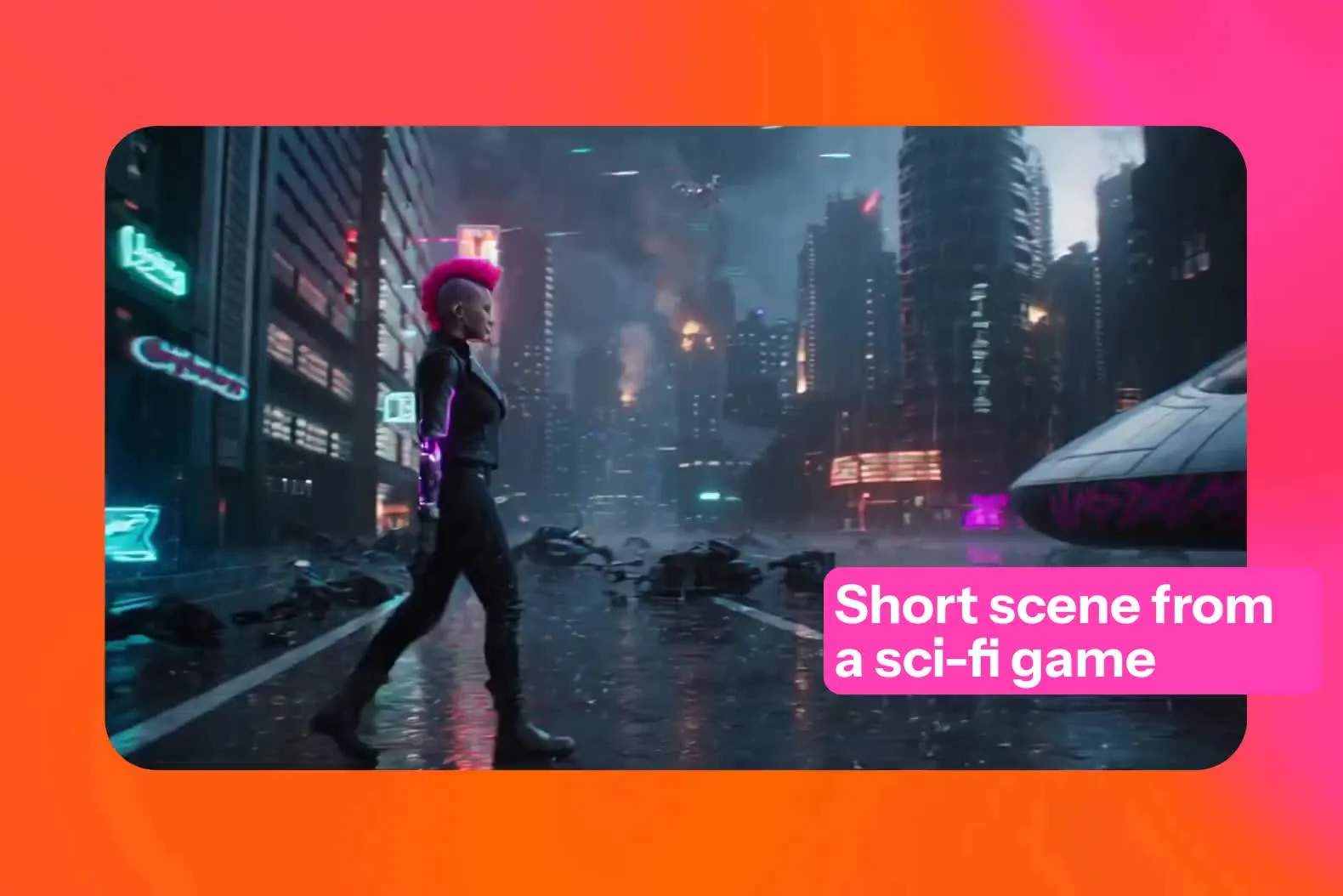
Your video scene — with control over characters and motion
Preview the storyboard, guide motion, keep characters consistent, and finish the clip in a full editor
Character consistency across scenes and projects
Upload or generate a character image, then use it as a start frame to keep appearance consistent across scenes.
Save characters to your Brand Kit and reuse them across videos to preserve appearance, style, and branding.
Perfect for virtual influencers, content series, and brand mascots that need to appear identical across multiple videos.
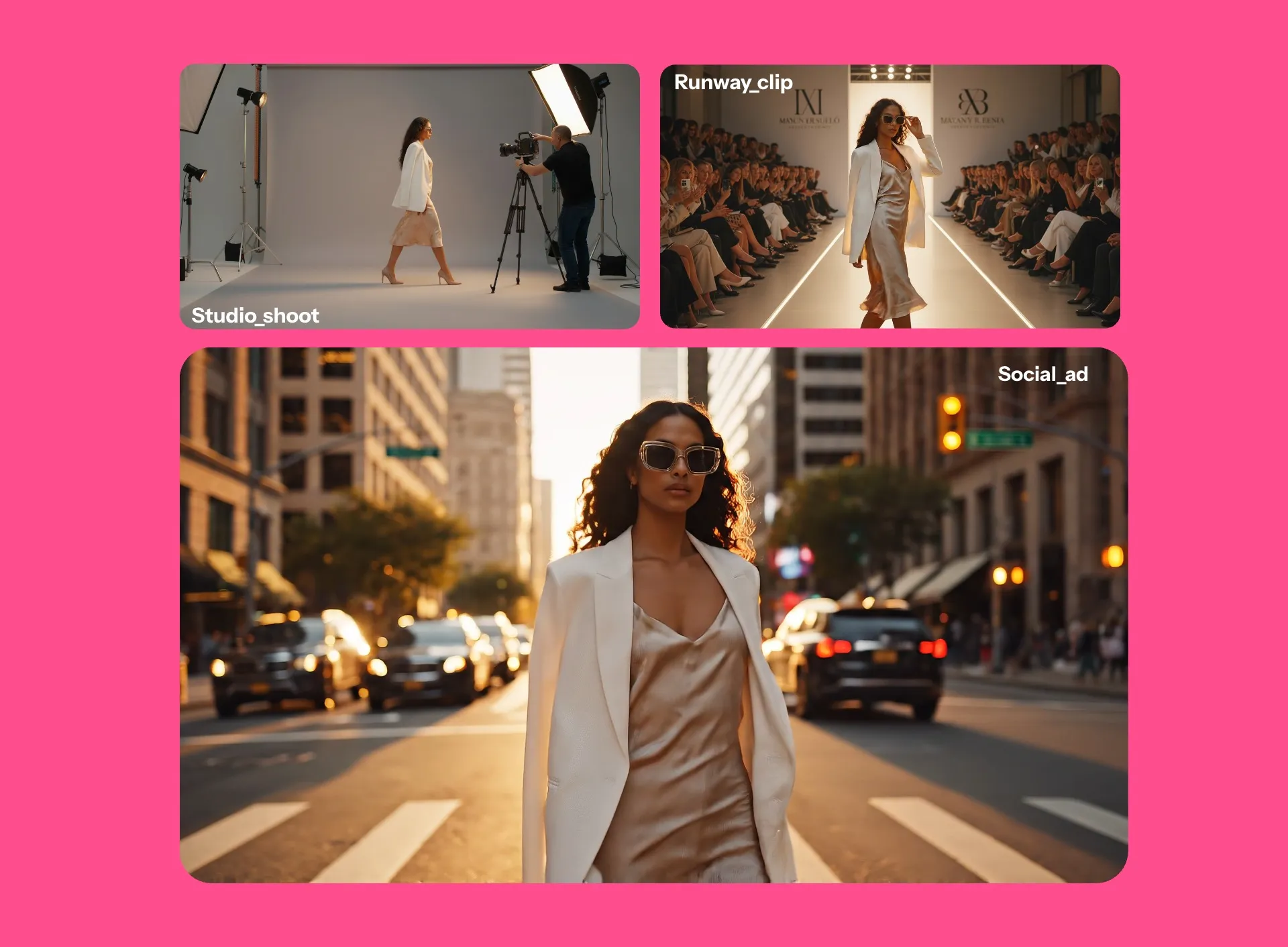
Edit your storyboard before generating
Tired of generating AI videos that don’t match your vision?
Preview and edit your scene structure with a video storyboard, including shot order, transitions, and scene continuity before generation. For longer projects, generate a complete sequence of connected scenes with AI Multi-Scene Video.
Review your script, voice over dialogue, shot list, and frame-by-frame structure — then make changes before using any generation credits.
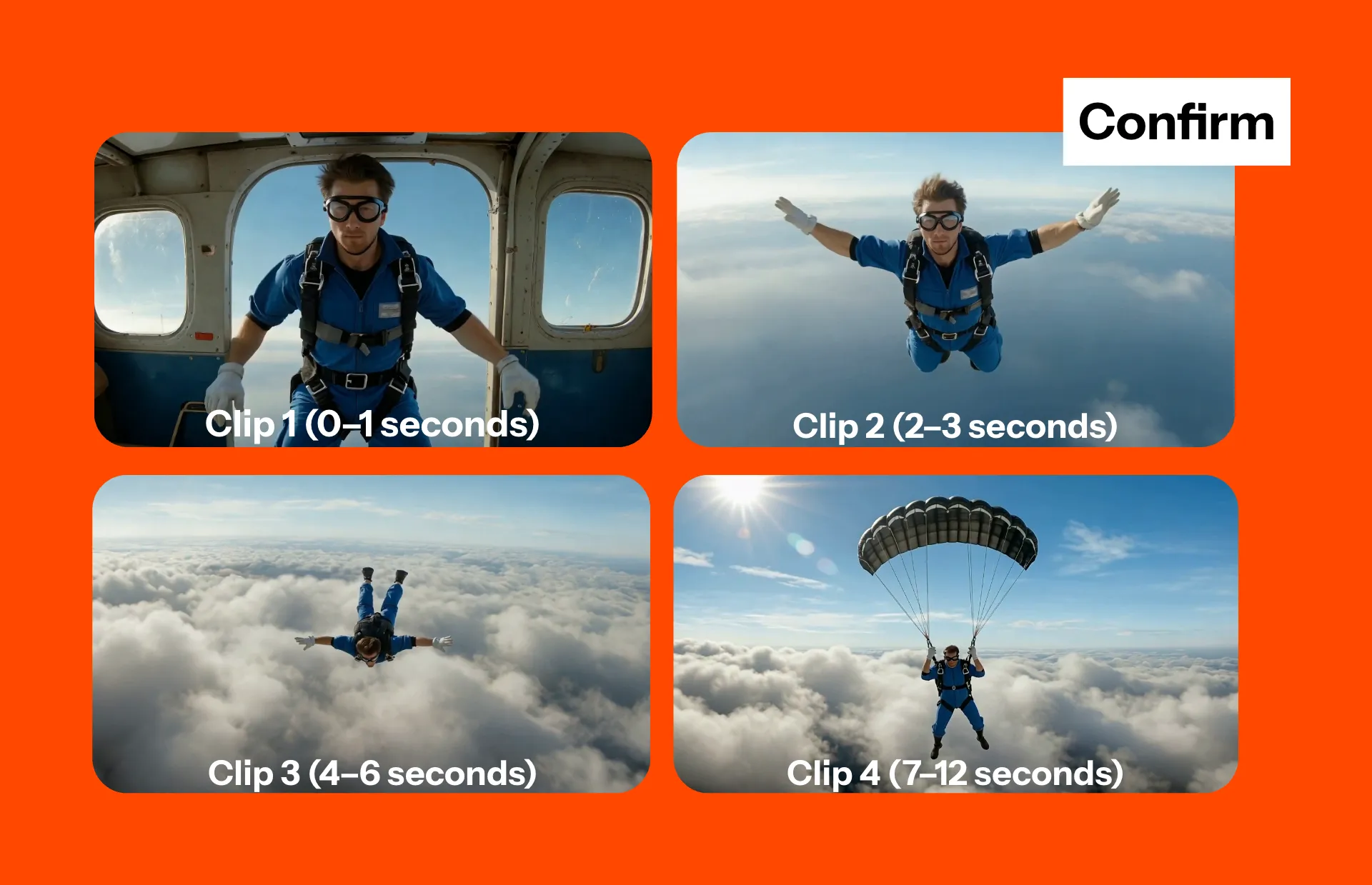
Control motion with camera prompts and reference frames
Kapwing’s AI Scene Generator turns text prompts into fully animated motion scenes up to 12 seconds long.
Create cinematic environments, story-driven backgrounds, and dynamic visuals in any aspect ratio — all inside your browser.
Inside the tool, select Kling 2.6 for detailed control over motion. Use start frames, end frames, and reference videos to guide movement, replicate realistic motion, and control cameras with commands like dolly, pan, and zoom.
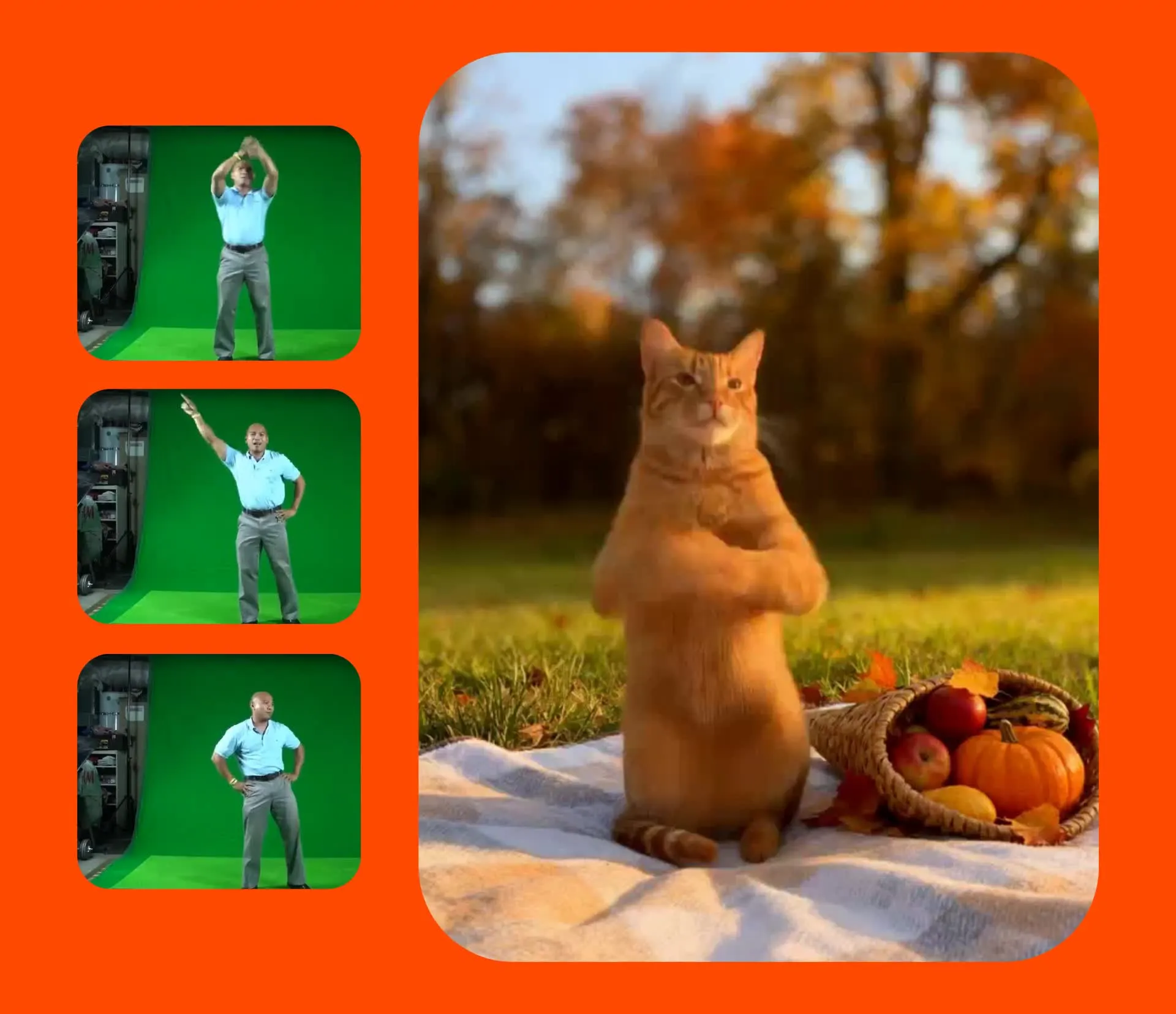
Create multi-shot AI video sequences in one generation
Kapwing's AI Video Generator can create structured, multi-shot video scenes in a single 3–12 second clip. Generate scenes that cut between different camera angles or transition to entirely new environments. For the best results, use the Seedance model.
After generation, refine each shot inside Kapwing's online editor.
Adjust color, add sound effects, insert logos or watermarks, and polish your sequence before exporting in MP4, MOV, WebM, or GIF.
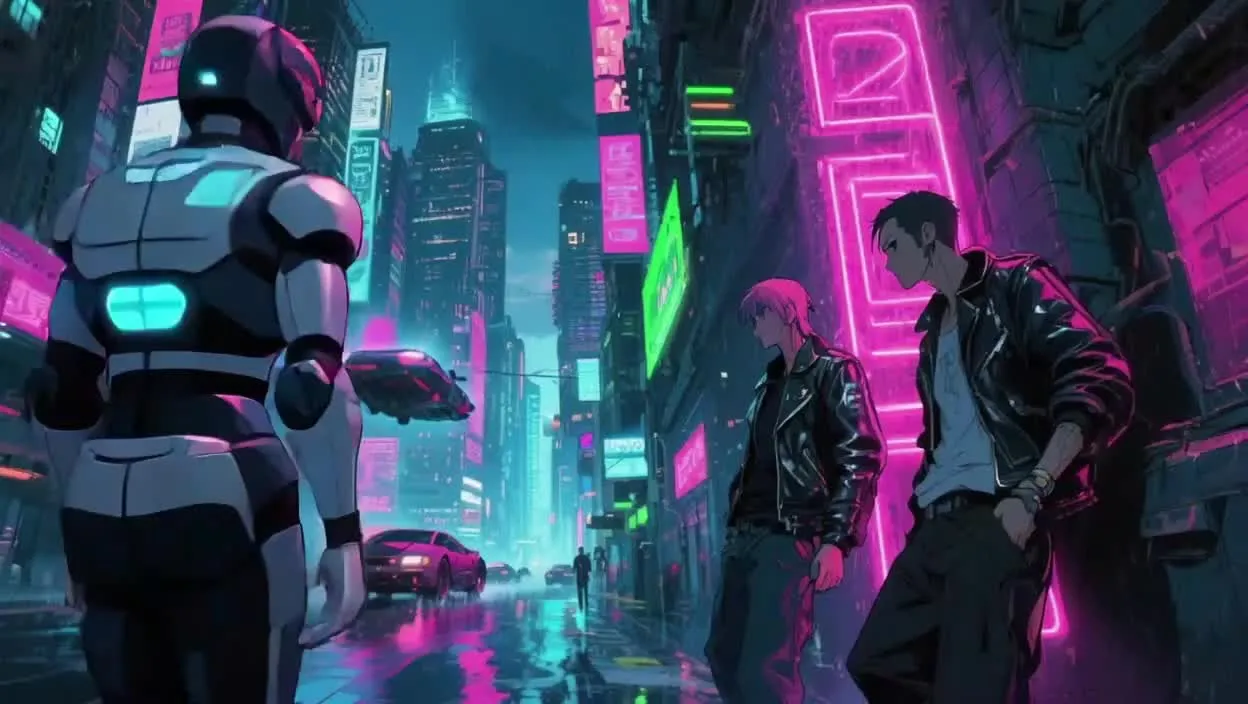
How It Works
Create Video Scenes. Fully online. Free to start.
Start
with text, image, or start frame


Render
in under 60 seconds
Export
as MP4, MOV, WEBM, or GIF
AI video scenes generated in Kapwing
Complete with full commercial rights
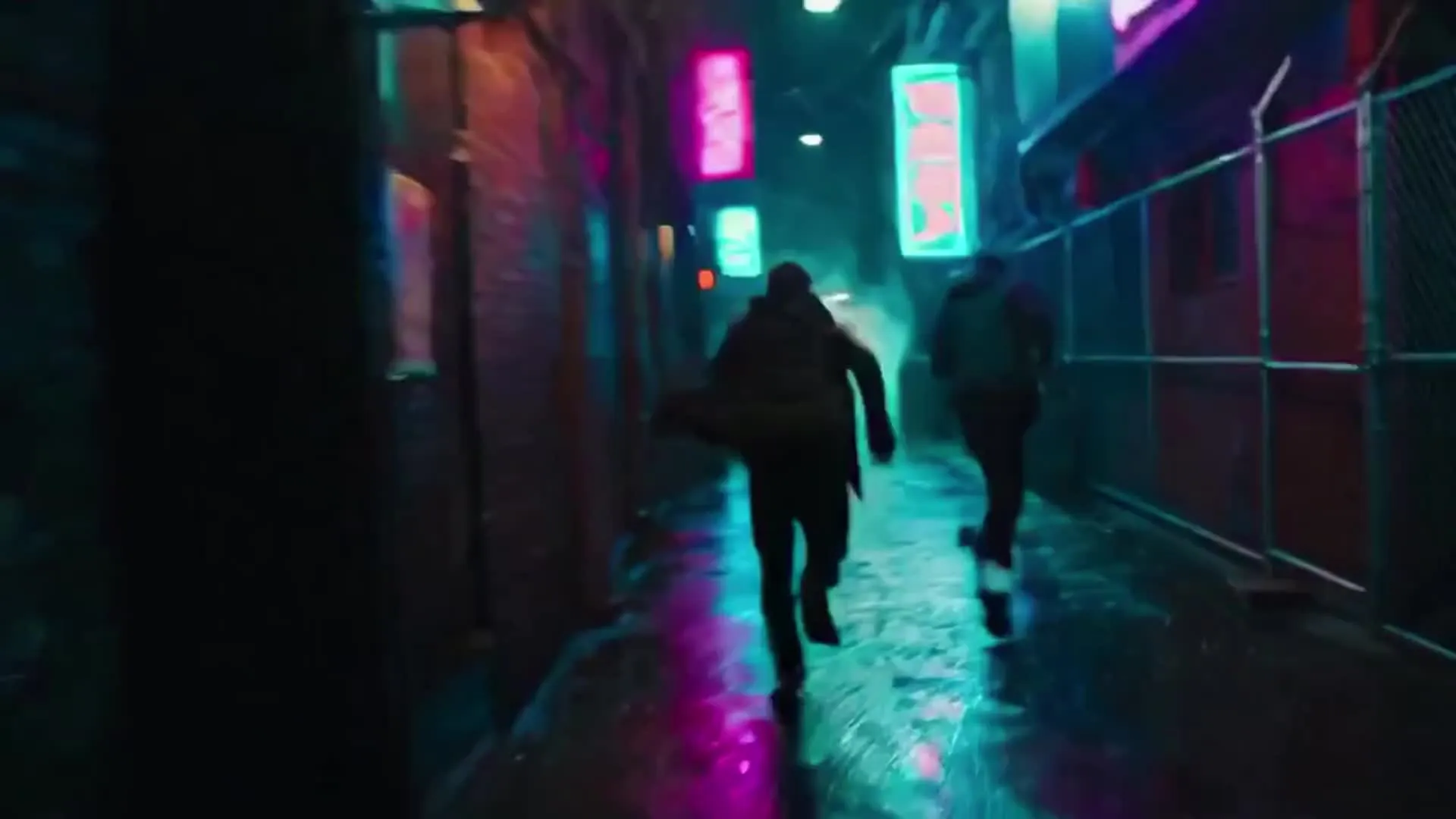
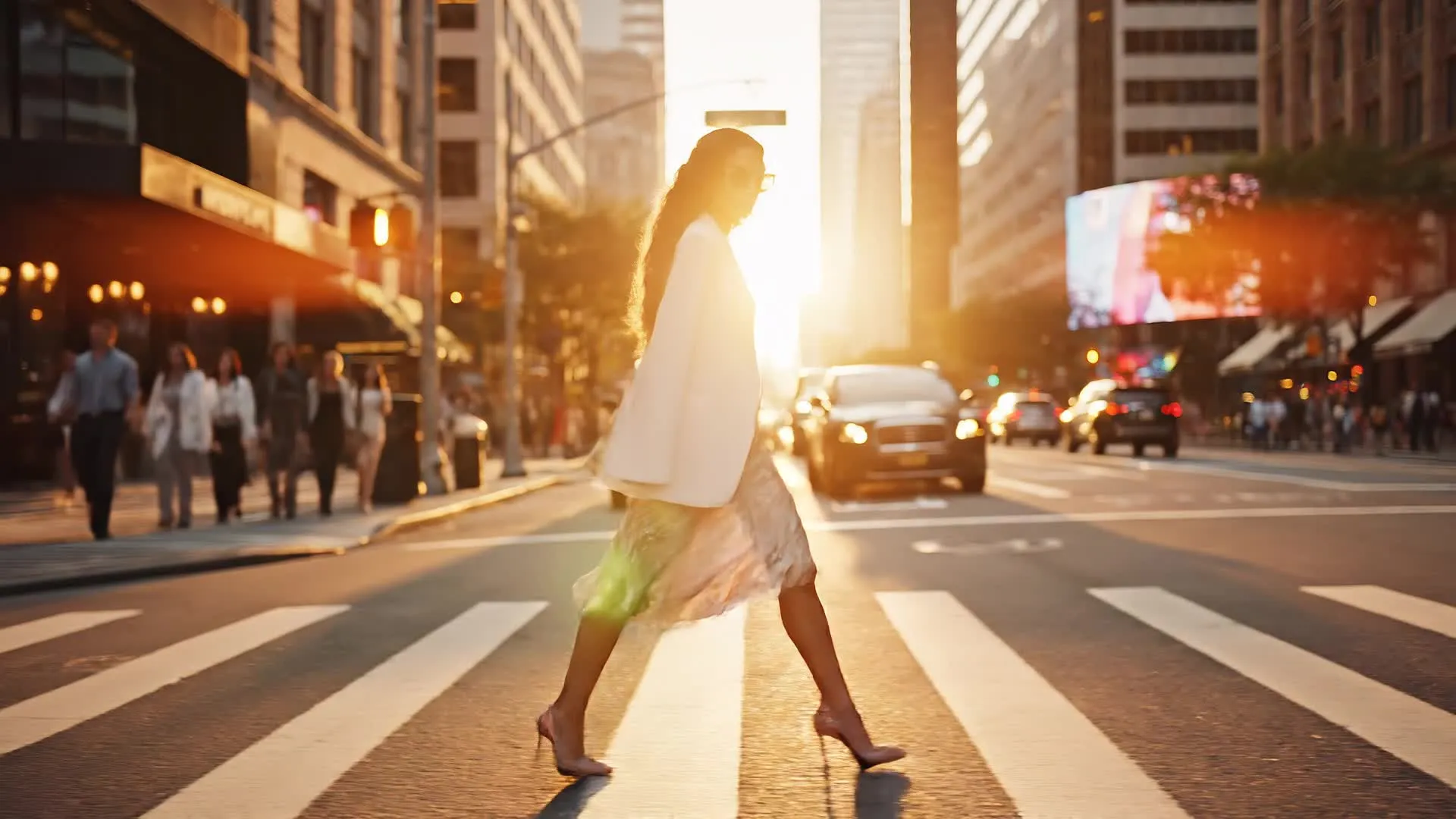
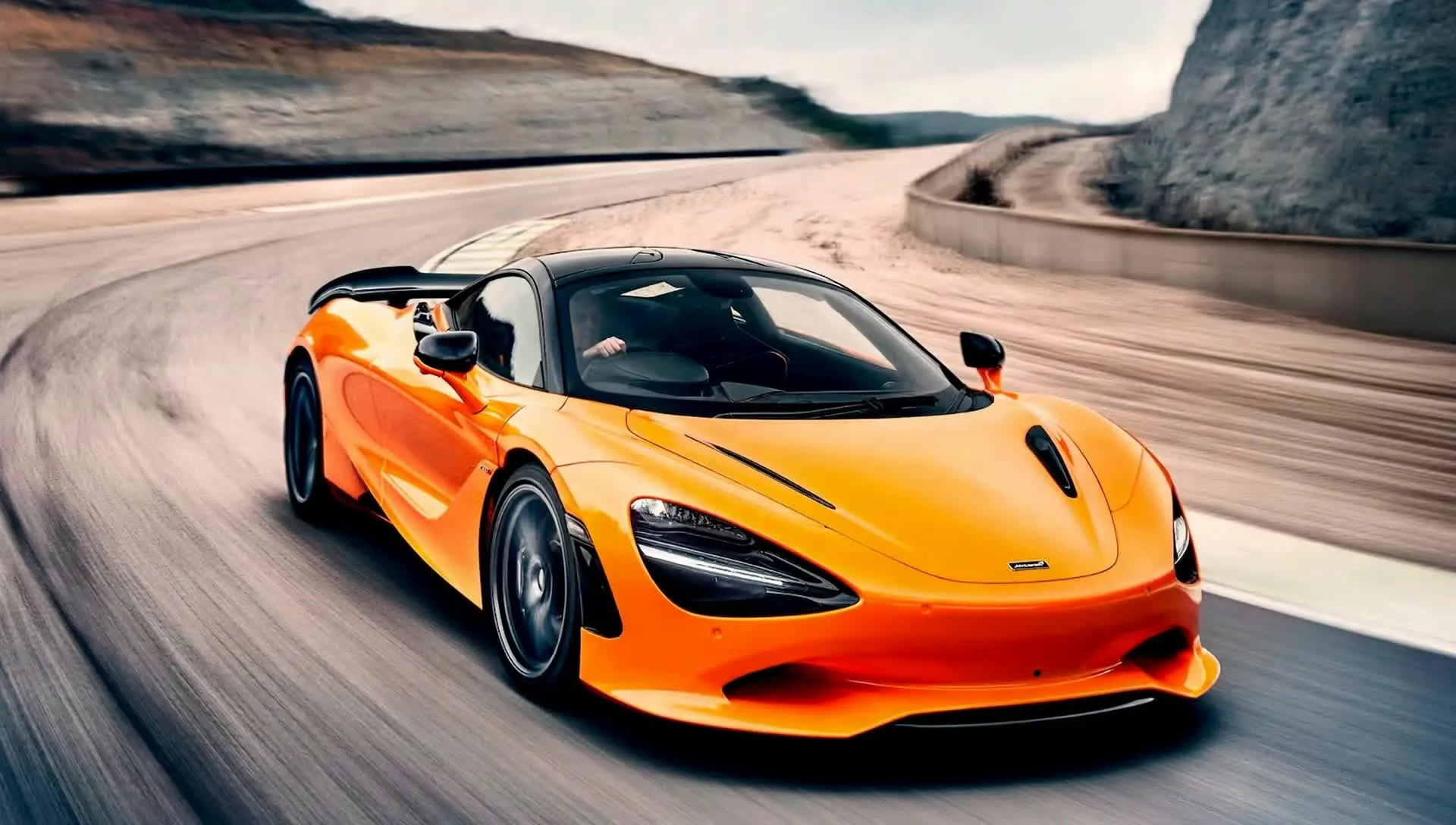
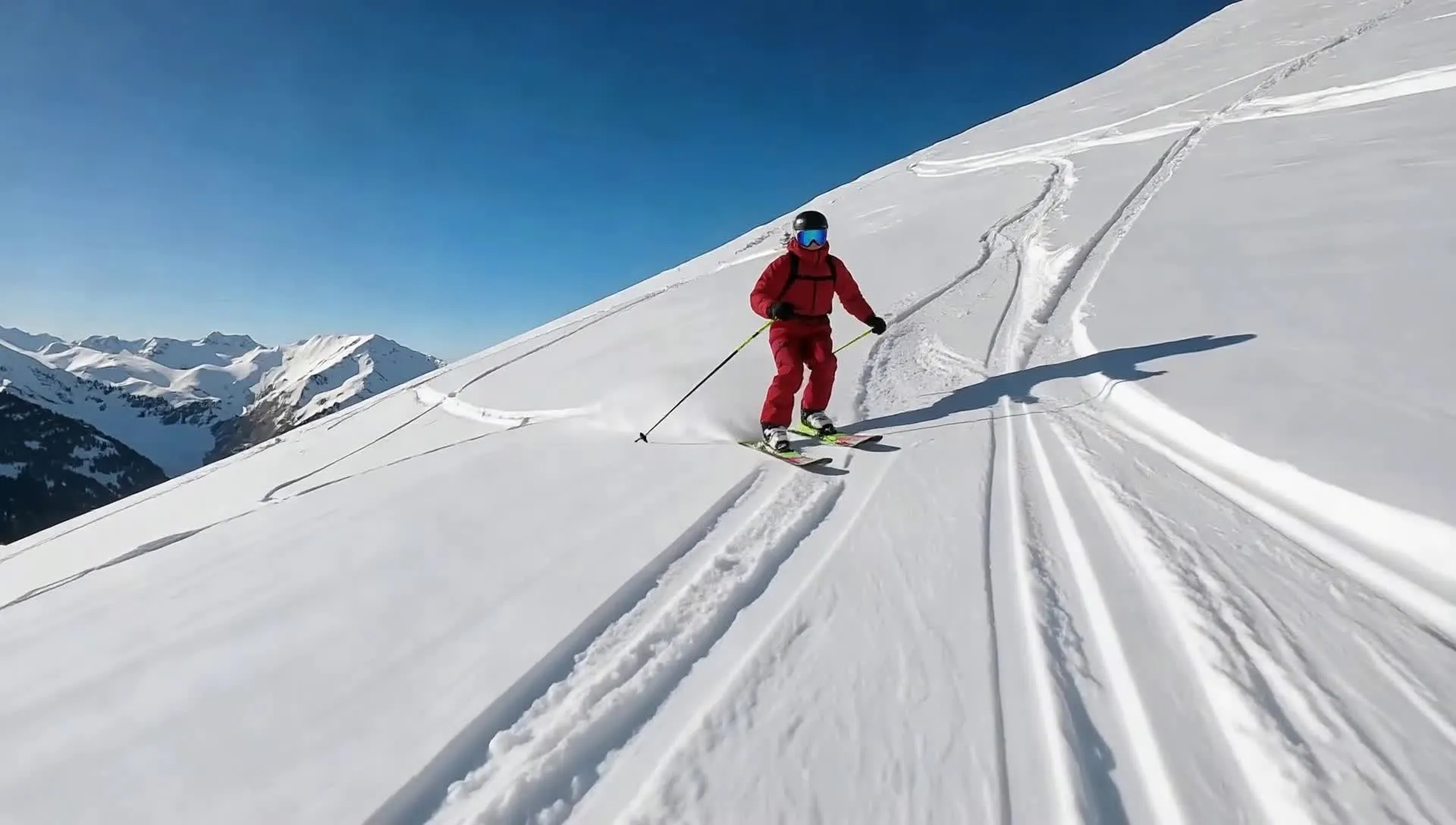
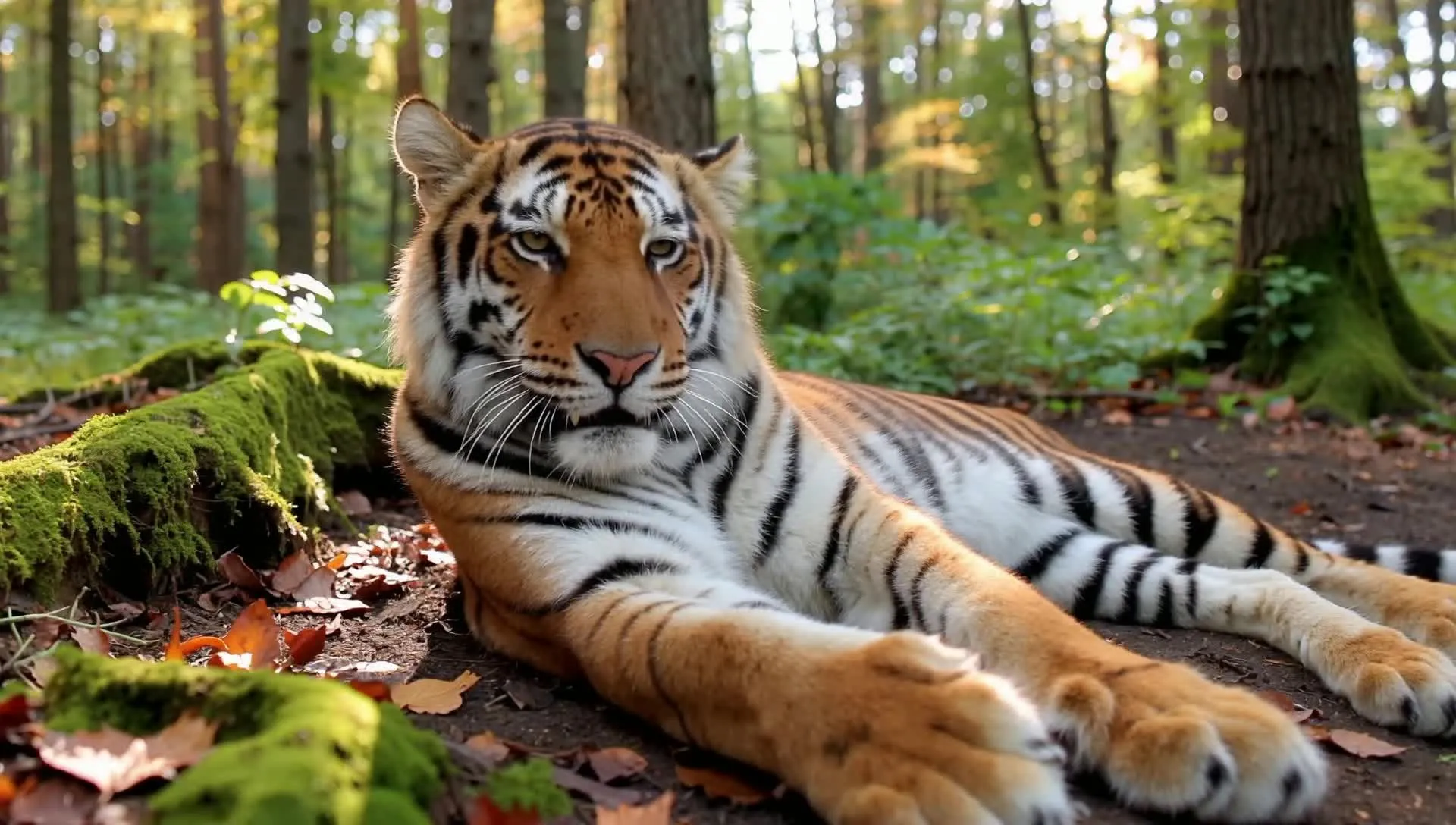
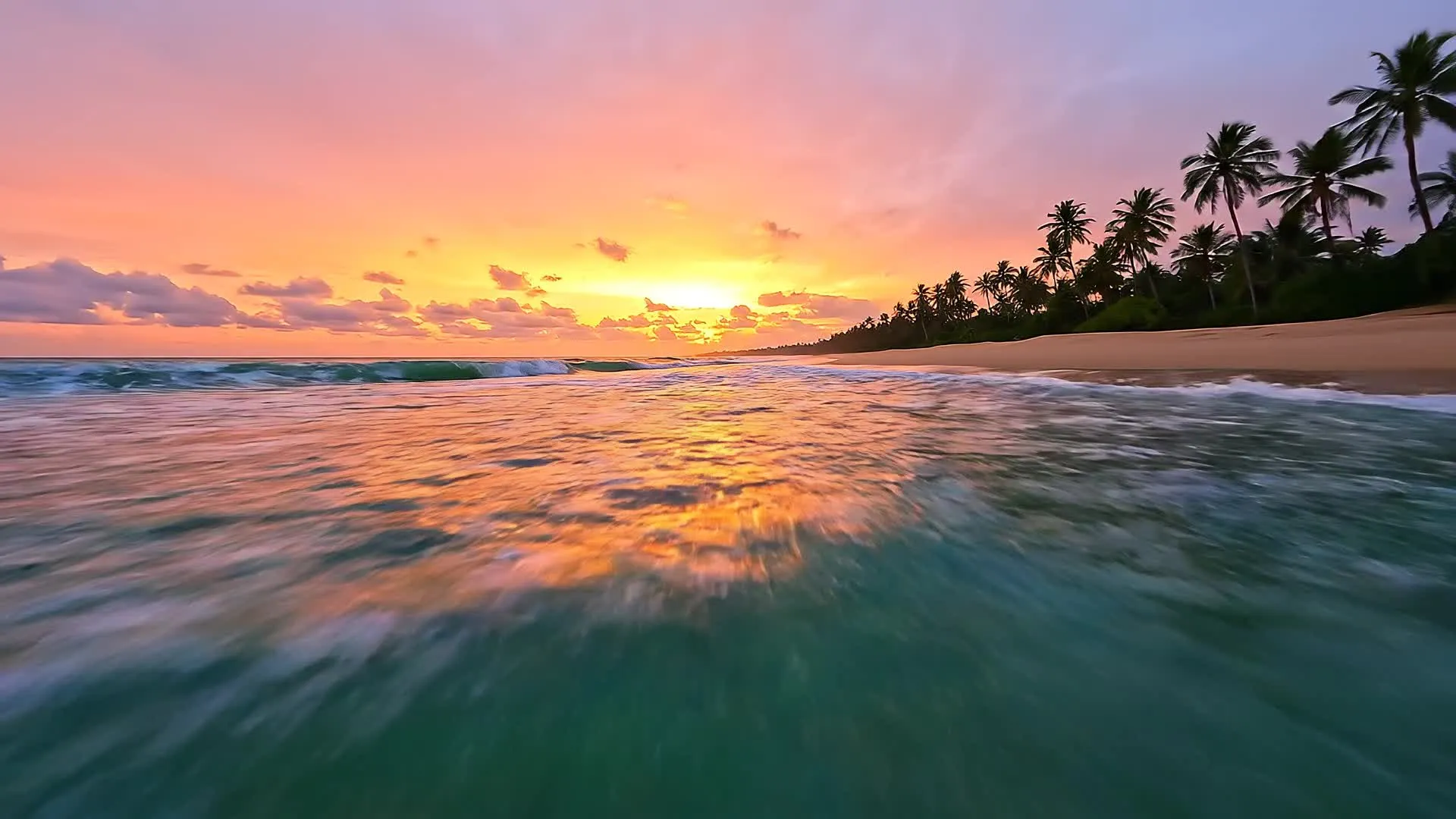
AI scenes built for real-world content
Marketing, gaming, social media, and film pre-viz
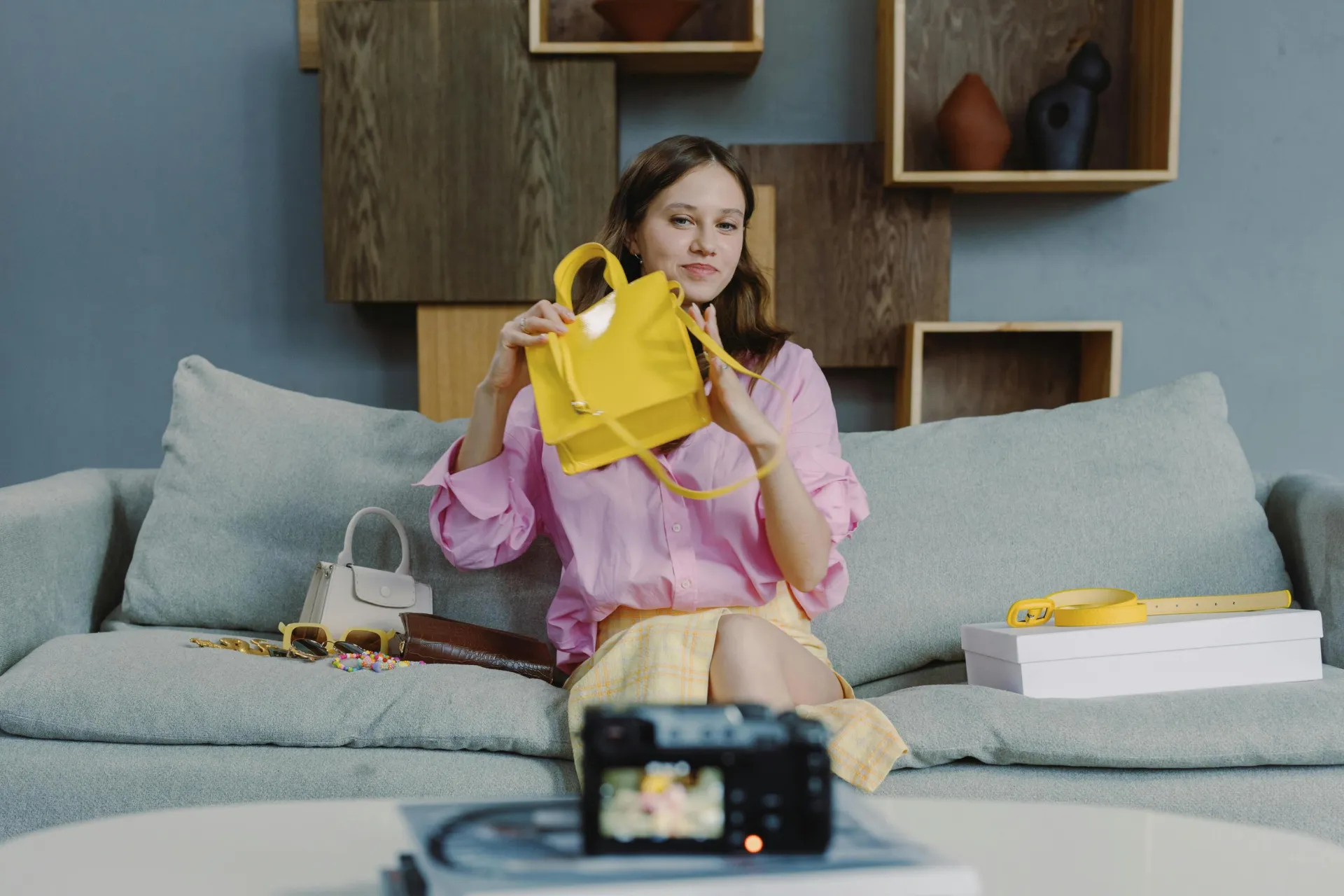
Marketing Videos
Create product launches, ad concepts, and campaign visuals without filming on location. Generate branded AI scenes from product images, then polish them with logos, subtitles, and sound.
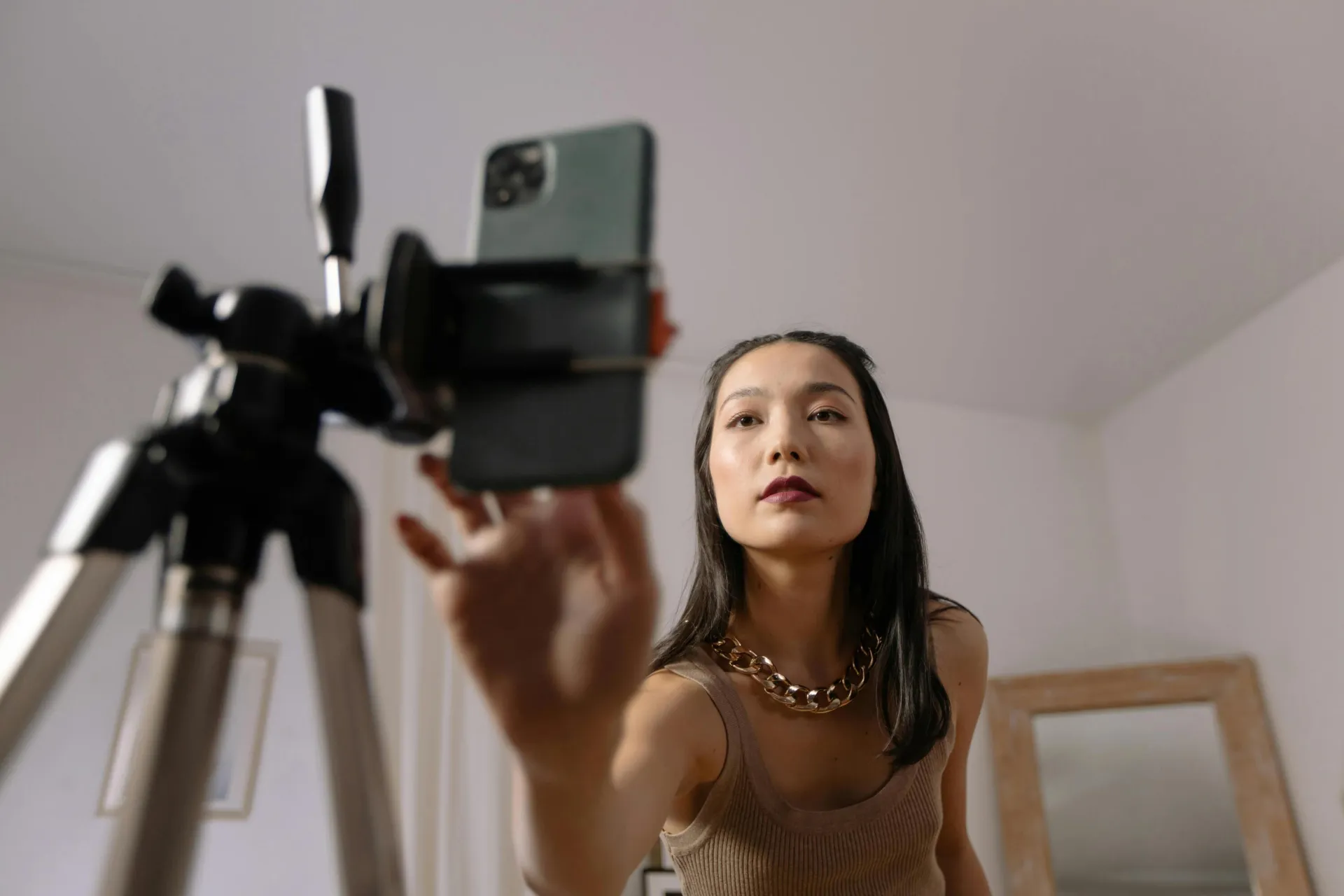
Social Storytelling
Create stylized backgrounds, transitions, and story-driven clips for TikTok, Reels, and Shorts while keeping characters and branding consistent across posts
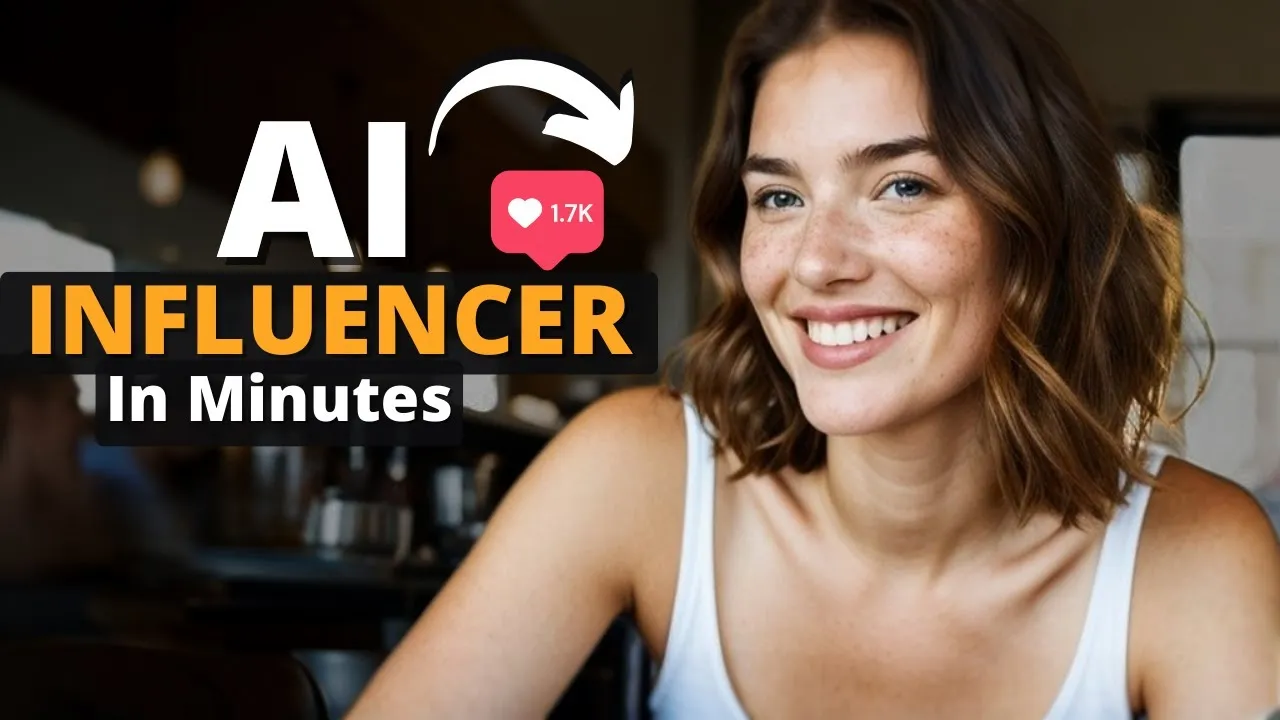
AI Influencers
Build a virtual persona with consistent appearance across all content. Use start frames, end frames, and a Brand Kit to ensure your AI character looks identical in every scene.
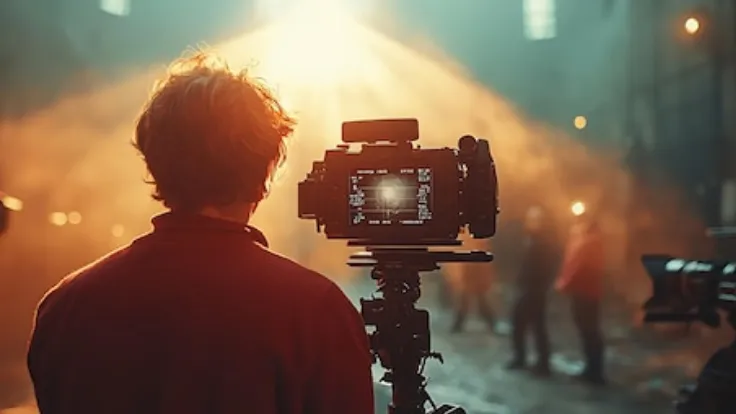
Storyboarding
Filmmakers, agencies, and production teams use AI to create pre-viz mockups of movie scenes before filming — all without booking locations or building physical sets
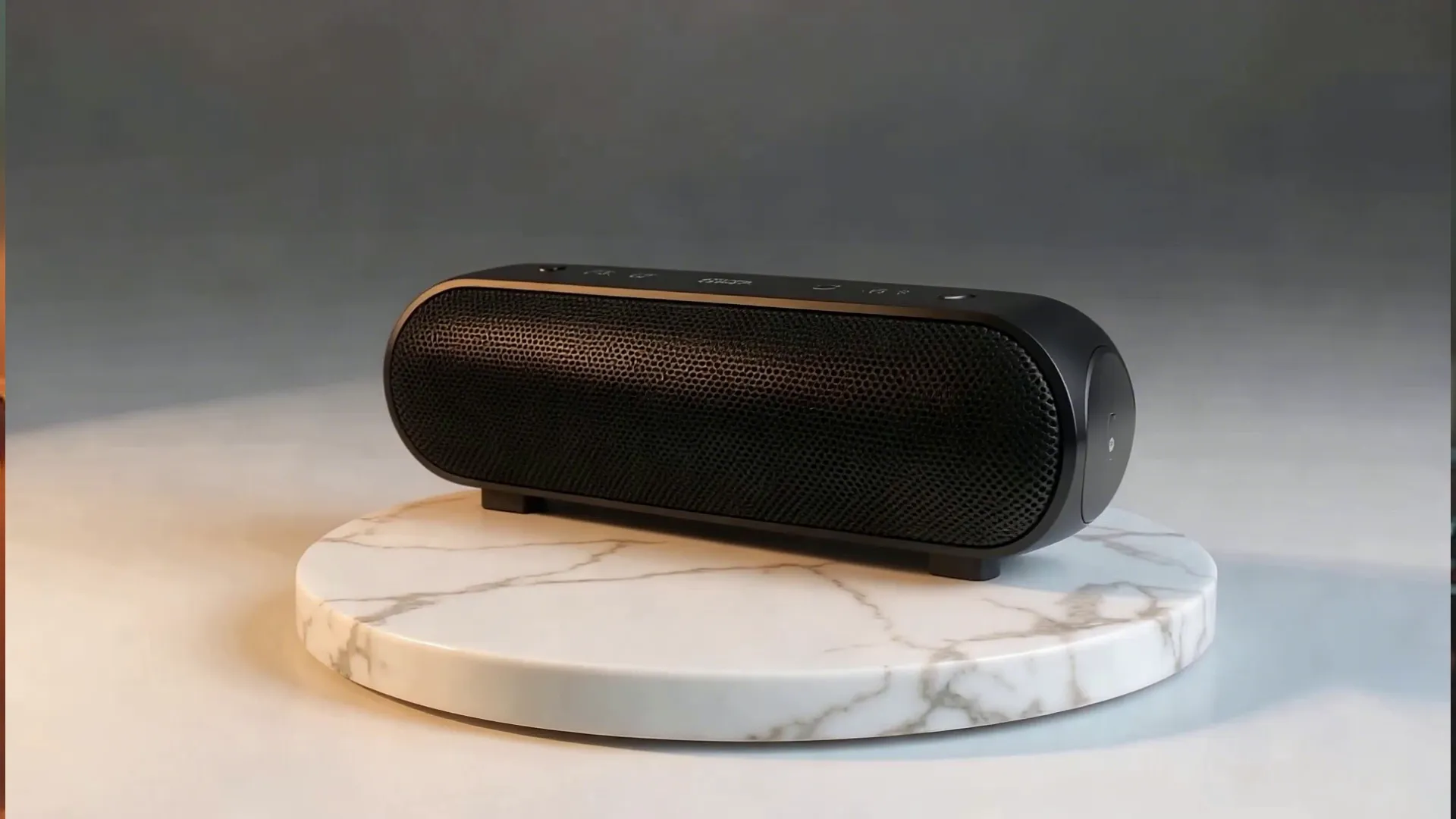
Product Videos
Transform product photos into cinematic showcase videos with AI Image to Video. Generate ad-ready product highlights in minutes, not days.
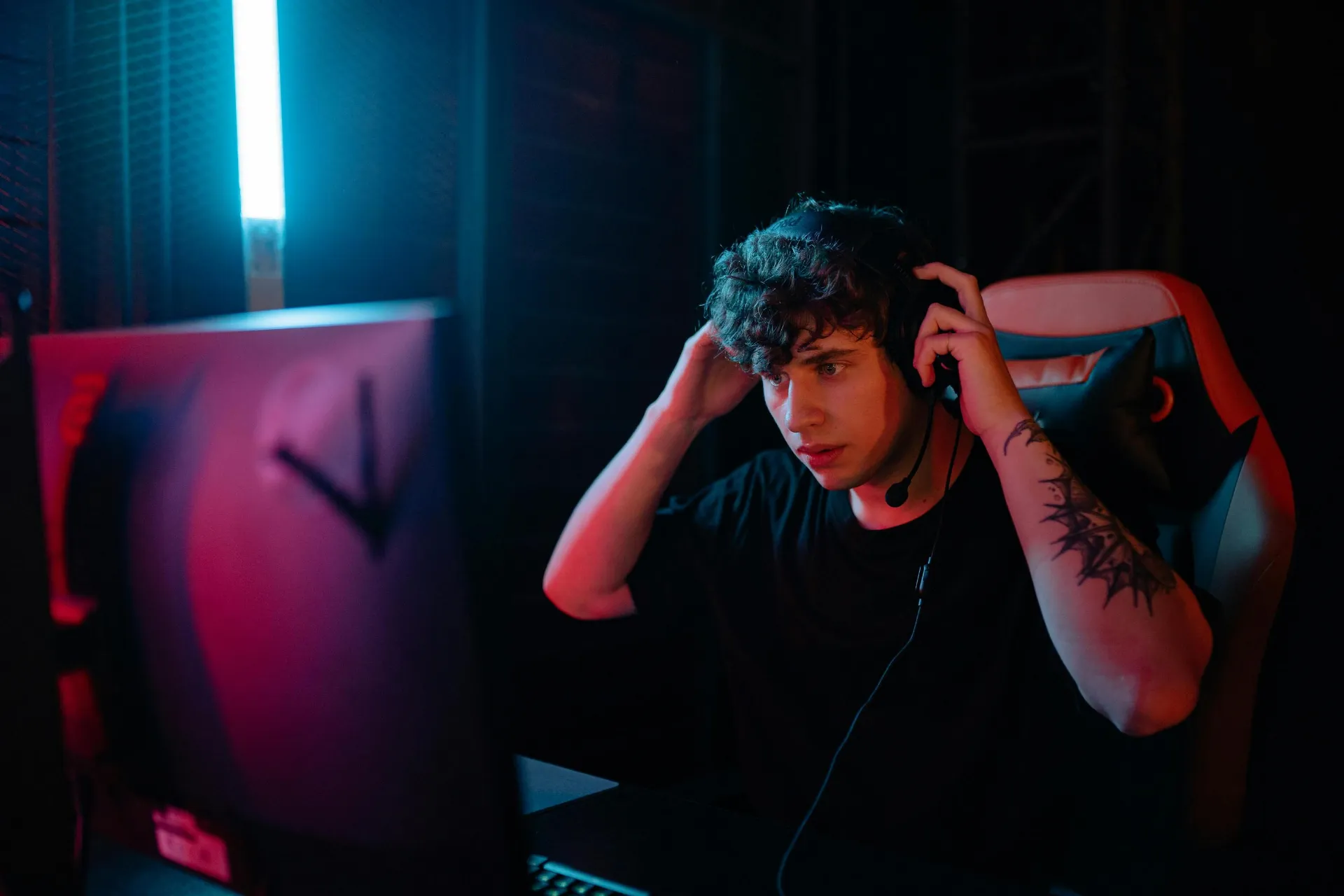
Gaming Trailers
Visualize environments, cutscenes, and cinematic sequences before building in-engine. Use prompts, start frames, and camera movement controls to test visual direction quickly.
Already transforming video creation across industries
Hear directly from the teams who publish faster, collaborate better, and stay ahead.


How to Generate an AI Scene
- Step 1Open Kapwing
Start by opening Kapwing and creating a new chat with Kapwing AI.
- Step 2Generate AI Scene
Enter a text prompt to generate your scene. You can upload an image to use as a start frame or add a reference video for motion control when using the Kling 2.6 model.
- Step 3Edit and export
Refine your scene by chatting with the AI Assistant to generate new variations. Then, enhance it manually in the editor or export your final video as an MP4, MOV, or WEBM file.
What's different about Kapwing?



Frequently Asked Questions
We have answers to the most common questions that our users ask.
Is the AI Scene Generator free?
Kapwing works on a subscription and credits system, where anyone can start creating content for free. Paid plans unlock higher generation limits, longer exports, and additional AI features.
Do AI generated scenes contain a watermark?
AI generated scenes using a free account includes a Kapwing watermark in the final export. Upgrading to a paid plan removes the watermark.
What is an AI scene generator and how does it work?
An AI scene generator uses machine learning models to turn text prompts into visual scenes. You describe the environment, mood, camera movement, or action, and the AI generates a scene based on your input. Kapwing's AI scene generator supports features like start frames, end frames, motion control, and multi-scene generation to create structured video scenes from prompts.
Are AI generate 3D scenes or only 2D?
Kapwing’s AI Scene Generator creates high-quality 2D image and video scenes. While the output isn’t a fully navigable 3D environment, supported AI models like Kling 2.6, Seedance, and Veo can simulate depth, perspective, and cinematic camera movement.
Can I use AI-generated scenes commercially?
Yes, AI-generated scenes created in Kapwing can be used for commercial projects.
What’s the difference between an AI background generator and an AI scene generator?
An AI background generator typically creates static backdrops or simple images. An AI scene generator goes further by producing structured environments with motion, camera direction, character consistency, and even multi-shot video sequences. It’s designed for storytelling and dynamic video production rather than just background design.
Can I edit or customize a scene after it’s generated?
Yes. After generating your AI scene, you can edit it directly inside Kapwing’s online video editor. Adjust color, add text, insert logos, layer sound effects, trim shots, and refine your video before exporting in formats like MP4, MOV, WEBM, or GIF.
What AI models work best for AI scenes?
Kapwing supports multiple AI models depending on your creative needs. Kling is great for advanced motion control, including start-frame and end frame guidance. Seedance and Wan are recommended for smooth multi-shot transitions within a single clip. Choosing the right model depends on whether you prioritize motion precision, scene sequencing, or stylistic flexibility.
What types of scenes can AI generate?
Kapwing’s AI can generate a wide range of movie-quality video and image scenes from simple text prompts, including action fight scenes, romantic kissing moments, stylized cartoon or anime visuals, and realistic settings like a beach, snowy winter landscape, or custom background environment. Creators also use it for professional product shots, branded backgrounds, and cinematic social media content.
Can I generate scenes based on a script?
Yes. Copy and paste your script into the prompt box, and the AI will generate a scene based on your dialogue and descriptions.
Can I use my own voice for scenes?
Yes, you can add your own voice to scenes either by recording directly into the studio or by creating an AI voice clone.
How long does it take to generate a scene?
Most AI scenes are generated in under 60 seconds.
Can the AI Scene Generator create videos longer than 12 seconds?
AI Scene Generator generations are currently limited to a maximum of 12 seconds. To create longer videos, you can use the AI Multi-Scene Generator by prompting Kai to create and combine multiple connected scenes. You can also use the AI Video Generator to produce extended content and stitch clips together seamlessly.
How do I keep the same character across multiple scenes?
To keep the same character across multiple scenes, save your character in Kapwing’s Brand Kit. Then, when prompting a new video scene, insert the saved character by typing @ followed by the character’s name. Kapwing will use that saved visual reference to help maintain a consistent appearance across scenes and projects.
Can I create multiple shots in one AI-generated clip?
Yes. Kapwing’s AI Scene Generator can create multiple shots within a single 3–12 second clip. You can generate scenes that cut between camera angles or transition into new environments in one output.
What are start frames and end frames in AI video generation?
Start frames and end frames are visual references that guide how a scene begins and ends. They help maintain character consistency, control transitions, and improve motion continuity across multi-scene videos.
Discover Resources
Tips, templates, and deep dives to help you create faster and share with confidence.
View all


Get started with your first video in just a few clicks. Join over 35 million creators who trust Kapwing to create more content in less time.