AI Multi-Scene Video
Generate consistent multi-scene videos with AI.
Works in your browser. Download as MP4 or MOV.
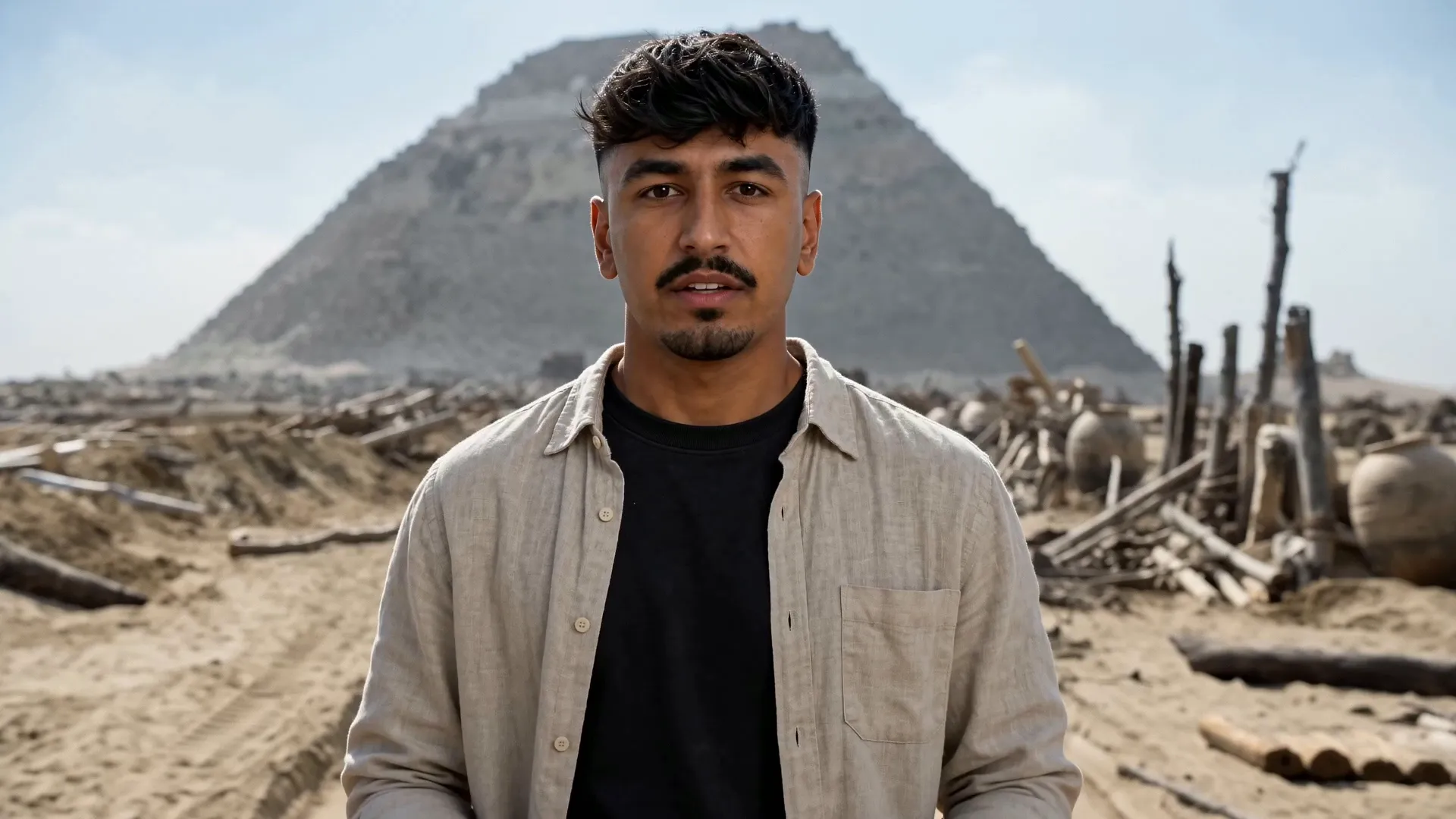
Consistent multi-scene videos from a single prompt
Plan, generate, and edit connected scenes with AI
Generate complete videos, not just clips
Create a complete multi-scene video from a single prompt. Kai, Kapwing's AI Video Assistant, turns your idea into a sequence of connected scenes with consistent characters, visuals, and storytelling by generating the script, planning each shot, and maintaining a cohesive style from beginning to end.
Choose from leading AI video models like Minimax H3, Seedance, Happy Horse, Kling Omni, and Veo to match your creative vision. Kapwing's AI Video Generator creates realistic or animated narrative videos with consistent style, natural motion, and dynamic camera movements across every scene.
When your first draft is ready, refine individual scenes in Kapwing Studio or make edits with conversational prompts. Export high-resolution MP4 or MOV files, or publish directly to TikTok and YouTube.
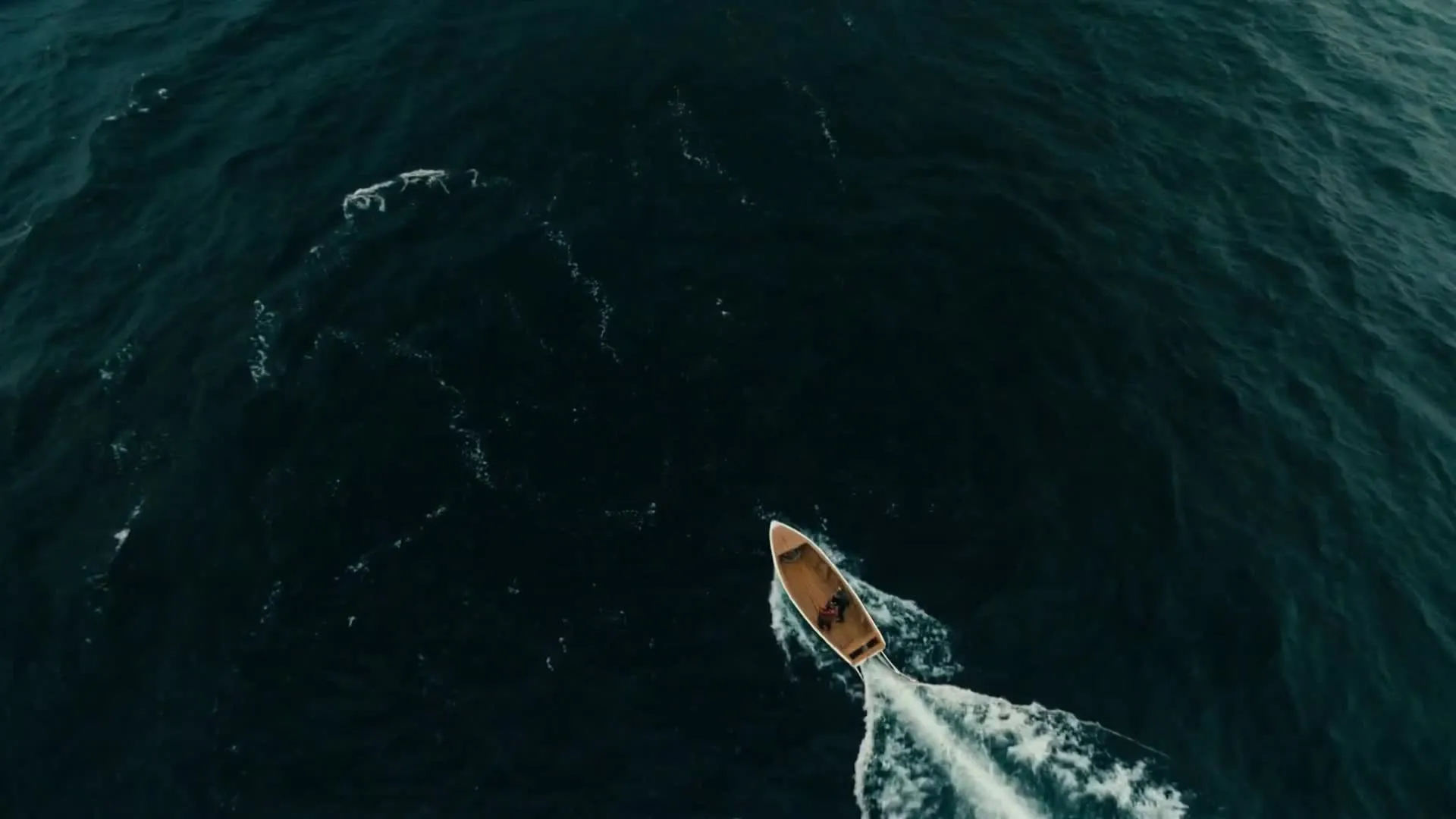
How to create multi-scene videos
Turn one prompt into a complete video
Describe
your video, including scenes and characters, in a chat with Kapwing AI


Approve
Kai's plan or make changes before generating
Generate
your multi-scene video and download as high-resolution MP4 or MOV
Every scene, every style
Tell any story with consistent multi-shot videos
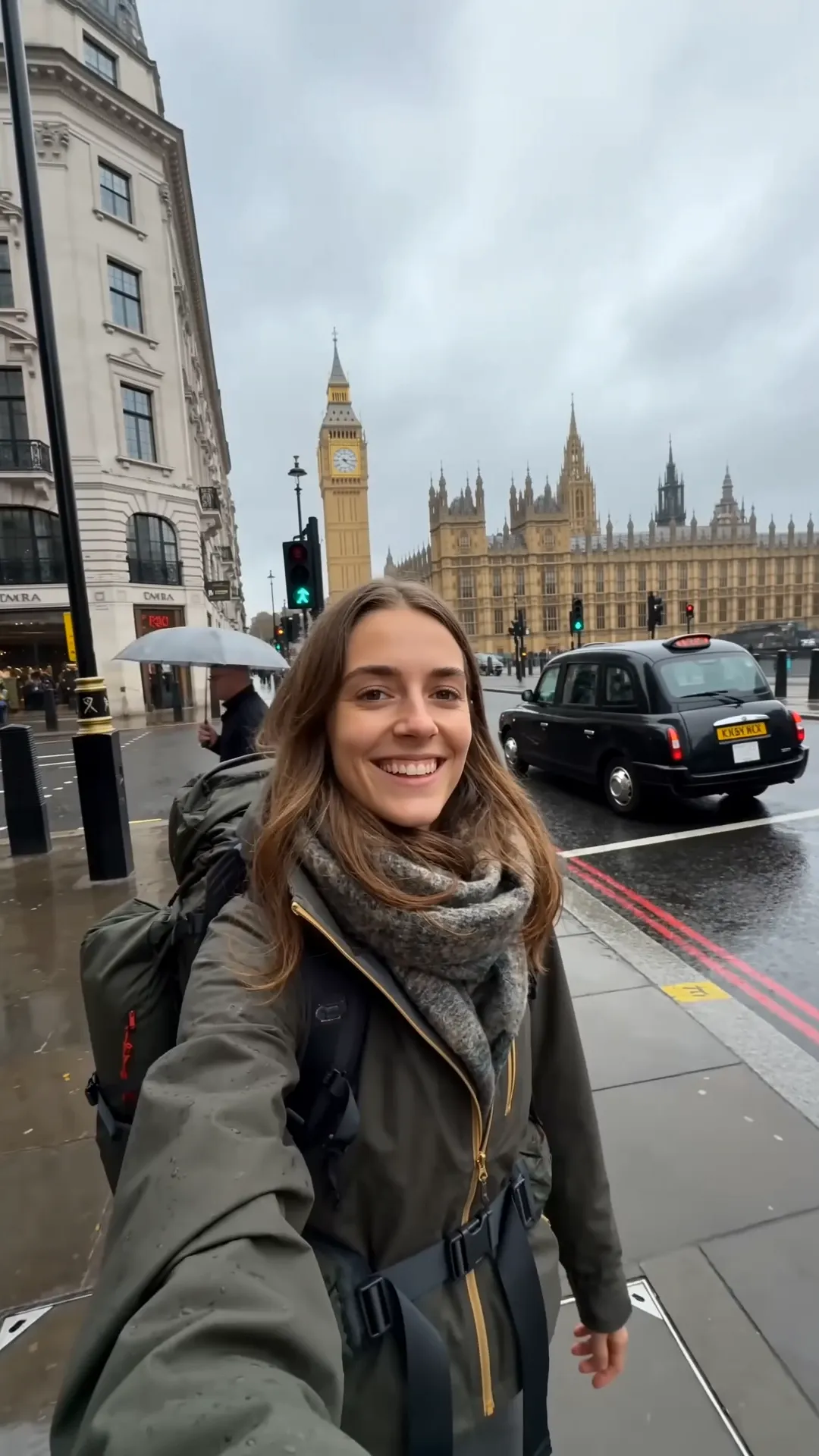
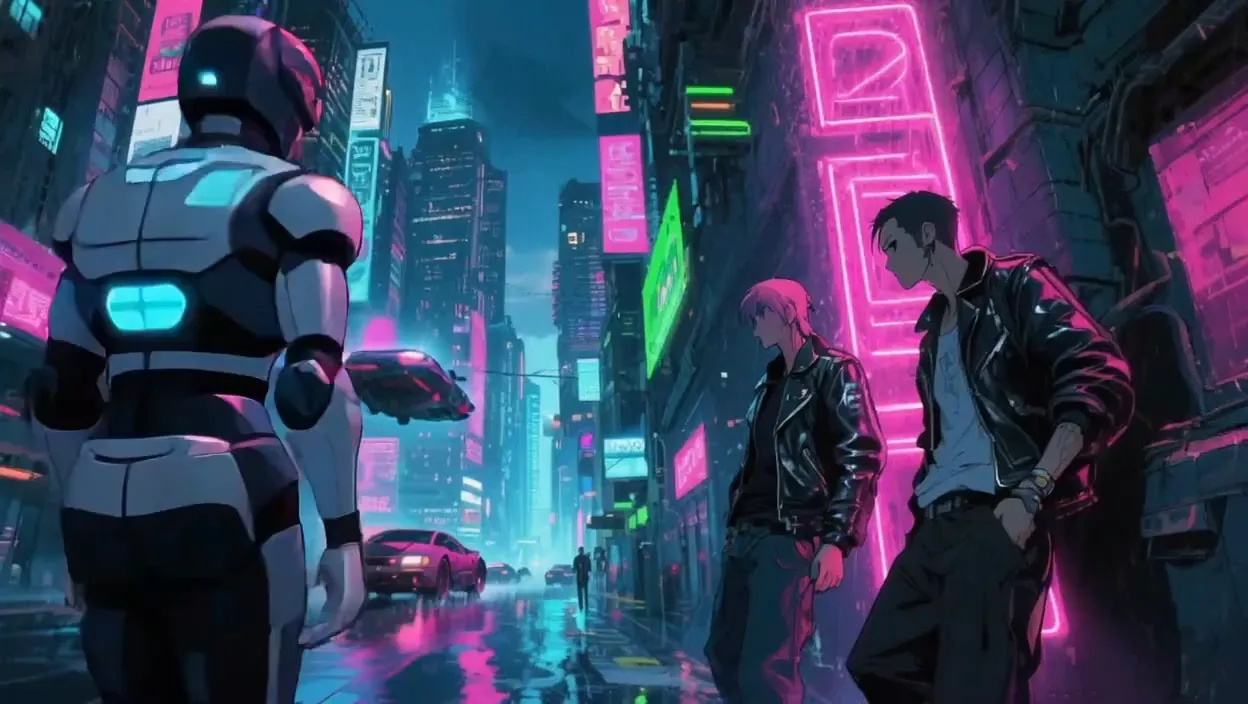
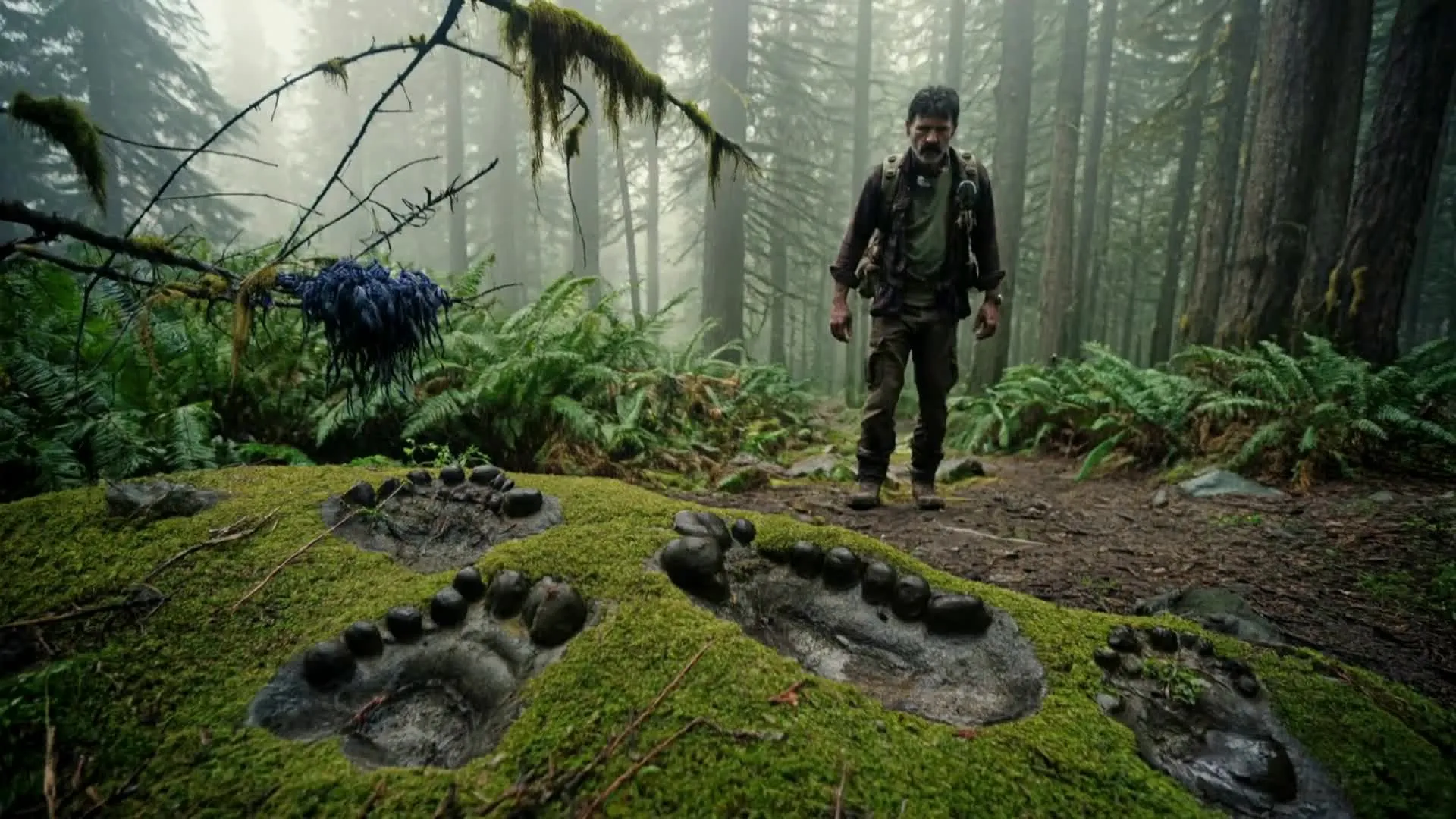
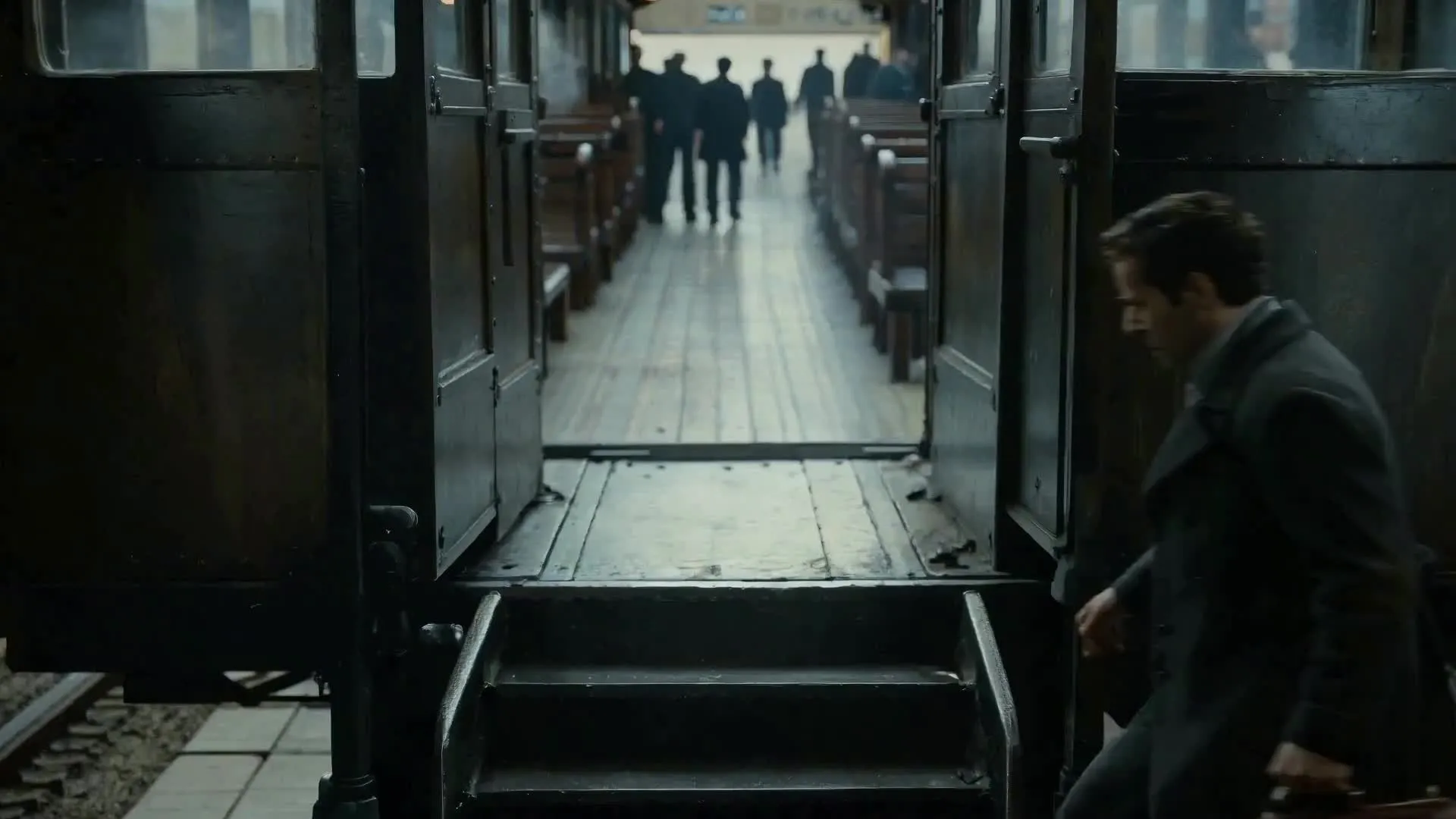
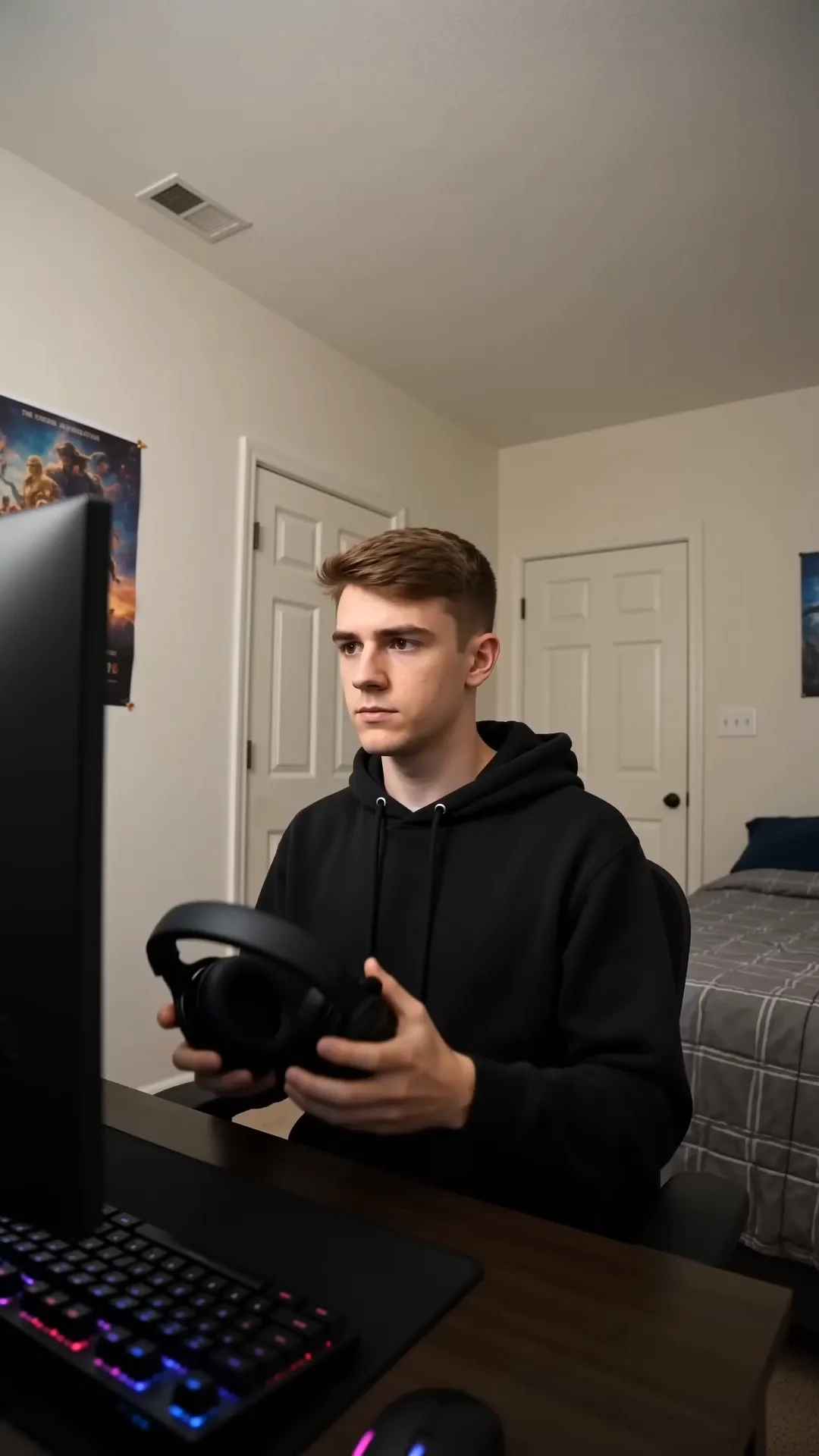
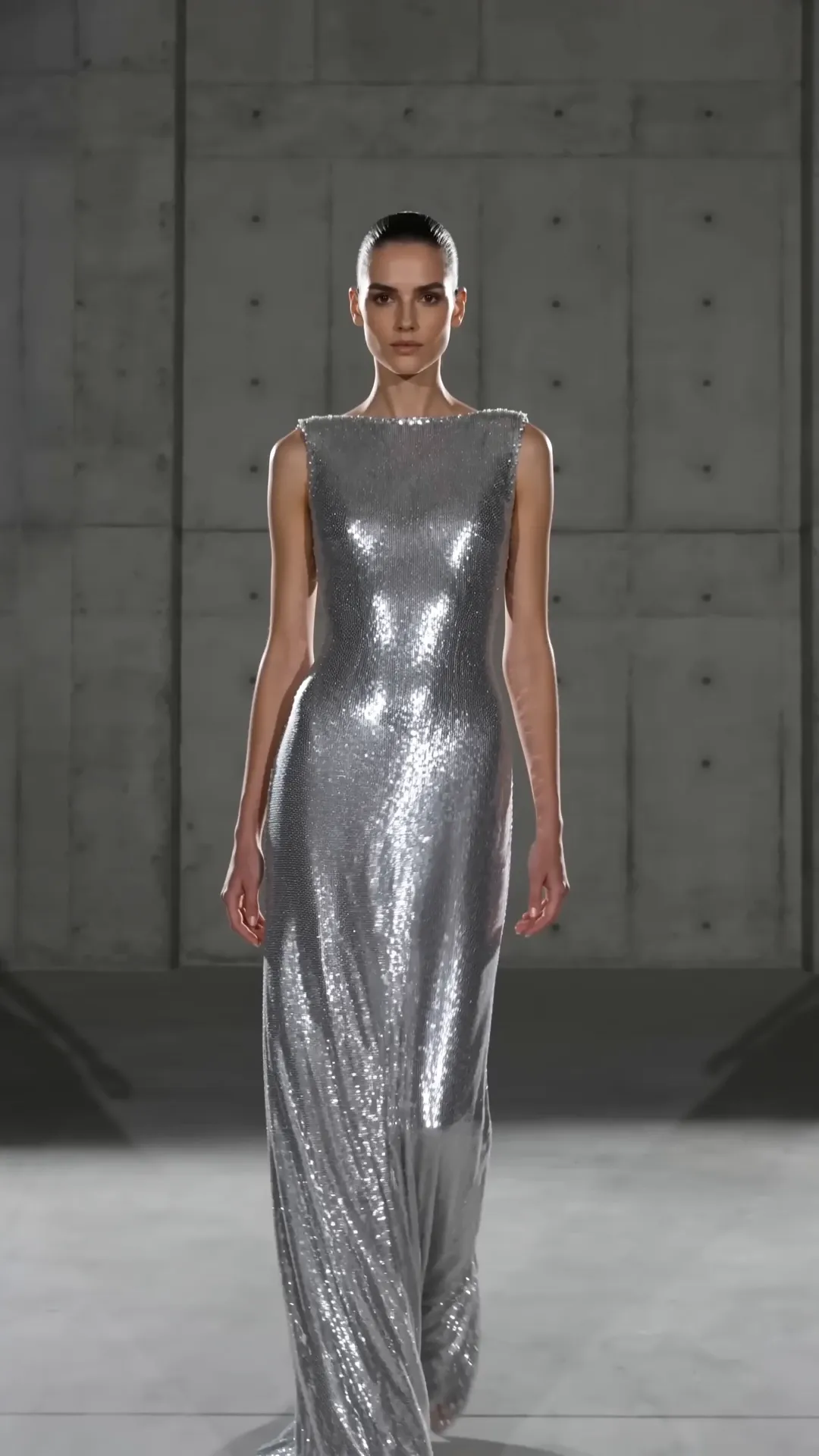
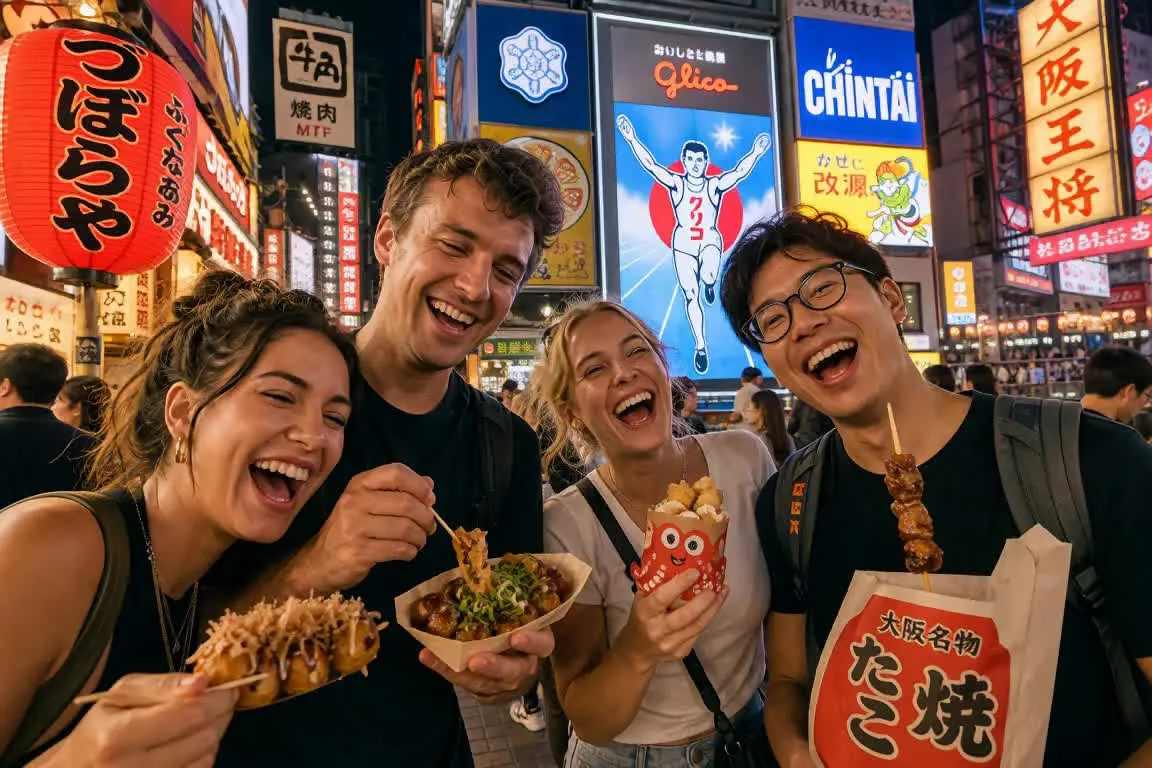
Create polished multi-shot videos for any niche
Join 35M+ creators making videos with Kapwing
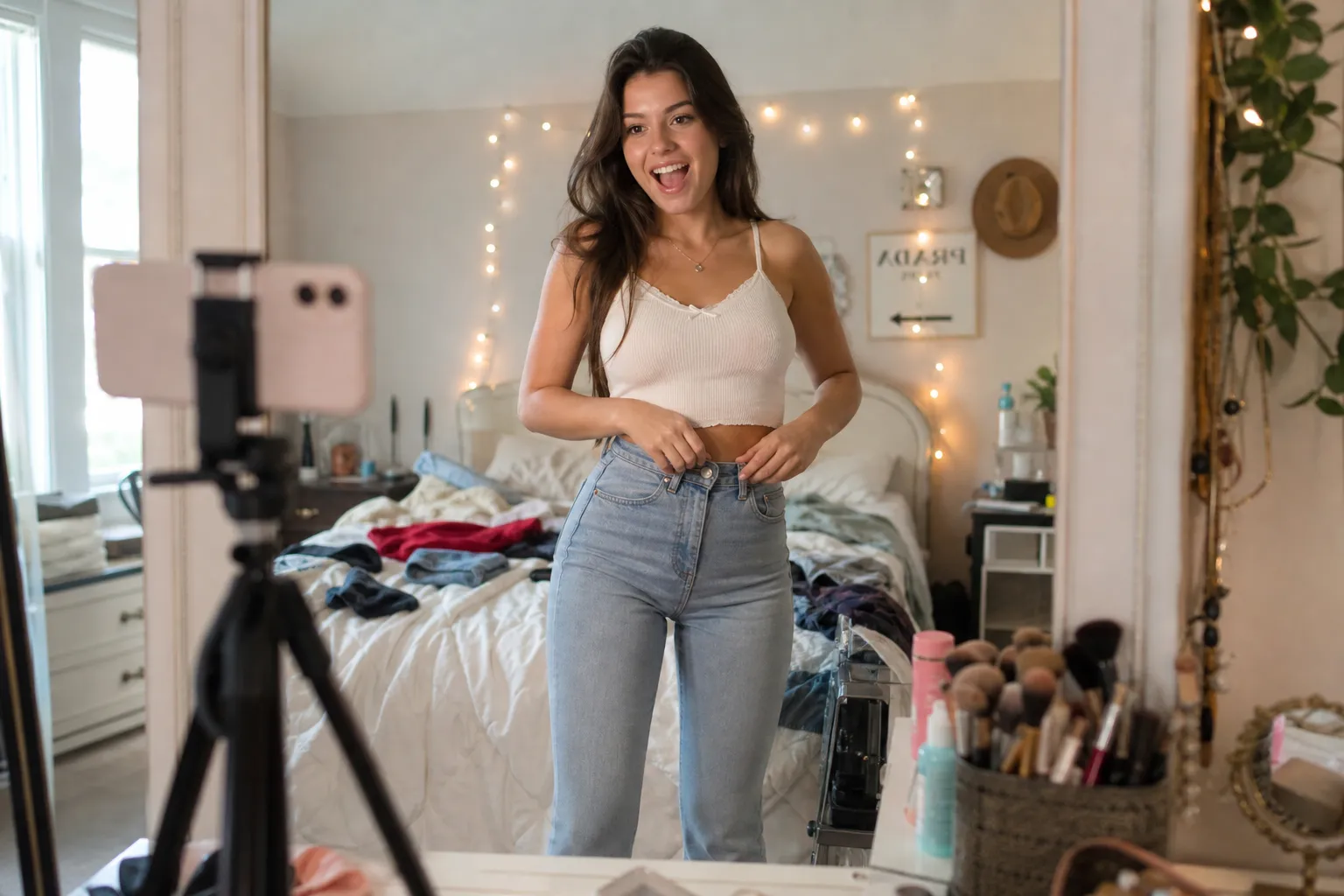
Social Content
Social media managers use the AI multi-scene video generator to turn ideas into multi-shot videos for TikTok, Reels, and Shorts with minimal editing
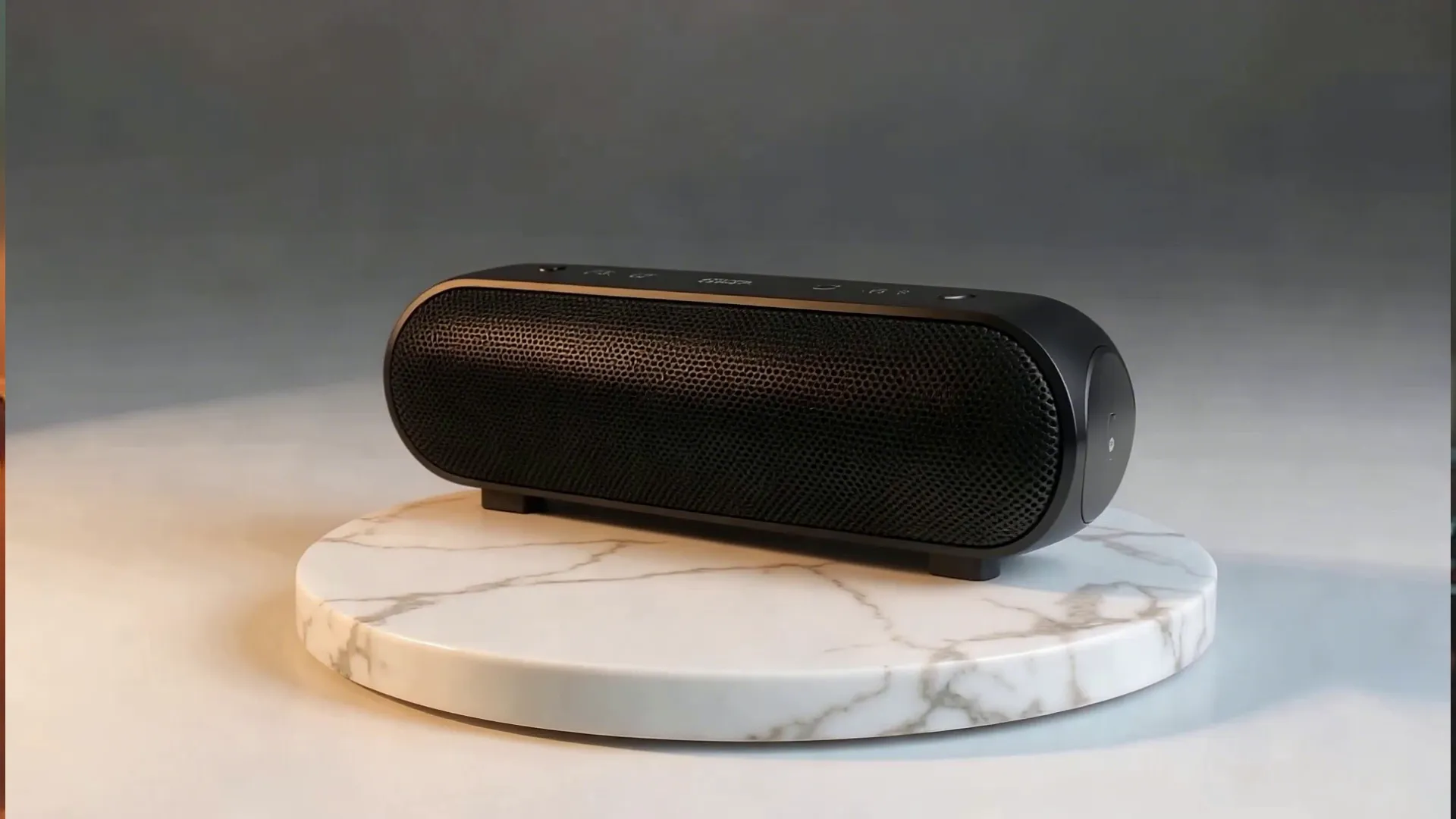
Product Demos
Product marketers generate scene-by-scene demos that highlight key features with dynamic camera angles and smooth transitions

YouTube Videos
YouTubers and vloggers use the multi-scene text to video generator to create intros, B-roll, and supporting visuals from a single prompt
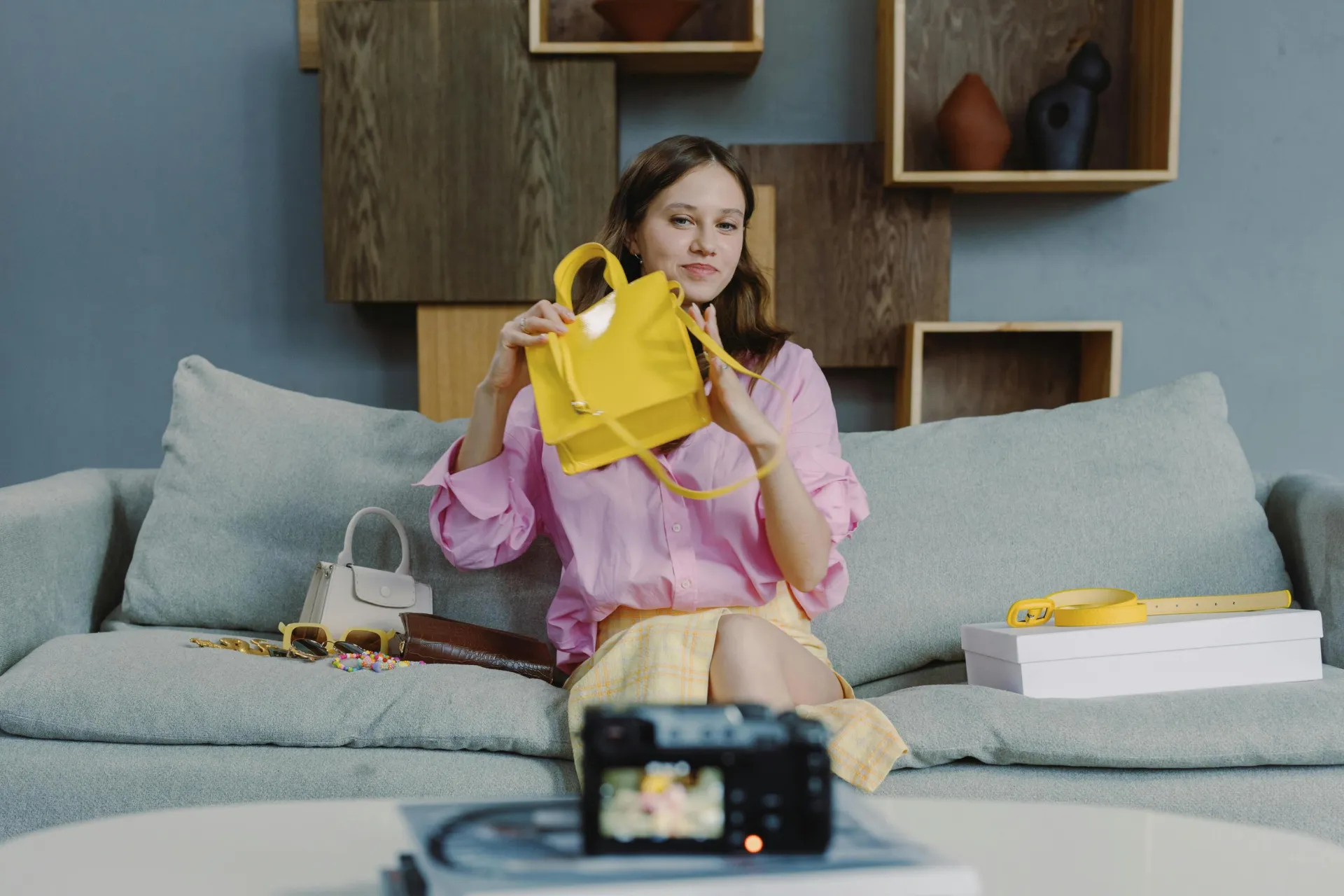
Marketing Campaigns
Marketers create ads and campaign videos faster by generating and updating entire multi-scene videos through conversation with Kai
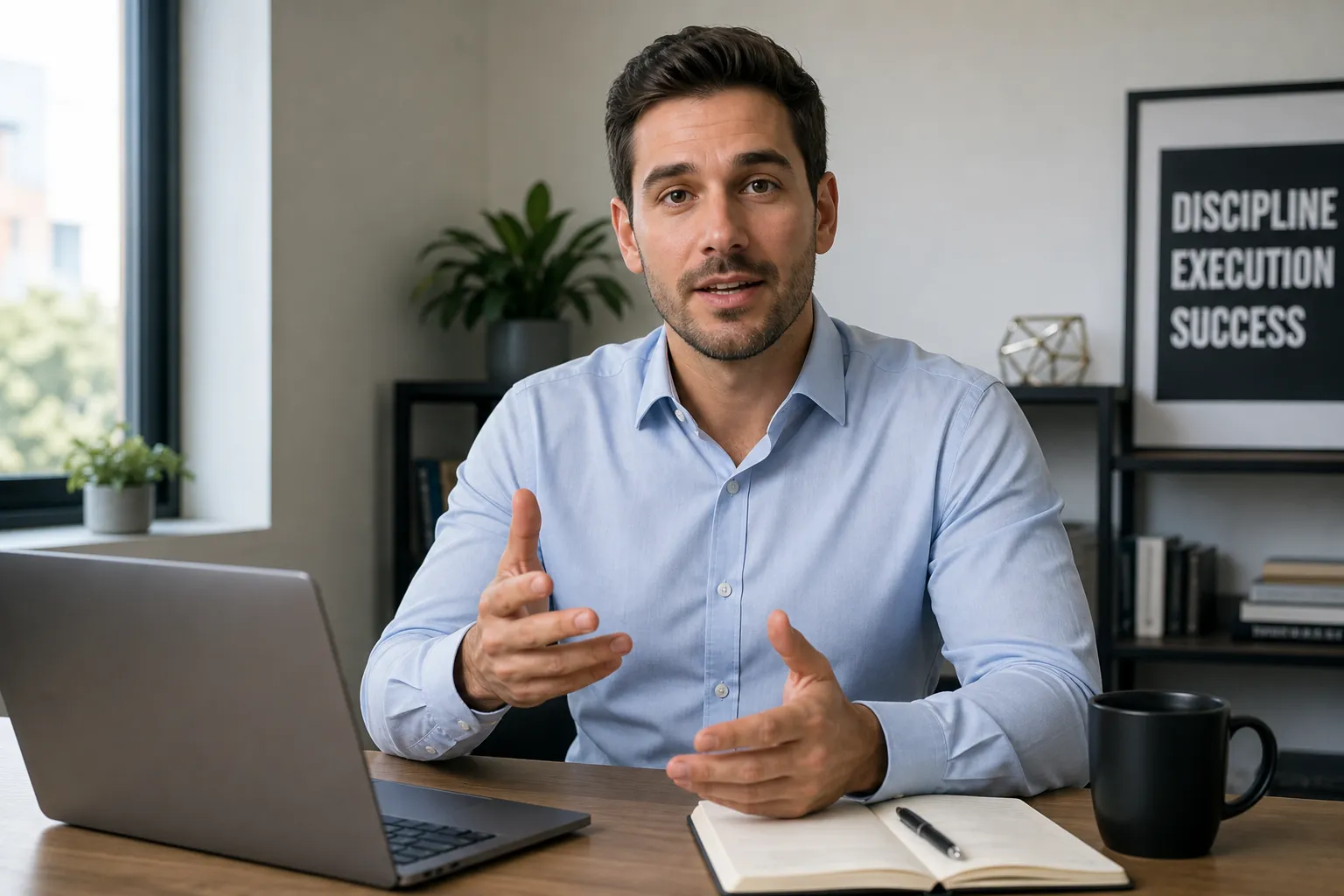
Explainer Videos
Educators, online coaches, and support teams turn complex topics into clear, structured videos with connected scenes and visuals
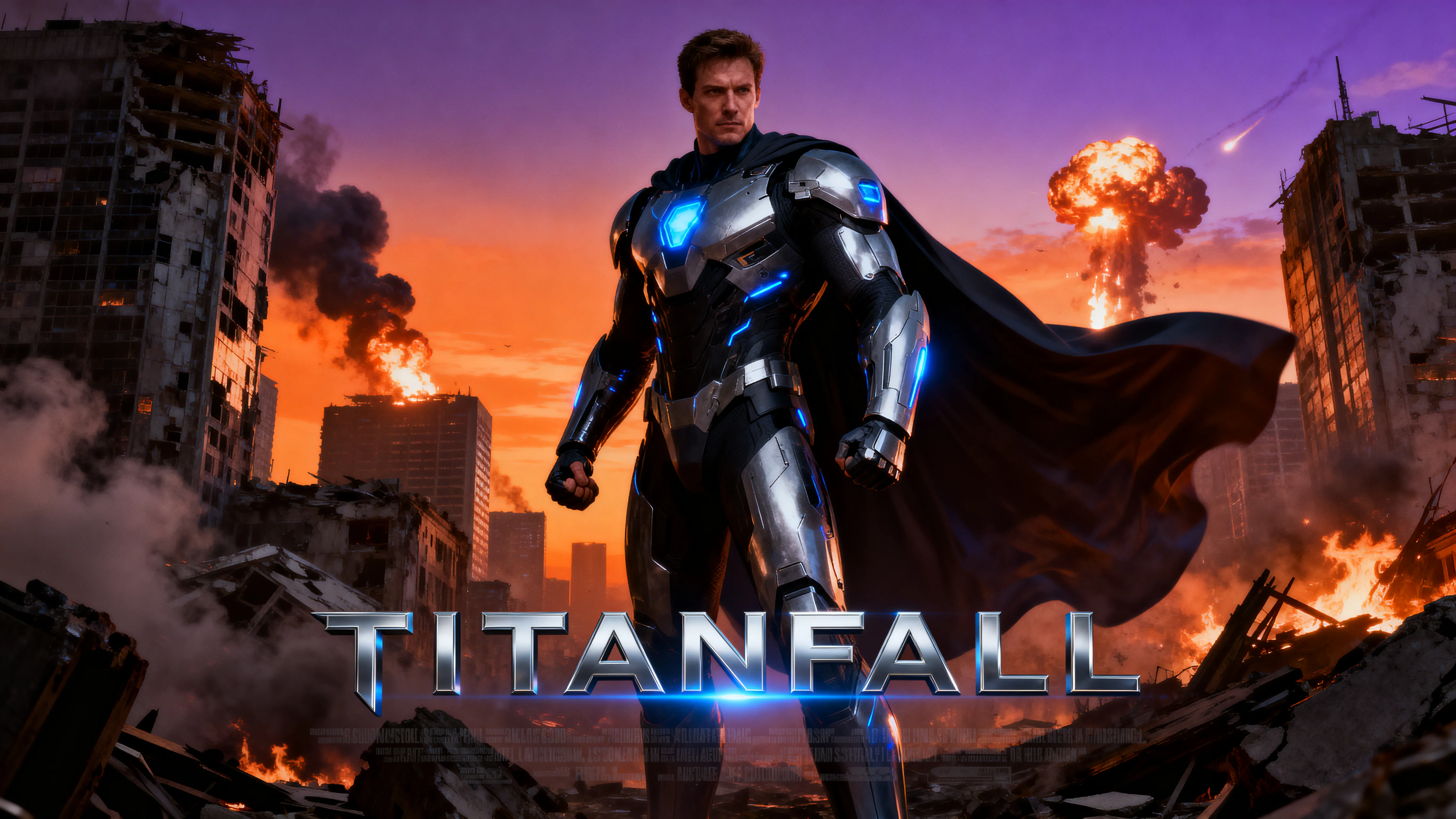
Short Films
Filmmakers and storytellers generate complete narratives from a single prompt, with connected scenes that follow a clear beginning, middle, and end
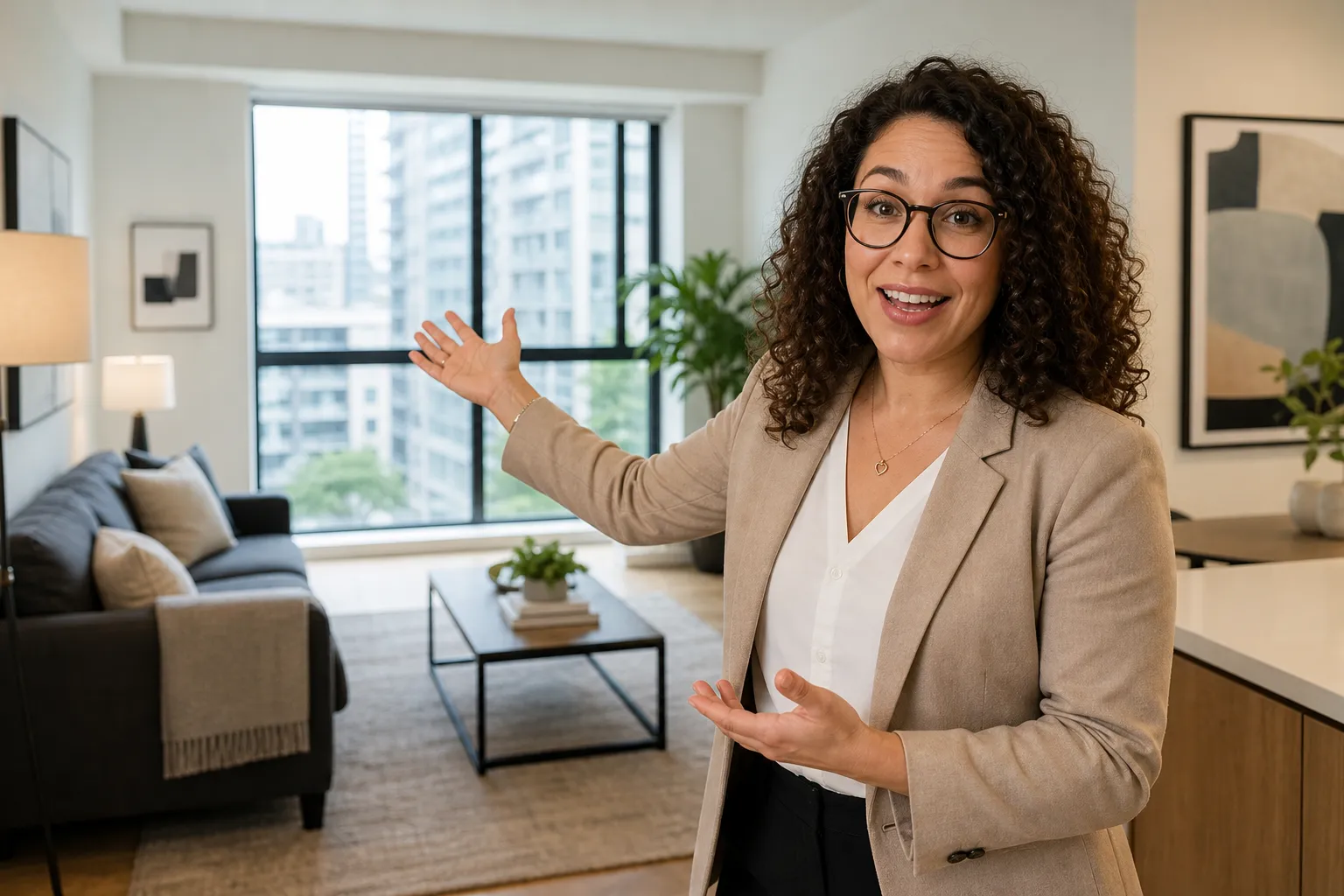
Property Tours
Realtors generate virtual walkthroughs with cinematic pans, dolly shots, and room-to-room transitions from simple prompts
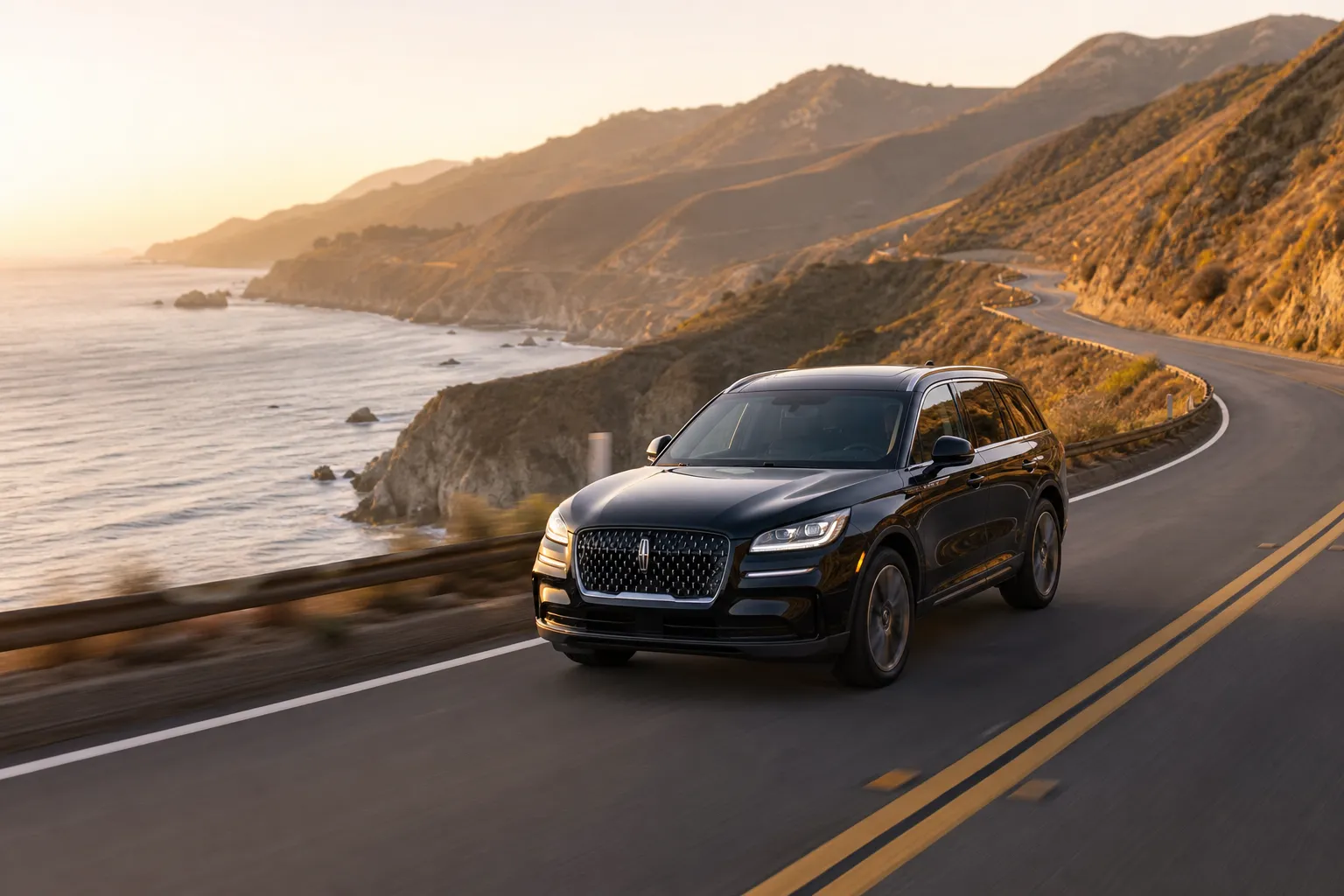
Brand Ads
Marketing teams use the multi-scene text to video generator to produce adverts with varied shots, camera movement, and consistent visual style
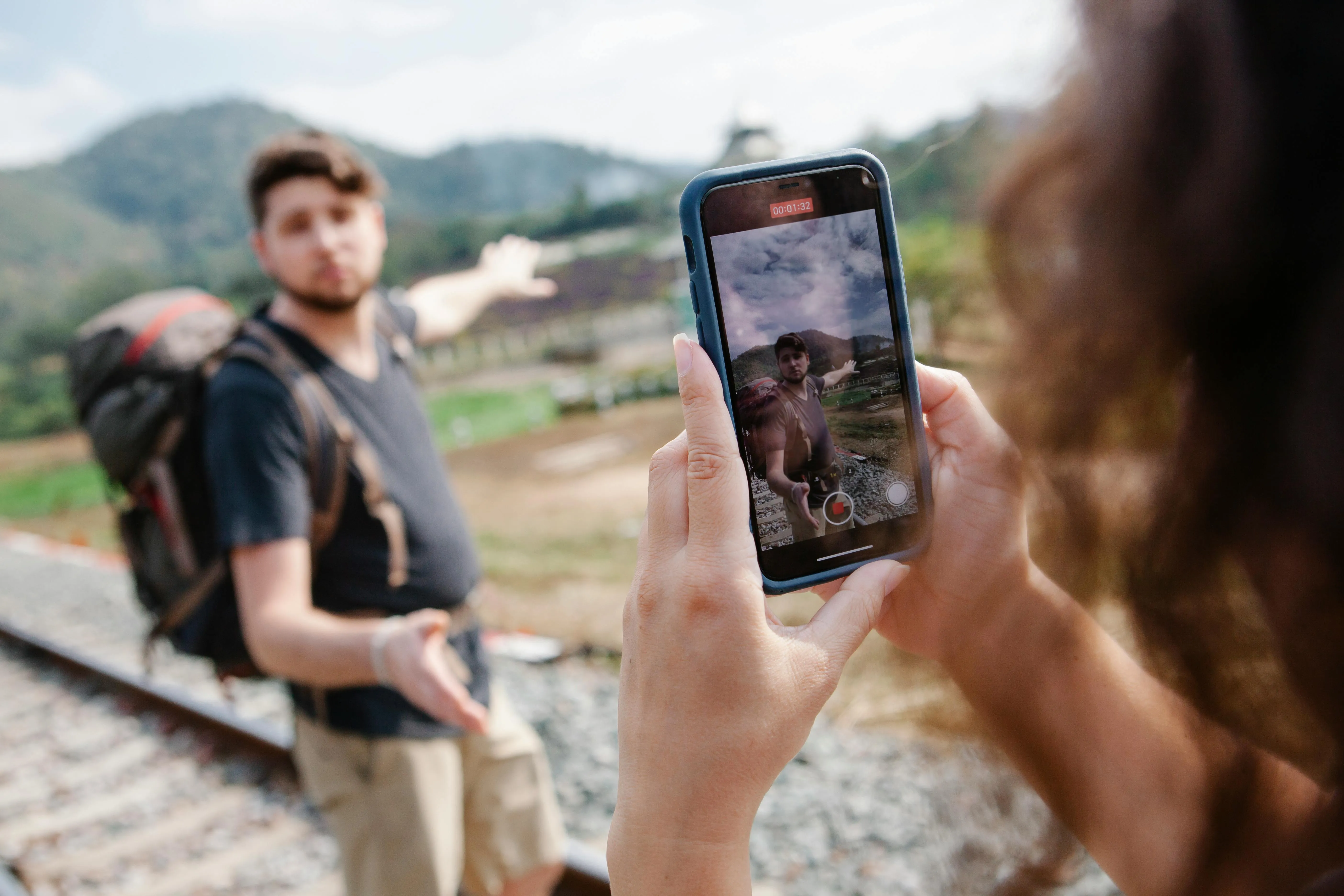
Travel Videos
Vloggers create cinematic travel videos with establishing shots, scenic cutaways, and location highlights generated from a simple prompt
Tell your story with narrative videos — fast
Turn text prompts into full narrative videos online
Review your video before generation
Describe your idea once, and Kai creates a complete production plan before generating a single scene. Review the storyboard, scene descriptions, camera direction, dialogue, and pacing, then make changes before spending credits on your final AI multi-scene video.
AI-assisted video creation helps you build every part of your project in one workflow, from scene planning and shot sequencing to native video generation with synchronized audio. Generate separate voiceovers and music — or let Kai create everything together — before customizing your video and rendering the final result.
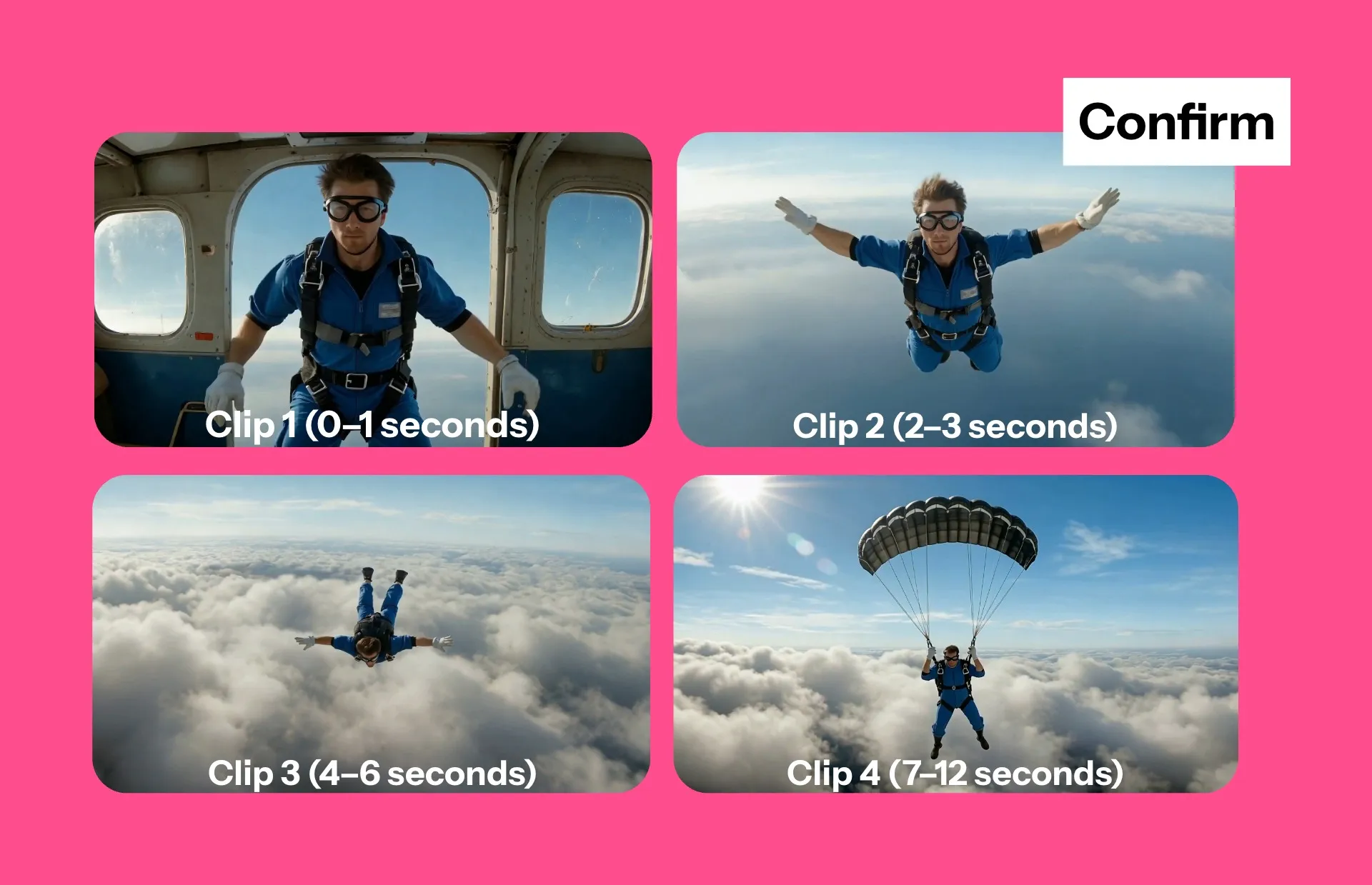
Every shot you need — from one prompt
Kai acts like your AI video director, turning simple creative direction into polished, multi-scene videos. Describe the shots you want, like a slow dolly-in to build suspense, a wide establishing shot to set the scene, a smooth pan to reveal a product, or a dramatic zoom to highlight a key moment, and Kai plans and generates each scene with the right camera movement.
Need a different look? Just ask. Tell Kai to add tracking shots for action, orbit shots for product showcases, or close-up push-ins for emotional moments, and it updates your video across scenes while keeping the story cohesive from start to finish.
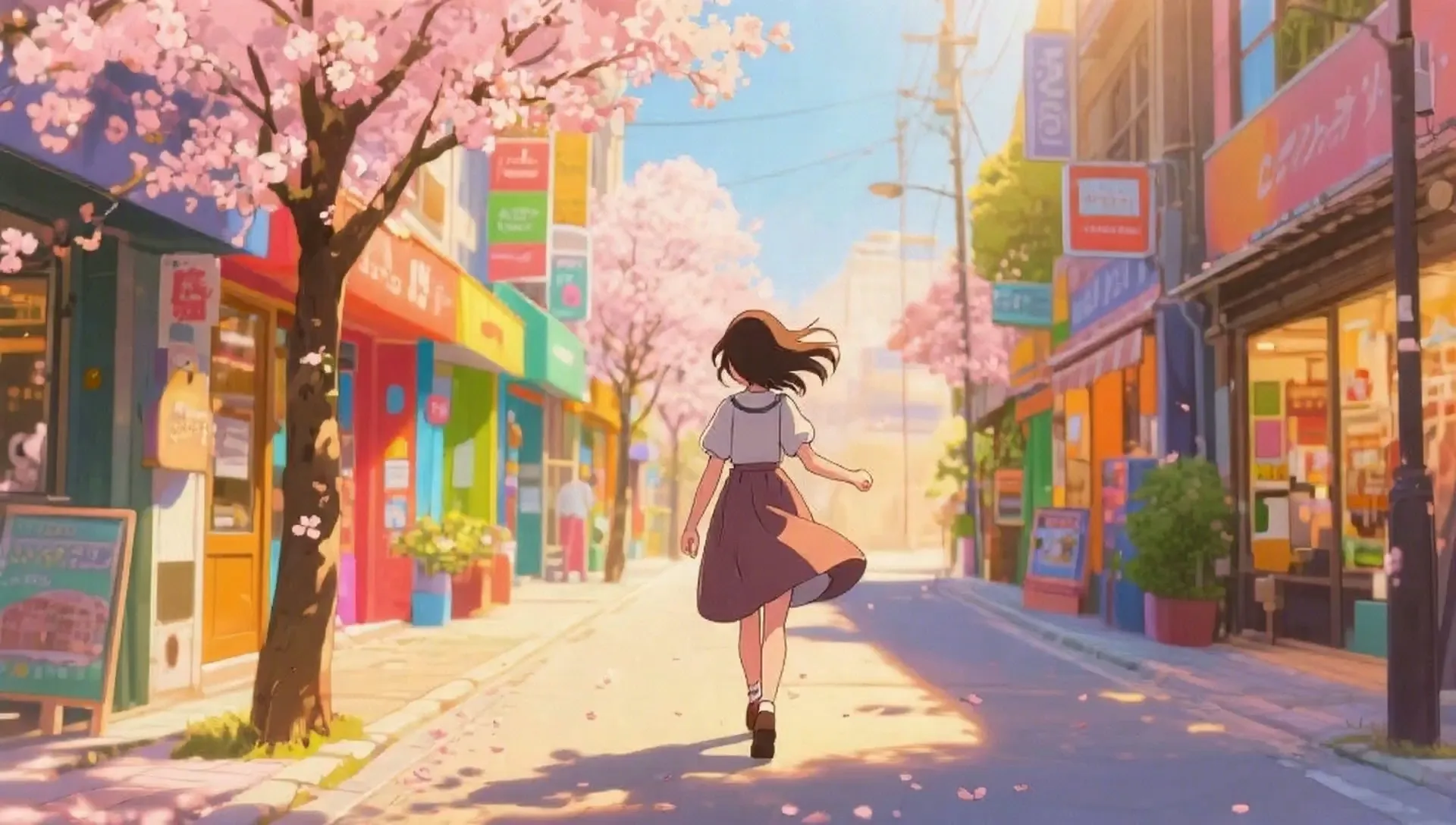
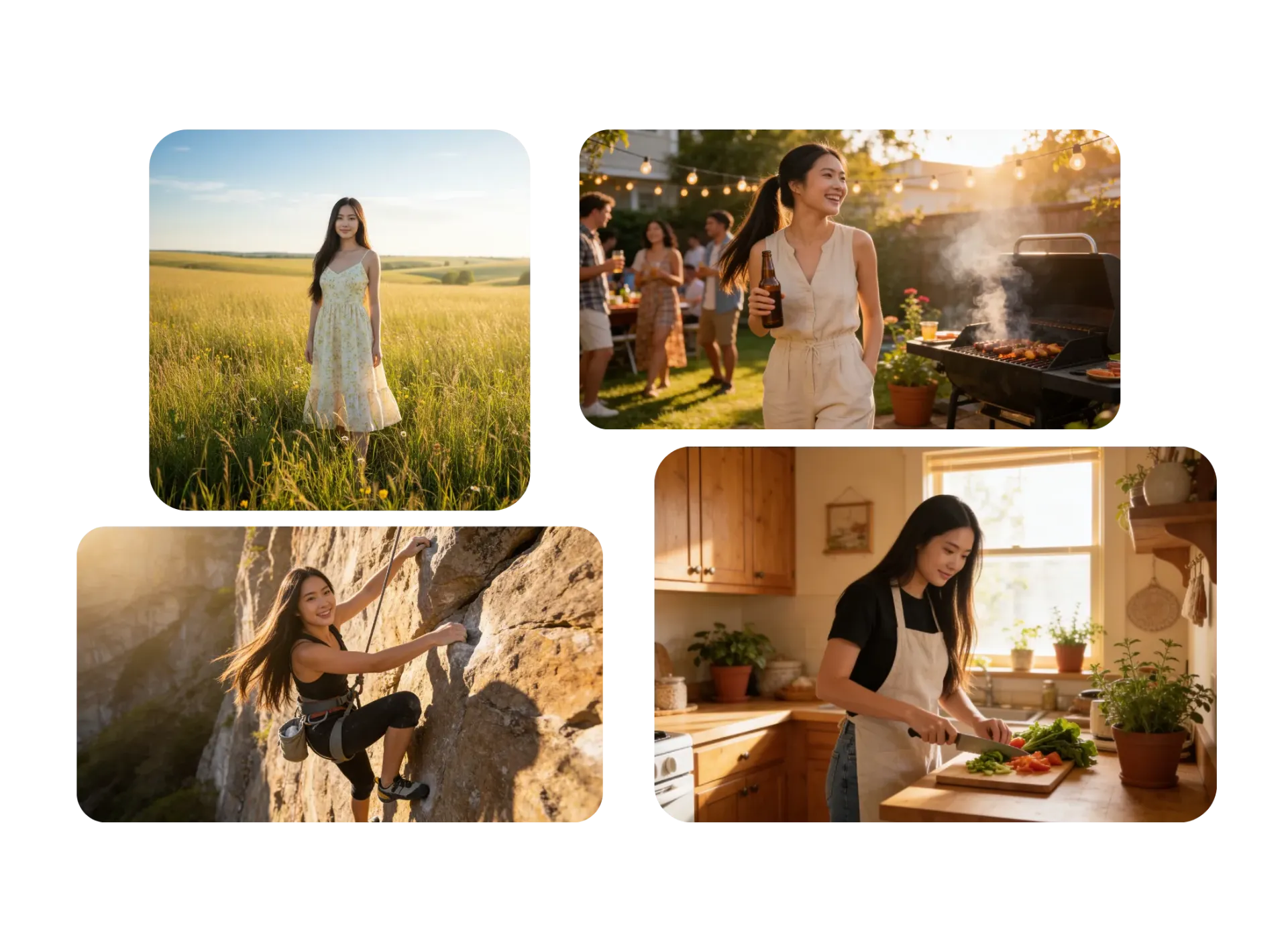
Keep scenes visually consistent
Generate AI multi-scene videos without losing continuity between shots. Kai keeps characters, environments, camera style, and visual direction consistent across every scene, so your multi-shot videos feel like one complete story instead of disconnected clips.
Whether you're creating a product ad, explainer, or short film, each new scene builds naturally on the last. Reuse the same AI characters, preserve your visual style, and generate longer text-to-video projects with a cohesive look from beginning to end.
Edit and publish from your browser
Your AI multi-scene video is ready to edit the moment it's generated. Rearrange scenes, trim clips, replace shots, adjust timing, or extend your story without restarting the generation process. Collaborate with your team in real time and keep favorite generations, logos, fonts, and brand colors organized in a shared Brand Kit.
Refine every detail with AI-assisted video editing in the online Kapwing Studio. Add subtitles, voiceovers, music, transitions, and brand assets, then export a polished video that's ready to publish anywhere.
How to Make AI Multi-Scene Videos
- Step 1Enter prompt
Start a new chat with Kapwing's AI assistant, Kai. Enter a prompt describing your video, including specific scenes, characters, camera movements, and actions.
- Step 2Generate multi-scene
Press enter to start generating your multi-scene video. Kai will turn your prompt into a detailed plan, then generate it scene-by-scene.
- Step 3Refine and export
Edit your video with additional prompts, or move to the Studio for access to the full range of video editing tools. Then export as MP4, MOV, or WebM.
What's different about Kapwing?



Frequently Asked Questions
We have answers to the most common questions that our users ask.
Yes, anyone can try Kapwing’s AI Toolkit for free without watermarks. Our AI tools run on a credit system, with each feature costing a set number of credits. For maximum creativity and the best value, upgrade to a Pro account to unlock the full power of AI-driven content creation and remove export duration limits.
If you have a specific vision, write an advanced video generator prompt describing your characters, camera position and movement, and each scene's setting and action. You can also create multi-scene videos from simpler prompts by letting Kai generate full scripts and visual plans. Approve Kai's plan, then generate your multi-scene video. Adjust and fine-tune with additional prompts or by moving your multi-scene video project into the Kapwing Studio. When you're ready, export your complete video as MP4, MOV, or WebM, or share directly to social media platforms like TikTok and YouTube.
Yes, you can move your generated video to the Kapwing Studio to replace scenes, trim clips, adjust timing, add subtitles, update voiceovers, or overlay custom text and stickers. To regenerate a specific scene inside the Studio, click the AI icon at the upper left to create a new chat. Select the scene in the timeline, describe how you want the clip regenerated, and then add your new clip to the timeline.
You don't need a perfect prompt to get started. Describe your idea in a few sentences, then let Kai, Kapwing's AI Video Assistant, expand it into a complete production plan with scene descriptions, dialogue, pacing, and camera direction. Review the plan, make changes, and generate only when you're happy with the result.
If you're using AI video models with native audio, like Seedance, include sound effects, dialogue, and ambient audio directly in your prompt—for example, "waves crashing, seagulls overhead, and soft background music." For more control, generate the visuals first and add AI voiceovers, music, or sound effects separately in Kapwing Studio.
Be specific about how each scene should be framed and filmed. Ask for a wide establishing shot to introduce a location, a slow dolly-in to build anticipation, a tracking shot to follow movement, a smooth pan to reveal new details, or a close-up push-in to emphasize emotion. Clear camera direction helps create more polished, multi-shot videos.
Create reusable characters with Kapwing's AI Character Generator or reference the same character throughout your prompt. Kai maintains consistent characters, environments, and visual style across scenes, so your AI multi-scene video feels like one cohesive story from beginning to end.
Kapwing offers leading AI video models including Minimax H3, Veo, Kling Omni, Seedance, and Happy Horse. Select the model that best matches your desired style, realism, and motion, or let Kai choose the best model for your project.
Yes, you can use Kapwing's AI Video Extender to turn scenes into longer videos. After generating a multi-scene video with Kai, move it into the Studio, then trim to the single scene you want to extend. Bring that clip back into a Kai chat to extend it by describing the additional action and characters.
Discover Resources
Tips, templates, and deep dives to help you create faster and share with confidence.
View all

Get started with your first video in just a few clicks. Join over 35 million creators who trust Kapwing to create more content in less time.