
How To Create A Brand Character In Kapwing
With Kapwing, you can create a Brand Character which allows you to have character consistency in your generated content. If, for example, you are generating content for your company and always want to use the same person for your instructional or onboarding videos, all you need to do is set that person’s “character” up within our Brand Kit and you will be able to generate various videos with that character.
How To Create a Brand Character
- Go to your Brand Kit, on the left side of your workspace
- Scroll down to “Brand Character”
- Click the + to add a character
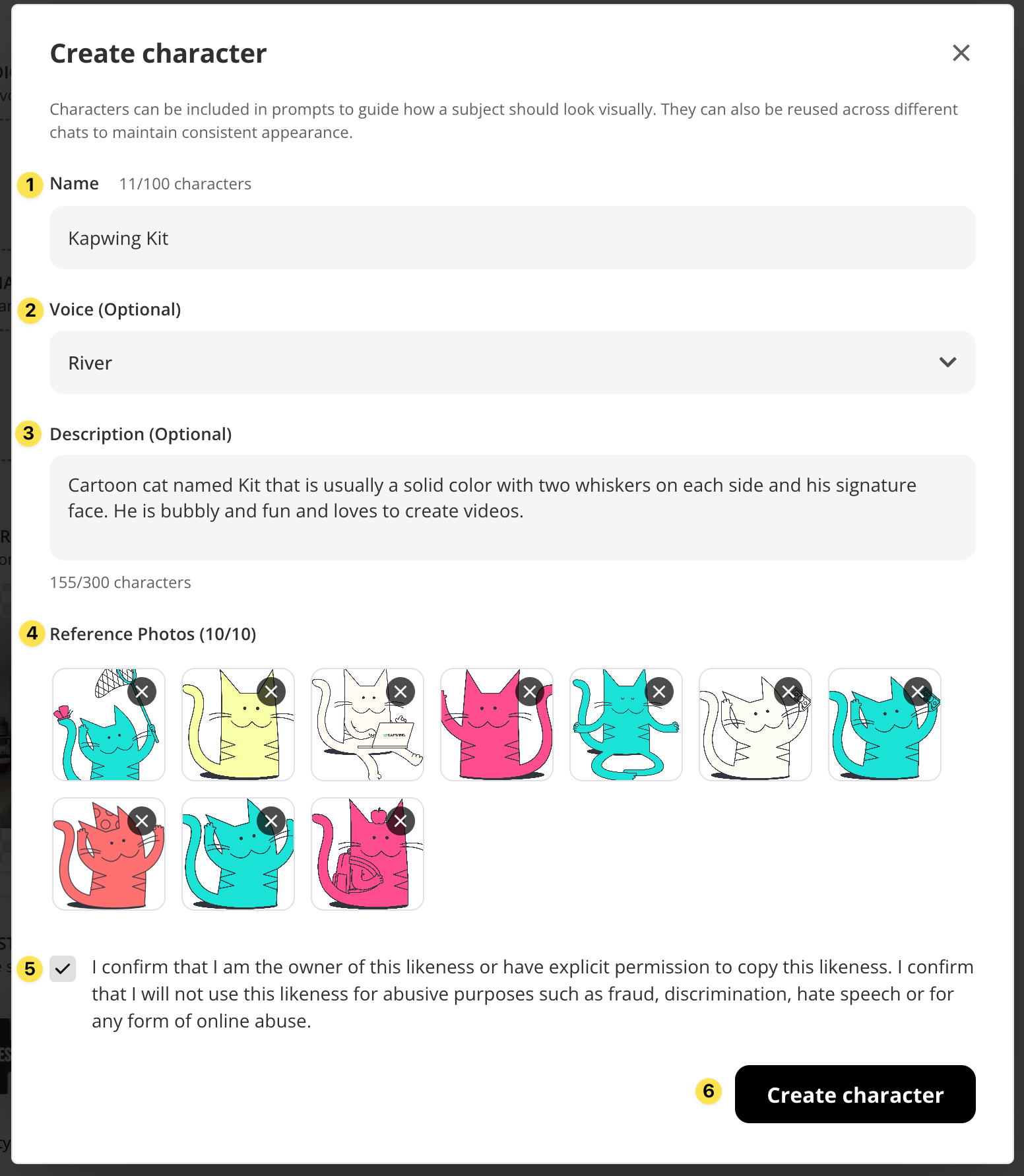
- Fill the window with all the information about your character
- (1) The name you want to give the character. Can be a name or something to help you remember when you want to use it (i.e @Kapwing Kitten, @Outdoor Man, @Jane Doe)
- (2) The voice you want the character to have. This can be a stock voice or a custom brand voice.
- (3) It is optional, but recommended, to fill in the description. In this section you would add details about this character's appearance, style, or personality especially if they are things not visible in your reference images
- (4) Upload 10 reference images of your character.
- (5) Confirm the character is not of someone else’s likeness without their permission.
- (6) Click “Create Character”
- Done!
How To Call On Your Character
Now that you have your character set up, here is how to “call on” the character when prompting the Kapwing AI’s chat.
- Write your prompt following our prompting tips and recommendations
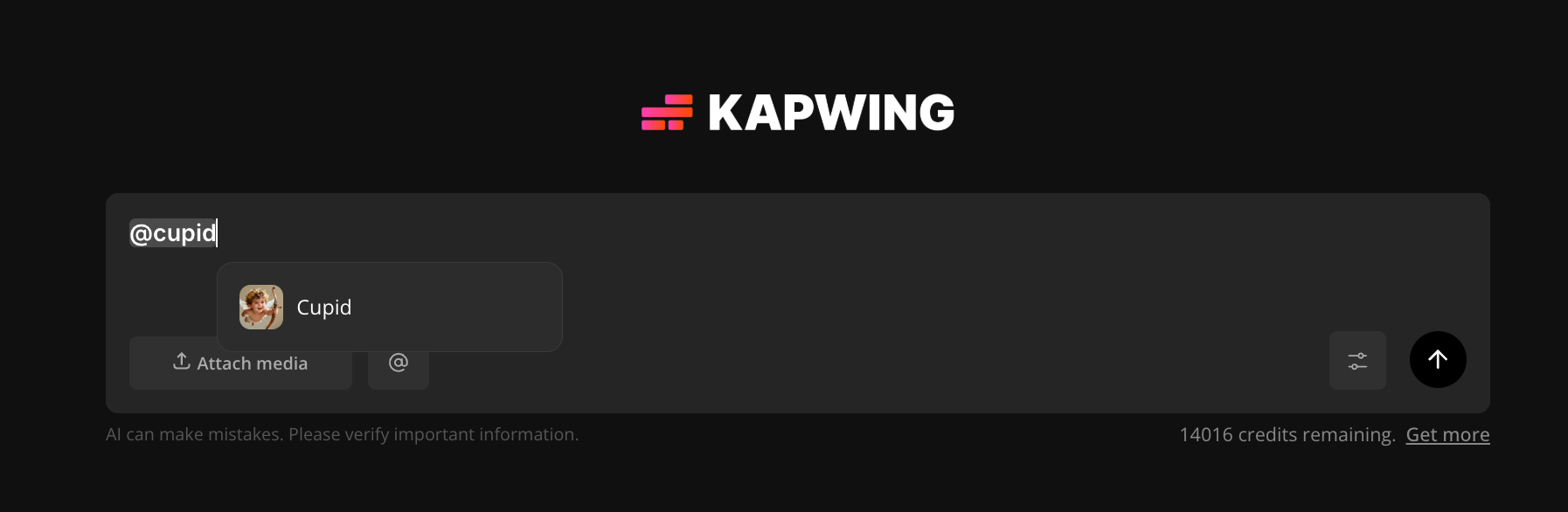
- When you mention the character in your prompt, be sure to use the @ symbol before
- Send your prompt
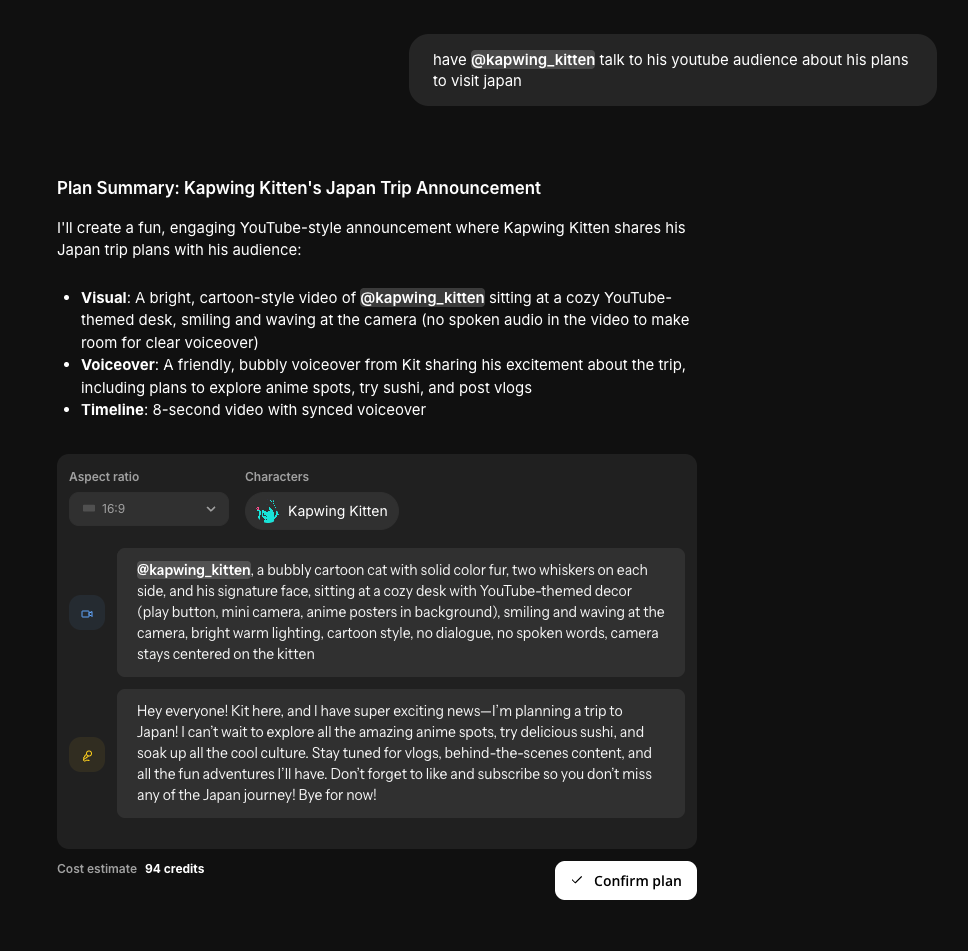
- Kapwing AI will generate a “plan” based on your prompt that you can tweak or edit (if desired)
- Aspect Ratio: Click to change the aspect ratio for your specific needs.
- Character: Click to update your Brand Character information such as replacing photos or adding nuance to your character’s description
- Click into the text box(es) to add, replace, or remove any information the Kapwing AI generated but you do not want.
- Select “Confirm Plan”
How To Use a Stock Character
If you do not have any characters set up or want to use a more generic stock option, we also offer stock characters. To use them, you would “call on” the character when prompting the Kapwing AI’s chat similar to how you call your own characters.
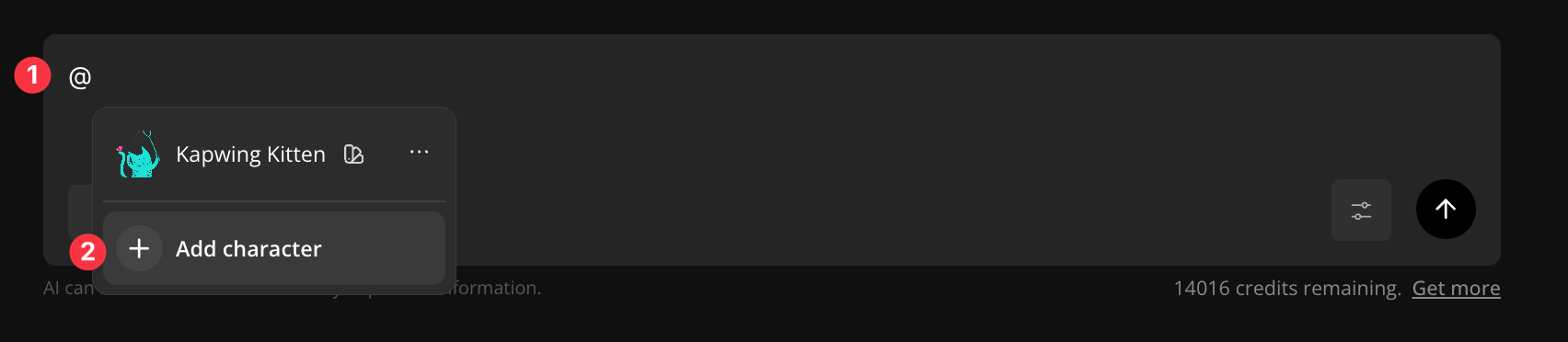
- To view all the stock characters, first type @
- Click "Add character"
- View all the characters. Your own character(s) will be first, but if you scroll you will see our stock options
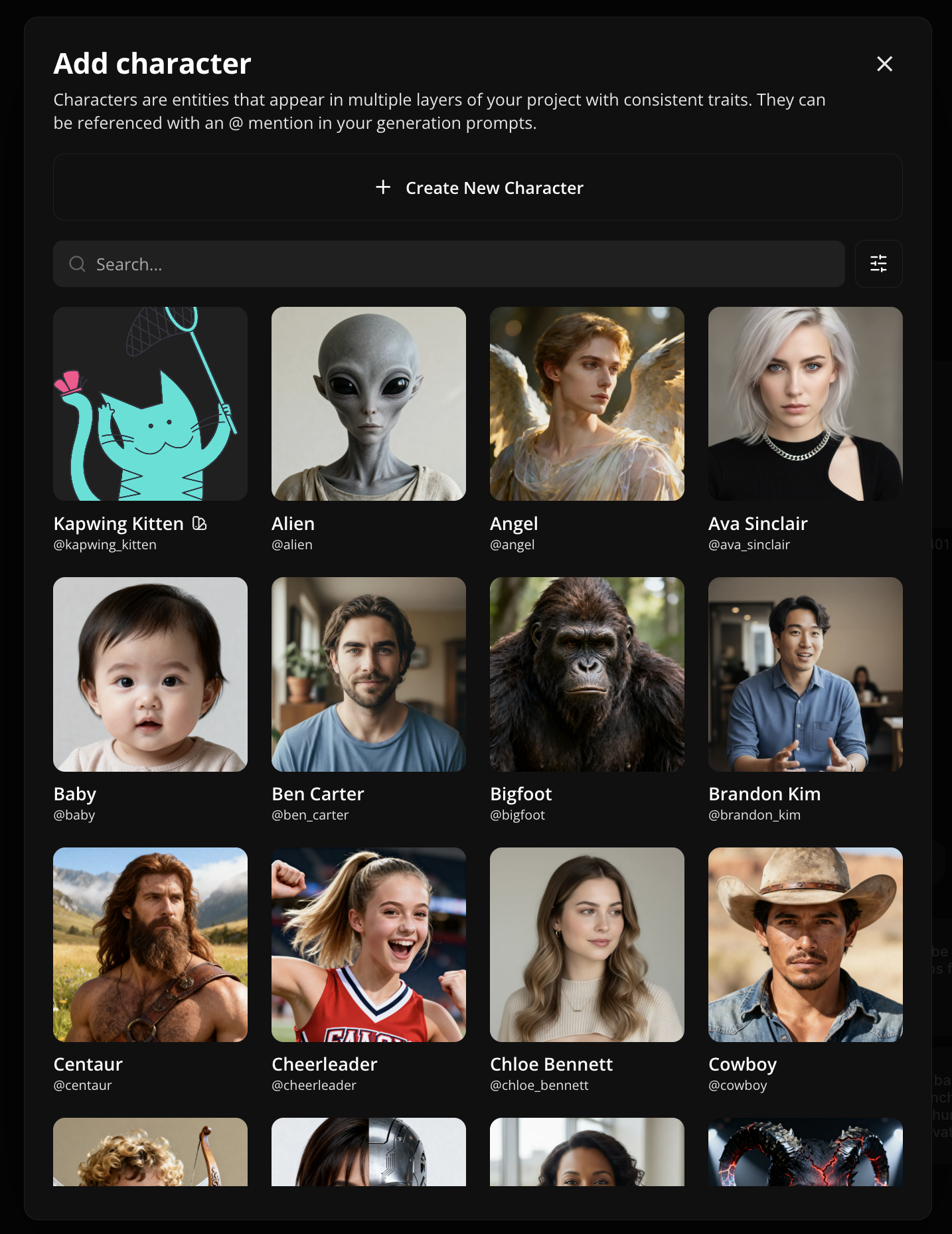
- If you see one you like, you can select the character. Or one you know the name of the character you can type it in (i.e @baby, @cowboy, @dragon)
Additional Resources
How to Use Kapwing's AI Video Generator
How to use Brand Kit & Brand Templates in Kapwing



