Happy Horse 1.0 AI Video Generator
Turn a text prompt into a 3-15 second AI video with native audio, flexible aspect ratios, and up to 1080p output in Kapwing
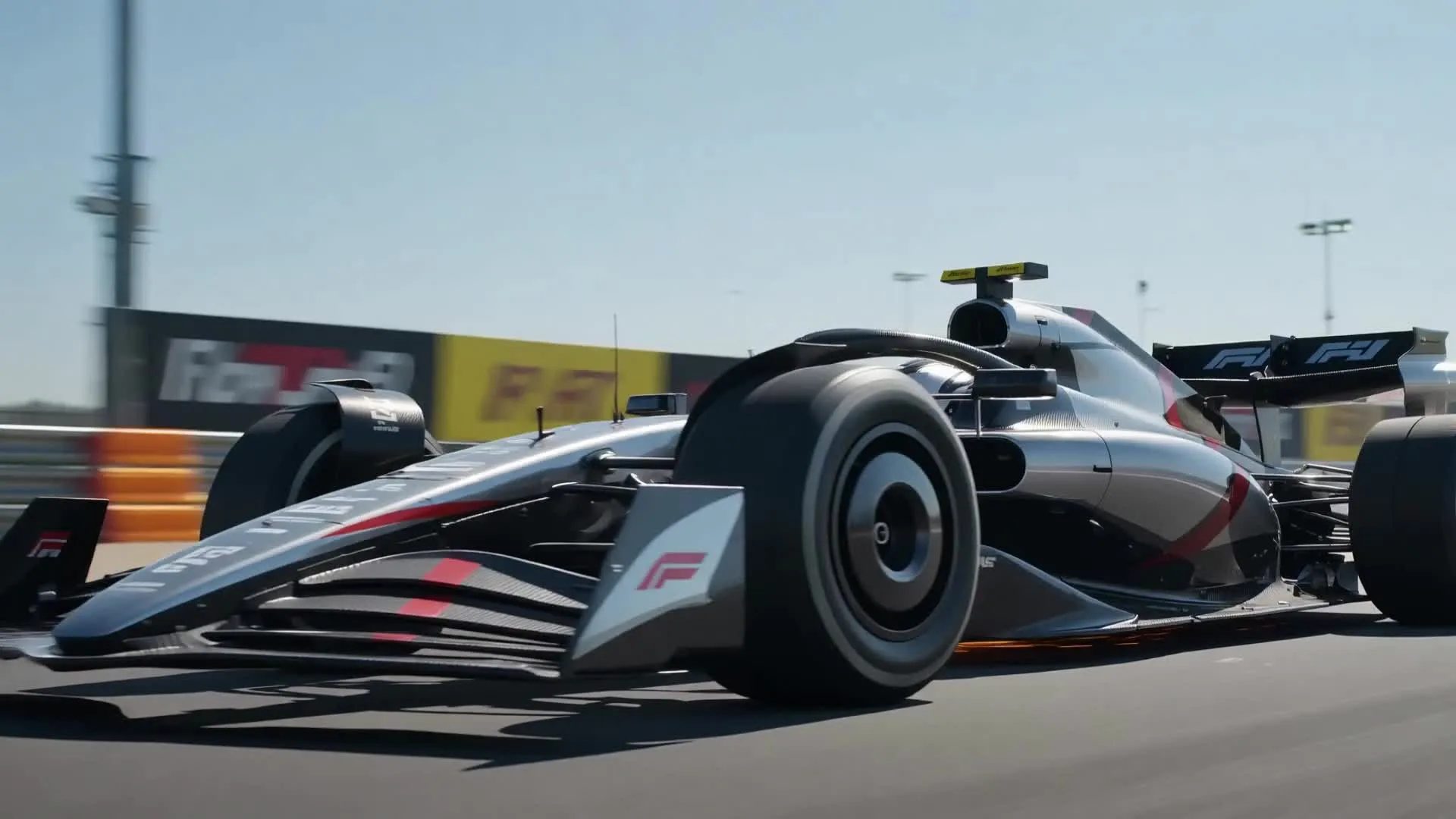
Happy Horse 1.0 AI video generator
Turn text into video, with AI that actually understands your prompt
Detailed AI videos that match your prompt — generated fast
Describe the scene, action, camera movement, pacing, and sound. Happy Horse 1.0 turns your instructions into a short video clip with native audio — background music, sound effects, and lip-synced dialogue.
Create videos from 3 to 15 seconds at 720p or 1080p. Choose from five aspect ratios: 16:9, 9:16, 1:1, 4:3, or 3:4.
Choose Happy Horse 1.0 for prompt-led social clips, product ads, marketing videos, B-roll, and short narrative scenes. Then trim, subtitle, resize, merge, and continue editing in Kapwing.
Happy Horse 1.0 is text-to-video only. It does not accept images, start or end frames, reference files, or motion inputs in Kapwing.
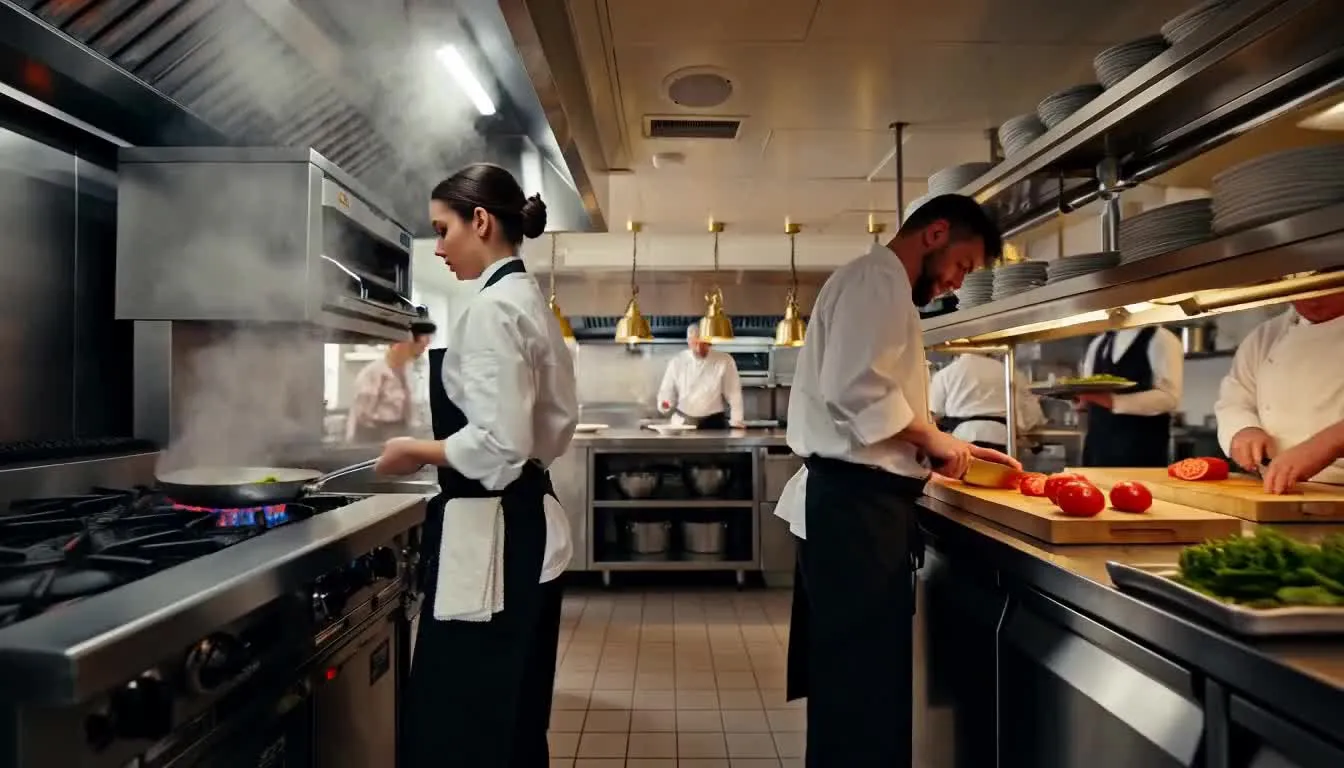
Everything you get with Happy Horse 1.0
Prompt-led video with native audio. Ready to edit online.
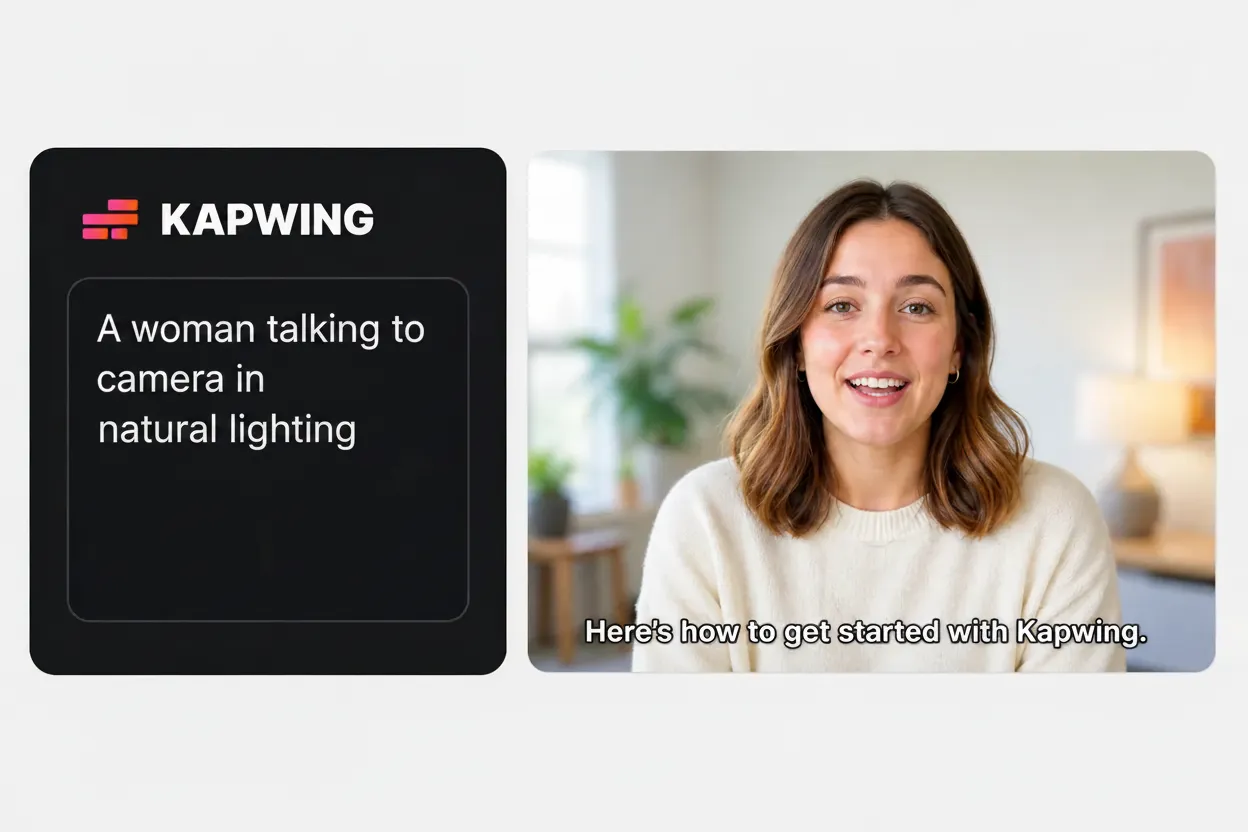
Text to Video
Happy Horse 1.0 is Kapwing's prompt-only AI model. Start with written instructions instead of preparing reference media or start/end frames. Simply describe the subject, action, setting, camera, style, and sound to get started.
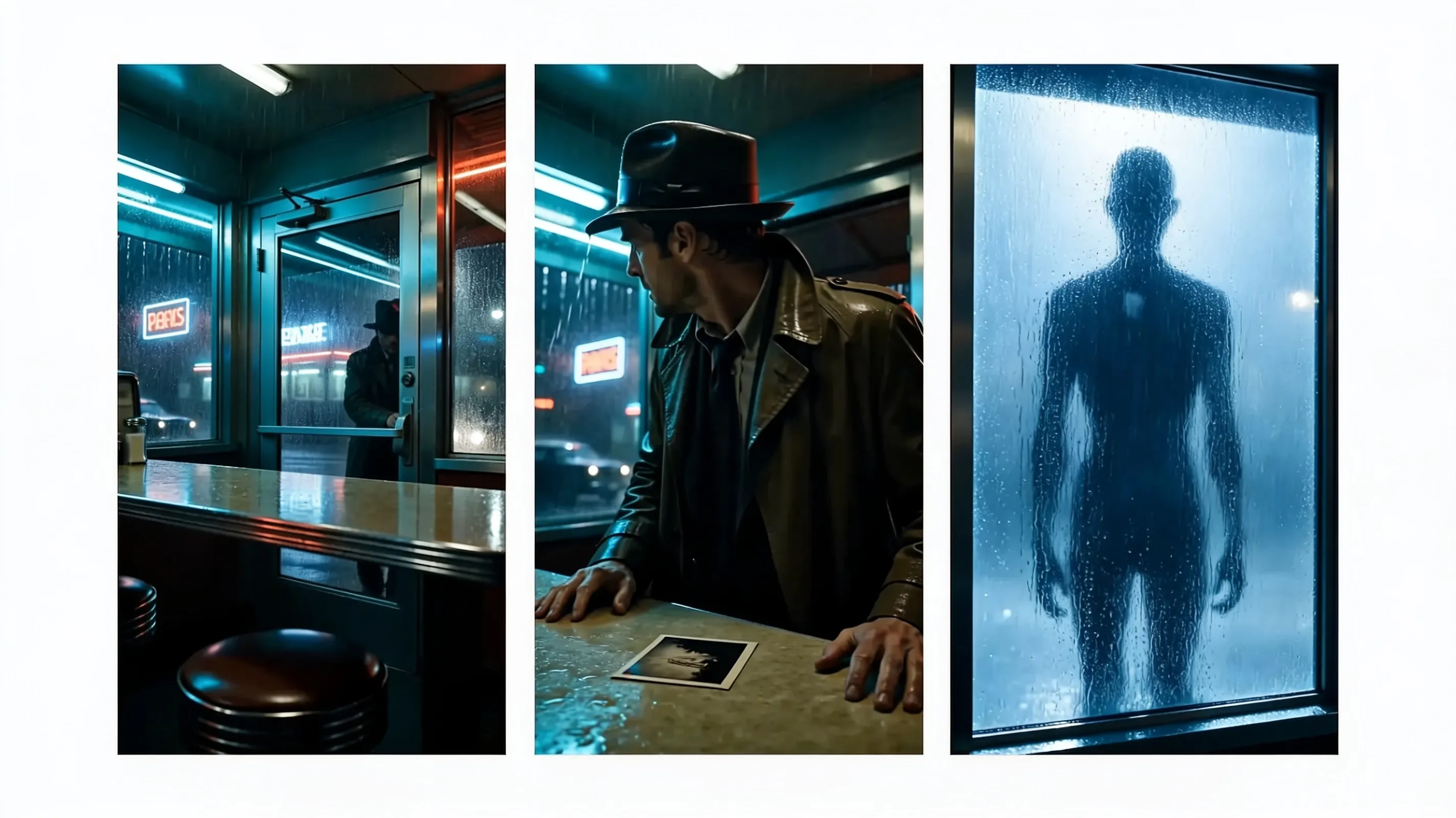
Multi-scenes Videos
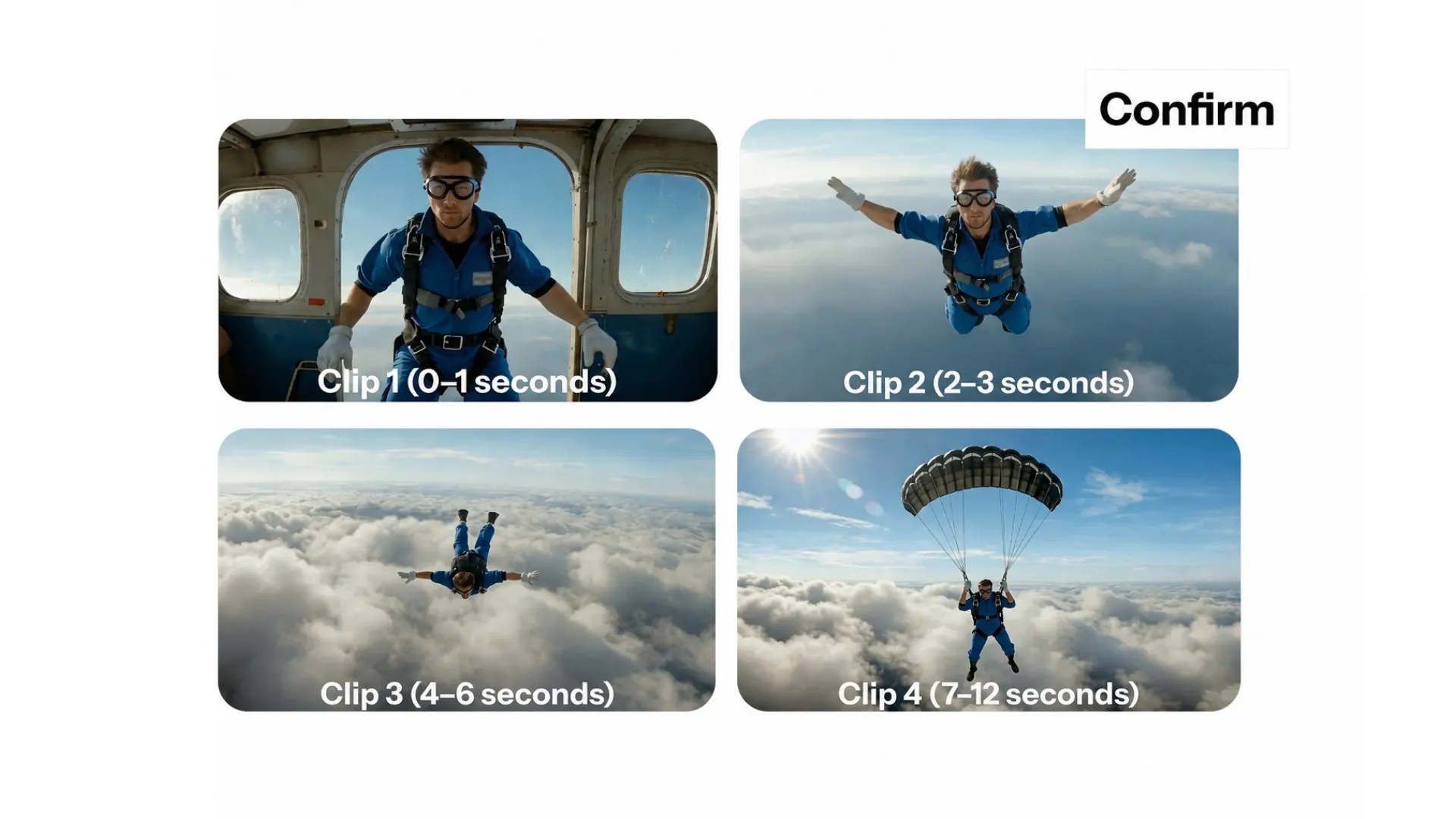
Kapwing AI turns Happy Horse into a multi-scene AI video generator. If your prompt calls for multiple scenes, Kapwing generates each scene as a separate clip and automatically stitches them together with transitions.
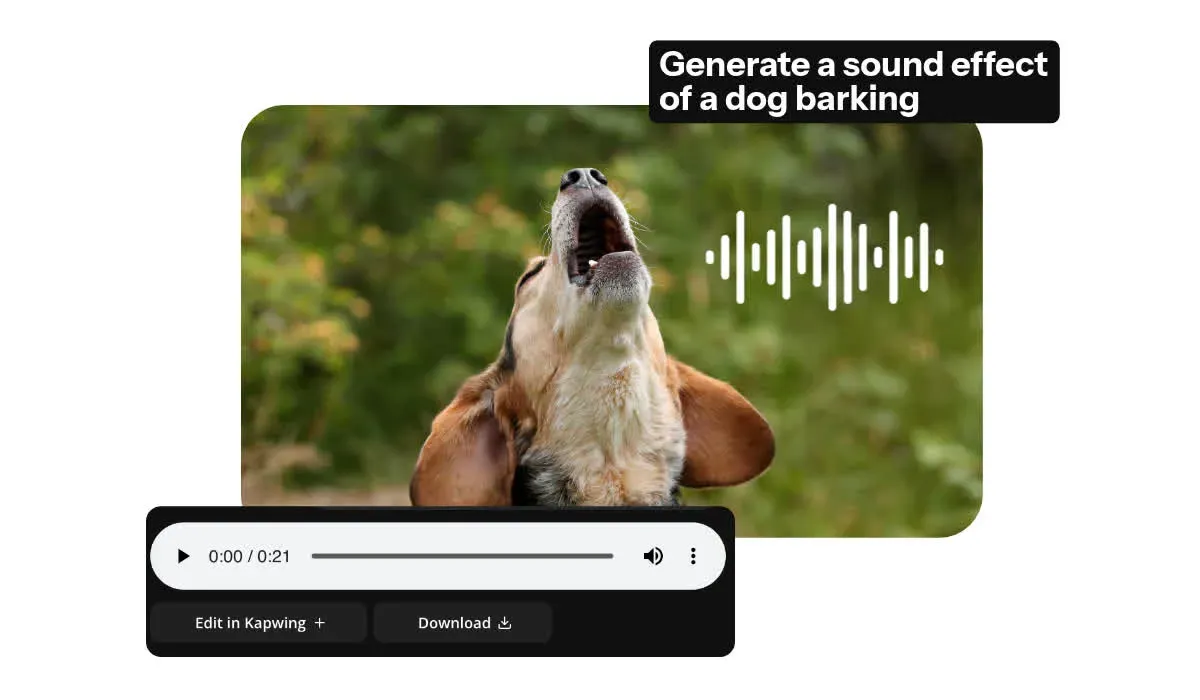
Native Audio & Lip Sync
Happy Horse generates sound in sync with the video. Synchronized spoken dialogue, ambience, sound effects, and music is included in your generation. Refine or replace audio later in Kapwing's Audio Editor.
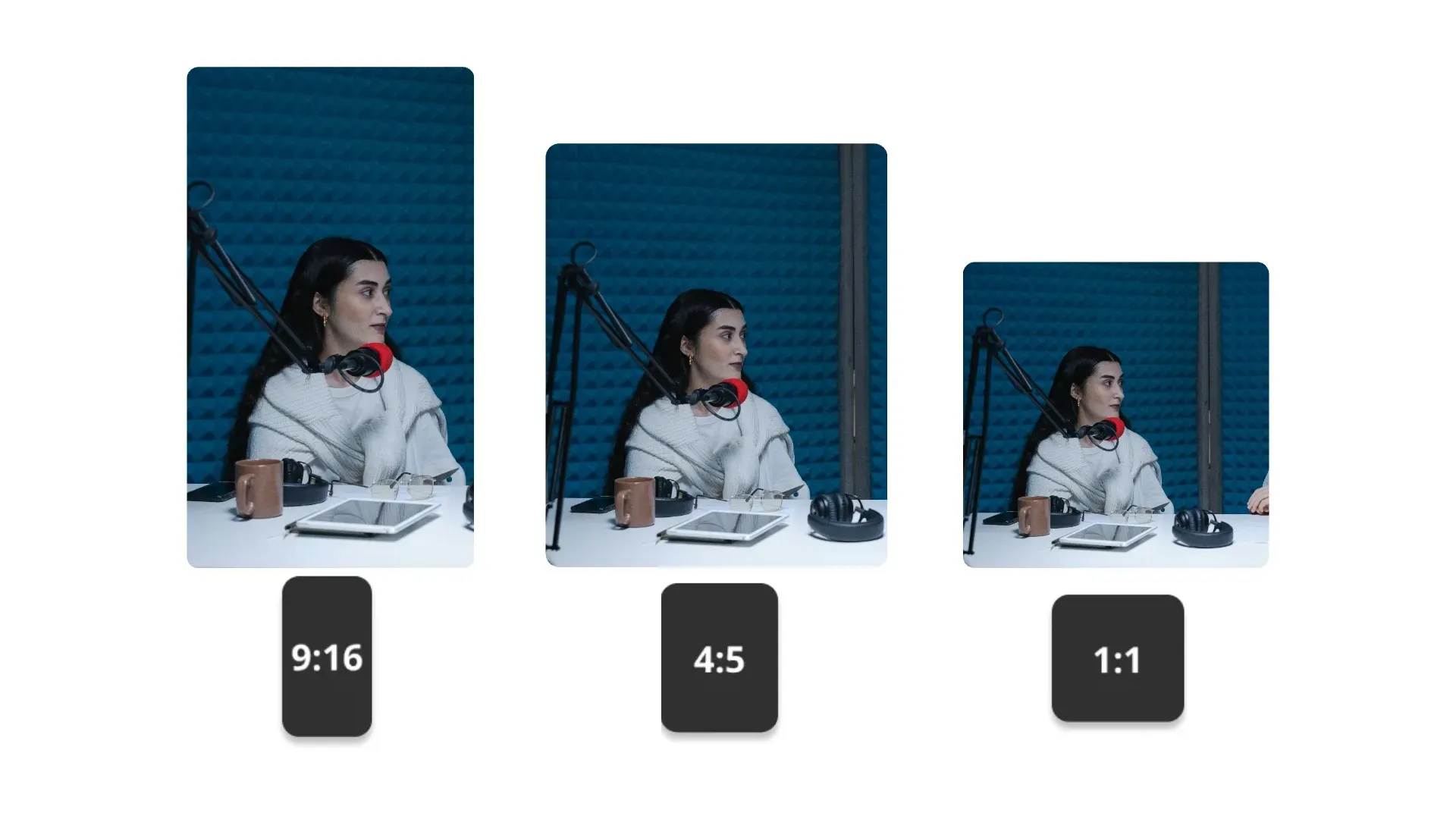
Five aspect ratios, up to 1080p
Generate at 720p or 1080p in 16:9, 9:16, 1:1, 4:3, or 3:4. Repurpose the video for other platforms in Kapwing using the resize tool.
Fast, Prompt-led Workflow
Happy Horse 1.0 is built to follow detailed prompts closely, helping you move from a written idea to an editable video without source media. Clearer prompt adherence can mean fewer repeated generations — and fewer credits spent.
How to use Happy Horse 1.0
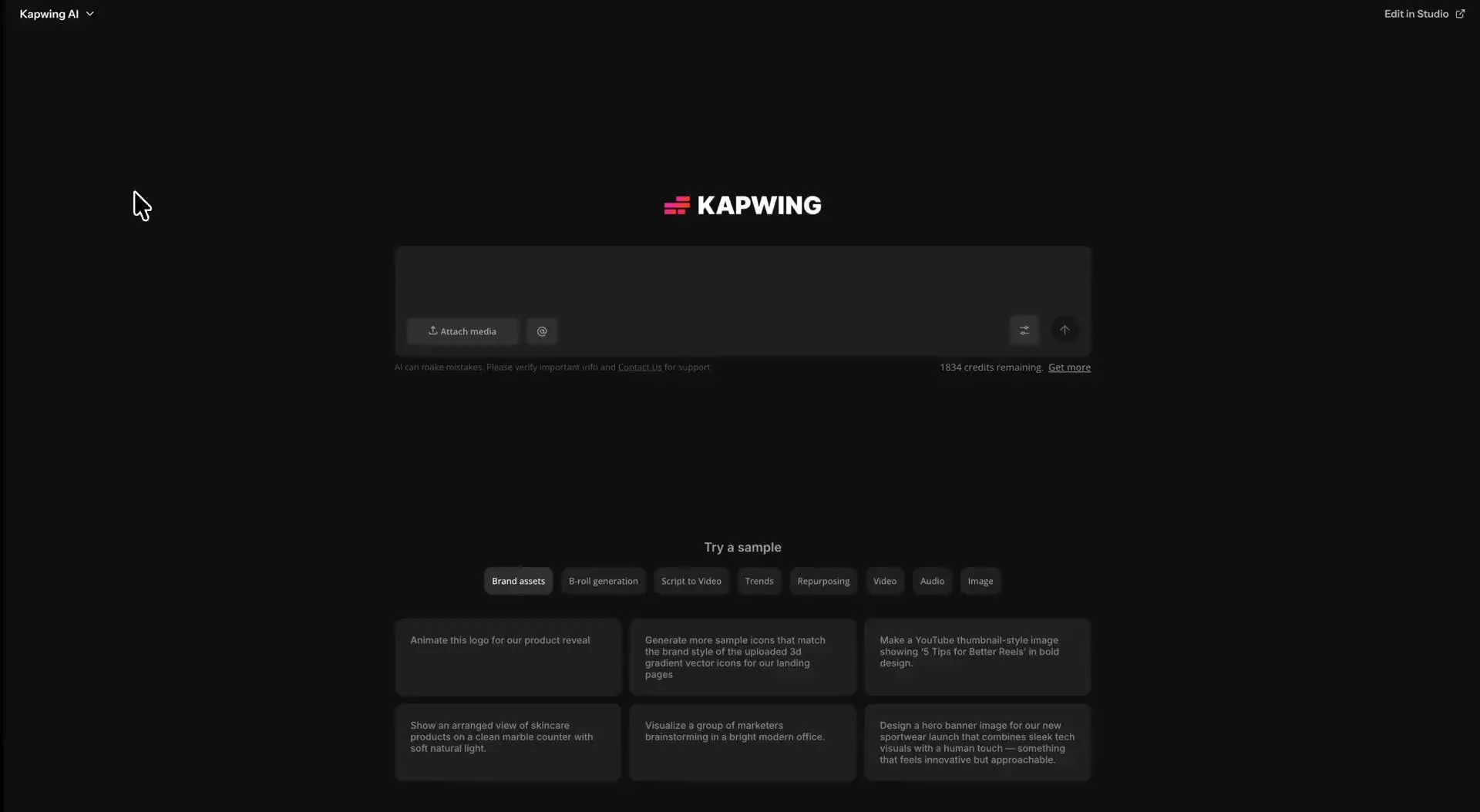
- Step 1Open Kai
Go to kapwing.com/kai to open Kapwing’s AI Video Assistant (Kai)
- Step 2Write your prompt
Describe the subject, action, setting, camera movement, visual style, pacing, and sound. Include the duration, resolution, and aspect ratio in your prompt.
- Step 3Select Happy Horse 1.0 and generate
Select Happy Horse 1.0 from the video model menu. Generate the clip, then edit, subtitle, resize, or combine videos in Kapwing.
Created with Happy Horse 1.0 — inside Kapwing
Free to start. No watermark. Fully online.
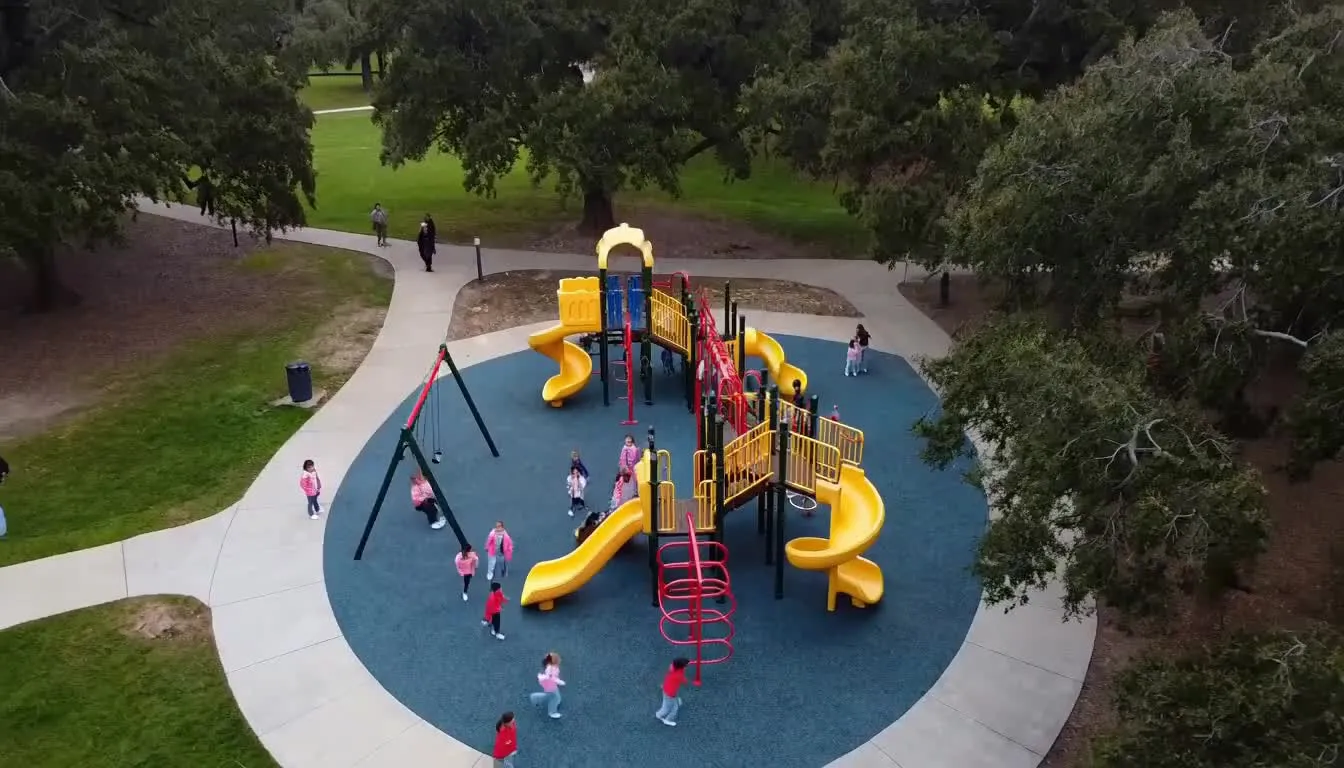
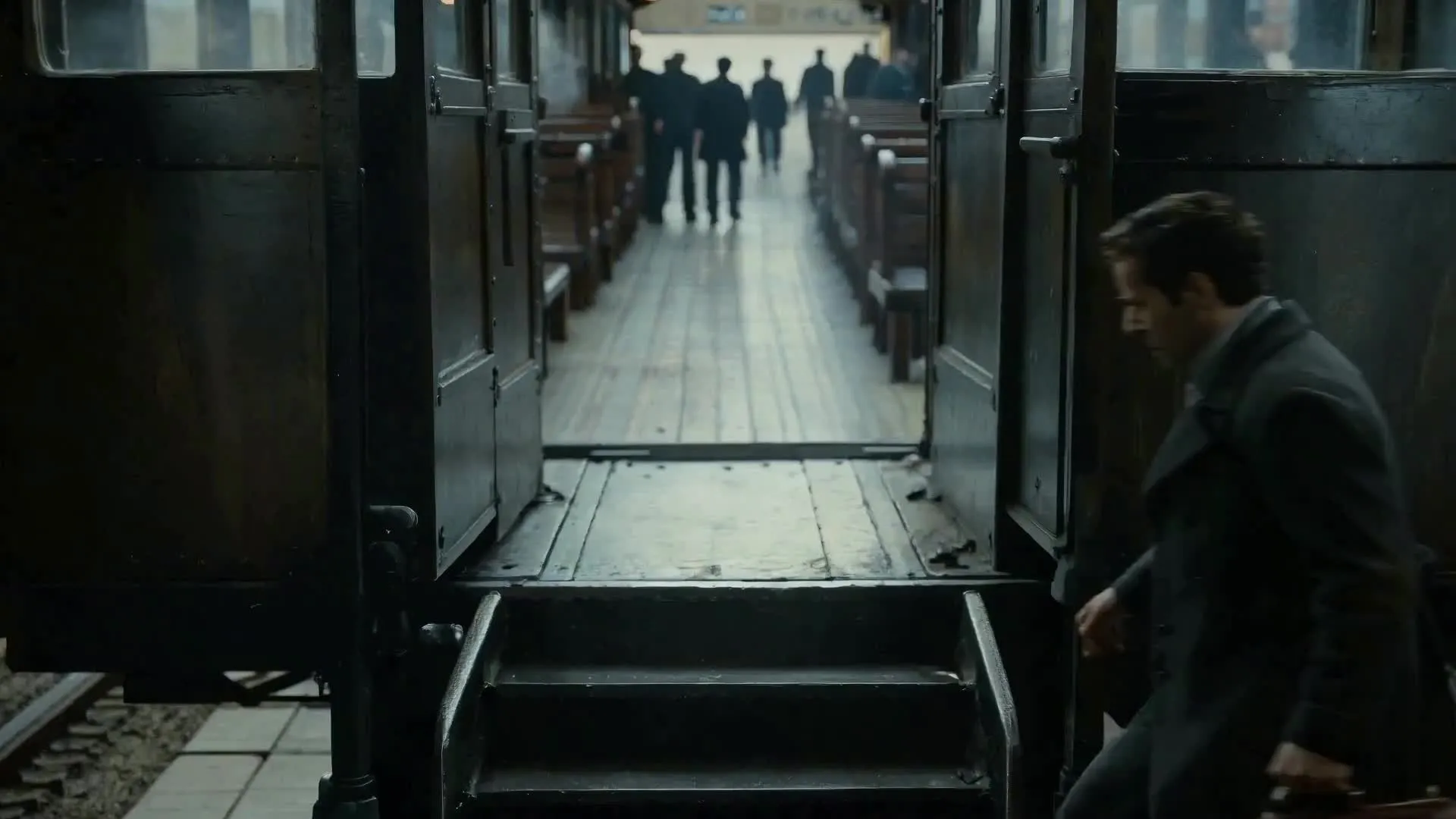
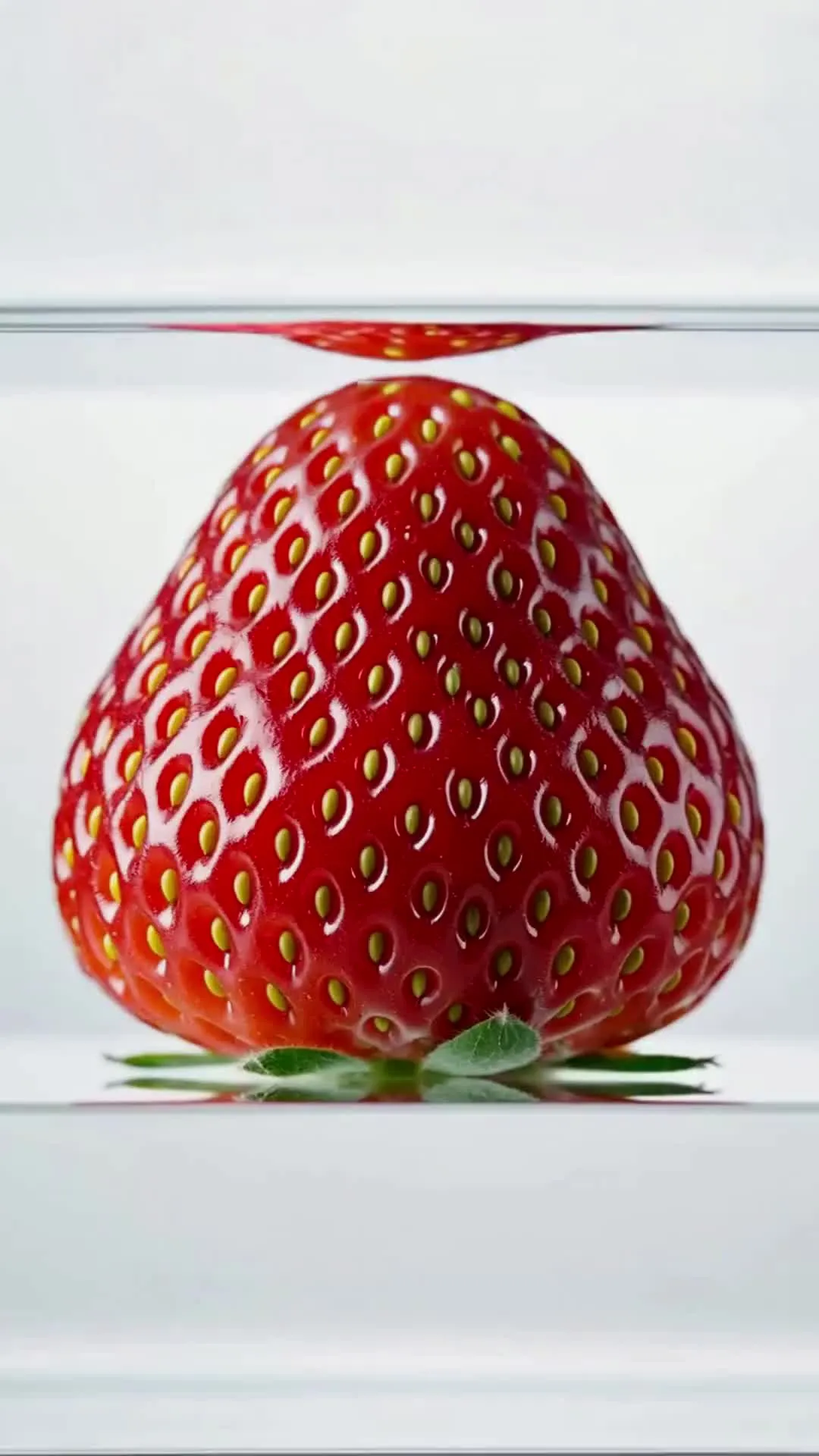
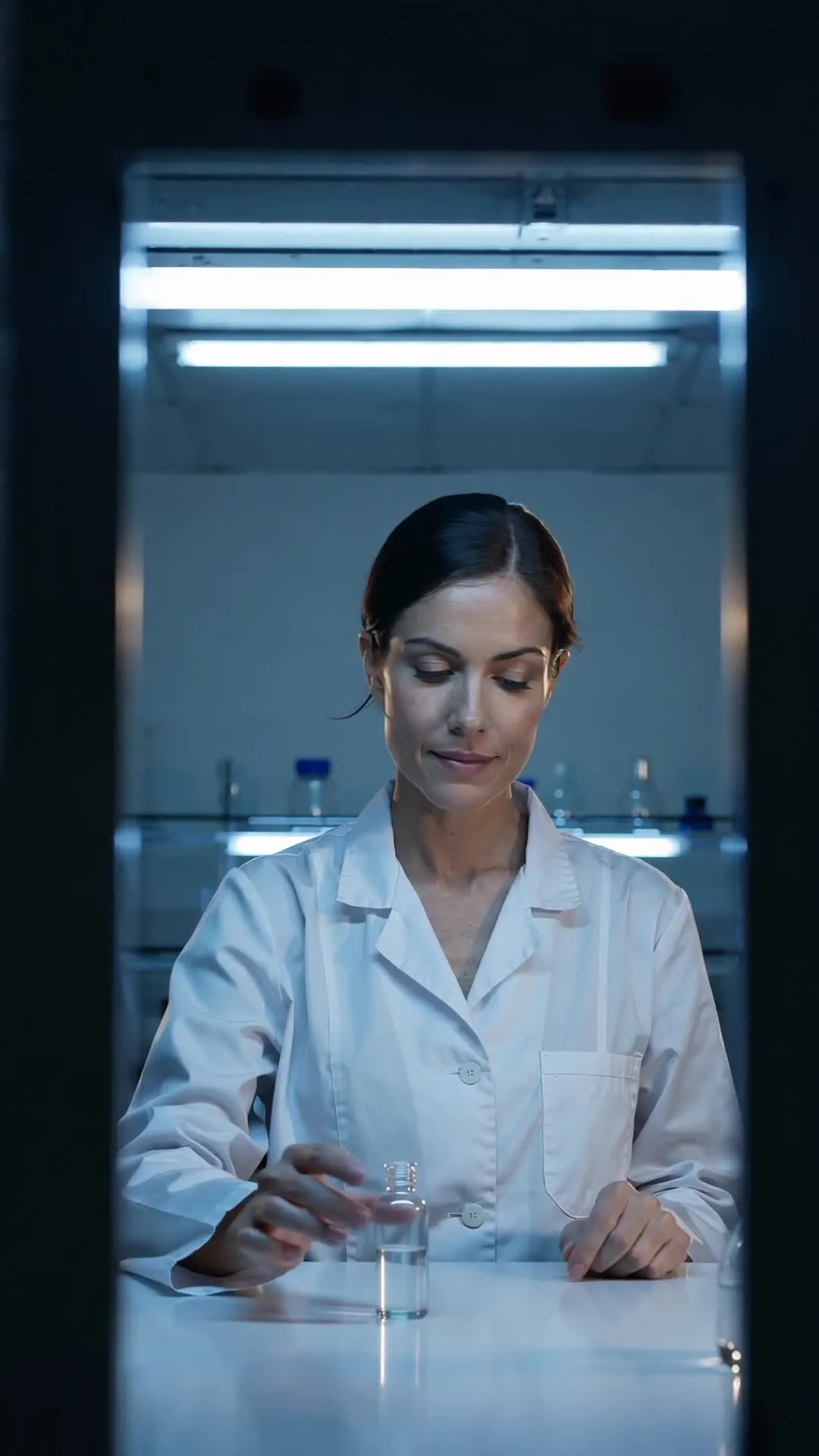
Why use Happy Horse 1.0 in Kapwing
Go from prompt to full video project in one workspace
Generate.
Combine.
Edit.
Happy Horse 1.0 is designed for text-to-video generation when you have an idea but no images or reference footage to work from.
Generate the visuals and native audio together, then continue editing in Kapwing.
- Generate 3-15 second clips at 720p or 1080p
- Maintain character consistency across multi-scene videos
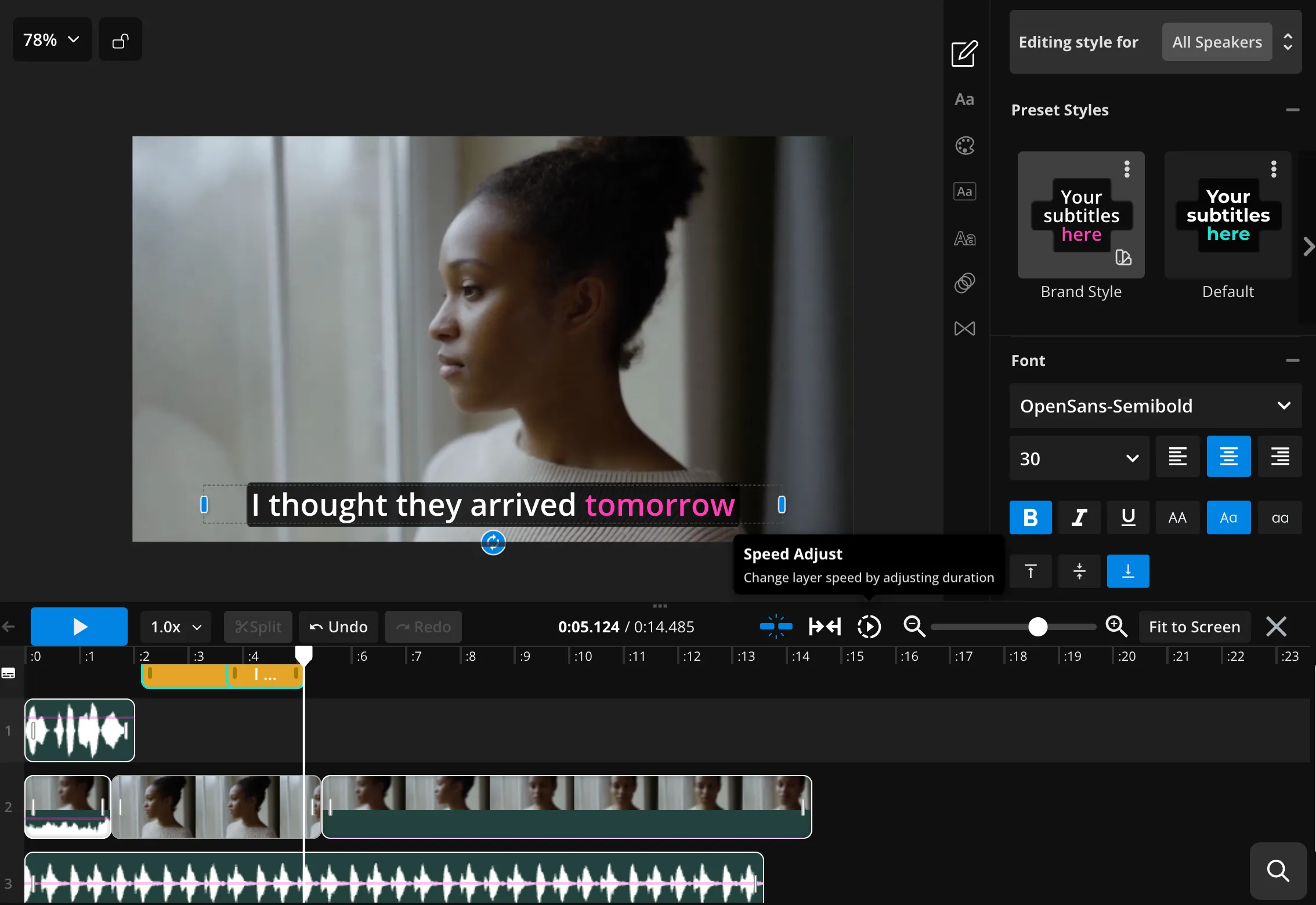
- Add subtitles, overlays, voice-over, dubbing, and combine with uploaded footage
- Resize for each platform and export
- Compare Happy Horse clips with other leading AI models, including Seedance 2.5, Veo, Sora, and MiniMax
Happy Horse 1.0 + online video editing
Make a video about anything in Kapwing
Social Media Clips
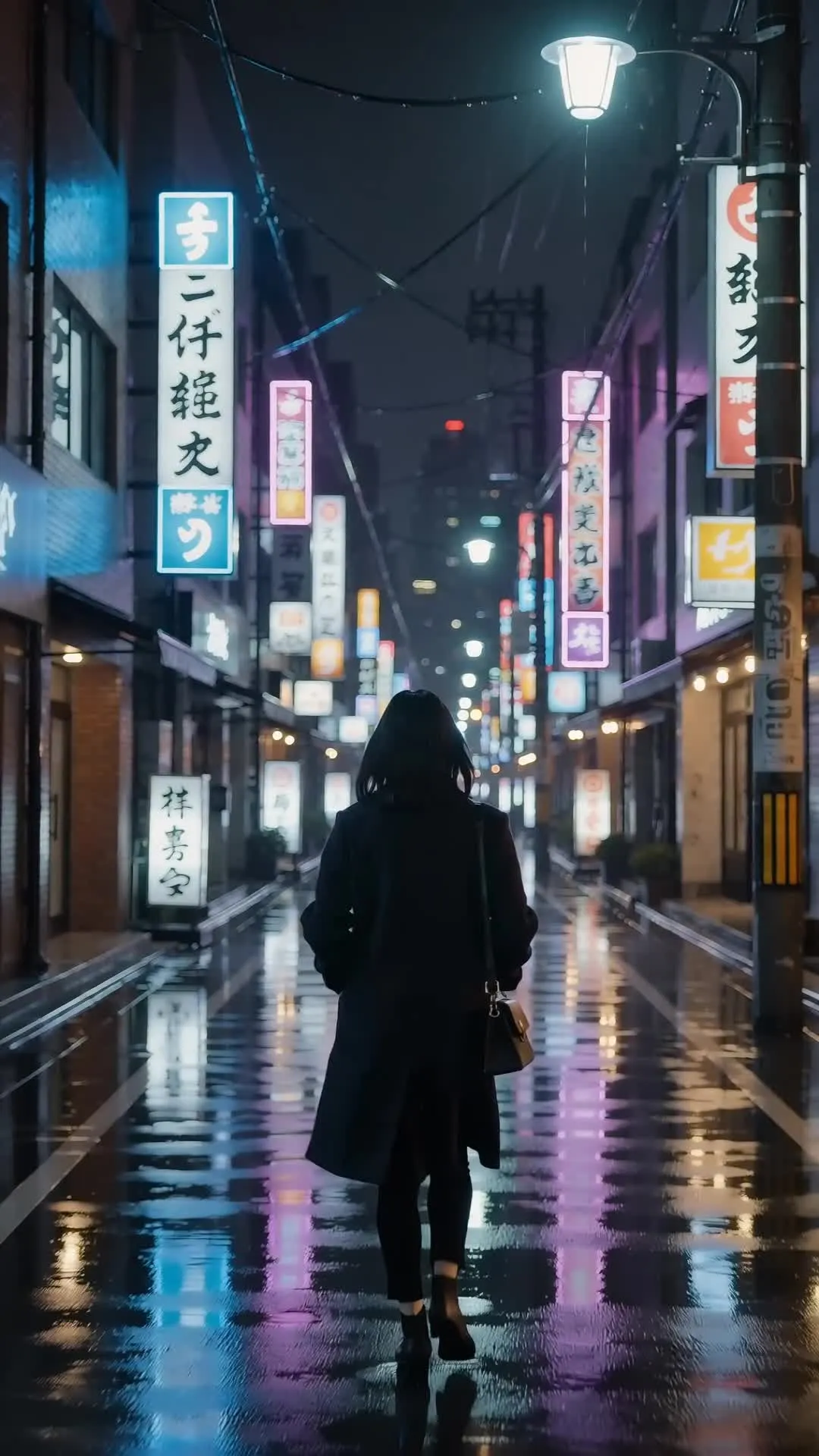
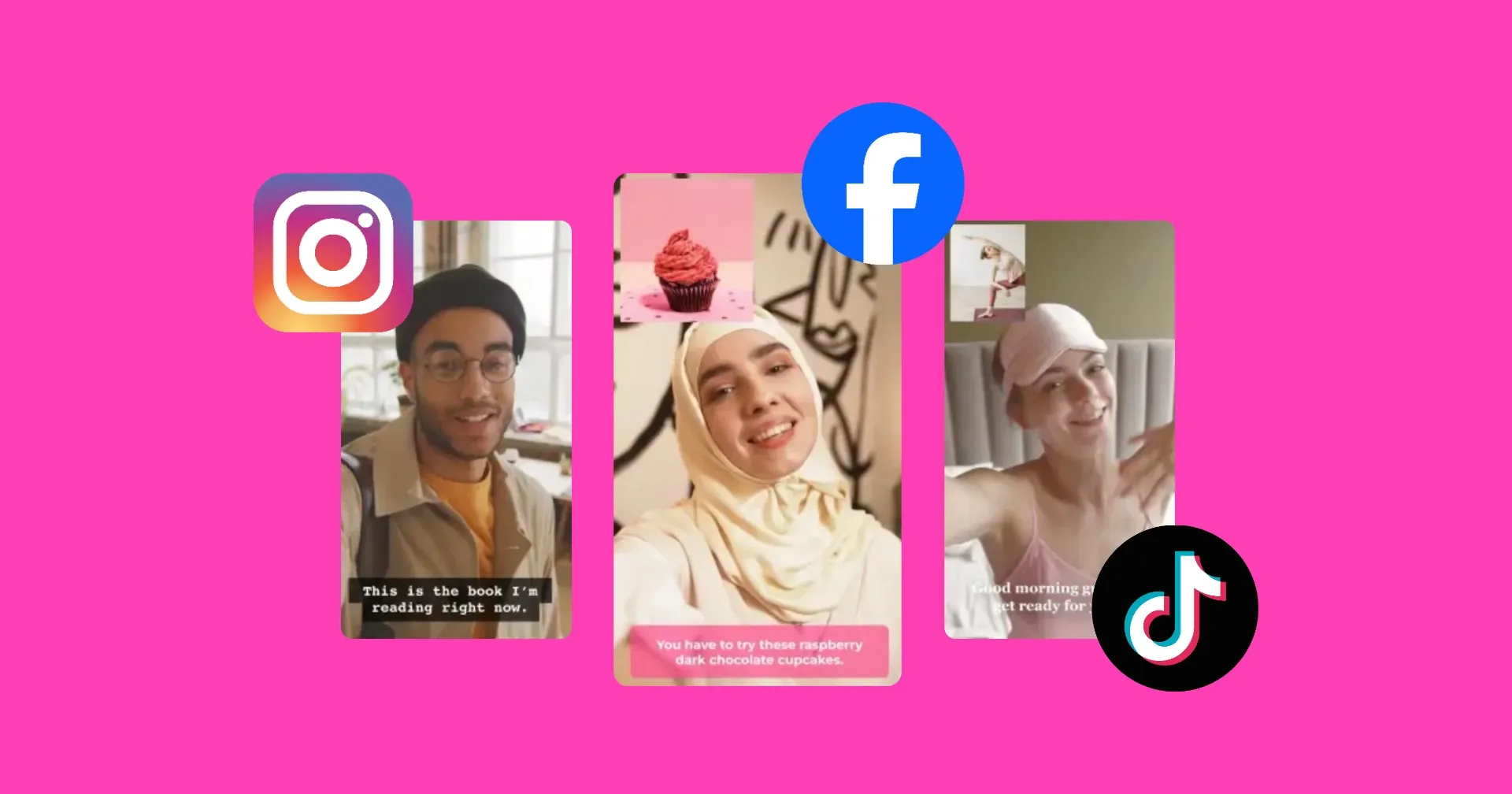
Create 3–15 second vertical, square, or landscape scenes for TikTok, Reels, Shorts, paid social, and campaign concepts using only a text prompt
Product Concepts
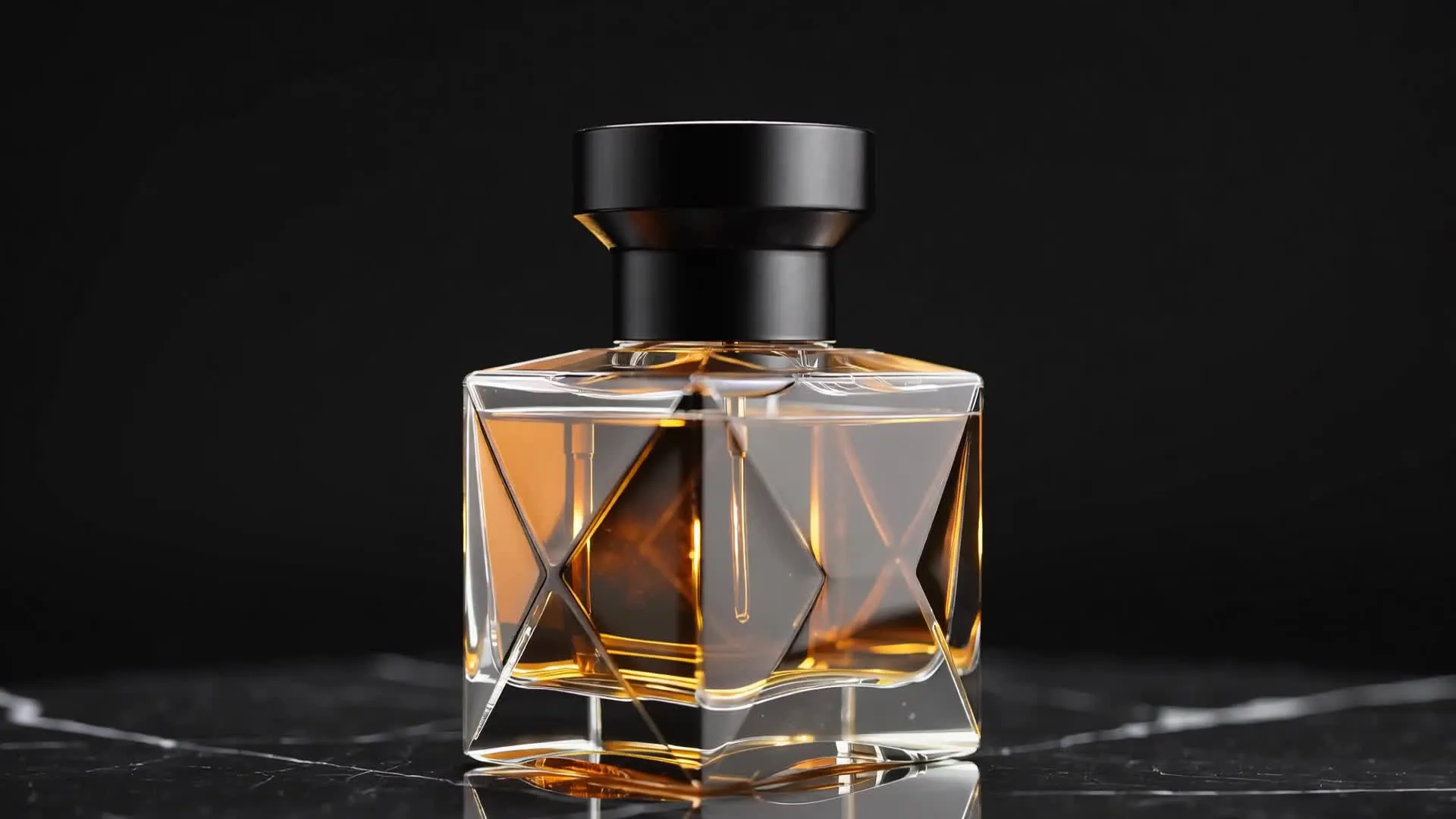
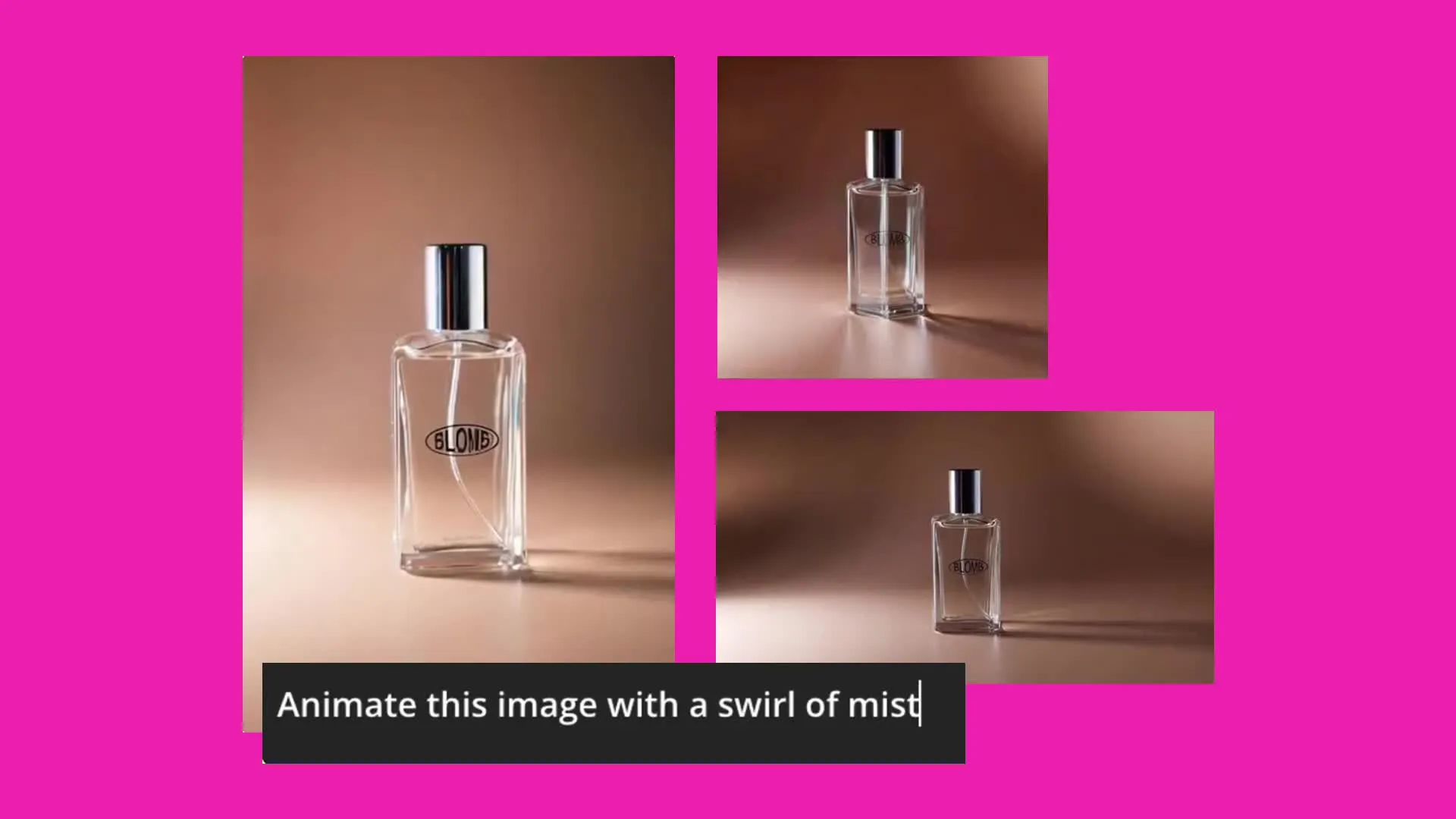
Describe a product reveal, demonstration, branded setting, or advertising scene in your prompt. Use the video as a standalone ad or edit it into a larger campaign
B-Roll
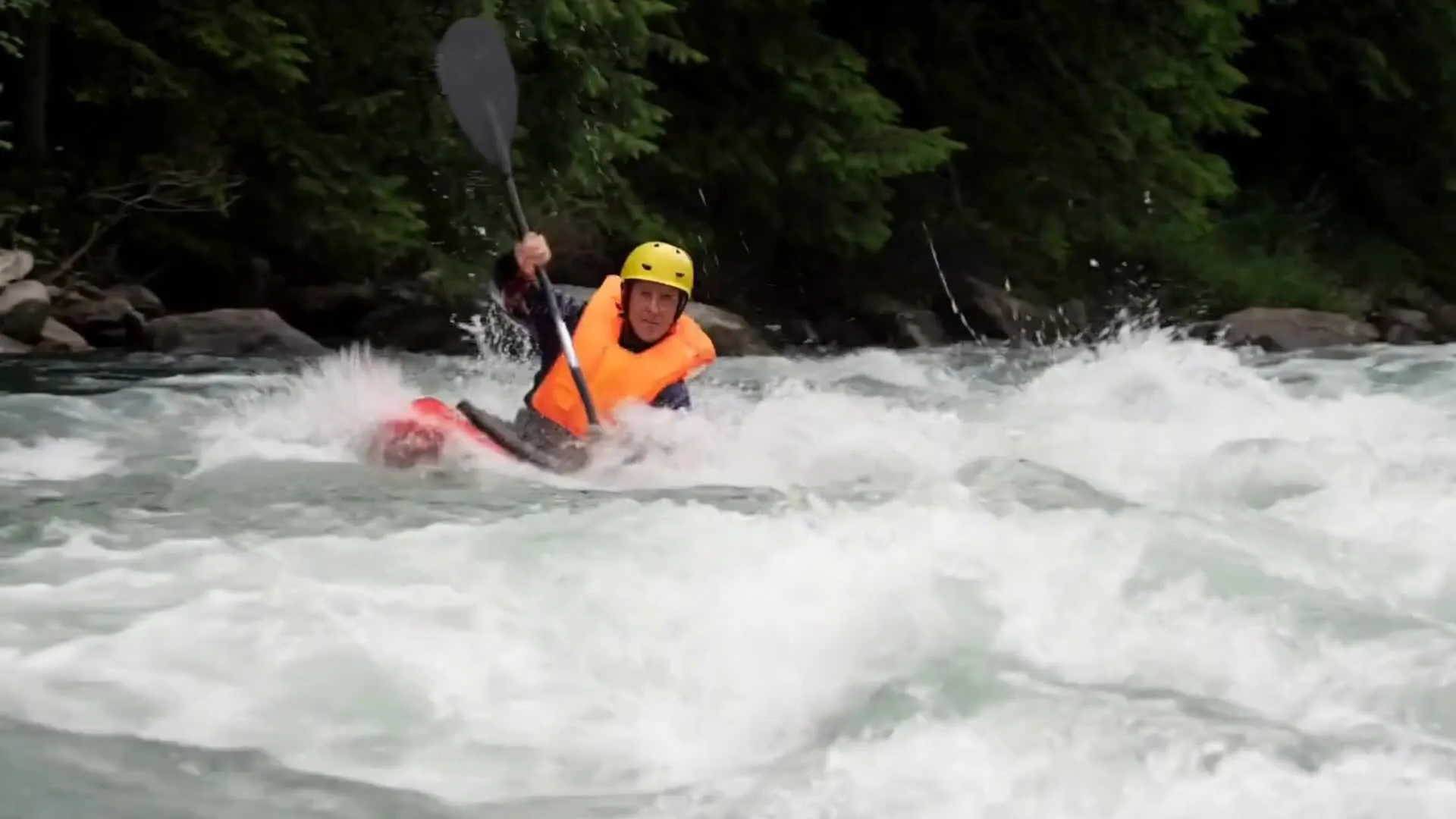
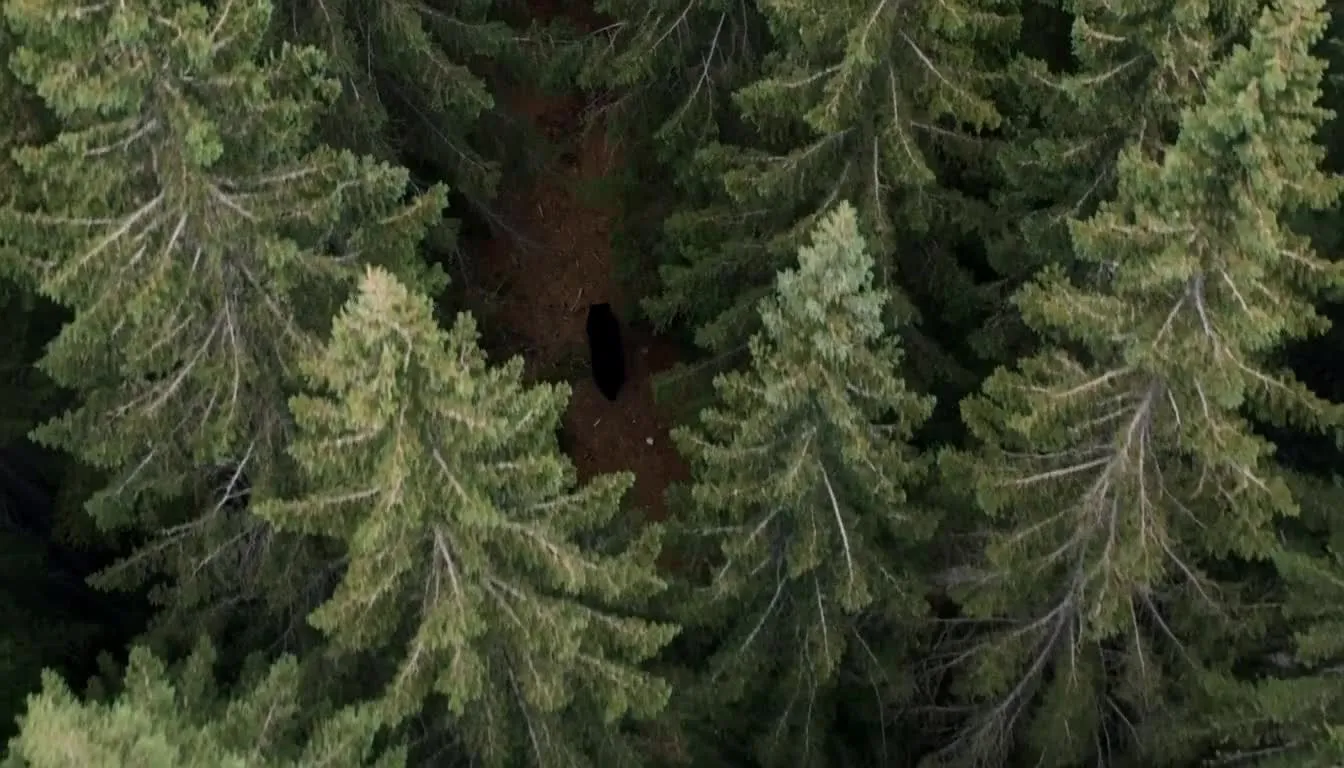
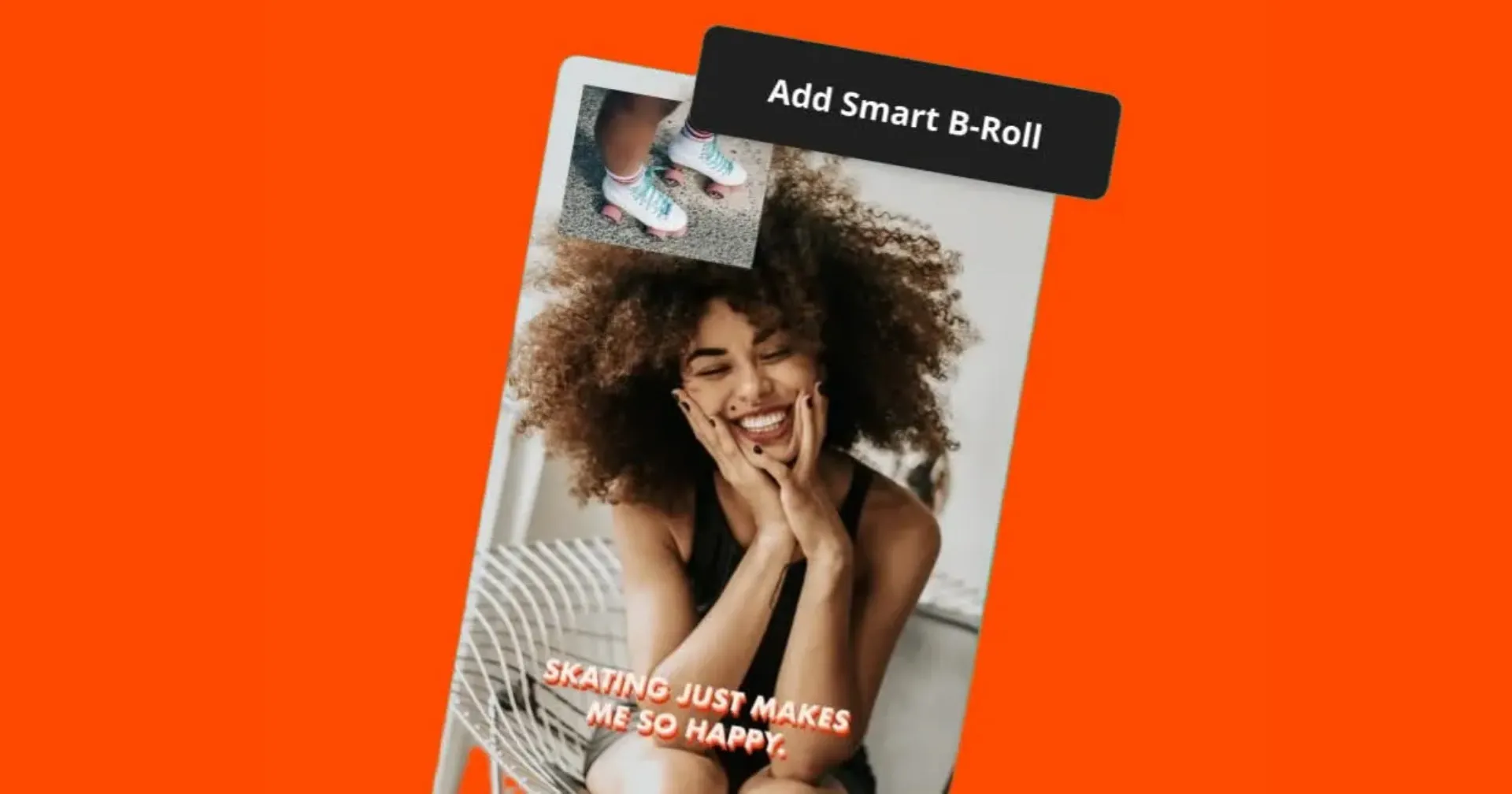
Generate supporting footage, travel clips, nature scenes, establishing shots, or visual transitions using only a text prompt — no reference image required
Character-led Scenes
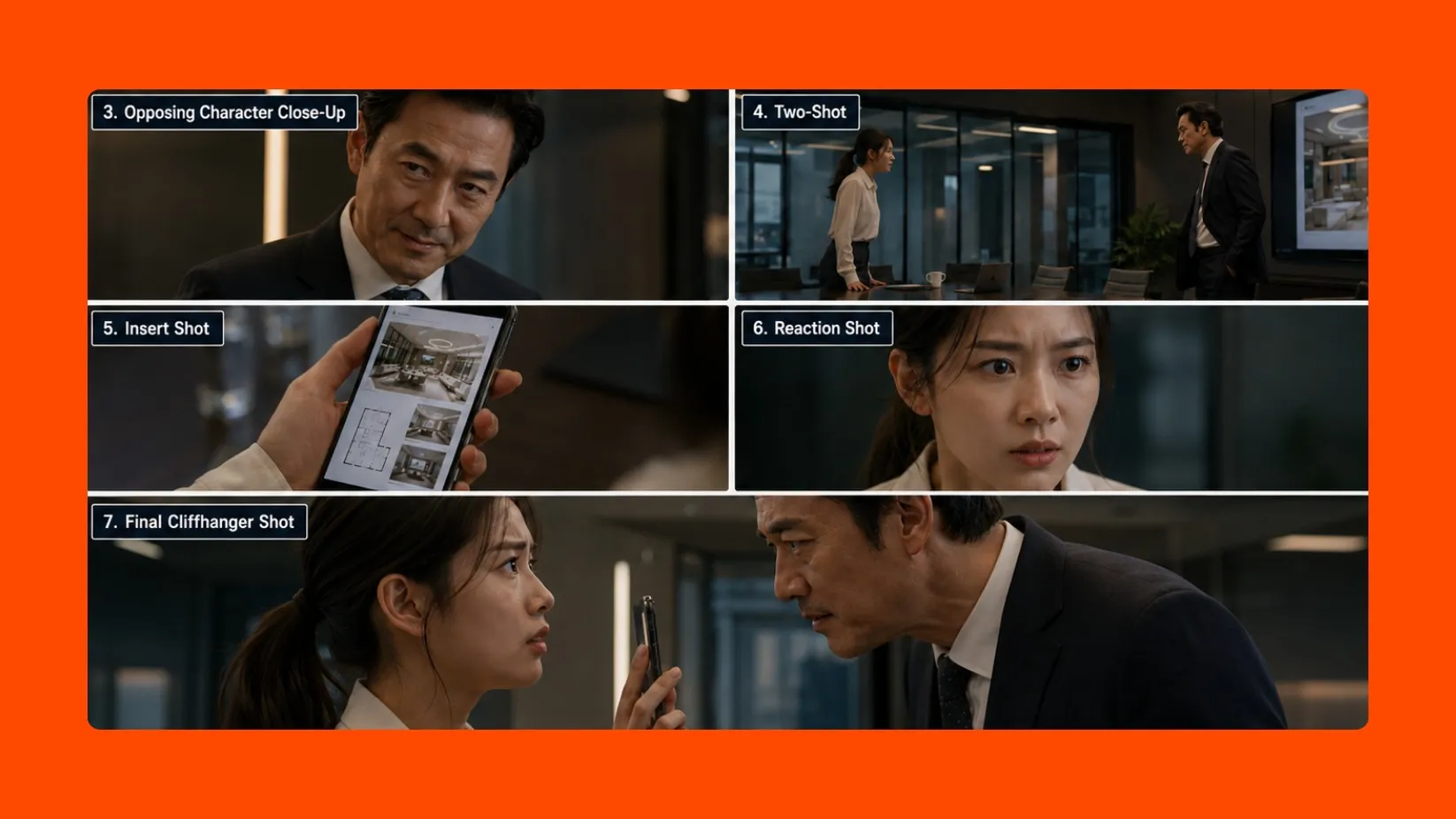
Create short stories, character introductions, reactions, reveals, UGC videos, and micro-dramas. Generation starts with an editable video storyboard, allowing you to adjust each scene’s timing before generating.
.webp)
Iteration & Testing
Create multiple variations of a scene or concept by adjusting the prompt, duration, or aspect ratio. Or compare creative outputs across Kapwing’s AI video models.
Expand your Happy Horse workflow with multiple AI models
Combine prompt-led generation with image, reference, and motion controls
Bring visuals, audio, and motion into one edit
Use Happy Horse 1.0 for text-to-video clips with native audio, then add shots from other AI models when you need image inputs, start and end frames, references, or motion control.
- Seedance and Veo
Use Veo 3 or Seedance 2.5 to turn images into video, or work with start frames, end frames, and reference inputs that Happy Horse 1.0 does not support in Kapwing.
- Kling Motion Control
Upload a reference performance and transfer its movement or choreography to a character using Kling AI. Combine the generated clip with Happy Horse videos in the studio.
- MiniMax Music
Create an original soundtrack or background track with MiniMax, then add it to your Happy Horse video in Kapwing’s timeline editor. Adjust the volume, timing, and audio mix alongside dialogue and sound effects.
Frequently Asked Questions
We have answers to the most common questions that our users ask.
What is Happy Horse 1.0?
Happy Horse 1.0 is an Alibaba text-to-video model available in Kapwing. It turns text prompts into 3–15 second videos with native audio, at 720p or 1080p and in five aspect ratios.
How do I use Happy Horse 1.0 in Kapwing?
Open Kapwing AI (Kai). Enter your prompt, including the duration and aspect ratio. Select Happy Horse 1.0 from the dropdown model menu. Finally, click generate.
Does Happy Horse 1.0 generate audio or lip sync?
Yes, Happy Horse 1.0 can generate native audio with the video, including ambience, sound effects, music, and spoken dialogue with lip sync.
How long are Happy Horse 1.0 videos in Kapwing?
Individual videos generated with Happy Horse 1.0 in Kapwing can be up to 15 seconds long.
What resolutions and aspect ratios does Happy Horse 1.0 support in Kapwing?
Happy Horse 1.0 supports 720p and 1080p output in Kapwing. Available aspect ratios are 16:9, 9:16, 1:1, 4:3, and 3:4.
Does Happy Horse 1.0 support image-to-video in Kapwing?
No. Happy Horse 1.0 in Kapwing does not accept an opening image, start or end frames, reference images, reference video, or motion-control input.
How should I write a Happy Horse 1.0 prompt?
State the subject, action, setting, camera movement, shot size, lighting, visual style, pacing, and desired sound. Keep instructions specific and describe one coherent scene; the prompt field supports up to 2,500 characters. Read this article for prompt tips.
Can I edit a Happy Horse 1.0 video in Kapwing?
Yes. After generation, you can trim and combine clips; add transitions, subtitles, overlays, voice-over, dubbing, music, ambience, or sound effects; and resize the video for different channels in Kapwing’s online editor.
When should I choose Happy Horse 1.0 over another AI video model?
Choose Happy Horse 1.0 when you want to start from text, generate audio with the scene, and control a 3-15 second duration without preparing source media. Choose another model when you need image-to-video, start/end frames, reference inputs, or motion transfer.
Can I use Happy Horse 1.0 on iPhone, Android, or desktop?
Yes. Kapwing is browser-based, so you can access Happy Horse 1.0 through a compatible desktop or mobile browser without installing separate Happy Horse software.
What other AI models are in Kapwing?
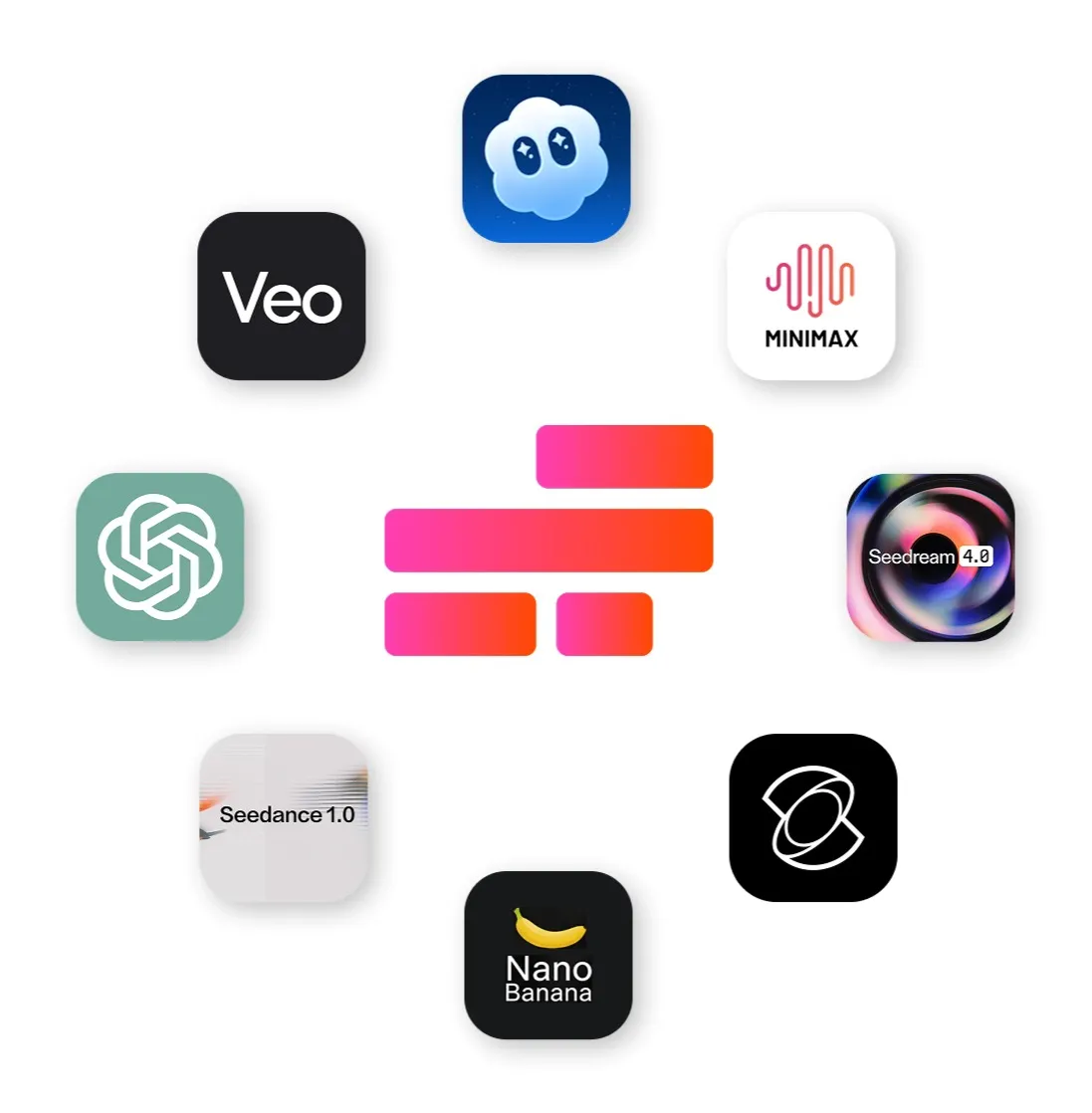
Kapwing's AI video models include; Grok Imagine Video, Veo, Seedance, MiniMax, Kling, Happy Horse, and Wan.
Image AI models: ChatGPT Image 2, Google Nano Banana, Grok Imagine Image, and Seedream.
Audio AI models: Google Lyria, MiniMax Audio, and ElevenLabs Music.
Discover Resources
Tips, templates, and deep dives to help you create faster and share with confidence.
View all

Get started with your first video in just a few clicks. Join over 35 million creators who trust Kapwing to create more content in less time.