AI Image Extender
Upload your image — AI fills in what’s missing with realistic detail
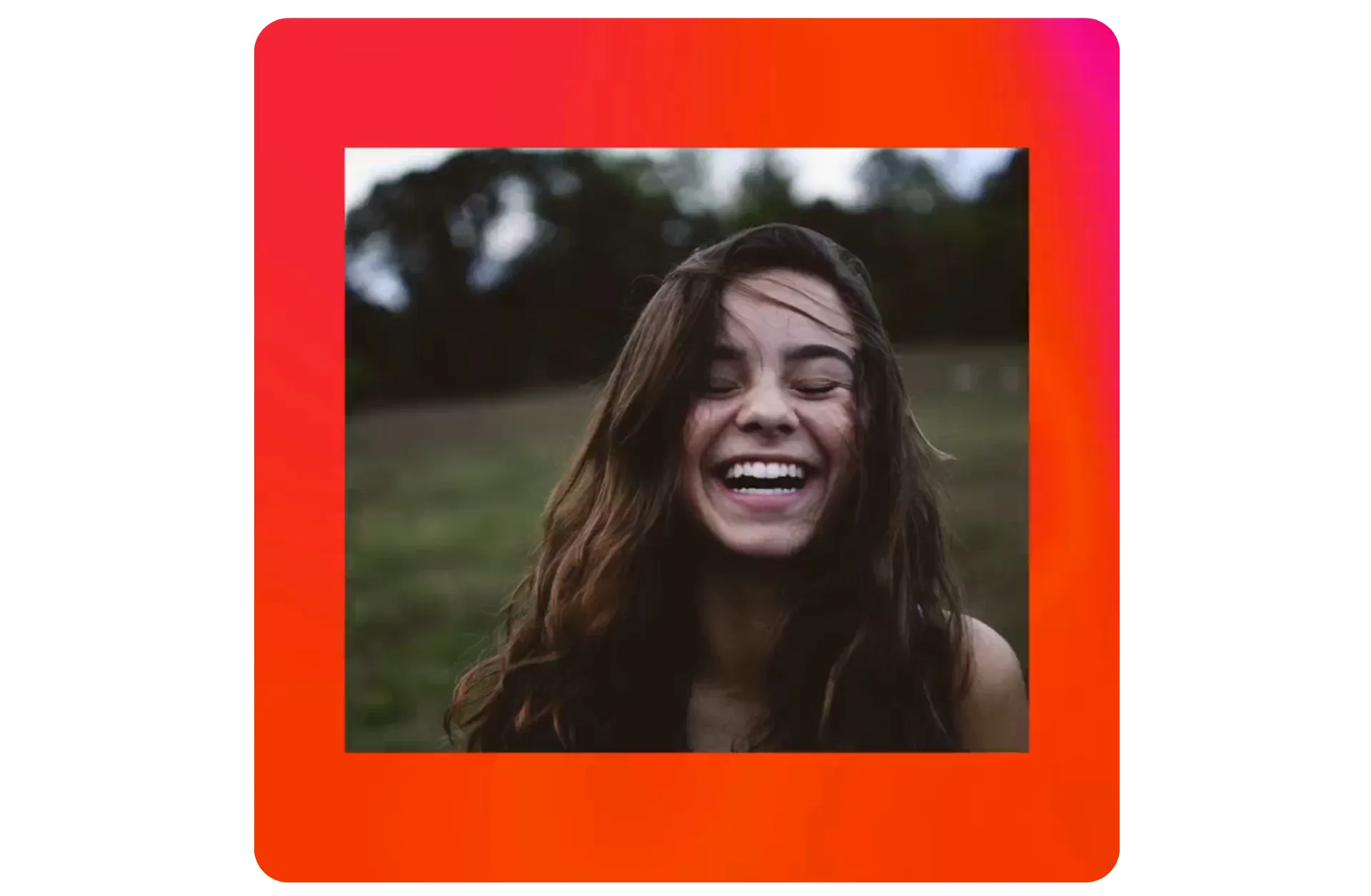
Image expansion that looks identical to the original
Transform any photo in seconds — with one click
Fast, realistic results for every upload
Kapwing’s AI Image Extender adapts images to any aspect ratio, from portrait to landscape and beyond, without stretching or distortion.
Fine details are preserved, with your image naturally extended beyond its original borders — no one will ever know it’s been altered.
Every image in your library can be optimized for social media, tailored for website layouts, adapted for print, and perfectly framed for any use.
Simply open the AI Assistant to get started for free.
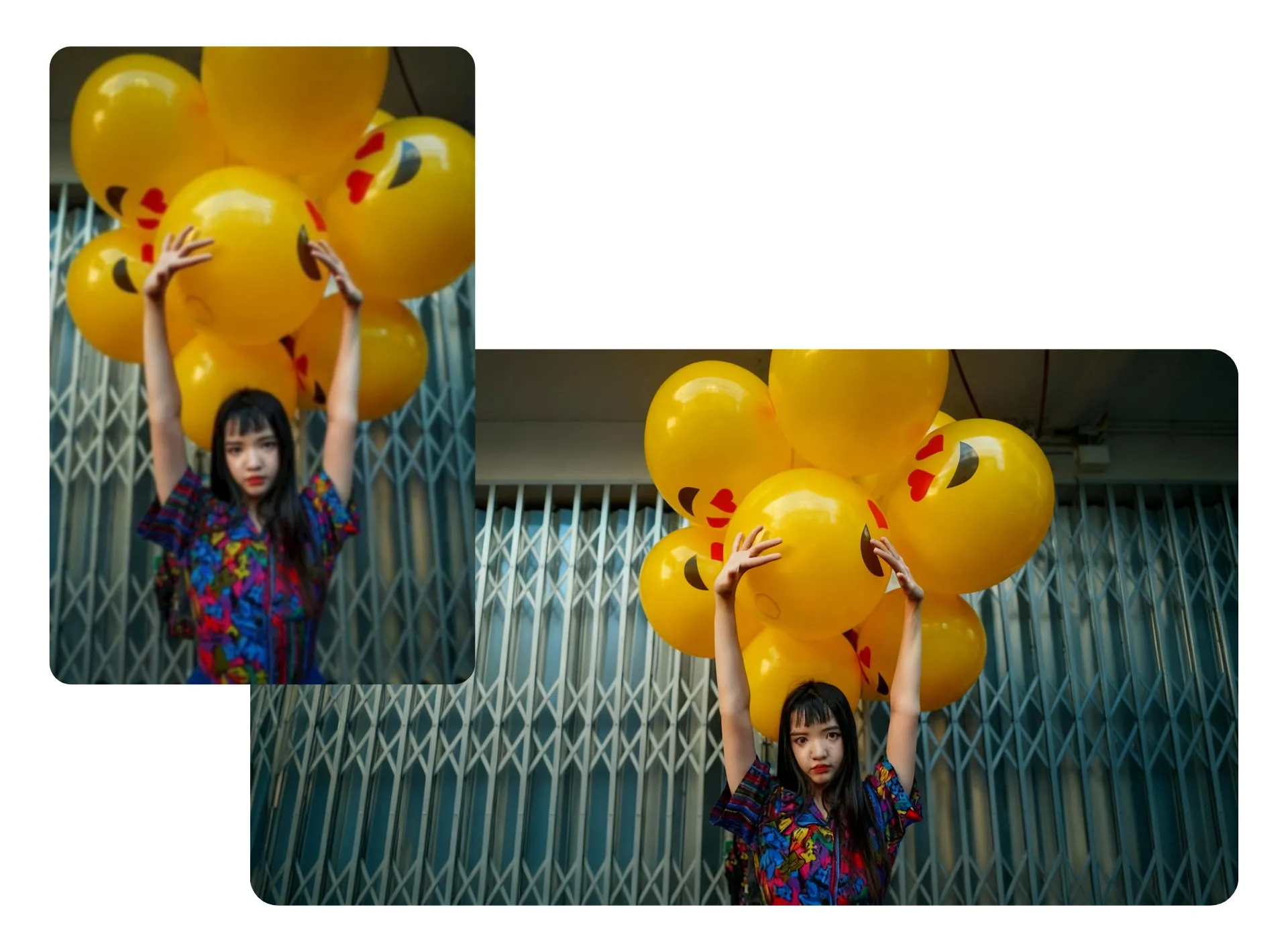
Extend photos effortlessly — no design skills needed
Use aspect ratio inputs like "9:16" or "1:1", or keep it simple with terms like "bigger" and "wider." You don’t need to be a prompt expert to get high-quality results.
You can regenerate images at any time, and your version history is saved automatically — making it easy to explore different visual expansions and pick the best one when you're ready.
Designers, marketers, photographers, and editors of all skill levels rely on this beginner-friendly workflow to repurpose content quickly, save time, and skip the hassle of manual editing.
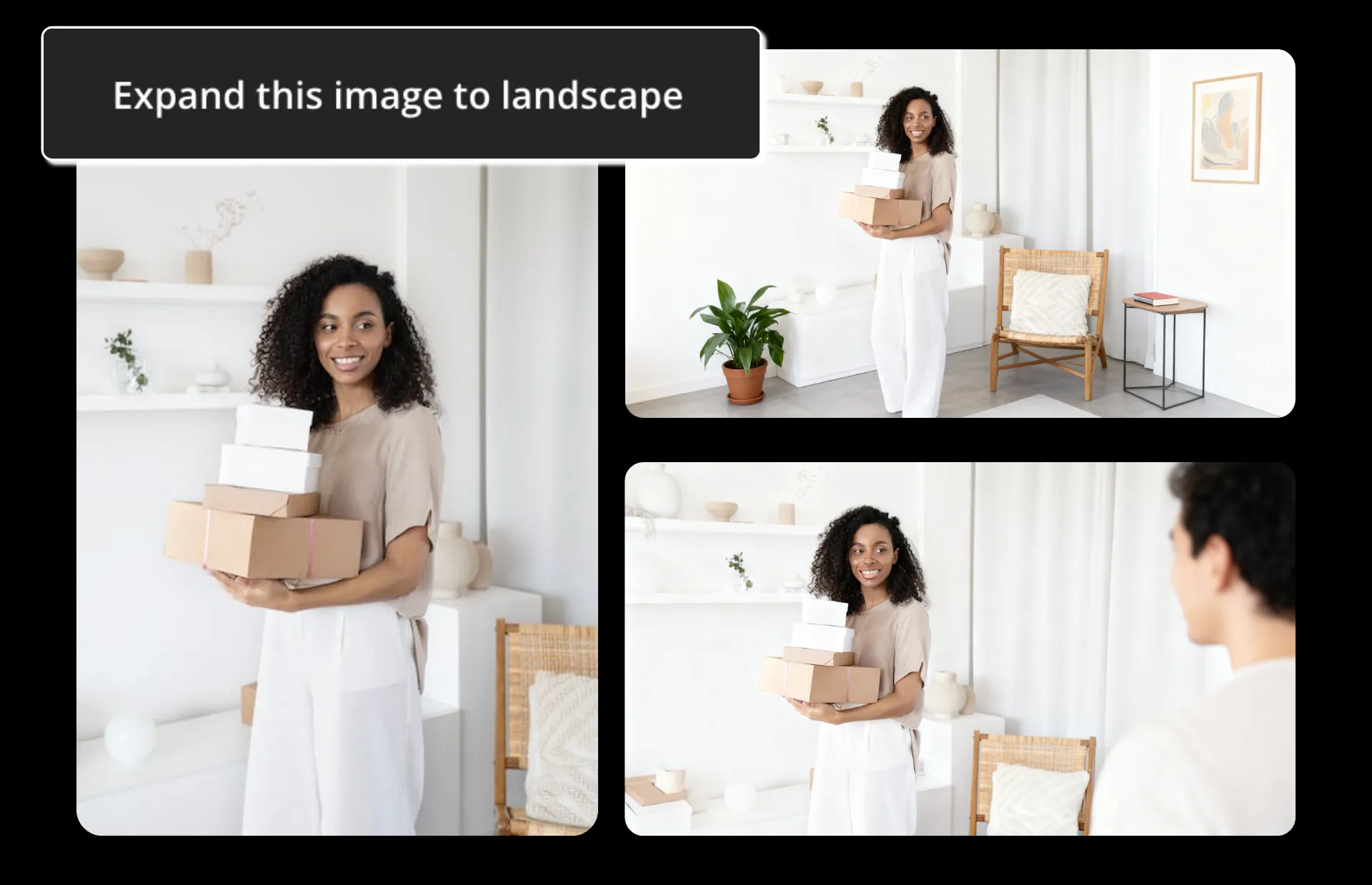
Edit your image — however you can imagine
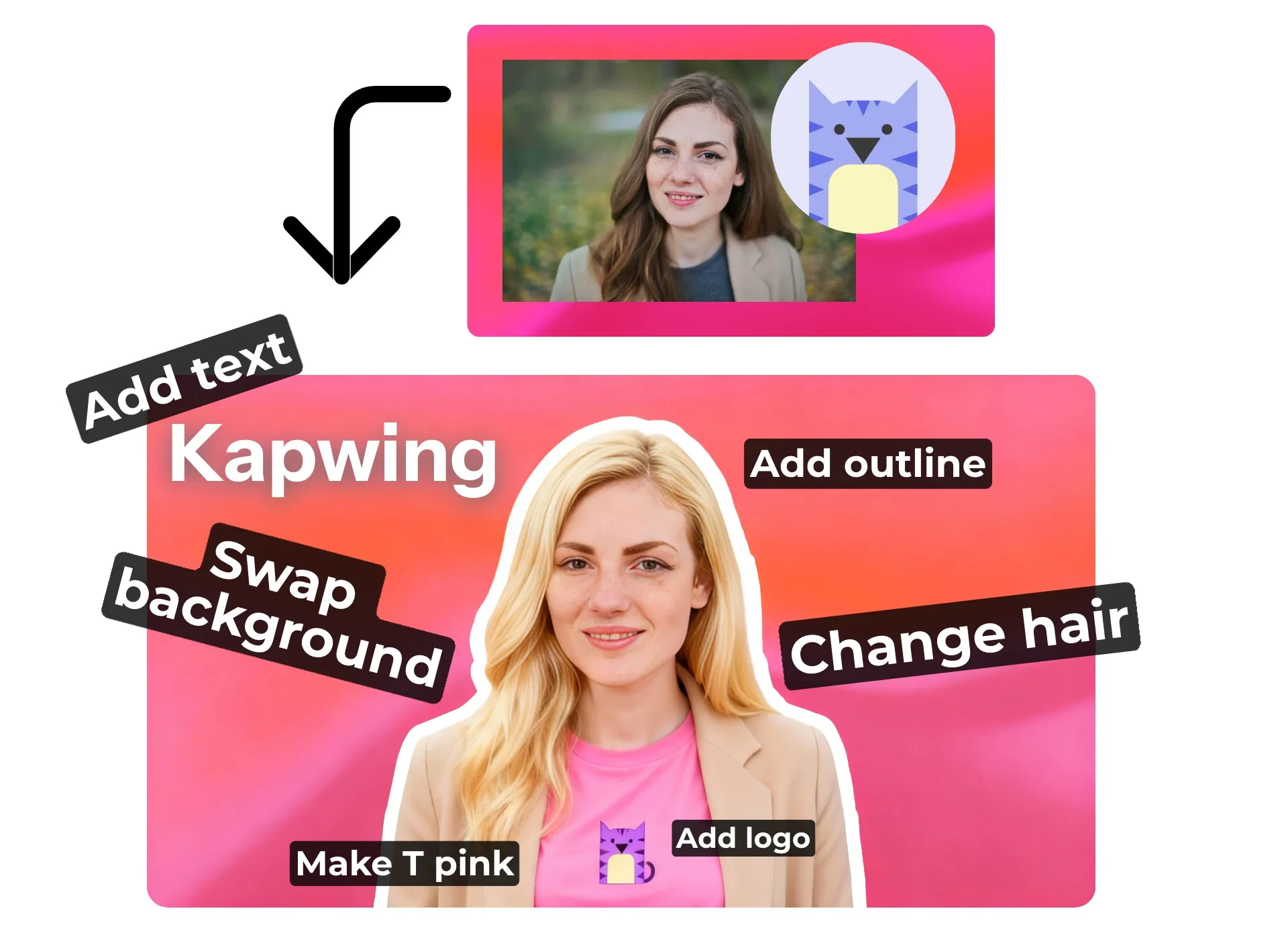
Image editing doesn’t stop at expanding photos or filling in blank space — Kapwing’s AI Assistant is ready for your next command. Remove objects, change backgrounds, add transparency, switch styles, or completely reimagine your image from scratch.
Inside the Image Editing Studio, you’ll find hundreds of AI-powered and manual tools to polish, sharpen, correct, transform, and reimagine your visuals for any project.
How to Extend an Image With AI
- Step 1Upload image
Open Kapwing's AI Assistant and upload the image you want to extend.
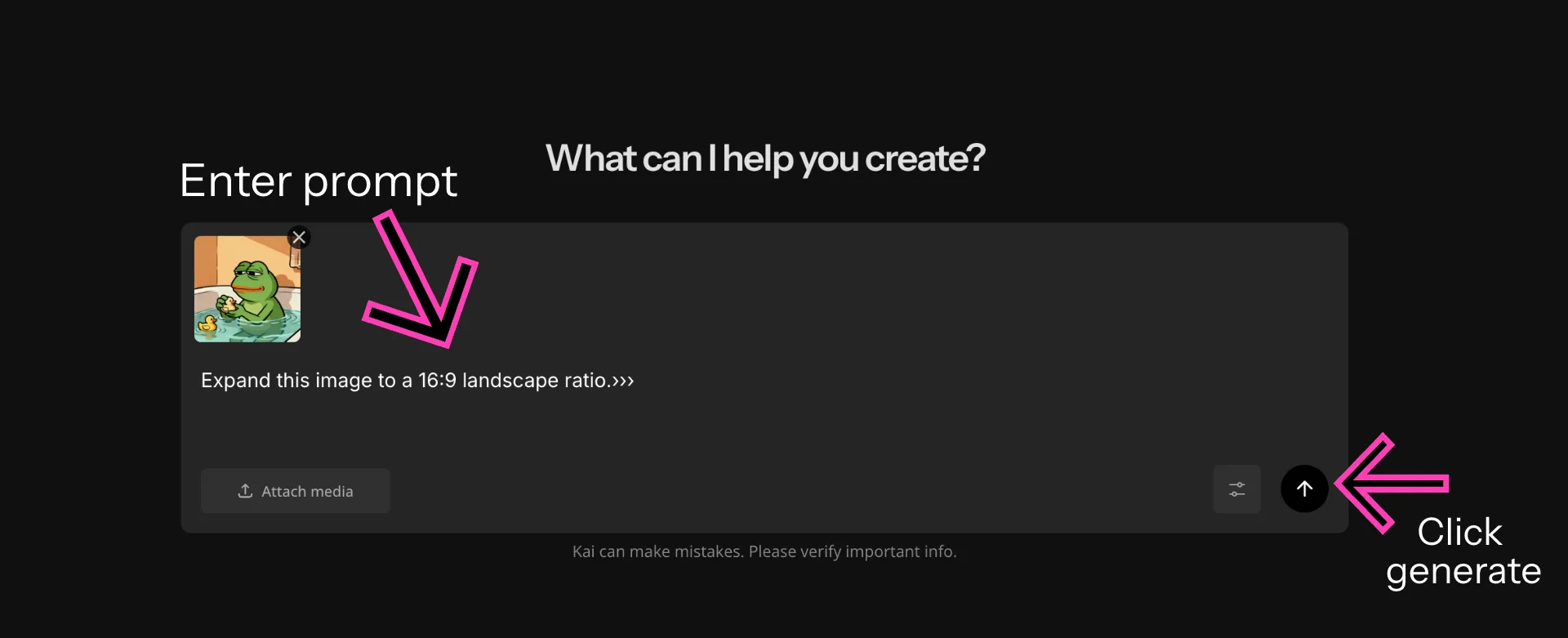
- Step 2Enter prompt
Enter a prompt asking the AI to extend your image — use words like portrait, landscape, expand, or extend. Choose your desired aspect ratio from the dropdown menu.
- Step 3Edit & export
Make further edits by chatting with the AI or adjusting manually in the editor. When you're ready, add the image to your canvas and export your the picture.
Already transforming video creation across industries
Hear directly from the teams who publish faster, collaborate better, and stay ahead.


Join millions of creators extending images with Kapwing
Powerful, precise image editing at your fingertips
Website Design
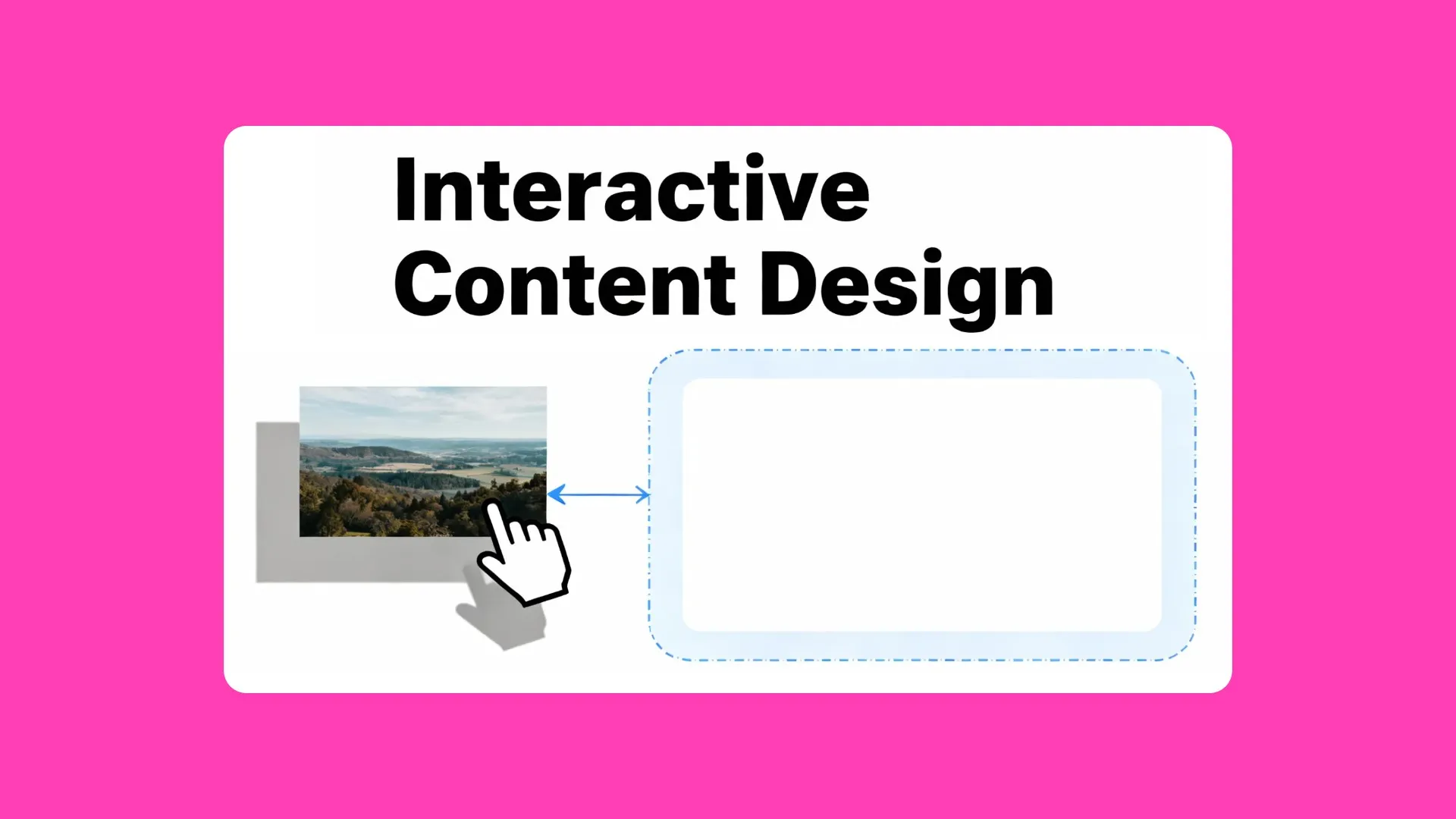
The AI Image Extender helps resize banners, hero images, and product visuals for website layouts — perfect for small business owners, designers, and sales teams
Social Media
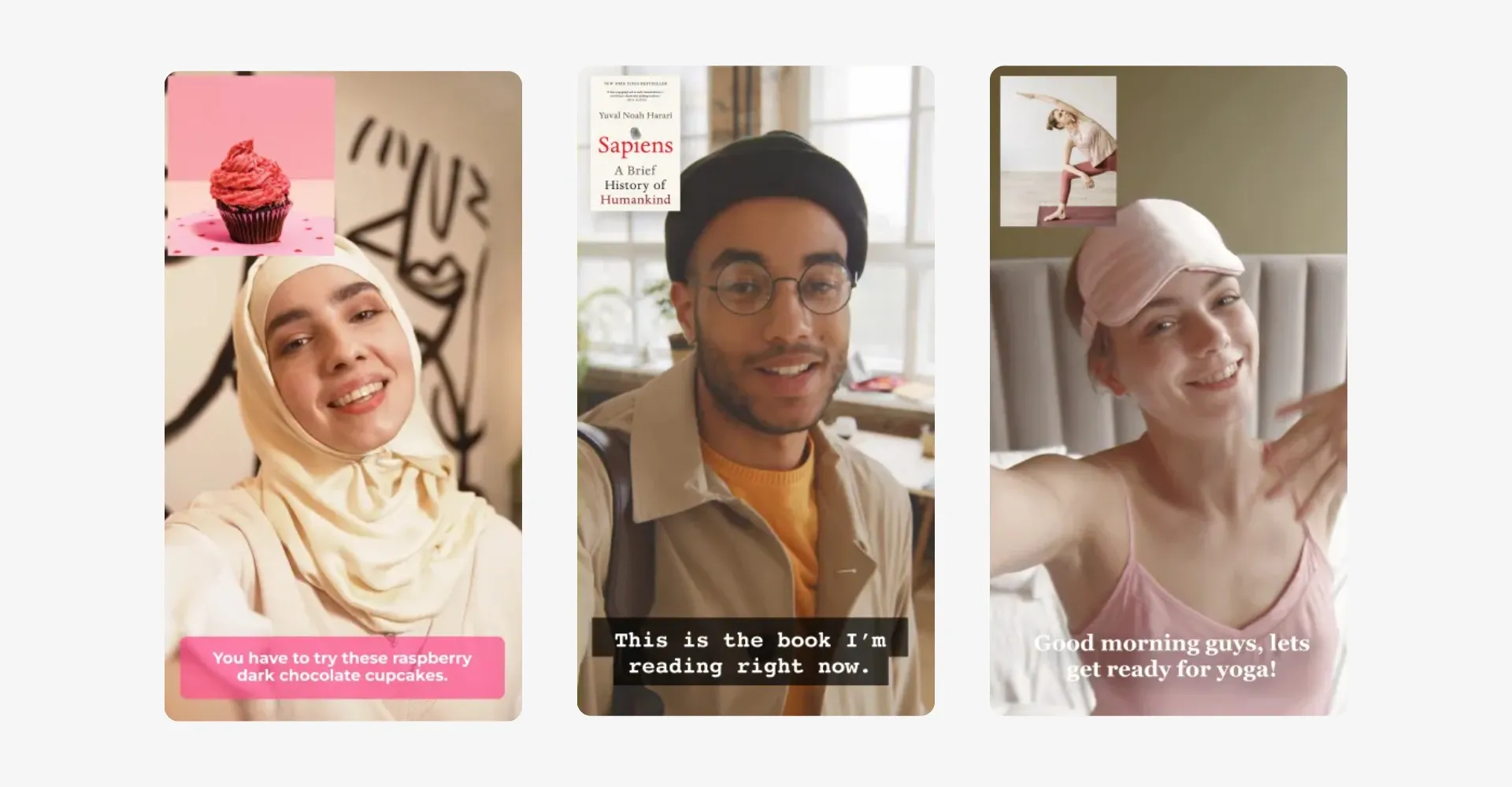
Social media managers, influencers, and entrepreneurs use the AI image creator to resize or reframe visuals for Instagram, YouTube, and more
Ads & Promos
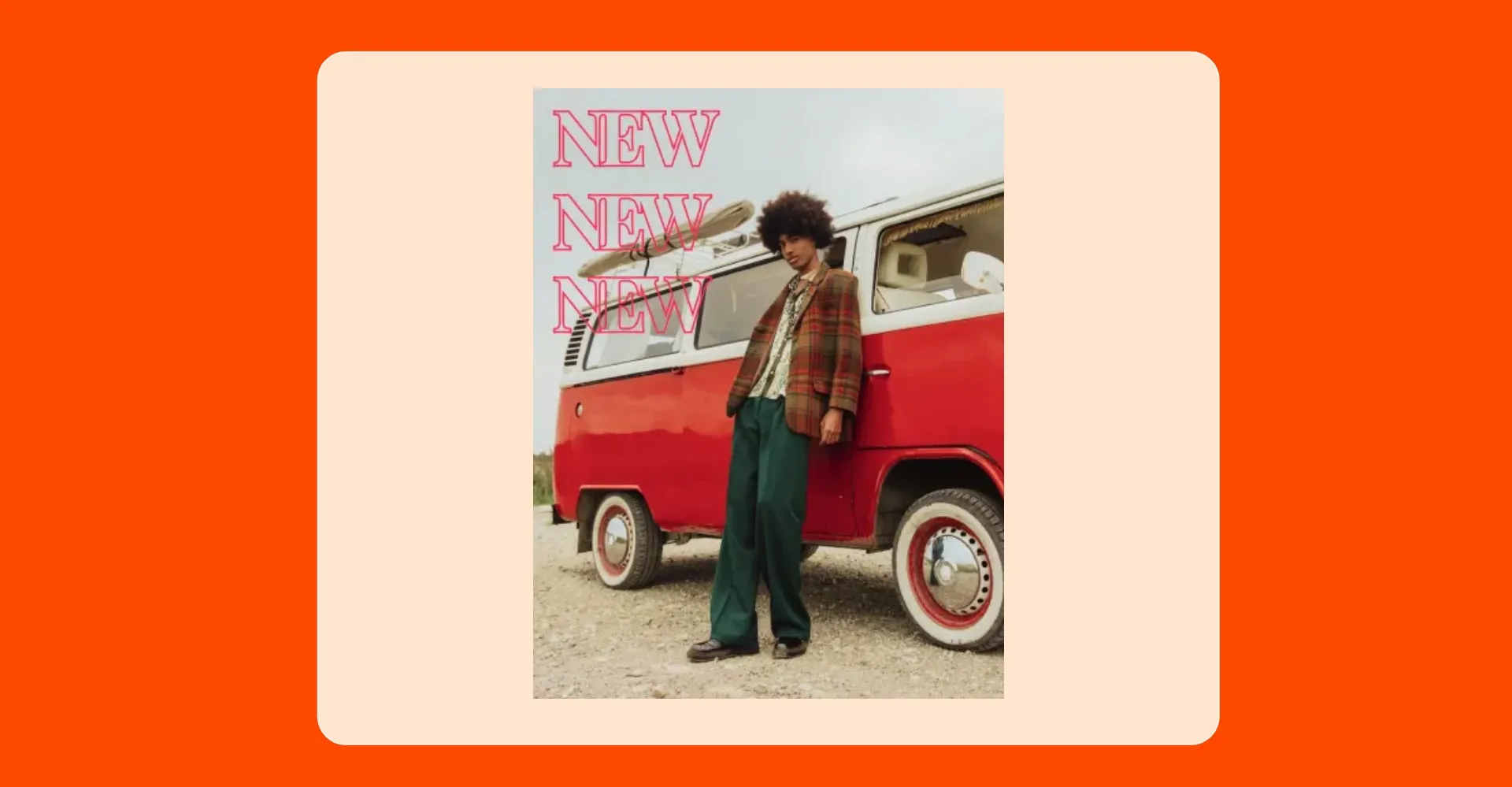
Marketers, PR teams, and ad specialists extend product and lifestyle shots to fit ad placements across social, search, and display — from 9:16 to 3:4 and beyond
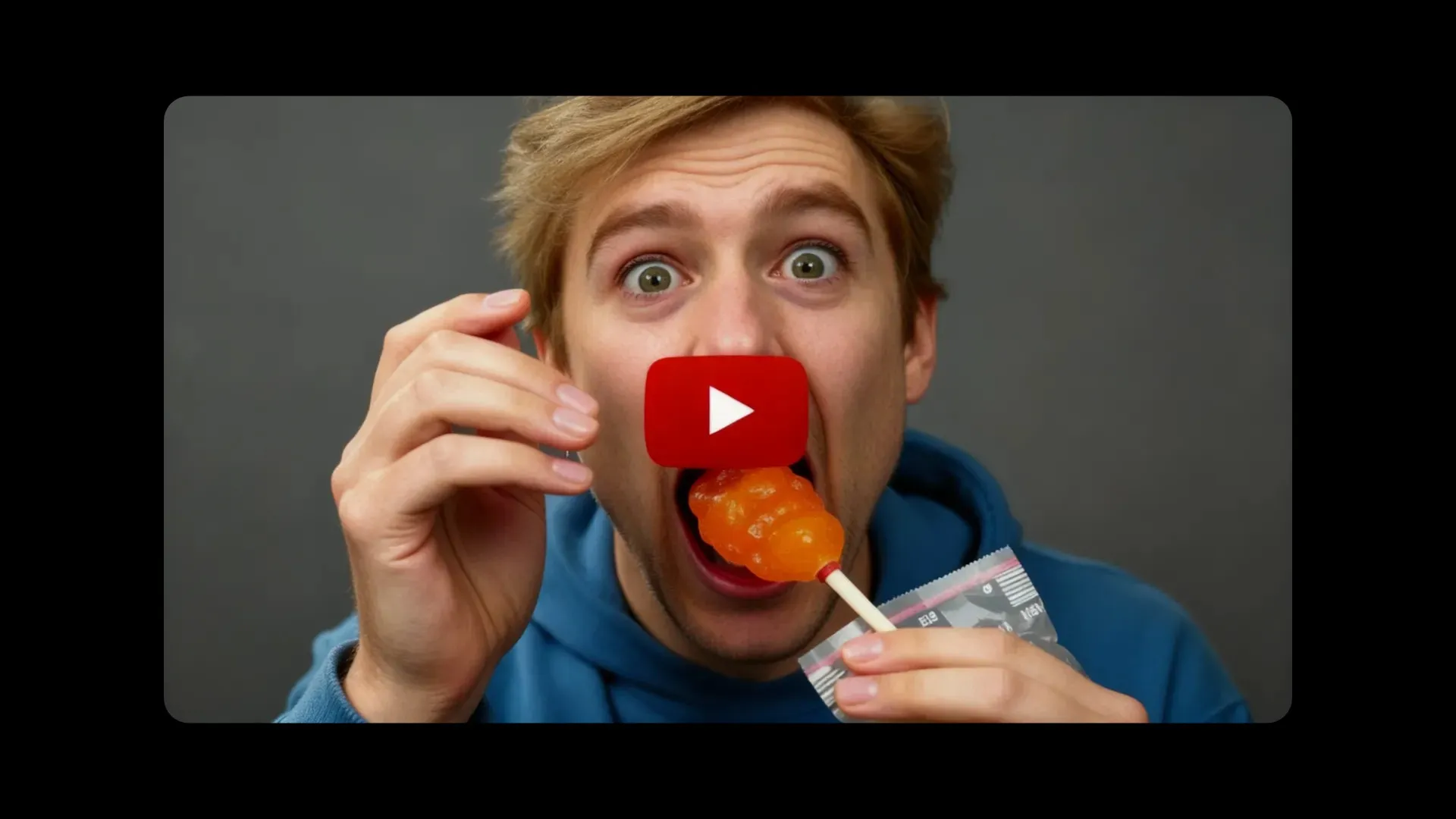
Thumbnails
Also known as AI outpainting, the online Image Expander helps podcasters, vloggers, and thought leaders generate clean, custom thumbnail backgrounds
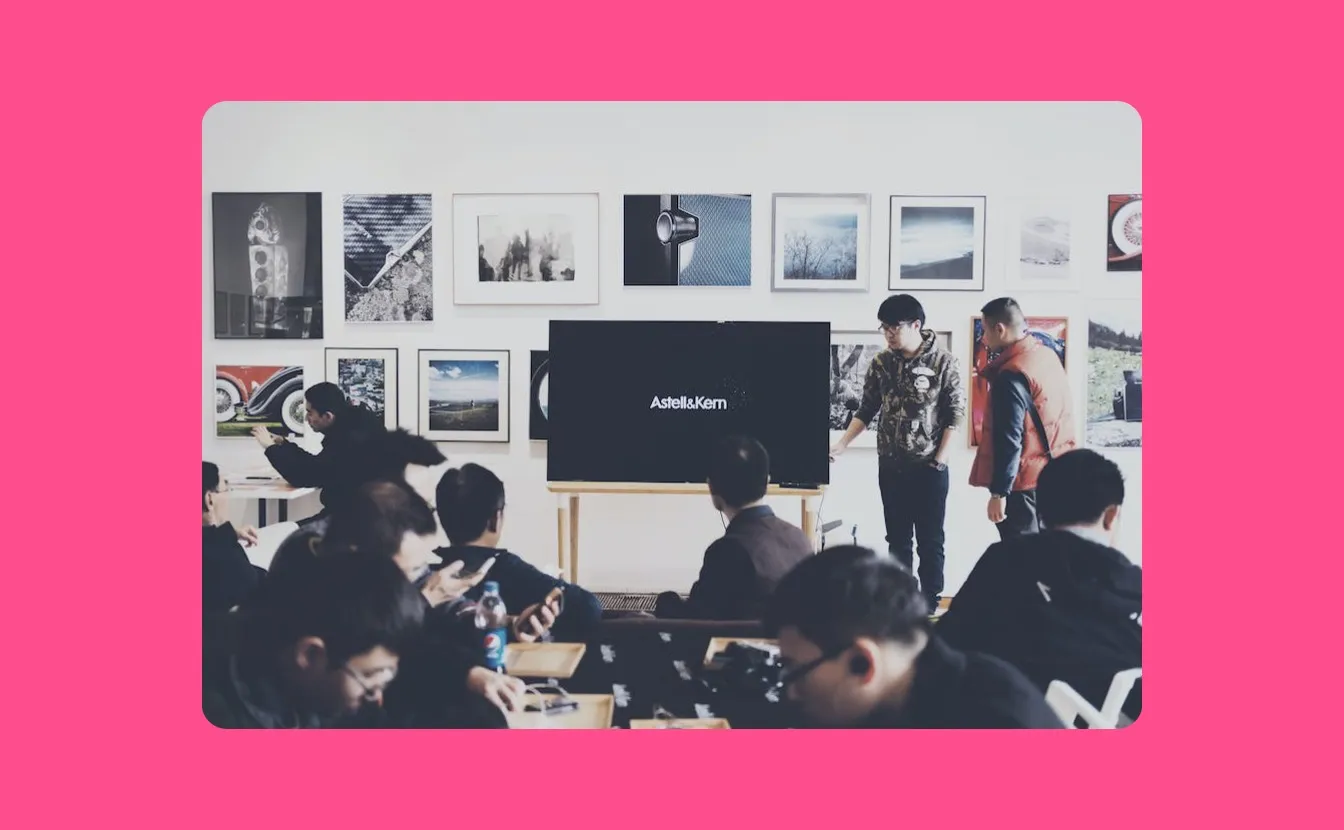
Presentations
Educators and thought leaders extend visuals to match slide decks or workbook layouts, keeping designs consistent and professional across every page or screen

Editorial
Bloggers, journalists, and content marketers expand and reformat visuals to match article headers, in-line image blocks, or mobile-optimized newsletter layouts
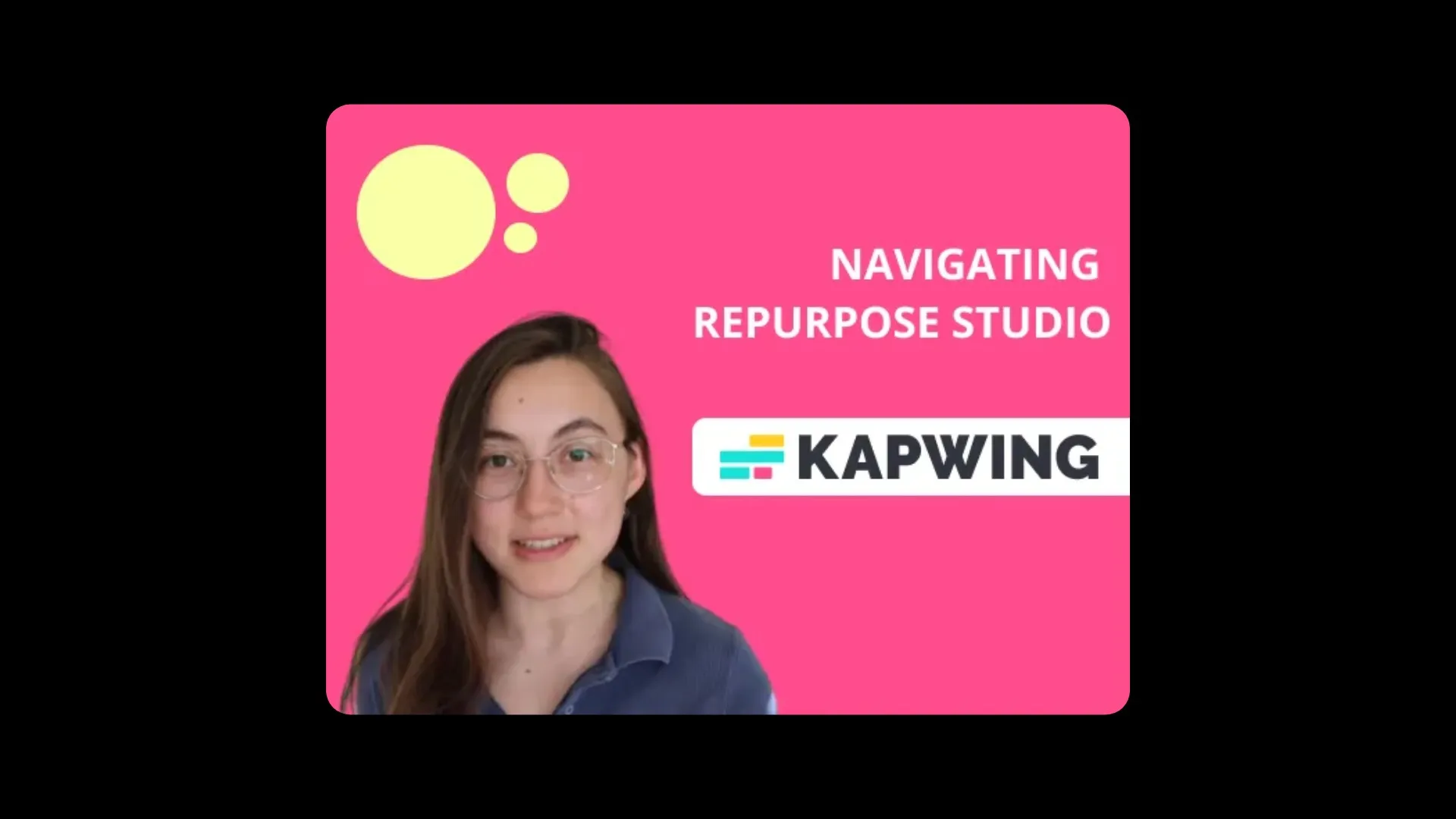
Training Content
Resize employee headshots, team photos, or culture visuals to fit internal directories, onboarding decks, or LinkedIn posts for free — no graphic designer required
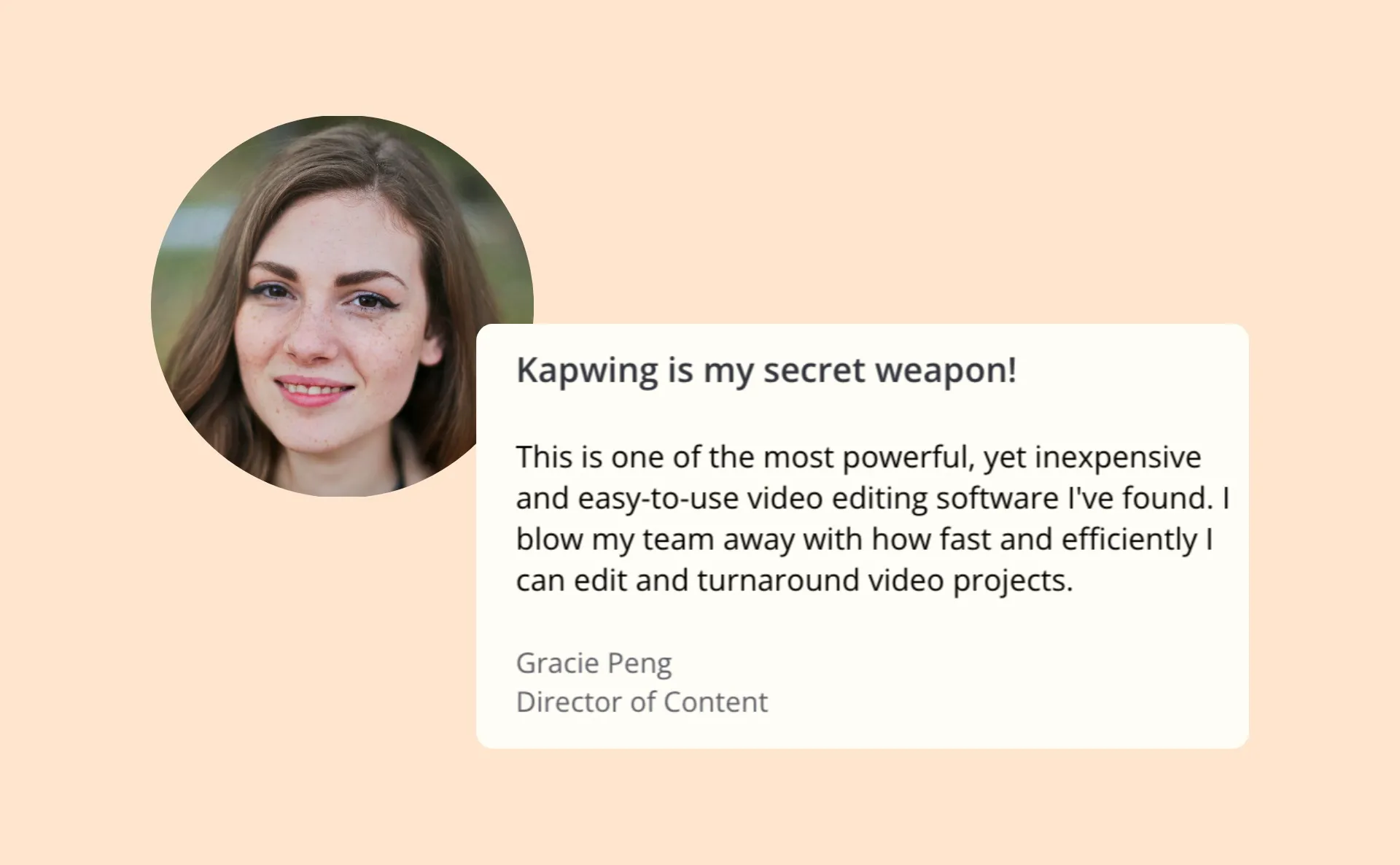
Testimonials
Customer success teams and SaaS marketers extend client-submitted photos or case study visuals to align with testimonial layouts across devices
Edit together, completely online
Combine images with audio, video, and design elements
Kapwing’s online studio is designed for fast, intuitive editing — powered by AI to streamline every step.
Since everything lives in the cloud, teams and brand collaborators can work together in real time from anywhere. Comments, reviews, and approvals happen directly in the editor, so there’s no need to juggle files across Teams, Drives, or email.
Once your project is ready, you can export instantly or publish directly to social platforms.

What's different about Kapwing?



Frequently Asked Questions
We have answers to the most common questions that our users ask.
Is the AI Image Extender free?
Yes, anyone can try Kapwing’s AI Image Extender for free. All our AI tools run on a credit system, with each feature costing a set number of credits. For maximum creativity and the best value, upgrade to a Pro account to unlock the full power of AI-driven content creation.
Is there a watermark on exports?
If you are using Kapwing on a Free account then all final, downloaded exports — including AI-generated content — will contain a watermark. Once you upgrade to a Pro account the watermark will be completely removed from your creations.
What prompt should I write?
You can write your prompt using natural, everyday language — it doesn't need to be complex or technical. Start by asking the AI to extend or expand the image, then include the desired aspect ratio (like "9:16" or "1:1") or orientation (like "portrait" or "landscape").
Examples:
- Expand this image to landscape
- Extend this image to 1:1
- Expand this photo into a 9:16 portrait format
You can also add creative context if you want the AI to include specific elements:
- Expand this image to include a window on the right
- Extend this scene to landscape and add a plant in the corner
If you're not sure what to write, the built-in AI Assistant can help refine your prompt and suggest better phrasing based on your goal.
Does the tool work on mobile and desktop?
Yes, the AI Image Extender works on all desktop and mobile devices, including iPhone and Android.
What devices and browsers does Kapwing work with?
Kapwing works on any device and browser, though we recommend Chromium-based browsers like Google Chrome and Microsoft Edge. Kapwing also works on iOS and Android mobile devices. Since Kapwing is an online web-based software, it also works across Windows, Mac, and other desktop devices.
Can I edit AI generated images?
Yes, every AI-generated image made with Kapwing can be edited directly in our online editor — no matter how it was created.
What image file types does Kapwing support?
Kapwing supports all major image file formats including WebP, PNG, JPG, and more.
Can I upload a reference image?
Yes — under the "Images" tab, you can combine multiple images using the Seedream 4 model. This lets you use one image as a reference to guide the expansion of another.
For example, you can ask the AI to expand your original image while incorporating objects, colors, or background elements from a second image. This is especially useful for maintaining visual consistency or recreating a specific setting.
What type of images does the tool work with?
The AI Image Expander supports a wide range of visuals — from selfies and portraits to landscapes, paintings, digital art, and more. Whether you're working with real photos or creative illustrations, the tool can expand your image to fit any aspect ratio or format you need.
Discover Resources
Tips, templates, and deep dives to help you create faster and share with confidence.
View all

Get started with your first video in just a few clicks. Join over 35 million creators who trust Kapwing to create more content in less time.