Cut songs and recordings to the length you need.
Trim MP3, WAV, and M4A files online for free.
Trim audio with a few clicks
Shorten recordings, remove unwanted sections, and fine-tune audio clips online
Keep the best parts of your audio
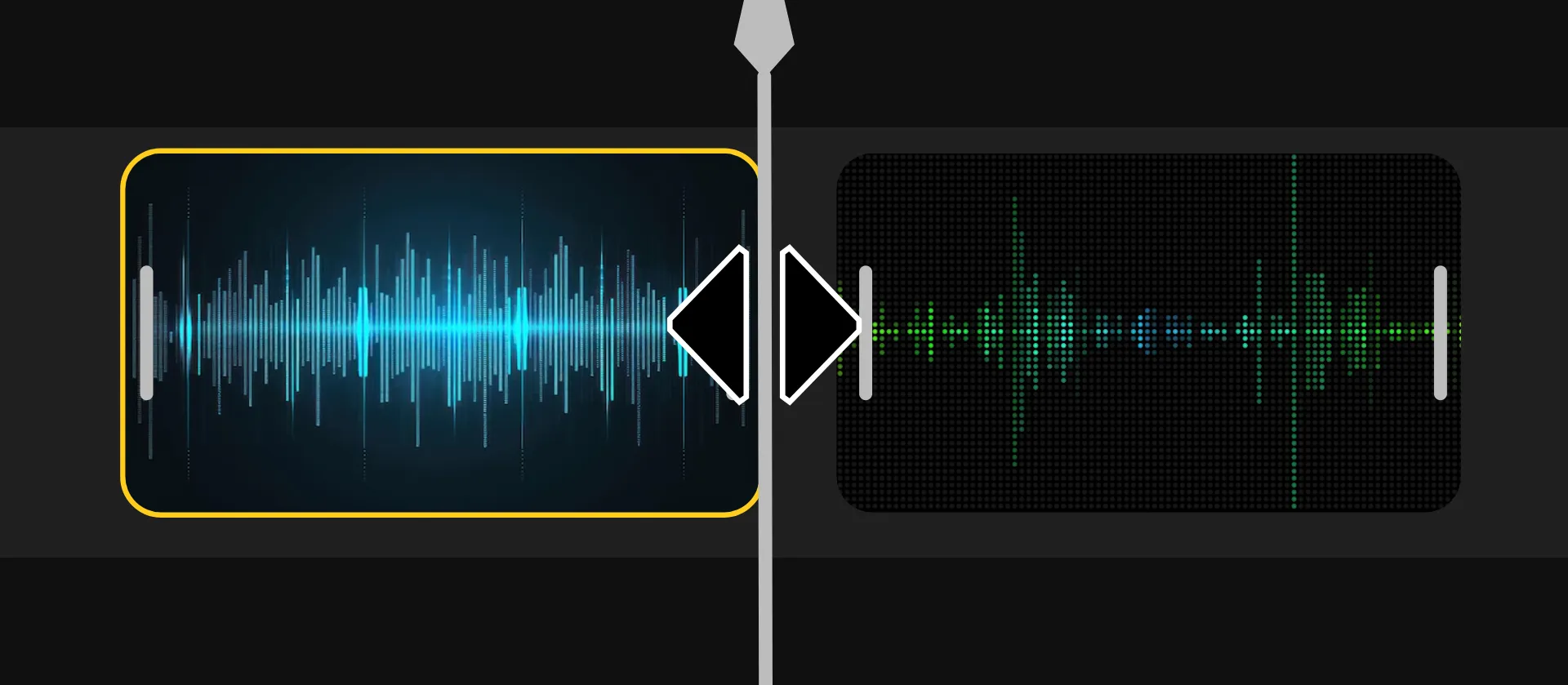
Shorten songs, voice recordings, and other audio files with Kapwing's online audio trimmer. Upload an MP3, WAV, or M4A file, then drag the edges of the audio clip to choose where it starts and ends.
To cut unwanted audio from the middle, split the recording around the section you want to remove and delete it. Preview your changes, then download the trimmed audio as an MP3 or continue editing in the same workspace.

How to trim audio in 3 steps
Upload
your song or recording to the Kapwing Studio


Trim
by dragging the beginning or end of clip in the timeline
Download
your trimmed audio as MP3 or AAC
Cut, refine, and reuse your audio
Get your audio tracks ready for every project
Make precise cuts to any audio clip
Cut audio exactly where you need it with Kapwing's timeline editor. Use the audio waveform to find specific words, pauses, and musical moments, then adjust the start and end of your clip by dragging its edges. Zoom in for more control and preview your edits before exporting.
Need to remove something from the middle? Split the audio on either side of an unwanted section, delete it, and bring the remaining clips together. Add a fade-in or fade-out to soften abrupt transitions between cuts.
Clean up audio after trimming
Trimming removes unwanted sections, but some recordings need additional editing before they're ready to share. Kapwing lets you refine your audio in the same workspace without downloading and reuploading files between tools.
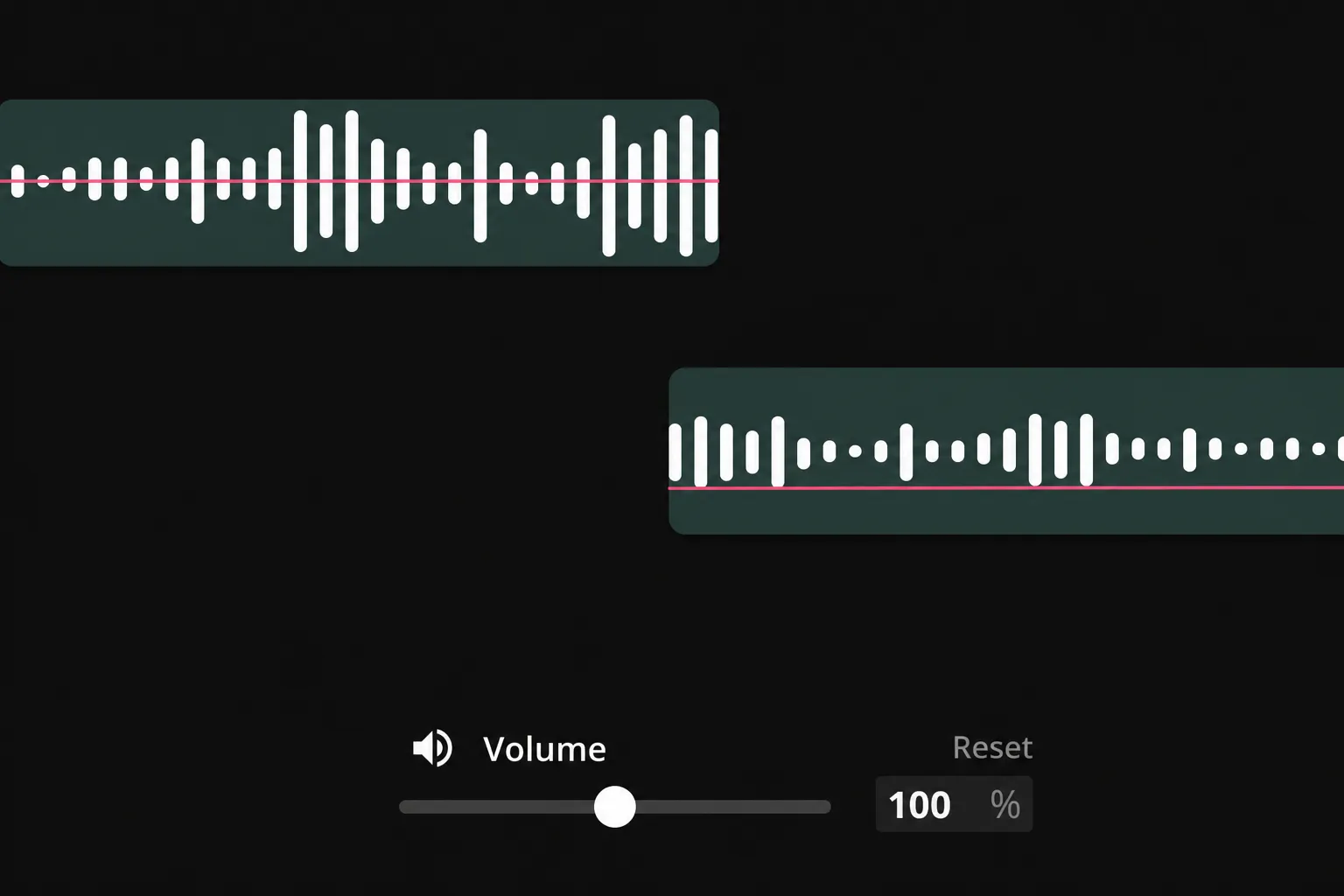
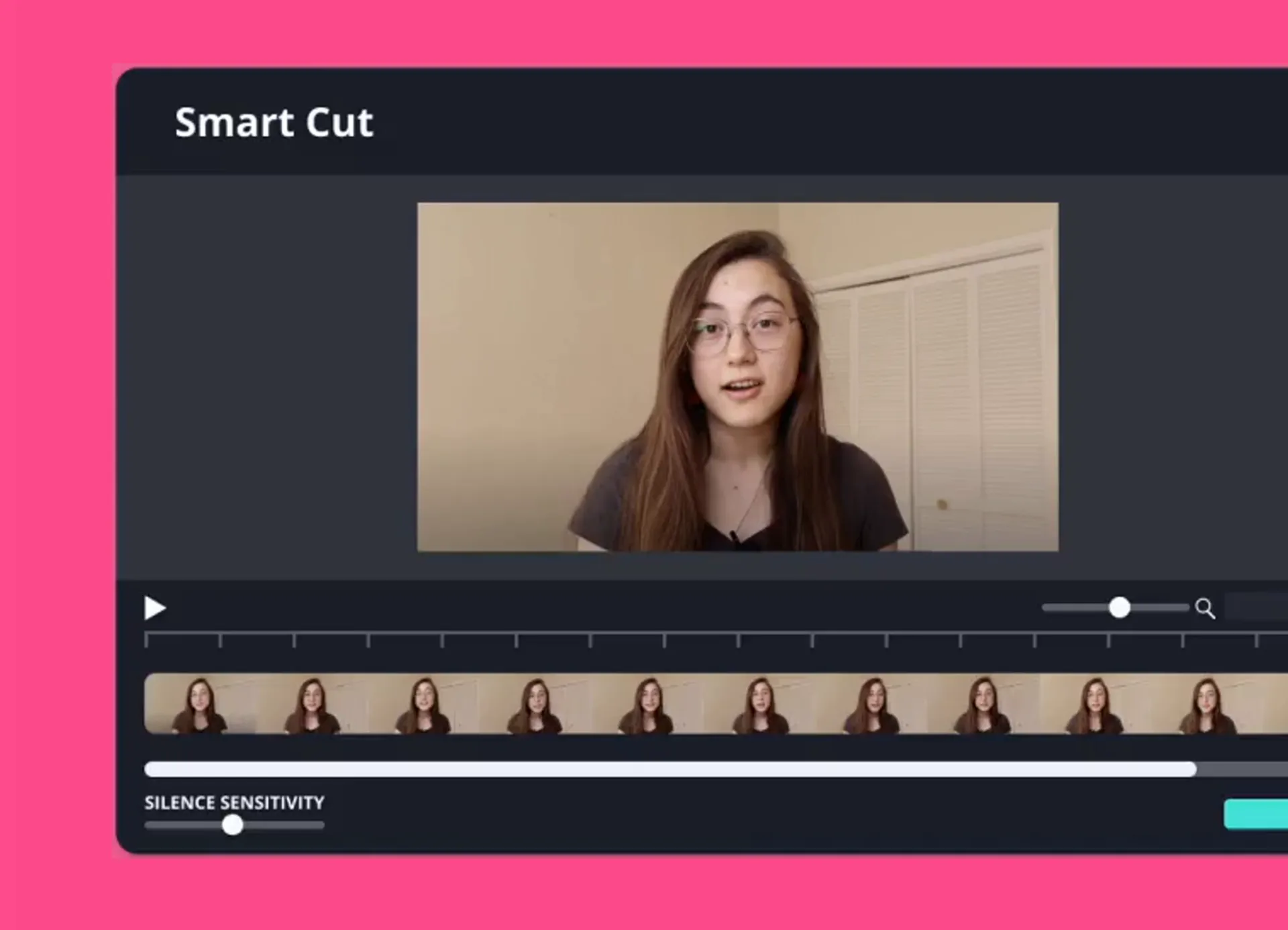
Use Smart Cut to detect and remove long silences from spoken recordings, or reduce distracting background noise with Clean Audio. Adjust volume or combine multiple audio clips with background music and sound effects.
Make individual cuts manually or use AI-powered tools to speed up repetitive cleanup, then listen back and fine-tune the result before exporting your MP3.
Sync audio and video in the same workspace
Match music, voiceovers, and sound effects to your video without switching between editors. Shorten a soundtrack to fit your footage, align narration with on-screen moments, and position sound effects where they're needed.
Once your audio is trimmed, keep building your video with footage, images, captions, and other media. Adjust the timing of audio and visual elements together, then preview the finished video before exporting.
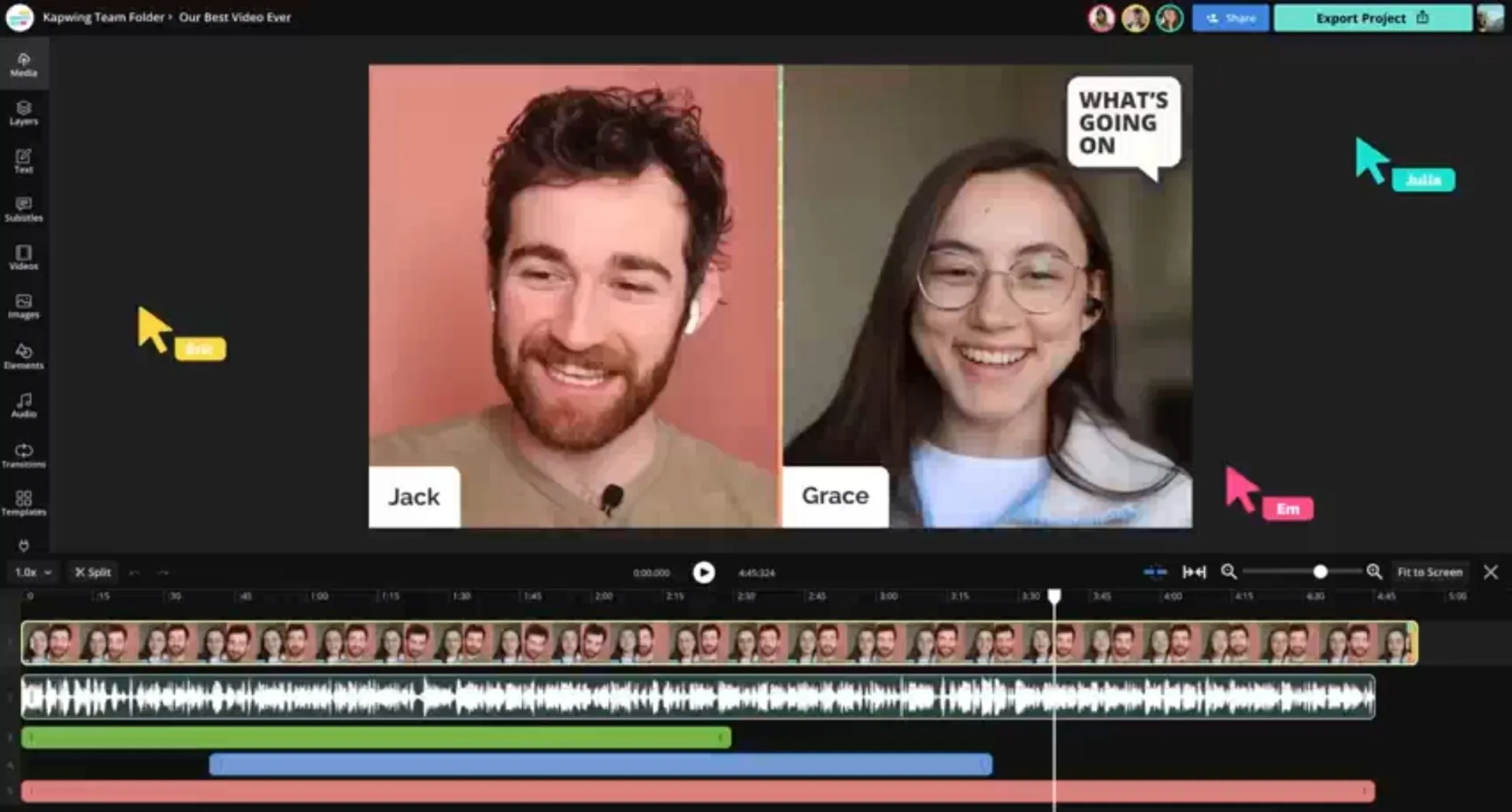
An all-in-one audio trimmer for creators and marketers
Trim audio for podcasts, videos, music, and more

Podcast Editing
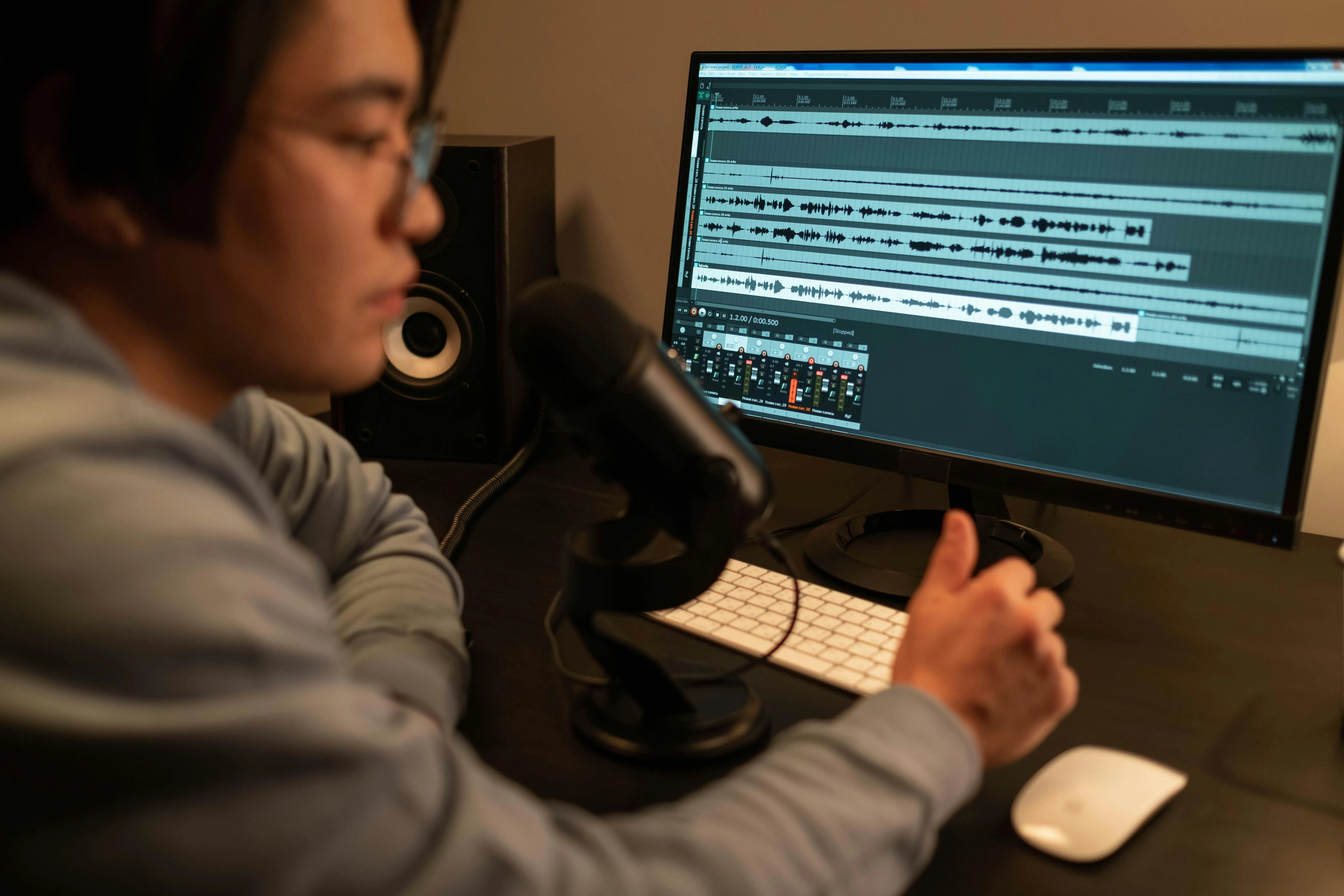
Podcasters can trim long recordings to remove false starts, unwanted pauses, and off-topic conversations. Keep episodes focused or extract shorter segments for sharing.
Social Media Clips
Social media content creators on Instagram, TikTok, and Twitter use Kapwing's audio trimmer to extract short, scroll-stopping soundbites from longer videos or podcasts

Event Promos & Recaps
Event organizers and content marketers use our online audio trimmer to capture exciting moments and craft event promos and recaps from live events and interviews

Audiobook Production
Authors and narrators use Smart Cut to trim excess silence, long pauses, or mistakes and create smooth, clear audiobooks ready for distribution
YouTube Videos
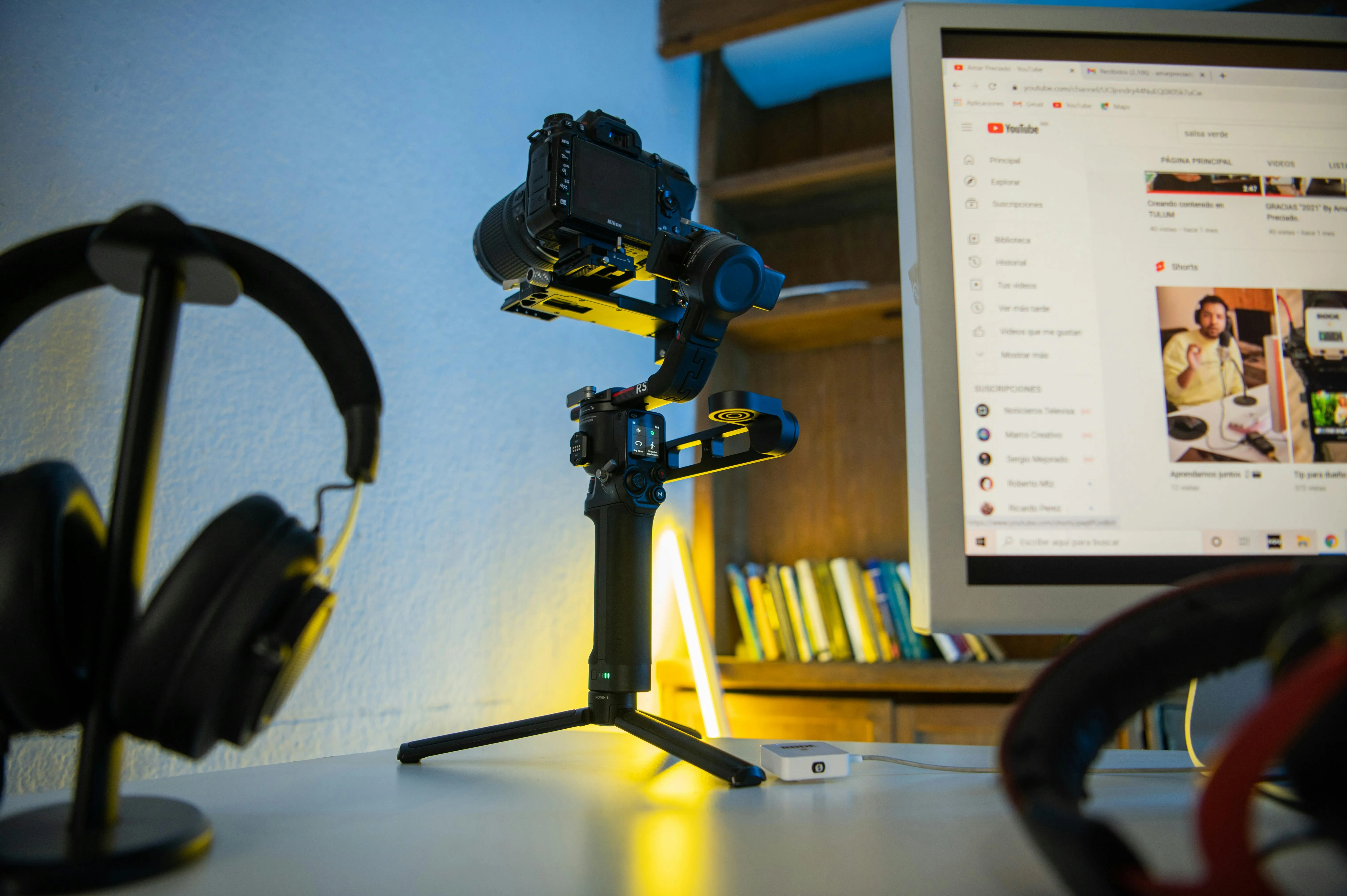
YouTubers can shorten voiceovers, trim background music, and remove unwanted audio from recordings. Align sound with footage and keep the important moments.

Ad Creation
Kapwing's free audio cutter helps creators turn interviews, testimonials, and product demos into compelling, concise audio ads for social media campaigns

Brand Jingles & Music Edits
Brands and marketers can isolate memorable sections of songs or jingles, shortening music clips to fit advertisements, product videos, and social posts

Webinars & Online Courses
Online educators refine recorded webinars and course content with Kapwing's MP3 cutter, removing awkward pauses or irrelevant sections to create a more engaging experience

Song Promos
Singers and bands use the audio clipper to select and extract catchy choruses or dramatic instrumental breaks in their songs, creating polished promos for upcoming releases
How to Trim Audio Online

- Step 1Upload audio
Create a new project in the Kapwing Studio. Upload an MP3, MP4, or WAV file from your device or paste a direct URL link to an online audio or video clip (such as YouTube).
- Step 2Trim audio
Drag the front or end of your audio clip to trim the content. If you've uploaded a video, first detach the audio by right-clicking on the video. Alternatively, use the "Trim" section under "Edit" on the right-hand toolbar.
- Step 3Download and share
Click "Export Project" when your project is finalized and "Download" to save it to your device.
What's different about Kapwing?



Frequently Asked Questions
We have answers to the most common questions that our users ask.
Is Kapwing's Audio Trimmer free?
Yes, the Kapwing Audio Trimmer is available for free and also includes all manual splitting and cutting tools. However, to use the AI-powered Smart Cut and Remove Background Noise tools, a Pro account is needed.
Is there a watermark on exports?
If you are using Kapwing on a Free plan then all exports — including from the Audio Trimmer — will contain a watermark. Once you upgrade to a Pro plan the watermark will be completely removed from your creations.
Is there a way to edit a WAV file?
Yes, you can trim a WAV file using an audio trimmer that supports WAV files or convert them into a more universally compatible file type like MP3. Some tools that support WAV include iMovie and Windows Media Player.
If you want to edit a WAV file, you can use an in-browser audio trimmer like Kapwing, which is integrated with an online video editing suite. This way, you can edit your WAV file and add waveforms, clean audio, and even add an image for subtitles.
How do I cut part of audio?
To cut part of an audio track, you need an audio editor or audio clipper such as Kapwing. Most audio clippers have a playhead you can adjust to make precise cuts. Move the playhead to the section you want to remove, split the section where it begins and ends, and delete.
Then, either stitch your other sections back together or add in new audio to replace the removed portion. Depending on what tool you use, you can cut part of your audio track to make a compressed, smaller audio file or save only the valuable parts you want to keep.
How do you trim audio on iPhone?
You can trim audio on an iPhone using an app or an online audio trimmer such as Kapwing. When choosing an audio trimmer, make sure it supports the type of audio files you're working with. On an iPhone, you most likely have WAV files.
Using a free audio trimmer like Kapwing can help you trim audio directly in your phone's web browser. Simply upload your audio or video content to Kapwing.com and use the "Trim" tool in the right-hand sidebar under "Edit". Kapwing also works on any smartphone, including Samsung Galaxy, Google Pixel, and many more.
What devices and browsers does Kapwing work with?
Kapwing works on any device and browser, though we recommend Chromium-based browsers like Google Chrome and Microsoft Edge. Kapwing also works on iOS and Android mobile devices. Since Kapwing is an online web-based software, it also works across Windows, Mac, and other desktop devices.
What audio file types can I trim?
Kapwing's audio cutter works with a wide variety of popular file types for audio, including MP3, WAV, MKV, WebM, FLAC, and OGG. You can also upload M4A files and either play them or convert them to MP3, though Kapwing's media library can't save M4As for you. Note that audio exports in Kapwing will always be MP3, as we feel this format represents the best tradeoff between file size and quality.
Why does my audio quality go down when I send it?
Larger audio files are generally higher quality, but they're also harder to share. It's a catch-22: the better the quality, the more time-consuming the transfer. There are four main reasons audio quality decreases when you send it to someone:
- Reduced File Quality: Since uploading large audio files requires a lot of bandwidth, some platforms automatically reduce file quality to speed up uploads.
- Compression: Many applications compress audio files to decrease their size, sacrificing some data in the process, which results in lower quality.
- File Size Limits: Email and messaging platforms often have file size limits, forcing compression
- Repeated Downloading and Uploading: Frequent downloading and re-uploading across different devices can further degrade audio quality.
Can I trim audio without losing quality?
Trimming removes unwanted parts of a recording, but exporting can affect audio quality depending on the output format and compression settings.
Kapwing exports audio as MP3, so uploading a WAV or another format doesn't preserve the original file format. For the best results, start with a high-quality recording and review the exported audio before sharing.
Discover Resources
Tips, templates, and deep dives to help you create faster and share with confidence.
View all

Get started with your first video in just a few clicks. Join over 35 million creators who trust Kapwing to create more content in less time.