Generate accurate subtitles with AI — fast and free
.webp)
99% accurate subtitles, generated in seconds
More engagement. Better accessibility. A global audience.
Get accurate subtitles without time-consuming edits
Upload any video or audio file (MP4, MOV, YouTube link, MP3, and more) to generate word-by-word subtitles and a fully editable transcript. Review the transcript, correct any terms, adjust timing, and export hardcoded captions or subtitle files in SRT, VTT, or TXT.
Kapwing's Automatic Subtitle Generator delivers industry-leading accuracy and streamlines subtitle creation for teams and creators — built for everything from short social clips to entire content libraries.
Save hours on manual transcription, make every video accessible, and prime your content for global localisation, whether you're creating training material, social content, or educational video.
.webp)
Improve watch time and comprehension with on-video subtitles
Subtitles enhance clarity, boost retention, and keep viewers engaged — making your content more effective wherever it's watched.
They're especially valuable for product demos, tutorials, and instructional videos, where following along helps viewers better grasp technical terms and step-by-step instructions.
For creators producing in-depth explainers, Kapwing's auto-subtitles transform passive watching into active learning. Even with long video uploads, auto-captions are processed in under 2 minutes.
.webp)
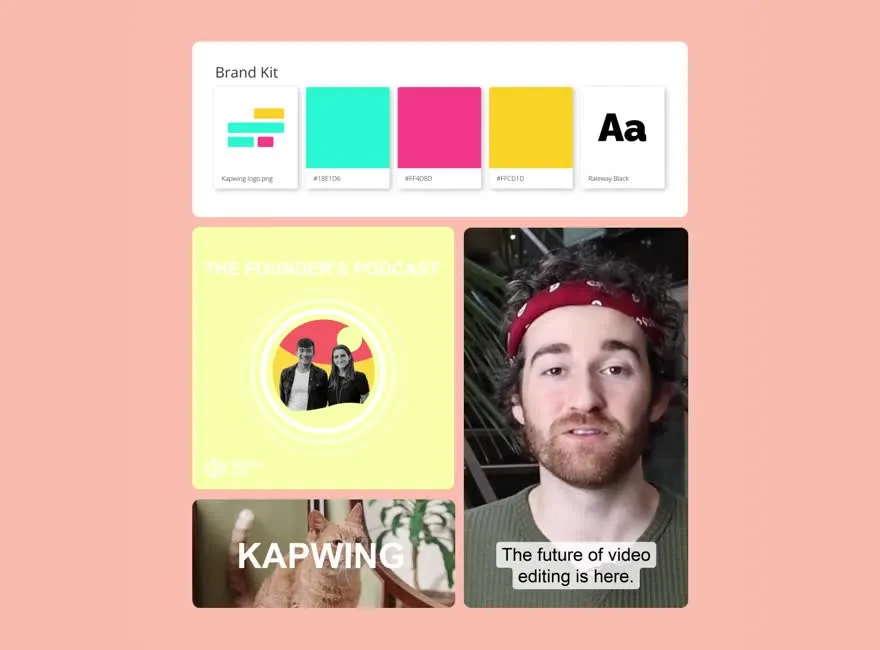
Customize every subtitle detail to match your brand
Kapwing's AI caption generator gives you complete creative control — start with over 100 preset styles or build your own, adjusting fonts, colours, sizes, shadows, transitions, and animated effects like word-by-word highlights.
Apply different styles for multiple speakers, fine-tune spacing and timing, and upload your own fonts to keep everything on brand.
For cross-team consistency, the Brand Kit stores your preferred colours and fonts in one place, so every video your team produces looks and feels like yours.
Translate subtitles into 100+ languages without leaving the editor
Grow your online community and reach new audiences with subtitle translation in 100+ languages, including Spanish, Chinese, French, and Hindi.
Skip the cost of expensive translation services and use Kapwing to connect with native speakers worldwide — perfect for translating webinars, ads, podcasts, and e-learning content.
Free accounts include up to 10 minutes of subtitles. Need more? Pro gives you unlimited subtitles, no watermark, and team collaboration.
.webp)
How to Add Subtitles to Videos

- Step 1Upload video
Upload a video to the editor from any device or paste a link from a published video URL.
- Step 2Add subtitles
Open the Subtitles tool and select Auto Subtitles. Kapwing generates captions automatically, then lets you edit the transcript, fix timing, and customize the subtitle design.
- Step 3Export or download
Select the "Export Project" option in the top-right corner to hardcode your subtitles into the video and download the final file. Alternatively, click the download icon above the subtitle editor to save a transcript in formats like SRT, VTT, and TXT.
Already transforming video creation across industries
Hear directly from the teams who publish faster, collaborate better, and stay ahead.


Kapwing by numbers
Fully online. Free to start.
35M
creators use Kapwing
100,000+
videos created every day
99%
accurate subtitles
Add captions to any video with AI
Join millions of creators improving video content with Kapwing's caption generator

Tutorials & How-tos
Creators use auto-subtitles to add accurate captions to tutorials and how-to videos, making content easier to follow, more accessible, and easier to discover on platforms like YouTube

Social Media Videos
Social teams use automatic subtitles to speed up editing for short-form videos on Instagram, TikTok, and LinkedIn, while making content easier to watch with sound off
.webp)
Online Courses & Training
Educators and teams use subtitles to improve comprehension in lessons, onboarding, and training content. They can quickly correct key terms and export transcripts for notes, documentation, or internal reference.

Product Demos & Webinars
Marketing and product teams use auto-captions to subtitle demos, walkthroughs, and webinars, then edit the transcript for reuse across blog posts, help docs, and campaign content
All-in-one localization for global reach
Free AI caption generator, dubbing, and lip-sync in one
Kapwing’s Translation Studio provides creators with everything they need for comprehensive content localization, all within one online browser. Each AI-powered tool is designed for ease of use, making it accessible to professionals of all skill levels.
With subtitle translations in over 100 languages and a complete dubbing workflow supporting 40+ languages, Kapwing empowers teams and marketers to connect with new audiences worldwide. Generate AI-powered voice overs that clone the original speaker’s tone naturally, or choose from 180 unique AI voices to find the perfect fit for your content.
Enhance your content with Automatic Lip Syncing, ensuring on-screen speech aligns naturally with translated audio for a more immersive viewing experience.
Whether reaching 300 million users on RedNote through Chinese subtitles, localizing online courses for global learners, or creating culturally relevant marketing campaigns, Kapwing makes it easy to expand your content’s impact across international markets.

Edit and enhance footage 10x faster
From first draft to polished final cut with an AI-powered toolkit
Instantly translate the audio in your video using lifelike AI voices or a cloned version of yourself

Frequently Asked Questions
We have answers to the most common questions that our users ask.
Is the Auto-Subtitle Generator free and is there a watermark?
Yes, it is free for all users to try the Auto-Subtitle Generator, although this includes a limited number of minutes. With a Pro Account upgrade, you’ll get extended monthly minutes for subtitles, translated subtitles, auto-dubbing, and lip sync, alongside access to Voice Cloning.
If you are using Kapwing on a Free account then all exports — including from our subtitles maker — will contain a watermark
What file formats are available for transcript downloads?
Kapwing's AI Subtitle Generator provides an editable and downloadable transcript alongside your auto-generated subtitles. Click on the download icon above the subtitle editor and find transcript downloads in SRT, VTT, and TXT file formats, making for easy transcript uploads to Facebook and X (Twitter), or quick saves for future applications. You can even add SRT to MP4 in a couple clicks, so you can hardcoded subtitles to any video in seconds.
How do I translate video subtitles?
Kapwing provides an in-built video translator that can translate to and from over 100+ different languages, including English, Spanish, Russian, and Arabic. Here's how: Upload your video and use the "Auto subtitles" functionality to generate subtitles. Then, select the translate icon above the subtitle editor and select the foreign language you'd like to translate to. Kapwing will translate your subtitles and automatically update your video.
How to upload your own SRT file for captions
If you already have an SRT file, you can easily add it to your video in Kapwing. Follow these steps to upload and customize your captions:
- Upload a video file via a URL link or the files folder.
- Open the "Subtitles" tab in the left-hand toolbar. Then, select "Upload SRT/VTT" to upload your own captions file.
- Once your SRT subtitles are uploaded, proofread and customize. When you’re finished editing, click "Export Project" and download your video with embedded subtitles.
How to edit subtitles and customize styles
Editing subtitles is done through the text transcript on the left-hand side of the screen. Simply click on the transcript to manually edit the subtitle text or adjust its duration. To customize the style, use the right-hand panel to choose a font, size, color, background, animation, and transition.
What to do if your subtitles are out of sync
Your subtitles should be perfectly synced through AI-powered automation. However, you can manually adjust the timing of each subtitle line by editing the transcript on the left-hand side of the screen. Here, you'll find start and end time columns that allow you to fine-tune the duration of each subtitle for perfect alignment.
How long does it take to auto-generate subtitles?
Kapwing's subtitles workflow ensures videos under 30 seconds generate captions within a few seconds, while short-form videos take 1-2 minutes and longer videos (60 minutes or more) may take a few minutes to process.
Can subtitles be applied to multiple speakers?
Yes, Kapwing's AI Subtitle Generator automatically detects multiple speakers and separates them into individual subtitle sections, allowing you to edit each one separately. You can customize the color, speed, fonts, and other visual elements of each individual speaker.
Can Kapwing also create closed captions?
Yes, in addition to subtitles, Kapwing also supports full Closed Caption creation. That means you can include non-spoken audio, speaker labels, and other accessibility features — ideal for meeting legal requirements like the European Accessibility Act.
Discover Resources
Tips, templates, and deep dives to help you create faster and share with confidence.
View all

Get started with your first video in just a few clicks. Join over 35 million creators who trust Kapwing to create more content in less time.