Remove objects and people from photos with a text prompt.
Free to start online.
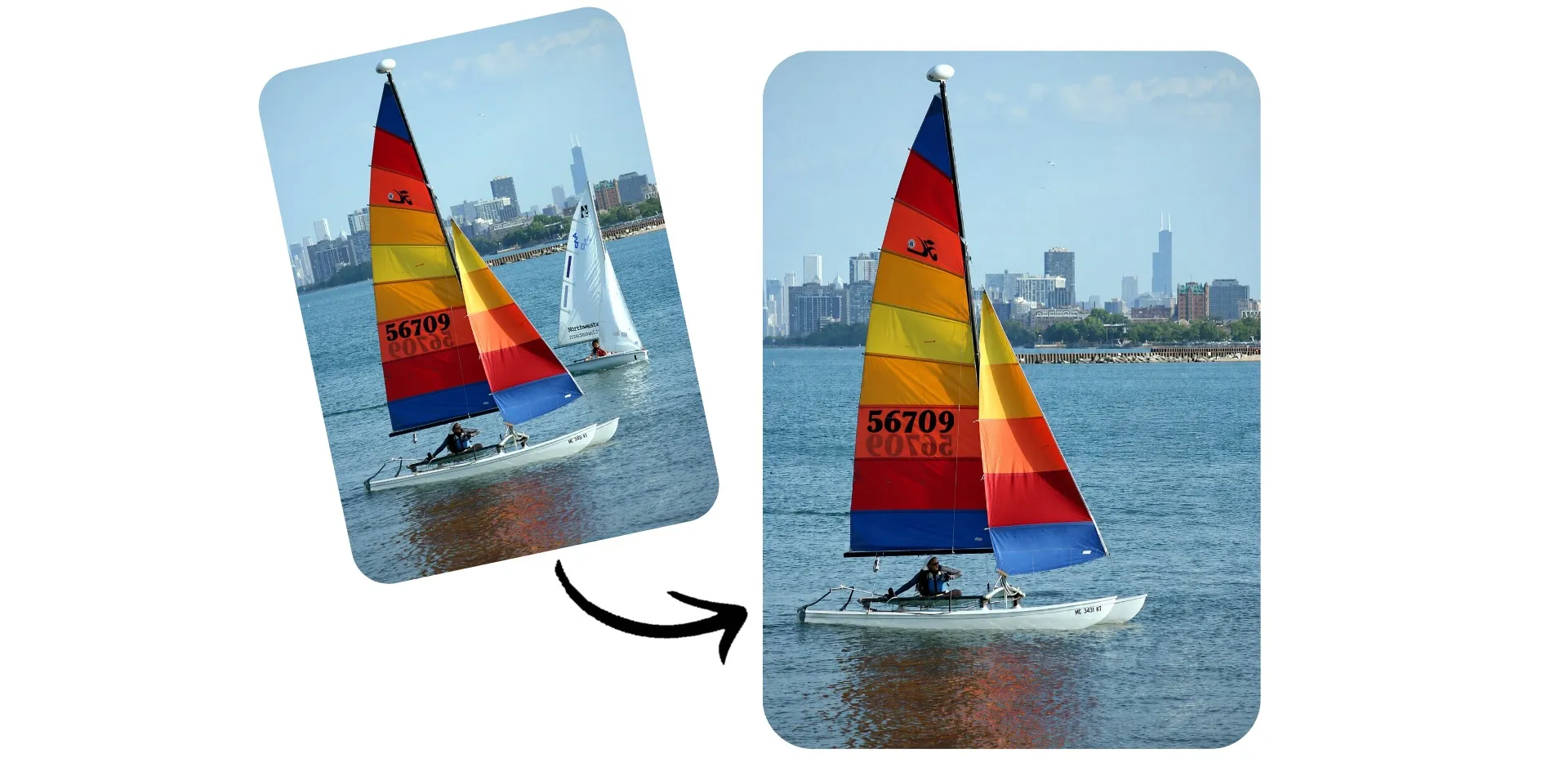
Remove objects from photos with a prompt
Tell AI what to erase and get a clean photo back in seconds
Fix images without reshoots
Kapwing’s AI object remover cleans up the parts of a picture you don’t want: a stranger in your vacation shot, a trash can in a listing photo, a power line across the sky.
Upload your image to a chat with Kapwing AI and describe what to remove. If it’s easier to point than to explain, circle the object and the AI removes both your mark and the object.
The AI fills the space with background that matches the light, texture, and perspective of the rest of the photo. Upload JPG, PNG, HEIC, or WebP files from your phone or computer, and export the finished photo when it looks right.
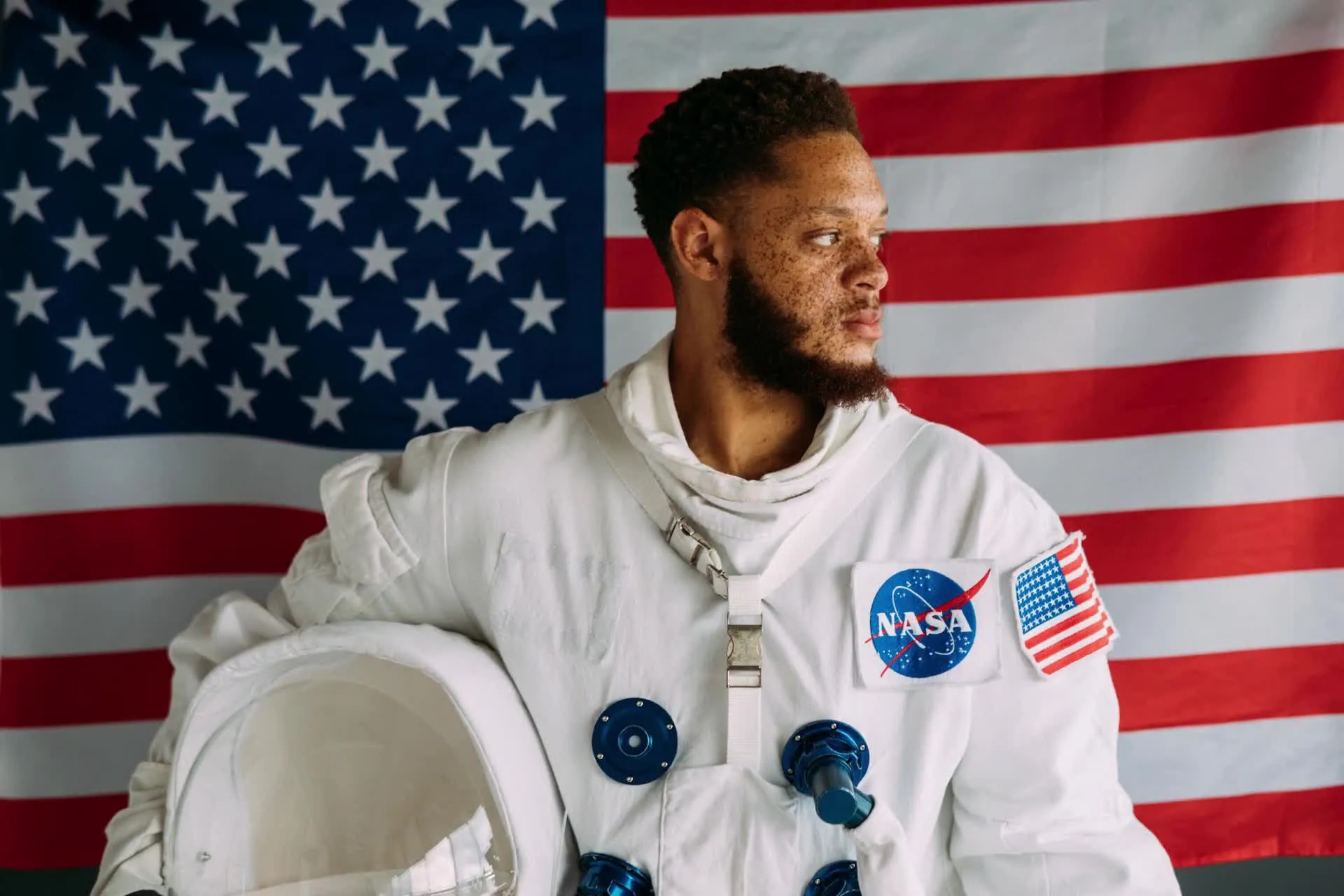
How to remove objects from photos in 3 steps
Remove objects with simple prompts. Free to start.
Upload
your image to a new chat with Kapwing AI


Describe
the object or circle it in your photo
Remove
the object by clicking to generate, then download without watermark
Remove clutter from images in seconds
Clean up any photo, from vacation snaps to product listings

Travel Photos
Remove tourists, cars, and scaffolding from travel photos so the landmark is the only thing in the shot.

Portraits
Take photobombers, signs, and clutter out of portraits, family photos, and headshots to keep the focus on the people who matter
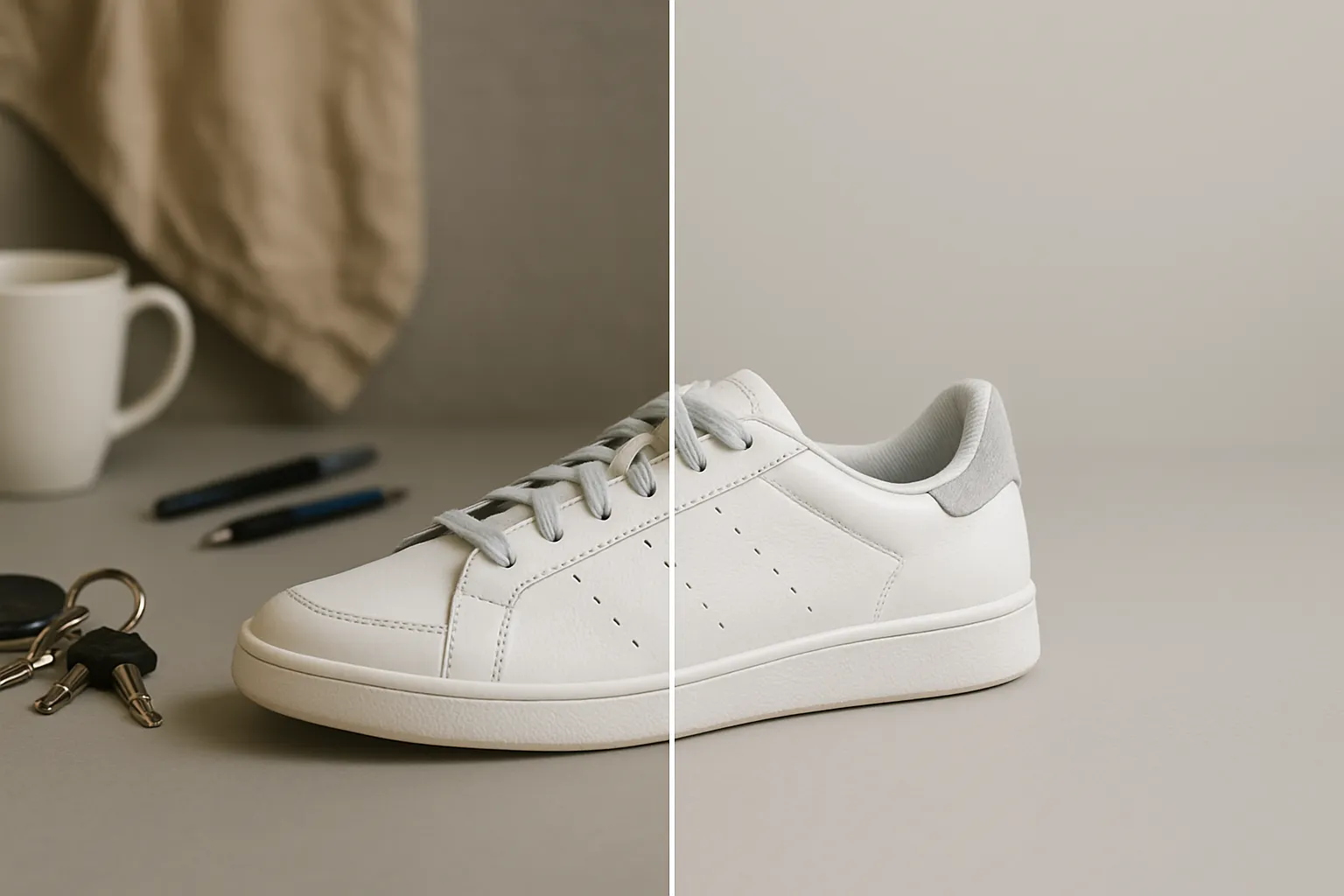
Product Photos
E-commerce sellers can erase stray props, tags, and background mess for clean listing photos without a studio setup
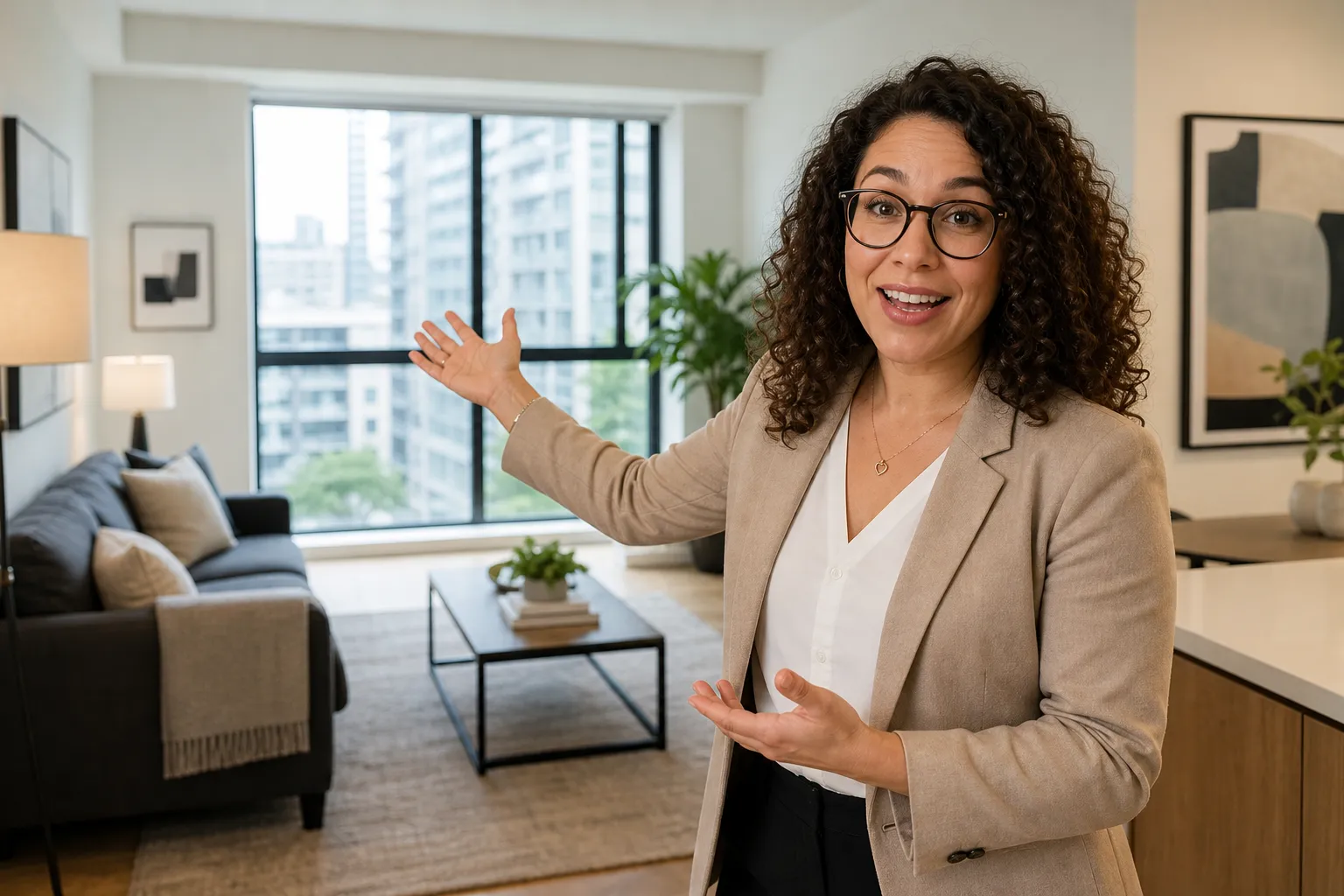
Real Estate
Agents can remove cars, bins, cords, and personal items from listing photos so buyers see the space at its best
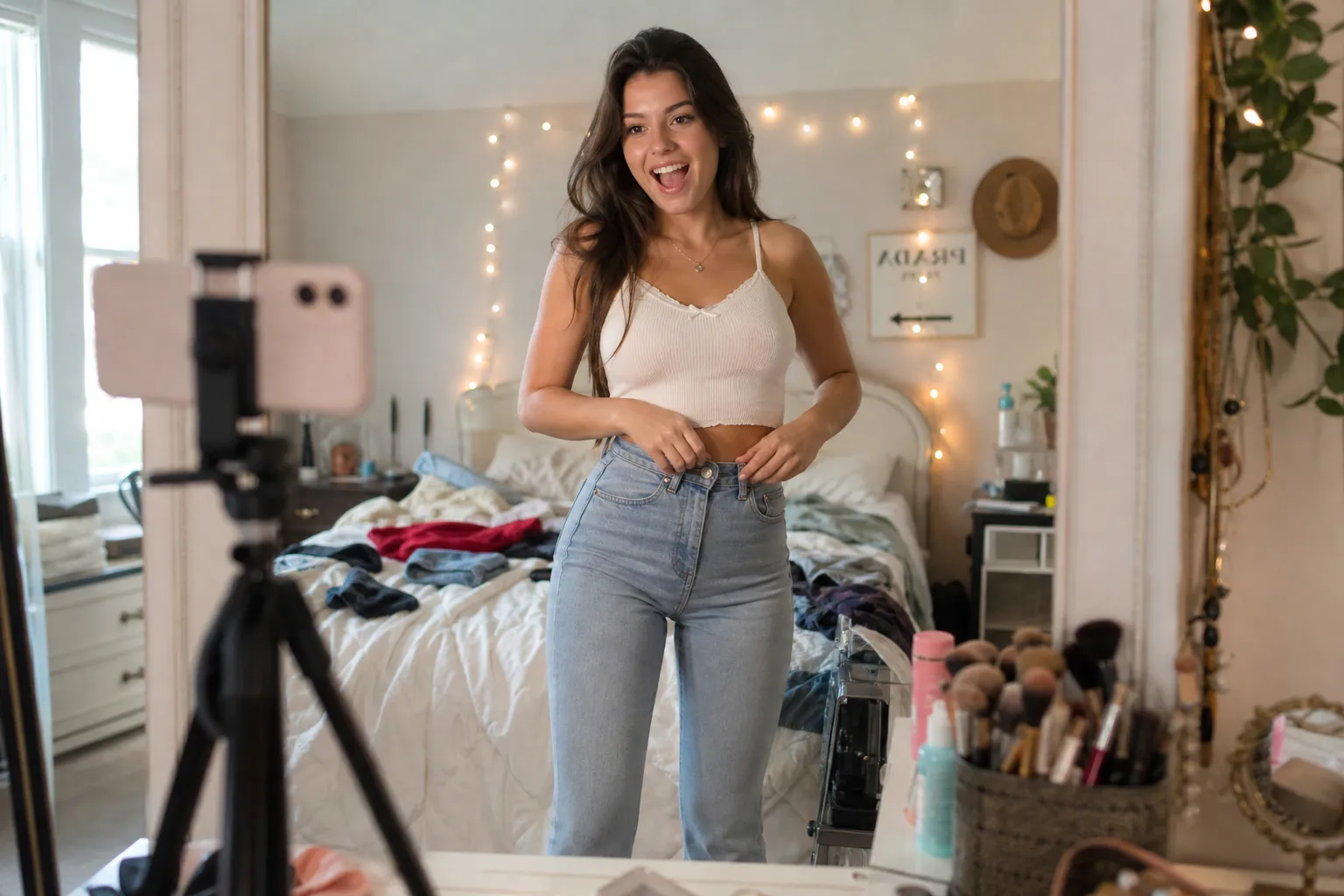
Social Media
Clear distractions from photos before you post on social media, so your feed looks polished without a full editing session

Events
Remove stray guests, exit signs, and equipment from wedding, party, and concert photos you want to print or share
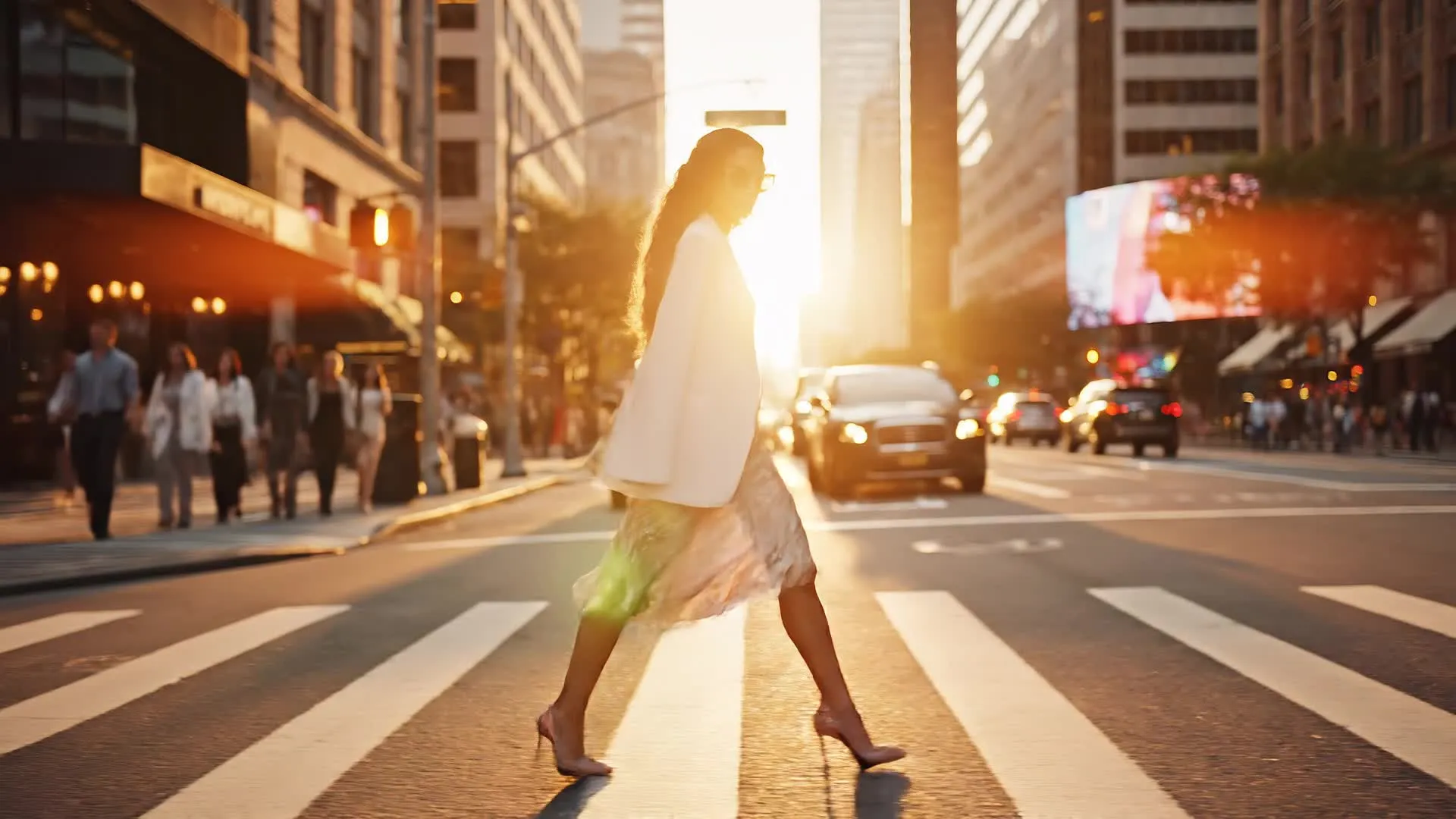
Text and Signs
Erase date stamps, stickers, street signs, and stray text from photos while keeping the rest of the image intact
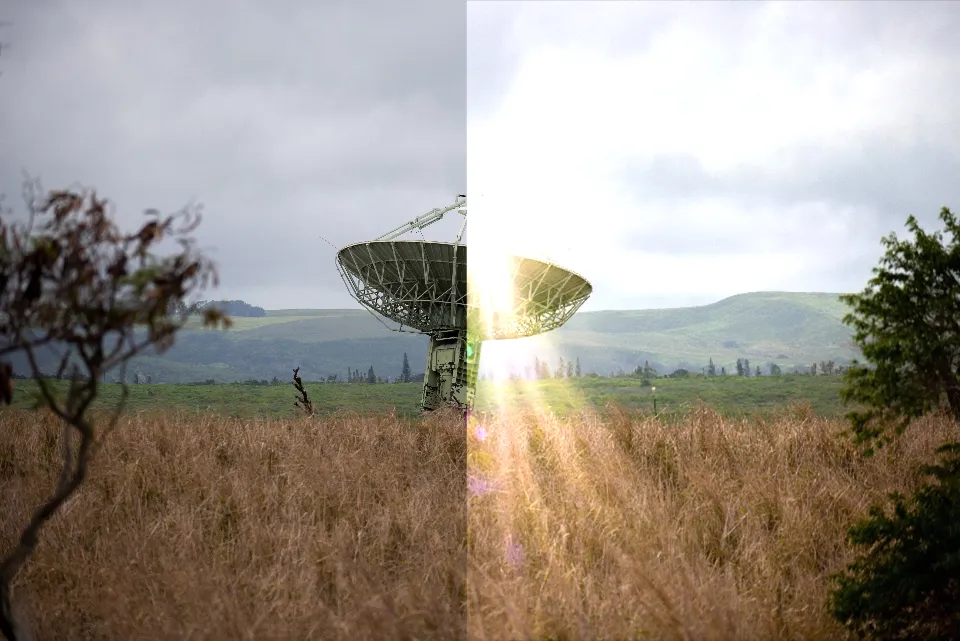
Photo Restoration
Remove scratches, stains, and marks from scanned prints, then restore the image to bring back faded detail
Remove exactly what you want from any photo
Erase objects and people — or replace them with something new
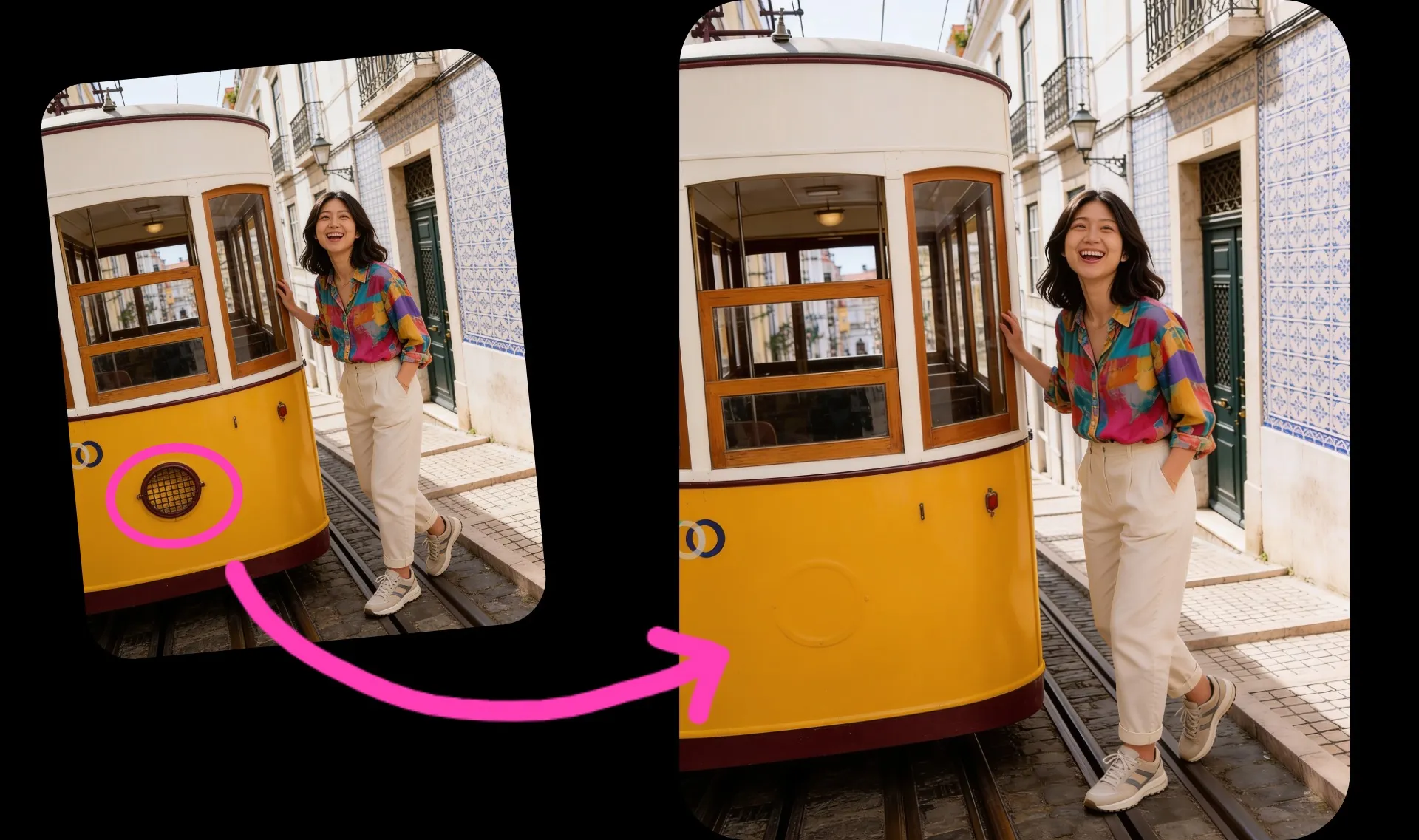
Circle what you want gone
When an object is small or hard to describe, mark it instead. Circle it on your photo before you upload, or draw over it in Kapwing Studio, then ask the AI to remove what you marked. No complex masking needed.
The AI erases both your drawing and the object underneath, filling the space to match the rest of the photo. It’s a quick way to pick out one wire, sign, or person in a busy scene.
Remove people and photobombers
Erase one stranger or a whole crowd from your photo. Describe who to remove by what they’re wearing or where they’re standing, and the AI rebuilds the scene behind them while everyone else stays as they were.
Choose between leading image models like Seedream and ChatGPT Image 2 for each edit, so you can match the model to the style of your photo.
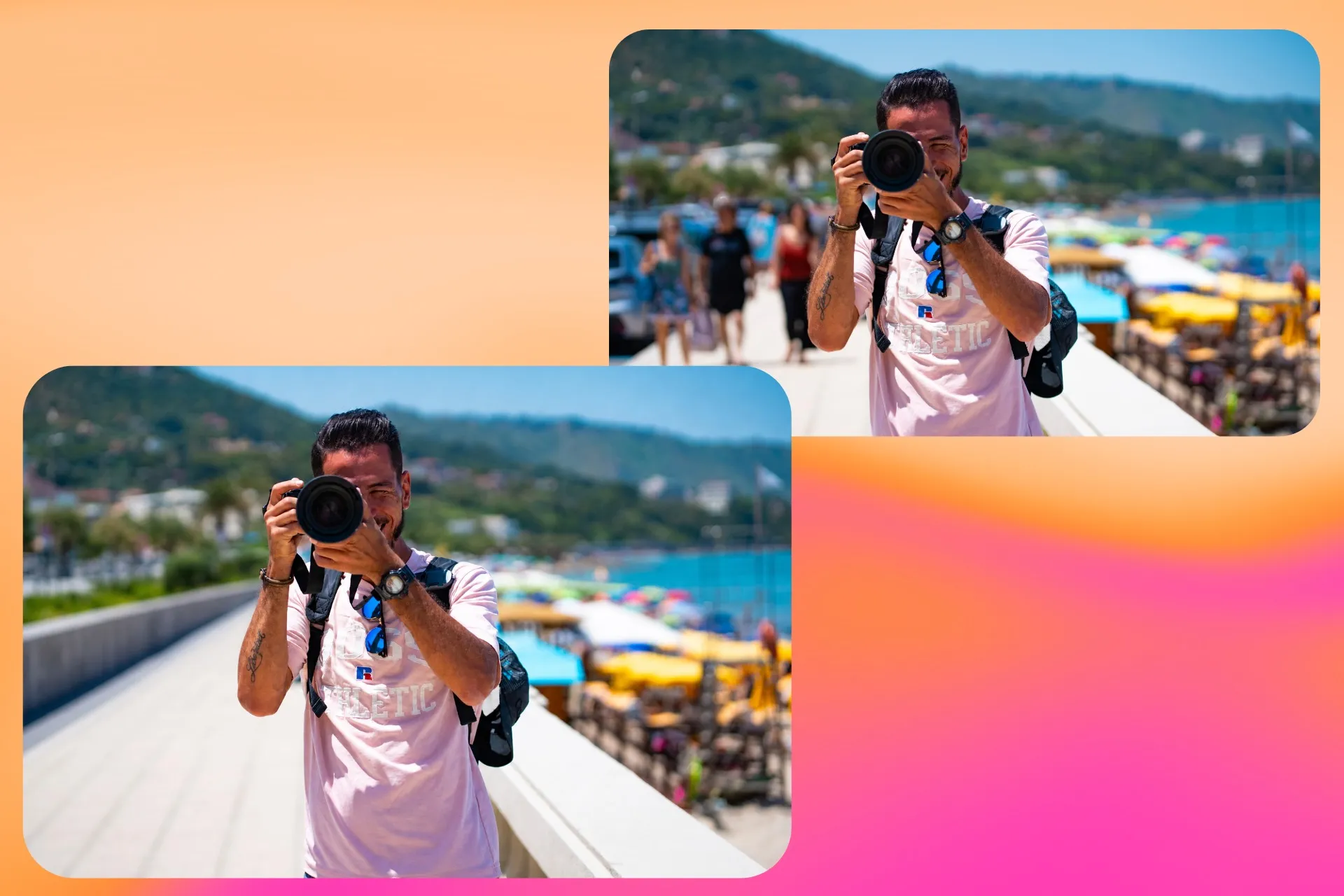
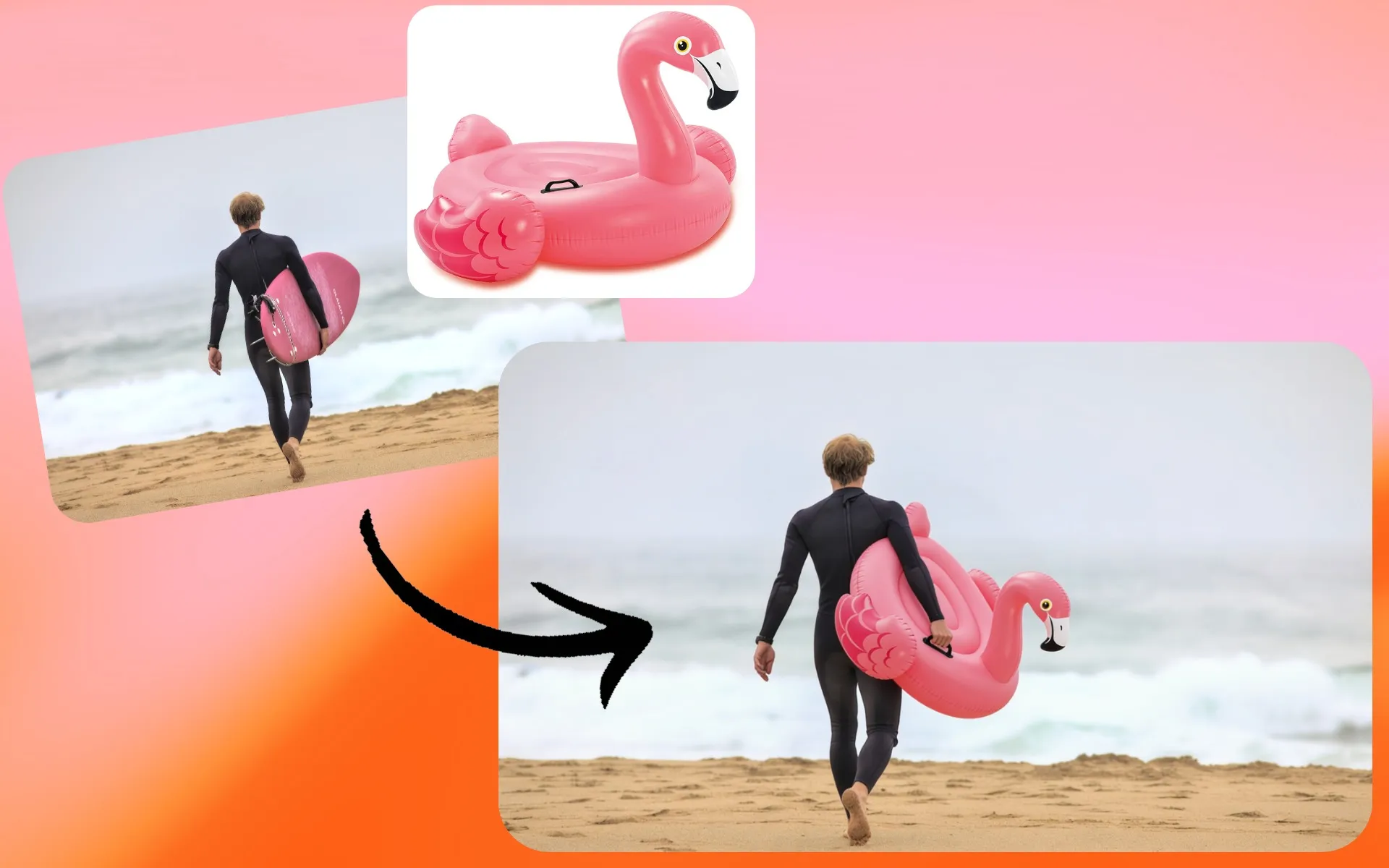
Replace objects with a prompt or reference photo
Fill the space you cleared with something new. Describe the replacement, or upload a photo of a real product, outfit, or object and the AI places it into your image.
Swap a placeholder for the product you’re selling or update an old sign without a reshoot. For more ways to add and change objects, try AI Image Inpainting.
How to Remove Objects From Images
- Step 1Upload image
Create a new chat with Kapwing AI. From there, click "Attach media" to upload the photo you want to edit.
- Step 2Add prompt
Describe the object or person you want removed in a short prompt. For example: “Remove the red umbrella from the background.”
- Step 3Edit and export
Continue editing your image by asking AI or moving to the Studio to use manual image editing tools. When you’re ready, hit "Export" to save the picture to your device.
Turn your cleaned-up photo into a finished design
Remove objects, then polish in an online editor
Most photos get cleaned up for a reason: a product listing, a sale announcement, a real estate flyer, a holiday card. After you remove unwanted objects and people, open the photo in Kapwing’s photo editor to apply a filter, fine-tune brightness and color, or resize for Instagram, Etsy, or print.
From there, add text, stickers, shapes, and your logo to turn the photo into a promo graphic or social post. Cleaning up a whole album of vacation or family photos? Combine them into a slideshow with music to share with friends and family.
What's different about Kapwing?


Frequently Asked Questions
We have answers to the most common questions that our users ask.
Anyone can try Kapwing's AI Object Remover for free, without watermarks. All our AI tools run on a credit system, with each feature costing a set number of credits. For the best experience, upgrade to a Pro account to unlock the full power of the AI studio.
Kapwing takes data privacy and safety seriously. We have strict moderation guidelines, ethics policies, and security measures in place to protect user data. For detailed information, you can refer to Kapwing's Terms of Service and Privacy Policy on our website.
Yes, you can use Kapwing’s integrated AI Object Remover to erase unwanted details from images. Simply upload your photo, add an editing prompt, and receive instant results online without needing any extra software.
No experience is required. With Kapwing, you can remove objects by simply highlighting them or writing a short text prompt. The process is designed to be beginner-friendly.
Yes, instead of blurring or smudging nearby pixels, the AI generates new background that matches the light, texture, and perspective of your photo.
If you want to adjust the editing style, try the same prompt with a different AI model using the model preferences menu. You can also describe your changes in a follow-up prompt. Every version stays in your chat, so you can compare results and keep the best one.
AI can remove a wide range of objects, from people and signs to watermarks and clutter. Whether you’re cleaning up personal photos, product images, or designs, the tool adapts to the task.
Kapwing supports common file types including JPG, PNG, HEIC (Apple format), and WebP. You can upload these formats directly into the AI editor, remove unwanted objects, and then export the finished photo in the format that works best for your project.
Kapwing works on any device and browser, though we recommend Chromium-based browsers like Google Chrome and Microsoft Edge. Kapwing also works on iOS and Android mobile devices. Since Kapwing is an online web-based software, it also works across Windows, Mac, and other desktop devices.
Apple’s ‘Clean Up’ tool is limited to select devices and requires the latest software. To use it, you’ll need an iPhone 15 Pro (not the base iPhone 15) or newer, running at least iOS 18 to access Clean Up and other Apple Intelligence features.
With Kapwing, you don’t need the newest iPhone or software update. Just open our online Object Removal tool, enter a simple prompt into the AI chatbot, and remove any object instantly.
Kapwing lets you choose the image model for each edit, including Seedream 4.5 and ChatGPT Image 2. Seedream is well suited to bigger scene changes, like rebuilding a busy background or reimagining part of a photo. ChatGPT Image 2 is a strong pick for photos with signs, labels, or text you want to keep crisp.
Other models, like Google Nano Banana, are also available for precise, object-level edits. Browse all AI models in Kapwing to compare them.
Upload your photo to a chat with Kai and type what you want removed, including a detail that sets it apart, like its color or position. For example, ask the AI to remove the red umbrella on the left instead of just the umbrella. You can also upload your image to the Kapwing Studio and use the draw tool to circle or highlight the object, then move your annotated image to the chat for precise removal.
Remove one object per prompt on busy photos, then ask for the next one. When you're ready, click to download without watermarks, or move your image to the Studio to finish editing with the full suite of image tools.
Discover Resources
Tips, templates, and deep dives to help you create faster and share with confidence.
View all
Get started with your first video in just a few clicks. Join over 35 million creators who trust Kapwing to create more content in less time.