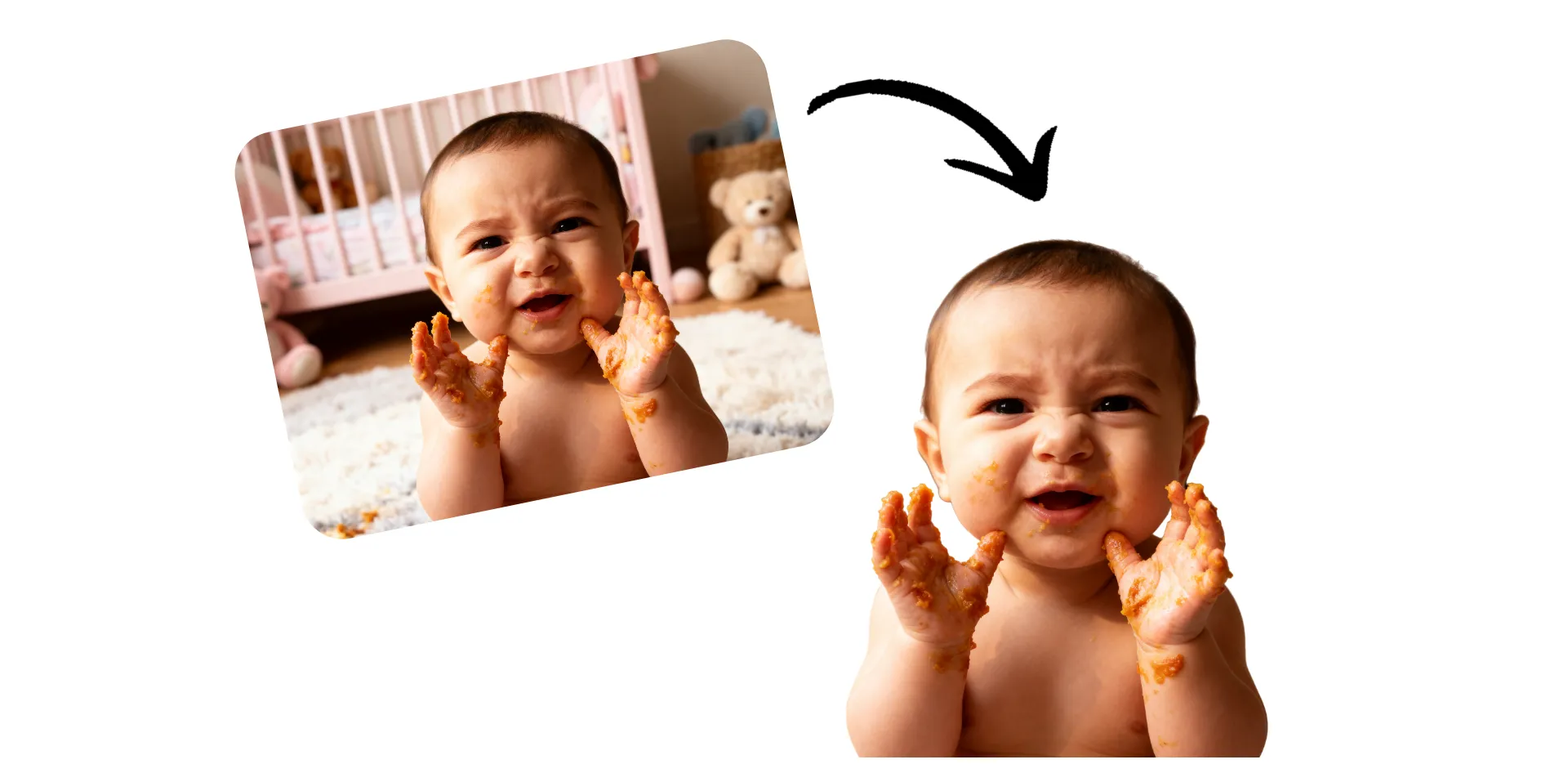
Create versatile cutouts in seconds
Isolate subjects with an online photo cutter, then drop into any project
Sharp cutouts, no manual editing
Cutout an image in seconds with an advanced AI tool that automatically detects people, products, and objects and removes the background behind them. Upload a photo, then have Kapwing's Cutout Image intelligently pull out the subject while maintaining natural details and clean edges. For extra precision, refine your cutout with an adjustable brush. Then drop it directly into graphic design and video projects.
Create polished product photos, advertising visuals, or YouTube thumbnails with an AI image cutout tool designed for content creators, marketers, and small business owners. With a versatile transparent background, each photo cutout is ready to use or download as a high resolution PNG or WebP.
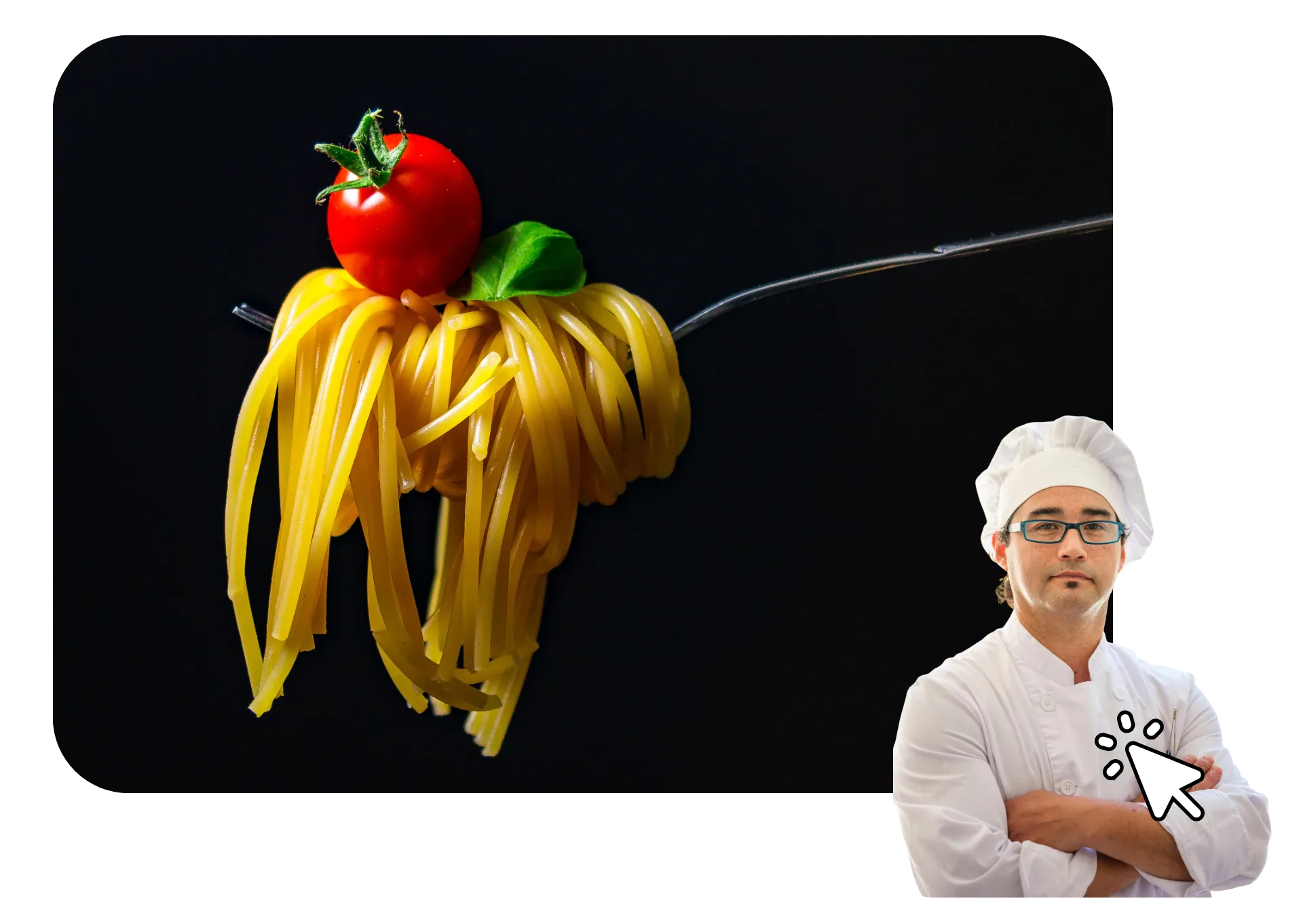
Integrated with a professional editing studio
Kapwing's Cutout Image tool is integrated with hundreds of other editing features, so you can cutout an image and use it in design projects without leaving your browser.
Add an outline around your subject, or turn your photo cutout into a sticker. Overlay on a new background and add logos or captions to quickly make branded professional content or memes. Then share directly to social media or download in high resolution.
Already transforming video creation across industries
Hear directly from the teams who publish faster, collaborate better, and stay ahead.


How to Cutout Images
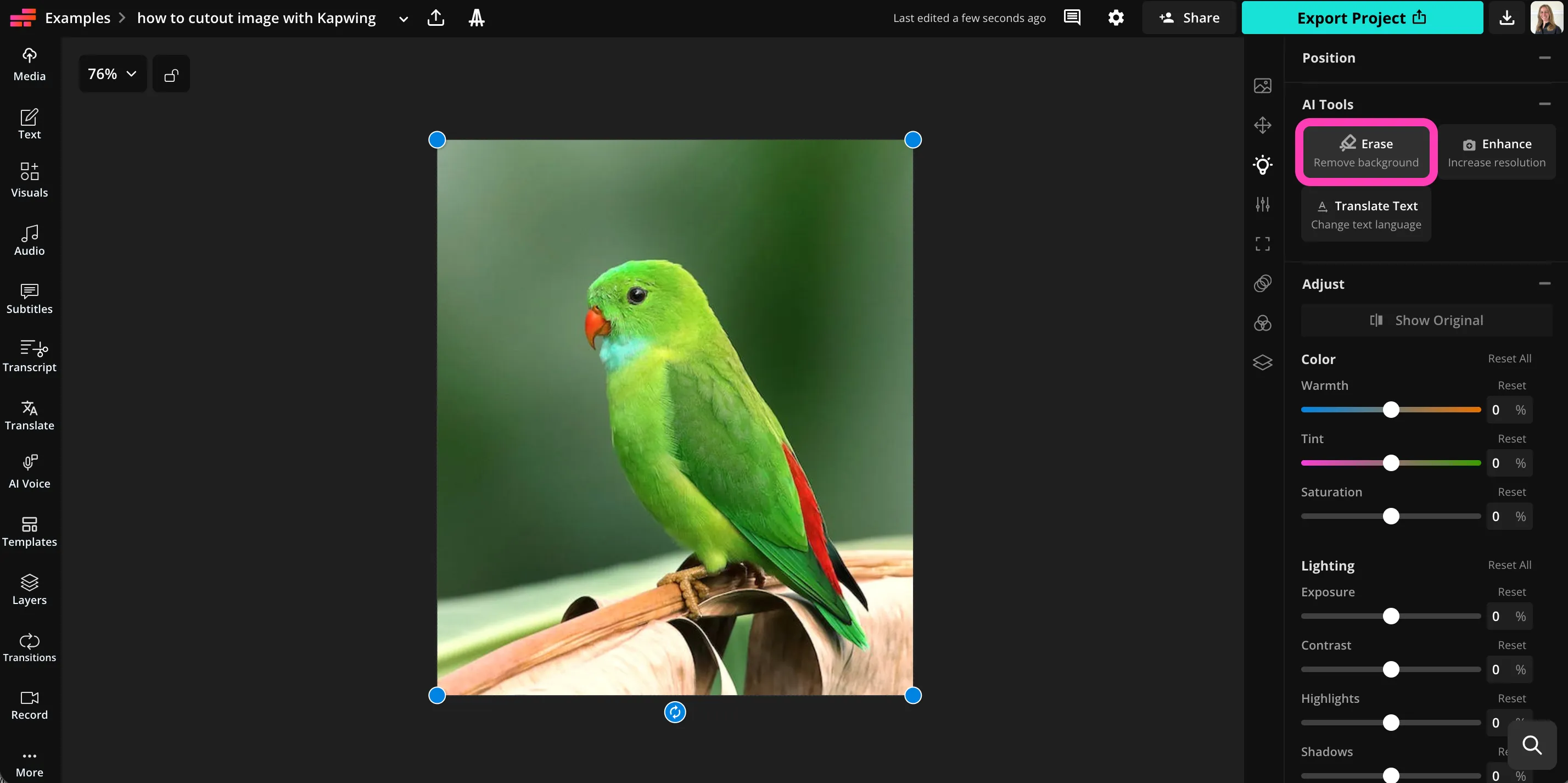
- Step 1Upload image
Create a project in the Kapwing studio and click to upload your image.
- Step 2Cutout
Select the image, then cutout your subject by clicking "Erase" under AI Tools in the right sidebar.
- Step 3Edit and Download
Adjust the edges with the wand tool. Click "Export Project" to download your cutout image.
What's different about Kapwing?



Frequently Asked Questions
We have answers to the most common questions that our users ask.
Is the Cutout Image tool free?
Although you can cutout an image for free with Kapwing, you will need to upgrade to a Pro account to export your project.
Is there a watermark on exports?
If you use Kapwing on a Free account, then all exports — including the X TOOL — contain a watermark. Once you upgrade to a Pro account, the watermark is completely removed from your creations.
How to cutout an image with Kapwing
To cutout an image, create a new project in the Kapwing studio. Click to upload your image, then select it by clicking on it in your canvas. In the righthand toolbar, scroll to "AI Tools" and click "Erase" to remove the background. Select "Autom Remove Background" to automatically cutout the picture. Once the tool has cutout your image, you refine the edges using the adjustable wand tool.
Click "Done" to return to your canvas with your AI image cutout. Your subject will be cutout with a transparent background. Add a new background, adjust the look and size of your cutout, and click "Export Project" to download in high resolution. You can drop your cutout image into any project, including graphic design and videos.
Can I cutout images on my phone?
Yes, you can create photo cutouts on your phone, including iPhone and Android, by opening the Kapwing studio in your mobile browser. Press to upload your image, then click to select it in your canvas. In the bottom toolbar, click "AI Tools," then select "Erase" to remove the background. Click "Auto Remove Background" to use AI-powered cutout tool, or erase manually using the brush. When you're happy with your cutout image, click "Done," then "Export Project" to save to your phone or use in other projects.
How can I use cutout images?
Cutout images can be used anywhere you need a clean, isolated subject without a distracting background. They are perfect for e-commerce product listings, marketing graphics, social media posts, YouTube thumbnails, presentations, and website banners. A transparent image cutout background makes it easy to place people, products, or objects onto any color, design, or scene without re-editing the photo.
Cutout images are also widely used in video editing, ads, digital ads, print materials, and creative composites. A high quality photo cutout lets you layer visuals, create stickers or overlays, and reuse the same picture cutout across multiple projects while maintaining a professional, polished look.
Do I need design experience to cutout photos?
No design experience is required. The AI image cutout process is automatic, allowing you to cutout an image in just a few clicks. The interface is built for beginners while still offering refinement tools for more advanced users.
Can I edit my cutout after removing the background?
Yes. Once you create a photo cutout, you can continue editing it directly in the Kapwing studio. Add outlines, drop shadows, new backgrounds, text, logos, or overlays without switching tools.
Because the Cutout Image tool is fully integrated with the studio, you can resize, reposition, animate, or layer your image cutout inside a larger design or video project.
What file formats can I download my picture cutout in?
After you cutout an image, you can export it in high resolution formats such as PNG or WebP. These formats support transparent backgrounds, making your image cutout easy to reuse in graphic design, presentations, websites, or video projects.
Transparent exports allow you to place your picture cutout on any background without additional editing.
What types of images work best with the Cutout Image tool?
Kapwing’s tool works best with clear, well-lit images where the subject stands out from the background. It can detect people, products, animals, and most objects automatically. Higher resolution images typically produce sharper edges and a cleaner cutout image with more accurate detail.
Even if your background is busy or complex, the AI image cutout tool can still isolate the subject. You can refine the edges manually for extra precision if needed.
Discover Resources
Tips, templates, and deep dives to help you create faster and share with confidence.
View all

Get started with your first video in just a few clicks. Join over 35 million creators who trust Kapwing to create more content in less time.