Blur Image Background
Add a blurred background to any image
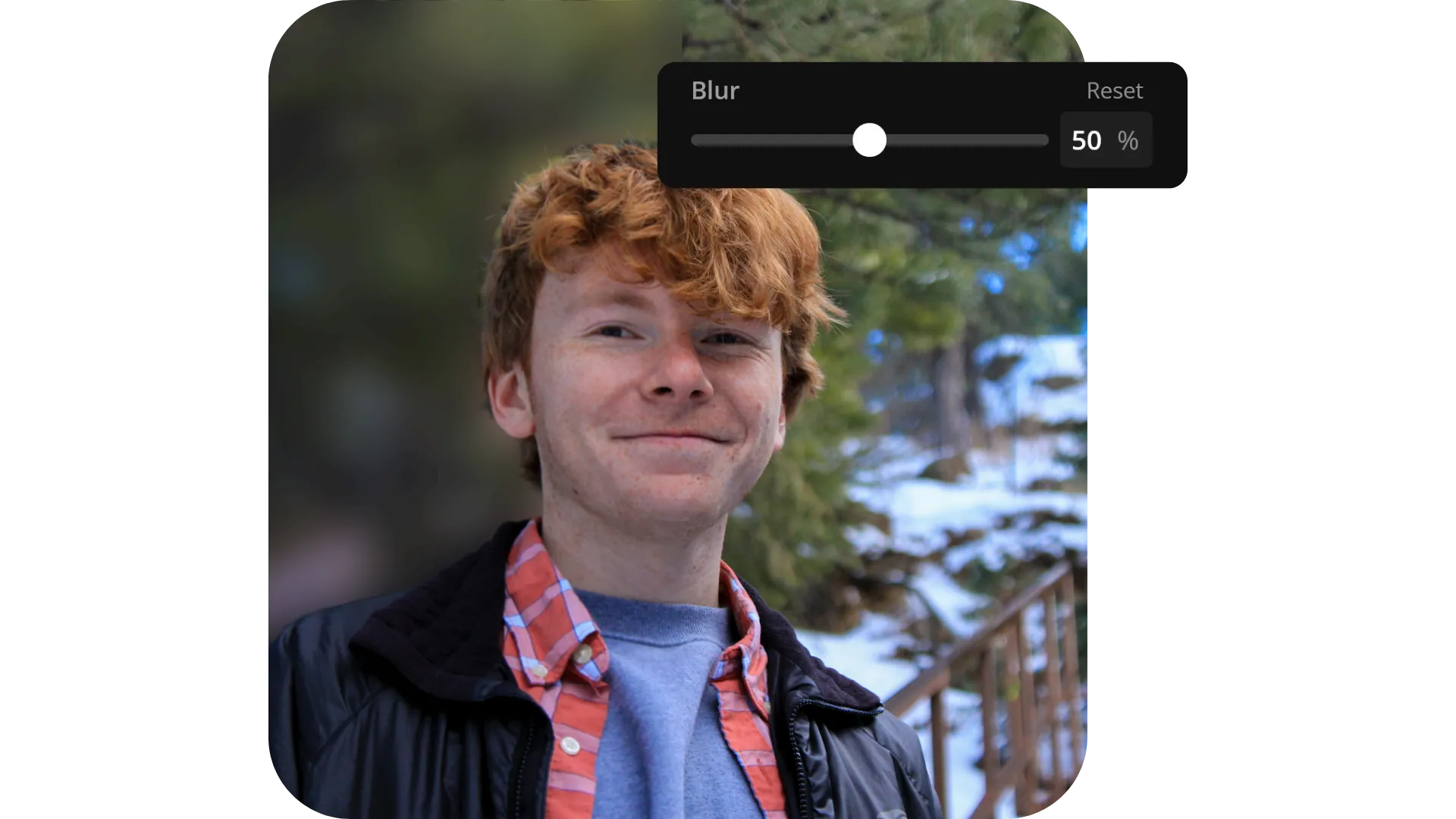
Remove distractions.
Keep attention where it matters.
Kapwing's Blur tool ensures every image has intentional focus
Blur and download completely online
Kapwing’s Blur Image Background tool delivers polished, distraction-free pictures in seconds, entirely online. Upload from mobile or desktop, blur the background, and fine-tune with adjustable levels to protect privacy, spotlight your subject, or design eye-catching social content.
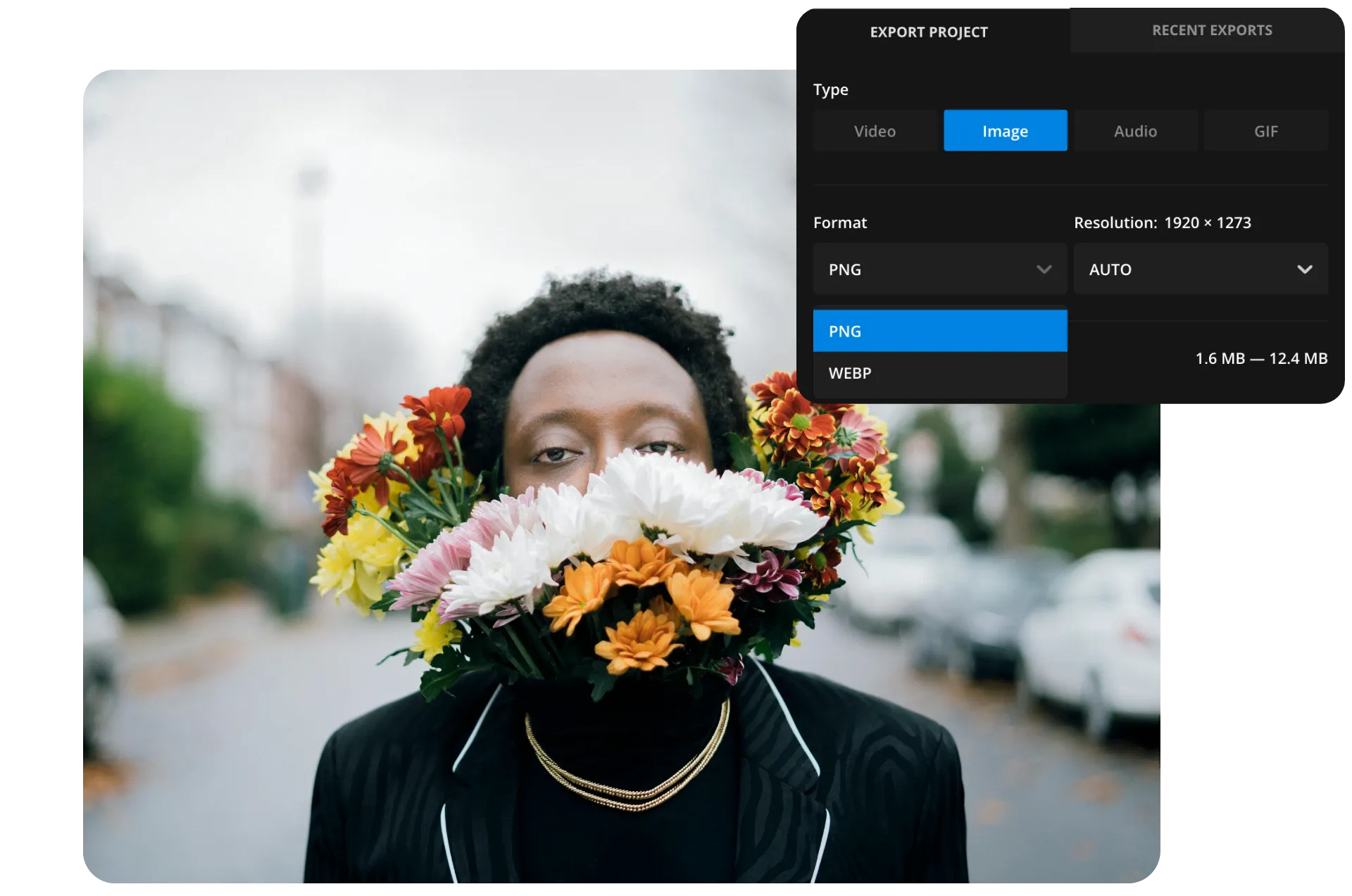
Built for creators, teams, and businesses, the tool makes collaboration seamless with time-efficient batch processing and support for popular formats like JPG, WebP, and PNG.
Precision blur and full creative control
Automatic subject detection instantly isolates your photo’s focus, saving time while keeping edits accurate. From there, you have full control — adjust blur intensity, crop and resize, or quickly undo and redo changes for precise, professional results.
This balance of AI speed and manual precision delivers high-quality images without the need for additional apps, complex software, or advanced design skills. Whether you’re blurring headshots, product photos, or full-scale ads, the tool ensures accurate subject focus and unlocks new creative possibilities.

Built into a complete image editing studio
Integrated directly into Kapwing’s full creative studio, the Blur Image Background tool pairs precision editing with powerful design tools. Instantly resize images for Instagram Stories, TikTok videos, or YouTube thumbnails, and access thousands of professionally designed templates for banners, posters, headshots, and more.
From solo creators and educators to design teams and small businesses, users rely on Kapwing to blur, resize, and style photos into polished, platform-ready content.
How to blur an image background
- Step 1Remove image background
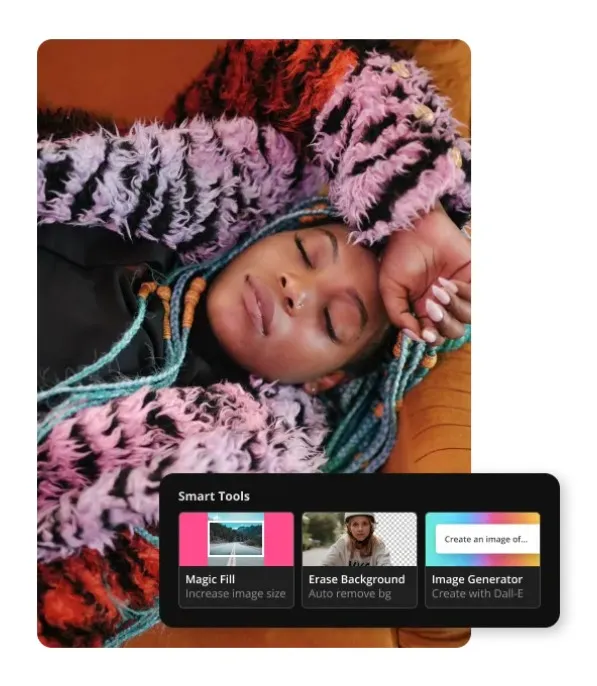
Upload your image and the automatic background remover to isolate your subject. If needed, use the touch-up brushes to clean up any missed areas or refine edges.
- Step 2Blur background layer
Add a copy of your original image to the canvas. Then, apply the Blur slider from the right-hand editing panel to create a softened background effect.
- Step 3Arrange the layers
Send the blurred version to the back by selecting it and choosing Back from the layer controls at the bottom of the right-hand panel. Add other edits as needed and export.
Already transforming video creation across industries
Hear directly from the teams who publish faster, collaborate better, and stay ahead.


Accurate. Online.
Fully adjustable.
Kapwing's Blur Image Background tool supports millions of creators worldwide

Headshots
Blur the background in portrait photos for a clean, studio-quality headshot — ideal for profile pictures, resumes, passport images, and professional branding

Product Listings
Make your product photos stand out by blurring cluttered or distracting backgrounds for listings on Etsy, eBay, Poshmark, and Facebook Marketplace.

Group Photos
Use Kapwing’s Blur Image Background editor to hide strangers, signage, or visual noise in public group shots, keeping the focus on your friends, family, or event
Real Estate Listings
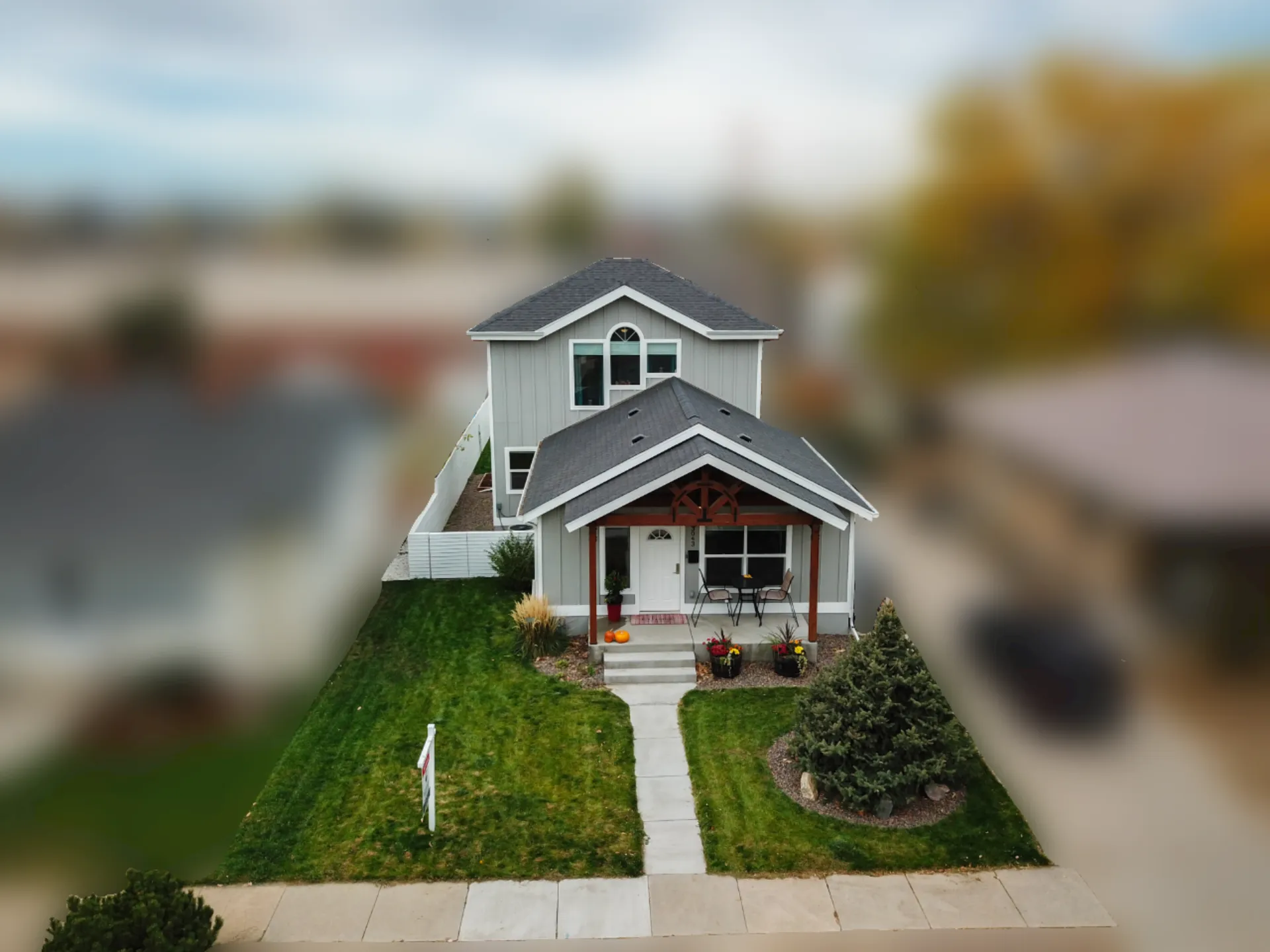
Highlight rooms, outdoor spaces, or property boundaries by softening background details, using blur to guide attention and clarify image overlays
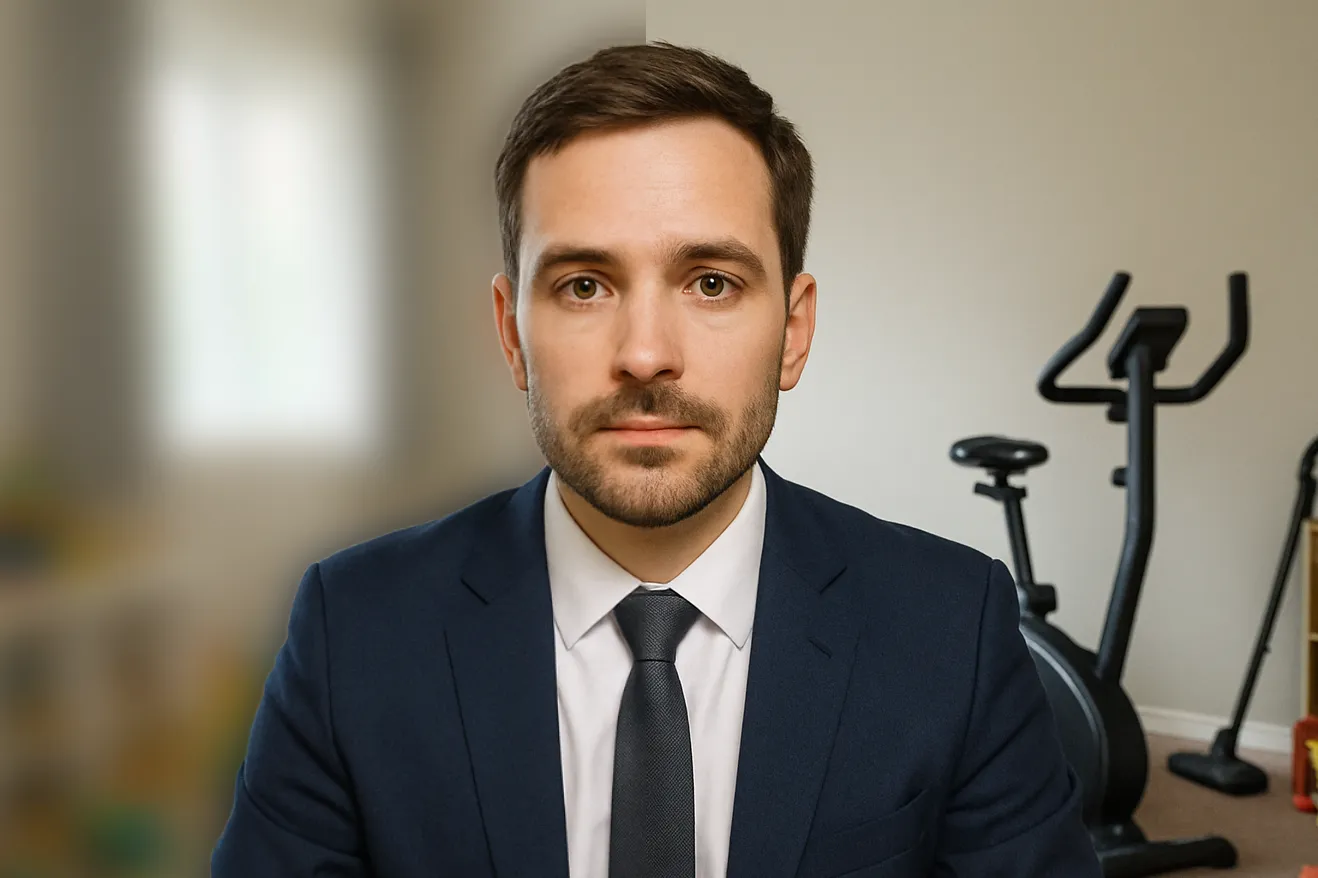
Thumbnails
Content creators and marketers use a blurred image background to create engaging thumbnails by adding depth and guiding the audience’s focus to the subject
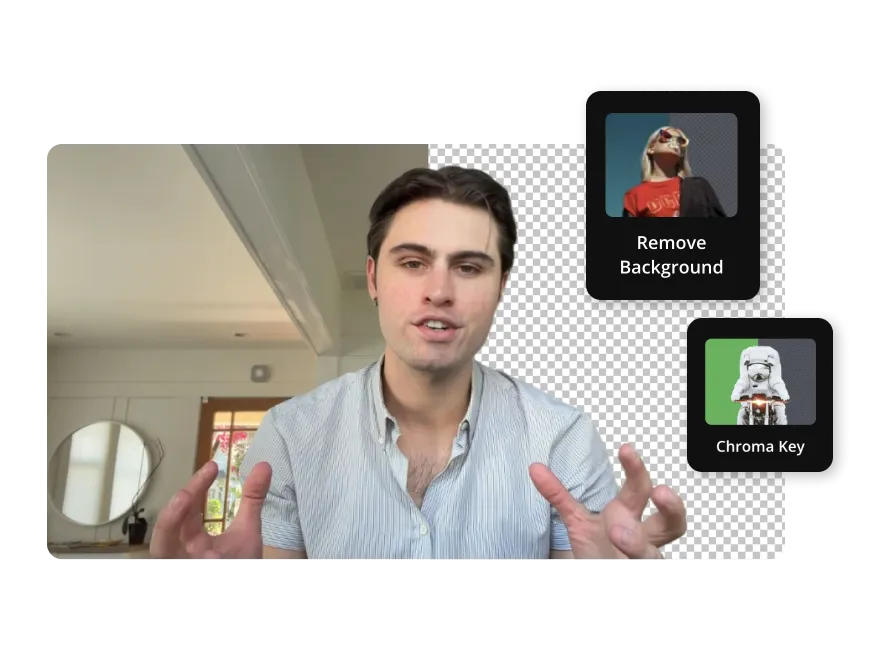
School Projects
Blurring the background in a photo helps students create cleaner visuals for classroom assignments or creative projects, regardless of the location its shot in

News Publications
Journalists and reporters use a blurred image background to protect identities or censor sensitive visual details before publishing content publicly

Flyers & Posters
Create eye-catching event graphics by softening busy backgrounds. Background blur makes text more legible and your subject or message pop in promotional designs.

What's different about Kapwing?



Frequently Asked Questions
We have answers to the most common questions that our users ask.
Is the blur tool free to use?
No, to use Kapwing's Blur image Background tool a Pro account is required. This is because the first step of the process is to remove your image background, which is a paid feature. Nevertheless, you can blur an image in full for free.
Is there a watermark on exports?
Yes, using a Free Kapwing account adds a watermark to all exported images. To remove the watermark, you must upgrade to a Kapwing Pro account.
What image file types does Kapwing support?
Kapwing supports common image formats like JPG, HEIC, WebP, PNG, and more.
Can I add other effects to my image after blurring?
Yes, you can continue editing after applying a background blur to your image. Convert it into a video, add text, or apply filters all within the editor.
Can I adjust the blur level?
Yes, the blur slider lets you control the intensity of the effect so you can decide how visible or hidden the background of your image appears.
How is background blur different from background removal?
Background blur softens and obscures the area behind the subject while background removal completely deletes it.
Does adding blur to an image change the file type?
No, any image can be blurred without altering the file type. Upon export, you can download your image as a PNG or JPG file, ensuring universal compatibility across platforms.
Discover Resources
Tips, templates, and deep dives to help you create faster and share with confidence.
View all


Get started with your first video in just a few clicks. Join over 35 million creators who trust Kapwing to create more content in less time.