
Combine and edit with timeline precision
Merge clips, rearrange scenes, and trim footage with professional editing tools built for your browser
Merge videos using a full multi-track timeline
Kapwing’s online video merger and combiner lets you join multiple clips into one continuous file. Place each clip where it belongs, adjust timing down to the frame, and preview changes instantly.
Upload multiple files and arrange them in sequence. Adjust start and end times using trim handles, split clips at exact timestamps, and reposition scenes without re-exporting.
The drag-and-drop timeline gives you control over pacing, transitions, and media placement in a single continuous workflow.
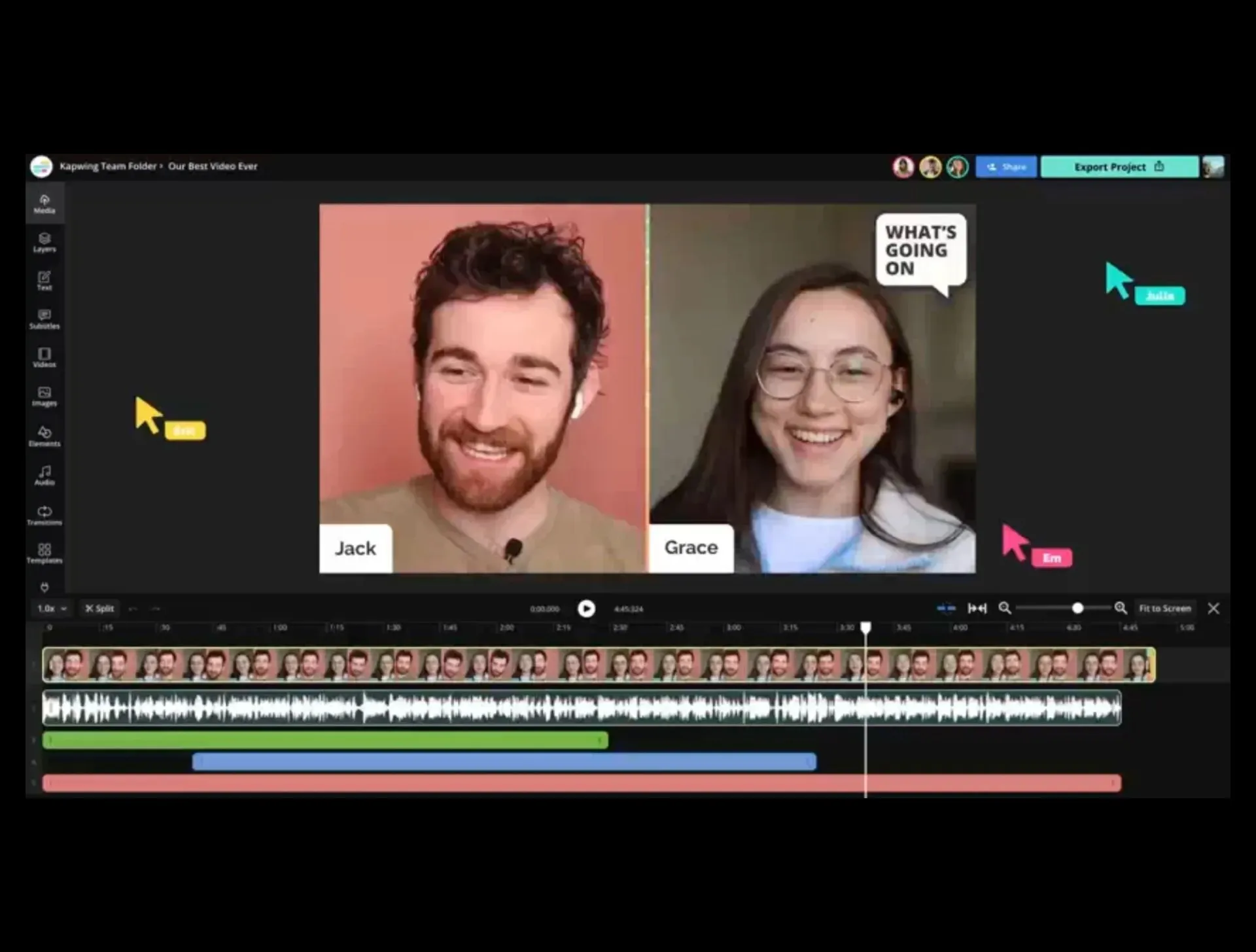
Layer video, audio, and images across tracks
Merging isn’t limited to placing clips one after another. Place videos side by side for split-screen layouts, or detach audio from one file and sync it with video from another.
Adjust individual clip volume, add fade effects, or change playback speed without affecting other elements.
Every change updates in real time, so you can scrub through and refine as you work — even as a collaborative team.

Continue editing after merging
Kapwing's video combiner is part of a complete online editor built for modern creators. Drag and drop MP4, MOV, AVI, or any format into the workspace, then enhance your project with 100s manual and AI tools.
Add music, overlay images or GIFs, apply transitions, and resize for different aspect ratios (16:9, 9:16, square) without rebuilding your edit.
Built-in features include subtitles, background noise removal, frame-by-frame editing, and access to royalty-free music and image libraries. Edit from iPhone, Android, Mac, or Windows, then export or share directly with a link,
Combine videos faster with powerful AI
If speed is the priority, use Kapwing's AI Assistant to assemble a draft automatically.
Upload multiple clips and describe how they should be combined. The AI Assistant sequences footage or extracts sections from longer videos into a rough cut that opens directly in the timeline. Review the draft, adjust timestamps, and refine pacing with full manual control.
Want to clean up your content?
Smart Cut can also remove filler words, pauses, awkward silences, or repetitive phrases from podcasts, interviews, tutorials, and webinars — producing polished first drafts in minutes instead of hours.
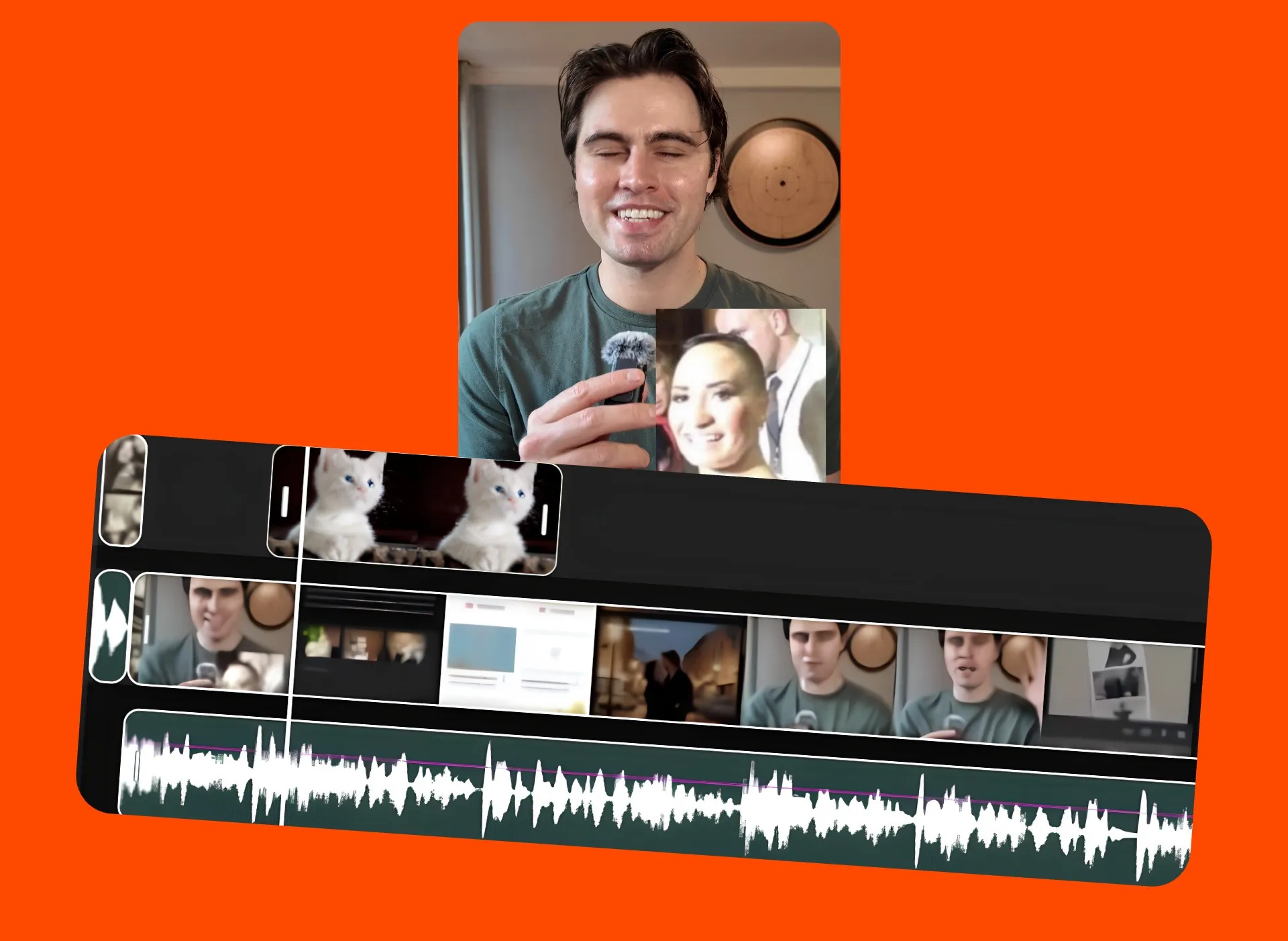
Already transforming video creation across industries
Hear directly from the teams who publish faster, collaborate better, and stay ahead.


Timeline-based merging functions
Build for speed. Start for free.
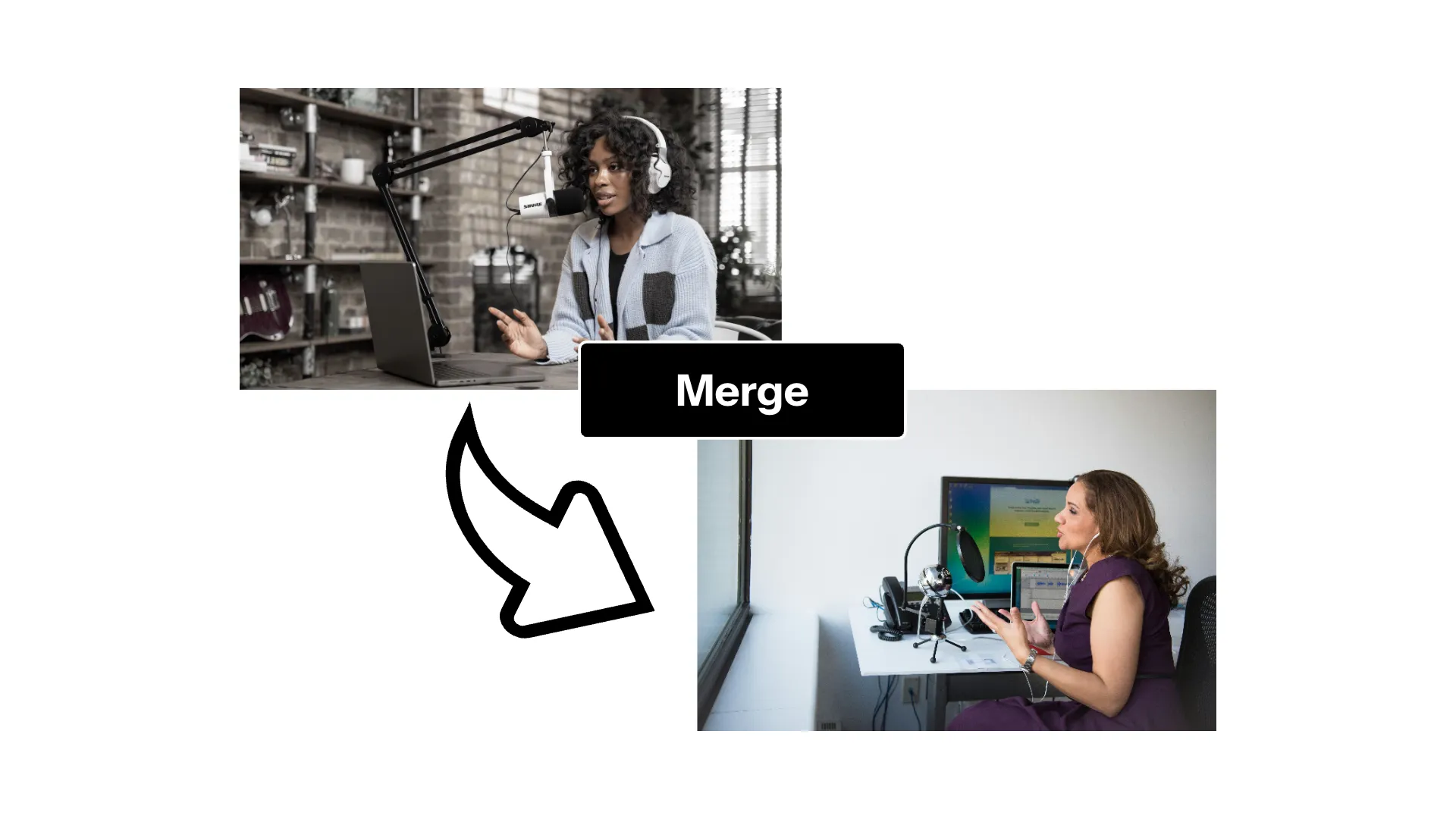
Merge & Combine
Place multiple videos in sequence or layer them across tracks
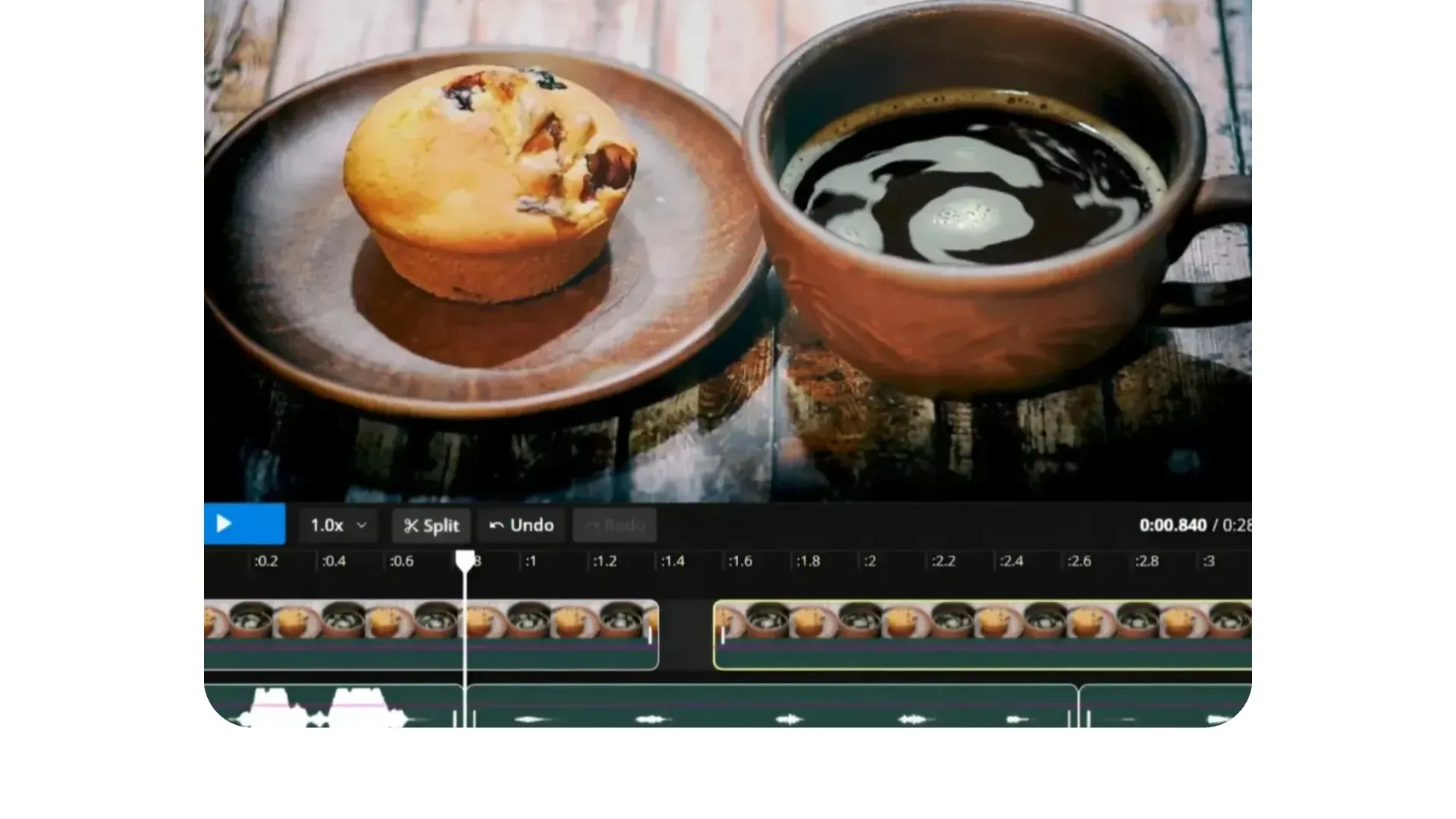
Trim
Adjust start and end points with frame-accurate controls
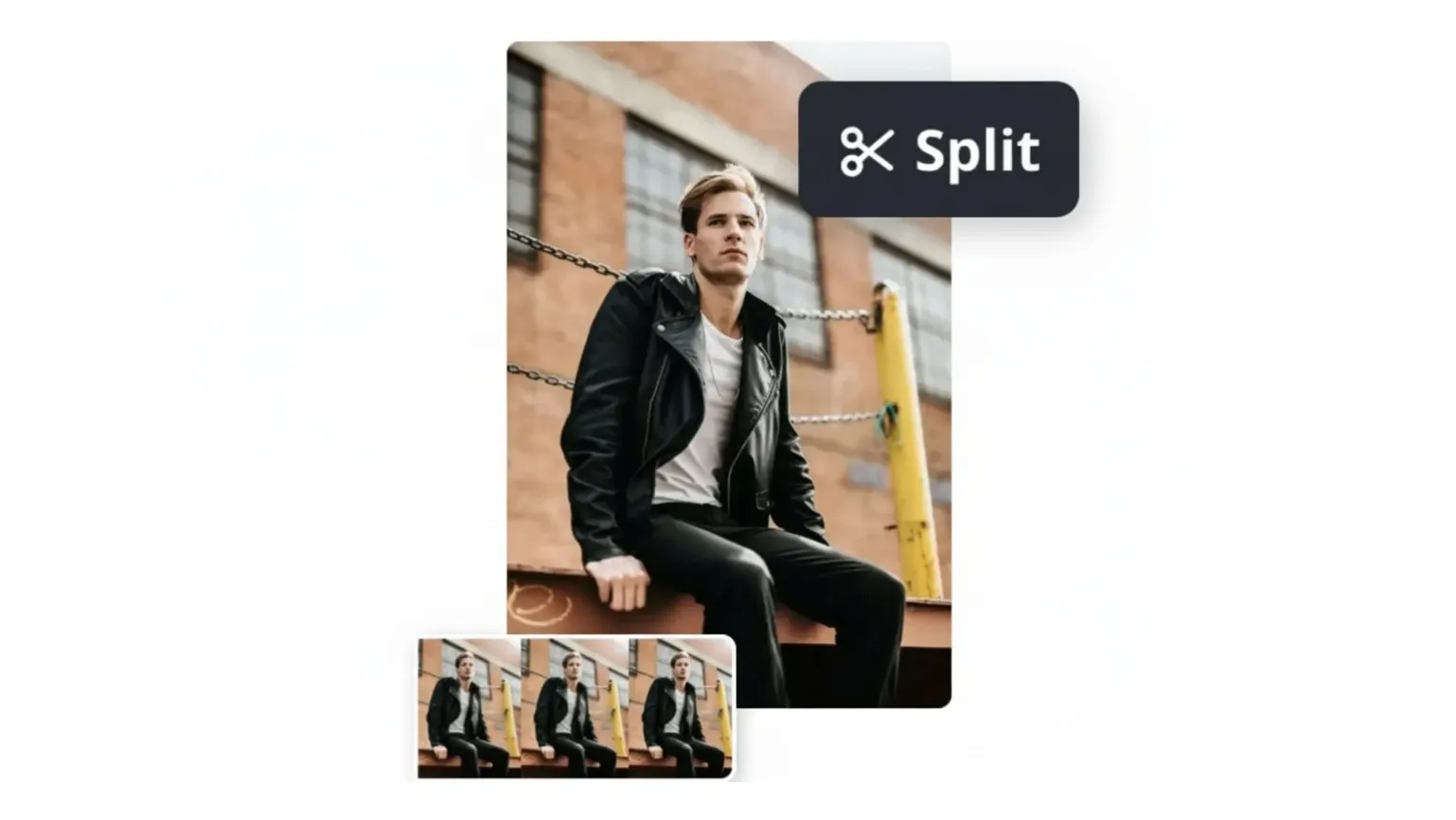
Split
Cut clips at exact timestamps to separate scenes
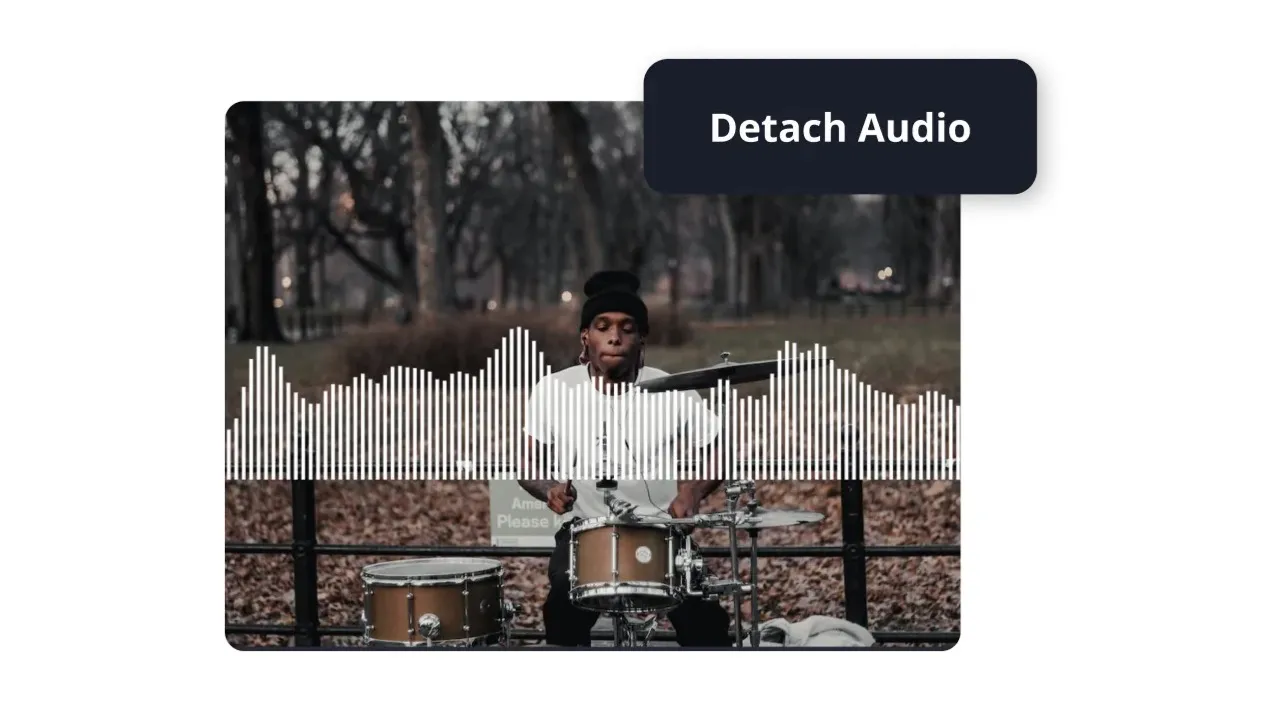
Sync Audio
Detach audio tracks and sync sound from one file with video from another
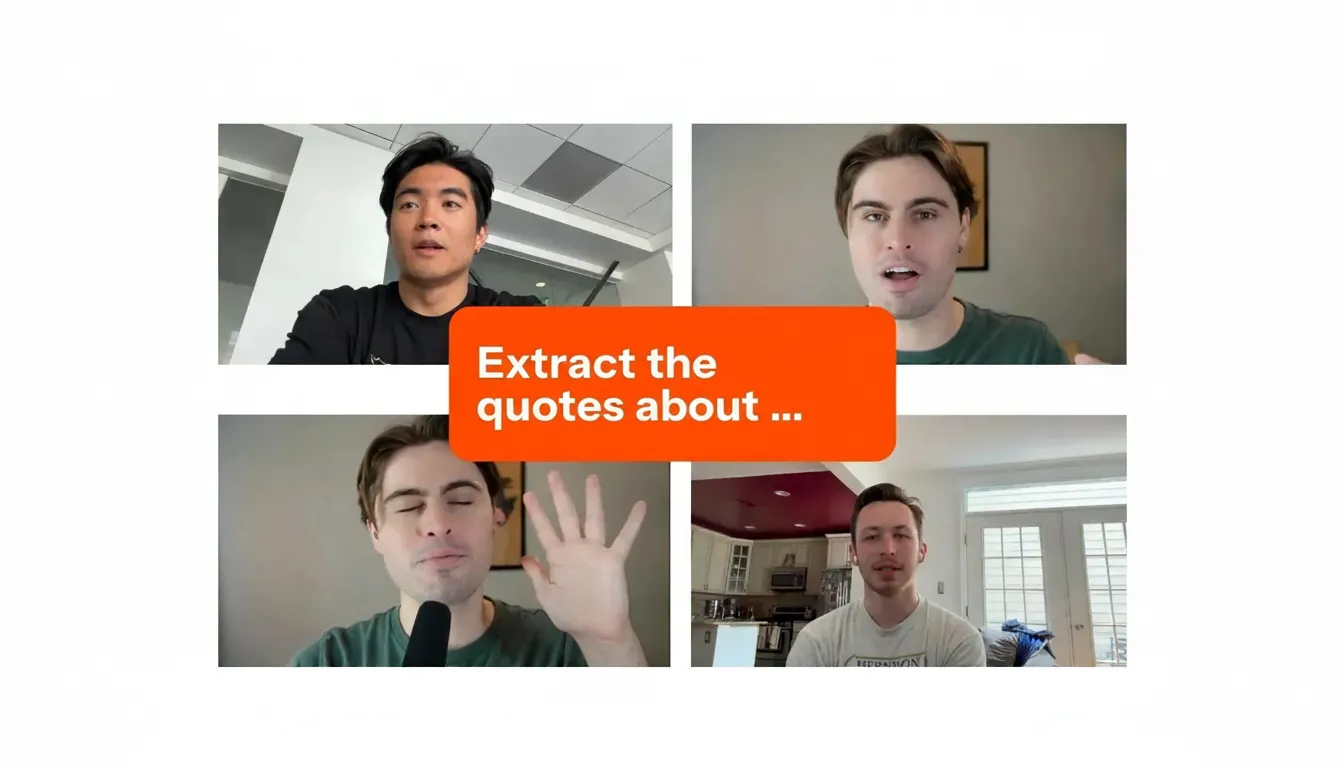
Extract
Prompt the AI Assistant to automatically find key highlights across multiple files and stitch them together
How to Merge Videos Online
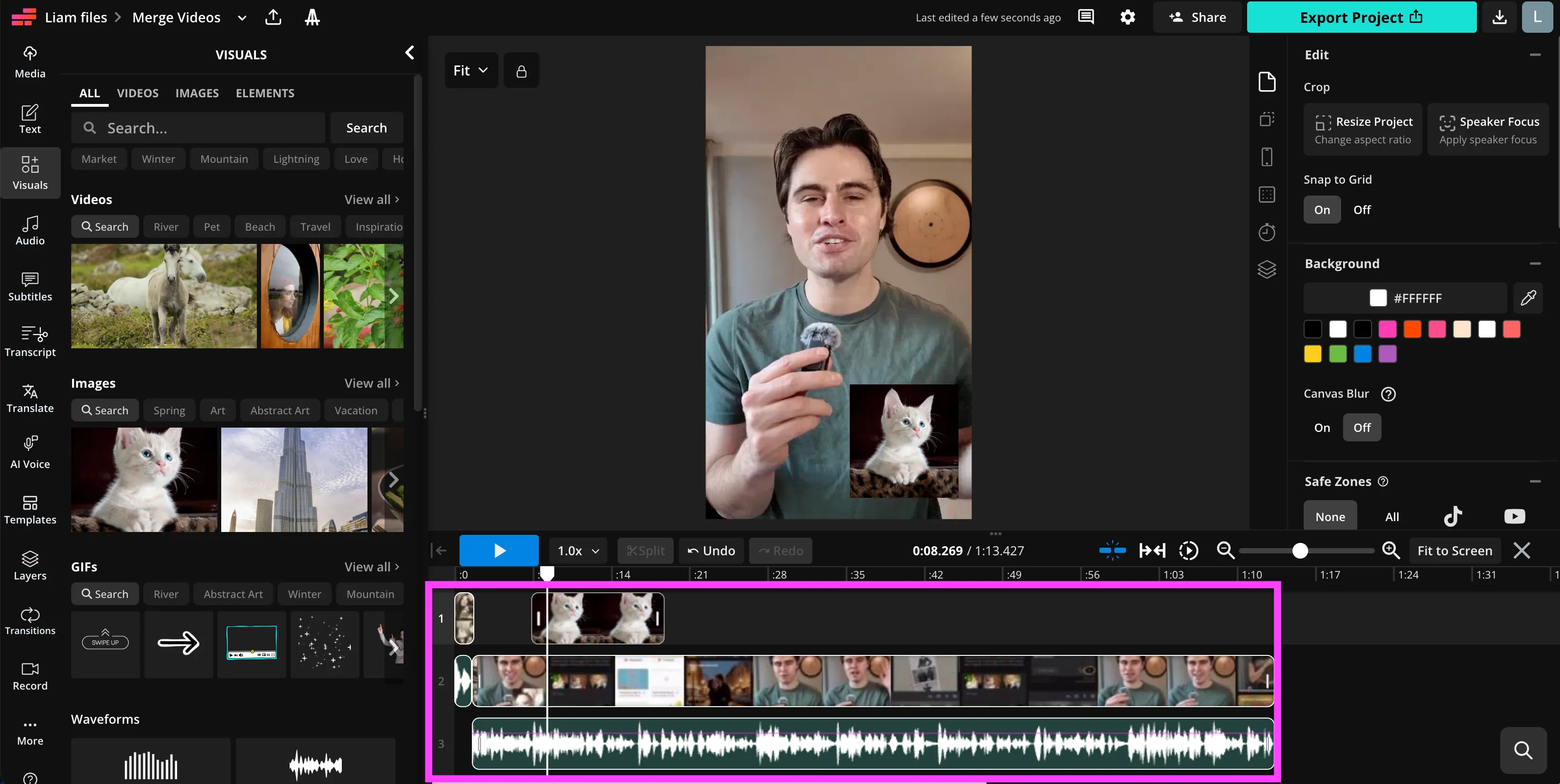
- Step 1Upload videos
Upload two or more video clips from your desktop or mobile device directly into the timeline editor.
- Step 2Arrange and refine
Place clips in order on the timeline, then trim, split, and reposition them using drag-and-drop controls and keyboard shortcuts.
- Step 3Edit and export
Make final adjustments such as balancing audio, adjusting speed, adding captions or transitions. Export your merged video in MP4 format, ready for YouTube, Instagram, TikTok, and more.
What's different about Kapwing?



Frequently Asked Questions
We have answers to the most common questions that our users ask.
Is Kapwing’s Video Merger free?
Yes, anyone can try Kapwing’s Video Merger for free without watermarks. All our tools run on a credit system, with each feature costing a set number of credits. For maximum creativity and the best value, upgrade to a Pro account to unlock the full power of AI-driven content creation.
Can I merge two videos into one?
Yes. Upload two or more videos and add them to the editing timeline to trim, stitch, and arrange them as needed. Alternatively, combine videos by asking Kapwing's AI assistant to merge or join.
How does Kapwing’s AI know how to combine my clips?
Kapwing’s AI Assistant, uses speech recognition and transcript analysis to understand the content of your videos. This allows it to organize clips by topic, highlight key moments, and build a cohesive story from your prompts.
What file types can I merge with Kapwing?
Kapwing supports all major video formats, including MP4, MOV, AVI, and WebM. You can also add audio, images, or GIFs into the same project.
Can I merge videos on iPhone or Android?
Yes, Kapwing works directly in your mobile browser on both iPhone and Android devices. There’s no app required — just open the site, upload your clips, and start merging videos online from anywhere.
Can you combine videos with different aspect ratios?
Yes, the editing studio supports video uploads as multiple aspect ratios, allowing you to combine clips with different dimensions and sizes.
How many videos can I combine at one go?
The maximum number of uploads depends on the overall file size of your upload, and your subscription plan. However, in most cases, the studio supports uploading up to 20 clips at a time.
How do I add transitions?
To add transitions, add your video into the editing studio. Then, navigate to the right-hand panel where you’ll find a selection of transition effects.
How do I add background music?
To add music, load your video into the editing studio. You can choose from a royalty-free music library with over 1,000 songs, upload your own audio files, or ask AI to generate a custom music track for your video.
Can I combine videos and images?
Yes. Add video clips and image files to the timeline editor, position them on separate tracks if needed, adjust their duration, and export the combined sequence as one video.
Can I combine videos and audio?
Yes. Upload your video and audio files into the timeline, then place them on separate tracks. You can sync audio to video, adjust timing, trim sections, and control volume levels before exporting the final file.
Can I adjust the start and end time of clips before merging?
Yes. Use trim handles or split clips at specific timestamps to control exactly which sections are included in the final merged video.
Does the combine videos tool include watermarks?
Exports created on a free Kapwing account include a watermark. Upgrade your plan to remove the watermark and export in higher resolution.
Discover Resources
Tips, templates, and deep dives to help you create faster and share with confidence.
View all


Get started with your first video in just a few clicks. Join over 35 million creators who trust Kapwing to create more content in less time.