Resize YouTube Thumbnail

Upload image — resize for YouTube
how_to_resize_a_youtube_thumbnail_V1.jpg

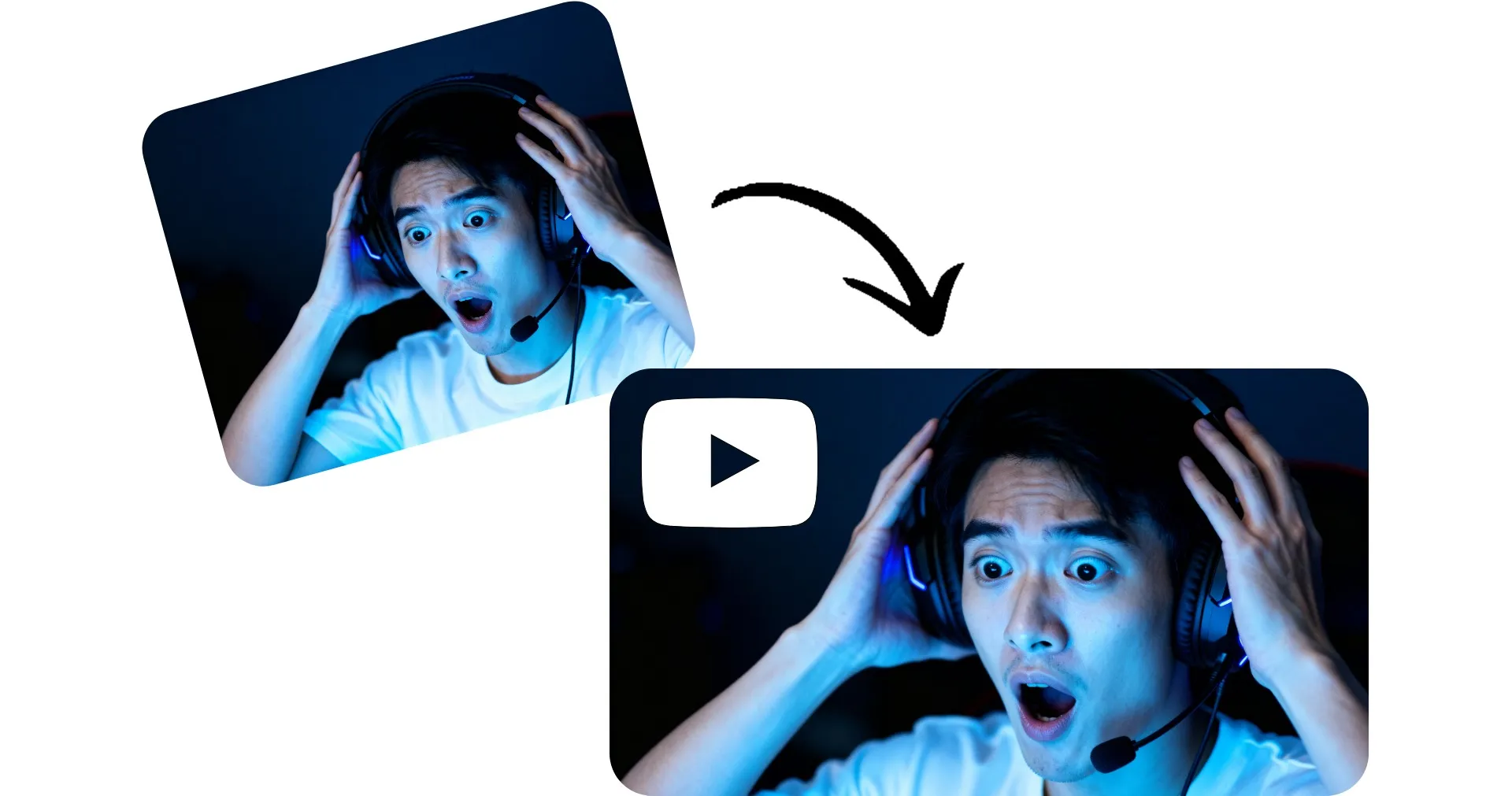
Resize thumbnails to 16:9 in seconds — for free

Edit and resize for YouTube with an online tool

Automatic resizing, no math required

No need to calculate aspect ratios: Kapwing's Resize YouTube Thumbnail tool automatically resizes any image to use as a polished 16:9 thumbnail.


Upload your image, then choose your resizing style. Crop your image to fit YouTube's preferred aspect ratio, or preserve the entire image by adding a blurred or solid color background.


Then download your YouTube-ready thumbnail in high resolution.
Resize YouTube Thumbnail
resize_thumbnail_for_youtube_man_framing_face_V1.jpg

Create and resize thumbnails in one online studio

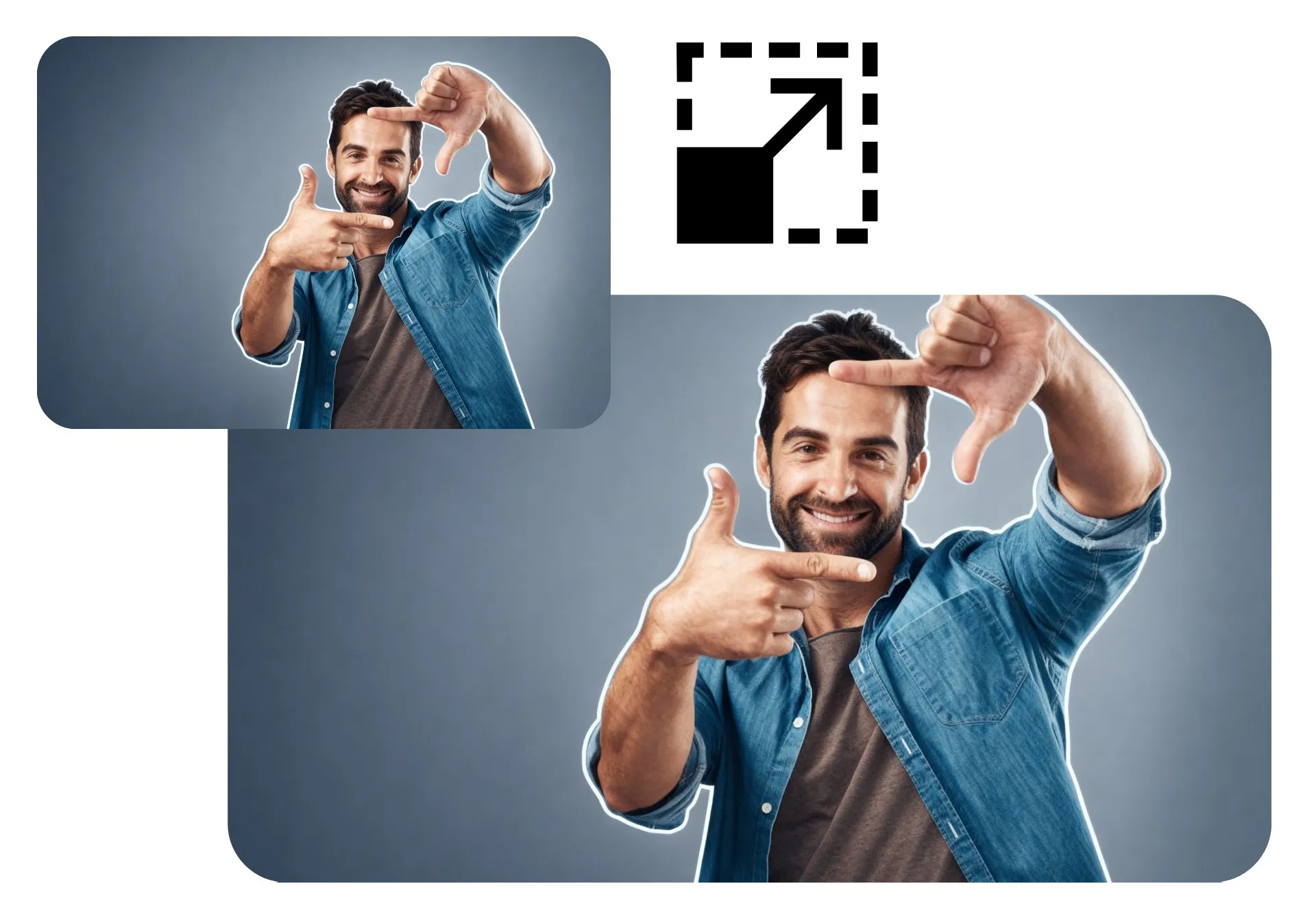
The YouTube thumbnail resizer is built into a full image editing studio, so you can take your thumbnails from raw image to attention-grabbing content without leaving your browser.


Stop the scroll and build your audience with customized text overlays and stickers. Highlight your subject with smart outlines. Apply filters, add borders, and automatically remove or blur the background.

Upload Image
Kapwing image editing studio
Real teams creating on Kapwing

Already transforming video creation across industries

Hear directly from the teams who publish faster, collaborate better, and stay ahead.

It just works!
Kapwing is incredibly intuitive. Many of our marketers were able to get on the platform and use it right away with little to no instruction. No need for downloads or installations - it just works.
Headshot of Eunice Park
Eunice Park
Studio Production Manager at Formlabs
With Kapwing, we're always ready to create.
Kapwing is an essential tool that we use in MOXIE Nashville every day. As a social media agency owner, there's a variety of video needs that my clients have. From adding subtitles to resizing videos for various platforms, Kapwing makes it possible for us to create incredible content that consistently exceeds client expectations. With Kapwing, we're always ready to create - from anywhere!
Headshot of Vannesia Darby
Vannesia Darby
CEO at MOXIE Nashville
Spend less time learning... and more time crafting stories.
Kapwing helps you spend less time learning complex video editing platforms and more time crafting stories that will connect with your audience and customers. We've used the platform to help create engaging social media clips from our clients' podcasts and we can't wait to see how the platform simplifies this process going forward. If you've learned graphic design with Canva, you can learn video editing with Kapwing.
Headshot of Grant Taleck
Grant Taleck
Co-Founder at AuthentIQMarketing.com
It keeps getting better!
Kapwing is probably the most important tool for me and my team. It’s always there to meet our everyday needs in creating scroll-stopping and engaging videos for us and our clients. Kapwing is smart, fast, easy to use and full of features that are exactly what we need to make our workflow faster and more effective. We love it more each day and it keeps getting better.
Headshot of Panos Papagapiou
Panos Papagapiou
Managing Partner at EPATHLON
By the far the most user friendly software to use.
As a housewife at home looking to start a YouTube channel for fun with absolutely zero editing experience, it was so easy for me to teach myself via their YouTube channel. It takes the tediousness out of editing and encourages creativity. As long as Kapwing is around, I will be using their software.
Headshot of Kerry-lee Farla
Kerry-lee Farla
Youtuber
Kapwing is my secret weapon!
This is one of the most powerful, yet inexpensive and easy-to-use video editing software I've found. I blow my team away with how fast and efficiently I can edit and turnaround video projects.
Headshot of Gracie Peng
Gracie Peng
Director of Content
Kapwing is king.
When I use this software, I feel all sorts of creative juices flowing because of how jam-packed with features the software really is. A very well-made product that will keep you enticed for hours.
Headshot of Martin James
Martin James
Video Editor
Love this site.
As an English Foreign Language Teacher, this site helps me to quickly subtitle interesting videos that I can use in class. The students love the videos, and the subtitles really help them to learn new vocabulary as well as better understand and follow the video.
Headshot of Heidi Rae
Heidi Rae
Education
Excellent subtitling features
[It] works perfectly for me. Have been using Kapwing for a year or so, and their automatic subtitle tool gets better and better every week, it's rare that I have to correct a word. Keep up the good work!
Headshot of Natasha Ball
Natasha Ball
Consultant
Best online video service ever. And a miracle for deaf people.
[Subtitler] is able to autogenerate subtitles for video in almost any language. I'm deaf (or almost deaf, to be correct) and thanks to Kapwing I'm now able understand and react on videos from my friends :)
Headshot of Mitch Rawlings
Mitch Rawlings
Information Services Freelancer
This tool should be in every social media account managers' bookmark list.
I use this daily to help with video editing. Even if you're a pro video editor, there is no need to be spending hours trying to get the format correct. Kapwing does the hard work for you.
Headshot of Dina Segovia
Dina Segovia
Virtual Freelance Worker
Step by Step

How to Resize a YouTube Thumbnail
How to Resize a YouTube Thumbnail
  1. Step 1
    Upload image

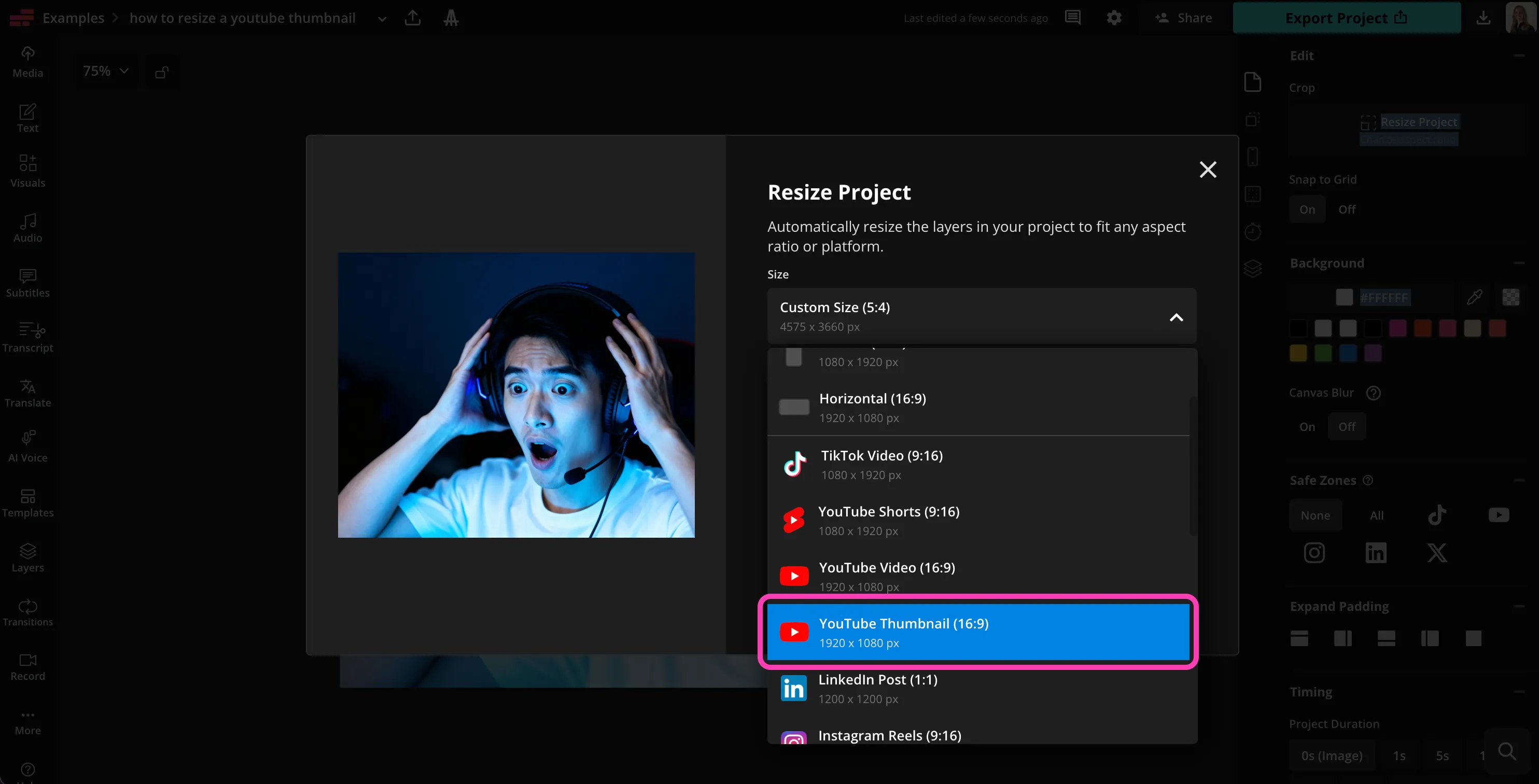
    Create a new project in the Kapwing studio. Click or drag to upload your image.

  2. Step 2
    Resize thumbnail

    Click "Resize Project" at the upper right. Scroll down to "YouTube Thumbnail."

  3. Step 3
    Customize

    Customize crop and background. Then click "Resize Project" to resize your thumbnail.

Thoughtfully Unique

What's different about Kapwing?

Six reasons creators stay in flow: faster edits, smarter tools, and collaboration that actually keeps projects moving.
Easy
Start creating immediately with thousands of templates and copyright free videos, images, music, and GIFs. Repurpose content from the internet by pasting a link.
Easy
Free
Kapwing is completely free to start. Just upload a video and start editing. Supercharge your editing workflow with our powerful online tools.
Free
Collaborative
Quickly review and share feedback with your team using real-time comments in shared workspaces. Save assets to your Brand Kit for easy access.
Collaborative
Online
Kapwing is cloud based, which means your videos are wherever you are. Use it on any device and access your content anywhere in the world.
Online
No spam or ads
We don't serve ads: we're committed to building a quality, trustworthy website. And we will never spam you nor sell your information to anyone.
No spam or ads
AI-Powered
Kapwing uses the latest advanced AI models to power generative AI and one-click editing tools.
AI-Powered
Just the FAQs

Frequently Asked Questions

We have answers to the most common questions that our users ask.

Is the Resize YouTube Thumbnail tool free?

Yes, Kapwing's YouTube thumbnail resizer is free for all users. For access to the full range of video editing tools, including AI-powered tools, upgrade to a Pro account.

Is there a watermark on exports?

If you use Kapwing on a Free account, then all exports — including Resize YouTube Thumbnail — contain a watermark. Once you upgrade to a Pro account, the watermark is completely removed from your creations.

How do I resize a YouTube thumbnail?

If you’re wondering how to resize a YouTube thumbnail, it only takes a few clicks. Upload your image to Kapwing, select “Resize Project,” and choose the YouTube Thumbnail preset. The tool automatically adjusts your image to the correct aspect ratio.

You can then fine-tune the result using options like “Fill and Crop” or “Fit to Center,” making it easy to resize a YouTube thumbnail without stretching or cutting off important details.

What size and aspect ratio should a YouTube thumbnail be?

YouTube thumbnails should use a 16:9 aspect ratio, with recommended dimensions of 1920 x 1080 or 1280 × 720 pixels. Kapwing’s YouTube thumbnail resizer automatically applies these settings, so there’s no need to calculate dimensions manually.

Using the correct size helps ensure your thumbnail displays properly across desktop, mobile, and TV—without unexpected cropping or black bars.

Can I edit my thumbnail after resizing it?

Yes. Kapwing is more than just a photo resizer for YouTube thumbnails; it’s a full online editing studio. After resizing, you can add text, stickers, outlines, filters, borders, and more to make your thumbnail stand out.

You can also remove or blur backgrounds, outline subjects, and customize your design before exporting a YouTube-ready image.

Do I need design experience to use the YouTube thumbnail resizer?

Not at all. Kapwing’s resize image for YouTube thumbnail tool is designed for beginners and experienced creators alike. The presets, automatic resizing, and visual controls make it easy to get professional results. No design or technical background is required.

If you can upload an image, you can resize a YouTube thumbnail in seconds.

Are there different methods of thumbnail resizing?

Yes, Kapwing offers two simple preset resizing options: "Fill and Crop" and "Fit to Center." If you want to crop your image to the right size, removing the edges of the image and allowing it to take up the entire 16:9 space, select "Fill and Crop." If you prefer to maintain every element of your original image, you can use "Fit to Center," then choose to either add a blurred background or choose a solid color to use as the background.


You can also extend your image to the right dimensions with AI.

Resources

Discover Resources

Tips, templates, and deep dives to help you create faster and share with confidence.

View all
Are you ready?
Create something amazing in seconds

Get started with your first video in just a few clicks. Join over 35 million creators who trust Kapwing to create more content in less time.
