YouTube Clip Maker
Upload any YouTube video — automatically extract short clips
.webp)
Tell AI the clips you need — no manual editing required
Create dozens of YouTube highlights in vertical or horizontal format.
Just tell AI the moments to extract.
Turn any YouTube video into dozens of clips
Instantly clip full-length YouTube videos into key highlights in any length you need — from 10 seconds to 3 minutes. Upload a video or paste a YouTube link, then let Kapwing’s AI clip maker handle the editing for you.
The AI automatically transcribes and analyzes your footage to identify standout moments, extracting polished MP4 clips without tedious splits, cuts, or timelines. Just tell the chatbot what you want, using simple text prompts to guide the AI toward specific topics, quotes, or moments that matter most.
Whether you’re a seasoned editor or a complete beginner, repurpose YouTube content faster than ever with ready-to-share highlights in minutes.
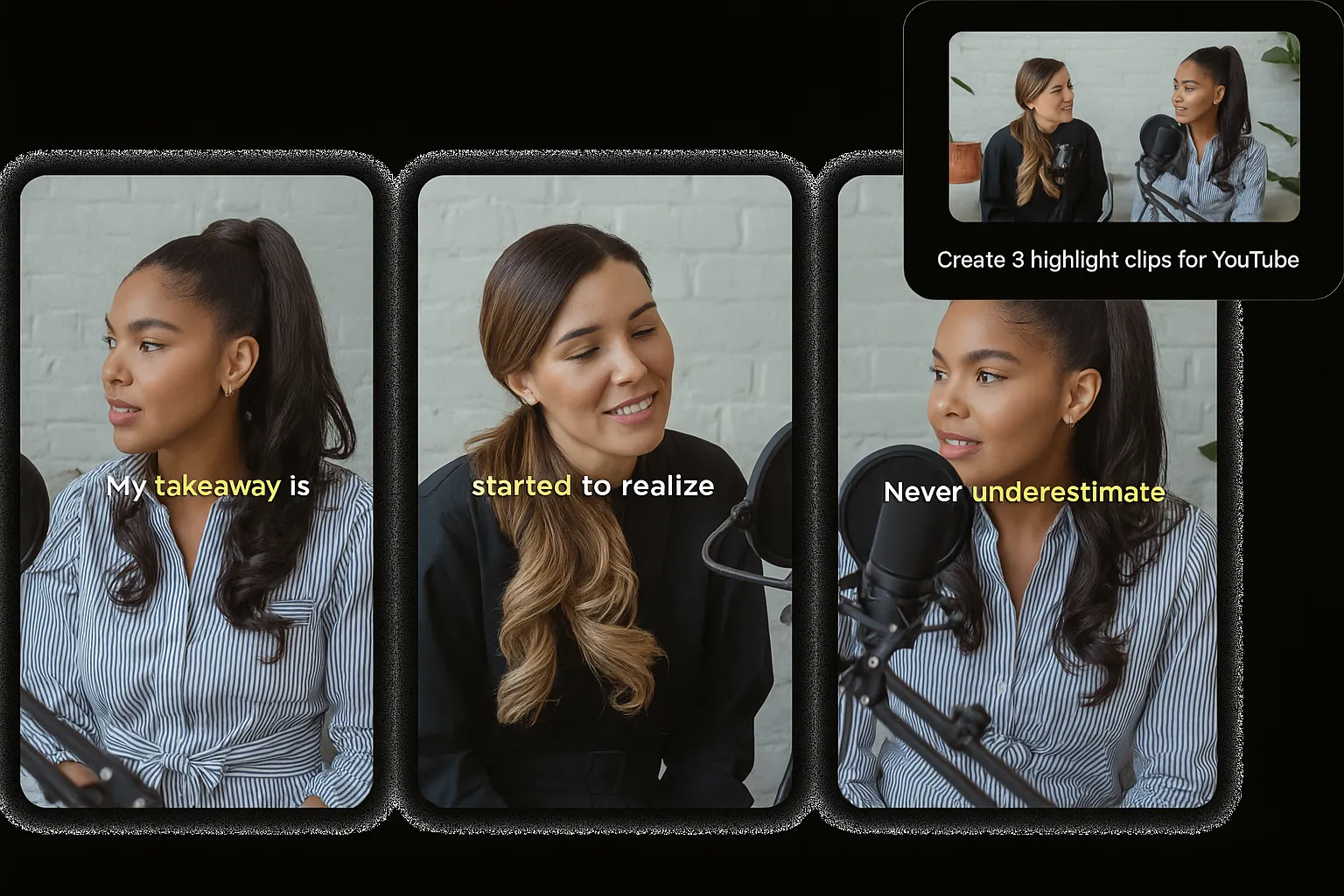
Repurpose YouTube videos for every platform with auto-resizing
Social media managers, influencers, and marketing teams use the YouTube clip maker to grow their social presence without wasting time manually resizing clips.
Simply reference your target platform or use formatting keywords like “9:16” or “16:9” in your prompt to generate perfectly resized clips in minutes.
Kapwing’s AI understands your prompt in depth, finding moments that match your description and turning them into ready-to-share clips — so you can repurpose content across more social channels, faster.
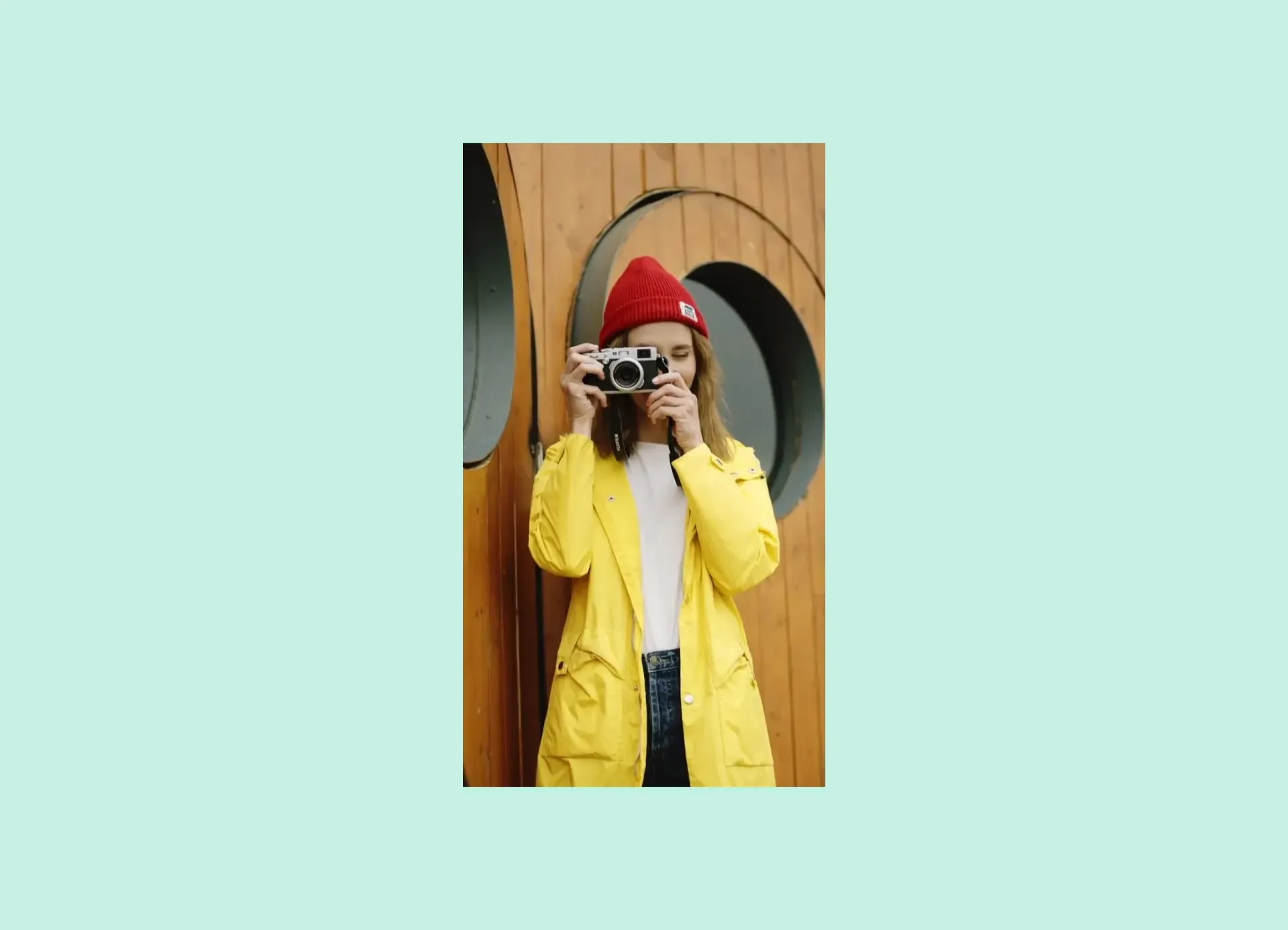
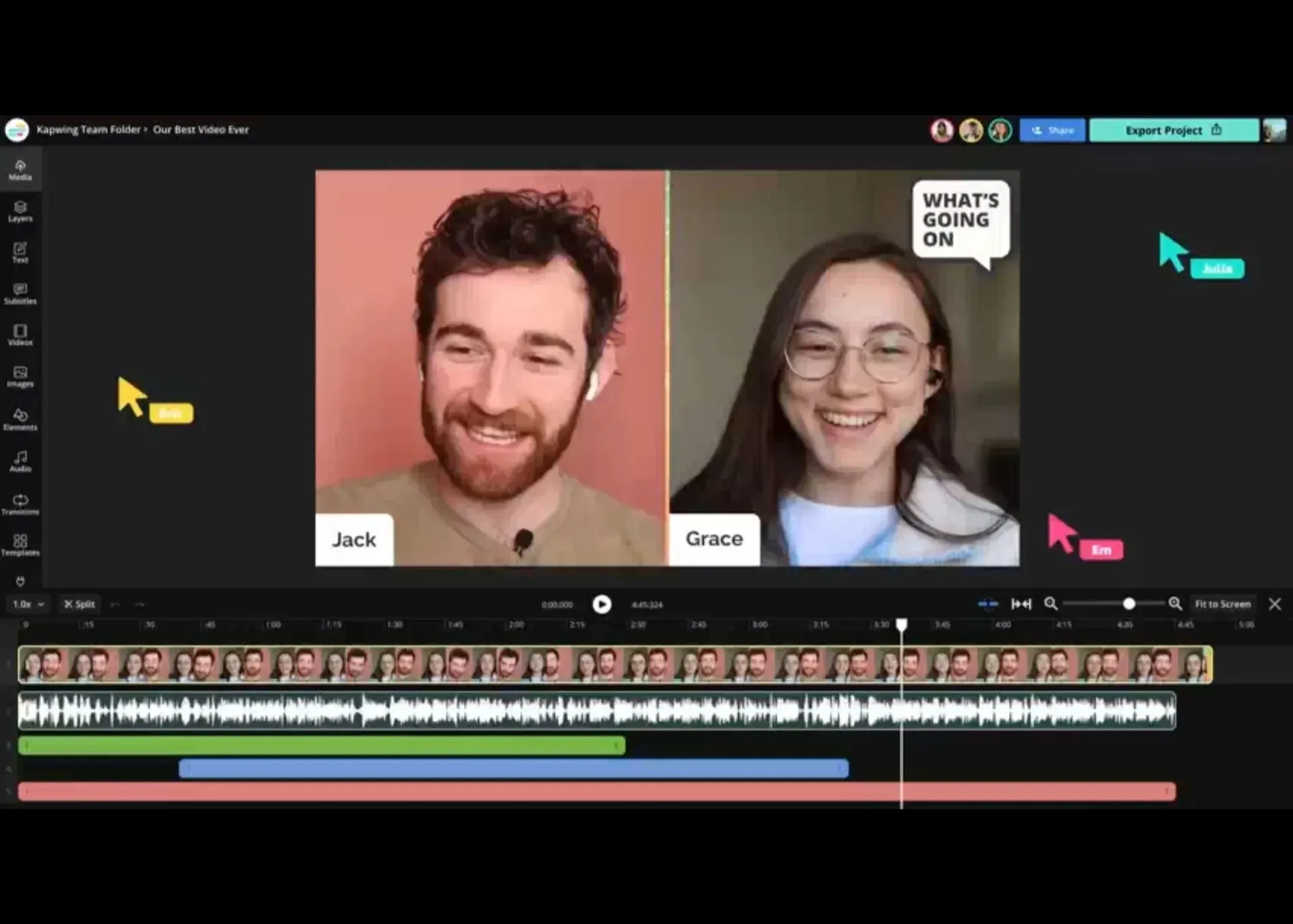
Customize every clip with full editing control
From the moment you upload a YouTube video, you stay in full creative control of the editing process.
Add AI voice overs, customize subtitle styles, adjust timing, and more — everything's fully editable directly in the chatbot. Alternatively, take hands-on control in the editing studio, using hundreds of one-click and drag-and-drop tools, including split and trim.
Paired with a Brand Kit for managing colors, fonts, and design elements, the all-in-one editing suite lets creators find, generate, and refine clips entirely in their browser. No more jumping between multiple apps.
Already transforming video creation across industries
Hear directly from the teams who publish faster, collaborate better, and stay ahead.


Tailor YouTube videos for any platform or audience
See how creators turn one YouTube video into content for TikTok, Instagram, Shorts, and more
.webp)
Instagram Reels
Our YouTube clip cutter maker quickly converts YouTube videos into shareable Instagram Reels, boosting engagement by sharing key takeaways and moments on a new platform
.webp)
TikTok Clips
Influencers clip YouTube videos using AI and convert them to fit perfectly within TikTok's 15-60 second format, using an MP4 format to ensure a smooth upload process
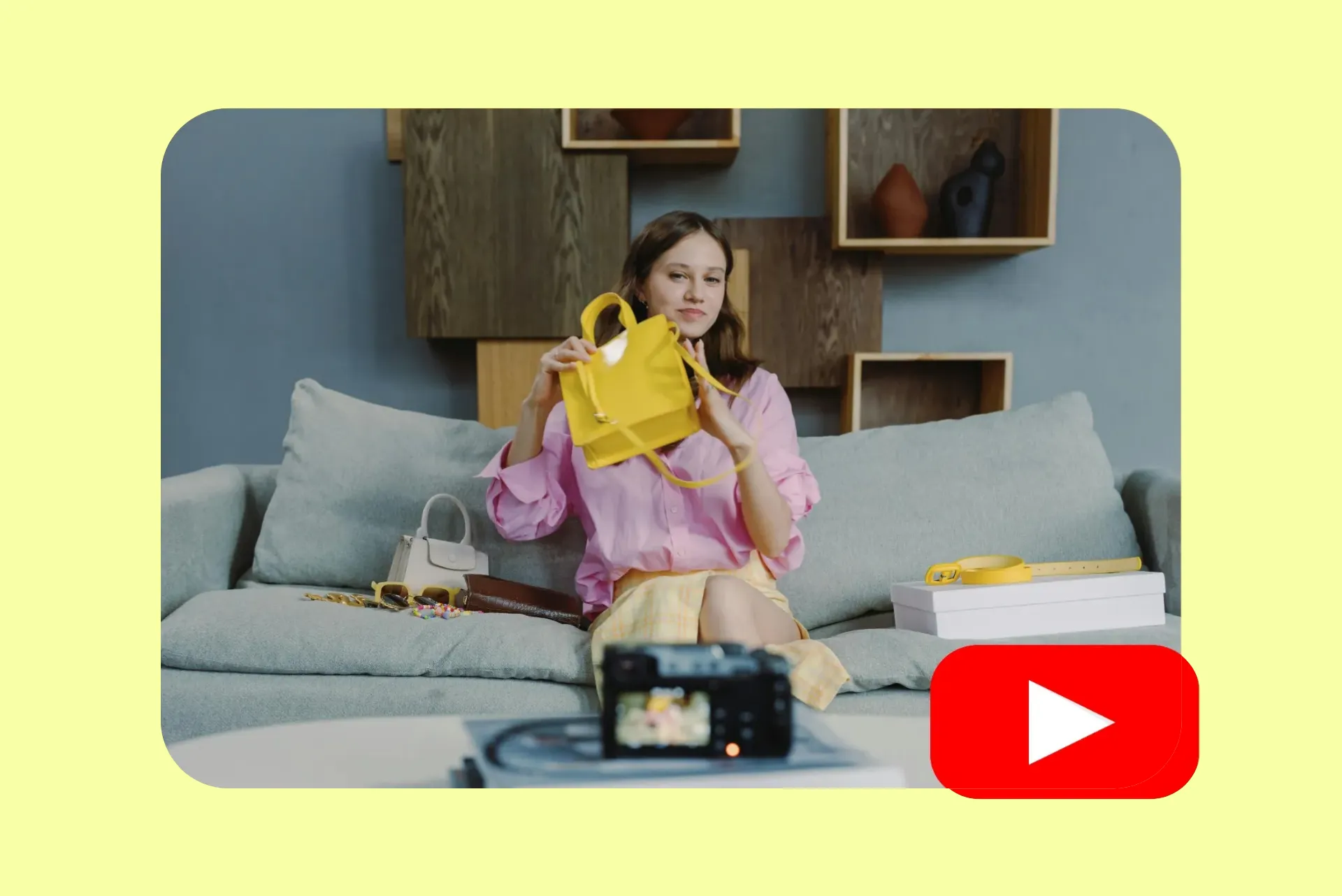
Product Promos
Content marketers use Kapwing's YouTube clip generator to create promotional teasers for upcoming product launches on a range of social media channels
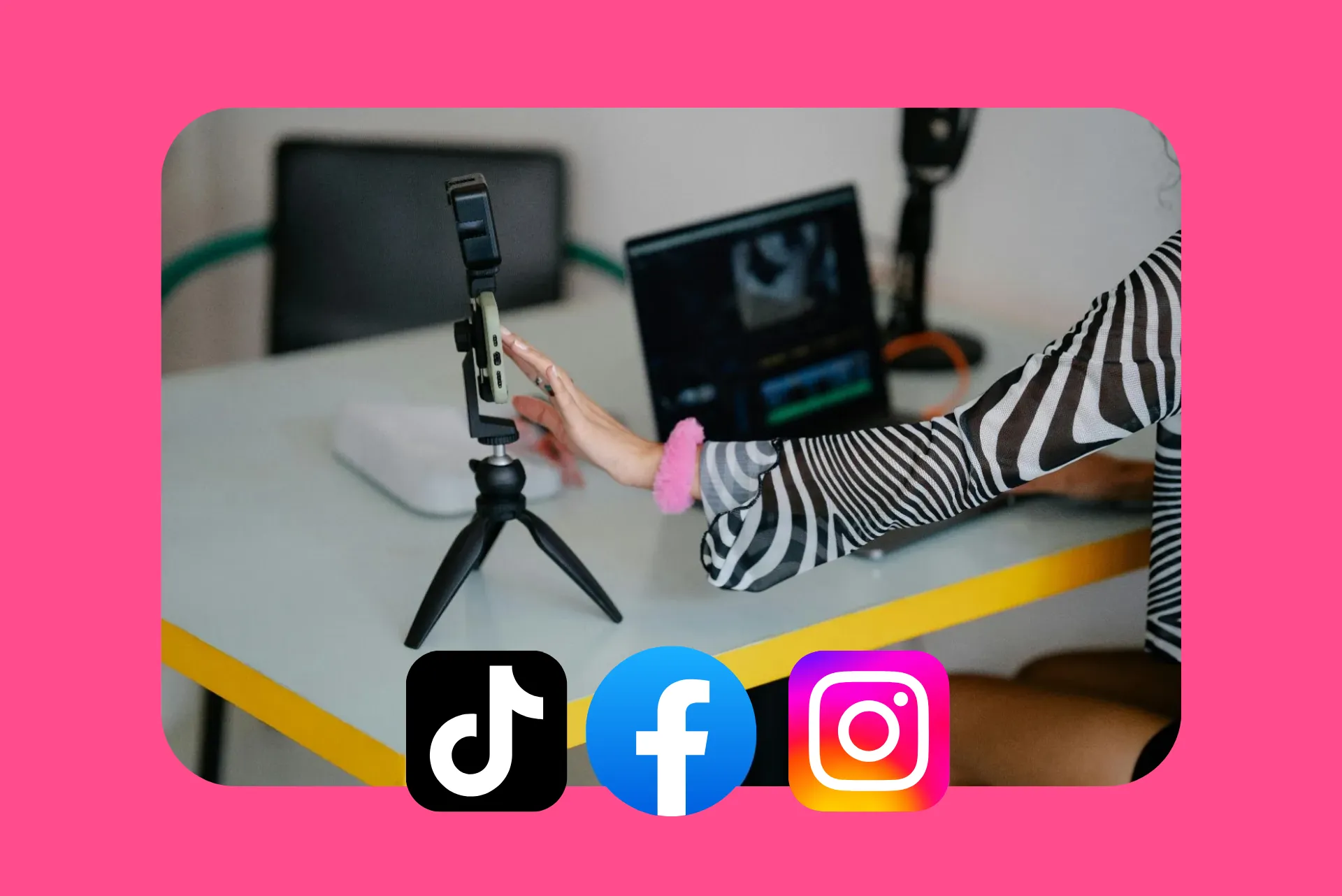
Social Media Ads
Social media managers extract shorts from YouTube videos to tailor advertising to specific audiences on TikTok, Facebook, and Instagram
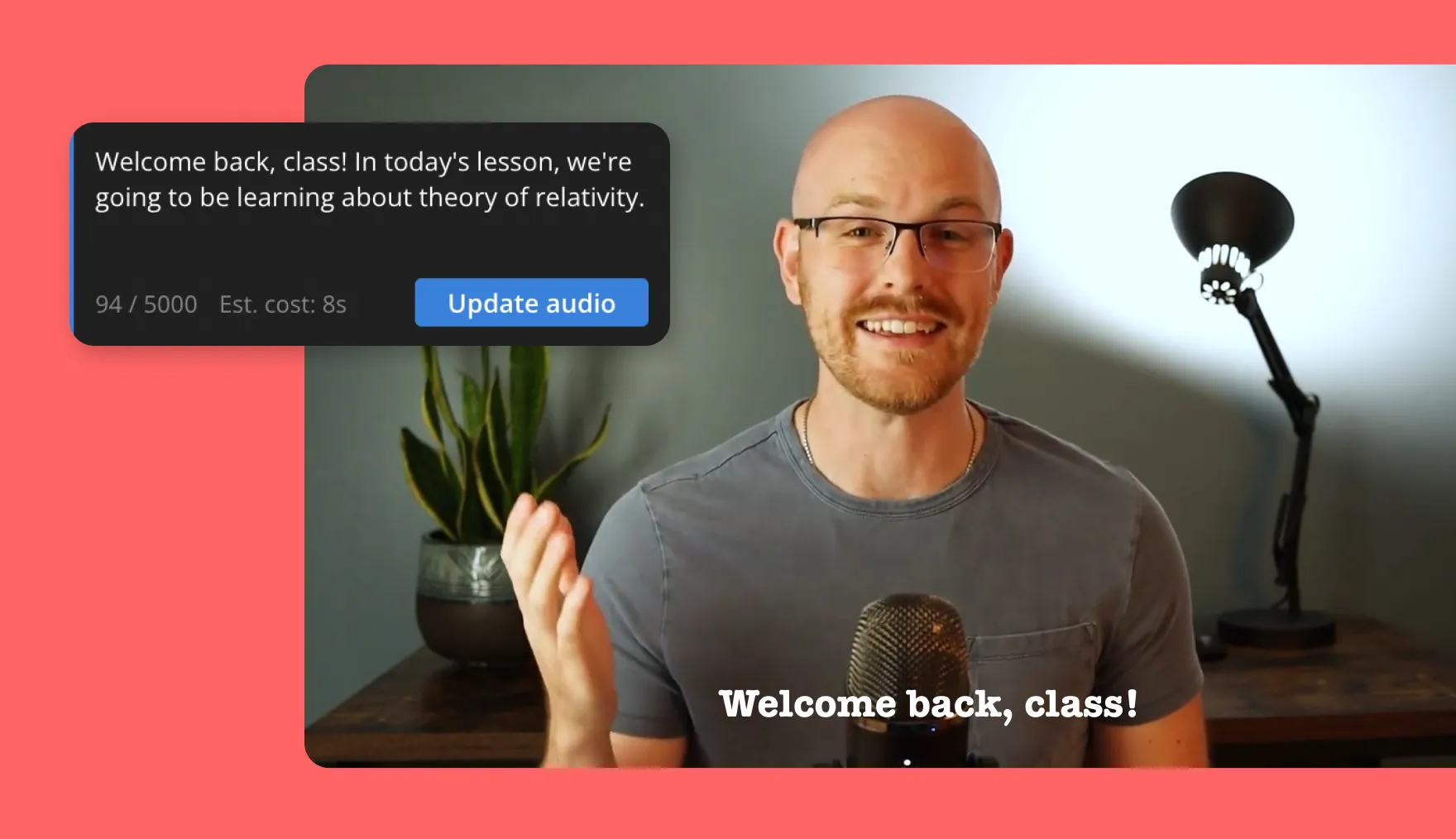
Micro-courses
Educational creators clip YouTube video lectures and webinars into micro-courses that spotlight key concepts, step-by-step tutorials, or answers to frequently asked questions
.webp)
Video Playlists
Our YouTube clip maker helps vloggers extract subject-specific video clips and organize them into thematic playlists so viewers can watch quickly find related content
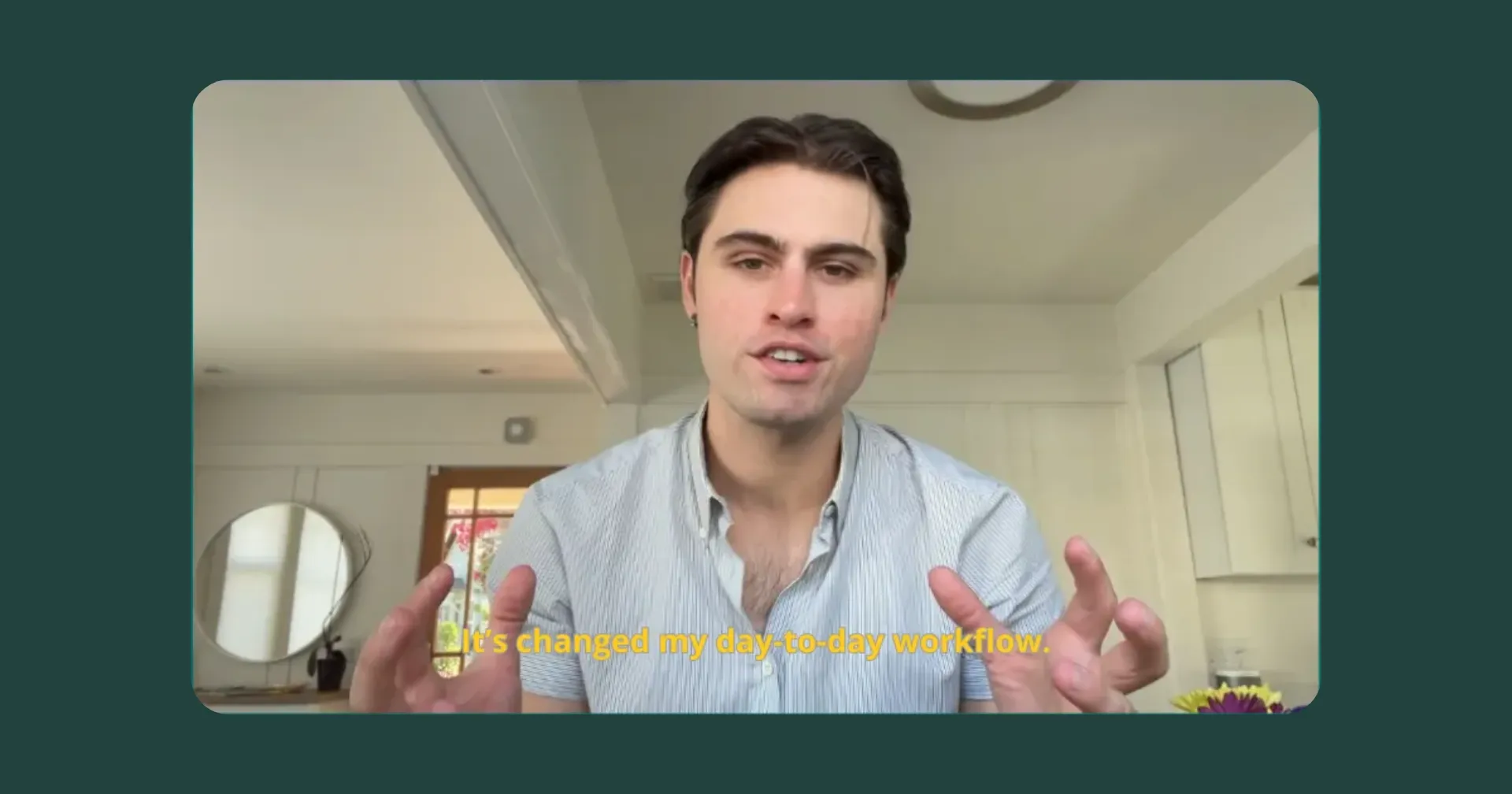
Testimonials
Small business owners clip YouTube videos into short, compelling customer testimonials and skip manual video editing with Kapwing's easy-to-use clip cutter
How to Turn a YouTube Video Into Clips
- Step 1Upload video
Open a new project in Kapwing's YouTube Clip Maker and upload a video or paste a YouTube URL link.
- Step 2Clip the video using AI
Describe the topics you want AI to identify and add further guidance, such as your desired clip length or aspect ratio. Finally, click "Generate".
- Step 3Edit and export
Download the clips or edit them by asking the chatbot to make revisions.
Make every clip more accessible and engaging
Add subtitles, translations, and smart speaker framing automatically
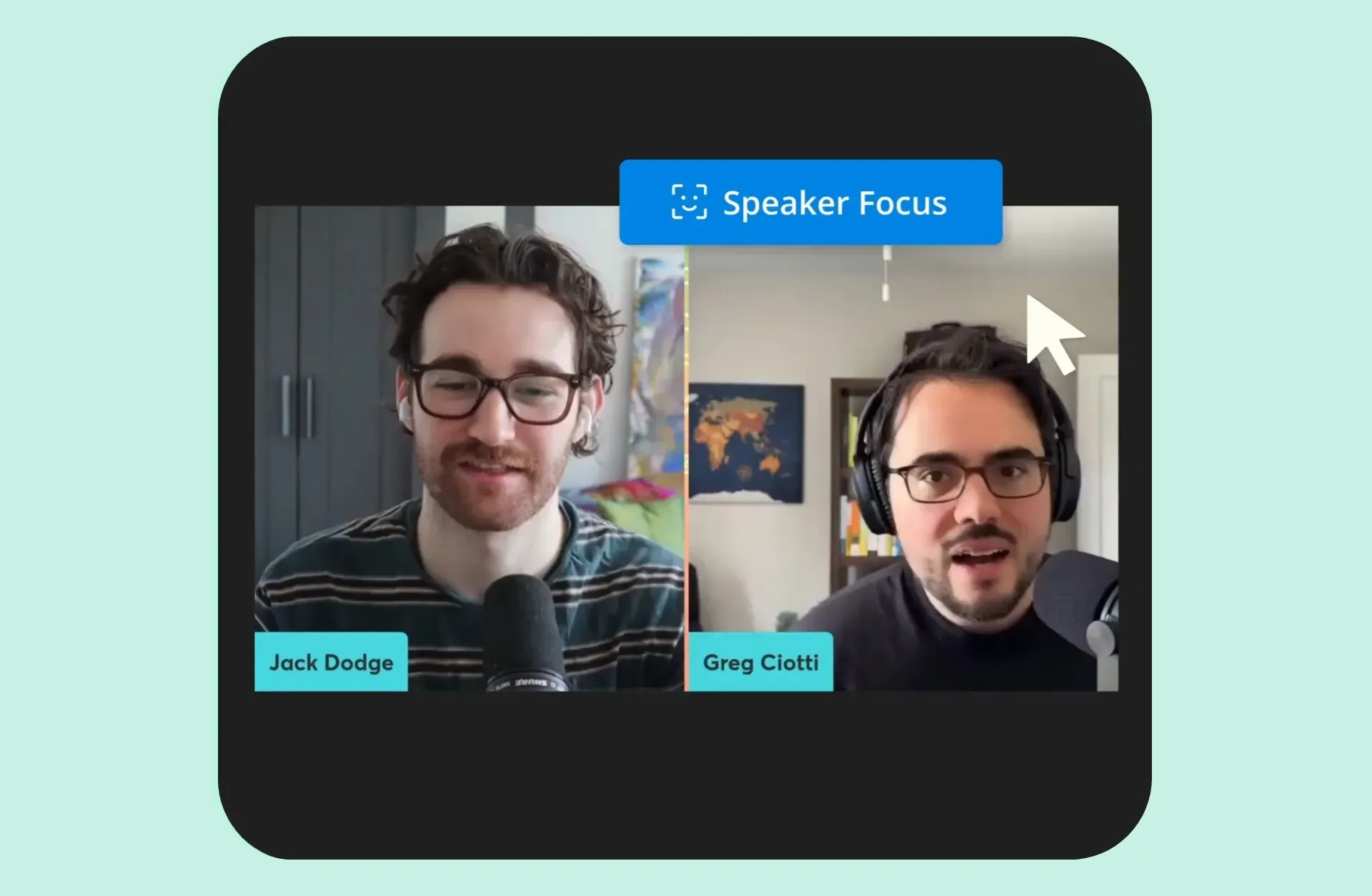
Keep speakers perfectly framed — even when resizing
It can be a hassle to recenter and focus active speakers when resizing video for different platforms. Kapwing's YouTube clip generator uses auto-framing to keep speakers centered and in-frame. With preset sizes for every social channel, you can convert any YouTube clip without worrying about a speaker's picture or position.
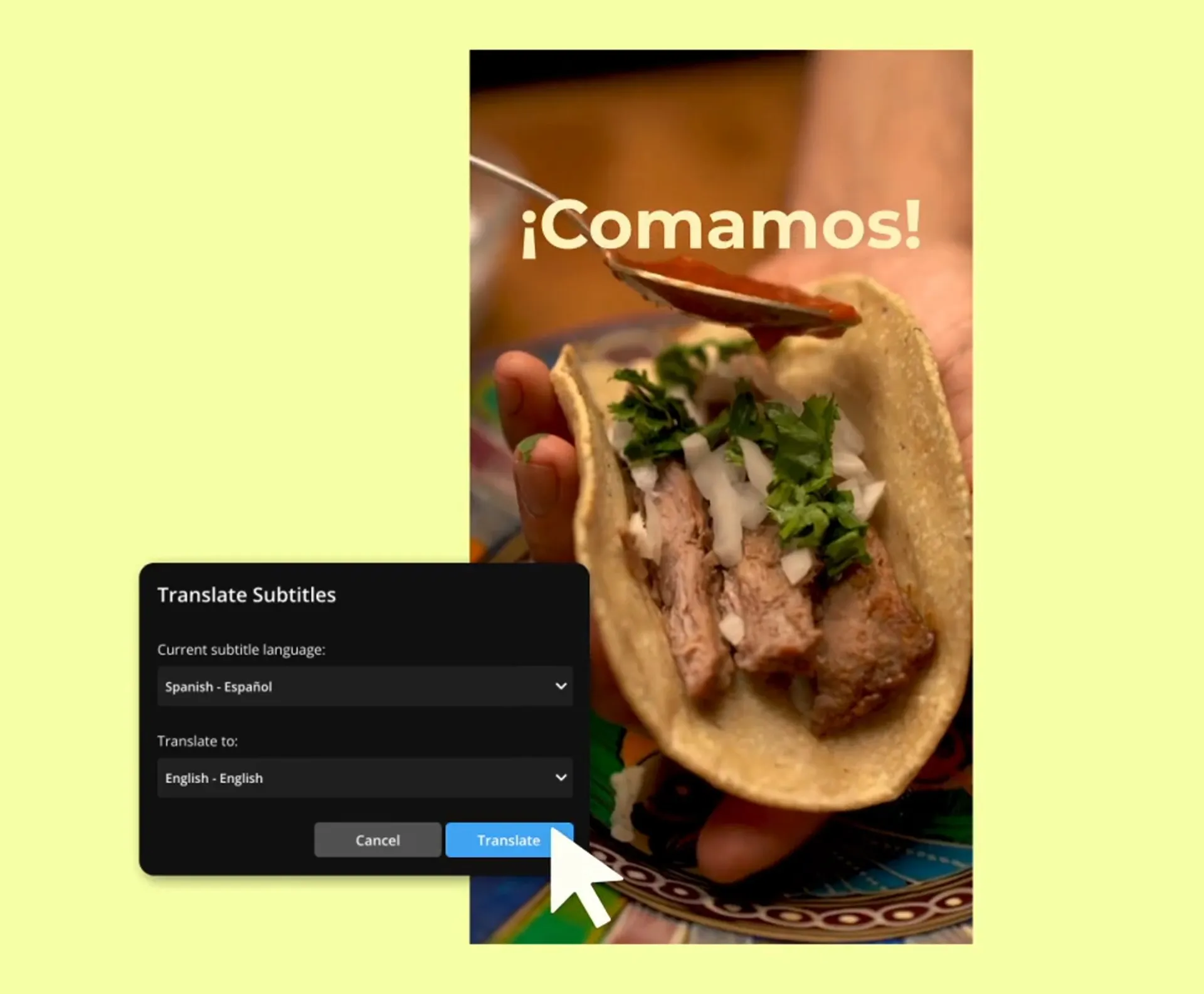
Reach global audiences with subtitles and translations
Connect with people all over the globe by automatically adding accurate Subtitles and Translations to every video. After the YouTube Clip Maker generates your short videos, add subtitles by pressing the "Subtitles" button on the left-hand side bar. Customize with various fonts and text colors, and apply drop shadow.
What's different about Kapwing?



Frequently Asked Questions
We have answers to the most common questions that our users ask.
Is Kapwing's YouTube Clip Maker free?
Yes, Kapwing's YouTube video clipper is free for all users. The free plan includes some limitations to other editor features and applies a small watermark to the final video.
Is there a watermark on exports?
If you are using a Free account then all exports — including from the YouTube Clip Maker — will contain a watermark. Once you upgrade to a Pro account the watermark will be completely removed from your creations.
Why should I extract short clips from a YouTube video?
There are three major reasons to extract short clips from YouTube videos:
- Get More Use Out of Videos: Creating shorter clips helps you get the most out of YouTube videos. Turning one video into multiple clips repurposes full-length content for social media platforms and audiences.
- Increase Engagement & Sharing: Short clips are shared frequently on Instagram, Twitter, and TikTok, where brevity is key. Focused, shortened YouTube clips catch attention and encourage viewers to like, share, and comment.
- Prioritize Mobile Viewing: The majority of people online watch videos on mobile devices, and short clips fit better with fast-paced mobile viewing.
Should I post clips of my videos as YouTube Shorts?
Posting clips of videos as YouTube Shorts is highly recommended. With our YouTube clip maker, you can create and download video clips from sections of video that are past the average view time limit to showcase parts of a video viewers might normally miss. YouTube Shorts are also great for teasing upcoming content or sharing behind-the-scenes moments that don't fit into regular videos.
Can I use Kapwing's YouTube Clip Maker on an iPhone or Android?
Yes, Kapwing's YouTube video clipper works across both desktop and mobile devices.
Should I post long YouTube videos or Shorts?
Deciding whether to post long YouTube videos or Shorts depends on the type of content you create and your target audience. If you're creating short videos that provide tips or insights on a specific subject, opting for Shorts might be the better choice. They load quickly and are easier to watch. On the other hand, if you want to make videos that explore complex topics or feature expert interviews, longer videos typically appear more professional and are likely to attract a larger audience.
What social media platforms are best for short clips?
TikTok, Instagram, and YouTube are all good platforms to post short clips. Most TikTok clips are under 60 seconds — but they can be way shorter, too. Instagram Reels are quick and engaging videos of up to 90 seconds, perfect for lip-syncing videos, cooking and fashion content, and featuring products. YouTube Shorts can be up to three minutes long, and are a great way to provide quick tutorials and tips or share behind-the-scenes footage and sneak peeks of upcoming long-form videos.
What video files is Kapwing compatible with?
Kapwing's YouTube clip cutter works with all popular file types for video (MP4, AVI, MOV, FLV, and more).
How to post YouTube clips on Instagram
Follow these five steps to post YouTube clips on Instagram:
- Upload (or Download) Your YouTube Video: Find your YouTube video file on your device and upload it to Kapwing. Alternatively, you can paste the YouTube URL.
- Highlight Key Moments: Use the YouTube Clip Maker to find the most engaging parts for you that can be repurposed for Instagram.
- Resize for Instagram: Request that the clips be generated in a vertical (9:16) format if you want to create a Reel or Story. If you want to create a feed post, convert your YouTube clip to square (1:1), portrait (4:5), or landscape (16:9) format.
- Customize for Instagram: Use Instagram-specific features like overlays, music, or text to enhance your clip further.
- Upload to Instagram: Post your video directly through the Instagram app, adding a caption, hashtags, and any relevant tags to increase visibility.
How to capture clips from YouTube
Here are three different ways to capture clips from YouTube:
- Use a Screen Recording Tool: A common way to capture clips from YouTube is by using a screen recording tool. For Windows, you can use the built-in Xbox Game Bar. On a Mac, QuickTime Player allows you to record your screen easily.
- Using YouTube’s "Clip" Feature (For Videos that Allow It): YouTube has a built-in "Clip" feature you can use to capture and share a portion of a video directly on the platform. The caveat is that the video creator must enable this feature, so it's not available on any video. To use it, go to the YouTube video you want to clip and click the "Clip" button below the video. You can select the start and end times for the clip you want to share, add a title, and then click "Share Clip."
- Use a Video Editing Tool: If you already have the full video saved or downloaded, you can use an online tool like Kapwing's YouTube Clip Maker to automatically extract key clips for Instagram Reels, Stories, and feed posts. You can further edit your short clips using overlays, customized subtitles, and more.
Discover Resources
Tips, templates, and deep dives to help you create faster and share with confidence.
View all


Get started with your first video in just a few clicks. Join over 35 million creators who trust Kapwing to create more content in less time.